WhatsApp message templates are pre-approved message formats used to open marketing, utility, and authentication conversations with patients. They are the only type of message you can send to contacts who have not messaged you in the last 24 hours, or who have never contacted your practice before. Every template must be approved by Meta before it can be sent, and its status can change over time based on how patients respond. This guide explains the approval process, the most common rejection reasons, how to check a template's status, and best practices for keeping your templates active.
Once you create and submit a template, it goes through Meta's review process. This typically takes up to 24 hours. Here's what happens next:
Approved: The status is set to Active - Quality Pending and you can start sending it immediately.
Rejected: You can edit the template and resubmit, or appeal the decision.
If your template is approved, you can begin sending it to patients right away. If it is rejected, you can edit and resubmit it, or appeal the decision.
When submitting templates, always include sample variable values to show Meta how the template will look when sent to patients. Samples can be added during template creation and help improve approval rates.
Note: Your existing templates from Meta are imported once when you first connect your WhatsApp Business Account to your account. After this initial import, there is no ongoing sync between Meta and your account. Templates created directly in Meta Business Manager after onboarding will not appear, and changes made in Meta will not be reflected automatically. Always create and manage your WhatsApp templates inside your account so they are available to send.
Avoid these mistakes to get your template approved faster. Templates (including those returned with an "Invalid format" error) are most commonly rejected for the following reasons.
Before you submit a template, the builder checks the Header and Body fields for common variable formatting problems. If a supported issue is detected, the affected field is flagged and the template cannot be saved until the problem is corrected. This catches many parameter formatting mistakes early, but it does not replace Meta's review, since Meta can still reject a template for content, policy, or duplication reasons after it is submitted.
Variable parameters are missing or have mismatched curly braces. The correct format is {{1}}.
Variable parameters contain special characters such as #, $, or %.
Variable parameters are not sequential. For example, {{1}}, {{2}}, {{4}} with {{3}} missing.
Too many variable parameters relative to the message length.
The template starts or ends with a parameter. Dangling parameters are not allowed.
Template content violates the WhatsApp Commerce Policy. Prices, fees, product descriptions, and legal disclosures must comply.
Template requests sensitive information such as full payment card numbers or government ID numbers. Partial identifiers, such as the last 4 digits, are acceptable.
Template asks for documents containing sensitive information.
Template contains threatening or abusive content, such as threatening legal action or public shaming.
Template content does not match the category you selected (Marketing, Utility, or Authentication). Make sure your message content aligns with that category, or reclassify the template.
The body component exceeds the allowed character limits. Limits vary by template type and are subject to change by Meta, so check the current limits before submitting.
Excessive use of emojis beyond the allowed number.
The template is a duplicate of an existing one. The same body and footer wording will be automatically rejected.
For detailed guidelines, refer to the official Meta WhatsApp Template Guidelines.
If a template won't save, or comes back with an "Invalid format" error, work through these checks in order:
Check the highlighted field. The builder flags the exact Header or Body field with the problem.
Fix the variable syntax. Use numbered placeholders like {{1}} and {{2}}, remove unsupported characters, and correct missing or extra braces.
Check variable placement. Make sure the Body has regular text before and after every variable, especially at the start and end of the message.
Review the rest of the template. Double check variable sequence, sample values, character limits, category, and any buttons before resubmitting.
Save and resubmit. Once the builder shows no more inline errors, save the template and submit it for Meta's review again.
If you use the built-in Reputation review-request preset to ask patients for reviews over WhatsApp, new templates created from that preset no longer end the message body with a trailing variable, so they automatically meet the body placement rule above. You do not need to manually edit a new Reputation review-request template for that specific issue.
Once a template's status is set to ACTIVE, you can begin sending it to patients. You can send templates at any time, both inside and outside the 24-hour customer service window.
Note: A template's status can change automatically from ACTIVE to PAUSED or DISABLED based on patient feedback and engagement. Monitor status changes regularly and update any templates that are in danger of being paused or disabled.
Templates can have the following statuses. You can view a template's current status by going to WhatsApp > Templates > Status.
Status | What it means |
|---|---|
In Review | Template is under review by Meta. Review takes up to 24 hours. |
Rejected | Template was rejected for violating policies. You can edit and resubmit, or appeal. |
Active - Quality Pending | Approved but no quality feedback yet. Ready to send to patients. |
Active - High Quality | Received little to no negative feedback. Best performing status. |
Active - Medium Quality | Receiving some negative feedback. May soon become paused. Monitor closely. |
Active - Low Quality | Multiple patients gave negative feedback. Still sendable but at risk of being paused. Address issues urgently. |
Paused | Paused due to recurring negative feedback. Cannot be sent until quality improves. |
Disabled | Disabled due to recurring negative feedback. Cannot be sent to patients. |
Appeal Requested | An appeal has been submitted and is being reviewed by Meta. |
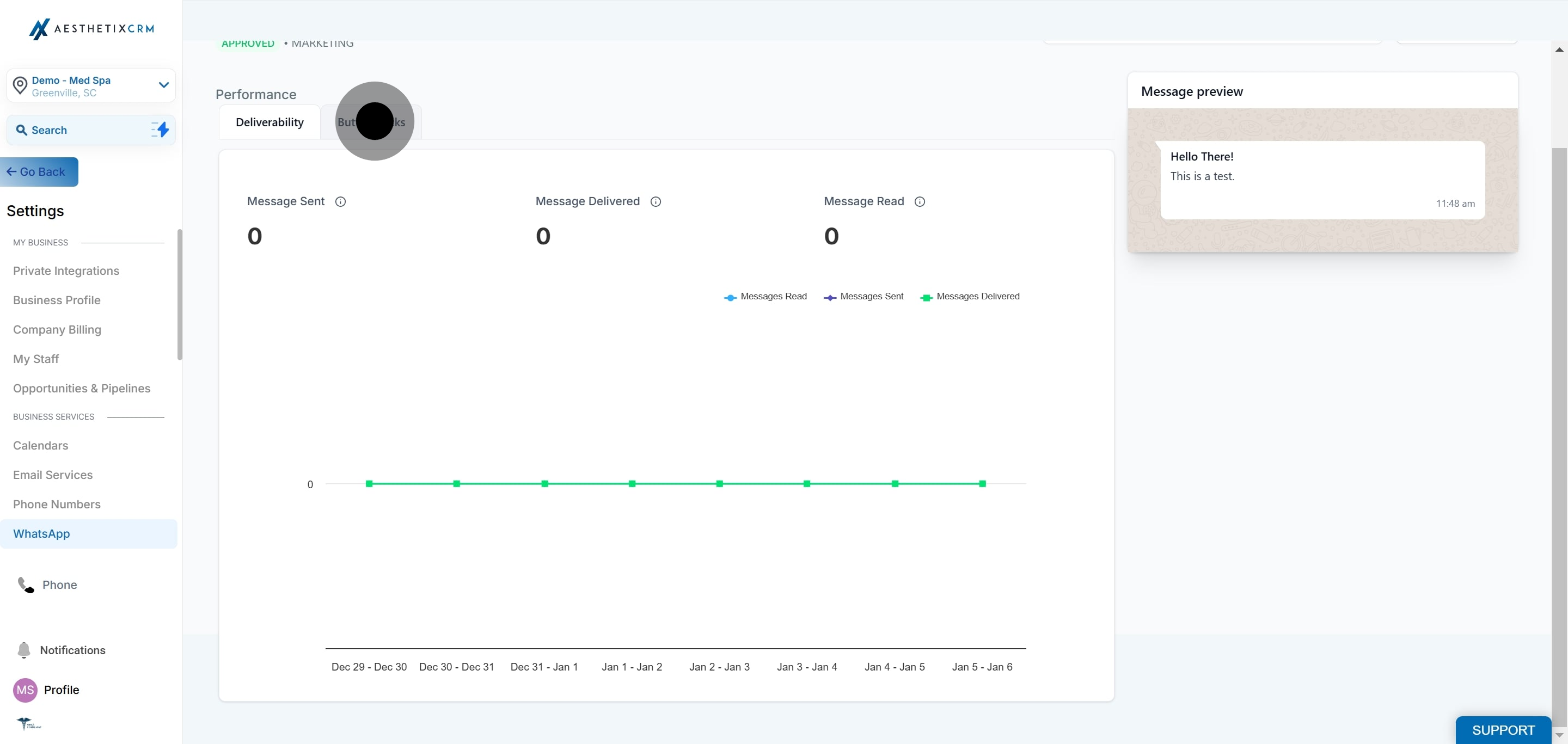
You can review how each template is performing, including its deliverability and button clicks, from the Templates area.
Go to Settings.
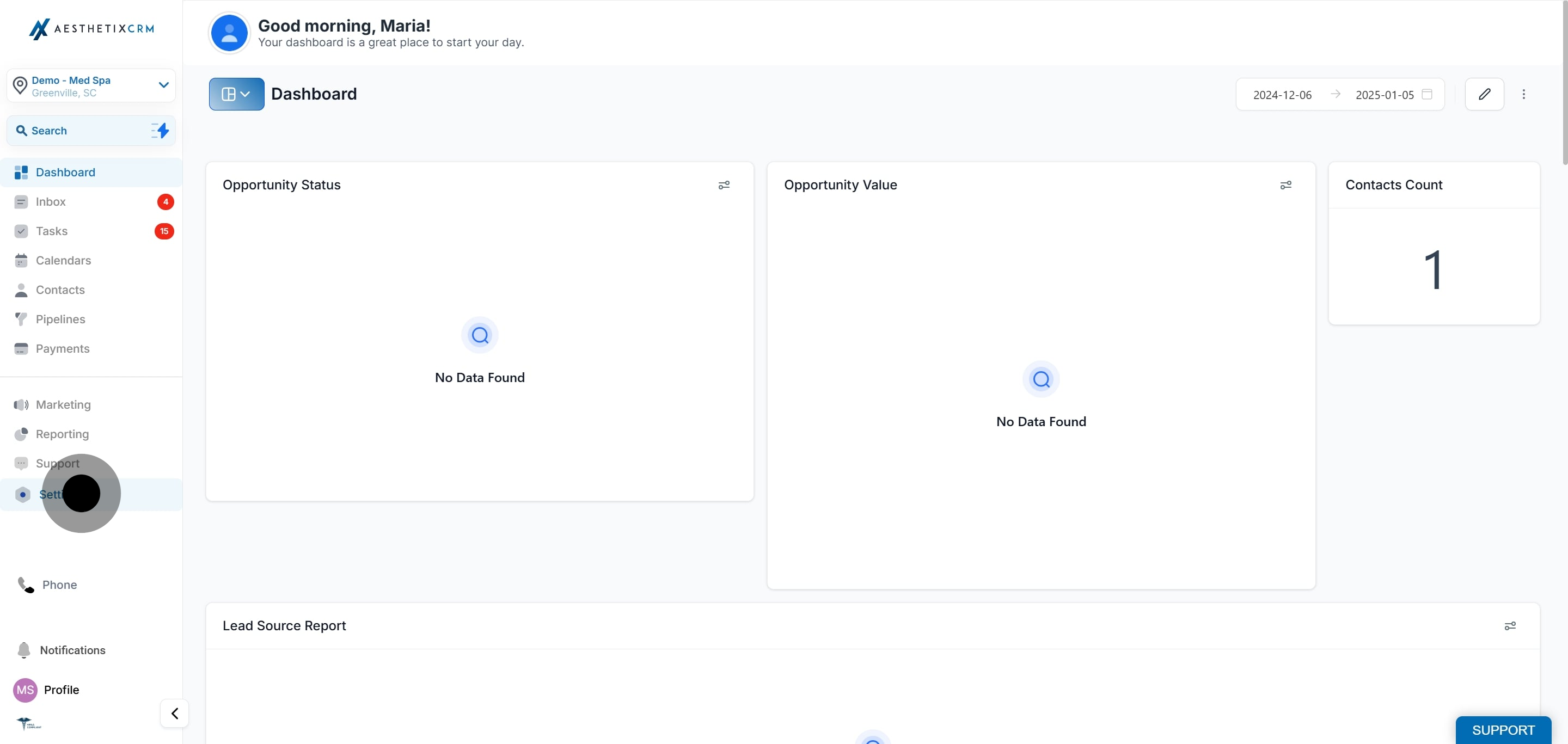
Click on WhatsApp.
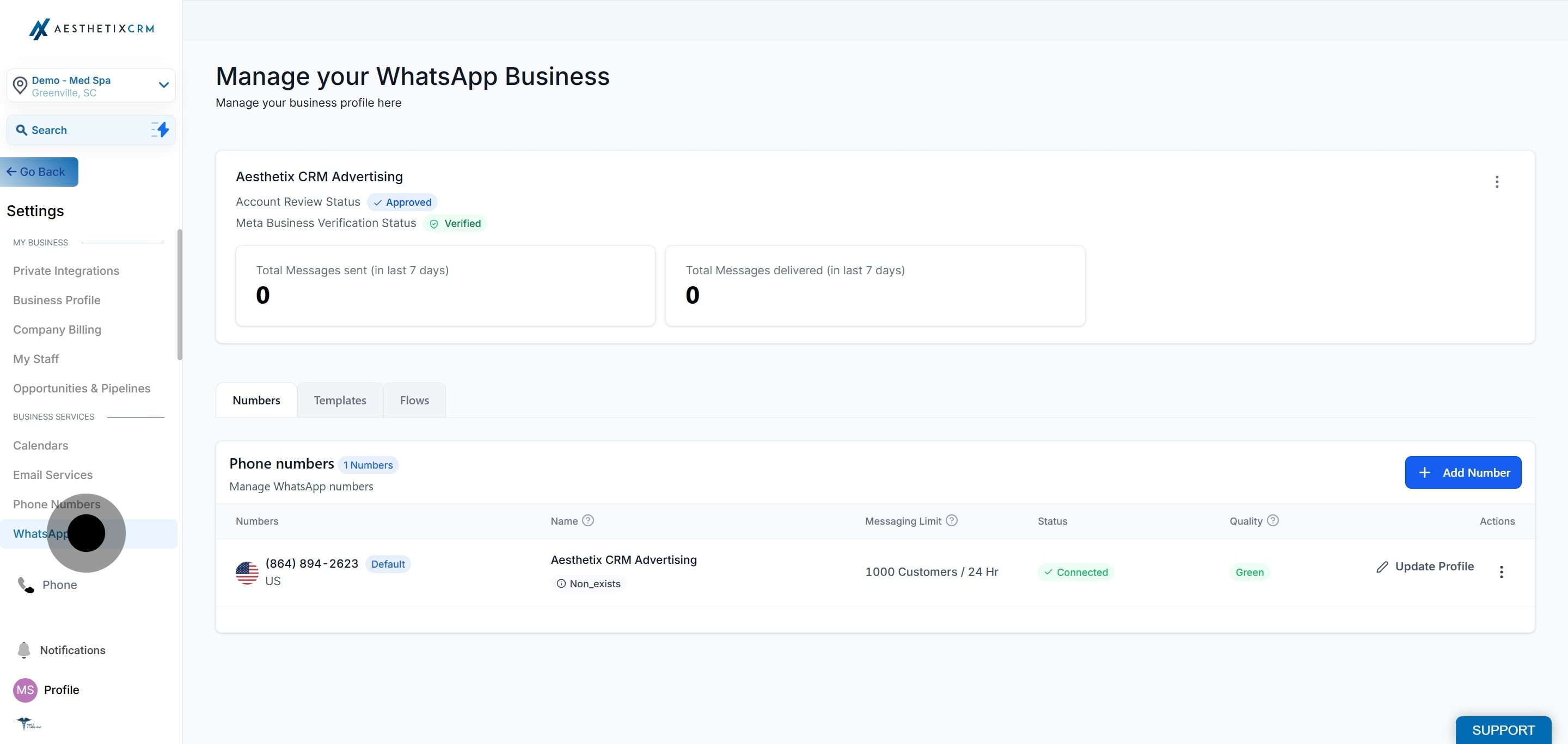
Click on Templates.
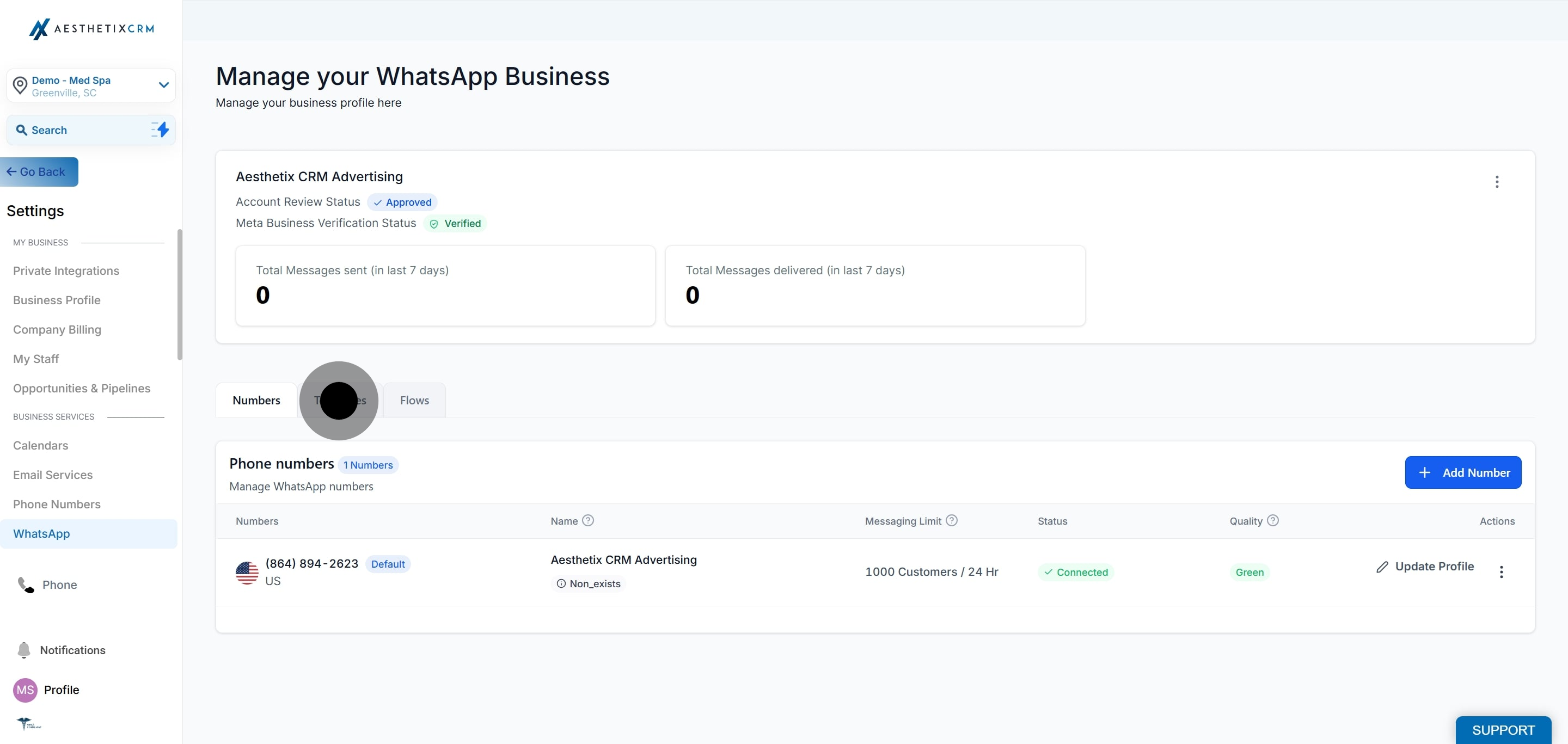
Search for the template and click on Reports.
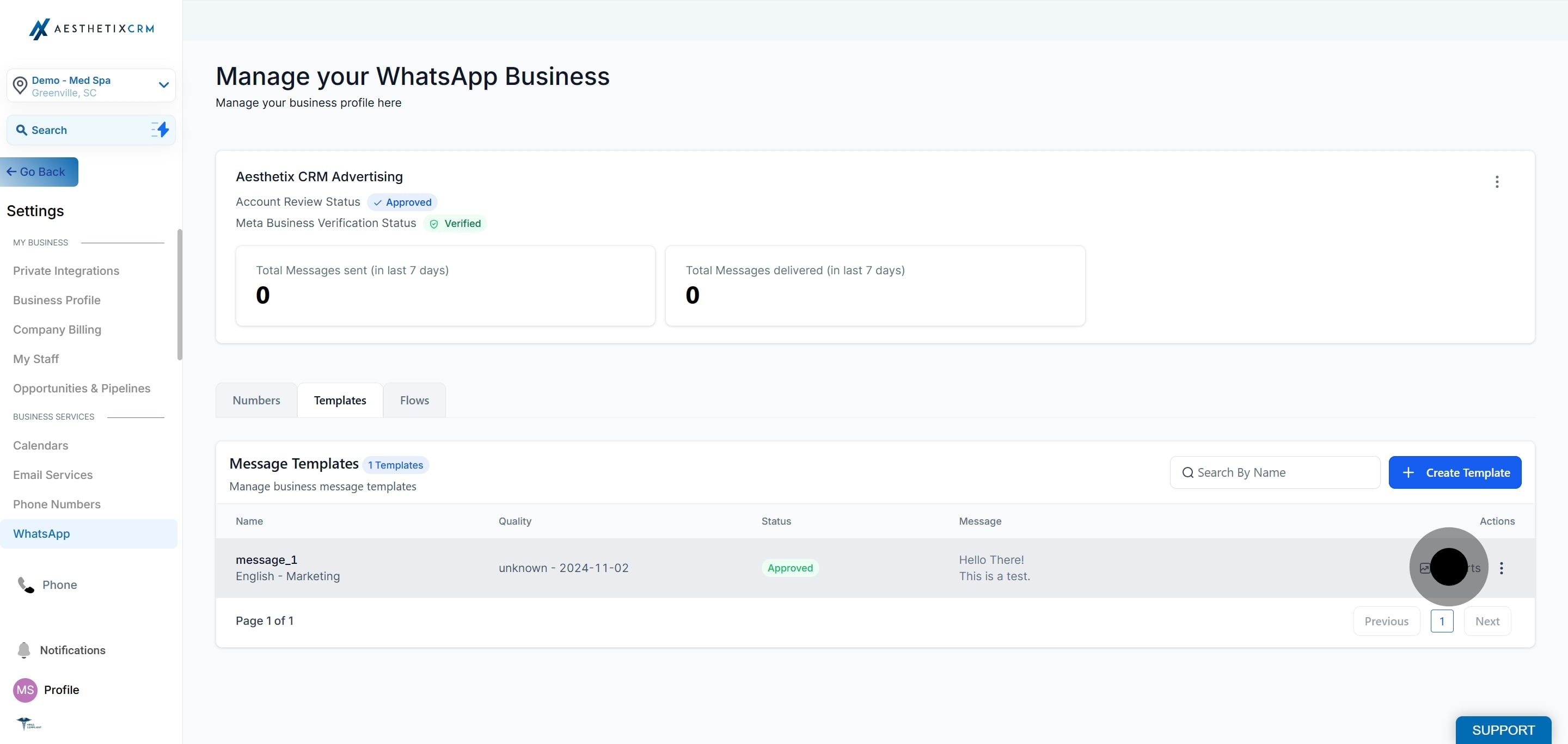
Click on Deliverability.
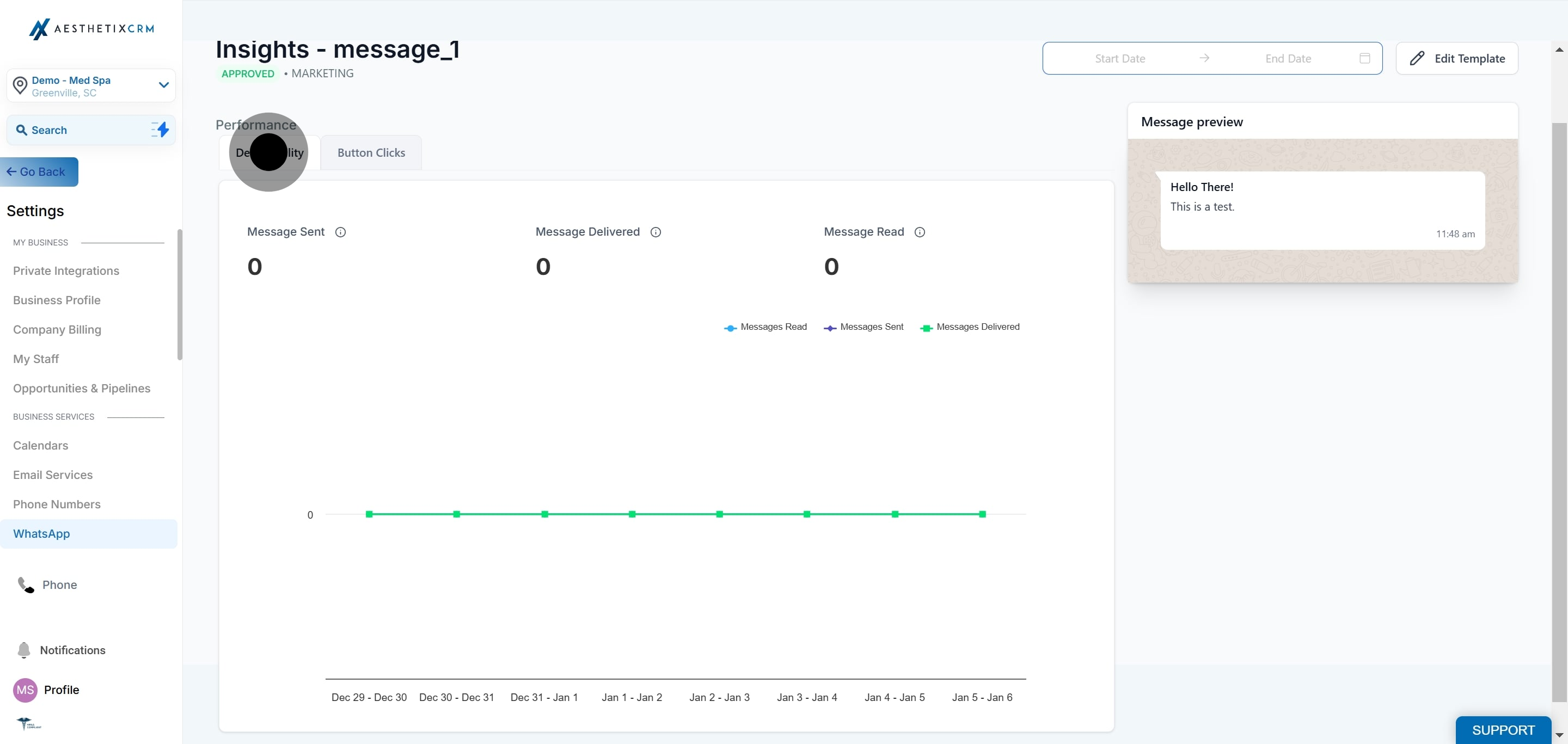
Select a Start Date and End Date and click Confirm.
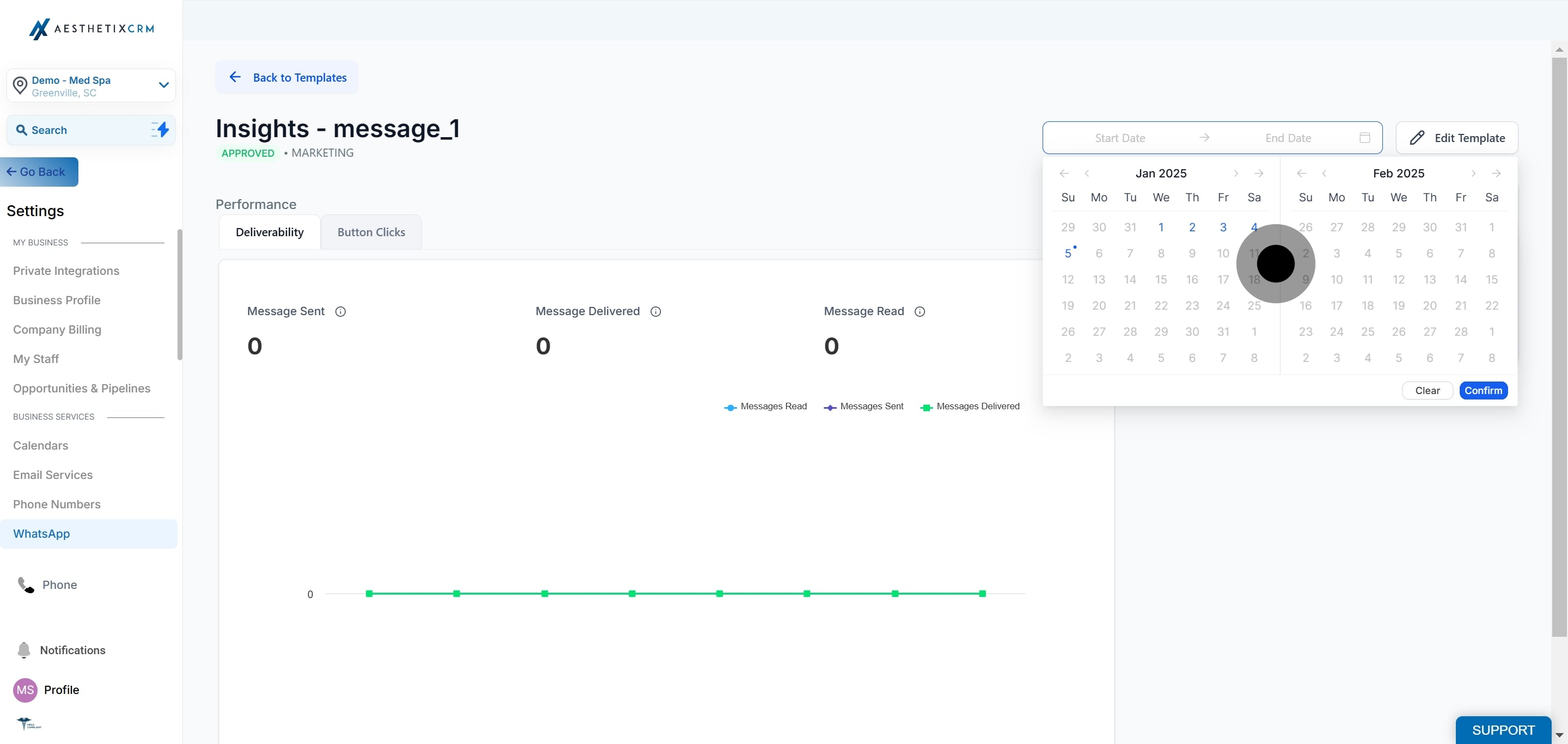
Go to Settings.
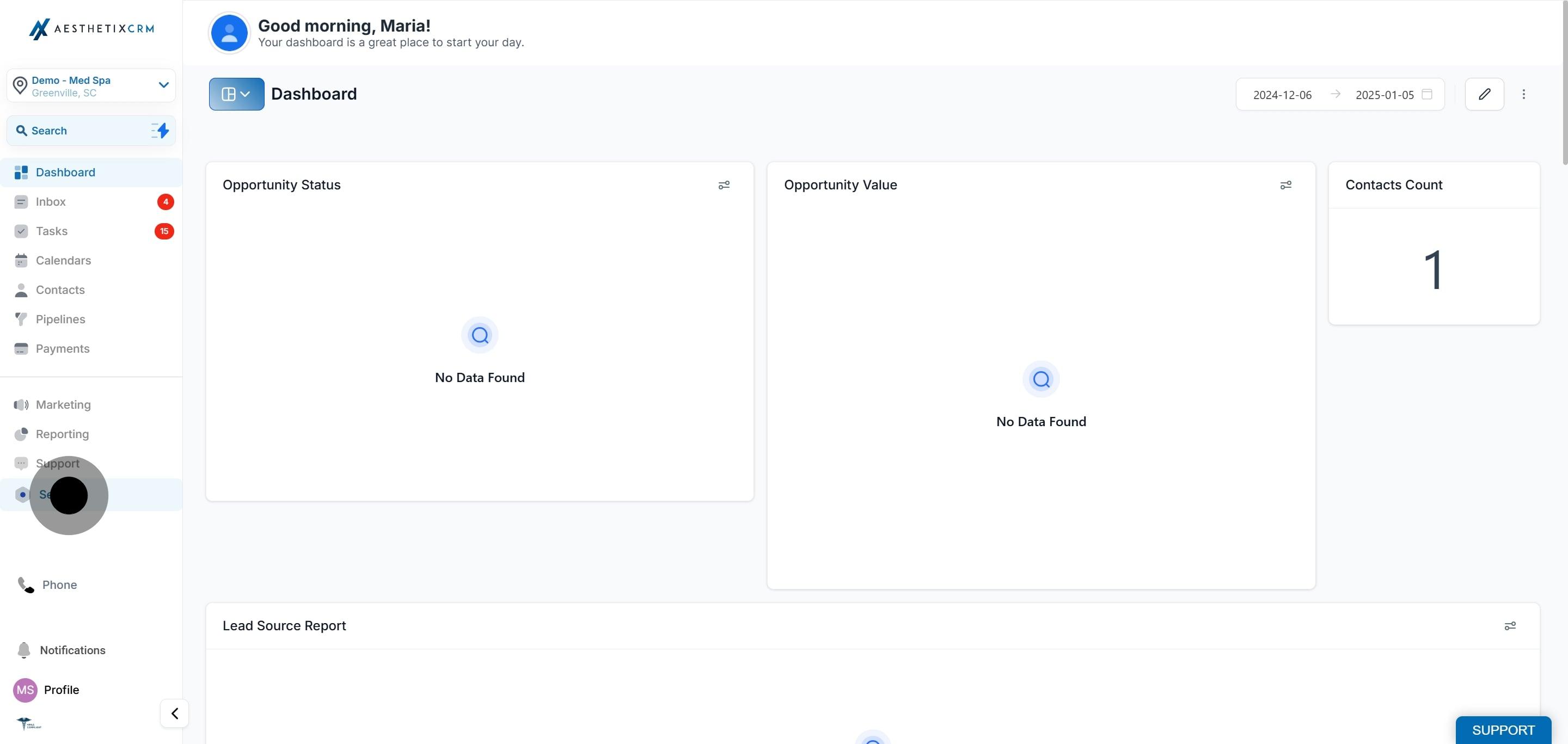
Click on WhatsApp.
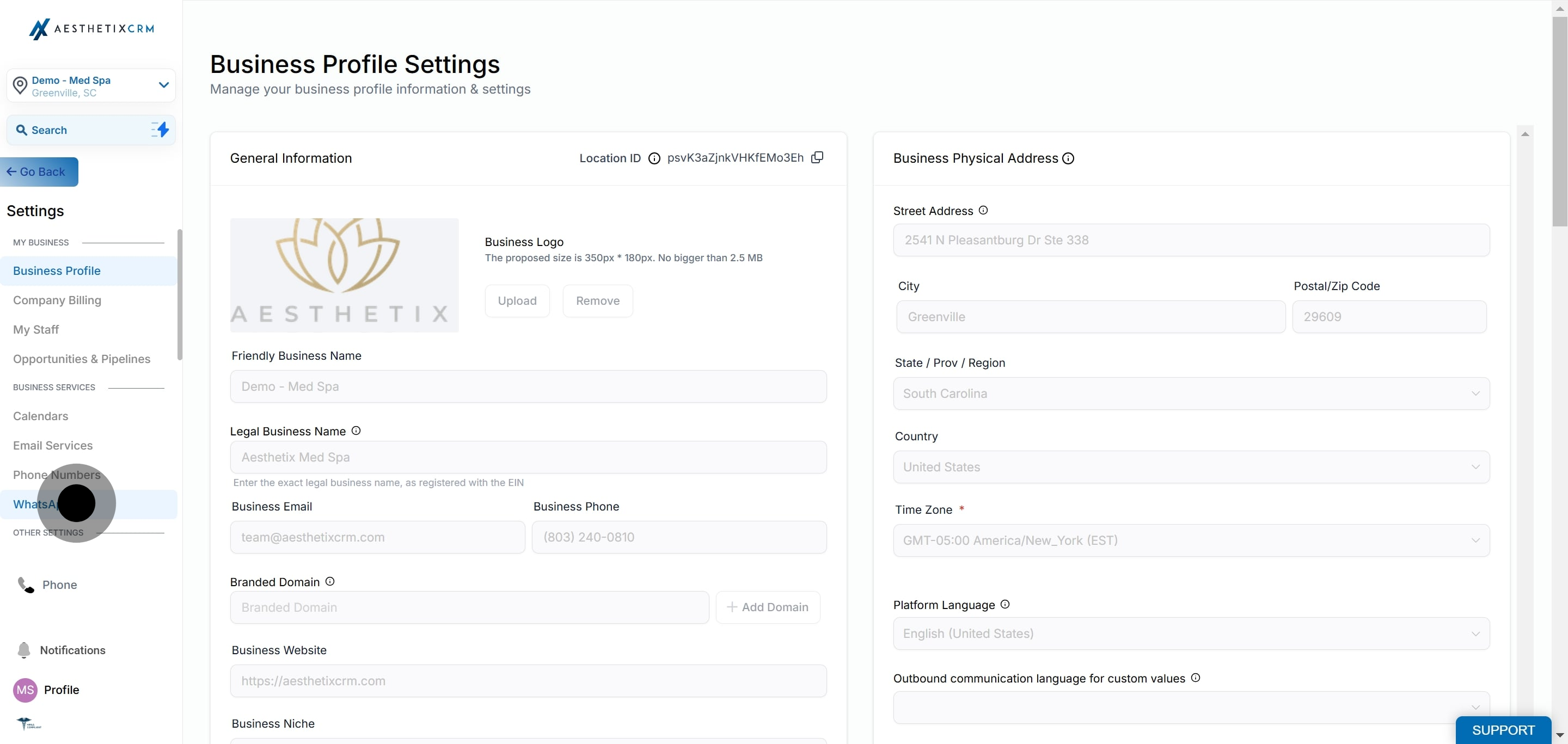
Click on Templates.
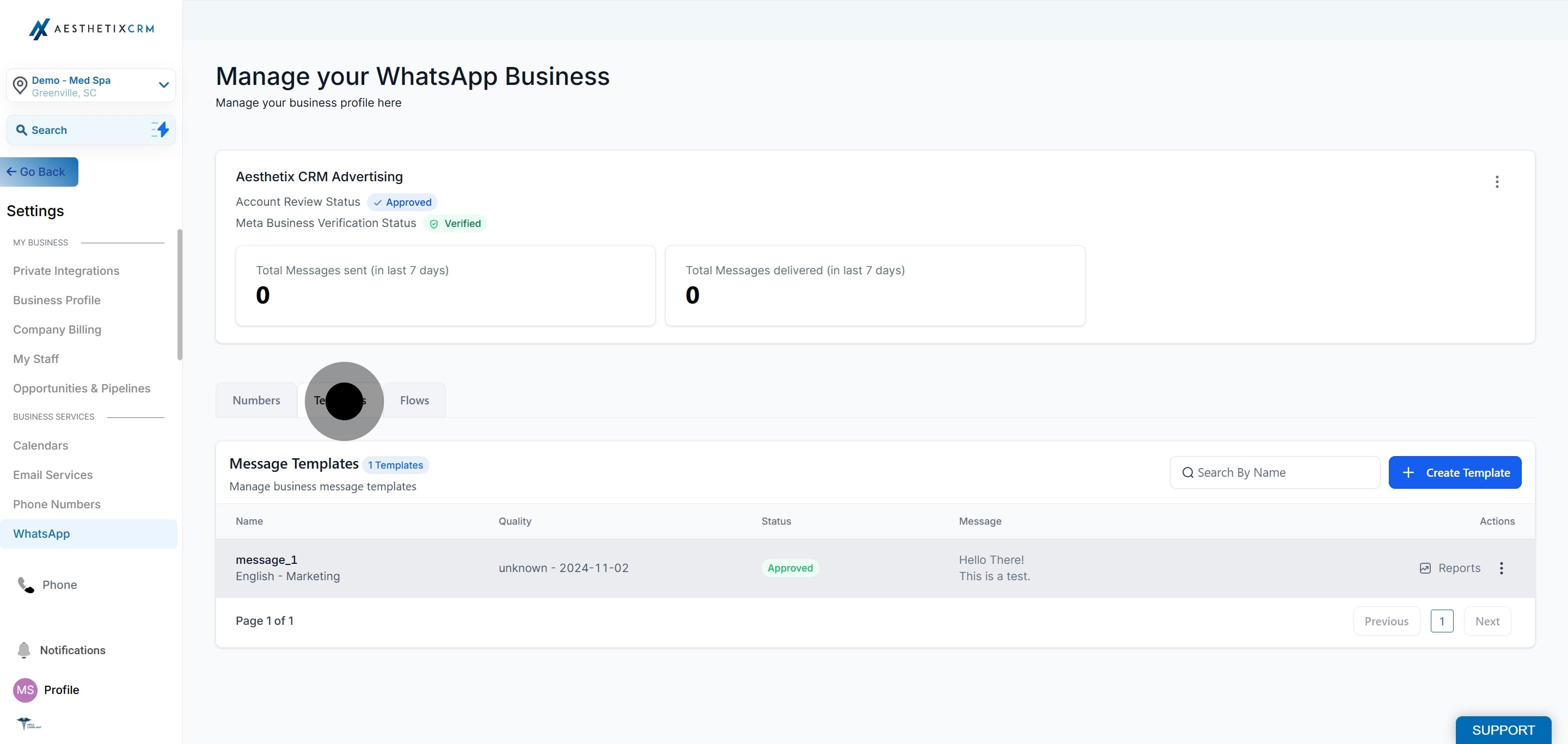
Search for the template and click on Reports.
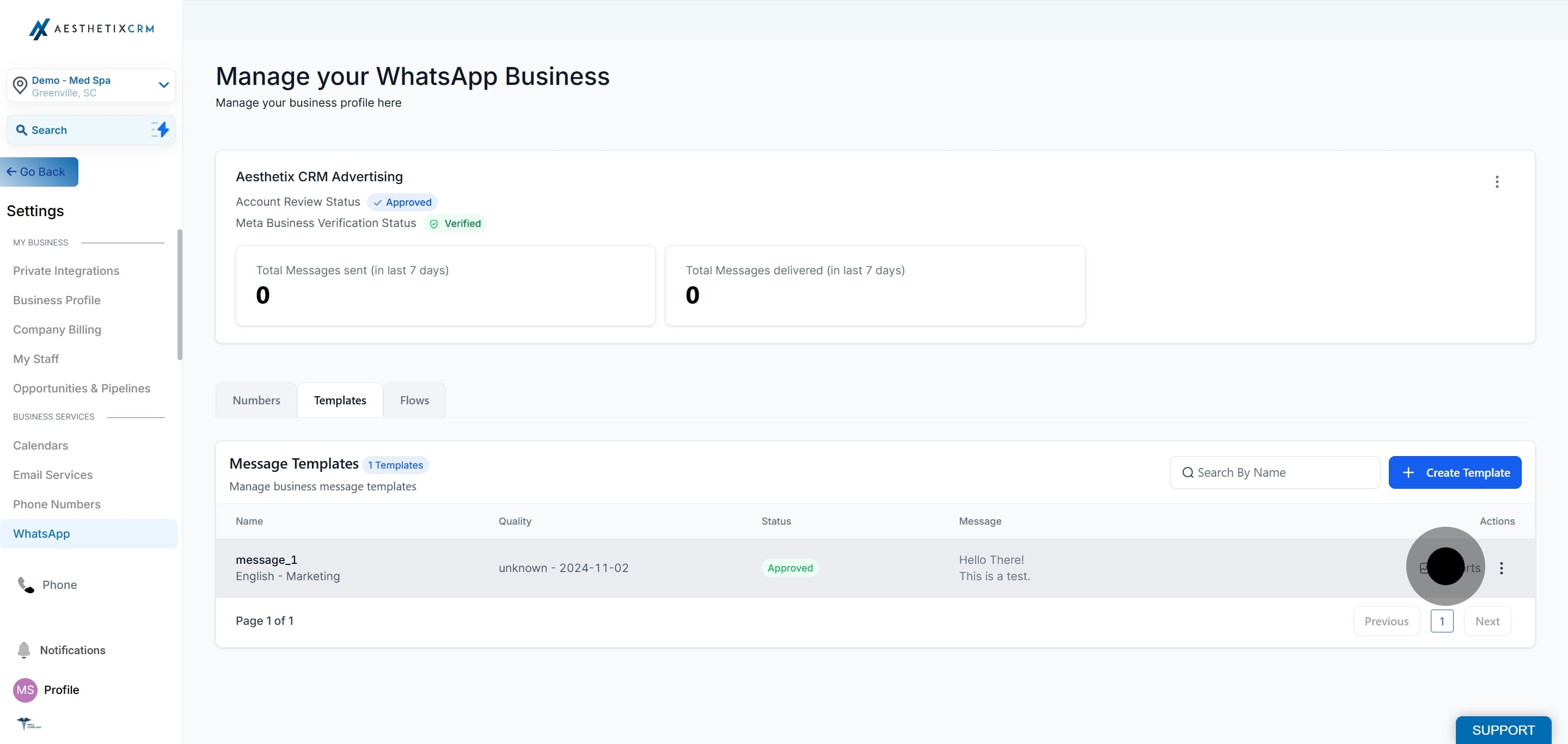
Click on Button Clicks.
Double-check parameter formatting, such as {{1}}, {{2}}, {{3}}, and avoid dangling or excessive placeholders.
Ensure your content follows Commerce and Business Policy guidelines.
Keep message length and emoji usage within allowed limits.
Avoid submitting duplicate templates.
Include sample variable values during template creation to improve approval rates.
Monitor template quality ratings regularly and respond to negative feedback quickly.
Watch for inline validation flags on the Header or Body field before saving. Correcting them early can prevent a rejection from Meta later.
What are WhatsApp message templates and why do I need them? Templates are pre-approved message formats that let you reach out to patients who haven't messaged you in the last 24 hours, or who have never contacted your practice before. They are essential for proactive outreach, marketing campaigns, and transactional notifications such as appointment reminders.
How are templates different from regular WhatsApp messages? Regular (free-form) messages can only be sent within the 24-hour customer service window, after a patient has messaged you first. Templates can be sent at any time, to any contact, regardless of when they last messaged you.
How long does template approval take? Approval typically takes up to 24 hours. You will receive a notification once Meta has made a decision.
Why was my template rejected? The most common reasons are formatting errors in variable parameters, content that violates WhatsApp's Commerce or Business Policy, or the template being too similar to an existing one. A template returned with an "Invalid format" error almost always points to one of these issues. Review the rejection reasons above and fix the issue before resubmitting.
My template status changed. What does that mean? Status changes like Active - Low Quality or Paused reflect how patients are responding to your template. Monitor these statuses regularly. If a template is paused, edit it to improve quality and resubmit for approval.
What happens if my template receives negative feedback? If your template receives negative feedback or low engagement, Meta may automatically pause it to protect your phone number's quality rating. Pausing duration varies based on quality. You will be notified when a template is paused, and you can edit and resubmit it.
Can I edit a paused template? Yes. You can edit a paused template to improve its content, then resubmit it for approval. Its status will change to In Review until Meta makes a decision.
I created a template in Meta Business Manager but it's not showing in my account. Why? Templates are only imported from Meta once, during the initial onboarding. After that, there is no ongoing sync. Any templates created in Meta after onboarding must be recreated directly inside your account to be available for use.
Does the template builder catch formatting errors before I submit?
Yes. The builder checks the Header and Body fields for common variable formatting problems before you save, and flags the field if an issue is found. You cannot save the template until it is corrected. This does not guarantee approval, since Meta can still reject a template for content or policy reasons after it is submitted.
