WhatsApp templates keep your patient messaging consistent, on-brand, and compliant with Meta's rules. As your practice evolves, you may need to update the wording on an existing template or remove one you no longer use. This guide walks you through editing and deleting templates, and explains why certain approved templates are locked and what to do when that happens.
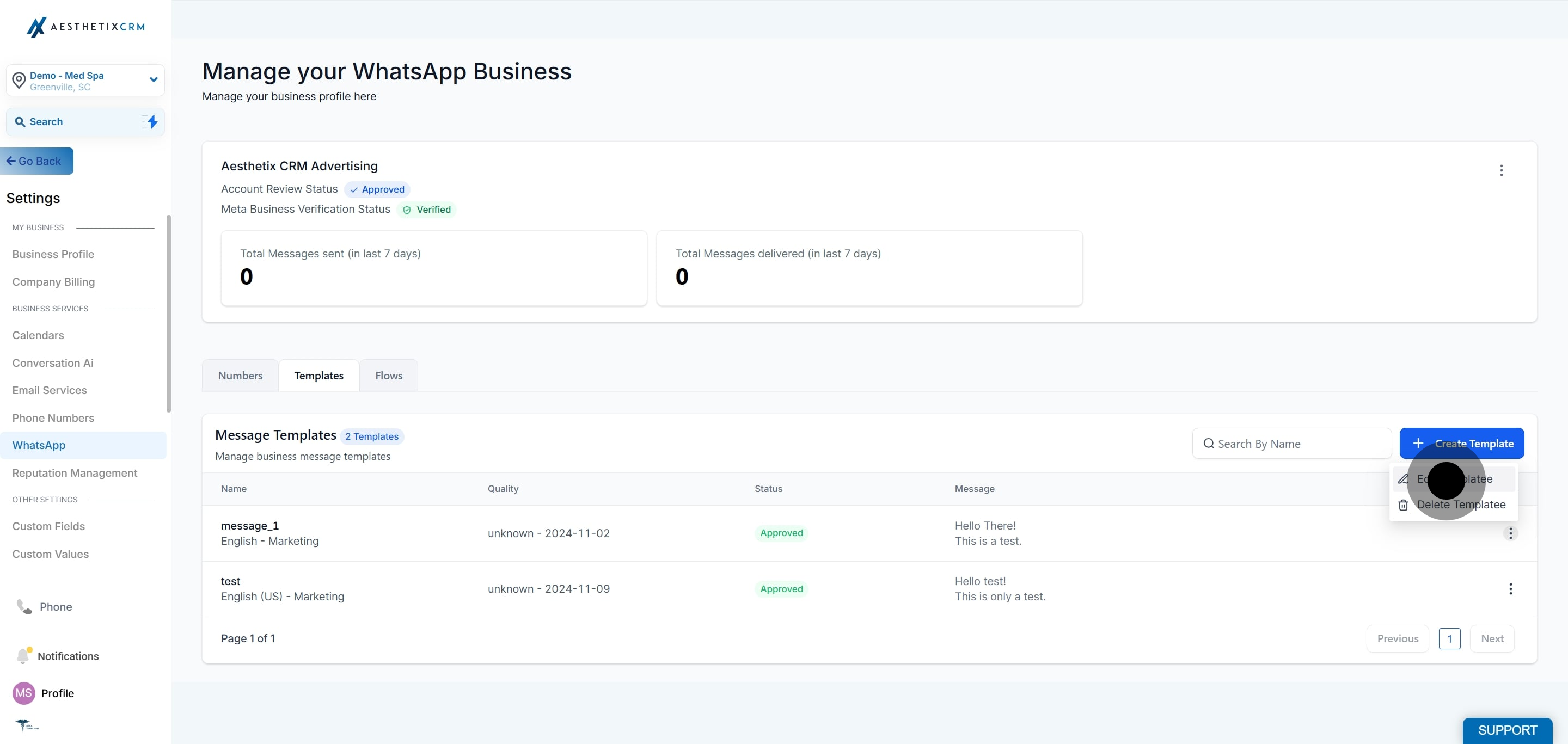
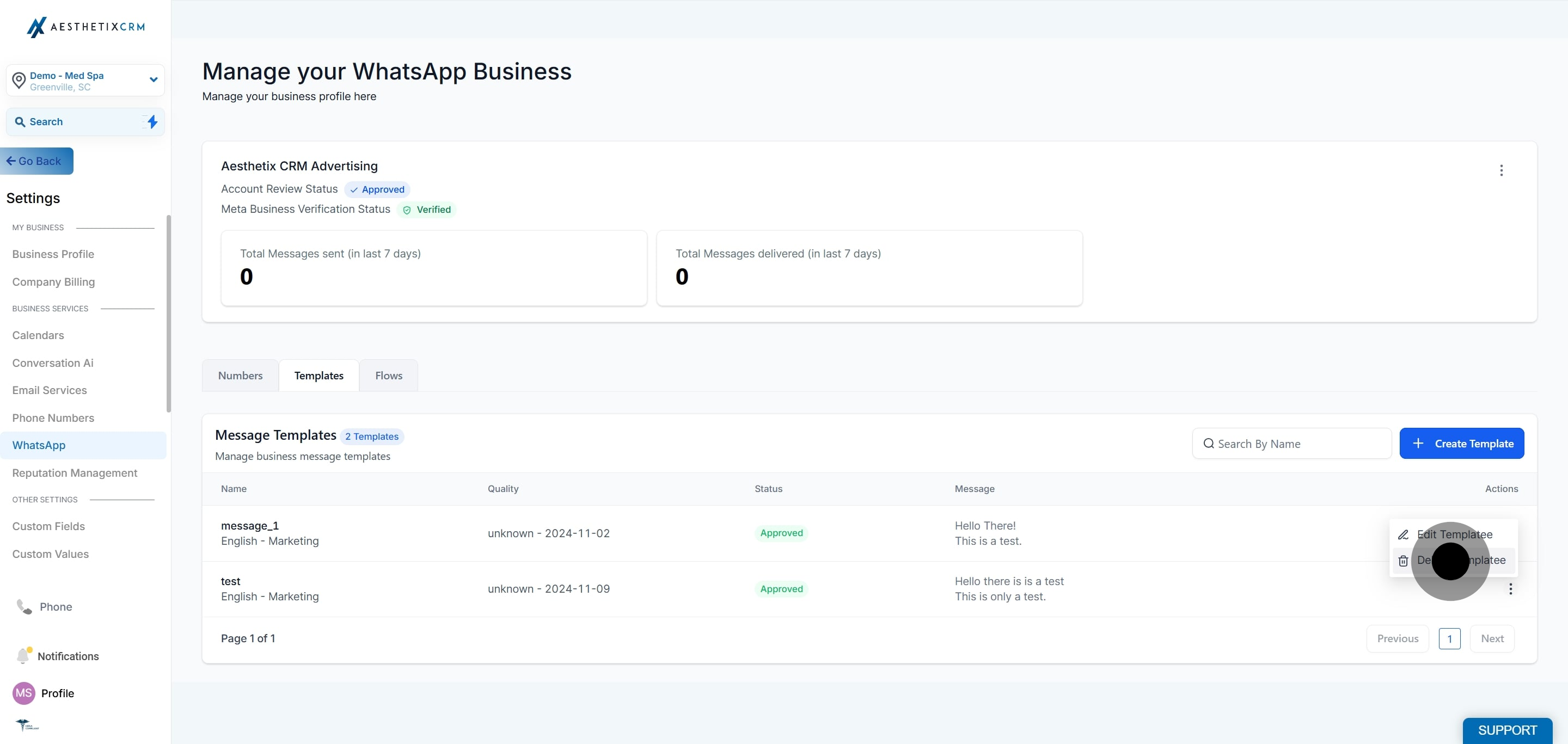
Follow these steps to update the content of an existing template.
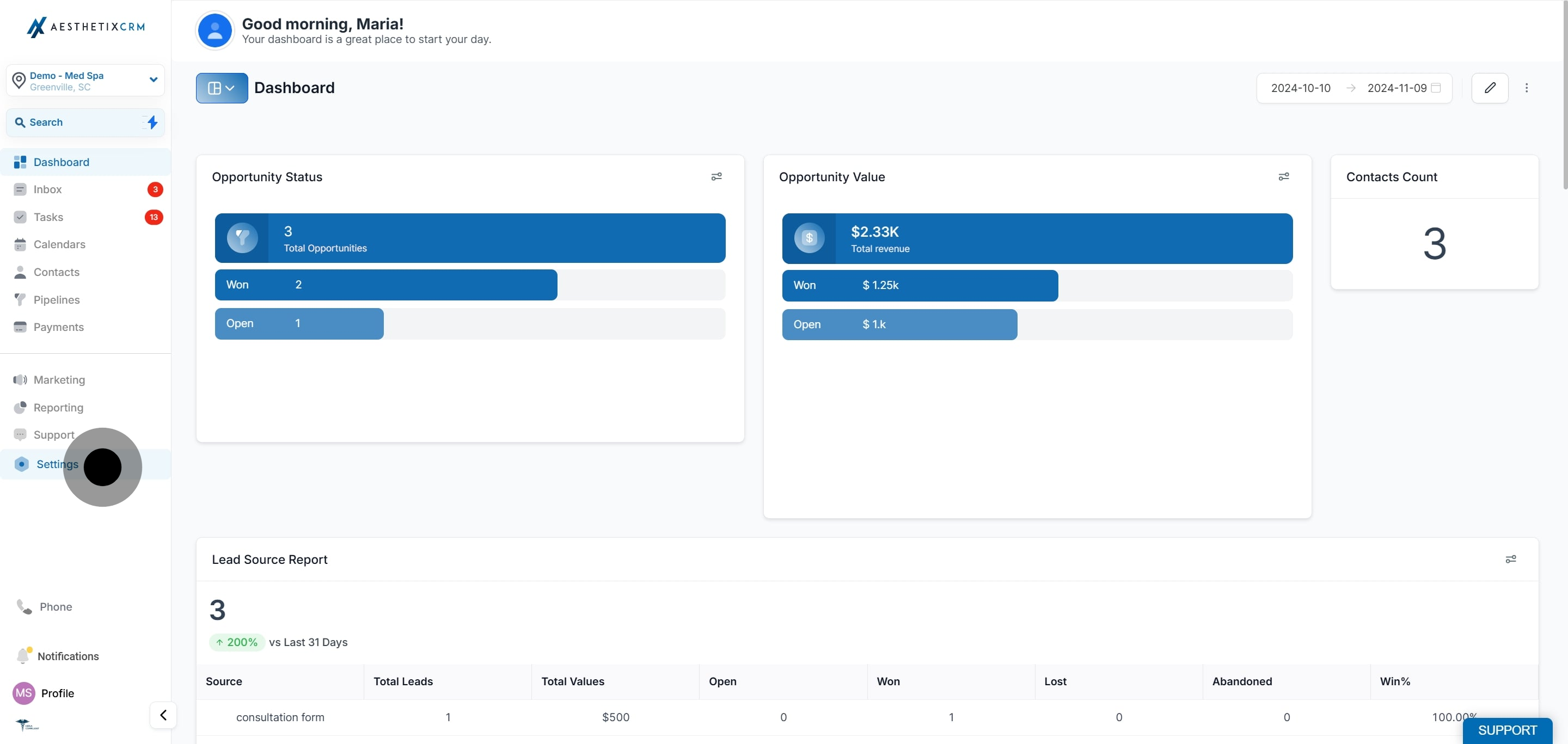
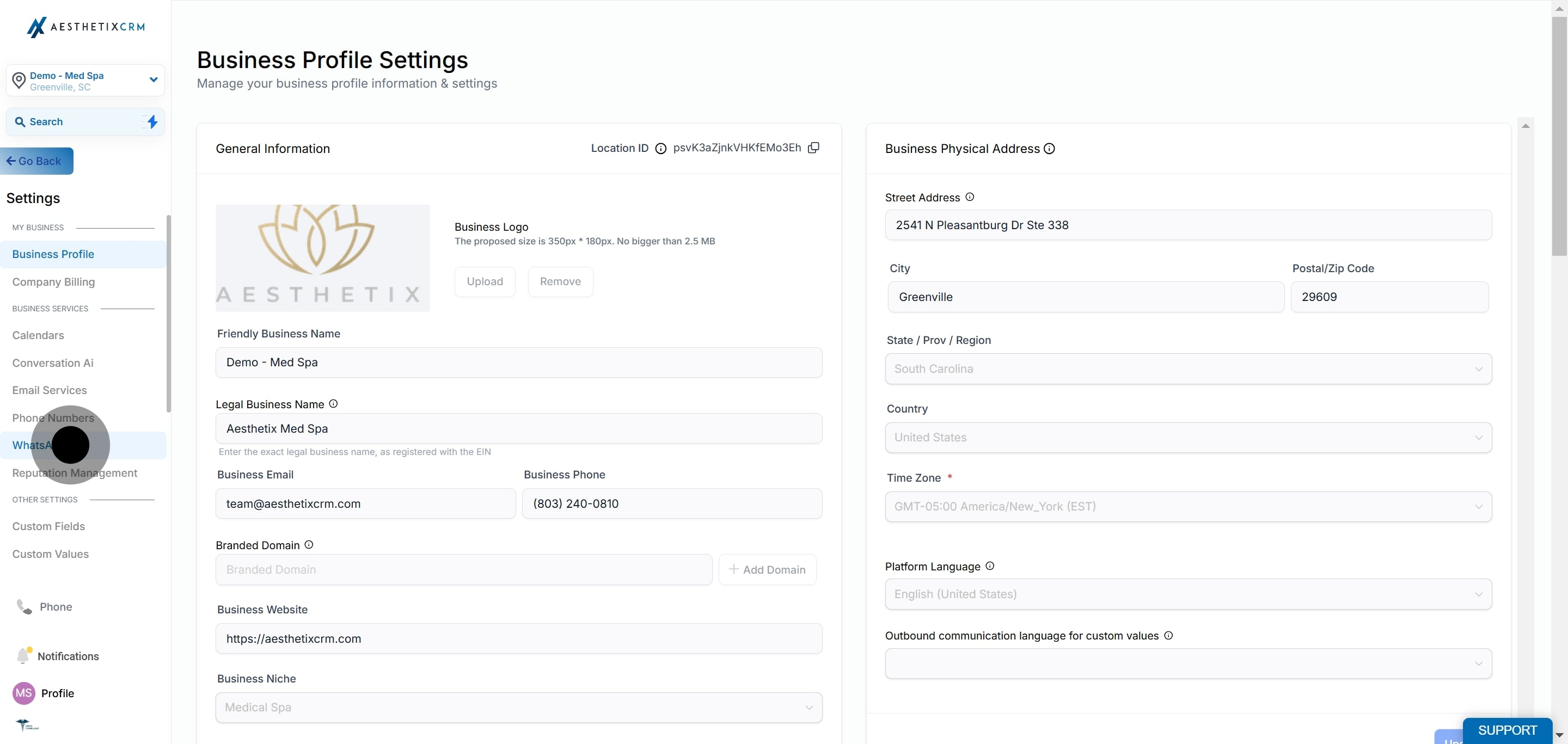
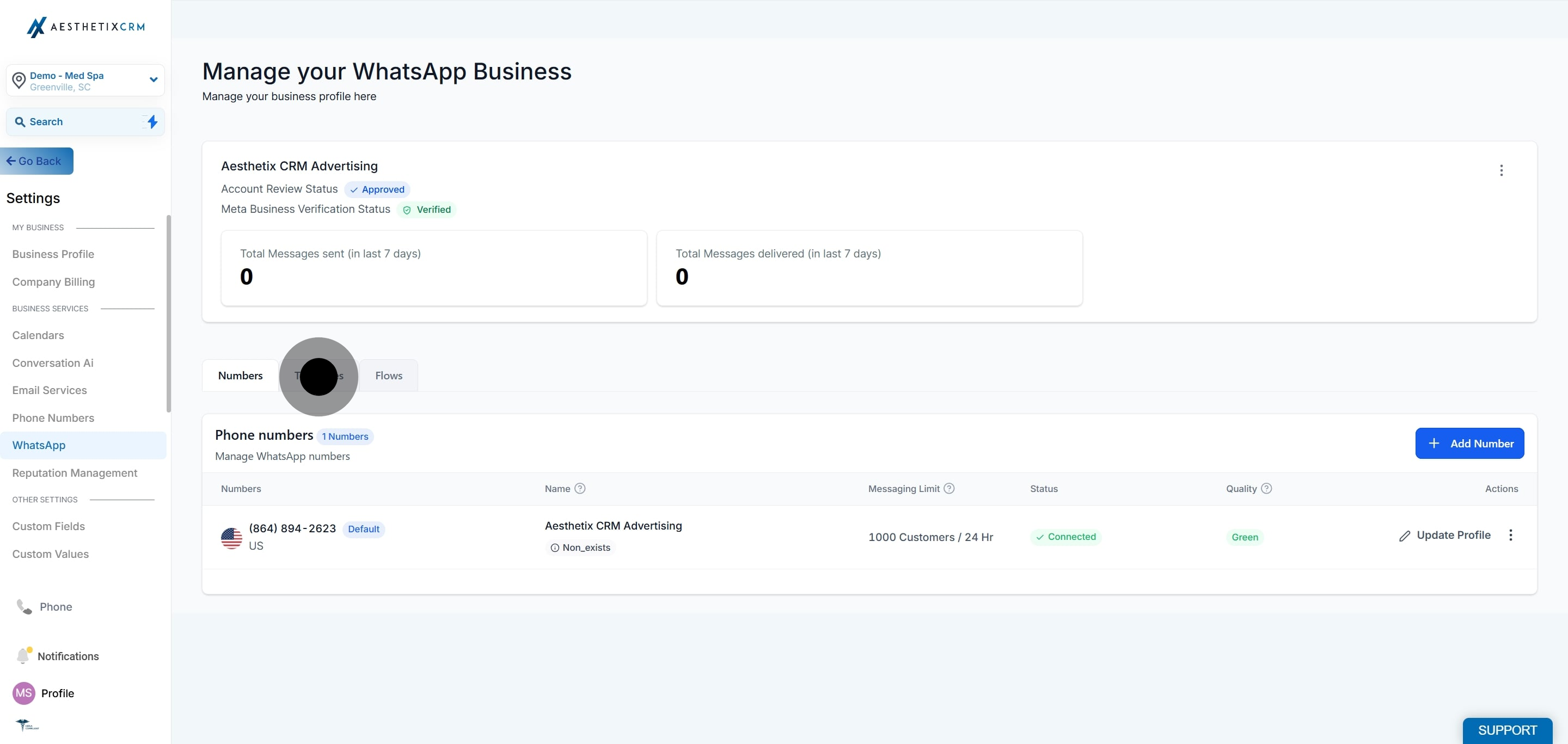
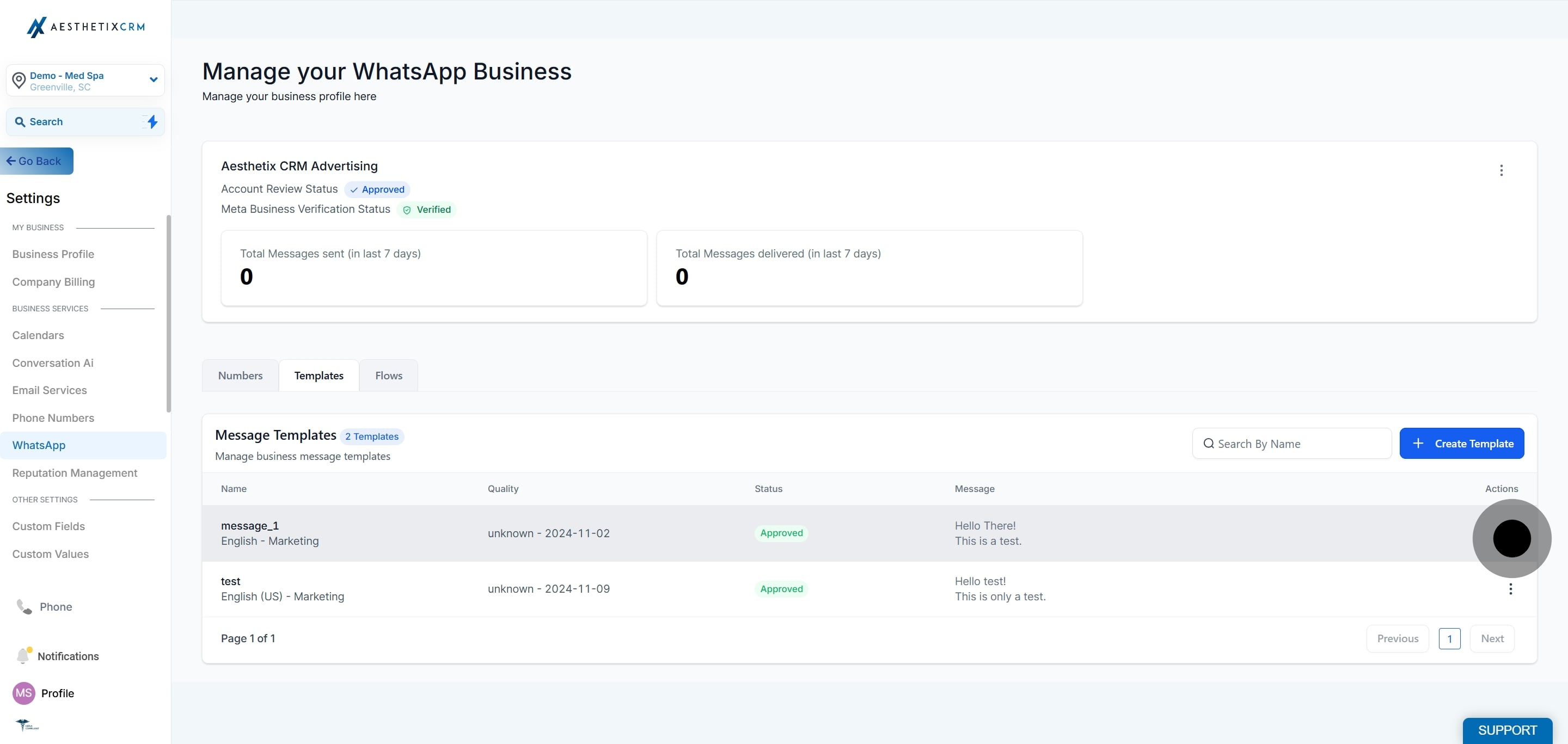
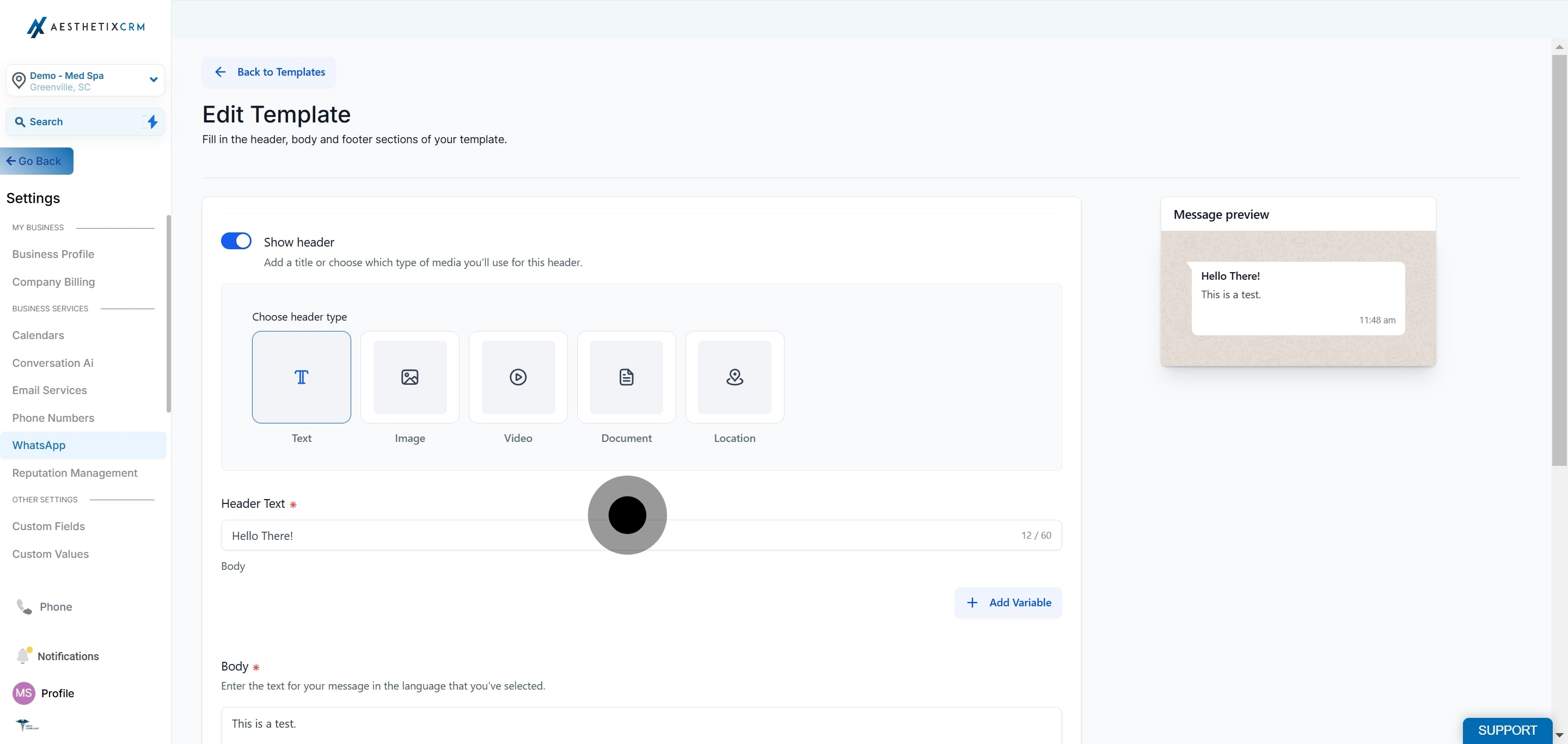
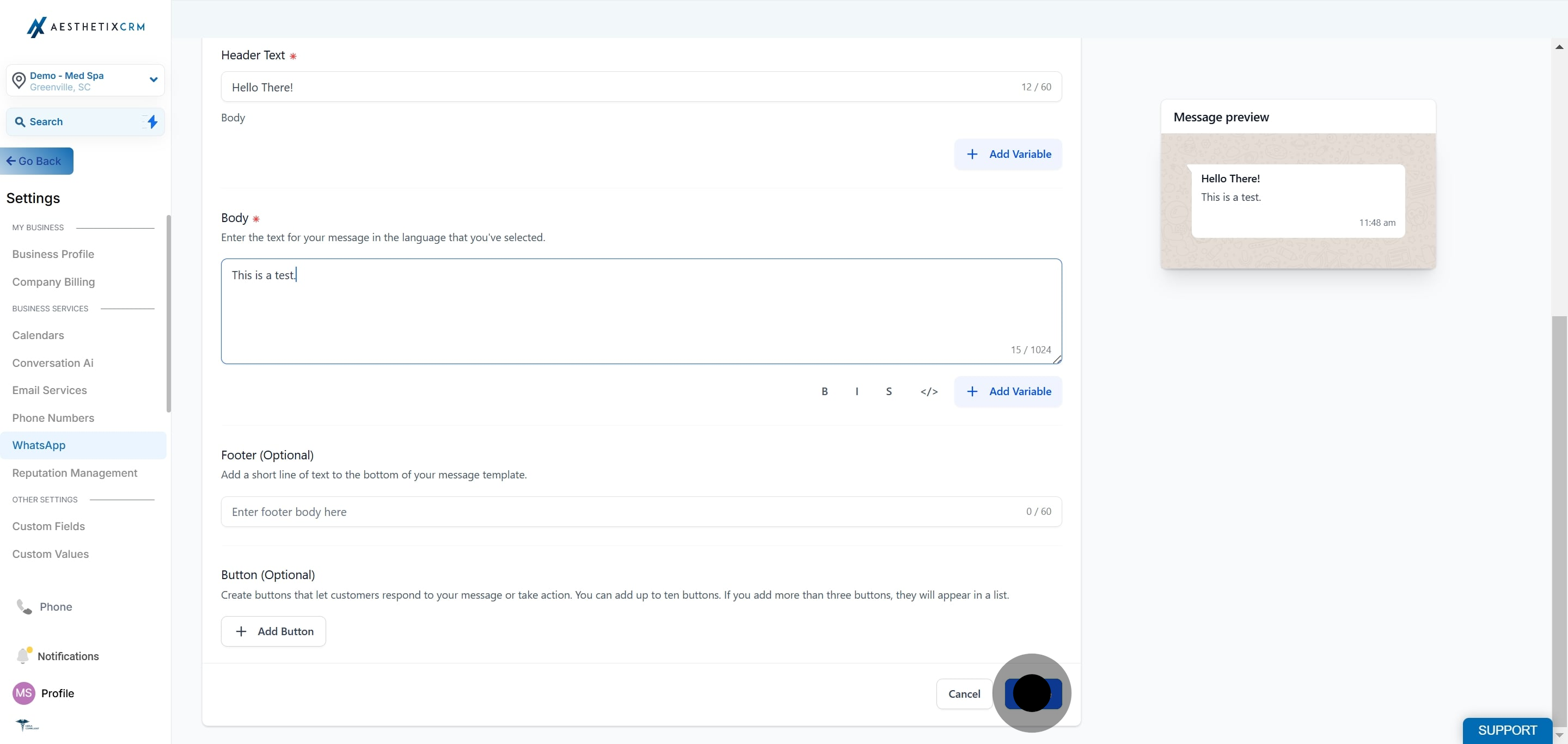
Update the header, body, footer, or other allowed fields as needed.
Note: Not every template can be edited. If the Edit Template option is unavailable or greyed out, the template is likely locked by Meta. See "Why You Can't Edit Certain Templates" below.
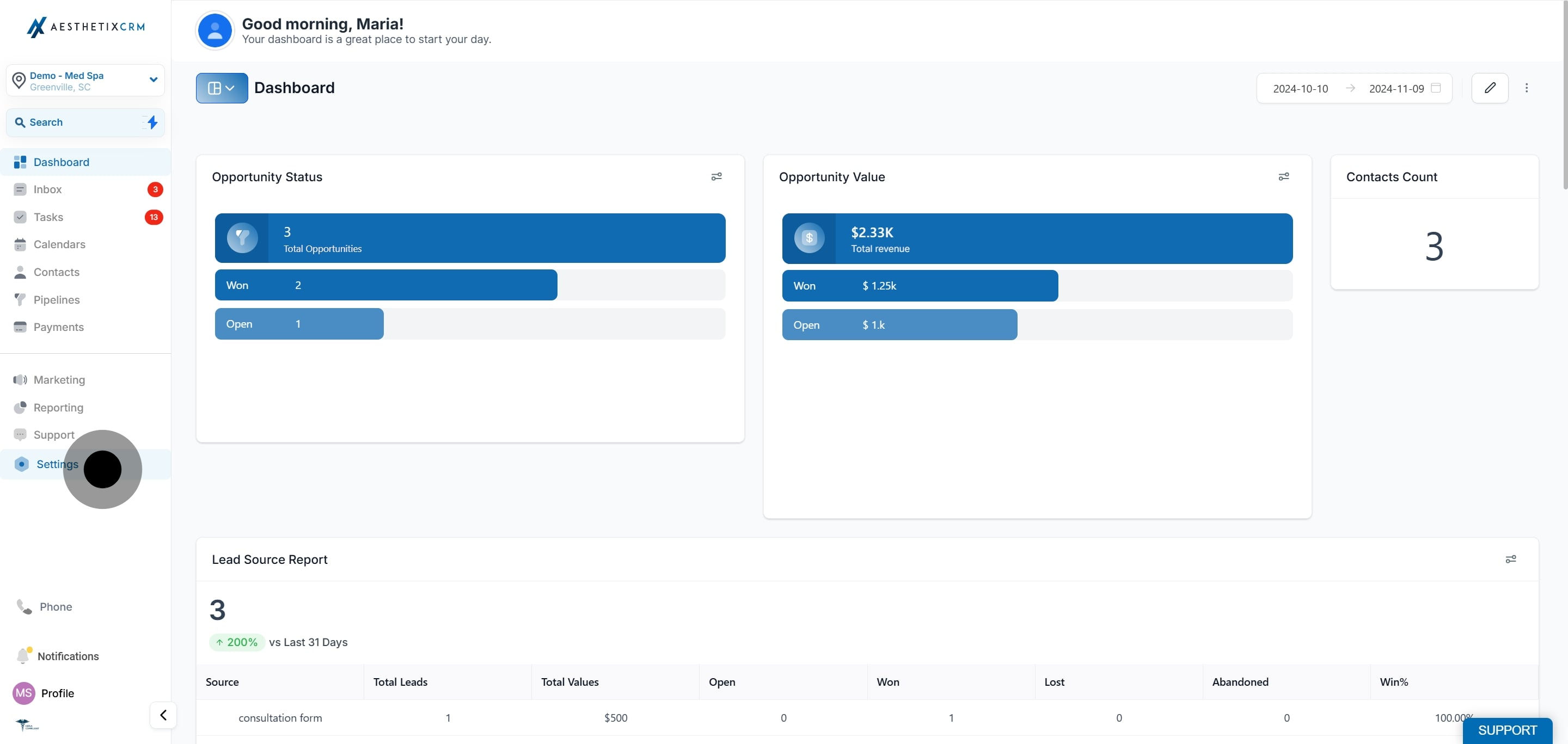
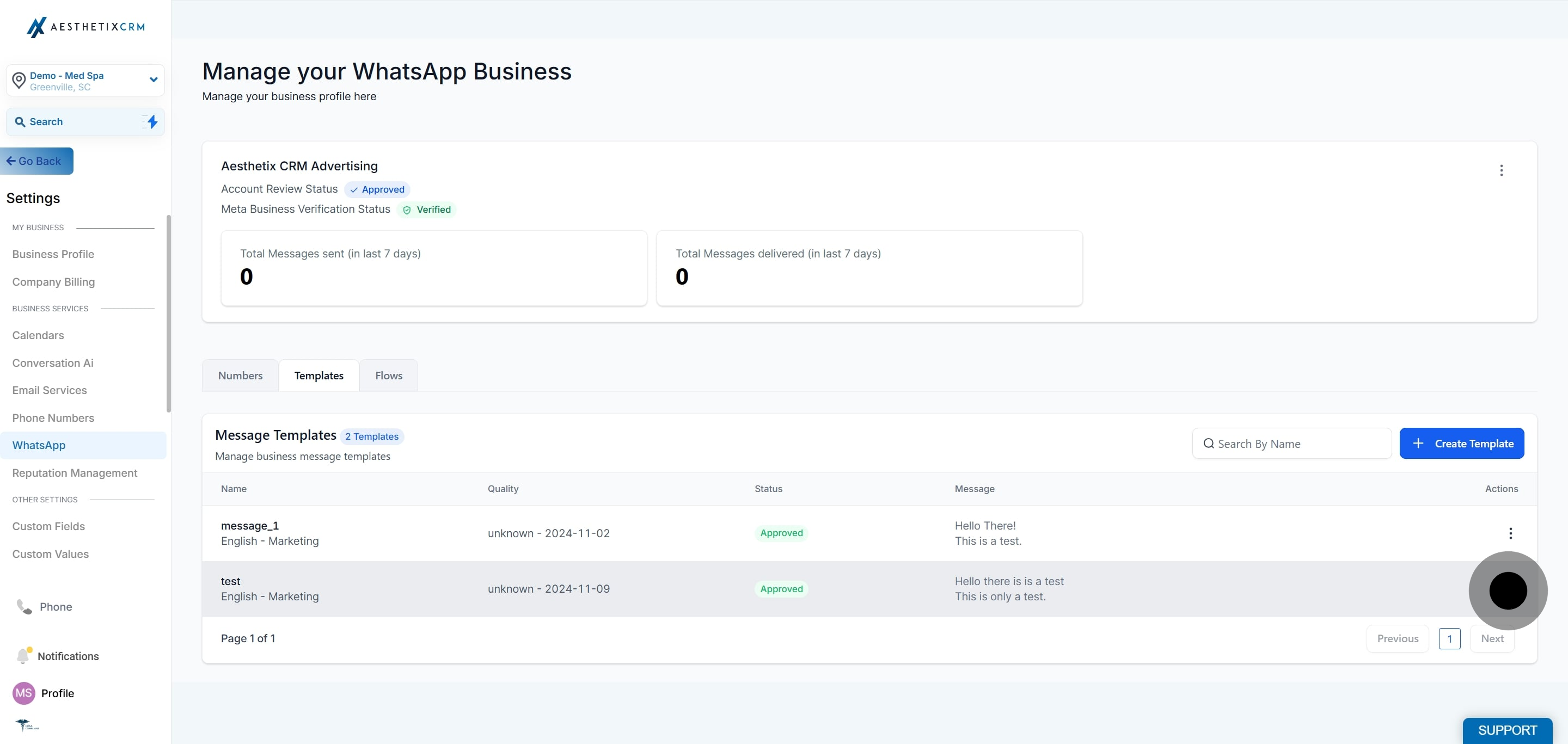
If a template is outdated or no longer relevant, delete it to keep your template list clean and current.
If you've tried editing a WhatsApp message template and found the option unavailable, you're not alone. There are several reasons a template may be locked. Here's a quick breakdown of why this happens and what you can do about it.
Once a template has been approved by Meta, its content becomes locked. While minor adjustments like changing the template name or category may still be possible, you cannot edit the body, header, or footer text. If you need to make content changes, you'll have to create a new template from scratch.
Templates created directly through the WhatsApp API or a third-party partner tool may not be editable from the interface. These templates are typically locked for security and consistency reasons.
If a template is currently being used in active workflows or conversations, or was recently sent, it may be temporarily locked from editing. This helps ensure message consistency and prevents disruptions in communication.
Certain categories, like Authentication (used for sending OTPs, verification codes, and similar messages), have much stricter rules. Meta requires these templates to follow a specific format and wording, which means you won't be able to edit them beyond the allowed parameters.
If Meta has flagged a template for low quality or it's under review, editing will be restricted until the issue is resolved. This ensures compliance with WhatsApp's messaging policies and user experience standards.
If you're unable to edit a template, here are a few alternatives.
Duplicate the existing template and make your changes on the new version before submitting it for approval. To clone an existing WhatsApp template:
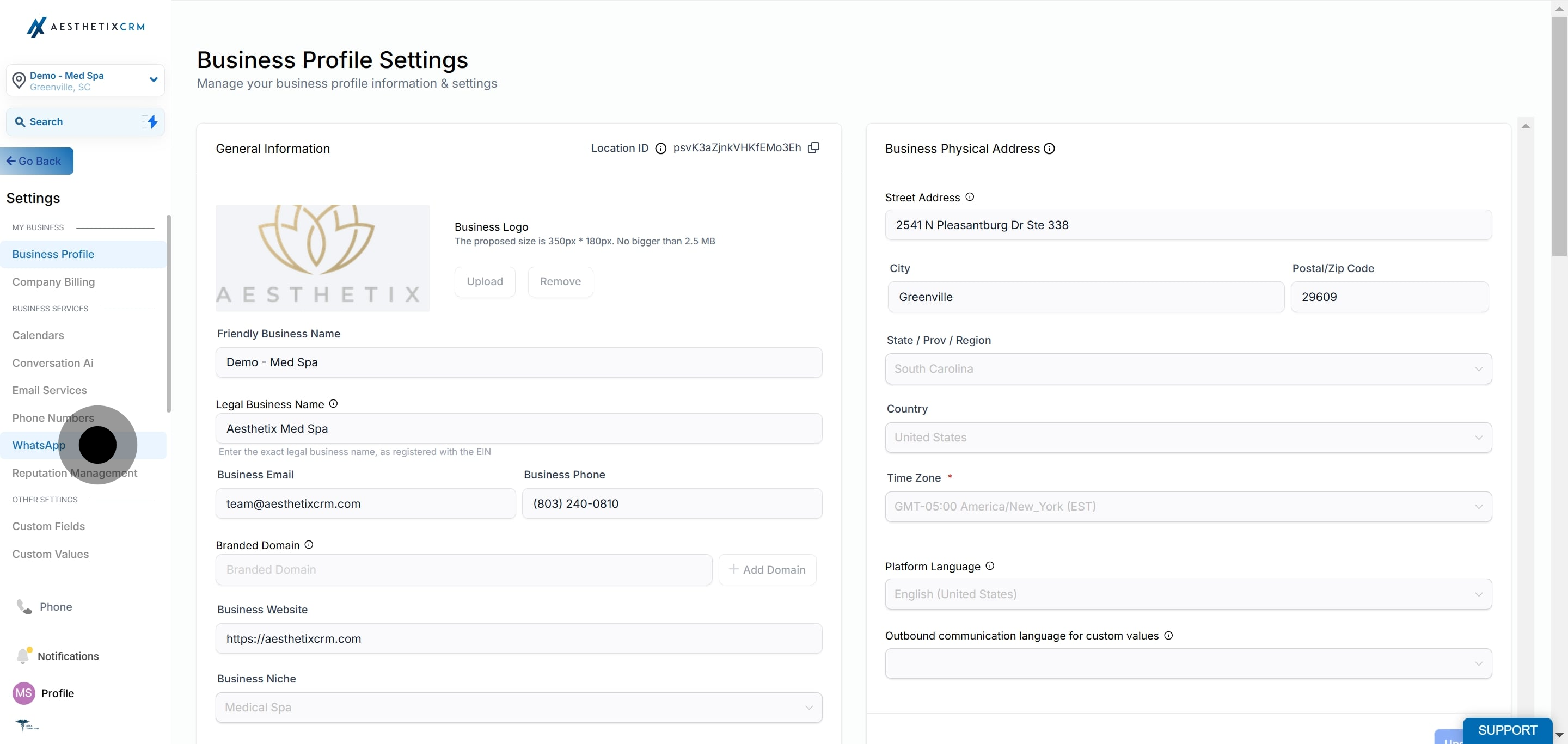
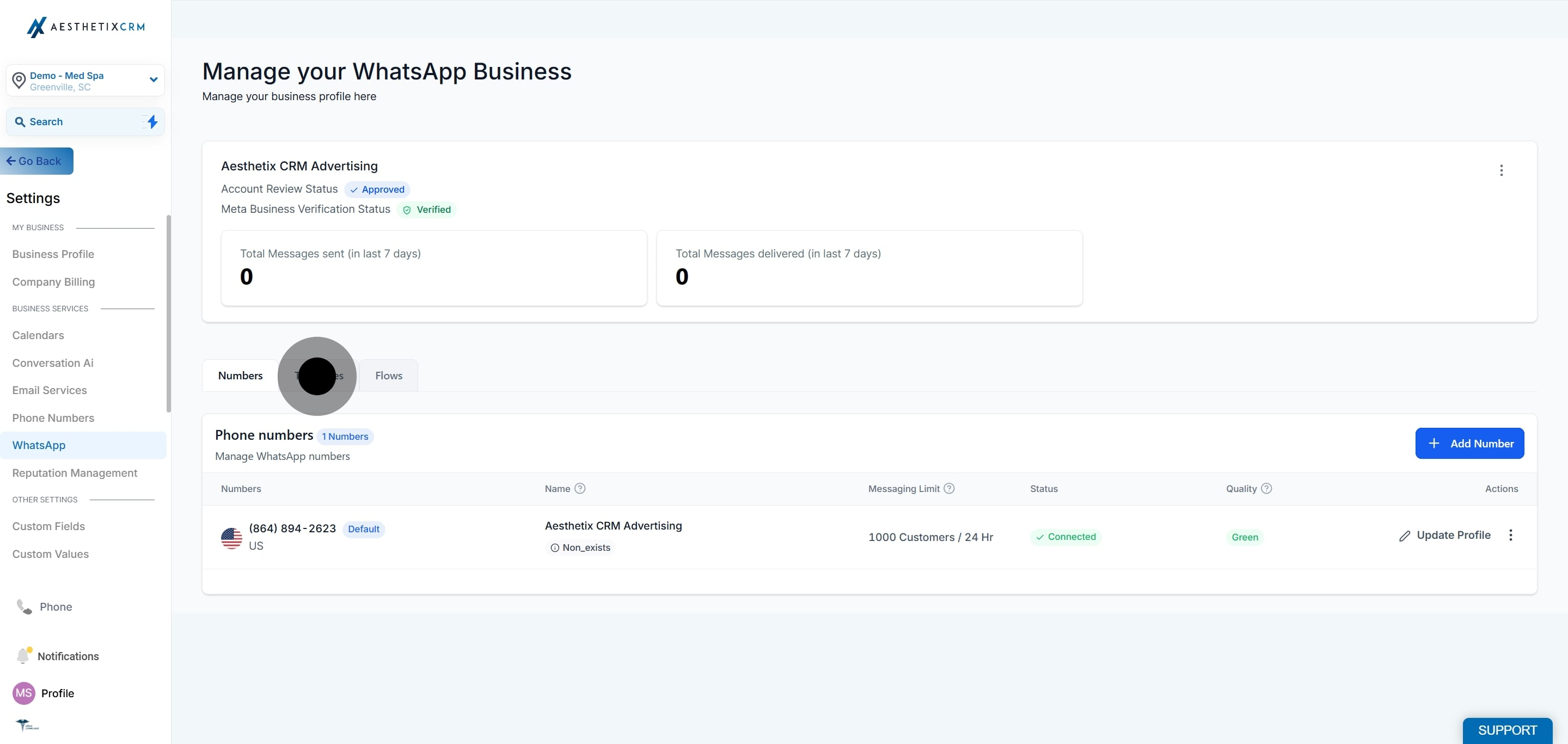
Navigate to Settings > WhatsApp > Templates
Click the 3 dot icon next to the template and select Clone Template from the dropdown menu
Rename and edit the new template, then click Save
Submit the new template for approval
If the original is no longer needed or relevant, delete it to keep your template list clean and up to date. Follow the steps in "Deleting a WhatsApp Template" above.
Can I edit a WhatsApp template after Meta approves it? Not the content. Once Meta approves a template, its body, header, and footer text are locked. You may still be able to change the template name or category, but to alter the message content you'll need to clone it or create a new template and resubmit it for approval.
Why is the Edit Template option greyed out or missing? The template is likely locked. Common reasons include Meta approval, creation through the WhatsApp API, active use in workflows or conversations, a strict category like Authentication, or an ongoing Meta review. Clone the template to make your changes on a fresh copy instead.
How do I make changes to a locked template? Clone it. Duplicate the template, edit the new version, save it, and submit it for approval. Once the new version is approved, you can delete the old one if it's no longer needed.
What are Authentication templates and why are they so restricted? Authentication templates are used for sending one-time passcodes, verification codes, and similar security messages. Meta enforces a specific format and wording for these, so you can only adjust the allowed parameters rather than freely edit the content.
Will editing a template affect messages I've already sent? No. Messages that have already been sent are not changed by later edits. However, if a template is currently in use or was sent recently, it may be temporarily locked from editing to keep communication consistent.
Can I recover a template after I delete it? No. Deleting a template removes it permanently. If you may need it again, clone it before deleting, or recreate it and submit it for approval.
Where do I find my WhatsApp templates? Go to Settings > WhatsApp > Templates in your account. From there you can edit, clone, or delete any template using the 3 dot menu next to it.
