WhatsApp media templates let you send rich content, including images, videos, documents, and location data, to your contacts. For a med spa, this means richer conversations: before-and-after imagery, treatment videos, aftercare PDFs, and directions to your practice, all delivered inside pre-approved WhatsApp messages that keep you compliant and on brand.
WhatsApp media templates allow you to send rich media content, such as images, videos, documents, and location data, to your contacts or clients. This feature expands the possibilities of communication on WhatsApp, letting your practice create more engaging and visually appealing messages.
They are pre-approved message formats that let you include images, videos, documents, or location information within WhatsApp messages. They help streamline communication with clients, especially for marketing, support, or authentication purposes.
Elevate your WhatsApp campaigns with media templates:
Treatment launches: Showcase new services with images and attention-grabbing videos.
Promotions and offers: Share discount codes or seasonal specials alongside eye-catching visuals.
Event announcements: Promote open houses or injectable days with location sharing and engaging imagery.
Client care: Provide helpful aftercare instructions or prep guides in document format.
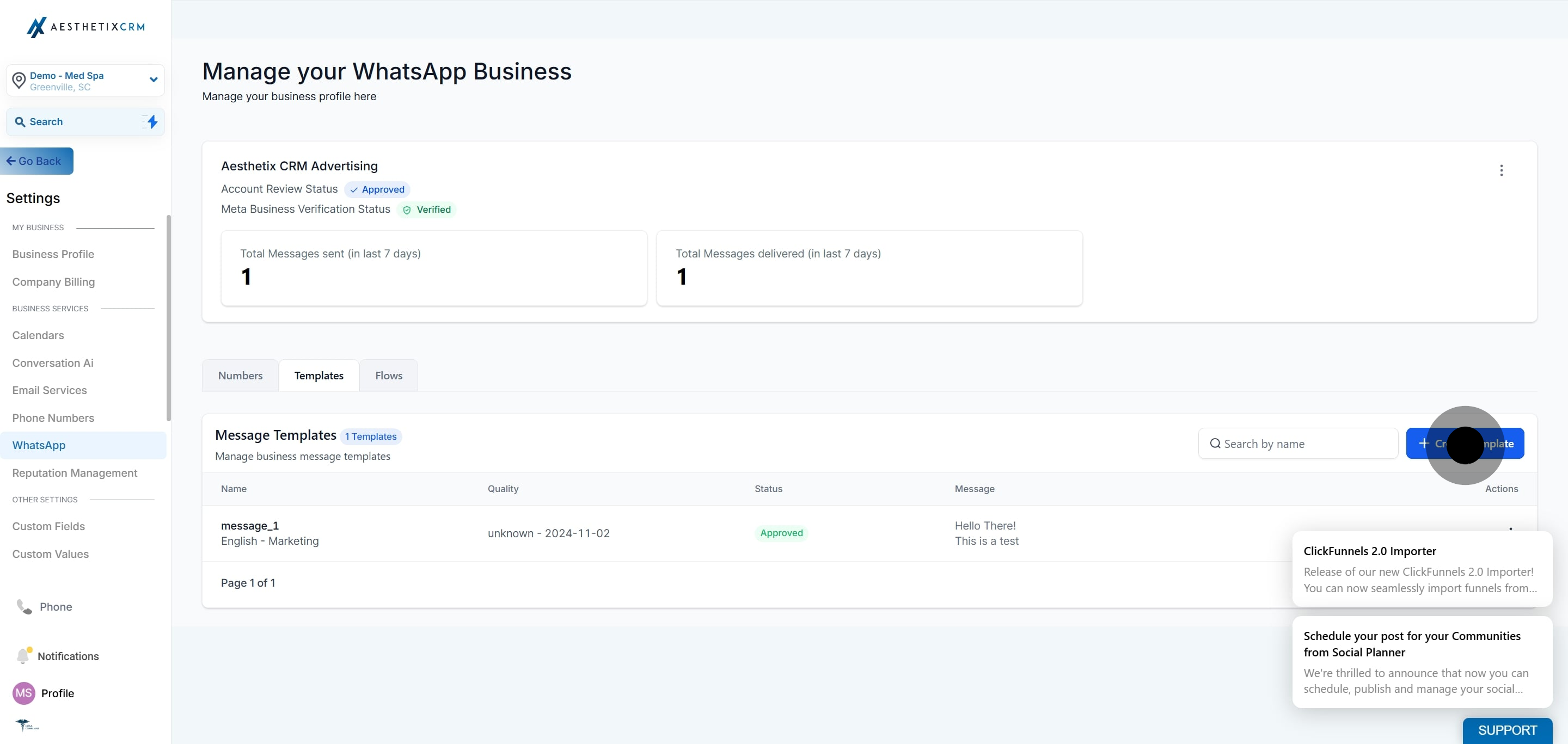
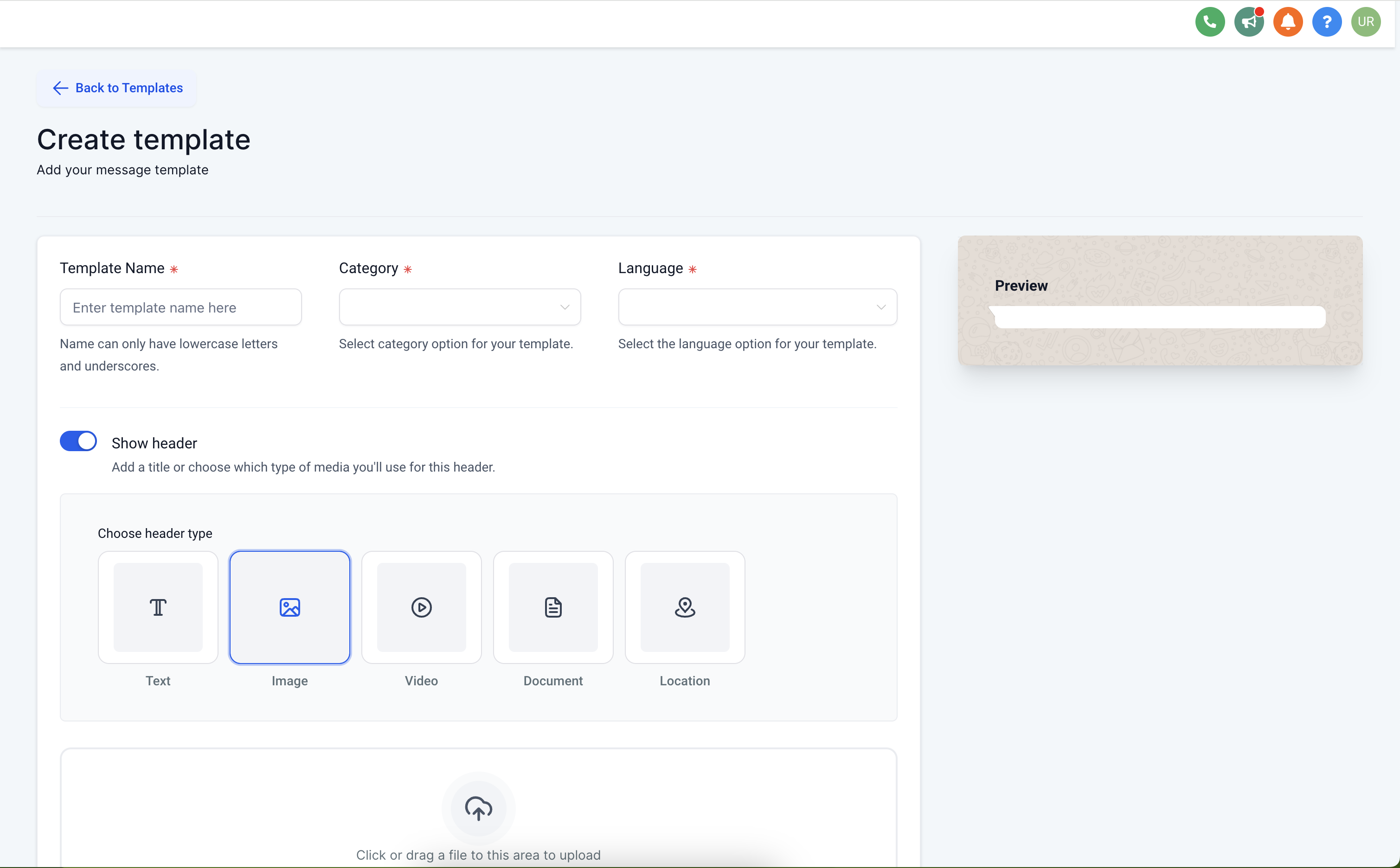
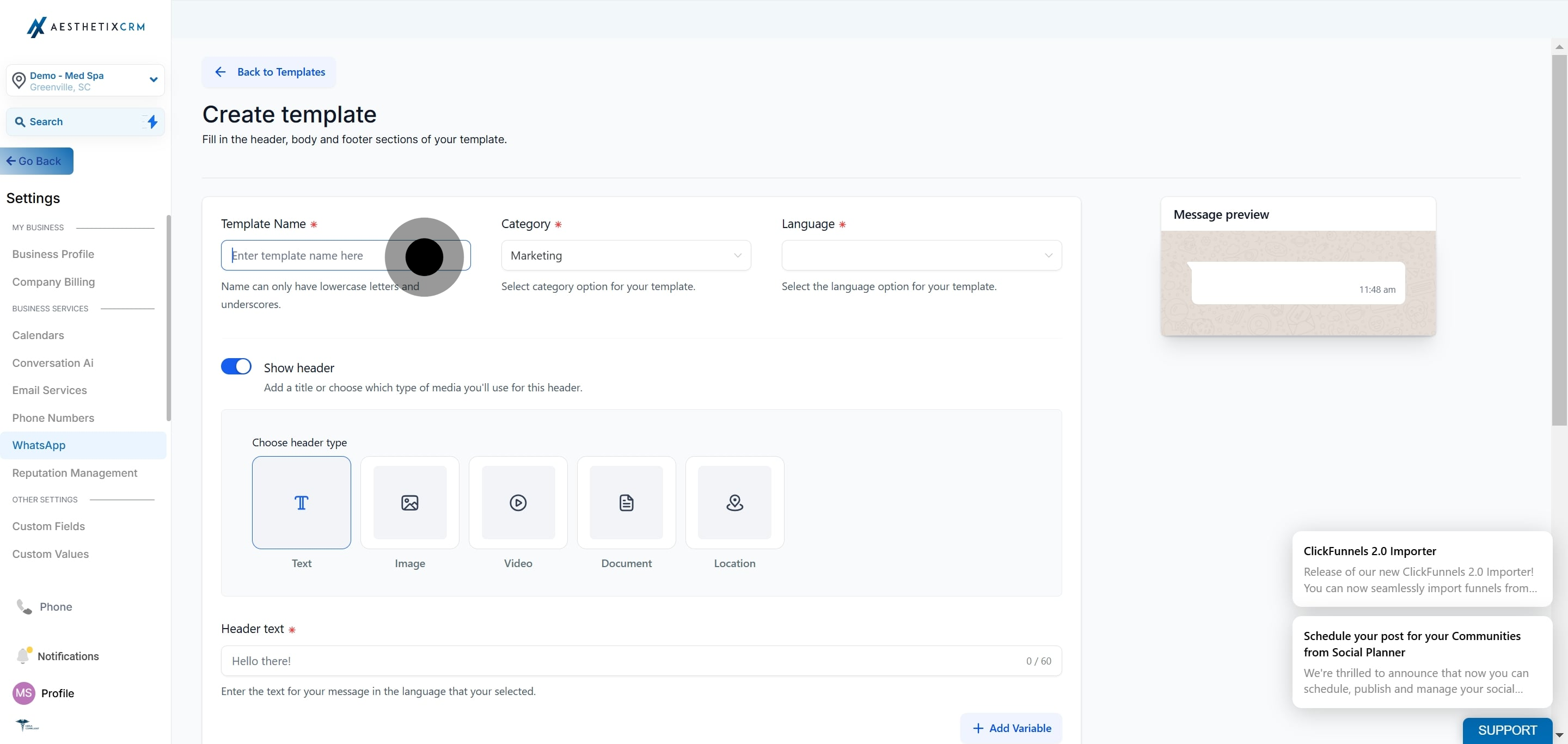
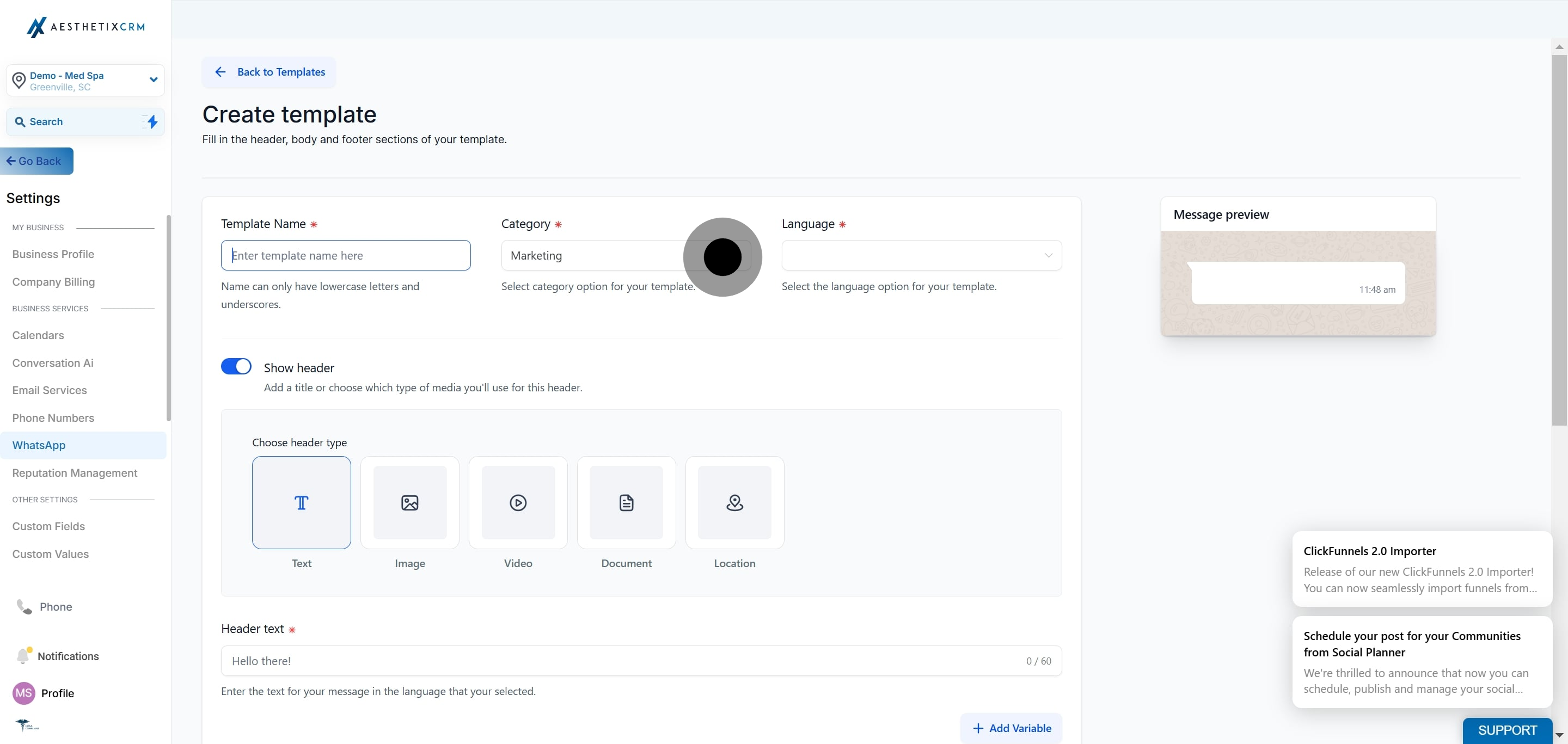
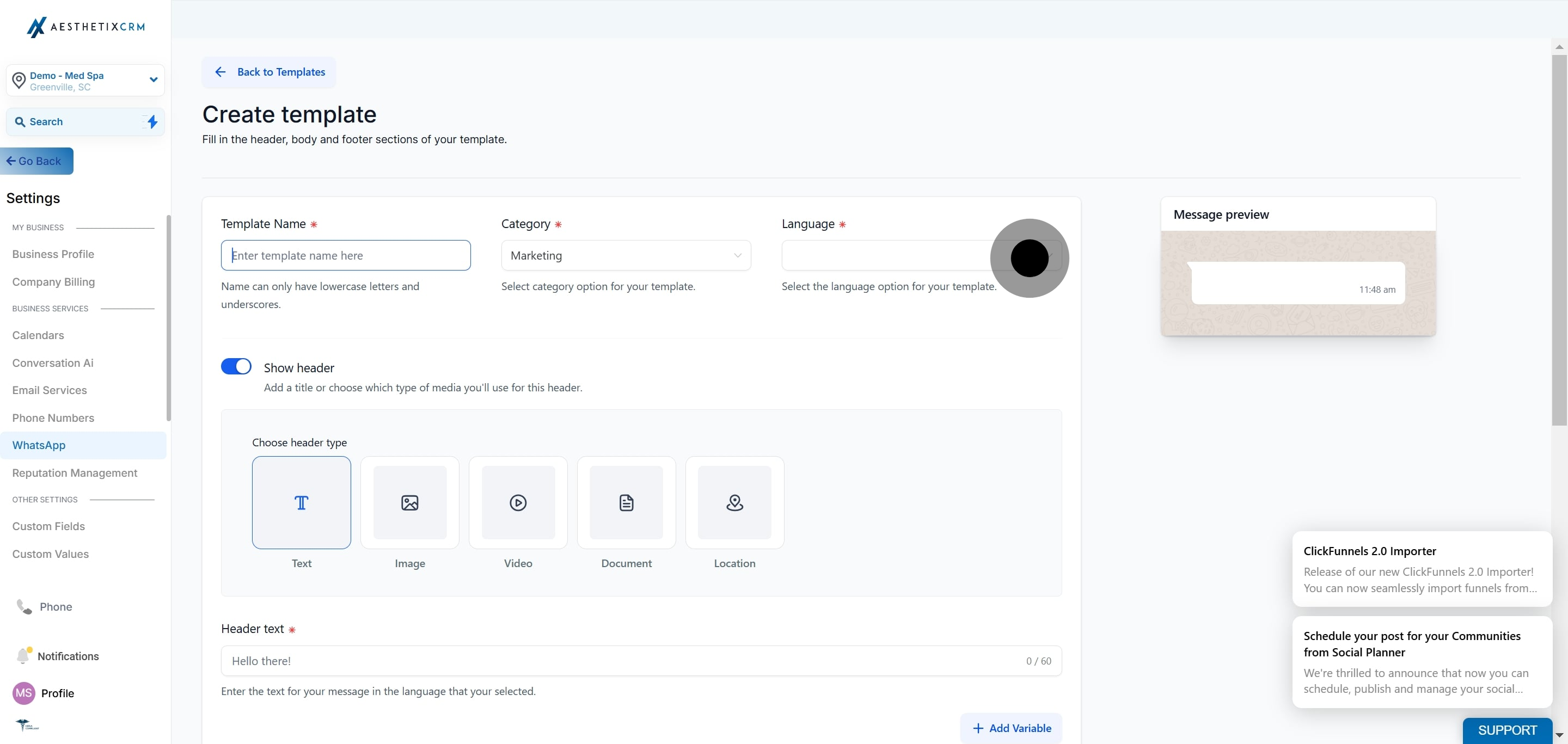
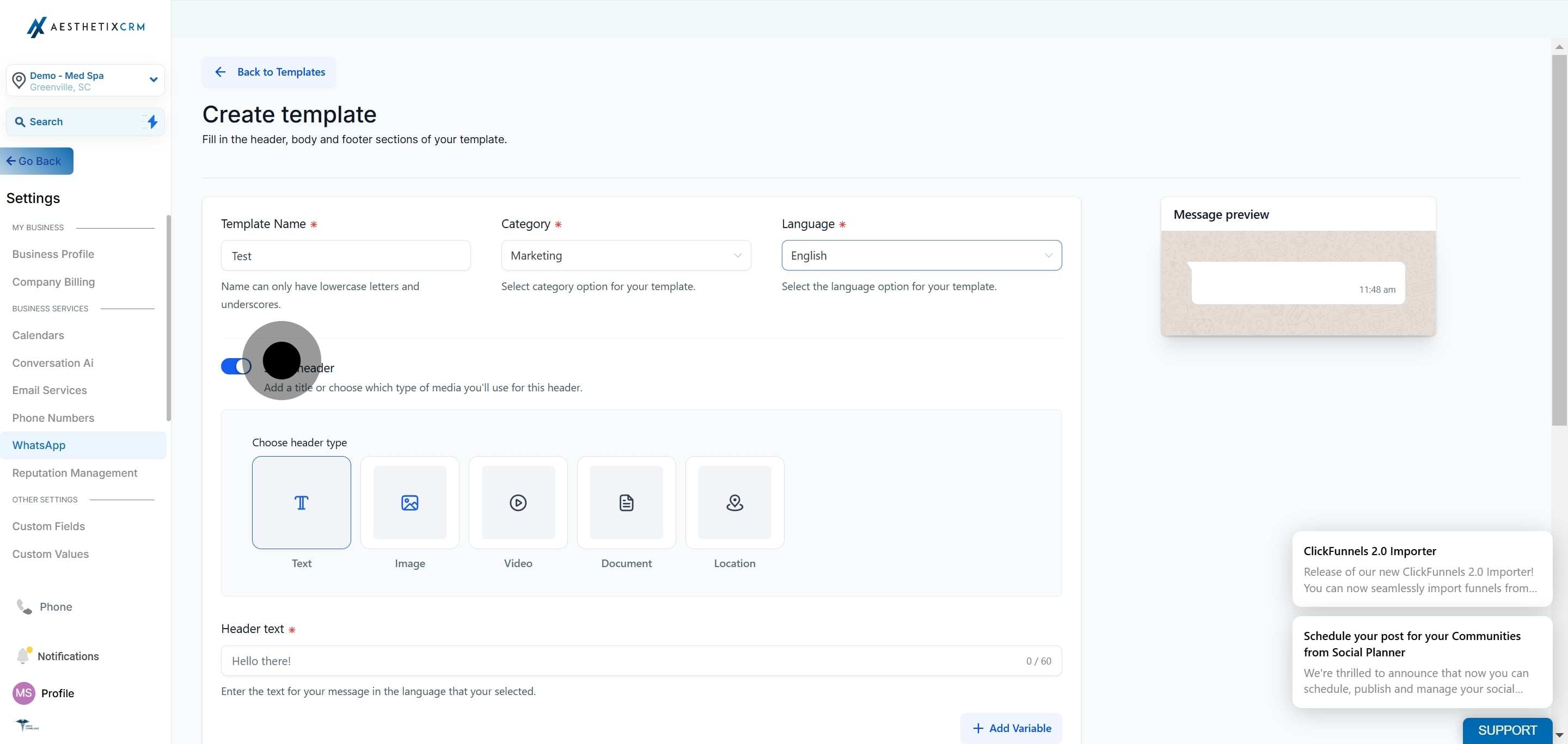
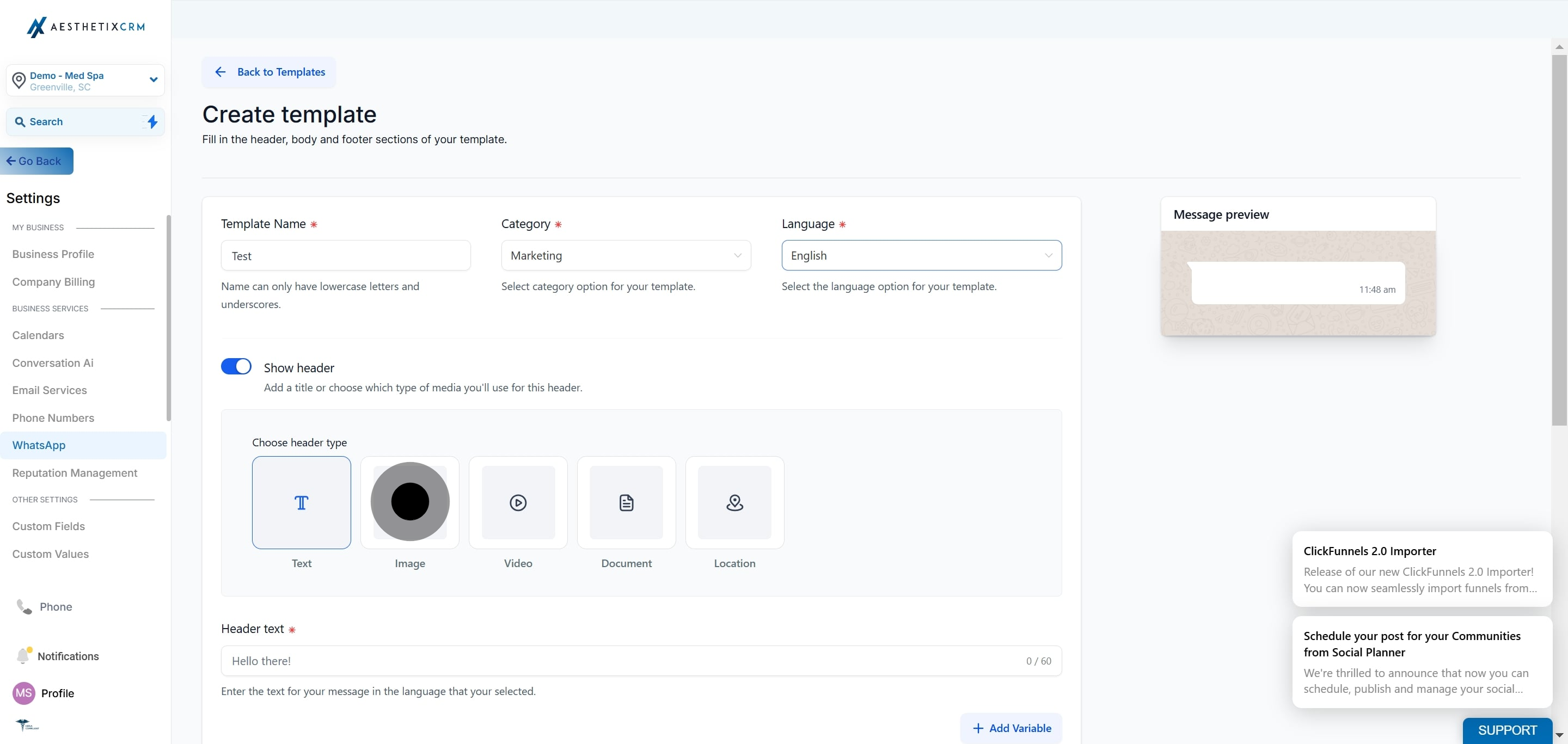
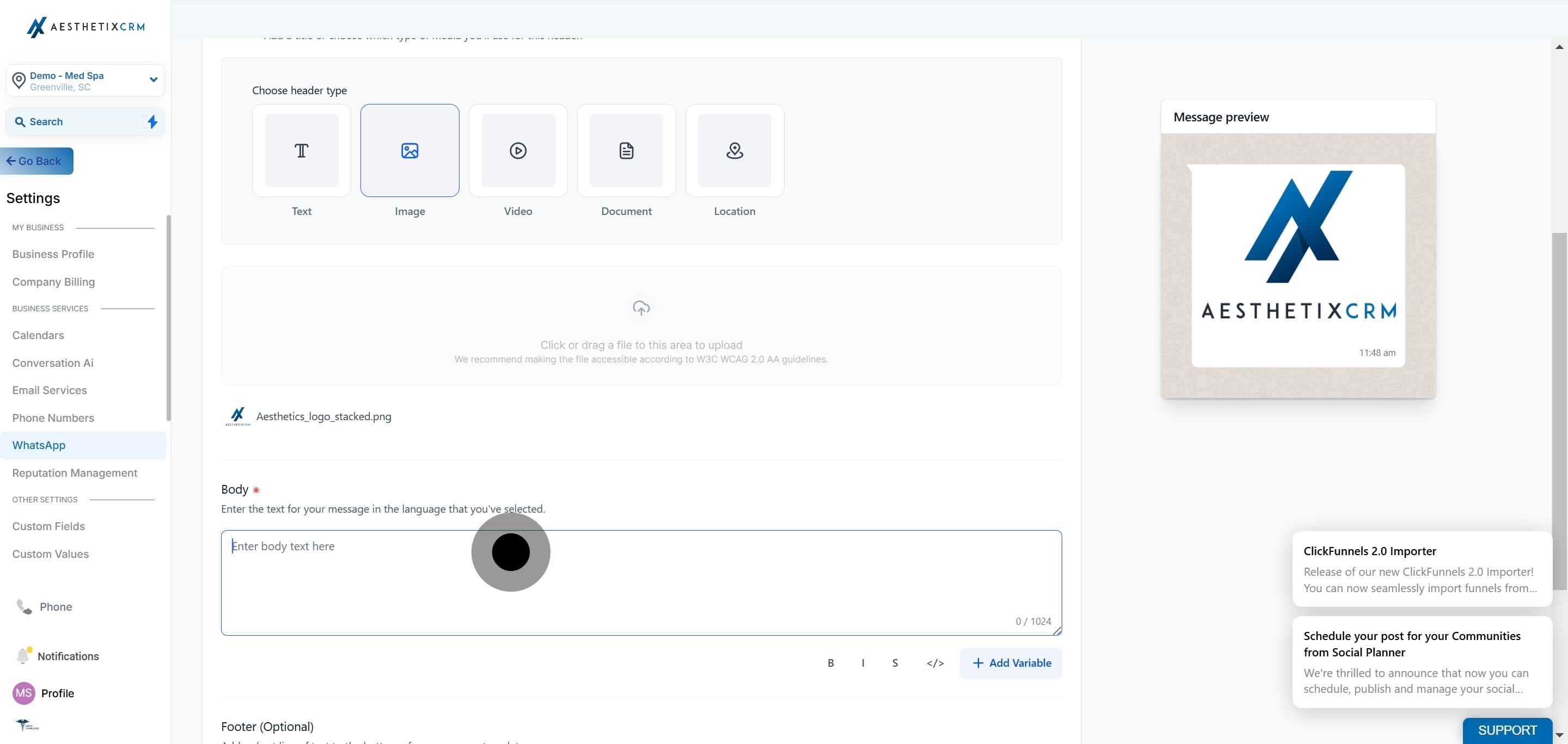
Choose the media header you want, such as image, and then click it.
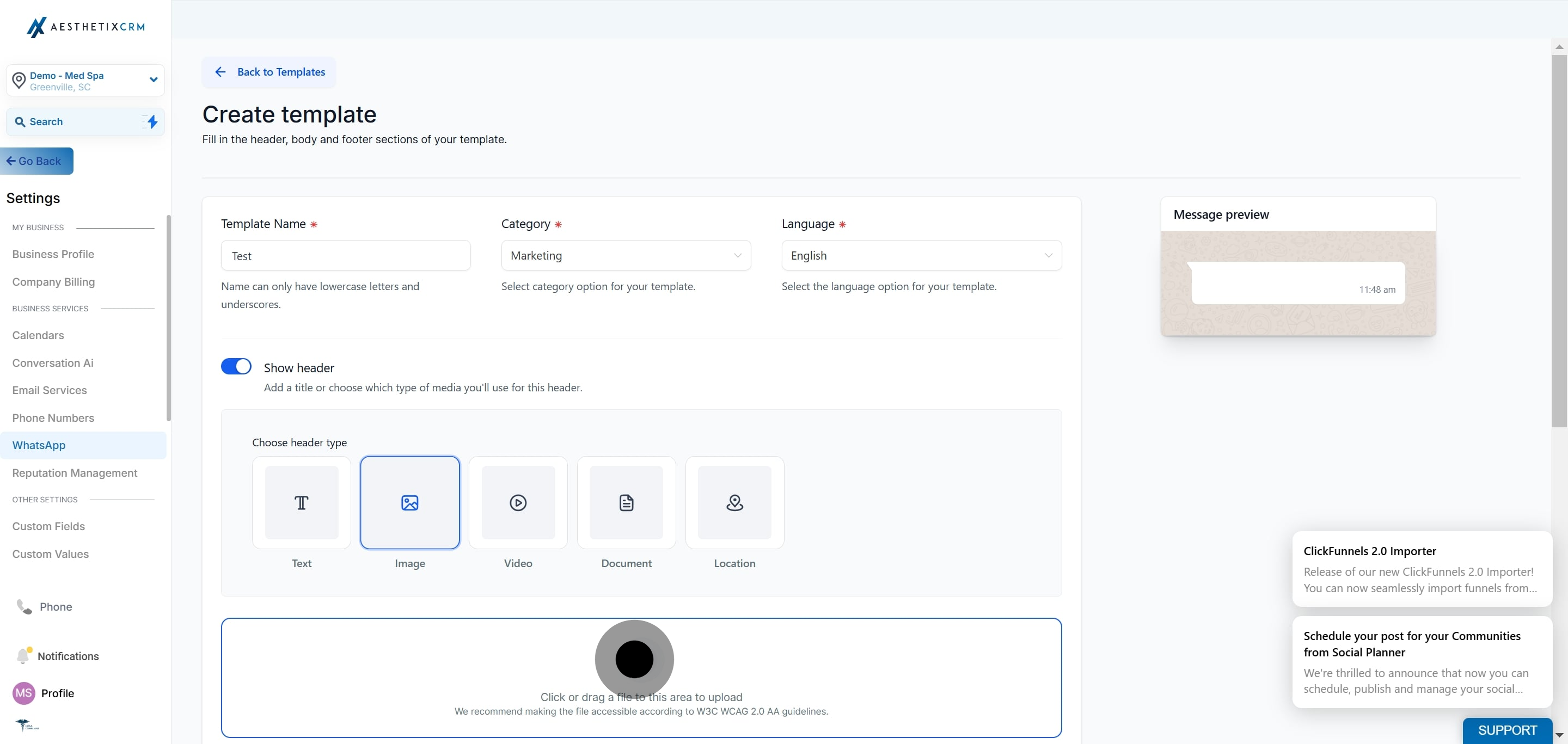
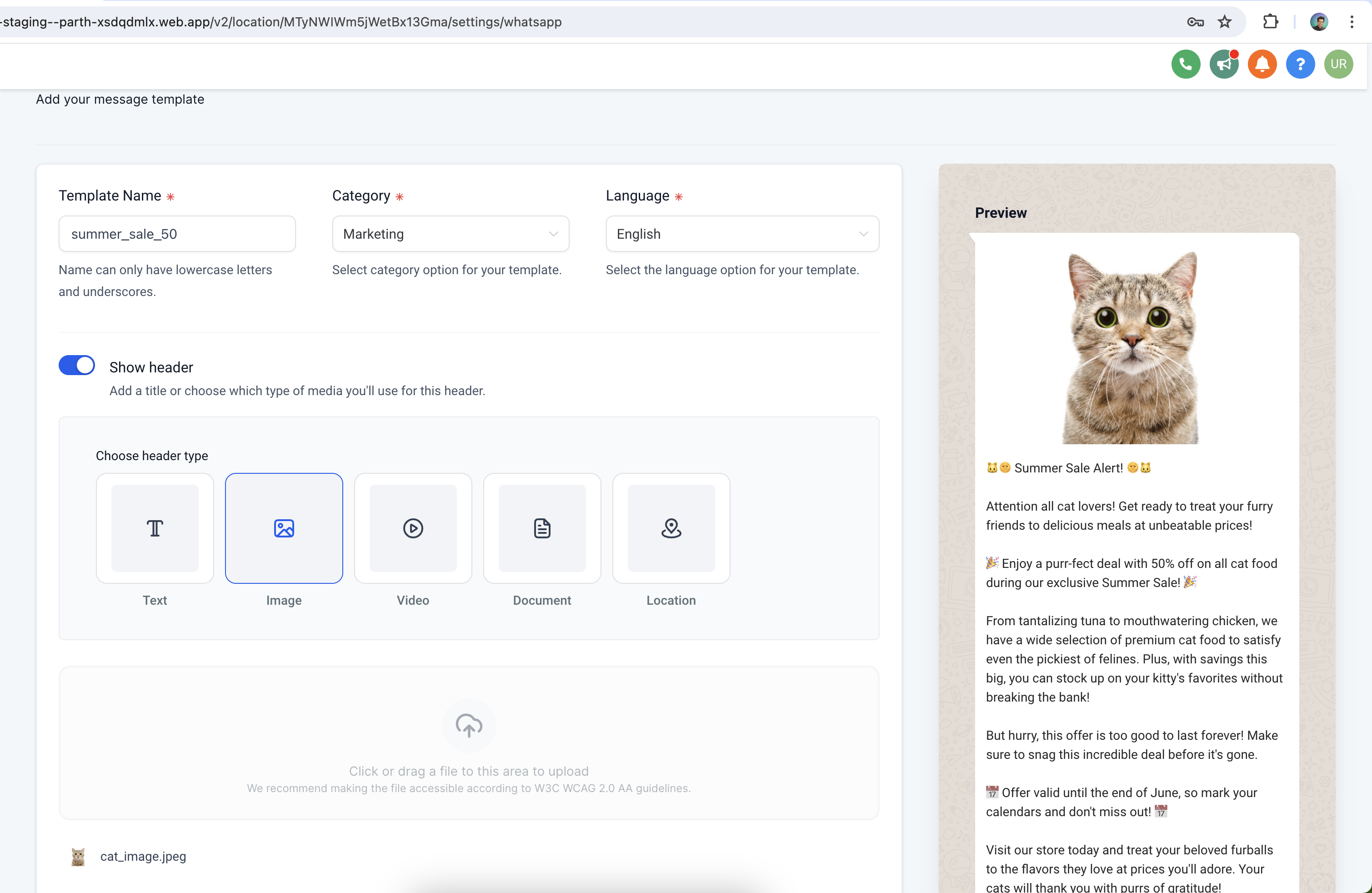
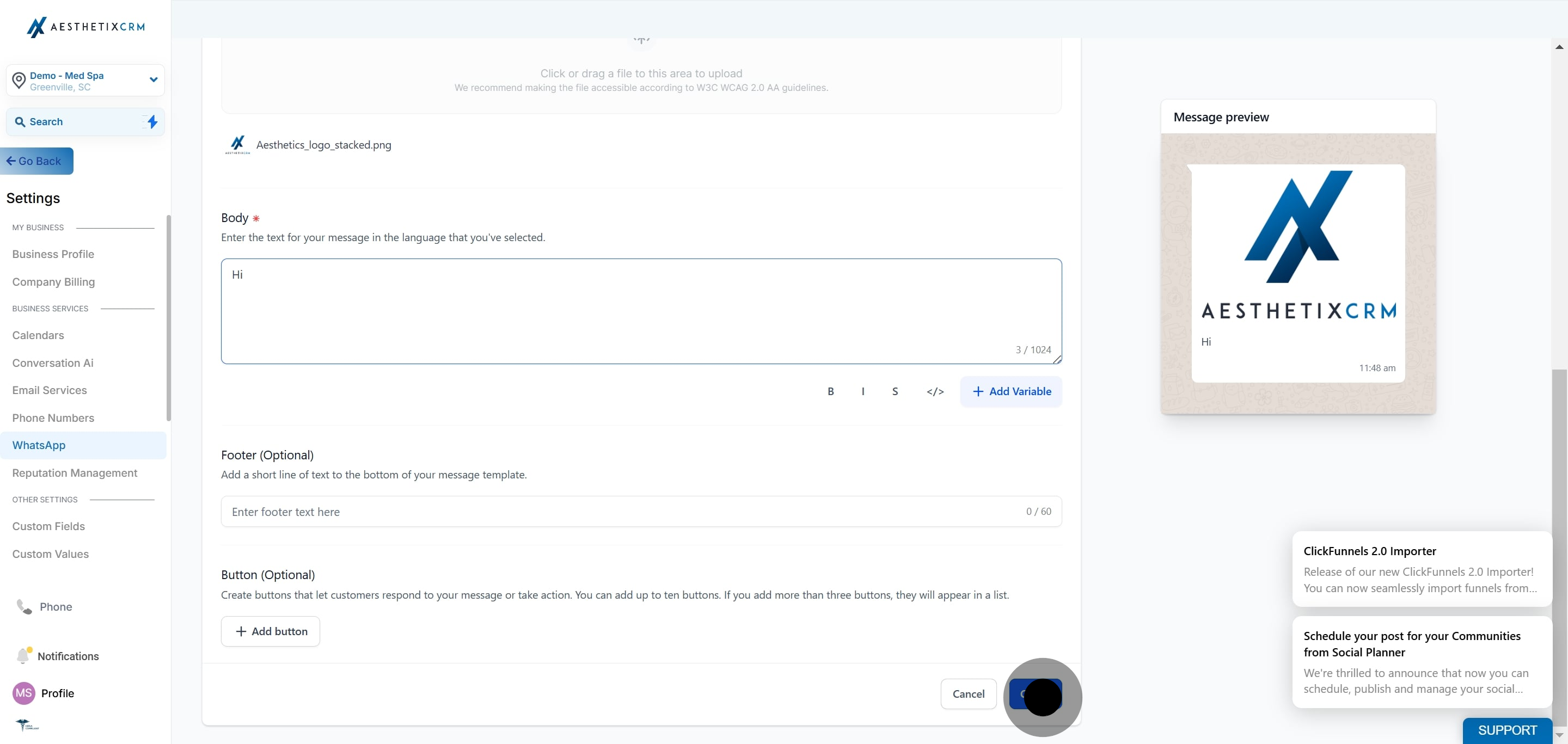
Once you press Create, the template is sent to Meta for approval.
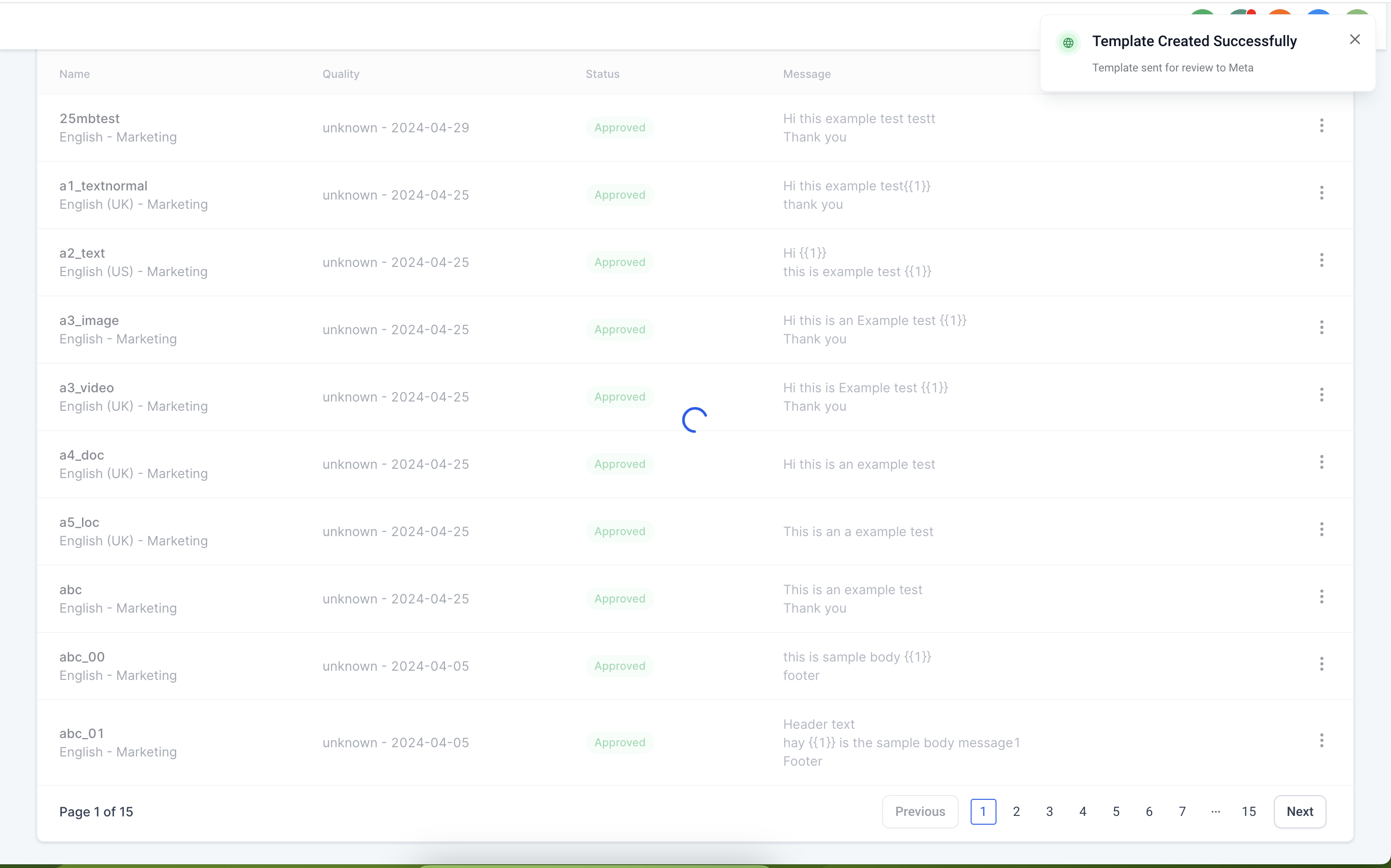
Note: Review the guide on WhatsApp template statuses and best practices to understand approval outcomes before you send.
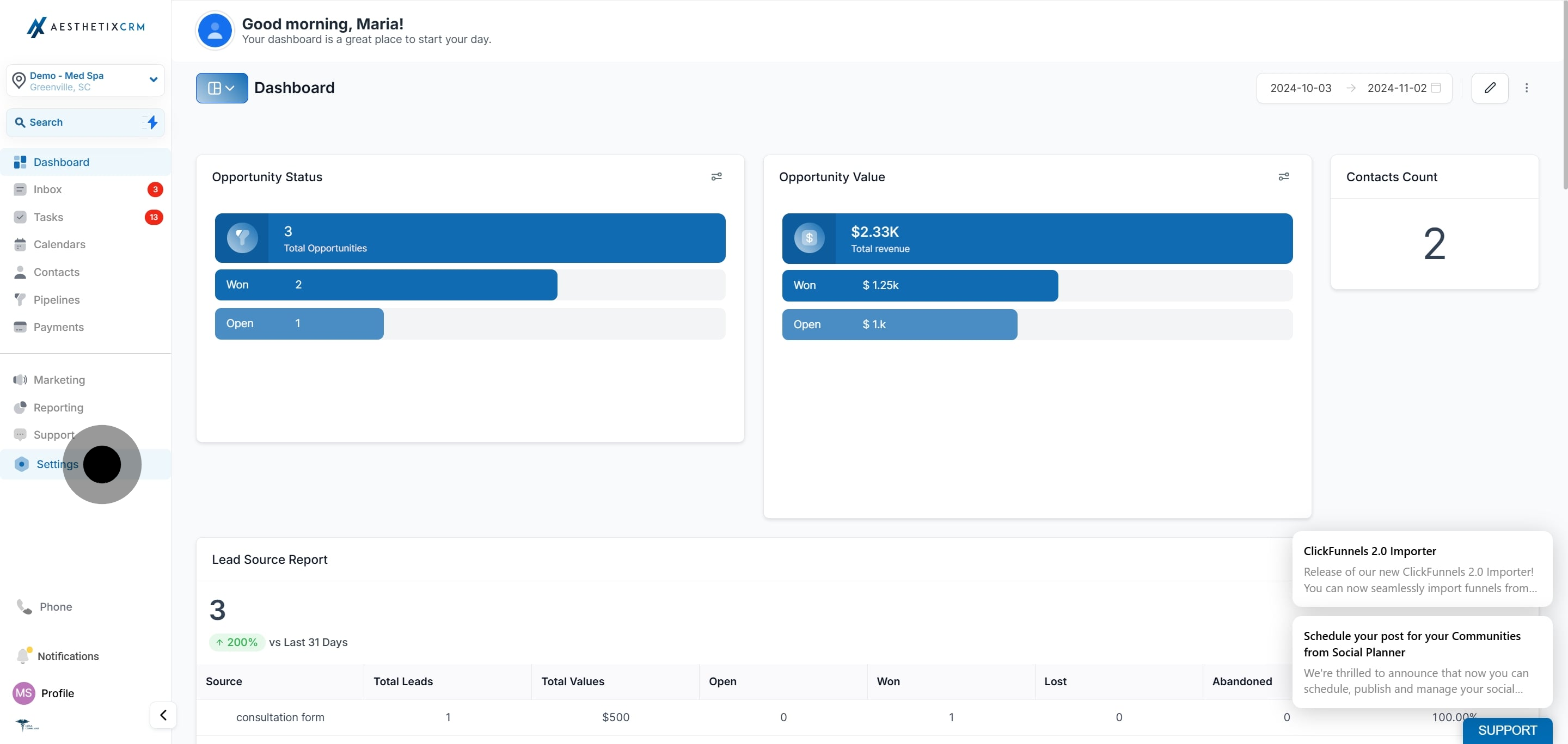
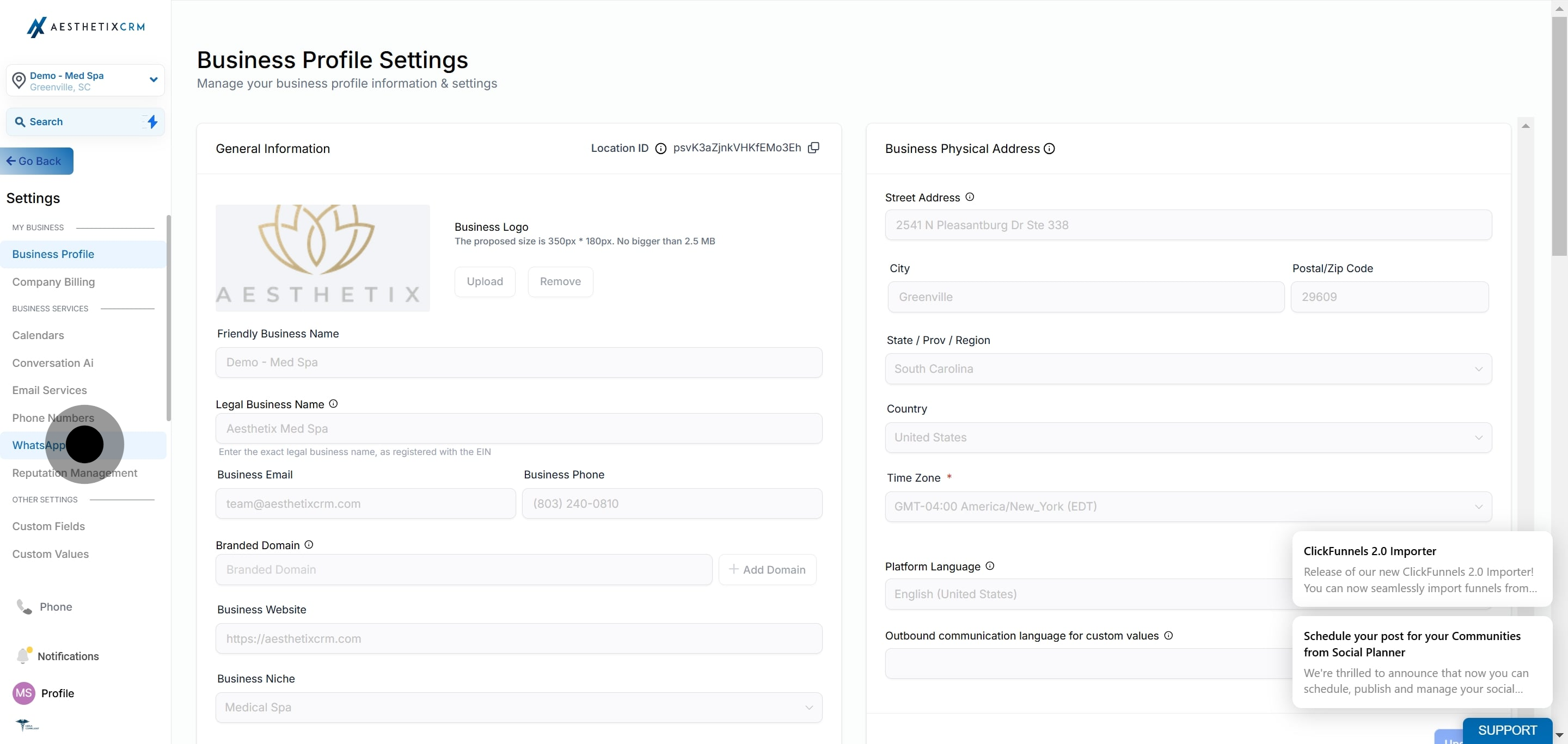
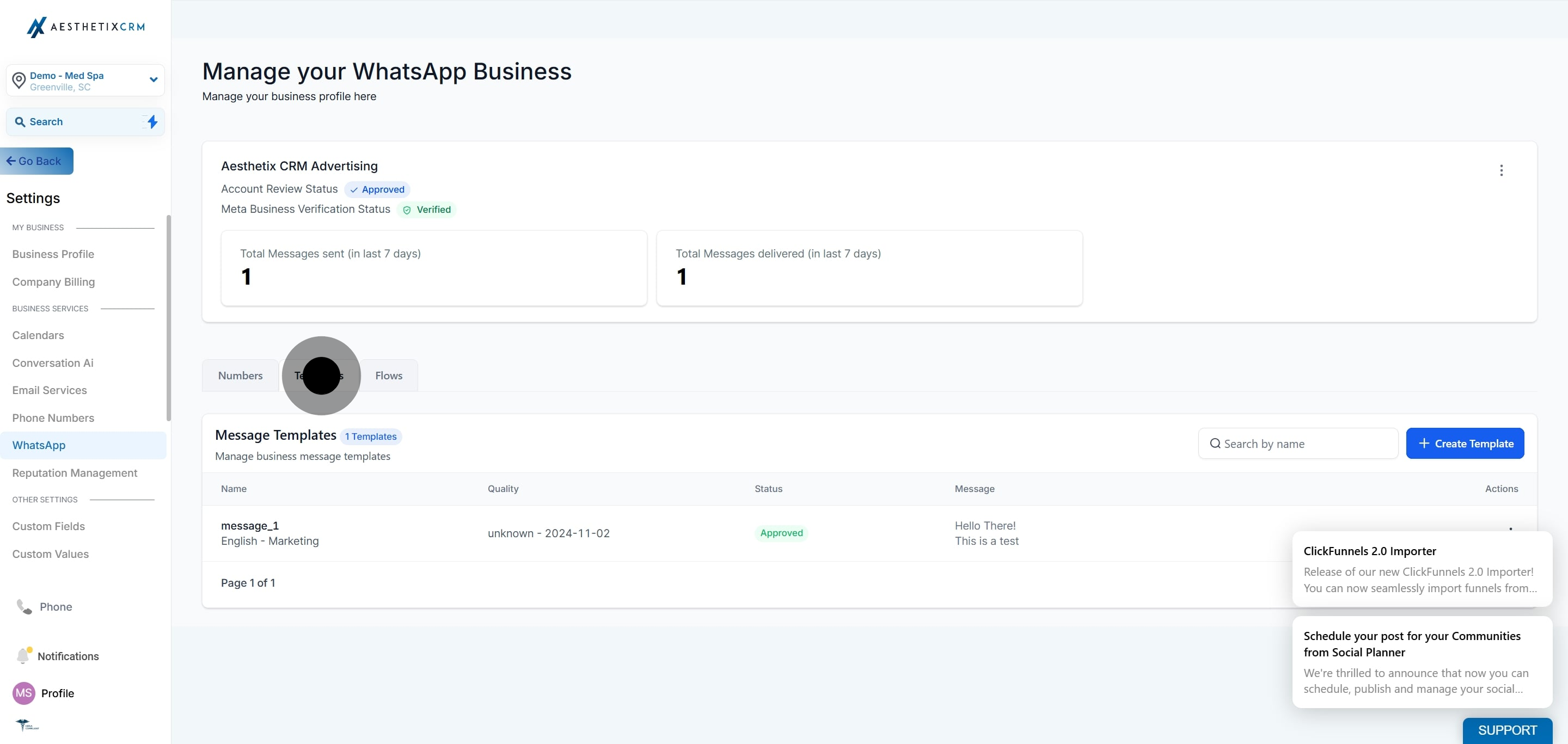
Go to Settings > WhatsApp > Templates > Create Template.
Select Location, add the location latitude and longitude, then add the location name and address.
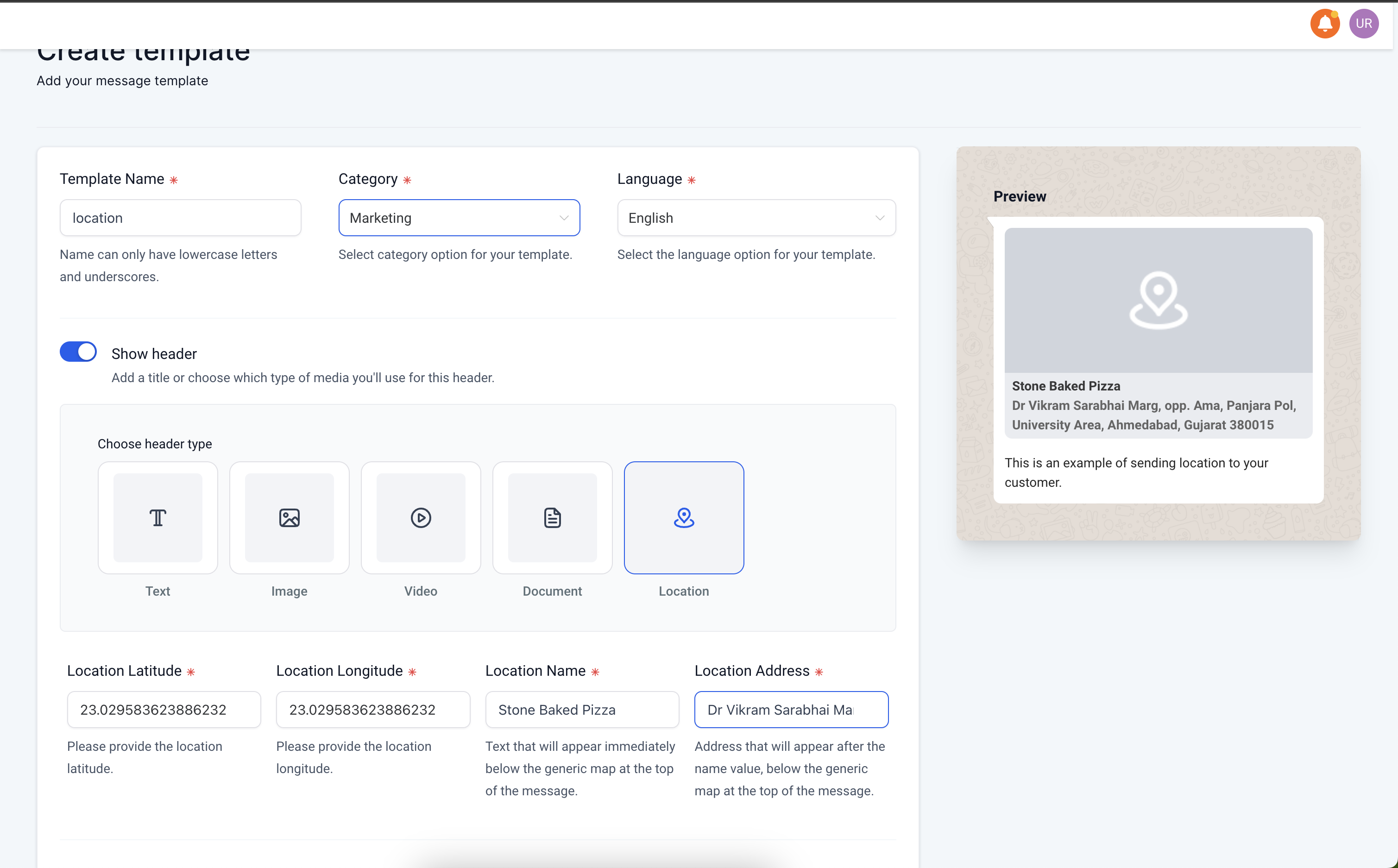
Note: Get the latitude and longitude from Google Maps by right-clicking on the place or area on the map.
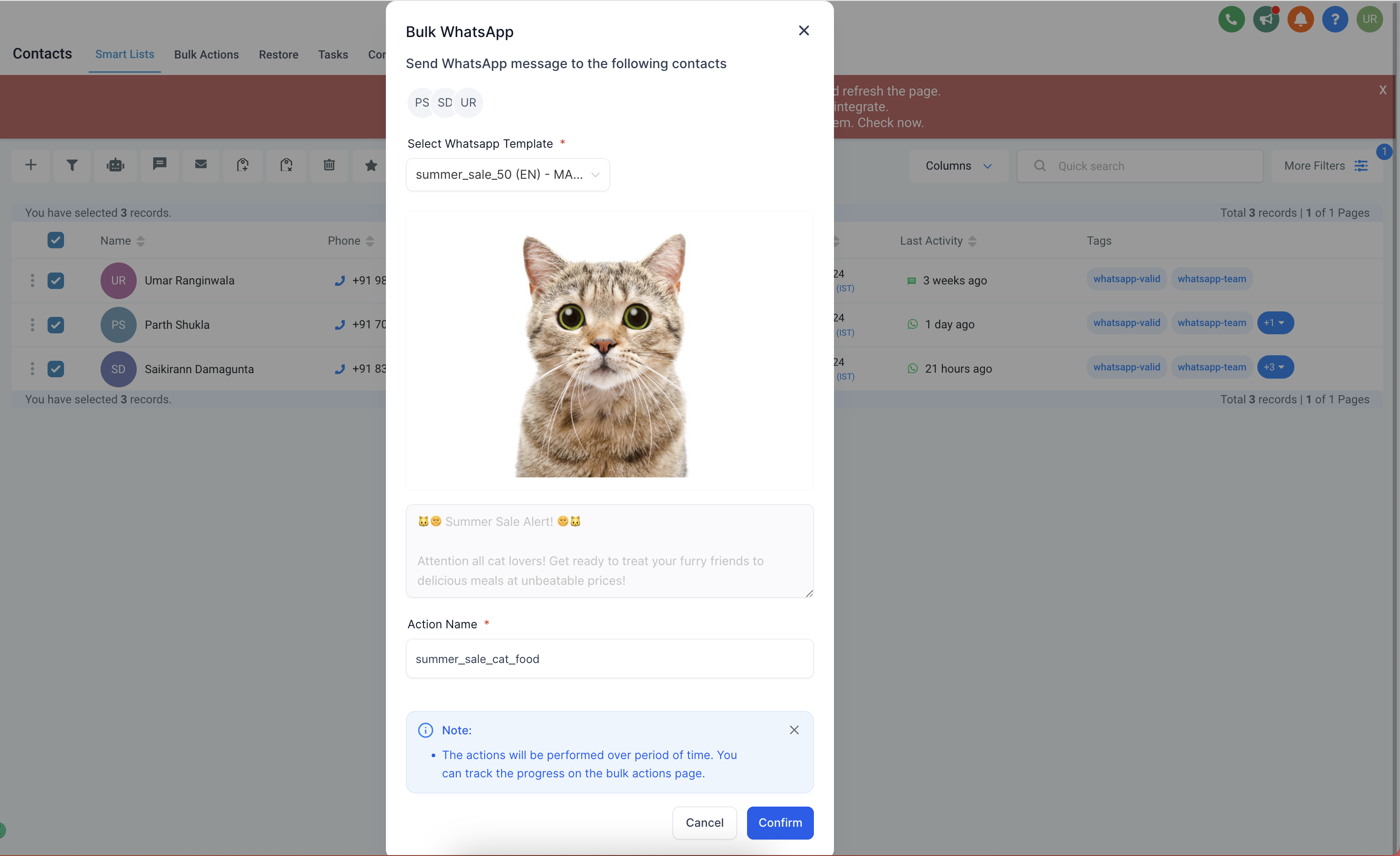
Go to Contacts and select the smart list you want to send a bulk WhatsApp message to.
Select all contacts, click the WhatsApp icon, select the template, and add an action name.
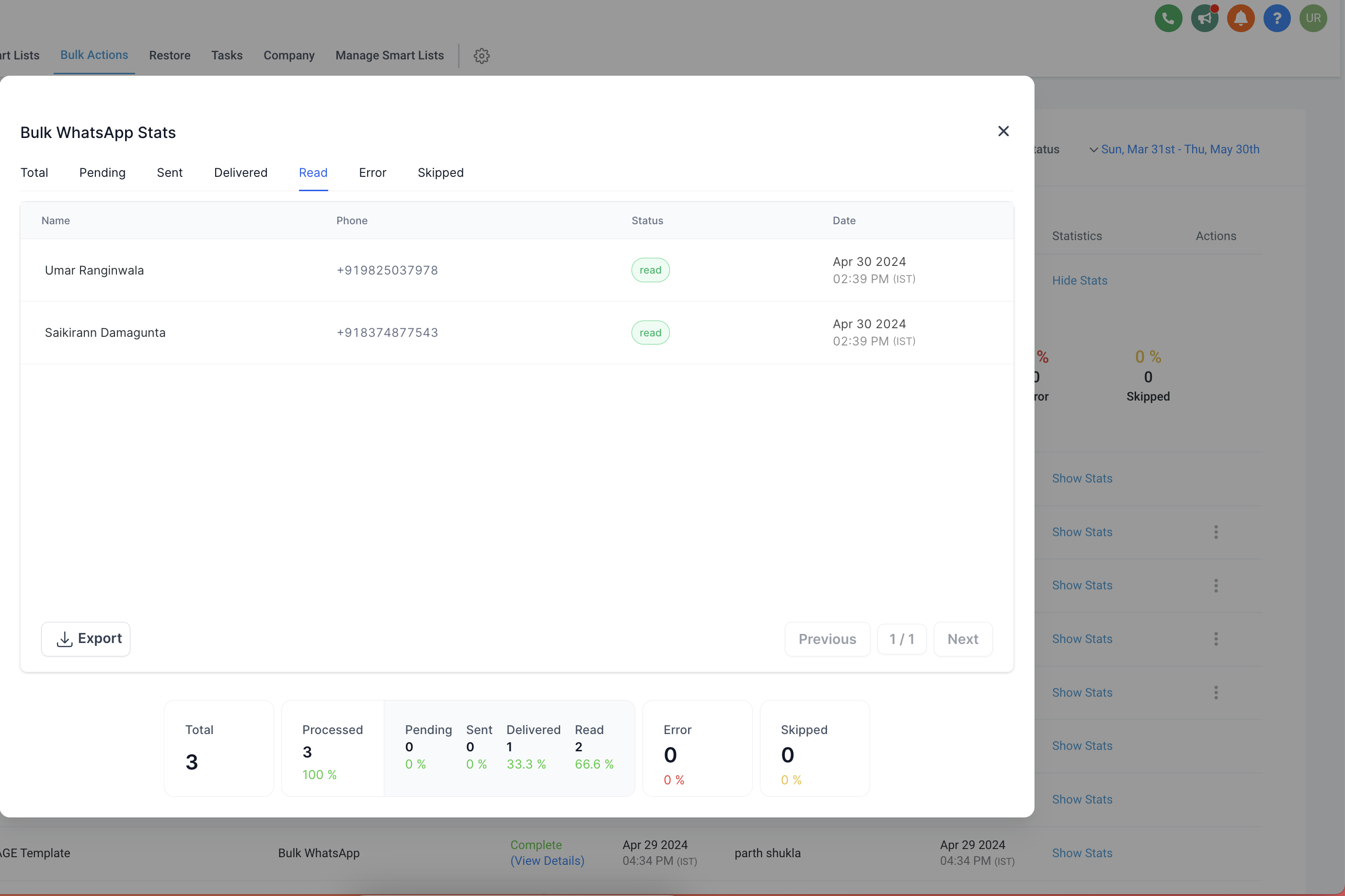
Select Show Stats, click Processed, and view the bulk action statistics.
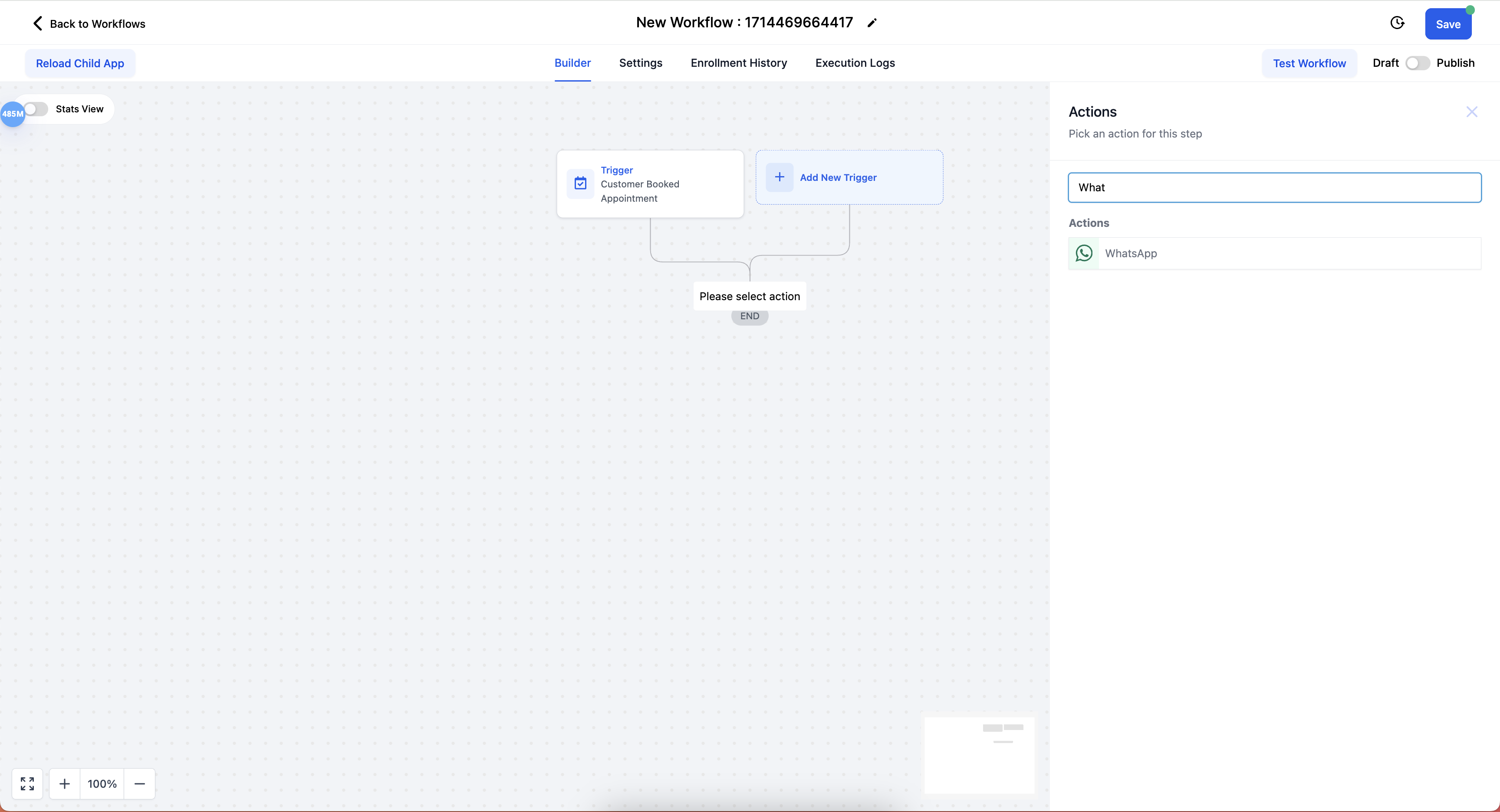
Go to Automations > Create Workflow > Start from Scratch > Select Trigger.
Select the WhatsApp action.
Select the WhatsApp Template, then Save Action and Save the workflow.
Note: The media URL is shown in the preview inside the workflow. When the WhatsApp message is sent, the actual media is rendered.
Go to Conversations and select the contact you want to send a WhatsApp media template to.
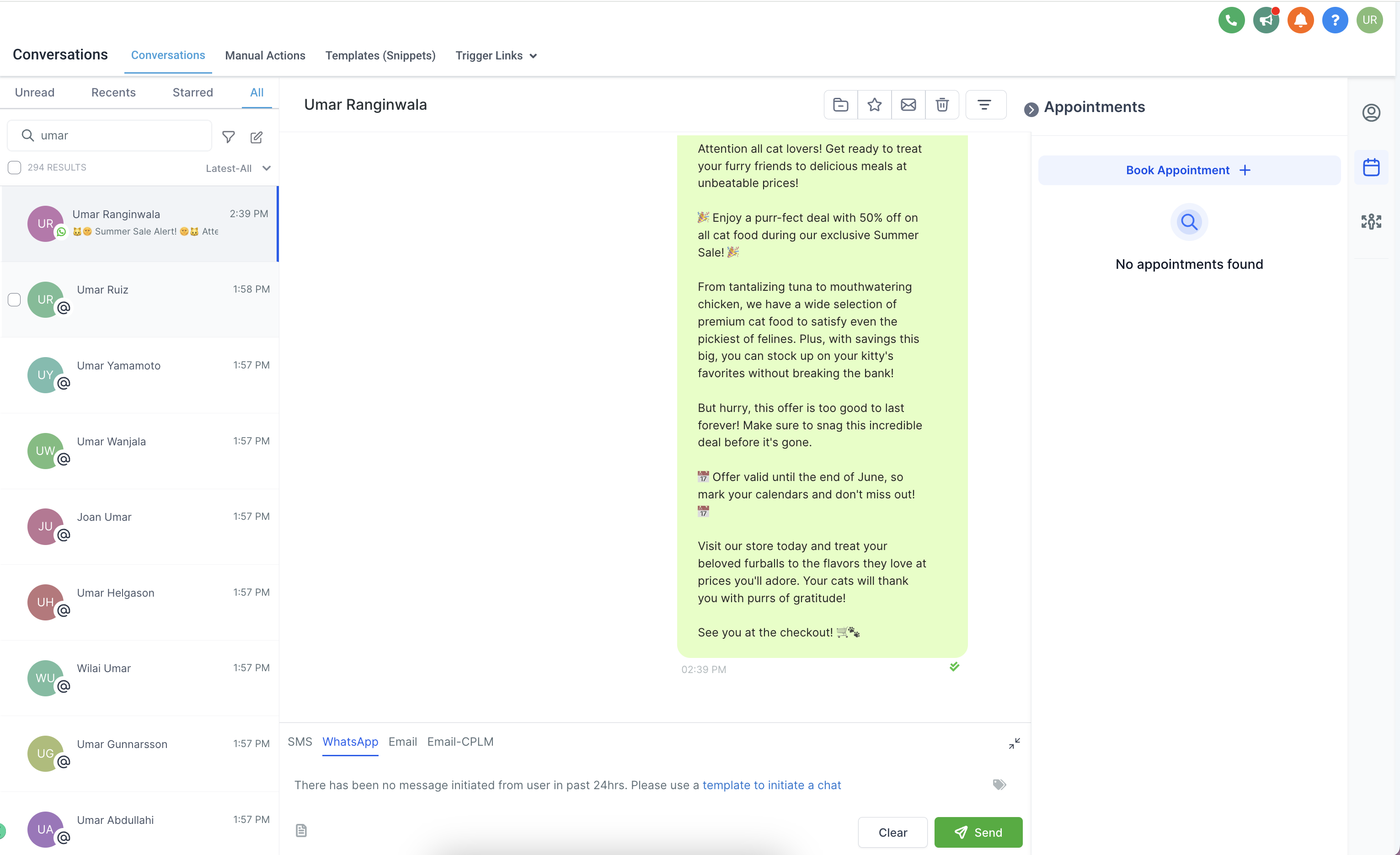
Click Please use a template to initiate a chat, select the media template you want to send, and click Send.
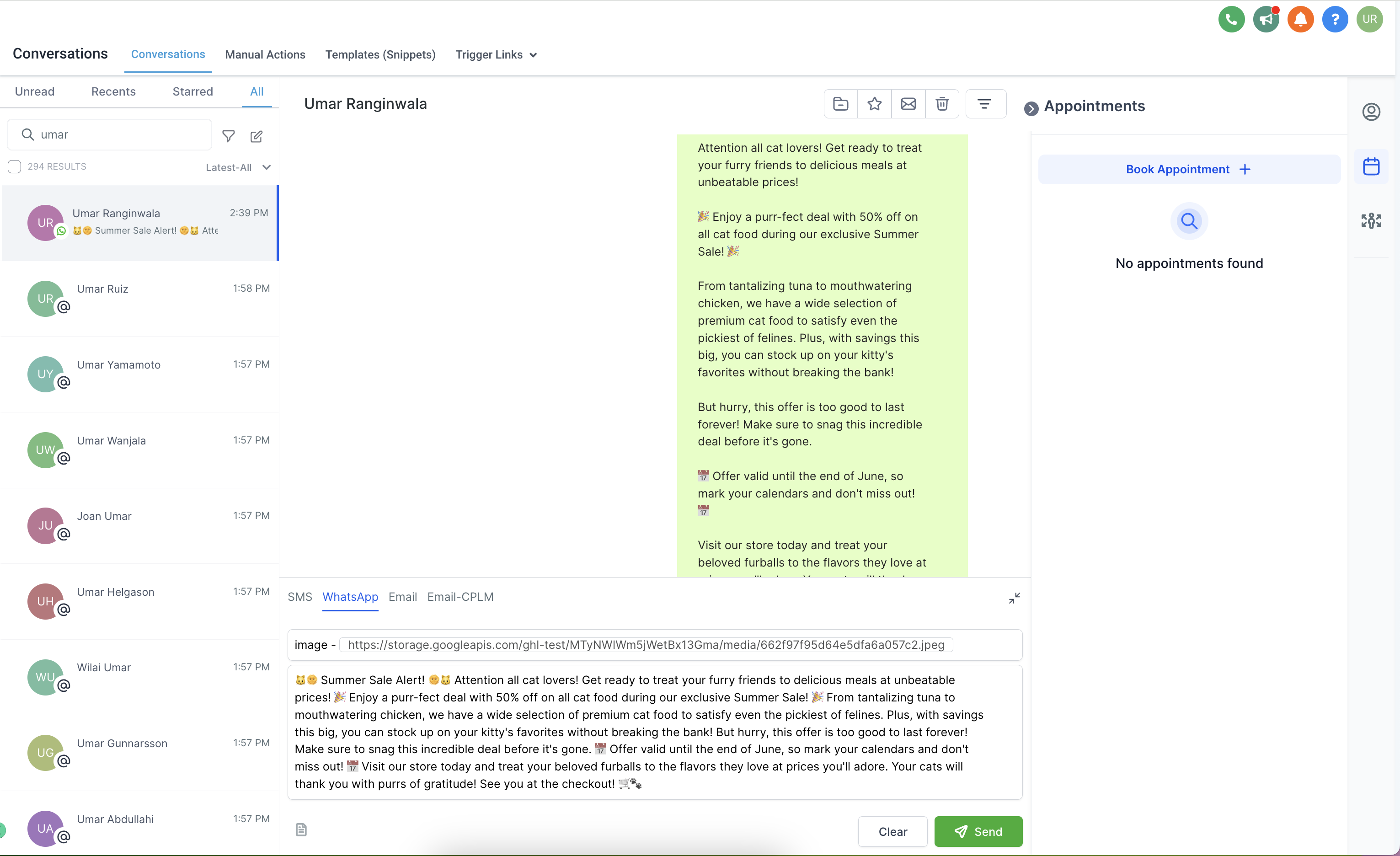
Note: You can change the media by changing the media URL. The URL should be a public link and contain the same type of media. For example, an image template only accepts PNG and JPEG files.
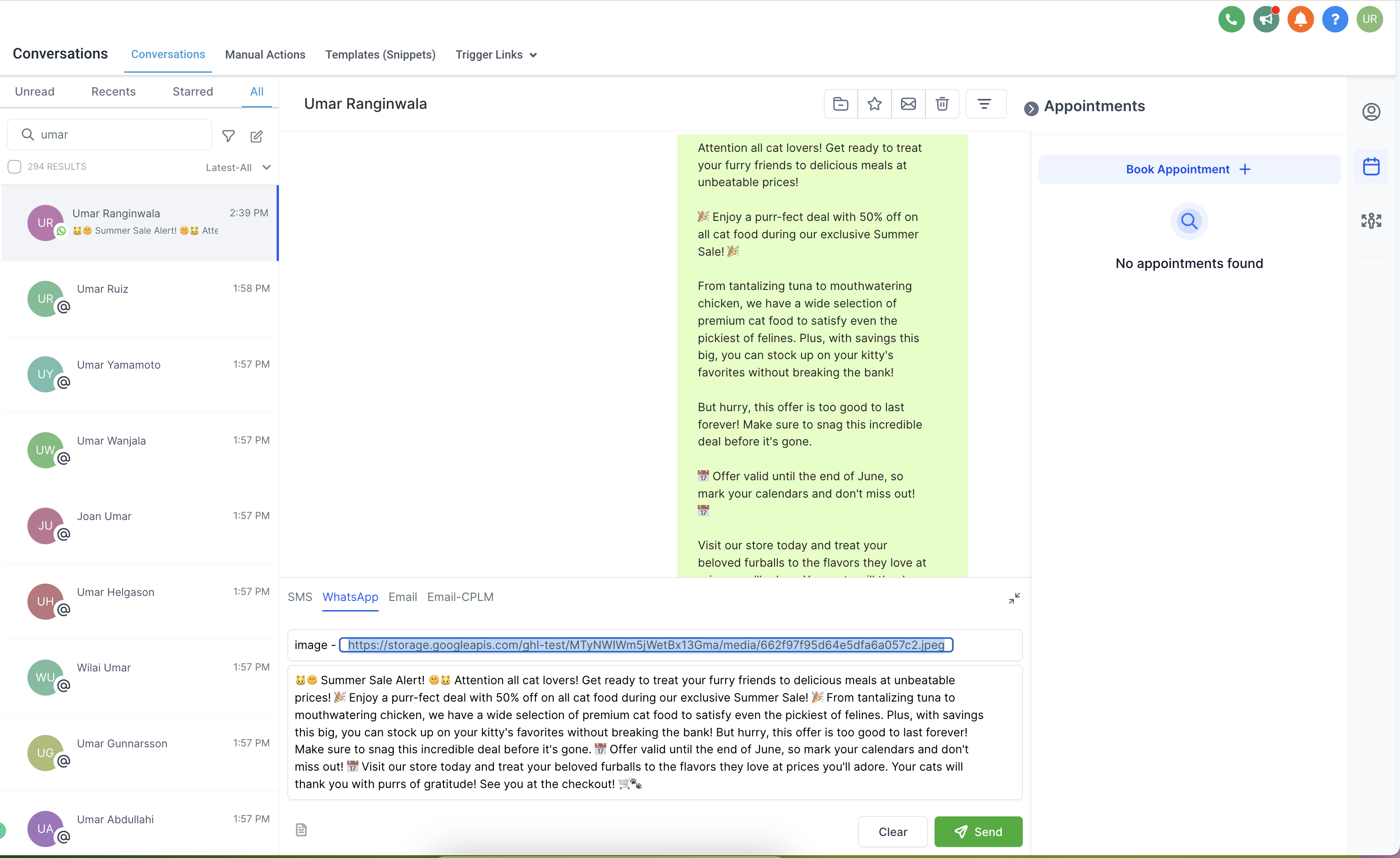
Note: You will get an error when using media that is not approved. For example, if you try to add a video file to an image template, an error is shown.
Media | Supported Types | Size Limit |
|---|---|---|
document |
| 100MB |
image |
| 5MB |
video |
| 16MB |
Note: If you try to upload a media file that exceeds the size limit, an error is shown.
What are the media limits for WhatsApp media templates?
Supported types and size limits are:
Document: application/pdf, 100MB
Image: image/jpeg, image/png (images must be 8-bit, RGB, or RGBA), 5MB
Video: video/mp4, 16MB
You will receive an error if you try to upload a media file that exceeds the size limit. For example, if you attempt to add a video file to an image template, you will receive an error message.
What are WhatsApp media templates?
They are pre-approved message formats that let you include images, videos, documents, or location information within WhatsApp messages. They help streamline communication with clients, especially for marketing, support, or authentication purposes.
What happens if I try to use media that does not fit the guidelines?
You will likely encounter an error message, and your template may not be sent. Ensure your media adheres to WhatsApp's template guidelines.
Do I need approval before using WhatsApp message templates?
Yes, all templates must go through an approval process with WhatsApp (Meta) to ensure they meet specific guidelines.
What factors can lead to a template being rejected?
Common reasons for rejection include:
Missing or incorrect variable formatting
Content violating WhatsApp's business or commerce policies
Sensitive information requests (for example, full payment card numbers)
Abusive or threatening language
Duplicating an existing template
What does it mean if my template is "Paused"?
A paused template received negative client feedback or low engagement. You cannot send a paused template until its status changes back to "Active".
