WhatsApp templates are pre-approved messages that let your practice start conversations with patients outside the 24-hour messaging window. Any time you want to send the first message, such as an appointment reminder or a promotional offer, you need an approved template. This guide walks you through creating a template, adding variables and interactive buttons, submitting it to Meta for review, and tracking its approval status.
Before you can create and use WhatsApp templates, make sure the following are in place:
Your account must have an active WhatsApp subscription.
Meta onboarding must be completed successfully.
A WhatsApp number must be connected and showing as "Connected" and "Approved."
Note: WhatsApp templates are required to initiate outbound messages. Once your templates are approved, you can send them through manual messages in your Inbox, workflows and automations, and review requests or marketing campaigns.
When you create a new template, you must select a category. Meta validates your chosen category against its official template category guidelines and assigns a status such as Approved, Pending, or Rejected. Make sure your message content matches the selected category to avoid delays or rejections.
The categories are:
Marketing – For promotional content such as offers, announcements, and campaigns. Marketing templates require patient opt-in before you send them.
Utility – For transactional or service-related messages such as appointment reminders and order updates.
Authentication – For one-time passcodes (OTPs) or secure login purposes.
Note: Marketing templates need documented patient opt-in. Only send promotional WhatsApp messages to patients who have agreed to receive them.
Follow these steps to build a new template and submit it for approval.
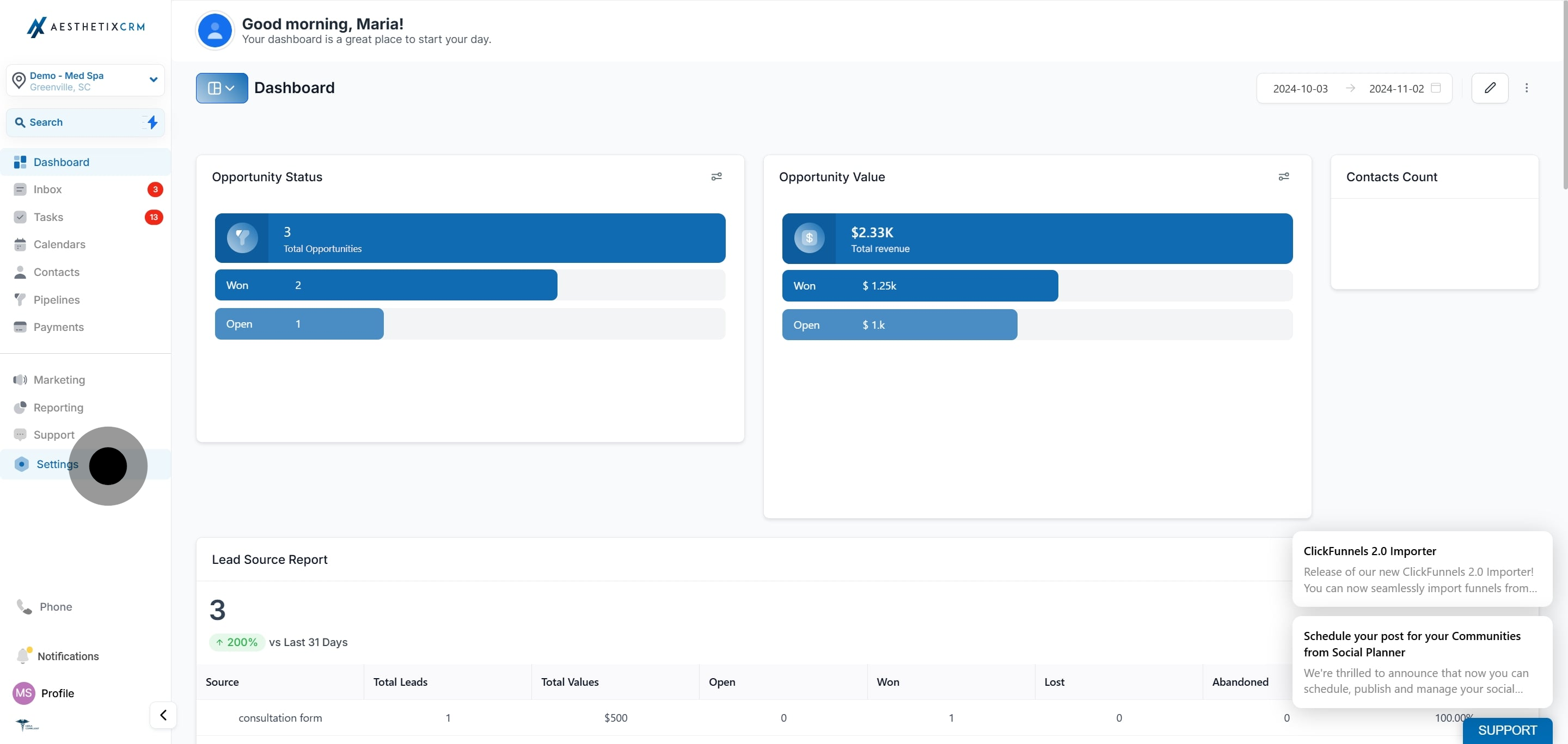
To get started, click on Settings.
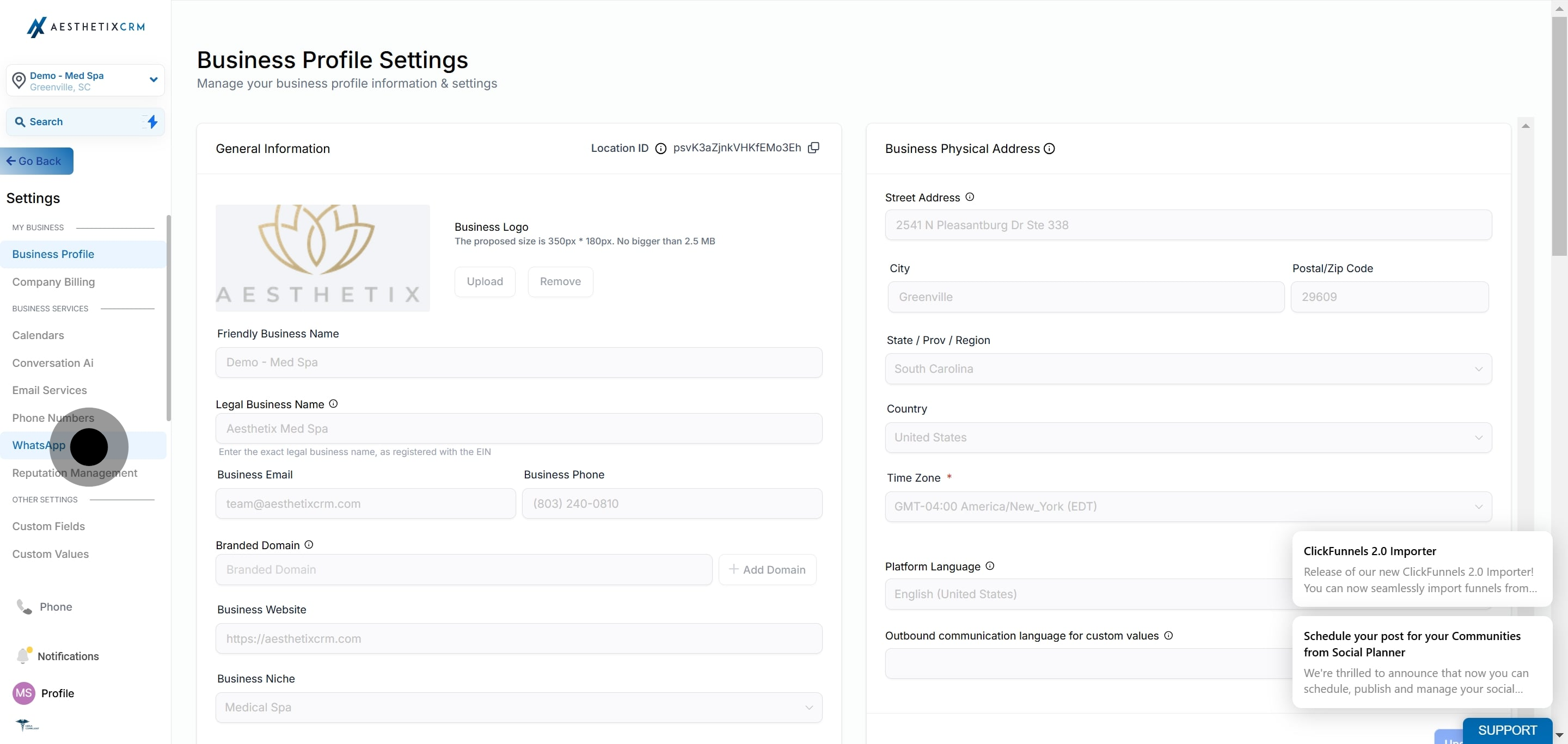
Click on WhatsApp.
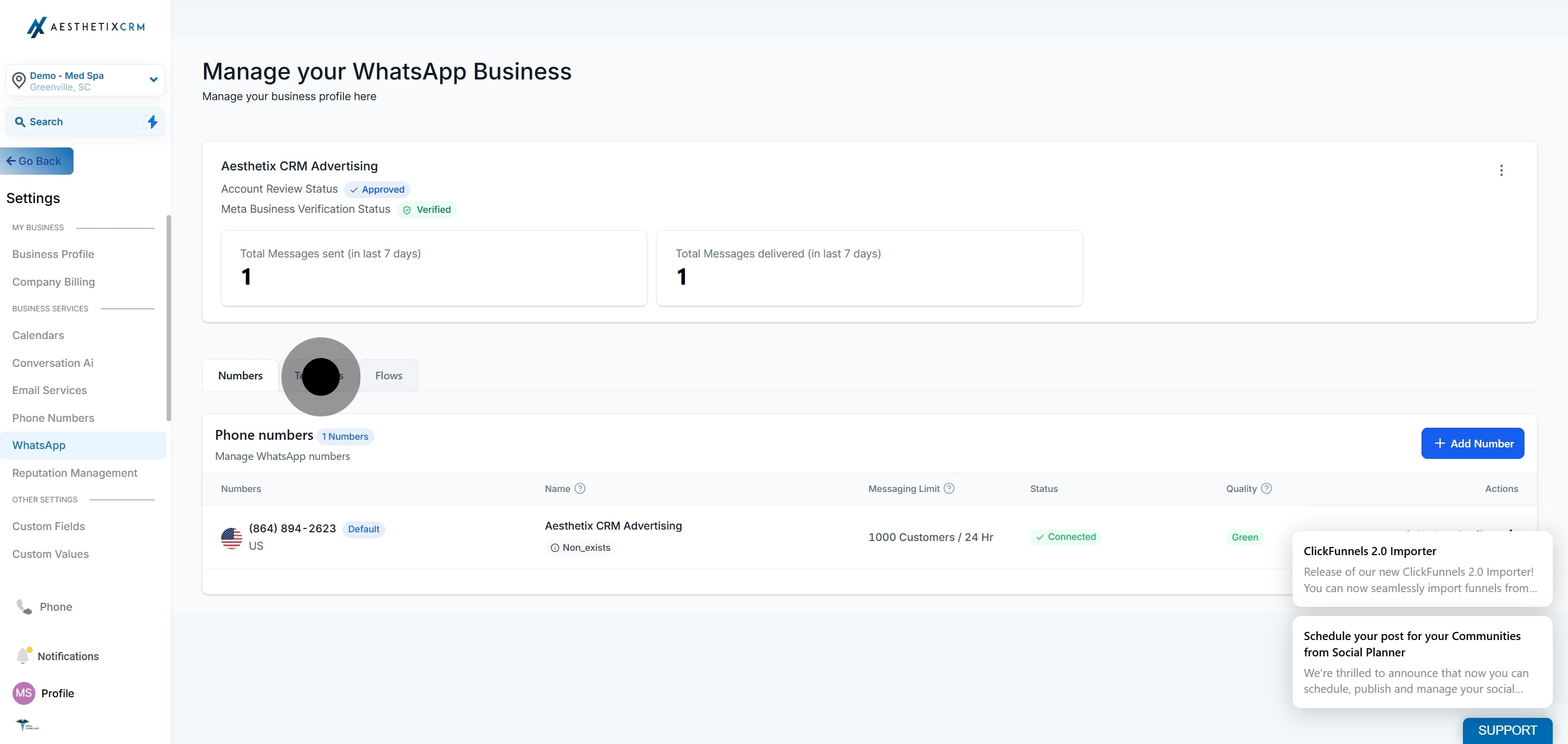
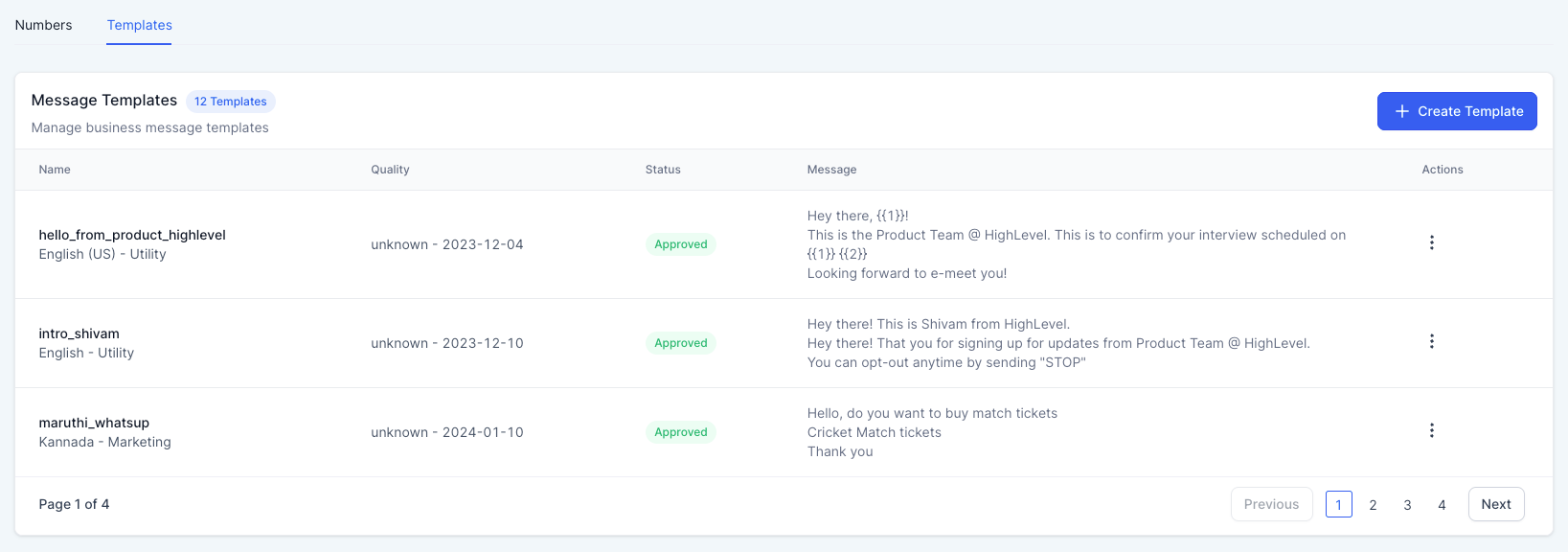
Click on Templates.
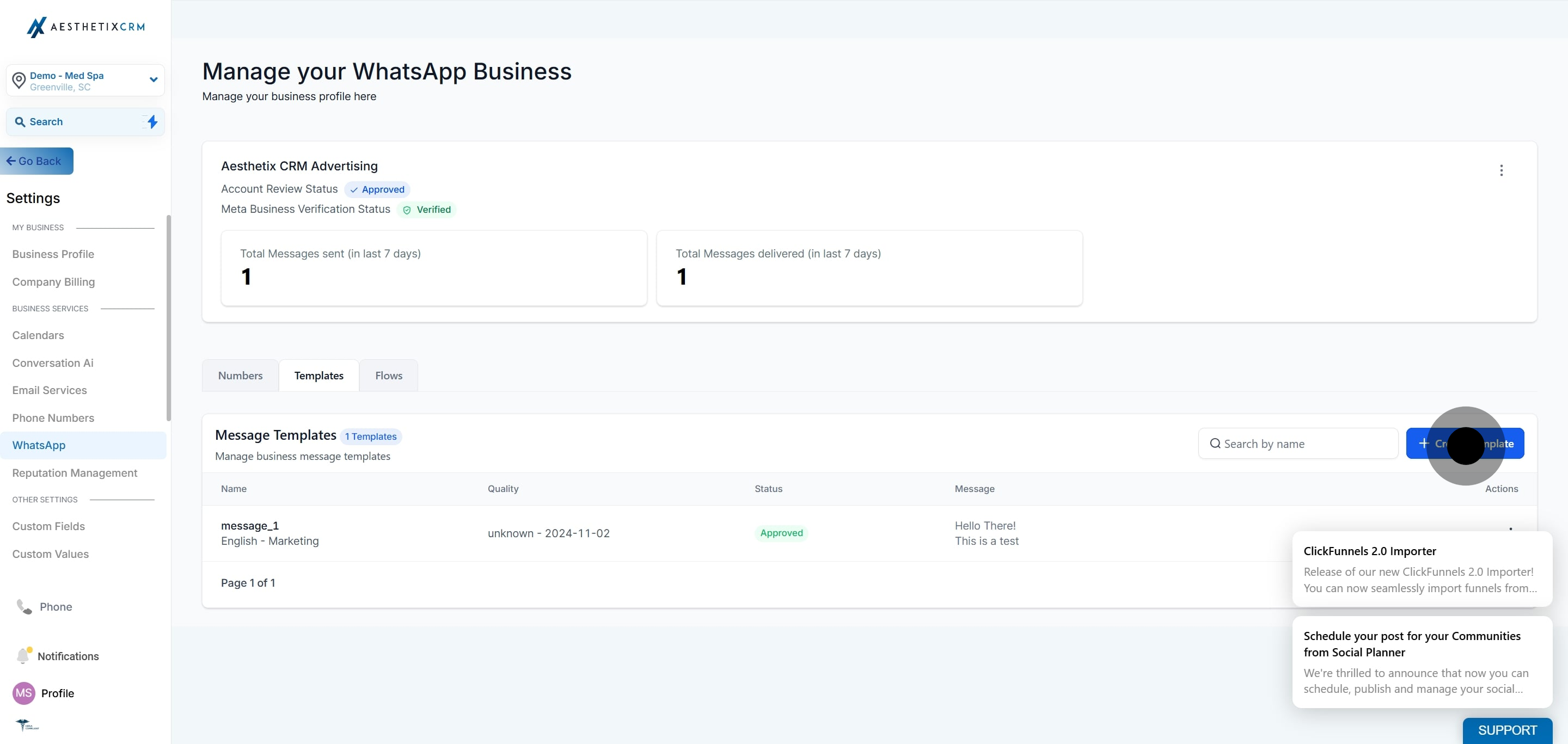
Click + Create Template.
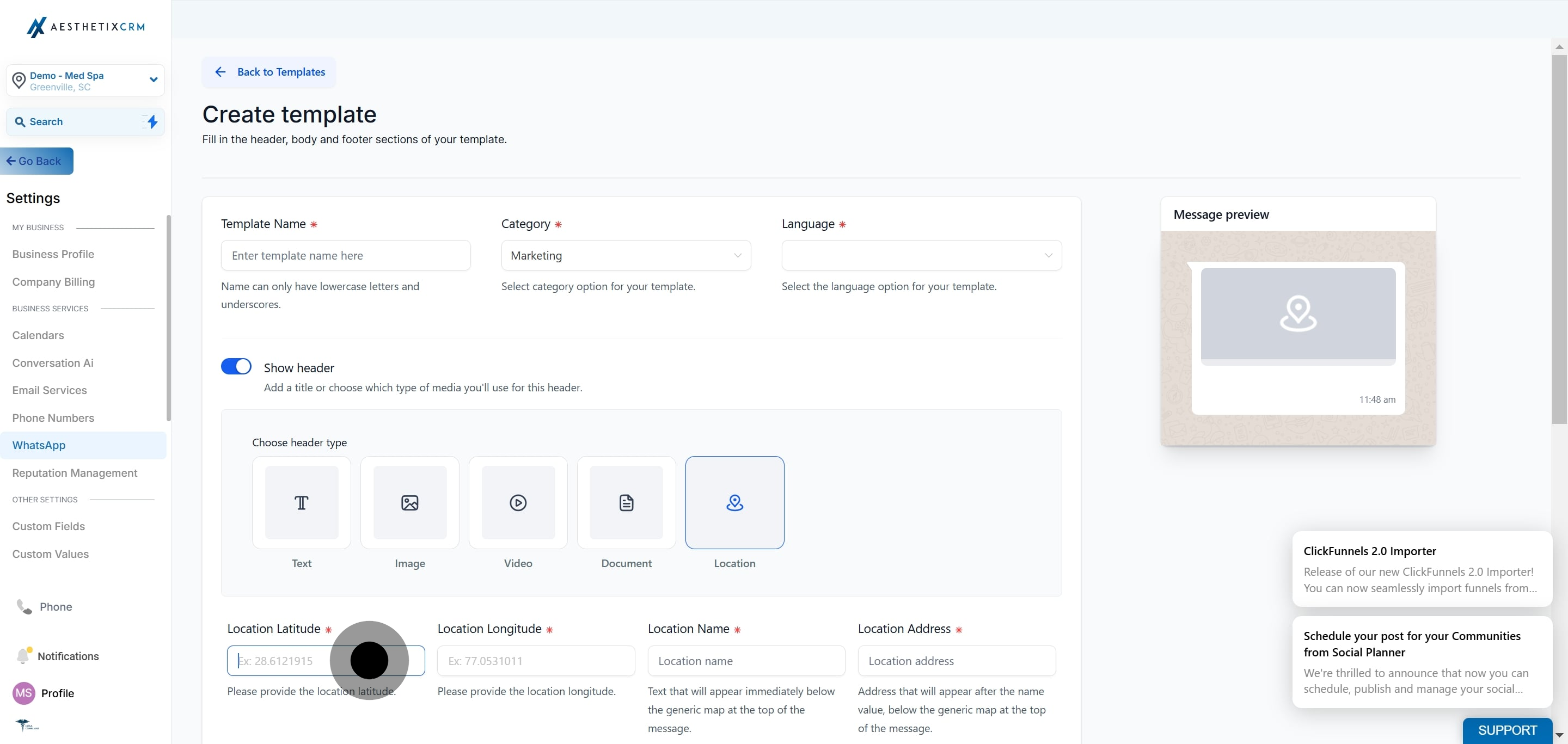
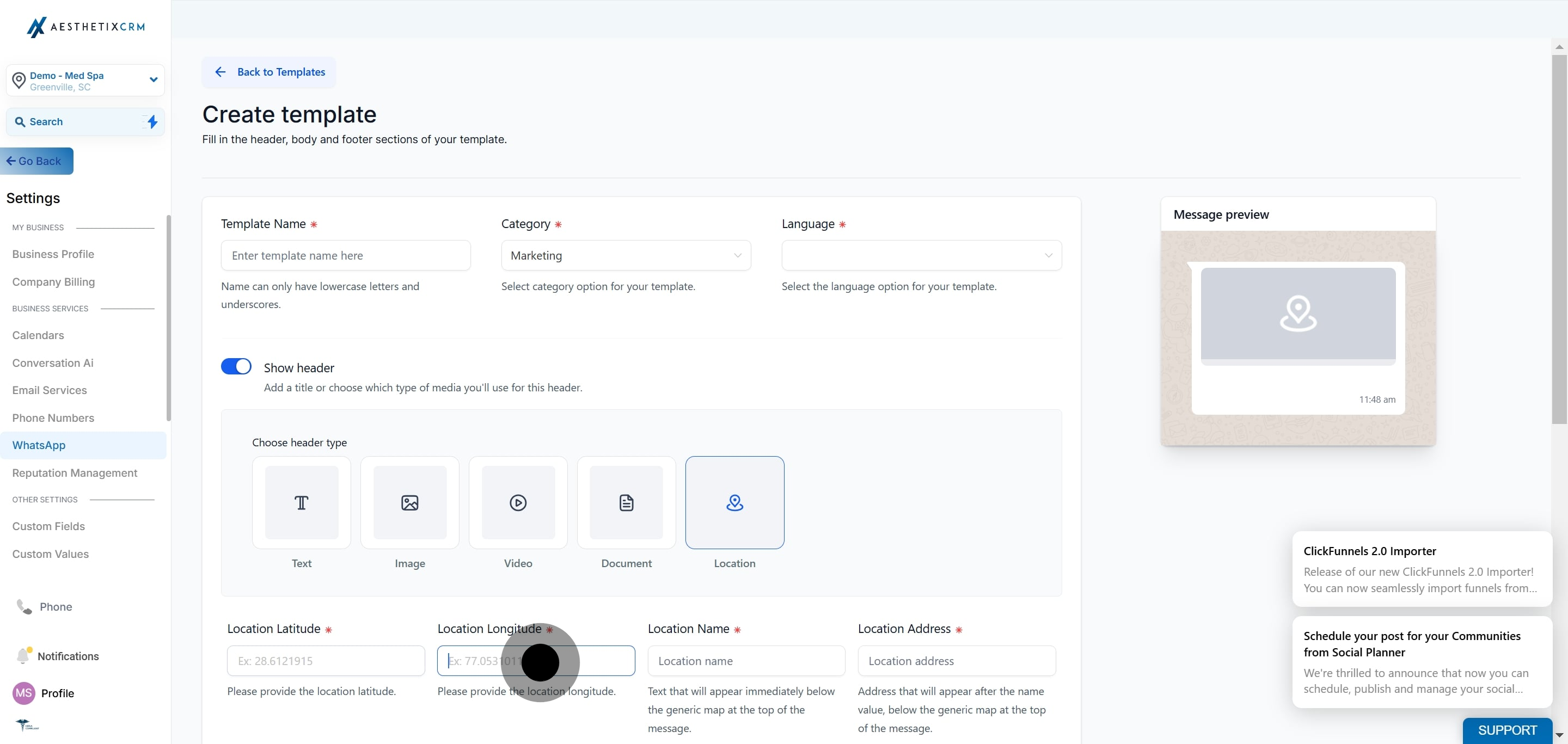
Note: WhatsApp supports Media Templates, which let you send various types of media content including images, videos, documents, and location.
Provide the following details:
Template Name – Use only lowercase characters and no spaces.
Category – Choose Marketing or Utility to match the intent of your message.
Language – Select the language in which the message will be sent.
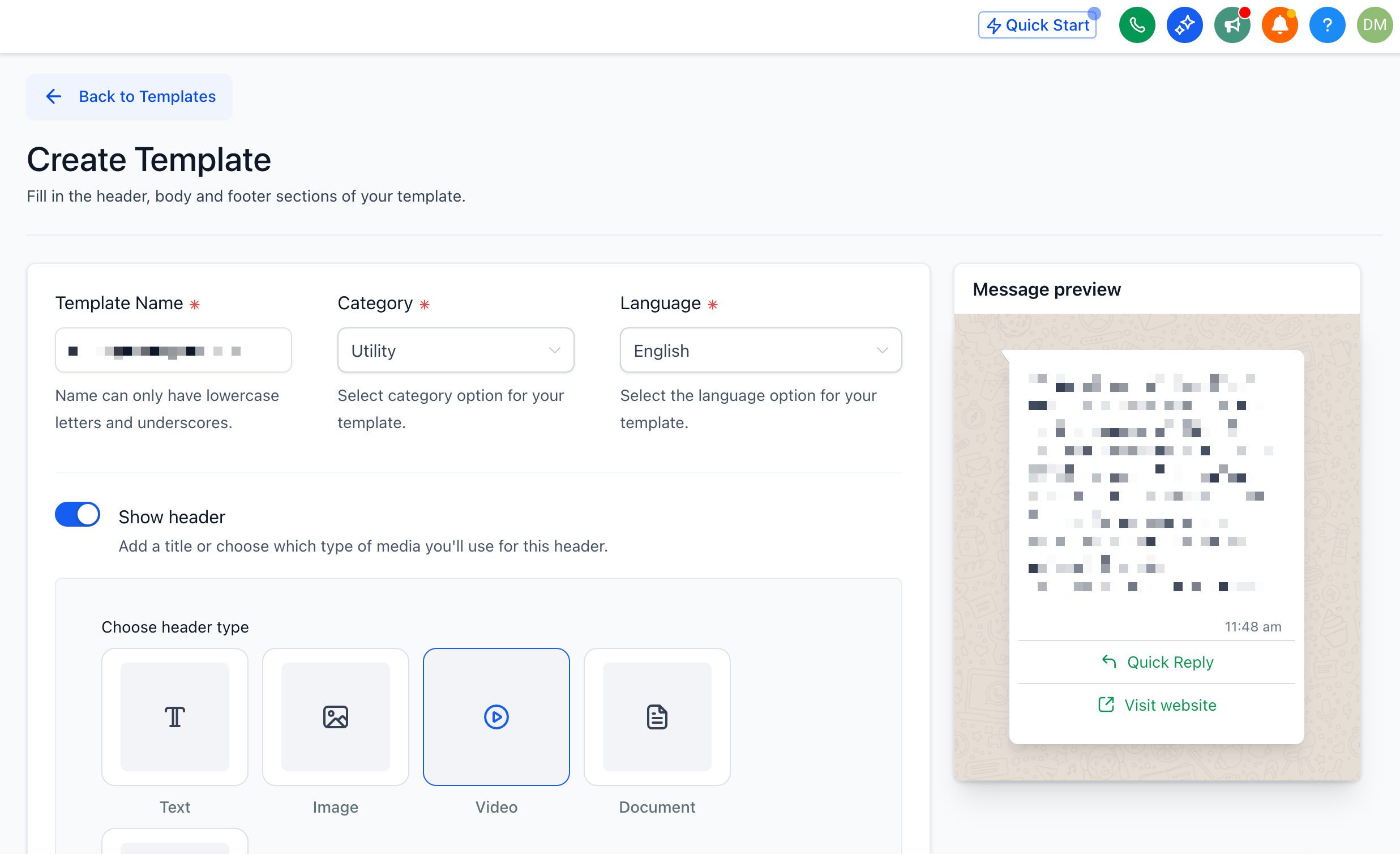
Header (Optional) – Can be static or include one custom variable (for example, {{1}}).
If you set the header type to Image, Video, or Document, you have two ways to add the header media:
Upload from Computer – Upload a new file from your device.
Choose from Media Library – Reuse an existing asset already stored in your Media Library, so you do not have to re-upload files you use often.
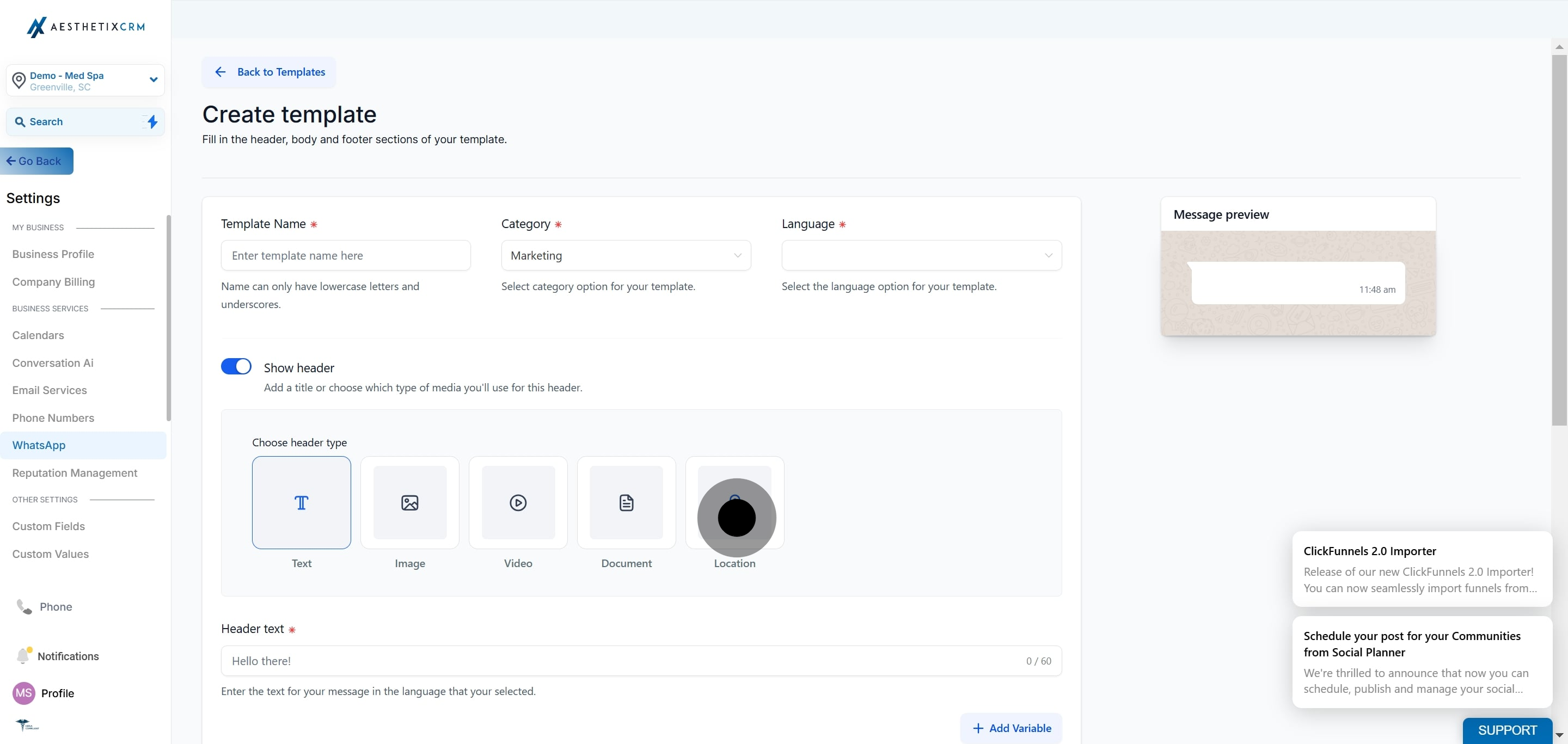
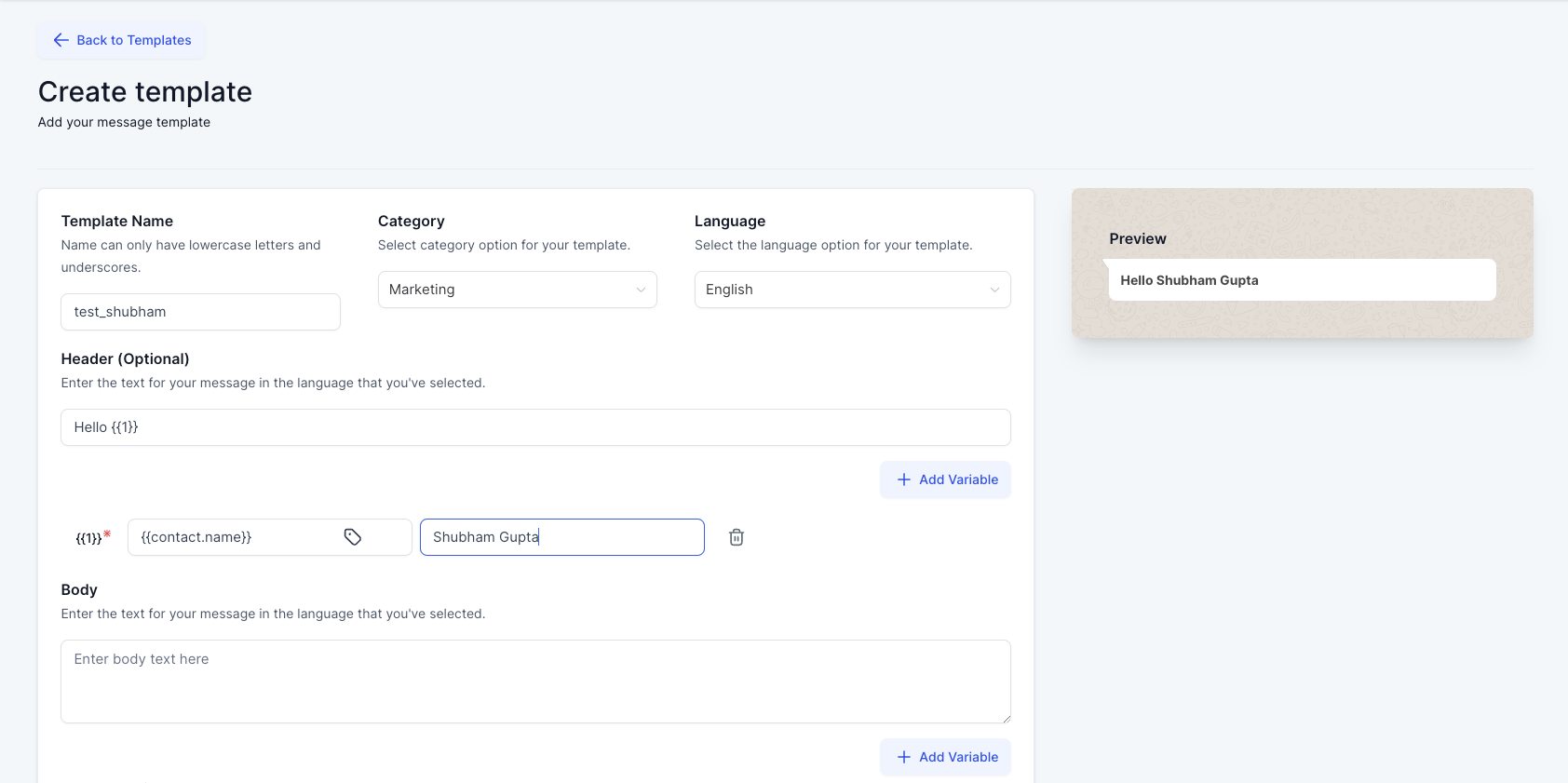
Fill in the core content of your message:
Body – The message that will be sent to the patient. Use Add Variable to insert placeholders such as {{1}}, {{2}}, and so on. You can add multiple custom variables while creating the template.
Footer (Optional) – A static message displayed at the bottom of your template.
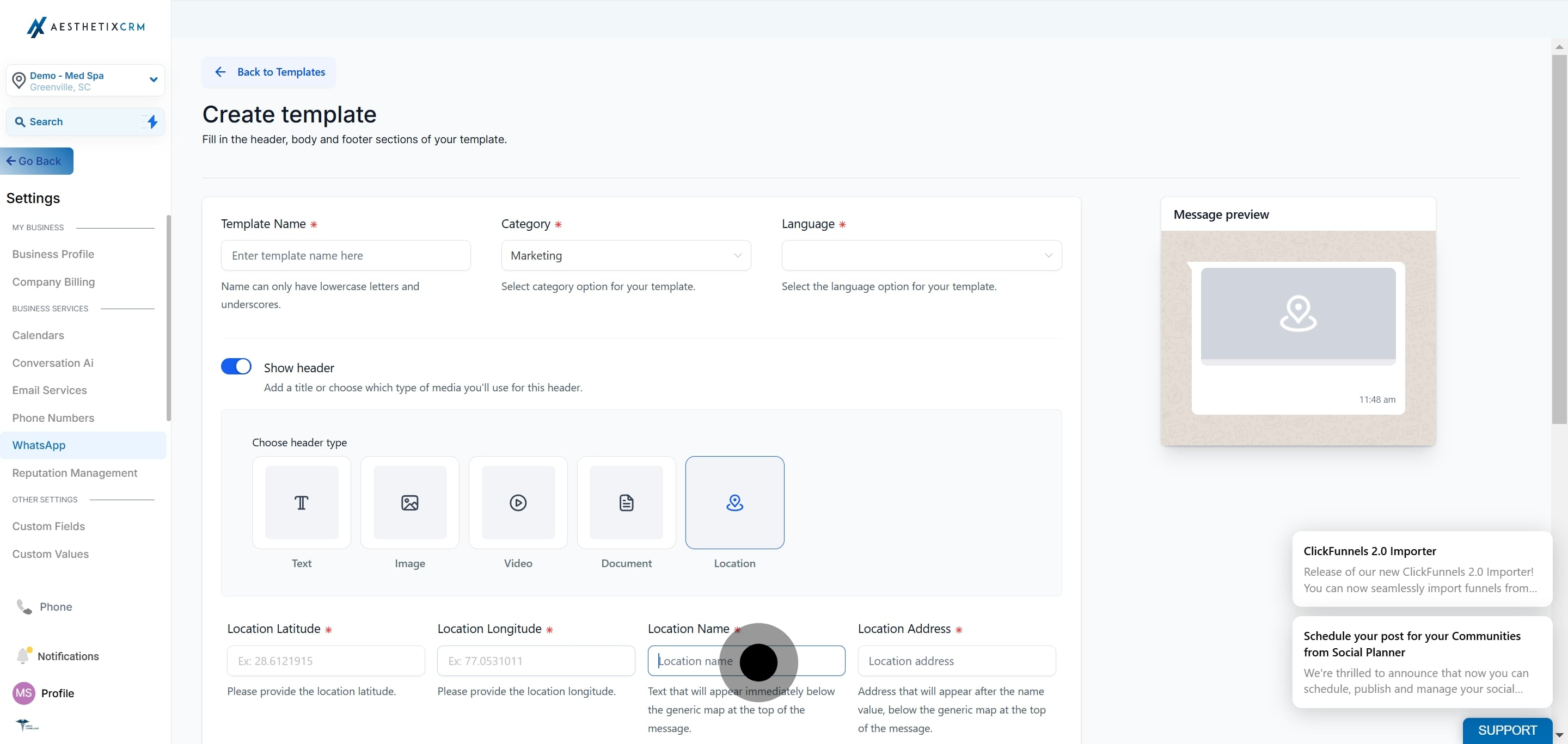
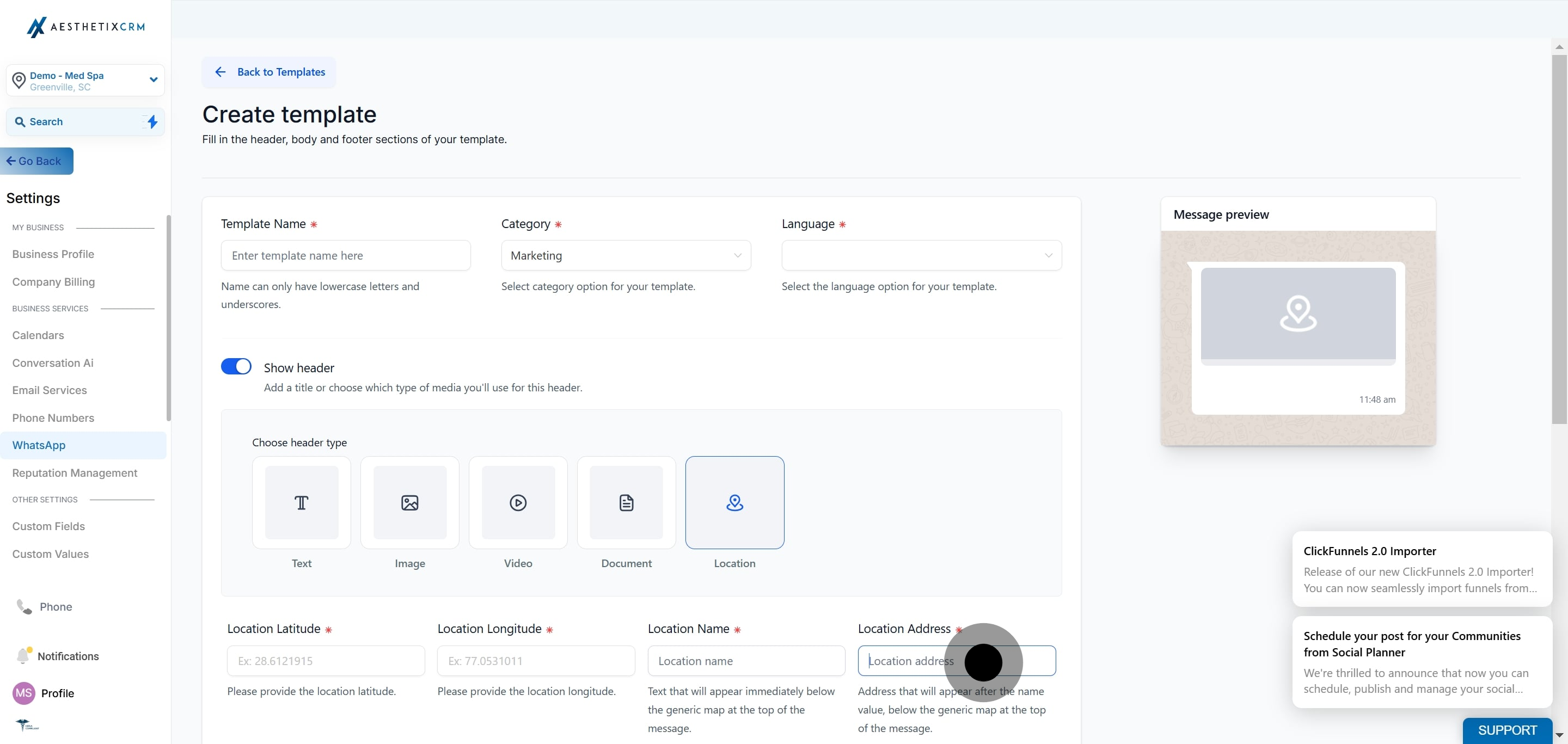
Note: You must fill in sample values for each variable. Meta requires these examples to review and approve your template.
Note: The template builder checks your variables as you type and flags common formatting or placement problems inline, such as a variable that isn't numbered correctly or a message body that ends on a variable instead of closing with plain text. Correcting these before you submit helps you avoid avoidable rejections from Meta.
Once the template is filled in, review it and click Create. The system automatically submits the template to Meta for approval.
After submission, track the status in the Templates tab. The possible statuses are:
Status | Description |
|---|---|
Pending | Template submitted and awaiting Meta's approval. |
Approved | The template is approved and ready to be used for messaging. |
Rejected | The template was not approved. You will need to edit and resubmit. |
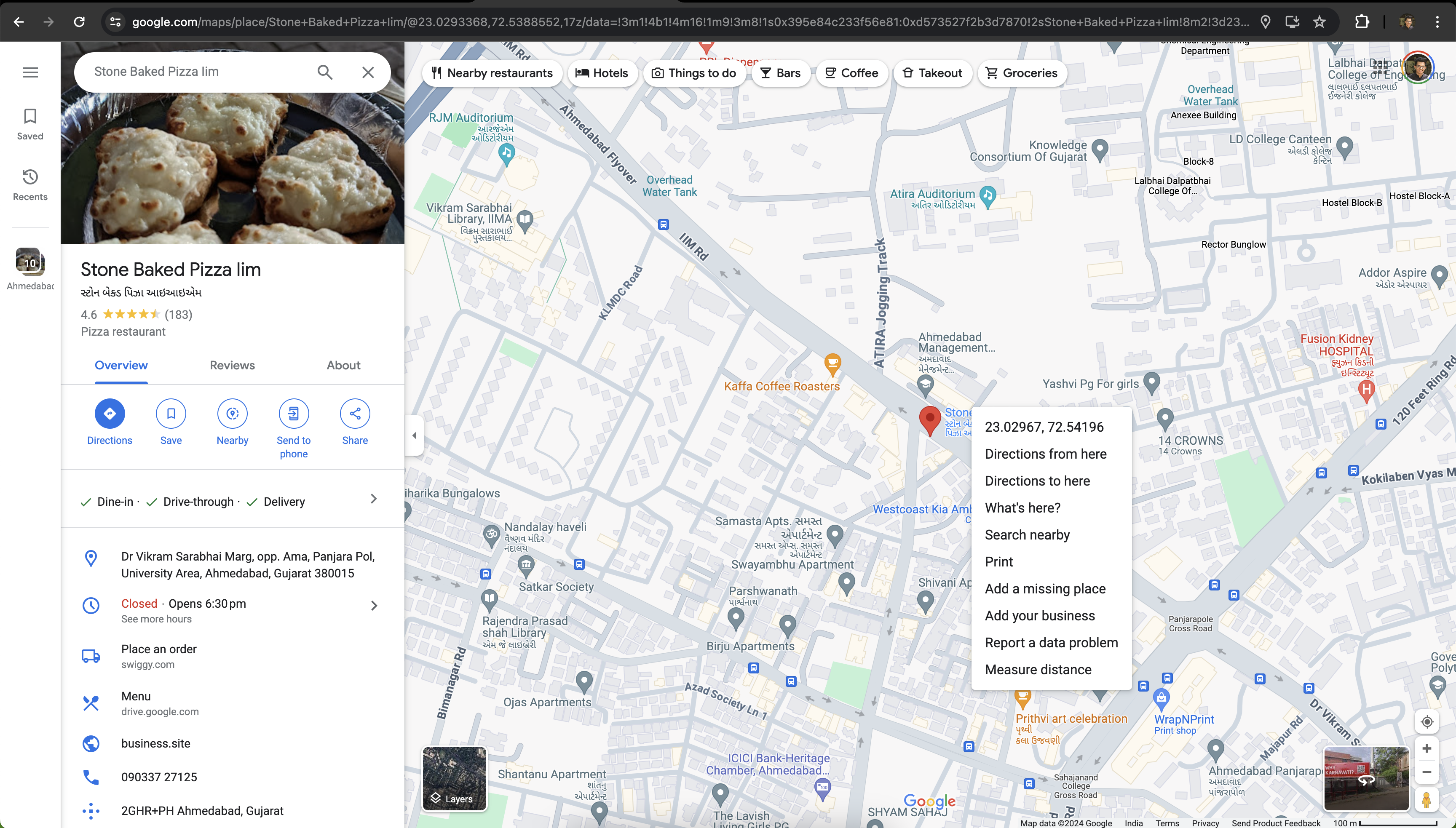
If your template includes a location, you can source the coordinates from Google Maps. Get the latitude and longitude by right-clicking on the place or area on the map. For details, refer to Google Maps Help: Find your coordinates.
The Clone Template feature lets you duplicate existing templates in seconds instead of starting from scratch.
Note: When cloning a WhatsApp template, all variables, buttons, and formatting are retained.
Click Settings, then click the WhatsApp tab in the left navigation bar, and click the Templates tab in the upper navigation ribbon.
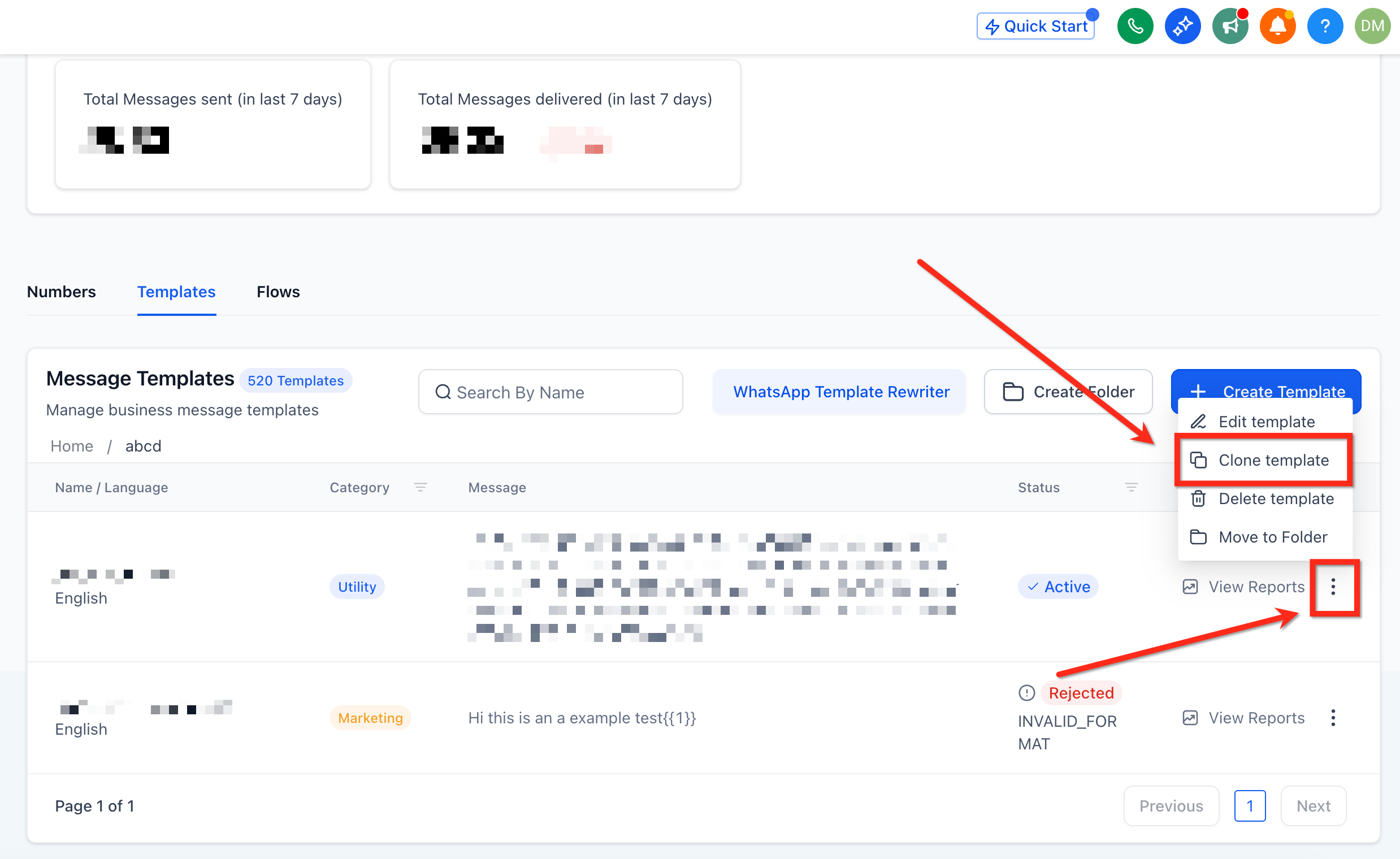
Locate the WhatsApp template you would like to clone and click the three-dot icon next to it. From the dropdown menu, click Clone Template.
In the Create Template module that pops up, you can rename and edit the cloned template before saving. Once your edits are complete, click the blue Save button at the bottom of the screen to create the new template.
Interactive templates let you add call-to-action (CTA) buttons that patients can tap to respond, visit a link, or take another action.
Go to Settings > WhatsApp > Templates.
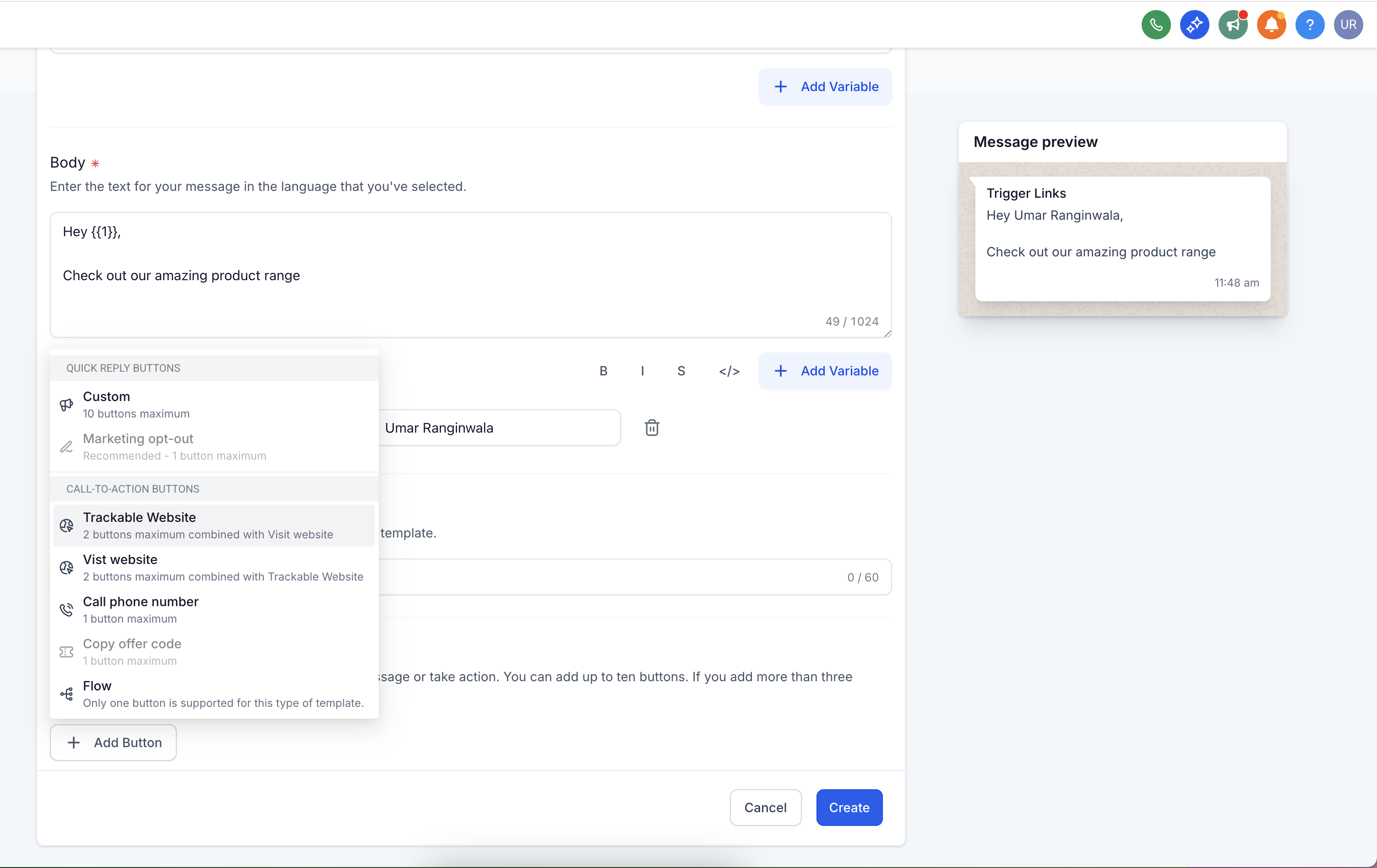
Click Create Template, then Add Button, choose Trackable Website, and select Own URL.
Add your button text, insert variables into the website URL if you want a personalized link, then click Create.
Select an existing trigger link by choosing the link type, then selecting the trigger link.
Select the type of CTA button you wish to add:
Quick Reply – Allows patients to respond quickly with predefined options, enhancing the conversation flow. This lets patients reply without typing.
Visit Website – Directs patients to your website with a single click, increasing traffic and improving conversion.
Personalized Website Link – Uses dynamic "Visit Website" buttons to customize links for each patient. Adding a variable creates a personalized link so patients can view their own info. Only one variable can be added to the end of a URL.
Call Phone Number – Lets patients call a specified phone number directly from the message, enabling immediate communication.
Copy Offer Code – Enables patients to easily copy a promotional code or offer, making it convenient to redeem.
Marketing Opt-Out – Gives patients the option to opt out of marketing messages, ensuring compliance with WhatsApp regulations and improving trust.
Trigger links let you track when a patient clicks a link and build automations based on those clicks. To add a trigger link, go to Marketing > Trigger Links > Add Link, then insert it into your template using the Add Variable option in the body text.
How do I add custom variables in the Header and Body of a template?
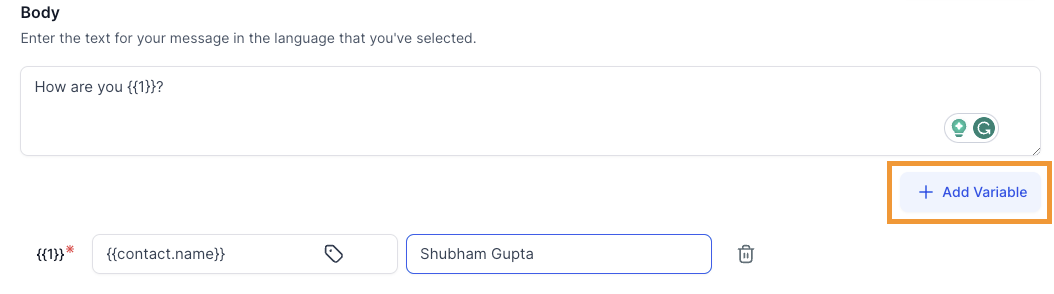
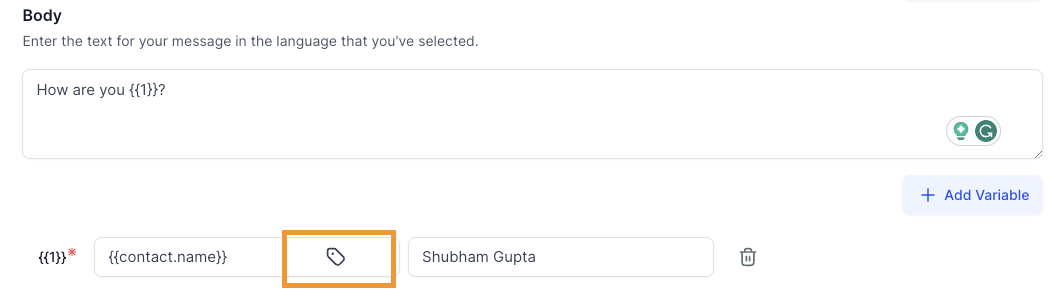
Click Add Variable under the Header or Body section, click the tag icon, and select a system field such as contact name or phone. Provide a sample value for each variable (for example, {{1}} could map to a patient's name). Meta uses these samples during template approval.
How do I choose the right template category?
Meta provides three categories: Marketing (for promotions, offers, and announcements), Utility (for transactional messages such as appointment reminders or order updates), and Authentication (for OTPs or secure login). Choose the category that closely matches the intent of your message to avoid rejections, and remember that marketing templates require patient opt-in.
Can I reuse an existing image or video for a template header?
Yes. When your header type is set to Image, Video, or Document, you can either upload a new file from your computer or choose an existing asset from your Media Library. Reusing a Media Library asset saves time when you use the same logos, promo graphics, or clips across multiple templates.
How can I edit or resubmit a rejected template?
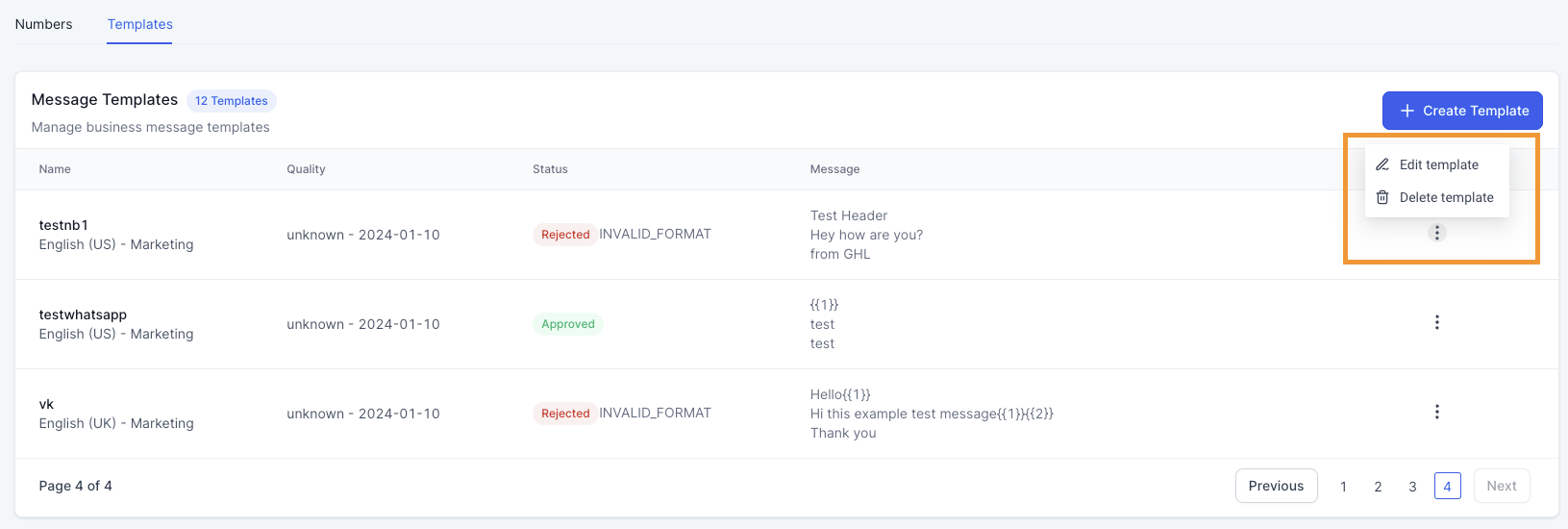
Navigate to Settings > WhatsApp > Templates, click the accordion (expand) icon next to the rejected template, then click Edit Template. Make your changes and click Create to resubmit for approval.
What do the template statuses mean?
Pending means the template was submitted to Meta and is awaiting approval. Approved means it has been validated and is ready to use. Rejected means Meta did not approve it, so you need to review and resubmit with corrections.
Can I use media like images or videos in templates?
Yes. With Media Templates you can include images, videos, documents, and location. This improves engagement and is ideal for showcasing treatments or sharing files directly in messages.
Does the CRM check my variables before I submit a template to Meta?
Yes. The template builder validates variable syntax and placement as you build the template, such as making sure placeholders are numbered correctly ({{1}}, {{2}}, and so on) and flagging a body that ends directly on a variable instead of closing text. Fixing these issues before you click Create reduces the chance Meta rejects the template.
Why might the "Create" button be inactive?
If the Create button for WhatsApp messages is grayed out or unclickable, the most likely reasons are:
Template approval pending – The template must be approved by Meta and available under the active WhatsApp number. Go to Settings > WhatsApp > Templates and check the approval status. Only approved templates allow message creation.
No valid WhatsApp number connected – Ensure a WhatsApp number is connected via API (new WABA setup) or Coexistence (existing WhatsApp Business App). Go to Settings > WhatsApp and confirm the number shows as "Connected" and "Approved."
Missing required fields or variables – If you are using dynamic variables (such as {{1}} or {{2}}) and have not filled all fields correctly, the button stays inactive. Double-check that every variable has valid placeholder text and inputs.
Unsupported message type – Make sure you are not using media or message types that WhatsApp does not support. Use only approved formats such as text, media (image or video), quick replies, and CTA buttons.
What happens after my templates are approved?
Once approved, you can start sending them through manual messages in your Inbox, workflows and automations, and review requests or marketing campaigns. Make sure your number is fully onboarded and your template categories are compliant before launching.
