Use the Styles tab to control form fonts, colors, spacing, borders, and field styling so every form matches your practice brand.
The Styles tab in the Form Builder is where you shape how a form looks. From layout and background color to borders, corner radius, width, and custom CSS, these settings let you match each form to your practice brand and drop it cleanly into any page you embed it on. This article covers the Styles tab options, themes for a faster start, and how to add company branding.
Click Marketing.
Click Forms.
Click Add Form to create a new form, or open an existing one.
Click Styles.
Use the Styles tab to customize the appearance of your form.
In the Layout section, you can access settings to modify your form's structure:
Adding an image to a form helps improve visual hierarchy, keeps important content in focus, and creates a more engaging experience for the person filling it out. Once Show Image is enabled in the Layout section, you can upload an image and choose from five layout options, each with its own supported styling controls.
Left Center Displays the image on the left side of the form while keeping it vertically centered next to the content. Works well for registration forms, contact forms, lead capture forms, and marketing forms. Supports: Image Corner Radius, Image-Field Spacing
Right Center Displays the image on the right side of the form while vertically centering it with the content. Works well for marketing pages, appointment forms, and promotional forms. Supports: Image Corner Radius, Image-Field Spacing
Left Fixed Displays a fixed image on the left side of the form while the form content appears alongside it. Works well for hero images, large promotional graphics, and lifestyle photography. Supports: Focal Point selection
Right Fixed Displays a fixed image on the right side of the form while content remains on the opposite side. Works well for promotional campaigns, event registration pages, and landing pages. Supports: Focal Point selection
Background Uses the uploaded image as the background behind the form. Works well for landing pages, promotional campaigns, and branded experiences.
Image Corner Radius (Left Center and Right Center layouts only) rounds the corners of the image so it matches your practice's visual style, softens the design, and looks more modern.
Image-Field Spacing (Left Center and Right Center layouts only) controls the distance between the image and the form fields. Increasing the spacing can improve readability, reduce visual clutter, and create a more balanced layout.
Focal Point (Left Fixed and Right Fixed layouts only) determines which part of the image stays visible when different screen sizes or aspect ratios crop the image. To set it:
Select a Left Fixed or Right Fixed layout.
Click the uploaded image.
Choose the area you want to keep centered.
Save your changes.
Open your form in the builder and go to the Styles tab (or Styles & Options in the top-right sidebar).
Expand the Layout section.
Enable Show Image.
Upload or select an image.
Choose an image layout.
Configure the layout-specific options: Image Corner Radius and Image-Field Spacing for Left Center or Right Center, or Focal Point for Left Fixed or Right Fixed.
Preview your form.
Save your changes.
If you use Surveys as well as Forms, the Styles tab in the Survey Builder offers the same image layout options, plus the ability to override the image and layout for individual slides. That per-slide behavior is specific to Surveys and isn't available in Forms.
Create inline forms, which position the input fields side by side rather than in a vertical stack.
Turn off the input field labels by toggling the Show Label setting.
Turn on Show Image to add an image to your form and choose how it's laid out alongside your fields (see Image Layouts below).
The Form Style section controls the overall look of the form container.
Modify the background color of your form to match your practice colors.
Style the border using the Border type option.
Give your form a stronger border by increasing the width of the border walls.
Customize the corners of your form container by specifying the Corner radius value. This is separate from the Image Corner Radius setting described above, which only rounds the corners of an image in a Left Center or Right Center layout.
Customize the corners of your form by specifying the Corner radius value.
Adjust the total width of your form using the Width option so it fits seamlessly into the web page you're embedding it in.
With custom CSS, you can completely transform the appearance of your forms. You can alter elements such as the shape of input fields, colors, buttons, and much more.
Note: If you're unfamiliar with CSS, we recommend seeking the guidance of an experienced web developer.
To have your practice logo appear on every form, toggle the option in this section.
Themes are ready-made presets that apply a cohesive design in a single step. Instead of setting every color, font, and spacing value by hand, you can start from a professionally crafted theme and then refine it to fit your brand. Themes come with real-time previews and are responsive by default, adapting to mobile, tablet, and desktop automatically.
Key benefits:
Consistency: Creates a cohesive look across the entire form with one selection.
Speed to launch: Reduces setup time by starting from a polished preset.
Responsive by default: Automatically adapts to mobile, tablet, and desktop for a consistent experience.
Real-time previews: Validate changes instantly before publishing or embedding.
Open your form in the builder.
Click Styles & Options (top right) to open the right sidebar.
Select the Themes tab and choose your preferred theme.
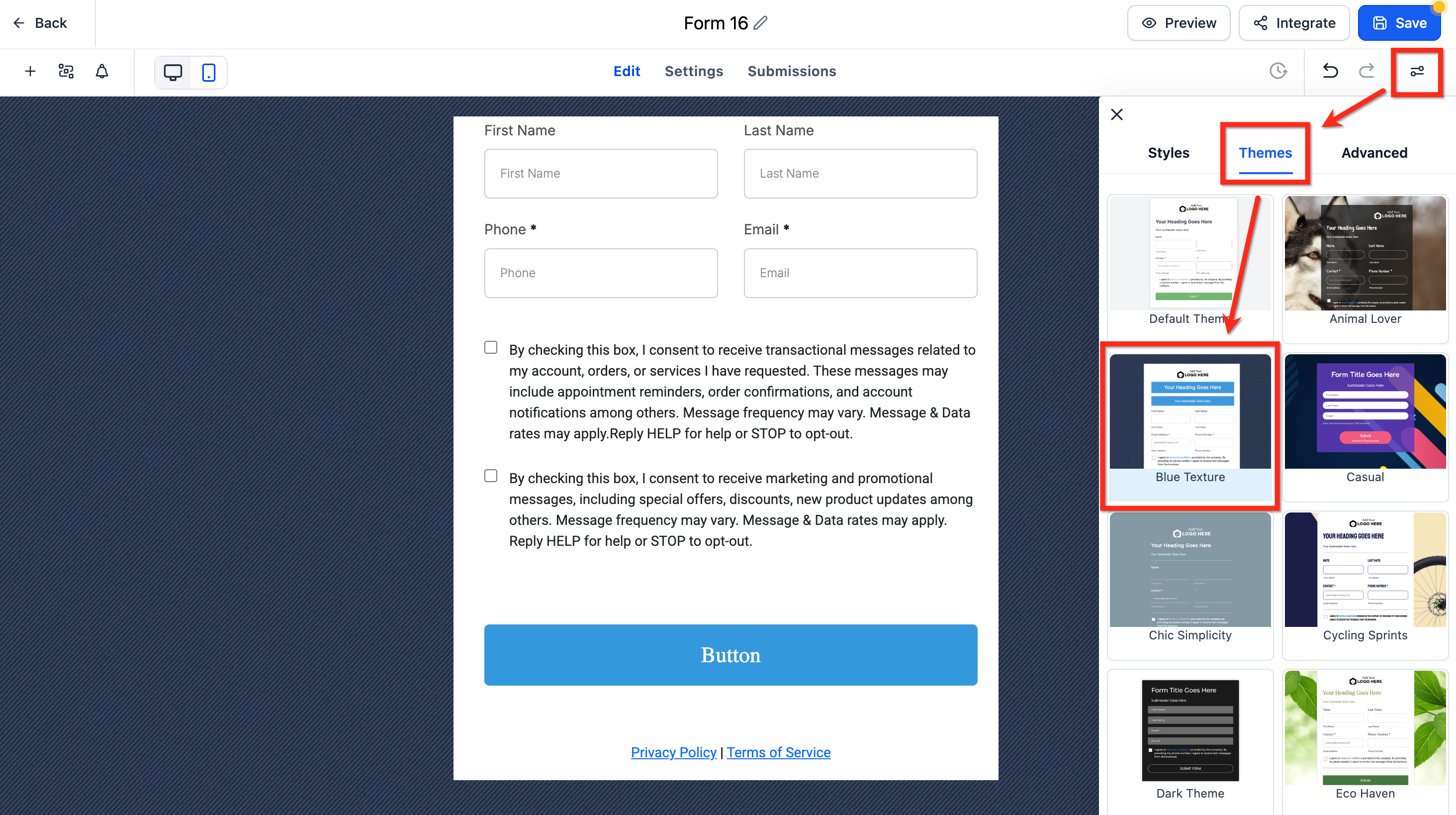
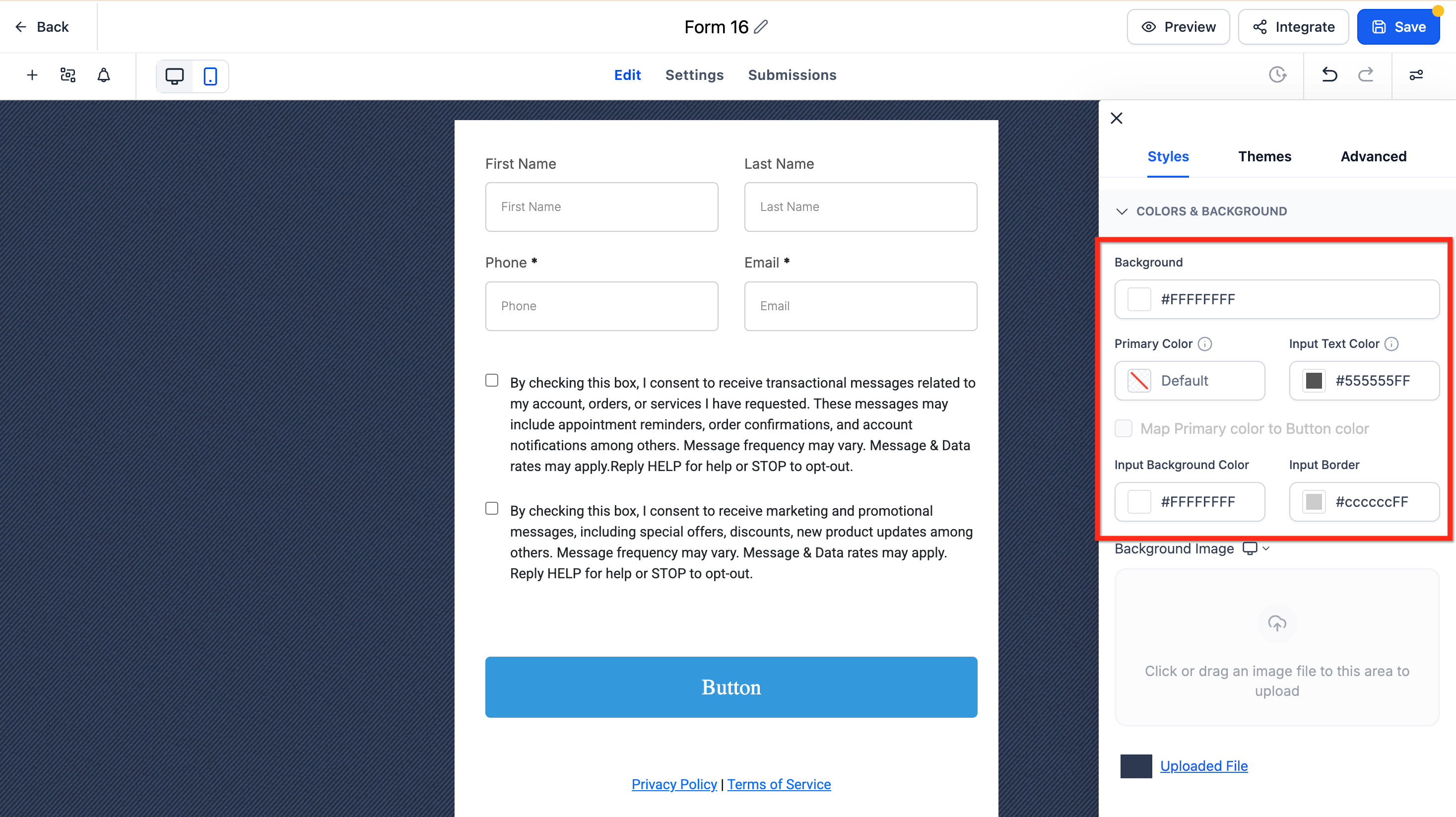
After selecting a theme, refine brand colors and imagery in Styles & Options, then Styles, then Colors & Backgrounds.
Button themes
Button themes provide curated presets (Filled, Border, and Text Only) that apply best-practice color, typography, and spacing. Start with a theme for speed, then refine with the Button Styling Panel to maintain brand consistency. Close the gallery to return to the Button Styling Panel, where you can adjust:
Colors & Background
Typography
Layout & Alignment
Padding
Border & Corner Radius
Shadow
Toggle Full Width if needed. To switch presets, open Select Themes, or use Reset/Revert in the panel to undo changes.
Branding and color tokens
Confirm how your Primary Color maps to button fill, border, and text for your chosen theme.
Adjust colors to meet accessibility contrast guidelines.
Adjust colors
Use these settings to adjust the background, text input, and input border colors to match your branding.
Change the background image
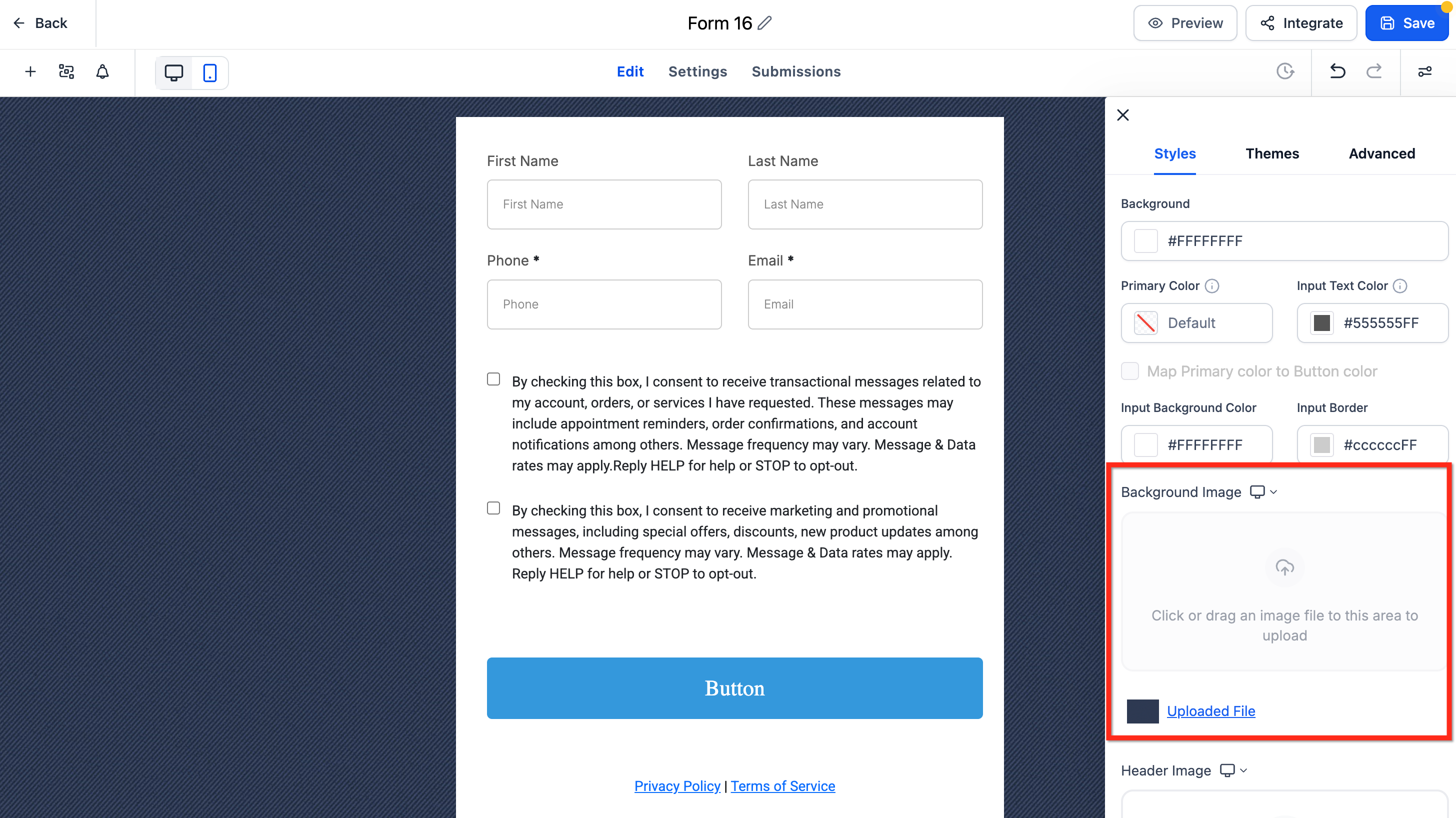
If your selected theme includes a default background image, remove it first. The upload control remains disabled until the default is deleted. Then click below Background Image to upload your file.
The default theme for forms and surveys has a refreshed look and feel. This update improves the out-of-the-box appearance with cleaner spacing, more polished inputs, rounded styling, and better visual consistency across supported elements. You will also see clearer empty states and more consistent styling for labels, placeholders, images, footer colors, and chips.
Where do I find the Styles tab?
Open a form under Marketing, then Forms. Inside the Form Builder, click Styles (or Styles & Options in the top-right sidebar) to access layout, colors, borders, and theme settings.
What is the difference between the Styles settings and a theme?
The individual Styles settings let you adjust each element (background, border, width, and more) one at a time. A theme applies a complete, cohesive design in a single step, which you can then refine using the same Styles settings.
How do I create an inline form with fields side by side?
In the Layout section of the Styles tab, enable the inline form setting. This positions input fields side by side rather than stacking them vertically.
Can I hide the field labels on my form?
Yes. In the Layout section, toggle off the Show Label setting to hide the input field labels.
How do I add an image to my form?
In the Layout section of the Styles tab, enable Show Image, upload your image, and choose one of the five image layout options: Left Center, Right Center, Left Fixed, Right Fixed, or Background.
Which image layouts support Image Corner Radius and Image-Field Spacing?
Only the Left Center and Right Center layouts support Image Corner Radius and Image-Field Spacing.
Which image layouts support Focal Point?
Only the Left Fixed and Right Fixed layouts support Focal Point. Set it by clicking the uploaded image and choosing the area you want to keep centered.
Can I set a different image for each slide of a survey?
Yes, but that option is specific to Surveys, not Forms. In the Survey Builder, open a slide's settings, set Image Layout Settings to Independent, then upload a different image and choose its layout.
Why is the "Upload New Background" button disabled?
Delete the theme's default background image first. The upload option becomes available once the existing image is removed.
Can I reuse the same theme across multiple forms?
Apply the theme per form. To keep multiple forms consistent, choose the same theme and mirror your Styles settings on each one.
How do I make my practice logo appear on every form?
In the Company Branding section of the Styles tab, toggle the option on so your logo displays on each form.
I don't know CSS. Can I still customize my form?
Yes. The Styles tab and themes let you customize colors, borders, spacing, and layout without any code. Custom CSS is only needed for advanced changes, and we recommend working with an experienced web developer for those.
