Your Google Business Profile is often the first place a prospective patient finds your practice, and you want it to be easy for them to reach out the moment they're ready. Aesthetix CRM lets you attach messaging (WhatsApp and Text/SMS) and social channels (Facebook, Instagram, LinkedIn, YouTube, TikTok, X, and Pinterest) directly to your Google Business Profile pages, and to route calls from your listing into the CRM so every inquiry is tracked and no missed call goes unanswered.
This guide walks you through adding messaging and social channels, then setting up call tracking and missed-call text-back so conversations land where your team already works.
Adding messaging and social channels gives customers more familiar ways to reach you and creates additional paths for engagement and lead capture. When those channels are connected to Aesthetix CRM, messages sync into your Inbox and can trigger automations, so you can manage every conversation in one place.
Higher trust and responsiveness by displaying channels your customers already use.
Increased engagement opportunities, leading to more conversations and quality leads.
Unified communications that keep all messaging in one place through your connected channels.
Connecting WhatsApp and Text/SMS channels directly in the Google Business Profile flow gives you the flexibility to reach customers using their preferred methods. You can pick an existing number already connected to Aesthetix CRM for WhatsApp/Text, or enter a different number in E.164 format (example for the US: +15551234567).
Only one messaging channel is displayed on Google Business Profile results, though both can be connected. When both WhatsApp and Text (SMS) numbers are added, Google displays Text by default on the public listing; WhatsApp appears only if Text is not provided.
Note: Syncing and automations require channels connected to Aesthetix CRM. Messages can be synced and automations set up only when the phone number or social profile is connected to the CRM and linked to your Google Business Profile. Numbers that aren't connected to the CRM can still be shown on your profile, but they won't sync or trigger automations.
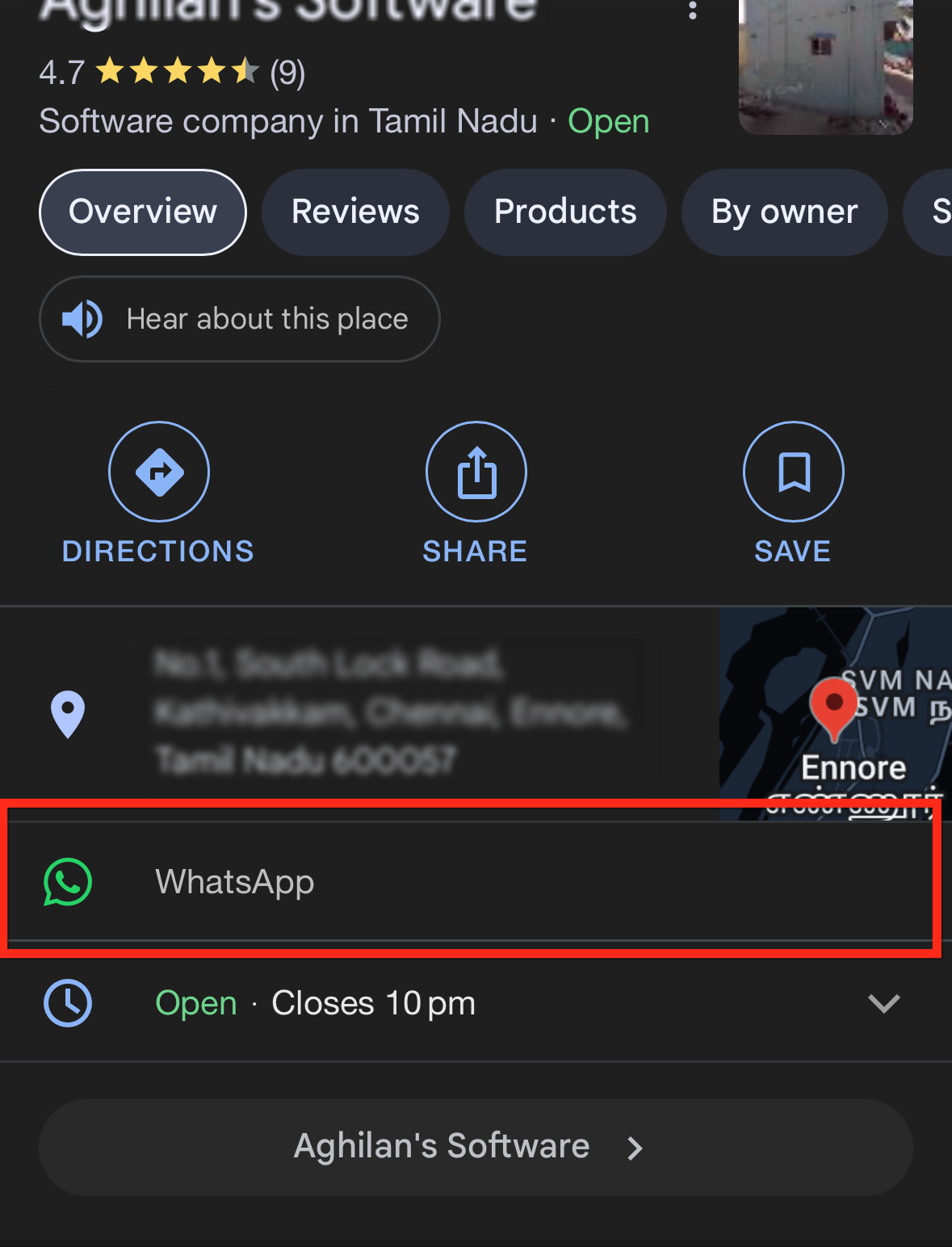
Linking your social profiles on Google Business Profile strengthens brand presence and gives customers familiar touch points. If the social account is also connected to Aesthetix CRM, DMs for those platforms can be handled in your Inbox; the profile link itself serves as the public path for visitors.
Supported platforms: Facebook, Instagram, LinkedIn, YouTube, TikTok, X (formerly Twitter), and Pinterest.
All connected social channels are displayed on your Google Business Profile page result under the About section.
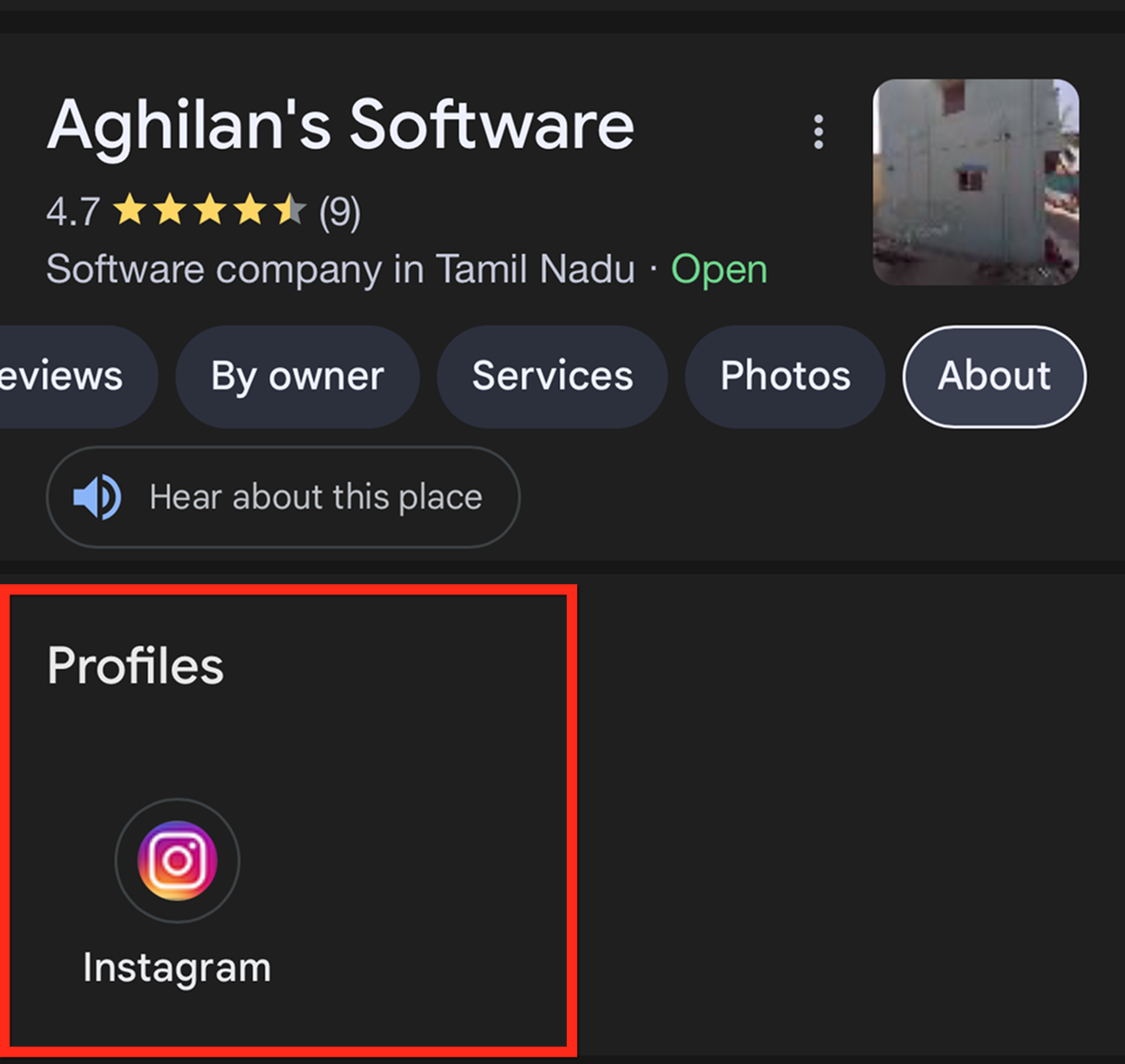
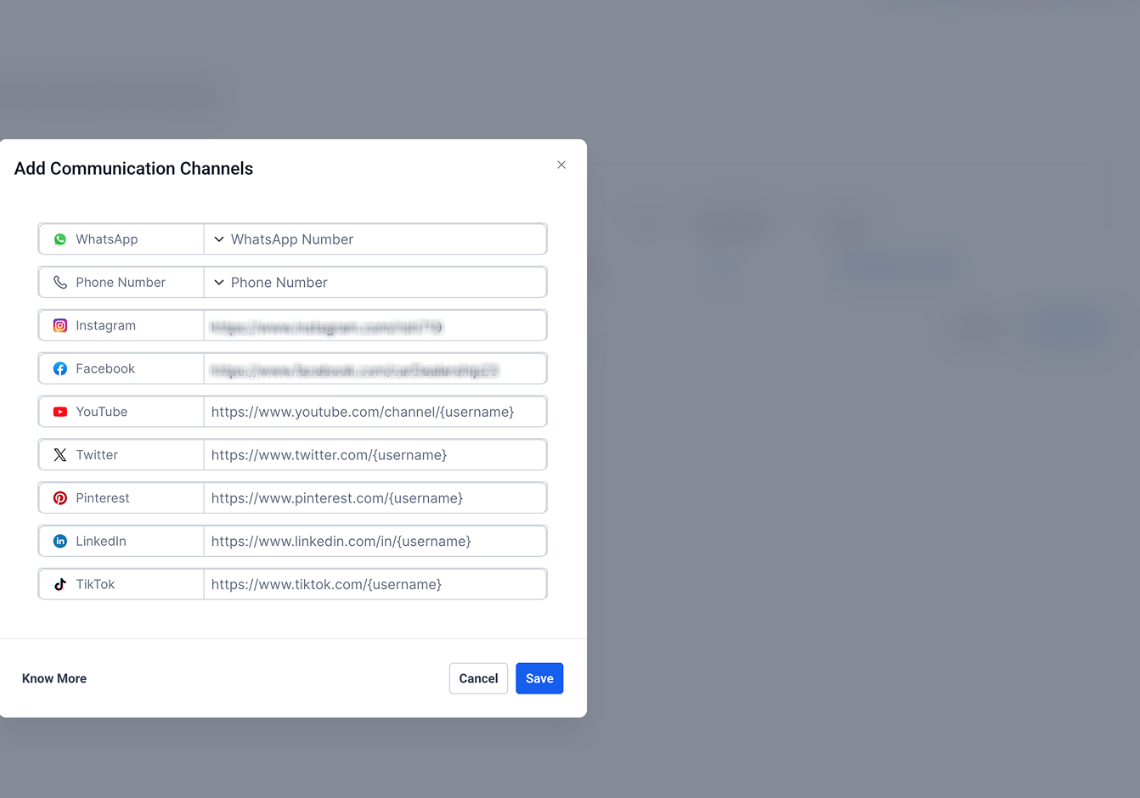
Social media links in Google Business Profile should follow the formats below.
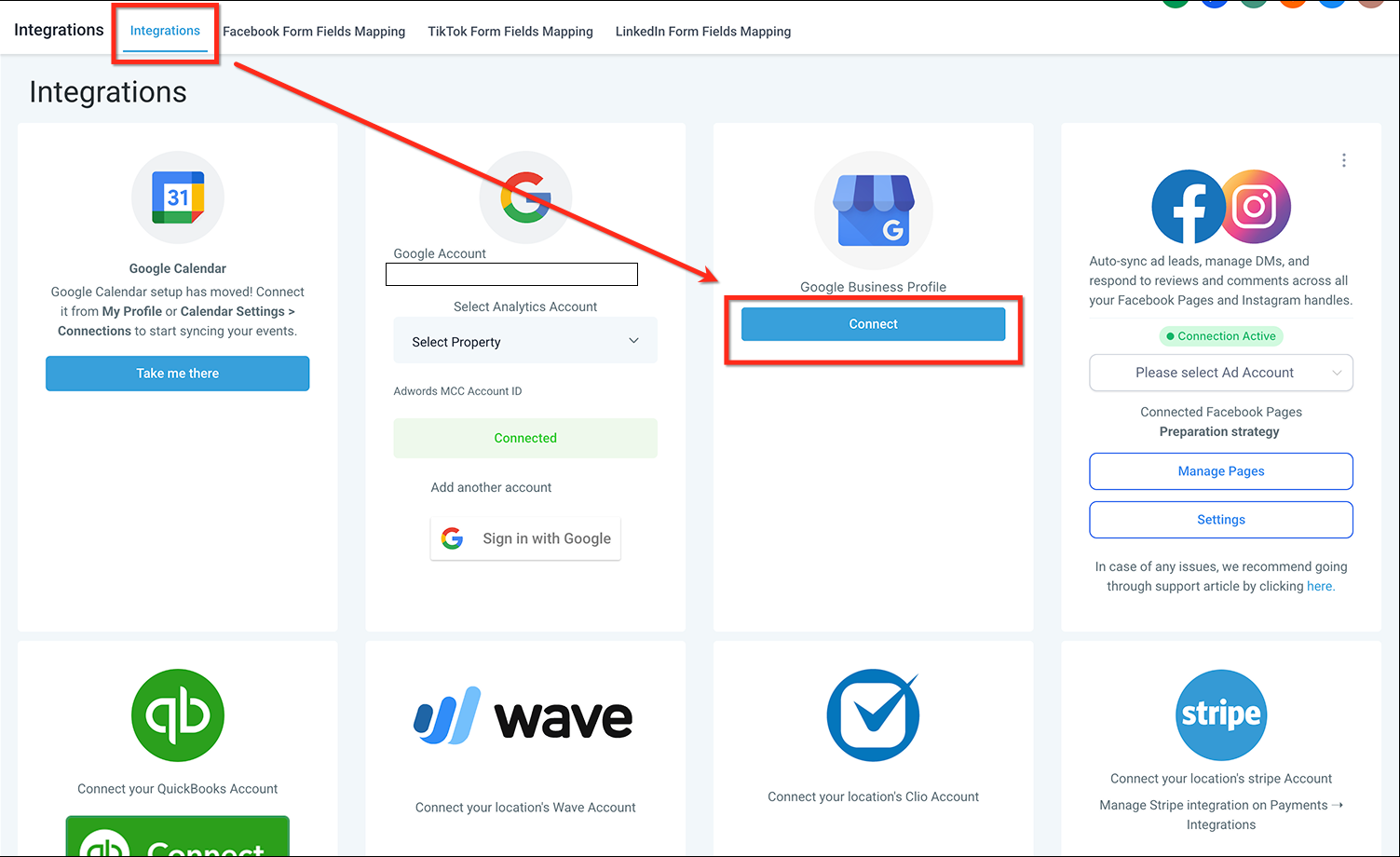
From your dashboard, click Settings and go to Integrations.
On the Google Business Profile card, Connect your Google Business Profile account and open the page selection modal.
Click the WhatsApp and Message tabs to connect messaging channels, or click Connect Channels.
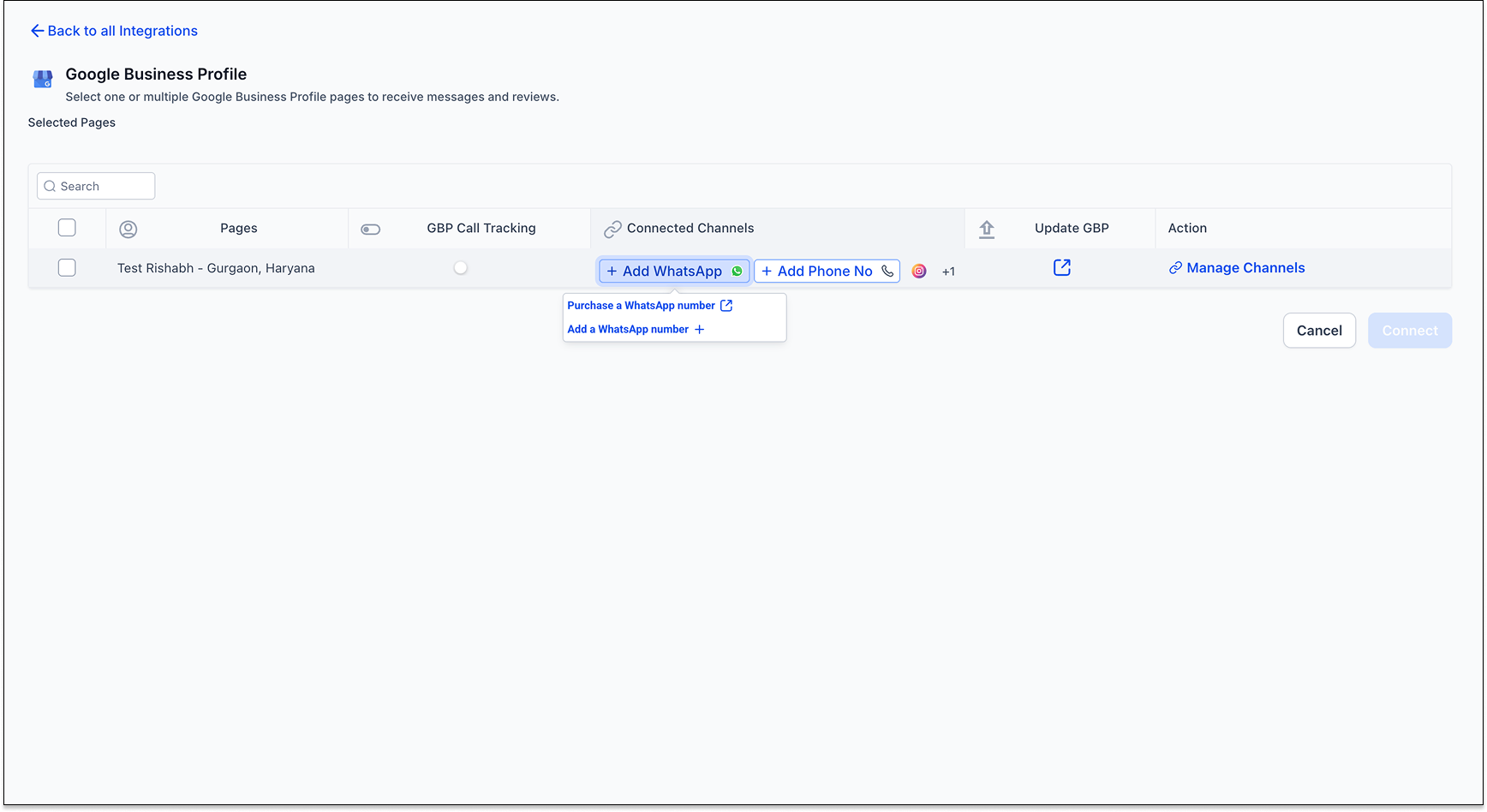
Select a phone number or WhatsApp number already connected to Aesthetix CRM from the dropdown, or add numbers by typing them in as free text. You can also add links to any social channel. After adding all channels, click the blue Save button to save your changes.
Click the blue Connect button to connect the accounts.
If you've added Text and WhatsApp channels but they aren't visible in your Google Business Profile results, this is most often due to Google's validation of each number being added. Follow these steps:
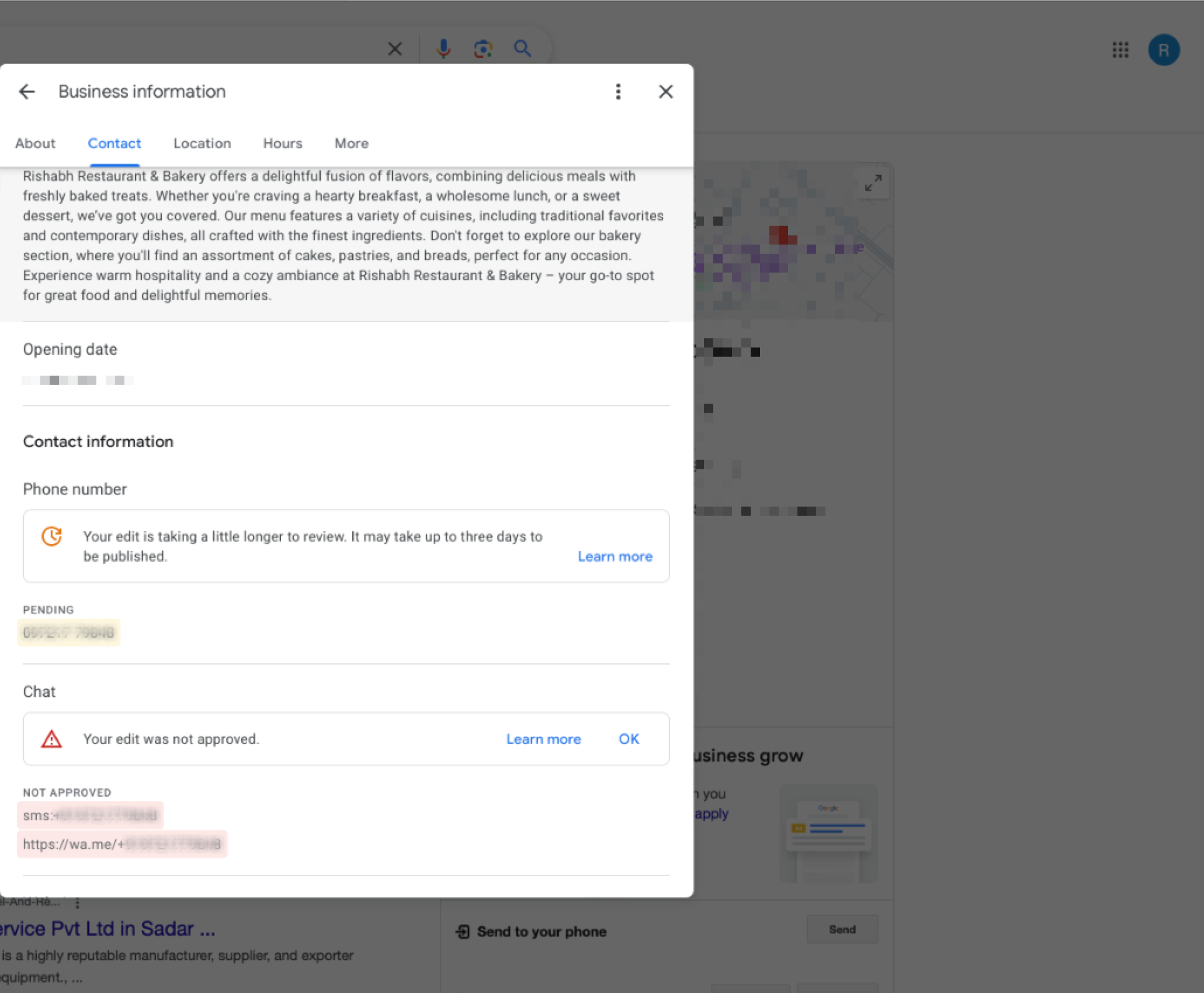
Go to your Google Business Profile page setup, either by clicking Update GBP over the page selection modal in Aesthetix CRM, or by opening the edit page in your Google console.
Check whether the edit was approved. Approval is handled by Google, with no influence on our side. If the edit isn't approved, you can raise a ticket with Google directly.
Google Business Profile allows a business to register two phone numbers, which creates an excellent opportunity to track calls generated from your Google Business Profile listing while following SEO best practices, moving your real phone number to the secondary slot has not been found to negatively affect rankings.
The Aesthetix CRM Google Business Profile integration automatically moves your main business number to the secondary slot and adds your tracking number to the first slot, so calls from your listing are logged and can trigger automations.
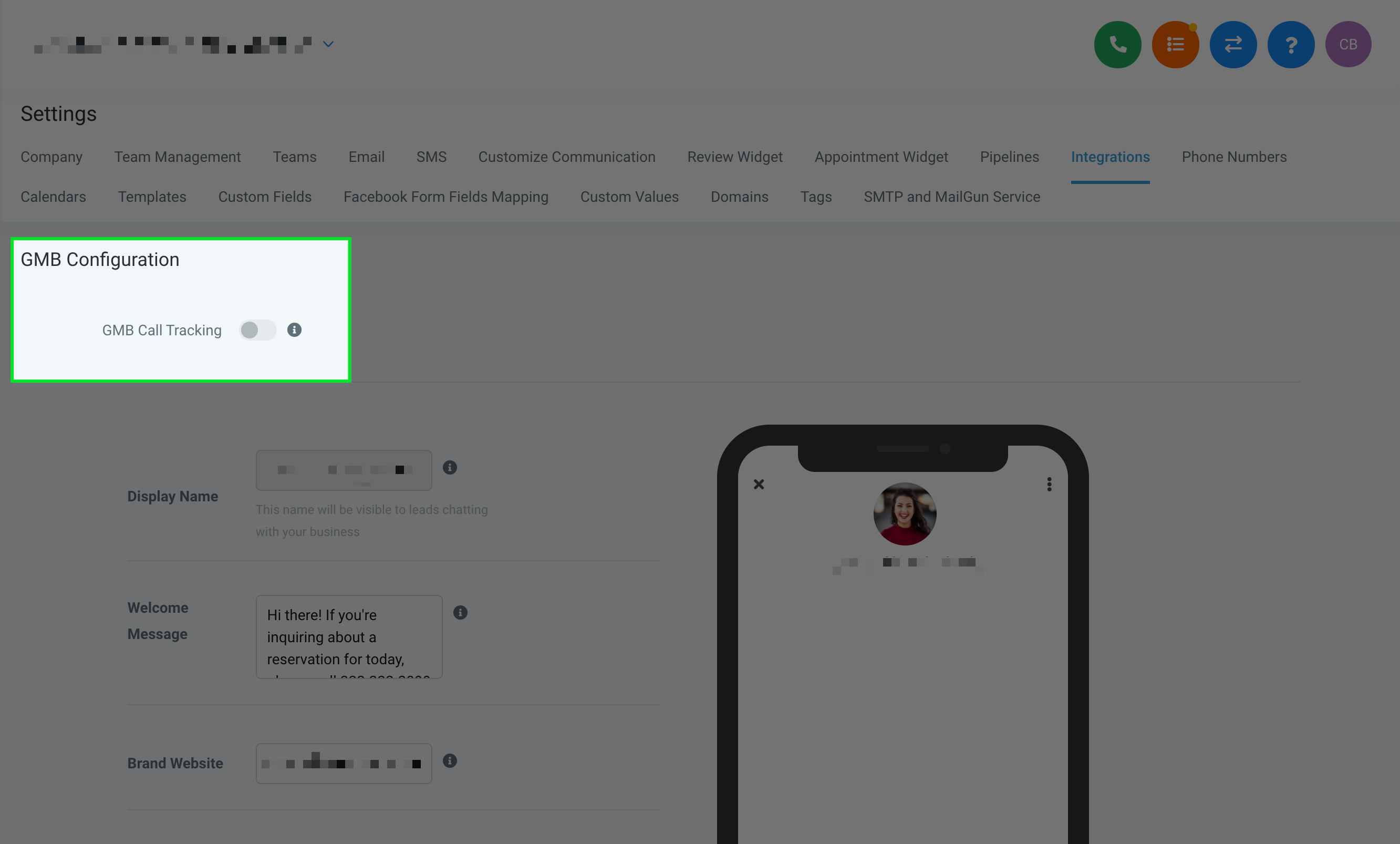
When you toggle on Google Business Profile call tracking, here's what happens:
If the phone number in your profile is already a tracking number from your Aesthetix CRM account, nothing changes, your calls are already being tracked.
If the phone number in your profile is also the forwarding number for one of your Aesthetix CRM numbers, the CRM moves the current number to the secondary slot and adds the tracking number in the primary slot.
If the phone number in your profile is not the forwarding number for any of your Aesthetix CRM numbers, the CRM moves the current number to the secondary slot, adds the tracking number in the primary slot, and sets the current number as the forwarding number for the tracking number in your account.
When you connect a Google Business Profile to a location in Aesthetix CRM, the platform automatically selects a tracking number to push as the primary phone number on your profile. Here's how that number is selected:
Primary location number (assigned in the Phone Numbers tab):
If your location has a dedicated phone number assigned under Settings > Phone Numbers, that number is used as the default tracking number pushed to your profile.
This is often the number created during onboarding or manual setup.
First number in the account with call forwarding enabled:
If no number is explicitly set as the primary, the CRM selects the first available number that has call forwarding enabled.
Fallback to any available number in the account:
If no call forwarding is configured, the CRM picks any available tracking number in the location.
No number? You'll need to assign one first:
If no number is found in the account, the integration won't complete. You'll need to assign or create a number before the Google Business Profile integration can function.
These examples show exactly what changes in Google Business Profile, where calls go, how the CRM tracks them, and when missed-call text-back can fire.
Scenario: Your Google Business Profile primary number is already a tracking number from the connected Aesthetix CRM account.
What happens when you toggle call tracking ON
Nothing changes in your profile (because calls are already going to a tracked number).
What it looks like in real life
A patient searches for your practice on Google and taps Call.
The call goes to the tracking number (tracked in Aesthetix CRM).
If your team answers, the call is logged in the CRM.
If nobody answers, missed-call text-back can automatically text the caller (if enabled in your location settings).
Scenario: Your profile shows your real number (like a landline), and that same number is already set as the forwarding number for one of your Aesthetix CRM numbers.
What happens when you toggle call tracking ON
The CRM moves the current profile number to the secondary slot.
The CRM puts the tracking number in the primary slot.
What it looks like in real life
Before toggle: profile primary = (555) 111-2222 (real number).
After toggle: profile primary = tracking number; profile secondary = (555) 111-2222.
A patient taps Call on Google, and the call hits the tracking number (tracked).
The CRM forwards the call to (555) 111-2222 (because it was already configured that way).
If missed, missed-call text-back (if enabled) texts the caller from the tracking number.
You can update or remove any connected channel from the Google Business Profile integration card in your Aesthetix CRM Settings.
Note: Google may take additional time to review and approve changes before they appear on your Google Business Profile page.
Q: What happens if I add a number that isn't connected to Aesthetix CRM?
A warning is shown, because automations and syncing are available only for numbers connected to Aesthetix CRM.
Q: Which social channels can I connect to my Google Business Profile page?
You can connect Facebook, Instagram, LinkedIn, YouTube, TikTok, X, and Pinterest.
Q: How does Google display WhatsApp versus Text numbers?
Google prioritizes the Text (SMS) number by default when both are added; WhatsApp only appears if a Text number isn't provided.
Q: Where can I manage or remove my connected channels?
All channel settings can be updated or removed from the Google Business Profile integration card in your Aesthetix CRM Settings.
Q: Are the changes immediately visible on my Google Business Profile page?
No. Google may take additional time to review and approve changes before they're reflected.
Q: Can I trigger automations with these linked channels?
Automations and sync are available only for channels connected to Aesthetix CRM.
To learn more about the tools this guide connects to, see your Inbox and Phone help articles for managing conversations and configuring your phone numbers and missed-call text-back.
