Keeping your Google Business Profile fresh is one of the easiest ways to stay visible when patients search for a med spa or plastic surgery practice near them. With the Google Business Profile Post Scheduler in Aesthetix CRM, you can plan, automate, and optimize your Google content without leaving the platform. Schedule posts in advance, publish to multiple locations at once, and let built-in AI handle the creative work, so you boost local visibility while reclaiming your calendar.
The Google Business Profile Post Scheduler is a Social Planner–powered tool inside the GBP Optimization workspace that lets you create, AI-generate, schedule, and bulk-publish Google Posts (Updates, Offers, and Events) for one or many locations, all from within Aesthetix CRM. By automating your post cadence and centralizing management, you keep every Google listing fresh, relevant, and engaging.
The scheduler helps you:
Save time with true "set-it-and-forget-it" publishing.
Maintain brand consistency by posting to multiple Google Business Profiles at once.
Overcome writer's block, since AI creates post copy and images on demand.
Improve local SEO, because frequent, high-quality posts signal relevance to Google.
Track performance and make real-time edits from one dashboard.
AI Assist analyzes your niche and location, then generates keyword-rich text (up to 1,500 characters) and royalty-free imagery sized perfectly for Google (minimum 250 x 250 px, 5 MB or less). Edit the suggestions or accept them in one click for a polished post every time.
From the left-hand menu, click Reputation, then select GBP Optimization at the top to view all Google Business Profile–related tools, including Scheduled Posts.
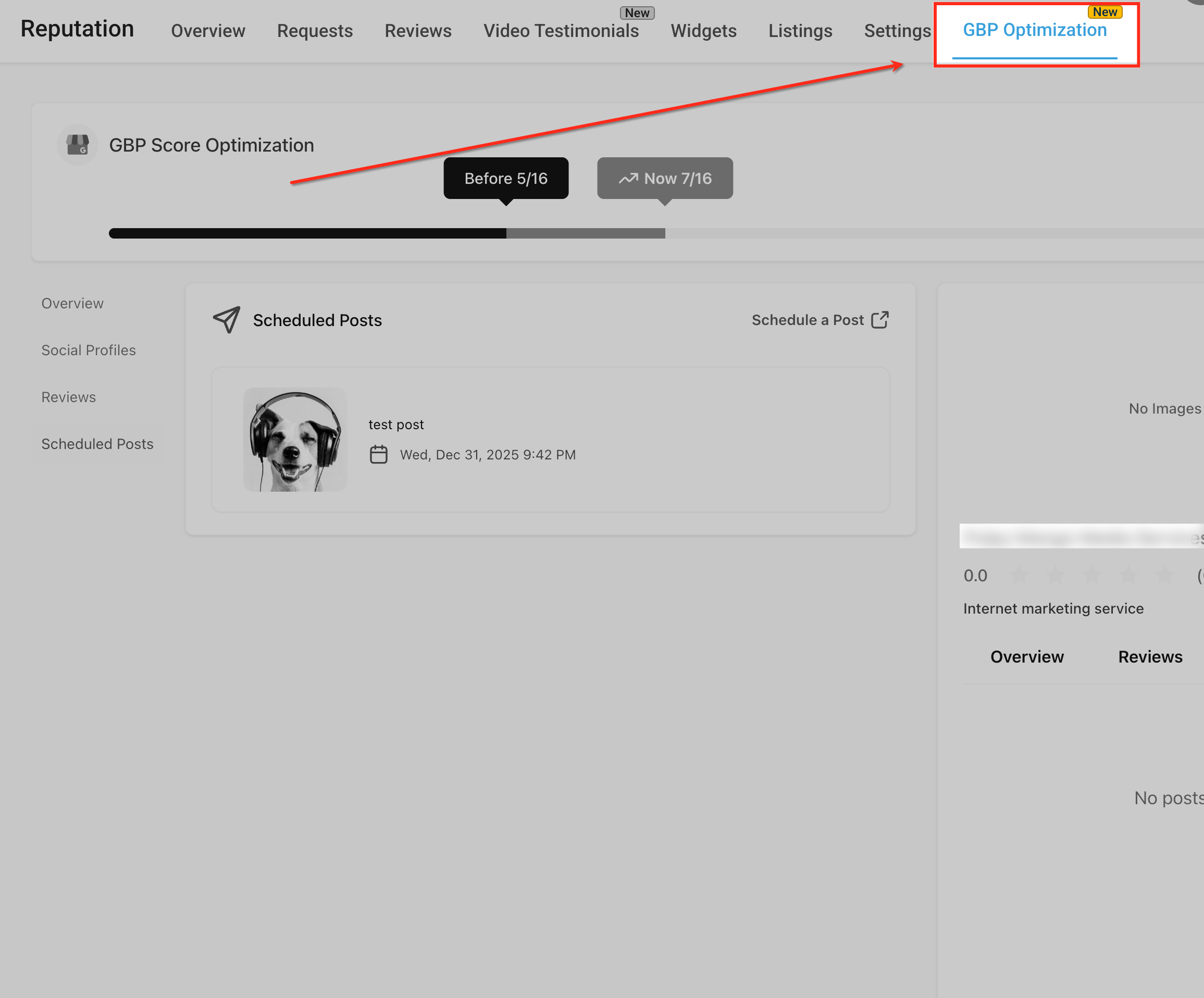
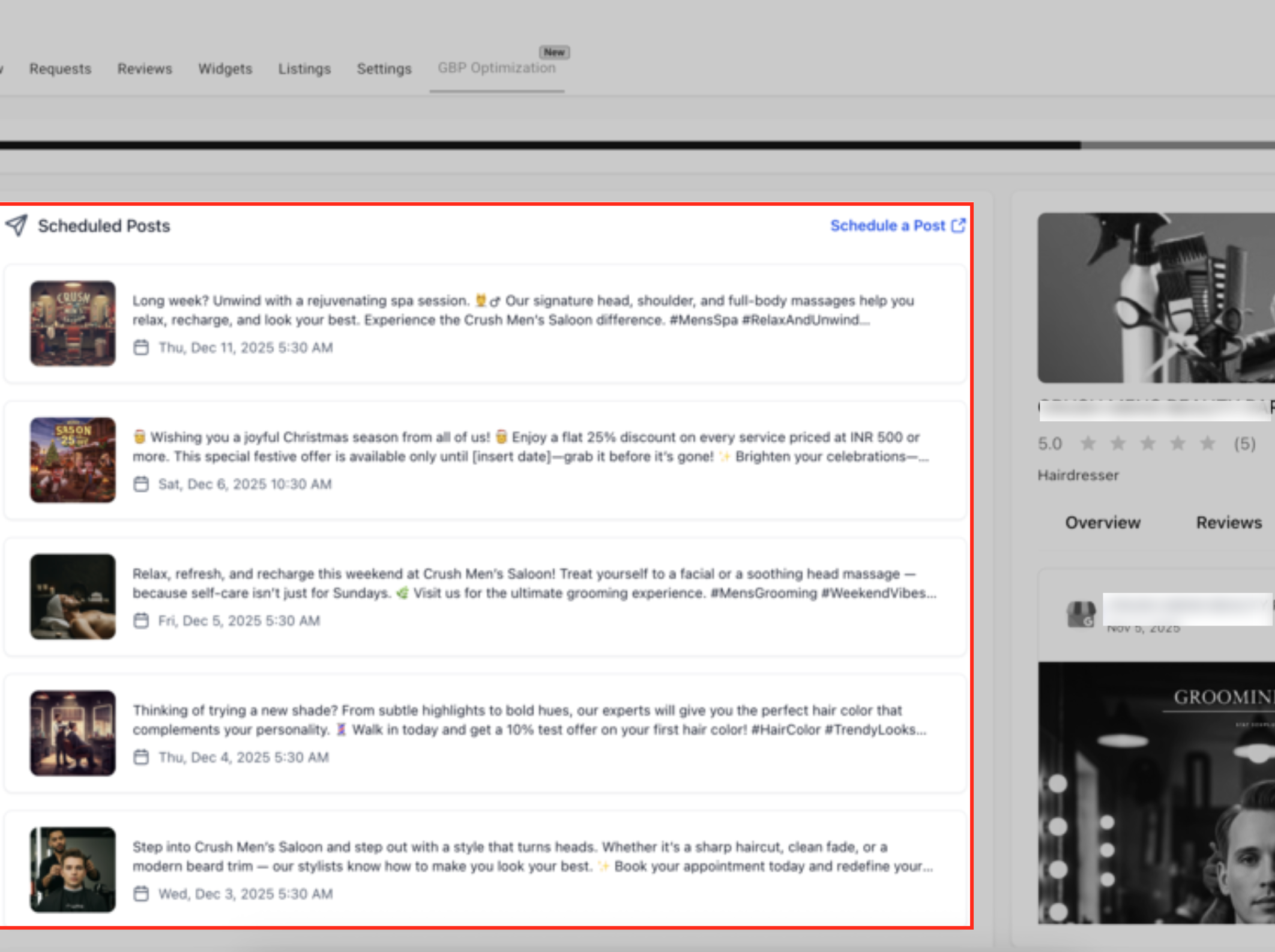
This view displays all upcoming Google Business Profile posts that have been scheduled for the selected account. The Scheduled Posts tab on the left is where you can quickly review post content, images, and publish dates, or click Schedule a Post to create a new one.
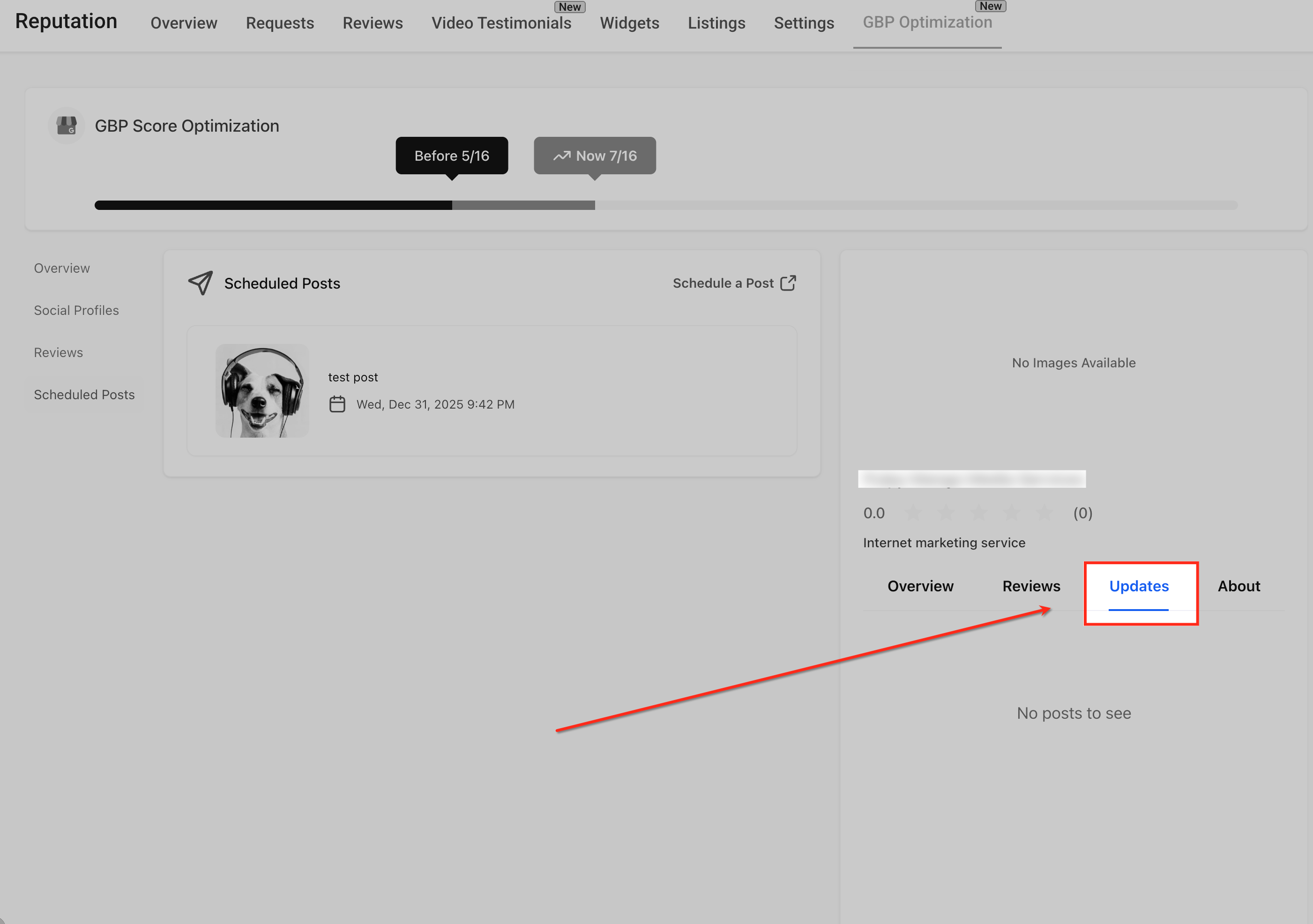
The Updates panel on the right shows how scheduled or published posts appear directly on the Google Business Profile. This preview helps confirm that posts are syncing correctly and lets you verify what patients will see once the content is live.
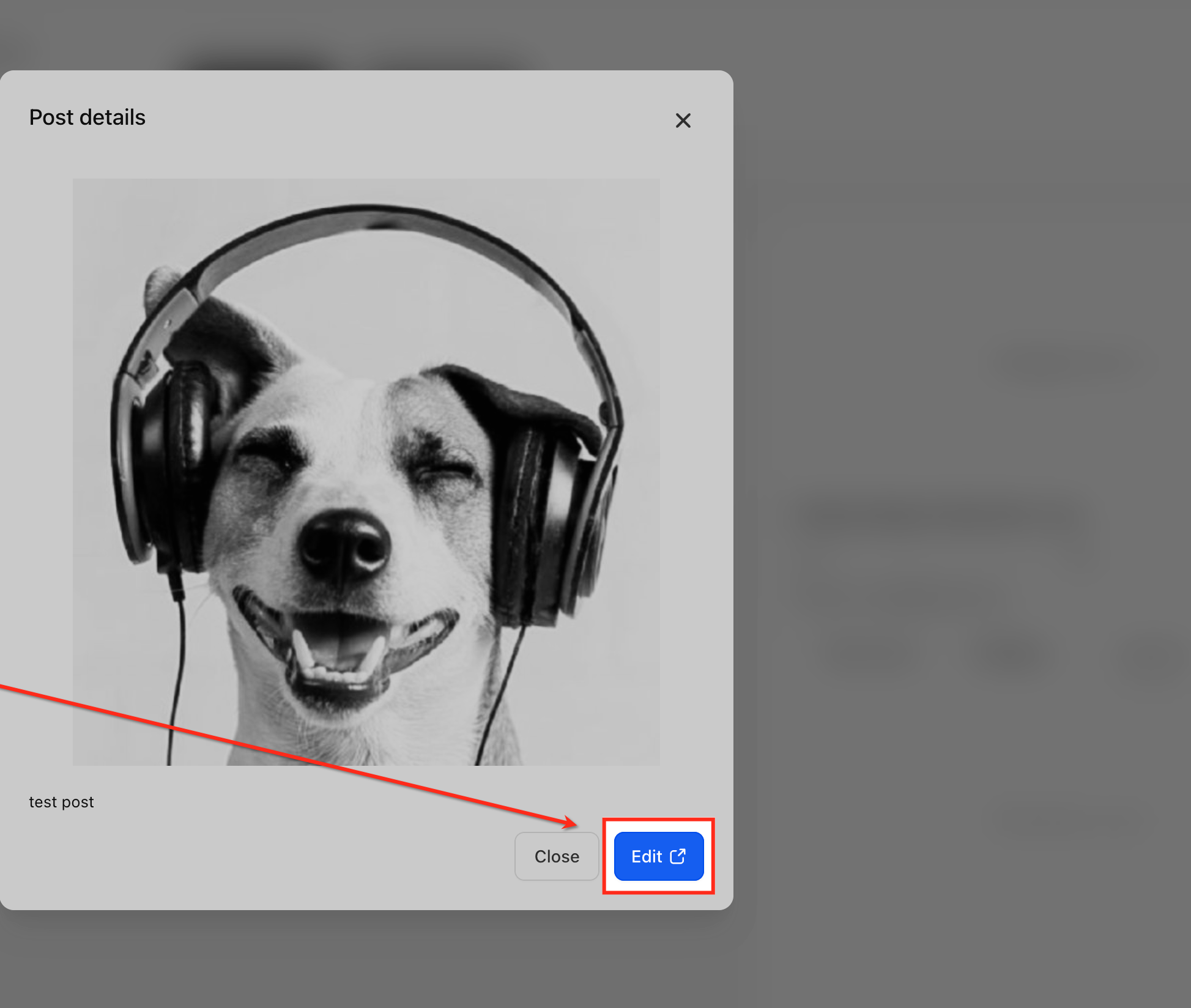
Selecting any scheduled post opens its details, allowing you to review the post content and image before publishing. Clicking Edit launches the post editor in the Social Planner, where you can update the text, replace images, adjust the schedule, or make other changes before saving.
Linking each profile is required before scheduling. Connect once and reuse the connection across Reputation, Listings, and the Social Planner, ensuring your authorization tokens stay in sync and eliminating duplicate log-ins.
Navigate to Marketing in the left-hand menu, then select Social Planner and make sure the Planner tab is active at the top. From there, use the account dropdown to choose the correct sub-account and click Add New Social to begin connecting a Google Business Profile.
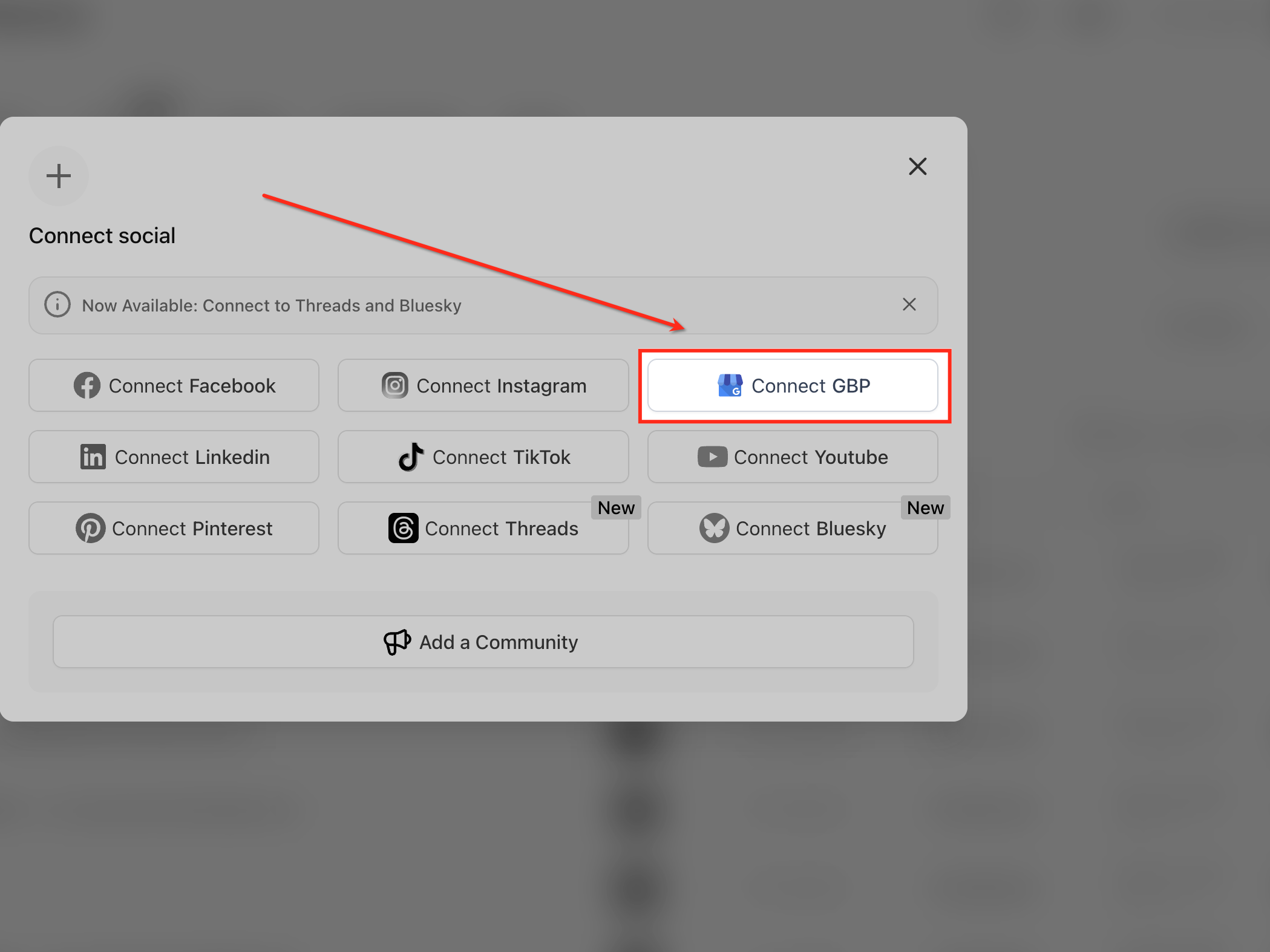
Select Connect GBP from the list of available social platforms to begin linking a Google Business Profile. This option starts the Google authorization flow, allowing Aesthetix CRM to securely access and manage posts for the selected business location.
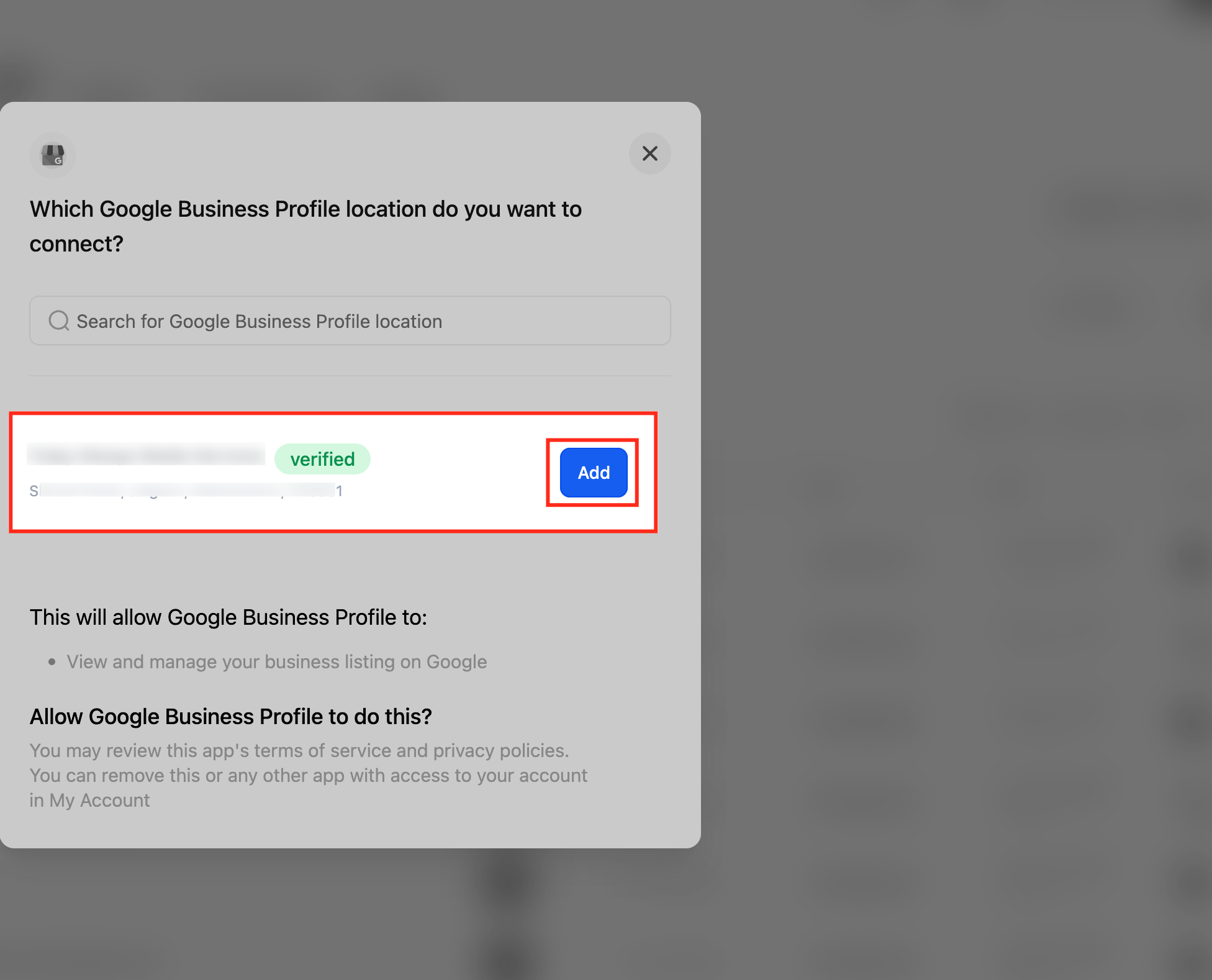
After clicking Connect GBP, you're prompted to choose the Google account you want to use, and Aesthetix CRM automatically fetches all Google Business Profiles associated with that account. Select the correct location from the list and click Add to connect it, enabling Aesthetix CRM to manage and schedule posts for that business.
Google Business Profile supports three formats: Updates for general news, Offers for time-bound promotions, and Events for happenings with start and end dates. Selecting the right type ensures Google shows your content in the most impactful placement on the listing.
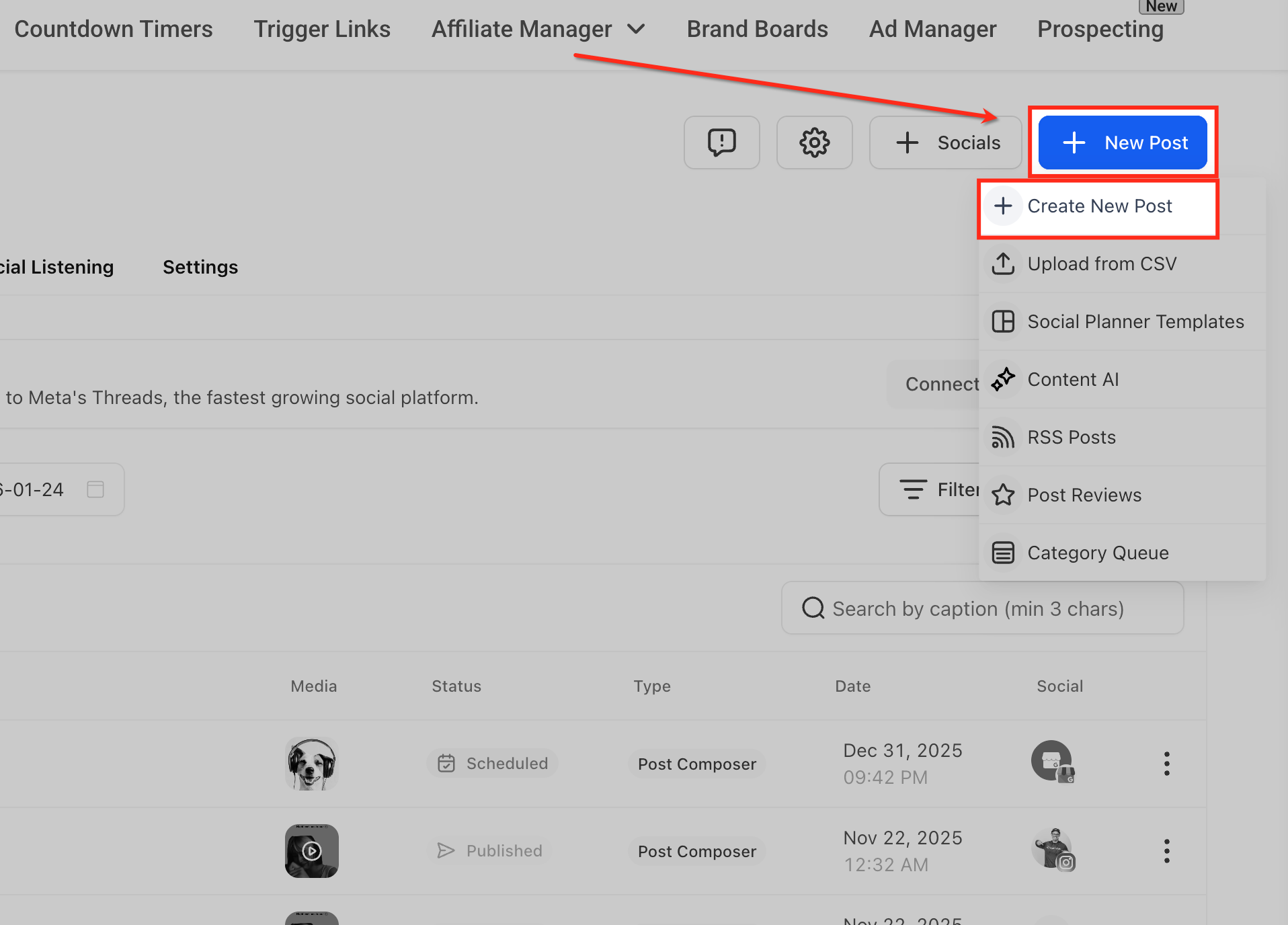
Click New Post in the top-right corner and select Create New Post to open the post composer in Social Planner. This is the starting point for creating a Google Business Profile post, where you'll add content, select profiles, and configure scheduling options.
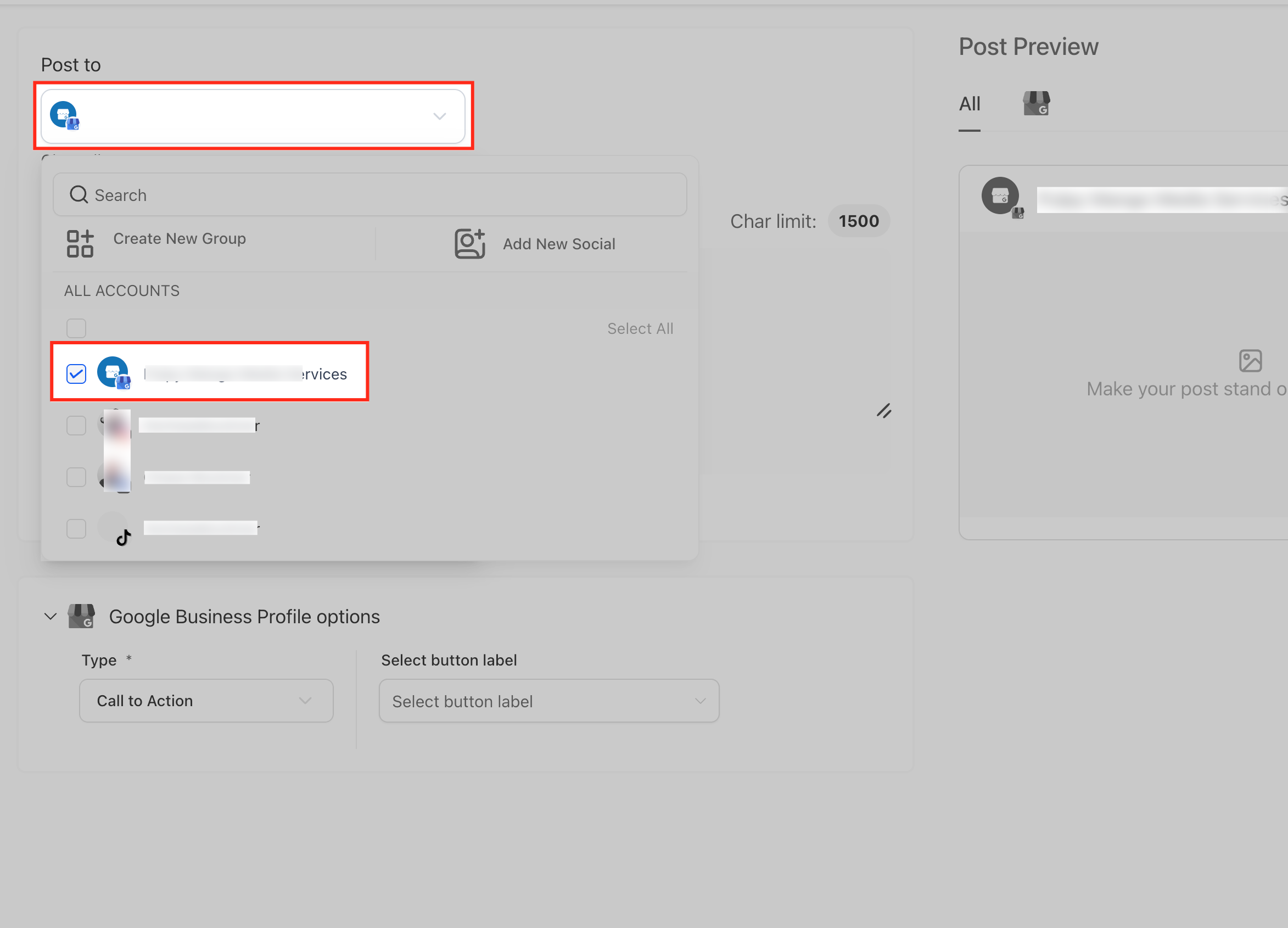
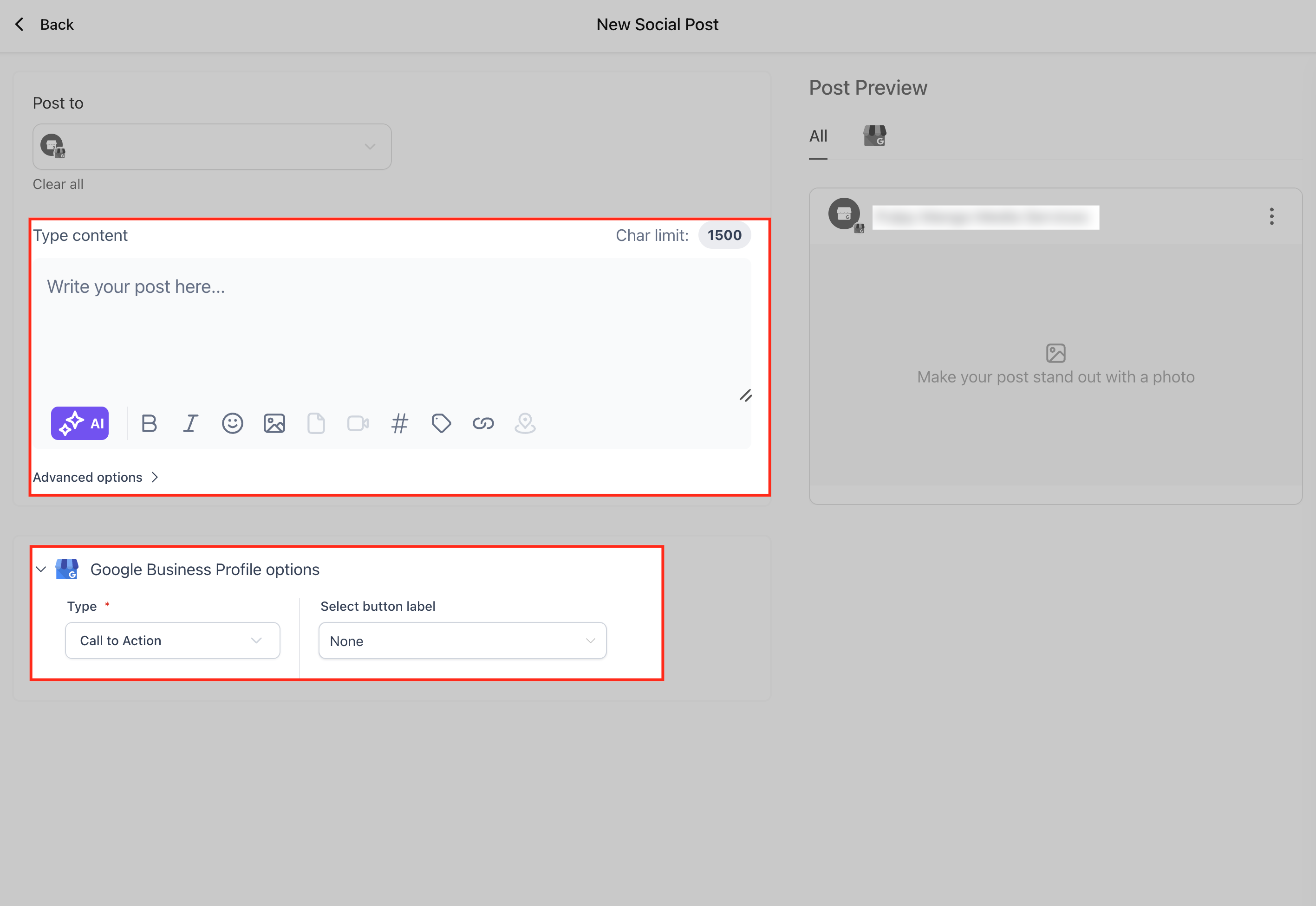
Use the Post to dropdown to view all connected social profiles and select the Google Business Profile location where the post should be published. Once selected, that profile appears checked in the list, confirming the post will be created and scheduled specifically for that business location.
Enter your message in the content editor, keeping the 1,500-character limit in mind, and use the formatting tools to enhance readability, such as bold text, emojis, hashtags, and links. You can also click AI to generate optimized copy, add an image to make the post more engaging, and use the Google Business Profile options below to choose the post type (Update, Offer, or Event) and optionally add a call-to-action button.
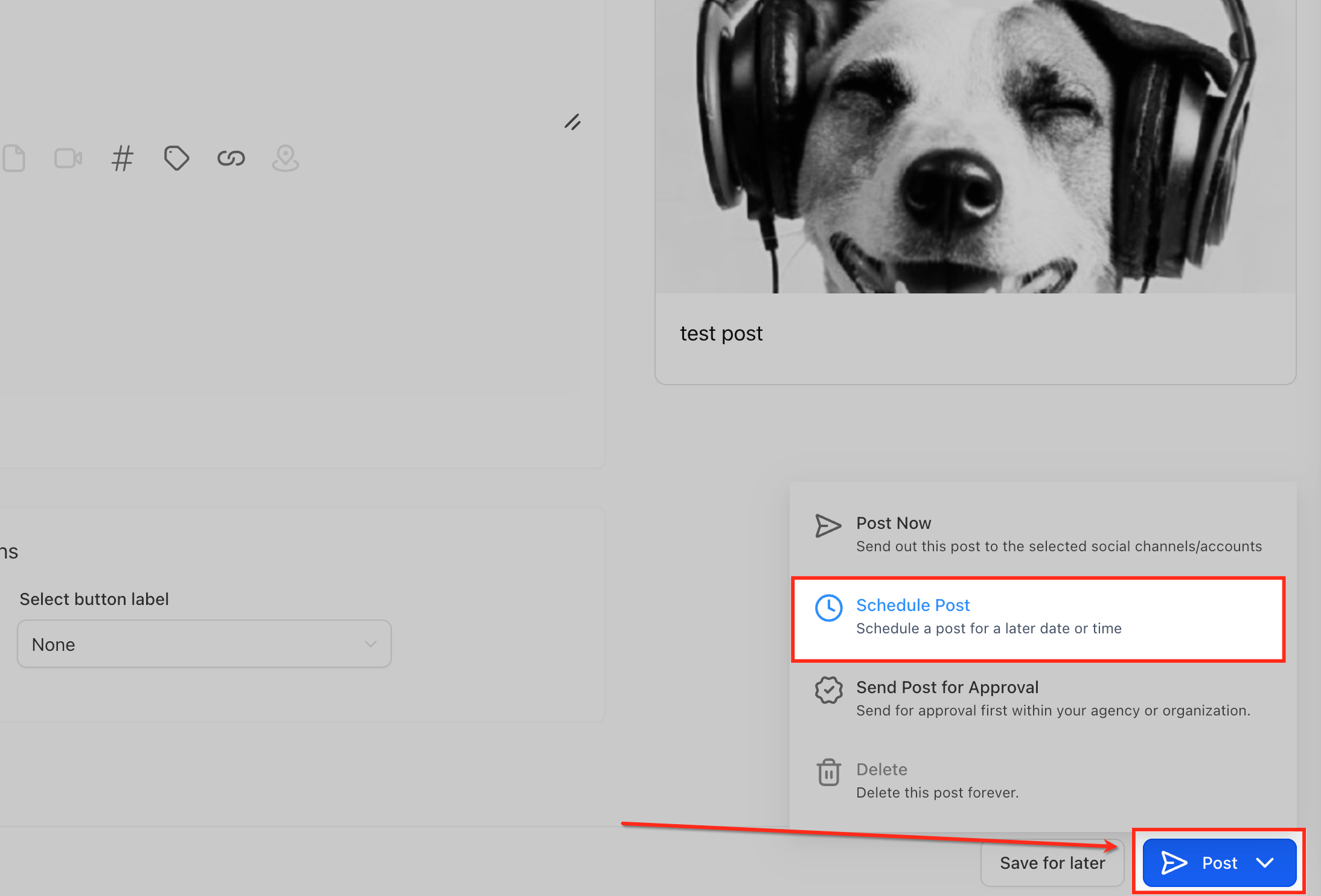
After clicking Post, choose how the post should be handled based on your workflow and timing. Select Schedule Post to publish on a specific date and time, Post Now to publish immediately, or Send Post for Approval if the post needs review before going live, then confirm your selection to complete the process.
Once the post is scheduled, it is automatically added to the Scheduled Posts tab within Reputation → GBP Optimization. From there, you can review upcoming posts, make edits, reschedule, duplicate, or delete them before they go live, ensuring full visibility and control over all planned content.
Note: Looking to coordinate your Google Business Profile posts alongside Facebook, Instagram, and other channels? The Social Media Planner lets you manage every connected profile from a single calendar.
How many characters can a post include?
Up to 1,500 characters per Google post.
Can I schedule video posts?
Google currently allows only images (JPEG or PNG, 5 MB or less); video is not supported through the API.
Does bulk posting violate Google's duplication policy?
Identical content across locations is permitted, but we recommend location-specific tweaks to avoid perceived spam and to maximize local relevance.
What happens if a connected profile's token expires?
The post will fail. Aesthetix CRM flags the profile as "Action Required"; reconnect and reschedule to publish.
Will edits sync to Google instantly?
Yes. Updating a scheduled post before its publish time overwrites the draft; editing after publication sends an immediate update to Google within a few seconds.
Are rate limits shared across profiles?
Yes. Google's limit of 100 posts per 24 hours applies per user token, so if you manage many locations, stagger your schedules.
