Connecting your Google Business Profile lets you manage reviews, messages, and your online reputation directly inside Aesthetix CRM. This integration makes sure you never miss a customer interaction from Google Search or Maps, while keeping your communication and reputation management in one place. In this article, you'll learn what the Google Business Profile integration is, its key benefits, the setup steps with screenshots, and answers to common questions so you feel confident completing the process.
Google Business Profile (formerly Google My Business) is a free tool from Google that lets your practice manage how it appears across Google Search and Maps. By connecting your Google Business Profile to Aesthetix CRM, you can sync customer messages, reviews, and reputation data straight into your CRM.
Connecting your profile ensures all of your Google customer interactions flow into Aesthetix CRM. This lets you respond faster, manage your reputation more effectively, and centralize communications alongside other channels like SMS, email, and Facebook.
Connecting your Google Business Profile to Aesthetix CRM goes beyond simply linking accounts. It improves how your practice communicates with prospects and patients by putting visibility and tools directly inside the CRM.
Centralized Reviews: New Google reviews automatically sync into Conversations, so you can reply without leaving Aesthetix CRM.
Messaging Integration: Communication channels are added and linked to your CRM so messages sync automatically.
Reputation Tracking: Monitor and manage reviews inside the Reputation tab.
Increased Visibility: Keep your business profile active, encouraging patient engagement and better local SEO.
Streamlined Workflow: Manage your Google interactions alongside other integrations like Facebook, Instagram, and SMS.
Proper setup ensures a smooth flow of Google reviews and messages into your CRM. The steps below walk you through connecting and verifying your Google Business Profile.
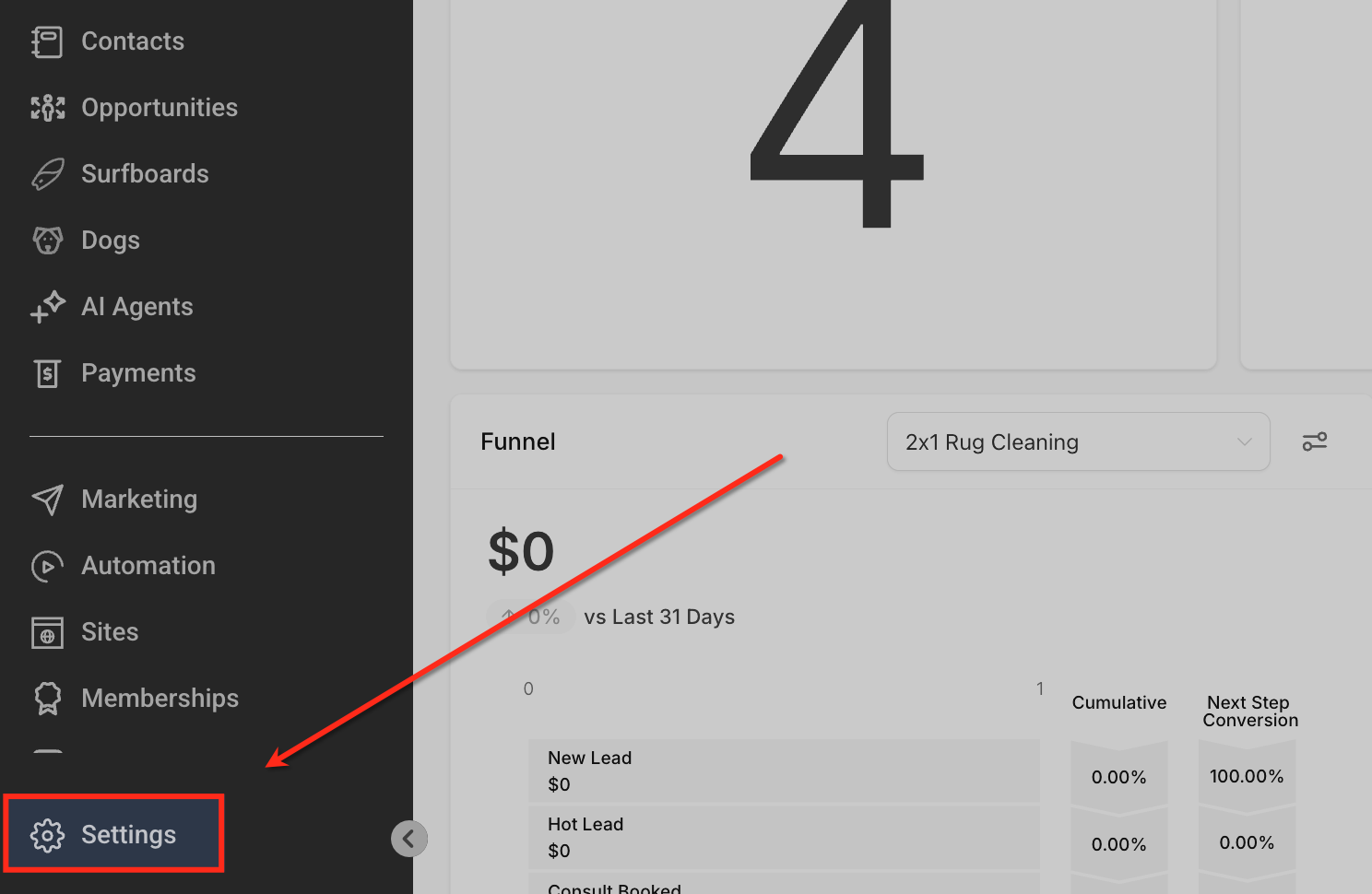
From the left-hand menu of your dashboard, scroll down and click Settings. This is where you'll manage all account-level configurations, including integrations.
Within the Settings menu, click Integrations. This section lets you connect external tools and accounts, including Google Business Profile, for seamless syncing.
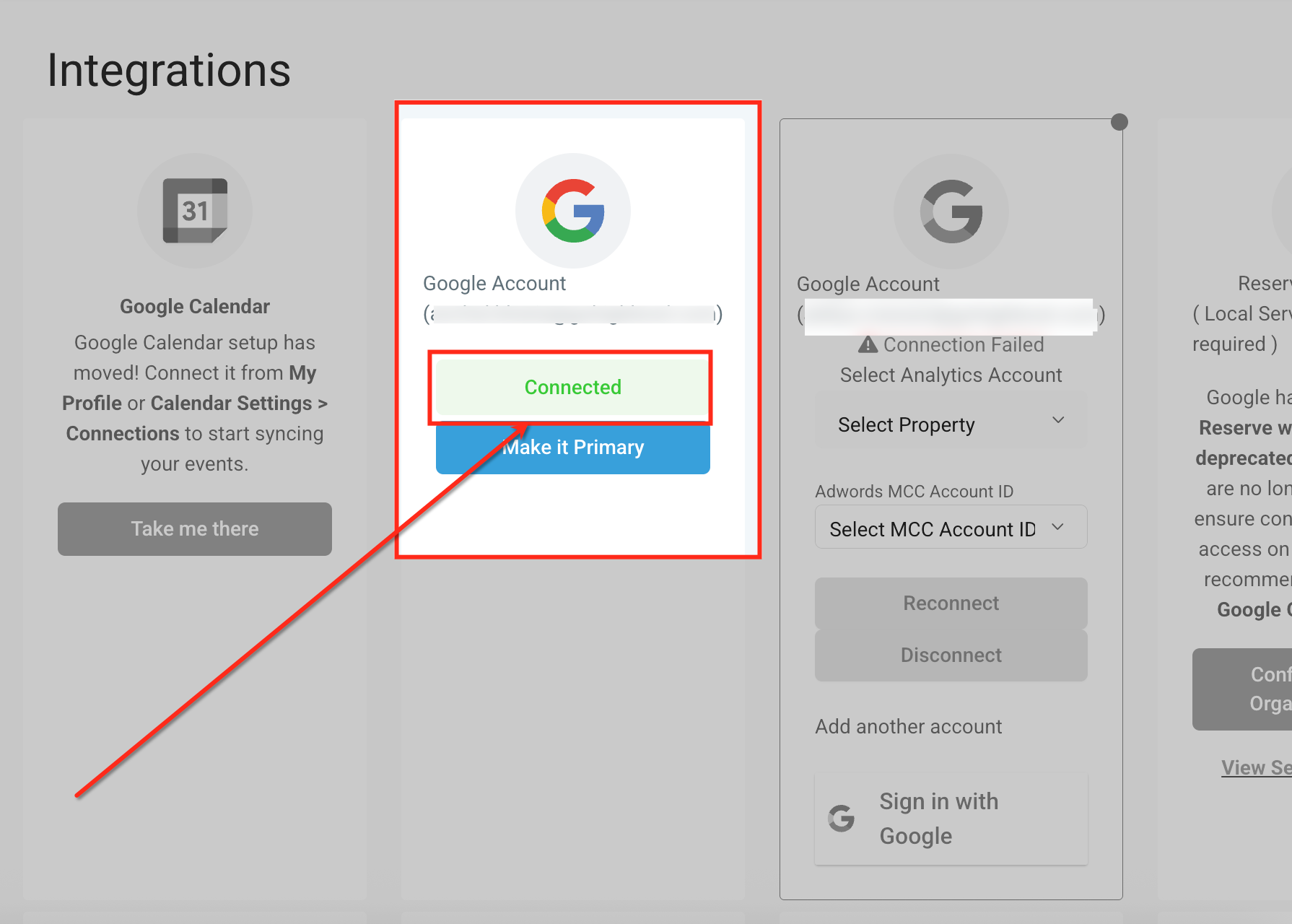
Sign in with your Google account and authorize access. Once connected successfully, the account will display a Connected status, confirming the integration is active.
Note: Log in with the Google account that has Owner or Manager access to the Google Business Profile location(s).
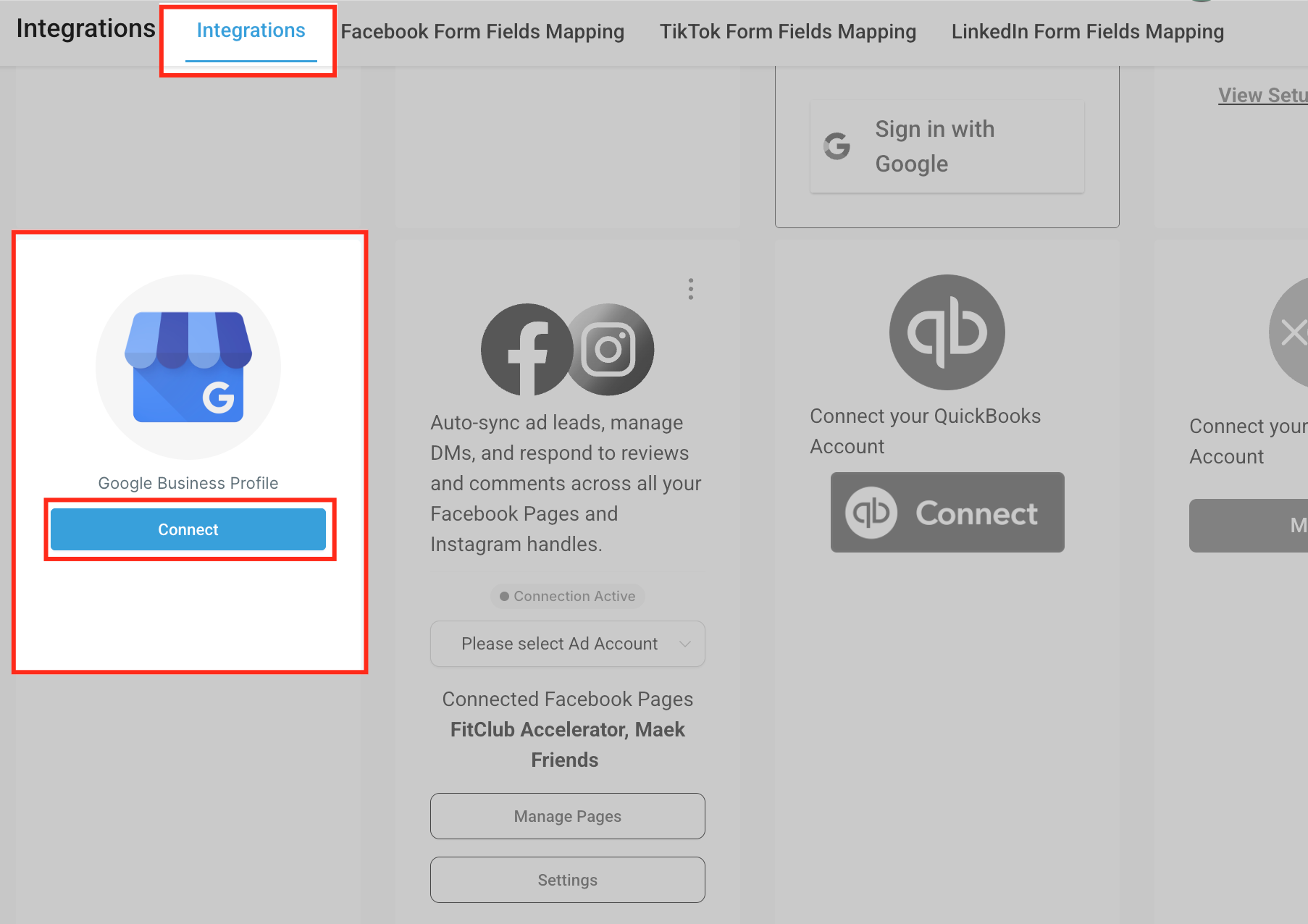
In the Integrations tab, locate Google Business Profile and click Connect. This begins the process of linking your verified business profile to Aesthetix CRM.
Note: Your practice must already have a verified Google Business Profile to proceed.
Select the appropriate Google Business Profile location from the list. If multiple pages are available, tick the box next to the correct business before proceeding to connect.
Note: Use the search dropdown to filter locations by Page Name, Store Code, Postal Code, or Locality. If no locations appear, follow the on-screen guidance to connect a Google account that has access to the Google Business Profile locations you want to manage.
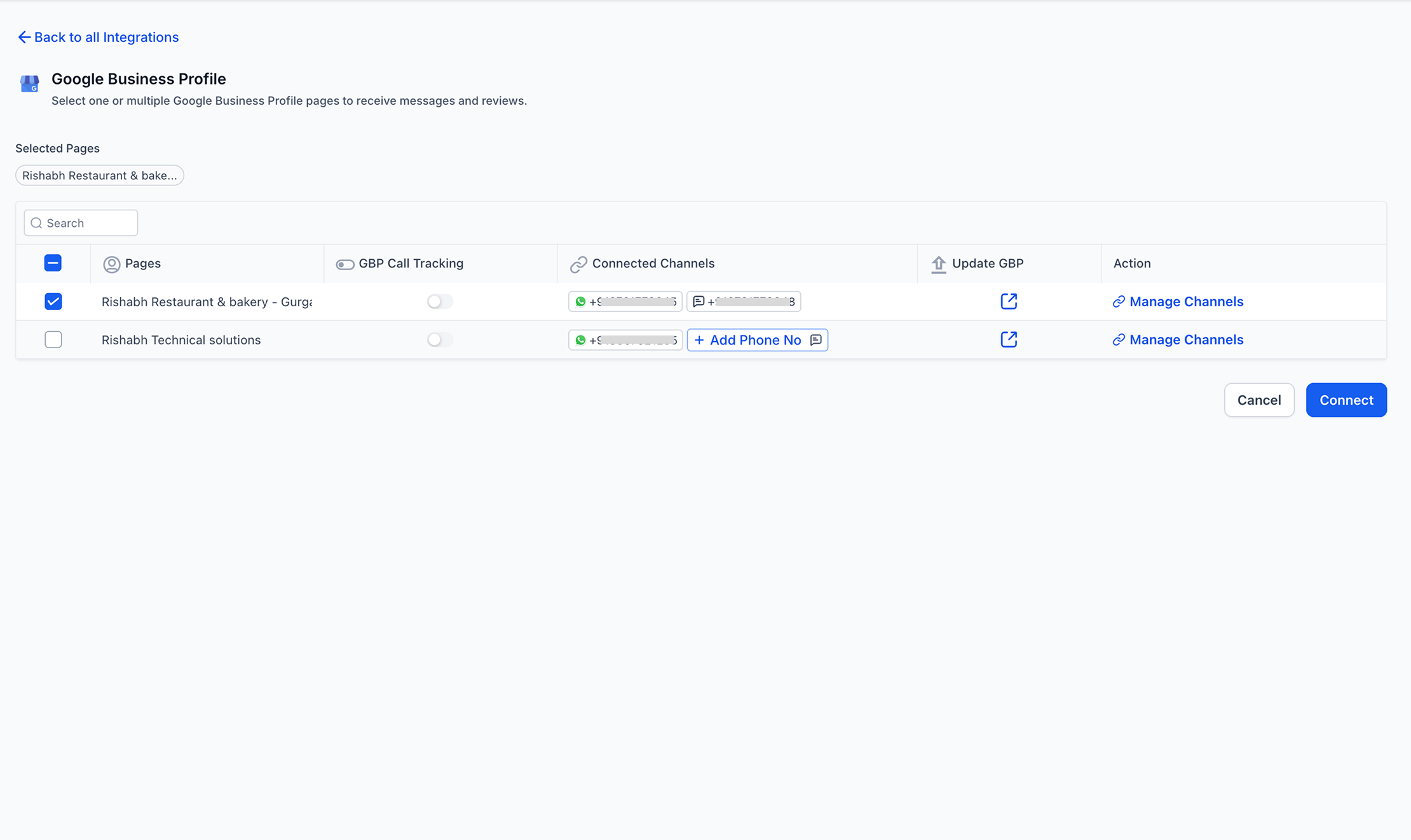
Toggle on Call Tracking if you want to track patient calls made through your Google Business Profile. This captures valuable call data directly within Aesthetix CRM.
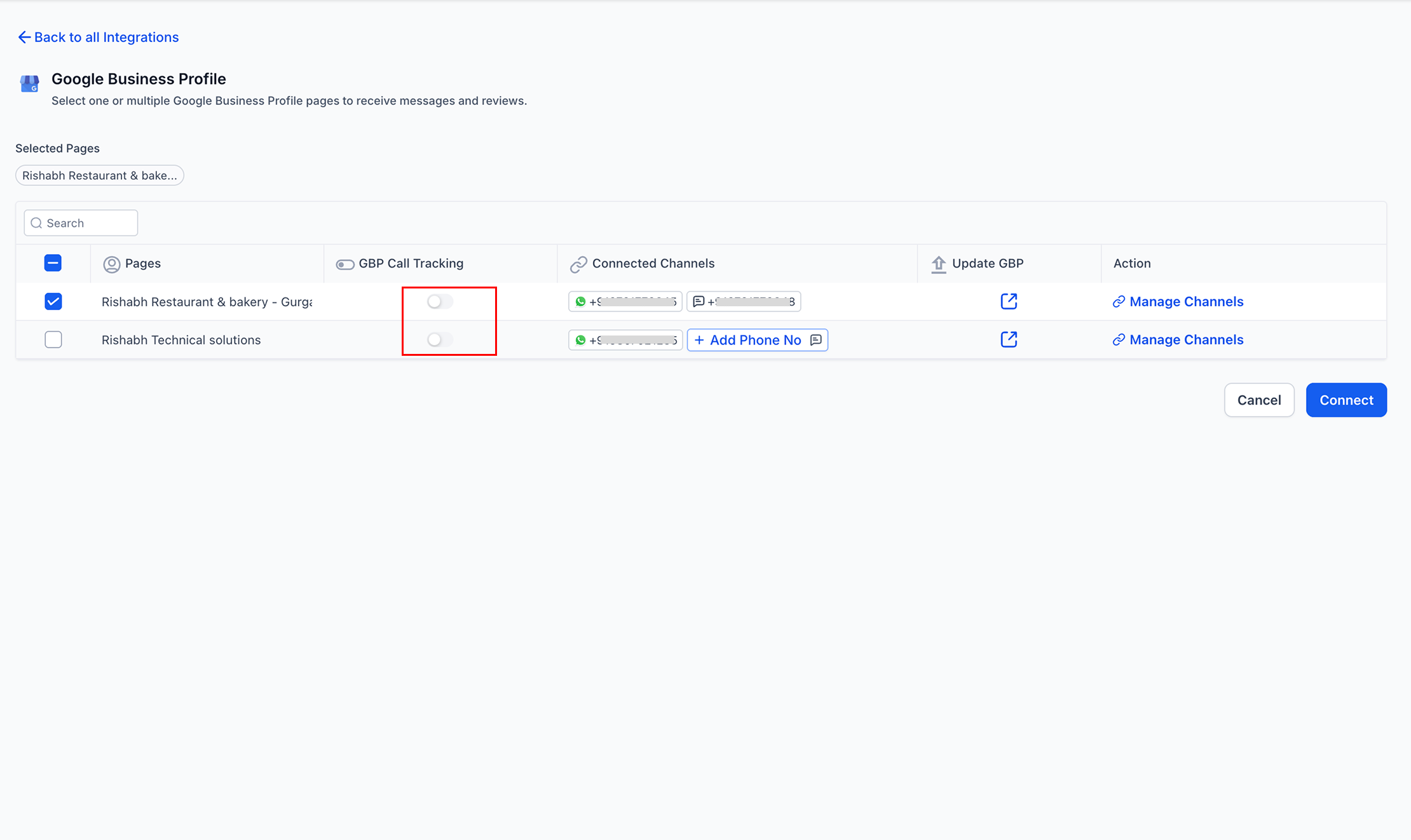
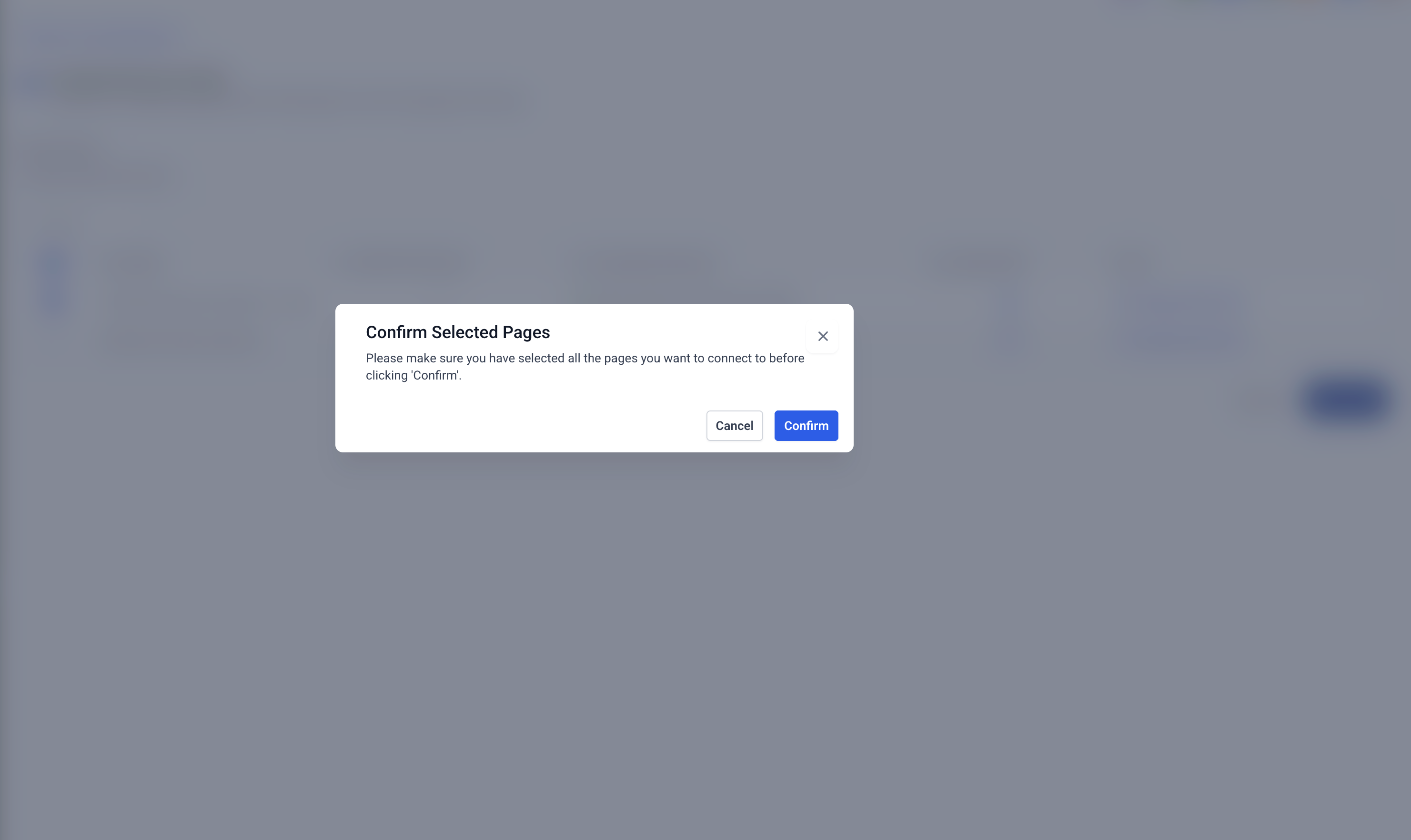
After selecting your business and preferences, click the Connect button. This finalizes the setup and links your Google Business Profile to Aesthetix CRM.
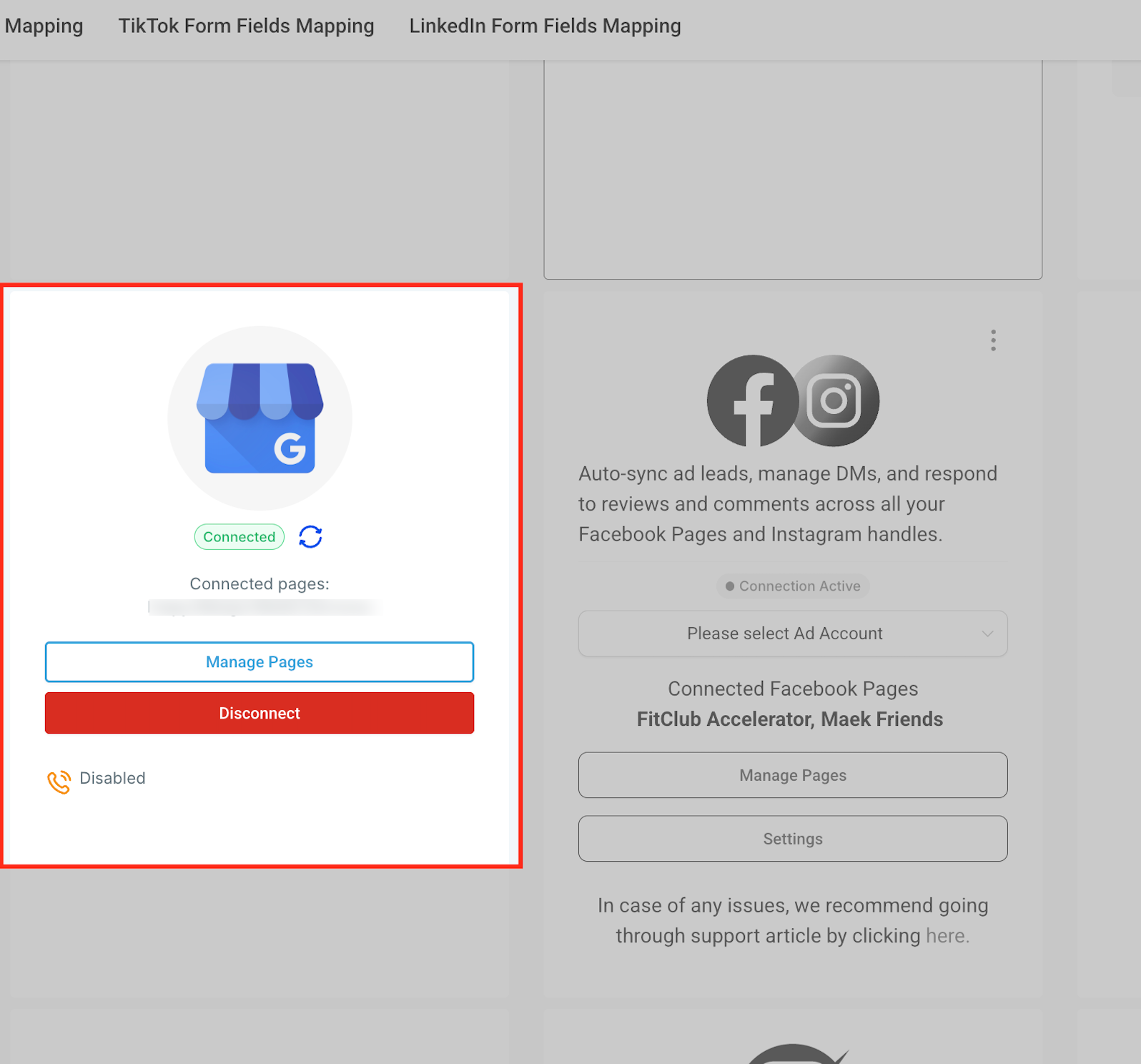
Once connected, you'll see your Google Business Profile icon at the top with a green Connected status and a refresh option to sync data. Below, the Connected Pages section shows the specific business name linked. You can use Manage Pages to update locations, Disconnect to remove the integration, and check whether Call Tracking is enabled or disabled at the bottom.
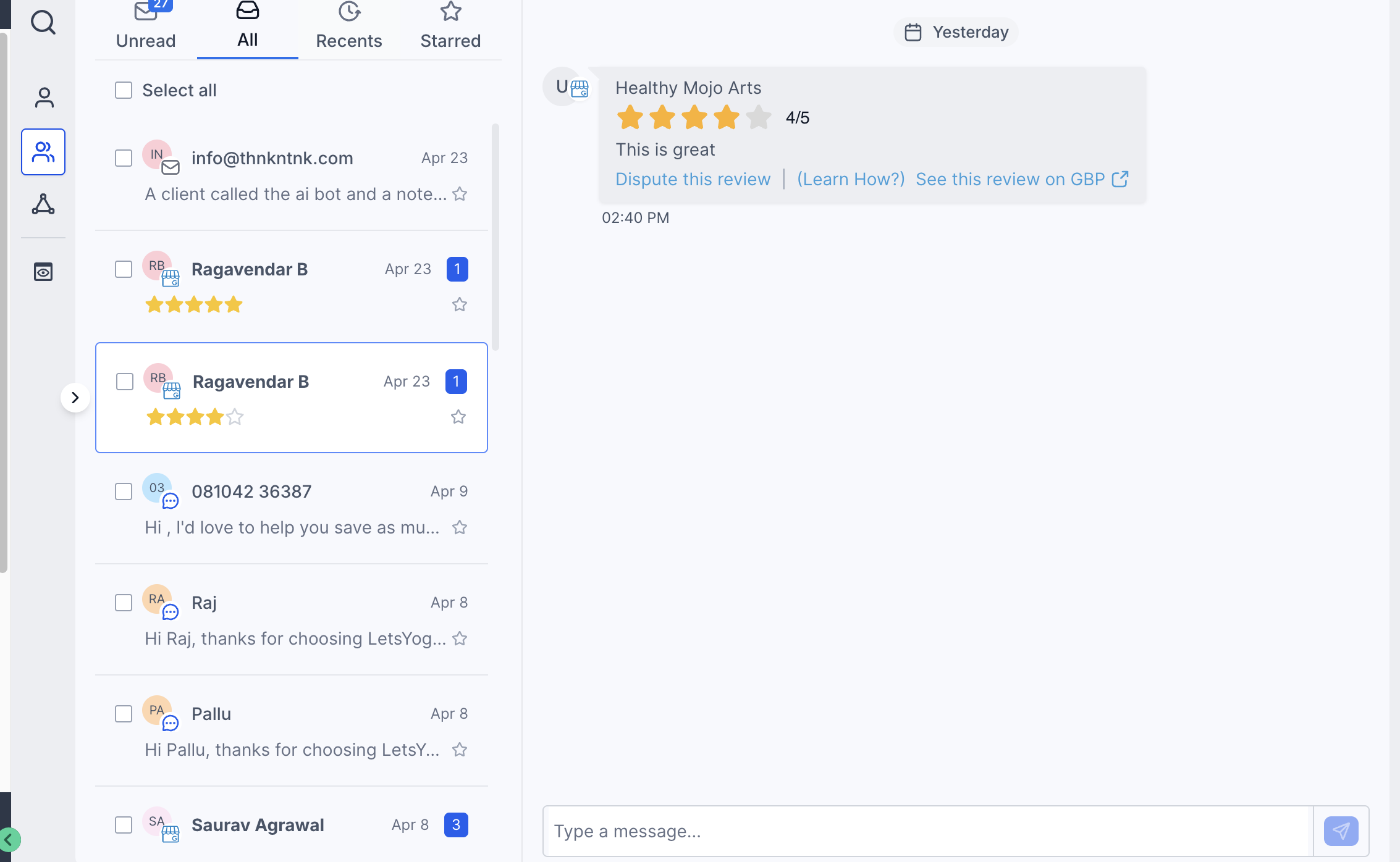
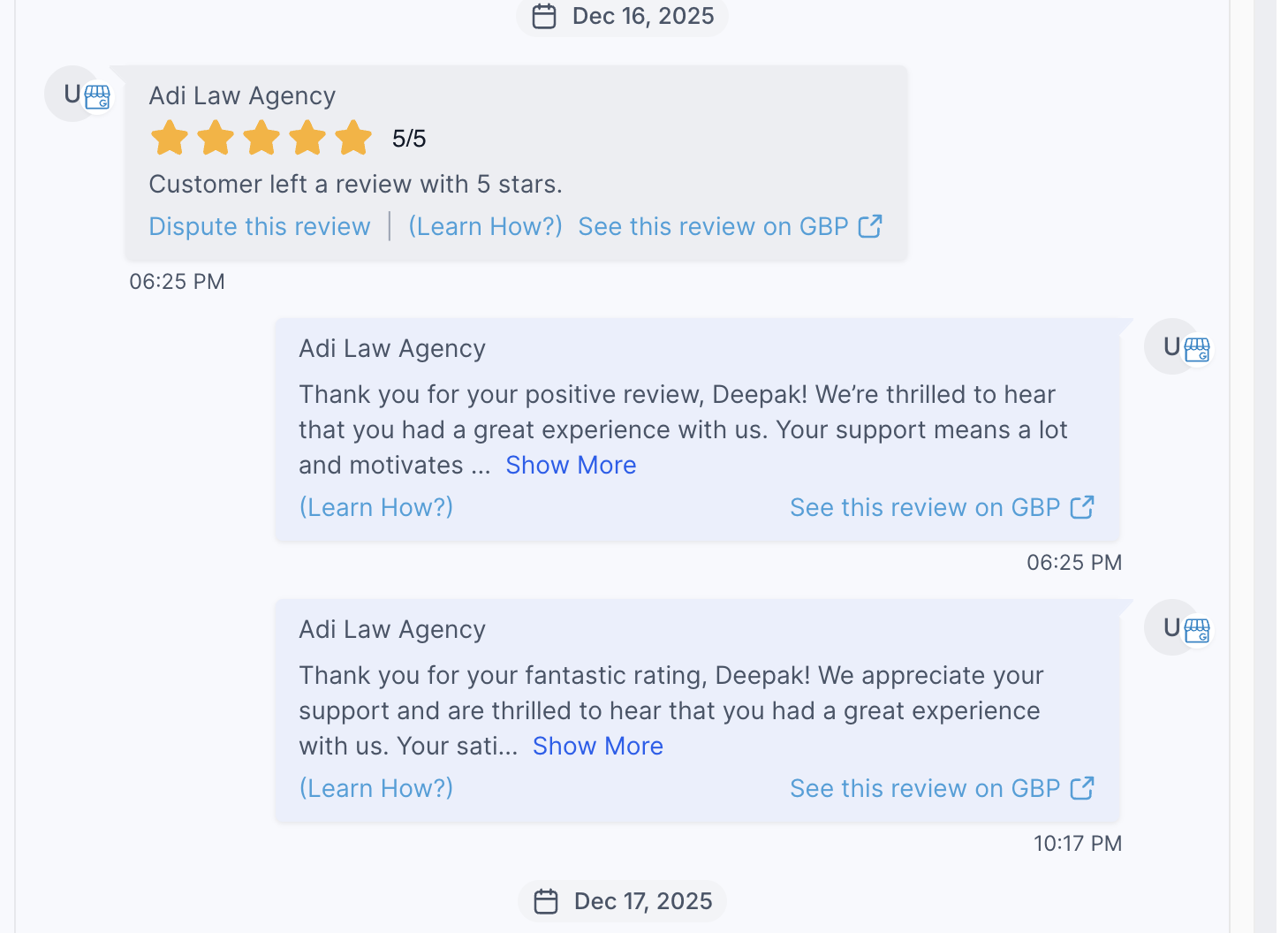
When Google Business Profile reviews appear in Conversations, each review displays the associated page name directly in the thread. This gives you clearer context when more than one page is connected.
The page name also appears on outgoing review responses, so you can quickly confirm which business page the conversation belongs to before replying.
This is especially useful in multi-page setups, where reviews from different Google Business Profile pages may appear in the same Conversations workspace.
Can I connect multiple Google Business Profile locations to Aesthetix CRM?
Yes, but you'll need to repeat the connection steps for each location using the same or different Google accounts with proper access.
What happens if my connection fails?
If the Google connection shows as connected but features still fail, check Settings → Integrations → Google for a missing-permissions warning. Open the warning, review the missing permissions and affected features, then click Reconnect to grant the missing permissions in Google.
Do reviews and messages sync instantly?
Yes, reviews and messages appear in the Conversations stream in near real-time once connected.
Can I disconnect my Google Business Profile later?
Yes. Simply go to Settings → Integrations and click Disconnect next to your Google Business Profile.
Do I need a verified Google Business Profile before connecting?
Yes, your practice must be verified with Google before the integration will work.
Does connecting Google Business Profile enable Google Messaging automatically?
Google messaging was deprecated in July 2024. You can now connect a WhatsApp number and a text number to your Google Business Profile pages. When these channels are integrated with your CRM, their messages will sync.
