Reviews AI lets you create personalized AI agents that automatically draft on-brand replies to your reviews based on tone, sentiment, and style preferences. Instead of writing every response by hand, you build an agent once, and it crafts consistent, thoughtful replies that sound like your med spa or plastic surgery practice. This guide walks you through accessing Reviews AI, creating your first agent, setting assignment and language rules, and testing your agents so your review responses stay personalized, consistent, and automated.
Note: Reviews AI drafts replies from the review text itself. Never enter protected health information (PHI), such as a patient's treatments, appointments, or health details, into your agent's instructions, prompts, or responses.
With Reviews AI, you create AI personalities that automatically respond to reviews based on tone, sentiment, and style. Each agent can be tuned to your brand voice, assigned to handle specific kinds of reviews, and previewed before anything goes live. The result is faster review management and a consistent voice across every customer interaction.
Follow these steps to open Reviews Management, create an agent, and customize how it replies.
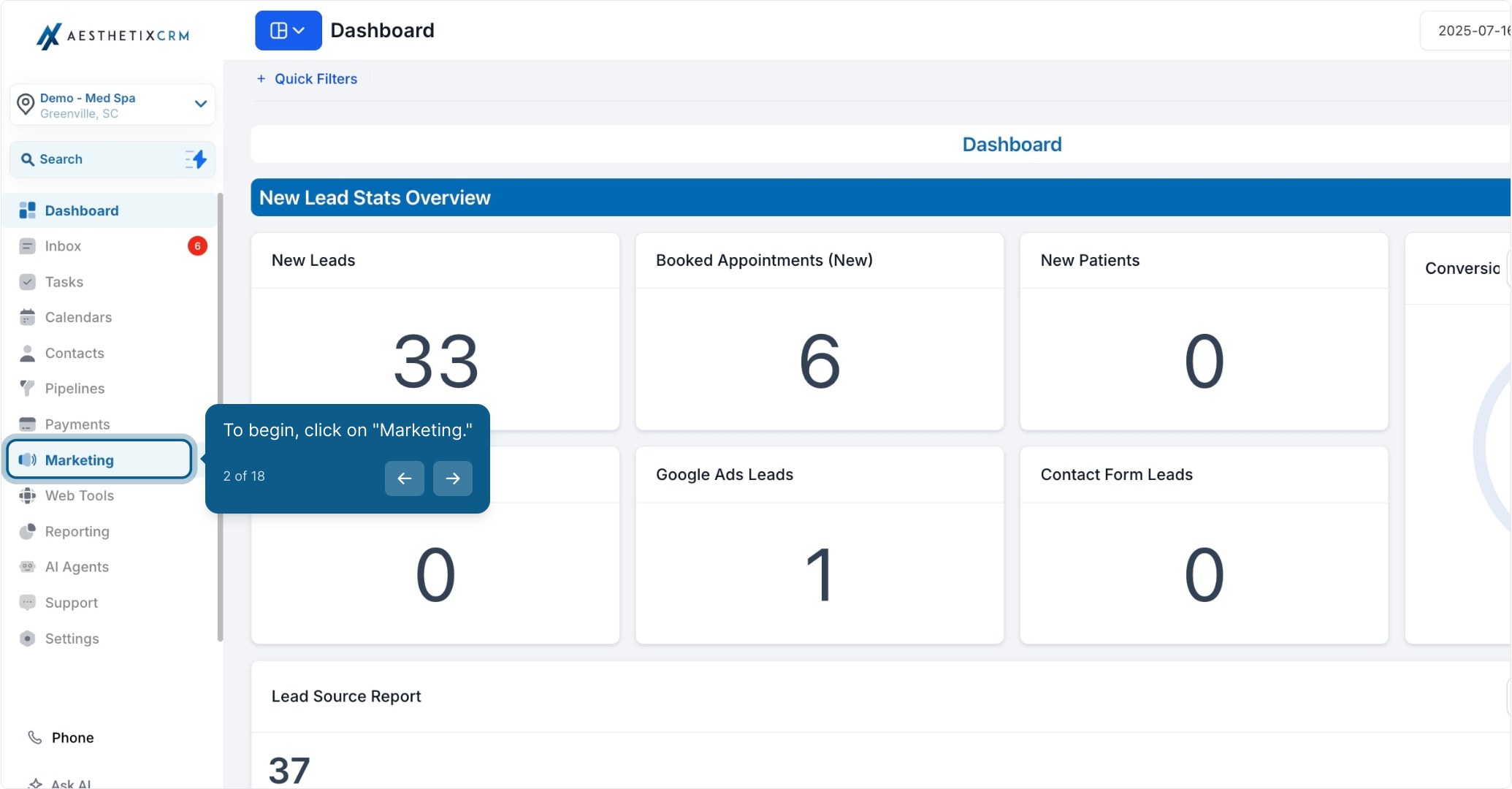
To begin, click on "Marketing."
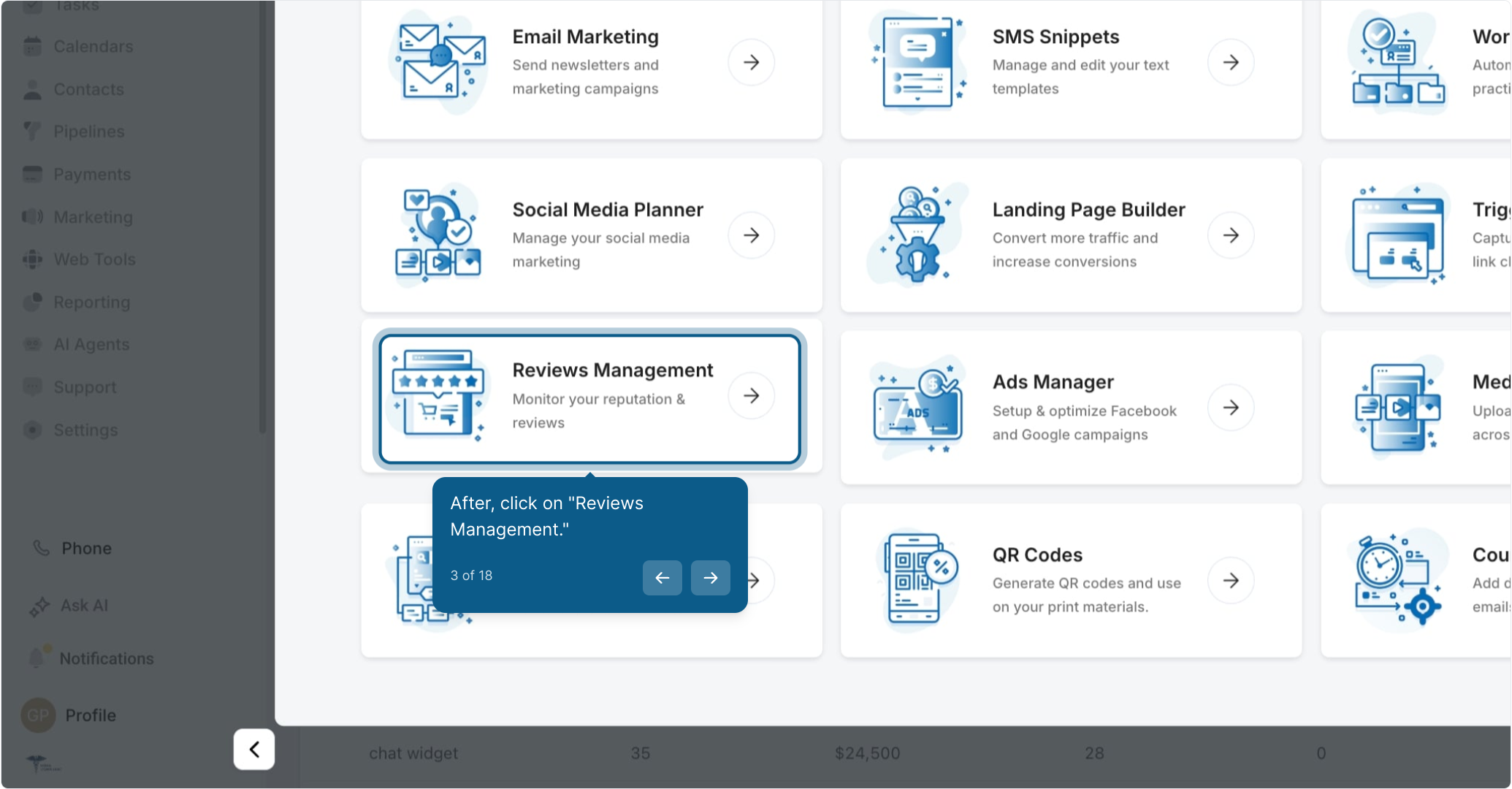
Next, click on "Reviews Management."
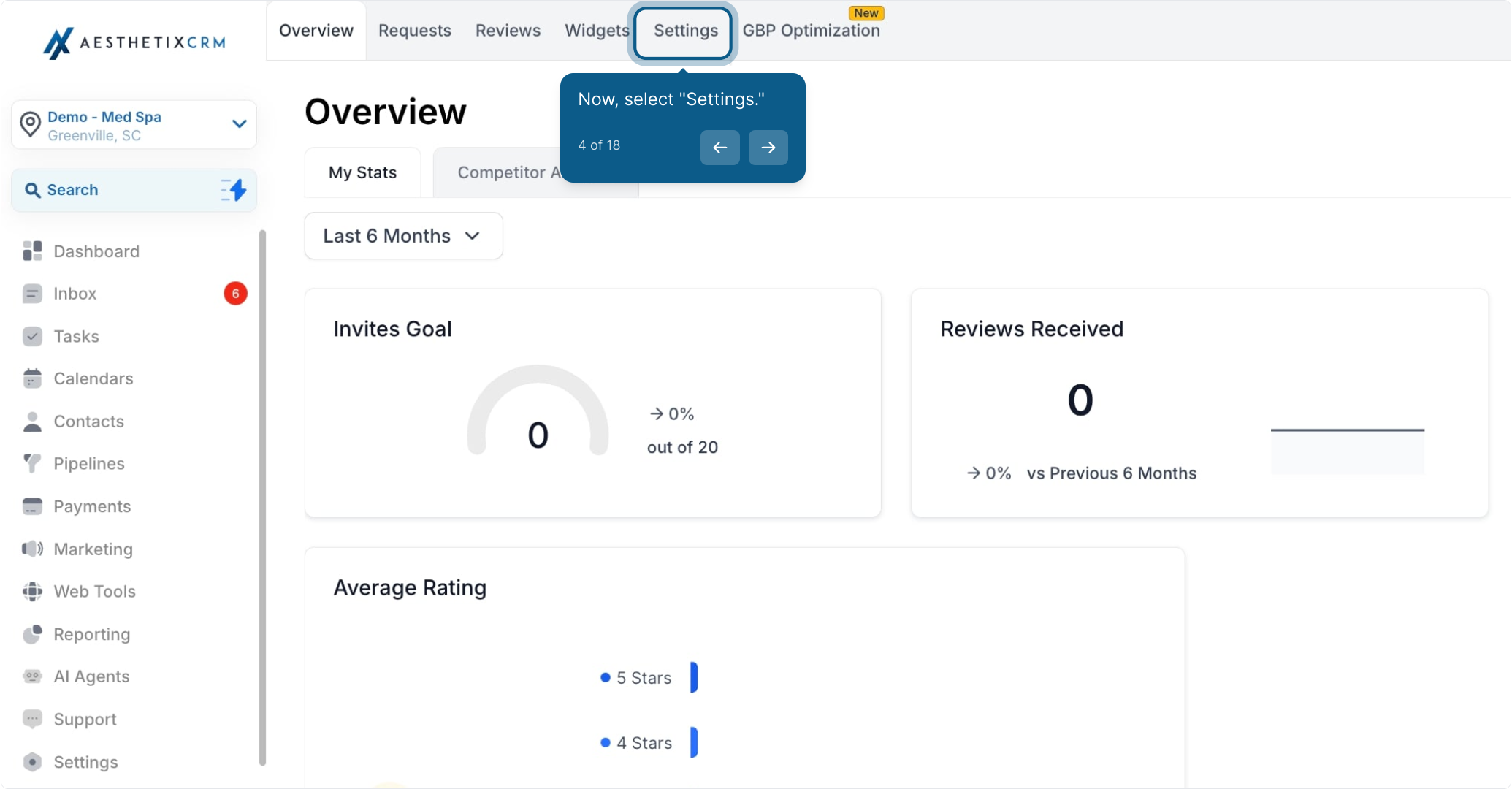
Then select "Settings."
From here you'll find the section to create and manage your AI agents.
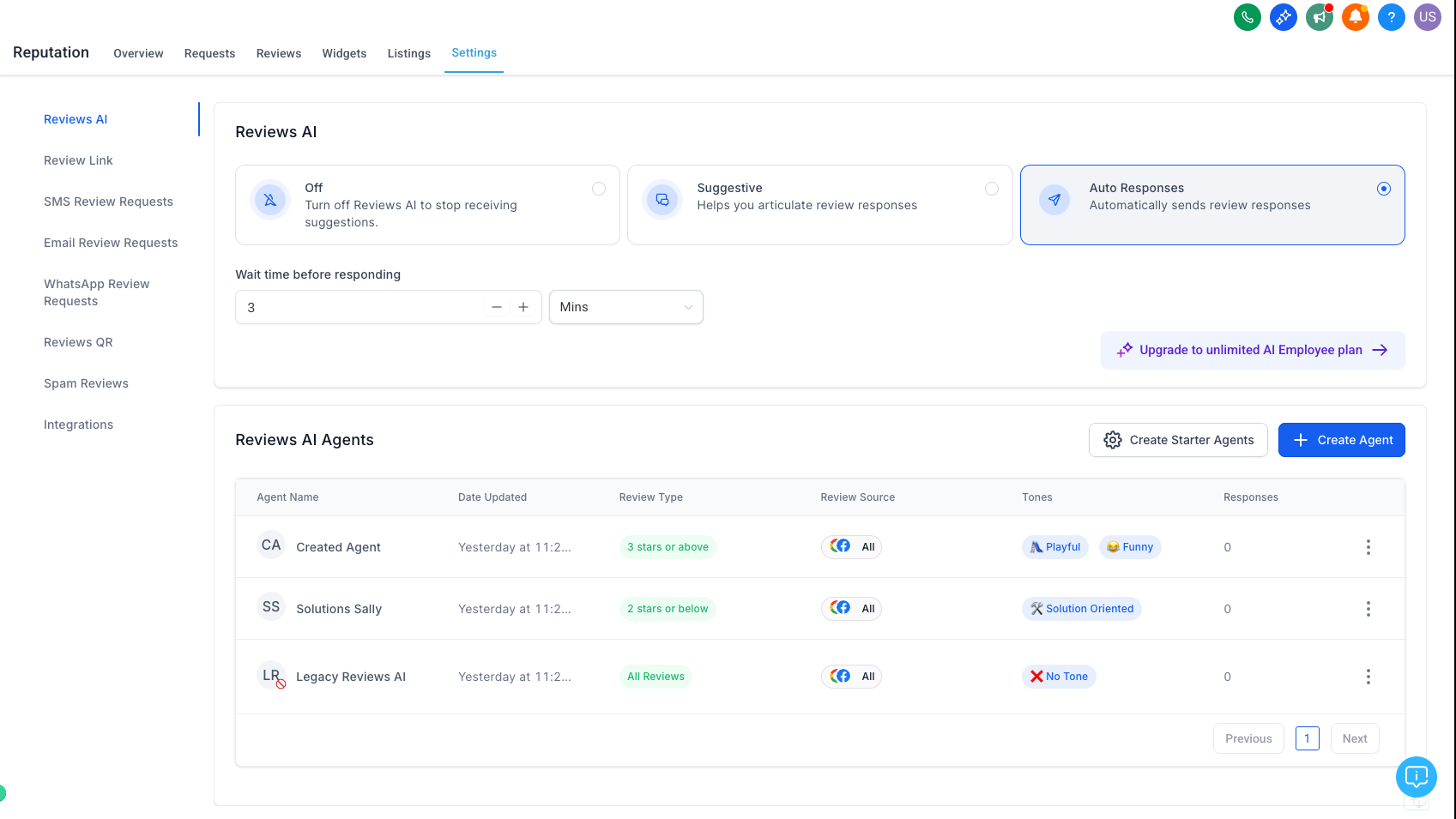
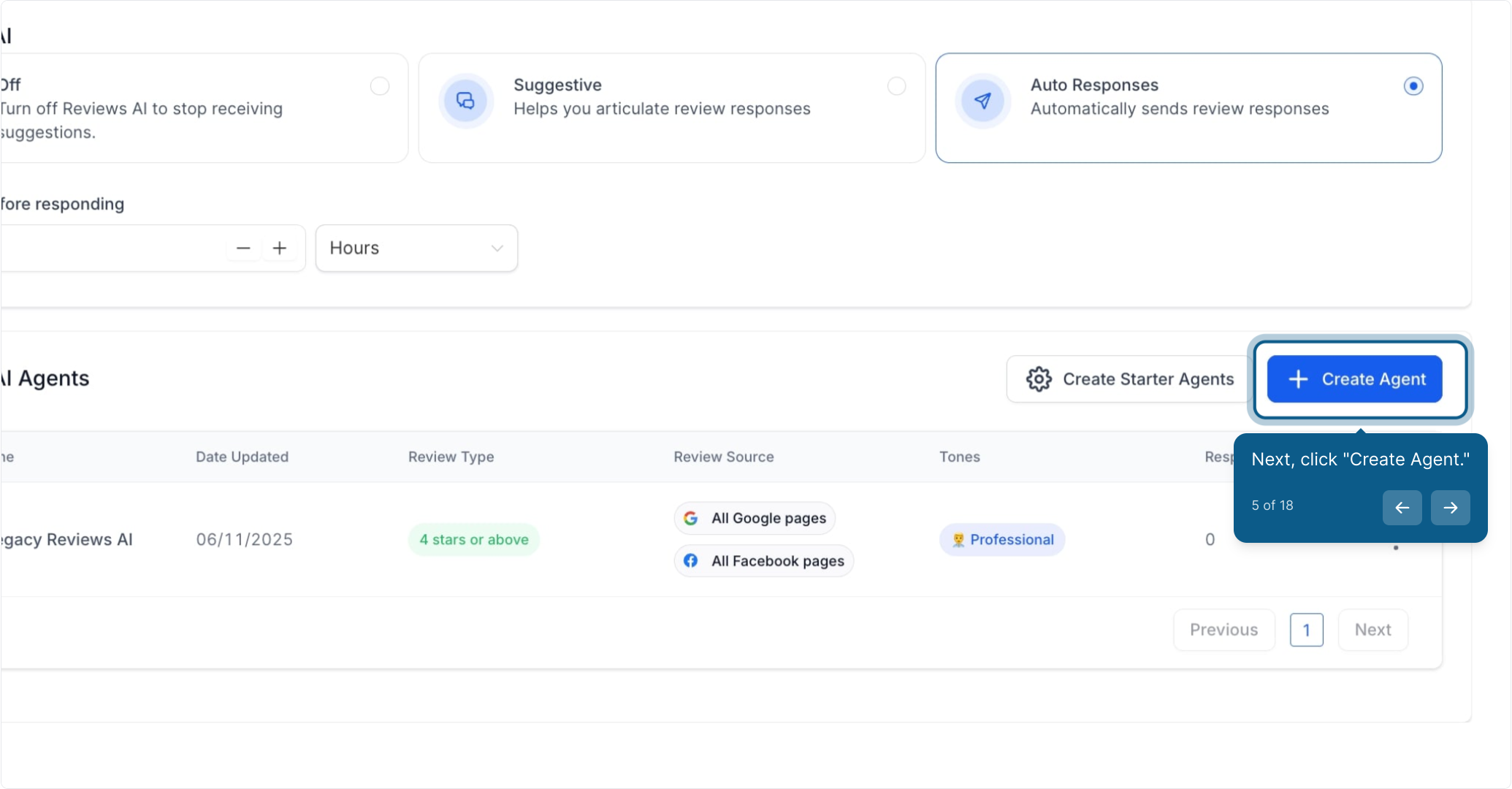
Click "Create Agent."
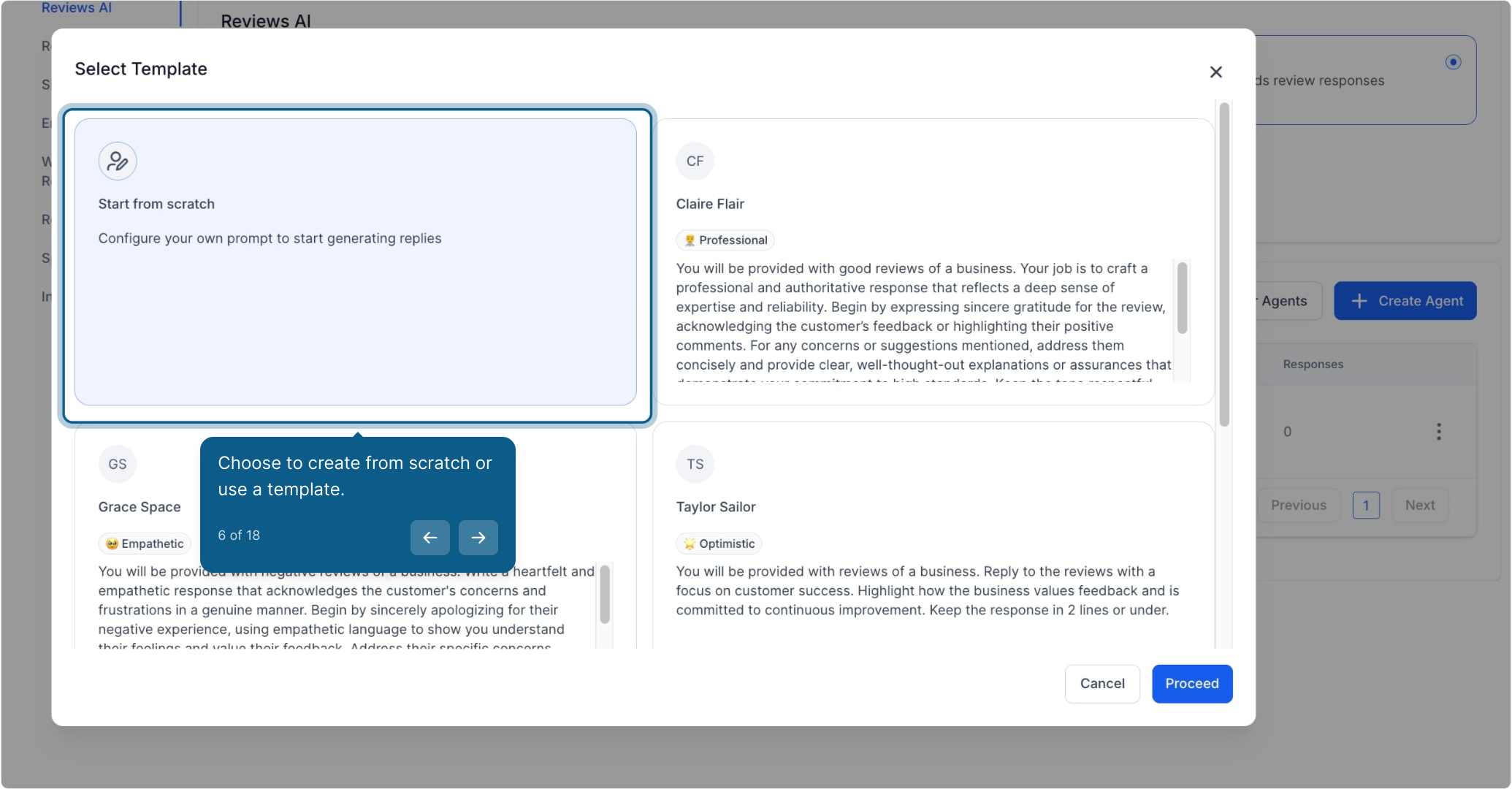
You can either create your agent from scratch, setting tone, style, and traits manually, or start from a ready-made template.
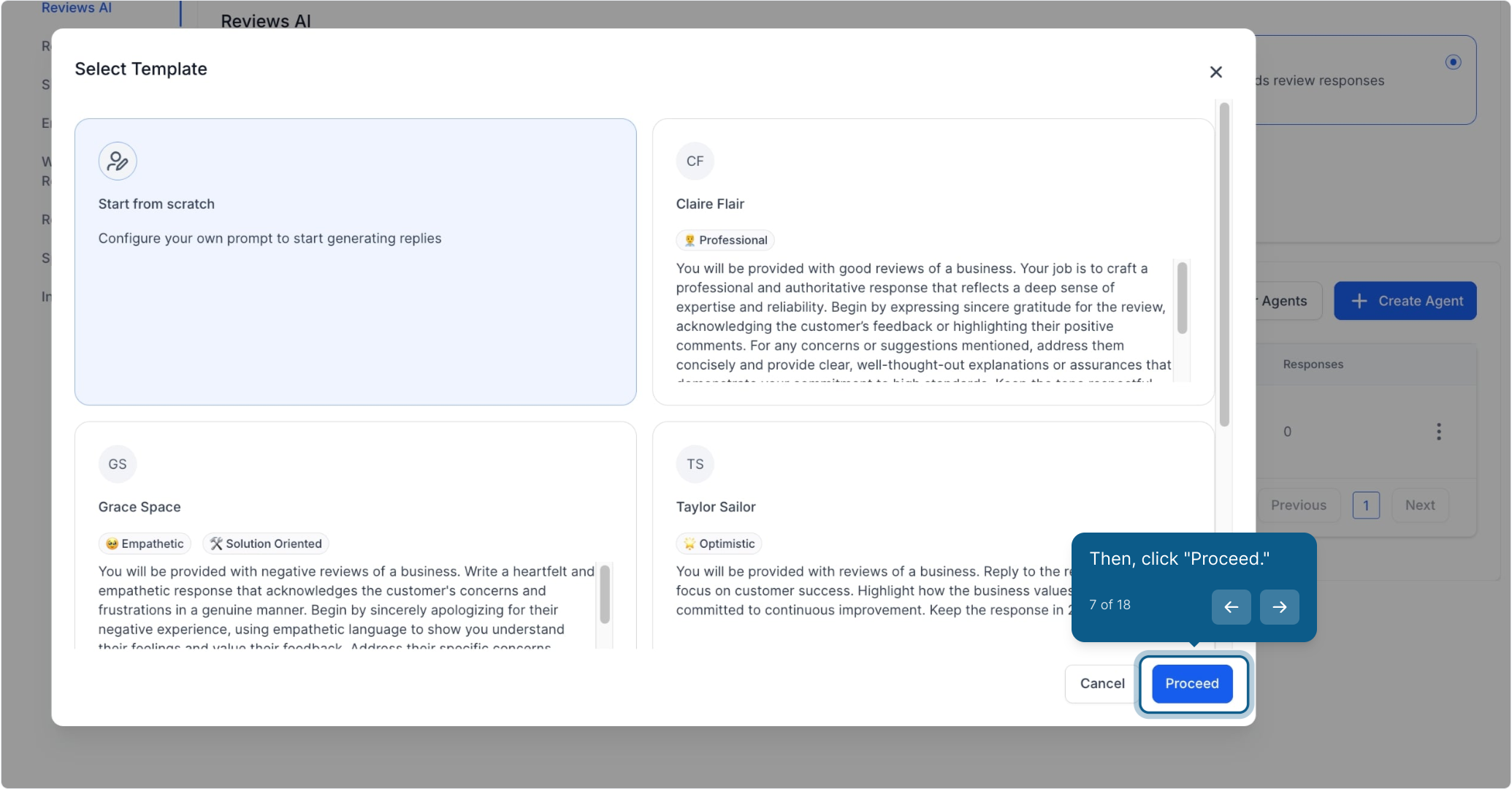
Then click "Proceed."
Give your agent a friendly name. A clear name helps you track its performance and review quality later.
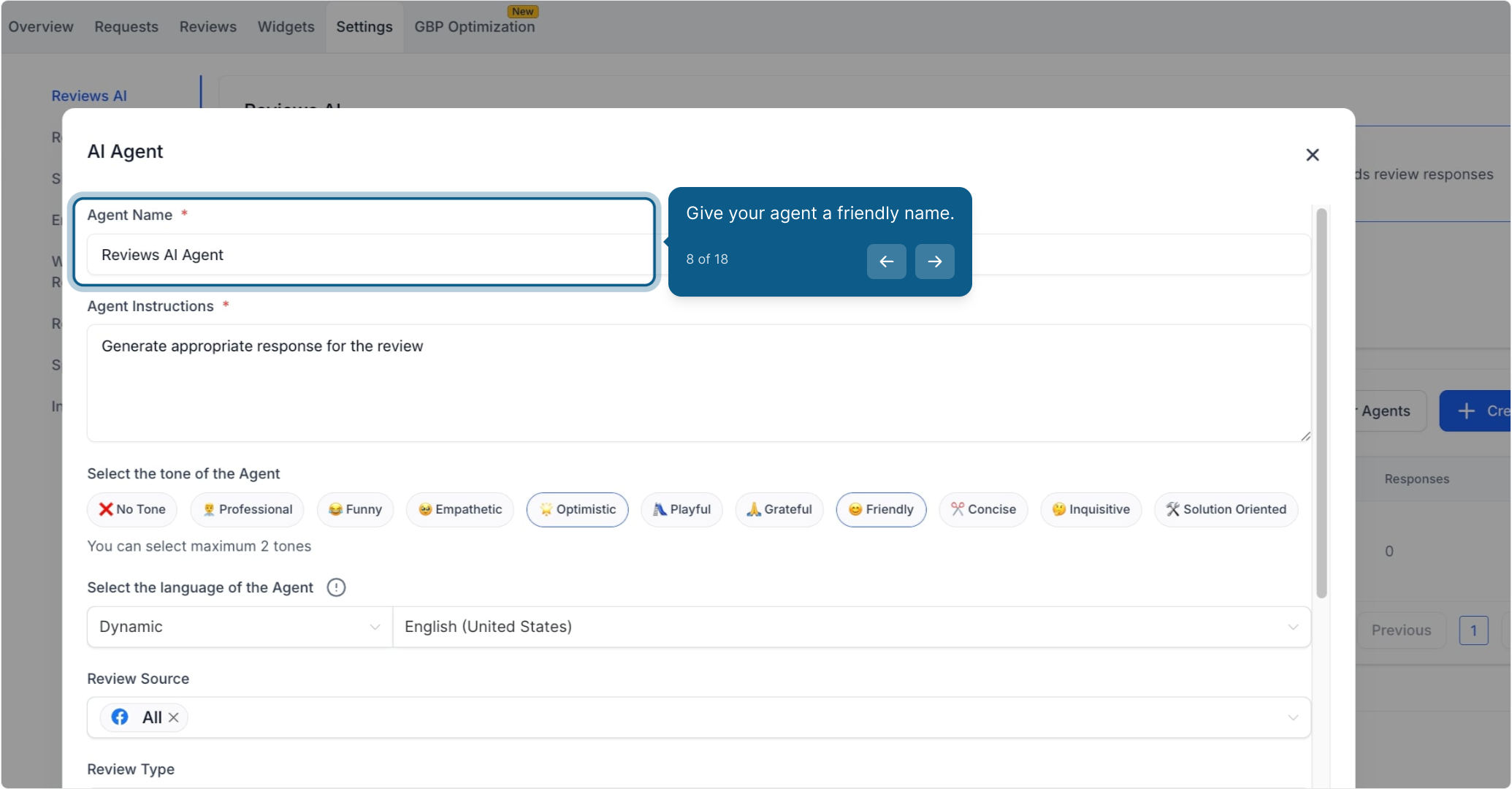
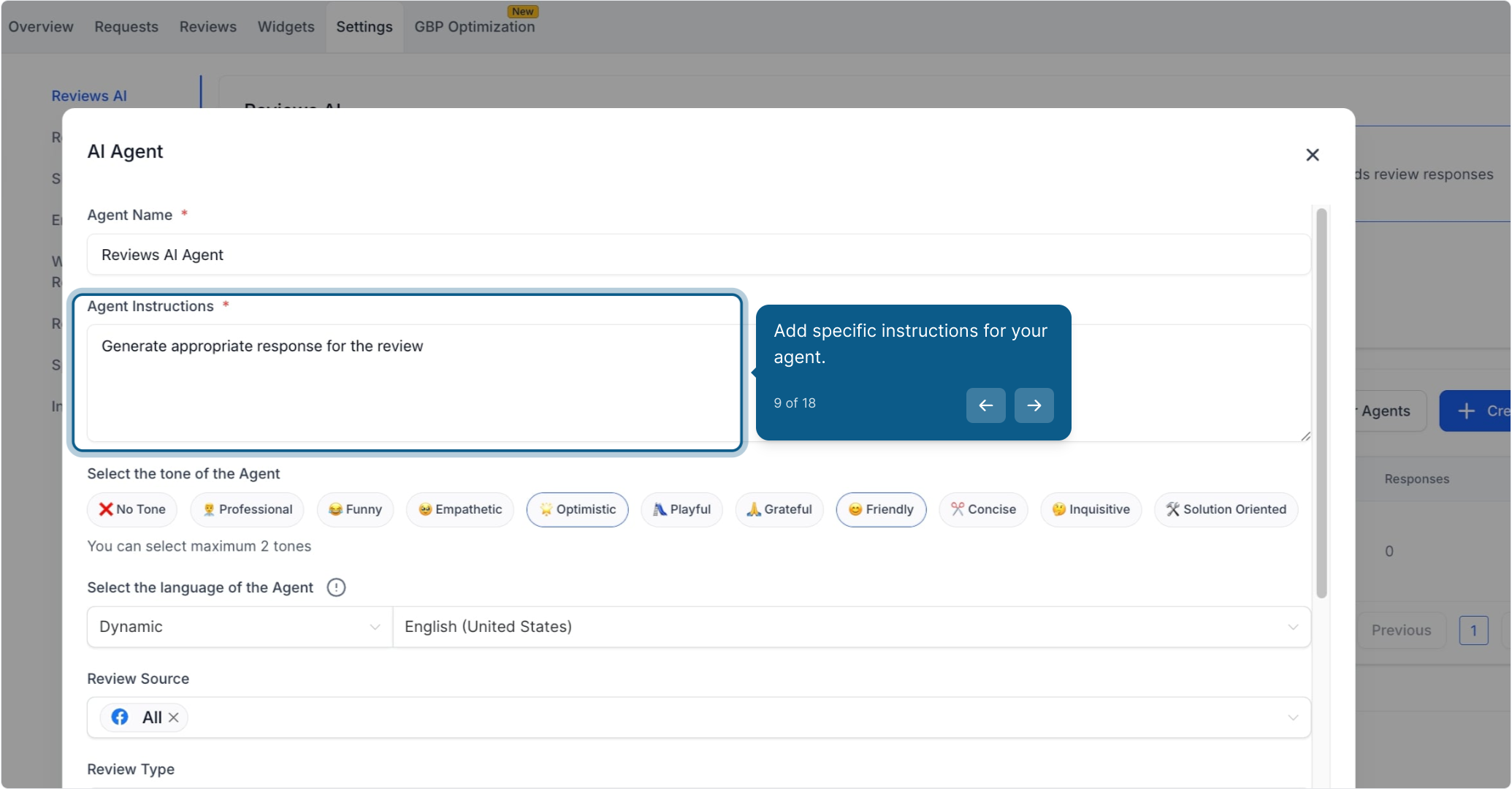
Add specific instructions for your agent. Keep your prompt concise and focused on how you want it to reply.
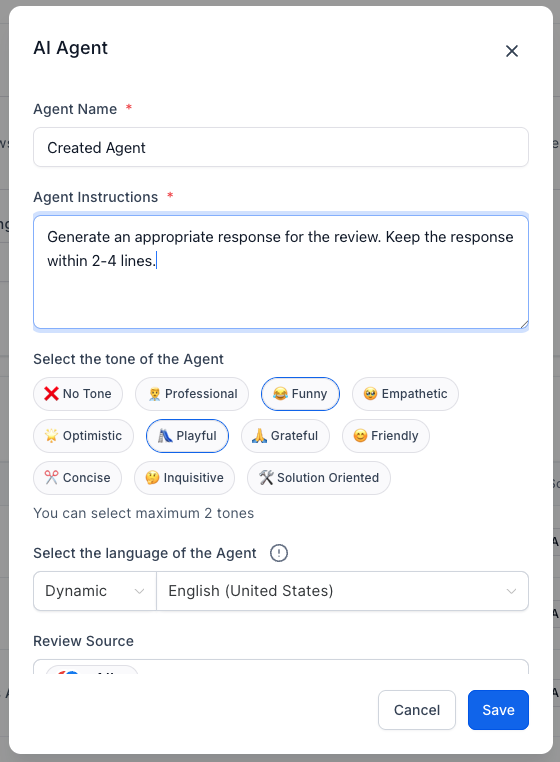
Note: You can quickly enable all pre-built AI agents by selecting "Create Starter Agents," which lets you start using templated personalities without building each one individually.
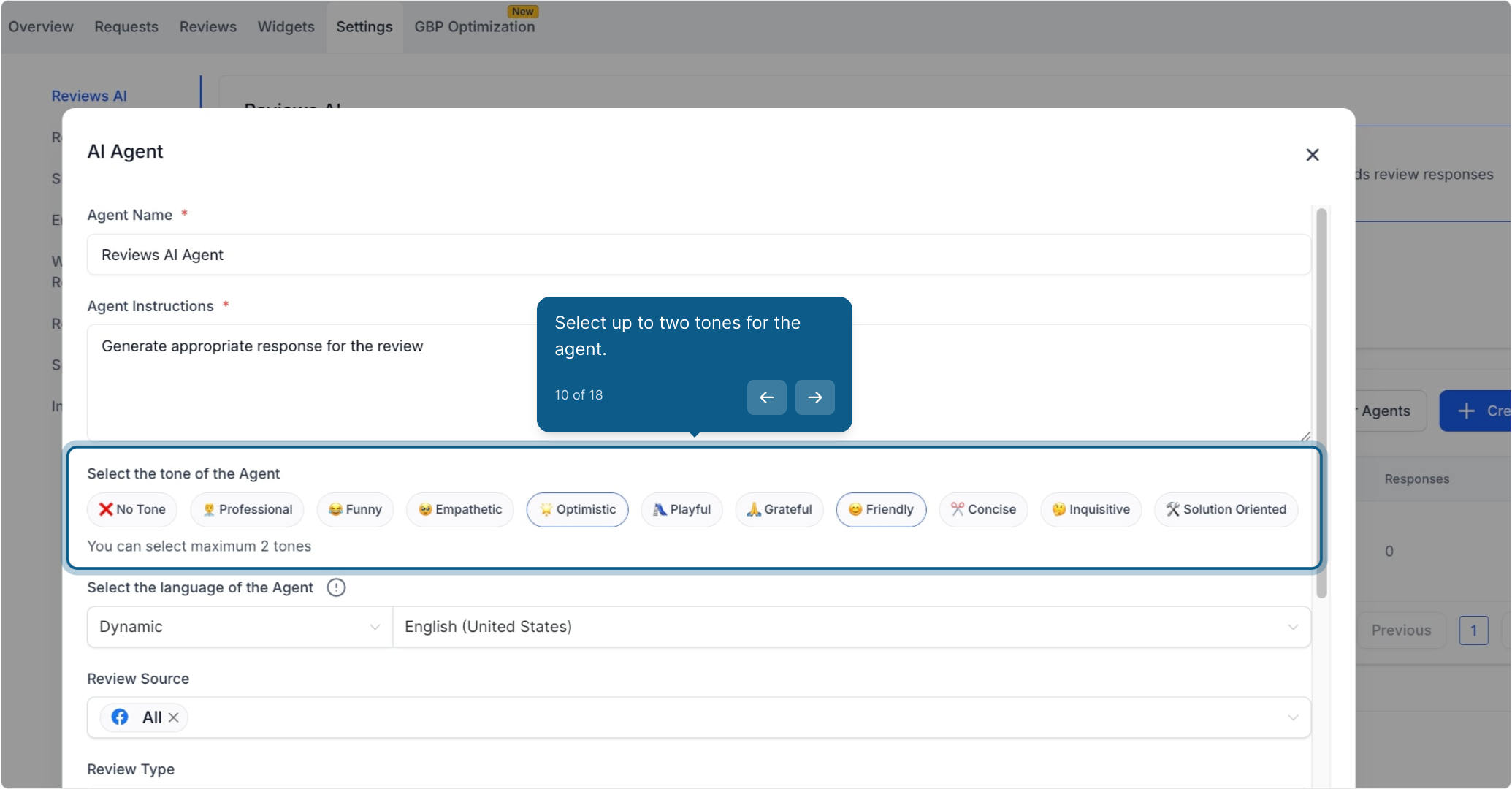
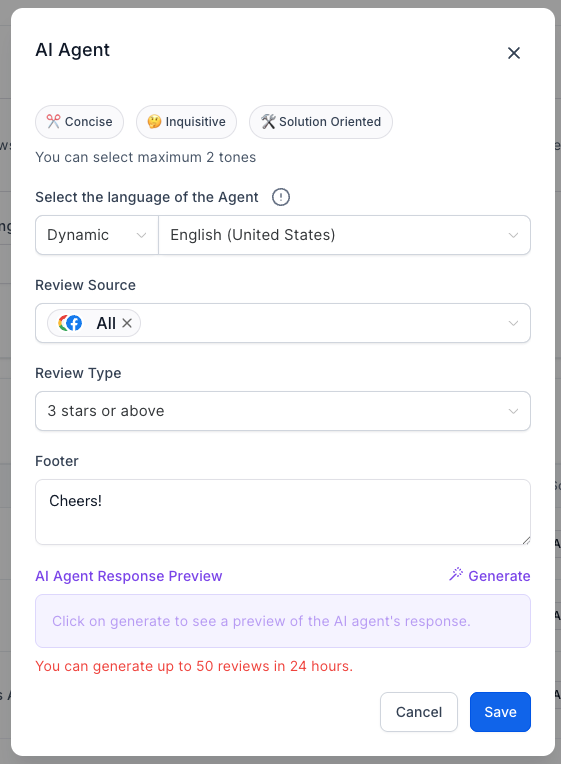
Select up to two tones for the agent, such as Friendly, Professional, or Empathetic.
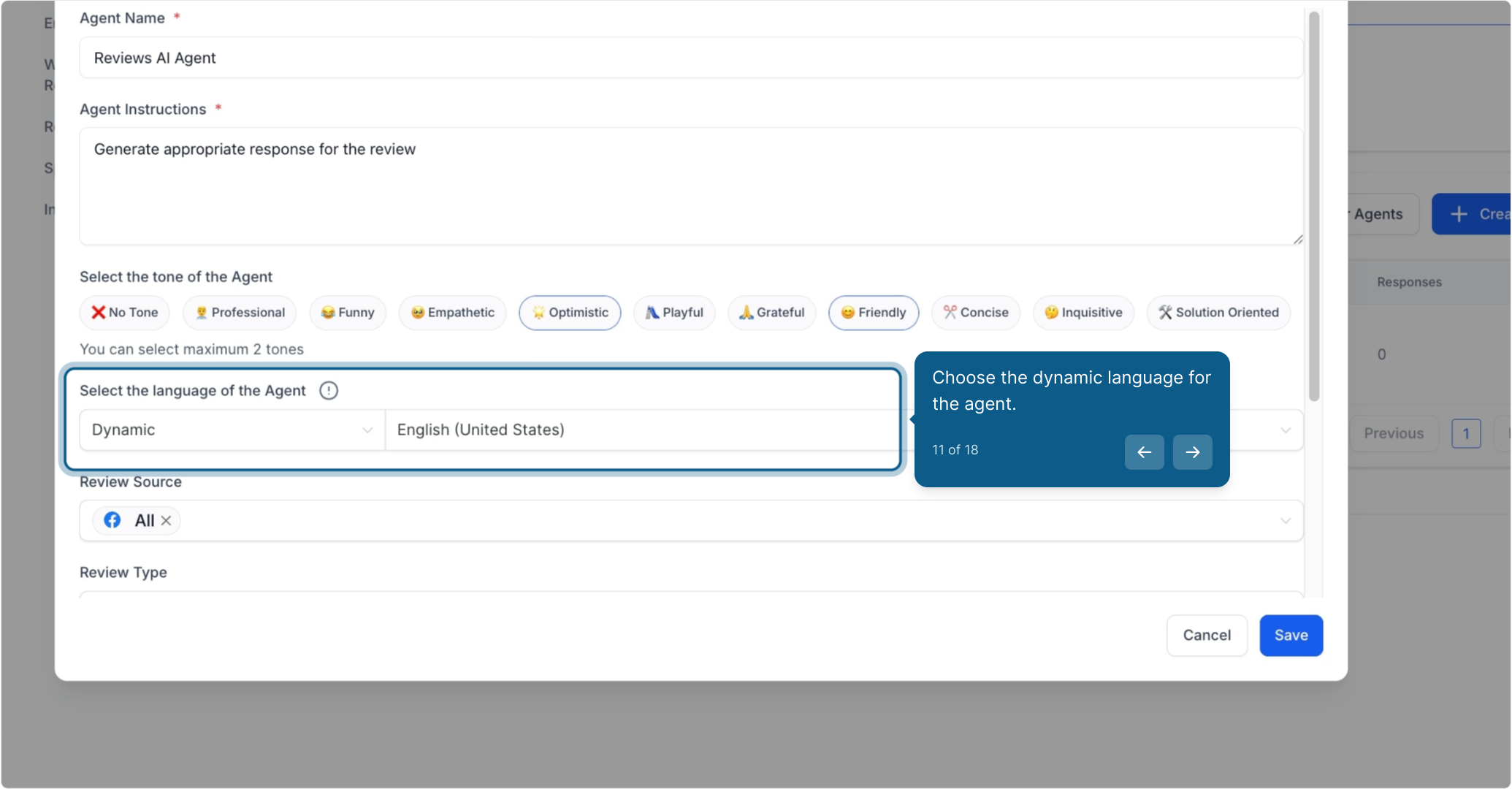
Choose the dynamic language for the agent.
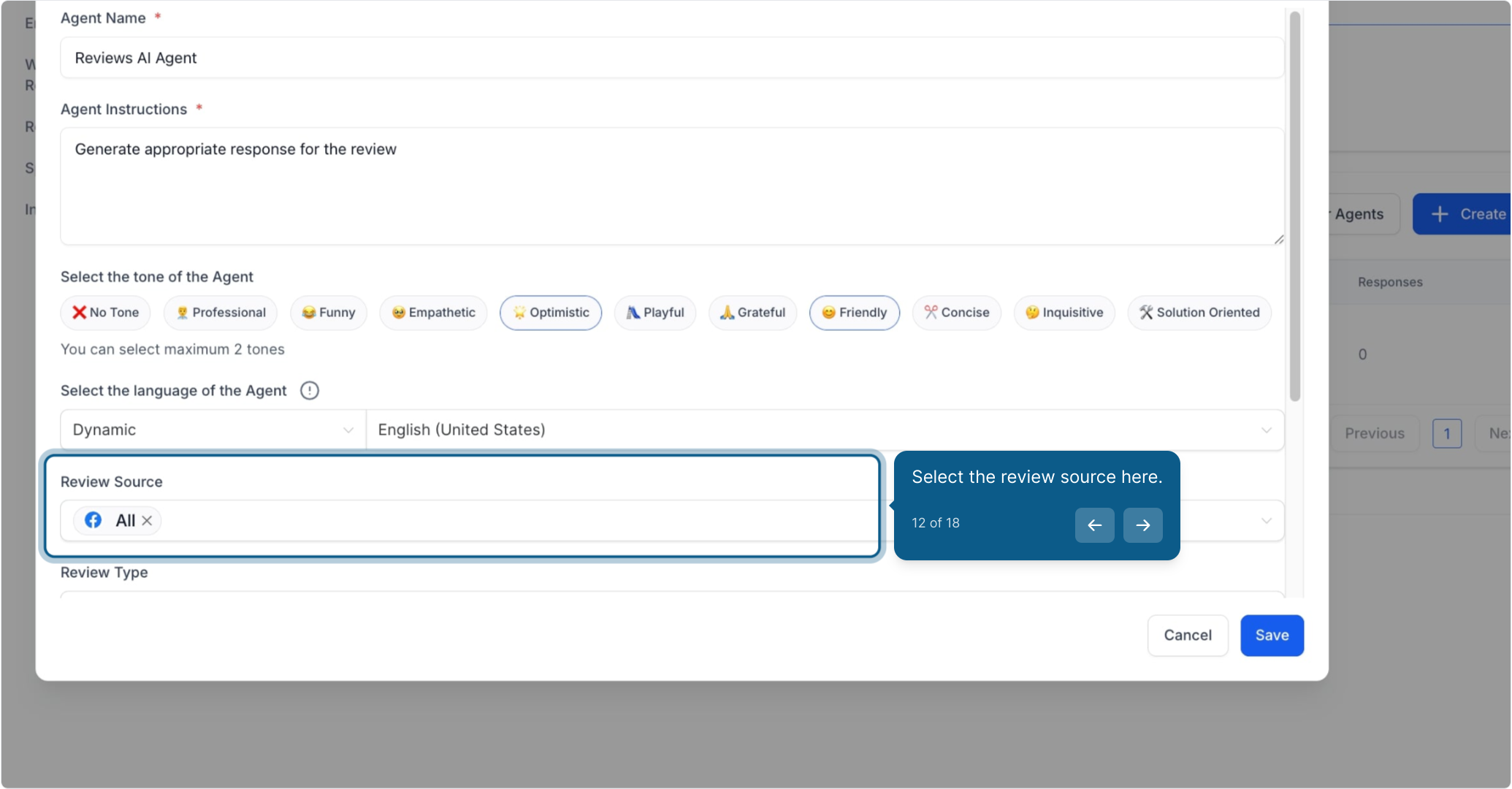
Select the review source here.
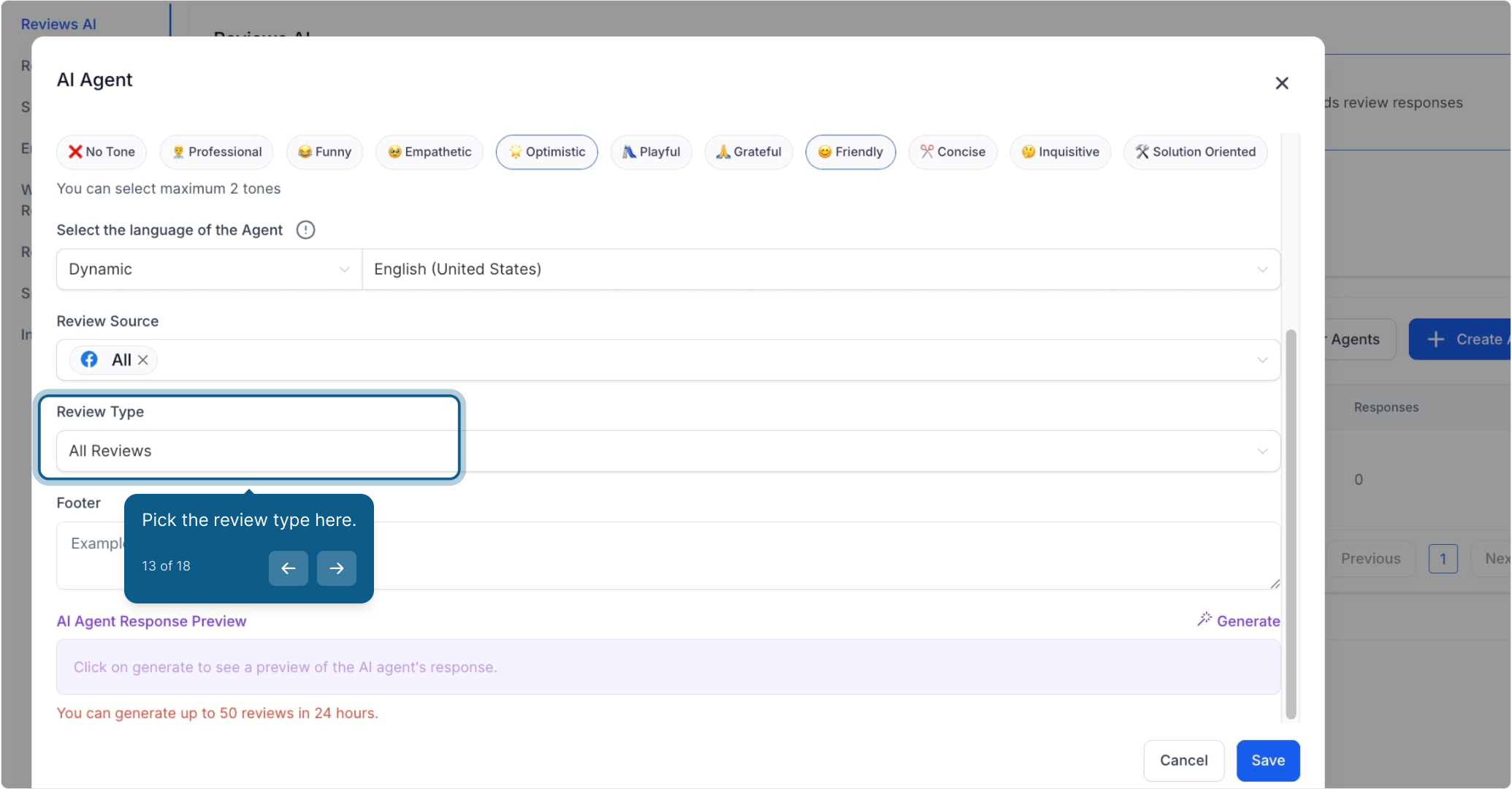
Pick the review type here.
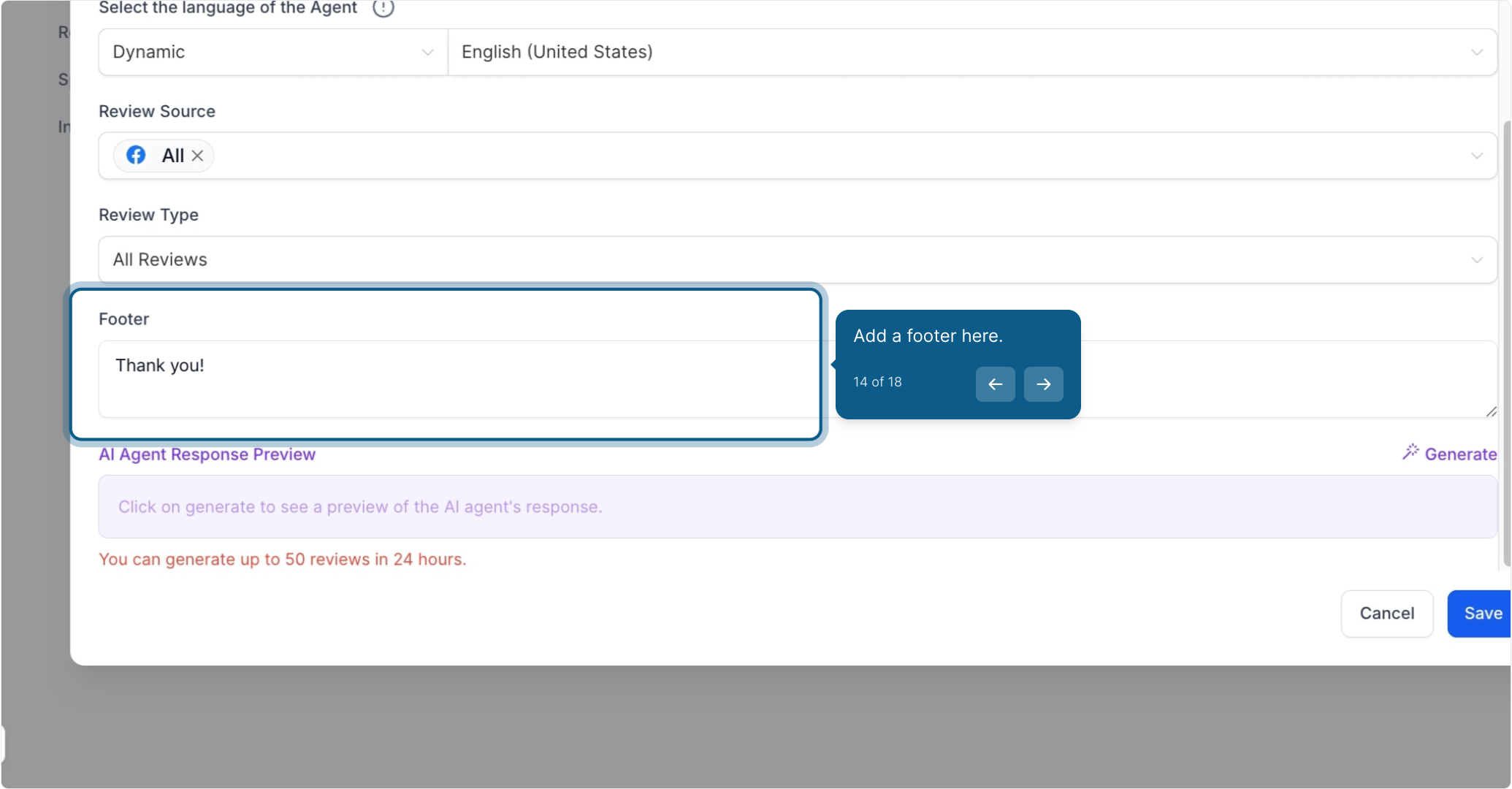
Add a footer here.
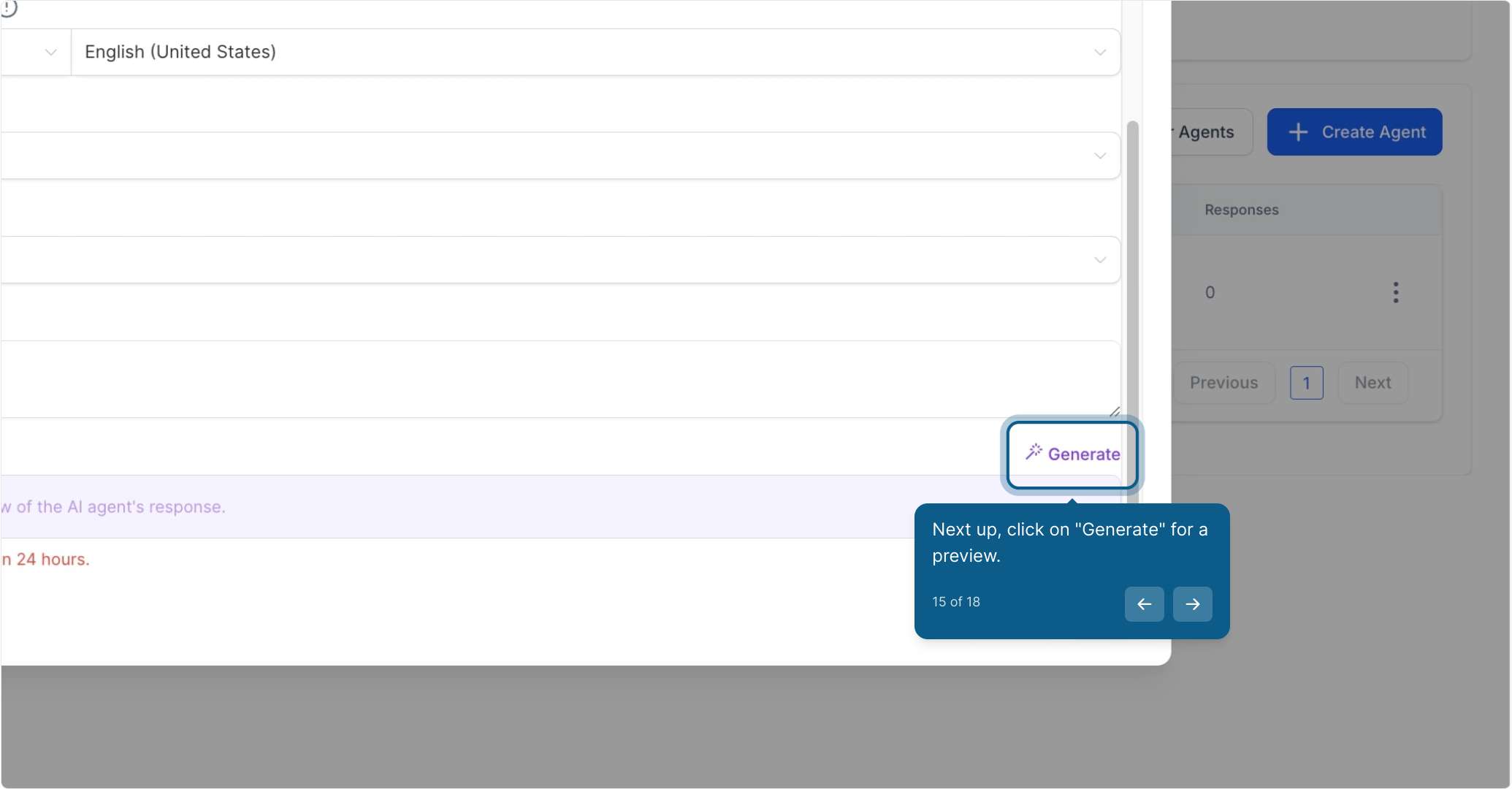
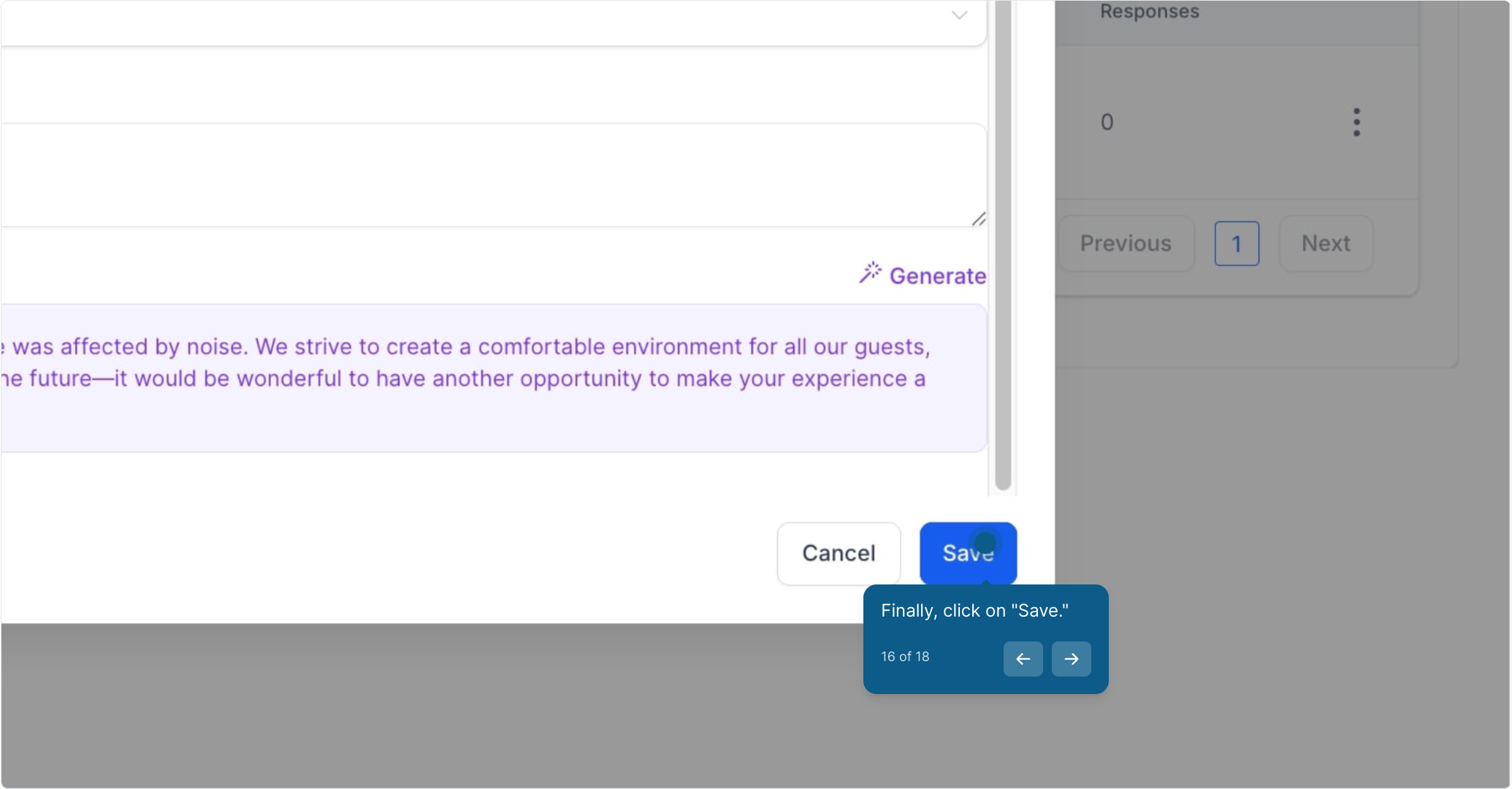
Click "Generate" to see a preview of how your agent will respond.
Finally, click "Save."
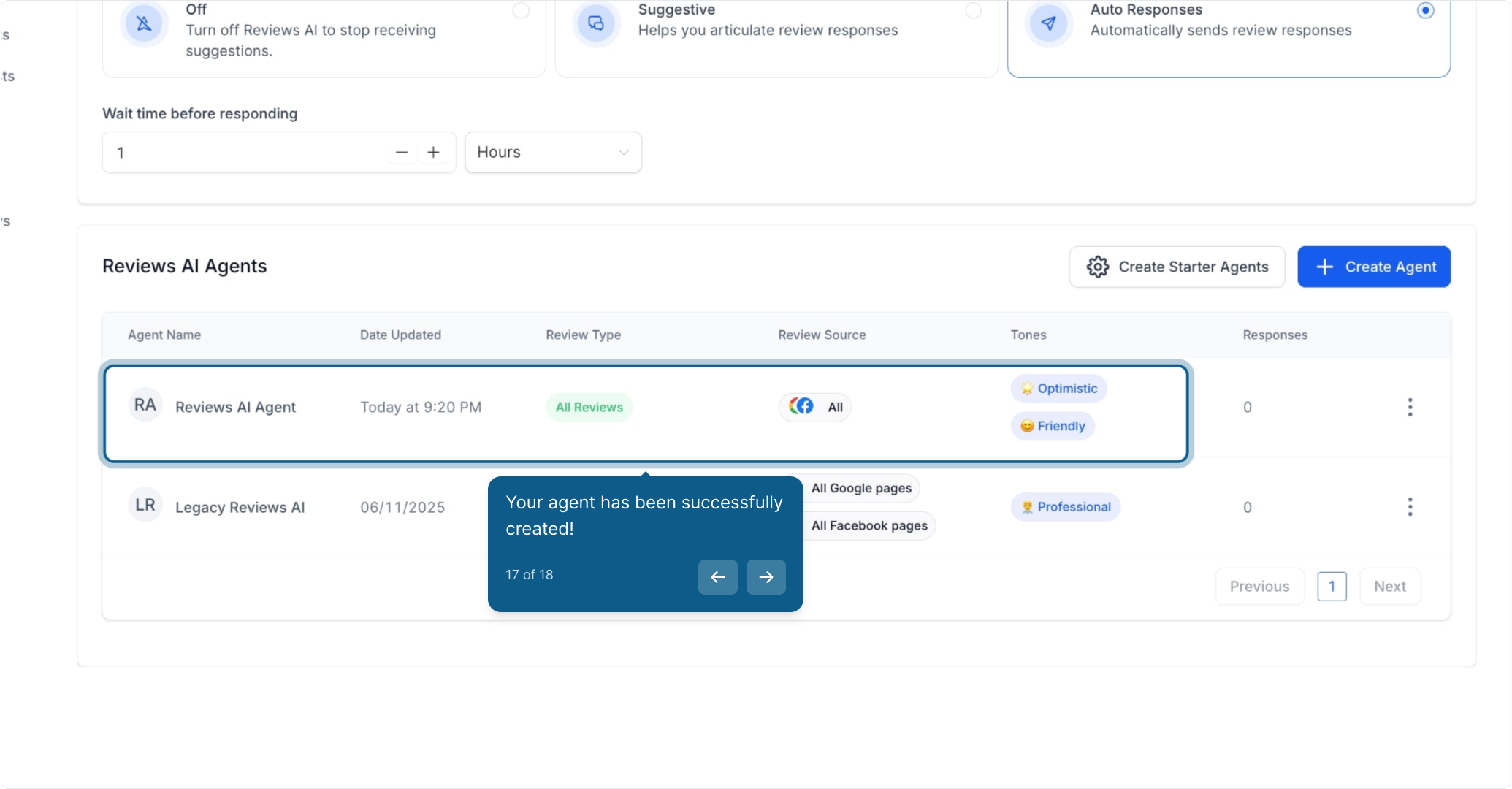
Your agent has been successfully created!
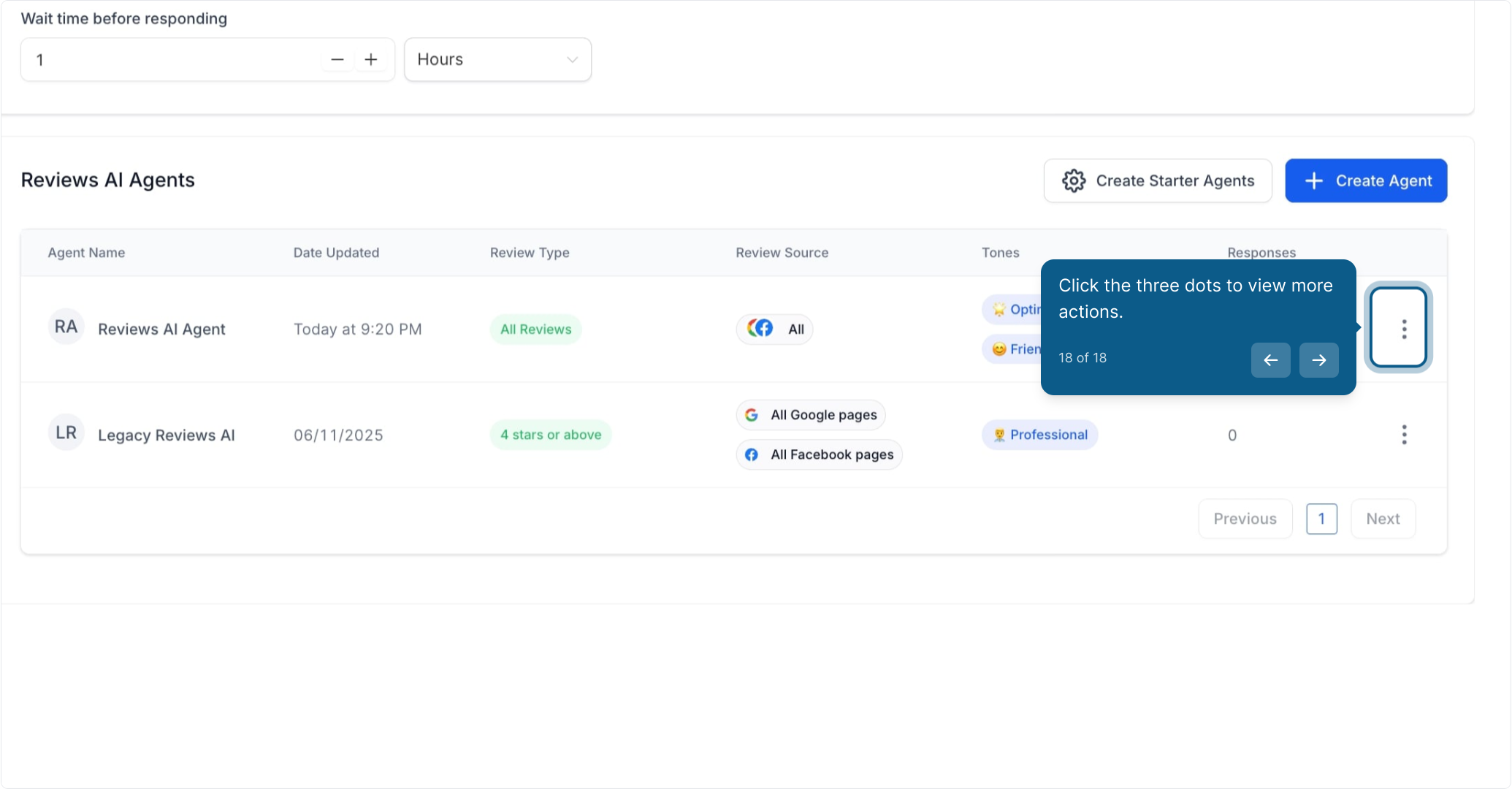
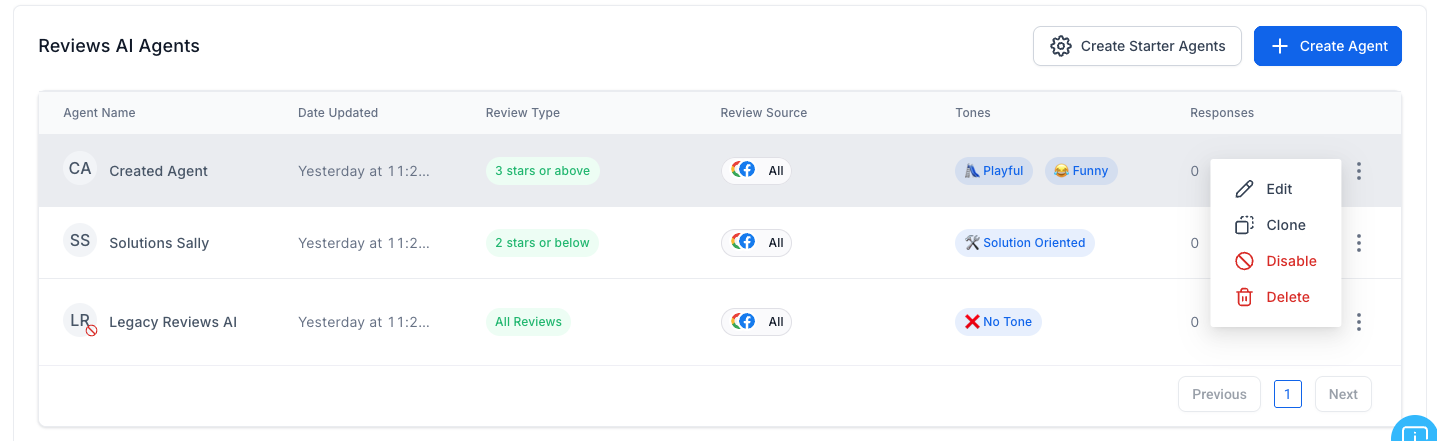
Click the three dots to view more actions.
Once your agents exist, you can control which reviews each one handles.
Assign agents based on review sentiment: Positive, Neutral, or Negative.
Enable Round Robin Assignment if you want different agents to rotate automatically for variety.
Reviews AI automatically detects the language of each review and replies in kind.
The AI automatically detects the review's language.
Set a fallback language in case the review's language cannot be detected.
Assign agents to specific business review pages.
This is useful for managing responses across multiple brands or locations.
You can edit, clone, or delete agents anytime.
Preview AI-generated responses before publishing.
Easily see which agent crafted each review reply inside Reviews Management.
Set a clear tone and style to match your brand voice.
Differentiate sentiment handling for positive, neutral, and negative reviews.
Keep response instructions simple and specific.
Personalize responses with your practice name or location if applicable.
Preview responses regularly to ensure tone and content match your expectations.
You're now ready to create and manage your Reviews AI agents for more personalized, consistent, and automated review responses.
Note: Reviews AI is available based on user permissions. If you don't see options to create or edit agents, ask an admin to enable the Manage Reviews AI Agents permission for your role.
