Nothing builds trust with a prospective patient faster than seeing real reviews from people who've already been to your practice. Aesthetix CRM lets you create a review widget that showcases patient feedback directly on your website or funnel, combining reviews from platforms like Google and Facebook into one seamless, branded display. Once embedded, the widget updates automatically as new reviews come in, so your site always shows fresh social proof without any manual work.
This guide covers how to build and customize a review widget, connect multiple review platforms, and embed the widget on your site.
A review widget displays real patient feedback directly on your website, helping you build instant trust and social proof. It supports reviews from platforms like Google and Facebook, letting you combine them into one branded display.
You can customize the widget's layout, style, and content to match your website's design. Once added, it updates automatically with new reviews, giving your visitors fresh, credible testimonials without any ongoing effort.
Social proof: Showcasing real patient reviews builds trust and increases conversions.
Review aggregation and filtering: Combine reviews from platforms like Google and Facebook, and filter by platform or rating to feature only your best reviews.
Brand consistency: Tailor the widget's layout, fonts, and color scheme to match your website's branding.
Automated updates: New reviews are pulled in automatically, keeping your content fresh with no maintenance.
Templates: Use ready-made, no-code templates for fast setup and a polished, consistent design.
Simple integration: Embed widgets into any website page with no coding knowledge required.
AI summary: Instantly highlight overall review sentiment with an auto-generated summary that builds trust at a glance.
Before your widget can display reviews, connect the platforms you want to pull from. Managing reviews across multiple platforms in one place makes it easier to monitor, respond to, and showcase your practice's reputation.
Benefits of connecting your platforms:
Centralized management: View all reviews from different platforms in one place.
Efficient response: Respond to reviews without logging into each platform separately.
Improved monitoring: Track your practice's reputation across multiple sites.
Streamlined workflow: Automate review collection and reduce manual effort.
Go to Reputation from the left-side menu.
Click Settings in the top navigation bar.
Select the Integrations tab.
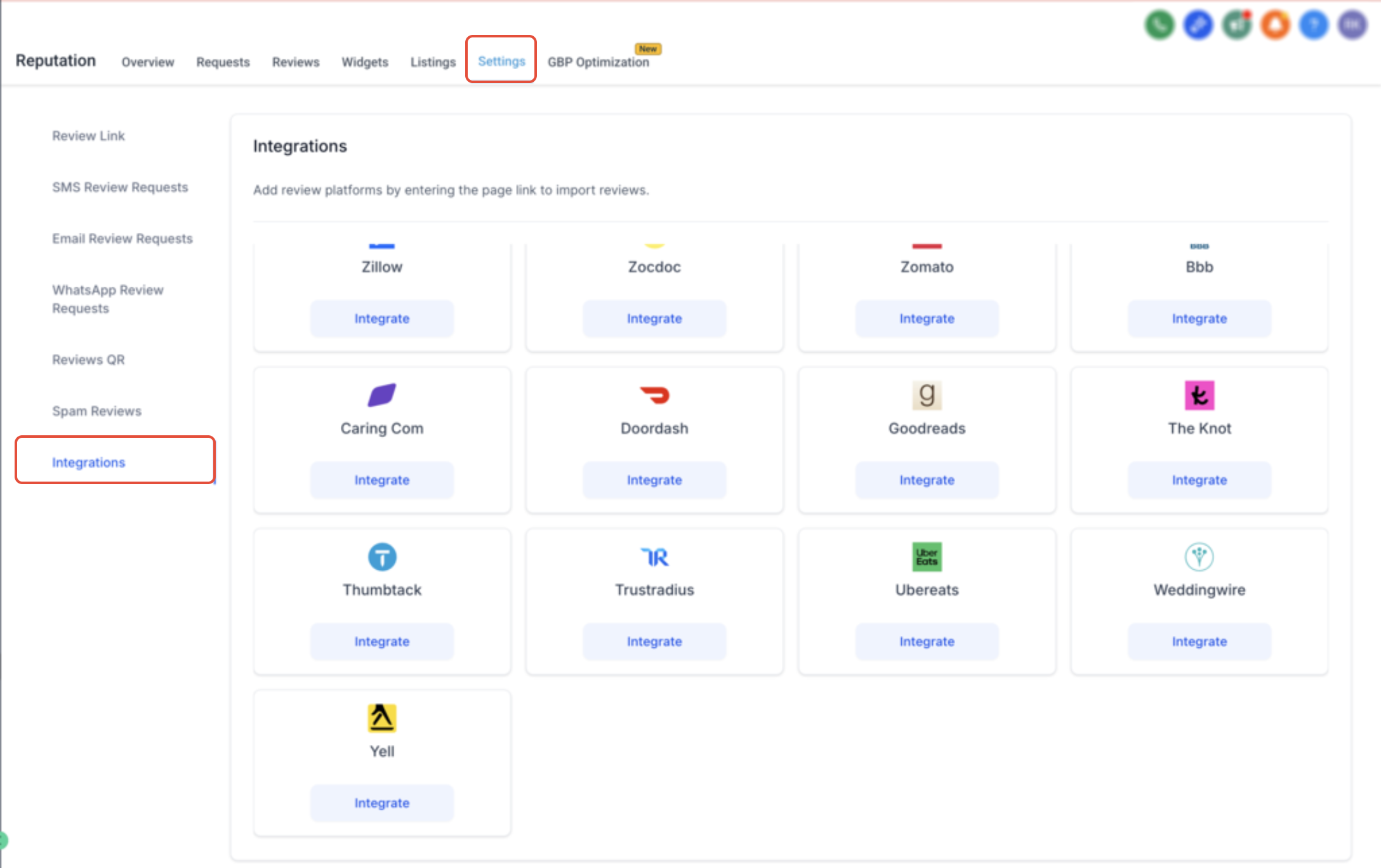
This page displays all the review platforms you can connect.
Click Integrate on the platform you want to connect.
Enter your business review page URL.
Click Integrate.
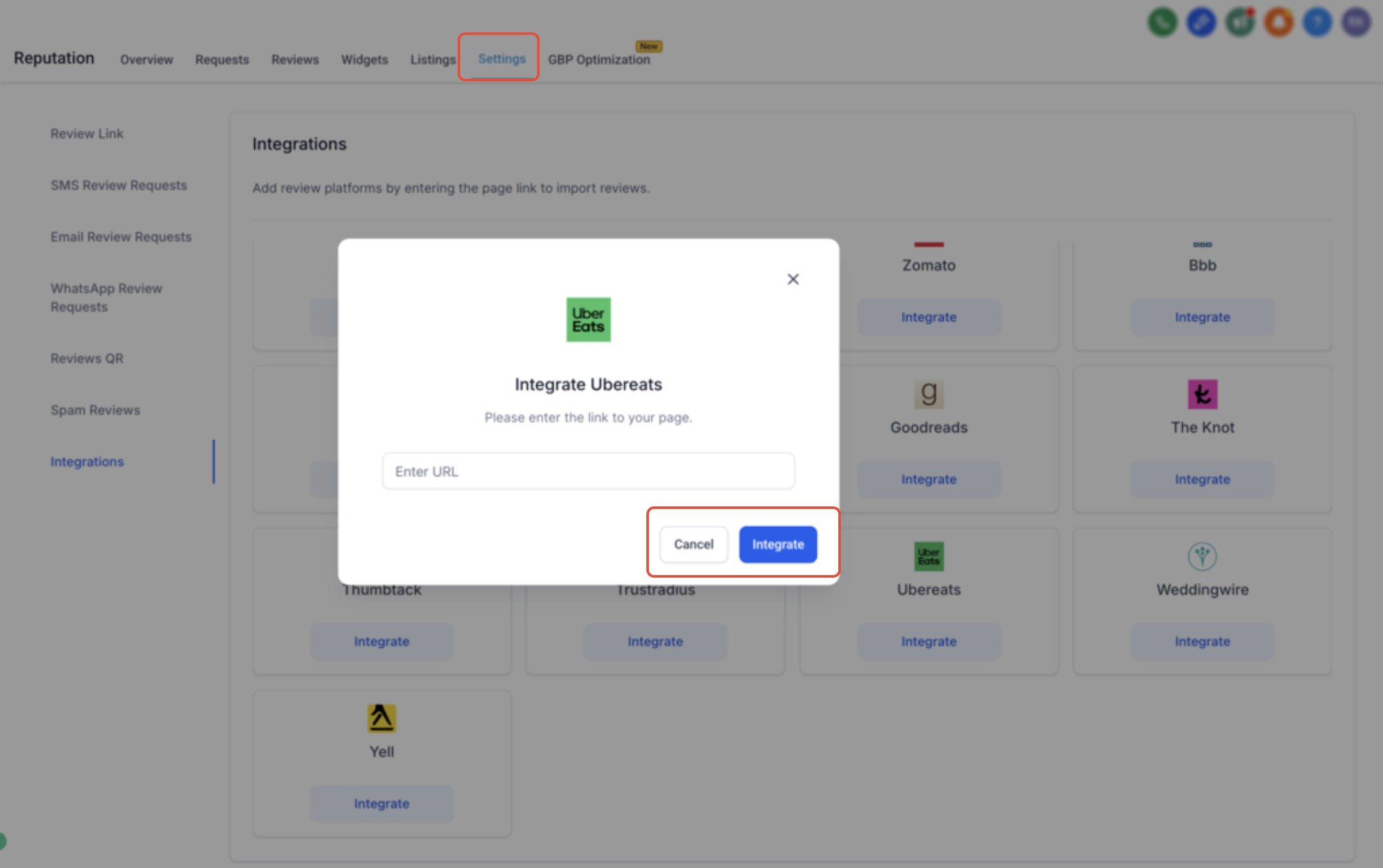
Make sure the URL points directly to your public-facing review page (for example, your Google Business Profile or Yelp page). Once connected, reviews sync into your dashboard automatically.
Note: Each platform requires a valid public-facing review page URL. If you're unsure which URL to use, refer to that platform's help documentation.
You can connect a wide range of review platforms, including many relevant to aesthetic and medical practices:
Google Business Profile
Yelp
Healthgrades
RateMDs
Zocdoc
Vitals
WebMD
Trustpilot
TripAdvisor
Angi (formerly Angie's List)
Avvo
Better Business Bureau (BBB)
Booking.com
HomeAdvisor
CarGurus
Cars.com
ConsumerAffairs
DealerRater
Yellow Pages
Zillow
Airbnb
App Store
Google Play
Agoda
Amazon
eBay
Hotels.com
OpenTable
Lawyers.com
Foursquare
Etsy
Expedia
Indeed
Zomato
Capterra
VRBO
Google Shopping
Glassdoor
Houzz
Thumbtack
FindLaw
ProductReview
AliExpress
Product Hunt
Citysearch
AlternativeTo
ApartmentRatings
DoorDash
Uber Eats
WeddingWire
The Knot
TrustRadius
Yell
Goodreads
Caring.com
If a platform won't connect or reviews aren't appearing:
Check the URL: Ensure it points to your public review page.
Verify access: Confirm your account has permission to access the page.
Clear your cache: Try clearing your browser cache.
Contact support: Reach out if the issue persists.
Once your platforms are connected, you can build the widget itself.
From your dashboard, go to Reputation in the left-hand menu.
Click the Widgets tab in the top navigation.
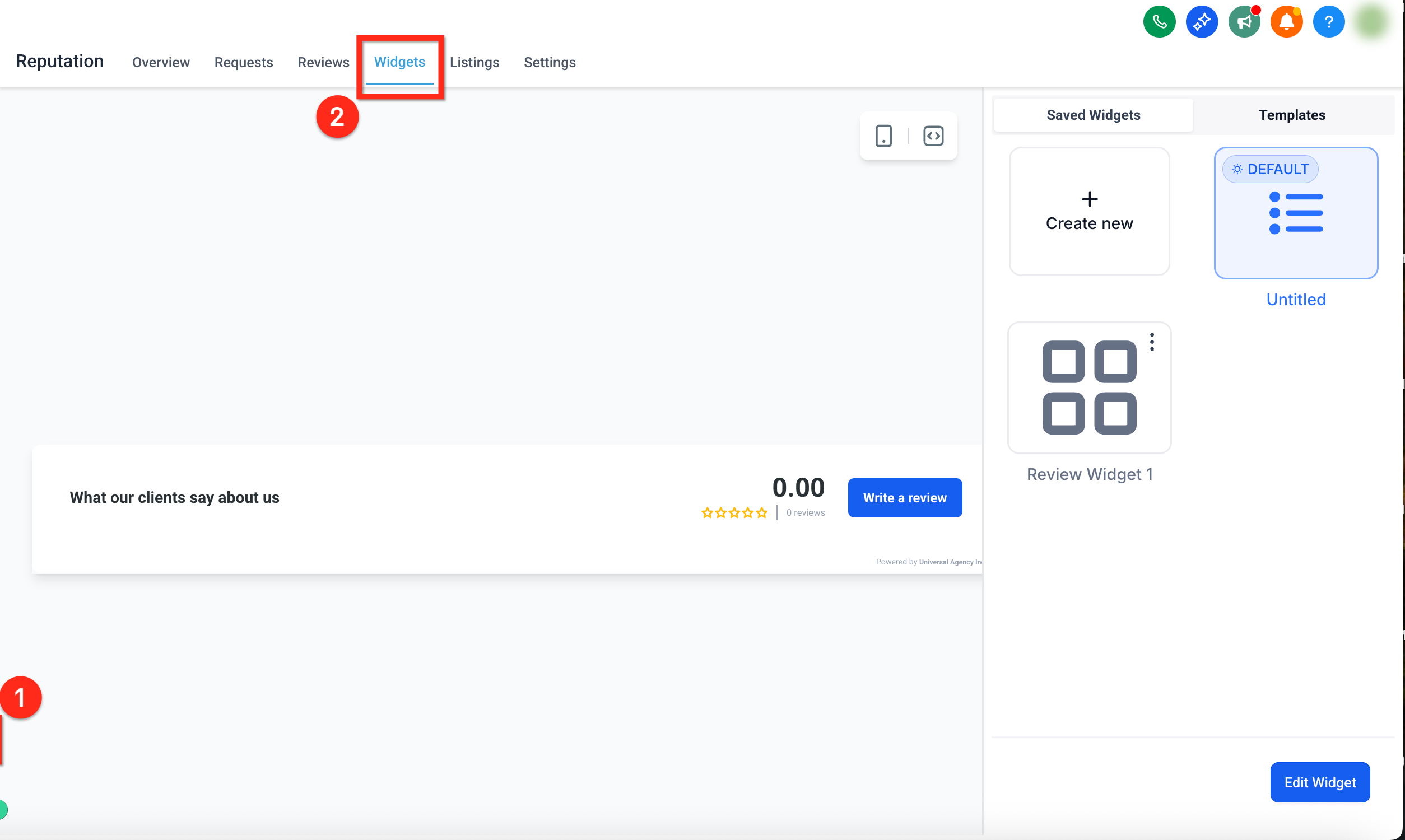
To create a new widget, click + Create Widget.
To edit an existing widget, click the widget you want, then click the blue Edit Widget button in the bottom-right corner.
If you're starting from scratch, you can also select a pre-built template to instantly apply a professional layout and style. See the Templates section below for more.
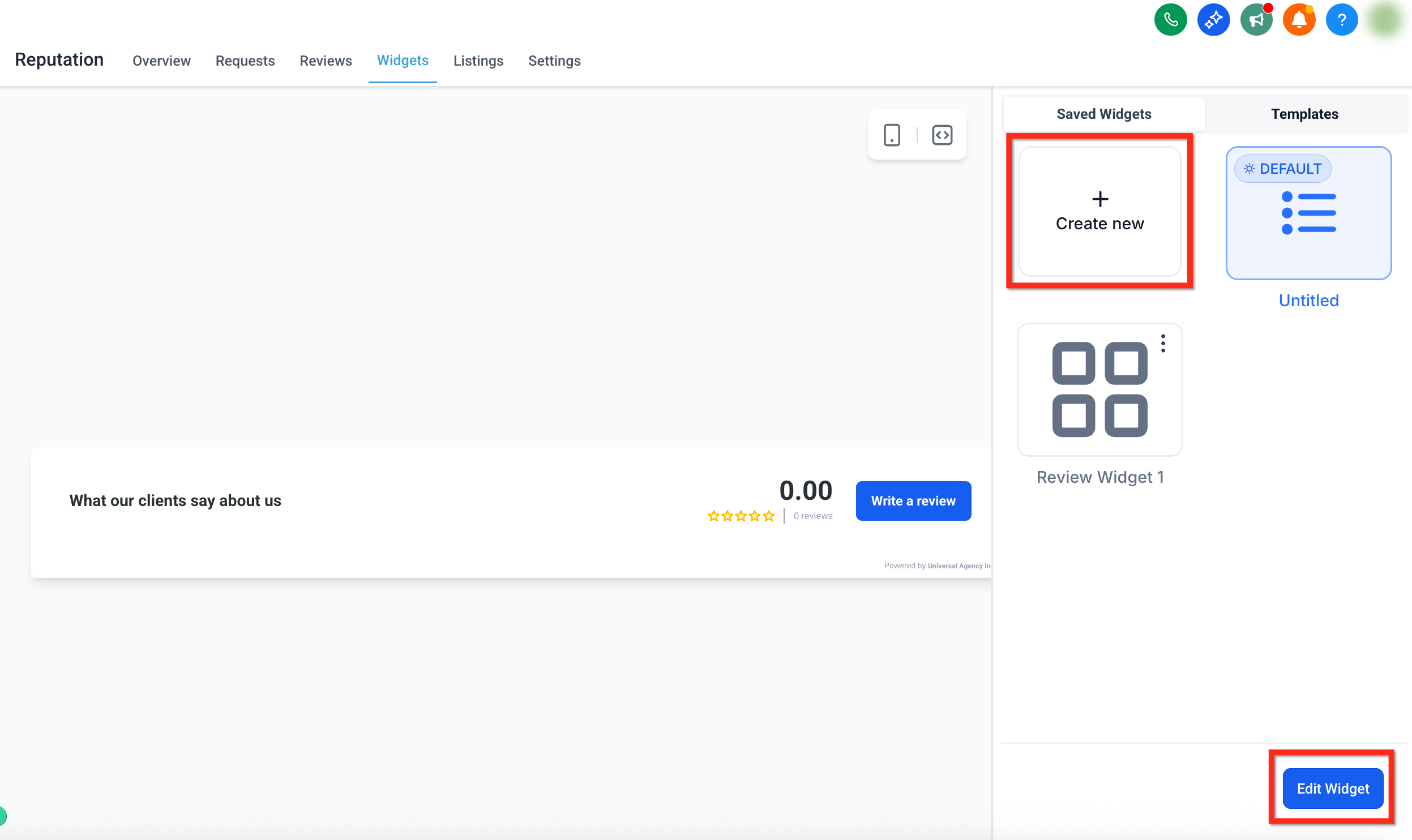
The widget builder includes several tabs that let you fully customize the structure, content, and appearance of your review widget. Each tab focuses on a different part of the widget experience:
Layout tab: Set the widget type, review sources, summary options, rating filters, and "Powered by" visibility.
Content tab: Manage the widget heading, description, position, and header elements.
Appearance tab: Choose a theme, apply brand fonts, and configure individual colors when using the Custom option.
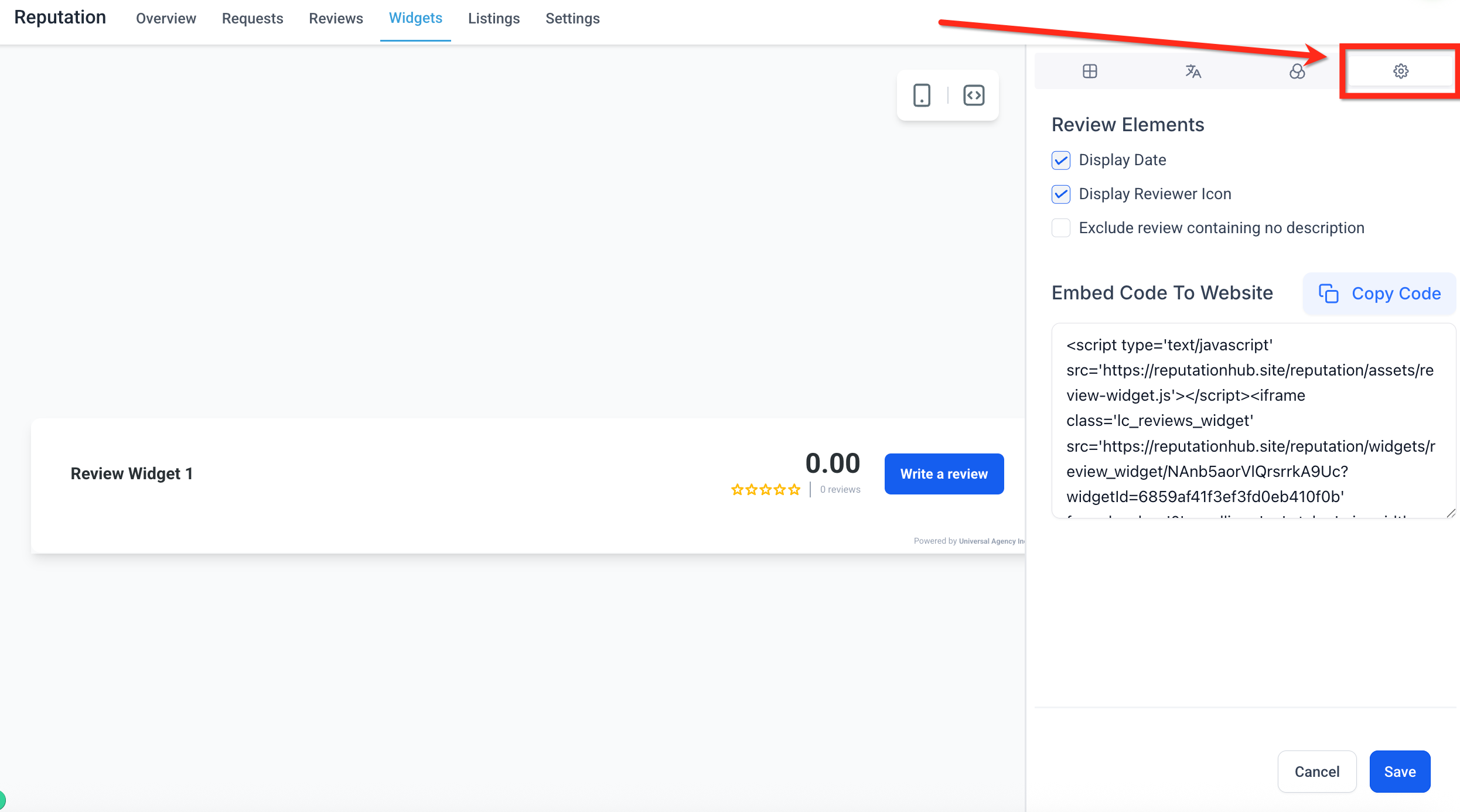
Settings tab: Enable or disable review display elements and generate the embed code for your site.
Note: For detailed configuration options, see the full breakdown of each tab below. Available customizations vary based on the widget type you select.
Once you've made all your changes, click the blue Save button in the lower-right corner.
To add your widget to an Aesthetix CRM site or funnel, open the Page Builder and drag and drop the Reviews element onto the page.
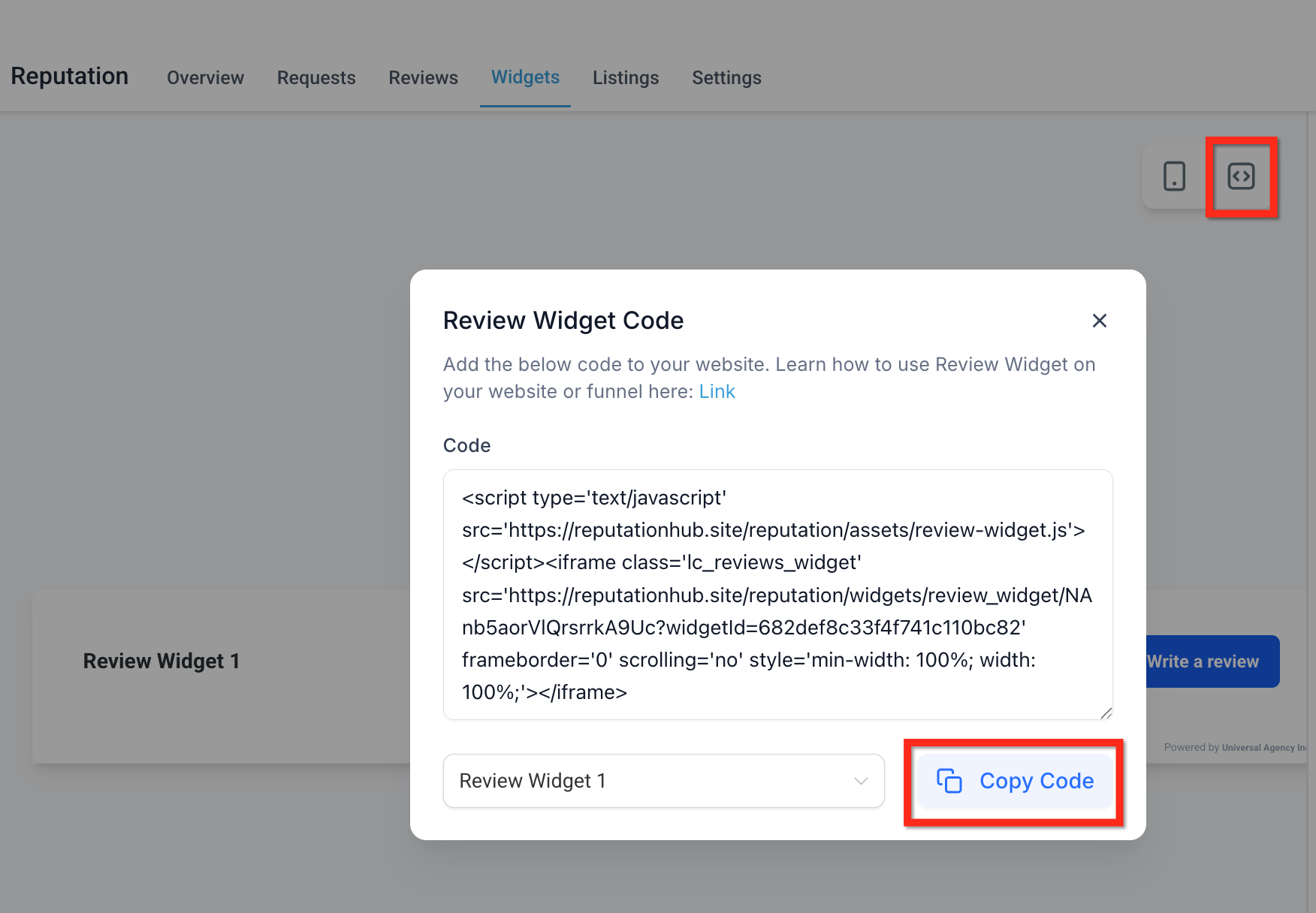
To embed the widget using code, click the Code icon, then click Copy Code. Paste this code into a custom HTML block on your website or funnel.
Each tab in the widget builder gives you control over a different aspect of your review widget, from structure and layout to content, design, and behavior.
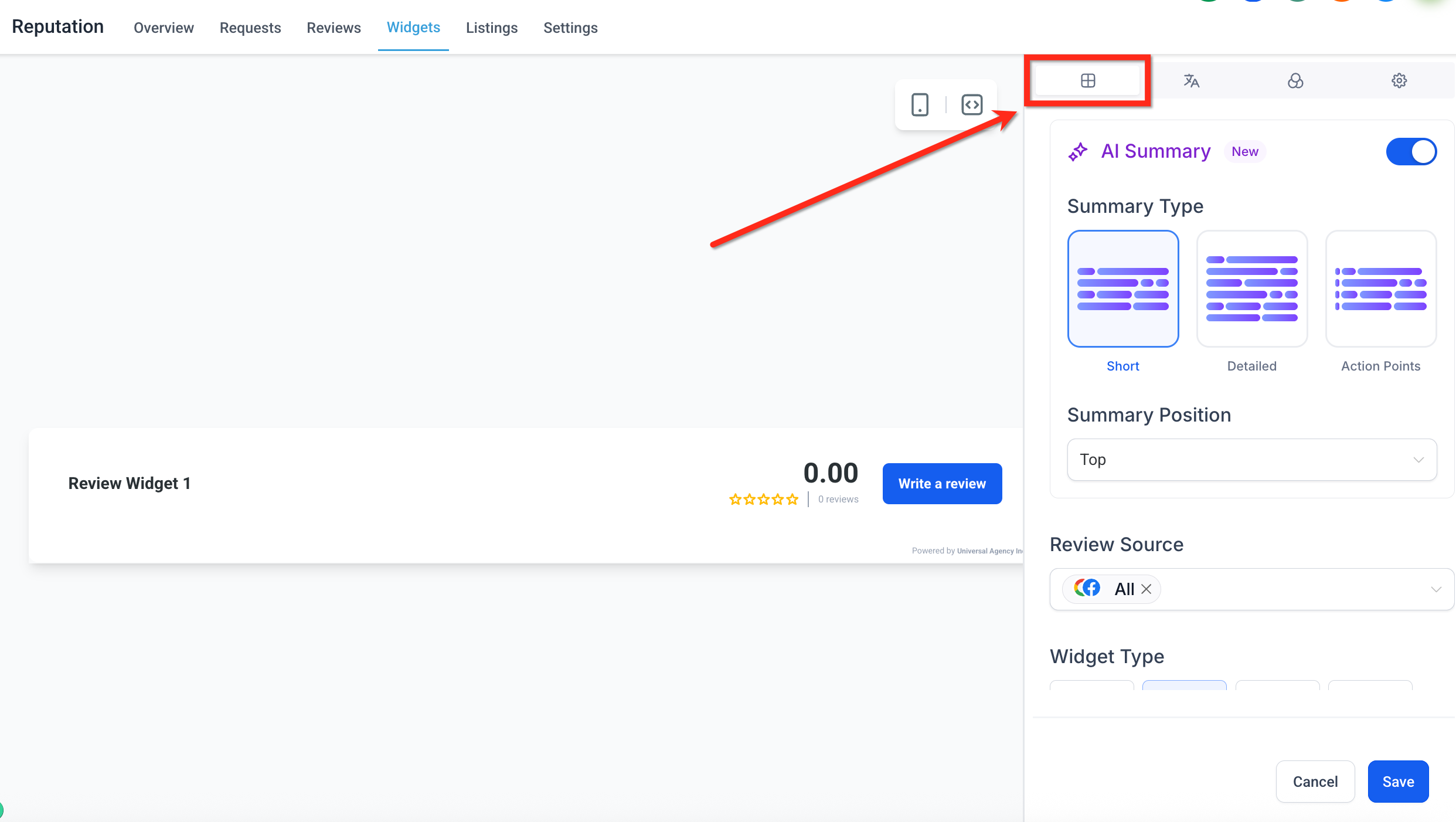
Define the foundational structure and sources of your review display:
Summary Type: An AI-generated sentiment overview based on your reviews. Choose the summary type (Short, Detailed, or Action-Oriented) and toggle it on or off as needed.
Summary Position: Choose where the AI summary appears, either at the top of the widget or inline with the reviews. Placement follows the selected layout by default; to keep the summary at the top, set Summary Position to Top.
Review Source: Select which platforms to pull reviews from.
Widget Type: Pick the display format for your reviews. Options include List, Grid, Masonry, Carousel, Slider, Flash, and Legacy.
Max Number of Reviews: Set the total number of reviews to display.
Minimum Ratings: Show only reviews that meet a specific star-rating threshold.
Powered by: Show or hide the "Powered by" message at the bottom of the widget.
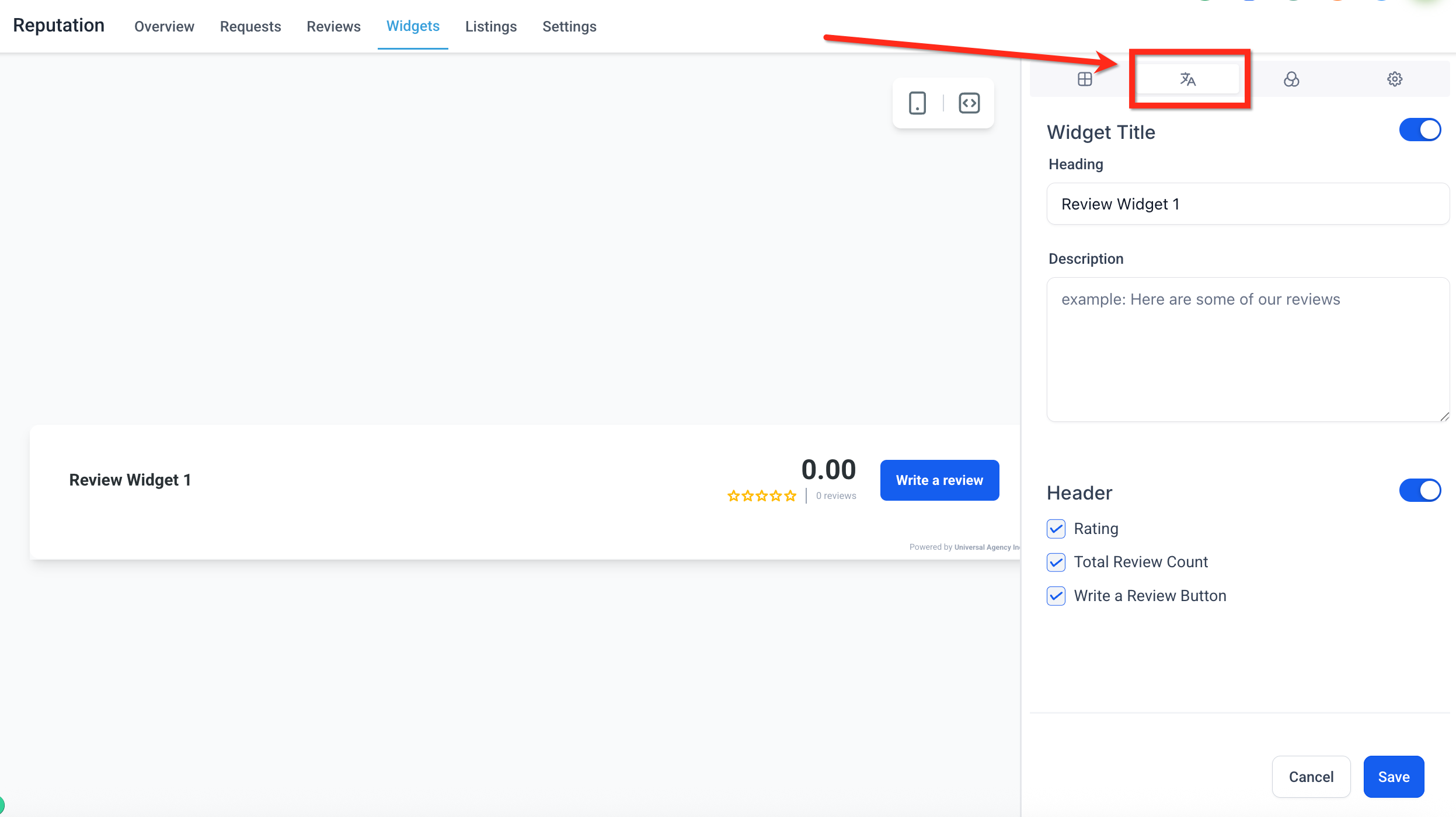
Customize how your widget introduces and frames your reviews:
Title (toggle): Turn on or off to display a custom title at the top of the widget.
Heading: Define the text that appears as the widget heading. This can reflect your practice's tone or focus (for example, "What Our Patients Say").
Description: Add brief supporting text below the heading to provide context or encouragement.
Header (toggle): Controls the visibility of the header summary section, which includes rating data, review count, and a "Write a Review" button.
Rating: Shows the average star rating of all reviews.
Total Review Count: Displays how many total reviews have been left.
Write a Review Button: Adds a clickable button that directs visitors to submit a review.
Widget Position: Sets where on the screen the widget is displayed.
Slider Interval: Set how many seconds each review stays visible before rotating. Available when using a carousel or slider layout.
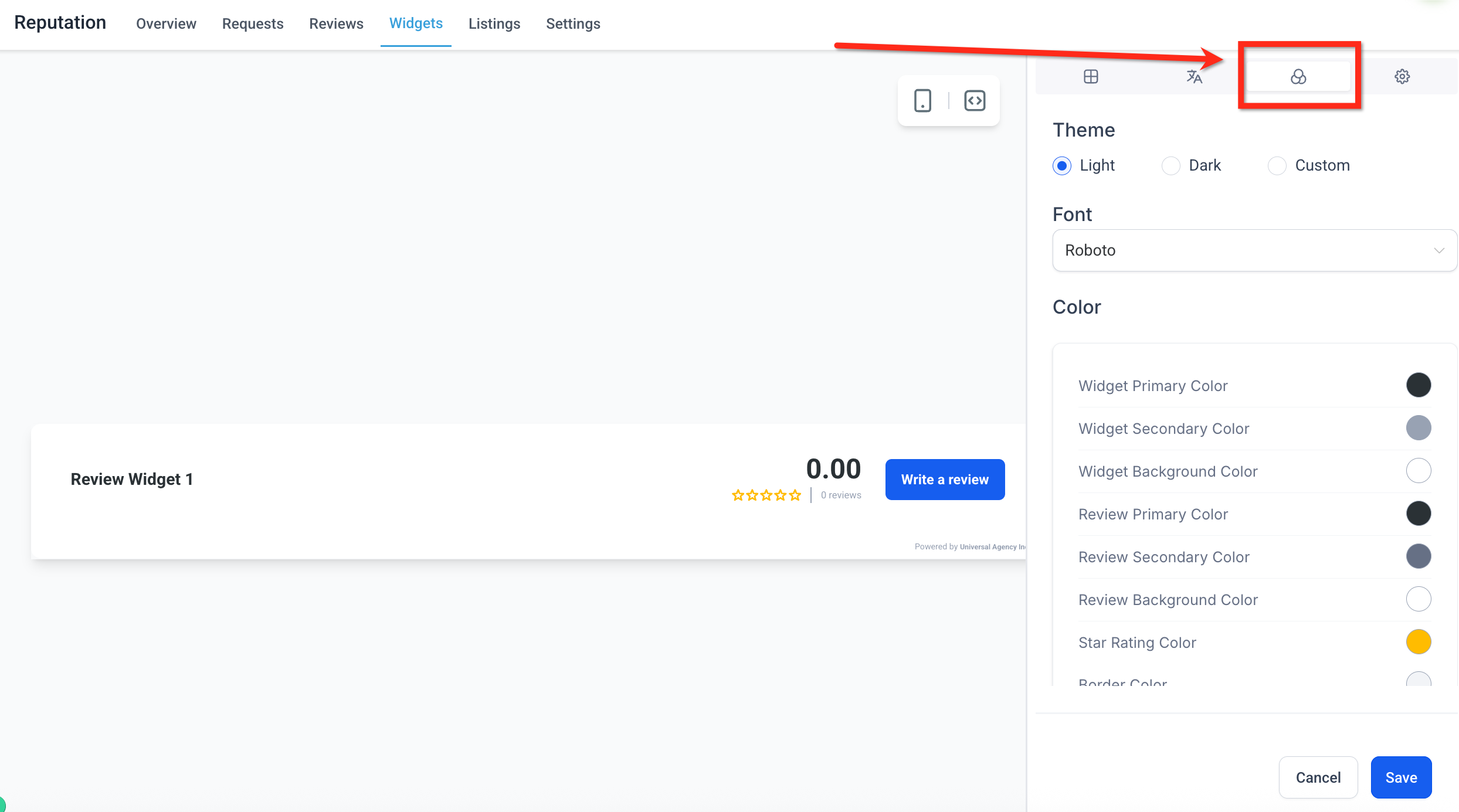
Control the overall visual style of your widget to align with your website's branding:
Theme: Choose between Light, Dark, or a fully customizable option. Each theme provides a different default visual experience.
Font: Adjust the font family used in the widget to match your brand's typography.
Color: When using the Custom theme, individually edit a wide range of color elements, such as background, borders, star rating, review text, and buttons.
Refine your widget's behavior and what information is displayed for each review:
Display Date: Toggle on to show the date each review was posted.
Display Reviewer Icon: Enable to display a reviewer avatar or initials next to each review.
Exclude Reviews Containing No Description: Filter out reviews that include only a rating with no written feedback.
Embed Code to Website: Click Copy Code to grab the auto-generated embed script. Paste this code into any HTML block on your website or funnel to display the widget.
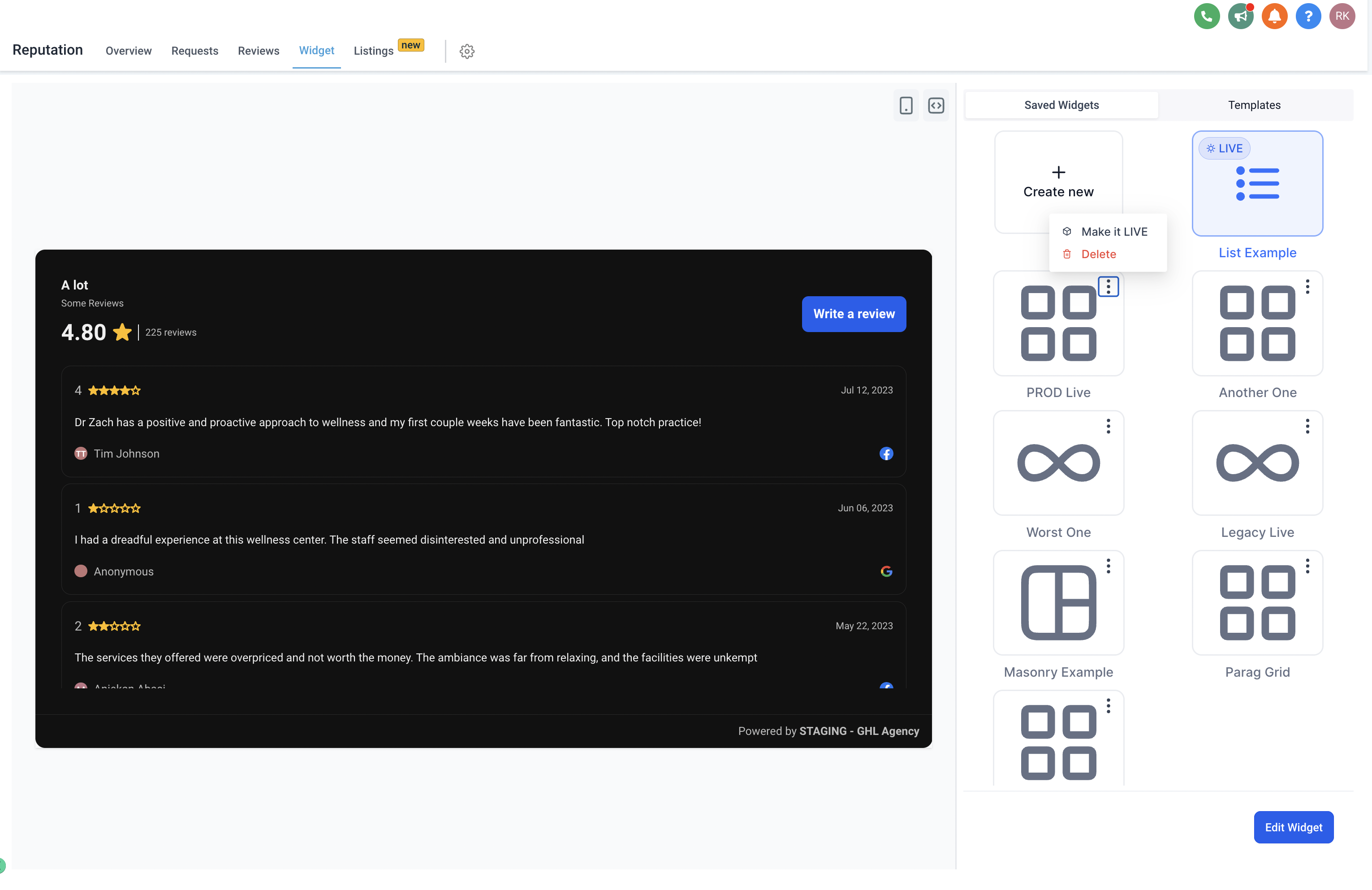
Give your widget a meaningful name for easy reference. You can view all your saved widgets in the saved widgets tab. Choose to save your widget for later or make it live immediately.
To remove a widget you no longer need, click the triple-dot menu in the widget's upper corner, then click Delete.
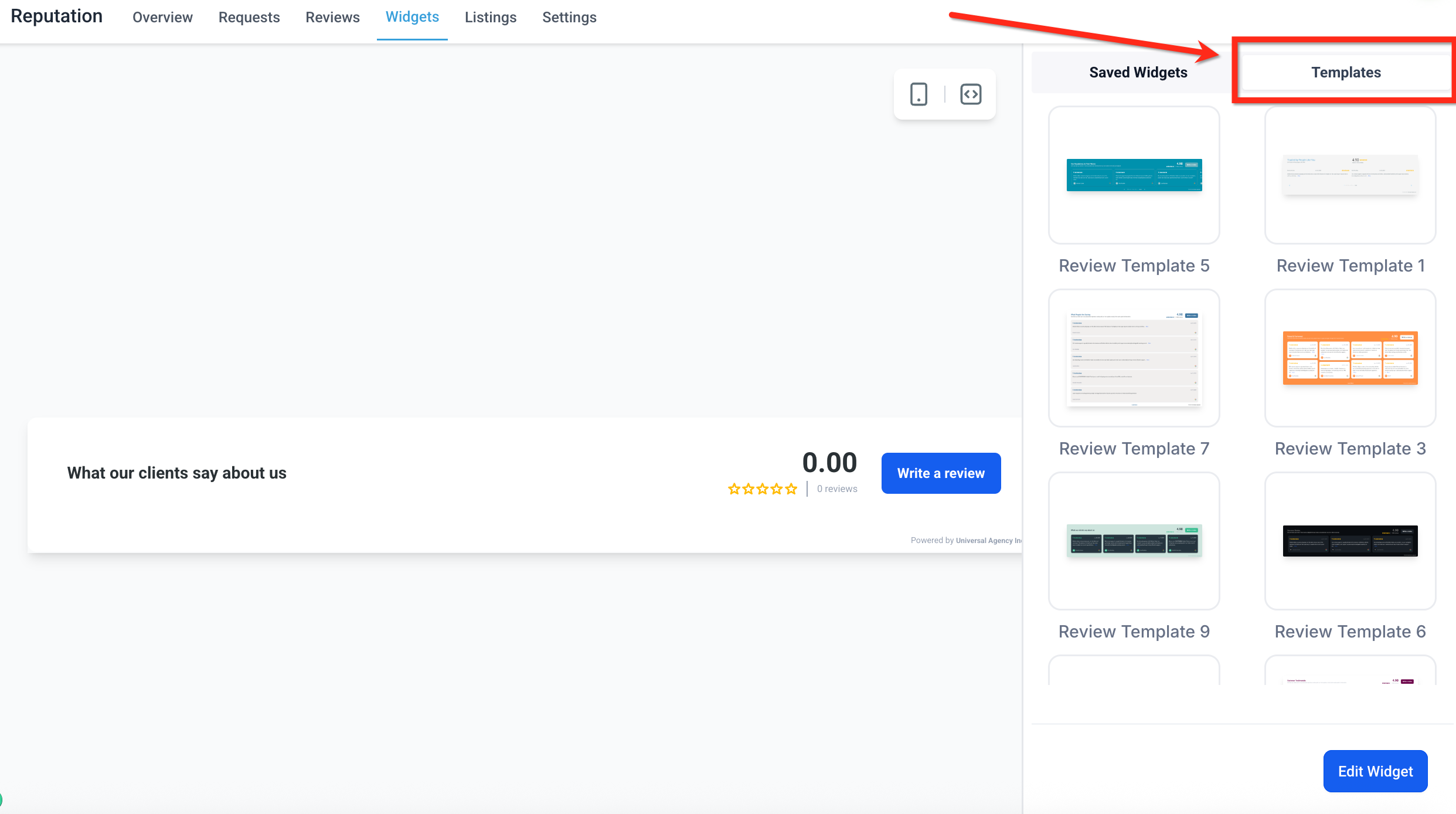
Templates let you launch a beautifully styled review widget in seconds. These pre-built designs are especially helpful when you want a professional layout without customizing every element by hand.
Click the Templates tab at the top-right of the widget panel.
Browse the available designs and click any template to instantly apply it to your review widget.
Once applied, you can continue customizing the widget like any other, adjusting layout, colors, fonts, or content by clicking the blue Edit Widget button.
Can I embed multiple different review widgets on one website?
Yes, but not using the "Reviews" block in the Page Builder, which always displays your default widget. To embed multiple widgets on the same site, use the Embed Code option to copy the code for each widget, then add each one to your site using a "Code" block. Be sure to use the dropdown to select the correct widget when copying the code, and repeat for each widget you want to add.
Will my widget update automatically when I receive new reviews?
Yes. The widget syncs with connected platforms such as Google and Facebook. New reviews appear automatically based on the filters and display settings you've configured.
Do review widgets work on non-Aesthetix CRM websites?
Yes. Review widgets can be embedded on almost any website platform. Simply copy the embed code from the widget and paste it into a custom code block on your external site.
Can I continue editing a widget after I add it to a site?
Yes. You can edit the widget at any time, even after it's embedded. Changes you make in the widget builder (like layout, content, or styling) update on your site automatically once you save.
Are the review widgets mobile responsive?
Absolutely. All review widget templates and layouts are fully responsive and automatically optimized for mobile, tablet, and desktop viewing.
Do I need to connect all review platforms?
No. Connect only the platforms relevant to your practice.
How long does it take for reviews to appear after connecting a platform?
Reviews are typically fetched shortly after connecting, though timing may vary by platform.
Why aren't my reviews showing up?
This can happen if the URL is incorrect, the page isn't public, or the platform has restrictions. Check your URL and permissions, then try again.
Can I disconnect a review platform later?
Yes. You can remove or update integrations at any time from the Integrations settings.
