Showcase your results by adding real photos, like before-and-after shots or a treatment-room image, to your review requests. Visual context helps patients recall their experience, increases the chance they respond, and strengthens the social proof behind each review.
You can attach up to five photos directly from the Send Review Request window in Reputation. The images send with the message and appear in the patient's Conversations thread, so your team can reference them anytime. Patients can also use these photos in their own reviews, improving review quality and credibility.
Personalization: Add treatment-specific visuals that make each request feel unique.
Higher engagement: Photos help patients recall their visit, increasing the chance they click the review link.
Trust and credibility: Real images validate your work and create stronger social proof.
Channel flexibility: Use the same photos for email and/or SMS in a single send.
Easy to use: Upload up to five photos right from the review request window.
Use the guide below to confirm which channels support photo attachments. This helps you choose the right delivery method and keep expectations clear across your team.
Email (supported): Photos display below the email content as file attachments.
SMS (supported): Images send as message attachments.
WhatsApp (not supported): WhatsApp review requests cannot include photo attachments.
Note: Adding photos to review requests is not yet supported in the mobile app.
Use compliant formats and sizes so your photos upload smoothly and look great for recipients.
Max photos per request: Up to 5.
Supported formats: JPG, PNG, JPEG.
Max file size: 5 MB.
Uploading a photo only takes a few clicks. Follow these steps to start sending photos with your review requests.
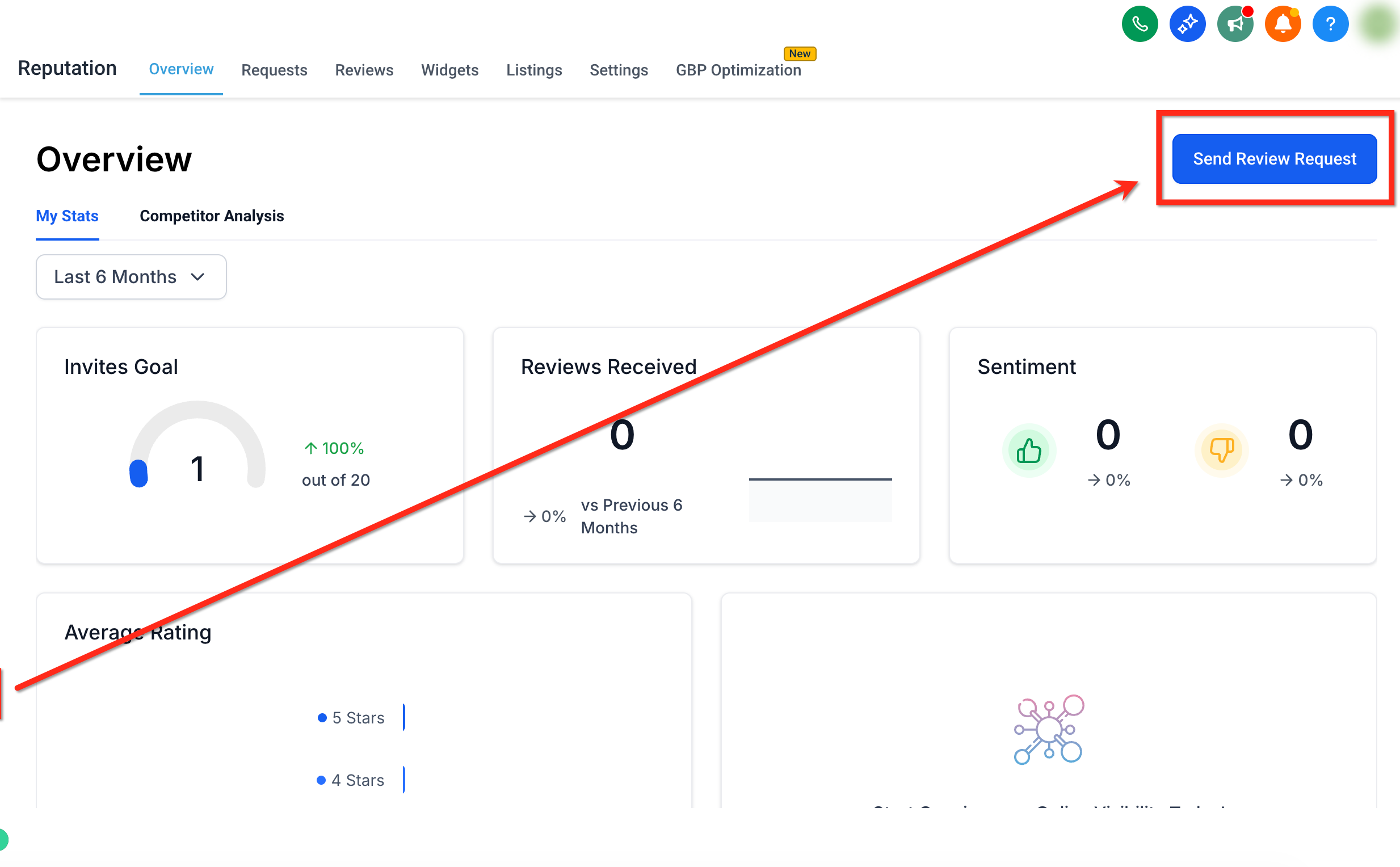
Select the Reputation tab in the left navigation, then click the blue Send Review Request button in the top-right of the screen.
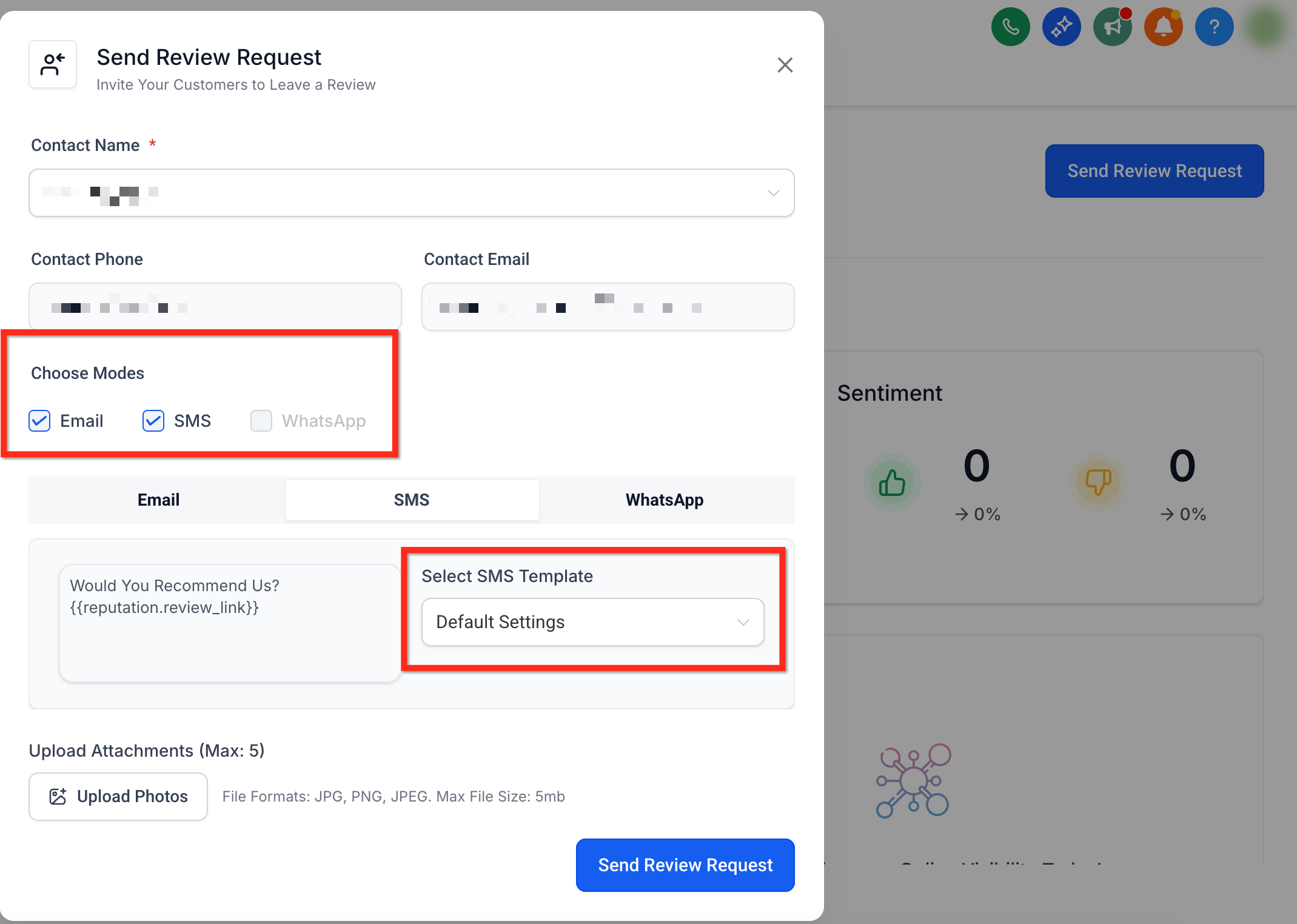
Search by Contact Name and select the correct patient record. Make sure Contact Phone and/or Contact Email are present based on the channel(s) you'll use.
Use the Choose Modes checkboxes to select your delivery channel. Photos are supported on email and SMS; WhatsApp does not support photos.
Then use the Select Email Template and/or Select SMS Template dropdowns to choose the review request template you'll send.
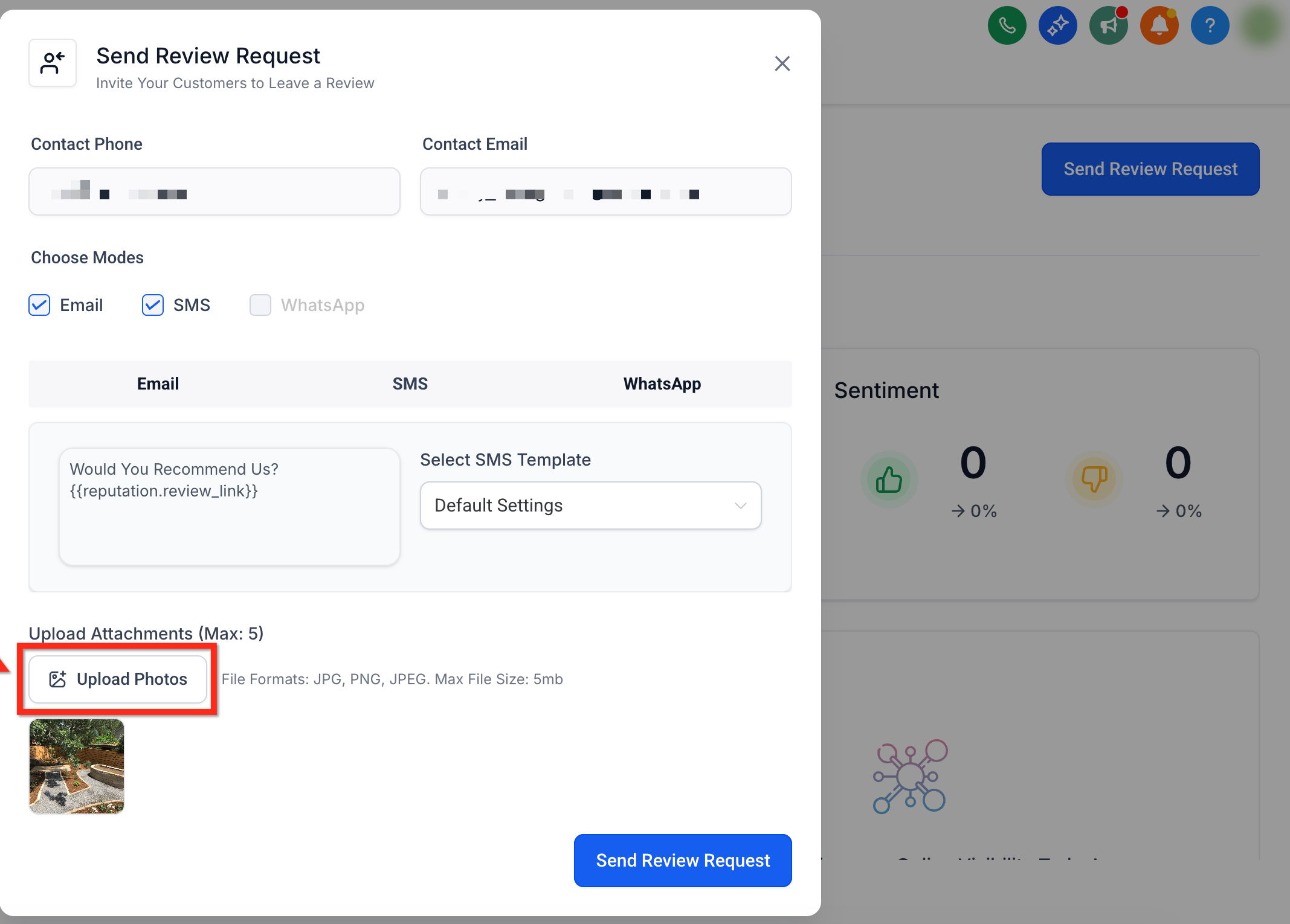
Click the Upload Photos button and select up to five photos to attach to your review request. A preview of the selected photos appears directly below the Upload Photos button.
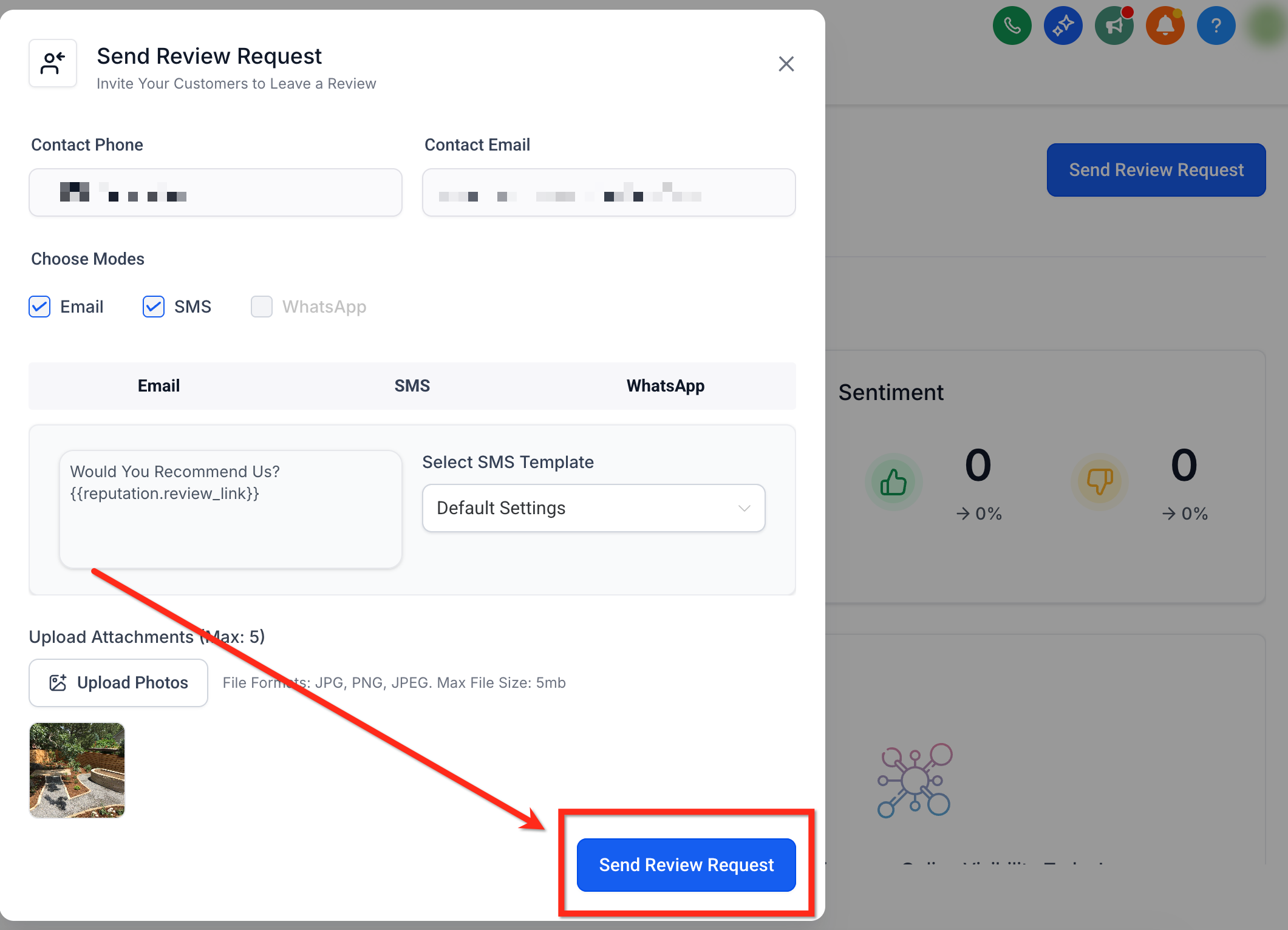
Click the blue Send Review Request button to send your request.
Will the same photos be used if I send both email and SMS review requests?
Yes. When both channels are selected, the same uploaded photos are included for both.
Are photos saved in templates or a media library?
No. Photos are added during the send and appear with the outbound message in Conversations. They are not stored in templates or a media library through this feature.
Is this available in the mobile app?
Not yet. It's currently available in the web app, with mobile support planned.
Can I automate review requests with photos using Workflows?
Not at this time. Photo attachments are added manually in the Send Review Request window.
