Positive reviews help future patients find and trust your practice. Aesthetix CRM lets you request reviews from your patients across the channels they use most, so you can maximize responses and grow your online reputation. This guide covers the ways to send review requests, how to reach patients across SMS, email, and WhatsApp, and what your request statuses mean.
Important, Aesthetix CRM automates this for you. You don't have to send review requests one by one. We use workflows to send customized Google review-request drips on your behalf: just add the Send Review tag to any contact, and the drip takes it from there. For practices with an EMR integration, these requests can also fire automatically when an appointment is marked complete: no tagging required. This automation is configured for you during onboarding, so it's typically ready to go from day one. The manual and multi-channel options below are still available any time you want to send a request yourself.
Reaching patients where they are most likely to respond makes a real difference to your review strategy. Multi-channel requests give you:
Higher review collection rate – Reach patients where they are most likely to respond.
Personalized engagement – Tailor your review request message to each channel for better results.
Seamless delivery – Requests are sent based on the contact details you have on file, so there is minimal effort on your end.
Better insights – Track which channels drive the most reviews and refine your approach accordingly.
A few things should be in place before you start sending review requests:
Connect your Google Business Profile to the correct location so review links point patients to the right place. If you prefer, you can use a third-party review link instead.
Make sure the review request feature is toggled on in your settings.
(Optional) Customize your outbound SMS and email review messaging. See the Customizing SMS and Email Review Messages guide for details.
Note: Phone and SMS delivery in Aesthetix CRM runs on native Twilio. Delivery confirmation is available for SMS, but not for email.
There are three ways to send review requests in Aesthetix CRM:
Quick Actions – A manual action you trigger yourself.
Workflow Action – An automated action that sends a review request from within a workflow. If the contact has an assigned user, the request will come from that assigned user.
Review Management – A manual action you trigger from the Review Management area, where you can also track every request you send.
Quick Actions are shortcuts available in the top left above the sidebar. They let you perform a set of actions in a few clicks, including sending a review request.
Note: When you send a review request this way, the person signed in is listed as the sender of that message. To send a request on behalf of the contact's assigned user instead, use the Workflow "Send Review Request" action described below.
To automate the review request process inside a workflow, add the Send Review Request action, then select the channel (Email or SMS). This is ideal for triggering requests automatically based on an event, such as after an appointment or a completed purchase.
In the sidebar, go to Marketing > Review Management > Requests to send an individual review request manually and keep track of all the requests being sent. The steps below walk through this flow.
Follow these steps to send a review request from Review Management.
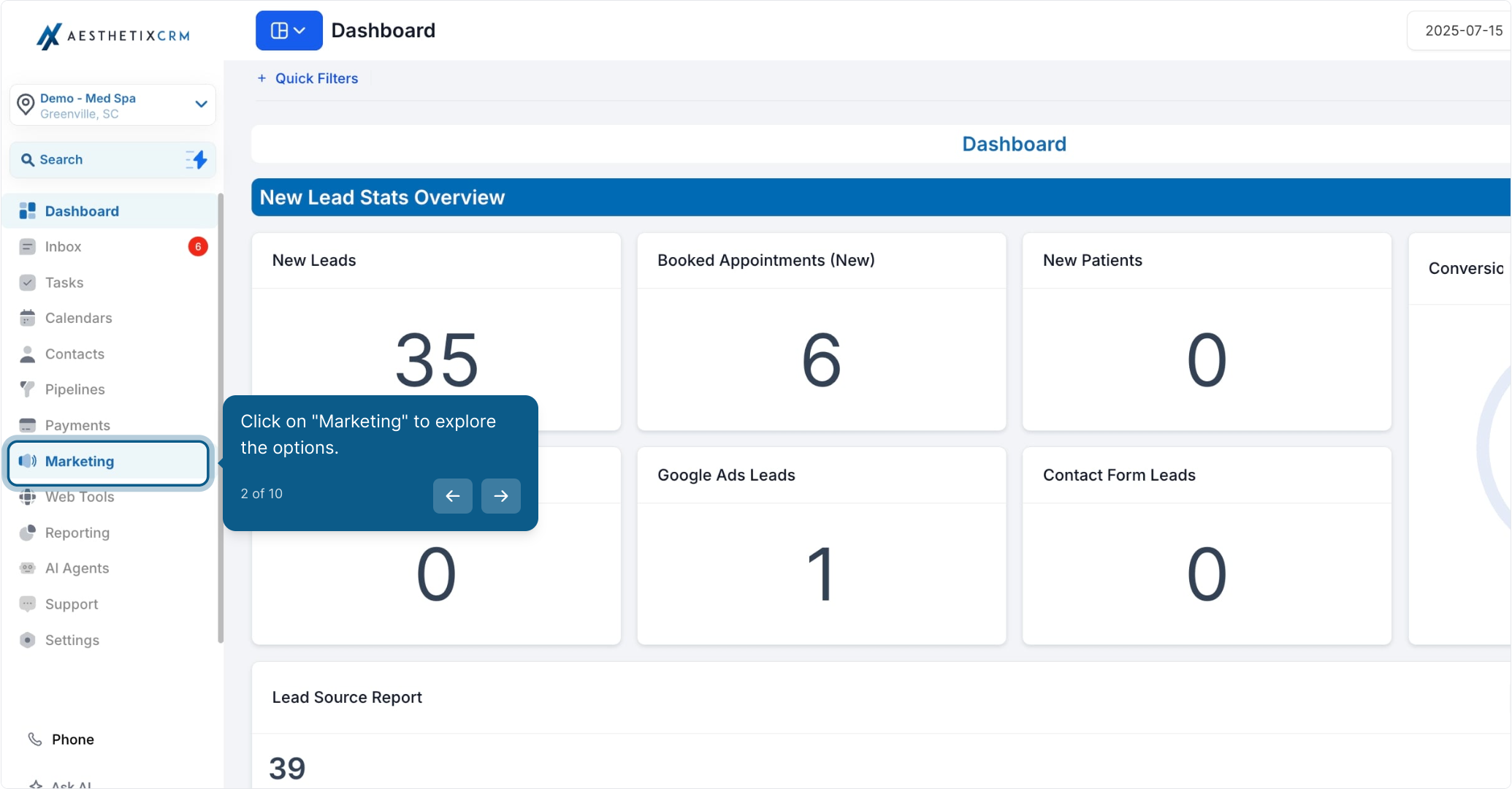
Click Marketing to explore the options.
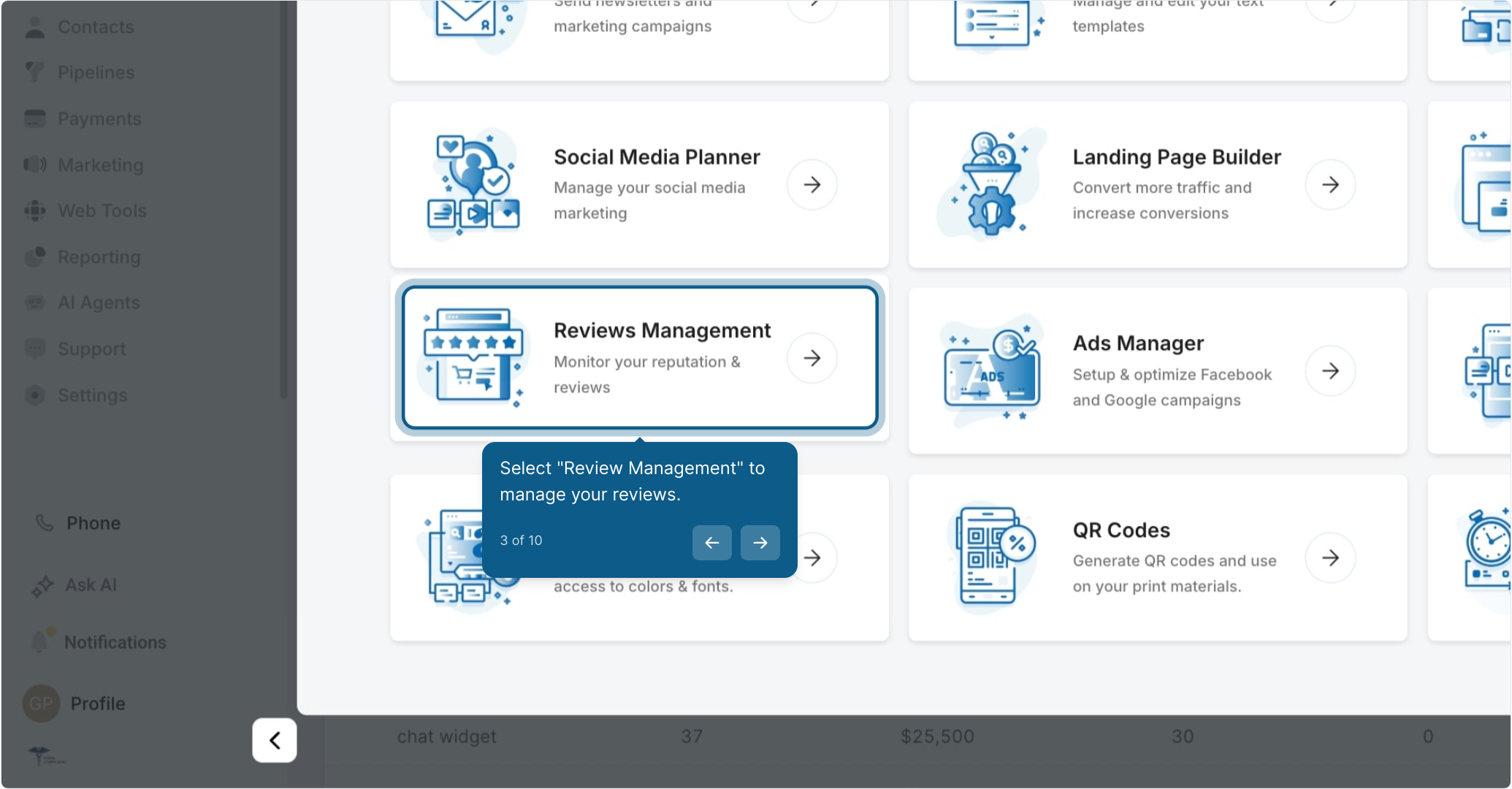
Select Review Management to manage your reviews.
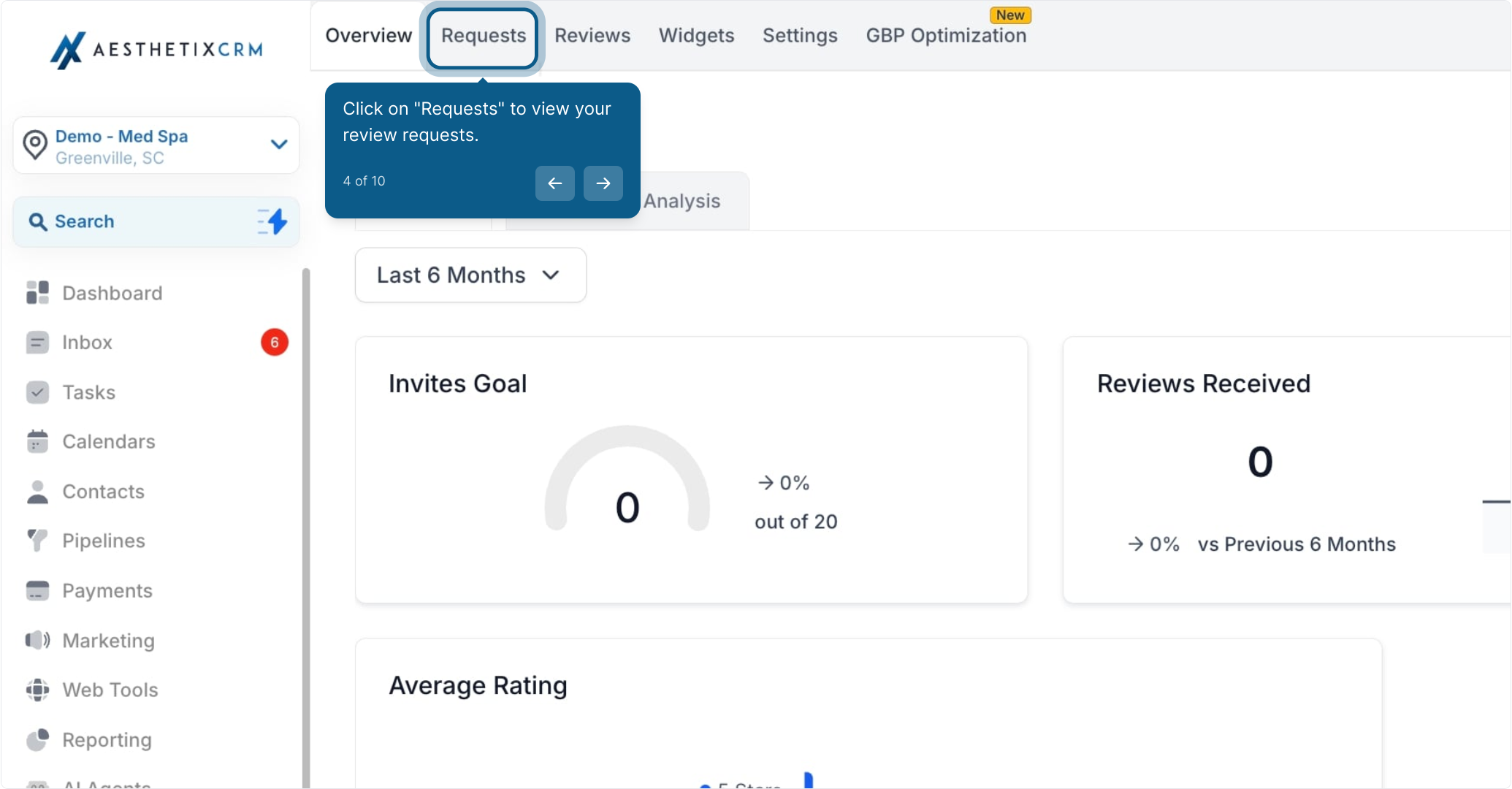
Click Requests to view your review requests.
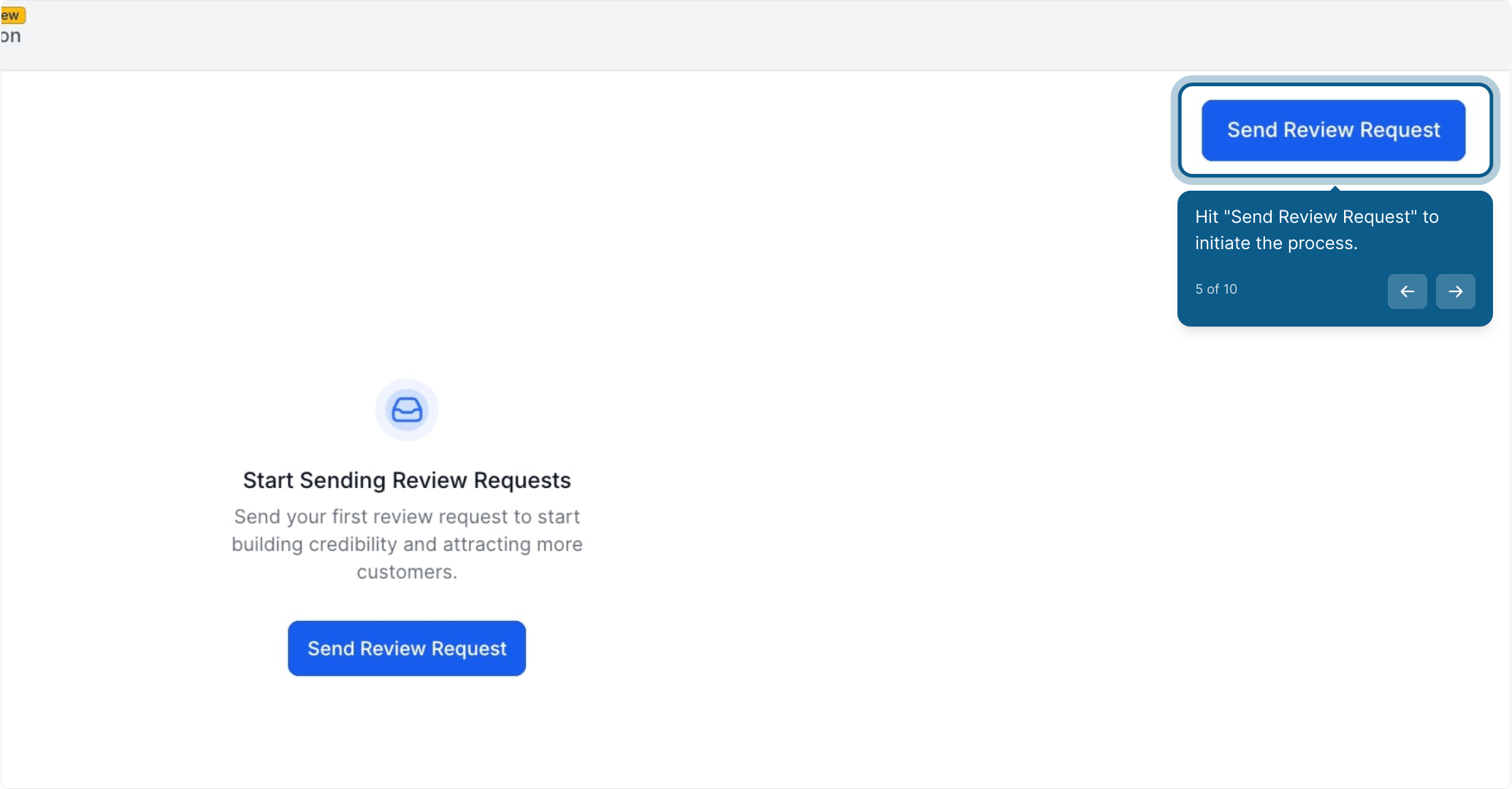
Hit Send Review Request to begin.
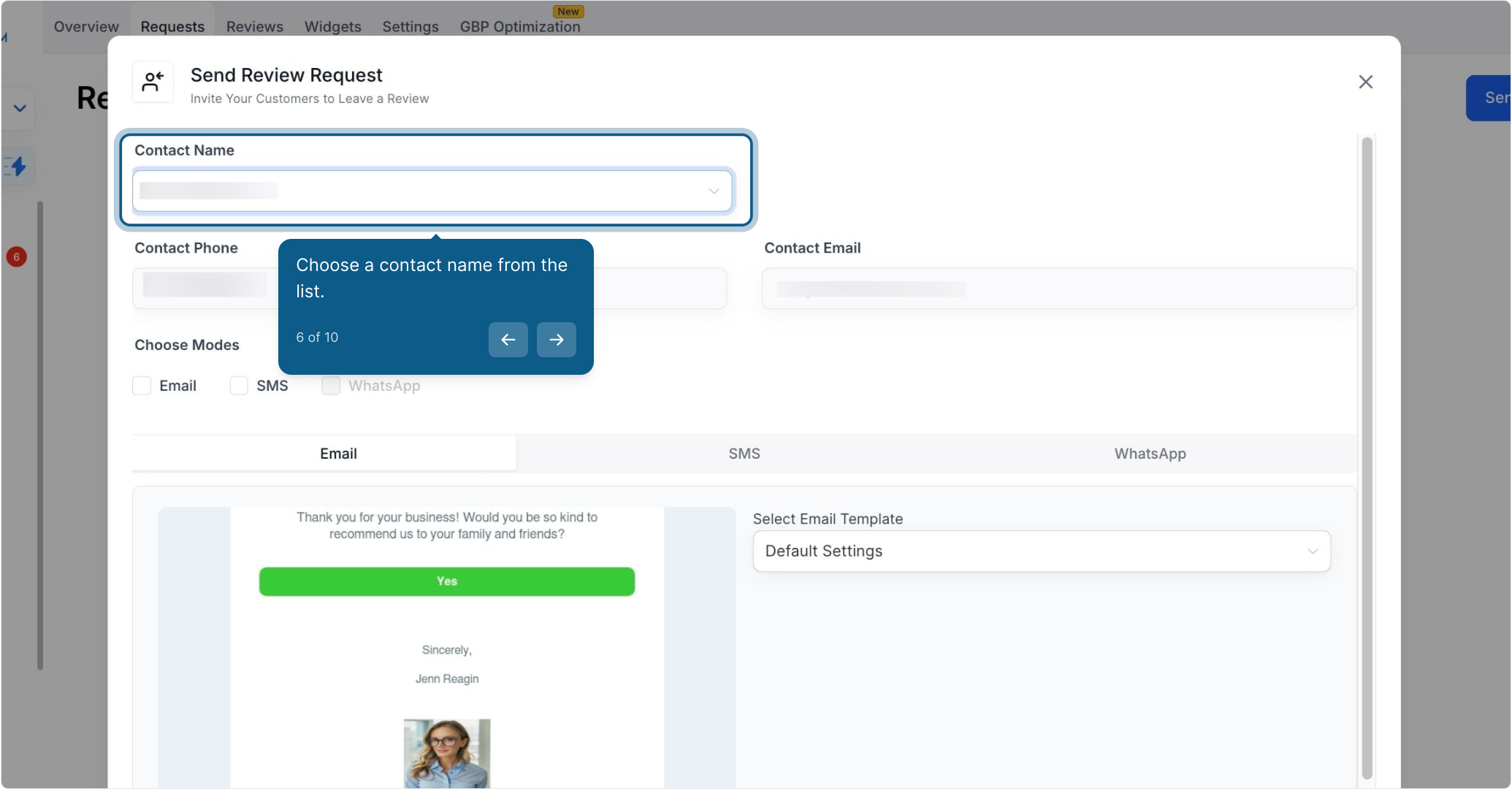
Choose a contact name from the list.
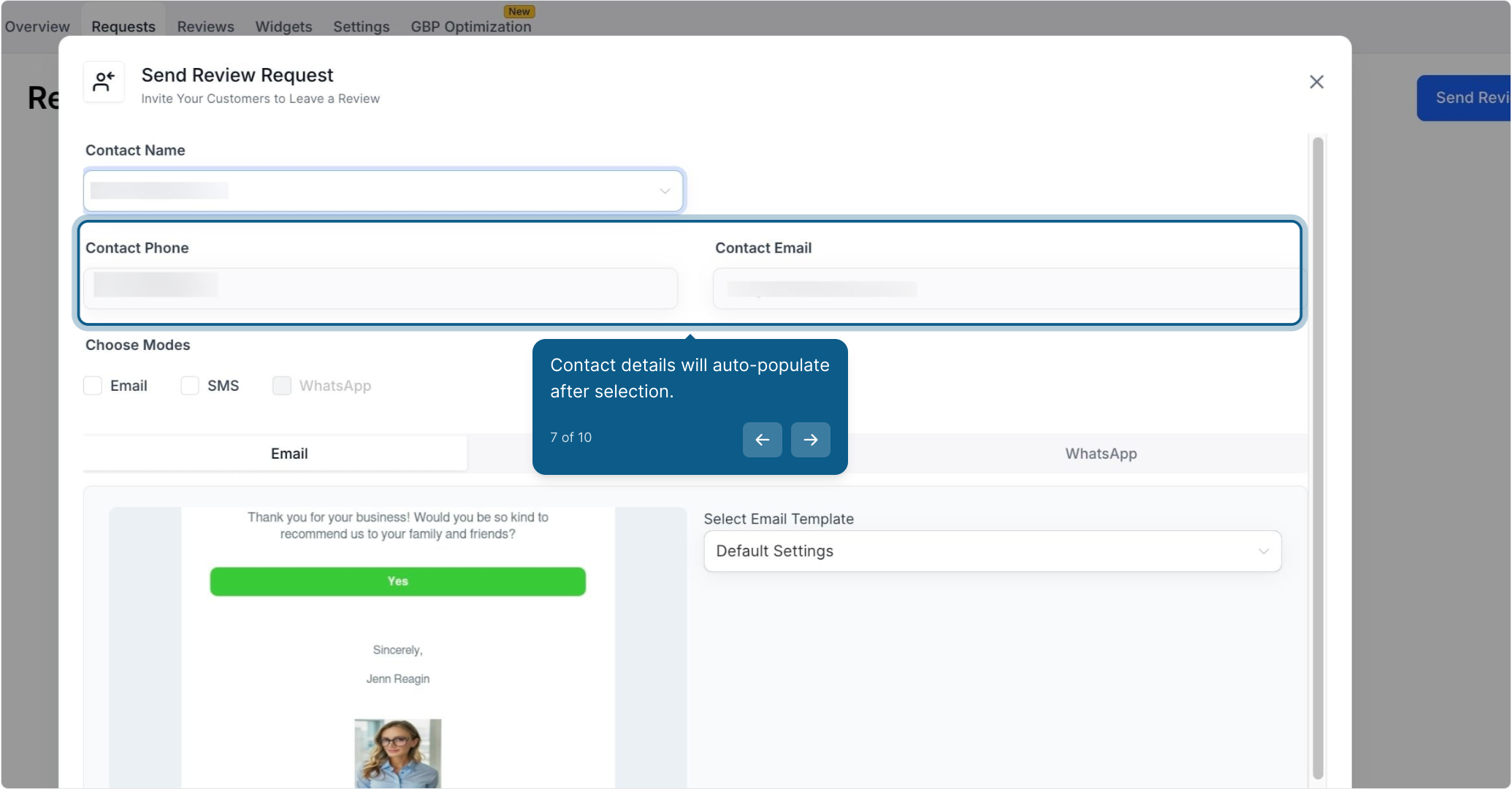
Contact details auto-populate after you select the patient. Each channel needs the matching detail on file:
SMS requests require the patient's phone number.
Email requests require a valid email address.
WhatsApp requests require a WhatsApp-enabled phone number.
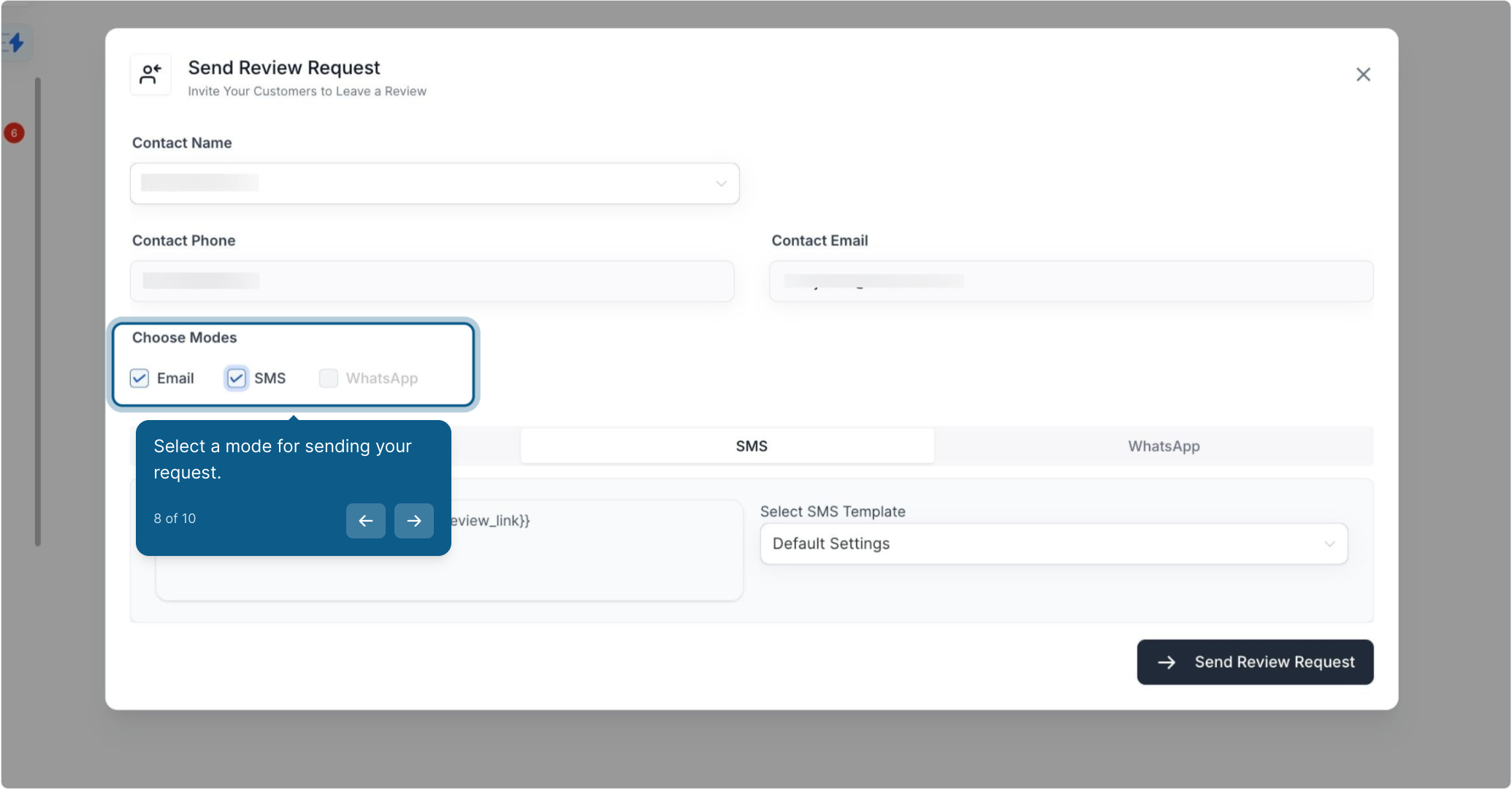
Choose a mode for sending your request.
You will see checkboxes for SMS, Email, and WhatsApp.
Select the channels you want to use for sending the request.
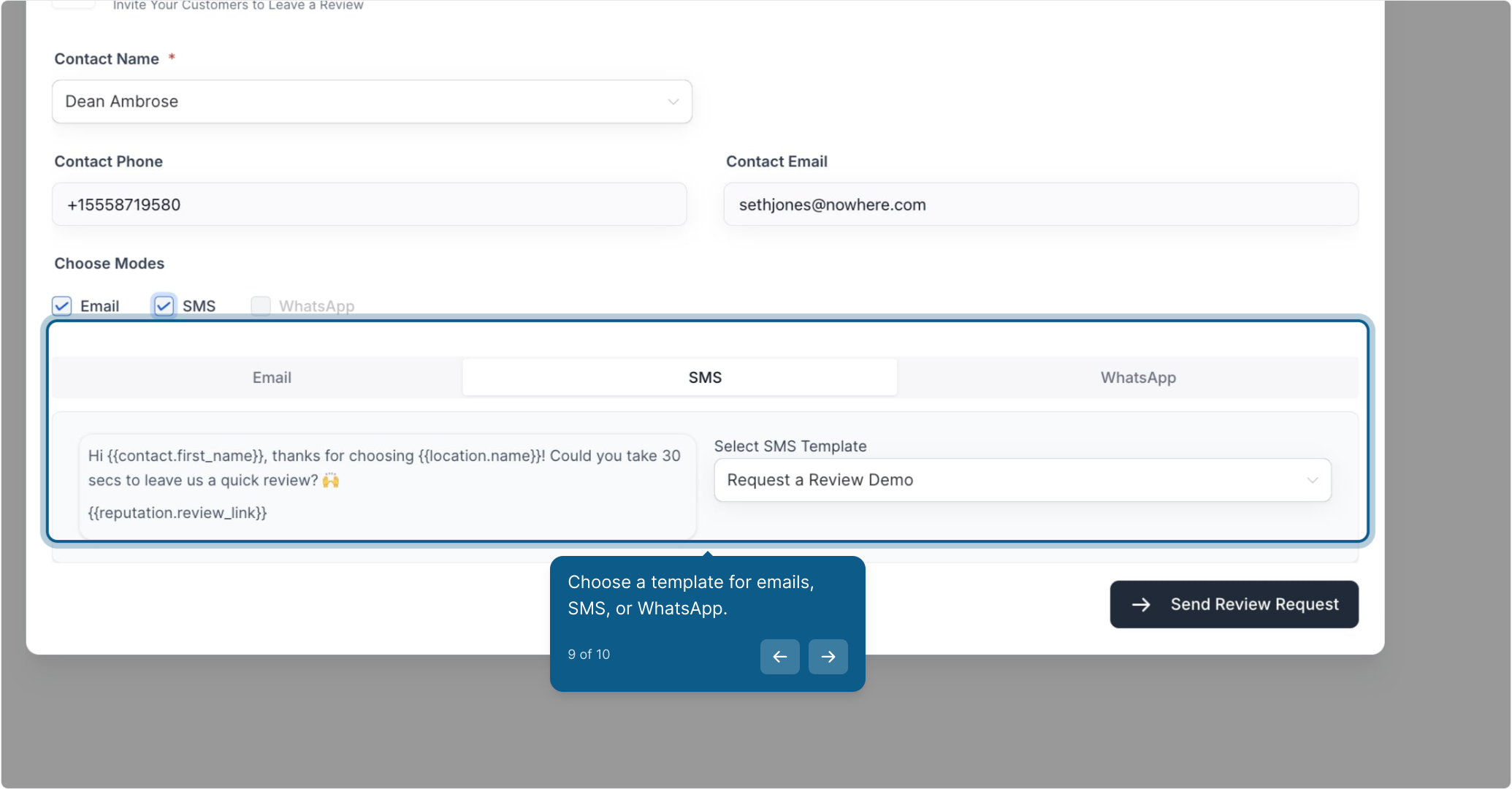
Choose a template for email, SMS, or WhatsApp.
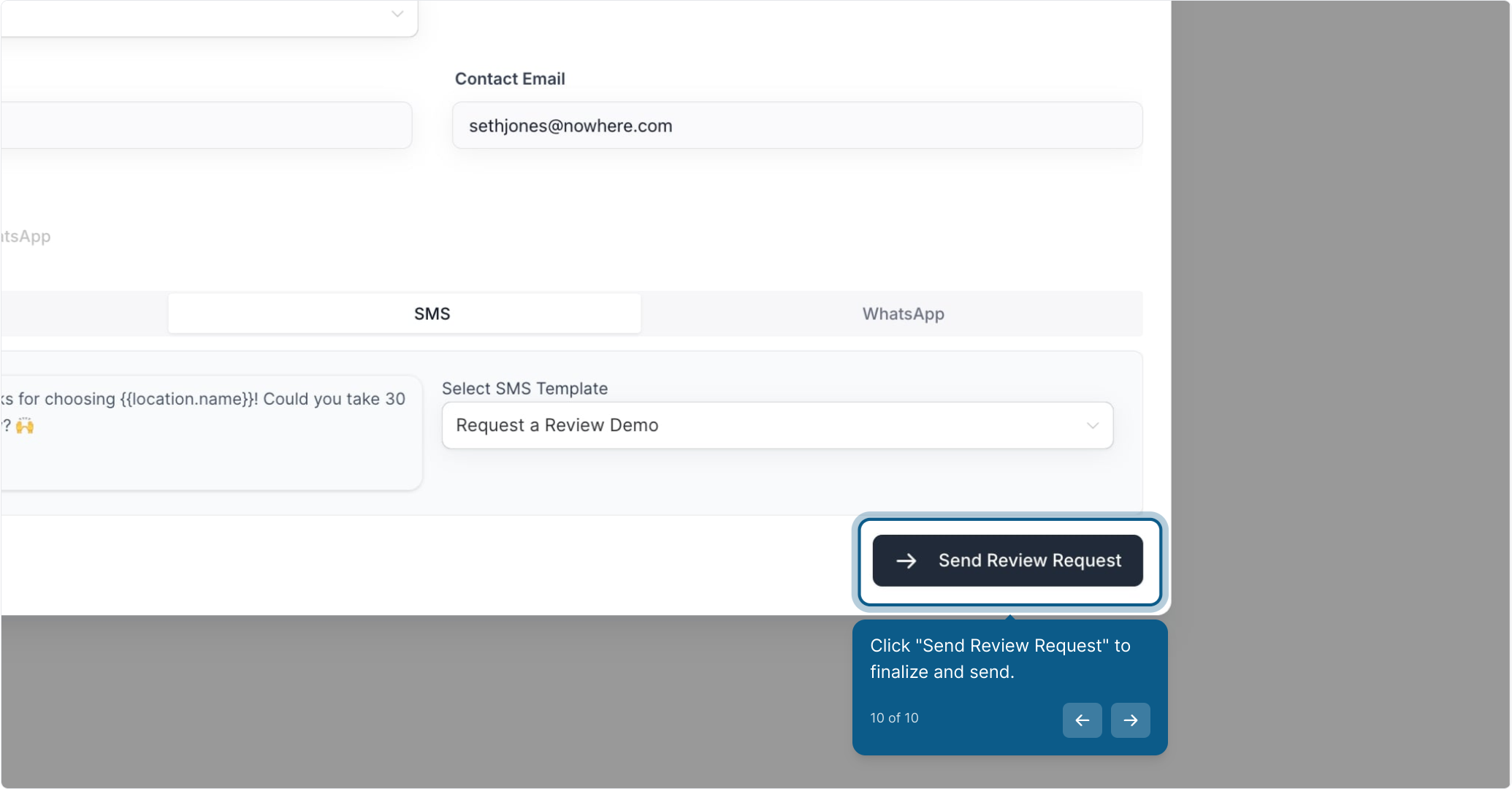
Click Send Review Request to finalize and send.
How to Send Google Review Requests in Aesthetix CRM - Watch Video

WhatsApp is a powerful, personal channel for gathering patient feedback. You can send requests individually, in bulk, or automatically through a workflow.
Before you can send review requests over WhatsApp, connect it to your account:
Navigate to Settings > WhatsApp.
Subscribe to WhatsApp if you have not already.
Follow the instructions to authenticate and link your WhatsApp Business number.
Once connected, test the integration to confirm messages send successfully.
After connecting WhatsApp, choose which connected number should send WhatsApp review requests.
In Review Management, go to Settings > WhatsApp Requests.
Under Default WhatsApp sender number, select the connected WhatsApp number you want to use.
Click Save. The selected number becomes the default sender for WhatsApp review requests.
Go to the WhatsApp Review Request section in your dashboard.
Customize the message:
Include your practice name.
Add a friendly call to action (for example, "We'd love your feedback!").
Attach the review link for the platform you want (such as Google or Facebook).
Save the template for future use.
For SMS and email wording, see the Customizing SMS and Email Review Messages guide.
Go to the Reviews section in your dashboard.
Click Send Review Request and choose WhatsApp as the channel.
Select the patient you want to send the request to.
Select your customized template, review it, and click Send.
In the Reviews section, upload a CSV file with patient details (name and WhatsApp number).
Map the fields correctly (for example, Name → Patient Name, Phone → WhatsApp Number).
Select Send Bulk Review Requests and choose WhatsApp as the channel.
Review the preview and confirm the message.
You can automate WhatsApp review requests using workflows, which is ideal for triggering requests based on a specific event or action.
Set up a workflow – Go to the Workflows section and create a new workflow or edit an existing one.
Add a trigger event – Define the event that should trigger the review request, such as completing a purchase.
Add the "Send Review Request" action – Select Send Review Request via WhatsApp as an action in your workflow.
Choose or create a template – Pick a pre-approved WhatsApp template and personalize it with dynamic placeholders, such as {Patient Name} or {Order ID}.
Activate the workflow – Save and activate it. Review requests will now send automatically whenever the trigger conditions are met.
Personalize messages: Address patients by name to increase response rates.
Timing is key: Send requests soon after a positive interaction.
Stay compliant: Ensure you have patient consent before sending WhatsApp messages.
Queued: When you create a review request, the system attempts to send it immediately. If other requests are ahead of yours in the queue, there may be a slight delay before it goes out. A request may also be queued if it is set up to send after one day.
Sent: The system has sent the review request.
Delivered: After the request is sent, delivery is confirmed for SMS only. Email requests do not report a delivered status.
Failed: The review request could not be delivered. This can happen for several reasons, such as an invalid phone number.
Note: If you use a custom SMTP integration for email, send review requests while logged in with the user email that matches your SMTP-integrated address. The system uses your login email as the sender's email for review request emails.
Q: Can I send review requests using multiple channels at the same time?
A: Yes, you can select SMS, Email, and WhatsApp simultaneously to maximize your outreach.
Q: How do I know which channel performed best?
A: The tracking and reporting feature lets you monitor sent, opened, and clicked requests for each channel.
Q: Can I customize the message for each channel separately?
A: Yes, you can edit the message for each channel to match your brand tone and audience. See the Customizing SMS and Email Review Messages guide for details.
Q: What happens if a patient does not have a contact detail for a selected channel?
A: The system automatically uses the available contact method (for example, if no phone number is on file, it will send via email or WhatsApp if provided).
Q: Is there a limit to how many review requests I can send?
A: Limits may vary based on your plan. Check your account settings for details.
To dispute or report a Google review you believe is wrong or spam, follow the steps for disputing a Google review and checking your dispute status in your Google Business Profile.
