Online reviews shape how prospective patients choose a med spa or plastic surgery practice. Aesthetix CRM brings your Google and Facebook reviews into one place so you can respond quickly, personalize every reply, and protect your reputation. This guide walks you through the Reviews AI settings, best practices for handling negative feedback, and how to dispute reviews that violate Google's guidelines.
Reviews AI helps you compose thoughtful, on-brand responses to patient reviews. You can leave it off, use it in a suggestive capacity, or fully automate replies.
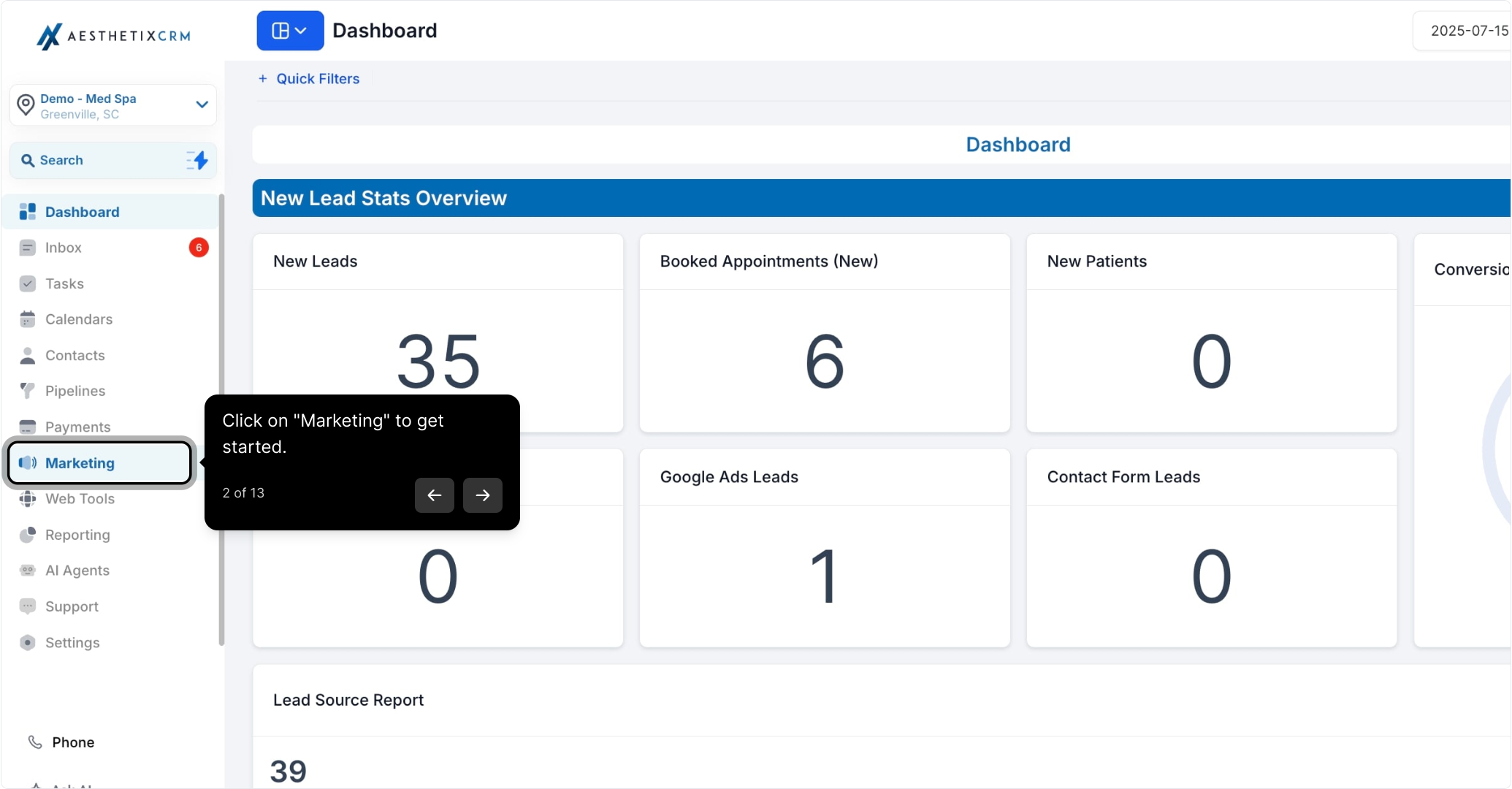
From your dashboard, click Marketing to get started.
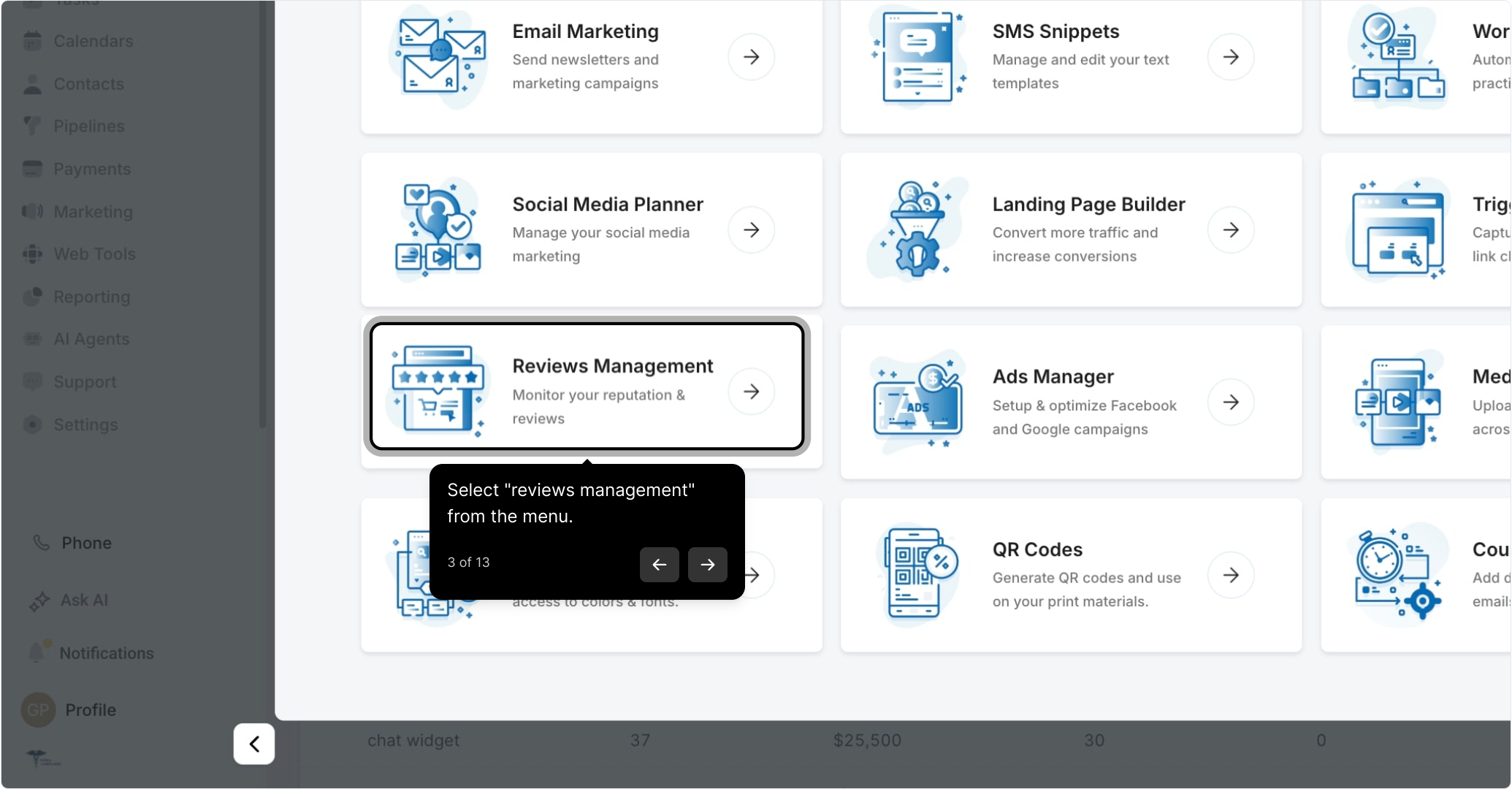
Choose Reviews Management from the menu.
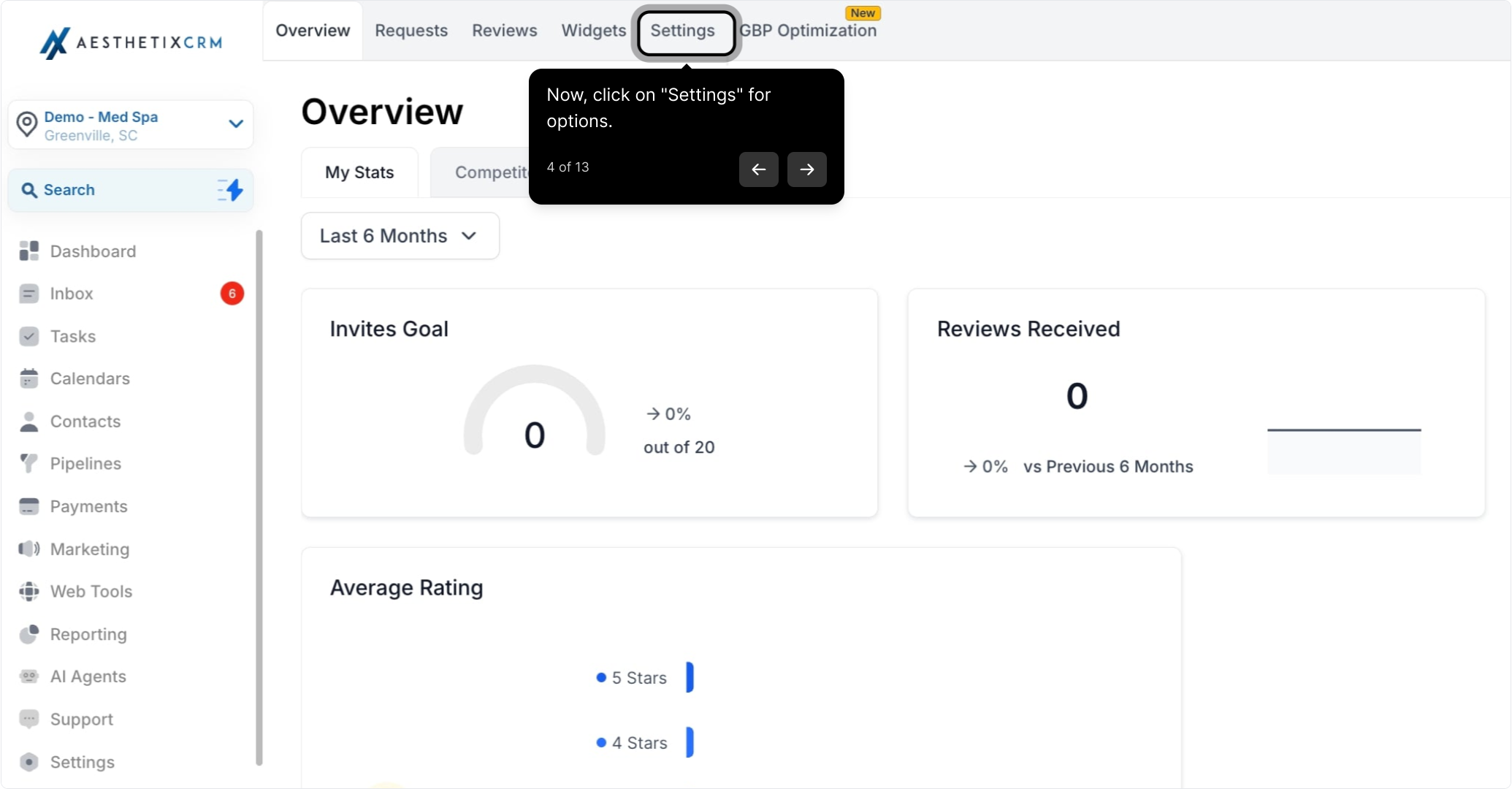
Click Settings to view your options.
Select Reviews AI for review assistance.
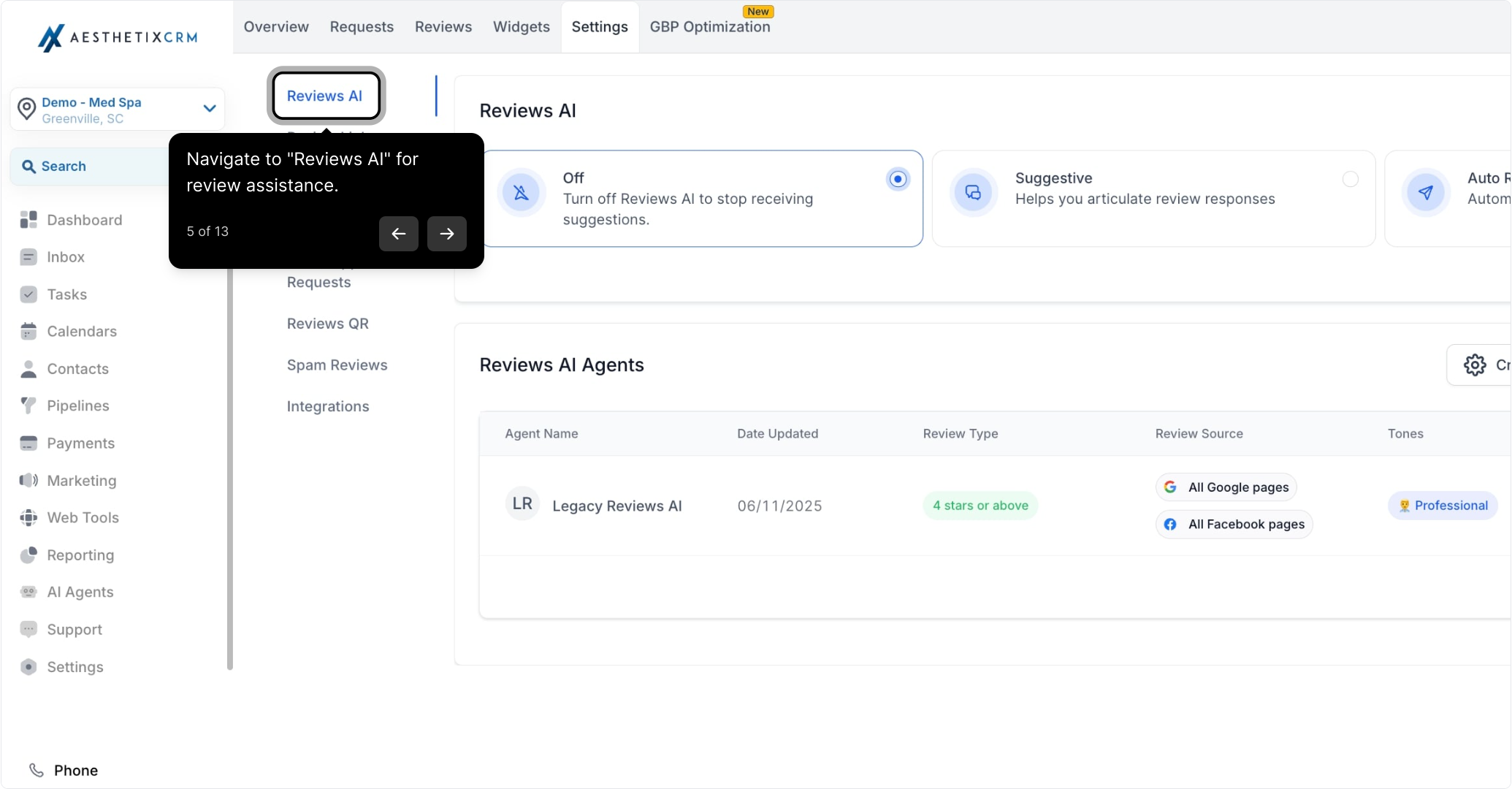
Choose one of the three available options: Off, Suggestive, or Auto-Pilot.
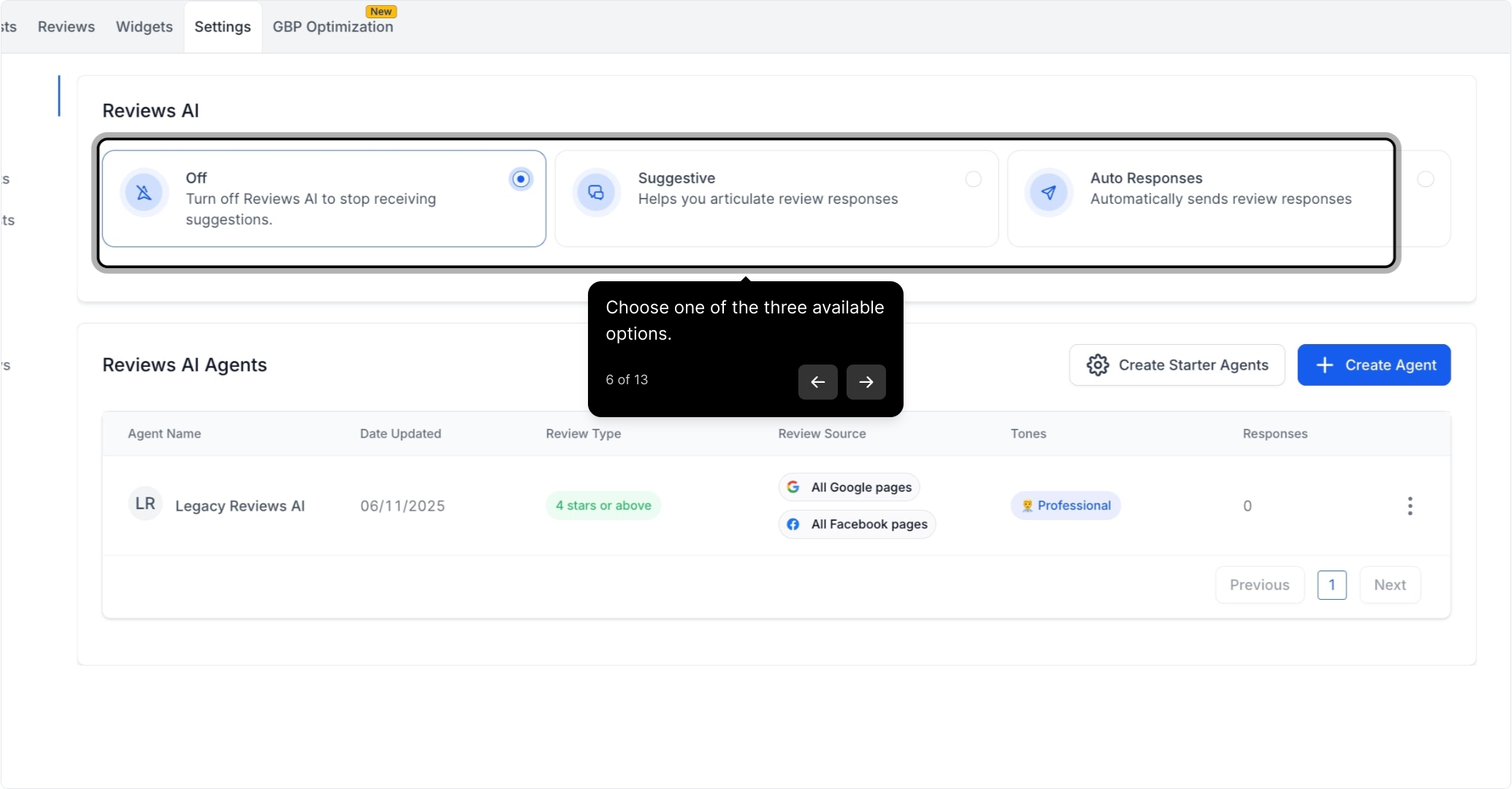
Select Off to disable Reviews AI suggestions.
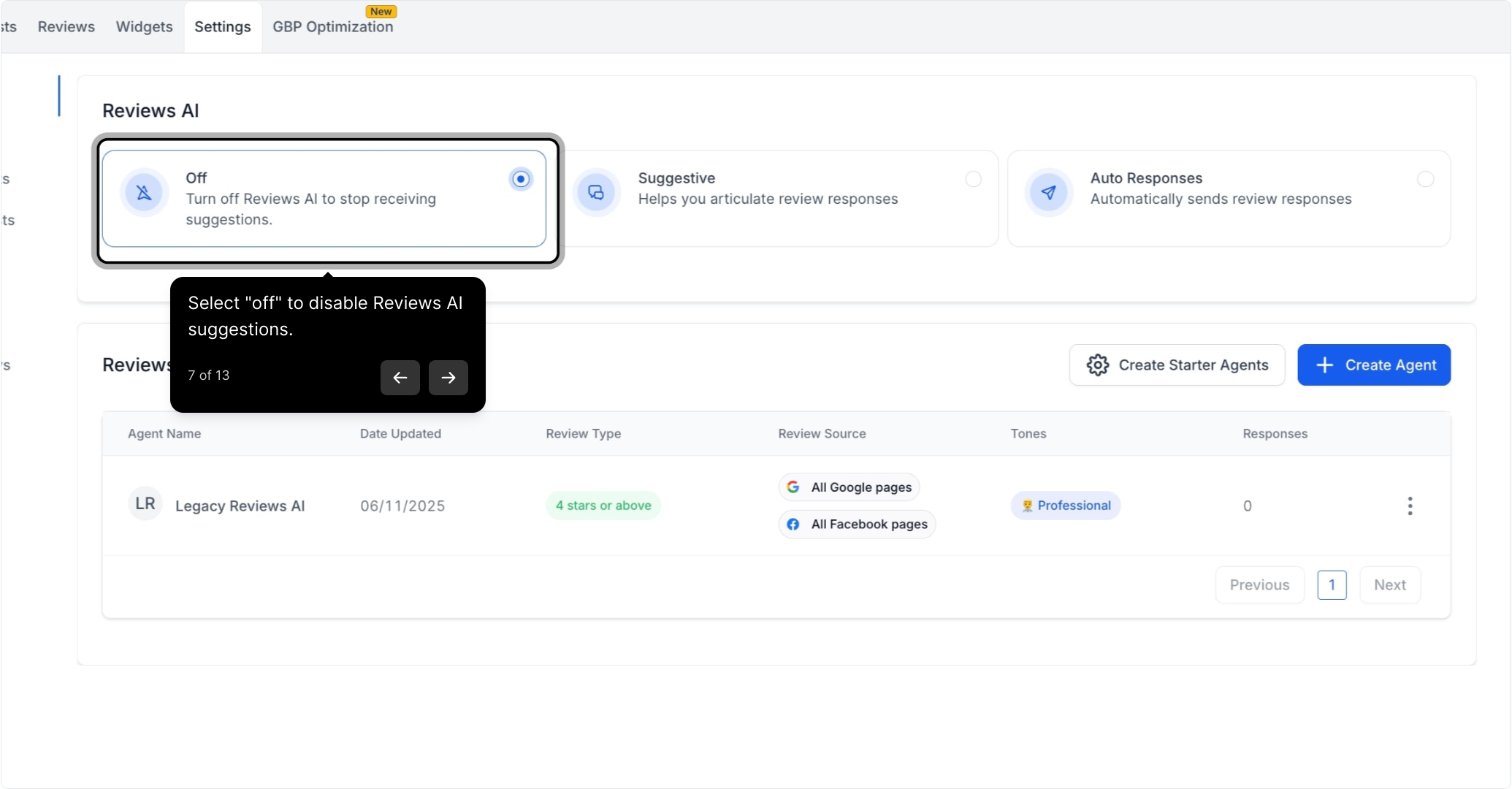
Suggestive Mode helps you compose personalized, genuine review responses. It offers suggestions based on the review content, making it easier to engage with your patients authentically. In Suggestive Mode, you select the AI Reply button and Reviews AI generates a unique response for you to review.
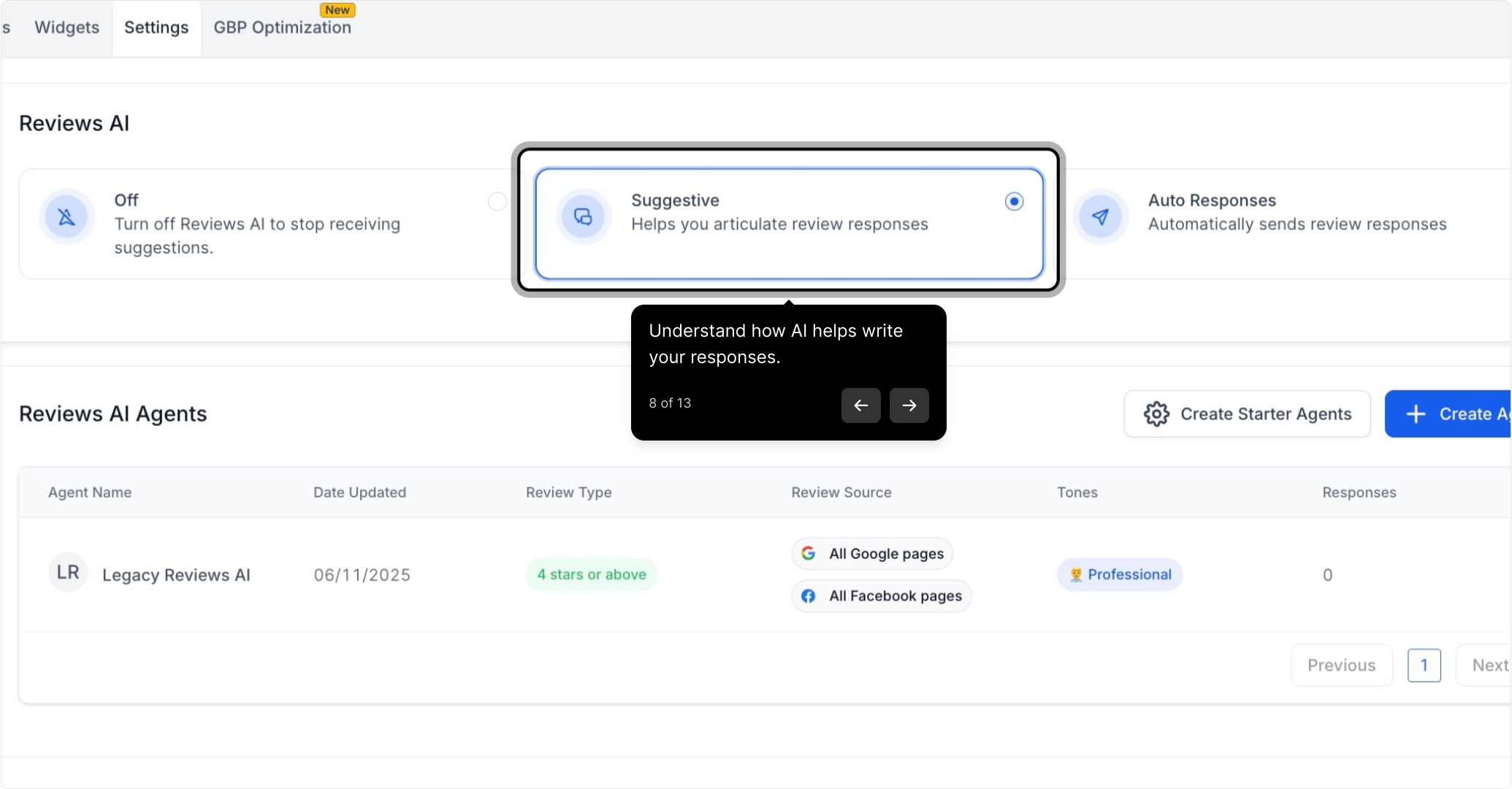
Go to Reputation and select AI Reply to generate a response.
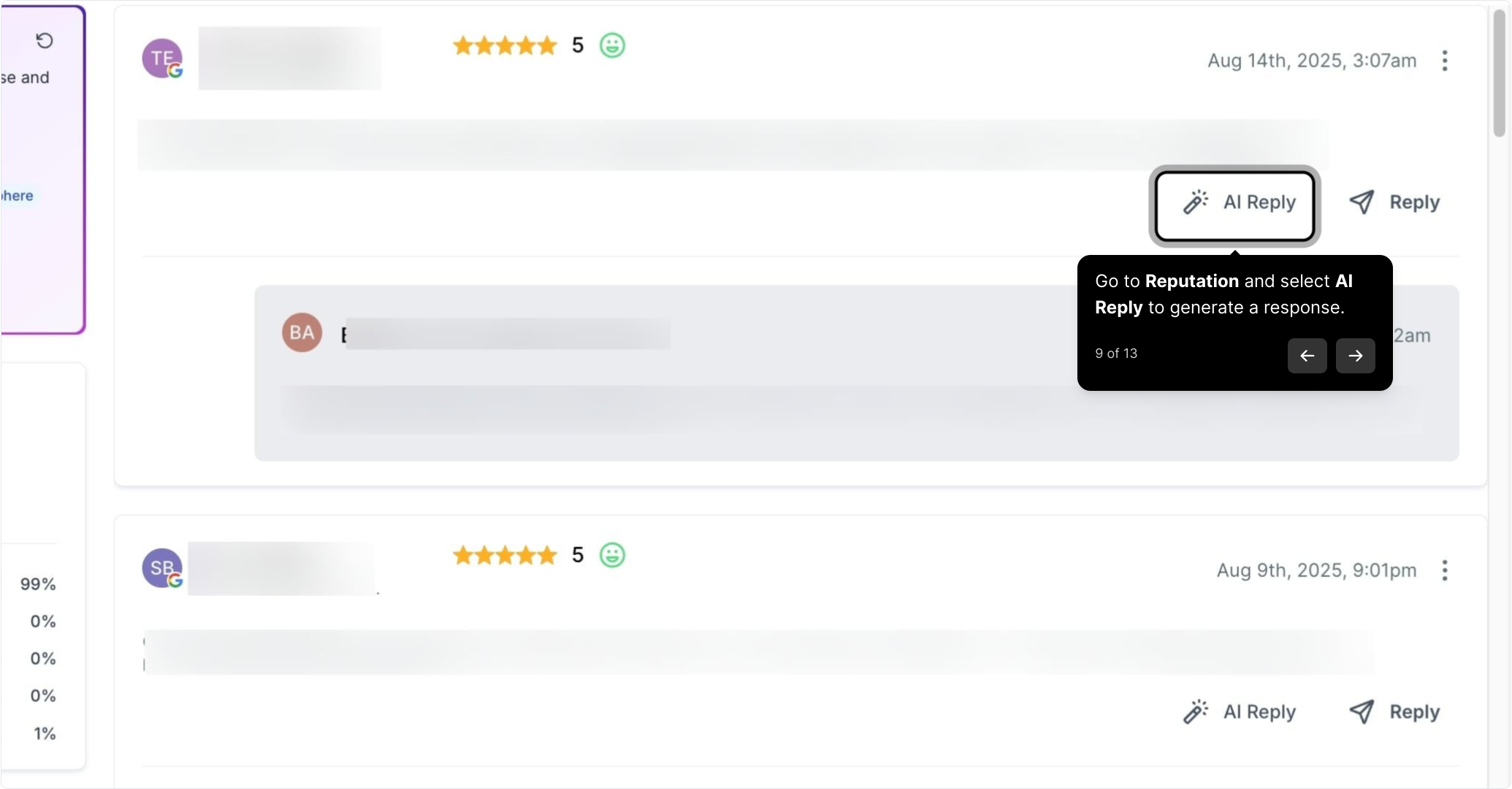
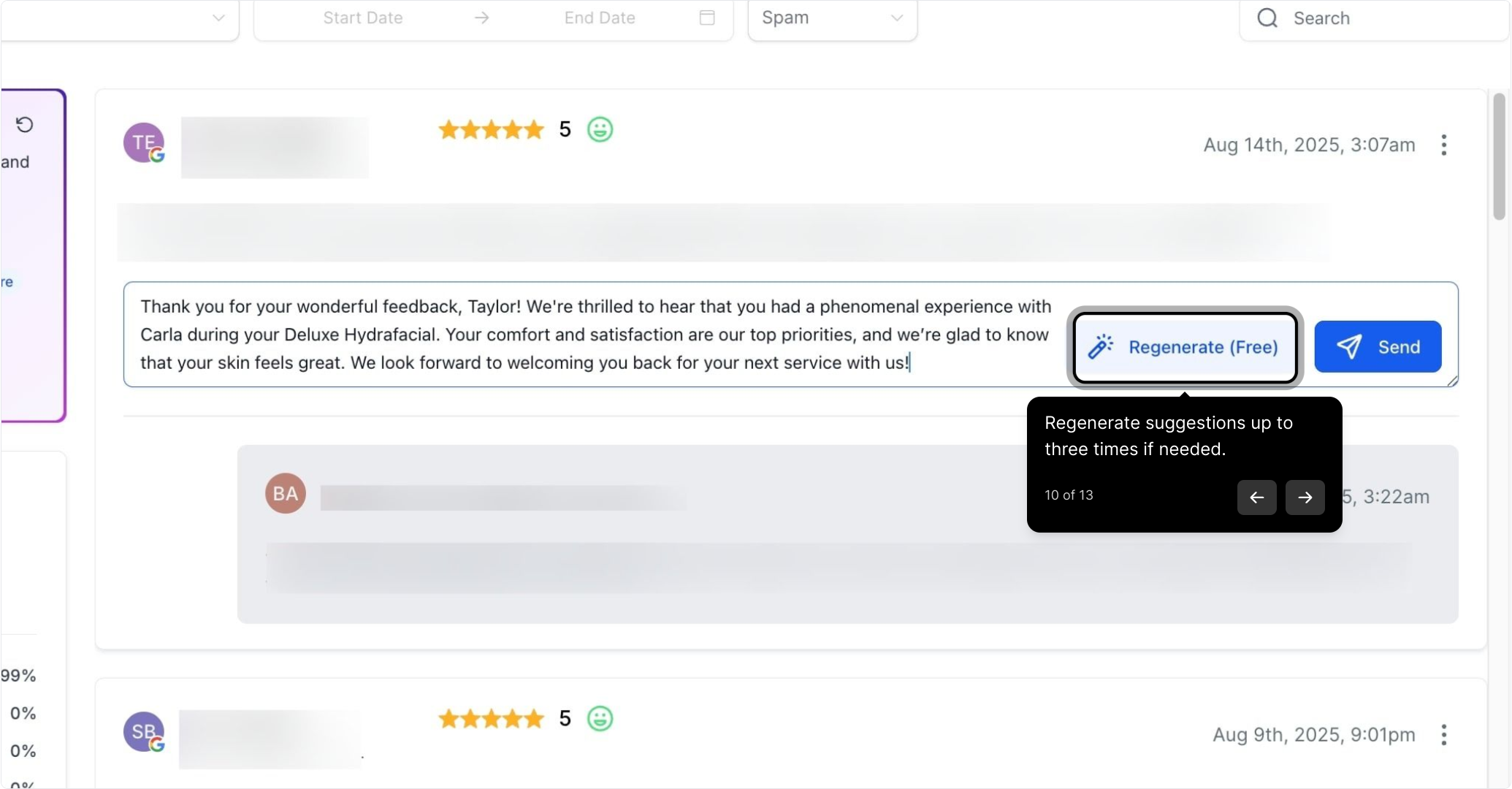
You can regenerate suggestions up to three times if the first draft isn't quite right.
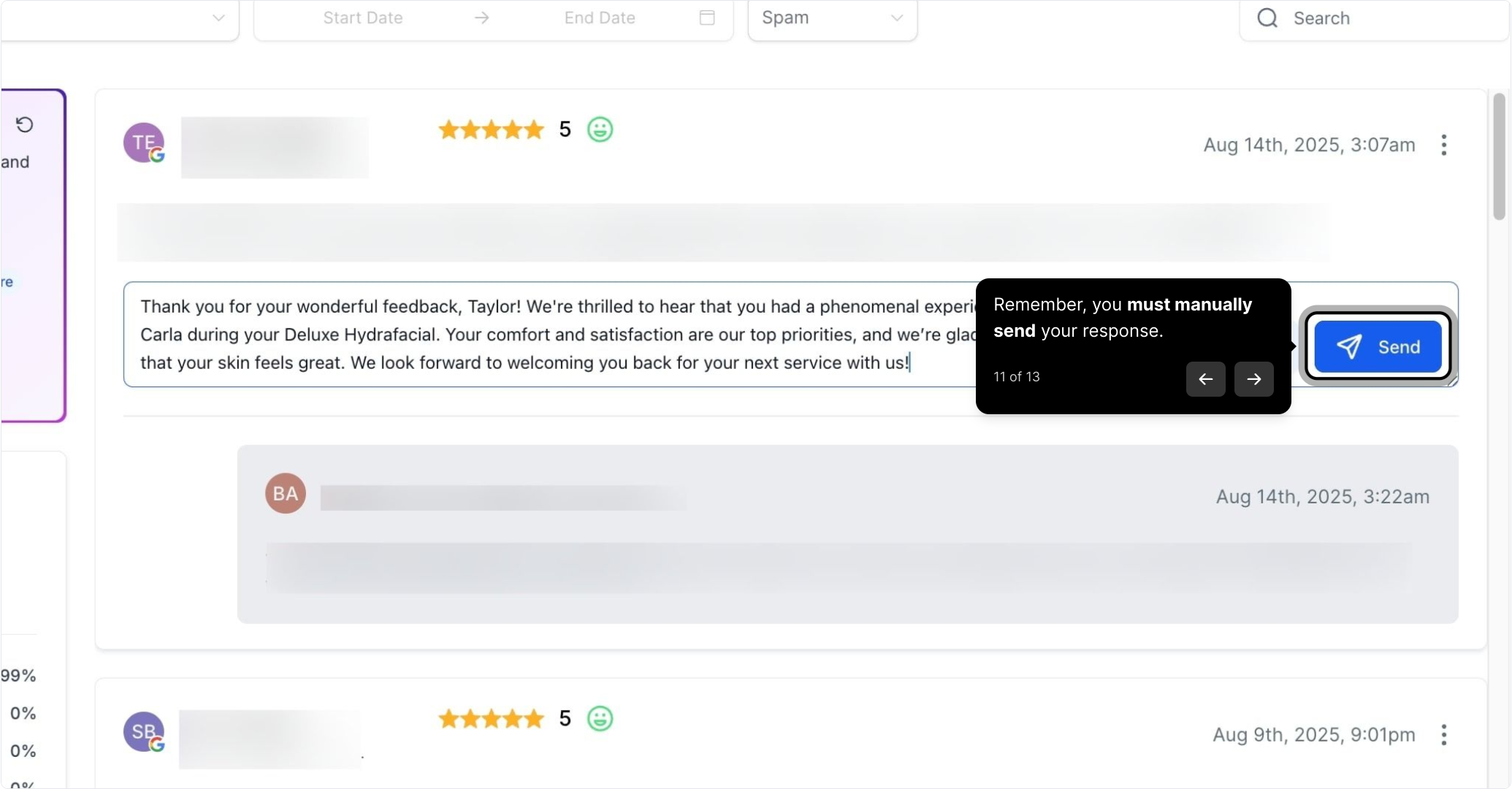
Note: In Suggestive Mode you must manually send your response. The AI drafts the reply, but nothing is posted until you approve and send it.
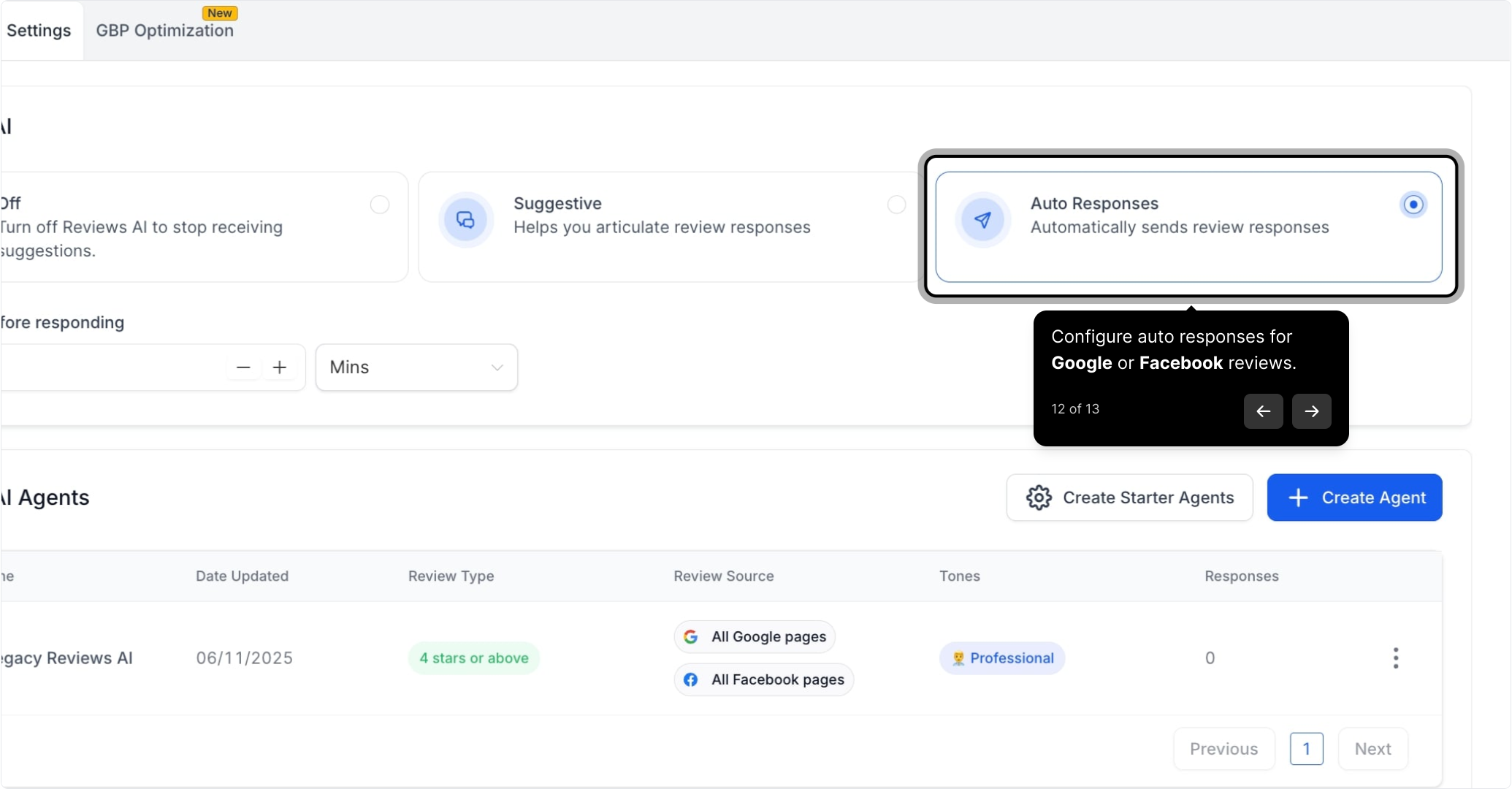
Auto-Pilot Mode is designed for efficiency. It automates the review response process, saving you time while maintaining a professional, personalized touch. Configure auto responses for Google or Facebook reviews.
With Auto-Pilot Mode, you can:
Customize automated responses based on star ratings.
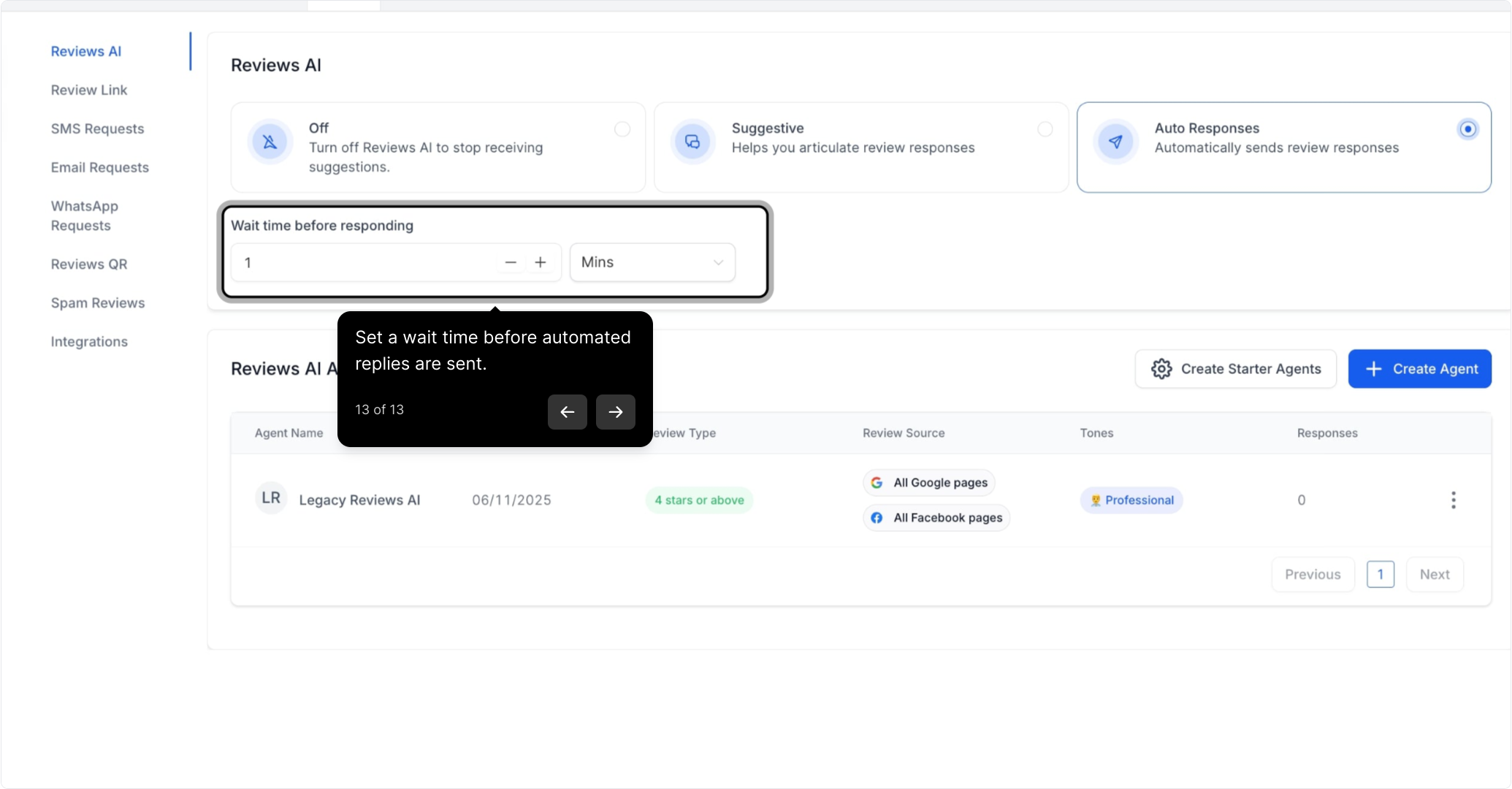
Define the wait time before sending each response.
Add a personal touch with review response footers, such as thank-you notes or your practice name.
Tailor auto responses for specific sources, such as Facebook and Google.
Set a wait time before automated replies are sent, giving you a window to intervene if needed.
Tailor responses to your brand: Customize suggested responses to align with your practice's tone and personality.
Monitor and adjust Auto-Pilot responses: Regularly review and refine Auto-Pilot replies so they continue to reflect your practice's values and standards.
Engage beyond reviews: While Reviews AI handles responses efficiently, don't overlook the importance of deeper patient engagement beyond review replies.
Negative reviews are an inevitable part of running a practice. Addressing them thoughtfully can turn setbacks into opportunities for growth and stronger patient relationships. A calm, professional response not only resolves an individual concern but also reassures prospective patients that you are committed to excellent care.
Negative feedback can be discouraging, but it's essential not to take it personally.
Treat every review as constructive feedback and an opportunity to improve.
Take a moment to collect your thoughts before responding professionally.
Read the review carefully and try to see the issue from the patient's point of view.
Empathize with their experience and acknowledge their frustration if appropriate.
This helps you craft a response that feels personal rather than automated.
Check appointment history, treatment records, or any past communication with the patient.
Make sure you have all the facts before responding, to avoid misunderstandings.
If the concern is valid, outline the steps you are taking to resolve it.
Note: When responding publicly, protect patient privacy. Never confirm treatment details, appointment specifics, or that someone is a patient in a public reply. Acknowledge the concern and move the conversation offline.
A timely response shows that patient feedback is valued. Keep your reply focused on:
Acknowledging the concern: "Thank you for bringing this to our attention."
Apologizing where appropriate: "We're sorry your experience didn't meet expectations."
Offering a path forward: "We'd love to make this right, please reach out to us at [email]."
Encourage the patient to reach out via email or phone for a direct resolution.
Example: "We'd like to resolve this as soon as possible. Please contact us at [phone/email] so we can discuss this further."
This keeps sensitive details private and prevents prolonged public back-and-forth.
Look for patterns in negative reviews to identify areas for improvement.
Adjust service policies, treatment protocols, or team training based on recurring themes.
Proactively address common concerns to prevent similar reviews in the future.
Aesthetix CRM provides AI-powered tools and automated workflows to help you manage your online reputation efficiently.
Monitor reviews from Google, Facebook, and other platforms in one place.
Respond to patient feedback in real time without switching platforms.
Identify trends in feedback with AI-driven sentiment analysis.
Encourage satisfied patients to leave positive reviews automatically.
Send SMS and email review requests immediately after an appointment or treatment.
Reduce the impact of occasional negative reviews by increasing your overall review volume.
Reviews AI suggests professional responses tailored to different types of reviews.
Reply quickly while maintaining a personalized touch.
Mitigate the impact of negative feedback while strengthening your reputation.
AI categorizes reviews as positive, neutral, or negative for easier management.
Negative reviews can be flagged automatically for urgent response.
Prioritize critical reviews while keeping every patient satisfied.
Instead of waiting for negative reviews, you can take proactive steps:
Train your team on patient care best practices to prevent dissatisfaction.
Set clear expectations with patients about treatments, pricing, and timelines.
Follow up with every patient to resolve potential concerns before they escalate into a negative review.
By combining effective review management with Aesthetix CRM's automation tools, you can turn unhappy patients into loyal advocates, improve your overall ratings and rankings, and enhance the trust and credibility that grows your practice.
If you believe a review is fake, biased, or violates Google's guidelines, such as spam or offensive language, you can report it to Google for investigation. When you flag a review as inappropriate, Google may take action against the reviewer, such as removing the review or banning them from leaving future reviews. This is usually only done when the review violates Google's policies.
Note: You can only dispute a review from within the Conversations tab if it was generated by the system. If the review was not generated from the system, start the process directly through Google.
This section covers:
Reporting a Google review from within the Conversations tab
Checking the status of reviews you have already reported
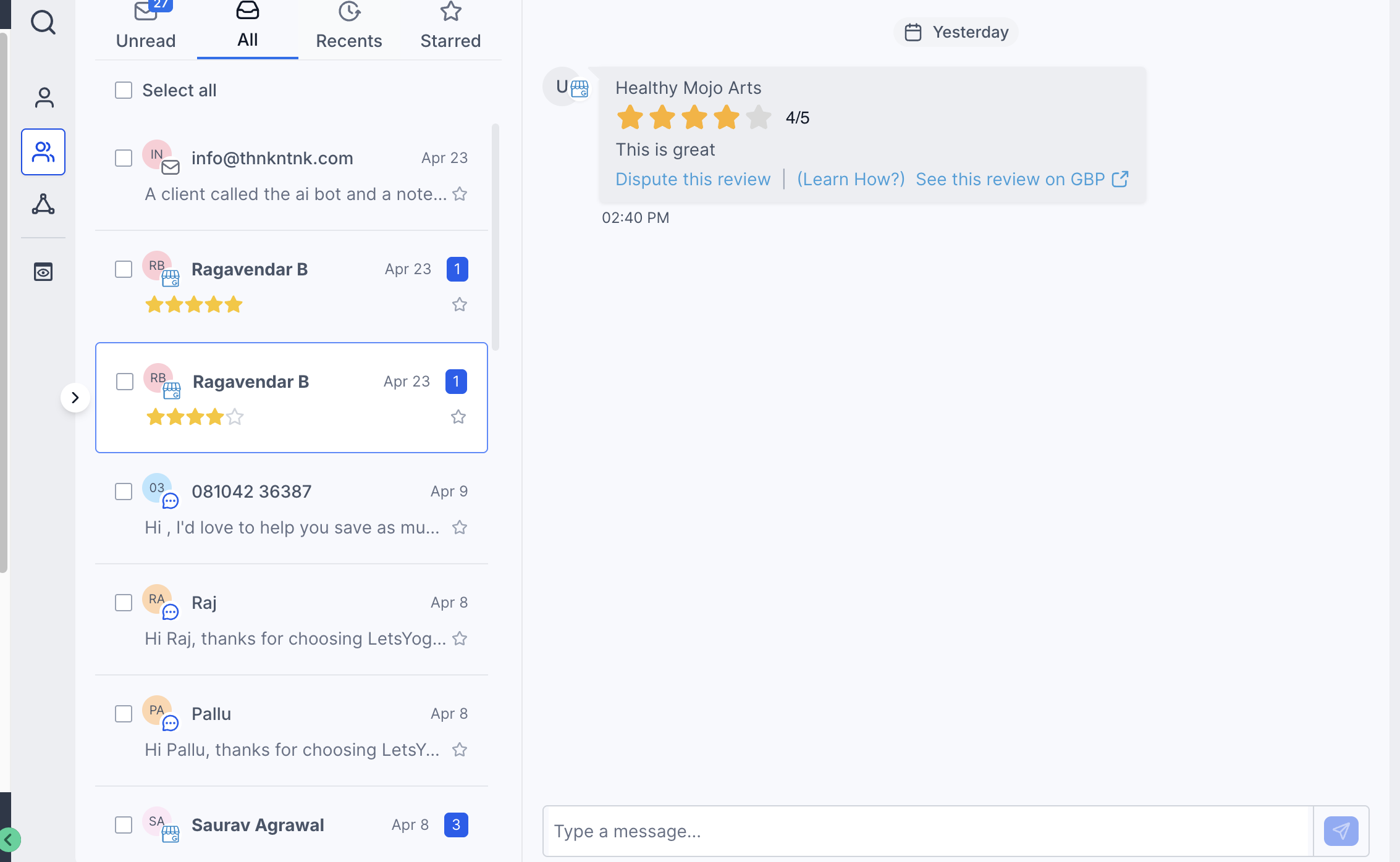
To report a Google review from within Aesthetix CRM, go to the Conversations tab, search for the contact whose review you want to report, and click Dispute this review.
You'll be prompted to confirm the Google email and business account associated with the Google Business Profile (GMB) review in question.
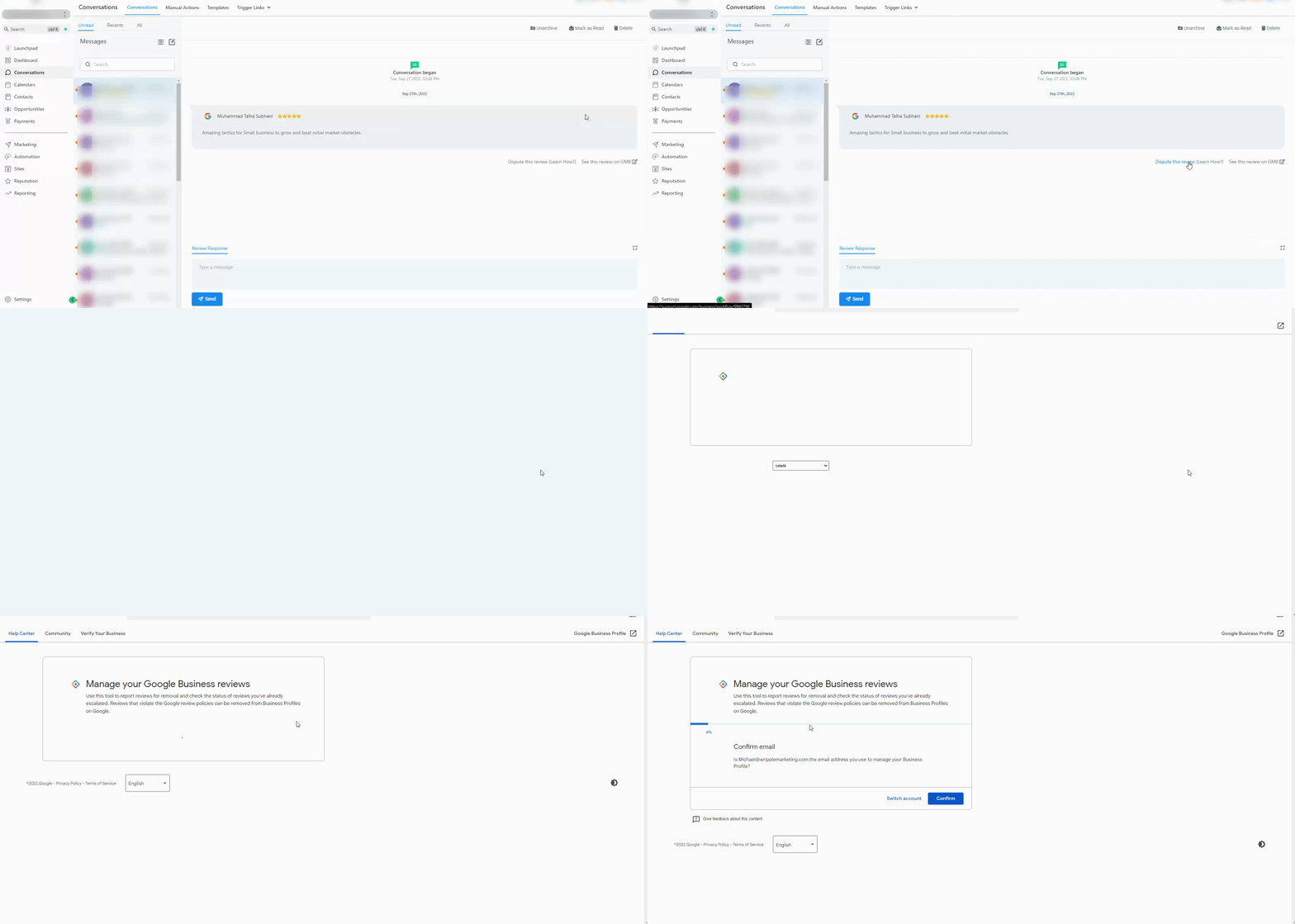
Next, choose whether you'd like to report a review or check the status of a review you've already reported.
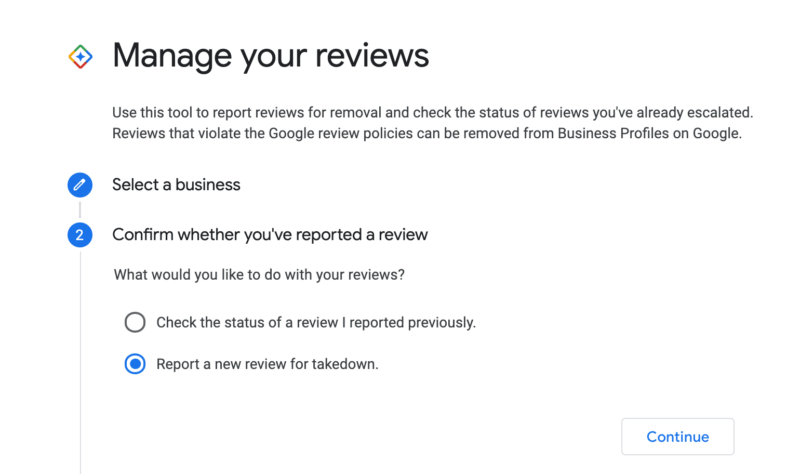
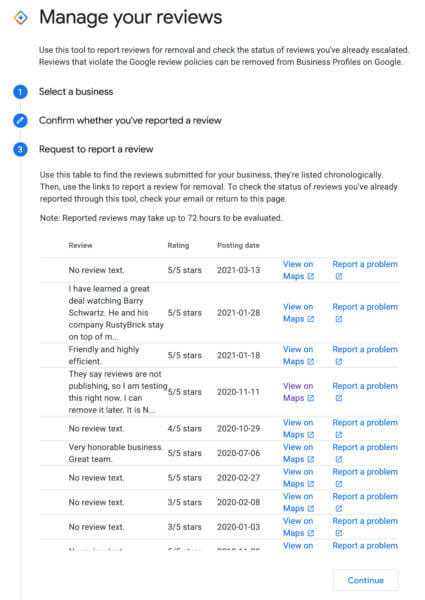
If you choose to report a new review for removal, Google shows a list of your recent reviews that you can click to view on Google Maps or submit a takedown request.
Note: In Conversations, Google review cards display the associated Google Business Profile page name. This helps you confirm which business page the review belongs to before you dispute or respond to it.
To check on the status of a review you've already reported, visit Google's review status page.
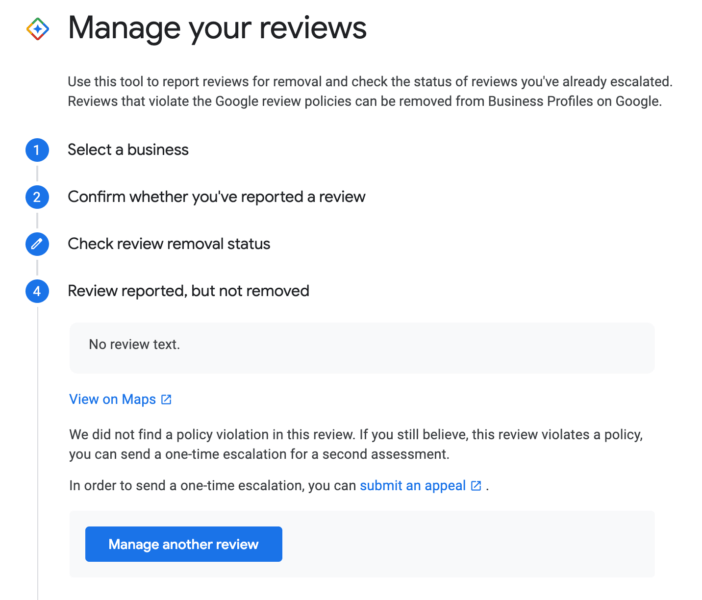
If you chose to check the status of a review you previously reported, Google shows those reviews, including their current status.
You can then select a review to see a summary and, if your takedown request was not accepted, submit an appeal.
Note: There is a limit to the number of reviews Google will show here. This feature tends to work only for Google Business Profile accounts with a small number of listings; accounts managing many listings may see a message that the process is not available.
