
The Reviews tab in Aesthetix CRM brings every review your practice receives into one place, so you can read, respond to, and organize feedback across platforms like Google and Facebook without hopping between accounts. This guide walks you through finding the tab and using its search, response, and filtering tools to stay on top of your reputation.
Opening the Reviews Tab
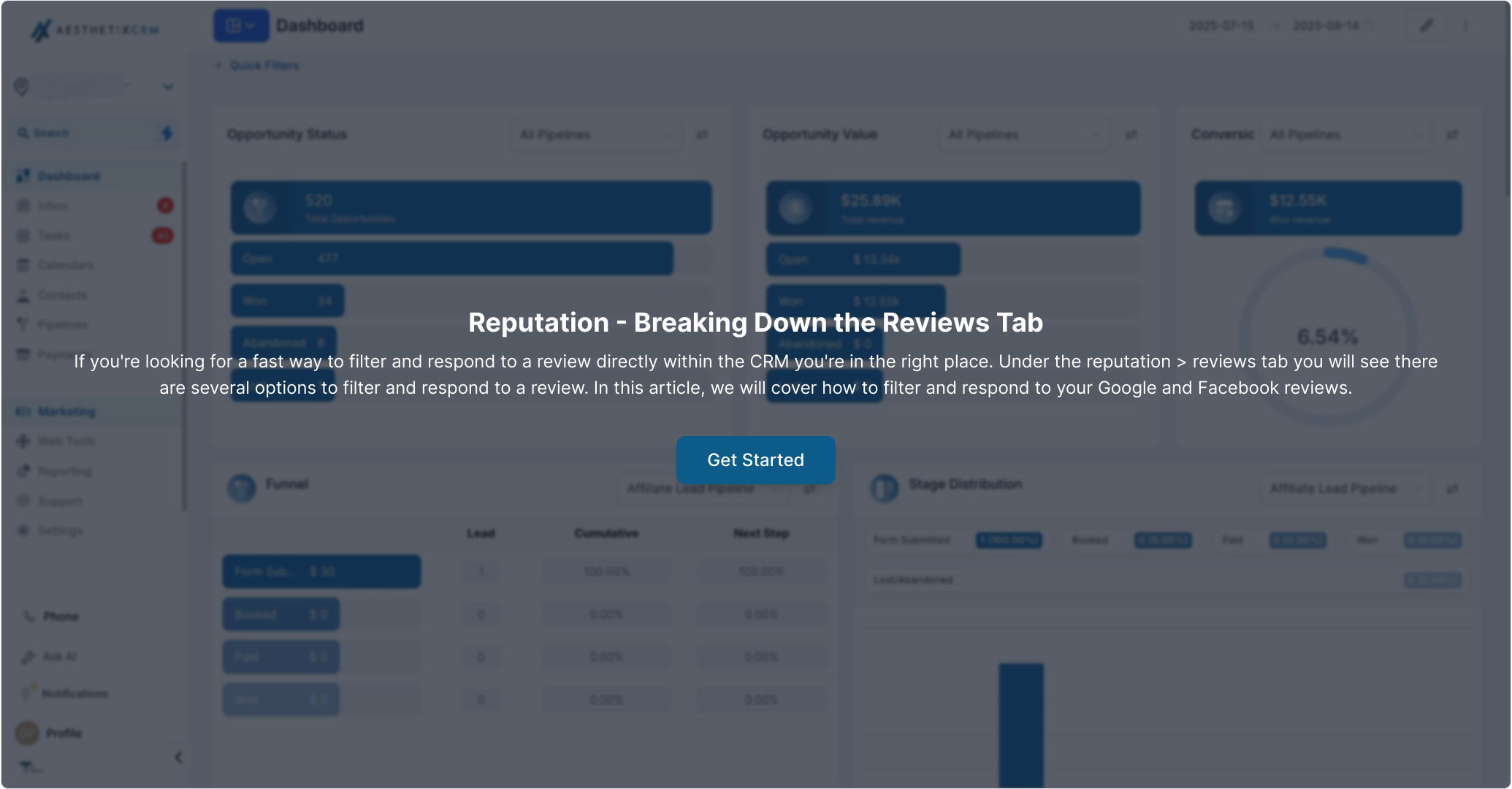
Start from your dashboard and open the reputation tools.
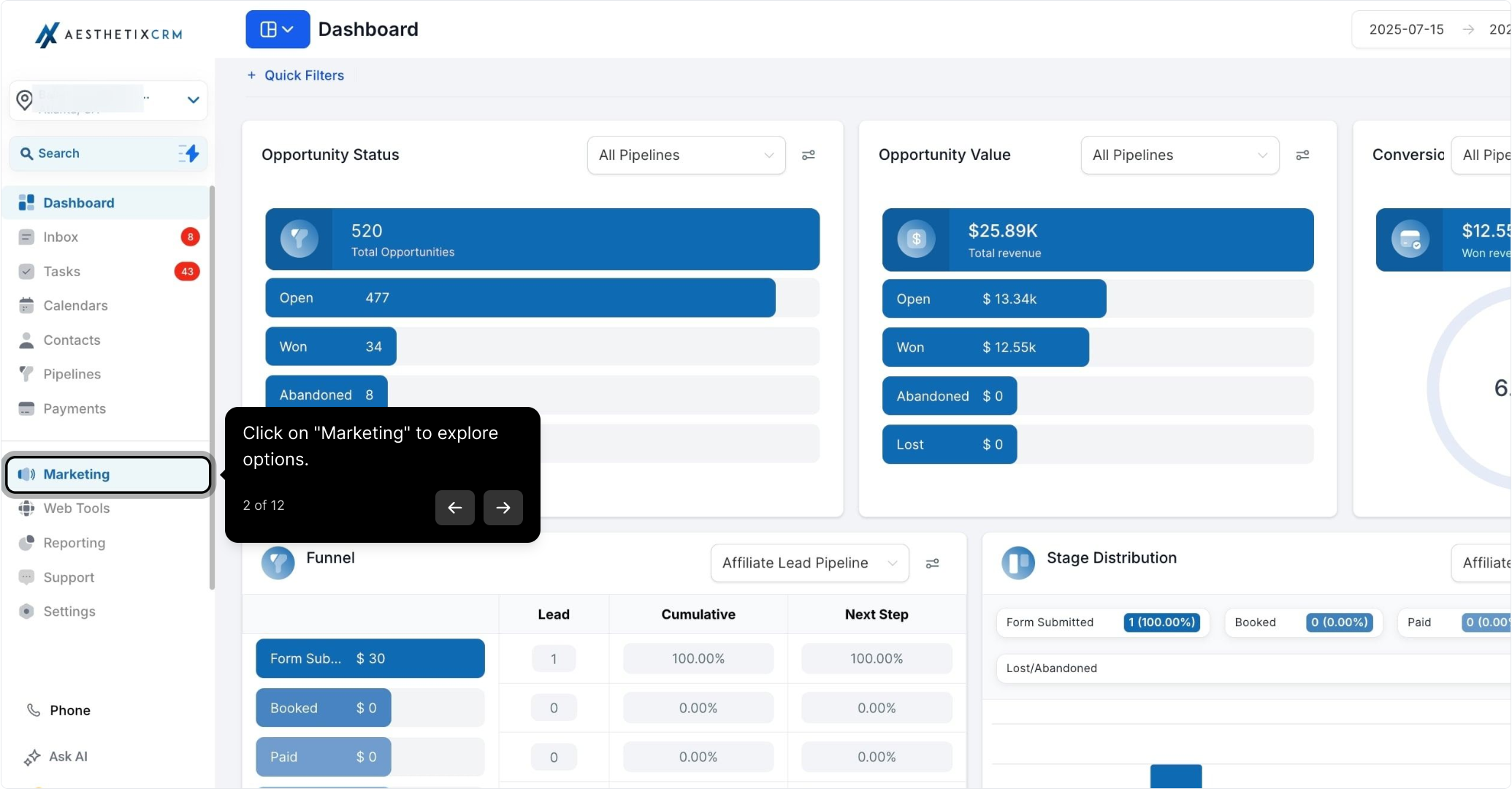
Click Marketing to explore your options.
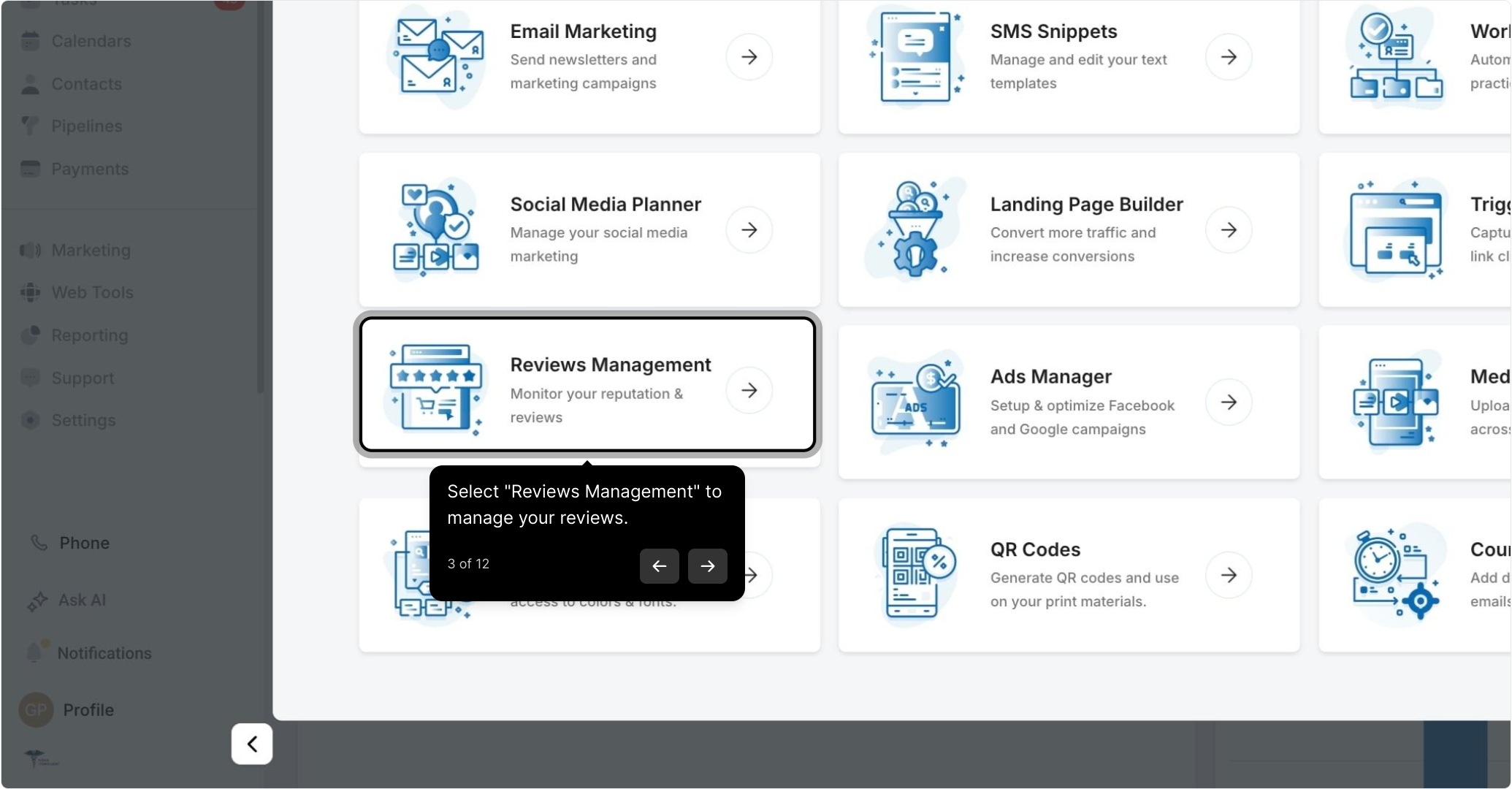
Select Reviews Management to manage your reviews.
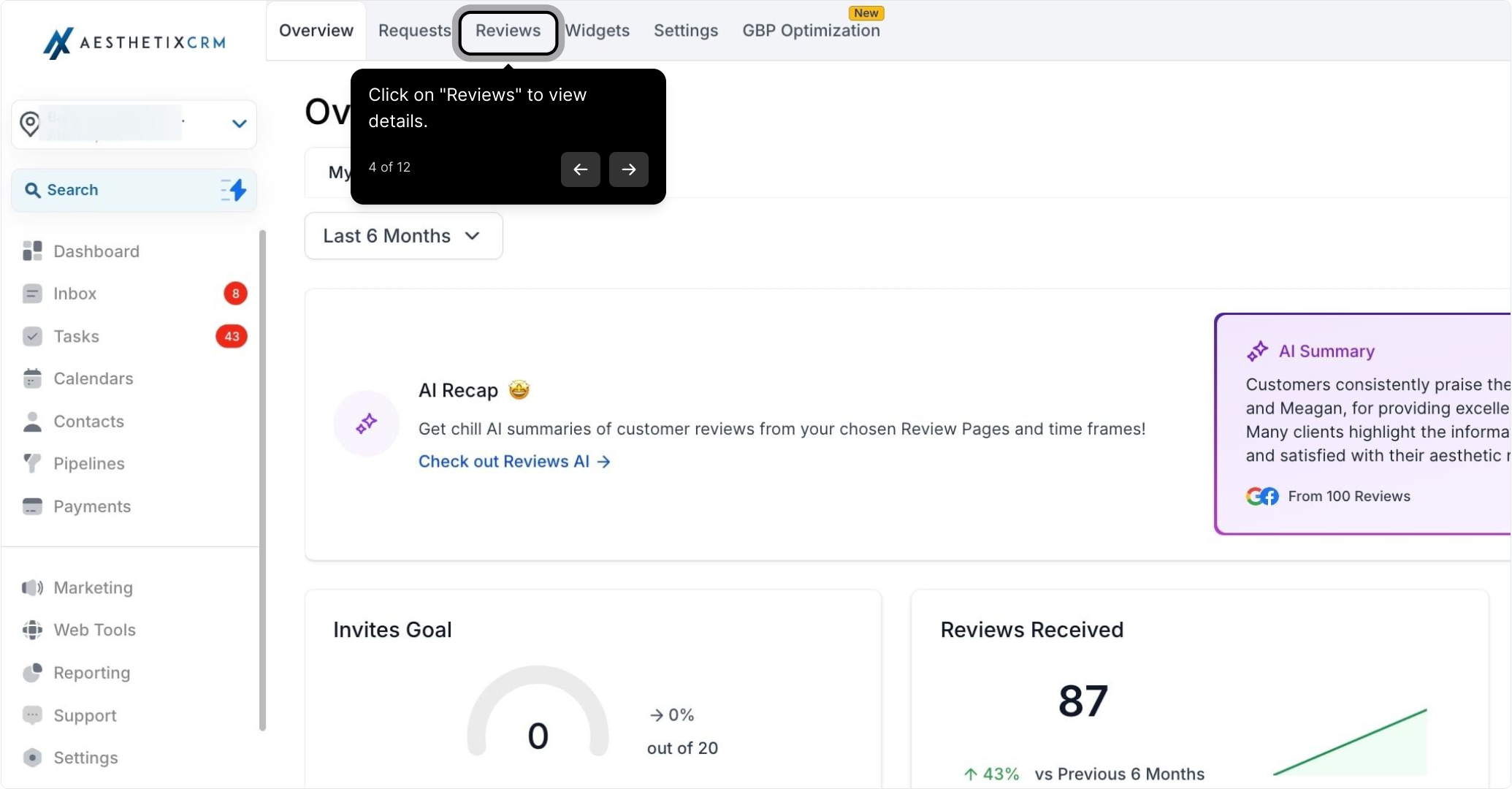
Click Reviews to view details.
Searching and Responding to Reviews
Once you're on the Reviews tab, you can quickly find specific feedback and reply to it directly.
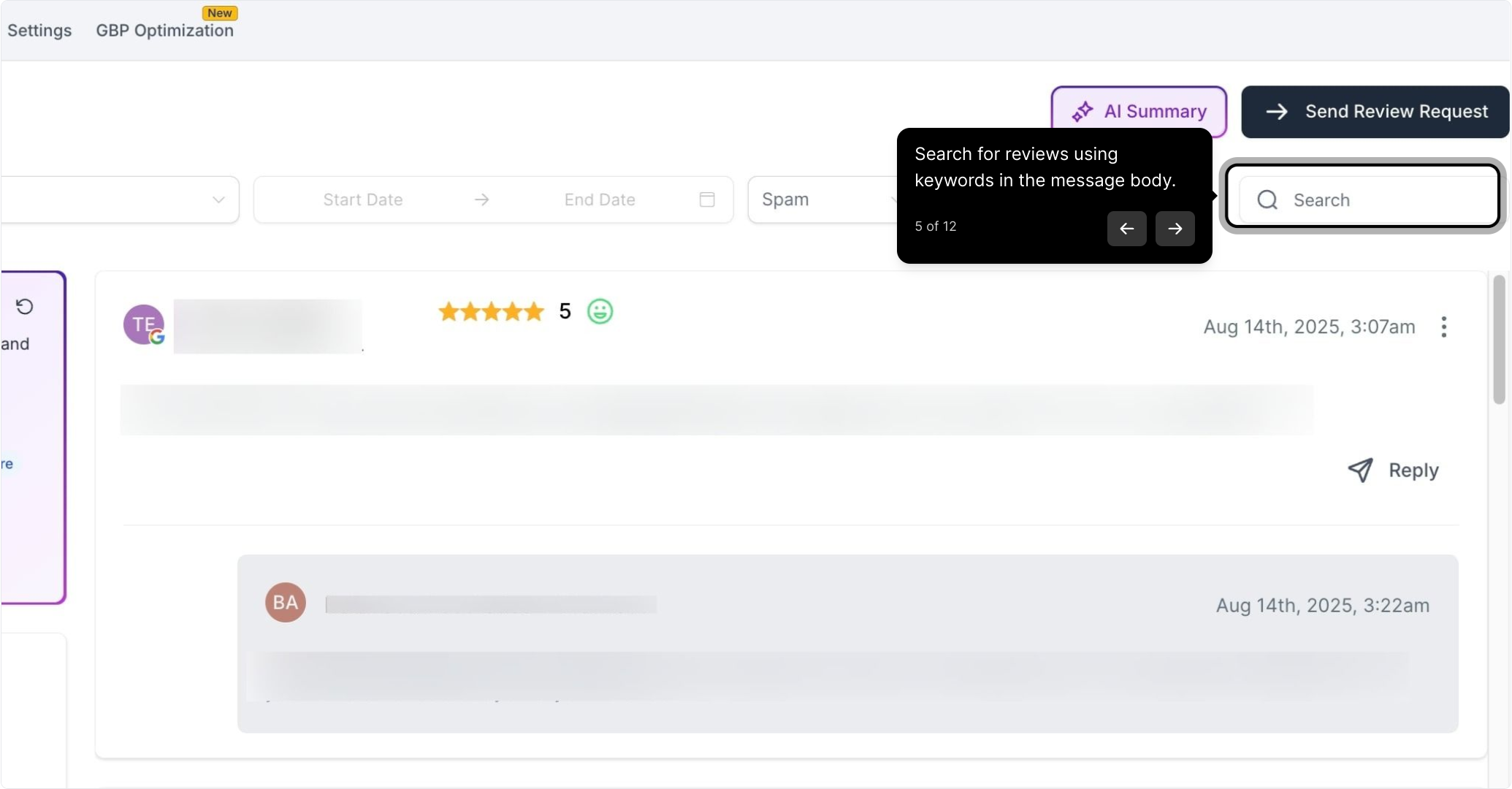
Search for reviews using keywords in the message body.
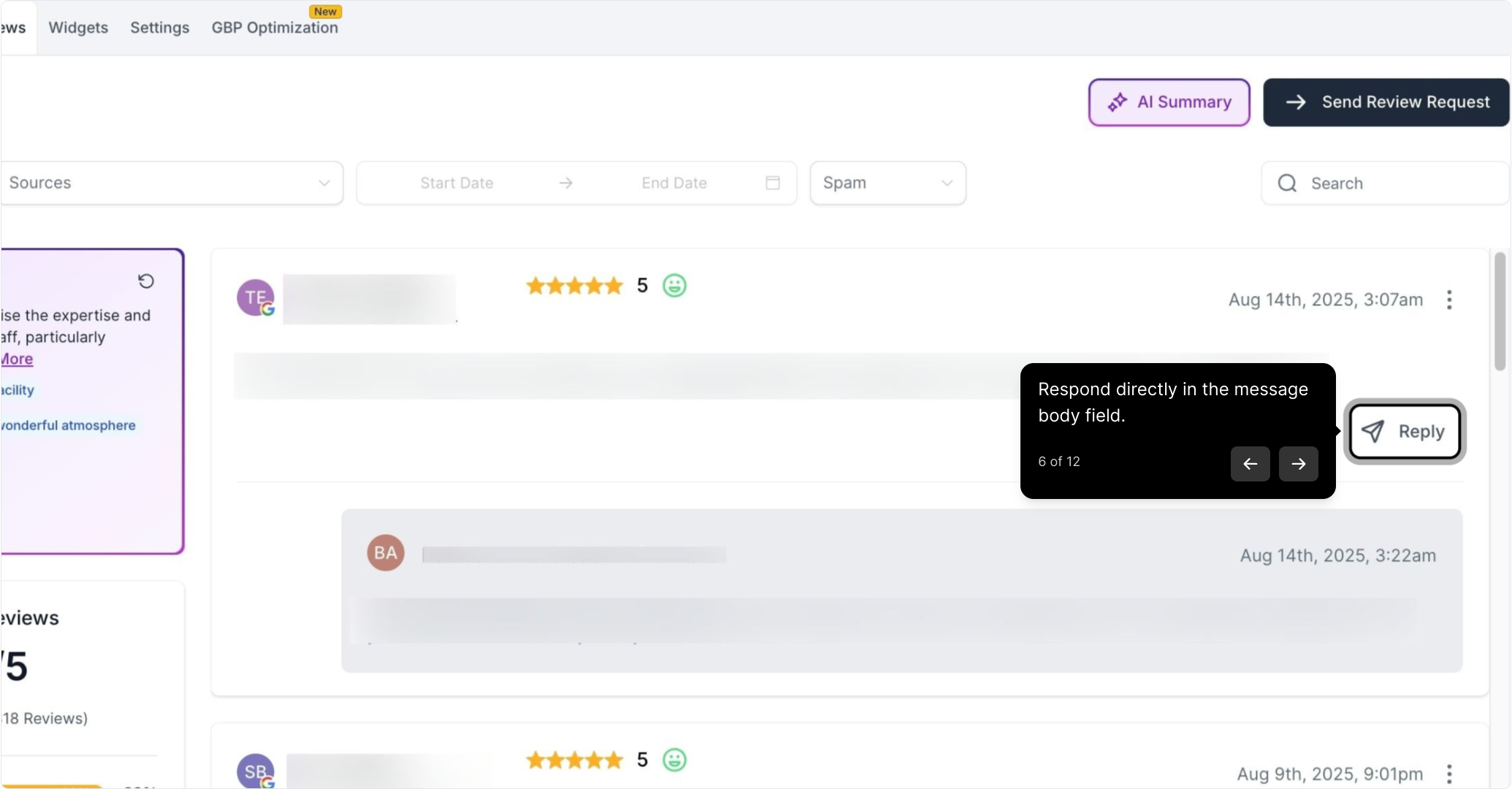
Respond directly in the message body field.
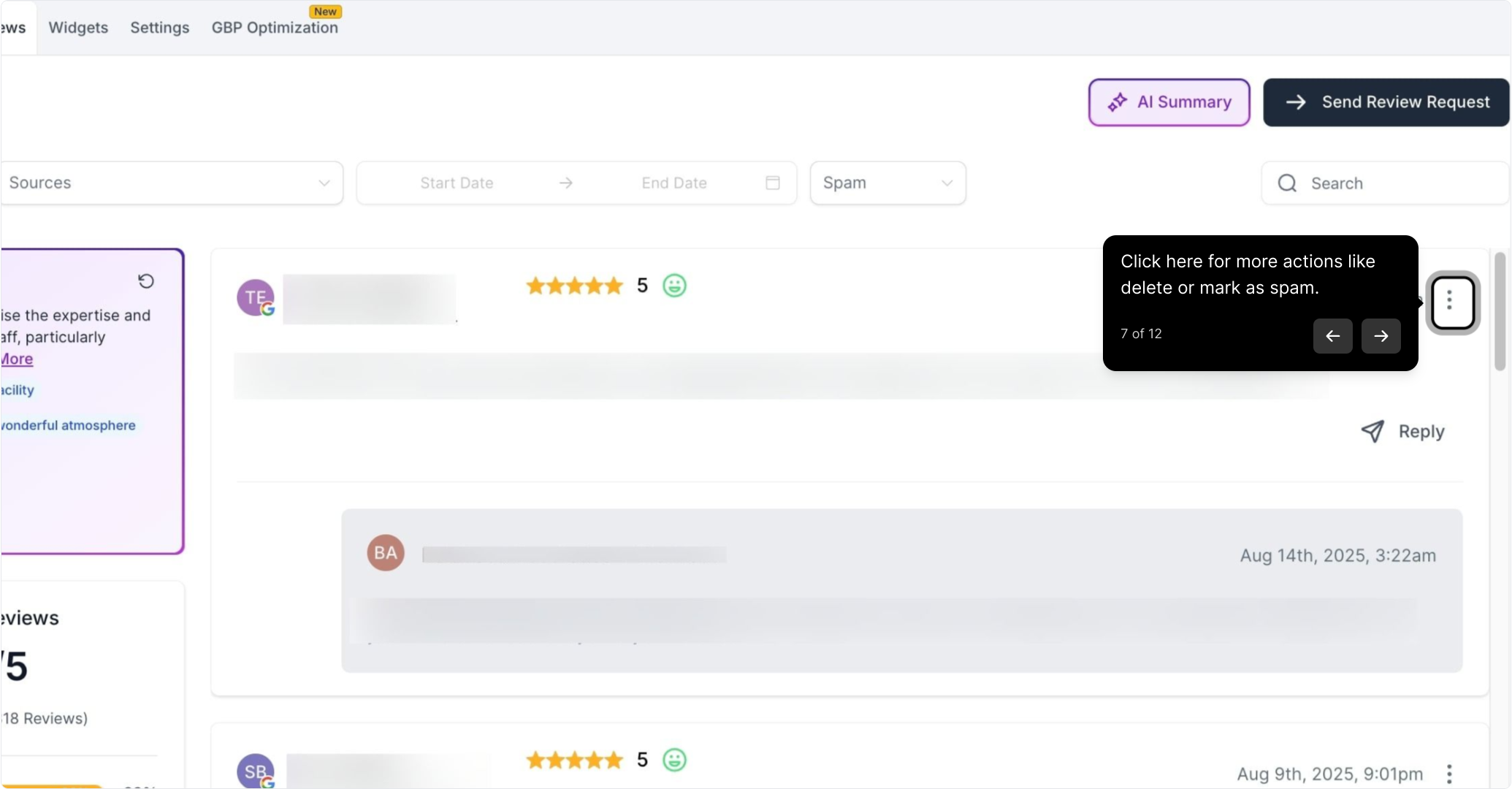
Click the actions menu for more options, like delete or mark as spam.
Filtering and Sorting Reviews
Use the filters to narrow the list down to exactly the reviews you want to see.
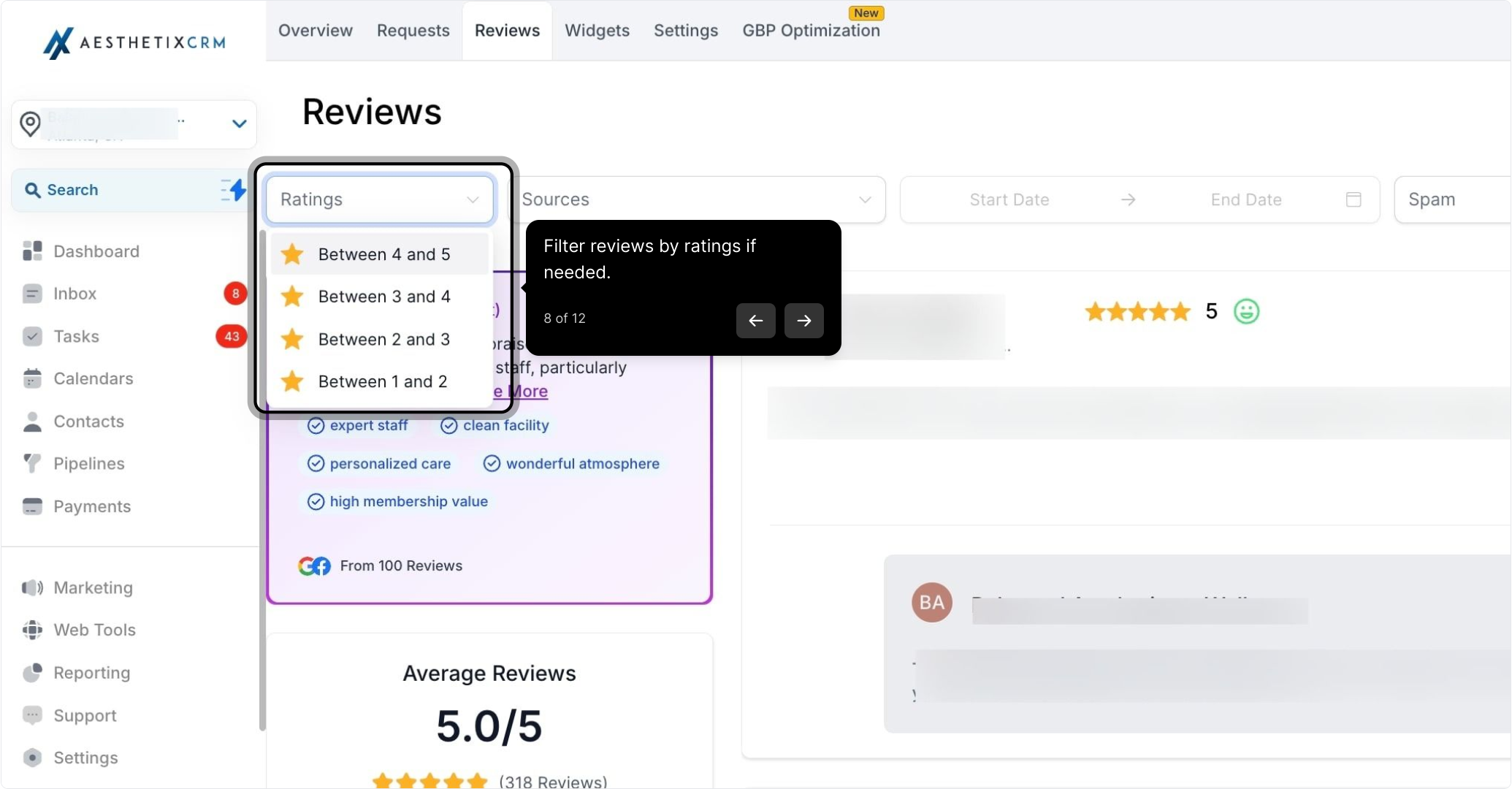
Filter reviews by ratings if needed.
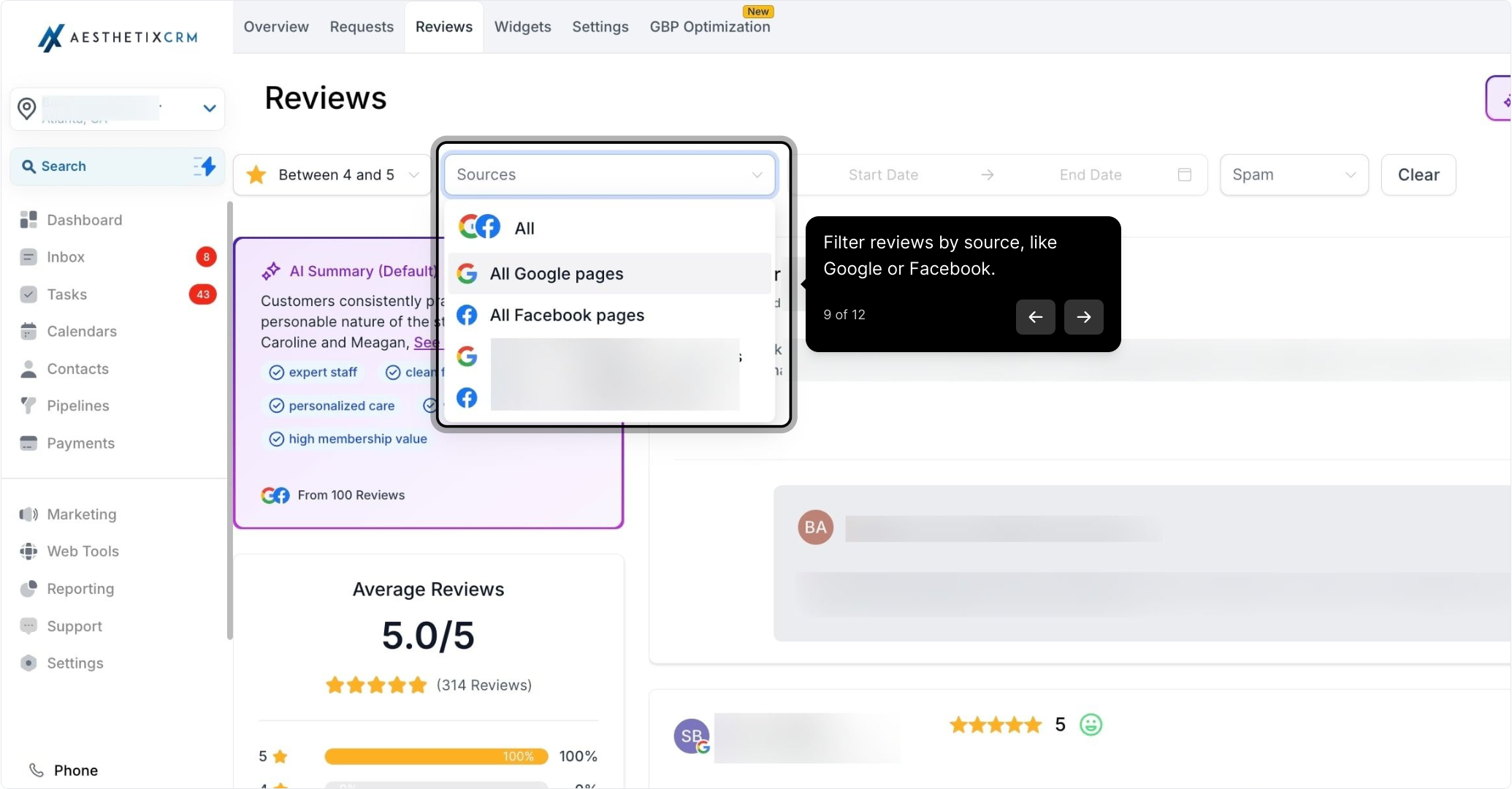
Filter reviews by source, like Google or Facebook.
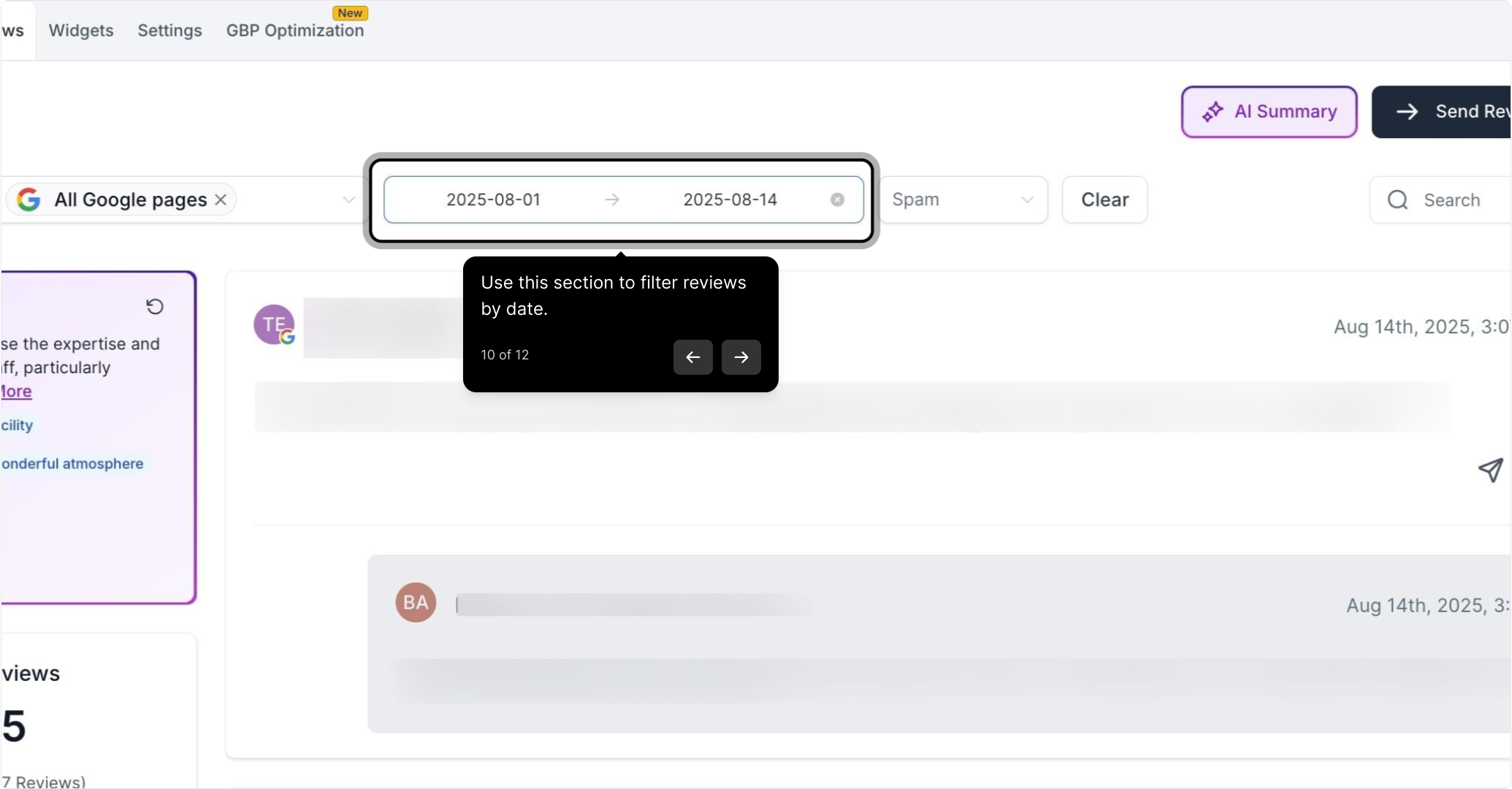
Use this section to filter reviews by date.
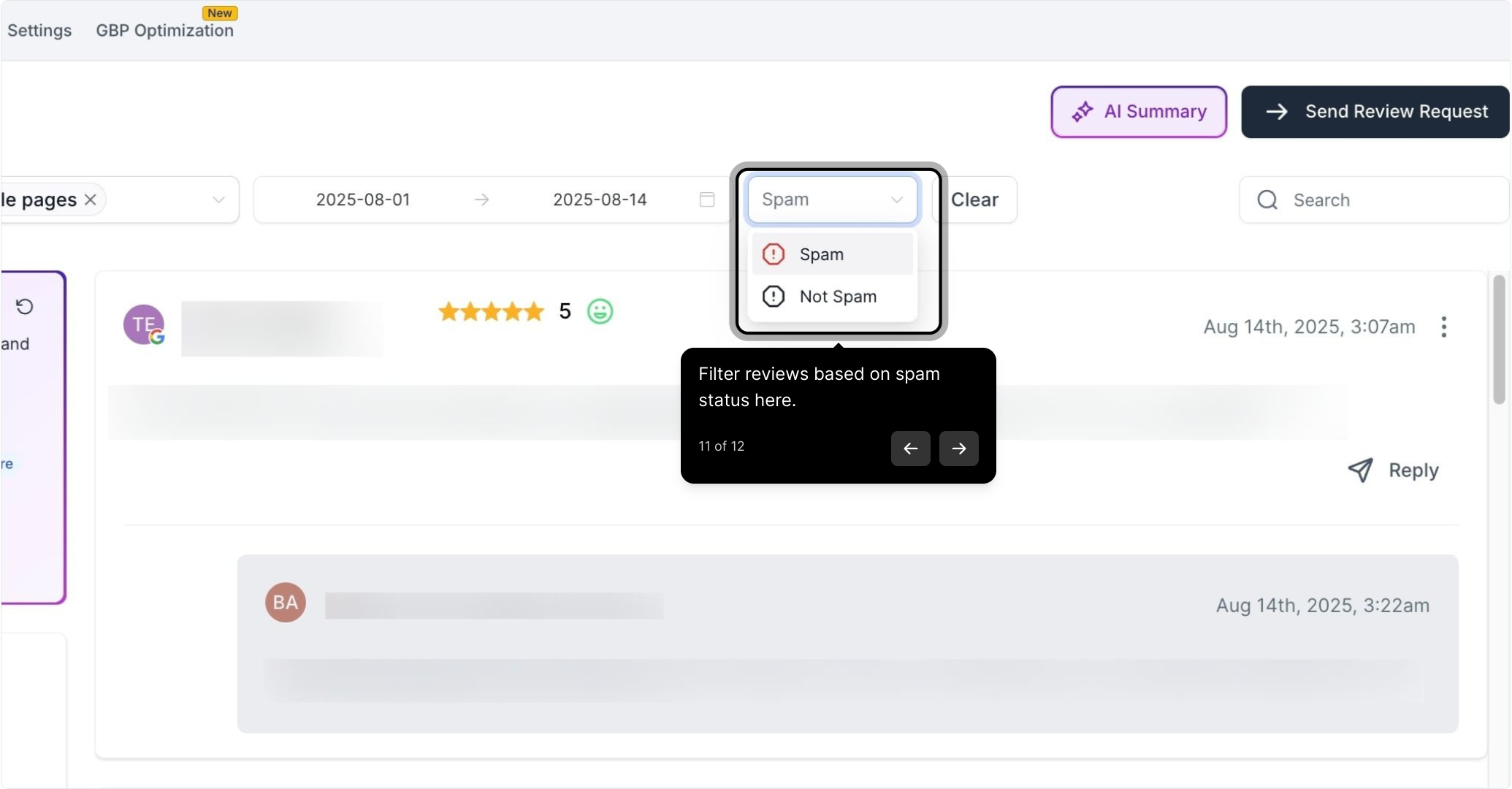
Filter reviews based on spam status here.
View client names and ratings in this section.
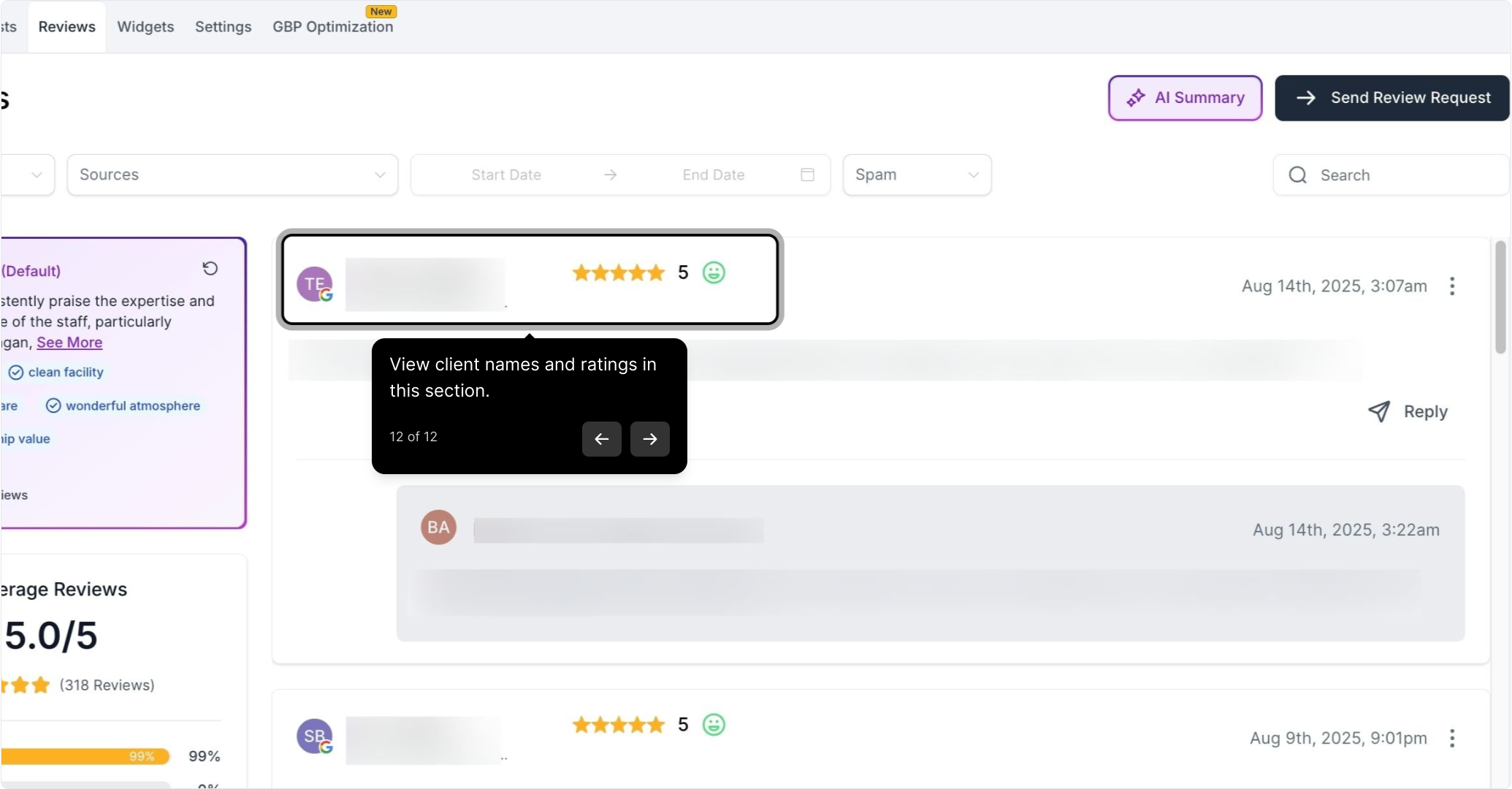
Note: The Reviews tab is for viewing, filtering, and sorting all incoming reviews across your connected platforms in one consolidated feed.