Web Chat lets you communicate with website visitors in real time through a chat widget on your site. Messages sent from the widget appear directly in the Inbox, where your team can manage them alongside SMS, email, and every other communication channel. This article explains how Web Chat works, how visitors' messages reach the Inbox, and how to manage Web Chat conversations once they arrive.
Note: Web Chat and Live Chat are two distinct experiences. Channel labels are kept consistent across Aesthetix CRM to clearly differentiate the two.
Web Chat enables visitors on your website to start a conversation instantly. When a visitor sends a message through the chat widget, the message is routed directly to the Inbox in your account.
Inside the Inbox, Web Chat messages appear in real time. Your team can open the thread, respond immediately, assign the conversation, or manage it just like any other channel. This centralizes website conversations so your team never has to switch between platforms.
Before Web Chat messages can reach your Inbox, you need to create and configure a chat widget. The widget is built and customized in the Chat Widget area, and you install its script on your website's footer or body section so visitors can begin messaging you.
Step 1: Create a new widget. Navigate to your Chat Widget settings and click + New to create a widget.
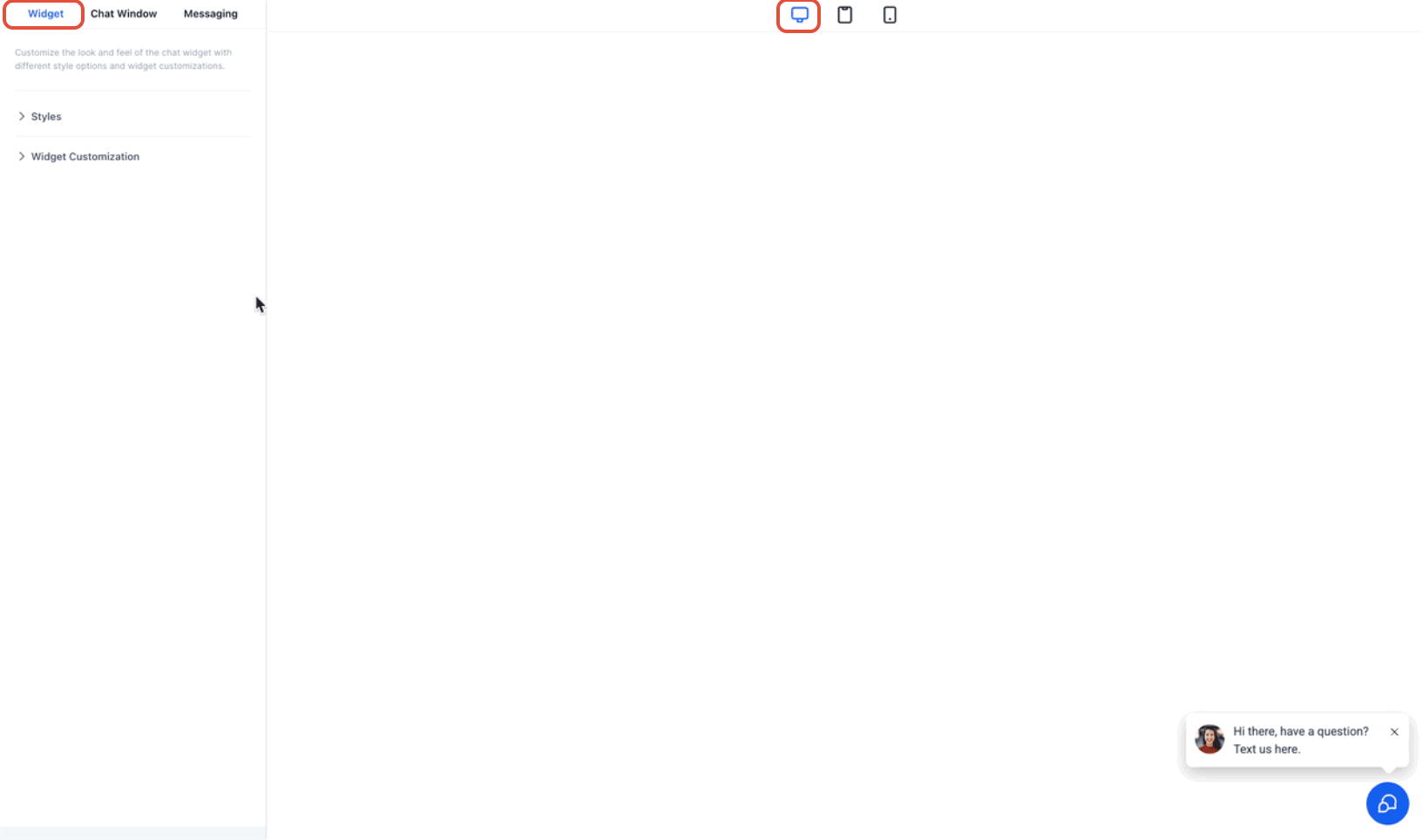
Step 2: Choose the chat type. When selecting the chat type, choose Live chat. Although the setup screen displays "Live chat," this option configures the Web Chat channel that routes website messages into the Inbox.
Step 3: Customize the widget settings. After selecting the chat type, customize the widget to fit your needs.
You can configure:
Intro message
Agent avatar and branding
Inactivity fallback message
Chat timeout message
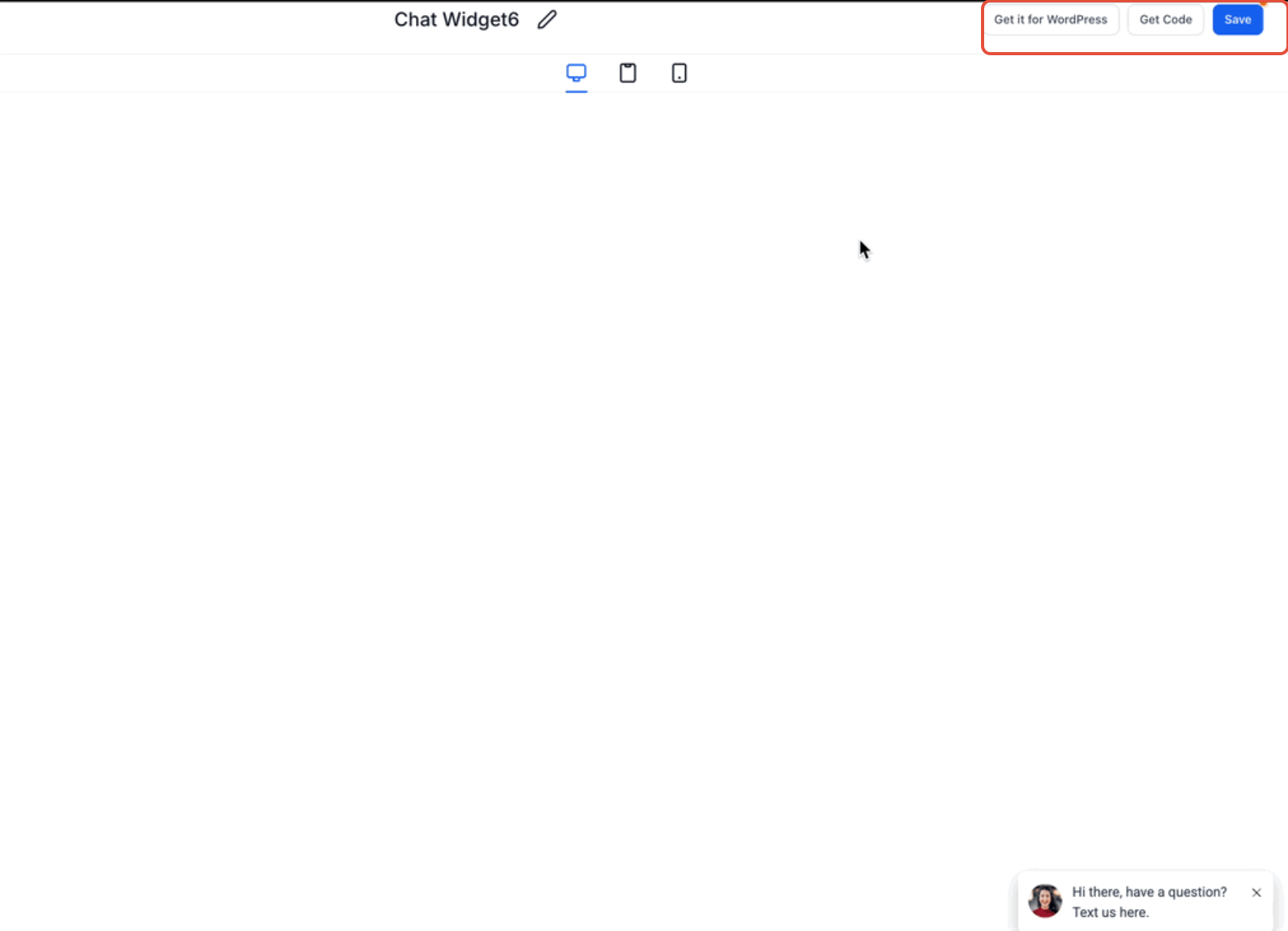
Step 4: Save and install the widget. Once configured, save the widget and install it on your website by copying the provided script into your website's footer or body section. After installation, visitors can begin sending Web Chat messages from your website.
For full setup and configuration details, see the Chat Widget collection.
When a visitor sends a message, it appears instantly inside the Inbox.
Web Chat conversations can be identified by the chat icon in the Inbox. Open the thread to respond in real time. Replies you send are delivered straight back to the visitor in the chat widget while they are still on your site. If the visitor leaves the page, the conversation can continue by SMS handoff so follow-up is never lost. Conversations can be assigned manually or automatically to team members using workflows or ownership rules.
Step 1: Filter to Web Chat messages. To focus only on Web Chat messages, use the filter option inside the Inbox.
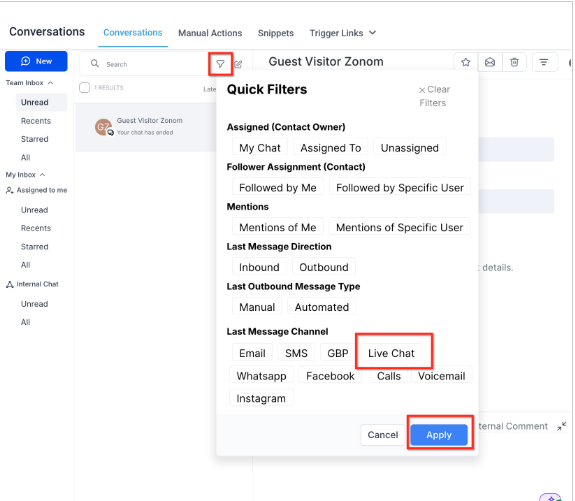
Step 2: Select the channel. Under Last Message Channel, select Live Chat and apply the filter. This displays only Web Chat conversations originating from your website.
Step 3: End the chat when finished. When a conversation is complete, use the End Chat option. Chats can also close automatically based on the inactivity settings configured in the widget.
How do I ensure Web Chat messages appear in the Inbox?
Install and enable the chat widget, then select Live chat in your Chat Widget settings. Messages will automatically route to the Inbox.
Why does the setup screen say "Live chat" if this is Web Chat?
The widget setup currently uses the label "Live chat," but it configures the Web Chat channel that routes website conversations into the Inbox.
What happens if no one responds to a Web Chat message?
If no team member responds within the configured inactivity time, the fallback message prompts the visitor to leave their contact details so follow-up can continue later, typically by SMS.
Can Web Chat conversations be assigned to specific team members?
Yes. Conversations can be assigned manually or automatically using workflows and assignment rules.
Can I filter only Web Chat conversations?
Yes. Use the filter option in the Inbox and select Live Chat under the Last Message Channel filter.
