Ask AI is the built-in AI assistant inside Aesthetix CRM. Whether you need content written in your brand voice, want to summarize a contact's account activity, build a funnel or knowledge base, or just need a quick answer, Ask AI can help without making you jump between tools or tabs. You can type or speak your requests in plain language, and Ask AI responds instantly or guides you through a task step by step.
This guide covers what Ask AI can do, how to open and use it, and how to get the most out of its capabilities.
Note on PHI: Don't enter protected health information (PHI) into Ask AI. AI features aren't approved for processing PHI — use them for productivity, communication, scheduling, and engagement, not to store or process medical records. See the HIPAA Compliance guide for details.
Ask AI is a built-in AI workspace that helps you create content, get answers, generate assets, and complete supported actions without leaving Aesthetix CRM. It is designed to reduce screen switching by letting you work through natural-language prompts from one place. Ask AI also supports a full-screen experience for focused, high-volume work.
You can type prompts or use voice input to speak instructions directly into Ask AI. This makes it easier to move quickly through tasks such as creating content, asking questions, or requesting supported actions.
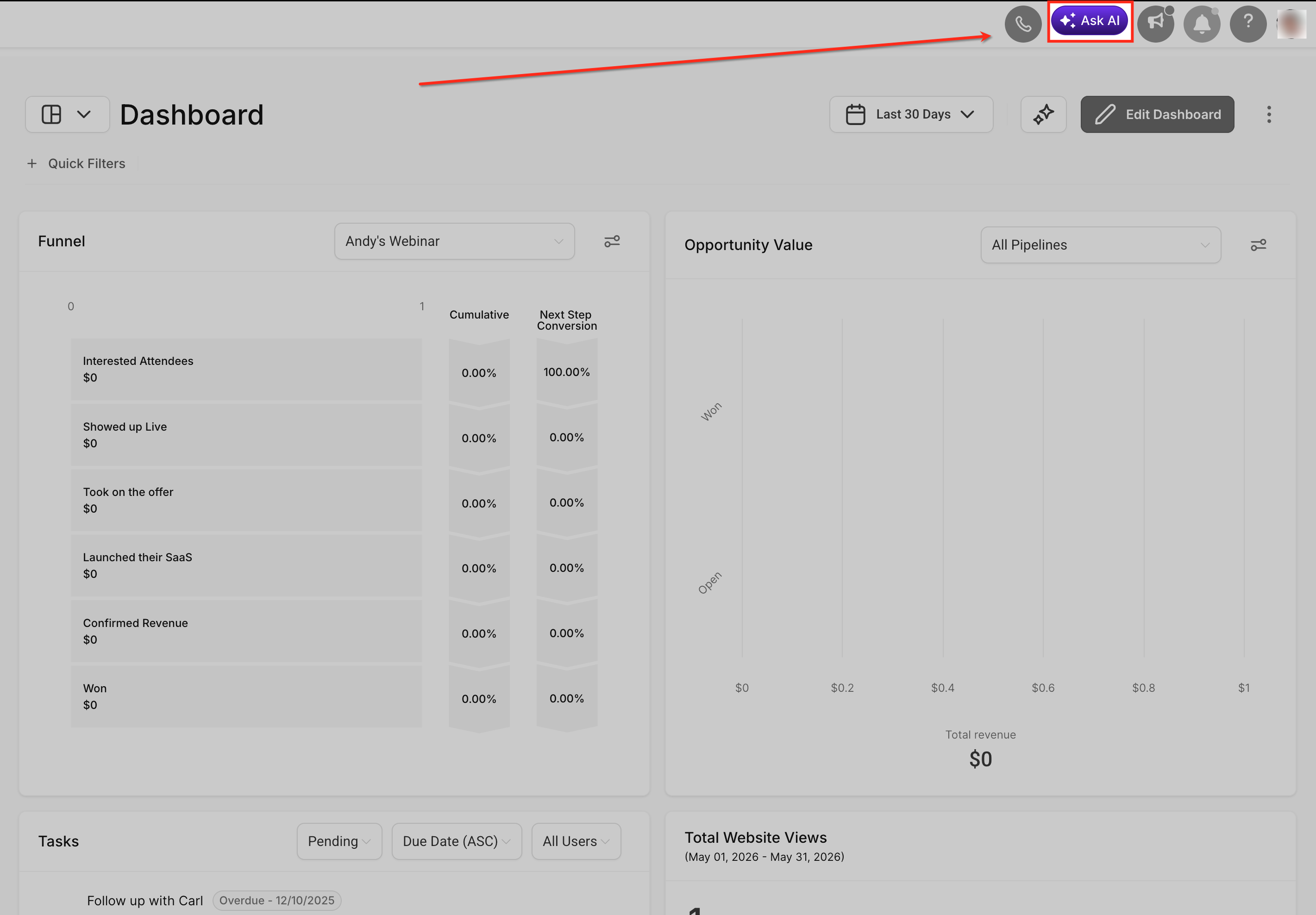
For current pricing, see the pricing page. Look for the Ask AI icon in your top navigation bar or as a dedicated item in the left navigation menu.
Note: To generate personalized, on-brand content, configure your Brand Voice first under Marketing > Branded Content > Brand Voice.
Here is a closer look at what Ask AI currently supports:
Capability | Description | Example Prompts |
|---|---|---|
Branded content generation | Generate content using your Brand Voice settings for more consistent messaging across emails, social posts, ads, and campaigns. | "Write a social media post using my brand voice.""Create a caption for our spring promotion." |
Answer questions and generate ideas | Get quick answers, campaign inspiration, content ideas, CTA suggestions, or guidance on how to approach a task. | "Give me blog post ideas about SMS marketing.""Suggest CTA ideas for a lead magnet campaign." |
CRM actions and data retrieval | Find, review, and act on CRM information faster using supported actions and natural-language requests. | "Show me tomorrow's booked appointments.""Create a contact named John Doe with phone number 555-1234." |
Contact Summary Agent | Summarize a contact record, including communications, payments, appointments, and tasks, without reviewing multiple tabs. | "Summarize this contact.""What should I know before following up with this lead?" |
Funnel Creation Agent | Create funnels through a guided experience using your business details, templates, brand personalization, and native elements. | "Generate a lead magnet funnel.""Create an appointment funnel for my med spa." |
Knowledge Base creation | Build a Knowledge Base and attach it to Conversational AI or Voice AI from a single guided workflow. | "Create a Knowledge Base from my website and attach it to Conversational AI." |
Image generation and editing | Generate and edit images for campaigns, websites, emails, and social posts. | "Generate an image for a summer sale campaign.""Edit this image to make it brighter and more modern." |
Blog post generation | Brainstorm topics, outline, and produce long-form, SEO-friendly drafts in one place. | "Write a 1,500-word blog post on how SMS marketing boosts appointment bookings." |
Supported actions | Complete supported actions from chat, such as creating contacts, updating opportunities, listing or rescheduling appointments, applying tags, or making supported bulk updates. | "Tag all contacts from last week's webinar as Webinar-2025.""List opportunities lost this week." |
Video and audio generation | Generate short cinematic video clips and natural-sounding voiceovers from a script, with control over duration, orientation, and voice. | "Generate a 6-second vertical video of a spa treatment room with soft lighting.""Turn this script into a voiceover." |
Multi-threaded conversations | Run several Ask AI conversations at once and let them keep working in the background while you do other things. | "Draft a blog post while I summarize this contact in another chat." |
App connectors and Skills | Connect Ask AI to outside apps like Notion or GitHub, and save reusable instruction sets (Skills) it applies automatically or on command. | "Connect my Notion workspace.""Save this as a skill for writing appointment reminders." |
Automated Triggers | Run a saved Skill automatically when a CRM event happens, such as a new contact, form submission, or appointment status change. | "When a new contact is created, send a personalized welcome message using our brand voice." |
You can launch Ask AI from the top navigation bar for fast access while working anywhere in the platform, or from the left sidebar when you want the dedicated full-screen workspace.
The top navigation route is the fastest way to open the assistant while working in another area.
Click the Ask AI icon in the top navigation bar.
Type in or Speak what you need: content, ideas, or questions.
Ask AI will guide you or respond instantly with what you asked for.
You can start with something like:
"Give me blog post ideas about SMS marketing."
"Write a social media post using my brand voice."
"Show me tomorrow's booked appointments."
You can also view chat history and return to older chats using the toggle next to the full-screen toggle.
Ask AI opens in a full-screen workspace, so it is not a chatbot tucked in a corner. Use it to focus on real work and complete higher-volume tasks.
In your account, look at the left navigation panel.
Click Ask AI (it appears as a dedicated menu item).
In the Ask AI workspace, you can:
Click New chat to start a fresh thread.
Use Search to find previous conversations (if available).
The Ask AI workspace gives you one place to start conversations, enter prompts, review responses, and continue working. It includes a welcome screen, message composer, conversation view, and sidebar.
When you open Ask AI, you may see suggested prompts to help you start quickly. These prompts are optional. You can use them as-is, edit them before sending, or type a custom prompt to ask a question, generate content, or begin a supported workflow.
Responses appear in the conversation view and may include paragraphs, headings, bullet points, numbered steps, links, structured cards, or other formatted content. Some structured responses appear in collapsible cards, which keep longer conversations organized by letting you expand additional details only when needed.
The sidebar helps you manage conversations from one place. You can review previous sessions, return to an existing conversation, or start a new chat when you want to begin a separate task. If you have no conversations yet, the empty state reminds you that you can begin by starting a new conversation or using a suggested prompt.
Ask AI preserves chat state by including the conversation ID in the URL. This lets you return to the same conversation after navigating away. It is useful when Ask AI is helping with a task that requires checking another area of the platform: you can leave the conversation, review another page or setting, and come back to the same Ask AI conversation without losing your place.
These examples show how Ask AI turns simple prompts into guided actions.
Click the Ask AI icon in the top navigation bar.
Type your request, for example: "Create a new social media post for our spring offer of 20% off all services." (Make sure Brand Voice is set up for personalized content.)
Ask AI pulls in your Brand Voice settings and returns a ready-to-use draft. You can ask it to refine or modify the text to meet your needs.
Click Create draft, or make further changes, then execute accordingly.
Use Ask AI to set up a Voice AI agent and route urgent calls using a Call Transfer action.
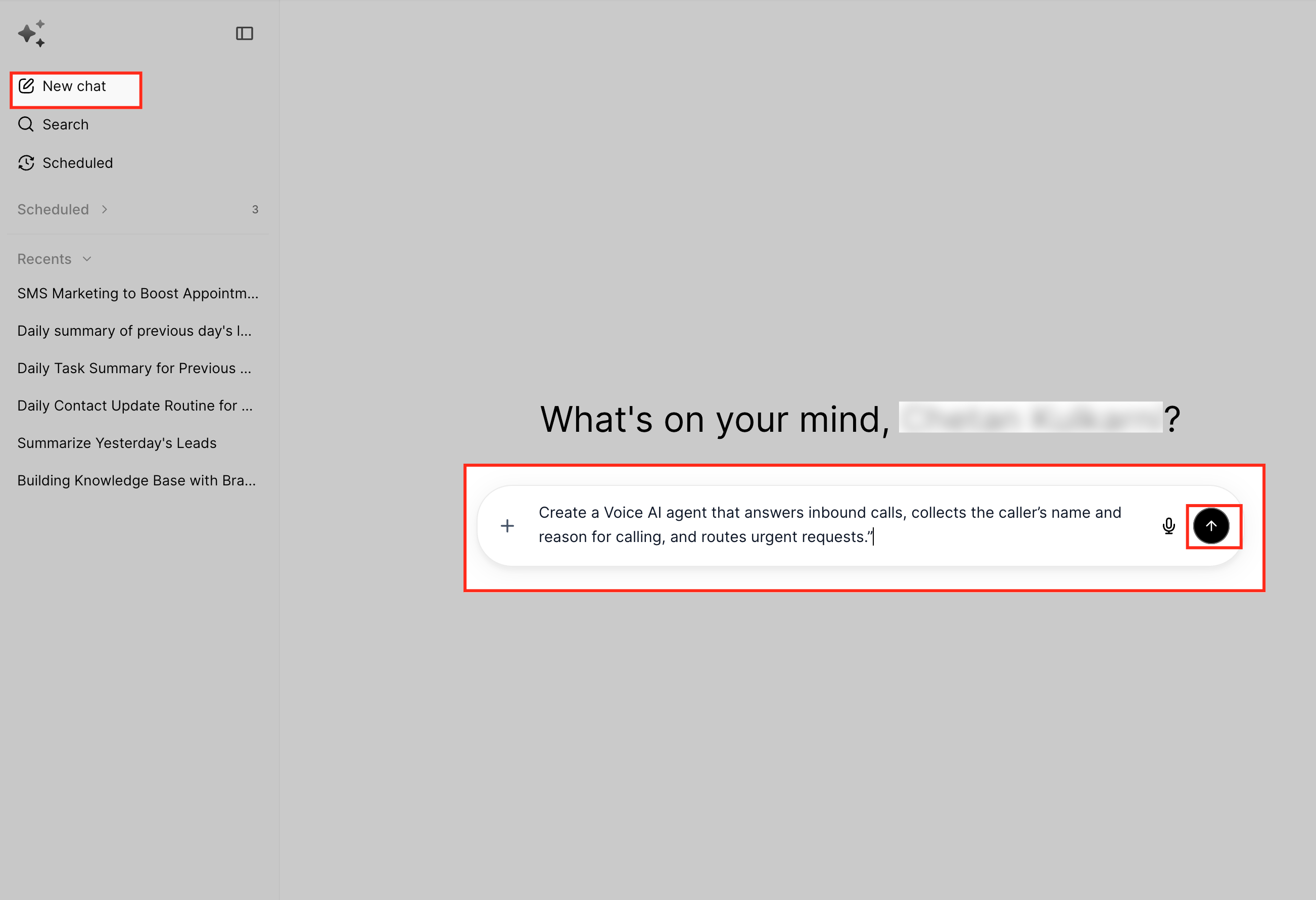
Open Ask AI and enter a prompt like: "Create a Voice AI agent that answers inbound calls, collects the caller's name and reason for calling, and routes urgent requests."
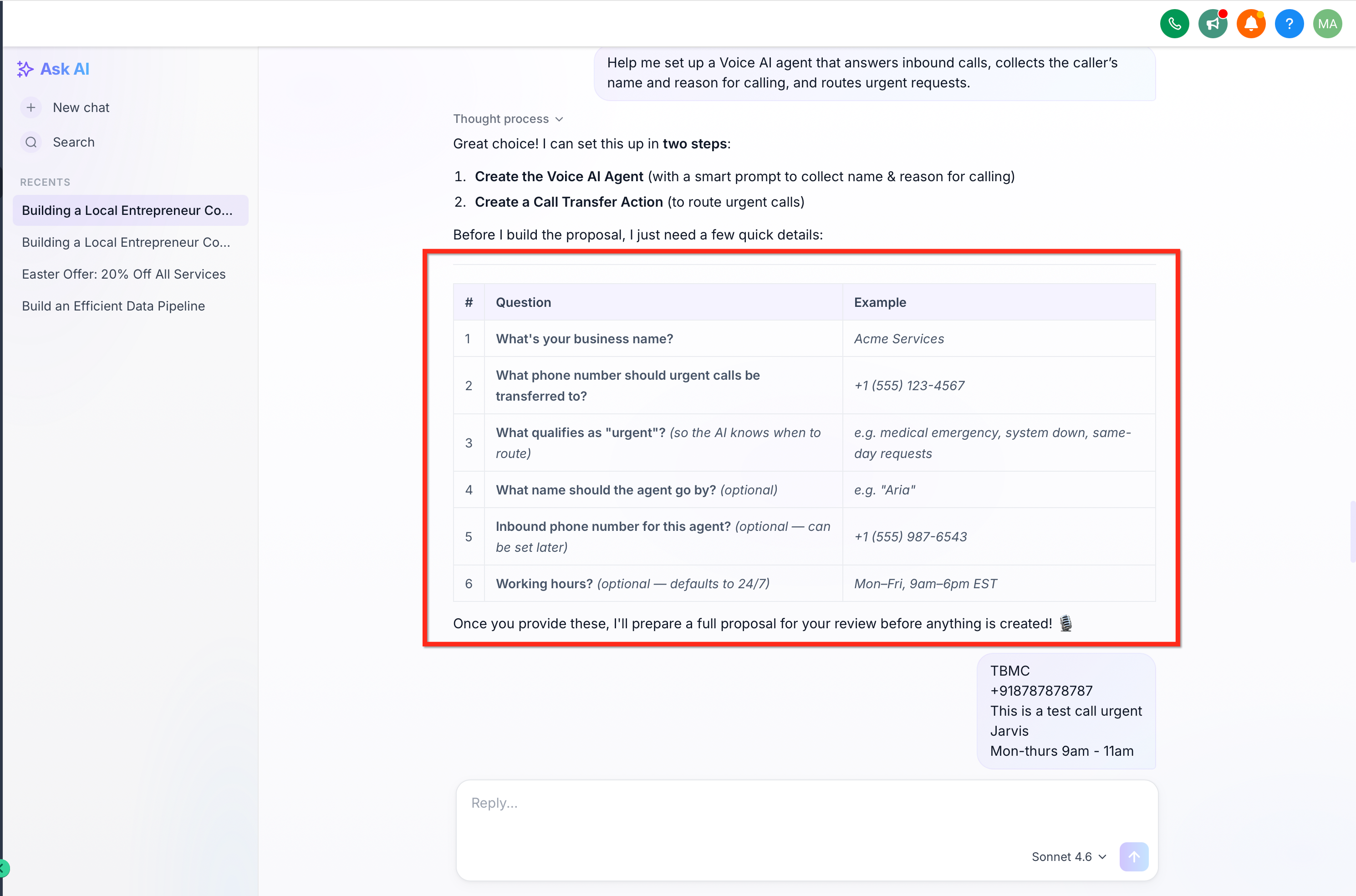
Answer the setup questions the assistant asks. It collects a few quick details before creating anything, such as your business name, the phone number to transfer urgent calls to, what counts as "urgent" (so it knows when to route), and the agent's name. Enter the details as prompted.
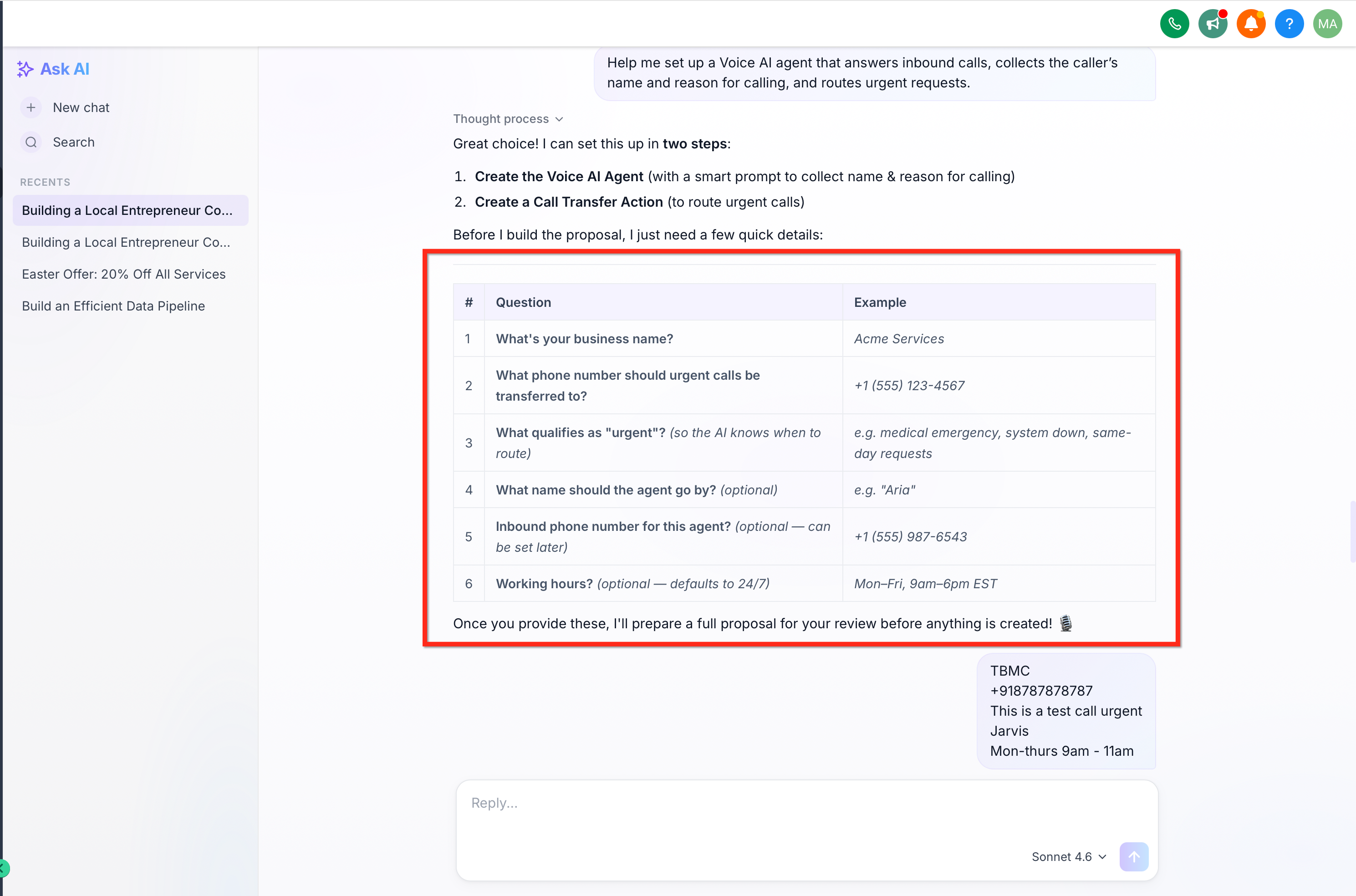
Review the proposal, then confirm creation. Once you provide the details, Ask AI prepares a proposal for your review. After you confirm, it creates the Voice AI agent.
Test the setup with an inbound call, or use Test Your Agent, to confirm urgent calls route correctly.
The Contact Summary Agent instantly summarizes a contact record and answers detailed questions about any contact, consolidating scattered information, such as communications, payments, appointments, and tasks, into a single, easy-to-understand summary. It is especially valuable for teams managing large volumes of contacts, turning fragmented account records into clear overviews that support faster follow-ups and better decisions.
Instant contact summaries
View recent communications and activity logs at a glance.
Access financial insights, including total payments and outstanding balances.
See upcoming appointments and booked sessions.
Identify open tasks and deal opportunities.
Analyze engagement trends across different systems.
Conversational Q&A
Ask natural questions like "When was our last interaction with this contact?" or "What's their payment history?"
Receive quick, human-like answers without any setup or training.
Eliminate the need to search through multiple tabs or records.
Time savings and improved accuracy
Reduce manual data gathering and interpretation.
Always have the latest, most relevant information at your fingertips.
Open Ask AI.
In the chat window, click the "Summarize a contact" suggestion, or type a prompt such as "Summarize a contact" and submit it. You can also ask specific questions about a contact's history, payments, tasks, or appointments.
Select your desired contact from the list of existing contacts and submit.
The agent instantly generates a summary or answer using the latest data from across your account. Use the insights to follow up, schedule meetings, or update records.
The agent understands natural language, so you do not need to memorize commands. Ask open-ended questions like:
"What tasks are pending for John Doe?"
"When is Jane Smith's next appointment?"
"How much has Michael Johnson paid so far?"
You can also combine summary and specific queries for deeper insights.
The agent pulls from a wide range of contact-related data sources:
Communication logs (emails, calls, SMS)
Notes and activity history
Payment records and outstanding balances
Appointments and session bookings
Tasks and deal pipelines
Engagement analytics
No setup is required, and the agent works with any contact record in your sub-account that has data available. All data is processed securely within the platform, following standard privacy and security protocols.
The Funnel Creation Agent helps you create professional, high-converting funnels with minimal effort. Using smart automation, pre-built templates, and intelligent Q&A, it guides you through the funnel-building process so you can focus on your business goals rather than technical setup.
Key benefits include rapid funnel generation, pre-built templates for common use cases, AI-guided setup, effortless image handling, brand personalization, native integrations, and instant builder and preview links.
Step 1: Launch the funnel generator
Click the Ask AI button in the top-right navigation bar.
Either click Generate Funnel directly from the Ask AI interface, or type Generate a funnel into the input box.
Step 2: Select a funnel type
Ask AI presents the available funnel types, currently Lead Magnet Funnel and Appointment Funnel. Select the one that fits your needs.
Step 3: Answer Smart Q&A
Respond to the AI's guided, context-aware questions to help personalize your funnel.
Step 4: Upload images and logo
Upload product images, brand assets, and your logo. If your Google Business Profile is connected, images may be fetched automatically. Use authentic brand visuals for the best results.
Step 5: Personalize your funnel
Select a color theme to match your brand. If you have a Brand Voice set up, the AI uses it to generate consistent, on-brand content.
Step 6: Review and access your funnel
Once your inputs are complete, Ask AI generates a funnel based on your use case and conversation. You receive a Builder link for direct editing and Preview links for each funnel page.
Template selection: The Funnel Agent currently offers two core templates designed for high conversion and easy customization, with more on the way.
Google Business Profile image integration: Connect your Google Business Profile so the agent can automatically pull your business images, saving time and ensuring brand consistency. You can override with manual uploads anytime.
Brand Voice personalization: If you have a Brand Voice set up, the agent uses it to auto-generate headlines, descriptions, and calls to action that match your tone and style.
Native integrations: Add calendar booking widgets to capture appointments, embed static forms for lead capture, and display reviews to build trust.
You can run the funnel creation process for multiple businesses or brand profiles within your account, and you can keep editing any funnel after it is generated using the Builder link.
Ask AI helps you create and connect Knowledge Bases directly from a guided chat workflow. Instead of manually configuring sources and connecting AI agents separately, Ask AI can use your Brand Voice or Business Profile website to build a Knowledge Base, crawl content, and attach it to Conversational AI or Voice AI.
The workflow follows a consistent sequence:
Resolve the content source
Create the Knowledge Base
Crawl website content (if applicable)
Configure FAQs
Attach the Knowledge Base to an AI agent
Make sure your sub-account includes at least one of the following:
Brand Voice configuration: Gives Ask AI context about your business, tone, services, and messaging, which can improve Knowledge Base quality and support FAQ generation.
Business Profile website: A website URL in your Business Profile settings can serve as the primary crawl source.
Conversational AI or Voice AI setup: To attach the Knowledge Base during setup, the agents you want to use should already be configured.
Knowledge Base access permissions: Your user role should have permission to access AI Agents and Knowledge Base settings.
You can still create a Knowledge Base manually if Brand Voice or a website is not configured.
Ask AI checks the available business information in your settings to determine which source to use.
Brand Voice source: When Brand Voice is available, Ask AI uses it during setup, may still include website crawling if URLs are available, and can suggest FAQ generation automatically.
Business Profile website source: Ask AI can use the website in your Business Profile as the primary crawl source. Before crawling, it asks for approval and lets you crawl the suggested website, enter a different URL, or skip crawling and configure sources manually.
Manual source configuration: If no Brand Voice or website is available, Ask AI can create an empty Knowledge Base and guide you to add sources later, including documents, rich text content, FAQs, web crawler sources, and tables or structured content.
Conversational AI: Ask AI can attach the Knowledge Base to an existing or newly created Conversational AI bot. Conversational AI supports multiple Knowledge Bases, so a bot can search across several connected content sources during conversations, making it ideal for combining website content, FAQs, and policies into a single AI experience.
Voice AI: Ask AI can connect the Knowledge Base to a Voice AI agent during setup. Voice AI supports one Knowledge Base per agent; attaching one assigns it as the active Knowledge Base for that agent. You can continue refining prompts, goals, and conversation behavior in the Voice AI settings afterward.
Step 1: Open Ask AI
Log into your sub-account.
Open Ask AI from the navigation menu.
Start a new chat conversation.
Step 2: Start the Knowledge Base workflow
Enter a prompt describing what you want Ask AI to create, for example:
"Create a Knowledge Base from my website and attach it to Conversational AI."
"Build a Knowledge Base using Brand Voice and connect it to Voice AI."
Ask AI detects the request and begins the workflow automatically.
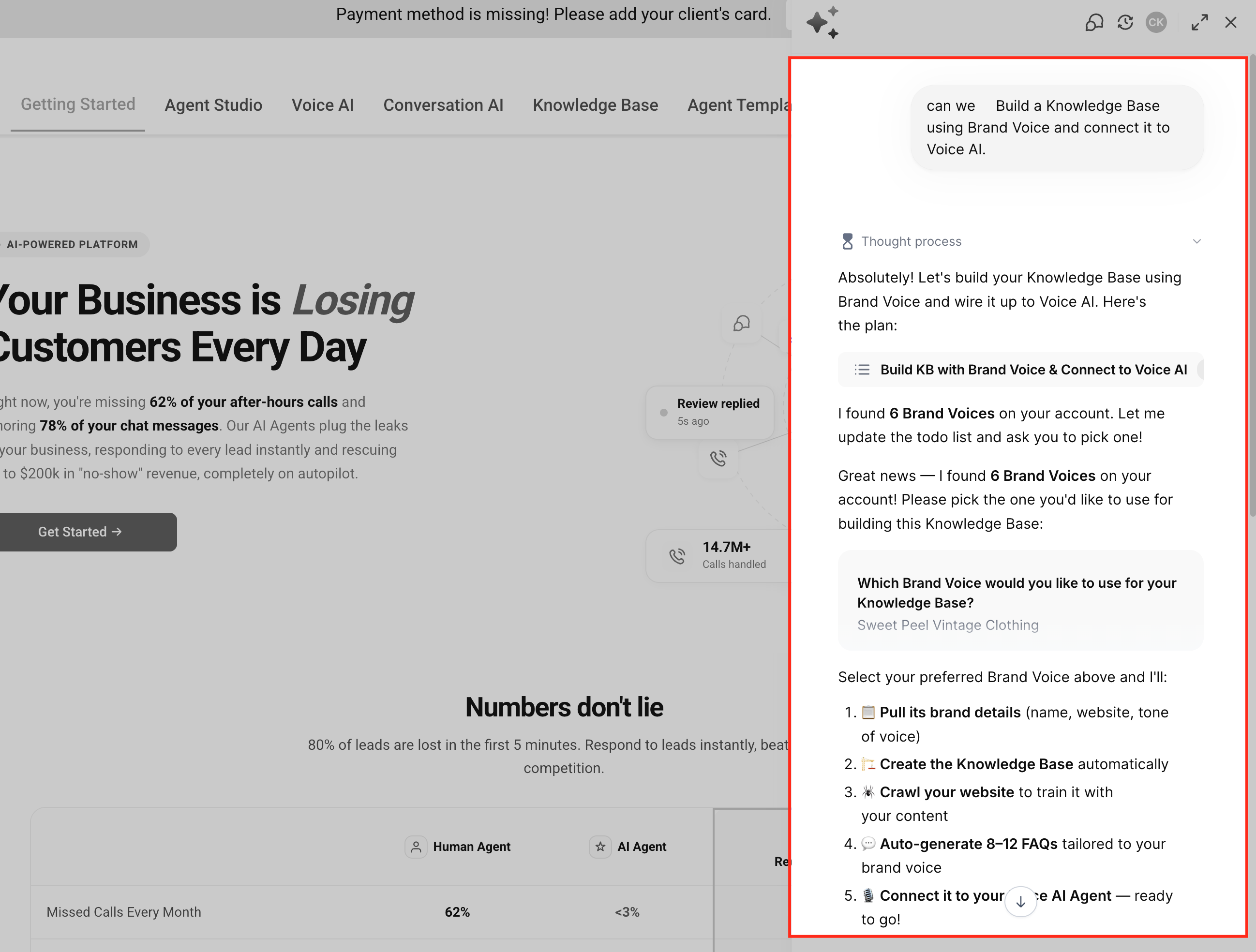
Step 3: Confirm the content source
Depending on your setup, Ask AI may use Brand Voice, suggest your Business Profile website, or offer manual setup. If a website is detected, confirm whether Ask AI should crawl it or use a different URL.
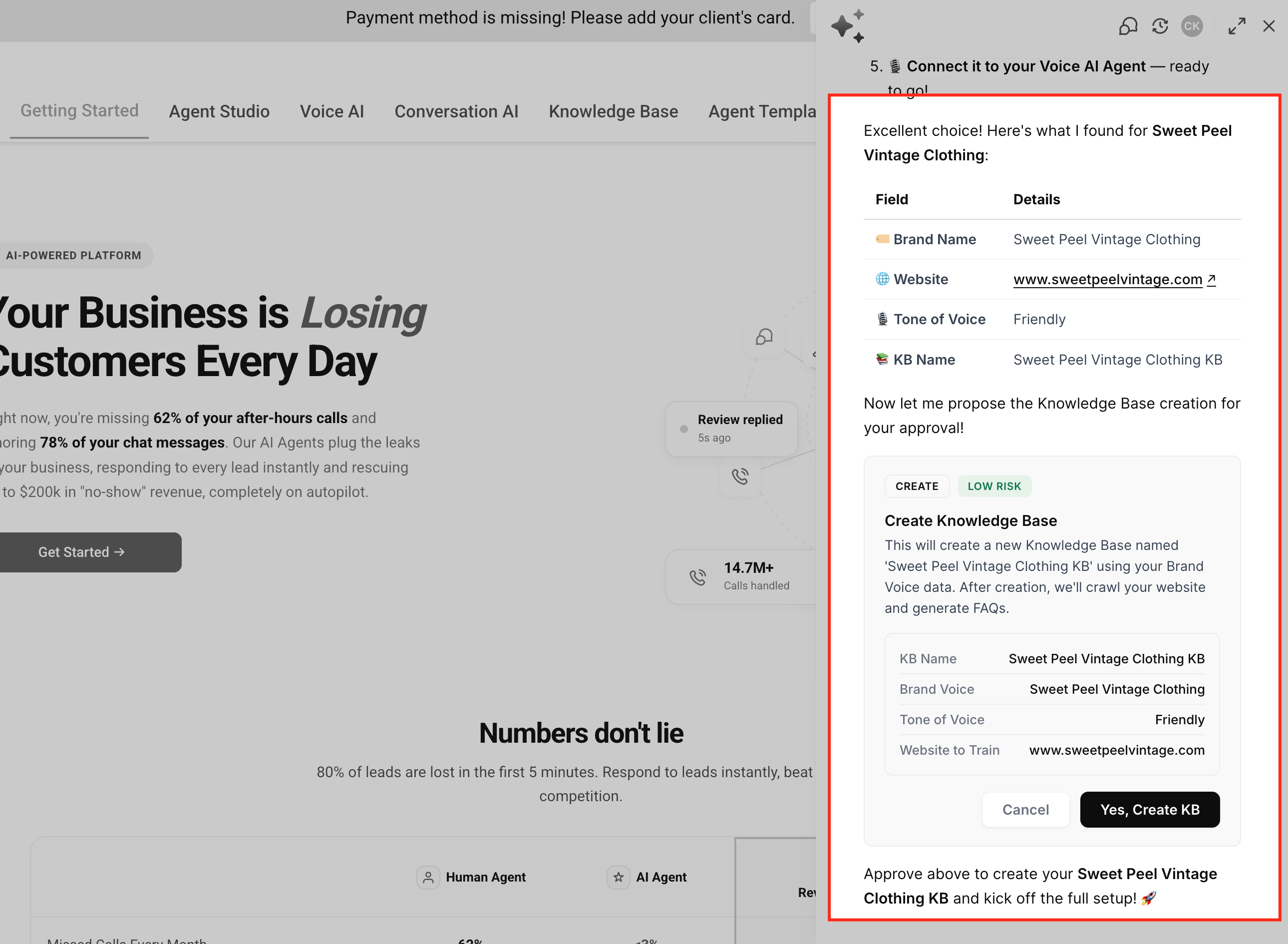
Step 4: Review Knowledge Base creation
Ask AI creates the Knowledge Base and configures the selected source automatically. If a website is used, a Web Crawler source is added, crawling begins automatically, and content becomes searchable after processing completes.
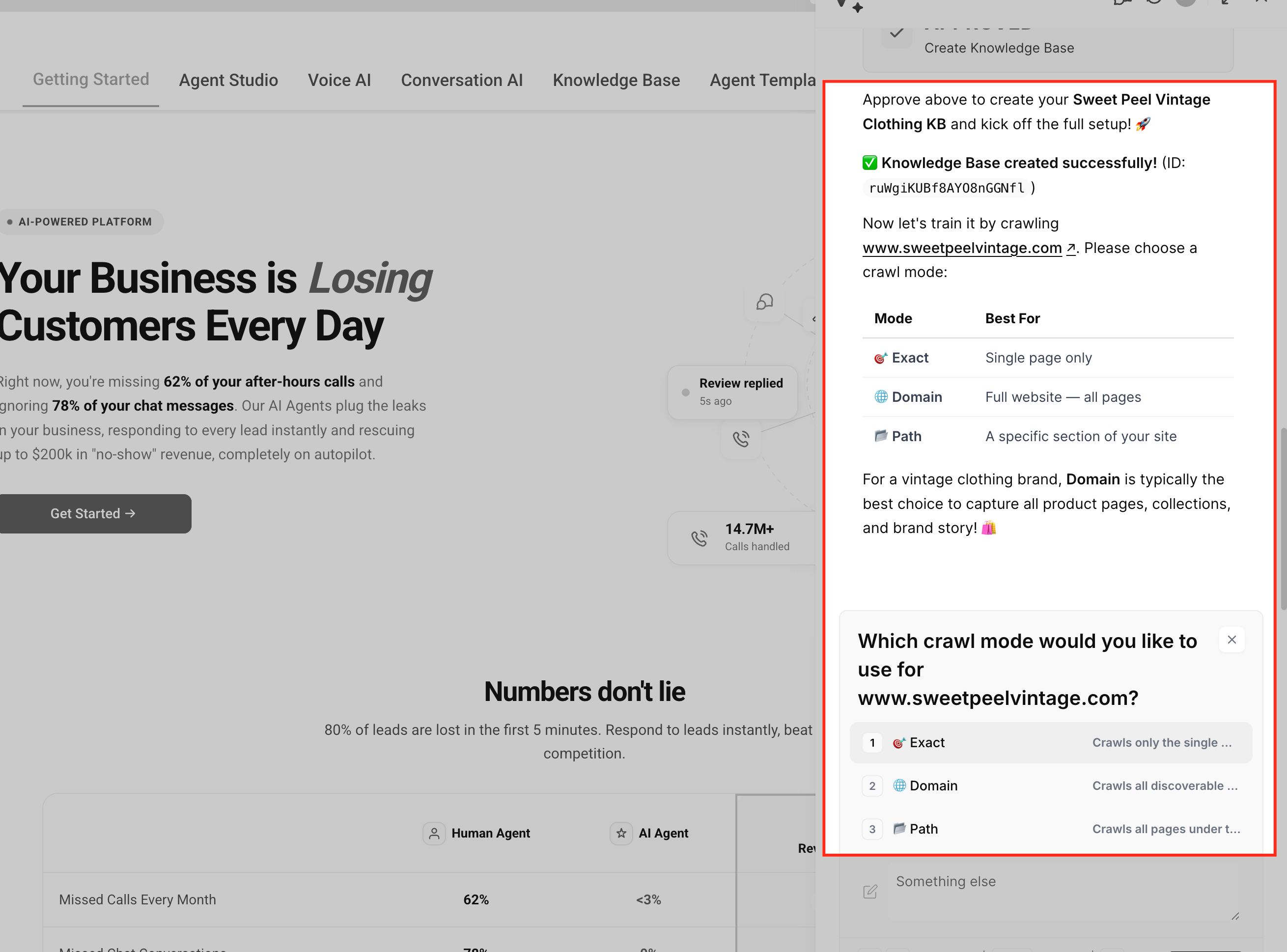
Step 5: Configure FAQs
When Brand Voice is available, Ask AI may suggest generating FAQs using your business context. When using website content only, FAQs can still be added manually later from the Knowledge Base settings.
Step 6: Attach the Knowledge Base to an AI agent
Choose whether to connect the Knowledge Base to an existing Conversational AI bot, a new Conversational AI bot, or an existing Voice AI agent. Once attached, the agent can begin using the Knowledge Base during conversations.
You can generate and edit images directly with Ask AI using natural, conversational prompts, whether you are creating social posts, email designs, or website visuals. The feature retains full session history for continuous, iterative edits without losing previous versions, and you can save your favorites to the Media Library for reuse.
Log in to your sub-account.
Click the Ask AI button in the top navigation bar.
Enter your prompt in the text field, for example: "Generate an image of a beautiful sunset."
Submit by pressing Enter or clicking the arrow button.
Wait a few seconds for the AI to generate the image.
Focus the prompt field below your generated image.
Enter an edit-style instruction, for example: "Add a few birds in the sky."
Submit the edit prompt and wait as Ask AI applies the change.
You can also edit any AI-generated image from Content AI:
Navigate to a Content AI workflow, for example Marketing > Social Planner.
Create a new post and generate an image with AI, or open an existing Content AI-generated post.
Click the Edit with Ask AI button.
Enter your edit prompt (for example, "Change the latte art to a cat").
Submit and wait for the updated image to render.
After any generation or edit:
Click the Save icon to add the image to your Media Library permanently.
Click Copy to place it on your clipboard for pasting elsewhere.
If you do not save an image, it remains accessible only within your Ask AI session.
Social media post graphics matching seasonal promotions.
Hero images for sales pages or website sections.
Custom email banner visuals to improve engagement.
Product mockups or lifestyle images for ads.
Visual storytelling for blog or landing pages.
Ask AI keeps your edit context intact so you can keep iterating without starting over. Edits are tied to the specific image you started from, you can always return to your original session to continue refining, and images are only saved to your Media Library when you choose to save them.
Ask AI can create short cinematic videos and natural-sounding voiceovers directly from a conversation. You can control video duration, orientation, visual direction, image-based start and end frames, voice selection, pacing, and delivery without moving between separate creation tools. Generated video and audio render directly inside the conversation so you can review the result before deciding what to do next, and video assets can be saved to the Media Library for reuse.
Note: Ask AI Voice Mode and Ask AI audio generation serve different purposes. Voice Mode lets you speak with Ask AI, while audio generation creates reusable voiceover content from a script.
Generate 4, 6, or 8 second video clips.
Create landscape or vertical video.
Generate video at resolutions up to 4K.
Include a native synchronized audio track with generated video.
Animate a previously generated image using a start frame and, optionally, an end frame.
Preserve important on-screen copy by generating the text as an image first, then animating it, so words do not distort.
Direct camera movement, lighting, visual style, and unwanted elements through your prompt.
Turn a script into a voiceover using one of ten voices.
Control voice tone, pacing, emotion, and playback speed.
Export generated audio as MP3, WAV, OPUS, or AAC.
Video generation is best suited for short-form creative assets such as promotional clips, treatment or product moments, social content, and branded visual sequences. Giving Ask AI specific details about the subject, shot, movement, duration, orientation, and desired style helps the generated video better match what you have in mind.
Duration: 4, 6, or 8 seconds
Orientation: Landscape or vertical
Resolution: Up to 4K
Audio: Native synchronized audio track
"Edit with Ask AI" lets you transform existing content using natural-language instructions. You can rewrite, simplify, polish, or expand AI-generated content while preserving your brand voice and context, all in a conversational flow. You can preview edits before applying them, retain your brand voice during iterative edits, and resume editing sessions anytime thanks to smart session memory. Edits do not consume extra AI credits, keeping costs predictable.
"Edit with Ask AI" is currently available in Social Planner wherever Content AI is enabled. If you have AI Employee activated on your account, you will see it right inside your content editing options. Look for the ✨ AI button when creating or editing content, then choose "Edit with Ask AI" as a quick action.
Highlight your content block: In Social Planner, select the AI-generated block you want to refine.
Click "Edit with Ask AI": Open the AI options dropdown and choose "Edit with Ask AI" to launch the editing session.
Start chatting: Enter your instructions in natural language, for example:
"Make this sound more friendly and casual."
"Shorten this to two sentences."
"Expand this paragraph to include a call to action."
Preview the edits: Review the revision and continue chatting for further changes.
Apply or copy your edit: Click Replace to update the original content, or Copy to paste the new version elsewhere.
Return anytime: Your editing session, including context and chat history, is saved automatically, so you can continue refining whenever you like.
"Edit with Ask AI" includes smart session memory that saves your entire editing context automatically. If you navigate away or close the editor, Ask AI remembers exactly what you were working on and resumes the same conversation when you return, so you never need to repeat instructions or lose previous edits.
Ask AI Blog Post Generation turns a simple prompt or topic into a structured, long-form blog draft right inside the workspace. You can ideate, outline, and draft full posts through one conversational interface, then move your content into Blogs for formatting, SEO, and publishing. Ask AI can combine your prompts with optional web context, URLs, and images to produce drafts that are more accurate and on-topic.
When you ask Ask AI to "write a blog post about…" or "draft a 1,500-word article on…", it can:
Suggest blog titles in multiple angles (how-to, listicle, thought leadership) and variations that emphasize keywords, outcomes, or target audiences.
Generate structured headings and subheadings that mirror how blog editors typically structure posts, with a logical progression from introduction to body sections to conclusion or CTA.
Apply SEO-friendly formatting with short paragraphs, skimmable subheadings, and bullet or numbered lists where they improve readability.
Write long-form paragraphs that go beyond surface-level explanations, with the ability to request a specific length.
Produce blog-ready draft output organized so you can copy it into the Blog Post editor with minimal cleanup.
Ask AI can use web-based context to improve topic relevance, increase content depth with relevant statistics and examples, boost accuracy for trending or current topics, and enhance the overall quality of generated blogs. Web context does not replace human editorial review; always scan the draft, verify key facts, and add proprietary insights before publishing.
Ask AI can generate full posts directly in another language (for example, "Generate this blog in Spanish for a Mexico-based audience"), localize tone and examples for local audiences, and support translation workflows that preserve structure and intent. For high-stakes content, have a fluent speaker confirm nuance, local terminology, and compliance before publishing.
Ask AI can use URLs and images you provide purely as context. You can provide URLs (product pages, documentation, previous blogs, or third-party articles) and attach or reference images (logos, product screenshots, diagrams). Ask AI then aligns terminology with your site, suggests where images could be inserted, and better matches your audience's expectations. URLs and images are used as input context, not automatically embedded; you still control which links and images appear in the final article.
1. Confirm Ask AI access
If you can see the Ask AI icon in your top or left navigation, the assistant is available. You can also monitor Ask AI sessions in the AI Usage Dashboard as blog generation ramps up.
2. Open Ask AI
Open Ask AI from the top navigation icon or the left navigation menu for a full-screen workspace. (Alternatively, you can go to Sites > Blogs.) Click New chat to start a fresh conversation dedicated to your blog draft.
3. Provide a clear blog prompt (topic + instructions)
Give Ask AI enough context to generate a high-quality, on-brand draft. For example: "Write a 1,500-word blog post for med spa owners on 'How to use SMS marketing to boost appointment bookings.' Audience: local service businesses. Tone: friendly but professional. Include headings, subheadings, and a conclusion with a call to action."
Helpful details to include:
Target audience and expertise level
Desired length (approximate word count or "short/medium/long")
Tone and brand style (or mention your configured Brand Voice)
Primary SEO keyword(s) or phrases
Any offers, features, or CTAs the post should promote
4. (Optional) Add URLs and images for richer context
Paste URLs (product pages, existing blogs, or reference articles) and add or reference images that capture your brand. Then clarify how they should be used, for example: "Use this URL as background on our product and ensure the blog aligns with this positioning."
5. Generate and review the draft
Submit your prompt and wait for Ask AI to produce title suggestions, structured headings, long-form body content, and optional lists or summaries. If the first result is not quite right, ask for revisions ("shorten this section," "make the intro more story-driven") or request alternative angles ("focus more on ROI," "rewrite for non-technical readers").
6. Move the draft into Blogs
Copy the final draft, go to Sites > Blogs > [Your Blog] > New Post, and paste the content into the editor. Use Blog Post tools to add images, embeds, and internal links; configure SEO fields (slug, title, description, canonical URL, keywords); and preview, schedule, or publish. For more advanced editor-side AI, use Blog Post AI to further optimize sections, translate content, or apply URL/image referencing within the Blog Editor.
Ask AI supports richer, structured responses that help you move from prompt to action faster. Instead of plain-text answers, Ask AI can display execution-ready outputs such as tables, charts, to-do lists, guided questions, approvals, media artifacts, web search cards, and visual Mermaid diagrams. These make it easier to review information, plan campaigns, map automations, and collaborate with your team directly inside the app.
Important: Artifacts are designed to make Ask AI responses easier to act on. They do not always mean an action has been completed automatically. Some actions may still require confirmation, supported capabilities, or the correct access level.
Artifacts present responses in the format that best fits the information, instead of relying only on paragraphs. They help with faster planning, better readability, improved collaboration, more actionable responses, visual workflow mapping, and reduced manual cleanup.
Mermaid diagrams turn process descriptions into visual diagrams, useful for mapping automations, lead journeys, campaign flows, decision trees, or operational processes that are easier to understand visually. When Ask AI generates Mermaid syntax, the diagram renders directly in the chat, so you can review flowcharts and process maps without copying the syntax into another tool. For example:
"Create a Mermaid flowchart for my missed-call text-back automation with fallback branches."
"Map my lead lifecycle in Mermaid: new lead → qualified → booked → closed → won/lost."
"Generate a Mermaid diagram for a 7-day reactivation campaign with decision nodes."
Large diagrams can be hard to review in a standard chat view. Full-screen support gives you more space to inspect complex Mermaid diagrams. When viewing a diagram, available controls may include full-screen viewing, pan, zoom, and toolbar options.
Open Ask AI in your account.
Enter a prompt that describes the task you want to complete.
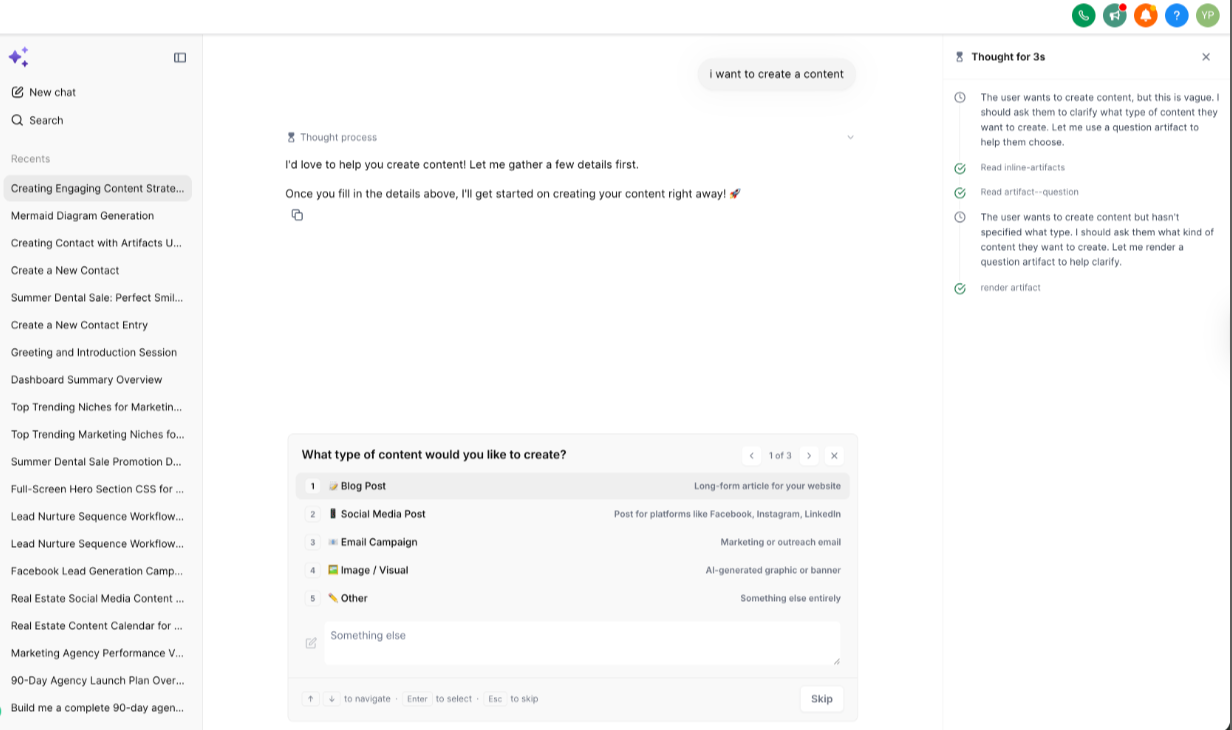
Include the output format you prefer, such as table, chart, to-do list, approval checklist, or Mermaid diagram.
Add relevant context, such as campaign goals, pipeline stages, lead sources, automation steps, or requirements.
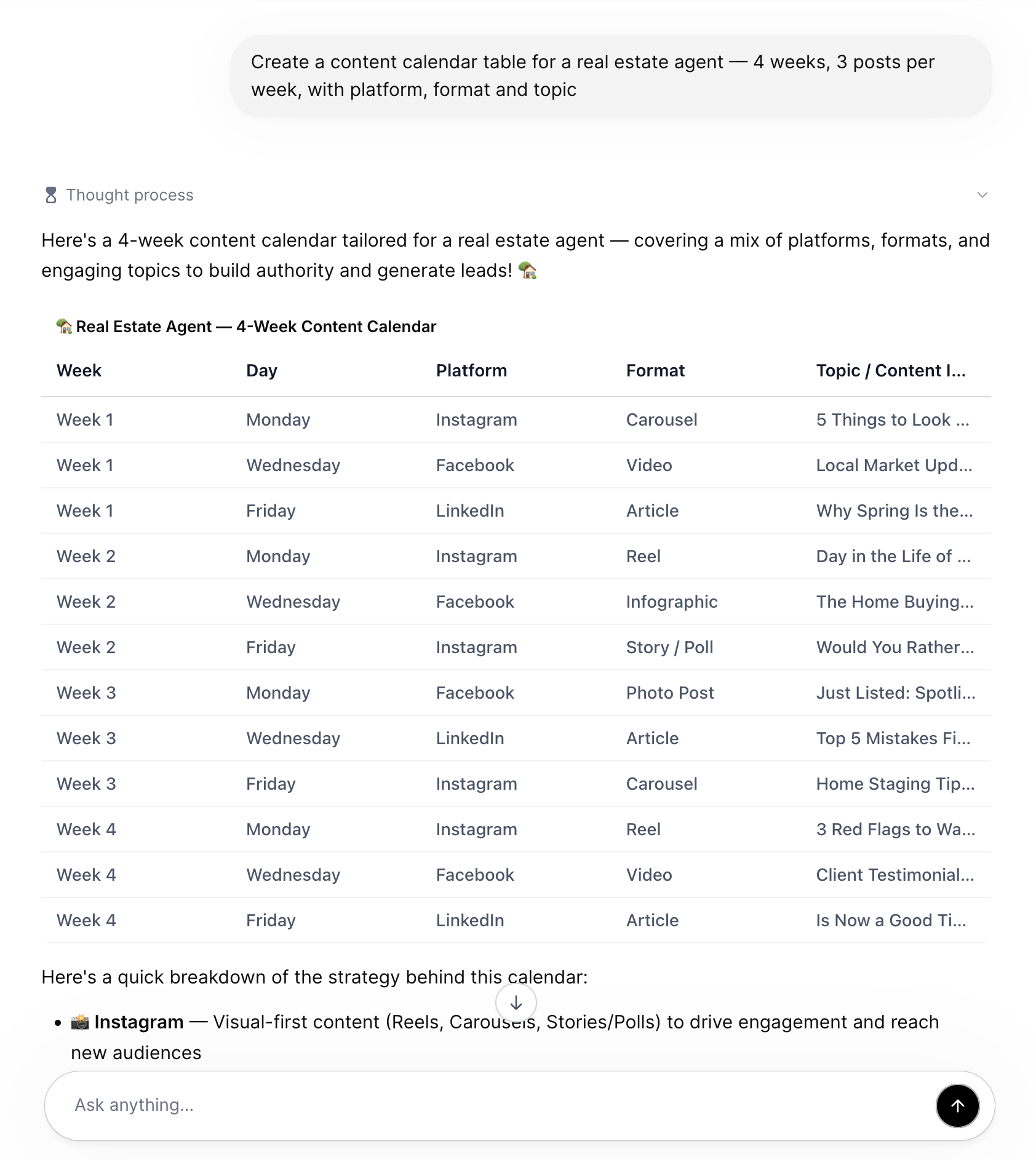
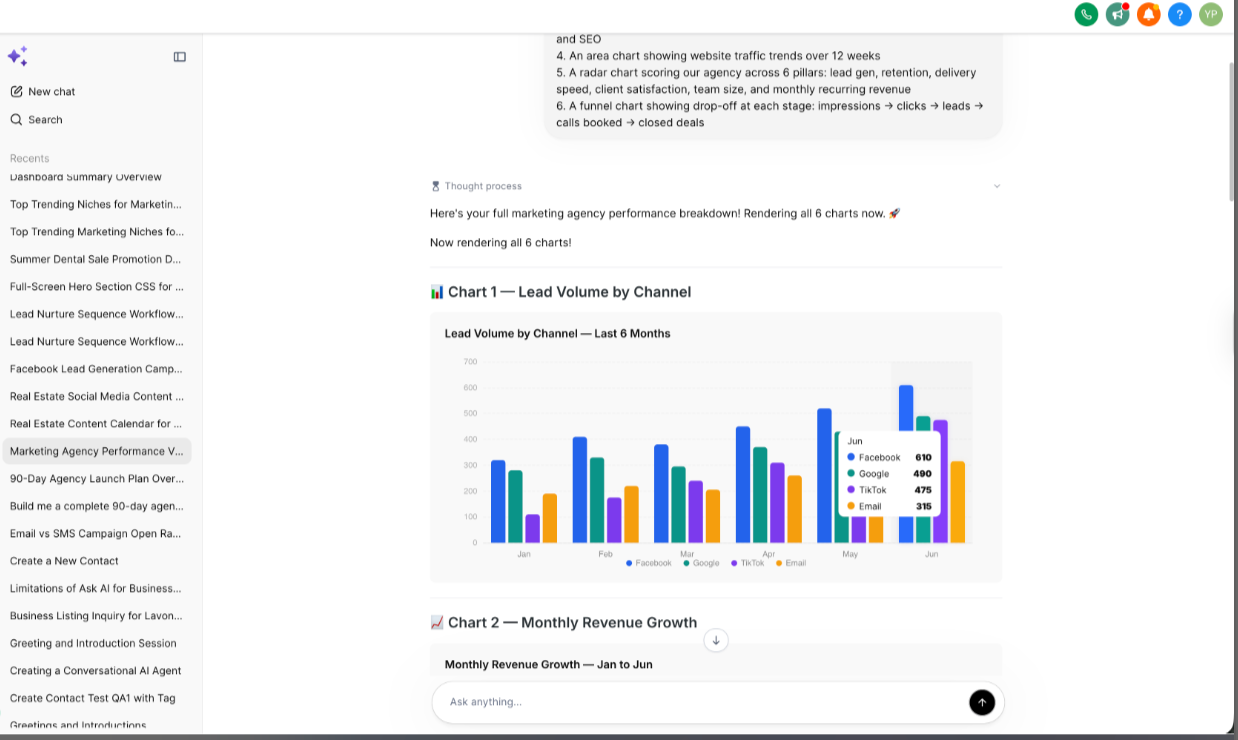
Review the structured response returned by Ask AI.
Use any available artifact controls to inspect, copy, approve, or continue working with the response.
For Mermaid diagrams, open the diagram in full-screen view when you need more space to review the flow.
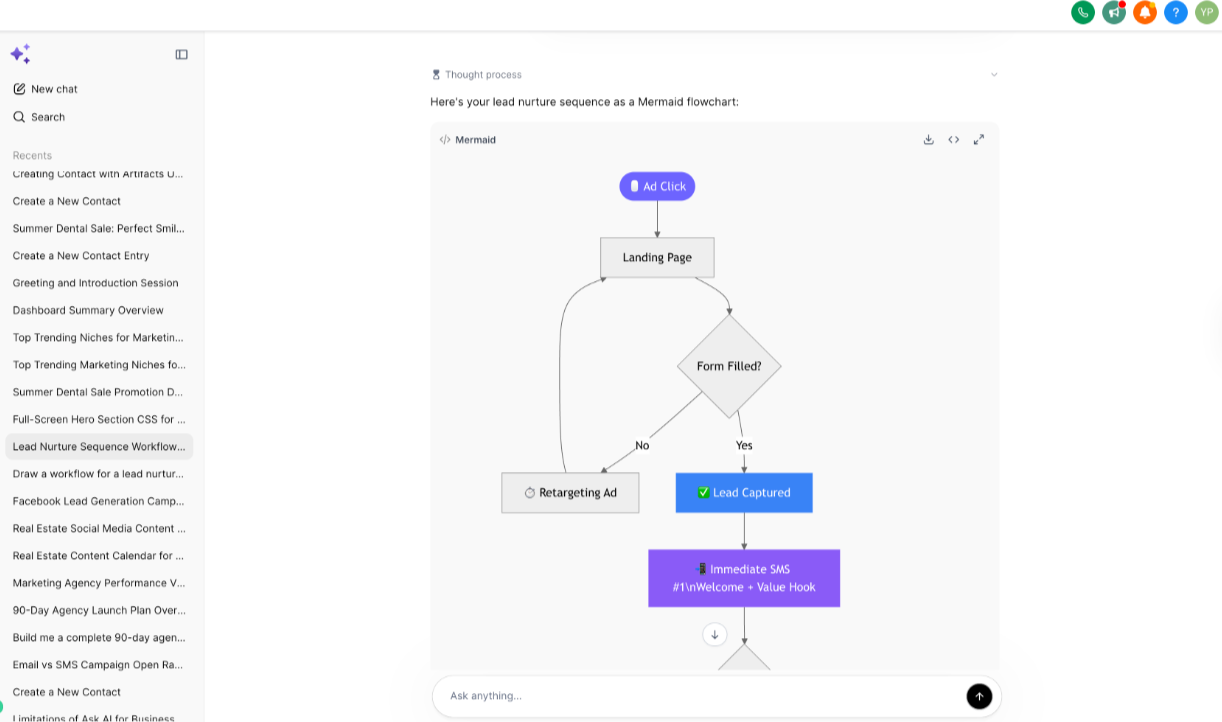
Continue the conversation with follow-up prompts to refine the output.
Example setup prompt: Create a Mermaid flowchart for a missed-call text-back automation. Include branches for new lead, existing contact, booked appointment, no response after 10 minutes, and manual follow-up needed.
Example structured output prompt: Review the following campaign data and return a table with lead source, CPL, close rate, recommended budget change, and reason.
Ask for the exact format you want, such as "ranked table," "to-do list," "chart," or "Mermaid flowchart."
Include the business goal behind the request.
Provide relevant data, steps, or examples when available.
Ask for recommendations, not just summaries.
Include decision criteria when you want Ask AI to rank or compare options.
Ask for follow-up questions if you are missing important details.
Ask AI Memory gives Ask AI persistent context about you across conversations, so responses feel more relevant without making you repeat the same details each time. It remembers useful details such as your role, company, location, preferences, and standing instructions, then uses recent memories in future requests. You can also review, delete, or import memory details.
Personalized responses: Ask AI tailors answers to your business, role, location, and preferences.
Less repeated context: You do not need to re-enter the same background information in every new session.
Smarter follow-up conversations: Recent memories are included in AI requests so future responses start with better context.
Automatic memory capture: Ask AI can save meaningful facts in the background without interrupting the main response.
Memory import support: You can import saved memory details from other AI providers, such as ChatGPT or Claude, when available.
User-level organization: Memories are scoped to you and can include optional company or location context.
Ask AI captures useful, reusable information instead of saving every message. After your messages, it can identify one meaningful fact and save it as memory, such as your role or job function, company or business details, location details, communication preferences, repeated instructions, or relevant business context you shared. Ask AI skips one-time requests, duplicate information, and details that are not useful for future conversations.
Ask AI includes your most recent saved memories in future AI requests and uses them naturally in responses, rather than announcing that it remembered something. For example, if you previously shared your company name and industry, Ask AI can use that context when helping with marketing copy or strategy. If you shared a preferred tone or instruction, it can apply that preference in future responses when relevant.
Memories are scoped to a user ID and may include optional location or company context when applicable. Each memory is tagged by source so the system can identify how it was created. Sources may include auto-created, explicitly saved, imported, and system-created memories.
Open Ask AI.
Click Account > Personalization.
Select Memory > Manage.
Search or review the saved memory list.
Delete any memory that is outdated or no longer needed.
To import memory details, click Import memories.
Copy the provided prompt into the other AI provider.
Paste the returned memory details into the import field.
Click Add to memory.
Ask AI can run up to 10 conversations in parallel, keep work running in the background, and notify you when a session completes or needs your input, all while you switch freely between other tasks. Instead of waiting for one request to finish before starting another, you can draft a blog post in one conversation, generate a report in another, and schedule appointments in a third, all running at the same time. Each conversation keeps its own context, scroll position, and history. When you close the Ask AI panel or switch to other tools, your conversations keep processing in the background, and completed work is saved automatically.
Parallel conversation execution: Run up to 10 conversations at once, each processing independently with its own context and state.
Background processing: Close the Ask AI panel or navigate to other tools while conversations keep running. Completed work is saved and ready when you return.
Completion notifications: Get a notification when a background conversation finishes, showing the conversation title and an "Open to view" action that takes you straight to it.
Error transparency: A failed session triggers a clear "Background session failed" notification instead of failing silently.
Persistent state: Each conversation keeps its scroll position, history, and context, even while running in the background.
Direct navigation: Notifications are clickable and take you straight to the conversation that triggered them.
Account-specific targeting: Notifications are tied to the account where the work was started. A conversation running for one account will not trigger a notification while you are viewing a different one.
Persistent replay: If a conversation finishes while you are away from Ask AI, the notification waits and plays back when you return.
Ask AI Connectors let you link outside apps such as Notion, Canva, GitHub, HubSpot, or any Model Context Protocol (MCP) app directly to Ask AI. Ask AI Skills let you codify how you want work done: write a custom instruction set, upload an existing playbook or SOP, and Ask AI applies it automatically when a request matches, or on demand with the / command in any text or voice chat.
Connectors let Ask AI act inside apps you already use. You authenticate under your own user login, and Ask AI can read, create, update, or search within the connected service on your behalf. Every connector is linked to your individual user account, so your credentials and tool choices are never shared across other accounts.
A Skill is a named instruction set that Ask AI applies whenever your request matches it, or that you invoke on demand by typing /skill-name in the composer. Skills work in both text and voice chats.
Write a Skill: In Customize > Skills, provide a name, a one-line "use when…" trigger, and a markdown body describing the process Ask AI should follow.
Upload a Skill: Drop a .md file and Ask AI reads it, names it, and summarizes it for you. Uploading the same file twice creates a versioned copy (for example, "Intake Follow-Up 2") instead of overwriting the original.
Invoke on demand: Type / in the composer to see your Skills library and pin a specific Skill to that message, bypassing automatic matching.
Enable, disable, or remove: A disabled Skill stays in your library but is invisible to Ask AI until re-enabled. You can also delete a Skill permanently.
Self-maintaining Skills: Say "save this as a skill" and Ask AI writes one for you. If a Skill turns out to be wrong mid-conversation, Ask AI can correct it, creating a self-learning workflow.
Security: No credentials are stored or shown to the AI. Ask AI stores only a reference to your connected account. Access tokens are minted per call, never persisted, and never logged.
Click the plus icon in the Ask AI sidebar, then select Connectors.
Click Manage Connectors to open the app browser. Search or scroll to find the app you want, such as Notion, GitHub, Canva, or HubSpot.
Select the app and click Connect. You are redirected to authenticate with the service. Once authorized, the app appears in your Connected apps list.
Ask AI Triggers let a saved Skill run automatically when a specific event happens in your CRM, no manual intervention required. Instead of starting a conversation yourself, your Skill executes automatically when a contact is created, a form is submitted, a tag is applied, an appointment is booked, or an opportunity changes status. When a trigger fires, Ask AI runs the associated Skill using the relevant CRM context (contact details, form responses, opportunity data, and so on). Triggers complement Scheduled Tasks, which run on a time-based schedule; together they cover both event-based and time-based automation.
Automate repetitive workflows: Skip the manual step and let a Skill run automatically when an event occurs.
Respond in real time: Take immediate action when a contact is created, a form is submitted, or an opportunity changes status, so follow-up and engagement stay timely.
Centralized monitoring: Track every automated run in Trigger History, including execution details, run status, and the resulting Ask AI session.
Simplified setup: Describe your automation goal in natural language from Ask AI chat, and Ask AI creates the matching Skill and Trigger for you.
Context-aware execution: A triggered Skill automatically receives the relevant CRM data (contact fields, form responses, opportunity details).
Event | What it does |
|---|---|
Contact Created | Runs a Skill when a new contact is added to your CRM. Use it to send welcome messages, start onboarding sequences, or enrich contact data automatically. |
Form Submitted | Runs a Skill when a specific form is submitted. Useful for processing lead-capture forms, scheduling follow-ups, or routing submissions to the right team member. |
Survey Submitted | Runs a Skill when a survey is completed. Use it to analyze responses, calculate satisfaction scores, or trigger follow-up actions based on feedback. |
Tag Added or Removed | Runs a Skill when a specific tag is added to or removed from a contact. Useful for segmenting workflows by contact attributes or lifecycle stage. |
Appointment Booked or Status Changed | Runs a Skill when an appointment is booked or its status changes (confirmed, canceled, rescheduled). Use it to send reminders, update related records, or notify your team. |
Opportunity Created or Status Changed | Runs a Skill when a new opportunity is created or an existing opportunity's status changes, so pipeline-driven follow-ups stay current. |
The fastest way to set up a Trigger is to describe your automation goal to Ask AI in natural language, for example: "When a new contact is created, send a personalized welcome message using our brand voice." Ask AI builds the matching Skill and attaches the Trigger for you. Review every automated run afterward in Trigger History, where you can see execution details, run status, and open the resulting Ask AI session.
Ask AI Voice Mode lets you speak to Ask AI instead of typing, making it easier to ask questions, trigger supported actions, receive spoken updates, and keep working while multitasking. Voice Mode is available through Labs and is designed for a hands-free way to interact with Ask AI. Because it is a Labs feature, the experience may continue to improve over time as we gather feedback.
Hands-free productivity: Speak naturally to ask questions, manage tasks, retrieve data, or trigger supported actions without relying only on the keyboard.
Natural conversation flow: Ask AI can respond through voice, making the experience feel more like a live conversation.
Real-time steering: Interrupt or redirect the conversation when details change, instead of waiting for the full response to finish.
Stateful conversations: Ask AI keeps context within the active conversation, so follow-up prompts can build on earlier messages.
Spoken updates: Ask AI can provide spoken summaries, confirmations, and progress updates while working through a request.
Flexible input: Pause Voice Mode and continue the same conversation in text when speaking is no longer convenient.
Safer action handling: Ask AI asks for confirmation and required details before executing sensitive actions.
Labs features give you early access to new functionality while the experience is still being refined. To access Voice Mode, go to Account Settings → Labs and enable Ask AI Voice Mode when it is available in your account.
Important notes:
Voice Mode must be enabled from Labs before it can be used.
Labs features may change as the experience continues to improve.
You may experience bugs, delays, or rough edges during early access.
If Voice Mode is not visible in Labs, the feature may not be available for your account yet.
With Voice Mode active, you can speak requests and keep working without typing every instruction. Voice Mode can help trigger supported actions, including workflows, lead management, pipeline updates, and data retrieval where available. Example prompts:
"Show me a summary of my recent leads."
"Help me update this pipeline stage."
"What are the next steps for this workflow?"
"Summarize the latest activity for this contact."
"Create a follow-up task for this lead."
Ask AI may ask for more details before continuing, especially when a request is unclear or requires a specific record, pipeline, workflow, or action.
If details change or Ask AI starts moving in the wrong direction, you can interrupt and provide updated instructions. This is helpful during longer, multi-step tasks. Examples:
"Wait, use tomorrow instead of today."
"Actually, only apply that to hot leads."
"Stop there and summarize what you have so far."
"Change the tone to be more professional."
"Use the same idea, but make it shorter."
Voice Mode keeps track of context within the active chat, so you avoid repeating details. For example, after asking Ask AI to summarize a contact, you might follow up with "Now create a task for that person," and Ask AI uses the current context. It can also provide spoken updates, such as confirming what it understood, asking for missing information, summarizing the next step, giving progress updates, and confirming before taking sensitive actions.
You can pause Voice Mode at any time and continue the same conversation by typing; the conversation context remains available. Use this when you no longer want Ask AI to listen, you need to enter more detailed or sensitive information, you are in a meeting or shared workspace, you prefer to review the next instruction before sending it, or you want to continue silently.
When a request involves sensitive or higher-impact changes, Ask AI asks for confirmation and any required details before continuing. Ask AI may ask for confirmation when the request is missing required information, the action could affect important data, the request involves changing records or statuses, the scope needs clarification, or the action requires approval. You can approve, cancel, or revise the request before Ask AI continues.
Go to Account Settings.
Click Labs.
Find Ask AI Voice Mode.
Toggle the feature On.
Open Ask AI from an available entry point.
Locate the Voice Mode or microphone control in the workspace.
Click the control to begin.
Allow microphone access if prompted.
Speak your request naturally.
Listen for the response or review it in the chat.
Interrupt, pause, or switch to text whenever needed.
Confirm or revise any sensitive action before Ask AI executes it.
Since Voice Mode is still evolving, reporting bugs, delays, unclear responses, or unexpected behavior helps improve the experience. When sharing feedback, include what you asked Ask AI to do, what you expected, what actually happened, whether the issue happened once or repeatedly, and any delays or unexpected interruptions.
Scheduled Tasks lets you tell Ask AI what to do and when to do it: hourly, daily, on weekdays only, weekly, or at a custom cron time. Once a task is scheduled, Ask AI runs the prompt automatically in the background and saves the results to a run history, so you can review them later without keeping a chat session open. This turns recurring questions and check-ins into automated, reliable routines.
Recover hours every week: Automate daily summaries, weekly pipeline reports, follow-up reminders, and recurring health checks.
Get insights at the right moment: Schedule prompts like "Summarize yesterday's new contacts" for early morning or "Recap today's appointments" for the end of day.
Hands-free productivity, including voice: Turn spoken instructions into scheduled tasks while commuting or between appointments.
Better visibility across locations: Set up per-location daily or weekly check-ins to spot missed appointments, drop-offs, or stalled opportunities.
Faster onboarding: New staff can rely on scheduled recaps and reports from day one.
More value from your AI: The same Ask AI subscription powers scheduled insights around the clock.
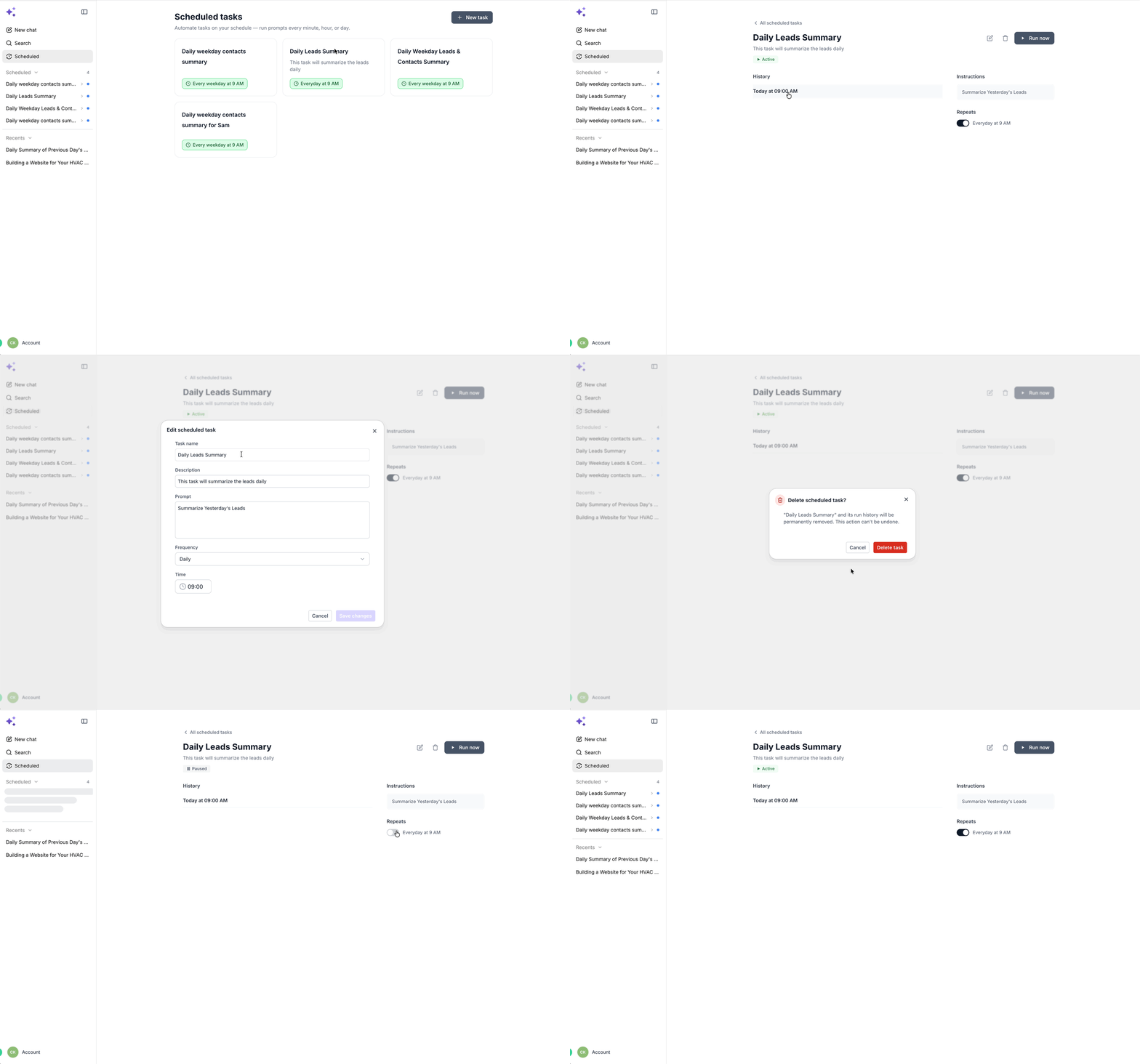
In the Ask AI workspace, you will find a Scheduled Tasks area that typically includes:
Task list – Each row represents one scheduled task. Common columns include:
Name – for example, "Daily new-contacts summary"
Frequency – Hourly, Daily, Weekdays, Weekly, Cron, or One-time
Next run – date and time of the next execution, in your local timezone
Status – Active, Paused, or Cancelled
New result indicator – a badge when a new run has completed and has not been opened yet
Task actions – Quick actions on each task such as Run now, Pause / Resume, Edit, and Delete.
When you create or edit a task, you choose from:
Hourly – Runs every hour. Helpful for near-real-time monitoring (for example, "Check failed appointments in the last hour").
Daily – Runs once per day at a specific time and timezone. Great for daily dashboards like new contacts, appointments, or tasks created yesterday.
Weekdays – Runs Monday through Friday at your chosen time. Ideal for workday-only summaries.
Weekly – Runs on a chosen day and time (for example, every Monday at 10:00 AM). Perfect for weekly performance reviews or account health reports.
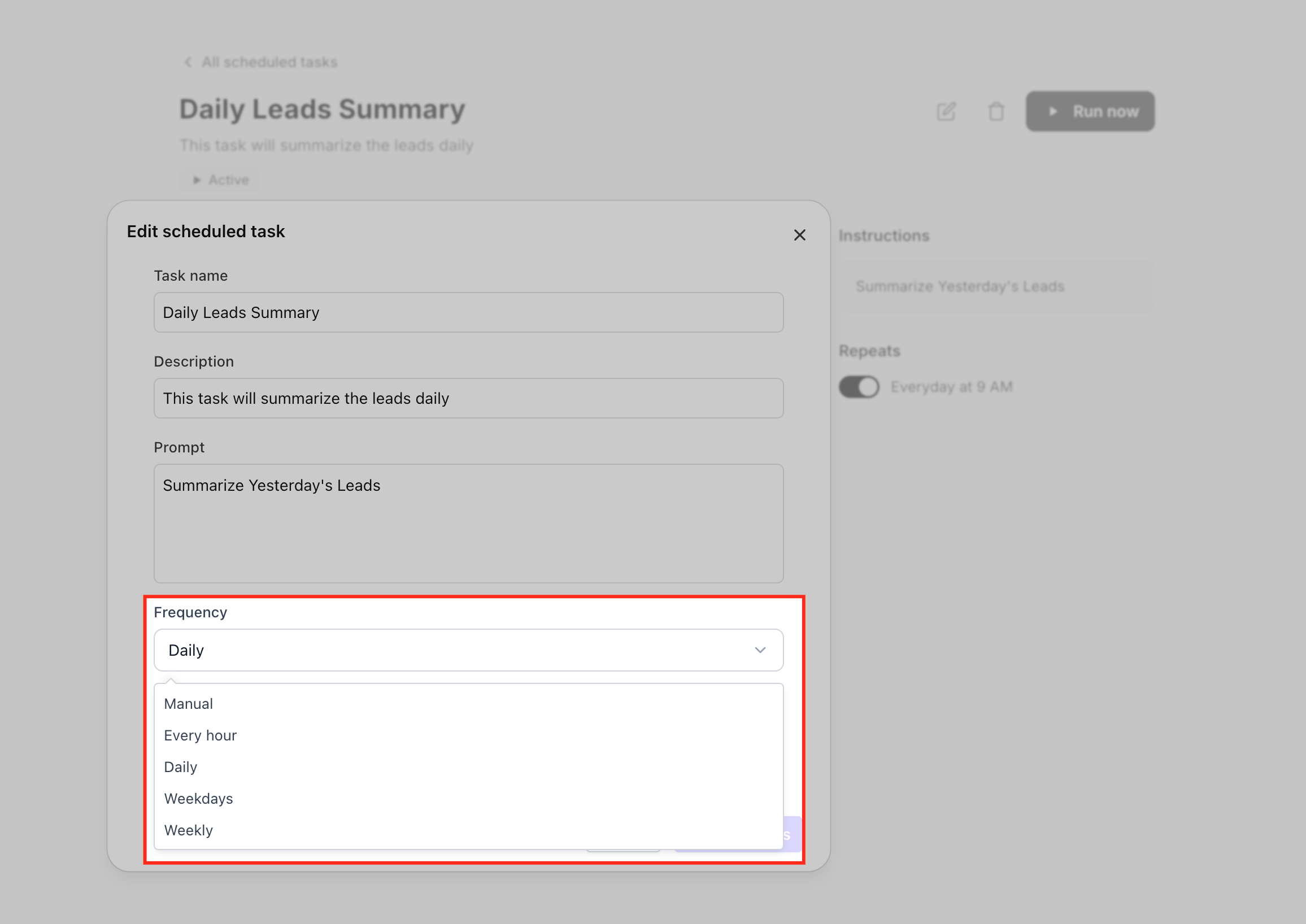
Each task stores a chronological run history, where you can:
See every run of the task:
Successful: the prompt executed and returned results.
Failed: Ask AI could not complete the run (for example, due to missing permissions or transient errors).
Skipped: a scheduled run was intentionally bypassed (for example, while the task was paused at its scheduled time).
Open completed runs: Click any completed entry to open the full Ask AI session tied to that run and review summaries, reports, or downstream actions, just like any other chat.
Track new results: A "new result" indicator appears when a run finishes but has not been opened. Opening it marks it as read and removes the badge.
This history makes it easy to answer questions like "Did yesterday's pipeline report run?" or "What exactly did Ask AI do during the last weekly check-in?"
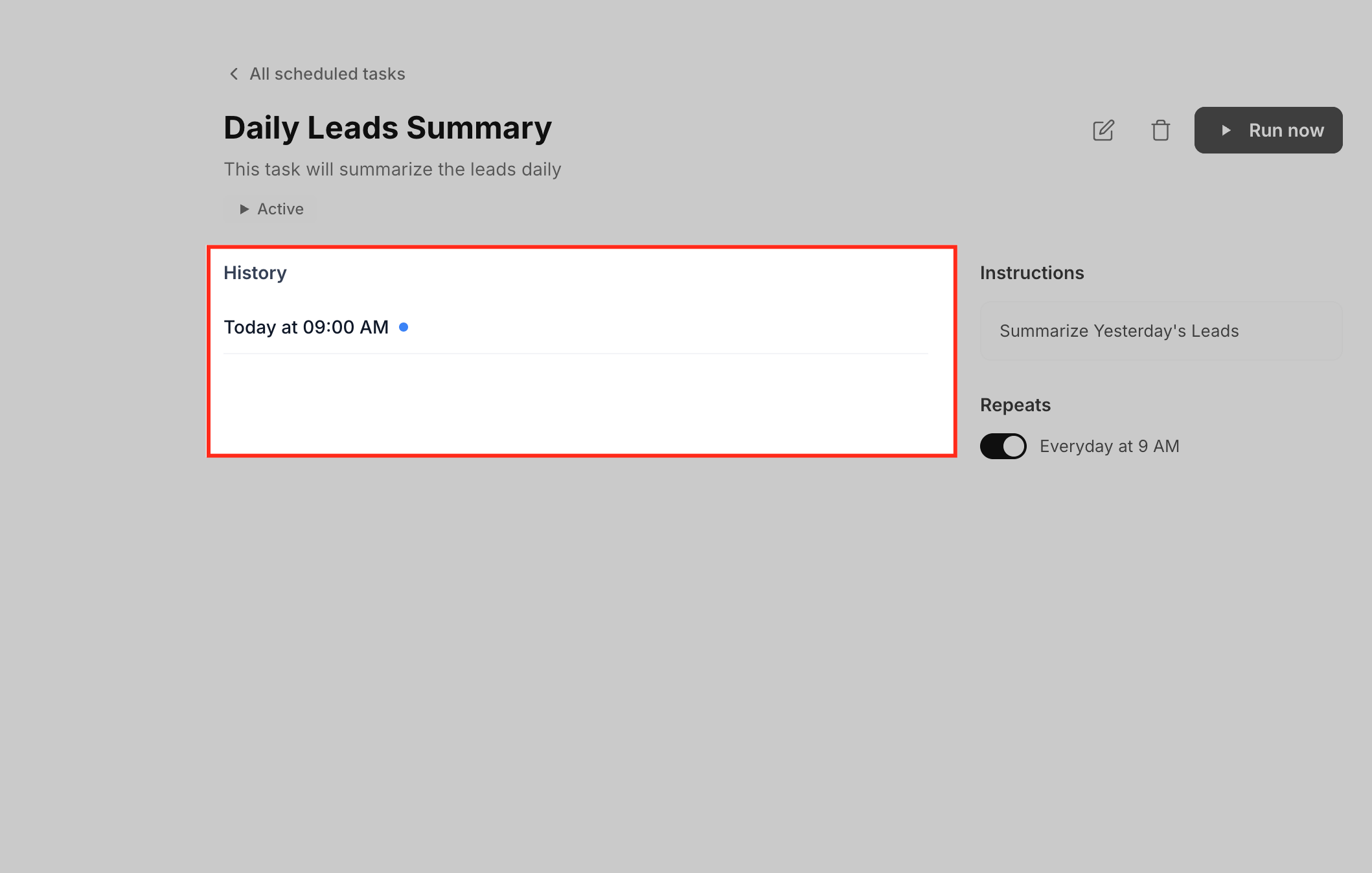
Active: The task runs according to its schedule. New runs are added to history and may show a "new result" badge until opened.
Paused: The task temporarily stops running at its scheduled times. Any runs that would have occurred while paused are skipped, and these skip events remain visible in run history. Resume when you want to restart the schedule.
Cancelled / Deleted: Cancelling or deleting a task removes it from the active list and stops all future runs. Historical runs remain available where supported, so you can still review past results.
This lifecycle makes it safe to experiment: create tasks for seasonal campaigns, disable them when not needed, and clean up old tasks without losing past insights.
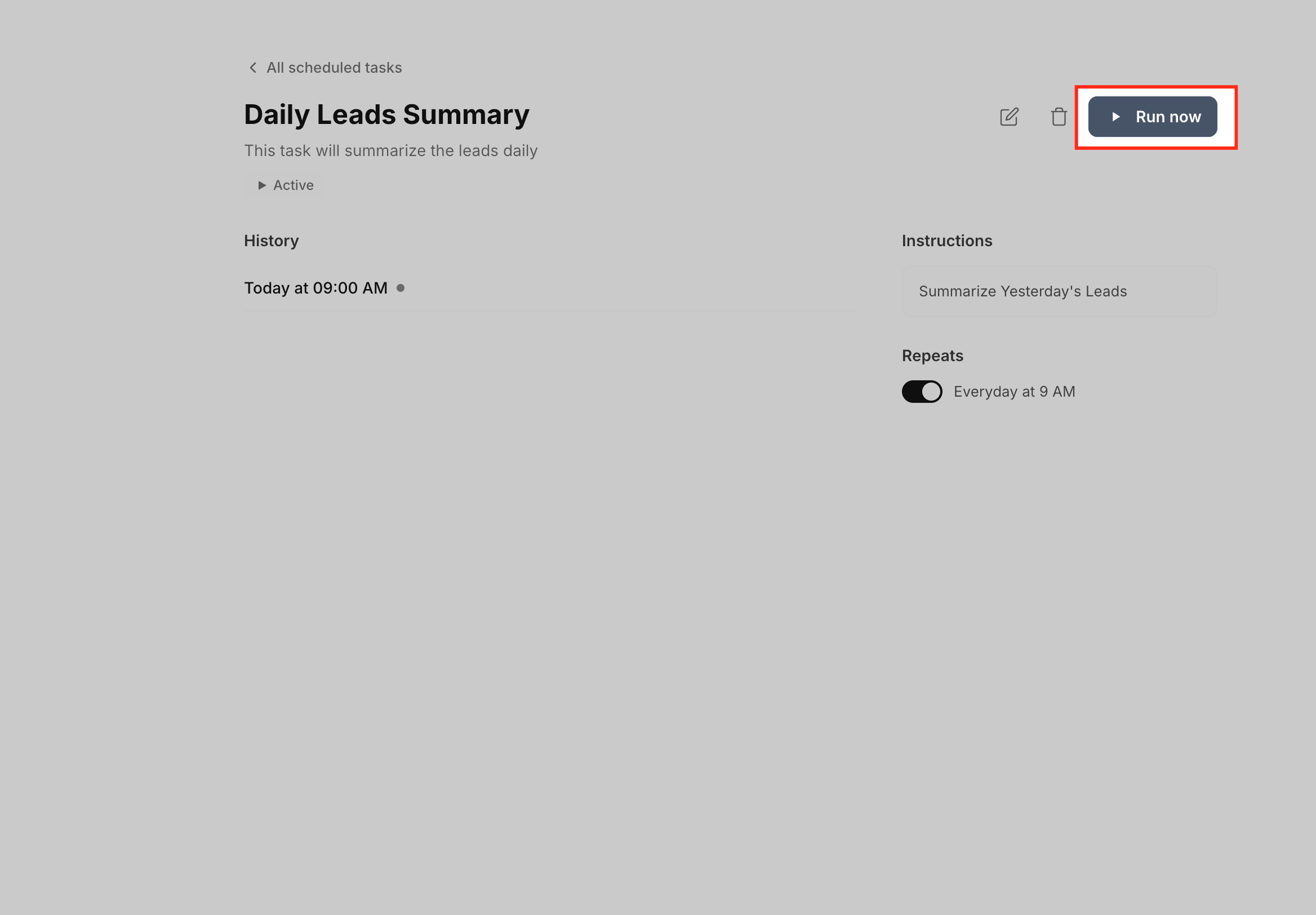
The Run now option triggers an on-demand execution while preserving the existing schedule.
Run any time: Click Run now on any task, whether Active or Paused.
Fresh session: Manual runs use a fresh Ask AI session, so results are independent of previous scheduled runs and are clearly labeled in history.
Schedule remains unchanged: The recurring schedule is not shifted or reset; the next scheduled run still occurs at its original time.
This is ideal when you have just updated a report prompt and want to see the new output immediately.
You do not have to leave your conversation to create a scheduled task. While chatting, you can promote a one-off question into a recurring task just by asking. Example prompts:
"Run a summary of new contacts every weekday at 9 AM."
"Send me a pipeline report every Monday at 10 AM."
"Email Sarah a check-in reminder on June 1st at 9 AM."
Ask AI interprets the instruction, builds the corresponding schedule, and saves it to Scheduled Tasks automatically. If voice mode is enabled, you can start a voice conversation, speak a schedule request, and Ask AI confirms the schedule out loud, including the next run time, before saving it.
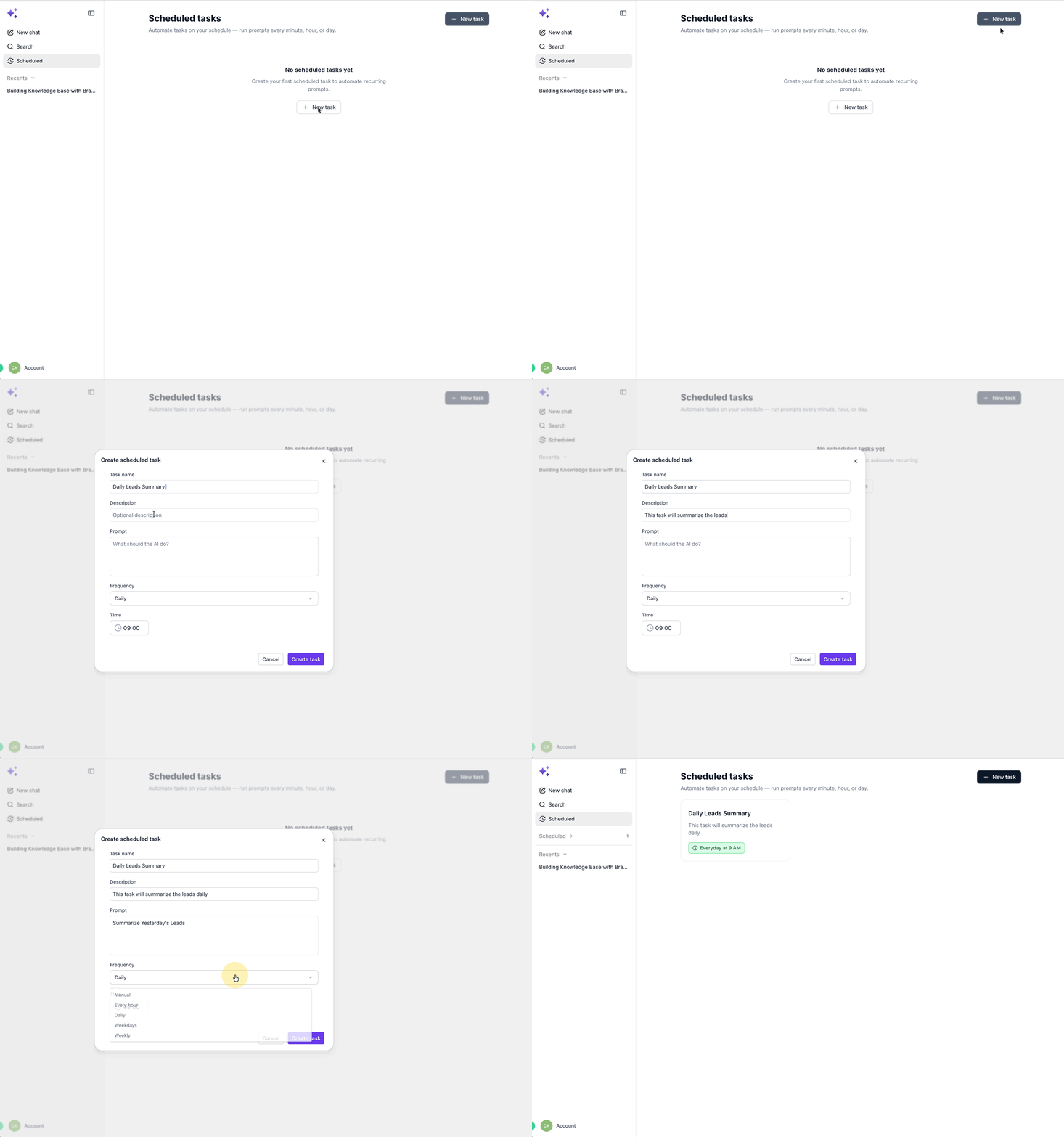
1. Create a task from the Scheduled Tasks tab
Use the tab when you want full control over the schedule and prompt details.
Open Ask AI from the top navigation or left sidebar.
Go to Scheduled Tasks.
Click + New task.
Fill in the form:
Name – A descriptive label such as "Daily new-contacts summary" or "Monday pipeline review."
Prompt – The exact instruction Ask AI should run, for example: "Summarize all new contacts added yesterday, highlighting source, status, and next steps."
Frequency – Choose Manually, Hourly, Daily, Weekdays, or Weekly.
Click Save. The task appears in the list with its Next run time in your local timezone.
2. Create a task from Ask AI chat
Open Ask AI and start a chat.
Type your request combining what you want and how often, for example: "Run a summary of new contacts every weekday at 9 AM."
Ask AI interprets the schedule, confirms details, and saves it into Scheduled Tasks.
Open Scheduled Tasks to see the new entry, adjust the name or prompt if needed, and confirm the Next run time.
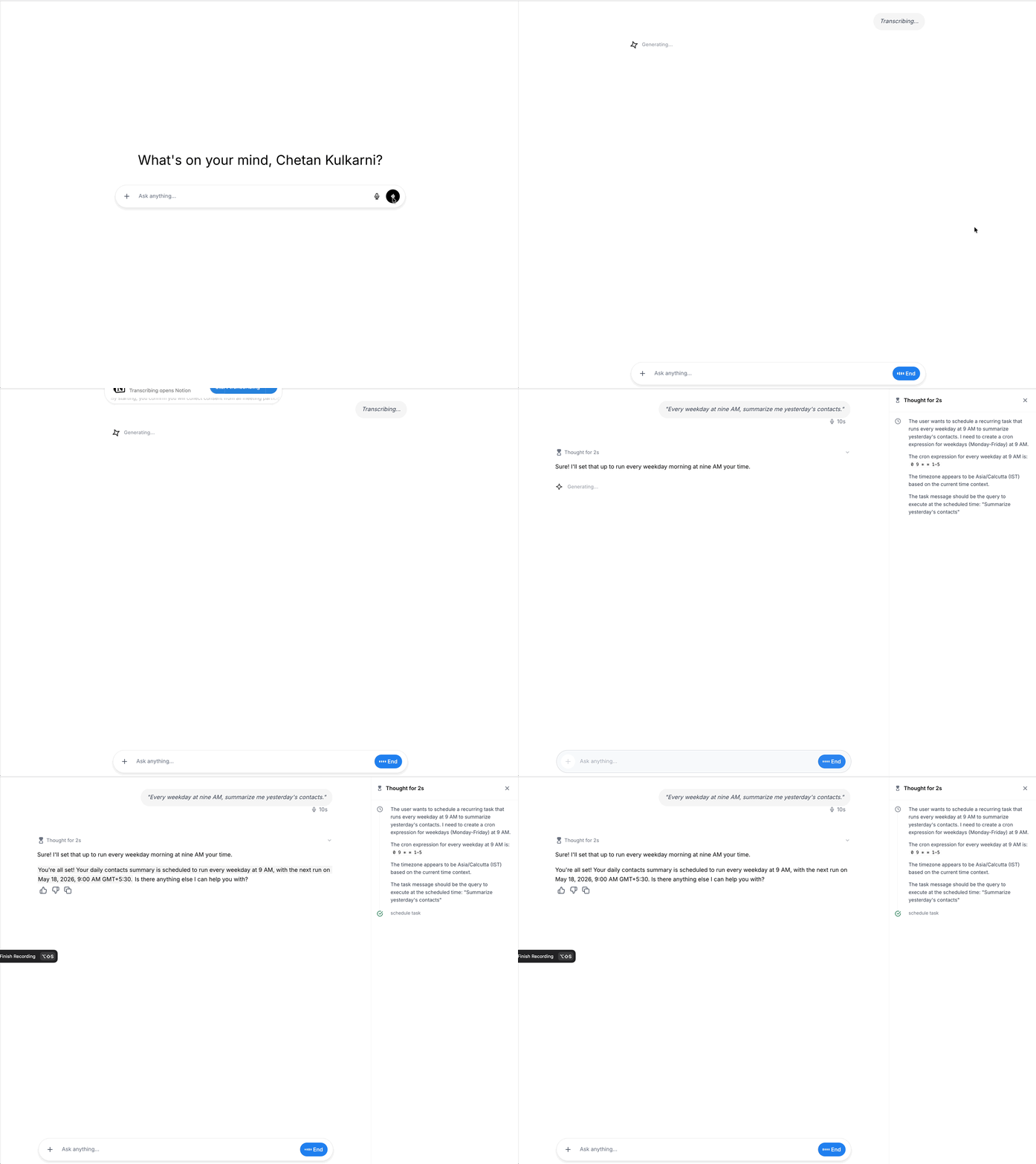
3. Create a task using voice
If voice input is available in your account:
Start a voice conversation with Ask AI.
Speak your schedule in natural language, such as: "Every weekday at 9 AM, give me a summary of new contacts."
Ask AI repeats back the schedule and next run time for confirmation.
Visit Scheduled Tasks later to fine-tune the prompt or schedule if needed.
4. Manage existing tasks
Pause / Resume: Pause when a report is not needed (for example, during holidays); resume to restart the schedule.
Edit: Update Name, Prompt, or Frequency at any time. The next scheduled run uses the new values, and any conflicting background jobs are gracefully skipped to prevent duplicate runs.
Run now: Use for an immediate, one-off execution without altering the schedule.
View run history: Open past runs for auditing, troubleshooting, or comparing results over time.
Delete: Remove tasks you no longer need. Future runs are cancelled and the task is removed from the active list.
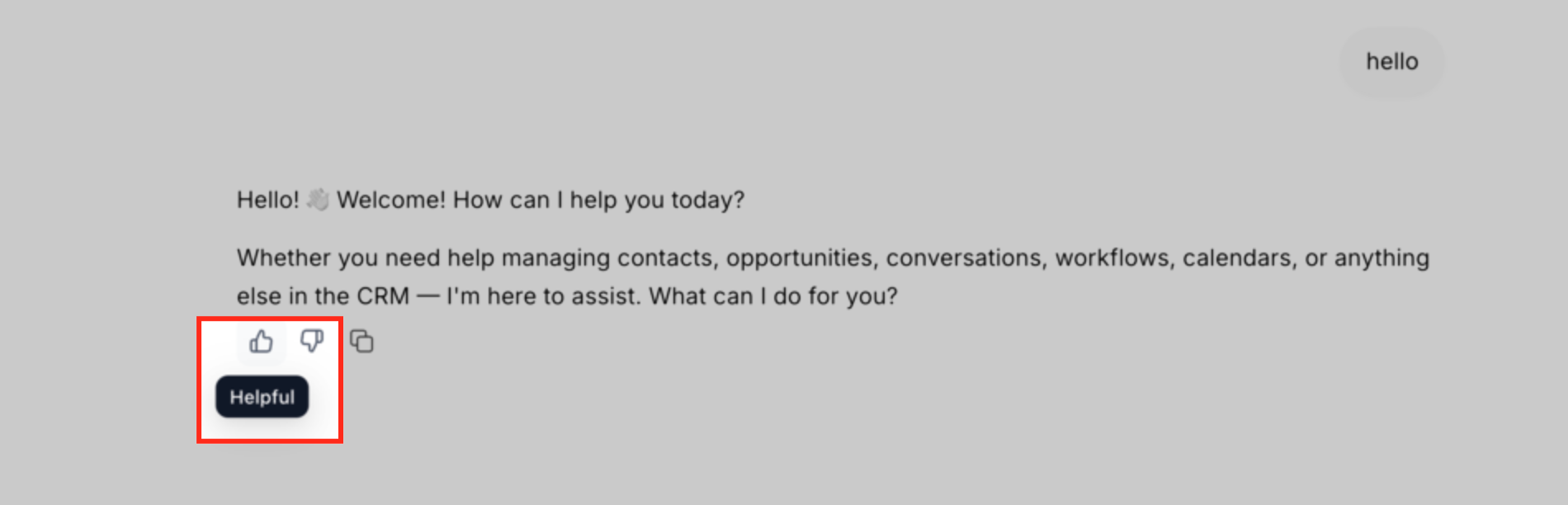
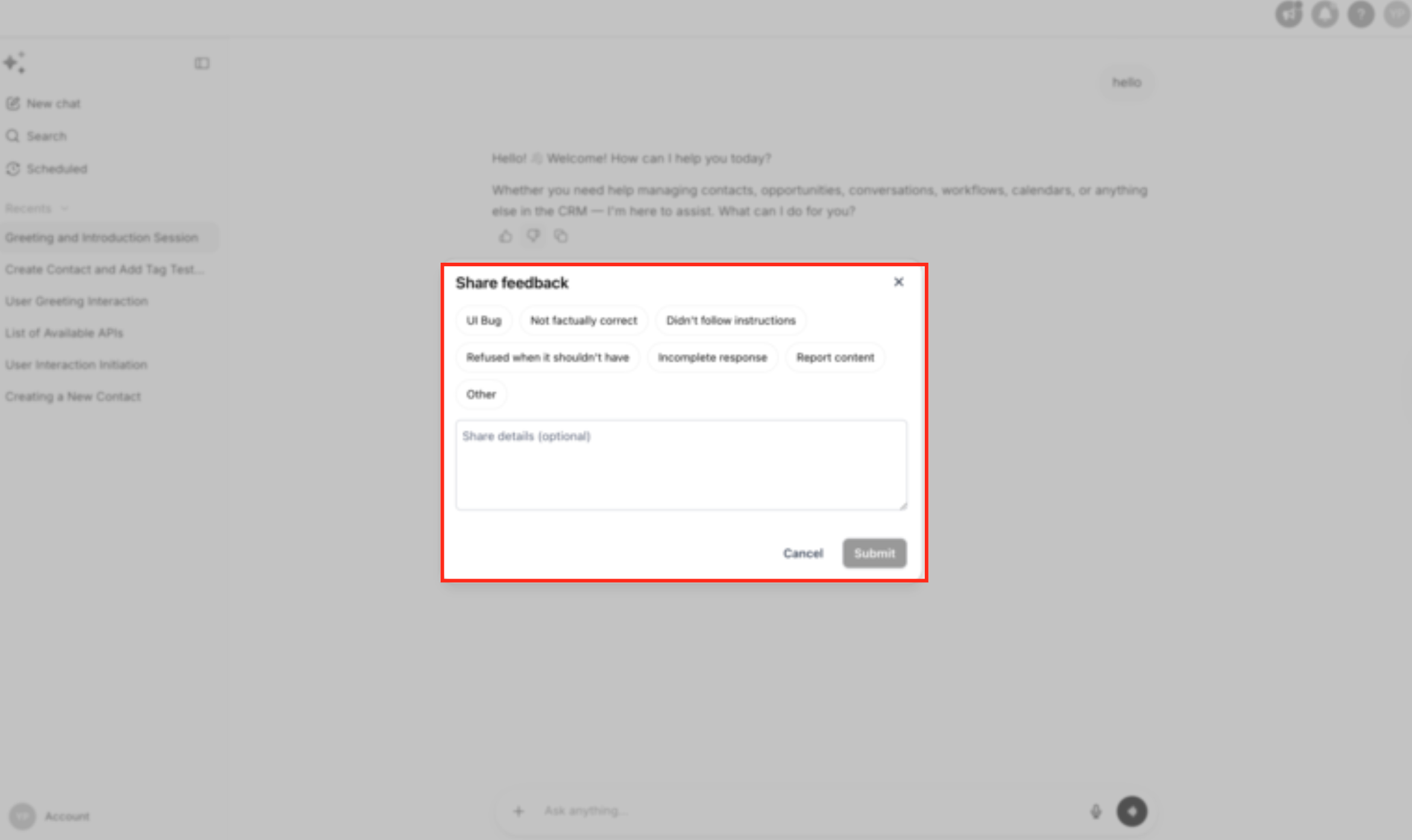
You can rate individual Ask AI responses with a thumbs up or thumbs down to share feedback while you work. Feedback is tied to a single answer; if that answer includes text plus structured content such as a card, table, diagram, or artifact, the rating applies to the full response. When you choose thumbs down, you may be asked to select one or more reasons and add an optional comment.
Feedback Option | Use When the Response… | Example |
|---|---|---|
Thumbs Up | Answered your question clearly, followed your instructions, used the right tone or format, provided accurate and useful information, helped you complete the task, included helpful structure (steps, lists, tables), or produced a useful artifact, card, or diagram. | You ask Ask AI to create a follow-up email, and the response is accurate, well-written, and ready to use with minimal edits. |
Thumbs Down | Was inaccurate, did not follow your instructions, missed important context, was off-topic, used the wrong tone, was too vague or incomplete, refused when it should have helped, or produced output that did not match the request. | You ask for a professional email, but Ask AI creates a casual social media caption. Select thumbs down and choose a reason related to instruction following or relevance. |
When selecting thumbs down, choose the reason options that best match the issue. If the options do not fully explain the problem, add a short comment with more detail.
A single answer can include written content, structured cards, tables, diagrams, artifacts, or follow-up text. When you rate a response, your feedback applies to the full answer, not just one sentence, card, or visual element. For example, if Ask AI provides an explanation and a table, the rating applies to both.
Reasons and comments make negative feedback more useful. Helpful comments are short, specific, and focused on the issue. Good examples:
"The answer ignored my request to keep the email under 100 words."
"The response used the wrong contact name."
"The steps were missing the setup step for permissions."
"The table was helpful, but the dates were incorrect."
Less helpful examples: "Bad." "Wrong." "Did not like it." "Fix this."
If you change your mind, choose the other rating or clear your feedback. Update feedback when you clicked the wrong thumb by mistake, a response seemed helpful at first but later appeared incorrect, you originally selected thumbs down but later realized the response was useful, or you want to remove feedback. When feedback is updated, the latest rating replaces the earlier one. If cleared, the response returns to an unrated state.
Feedback is available in new conversations created after the feature release. Older conversations remain unchanged and may not show thumbs controls. To provide feedback on current behavior, start a new conversation and rate the responses there.
Open Ask AI.
Start a new conversation.
Send a prompt or question.
Review Ask AI's full response.
Locate the thumbs up and thumbs down controls below the response.
Select thumbs up if the response was helpful.
Select thumbs down if it was not helpful or did not meet expectations.
If selecting thumbs down, choose one or more reasons when prompted.
Add an optional comment if more context would help.
Submit the feedback.
Update or clear the rating later if your opinion changes.
Be specific about what was wrong.
Mention whether the issue was accuracy, tone, format, relevance, or instruction following.
Include the expected outcome when possible.
Keep comments short and focused.
Rate the full response, including any artifacts or structured content.
Use thumbs up when Ask AI gets it right, not only thumbs down when something is wrong.
Update or clear feedback if your opinion changes.
Example: "The response was helpful overall, but it did not follow my request to format the answer as a checklist."
Q: Can I type my own prompt instead of using suggested prompts?
Yes. Suggested prompts are optional. You can type a custom prompt directly in the composer.
Q: Can I speak prompts instead of typing them?
Yes. When voice input is available, you can speak prompts directly into Ask AI to create content, ask questions, or request supported actions faster.
Q: What are collapsible cards?
Collapsible cards help organize longer or structured responses so you can expand details only when needed.
Q: Why does my Ask AI URL include a conversation ID?
The conversation ID preserves the active chat state so you can return to the same conversation after navigating away.
Q: How do I start a new Ask AI conversation?
Use the new chat option in the Ask AI sidebar, or start from the welcome screen when available.
Q: Does using Ask AI to edit content consume my AI credits?
No. Edits done with "Edit with Ask AI" do not use additional credits.
Q: Can I use "Edit with Ask AI" on content I wrote myself?
Yes. As long as the content is inside an AI-supported block, you can highlight and edit it.
Q: Will Ask AI overwrite my entire FAQ or pricing table when I make a small change?
No. Ask AI updates list-based elements at the item level, modifying only the specific item you request, which reduces the risk of unintended overwrites. Supported elements include Testimonials, Pricing Tables, Logo Showcase, Number Counters, FAQs, Image Sliders, Photo & Video Gallery, and Navigation Menus.
Q: Where do I see the results of a scheduled task?
All results are stored under the task's Run history in Ask AI > Scheduled Tasks. Click any completed run to open the associated session and review the full output.
Q: Does Scheduled Tasks automatically email or notify me when a task runs?
By default, it focuses on running the prompt and saving the result. Notifications or emails only occur when your prompt explicitly instructs Ask AI to send them and your account has the necessary messaging capabilities configured.
Q: Do scheduled runs count toward Ask AI usage?
Yes. Each scheduled execution is effectively an Ask AI session and contributes to your usage just like a manually triggered request.
Q: Do I have to use Cron, or can I stick to simple schedules?
Cron is optional and intended for advanced timing patterns. Most users can rely on the built-in Hourly, Daily, Weekdays, Weekly, and One-time options.
Q: Can I change the timezone or schedule without recreating the task?
Yes. Use Edit to update the frequency, time, or timezone. The next scheduled run automatically uses the new configuration.
Q: How many memories does Ask AI use in a conversation?
Ask AI uses the most recent saved memories when generating responses, including the 20 most recent memories in AI requests.
Q: Can users import memories from another AI provider, and how many at once?
Yes. You can import memory details from providers such as ChatGPT or Claude, up to 100 memories at once. Duplicate memories are automatically detected and skipped.
Q: Is Ask AI Memory the same as Smart Session Memory?
No. Ask AI Memory saves reusable user facts across conversations. Smart Session Memory keeps editing context for a specific conversational editing workflow.
Q: How do I enable Voice Mode, and why might I not see it?
Go to Account Settings → Labs, find Ask AI Voice Mode, and toggle it on. If you do not see it, the feature may not be available for your account yet, or you may not have permission to enable Labs features. Check with your admin if the option is missing.
Q: Is Ask AI Voice Mode the same as a Voice AI agent or Voice AI Chat Widget?
No. Voice Mode is for speaking to Ask AI inside the platform. Voice AI agents and the Voice AI Chat Widget are separate features used for AI-powered voice or visitor conversations.
Q: Do artifacts automatically complete actions?
Not always. Artifacts help organize and present responses. Some actions may require confirmation, supported capabilities, or proper access before changes are made. An "error block" is a safer fallback response that may appear when Ask AI cannot fully render or complete a structured output.
Q: Can Ask AI create tables and charts from my data?
Yes, when the needed data is available in the conversation or through supported capabilities. Provide the data or context in your prompt when possible.
Q: Where are AI-generated images stored, and is there an extra charge?
Images are initially saved within your Ask AI session; click Save to transfer one to your Media Library. There is no additional billing for image generation and editing for accounts with AI Employee access, or when using pay-per-use for Content AI.
Q: Can I create a Knowledge Base without Brand Voice?
Yes. Ask AI can use your Business Profile website as the source, or create an empty Knowledge Base for you to add sources manually later. Ask AI always requests approval before crawling any website content.
Q: Can Conversational AI use multiple Knowledge Bases?
Yes. Conversational AI supports multiple attached Knowledge Bases. Voice AI supports one Knowledge Base per agent.
Q: Does Ask AI automatically create a Blog Post, or only the draft content?
Ask AI produces a structured blog draft inside the chat. You then copy that content into the Blog Post editor (Sites → Blogs) to create or update an actual Blog Post, where you configure SEO, authors, categories, and publishing settings.
Q: Does the Contact Summary Agent require any setup?
No. Simply open Ask AI and start asking questions or requesting summaries. The agent works with any contact record that has data available and pulls real-time data so summaries stay up to date.
Q: Can Ask AI generate video and voiceover audio?
Yes. Ask AI can generate 4, 6, or 8 second video clips in landscape or vertical orientation at resolutions up to 4K, and turn a script into a voiceover using one of ten voices. Generated media renders directly in the conversation for review, and video can be saved to the Media Library for reuse.
Q: How is audio generation different from Ask AI Voice Mode?
They serve different purposes. Voice Mode lets you speak with Ask AI in real time. Audio generation creates reusable voiceover content from a script that you can save and use elsewhere.
Q: Can I run more than one Ask AI conversation at the same time?
Yes. Ask AI supports up to 10 parallel conversations. They keep processing in the background when you close the panel or switch tools, and you get a notification when a session completes or fails.
Q: What are Ask AI Connectors?
Connectors link outside apps, such as Notion, Canva, GitHub, or HubSpot, directly to Ask AI so it can read, create, update, or search inside those apps on your behalf. You authenticate under your own login, and no credentials are ever stored or shown to the AI.
Q: What is an Ask AI Skill?
A Skill is a saved instruction set Ask AI applies automatically when your request matches it, or on demand by typing /skill-name in the composer. You can write one from scratch, upload a markdown playbook, or ask Ask AI to save your current conversation as a Skill.
Q: Can Ask AI take action automatically based on CRM events?
Yes, through Ask AI Triggers. A saved Skill can run automatically when a contact is created, a form or survey is submitted, a tag is added or removed, an appointment is booked or changes status, or an opportunity is created or changes status.
Q: What's the difference between an Ask AI Trigger and a Scheduled Task?
A Trigger fires in real time when a CRM event happens. A Scheduled Task runs on a fixed schedule (hourly, daily, weekly, or a custom cron time) regardless of CRM activity. Use Triggers for event-driven automation and Scheduled Tasks for recurring check-ins and reports.
