A Knowledge Base is the library of business information your AI agents draw from when they handle conversations, scheduling, and lead capture. Anything you add to it — your website, service documents, FAQs, pricing tables, or live spreadsheets — becomes searchable content that powers both Conversational AI (your chat agent) and Voice AI agents. When a Knowledge Base is well organized and current, your agents give consistent, reliable answers without your team answering the same routine questions over and over.
This guide covers how to create a Knowledge Base, every type of source you can add, how to keep that content fresh, and how to test that your agents can actually find the right answers.
You can find the Knowledge Base under AI Agents → Knowledge Base in your sub-account.
Note on PHI: Don't enter protected health information (PHI) into the Knowledge Base. AI features aren't approved for processing PHI — use them for productivity, communication, scheduling, and engagement, not to store or process medical records. See the HIPAA Compliance guide for details.
Knowledge Base content is used by your AI agents during conversations:
Conversational AI can search across multiple attached Knowledge Bases at once, making it easy to combine website content, FAQs, policies, and other resources into a single chat experience.
Voice AI supports one Knowledge Base per agent. The Knowledge Base you assign becomes the active source that agent uses on calls.
You can attach the same Knowledge Base to more than one agent, so the work you put into building it is reused everywhere your AI shows up.
Ask AI is a guided, conversational way to build a Knowledge Base and connect it to an AI agent in one workflow — instead of configuring sources and attaching agents separately. Depending on your account setup, Ask AI can use your Brand Voice, your Business Profile website, or manual source configuration to create the Knowledge Base and prepare it for AI conversations.
Flexible sources: Ask AI can use Brand Voice or your Business Profile website as the starting source.
Faster deployment: Create a Knowledge Base and connect it to Conversational AI or Voice AI from a single workflow.
Guided configuration: A structured, step-by-step process reduces setup errors and confusion.
Controlled crawling: Ask AI always requests approval before crawling any website content.
Manual fallback: If no Brand Voice or website is available, Ask AI can create an empty Knowledge Base for you to fill in later.
Having the right business information configured helps Ask AI create a more accurate Knowledge Base. Before starting, make sure your sub-account includes at least one of the following:
Brand Voice configuration: Brand Voice gives Ask AI context about your tone, services, and messaging, which can improve Knowledge Base quality and support FAQ generation.
Business Profile website: A website URL in your Business Profile settings can be used as the primary crawl source.
A configured AI agent: To attach the Knowledge Base during setup, make sure the Conversational AI or Voice AI agent you want to use is already set up.
The right permissions: Your user role needs permission to access AI Agents and Knowledge Base settings.
You can still create a Knowledge Base manually if Brand Voice or a website is not configured.
Ask AI checks the business information in your location settings to decide which source to use:
Brand Voice: When Brand Voice is available, Ask AI uses it for context, may still include website crawling if URLs are available, and can suggest generating FAQs automatically.
Business Profile website: Ask AI can use the website listed in your Business Profile as the primary crawl source. Before crawling, it asks for approval and lets you crawl the suggested site, enter a different URL, or skip crawling and add sources manually.
Manual setup: If no Brand Voice or website is available, Ask AI creates an empty Knowledge Base and guides you toward adding documents, rich text, FAQs, web crawler sources, and tables later.
Step 1: Open Ask AI
Open Ask AI from the navigation menu in your sub-account.
Start a new chat conversation.
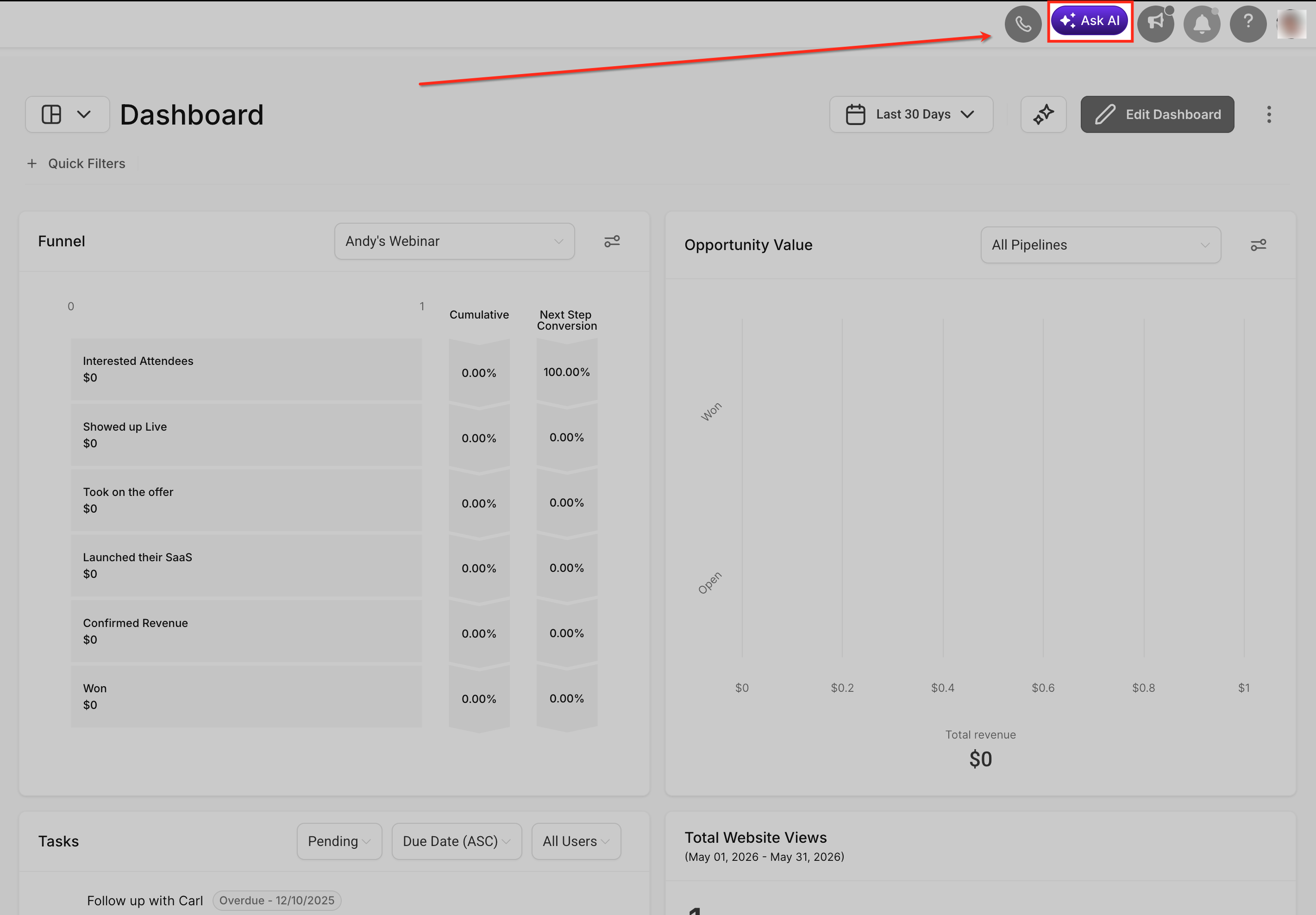
Step 2: Start the Knowledge Base workflow
Enter a prompt describing what you want Ask AI to create. For example:
"Create a Knowledge Base from my website and attach it to Conversational AI."
"Build a Knowledge Base using Brand Voice and connect it to Voice AI."
Ask AI detects the request and begins the workflow automatically.
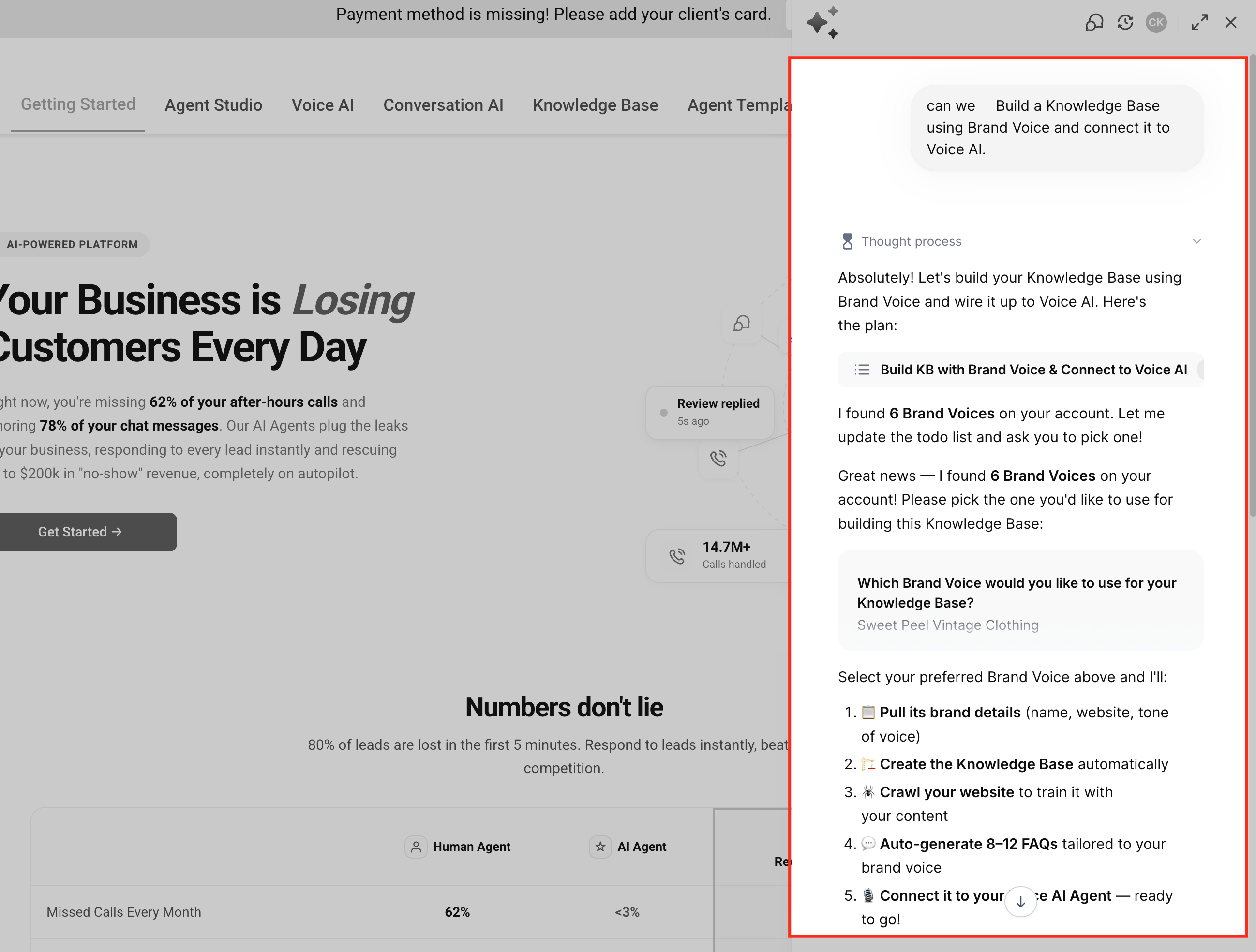
Step 3: Confirm the content source
Depending on your setup, Ask AI may use Brand Voice, suggest your Business Profile website, or offer manual setup. If a website is detected, confirm whether Ask AI should crawl it or use a different URL.
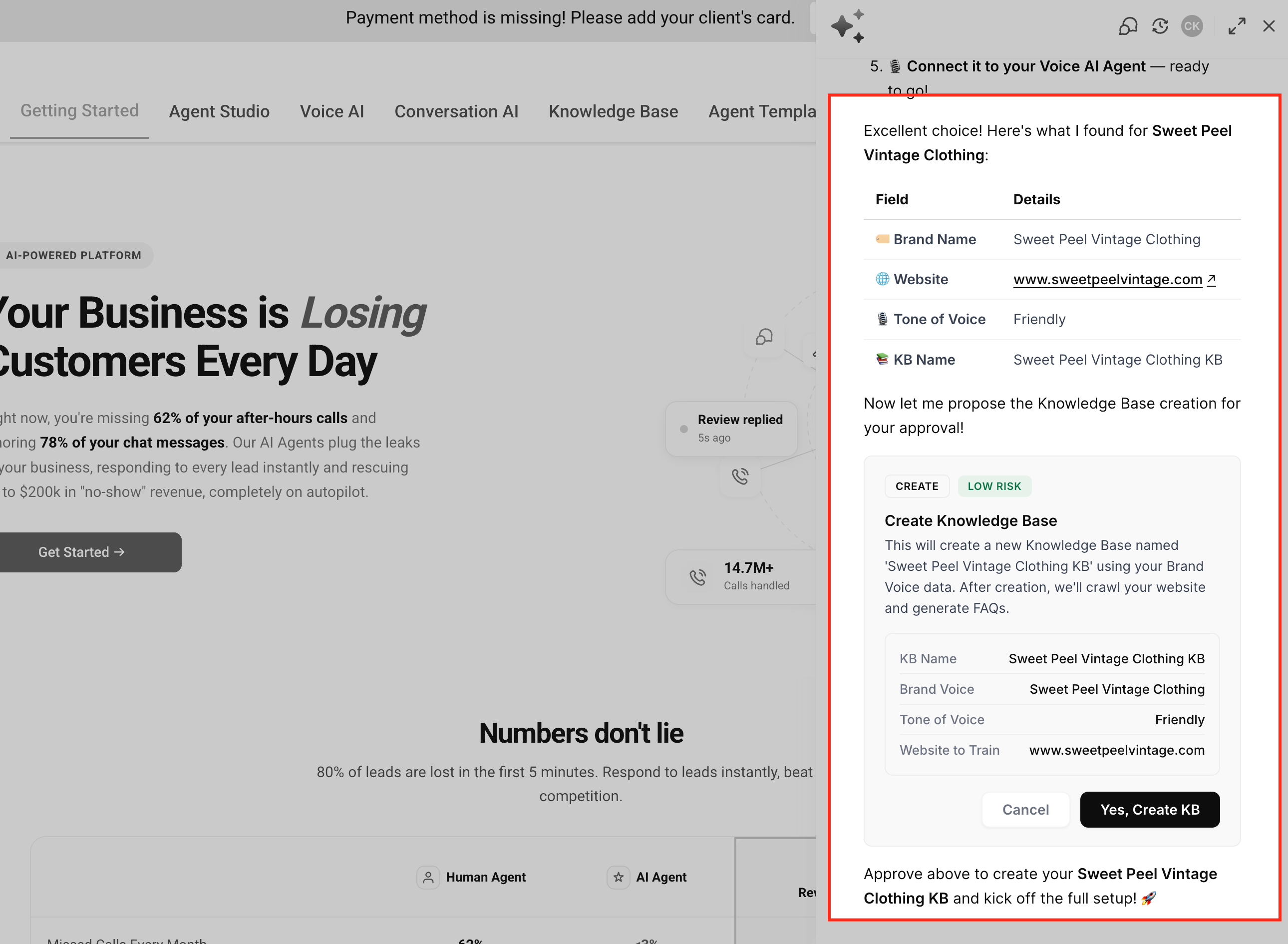
Step 4: Review the Knowledge Base creation
Ask AI creates the Knowledge Base and configures the selected source automatically. If a website is used, a Web Crawler source is added, crawling begins automatically, and the content becomes searchable once processing completes.
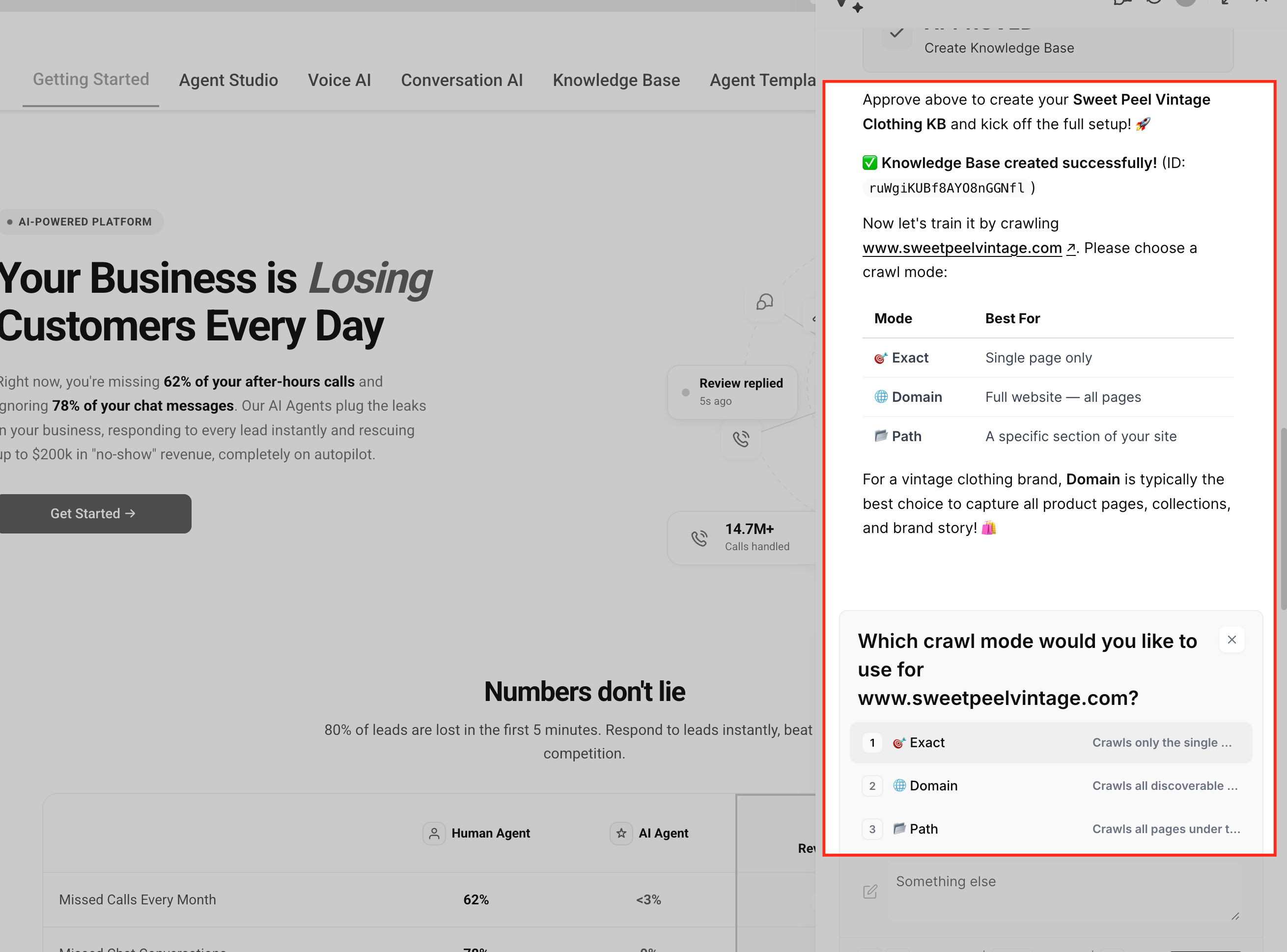
Step 5: Configure FAQs
When Brand Voice is available, Ask AI may suggest generating FAQs from your business context. When using website content only, you can still add FAQs manually later from the Knowledge Base settings.
Step 6: Attach the Knowledge Base to an AI agent
Choose whether to connect the Knowledge Base to an existing Conversational AI agent, a new Conversational AI agent, or an existing Voice AI agent. Once attached, the agent can begin using the Knowledge Base in conversations right away.
You can populate a Knowledge Base by uploading document files (DOC, DOCX, PDF) or by writing content directly in a built-in rich-text editor. During upload, Aesthetix CRM extracts headings and text and structures the content into searchable sections so your agents can find and cite the right passages.
Reuse what you have: Upload industry-standard files (DOC, DOCX, PDF) instead of recreating content.
Save time: Ingest an entire document in one step instead of copying and pasting sections.
Edit inline: Use the rich-text editor for quick updates or net-new entries without leaving the app.
Better answers: Automatic parsing structures content into searchable chunks aligned with your headings and sections.
Works alongside other sources: Combine documents and rich text with web URLs, FAQs, and tables for stronger training data.
Supported types: DOC, DOCX, PDF.
Text only: Text is ingested; embedded images are skipped to keep the content lightweight and searchable.
Heading awareness: Detected heading hierarchy (for example, H1–H4) improves how content is chunked and retrieved.
Fast indexing: New content usually becomes available immediately or within about a minute, depending on file size.
Before uploading, remove sensitive content and make sure your headings accurately reflect the structure of the document. Clear headings produce better chunks and better answers.
When you add a document, Aesthetix CRM:
Extracts the text and detects headings to form a logical hierarchy.
Splits large files into optimized chunks for faster, more relevant search.
Indexes the content on completion so agents can use the latest information.
Preserves document-level context so related sections stay connected during retrieval.
Go to AI Agents → Knowledge Base from your sub-account.
Edit an existing Knowledge Base, or click Create New and give it a name and description.
Click Add Source → File Upload.
Drag and drop or browse for your DOC, DOCX, or PDF files.
Click Upload Files.
When parsing finishes, the status changes to Processed.
Use the arrow icon to open the uploaded file in a new tab, or the trash icon to delete it.
To add written content, choose Rich Text and write or edit directly in the editor.
Click Save to add the rich text to the Knowledge Base.
File-based sources and rich-text entries are stored separately, so adding one never overwrites the other. Each upload is added as a new source alongside your URLs and FAQs.
Instead of downloading files to your computer and re-uploading them, you can connect your Google account and import supported files from Google Drive directly into a Knowledge Base. This is a quick way to bring documentation your team already keeps in Drive (service menus, policy documents, consent forms without PHI, pricing sheets) into a Knowledge Base without an extra download-and-upload step.
PDF (.pdf)
Google Docs
Microsoft Word (.doc and .docx)
Direct import: Add files straight from Google Drive without downloading them to your device first.
Faster setup: Turn existing documentation into Knowledge Base content in a few clicks.
Manual re-sync: Pull the latest version of an imported file from Google Drive whenever you update it there.
Optional daily sync: Turn on Daily Scheduled Sync for a file to have Aesthetix CRM check it for changes automatically every 24 hours instead of re-syncing it by hand. See Keeping Google Drive Files Fresh with Daily Scheduled Sync below.
One place to manage sources: Imported Drive files sit alongside your website, FAQ, rich-text, and uploaded-document sources in the same Knowledge Base.
Go to AI Agents → Knowledge Base and open an existing Knowledge Base, or create a new one.
Choose the option to add a source from Google Drive.
If no Google account is connected yet, connect one using the standard Google Drive permissions. No extra permissions are required beyond the normal Google connection.
Browse your connected Drive and select the file (or files) you want to import.
Confirm the import. Aesthetix CRM processes the file alongside your other Knowledge Base sources.
If the source file changes later in Google Drive, open it in the Knowledge Base and use the re-sync action to pull in the latest version, rather than deleting and re-uploading it.
Re-sync for Google Drive files is manual, it does not update on a schedule the way the Google Sheets Auto Sync described below does. Re-sync whenever you've edited the file in Drive and want the change reflected in your agents' answers.
Table Search adds a Table source type so your AI agents can answer questions about structured data — service menus, pricing, inventory, hours, or any other rows you provide. Instead of keyword matching, Aesthetix CRM semantically indexes every record, so you (and your agents) can ask plain-English questions and get context-aware results without formulas, filters, or SQL.
Natural-language queries: Ask plain-English questions about table data without formulas or filters.
Semantic search: Returns accurate, context-aware answers from the most relevant rows and columns.
Large CSV support: Handles up to 50,000 rows and 500 columns; select the 20 most relevant columns for indexing.
Beyond web and docs: Surfaces structured data that web pages and documents don't capture well.
Agent-ready: Lets your AI agents handle service catalogs, pricing, KPIs, and similar tabular use cases.
Open AI Agents → Knowledge Base.
Edit an existing Knowledge Base, or click Create Knowledge Base and give it a name and description.
Click Add Source, then choose Tables.
Upload your CSV file by drag-and-drop or file picker (max 50 MB).
Review the detected columns and adjust data types if needed.
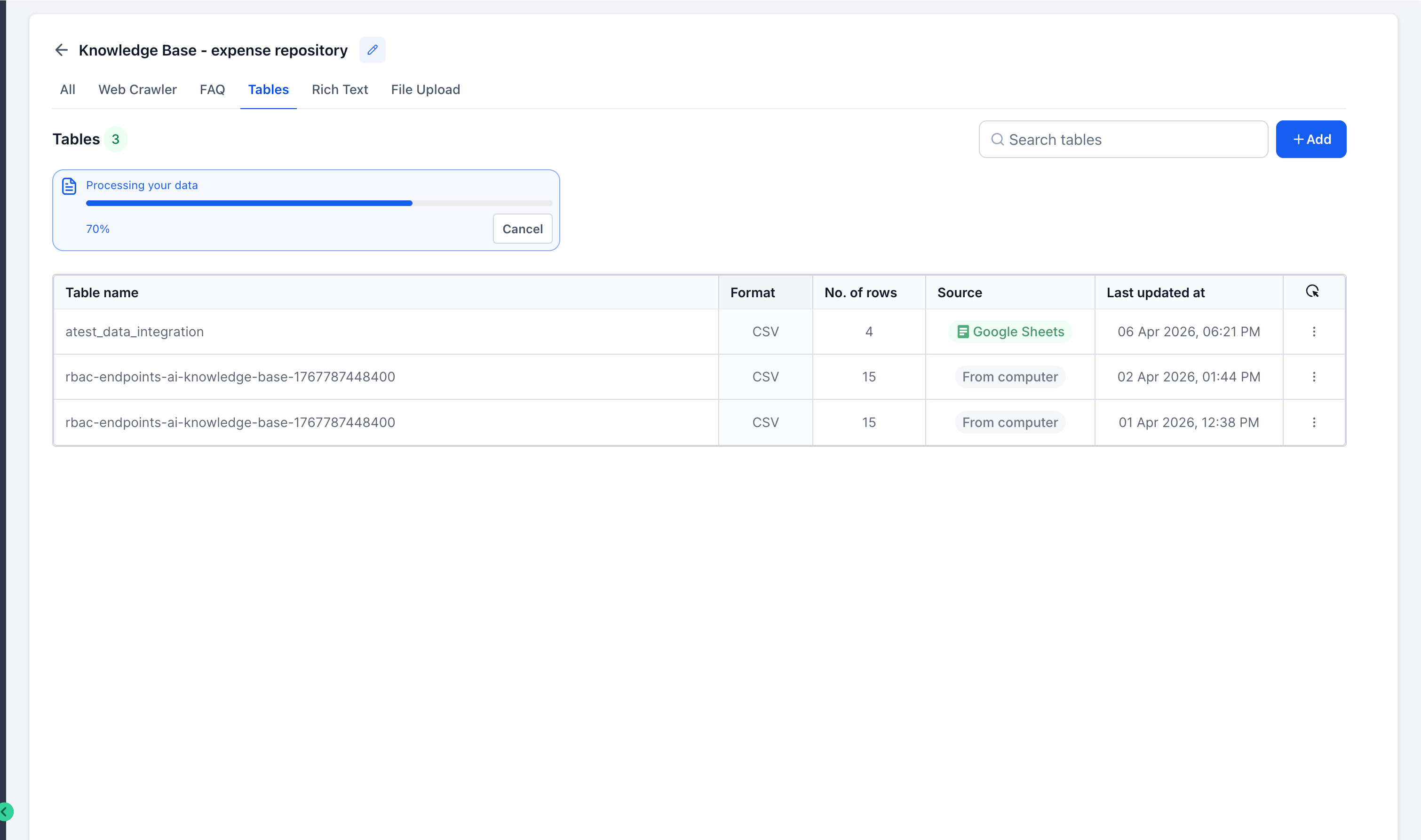
Click Done to index the table. A progress bar shows chunking status.
Attach the Knowledge Base to your AI agent (Conversational AI or Voice AI) as usual.
Test a sample question, such as "Which services are over $500?", to confirm results.
Format: .csv only (UTF-8 recommended).
Size limits: Up to 50,000 rows and 500 columns per location (select the 20 most relevant columns), and files up to 50 MB.
Header row: The first row must contain column names.
Data types: Detected automatically with an 80% confidence threshold.
Clean data: Remove null values, hidden formulas, merged cells, and similar issues.
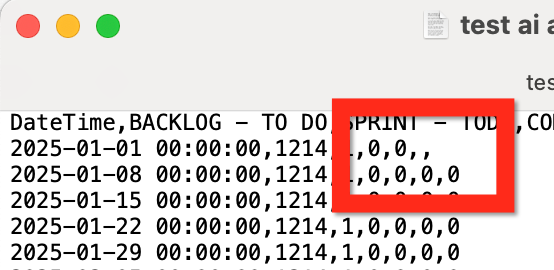
A CSV can be rejected at several points. Even if the format is accepted, the data itself might still contain an error.
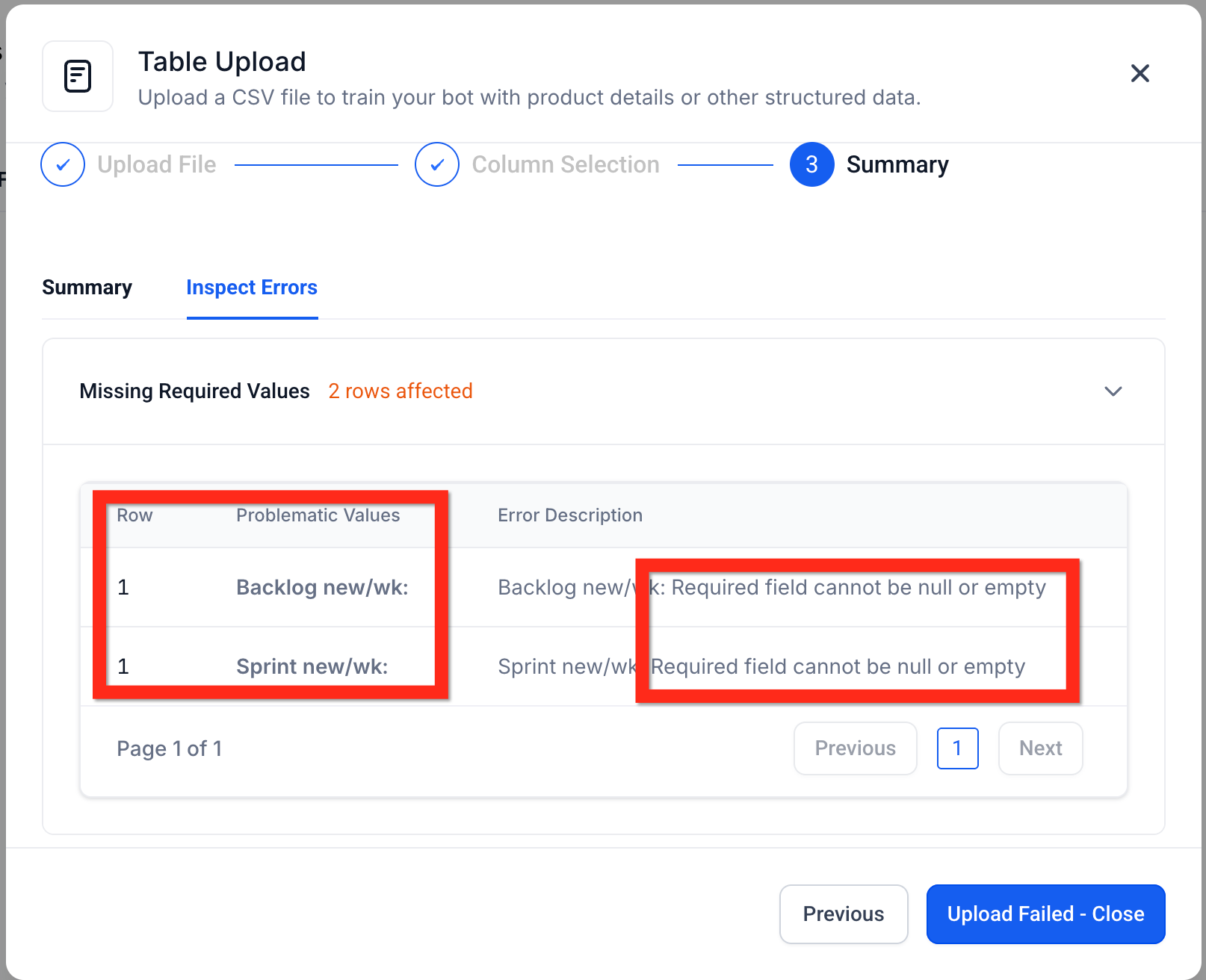
In that case, inspect the CSV manually in a spreadsheet program or even a text editor to find the problem.
Aesthetix CRM converts each table row into vector embeddings so your agent can understand meaning rather than match exact words. This enables questions like "Which services include financing options?" or "What are our weekend hours?" — the engine compares the question to every row chunk and returns the most semantically similar matches.
Behind the scenes, the system:
Detects column types (text, number, date, and so on) with about 80% accuracy.
Chunks rows into groups of five (max 2,000 characters each) for efficient indexing.
Stores chunk metadata so answers can reference the correct records.
Rows that informed an answer are cited in the Response Info sidebar, so you can verify or edit them on the spot. Only agents linked to the Knowledge Base containing a Table source can query it, and table data inherits the Knowledge Base's existing access controls.
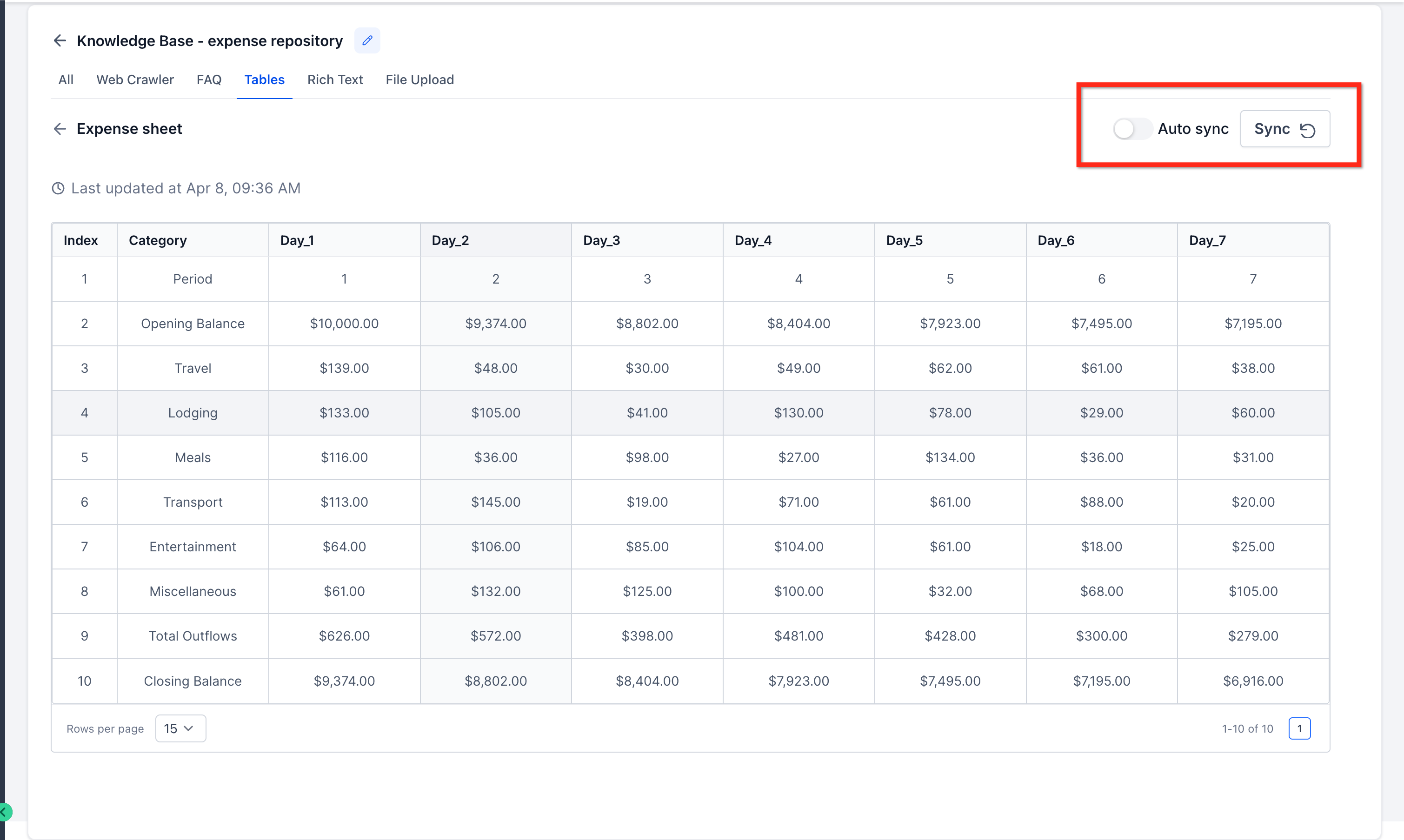
Google Sheets integration lets you connect a live spreadsheet as a Knowledge Base source instead of re-uploading files every time values change. This keeps structured information current and is especially useful for pricing, service details, hours, and other frequently updated data.
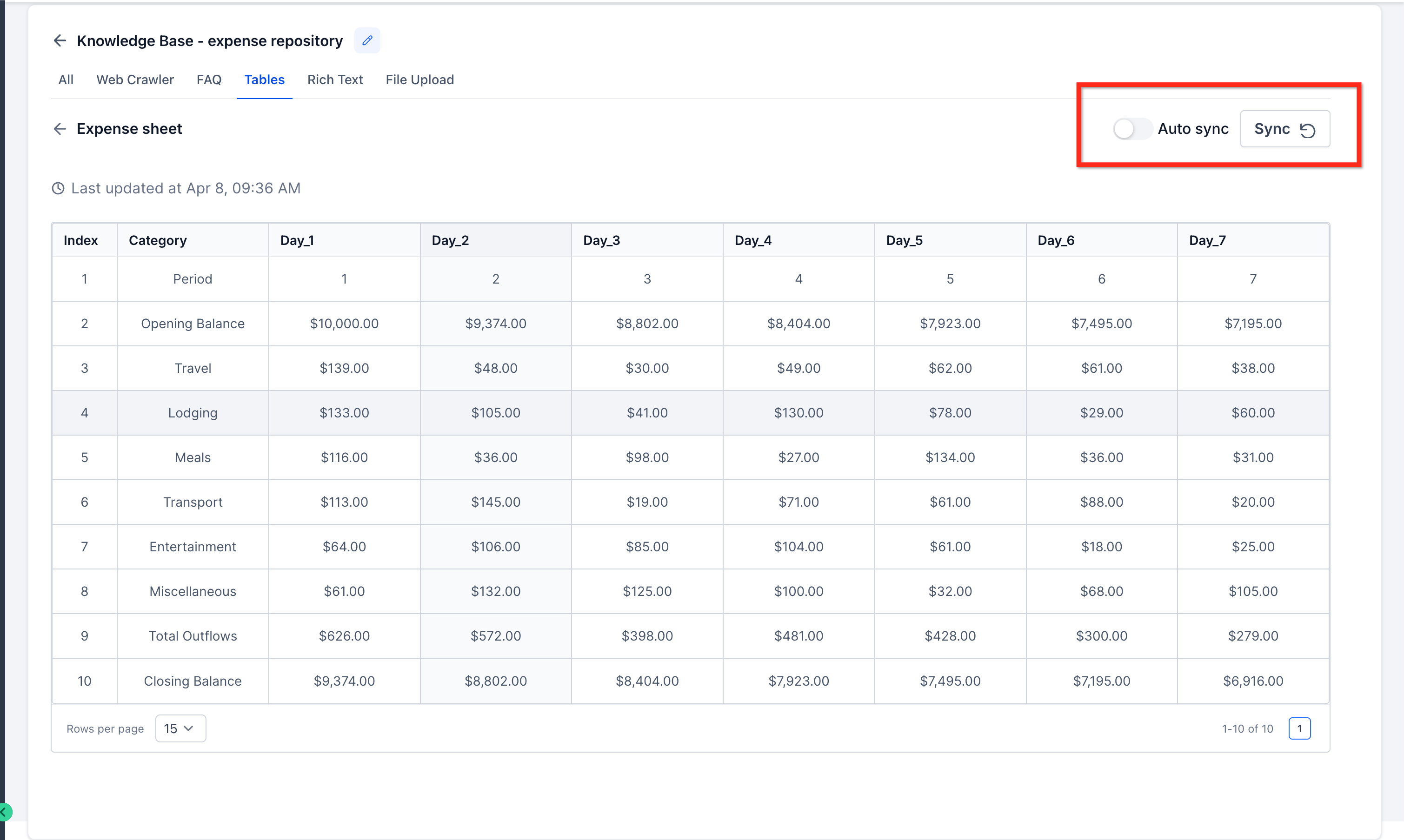
Near real-time sync: Updates from your connected sheet can be pulled in approximately every 15 minutes.
Manual refresh: Refresh on demand when you want changes reflected immediately.
Handles changing data: Added or removed columns, updated rows, and edited cells are reflected without repeated uploads.
Less maintenance: Keep using the spreadsheet your team already manages instead of exporting and re-uploading.
More current answers: Agents reference updated content more consistently, reducing outdated responses.
Auto Sync (~15 min) is designed for spreadsheets that change often and need to stay closely aligned with your Knowledge Base. It's useful for:
Frequently updated pricing
Availability or schedule changes
Service details that change throughout the week
Shared reference sheets used by multiple team members
Manual Refresh gives you more control over when updates go live. It works well for:
Periodic updates made in batches
Reviewed or approved spreadsheet changes
Internal datasets that don't change often
Cases where you want to refresh only after testing updates
Connecting a Google Sheet works well for structured information such as:
Product or service pricing
Office or support hours
Location-specific details
Frequently updated internal reference data
Sales, onboarding, or service notes stored in a tabular format
The integration also reflects ongoing changes within the sheet, including updated cell values, new or removed rows, and added or removed columns.
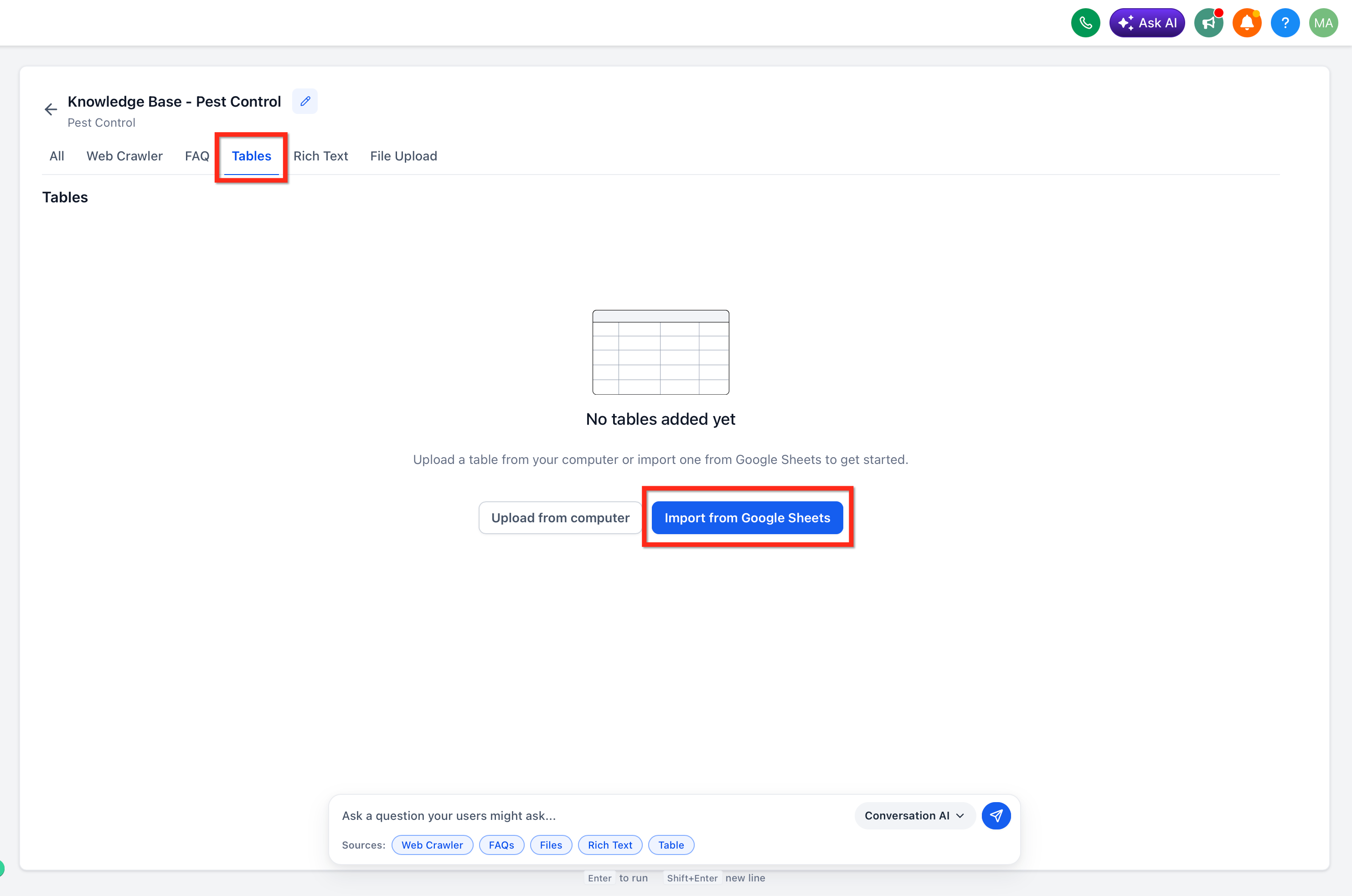
From your sub-account, go to AI Agents → Knowledge Base and open an existing Knowledge Base or create a new one.
Click Tables, then Import from Google Sheets.
If no Google account is connected yet, set up a Google connection using the standard Google Drive permissions. No extra permissions are required.
Choose the connected Google account, then browse the available accounts, drives, and spreadsheets.
Select the Google Sheet you want to import.
Review the sheet and choose the appropriate data types, similar to the regular CSV upload flow.
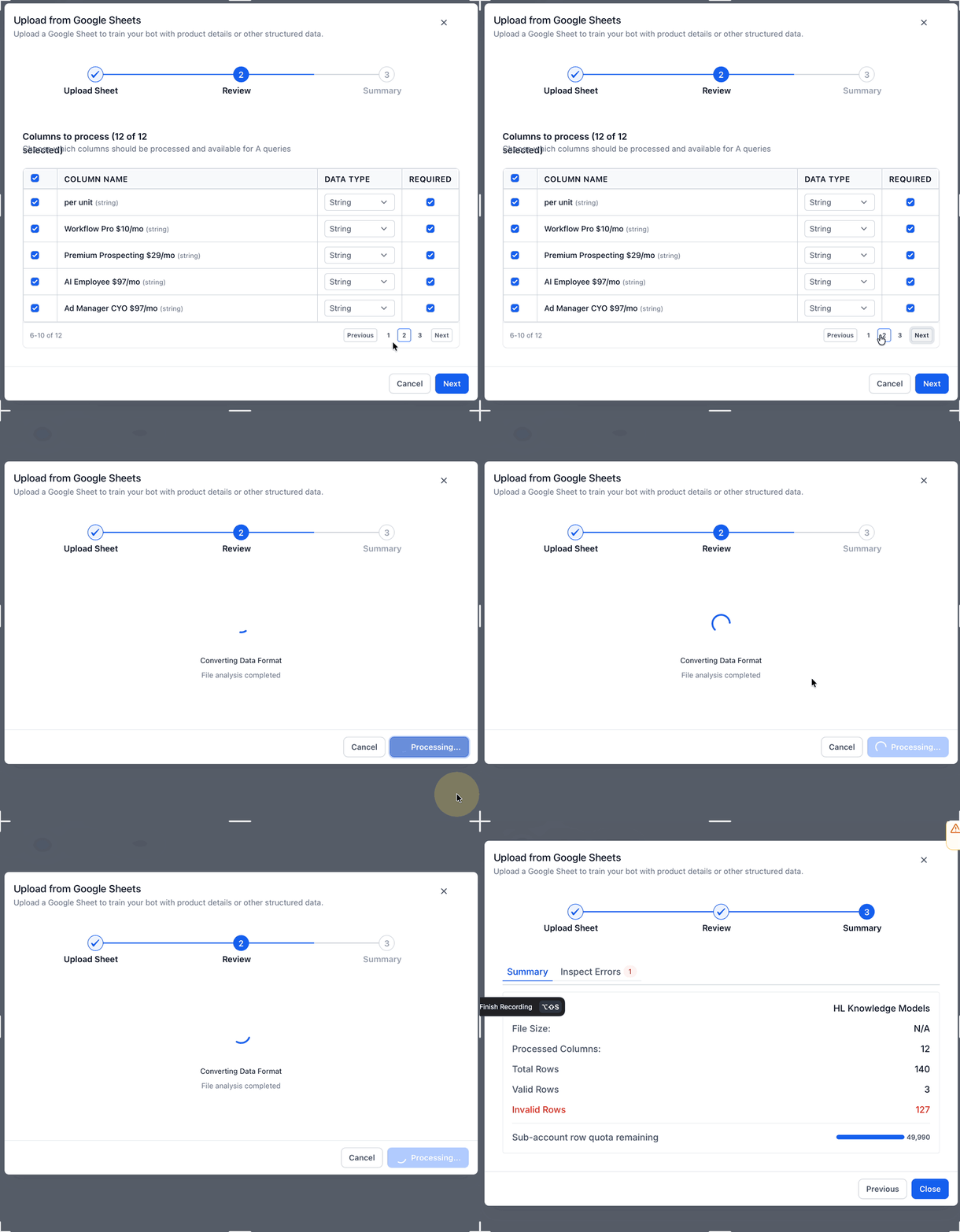
Start the import and wait for processing to finish.
Let auto-sync keep the Knowledge Base updated as you change the connected sheet. Updates usually sync within about 15 to 20 minutes. Use the manual refresh option when you want to force an update sooner.
When you add a website as a Knowledge Base source, Aesthetix CRM can read the site's sitemap and let you choose exactly which pages get trained, instead of pulling in the entire site. This keeps your Knowledge Base focused on the pages that actually help your agents answer questions, service pages, pricing, policies, hours, and leaves out pages that don't, such as blog archives or staff bio pages.
Sitemap preview: If Aesthetix CRM finds a sitemap for the website you add, a Select Pages to Train window opens listing the discovered URLs.
Curated selection: Search and page through the list, then check only the specific pages you want trained.
Page quota counter: A quota counter shows how many pages you're allowed to train and how many you've currently selected, so you can plan your selection before starting.
Discovery crawl: If a page you need isn't listed in the sitemap, run a discovery crawl to look for additional pages beyond the sitemap.
Progress tracking: Live operation cards show crawl and training status so you can see completed versus in-progress pages at a glance.
Retry failed URLs: If a specific page fails to crawl or train, retry just that URL instead of re-running the entire crawl.
Go to AI Agents → Knowledge Base and open (or create) the Knowledge Base you want to add a website to.
Add a website URL as a source. If Aesthetix CRM detects a sitemap for the site, the Select Pages to Train window opens automatically.
Search or page through the discovered URLs and check the boxes for the pages you want trained.
Check the page quota counter to confirm your selection fits within your available quota.
If a page you need is missing from the list, use Discover by Crawling to run a broader discovery crawl for additional URLs.
Start training and watch the live operation cards for crawl and training progress.
If any URL fails, retry that specific URL rather than restarting the entire crawl.
Once your selected pages are trained, use Auto Refresh (below) to keep them current automatically as the source pages change.
When you add web URLs to a Knowledge Base, Auto Refresh schedules automatic re-crawls of those pages so your agents reference up-to-date product pages, service details, and help content without manual upkeep. Instead of clicking Refresh on each URL, Aesthetix CRM periodically re-crawls the pages, updates the table data, and re-indexes the fresh content.
Always-current answers: Your agents use the latest content for higher accuracy.
Time savings at scale: Reduces manual refresh work, especially across many URLs.
Fewer outdated responses: Prevents stale instructions, prices, or policies from reaching customers.
Lower risk of error: Automates a repetitive task so a missed click doesn't leave sources stale.
Predictable scheduling: Choose Daily, Weekly, or Monthly to match your content rhythm.
Load management: Stagger refreshes to avoid peak-time crawling on large sites.
Click the Auto Refresh icon (circular arrows) and choose a schedule:
Daily: Refreshes approximately every 24 hours.
Weekly: Refreshes on the same weekday you select.
Monthly: Refreshes on the same calendar day each month.
The Status column reflects the current state of each URL:
Getting Data: The page is actively being re-crawled.
Trained: The latest data was saved; check Last data refreshed at for the timestamp.
Failed: The crawl hit an error; retry the refresh or review page accessibility.
From your sub-account, go to AI Agents → Knowledge Base.
Select the Knowledge Base you want to configure and click Web Crawler.
Click the Auto Refresh icon (circular arrows), choose a frequency — Daily, Weekly, or Monthly — then click Save.
Use stable URLs: Avoid addresses that frequently redirect or require login to view.
Keep pages lightweight: Extremely long or script-heavy pages may crawl slowly and can time out.
Audit failures weekly: Investigate rows stuck in Failed, fix broken links, and retry.
Stagger heavy sites: For large libraries, prefer Weekly or Monthly to spread the load.
Prioritize critical pages: Set Daily for pages that change often and directly affect customers.
Any table marked Ready in the Tables tab can be exported as a CSV — whether it started as a CSV upload or a connected Google Sheet. This is handy for analysis, QA, and point-in-time backups, and it uses the exact rows your AI agents query.
Reuse data outside the app: Open the exported CSV in Excel, Google Sheets, or BI tools to run reports or join with other datasets.
Faster QA and troubleshooting: Review the full table behind an AI answer when investigating odd responses or validating a new import.
Simple backups: Save snapshots of critical tables (pricing, policies, references) before major updates so you can compare before-and-after or roll back manually.
One workflow for both table types: CSV uploads and Google Sheets use the same download action.
Secure, time-limited links: Each download link uses the same authentication as other Knowledge Base operations and expires automatically after about 15 minutes.
When you open a Knowledge Base, sources are organized into tabs (such as Web Crawler, FAQ, Web Search, Tables, Rich Text, and File Upload). The CSV download option appears on the Tables tab for any table whose status is Ready:
Go to AI Agents → Knowledge Base, open the Knowledge Base, and select the Tables tab to see all table sources. Each row represents one table (from a CSV upload or a Google Sheet) with its processing status.
For each Ready table, open the three-dot (⋯) action menu at the end of the row to find the Download CSV action.
Downloads are only offered once a table is fully processed. If a table is still processing, wait for the status to change to Ready and check the menu again.
CSV-uploaded tables: Tables created by uploading CSV files (up to 50,000 rows, 500 columns, and 50 MB per file). Once indexing is complete, the Ready table can be exported.
Google Sheets–backed tables: Live sources that sync approximately every 15–20 minutes or via manual refresh. The CSV download reflects the version of the sheet that has synced into the Knowledge Base at the time of download.
Authenticated downloads: Only users who can view and manage a Knowledge Base table can download it. These controls are typically visible to admins and editors, not viewer-only users.
Time-limited links: Each download URL expires after about 15 minutes. If a link is opened after it expires, the file is no longer accessible — return to the Tables tab and trigger a fresh download.
Safe sharing: Avoid pasting download links into public channels or documents, even though they expire quickly. When collaborating, share the CSV file itself or make sure teammates have appropriate access to generate their own downloads.
From your sub-account, go to AI Agents → Knowledge Base and open the Knowledge Base that contains the table you want to export.
Click the Tables tab and confirm the table appears with a status of Ready (not processing).
On the right side of the table row, click the three-dot (⋯) action menu and look for Download CSV.
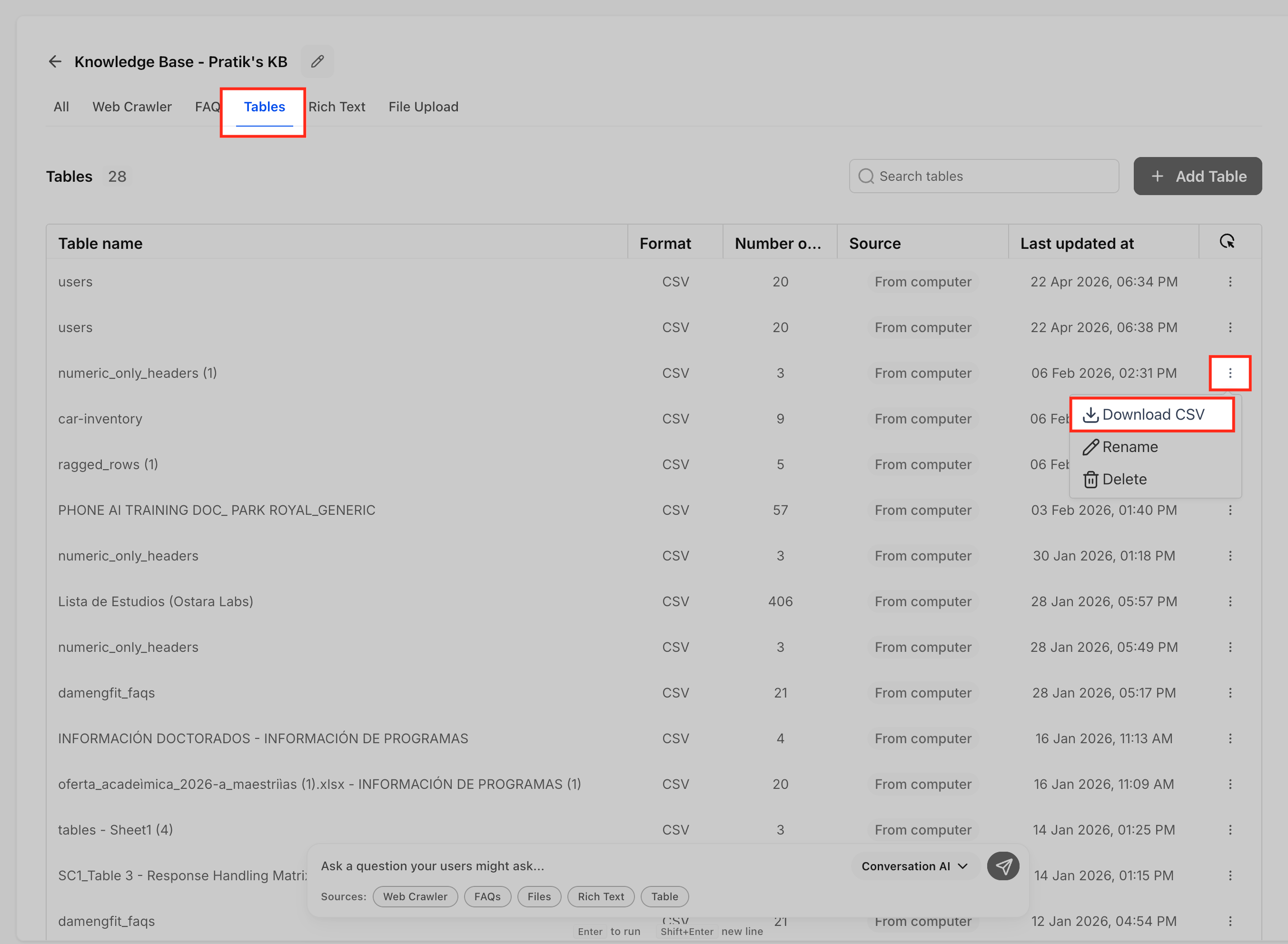
Click Download CSV. Aesthetix CRM generates a secure, time-limited link and starts the download in your browser to its default download location.
For Google Sheets–backed tables, if you recently changed the sheet, wait for auto-sync (~15–20 minutes) or use the manual refresh option first, then repeat the steps to download the most up-to-date CSV.
Open the file in a spreadsheet or analytics tool. If you plan to re-upload it, keep the header row and schema intact to stay compatible with Table Search.
The Knowledge Base Retrieval Tester lets you validate how well your Knowledge Base responds to test questions before it powers live AI conversations. It's a safe, read-only way to confirm that your uploaded, crawled, rich-text, document, and table-based content can actually be found and used by your AI agents.
Use it to ask sample questions, review which sources are returned, spot missing or irrelevant content, and retest after making updates.
Real-time testing: Ask a question and instantly see how your Knowledge Base responds.
Source-level transparency: Review the exact sources or chunks used to generate the result.
Faster troubleshooting: Identify missing, irrelevant, outdated, or poorly structured content before going live.
Better quality: Use results to refine documents, tables, rich-text entries, and crawled sources.
Safe validation: Run read-only tests without changing your Knowledge Base or affecting live conversations.
Faster iteration: Update content and retest to confirm the improvement.
You add a new document (PDF, DOC, DOCX), rich-text article, CSV table, or website source.
You update existing Knowledge Base content.
You want to confirm that critical business information is retrievable.
You are preparing a Conversational AI or Voice AI agent for launch.
You notice AI responses using the wrong source or missing expected details.
You want to compare how different questions retrieve different chunks of content.
You need to confirm whether duplicate or conflicting content is affecting retrieval.
Retrieved sources show which Knowledge Base content was found relevant to your test question. A Knowledge Base breaks source content into searchable pieces called chunks — documents are parsed into headings and text, and tables are semantically indexed so plain-English questions retrieve matching rows. When reviewing results, look at:
Whether the expected source appears in the results.
Whether the returned chunk directly answers the question.
Whether irrelevant or outdated content is being retrieved.
Whether similar sources contain duplicate or conflicting information.
Whether the content is too broad, too vague, or missing terms your customers may use.
Navigate to AI Agents → Knowledge Base.
Open the Knowledge Base you want to test.
Confirm the Knowledge Base includes the sources you want to validate, such as documents, rich-text content, tables, website or web crawler content, and other supported source types.
Wait for newly added or updated content to finish processing and indexing.
Open the Knowledge Base Retrieval Tester.
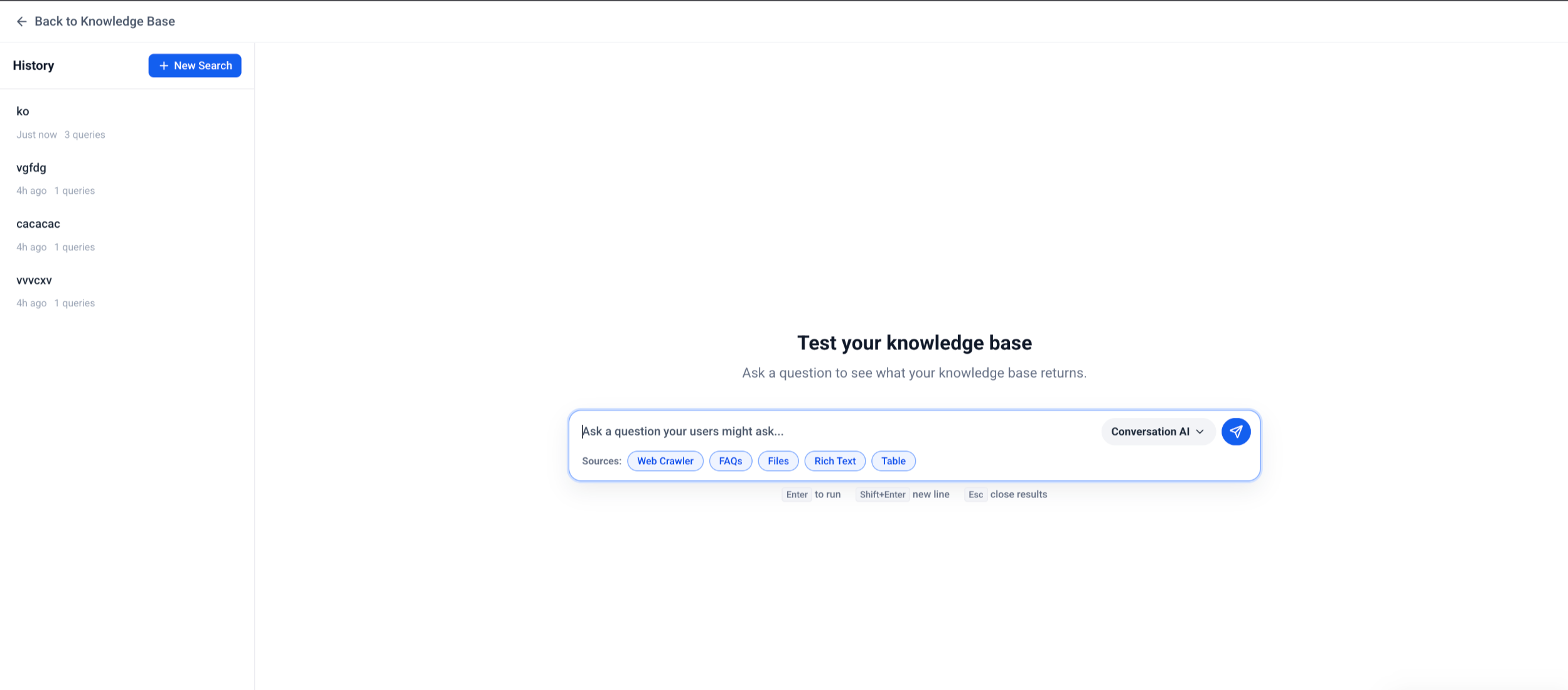
Enter a realistic, customer-style question. For example: "What is your refund policy?" or "What are your hours on weekends?"
Review the answer and the retrieved sources.
Confirm the retrieved sources match the content you expected the system to use.
Update your Knowledge Base content if results are missing, incomplete, outdated, or irrelevant.
Retest the same question to confirm the updated content is now retrieved correctly.
Test simple, direct questions first.
Use natural customer wording, not just internal terminology.
Ask the same question in multiple ways.
Include questions that should return a specific document, table row, or policy.
Test edge cases, exceptions, and high-impact questions.
Review the sources, not just the generated answer.
Remove or update outdated content that competes with newer content.
Break very long or unclear content into cleaner sections when retrieval results are poor.
Retest after every major Knowledge Base update.
Issue | What it may mean | Recommended action |
|---|---|---|
No source is retrieved | Content may not be indexed, available, or phrased similarly enough to the question. | Confirm processing/indexing is complete, then add clearer wording that matches how users ask. |
Wrong source is retrieved | Another source may appear more relevant or contain overlapping terms. | Update, remove, or clarify competing content. |
Answer is incomplete | The source may not include all required details. | Add the missing details to the relevant entry. |
Outdated source is retrieved | Older content may still exist and compete with newer content. | Remove or update the outdated content. |
Table data is not returned | The table may still be processing or relevant columns may not be indexed. | Confirm CSV setup, selected columns, and processing status. |
Document content is missing | The document may not have been parsed clearly. | Review headings and formatting, then re-upload or revise the content. |
Results improve after rewording | The Knowledge Base may not include common phrasing. | Add natural-language terms, synonyms, and clearer headings. |
Can I create a Knowledge Base without Brand Voice?
Yes. Ask AI can use your Business Profile website as the source if Brand Voice is not configured, or create an empty Knowledge Base for you to fill in manually.
Does Ask AI crawl websites automatically?
No. Ask AI always requests approval before crawling any website content, and you can provide a different URL than the one in your Business Profile.
Can Conversational AI use multiple Knowledge Bases?
Yes. Conversational AI supports multiple attached Knowledge Bases. Voice AI supports one Knowledge Base per agent — the assigned one becomes the active source for that agent.
Do images inside my Word or PDF files import?
Only text is ingested. Images are skipped to keep content lightweight and searchable.
How fast do new uploads become available to agents?
Usually immediately or within about a minute, depending on file size and indexing.
Can I upload Google Docs directly?
You can import a Google Doc directly using the Google Drive integration, without exporting it first. If you'd rather not connect Google Drive, export the doc as .DOCX or .PDF and upload it through File Upload instead.
Will rich-text edits overwrite my uploaded files?
No. File-based sources and rich-text entries are stored separately, preserving both. Documents and rich text complement your URLs and FAQs rather than replacing them.
Can I upload Excel (.xlsx) files as tables?
Not yet — export or save your sheet as CSV before uploading, or connect it as a live Google Sheet.
Does a Google Drive file update automatically when I edit it in Drive?
No. Google Drive imports use manual re-sync, not automatic scheduling. Open the file in the Knowledge Base and re-sync it whenever you want the latest Drive version pulled in.
Does Auto Refresh cost extra?
No. URL re-crawls are included in your existing Conversational AI usage.
What happens if a refresh fails?
The status changes to Failed and the previously trained content stays active. Fix the URL or retry manually.
Will Auto Refresh update custom FAQ pairs?
No. Custom Q&A entries are static; update them manually as needed.
Can I pause Auto Refresh temporarily?
Yes. Click Manage Automation and Disable Auto Refresh. You can re-enable it later without losing data.
Are Google Docs or PDFs supported by Auto Refresh?
Auto Refresh focuses on publicly accessible web pages. For documents, convert or publish them to a web-accessible page, or add them as File Upload or Google Drive sources instead.
How often does Google Sheets sync?
Auto-sync runs at about 15-minute intervals (often reflected within 15–20 minutes), and you can trigger a manual refresh anytime to force an update sooner.
What if a website doesn't have a sitemap?
If Aesthetix CRM can't find a sitemap, use the discovery crawl option to find pages instead. You can still curate which discovered pages get trained.
Does downloading a CSV change or lock my table?
No. Downloading is a read-only action. It doesn't change the table, reindex data, or affect how agents use it.
Why don't I see the Download CSV option for a table?
Common reasons: the table is still processing and not yet Ready, your role doesn't expose management controls, or you're viewing a simplified, read-only view of the Knowledge Base. Once the table is Ready and you have edit access, the action menu includes Download CSV.
Can I rely on CSV downloads as my only backup?
CSV exports are useful as point-in-time snapshots, but they should complement — not replace — your primary source of truth (such as your original Google Sheet or system of record). Use them for audits, reporting, and version comparisons.
Does the Retrieval Tester change my Knowledge Base or affect live conversations?
No. The tester is a read-only simulation. It doesn't edit your content, and it doesn't send messages to patients or trigger live conversations.
Is the Retrieval Tester the same as testing my AI agent?
No. Retrieval testing checks whether Knowledge Base content can be found and returned. Testing your Conversational AI or Voice AI agent covers the broader experience, including goals, prompts, actions, response behavior, context, and channel.
What should I do if the retrieved source is technically correct but the answer is weak?
Improve the source content with clearer headings, direct answers, examples, and customer-friendly wording, then retest the same question.
