Voice AI lets your Aesthetix CRM phone agent handle scheduling and answer questions during live calls. It can offer available times, collect the details it needs, and confirm appointments without sending the caller to a booking link. Depending on how you configure it, Voice AI can book onto a single calendar or route callers across multiple eligible calendars using intent-based matching. You can also connect a knowledge base so the agent pulls accurate, up-to-date answers straight from your own content. Voice AI uses native Aesthetix CRM telephony (Twilio), so calls, recordings, and bookings all stay inside your account.
Important — native calendars only: AI appointment booking works only with a native Aesthetix CRM calendar. It cannot book into an EMR calendar or an external EMR scheduling integration. If your practice schedules patients through an EMR rather than an Aesthetix CRM calendar, the booking features in this guide will not apply to those EMR appointment types. You can still use Voice AI for knowledge base answers, call handling, and message-taking, and you can build native calendars for any service you want the AI to book directly.
Note on PHI: Don't enter protected health information (PHI) into Voice AI. AI features aren't approved for processing PHI — use them for productivity, communication, scheduling, and engagement, not to store or process medical records. See the HIPAA Compliance guide for details.
Appointment booking lets Voice AI manage scheduling conversations in real time. The agent interprets the caller's intent, offers open time slots, collects any missing details (such as an email address), and confirms the booking on the correct calendar — all during the call, with no external booking page. It can support both a single booking calendar and multiple eligible calendars, depending on how the agent is configured.
For multiple calendars, the AI evaluates the context of the entire conversation and maps it to the eligible calendars you select, instead of forcing callers through phone menus or rigid keyword rules.
Works across distinct calendars (for example, Consultation, New Patient Intake, Treatment Follow-Up)
Honors availability, buffers, minimum notice, and conflict settings from your calendars
Provides graceful options when a request doesn't match any service
Frictionless scheduling: Callers book directly during the call instead of being redirected to a link or waiting for manual follow-up.
Single and multiple calendar support: Book against one selected calendar, or choose between multiple eligible calendars based on caller intent.
Fewer missed opportunities: The AI routes callers to the right appointment type the first time.
Faster scheduling: No phone trees or manual triage — callers speak naturally.
Higher booking accuracy: Intent analysis considers the whole conversation, not a single keyword.
Smarter availability handling: The AI respects each calendar's availability, buffers, minimum notice, and conflict settings.
Automated data collection: The AI can prompt for missing information, such as an email address, so bookings are complete and easier to follow up on.
Scales across teams and services: Support separate calendars for consultations, treatments, intake, and more.
Reduced setup time: AI-generated descriptions and trigger keywords speed up configuration.
Better experience on no-match: Clear, friendly guidance and configured fallbacks prevent dead ends.
Single calendar booking is ideal when one Voice AI agent should always book into the same appointment type. It keeps scheduling simple and works well when all callers route to one service or one standard appointment flow. You choose one calendar for the booking action, then control how many days and time slots the AI offers. It is the easiest way to launch booking directly from a call.
Multiple calendars booking helps Voice AI route callers to the right appointment type when your practice offers more than one service or booking path — for example, consultations, treatment appointments, or new-patient intake, where each service should book on a separate calendar. When multiple calendars are eligible, Voice AI analyzes the conversation and chooses the best-fit calendar based on intent, context, and your calendar configuration. It can also use confidence and priority logic when more than one calendar may match the caller's request.
The AI analyzes conversational intent and context to decide which calendar best matches the caller's request. It can distinguish similar phrases and use the caller's wording, questions, and clarifications to boost accuracy.
Example mappings:
"I'd like to schedule a consultation" → Consultation Calendar
"I need to talk about pricing and availability" → Consultation / Sales Calendar
"This is my first time booking with you" → New Client Intake Calendar
Considerations:
Uses the full conversation, not just isolated keywords
Honors availability, buffers, minimum notice, and conflicts from the selected calendar
Supports confidence and priority logic when multiple calendars may match
The AI can generate clear calendar descriptions and suggested trigger phrases so the system better understands when to use each calendar. You can accept, refine, or replace these to suit your brand and services.
Provide calendar names and essential details; the AI drafts descriptions
Review and edit the suggested trigger keywords per calendar
Use concise, specific language; avoid overlapping phrasing across calendars
Keep your service examples handy as you write
A strong setup starts with the right prerequisites in place. Preparing your agent, calendars, and permissions first helps prevent booking errors and avoids confusion when Voice AI begins offering live appointment times.
Before enabling appointment booking in Voice AI, make sure you have:
A Voice AI agent created, or access to create one.
At least one native Aesthetix CRM booking calendar configured for the service you want to book. (Remember: EMR calendars are not supported for AI booking.)
Correct calendar rules set up, including availability, duration, buffers, and booking rules.
Any connected external calendar already configured where applicable, such as Google Calendar or Outlook.
For multiple-calendar booking, at least two configured calendars, with linked/conflict calendars set to prevent double booking.
Appropriate user permissions to edit AI and calendar settings.
Note: AI working hours and calendar availability are related but separate. AI working hours control when the agent is available to handle calls, while calendar settings control which appointment times can actually be booked.
Proper setup ensures Voice AI can understand booking intent, use the right calendar configuration, and guide callers through scheduling without unnecessary friction. The same unified flow works whether you want to book on a single calendar or across multiple calendars.
1. Create or verify your calendars. Go to Calendars and confirm each service has its own native calendar with the correct duration, availability, buffers, and linked/conflict calendars. The Calendars section lists your service-specific calendars with status indicators.
2. Open AI Agents > Voice AI. Create a new Voice AI agent, or open an existing agent you want to use for appointment booking.
3. Complete or review the basic agent setup, including the required agent details and any phone or availability settings you want the agent to use.
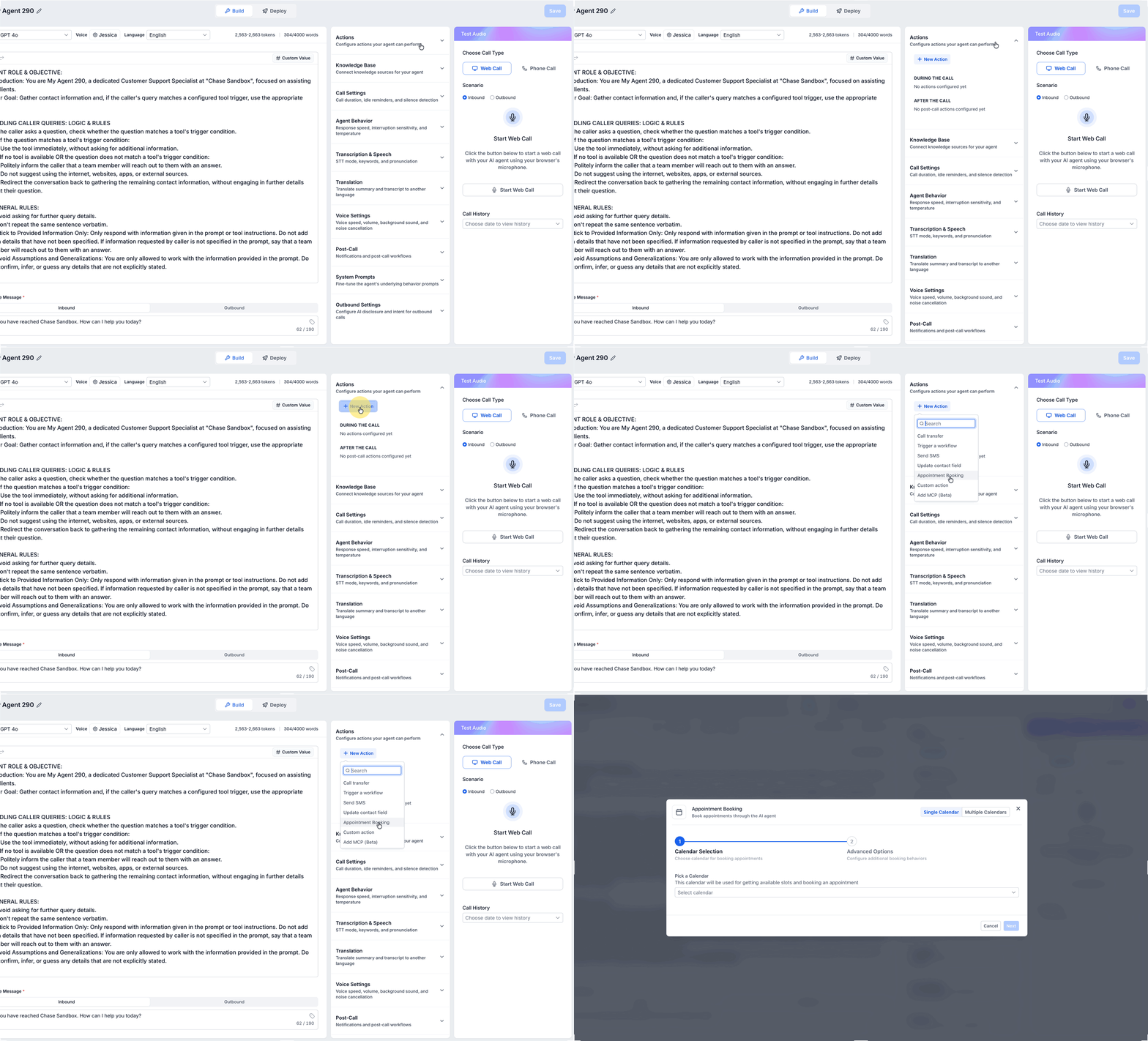
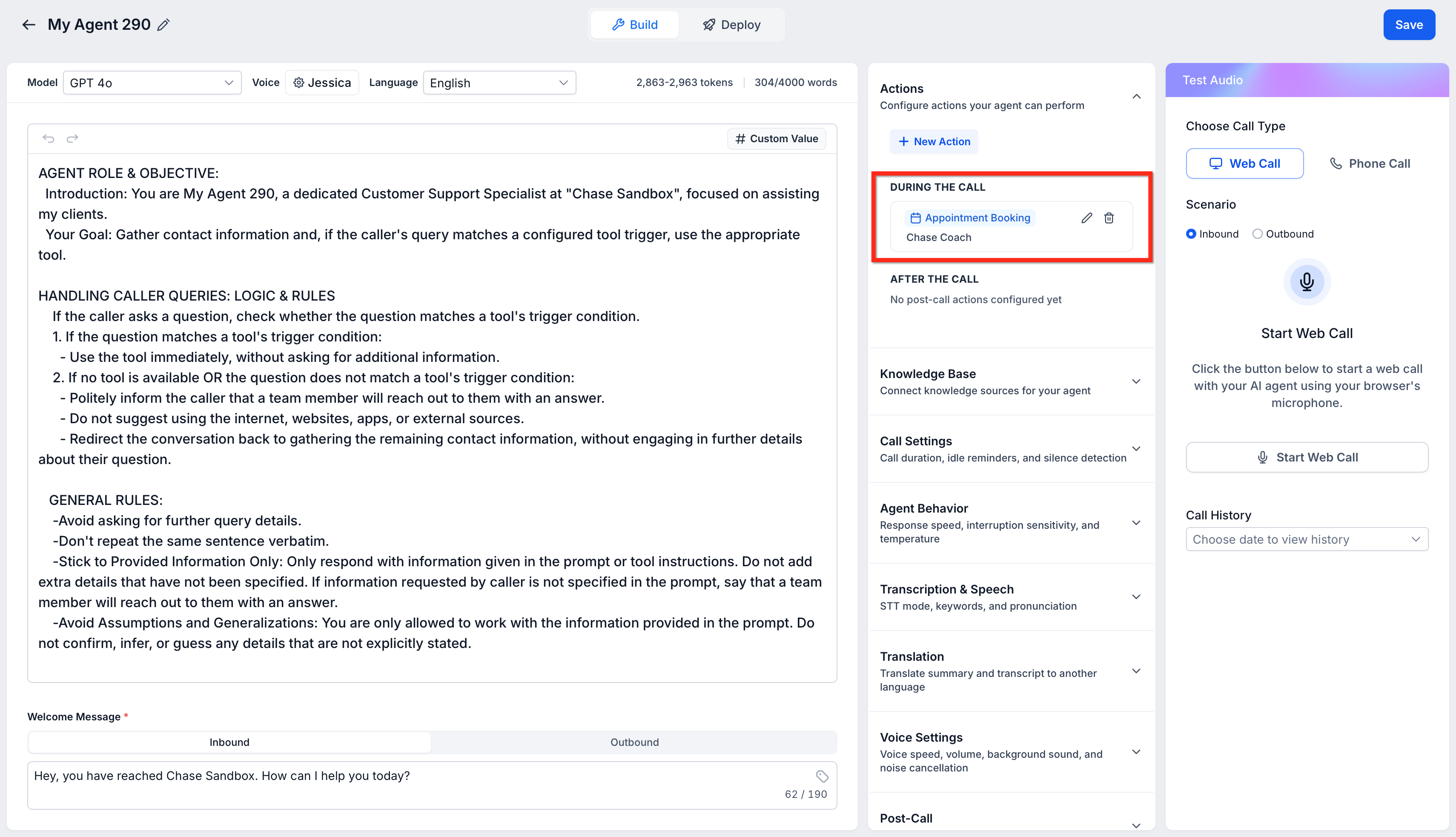
4. Add the booking action. In the Actions section on the mid-right panel, click + New Action and select Appointment Booking.
5. Choose how Voice AI should handle calendar selection:
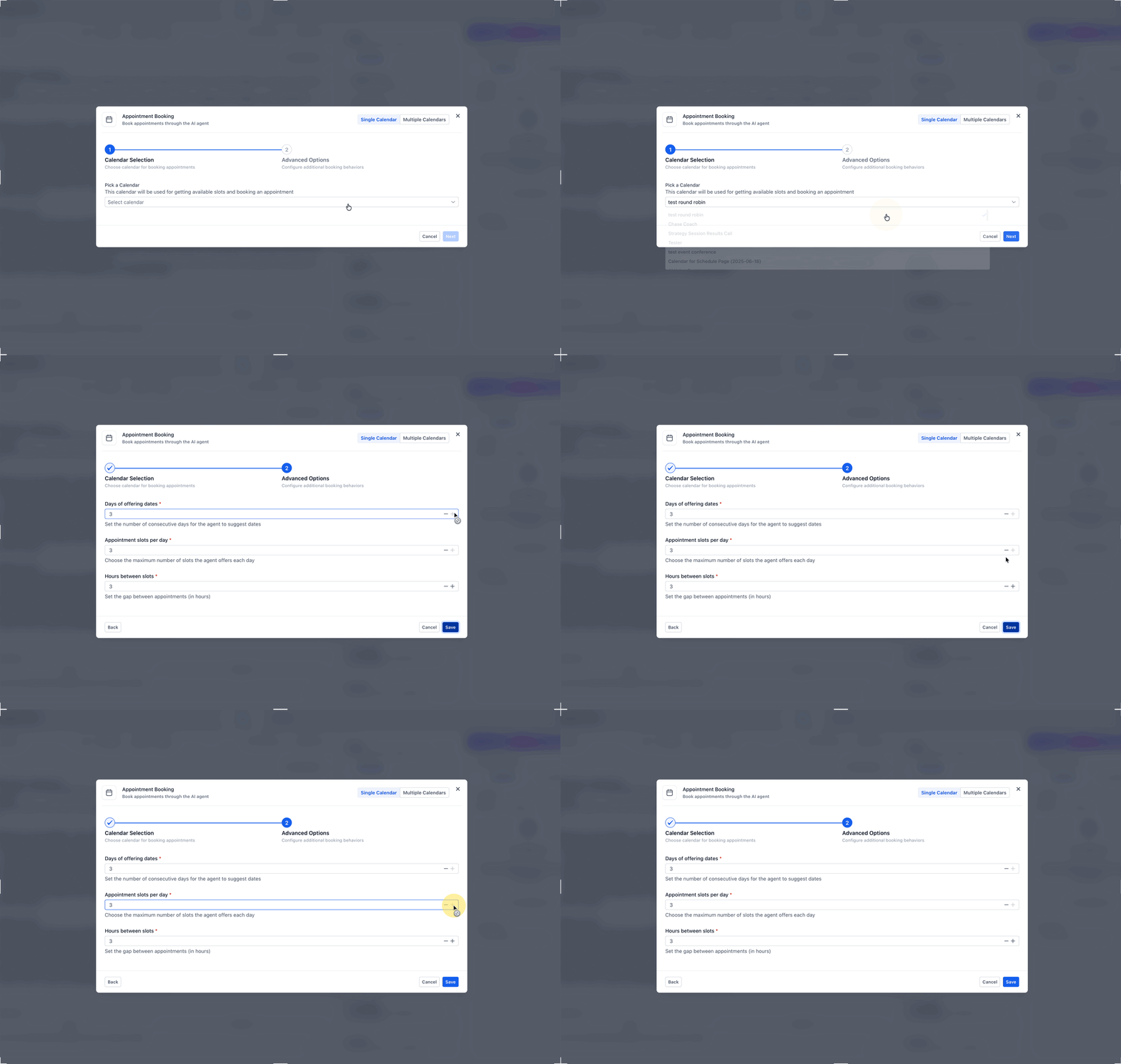
i. Single Calendar — select this if all appointment requests should go to one booking calendar. Then configure:
Offering Days — how many future days the AI should offer
Appointment slots per day — how many time options are presented each day
Hours between slots — the spacing between offered times
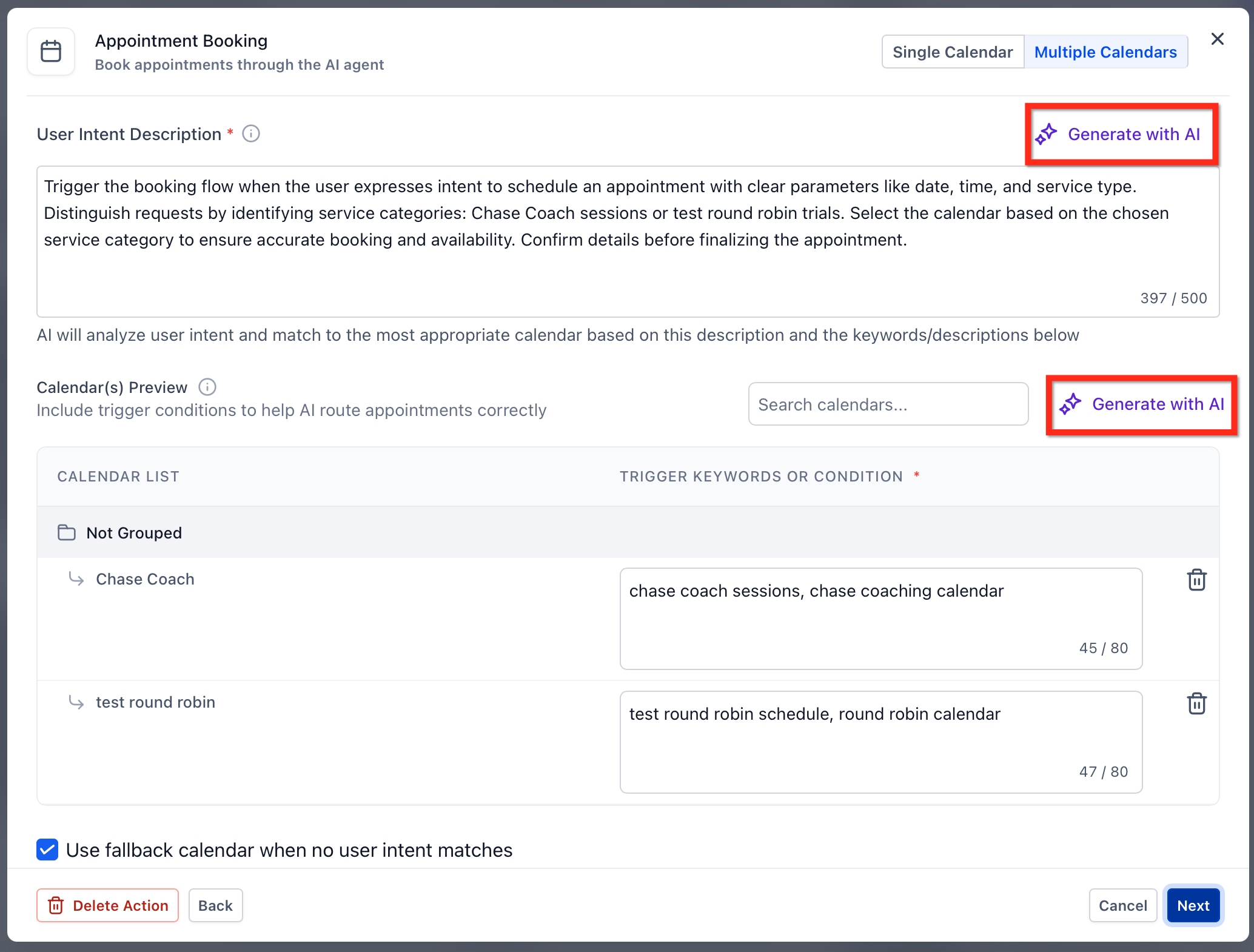
ii. Multiple Calendars — select this if Voice AI should route callers to different calendars based on service type, department, or caller intent. Add the eligible calendars Voice AI should use, then configure each one with clear descriptions and routing cues so the AI can choose the best-fit calendar based on the caller's request. Pick the calendar from the dropdown, add an AI description, and optionally choose a fallback calendar for requests that don't match cleanly.
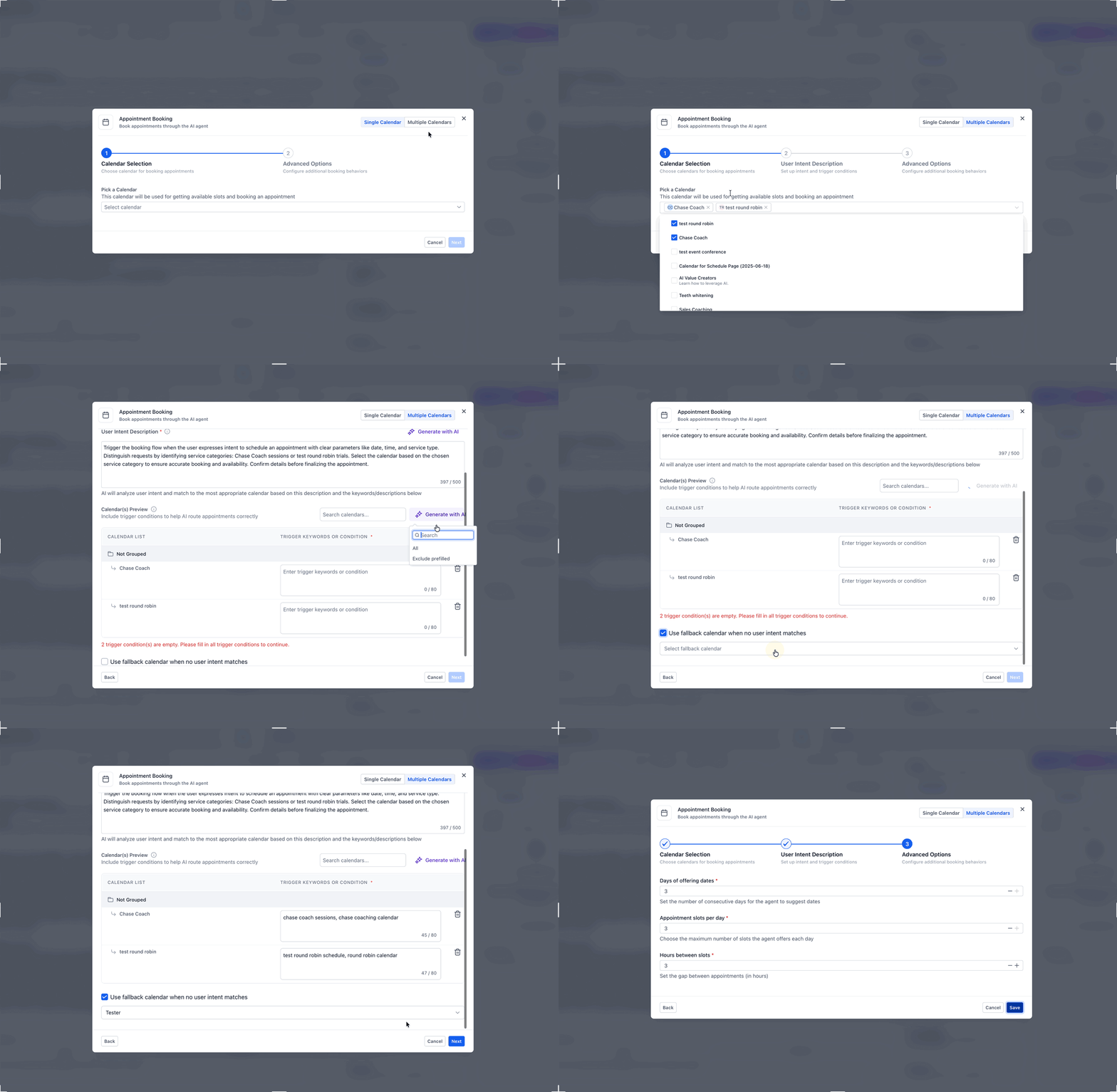
6. Add any advanced options you need, then click Save.
7. Test the experience to confirm the correct calendar is selected, the time slots are appropriate, and the booking flow works as expected for your use case.
Knowing where booking-related data ends up makes it easier to report on calls, prepare your team, and build follow-up automations. Different pieces of information can live in different areas depending on how the booking flow is configured.
Answer or Data Type | Where It Is Saved | Details |
|---|---|---|
Call recordings, transcripts, and summaries | Voice AI call logs or dashboard views | Helps teams review the full conversation and understand appointment context. |
Answers mapped during qualification | Contact custom fields | Useful for reporting, segmentation, and routing decisions. |
Key appointment context | Appointment notes (through workflow-based follow-up) | Helps your team prepare before the visit. |
Custom booking form responses | Appointment record form area | Available when a custom booking form is used as part of the appointment setup. |
A knowledge base lets your Voice AI agent deliver accurate, context-aware answers by pulling from your own content. You assign a specific knowledge base to each agent, and when a caller's spoken input matches a configured trigger prompt, the agent automatically searches the attached knowledge base and delivers the most relevant answer. This keeps your voice agents' responses intelligent and up to date.
Personalized agent responses: Assign a unique knowledge base to each agent so answers stay relevant to that agent's purpose.
Trigger-based activation: Use custom prompts to control exactly when the knowledge base is queried, aligning responses with caller intent.
Real-time, dynamic answers: Agents analyze caller queries and fetch precise answers from the knowledge base instantly.
Effortless updates: Any change to the knowledge base is reflected in agent responses immediately, with no extra configuration.
Scalable and maintainable: Manage multiple agents and knowledge bases without complex logic or ongoing development.
Step 1: Open the Voice AI agents panel. From your Aesthetix CRM account, click AI Agents, then Voice AI.
Step 2: Edit an existing agent or create a new one. You can create a new agent, or edit an existing one. To edit, click the three dots next to the agent name and select Edit.
Step 3: Go to the Agent Goals tab. Inside the agent editor, click the Agent Goals tab to customize the agent's personality and logic. Under Select knowledge base, choose from your existing knowledge bases or click Create New to add one. Tip: assign a knowledge base that aligns with the agent's function or audience (for example, service and pricing details or front-desk FAQs).
Step 4: Set when to use the knowledge base (trigger prompt). In the field labeled When to use this knowledge base, define a detailed prompt that tells the agent when to activate it. Example: "Use this knowledge base if the caller asks any questions about the business, services, products, contact details, or other information that requires accessing the business wiki to provide accurate and up-to-date answers."
Step 5: Write a clear, detailed prompt. A well-written prompt helps the agent match queries more accurately — the more precise the instruction, the better the agent's real-time response. Click Save to apply your settings and link the knowledge base to your agent.
Effective knowledge base usage goes beyond setup — it requires thoughtful planning, prompt design, content maintenance, and performance monitoring.
Managing multiple knowledge bases: Assigning different knowledge bases to different agents lets you tailor responses for specific services or teams.
Create specialized knowledge bases for consultations, service and pricing details, or front-desk support.
Attach the relevant knowledge base to each agent for targeted expertise.
Optimizing trigger prompts: Well-crafted trigger prompts ensure the agent queries the knowledge base at the right moment.
Use clear, specific language that matches common caller intents.
Test different prompts to find what works best for your audience.
Updating knowledge base content: Keep content current to maintain accuracy.
Regularly review and update articles or FAQs.
Changes are reflected instantly in all agent interactions.
Monitoring agent performance: Track how often the knowledge base is triggered and the quality of responses.
Use analytics to identify gaps in your knowledge base.
Refine prompts or content based on caller feedback and agent logs.
Voice AI can also help you find what's missing from your knowledge base. When a caller asks something the agent can't answer from its attached knowledge base, that question can be captured as a Knowledge Gap. Similar questions are grouped together and organized by topic and subtopic, turning scattered unanswered questions into a focused, prioritized list of what to add next, instead of a separate entry for every variation of the same question.
For example, questions about aftercare could be grouped under a structure such as Injectables → Aftercare Instructions.
How a Knowledge Gap is created:
Aesthetix CRM captures the caller's unanswered question as a potential Knowledge Gap.
The question is analyzed and categorized by topic and subtopic.
Similar questions are grouped together so you see one prioritized entry instead of several near-duplicates.
Why it helps:
See what callers actually need: Review the specific questions your Voice AI agent couldn't answer, based on real conversations instead of guesswork.
Reduce duplicate entries: Similar questions are combined into a single gap rather than listed separately.
Prioritize recurring needs: Frequently occurring gaps point to the knowledge base additions that will have the biggest impact.
Close the loop: Once you add the missing information to the knowledge base, the connected Voice AI agent can reference it during future calls, no extra configuration required.
Does Voice AI appointment booking support both single and multiple calendars?
Yes. Voice AI supports standard single-calendar booking and can also route across multiple eligible calendars using intent-based selection.
Can Voice AI book into my EMR calendar?
No. AI appointment booking works only with native Aesthetix CRM calendars. EMR calendars and external EMR scheduling integrations are not supported for AI booking. If you schedule through an EMR, build a native Aesthetix CRM calendar for any service you want the AI to book directly.
How does Voice AI choose the right calendar when multiple calendars are enabled?
It uses the caller's intent and the broader conversation context to match the request to the most appropriate eligible calendar, applying confidence and priority logic when multiple calendars may fit.
Can I exclude a calendar from AI consideration without deleting it?
Yes. Remove it from the eligible calendars so the AI won't consider it for booking.
How do buffers and minimum notice affect offered times?
The AI respects each calendar's availability rules, including buffers and minimum notice. Tight rules may limit the available slots.
What happens if the caller does not provide an email address?
The AI can prompt for a missing email before confirming the appointment, helping create a more complete booking record.
What happens if none of my calendars match the caller's request?
You can configure fallback behavior so the AI presents available services, uses a fallback calendar, or takes another guided action such as a message or transfer.
Can I ask qualification questions before the AI books the appointment?
Yes. You can configure the booking flow to collect useful information first, then route the caller to the appropriate appointment path based on those answers. If your calendar has intake questions, the AI can prompt for them and store the answers.
Can the AI reschedule or cancel existing appointments?
If enabled for your agent, the AI can manage changes by verifying caller details and updating the original calendar.
What if the AI books the wrong calendar?
Adjust that calendar's description and keywords, remove overlapping triggers, and refine priorities. Review call transcripts for phrasing patterns.
Are there limits on the number of calendars?
There may be practical limits for usability and accuracy. Keep the eligible set focused on distinct services.
How does time zone work for callers in other regions?
Confirm your calendar's time zone behavior. The AI offers times according to your configured preference and communicates them clearly to the caller.
Can I use Services with appointment booking in Voice AI?
Not at this time. Voice AI currently supports Single Calendar and Multiple Calendars for appointment booking; Services is not available in the Voice AI booking setup yet.
Can I assign more than one knowledge base to a single Voice AI agent?
Each agent can be linked to one knowledge base at a time.
What happens if the caller's input doesn't match the trigger prompt?
The knowledge base will not be queried, and the agent will follow its default behavior.
Can I use the knowledge base in both Basic and Advanced agent modes?
Yes. Knowledge base integration is available in both Basic and Advanced modes under Agent Goals.
How quickly are updates to the knowledge base reflected in agent responses?
Updates are immediate — any change to the knowledge base is instantly available to the agent.
Is there a limit to the size of the knowledge base I can attach?
There are no published limits, but performance may vary with extremely large knowledge bases.
Can I customize the trigger prompt for each agent?
Yes. You can set a unique trigger prompt for every agent.
Will the integration work with third-party knowledge bases?
The feature is designed for Aesthetix CRM's built-in knowledge bases at this time.
How can I test if my knowledge base integration is working?
Use the test function in the agent setup, or interact with the agent using the trigger prompt to verify the responses.
What is a Voice AI Knowledge Gap?
A question a caller asked that your Voice AI agent couldn't answer from its attached knowledge base. Similar questions are grouped together by topic and subtopic so you can see the recurring gaps at a glance.
How do I close a Knowledge Gap?
Add the missing information to the knowledge base attached to that agent. The next time a caller asks a similar question, the agent can answer it directly, and the gap no longer recurs.
For current pricing, see the pricing page.
