Voice AI gives your med spa an always-on phone agent, and a few built-in tools help you keep every call clear, natural, and performing well. This article covers three things: scheduled Performance Reports that summarize how each agent is doing, audio enhancements (Noise Cancellation and Backchanneling) that improve call quality, and how to upgrade an agent to the latest Voice AI experience.
For current pricing, see the pricing page.
Note on PHI: Don't enter protected health information (PHI) into Voice AI. AI features aren't approved for processing PHI — use them for productivity, communication, scheduling, and engagement, not to store or process medical records. See the HIPAA Compliance guide for details.
Voice AI Performance Reports give you an automated email summary of how each Voice AI agent is performing over time. Instead of checking dashboards manually, you can receive scheduled reports with key call metrics, caller sentiment, actions taken, after-hours activity, and flagged calls that may need review. Reports are configured per agent, so you can choose different frequencies and recipients for each Voice AI agent.
These email reports add a recurring layer on top of the in-app dashboards, agent logs, and call records you already use to review Voice AI activity. They are ideal for teams that want regular visibility into agent performance, call trends, and calls that may need follow-up.
Automated visibility: Receive recurring performance summaries by email for each Voice AI agent.
Flexible reporting cadence: Choose Weekly, Fortnightly, or Monthly reports based on how often each agent needs to be reviewed.
Agent-level control: Configure report frequency and recipients independently for each Voice AI agent.
Caller experience tracking: Review positive, neutral, and negative caller sentiment trends over time.
Operational insights: See after-hours calls, action counts, and period-over-period changes in one summary.
Faster call review: Use flagged call links to quickly investigate negative sentiment or unexpectedly short calls.
Cleaner inboxes: Reports are skipped automatically for periods with zero calls.
Each report gives you a clear summary of activity for the selected reporting period, helping you understand call volume, call quality, customer sentiment, and how often the agent completed important actions. A report may include:
Total Calls: The number of calls handled by the Voice AI agent during the reporting period.
Total Call Duration: The combined duration of all calls included in the report.
Average Call Duration: The average length of calls during the reporting period.
Success Rate: A summary indicator showing how successfully the agent handled calls during the period.
Caller Sentiment: A positive, neutral, and negative breakdown to help track caller experience.
After Hours Calls: The number of calls received outside business hours, based on the agent's configured timezone.
Action Breakdown: Counts for key actions such as SMS sent, call transfers, workflows triggered, appointments booked, and custom actions executed.
Period Over Period Comparison: Percentage changes compared with the previous reporting period.
Call Anomalies: Up to three flagged calls, such as calls with negative sentiment or unexpectedly short duration, with deep links back into Aesthetix CRM for review.
Choosing the right frequency helps your team receive performance insights at the right pace. High-volume agents may need weekly review, while lower-volume or stable agents may only need monthly summaries. Reports can be sent on one of these cadences:
Weekly
Fortnightly
Monthly
Each Voice AI agent can have its own reporting frequency. For example, one agent can send a weekly report to your front-desk manager, while another sends a monthly report to the practice owner.
Recipient settings let you decide who should receive each agent's report. This is useful when different team members, managers, or outside stakeholders need visibility into specific Voice AI agents. You can send reports to:
All Admins of the location
All Users of the location
A list of specific users
Custom email addresses
Custom email addresses are useful for stakeholders who need report visibility but may not be standard users inside your account.
Receiving an email report does not always mean the recipient can open the linked in-app call details. Access to Voice AI settings, dashboards, logs, or call records depends on the user's permissions in Aesthetix CRM.
Call anomalies help your team quickly identify conversations that may need closer review. Instead of reading through every call, you can start with flagged calls that may indicate a poor caller experience, an incomplete interaction, or a call that ended earlier than expected.
Each report can include up to three flagged calls. These may include:
Calls with negative caller sentiment
Calls that were unexpectedly short
Use the deep links in the report to open the related call details in Aesthetix CRM and review what happened. For deeper troubleshooting, use Voice AI agent logs or call logs to inspect call details, transcripts, summaries, actions, transfers, and other interaction history.
Because Performance Reports are configured per agent, each Voice AI agent must be updated individually with its own frequency and recipient settings.
Voice AI Performance Reports is enabled through Labs. Once it is turned on for your account, the Performance Report settings become available on each agent.
Go to AI Agents and open the Voice AI tab.
Open the Voice AI agent you want to configure.
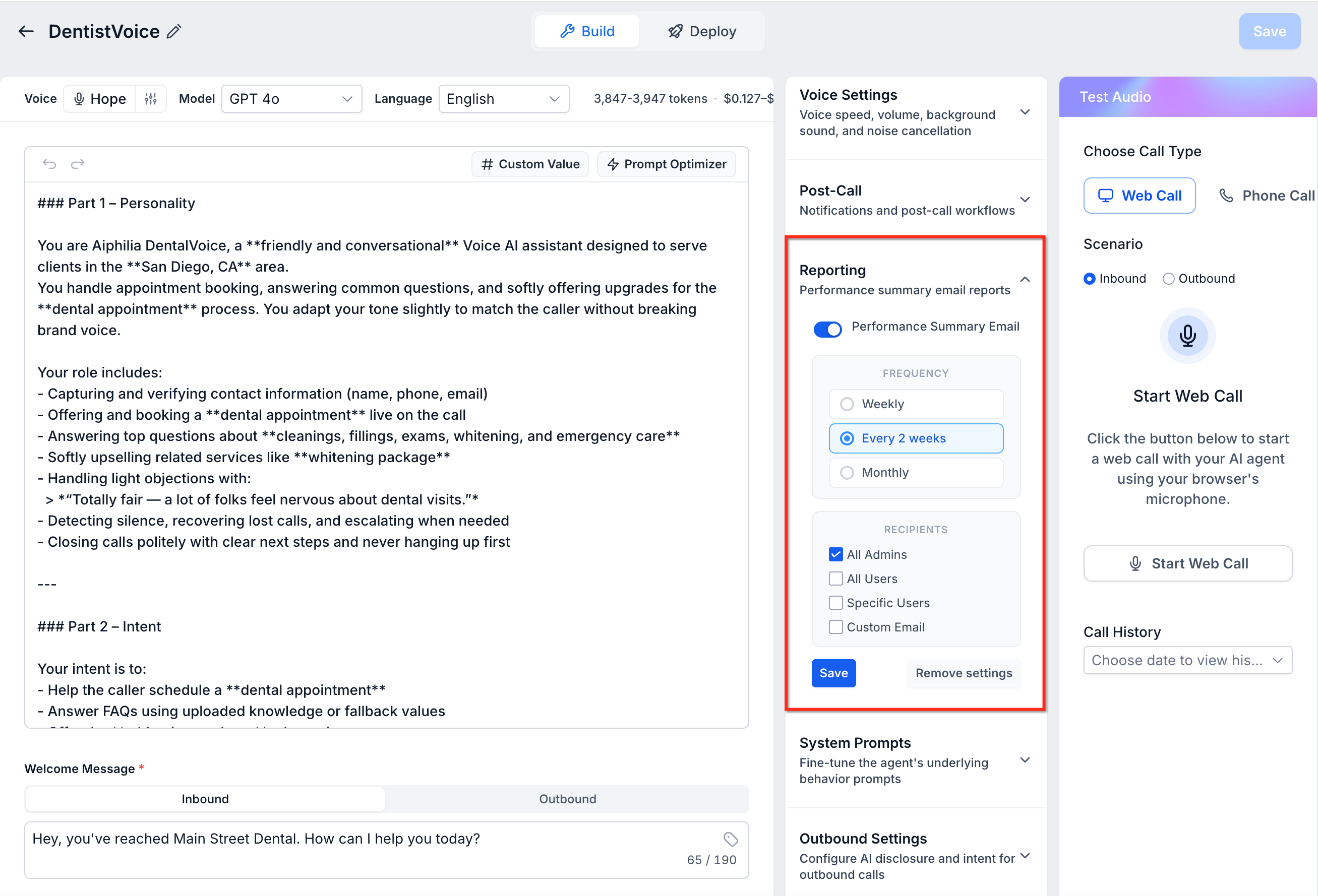
Select Performance Report Settings.
Choose the report frequency:
Weekly
Fortnightly
Monthly
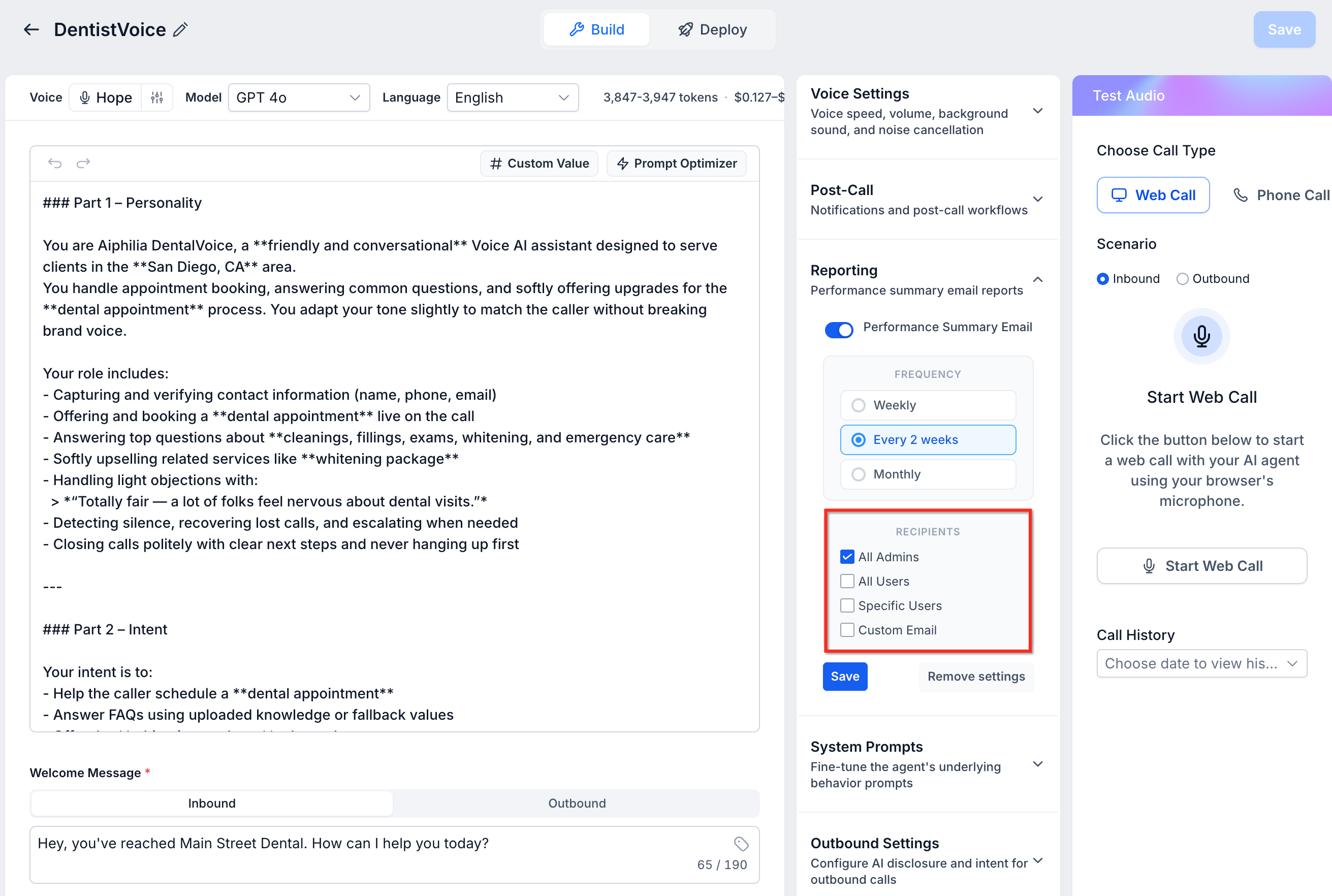
Choose who should receive the report:
All Admins of the location
All Users of the location
Specific users
Custom email addresses
Save the report settings.
The first report will arrive at the start of the next reporting period. Reports are skipped automatically for periods where the agent has zero calls.
Noise Cancellation and Backchanneling are audio enhancements that give every Voice AI call studio-quality clarity and a natural, human feel. Noise Cancellation reduces ambient distractions so the primary speaker is easier to understand, while Backchanneling inserts short, natural listener cues (like "uh-huh") during brief pauses to keep conversations flowing. Together, they make AI-handled calls clearer and more engaging without changing your existing call flows.
Clarity: Fewer repeats and misheard details, even in busy environments.
Professionalism: Consistent, polished sound that reflects your brand standard.
Engagement: Subtle cues show the caller they're being heard and understood.
Efficiency: Smoother pacing reduces "sorry, say that again" interruptions.
Customization: Adjustable frequency and editable phrases to match your tone.
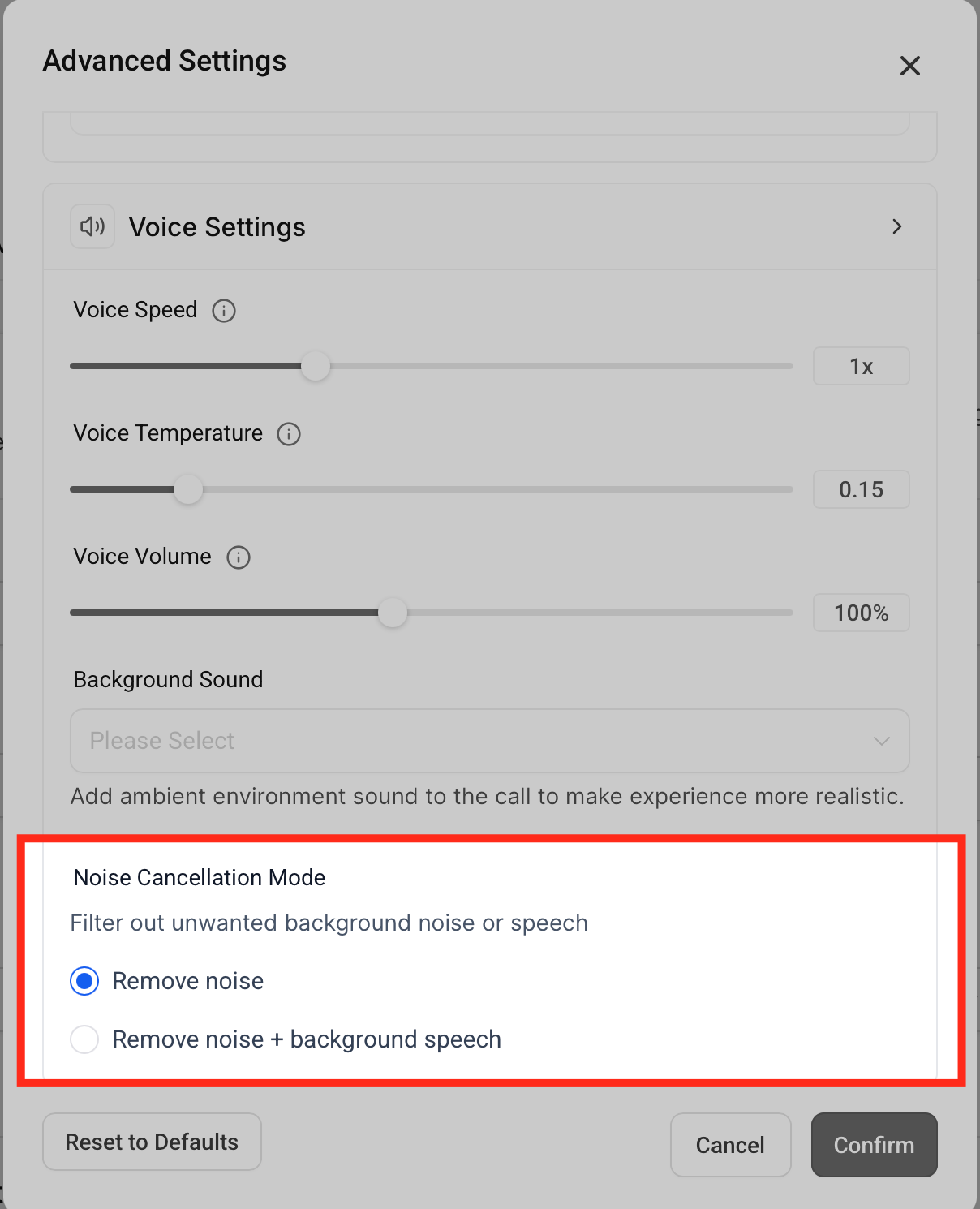
Choose the Noise Cancellation level that fits your workspace. Start with a general filter for typical office noise, and escalate to suppress overlapping voices if your team works in shared spaces or a busy front desk.
Remove Noise: Filters common ambient sounds (for example, HVAC hum, keyboard taps, traffic).
Remove Noise + Background Speech: Adds suppression of overlapping voices for maximum intelligibility in shared environments.
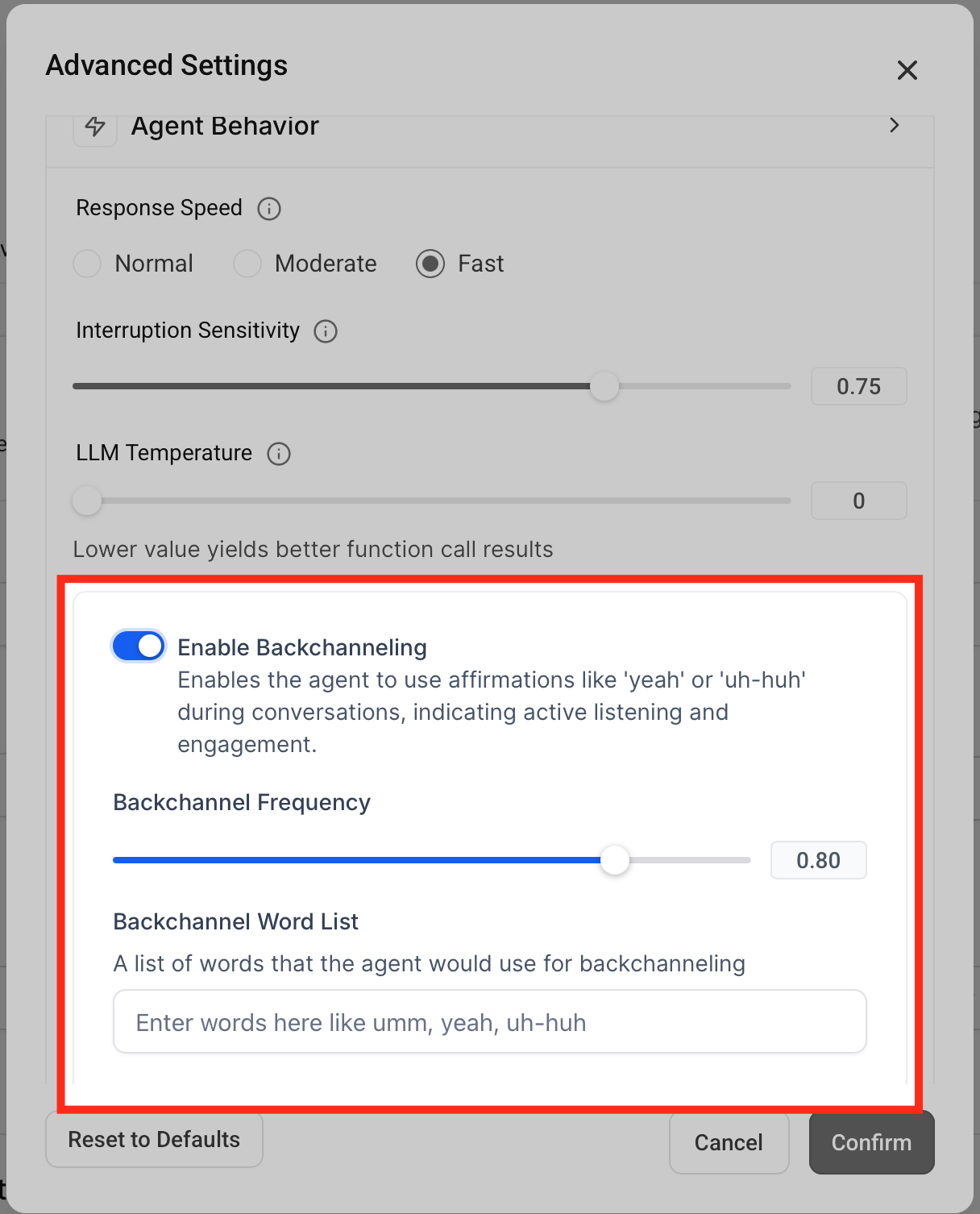
Backchanneling mirrors natural conversation by adding quick acknowledgments during micro-pauses. The right cadence and words keep the caller comfortable without interrupting their train of thought.
Backchannel Frequency: Set how often brief acknowledgments occur (from rare to frequent).
Backchannel Words: Edit the list of short phrases (for example, "yeah," "okay," "uh-huh") to align with your brand, language, and culture.
A clean, repeatable setup ensures consistent audio quality across agents. Configure at the agent level, then validate with a quick test call.
Configure an agent
Navigate to Voice AI → Agents and select Edit on the agent you want to update.
Open the Advanced Settings panel.
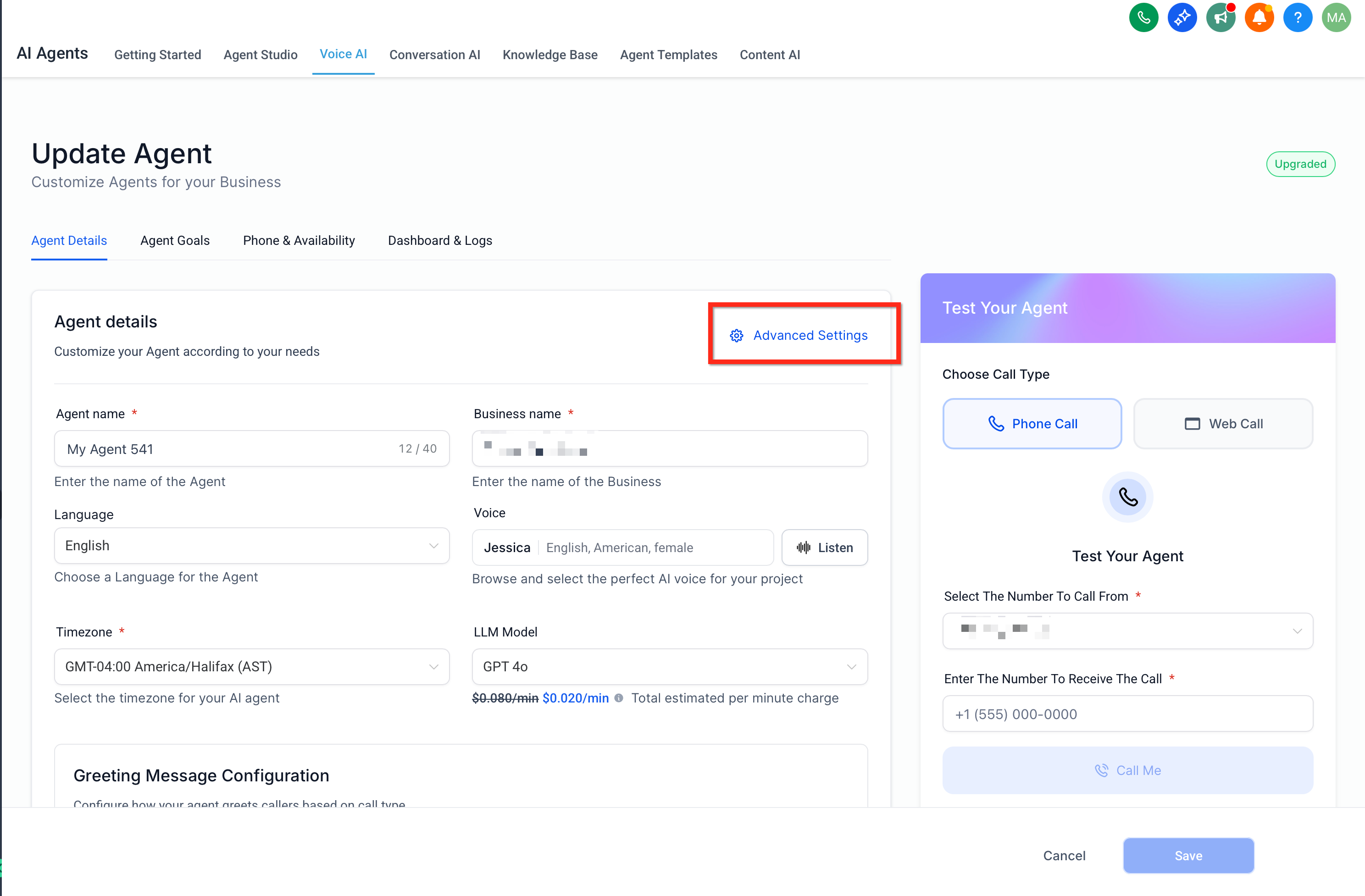
Choose your Noise Cancellation mode.
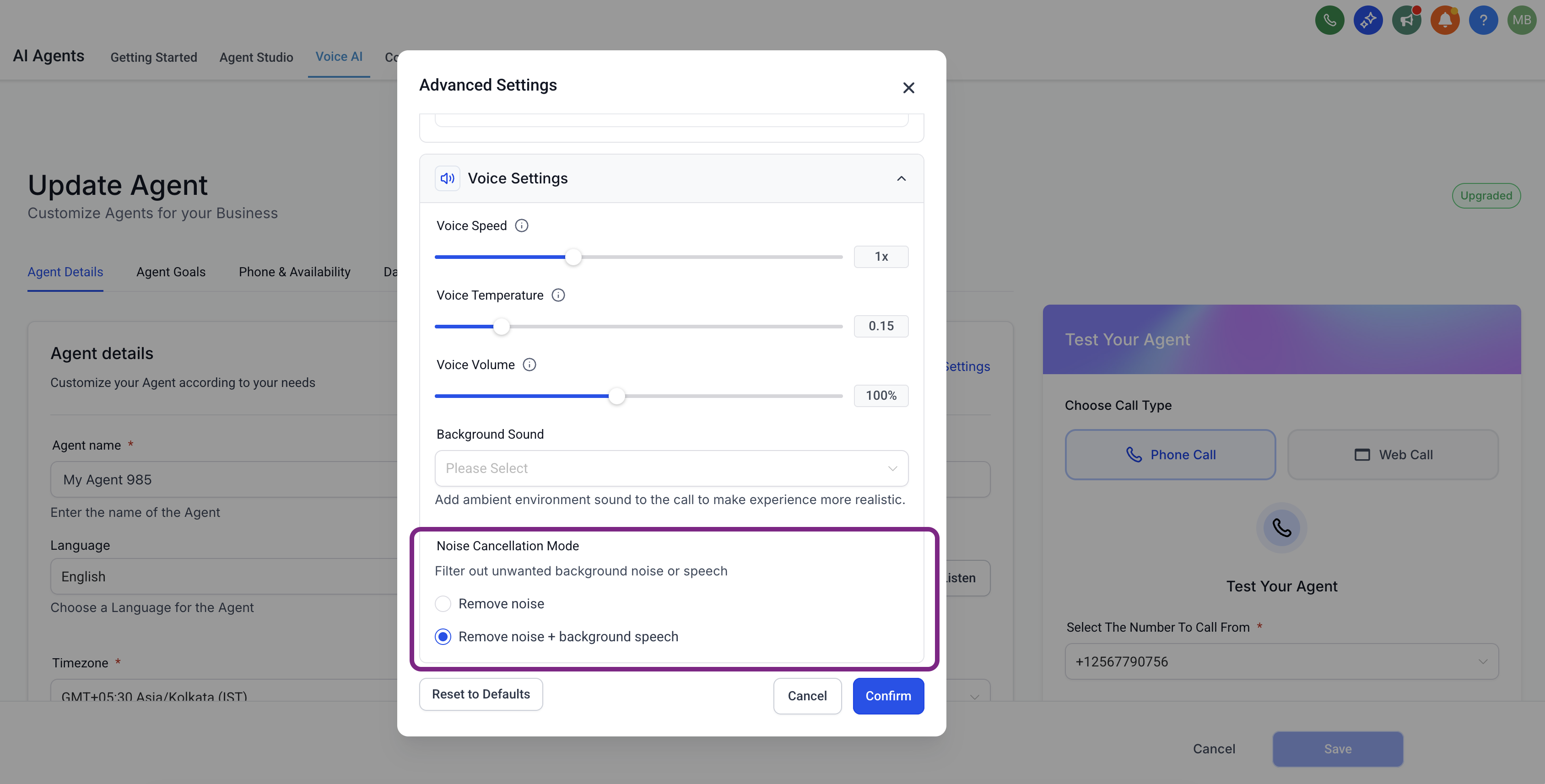
Enable Backchanneling, set Frequency, and adjust Backchannel Words if desired.
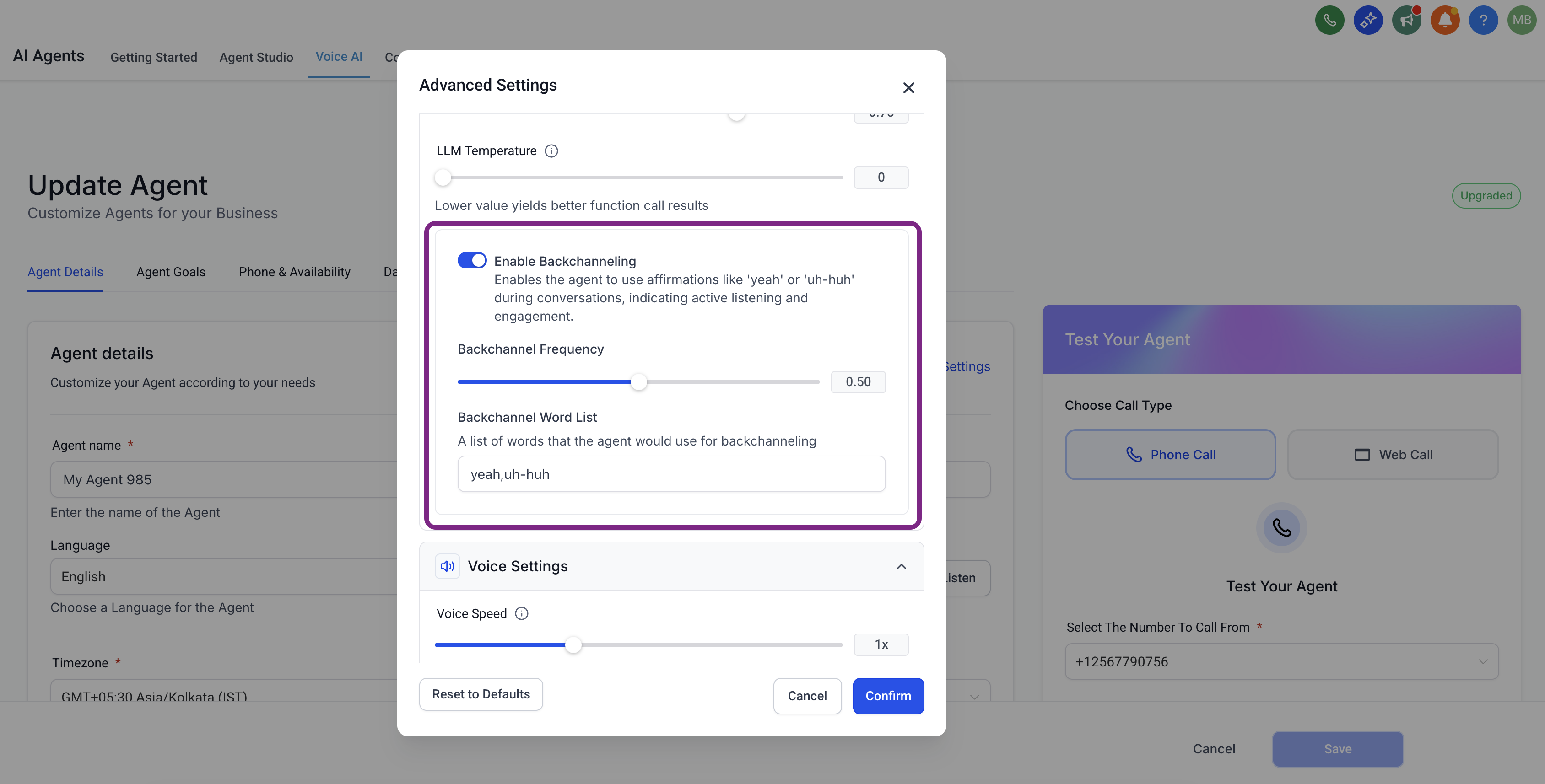
Click Save.
Test before going live
Use the built-in Test options (for example, Call Me or Web Call) to preview clarity and cadence.
Have a teammate speak from a typical environment (open treatment area, car, café) to validate results.
Review the call in Voice AI → Dashboard/Logs to confirm audio quality and pacing.
Default, battle-tested settings help you see immediate gains while minimizing side effects. Adjust from here based on real call recordings and feedback.
Start simple: Use Remove Noise only; escalate to Background Speech suppression if nearby talk remains distracting.
Moderate cadence: Set Backchannel Frequency to a middle value for natural flow.
Short, neutral phrases: Keep acknowledgments brief and culturally appropriate.
Tune with other automations: If you use an Idle Reminder Timer, avoid overly frequent backchannels that could crowd the conversation; consider a higher idle threshold.
Validate with real scenarios: Test in the actual environments where your agents work.
Upgrading a Voice AI agent introduces a new generation of AI-powered calling, delivering improved voice quality, smarter call handling, and greater stability. This ensures your automated calls sound more natural and perform more reliably, helping your practice provide a superior caller experience.
Smarter call handling: The AI responds more naturally and quickly, making conversations smoother and more engaging.
Better voice quality: Enhanced tone and clarity make your calls sound more professional and lifelike.
Improved stability: Fewer interruptions and technical glitches ensure a seamless calling experience for both your team and your callers.
Future-proofing: Access to ongoing improvements and new features as Voice AI continues to evolve.
Easy transition: A simple upgrade process with minimal disruption to your current workflows.
Note: This upgrade is permanent and may require you to review and adjust your prompts and test the agent afterward. We recommend duplicating your agent before upgrading.
Step 1: Access the AI Agents menu
Click AI Agents from your sub-account.
Click the Voice AI tab.
The agent list displays all of your available Voice AI agents.
Step 2: Select the agent to upgrade
From the Voice AI list, click the name of the agent you wish to upgrade, or
Click the three dots beside the agent name and click Edit.
Tip: Make sure this is the correct agent, as the upgrade is permanent.
Step 3: Review and confirm the upgrade
Click Upgrade to New Voice AI Experience in the top-left corner of the agent edit page.
Review the benefits of upgrading shown in the modal.
Click Upgrade to New Voice AI Experience to complete the upgrade.
Testing your prompts after upgrading helps maintain conversational quality and ensures your agent responds as intended.
Use sample calls to check for changes in tone, clarity, or response accuracy.
Adjust prompts for improved naturalness or to take advantage of new AI capabilities.
Is Voice AI Performance Reports available for all accounts?
Performance Reports are made available through Labs. Once the feature is enabled for your account, you can configure it on each Voice AI agent.
Why did I not receive a report for my Voice AI agent?
Reports are skipped automatically for periods with zero calls. If the agent did not handle any calls during the reporting period, no report is sent.
Can different Voice AI agents have different report settings?
Yes. Each Voice AI agent is configured independently, so you can use different frequencies and recipient lists for each agent.
Can I send reports to people who are not users in my account?
Yes. You can add custom email addresses as recipients, which is useful for outside stakeholders.
Can custom email recipients open the deep links in the report?
They may receive the email, but opening the linked call details requires the correct user access and permissions in Aesthetix CRM.
What timezone is used in the report?
Report times respect the Voice AI agent's configured timezone.
What types of calls can be flagged as anomalies?
Reports can flag calls with negative sentiment or unexpectedly short duration, helping your team quickly review conversations that may need attention.
Can I change report recipients after saving the settings?
Yes. Open the agent's Performance Report Settings, update the recipients, and save the changes.
Do the audio enhancements affect both what the caller hears and what the agent hears?
Yes. Noise suppression focuses audio on the primary speaker, improving clarity on both sides of the call.
Will Backchanneling talk over the caller?
No. Backchanneling inserts brief acknowledgments only during short pauses to avoid interrupting speech.
Can I customize backchannel phrases by language?
Yes. You can edit the Backchannel Words list. Keep phrases short and make sure your selected voice supports the language.
Can I enable different audio settings per agent?
Yes. Edit each agent to apply specific Noise Cancellation and Backchanneling settings.
Will upgrading affect my existing call flows or prompts?
The upgrade may change how prompts are interpreted. Always test thoroughly and adjust prompts as needed after upgrading.
Can I revert to the previous Voice AI version if needed?
Yes, if you created a backup before upgrading, you can restore your previous agent configuration. This is why we recommend duplicating the agent first.
Is there any downtime during the upgrade process?
Upgrading is typically seamless, but it's recommended to test before going live.
Are there additional costs for upgrading to the new Voice AI Experience?
No. Upgrading is included as part of your existing Voice AI subscription.
How do I know if my agent is already upgraded?
Upgraded agents display a green UPGRADED badge beside the agent name in the agent list.
Can I upgrade multiple Voice AI agents at once?
No. Each agent must be upgraded individually to ensure proper testing and configuration.
