Before you put a Voice AI agent live, it's worth testing how it handles the calls your team fields every day. Testing lets you learn how your agent responds, fine-tune its prompts and settings, and improve booking and conversion rates before going live. Aesthetix CRM gives you two ways to test an agent and a full set of logs for reviewing what happened on every call.
This guide covers both testing methods, how to test while you're still building an agent, and how to use Call History and Agent Logs to review and troubleshoot conversations.
Note on PHI: Don't enter protected health information (PHI) into Voice AI. AI features aren't approved for processing PHI — use them for productivity, communication, scheduling, and engagement, not to store or process medical records. See the HIPAA Compliance guide for details.
You can validate a Voice AI agent with two testing methods so you can iterate on prompts, flows, and settings with confidence:
Web Call launches a browser-based trial so you can skip provisioning a phone number and start talking to your agent instantly. It's ideal for fast iteration while you build and tune the agent.
Phone Call rings your own phone so you can test the real telephony path end to end, exactly as a caller would experience it.
Capability | Web Call | Phone Call |
|---|---|---|
Phone number required | No | Uses your Aesthetix CRM telephony setup |
Best for | Prompts, responses, conversation flow, and supported actions | Phone routing, caller ID, transfer paths, and production-like behavior |
Call transfer | Not supported | Supported, this is how you validate transfer behavior |
Caller identity | Your logged-in user's contact | The phone number you enter for the test |
Cost | No number setup needed | Standard telephony usage rates may apply |
Both methods help you verify behavior, tune prompts, and confirm actions. A few things to keep in mind:
During a Web Call trial, call transfer is not supported. Use a Phone Call to validate transfer behavior.
A Web Call uses your logged-in user's contact as the caller identity. A Phone Call shows the destination number you dialed.
Test calls are saved in your logs with full recordings and transcripts, but they are excluded from dashboard analytics and performance metrics, so your reporting stays clean.
Faster testing: Start a Web Call instantly, with no phone number purchase or dialing required.
Realistic validation: Use the Phone Call method to test end-to-end telephony behavior on your own device.
Rapid feedback loops: Hear responses immediately, then refine prompts, knowledge, and settings.
High feature parity: Exercise nearly all agent actions during trials (Web Call excludes call transfer).
Clear caller identity: Web Call maps the session to your logged-in contact for consistent context.
Test data hygiene: Trial activity stays out of your analytics dashboards so you can focus on production insights.
A little prep before you start a trial call saves you from chasing false failures that turn out to be a missing setting rather than an agent problem:
Save your agent's latest configuration before testing, so the trial reflects what you're actually about to deploy.
Confirm the prompt, greeting, Knowledge Base, and configured actions you want to validate are ready.
For a Web Call, use an up-to-date browser and allow microphone access when prompted.
Confirm the correct microphone and speaker are selected as your input and output devices.
Close or pause any other application that might already be using your microphone.
For a Phone Call, have the Caller ID and the destination phone number ready before you start.
Web Call is built to mirror the Voice AI experience as closely as possible so you can validate prompts, responses, and general call handling without any extra setup.
Supported during a Web Call:
Prompt testing
Conversational flow testing
Action testing for supported agent behaviors
Quick iteration during creation and optimization
Transcript review and log visibility after the test ends
Not supported during a Web Call:
Call transfer. Transfer depends on telephony behavior that isn't available in the browser-based trial, so use a Phone Call when you need to test it.
Make sure your agent has been created and your browser can access your microphone before you begin.
Open AI Agents from the left sidebar and click Voice AI in the top navigation ribbon.
Select Agent List in the secondary navigation ribbon, then edit the agent you want to test.
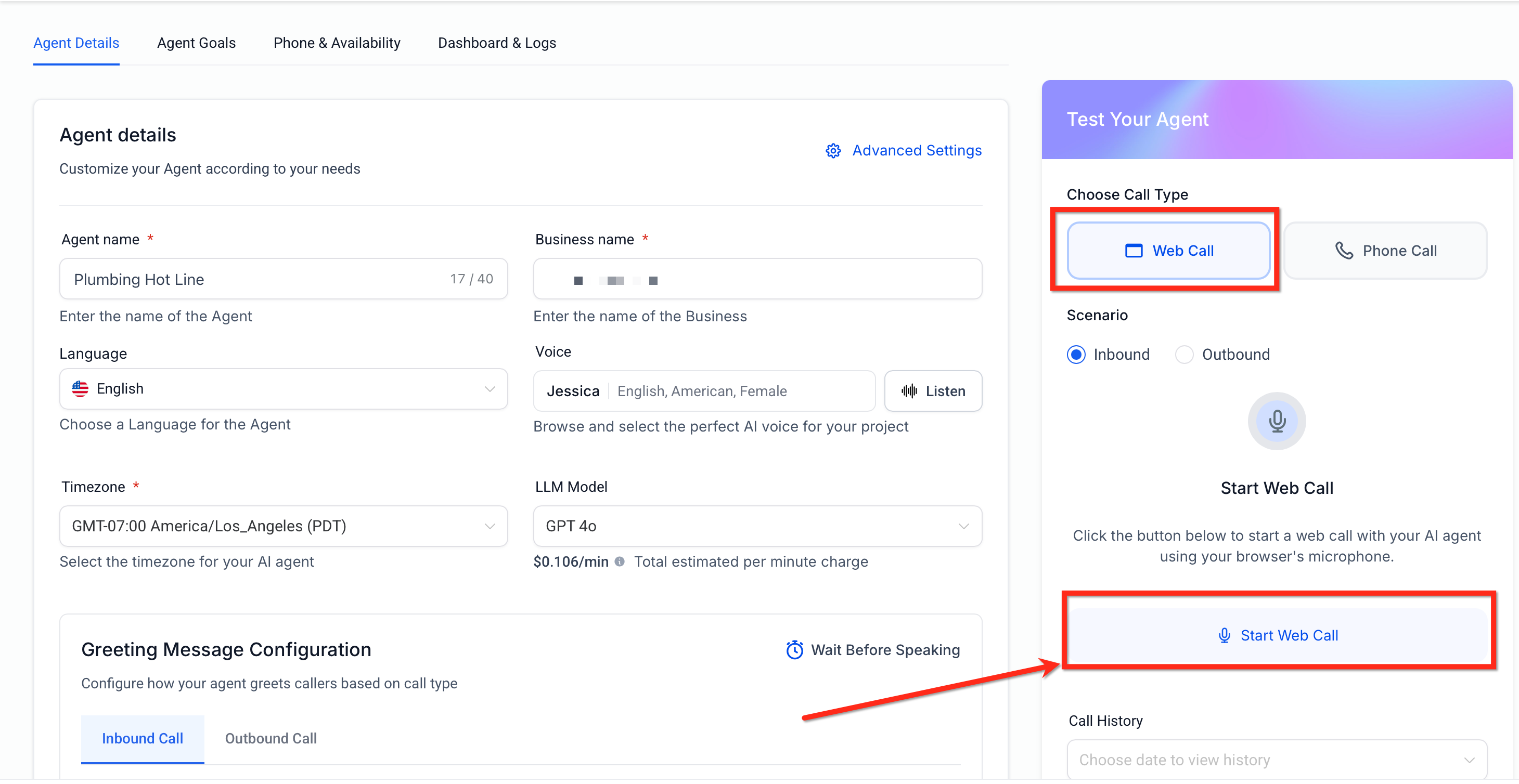
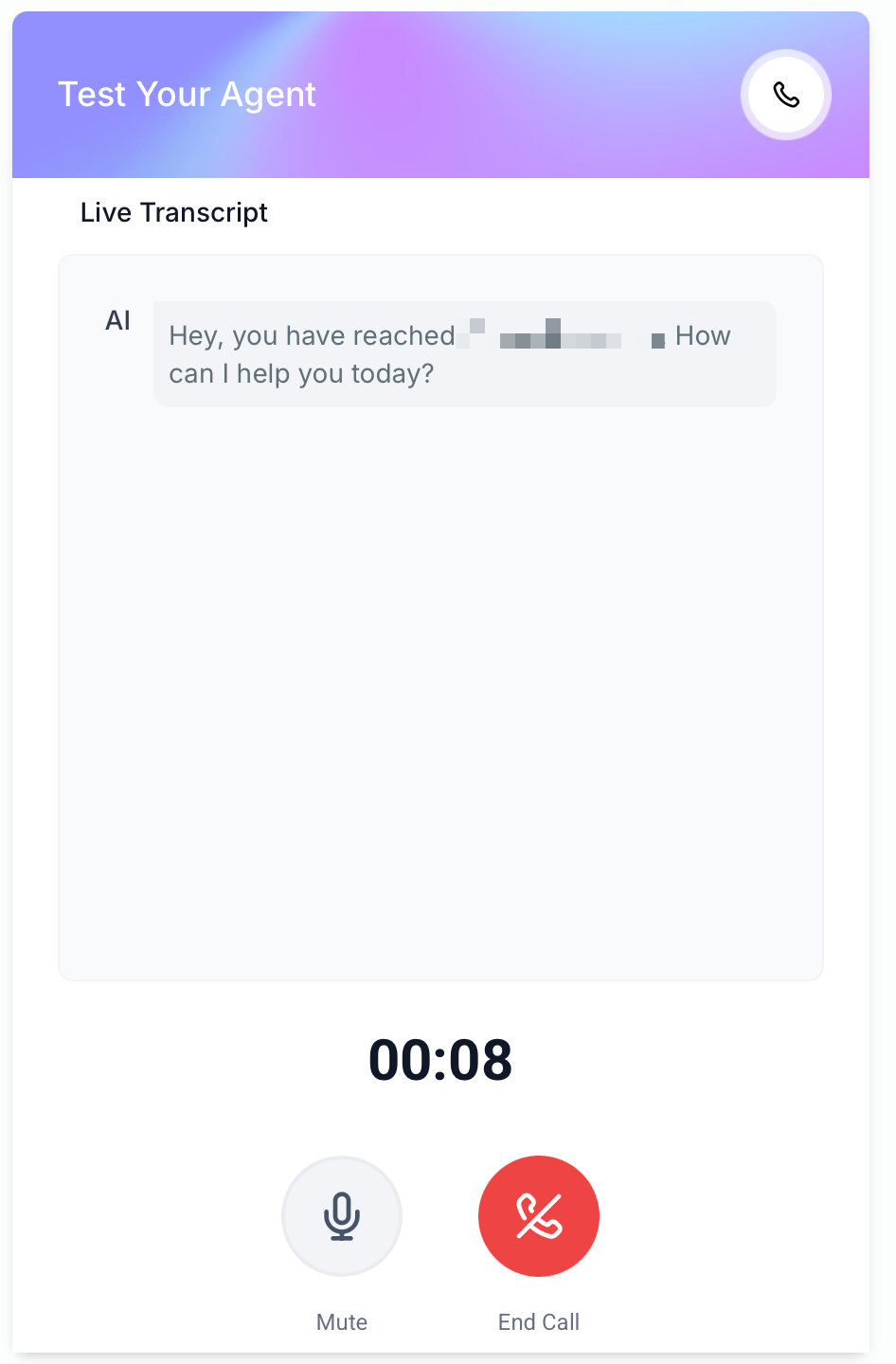
On the right-side Test Your Agent panel, click Web Call and choose your scenario (Inbound or Outbound). Then click Start Web Call. Unlike Phone Call testing, Web Call does not require you to enter a phone number.
When prompted, allow microphone access in your browser.
Speak with your agent and observe its responses and actions. During the trial, the call screen shows a Live Transcript panel that updates in real time as you and the agent speak.
(Reminder: call transfer is not supported in Web Call trials.)
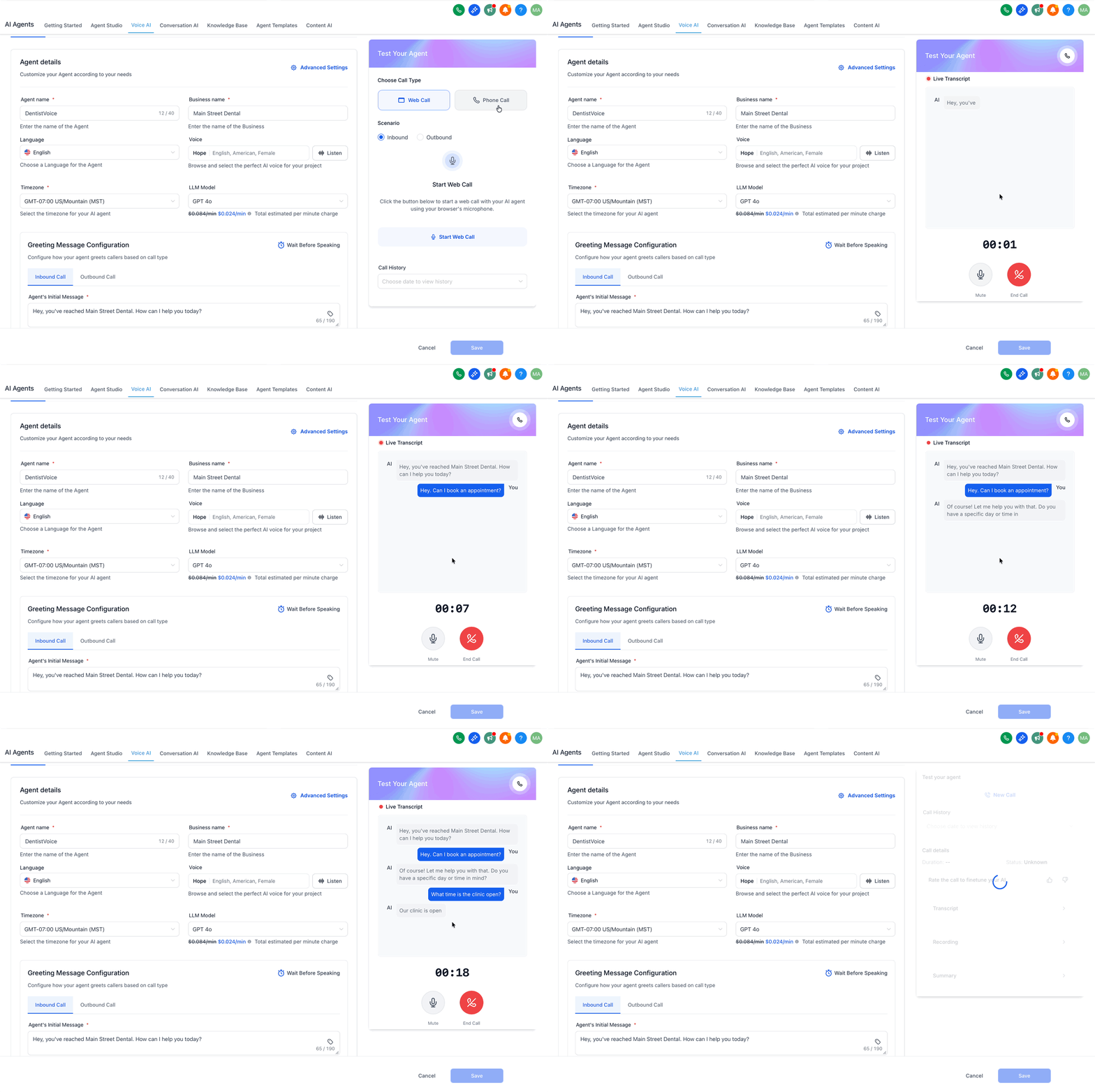
Adjust prompts, knowledge base, or settings as needed, then repeat the trial.
Tips for Web Call:
No number needed: There's nothing to dial or purchase. Click and start testing right away.
Caller identity: Your logged-in user's contact is used automatically.
Limitation: Call transfer is not supported in Web Call trials.
Device check: Allow microphone access, confirm your input and output devices, and use an up-to-date browser.
Open AI Agents from the left sidebar and click Voice AI in the top navigation ribbon.
Select Agent List in the secondary navigation ribbon, then edit the agent you want to test.
On the right-side Test Your Agent panel, click Phone Call and choose your scenario (Inbound or Outbound). Then Select Caller ID (the number the agent will use to call you).
Enter Your Phone Number (the number that will receive the test call).
Click Call me to start the test, then answer the incoming call on your device.
Review the Call History or Dashboard Logs to analyze transcripts, recordings, and summaries.
Tips for Phone Call:
Select Caller ID: Choose the phone number your agent will use to call you.
Enter Your Phone Number: Provide the destination number to receive the test call.
Receive the call: Answer and interact with your agent the way a caller would.
Billing note: Phone-based test calls run through your normal Aesthetix CRM telephony, so standard usage rates may apply.
You can also test a Voice AI agent while you're still creating it. In the Create Agent flow, use the Test Your Agent panel on the Phone & Availability step to run the same Web Call and Phone Call trials described above. These test calls behave the same way as any other trial, including Call History, transcripts, recordings, and summaries.
See the Voice AI Outbound Calling guide for full setup and compliance details.
The Outbound scenario appears only when your account is approved for Voice AI outbound calling and compliance. If you don't see this option:
Confirm your location meets Voice AI outbound eligibility requirements, including any required KYC (Know Your Customer) or location-verification steps.
Make sure an eligible Voice AI agent and outbound phone number are available on the account.
If you haven't yet accepted the required outbound calling terms, you have two ways to do it: accept them directly while configuring the Voice AI Outbound Call action inside a workflow, or go to AI Agents > Voice AI, click Enable Outbound Calls, and complete the registration there. Either path records the acceptance for your location.
You can review test results in two places:
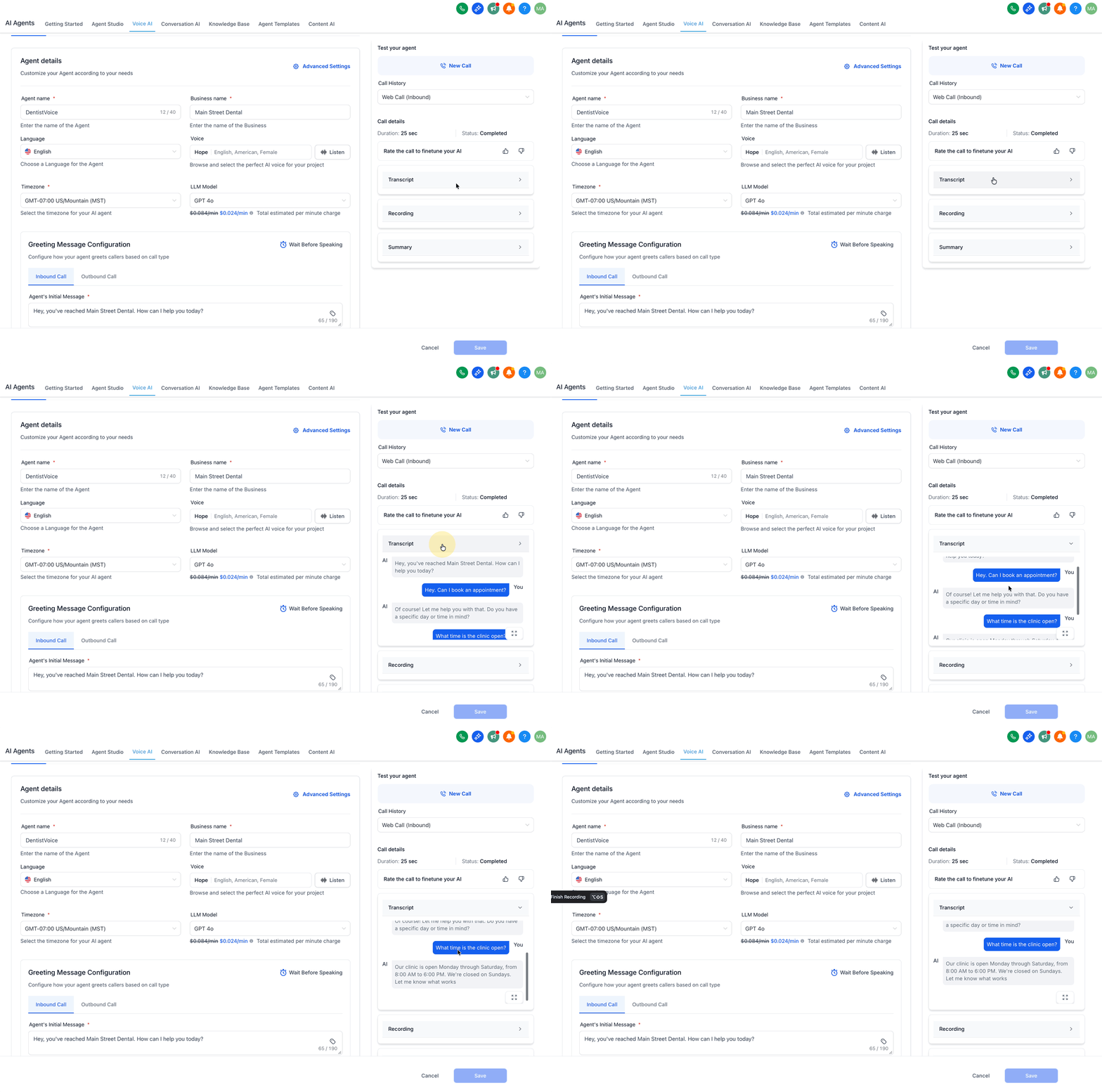
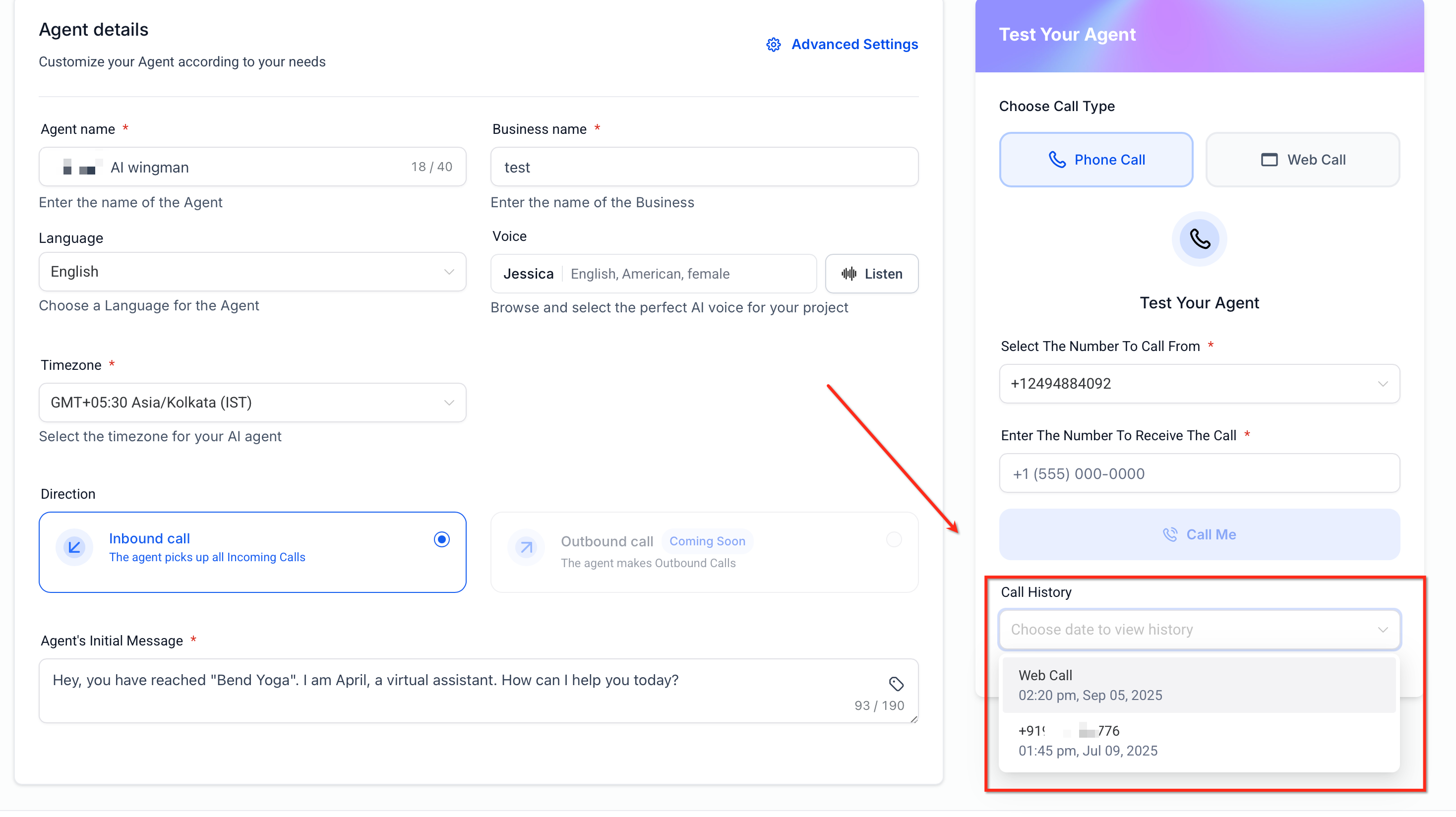
From the Test Your Agent panel, open Call History right after your test call.
Or go to Voice AI > Dashboards & Logs and filter by Call Type.
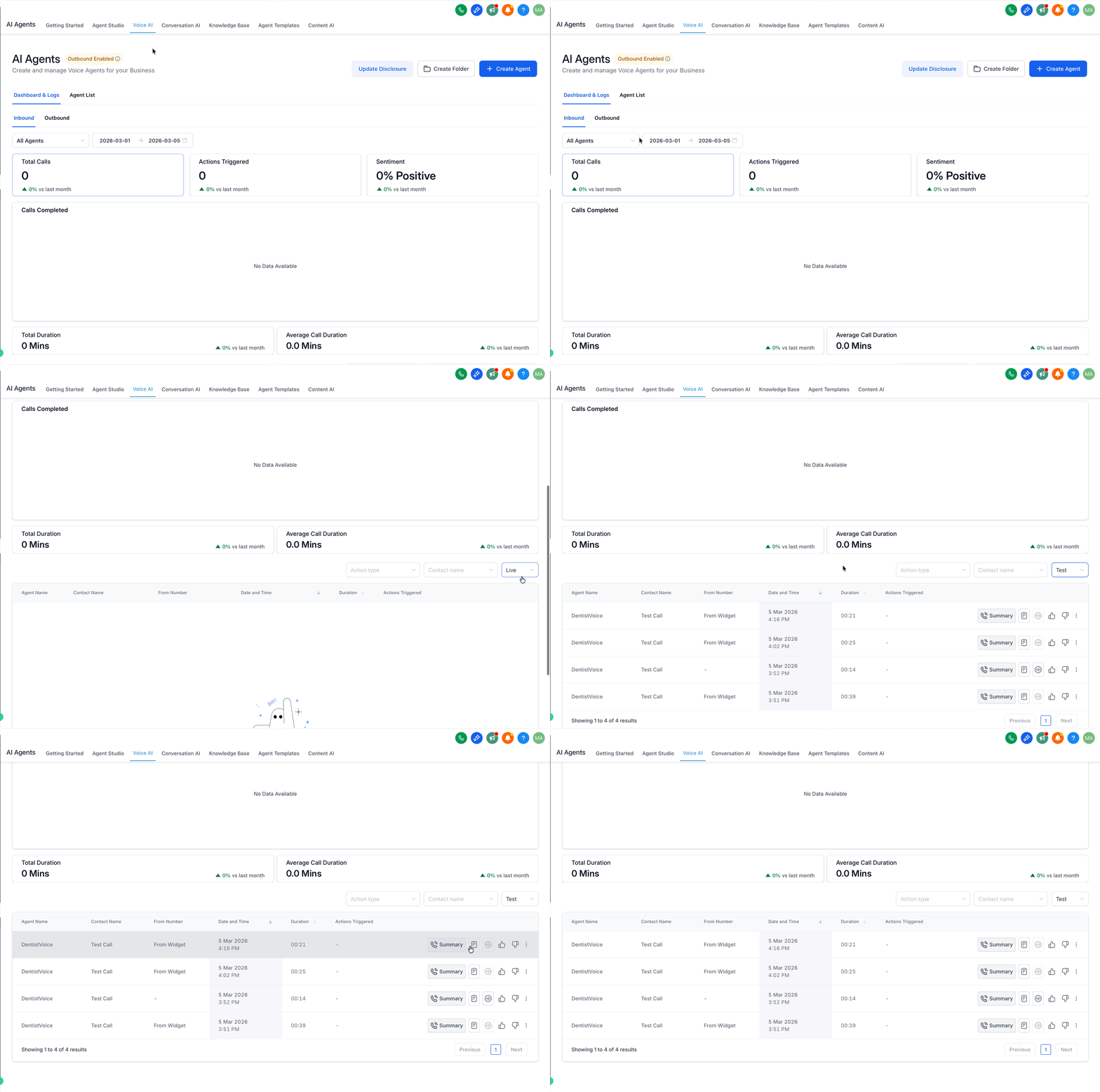
The Call Type filter lets you choose Test Calls, Live Calls, or Both from a single dropdown. It's available in both All Agents logs and Agent-specific logs. Clear the filter to return to the default combined view.
For each call you'll see the Duration, Call Status (such as Completed or Missed), Transcript, Recording playback, and Call Summary. Remember that test calls are excluded from Dashboard Analytics and Performance Metrics.
When you're testing your agent, you can go back through previous test calls to study the conversation and how the agent interacted with the caller. Use this to diagnose issues faster and confirm whether the agent achieved its intended outcome.
To open a previous test call, click the Call History dropdown and choose the call you want to review.
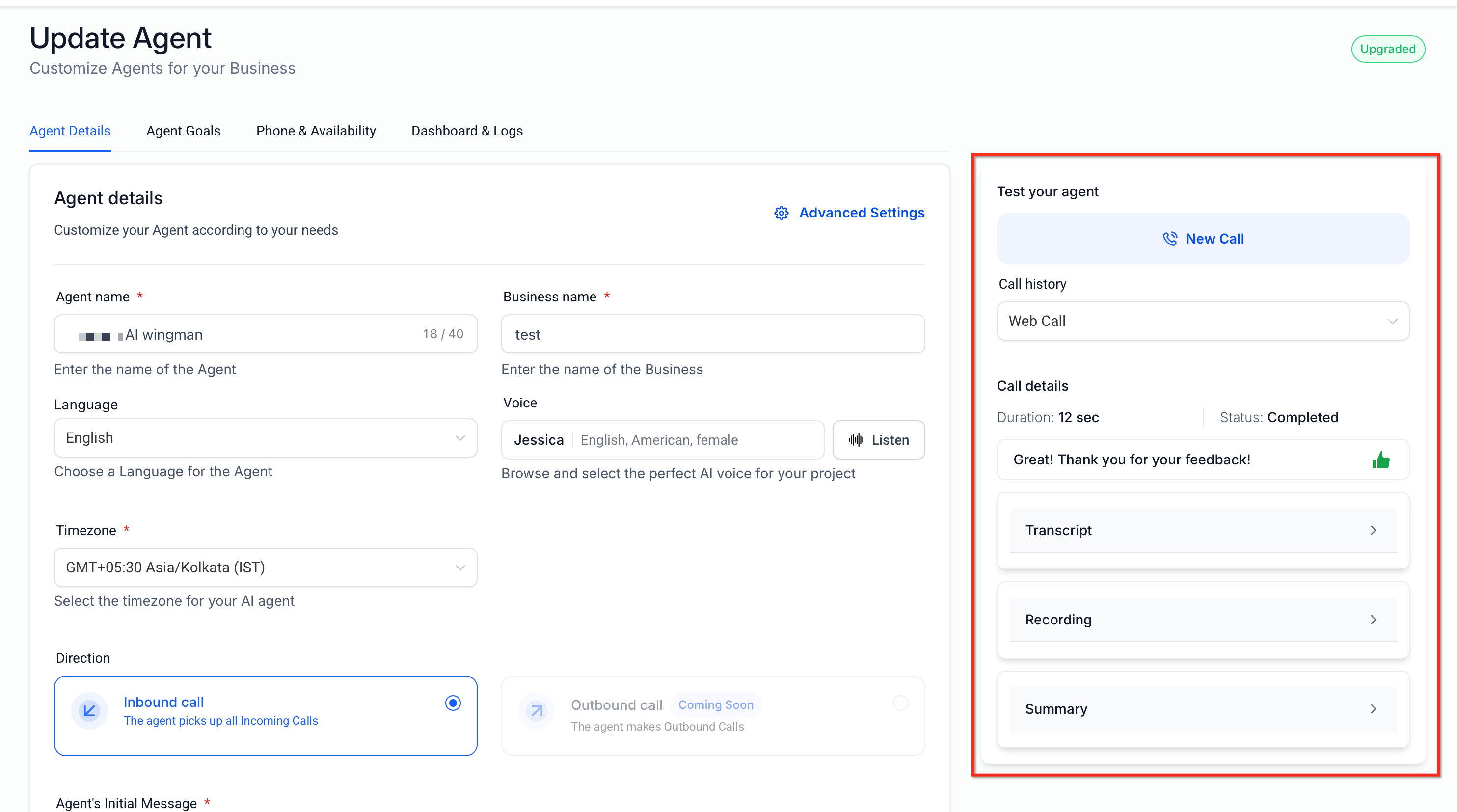
Field | Description |
|---|---|
Scenario | Whether the call ran as Inbound or Outbound, so you can compare behavior across call directions. |
Duration | Total connected time. Very short durations can indicate early hang-ups or permission issues. |
Call Status | Final outcome such as Completed, Missed, Failed, or Canceled. |
Transcript of the Conversation | Full conversation text for review and prompt tuning. |
Call Recording Playback | Audio playback (if available) to evaluate voice quality, pacing, and tone. |
Caller Identity | For a Web Call, the session maps to your logged-in user's contact; for a Phone Call, you'll see the dialed destination number. |
Call Summary | Auto-generated recap of the conversation and outcomes for quick scanning. |
Understanding how your agent handles conversations is essential for improving performance and fixing issues quickly. Agent Logs give you a clear, step-by-step view of every interaction so you can review conversations, track execution, and troubleshoot with confidence. They provide full visibility into what happened during a call, where delays occurred, and how decisions were made, which makes it easier to debug issues and optimize performance.
Agent Logs are a centralized view of AI interactions that show conversation history, execution steps, timestamps, and system-level details, so you can analyze an interaction from start to finish without guesswork.
Key benefits of Agent Logs:
Conversation visibility: See full interactions between callers and the AI.
Execution tracking: Follow each step with precise timestamps.
Transfer insights: Identify how and when agent handoffs occur.
Latency analysis: Detect slow steps in conversations.
Data inspection: View raw and formatted input/output data.
Failure detection: Quickly identify where issues occurred.
Navigate to AI Agents.
Click Agent Logs in the top menu.
Use the table to review interactions by agent name, contact name, AI product, channel, timestamp, and status. Use the filters at the top to narrow down results.
Scroll through the logs to find the interaction you want, using timestamps and status to identify the relevant session.
Click an Agent name, OR
Use the action menu (three dots) > View Details.
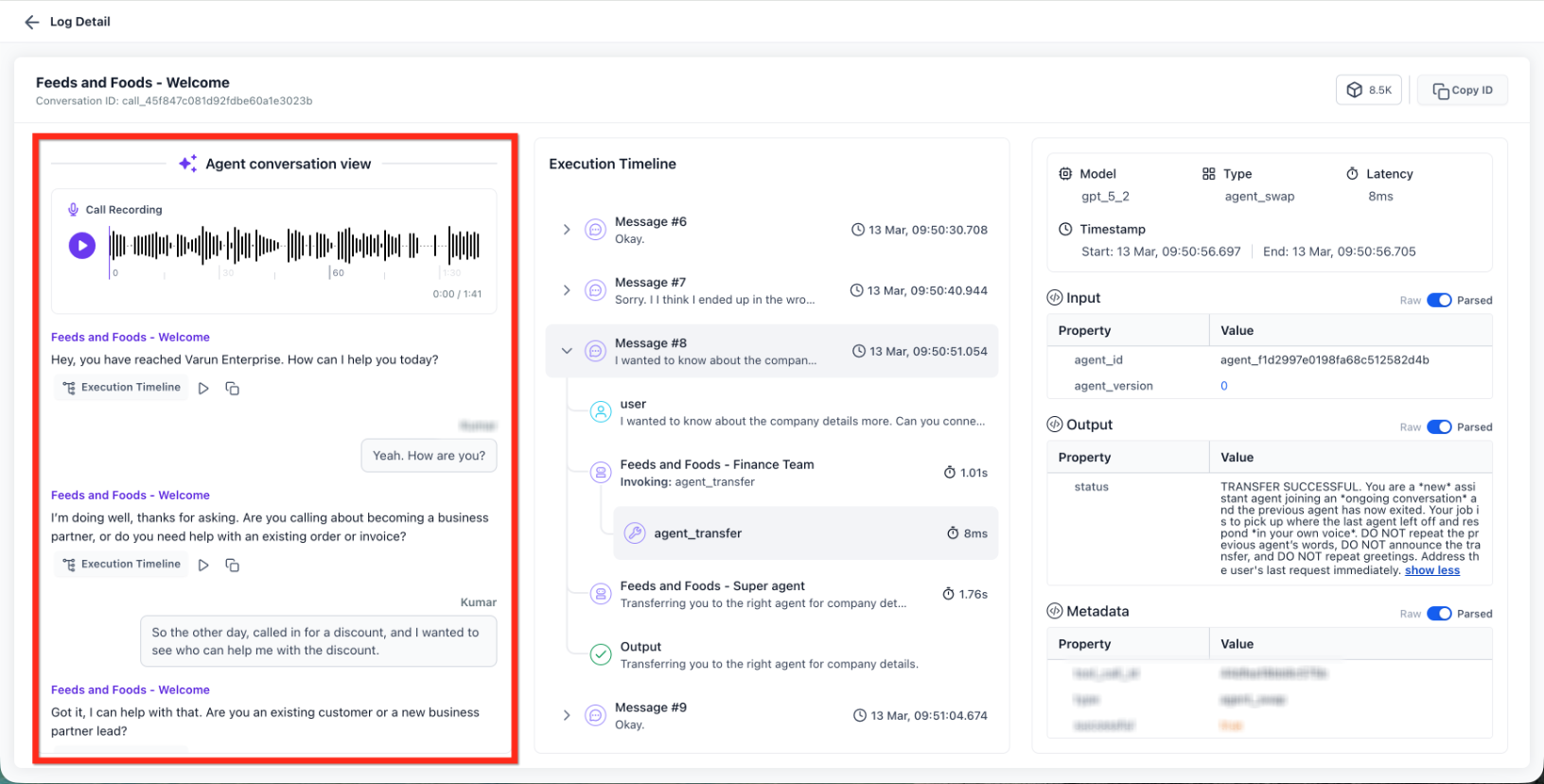
Review the call recording playback (if enabled), the conversation messages, and the context of the interaction.
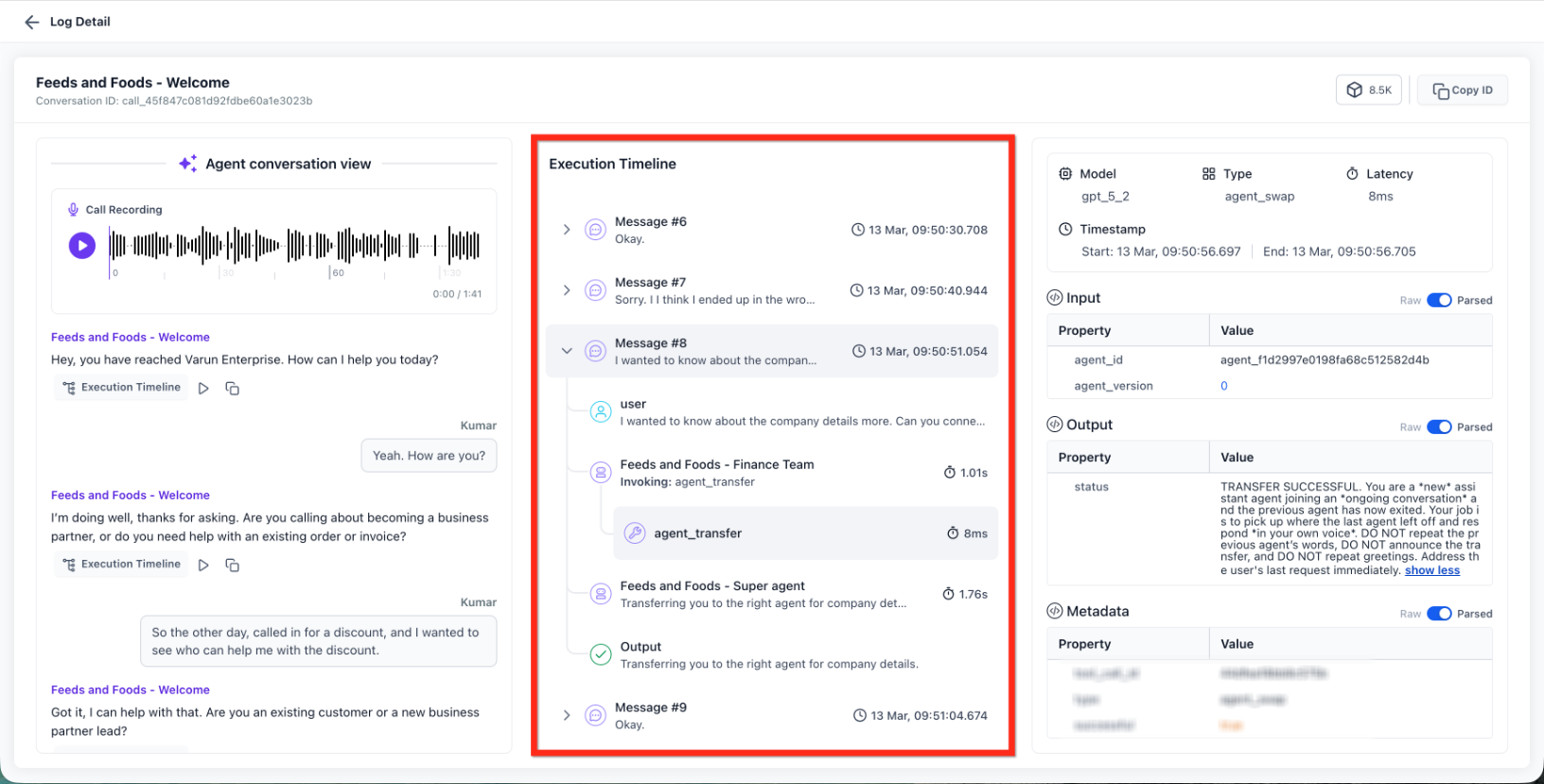
Follow events in chronological order to identify delays, transfers, and failures, and use the timestamps to pinpoint issues.
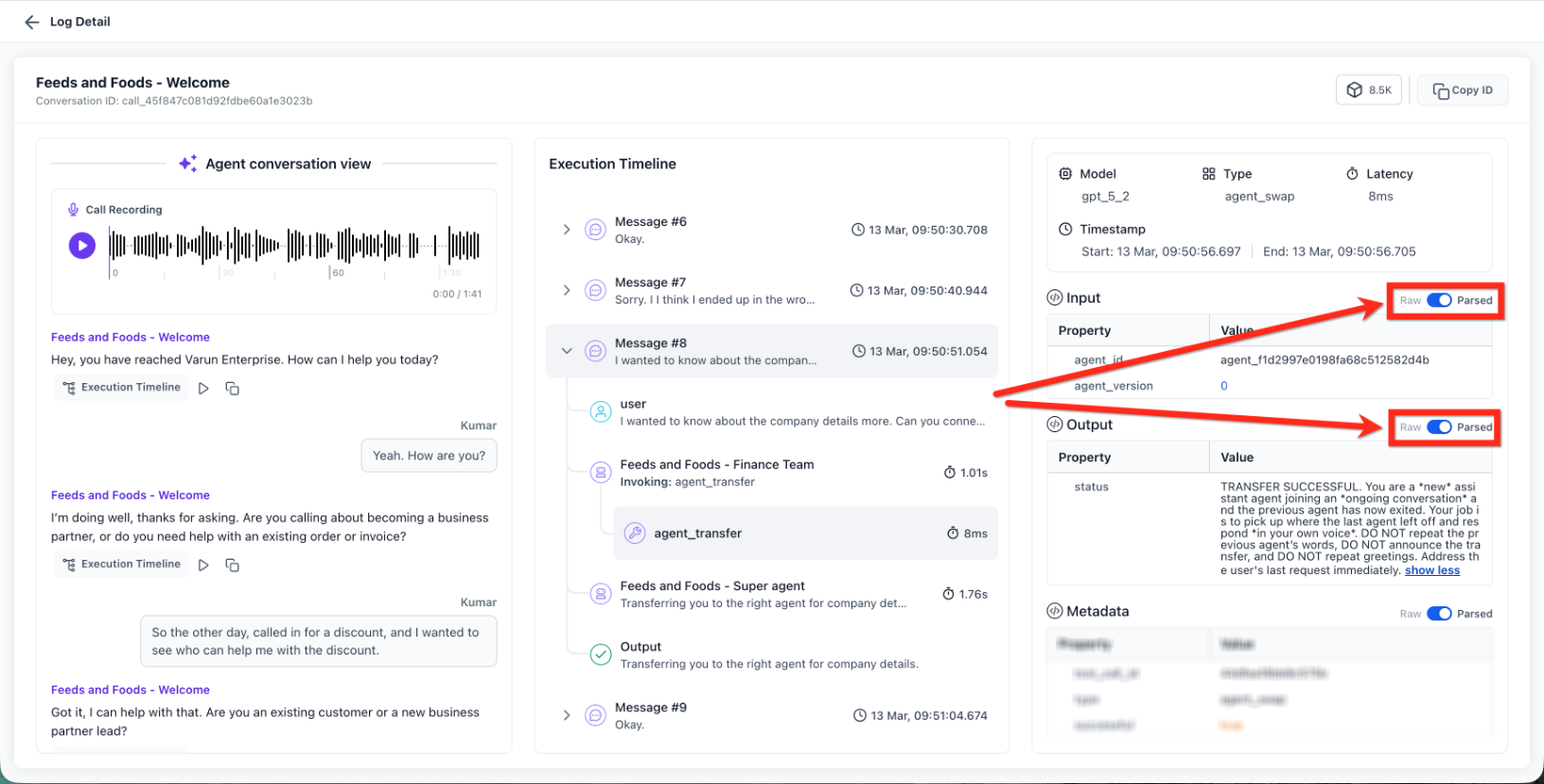
Toggle between Raw (original system data) and Parsed (human-readable format) to review what was sent and received at each step.
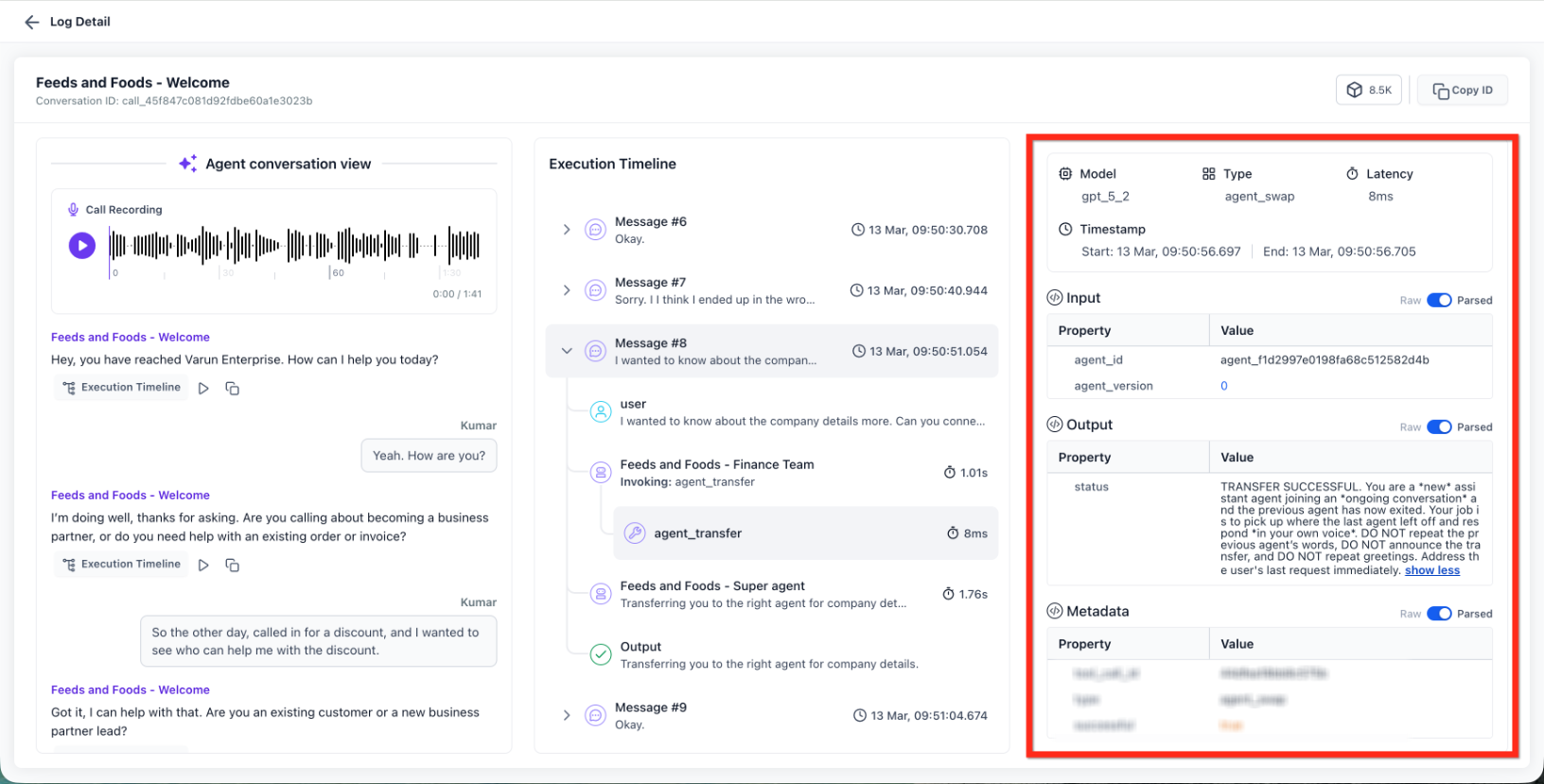
View the model used, execution type, latency, and metadata. Use this information to audit performance and debug issues.
Do I need to buy a phone number to test a Voice AI agent?
For a Web Call, no number is required. A Phone Call uses your existing Aesthetix CRM telephony, so standard usage rates may apply.
Why don't I see the Outbound option when testing my agent?
Outbound testing only appears once your location meets Voice AI's outbound eligibility and compliance requirements. Confirm any required KYC or location-verification steps are complete, and that an eligible agent and outbound number are set up on the account. If the required outbound calling terms haven't been accepted yet, you can accept them either while configuring the Voice AI Outbound Call action in a workflow, or from the Enable Outbound Calls page under AI Agents > Voice AI. See the Voice AI Outbound Calling guide for the full setup walkthrough.
What is the difference between Phone Call and Web Call testing?
A Phone Call tests the agent through the real phone path on your device. A Web Call launches a browser-based test so you can skip number provisioning and start faster.
Which method should I choose?
Use Web Call for rapid iteration without any number setup. Use Phone Call to validate telephony-specific experiences end to end.
Can I test call transfer?
Not with a Web Call. Use a Phone Call, where transfer behaves according to your agent configuration and telephony setup.
Who is shown as the caller during a Web Call test?
Your logged-in user's contact is automatically used as the caller identity for the trial.
Will my test calls appear in logs?
Yes. Test calls are visible in Call History and in Dashboards & Logs, including recordings, transcripts, and call summaries.
Why can't I find a test call in Dashboards & Logs?
Check that you've selected the correct agent and a date range that includes the day of the test, then confirm the Call Type filter isn't set to hide test activity. Also allow a short amount of time for call details to finish processing after the call ends.
Do test calls affect my analytics?
No. Test calls are meant for quality assessment and are excluded from dashboard analytics and performance metrics.
Why is my Web Call not starting?
Check that your browser has permission to use your microphone, and confirm you launched the test from the Web Call option inside the Voice AI testing flow.
Why is the call recording not visible in Agent Logs?
Call recording appears only if it is enabled for the phone number used in the interaction.
What is the difference between the conversation view and the execution timeline?
The conversation view shows the interaction as it happened, while the execution timeline shows the technical steps behind it.
What does Raw vs. Parsed mean?
Raw shows the original system data, while Parsed displays a cleaner, readable version of the same data.
Can I track agent transfers in the logs?
Yes. You can see which agent initiated a transfer, which agent took over, and whether it was successful.
How do I troubleshoot a failed interaction?
Open the log details, review the execution timeline, and inspect the step where the failure occurred.
