Voice AI can place outbound AI-powered phone calls to your contacts, but Aesthetix CRM does not run an automatic pre-call consent check before dialing. Your practice is responsible for having valid consent to call each contact and for documenting it. This article explains where to collect and document consent, the one-time location-level terms required to use outbound calling, the AI disclaimer your Voice AI agent presents on the call, and the eligibility rules and call limits that apply.
For broader policy guidance on messaging consent, opt-outs, and HIPAA/TCPA obligations, see the Compliance collection. This article covers how Voice AI outbound calling works inside Aesthetix CRM; it is not legal advice, consult your own counsel for jurisdiction-specific requirements.
Note on PHI: Don't enter protected health information (PHI) into Voice AI. AI features aren't approved for processing PHI — use them for productivity, communication, scheduling, and engagement, not to store or process medical records. See the HIPAA Compliance guide for details.
Aesthetix CRM does not perform a platform-level consent check before an outbound Voice AI call is placed. There is no automatic scan that approves or blocks a call based on whether a contact opted in.
What this means for your practice:
You decide. Your practice determines whether each contact can legally receive an outbound AI call, based on your own consent records and compliance process.
Records can live anywhere. Consent can be captured and stored inside Aesthetix CRM (Forms, Surveys, Appointment Forms/Calendars, Facebook Lead Forms) or in your own external systems.
Opt-outs still matter. Continue honoring opt-outs, Do Not Call requests, and any applicable legal restrictions before calling a contact, regardless of a prior opt-in.
Location terms are separate from contact consent. Accepting Aesthetix CRM's outbound calling terms for your location is not the same as having permission to call an individual contact.
Before a location can use Voice AI outbound calling, it must accept a one-time outbound calling terms agreement. This is a location-level requirement, separate from contact consent.
The terms can be accepted directly inside the Voice AI Outbound Call workflow action the first time you add it to a workflow, without leaving the workflow builder.
Acceptance is recorded once per location. You won't be asked again for the same workflow or for future workflows.
If Aesthetix CRM later updates the terms, an optional checkbox for the updated version may appear. Accepting the update is optional and does not block saving the action or continuing to place outbound calls.
Accepting these terms is not contact consent. It only confirms your location agrees to the platform's outbound calling terms and guidelines. You are still responsible for determining whether you have permission to call each contact.
Aesthetix CRM doesn't scan these for you before a call goes out, but they're the recommended places to capture and document a contact's consent to receive Voice AI calls:
Forms
Surveys
Appointment Forms/Calendars
Facebook Lead Forms (configured in Meta Business Suite, then mapped in Aesthetix CRM)
Tip: Use consistent consent language across every asset so your records stay easy to review, and note where and when consent was collected.
Clear, consistent consent language makes your records easier to review and helps your practice meet its own compliance obligations. When you write consent language for Forms, Surveys, Appointment Forms/Calendars, or Facebook Lead Forms, consider including:
A clear, affirmative action (such as a checked box) indicating the contact agrees to receive voice calls.
Text that references voice calls specifically, avoid vague or bundled language.
A timestamp, and when available, submission details such as IP address and user agent.
A clear link between the consent submission, the contact, and the phone number you intend to call.
Instructions or a process for opting out of future communications.
Language that fits your legal and compliance framework. Consult counsel for jurisdiction-specific requirements.
A clear setup sequence helps your assets collect and document the right information.
Navigate to an existing form or create a new form.
Click the settings icon to edit the consent information.
Add a consent checkbox, and make sure the phone field is present and mapped to the contact's phone number.
Confirm submissions save the timestamp and the consent text that was shown.
Add a consent item (a checkbox or explicit confirmation).
Capture or confirm the phone number so the consent is associated with the right contact.
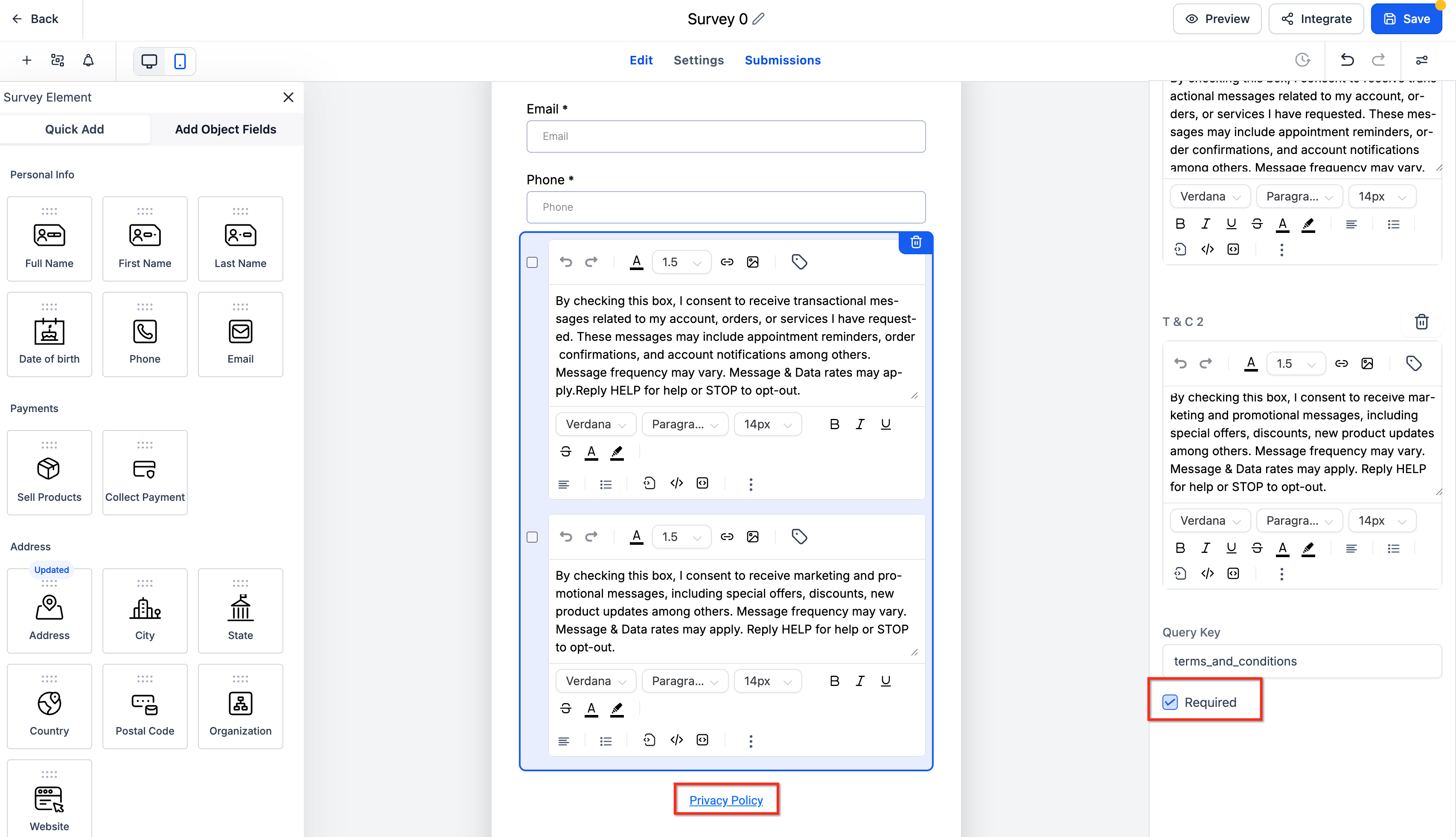
Add a consent checkbox on booking forms.
Make sure the booking collects the phone number used for Voice AI calls.
Add your consent language to the Facebook Lead Form inside Meta Business Suite. Facebook Lead Forms can't be edited from inside Aesthetix CRM.
Map the form under Settings → Integrations → Facebook → Form Field Mapping so submissions sync to Aesthetix CRM.
Submit each asset once, then open the contact timeline to confirm the consent entry, its source, and its timestamp were recorded.
The AI disclaimer controls how your Voice AI agent introduces the call and discloses that it's an AI voice.
Choose a disclaimer style: Concise, Standard, or Conversational.
Add the agent's intent message, describing the purpose of the call.
Preview the complete greeting, including the disclaimer, before publishing.
The AI disclaimer is not a consent check. It controls what the agent says at the start of the call; it does not verify or record whether a contact consented to be called.
Platform-level safeguards keep outbound calling within supported limits, separately from your own consent process.
Location eligibility
Complete any required KYC or location verification for your account.
Stay within Aesthetix CRM's Acceptable Use Policy (AUP) thresholds. If a location exceeds applicable AUP thresholds, outbound Voice AI calling can be paused automatically until the issue is resolved.
Use an eligible Voice AI agent and From Phone Number in the outbound workflow action.
Call limits
Limit | Current behavior |
|---|---|
Call rate | Up to 10 outbound Voice AI calls per minute, per location |
Daily location limit | Up to 5,000 outbound Voice AI calls per location, per day |
Daily overflow | Calls above the daily limit are scheduled for the next eligible day |
Per-phone-number, daily | Each phone number can be called once per day |
Per-phone-number, 14-day | Each phone number can be called up to 14 times within any 14-day period |
Calling hours | 8:00 AM to 8:00 PM, based on the contact's phone-number time zone |
Destinations | Same-country numbers only; unsupported international destinations aren't eligible |
Calls that would fall outside the calling window or exceed a limit are scheduled for the next eligible time rather than blocked outright.
Opt-outs and Do Not Call requests take priority. Honor a recent opt-out or DNC flag even if you have an earlier opt-in on file.
Number-specific consent is best practice. Tying consent to the specific phone number you're calling keeps your records clearest. If your policy relies on contact-level consent instead, confirm that approach with your legal team.
Older submissions still count as documentation. Consent captured in an earlier Survey or Calendar submission remains valid documentation as long as it's tied to the contact and the phone number you intend to call.
Review consent in the contact timeline. Open a contact's timeline to see the Form, Survey, Calendar, or Facebook Lead Form submission where consent was captured, along with its timestamp.
Does Aesthetix CRM automatically check consent before placing an outbound Voice AI call?
No. There is no automatic pre-call consent scan. Your practice is responsible for having and documenting valid consent before Voice AI calls a contact.
Does accepting the outbound calling terms mean I have consent to call a contact?
No. Location-level outbound calling terms only confirm your location agrees to Aesthetix CRM's outbound calling terms and guidelines. Contact-level consent is separate and remains your responsibility.
Where do I accept the outbound calling terms?
The first time you add the Voice AI Outbound Call action to a workflow, you can review and accept the terms directly inside the action. Acceptance is recorded once per location.
Do I need to accept the terms again for future workflows?
No. Acceptance is recorded once per location. If Aesthetix CRM updates the terms later, an optional checkbox for the updated version may appear, and accepting it is optional.
Is opt-out always stronger than opt-in?
Yes. Honor a recent opt-out or Do Not Call flag even if a prior opt-in exists.
Do I need separate consent for each phone number?
Best practice is number-specific consent. If your policy uses contact-level consent, confirm that approach with your legal team.
Are older Survey or Calendar submissions still valid documentation?
Yes, provided the submission is associated with the contact and the phone number you intend to call. Review it in the contact timeline.
What is the AI disclaimer, and is it a consent check?
The AI disclaimer controls how your Voice AI agent introduces itself on the call (Concise, Standard, or Conversational, plus an intent message). It is not a consent check, it doesn't verify or record whether a contact consented to be called.
How many outbound Voice AI calls can my location place per day?
Up to 5,000 per day, per location. Calls above that limit are scheduled for the next eligible day.
Can the same phone number be called more than once a day?
No. Each phone number can be called once per day, and up to 14 times within any 14-day period.
What hours can Voice AI place outbound calls?
Between 8:00 AM and 8:00 PM, based on the contact's phone-number time zone.
Can Voice AI call international numbers?
No. Outbound Voice AI calling is limited to numbers in the same country as your location.
What happens if my location exceeds Aesthetix CRM's Acceptable Use Policy thresholds?
Outbound Voice AI calling can be automatically paused for that location until the issue is resolved.
What should my consent text include?
A clear statement authorizing voice calls, presented next to an explicit affirmative action and not bundled with unrelated permissions.
Can I still collect consent through Facebook Lead Forms?
Yes. Add your consent language to the Facebook Lead Form inside Meta Business Suite, then map the form under Settings → Integrations → Facebook → Form Field Mapping so submissions sync to Aesthetix CRM.
Where can I review the consent I've collected for a contact?
Open the contact's timeline to see the Form, Survey, Calendar, or Facebook Lead Form submission where consent was captured, along with the timestamp.
