Aesthetix CRM Voice AI supports multiple languages so your callers are greeted and assisted in the language that feels natural to them. You can configure an agent's language, choose a matching voice, and even auto-translate post-call transcripts and summaries into the language your team reads best. This article covers how to set up, customize, and test multilingual Voice AI agents, plus how to enable the translation service for call records.
Note on PHI: Don't enter protected health information (PHI) into Voice AI. AI features aren't approved for processing PHI — use them for productivity, communication, scheduling, and engagement, not to store or process medical records. See the HIPAA Compliance guide for details.
You can create and deploy Voice AI agents in multiple languages, allowing you to connect with a wider audience. This streamlines communication and scheduling by handling calls in the caller's preferred language.
Expanding your Voice AI to multiple languages provides several advantages:
Reach a wider audience – Communicate with callers in their native language for smoother scheduling and follow-ups.
Seamless language selection – Choose from the supported languages to match your audience's needs.
Diverse voice options – Access a library of 80+ voices, each tailored to specific languages for more natural conversations.
Enhanced experience – Improve clarity with accurate responses in the caller's preferred language.
Effortless configuration – A simple dropdown selection makes it easy to set up agents in different languages.
The Voice AI feature supports over 52 languages, including:
English, German, Spanish, French, Portuguese, Italian, Dutch, Hindi, Japanese, Polish, Romanian, Turkish, Vietnamese, Swedish, Norwegian, Russian, Indonesian, Greek, Danish, Finnish, Chinese, Korean, Slovak, Bulgarian, Malay, Hungarian, Afrikaans, Armenian, Azerbaijani, Bosnian, Czech, Galician, Hebrew, Icelandic, Kannada, Kazakh, Latvian, Lithuanian, Macedonian, Marathi, Nepali, Persian (Farsi), Serbian, Slovenian, Swahili, Thai, Urdu, and Welsh.
There are also voices with multilingual support (English and Spanish).
The voice library is continually growing, so more voices and languages will be added over time.
Tip: You can import custom voices from ElevenLabs.
If your practice serves both English- and Spanish-speaking callers, select Multilingual instead of a single language when configuring the agent's language. A Multilingual agent responds in English or Spanish and switches between the two automatically as the conversation calls for it, so you don't need to build and maintain separate agents for each language.
Multilingual mode pairs with voice profiles fine-tuned for both English and Spanish, so responses in either language sound natural rather than mechanically translated.
Setting up a Voice AI agent in a different language is simple. Follow these steps.
From the left navigation bar, choose AI Agents.
Select the Voice AI tab on the top ribbon.
Select Agent List from the secondary top navigation ribbon.
Locate the agent you would like to update and click the agent's name to open the Agent Details.
Use the dropdown menu to choose one of the supported languages.
Your greeting will automatically update to align with the selected language for a seamless experience. You can proofread and edit this message in the Agent's Initial Message box.
Once a language is selected, the available voices update automatically. Browse and select the voice that best fits your needs.
Once everything is configured, save your settings. Test your Voice AI agent before deploying it to make sure the language and voice sound the way you expect.
To get the most out of your multilingual Voice AI, keep these best practices in mind:
Select the correct language – The agent will only process and respond in the language configured, so be sure to choose the right one during setup.
Avoid language prompts – Do not include explicit language instructions in your prompts, as this may cause confusion. The system automatically detects and operates in the selected language.
Update greeting messages – Customize the greeting message to match the selected language for a smooth, natural interaction.
Need transcripts and summaries in another language instantly? The Voice AI Translation Service converts post-call transcripts and summaries into the language you choose, right inside your dashboard. This removes language barriers, speeds up reviews, and helps multilingual teams, all with a single toggle during agent setup.
The Voice AI Translation Service automatically renders every AI-generated call transcript and call summary into a target language you select. By pairing speech recognition with machine translation, it delivers written insights you can read and share in the language that serves your clients and teammates best.
Inclusive communication – Everyone on your team, regardless of language proficiency, can review call details with confidence.
Instant visibility – Transcripts and summaries appear in your target language seconds after each call finishes, with no copy-paste needed.
Centralized workflow – View translated content directly in Dashboard & Logs, eliminating the need for external tools.
Team alignment – Provide multilingual reporting that keeps your staff informed and on the same page.
Efficiency – Reduce manual translation tasks and free up time for higher-value follow-ups.
You can activate translation with just a few clicks during agent creation, or by editing an existing agent. Translations live where you already review call data, so there's no extra navigation.
Navigate to AI Agents → Voice AI.
Click Create Agent, or edit an existing agent from the Agent List.
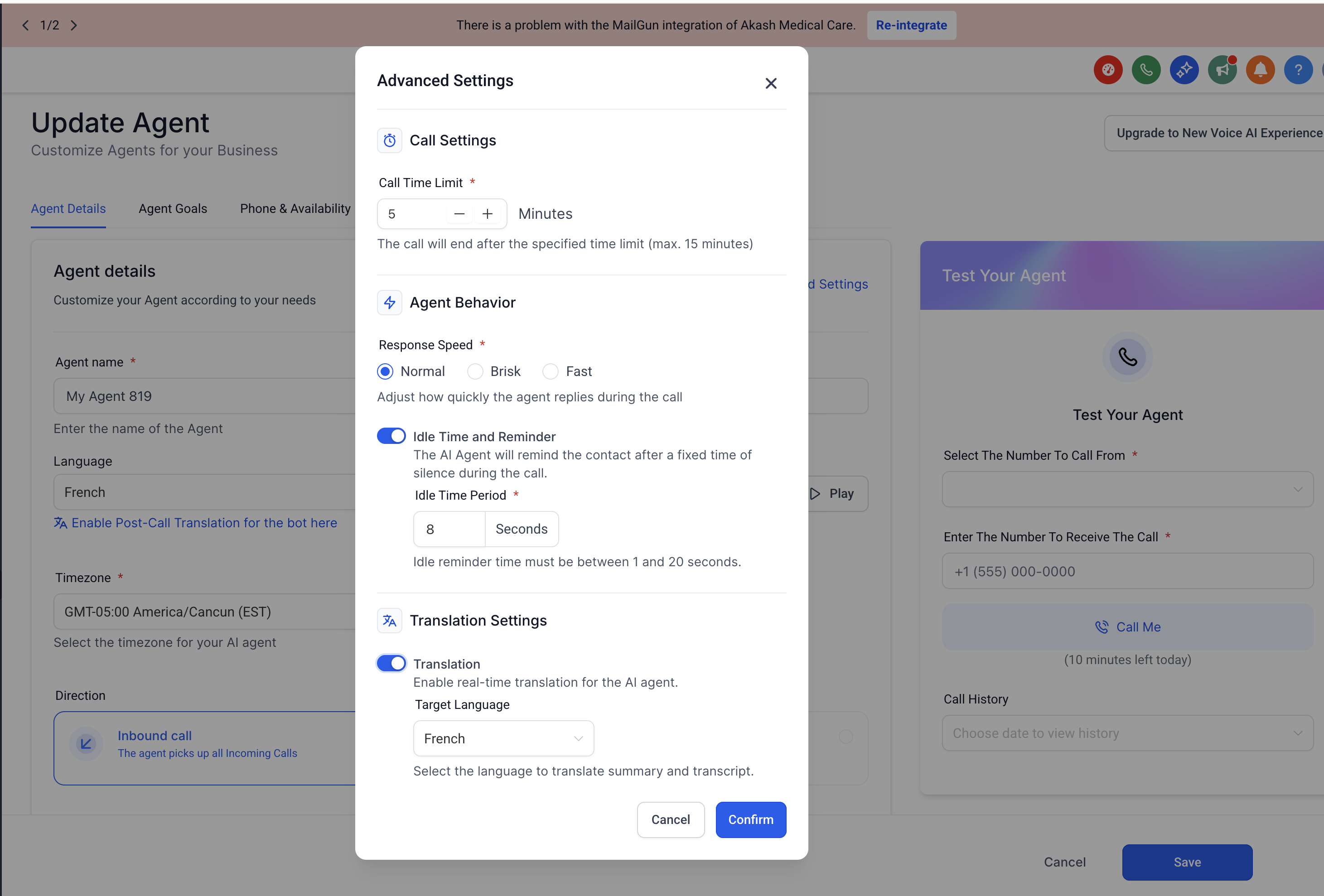
Enable the Translation Service toggle.
Select your preferred translation language from the dropdown.
Save the agent.
After a call is completed, the translated versions of transcripts and summaries become available in Dashboard & Logs. Dashboard and Logs are listed on the homepage of the Voice AI agents as well as inside the individual agent's settings.
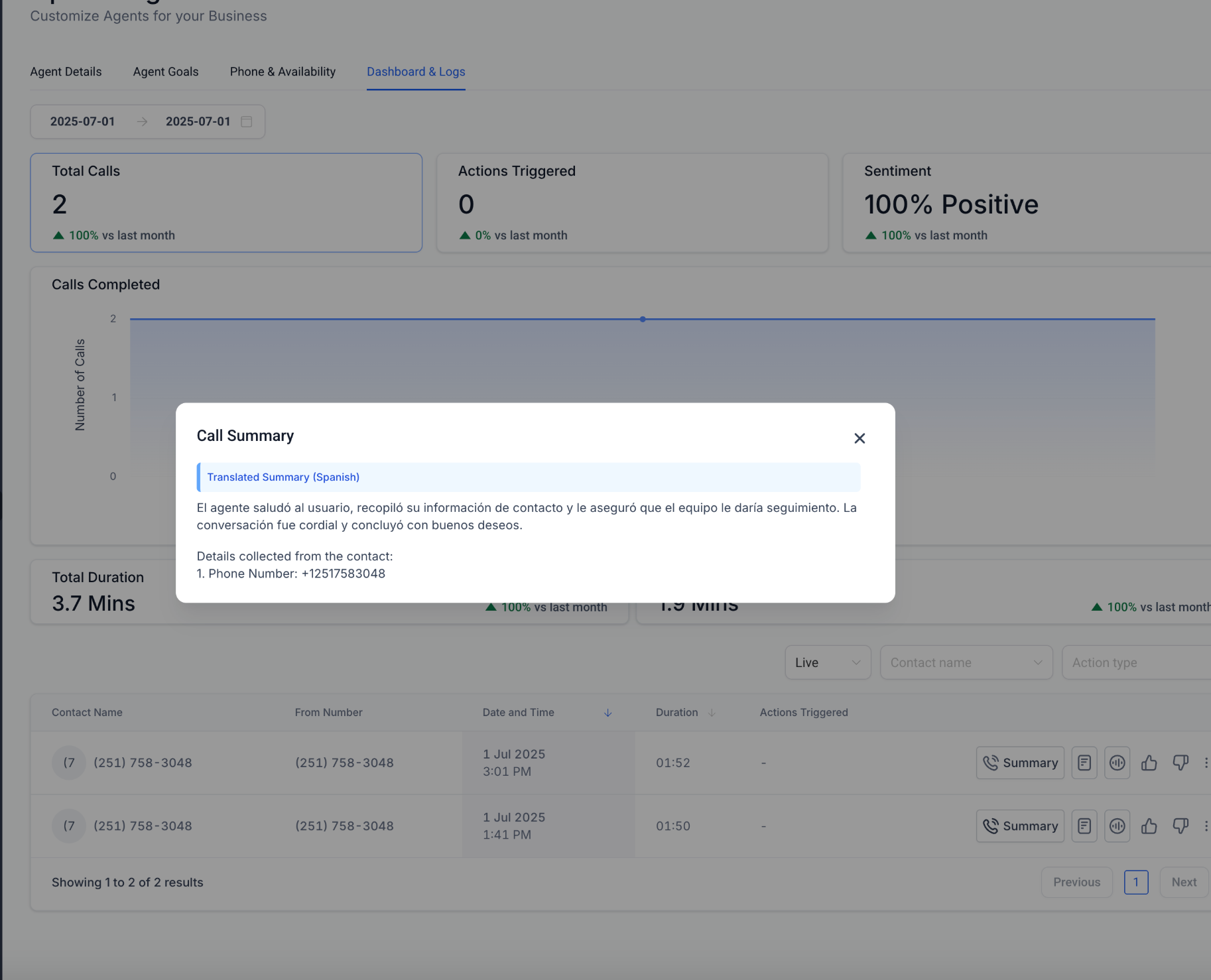
This is what the Summary looks like:
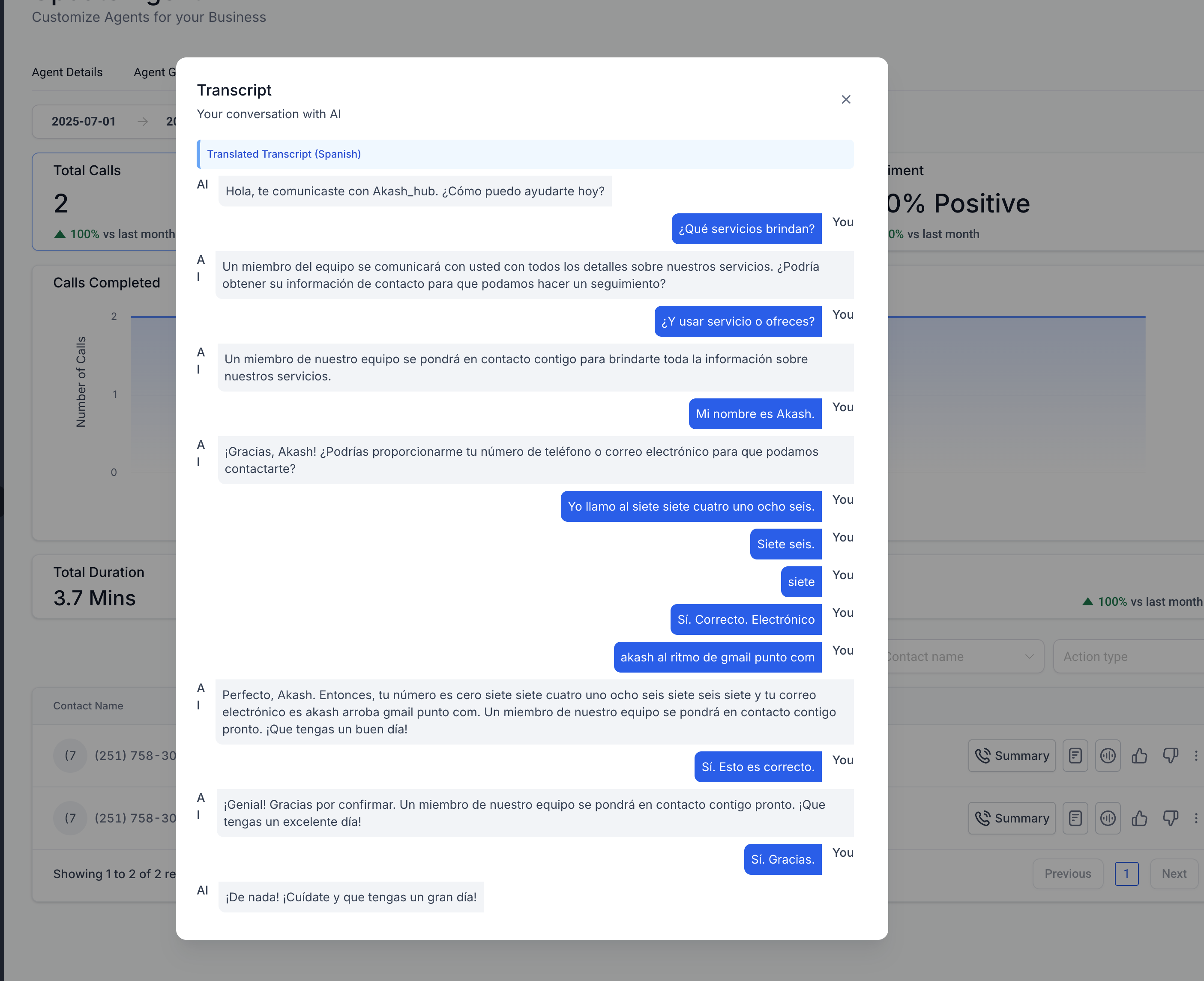
A sample of the Transcript is shown below:
When translation is enabled, Aesthetix CRM can surface translated call artifacts automatically after the call ends:
Post-call notifications – After each call, you receive a notification that includes a translated summary and translated transcript.
Automatic note saving – The translated summary is saved to Notes automatically after each call.
Workflow availability – Post-call workflows can use both the translated summary and translated transcript to power follow-ups and internal handoffs.
How many voices are available for each language?
The library includes over 80 voices, and the selection updates automatically based on the chosen language. More voices continue to be added over time.
Can I change the language of an existing Voice AI agent?
Yes, you can update the language selection within the configuration settings. Be sure to also update the greeting message to align with the new language.
Can one Voice AI agent handle both English and Spanish callers?
Yes. Select Multilingual instead of a single language when configuring the agent. The agent responds in English or Spanish and switches between the two automatically, using voice profiles fine-tuned for both languages, so you don't need to build a separate agent for each language.
Will additional languages be added in the future?
Yes. We are continuously working to expand our language and voice offerings.
When I change the agent's language, does the greeting update automatically?
Yes. Changing the language in Agent Details instantly auto-translates the agent's Initial Message into the selected language. Review the translation and make any needed edits before saving.
Which languages are supported for translation?
The supported language list appears in the dropdown menu during agent setup.
Do I need to enable translation for each call?
No. Once enabled at the agent level, translation applies automatically to all calls handled by that agent.
Can I change the translation language later?
Yes, you can edit the agent and select a different language anytime.
Are both the transcript and the summary translated?
Yes, both are automatically translated and displayed in your chosen language.
Will this affect the original language record?
No. The original transcript and summary remain available; the translation is provided in addition.
Does translation use extra AI credits?
Yes. Translation consumes one additional AI credit per minute of transcribed audio. For current pricing, see the pricing page.
