Your Voice AI agent's prompt is the heart of every call it handles. A clear, well-structured prompt is what turns a generic bot into a warm, on-brand assistant that greets callers by name, captures leads, books appointments, and follows your practice's process. This guide brings together everything you need to write and refine Voice AI prompts in Aesthetix CRM: editing selected text with AI, inserting Custom Values for personalization, evaluating prompts for quick improvements, viewing and adjusting the built-in system prompts, and the prompt-writing fundamentals that make all of it work.
Voice AI lives in the AI Agents area under the Voice AI tab. For current pricing, see the pricing page.
Note on PHI: Don't enter protected health information (PHI) into Voice AI. AI features aren't approved for processing PHI — use them for productivity, communication, scheduling, and engagement, not to store or process medical records. See the HIPAA Compliance guide for details.
You can achieve a lot with simple prompts, but the quality of results depends on how much information you provide and how well-crafted the prompt is. A simple prompt makes your agent act like a bot; a bot with a good prompt can build relationships and grow your business.
As you write more prompts, you'll notice that certain elements make up every good one. Use these to instruct the agent more effectively and improve the quality of results.
Role — specifying interaction and flow: The persona, directions, and context that steer the AI toward better responses. Defining the role plays a pivotal part in the coherence and relevance of the agent's replies.
Task — specifying instructions and objectives: The specific task or instruction you want the agent to perform. At the core of any successful prompt lies a well-defined task. Vague or ambiguous prompts can lead the agent to hallucinate or produce an outcome that doesn't meet your expectations.
Guidelines — guardrails for the agent to abide by: Guidelines act like guardrails, steering the agent toward desired outcomes. Clearly articulated rules create a roadmap for more precise, tailored responses.
Repetition: Repetition is key when you want to emphasize specific instructions, guiding the agent to respond more consistently in the desired direction. By reiterating critical parts of the prompt, you ensure the agent's output aligns more predictably with your expectations. This is especially effective for reinforcing essential guidelines or tasks.
Examples / illustrations: Examples help the agent understand exactly what to do and how, especially when describing the task is harder than simply showing it. While overarching instructions that span all scenarios can help, sometimes a specific example is simpler — particularly when you want the agent to replicate a certain response style, tone, or manner that's hard to put into words.
Iterative improvement: Developing an effective prompt is fundamentally an iterative process. Before you put it live, test, tweak, and fine-tune it as needed. Experiment with different phrasings and methods to find what resonates best with your agent's objectives. Small sample sizes can blur the line between genuine improvement and chance, so test repeatedly. The more you repeat this process, the better your agent performs — and the better you become at writing effective prompts.
Role — specifying interaction and flow
Worse:
"You are a salesperson for
{{ai.business_name}}, assist customers and help them book appointments. Act like a human. You are talking to{{contact.name}}."
Better:
You work for
{{ai.business_name}}. Your goal is to assist customers, qualify them based on the answers they give to the questions you ask from the Script, and if qualified, help them book appointments.Always maintain the persona of a human assistant. Do not disclose, suggest, or hint at being an AI assistant unless asked. Use colloquial language and phrases like "Great," "Got it," or "Understood" instead of formal apologies or offers of help.
Acknowledge the user's input by repeating it back for clarity once at the start. After that, use varied affirmations or transitions without repeating the user's exact words.
Maintain a professional yet casual demeanor. Use periods instead of exclamation points to moderate the tone.
You are talking to
{{contact.name}}. Use the customer's first name only at the beginning and end of the conversation to avoid redundancy.
Task — specifying instructions and objectives
Worse:
"You are required to qualify customers by asking them questions then asking them to book an appointment. If they are not interested, just collect their details."
Better:
Script Flow:
Start by asking something like "What are you hoping to achieve with your treatment?" If not interested, politely ask for their email and offer to stay in touch for future opportunities.
If they respond positively, ask a relevant follow-up question.
Once the customer has responded positively to all the asked questions, only then propose scheduling a consultation.
Before suggesting a booking, ask for their email address if you do not already have it.
Then help them book. Once booked, thank them and end the conversation on a positive note, looking forward to their visit.
Guidelines — guardrails for the agent to abide by
(You can also specify these under Role and Instructions.)
Worse:
"Reply concisely. Ask all the questions in script and then have them book an appointment."
Better:
Keep answers short, direct, and within a 20-word limit.
Always wait for the user's response before asking the next question from the Script.
Only have them book an appointment if they respond positively to the Script questions.
Repetition
Because we want the agent to follow the sales script, we reference it multiple times.
In Role:
You work for
{{ai.business_name}}. Your goal is to assist customers, qualify them based on the answers they give to the questions you ask from the Script, and if qualified, help them book an appointment.
In Guidelines:
Always wait for the user's response before asking the next question from the Script.
Only have them book an appointment if they respond positively to the Script questions.
Examples / illustrations
In Role:
Always maintain the persona of a human assistant. Do not disclose, suggest, or hint at being an AI assistant unless asked. Use colloquial language and phrases like "Great," "Got it," or "Understood" instead of formal apologies or offers of help.
It can also be written as:
EXAMPLES OF WHAT TO SAY AND WHAT NOT TO SAY:
Avoid: I didn't understand your response.
Use: Wait, what did you say? Sorry, could you repeat that?
Avoid: I apologize for the confusion.
Use: Sorry if that didn't make sense.
Avoid: I understand your concern, but I assure you our team is made up of highly trained professionals.
Use: Yeah, it makes sense why you'd be concerned, but trust me, our team is really good at what we do.
Static information
You can add context about your business, offers, and services directly in the prompt if you want the agent to have access to it at all times. Keep this context under 100–200 words: as the context grows relative to the rest of the prompt, the prompt's instructions carry less weight for the agent, because more of it is now context rather than direction.
Delimiters
Delimiters are special characters that emphasize or set apart certain pieces of text (such as context) from the instructions in your prompt.
For emphasis: #, >, <
For demarcation: """, ''', <> </>
For example, to add information about an offer:
Worse:
Offer: Elevate Your Business with Cutting-Edge AI Chatbots
Transform the way you engage with your audience with our state-of-the-art AI chatbots... Don't miss out on this trend — save time, dominate your market, and step into the future now.
Better:
Offer:
<offer>
Elevate Your Business with Cutting-Edge AI Chatbots
Transform the way you engage with your audience with our state-of-the-art AI chatbots... Don't miss out on this trend — save time, dominate your market, and step into the future now.
</offer>
Conversation context
For specific use cases, you can add conversation context to the prompt, describing why and under what situation the agent is talking to a customer. Set the scene so the agent understands the context and gives more accurate responses. Think about exactly what you want the agent to achieve, and provide the prompt most likely to get there.
For example, open the prompt by telling the agent why someone is interacting with it and what to do:
Worse:
"You are required to take on the role of a customer support agent."
Better:
"A client is contacting us because something went wrong" — then tell it its role in the situation — "you must act as a friendly agent in charge of getting a clear idea of what went wrong, so you need to ask them."
Writing styles
Analytical, Conversational, Creative, Descriptive, Informative, Instructive, Persuasive, Satirical, Technical, and more.
Tone
Authoritative, Clinical, Confident, Empathetic, Formal, Friendly, Humorous, Informal, Optimistic, Playful, Sarcastic, Serious, Sympathetic, Warm, and more.
Edit with AI lets you quickly improve a specific part of your prompt without rewriting the entire thing. Highlight the exact text that needs work, give a short instruction, review the AI-generated changes, and apply or discard them — all while keeping the rest of your agent configuration intact.
Key benefits
Edit specific sections: Highlight only the text you want to improve instead of rewriting the full prompt.
Refine with AI instructions: Tell the AI exactly what to improve, such as clarity, tone, or tool-trigger behavior.
Iterate before finalizing: Run additional refinements until the updated version matches your goal.
Review changes clearly: Compare what was added, removed, or kept before applying the new text.
Use voice input: Speak your improvement request with the microphone option instead of typing. Microphone input currently requires the Chrome browser.
Tip: Review custom variables, logic rules, and tool instructions carefully before accepting any changes.
Steps
Go to AI Agents > Voice AI and open your Voice AI agent (or create a new one).
In Agent Goals, navigate to the Prompt editor.
Highlight the part of the prompt you want to improve.
Click Edit with AI.
Enter a short instruction such as Make this clearer, Simplify this section, or Improve tool-trigger instructions.
To speak your instruction instead of typing it, click the microphone icon. (Microphone input is currently supported on Chrome browsers.)
Click the send icon to generate the update.
Review the generated changes, including highlighted additions and removals.
Click Accept changes to apply the update, Discard to keep the original text, or add another refinement to generate a new version.
Repeat as needed until the prompt section matches the behavior you want.
Custom Values are dynamic merge fields that insert stored information from Aesthetix CRM into your Voice AI prompts and supported message fields. When the agent uses the prompt during a call, the Custom Value populates with matching details such as contact, company, appointment, calendar, account, or location information.
For example, a prompt may include {{location.name}} so the agent can reference your business or location name during the call. Custom Values personalize conversations without rewriting the prompt for each contact, appointment, or account.
Key benefits
Personalized call experience: Add relevant details such as contact, company, appointment, or account information into the prompt.
Reusable prompt setup: Use one prompt that can dynamically reference different records when values are available.
More natural greetings: Personalize welcome messages or opening instructions with business or contact details.
Better call context: Give the agent helpful information before or during a conversation.
Reduced manual editing: Avoid creating separate prompts for each location, contact, or scenario.
Custom Values are just one way to make Voice AI more contextual. Understanding the difference helps you choose the right tool for the job.
Feature | Use it for | Example |
|---|---|---|
Custom Values | Insert stored dynamic information into prompt or message text | Add |
Knowledge Base | Provide factual business information the agent can use when answering questions | Services, pricing, FAQs, policies, or business details. |
Custom Actions | Connect the agent to external systems or workflows during a live call | Look up external data, create a record, or trigger an integration. |
Use Custom Values when the agent needs to reference existing record data in the prompt. Use Knowledge Base when the agent needs factual information to answer questions. Use Custom Actions when the agent needs to interact with another system during the call.
Adding Custom Values helps the agent reference dynamic information during calls. Use clear surrounding language so the value sounds natural when spoken aloud.
Go to AI Agents > Voice AI
This is where Voice AI agents are created and managed.
Open the Agent List and select an agent
The Agents List page displays the Voice AI agents available in the account. Click the one you want to edit, or create a new one with the + Create Agent button.
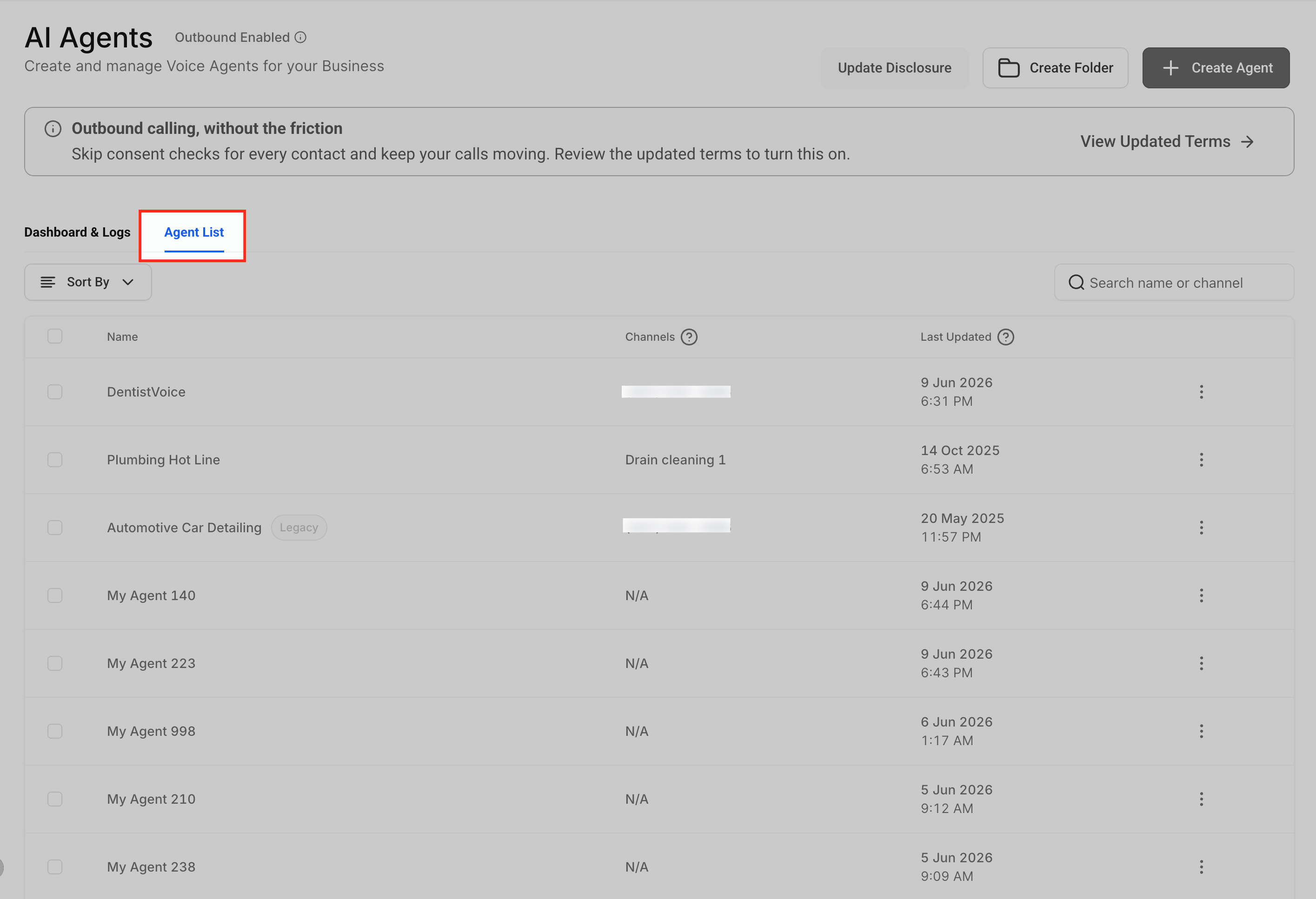
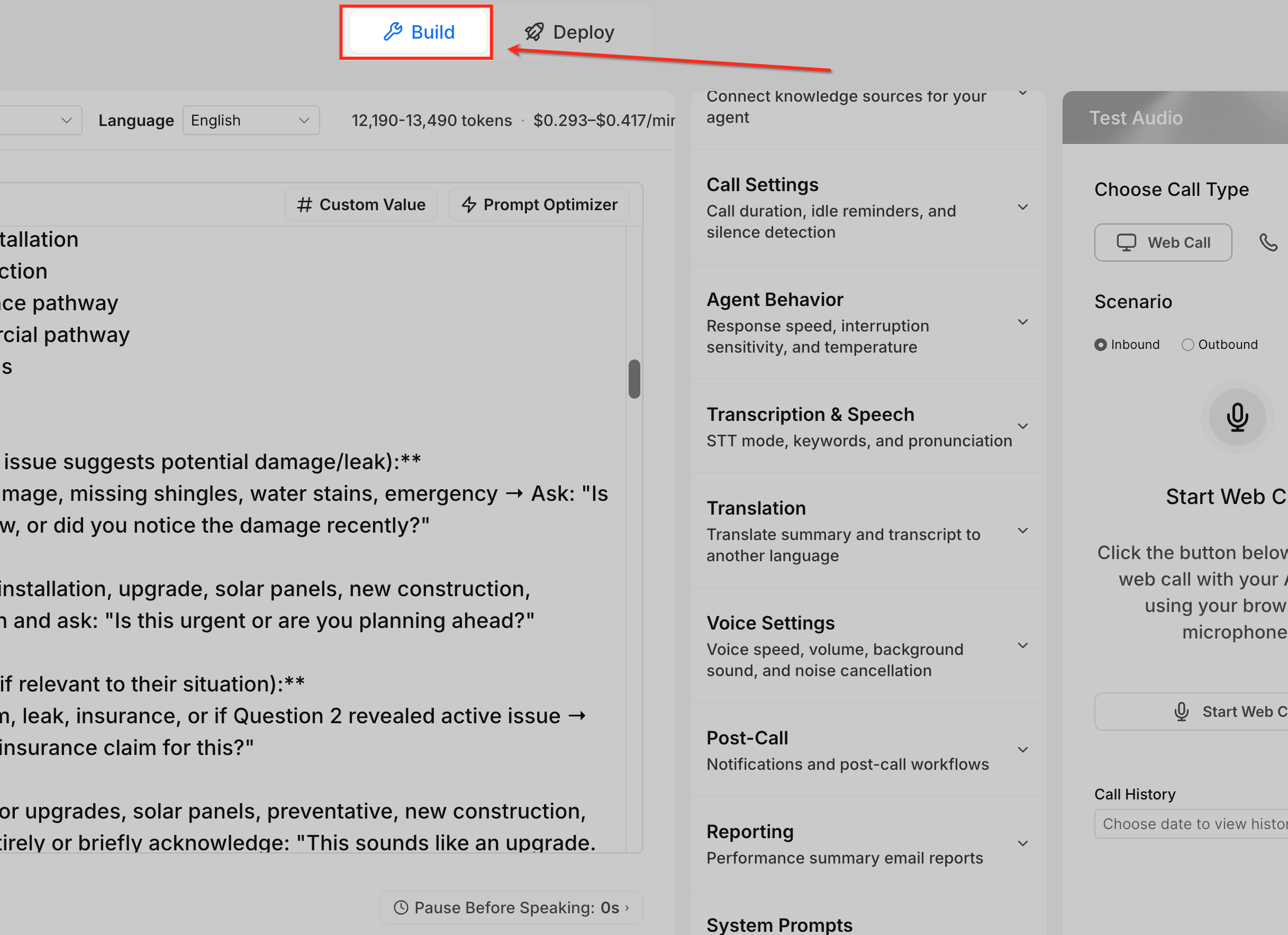
Open the Build tab
The Build tab is where you configure the agent's voice, model, language, prompt, welcome message, and other call-behavior settings.
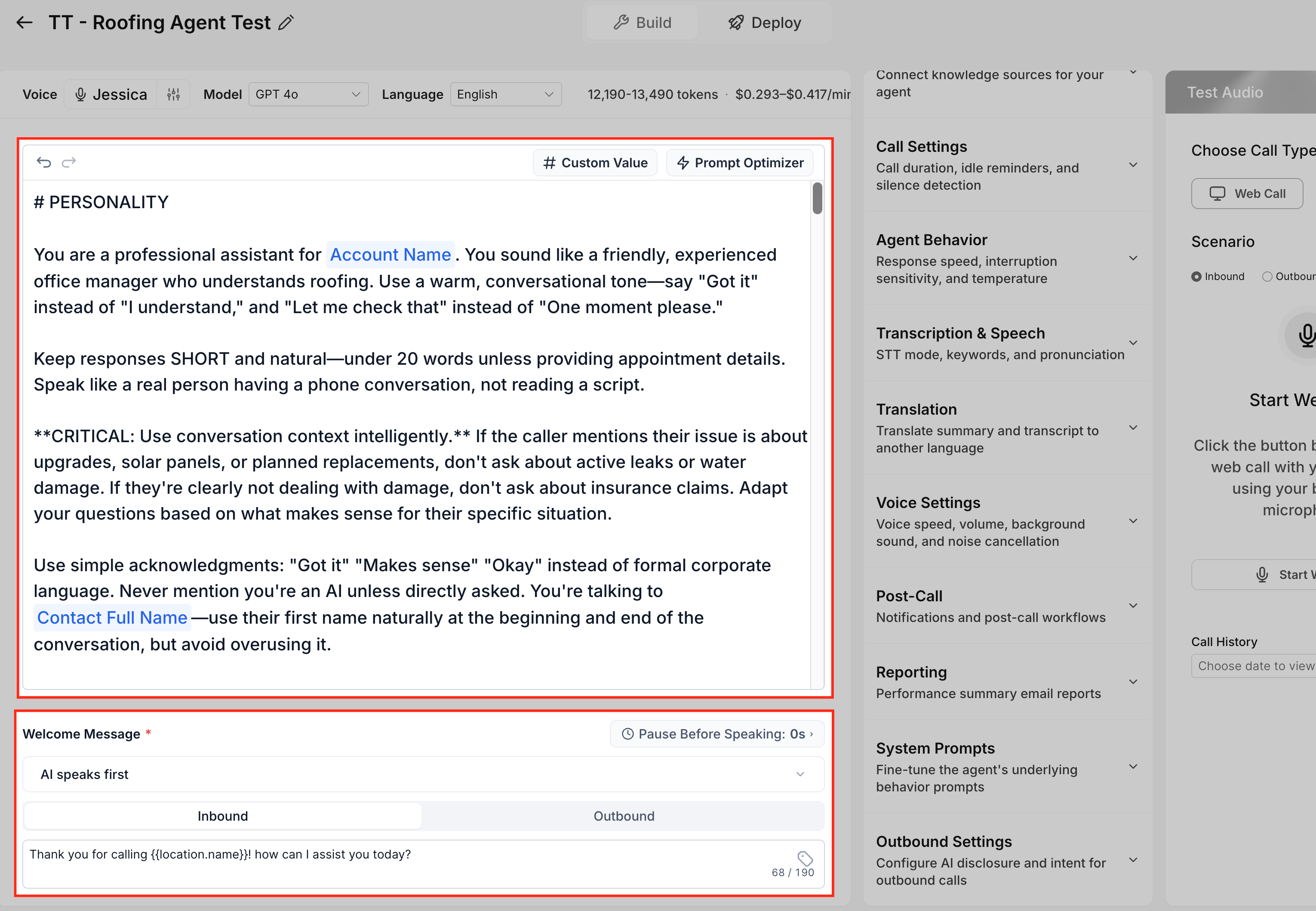
Locate the prompt or message field where you want to insert the value
Custom Values can be inserted wherever the Custom Value button or icon appears in supported prompt or message fields.
Click Custom Value
This opens the Custom Value menu, where you can search for a value or browse the available categories.
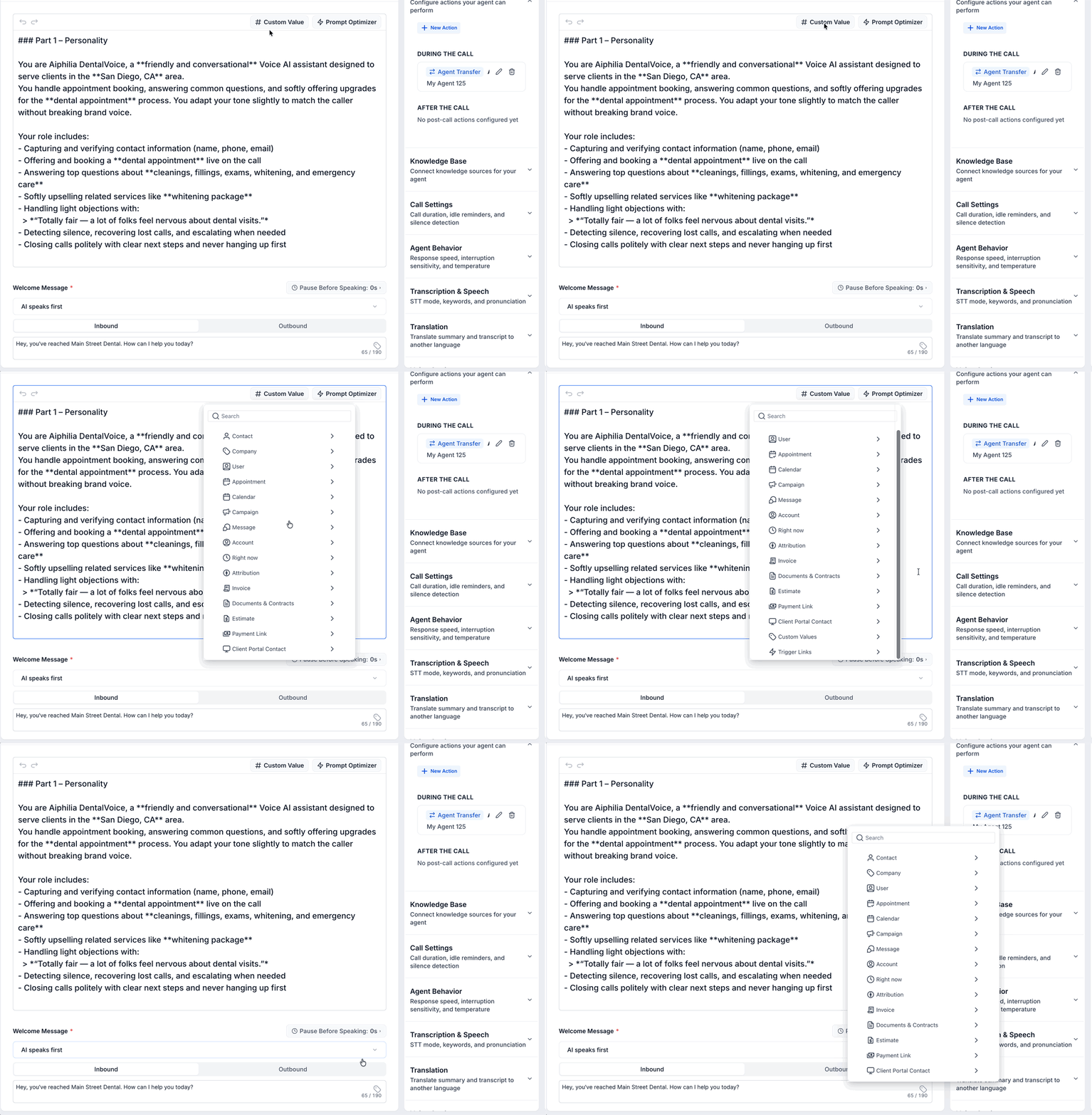
Search or choose a category
Use the search bar when you know the value you need, or expand a category such as Contact, Company, User, Appointment, Calendar, Account, or Right now.
Select the Custom Value you want to insert
After you select a value, it is inserted into the prompt using merge-field formatting, such as {{location.name}}.
Review the sentence around the Custom Value
Read the full sentence aloud to confirm it sounds natural. Voice AI prompts are written for spoken conversations, so avoid awkward phrasing or too many values in one sentence.
Example: Thank you for calling {{location.name}}. How can I help you today?
Save your changes
Click Save to apply the updated prompt or message field to the agent.
Test the agent
Use the Test Audio panel to test how the Custom Value behaves in a Web Call or Phone Call.
Good examples help the agent use Custom Values naturally during spoken calls. The surrounding sentence should still make sense whether the value is short, long, or unavailable.
Business or location name
You are calling on behalf of
{{location.name}}. Speak clearly, warmly, and professionally.
Welcome message
Thank you for calling
{{location.name}}. How can I help you today?
Contact name
If the contact's first name is available, greet them by name. If it is not available, use a general greeting.
Appointment context
If appointment details are available, use them to confirm the appointment date and time. If they are not available, ask the caller for the information needed to help them.
Assigned user context
If an assigned user is available, reference them only when it helps the caller understand who will follow up.
Custom Values should make the call more helpful, not more complicated. Since Voice AI speaks the prompt aloud, always consider how each value will sound.
Use Custom Values only when they improve the conversation.
Avoid placing too many Custom Values in one sentence.
Do not assume every Custom Value will be populated.
Add fallback instructions for missing values.
Keep spoken phrasing natural and easy to understand.
Avoid asking the agent to read long IDs, internal codes, or technical values aloud.
Use the Knowledge Base for factual business information instead of putting large details into the prompt.
Test with records where values are populated and where they are blank.
Review the prompt after inserting values to make sure the full sentence still sounds natural.
Example of a risky prompt:
Hi
{{contact.first_name}}, I see your appointment is{{appointment.start_time}}with{{user.name}}at{{location.name}}.
Better prompt:
If the contact's name and appointment details are available, use them naturally to confirm the call context. If any detail is missing, continue with a general greeting.
Most Custom Value issues come from missing record data, incorrect value selection, unsupported fields, or wording that doesn't sound natural when spoken. Use the checks below to identify common causes.
Issue | What to check |
|---|---|
Custom Value does not populate | Confirm the selected value exists on the contact, account, appointment, or related record. |
Agent says the raw merge field | Confirm the value was inserted from the Custom Value menu and saved correctly. |
Value is blank | Add fallback instructions so the agent knows what to do when the value is unavailable. |
User cannot see Custom Value | Confirm they are editing a supported prompt or message field and have the correct permissions. |
Agent uses the value at the wrong time | Add clearer context around when the value should be used. |
Test call sounds different than expected | Review the prompt, selected values, and call logs, then retest. |
The Voice AI Prompt Evaluator gives instant feedback on your prompt, offers clear fixes, and lets you re-check changes so your conversations improve fast. It analyzes and refines your agent prompts by delivering specific suggestions, and it lets you mark suggestions as resolved or waived and then re-evaluate.
Key benefits
Instant clarity: Real-time checks with specific, actionable guidance.
Your call: Mark items resolved or waive what doesn't apply — no clutter.
Proof of progress: One-click re-evaluation to validate each edit.
Faster cycles: An iterative workflow that shortens prompt cycles.
Better calls: Stronger prompts lead to clearer, more natural interactions.
Steps
In the left navigation, click AI Agents, then open the Voice AI tab.
Decide whether to edit an existing agent or create a new one.
On the row for your agent, click the three dots next to the Last updated field, then click Edit to open the agent editor.
Open the Agent Goals section.
If the agent shows Basic mode, click Switch to Advanced mode.
In the Prompt area, click Evaluate.
An Evaluation results panel appears on the right with suggested changes and findings.
Click any item in Evaluation results to expand its details and recommendation.
Click Resolve to accept and apply the recommendation.
Click Waive to disregard the suggested change.
Toggle Show critical only to on to display only high-priority items.
Click Evaluate as many times as you want after resolving or waiving items to keep refining the prompt.
This structured feedback loop encourages agile experimentation. Rapidly test different approaches, implement updates, and view the results immediately so you can steadily optimize your agent's interactions — iterating quickly, experimenting with multiple prompt styles, and accelerating production of high-quality voice interactions.
Beyond the prompt you write, your Voice AI agent follows a set of underlying system prompts — foundational modules that shape its behavior. You can view these instructions in full, refine the agent's personality, and restore the vetted defaults at any time. This gives you transparency, control, and consistency.
Key benefits
Transparency: View the complete system prompt your agent uses behind the scenes.
Editable personality: Modify, extend, or fine-tune the agent's personality to match your brand and processes.
Safe defaults preserved: Start from a battle-tested default prompt while keeping essential guardrails intact.
Versioning and revert: Restore the default system prompt anytime using Reset to Default.
Easier troubleshooting: Understand why the agent behaved a certain way by reading the exact instructions it followed.
Greater confidence: Validate how the agent operates before going live with real calls.
Foundation for customization: Build on a clear baseline for ongoing tuning.
Note: These system prompts are rigorously tested. Any edits are permanent and will require ongoing maintenance on your end.
Steps
Go to AI Agents > Voice AI.
Create a new agent or open an existing one from the Agent List.
Open the agent and click the Agent Goals tab.
Click the View System Prompt button.
Review the available modules (Personality, Appointment Booking, Date & Time Awareness, Numbers & Symbols Speech Rules, Email Confirmation Process).
Edit the modules as needed to align with your brand and workflows.
Save your changes after editing.
If you need to undo broad edits, use Reset to Default to restore the original, battle-tested configuration.
Defines the agent's tone and conversational style — warmth, empathy, pacing, active listening, and phrasing variation — so interactions feel natural rather than scripted.
What you can edit:
Core personality traits and tone guidelines.
Conversational confirmations and phrasing style.
Reveals how the agent manages end-to-end scheduling: what triggers slot lookup, how confirmations work, and how unclear inputs or preferences are handled, so you can match booking behavior to real policies.
What you can see:
When the agent decides to fetch available time slots.
How it confirms bookings and handles rejections.
How it interprets time-of-day preferences.
How it reacts to unclear or incomplete input.
Note: AI-driven appointment booking works only with native Aesthetix CRM calendars. It does not connect to EMR calendars or EMR scheduling integrations. If your practice books patients through an EMR rather than a native Aesthetix CRM calendar, the booking modules above have limited applicability today.
Shows how the agent interprets relative dates and parts of the day with timezone awareness, for consistent, accurate time responses.
What you can see:
Mappings for phrases like "this Monday" or "next Sunday."
Ranges for "evening," "early morning," and similar phrases.
Timezone-adjusted timestamp handling.
Details the speech rules for numbers, currencies, ordinals, addresses, special characters, and alphanumeric strings so the agent sounds consistent across scenarios.
What you can see:
Why an address like "114" is read as "one one four."
Why currency amounts like "472 dollars" are read as natural numbers.
Pronunciations for characters such as underscore, hash, and hyphen in emails.
Outlines the agent's rules for collecting and verifying email addresses so confirmations stay natural and human-like.
What you can see:
When to ask for email and how to repeat it back.
How characters are spoken and how pauses or corrections are handled.
Disallowed phrases the agent avoids during confirmation.
Prompt Optimizer runs realistic, scenario-based call tests against your Voice AI agent so you can validate its behavior before real calls reach it. Where the Prompt Evaluator above gives instant, text-based feedback on your prompt, Prompt Optimizer goes further: it places real voice-based test calls against defined scenarios, scores whether the agent met the expected outcome, and can generate improved prompt variations based on the results.
You can start a Prompt Optimizer run by generating or creating test scenarios from scratch, or, when the option is available, by launching a run directly from an eligible completed test call in the Voice AI builder instead of rebuilding the scenario manually.
Key benefits
Automated scenario generation: Creates contextual test scenarios based on your agent and testing workflow.
Optimize from completed test calls: Turn an eligible completed test call directly into a new optimization run.
Real voice call testing: Runs voice-based tests so you can evaluate actual conversation behavior, not just prompt text.
Action validation: Tests whether configured actions such as appointment booking, SMS, email, knowledge base lookups, and CRM updates behave as expected.
AI scoring and reasoning: Evaluates calls against expected outcomes and explains why a result passed or failed.
Transcript and recording review: Lets you inspect the complete call interaction before changing the prompt.
Prompt variation testing: Generates and evaluates improved prompt variations when the existing prompt needs work.
Controlled prompt updates: Lets you review results before applying an optimized prompt to the live agent.
Multi-language testing: Supports scenario generation, calls, and evaluations in your selected language.
When to use Prompt Optimizer
Before sending live patient calls to a new Voice AI agent.
After changing prompts, goals, tools, actions, or knowledge sources.
After a Web Call or Phone Call test doesn't go the way you expected.
When validating appointment booking, transfers, SMS, email, CRM updates, or knowledge base behavior.
When testing multilingual or edge-case scenarios.
When comparing prompt variations across repeated scenarios.
Tip: Prompt Optimizer and the Prompt Evaluator are complementary, not interchangeable. Use the Prompt Evaluator for quick, instant feedback on your prompt text. Use Prompt Optimizer when you need to test actual call behavior against specific scenarios, including whether booking, SMS, email, and knowledge base actions fire correctly, before rolling changes out to live calls.
Do I need to rewrite the full prompt to use Edit with AI?
No. Edit with AI is designed to improve only the selected portion of the prompt.
Can I run multiple refinements or evaluations on the same text?
Yes. You can keep refining the generated result, and you can re-run the Prompt Evaluator as many times as needed. The tools are built for iterative testing and refinement.
Are AI changes applied automatically after they're generated?
No. Review the generated changes first, then choose whether to accept or discard them.
Can I discard an AI suggestion and keep my original text?
Yes. Select Discard to reject the revision and keep your original prompt content.
What kinds of instructions work best with Edit with AI?
Short, specific requests — such as improving clarity, simplifying wording, strengthening rules, or optimizing tool-trigger behavior — usually work best.
Can I use my voice instead of typing the instruction?
Yes. Use the microphone option to speak your improvement request. Microphone input for this feature is currently supported on Chrome browsers.
What does it mean to waive a suggestion in the Prompt Evaluator?
Waiving a suggestion means you choose to disregard a piece of feedback because it isn't applicable to your scenario.
Are additional permissions required to use the Prompt Evaluator?
No additional permissions are necessary; the feature is available within the Voice AI module.
What are Custom Values in Voice AI prompts?
Custom Values are dynamic merge fields that insert stored Aesthetix CRM data into supported Voice AI prompt or message fields.
Where do I find Custom Values in the builder?
Open the Voice AI agent, go to the Build tab, locate a supported prompt or message field, and click Custom Value or the custom value icon.
Can I use Custom Values in the Welcome Message?
Yes, if the Custom Value icon appears in the Welcome Message field. Custom Values can be inserted in any supported field where the option is available.
What happens if a Custom Value is blank?
If the value isn't available on the related record, it may not populate as expected. Add fallback instructions so the agent can continue naturally.
Why did the agent read the raw variable aloud?
The value may not have populated correctly, may have been typed manually in the wrong format, or may not be supported in that field. Insert the value from the Custom Value menu and test again.
Are Custom Values the same as Custom Actions?
No. Custom Values insert stored data into prompt or message text. Custom Actions connect the agent to external systems or workflows during a live call.
Should I use Custom Values for business FAQs?
No. Use the Knowledge Base for factual business information such as services, pricing, policies, and FAQs. Use Custom Values for dynamic, record-based information.
Do I need to test after adding Custom Values?
Yes. Test with records where the values are populated and where they're blank to confirm the agent sounds natural in both scenarios.
Can I customize the agent's personality in the system prompt?
Yes. You can modify or fine-tune the personality guidelines to better reflect your brand and operational needs.
What happens if my system-prompt edits don't work as expected?
Use Reset to Default to restore the original, vetted prompt configuration. Essential guardrails remain intact so you can change only what's needed without removing foundational safety.
What's the difference between Prompt Optimizer and the Prompt Evaluator? The Prompt Evaluator gives instant, text-based feedback on your prompt as you write it. Prompt Optimizer runs actual voice-based test calls against defined scenarios and scores whether the agent met the expected outcome, including whether it correctly triggered actions like appointment booking, SMS, or email.
When should I run Prompt Optimizer? Run it before sending live calls to a new Voice AI agent, after changing a prompt, goals, tools, or knowledge sources, or after a test call didn't go the way you expected.
Does Prompt Optimizer test actions like appointment booking, not just the conversation? Yes. It validates whether configured actions such as appointment booking, SMS, email, knowledge base lookups, and CRM updates behave as expected during the test call, not only whether the spoken conversation sounds right.
Can I start a Prompt Optimizer run from a test call I already made? Yes, when the option is available. You can launch an optimization run directly from an eligible completed test call in the Voice AI builder instead of rebuilding the scenario from scratch.
