Once your Conversational AI agents are live, two things help you run them confidently: deciding exactly who on your team can view or change them, and being able to see how they are performing. This guide covers both. First, how to set granular permissions that control access to agent management, goals, and training. Then, how to review what your AI did in Agent Logs and how to monitor activity across all your agents from the dashboard and metrics views.
Note on PHI: Don't enter protected health information (PHI) into Conversational AI. AI features aren't approved for processing PHI — use them for productivity, communication, scheduling, and engagement, not to store or process medical records. See the HIPAA Compliance guide for details.
Granular permissions let you precisely control which team members can view, manage, or configure your Conversational AI agents, including agent creation, goals, and training. This strengthens security, supports role-based collaboration, and minimizes the risk of unauthorized or accidental changes, so you can safeguard your AI-driven workflows while keeping operations efficient.
Security: Safeguards agent configurations, goals, and training from unauthorized changes.
Role-based access: Tailors team access based on each person's role and responsibilities.
Efficiency: Streamlines workflows by hiding unnecessary or restricted options.
Risk reduction: Minimizes accidental or unauthorized modifications through controlled access.
1. Navigate to My Staff
From your account, click Settings in the lower left corner.
Using the left side navigation bar, select My Staff.
Locate the staff member you'd like to update and click the Edit (pencil) icon.
2. Locate the AI Agents settings
Using the secondary navigation bar on the left, click Roles and Permissions.
Scroll down to AI Agents.
3. Configure the permission toggles
Turn each toggle on or off based on the user's role. The toggles include:
AI Agents (parent control)
View & Manage Conversational AI agents
View Conversational AI agent Goals
View & Manage Conversational AI agent Goals
View & Manage Conversational AI agent Training
4. Save your changes
Confirm your changes by clicking the blue Save button.
This permission controls overall management of Conversational AI agents, including creation, editing, and deletion.
When enabled:
Grants full access to create, edit, and delete Conversational AI agents.
Activates dependent permissions, including View & Manage Conversational AI agent Goals, View Conversational AI agent Goals, and View & Manage Conversational AI agent Training.
When disabled:
Hides the entire Conversational AI menu item.
Removes access to the list view and prevents new agent creation.
Automatically disables dependent permissions and conceals Conversational AI from the AI Agents menus.
This permission controls editing of agent goals, which is ideal for advanced users configuring agent logic and objectives.
When enabled:
Allows users to edit agent goals while editing an existing agent.
Suitable for power users configuring agent objectives and response logic.
When disabled:
Hides the Goals tab during editing.
Agent trial access remains available.
This setting is for users who need view-only access to configured agent goals, without the ability to edit them.
When enabled:
Allows users to view configured agent goals such as instructions and actions.
Extends visibility to prompt details within the AI response info drawer.
When disabled:
Hides the Goals tab during editing.
Hides additional instructions in that context.
This permission controls access to agent training configurations by determining who can attach or detach a knowledge base from an agent.
When enabled:
Users can attach or detach a knowledge base from the agent.
Users can see which knowledge base was used for a response within the AI response drawer.
When disabled:
Hides the Training tab and prevents modifications.
Removes knowledge base references from the AI response drawer in conversations.
Note: If both View & Manage Conversational AI agent Training and View & Manage Conversational AI agent Goals are disabled, the Agent Trial feature becomes inaccessible.
Q: What happens if I disable "View & Manage Conversational AI Agents"?
The entire Conversational AI menu disappears, preventing creation or editing. All dependent permissions are also disabled.
Q: Can I give a user read-only access to agent goals but restrict training?
Yes. Enable View Conversational AI Agent Goals while disabling View & Manage Conversational AI Agent Training for visibility without training access.
Q: How does disabling "View & Manage Conversational AI Agent Training" affect agents?
It removes access to the Training tab, prevents attaching or detaching knowledge bases, and hides training details from the AI response drawer.
Q: What happens to Agent Trial if goal and training permissions are both disabled?
The Agent Trial feature will be inaccessible if both View & Manage Conversational AI Agent Training and View & Manage Conversational AI Agent Goals are disabled.
Q: Why can't I see the Conversational AI Dashboard?
Make sure the View Conversational AI Dashboard permission is enabled under Roles & Permissions → AI Agents. Disabling it hides the dashboard from the Conversational AI home page and agent-level pages.
Agent Logs give you visibility into what happened during a Conversational AI interaction. Instead of only seeing the final message sent to a contact, you can review the conversation, the AI response, the actions the AI selected, and the steps it followed before responding.
Think of Agent Logs as a transparency view for Conversational AI. They help you understand what your AI agent did, how it handled a customer message, and where each response came from.
Conversational AI can perform different actions depending on the customer message, the agent instructions, and the tools available to the agent. For example, it may check calendar availability, collect contact details, trigger a follow-up workflow, end a conversation, or hand the conversation over to a team member.
Agent Logs help you see these actions more clearly. They are useful when you want to understand questions such as:
What did the contact say?
How did Conversational AI respond?
Did the AI call the expected action or tool?
What information was passed into an action?
What did the action return?
Why did the AI take longer to respond?
Did the AI use the knowledge base?
Did the AI hand over or end the conversation?
Agent Logs are especially helpful because AI agents are not always linear. The same agent may take different paths depending on what the contact says, and logs make those paths easier to review.
Before reviewing Agent Logs, it helps to understand how the information is organized.
Conversation: The full interaction between a contact and Conversational AI. It may include multiple customer messages and multiple AI responses. For example, a contact asks about availability, shares their name, asks for appointment slots, and later says they will confirm later. That full exchange is one conversation.
Turn: One back-and-forth exchange inside a conversation. For example: (1) the contact sends a message, (2) Conversational AI processes the message, and (3) Conversational AI sends a response. That is one turn. A conversation can have multiple turns.
Step: An individual action that happens inside a turn. A single turn may include steps such as:
User message received
AI agent invoked
Tool or action selected
Calendar availability checked
Knowledge base searched
Contact information extracted
AI response generated
Conversation ended
Human handover triggered
Conversational AI Agent Logs can be accessed from three main areas.
1. Agent Logs tab under AI Agents (universal view)
The main Agent Logs area gives you a central place to review Conversational AI sessions. Go to AI Agents > Agent Logs to view the Agent Logs page. From this page, you can review sessions, contacts, metrics, filters, search results, and log details.
2. Inbox
Agent Logs are also available from the Inbox. When a conversation includes Conversational AI activity, you can open the related log directly from the conversation thread. This is useful when you are already reading a customer conversation and want to understand how Conversational AI handled a specific message, without leaving the Inbox.
3. Contact records and contact side panels
Agent Logs are available from contact records and contact side panels. This lets you start from a contact and review the Conversational AI activity connected to that contact, which is helpful when you know which contact you want to investigate but not the exact session or log. Agent Logs also work with contact side panel layout customization, so you can place the Agent Logs panel in supported side panel layouts (such as the center or right panel) based on your workspace preference.
The Sessions view lists Conversational AI activity as individual sessions. Each row represents an AI session that can be opened for more detail. Use this view when you want to review a specific interaction or find a log based on filters such as time range, contact, agent, or channel.
The Sessions view may show details such as:
Agent name
Contact name
Channel
Timestamp
Status
Action menu
Open a session to view the raw conversation and the execution timeline for that session.
Filters help you narrow down the logs and find the exact Conversational AI activity you want to review. You may filter by details such as:
AI product
Channel
Contact
Time range
Agent
For example, you can filter to show only Conversational AI sessions from live chat for a specific contact. This helps reduce noise when there are many sessions in the account.
The Contacts view organizes Conversational AI activity around contacts instead of only sessions. This is helpful when you want to start from a contact name and review the AI activity connected to that person. For example, if a customer named Alex contacted the business multiple times, the Contacts view can help you find Alex and open the related Conversational AI sessions.
The Contacts view is useful for:
Reviewing activity for a specific contact
Investigating repeated customer interactions
Understanding what Conversational AI did for one person
Finding sessions when you do not know the exact session ID or timestamp
When you open a session, the log detail view shows the conversation and the execution timeline. It generally includes:
The raw customer conversation
The execution timeline
User messages
AI responses
Tool or action calls
Inputs and outputs for selected steps
Latency for steps or turns
Status information
Copy or expand options where available
A visual graph of the execution path where available
This view helps you understand how Conversational AI moved from the customer message to the final response.
In the log detail view, you can review two important areas: the raw conversation and the execution timeline.
The raw conversation shows the messages exchanged between the contact and Conversational AI. This helps you confirm what the contact said and what Conversational AI replied.
The execution timeline shows what happened behind the scenes by displaying the steps Conversational AI followed during the interaction. For example, if a contact asks for appointment slots, the timeline may show that Conversational AI:
Received the customer message
Invoked the AI agent
Selected the calendar availability action
Sent the required details into the action
Received available slots from the action
Generated a response using the returned slots
Sent the response to the contact
This helps you understand both the customer-facing conversation and the behind-the-scenes AI activity.
Click a message or related log entry to review what happened for that part of the conversation. For example, if a customer asks, "Can I book an appointment tomorrow?", the related log may show whether Conversational AI called the calendar availability action, what details were sent to the action, and what result came back. This helps you confirm whether the AI took the expected path for that customer request.
Conversational AI can use tools or actions to complete tasks. These may include checking availability, booking appointments, extracting contact information, ending a conversation, or handing over to a team member. When Conversational AI calls a tool or action, Agent Logs can show information such as:
Which tool or action was selected
What details were passed into the tool
What the tool returned
How the result was used in the AI response
How long the step took
This helps you understand whether Conversational AI used the expected action for the customer request. For example, if a customer asks for appointment slots, the log may show a calendar availability action; the action input may include the requested date range, and the output may include the available slots returned by the calendar.
Some log details may be available in both parsed and raw formats. The parsed view presents information in a more readable, table-like format, with data organized into fields and values, which is easier for most users to understand. The raw view shows the underlying structured data, which is useful for advanced users who want to inspect the exact data passed between the AI agent and the selected tool or action. For most users, the parsed view will be easier to review.
Agent Logs can show how long different steps took, which helps you understand why an AI response may have taken longer than expected. For example, if Conversational AI checks calendar availability and also extracts contact information, the response may take longer because multiple steps happened before the AI replied. Latency can help answer questions such as:
Which step took the longest?
Did a tool call add time to the response?
Did the AI perform multiple actions before replying?
Was the delay related to a specific part of the interaction?
Q: Are Agent Logs meant only for troubleshooting?
No. Agent Logs are mainly a transparency view. They help you understand what Conversational AI did and how it handled a conversation, and they can also help you investigate unexpected behavior.
Q: What is the difference between a conversation, a turn, and a step?
A conversation is the full interaction with a contact. A turn is one back-and-forth exchange between the contact and Conversational AI. A step is an action inside a turn, such as receiving a message, calling a tool, checking availability, or generating a response.
Q: What can I see in a log?
You can review the customer message, AI response, execution timeline, selected tools or actions, inputs and outputs, latency, status, and related session details.
Q: What is the difference between parsed and raw views?
The parsed view presents log data in a readable table format. The raw view shows the underlying structured data. Most users will find the parsed view easier to understand.
Q: Can I open Agent Logs without leaving the Inbox?
Yes. When available, you can open the related Conversational AI Agent Log directly from the conversation thread.
Q: Do Agent Logs work with contact side panel layouts?
Yes. Agent Logs work with supported contact side panel layouts, allowing you to keep logs visible alongside contact information.
The Conversational AI Agents Dashboard provides a unified, high-level view of performance across all your Conversational AI agents in one place. Instead of visiting each agent's page to gather insights, you can analyze cross-agent activity from a single screen and then drill into a specific agent as needed.
Single, comprehensive view: See all Conversational AI agents' metrics on one screen, reducing time spent switching between individual agents.
Faster decision-making: Use consolidated insights to quickly identify trends, outliers, and opportunities for optimization.
Targeted analysis: Filter by Date Range, Channel, and Agent to isolate what matters and compare performance over different periods or channels.
Permission-based visibility: Control who can access the dashboard by enabling a specific permission for the users who need it.
No configuration changes required: The dashboard adds visibility on top of your existing Conversational AI setup; no additional agent changes are needed.
Access to the consolidated dashboard is controlled by the View Conversational AI Dashboard permission.
When enabled for a user, the dashboard appears on the Conversational AI home page and also at the agent level.
Admins can toggle access via Settings → My Staff → Edit User → Roles & Permissions → AI Agents → View Conversational AI Dashboard.
Step 1: Navigate to Conversational AI
Go to Conversational AI under AI Agents from your account.
Step 2: Select an agent
Select the agent you want to review from the dashboard tab.
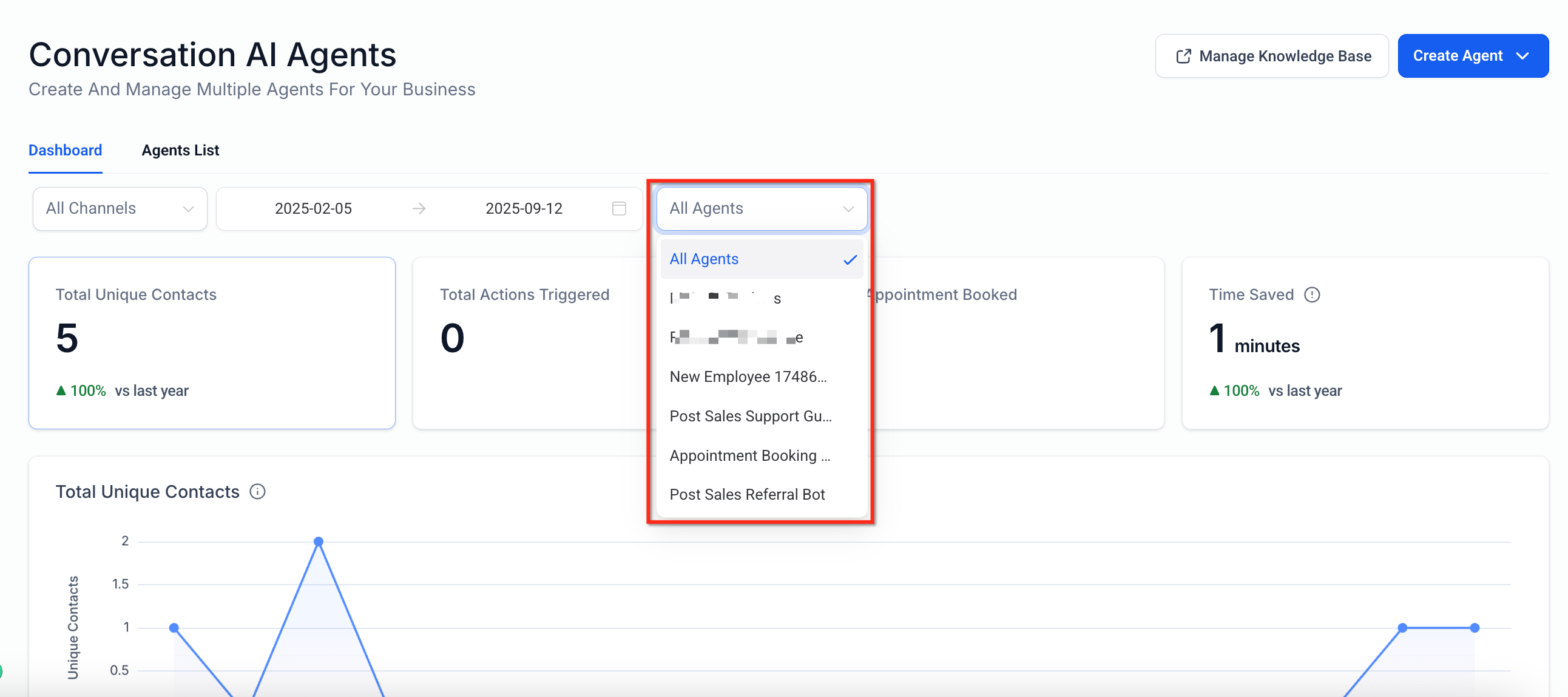
Step 3: Add filters
Use the channel selector and date range picker to filter data by platform or timeframe.
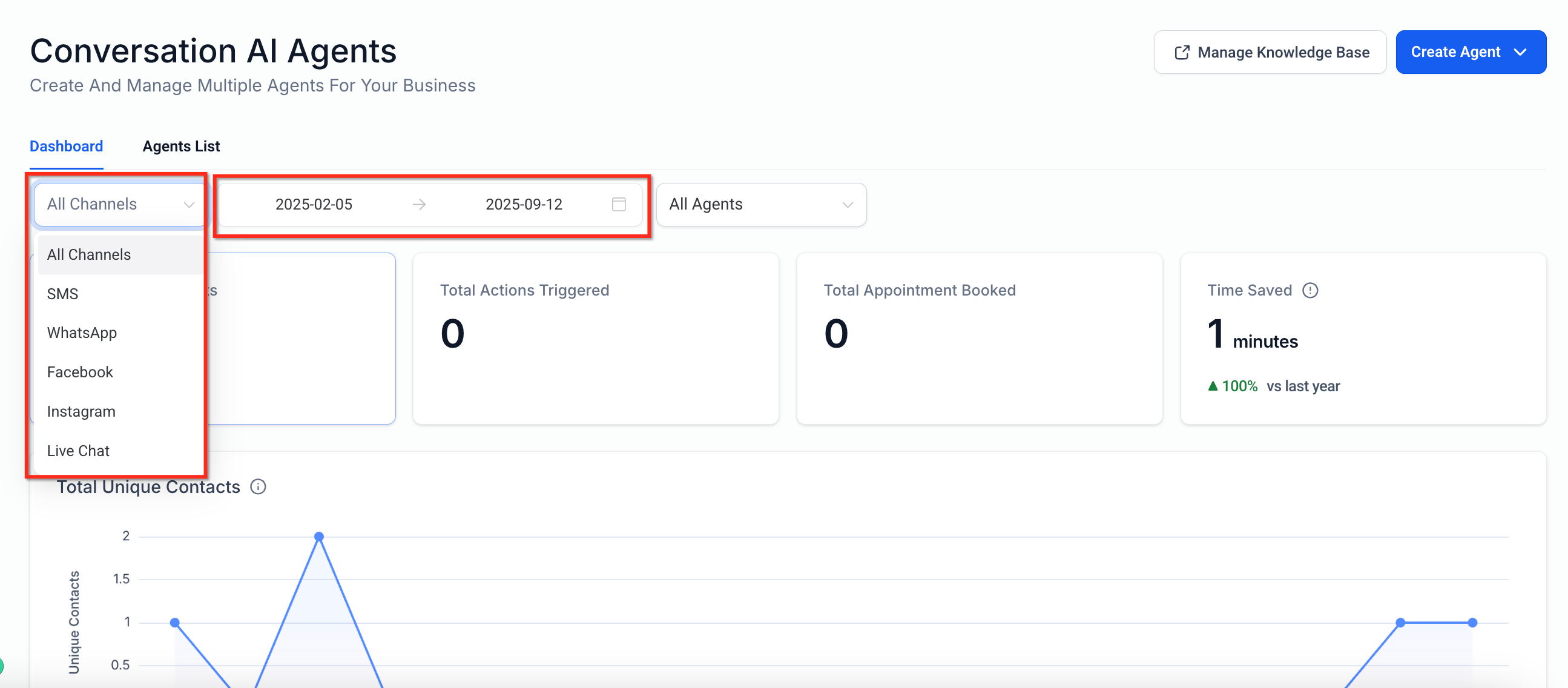
Filters let you refine the dashboard to answer specific questions, such as which channel is driving outcomes or how a single agent performs over time.
Date Range: Narrow results to specific periods (for example, last week vs. last month) to identify trend changes.
Channel: Focus on conversations from a particular channel when comparing performance across communication sources.
Agent: Isolate a single Conversational AI agent's metrics to evaluate impact and troubleshoot effectively.
The dashboard metrics give you a consistent way to evaluate performance. Metric names may vary slightly in the interface over time, so use the in-app labels and tooltips as the source of truth if wording changes. Clicking a dashboard metric card reveals additional drill-down detail.
Dashboard Metric | What It Means |
|---|---|
Total Unique Contacts | Count of distinct contacts who engaged with Conversational AI within the selected time range. Contacts are counted once, even if they exchanged multiple messages. |
Total Messages | Total count of messages exchanged with contacts during the selected period. |
Average Messages per Contact | Average number of messages exchanged with each unique contact during the selected period. |
Total Actions Triggered | Number of automated actions initiated from AI-driven interactions, including appointment actions, workflow actions, contact updates, stop bot events, transfers, and handovers. |
Appointment Link Shared | Number of times the agent shared an appointment booking link with contacts. |
Workflows Triggered | Count of workflow executions started by the agent during conversations. |
Contact Info Updated | Number of times the agent collected or updated contact details and saved them to the contact record. |
Stop Bot Triggered | Instances where a conversation triggered the Stop Bot action based on configured rules or keywords, stopping further agent steps. |
Cancel Appointment | Count of agent-initiated appointment cancellations confirmed with the contact during a conversation. |
Reschedule Appointment | Count of agent-initiated appointment reschedules completed during a conversation. |
Transfer Bot | Number of times the agent triggered a Transfer Bot action to hand off the conversation. |
Human Handover | Count of times the agent initiated a handoff to a human through the Human Handover action. |
Total Appointments Booked | Count of appointments created through Conversational AI. |
Time Saved | Estimated time savings from automated handling of conversations and tasks. |
Conversation summaries and transcripts help you review completed Conversational AI interactions directly from the dashboard. When reviewing Total Conversations, you can use these options to quickly understand what happened in a conversation or open the full message history for a deeper review. At the bottom of the Total Conversations area, each conversation can provide:
Summary: Opens a quick AI-generated summary of the conversation so you can understand the key points without reading the full exchange.
View Transcript: Opens the full conversation transcript so you can review the complete interaction between the contact and Conversational AI.
Q: Where can I find the consolidated Conversational AI dashboard?
Go to AI Agents → Conversational AI. If you don't see it, check your View Conversational AI Dashboard permission.
Q: Who can access the dashboard?
Only users who have View Conversational AI Dashboard enabled by an admin. Without this permission, the dashboard is hidden.
Q: What filters are available?
Date Range, Channel, and Agent.
Q: Does this change how my agents are configured?
No. The dashboard adds visibility only; no setup changes are required for your existing agents.
Q: Can I analyze a single agent's performance?
Yes. Use the Agent filter on the consolidated view, or open the agent-level dashboard.
Q: Why don't I see any data?
Confirm your permission is enabled, at least one agent is published, channels are connected, and the date range is correct.
Q: Can I compare channels over time?
Yes. Use the Channel filter with different Date Range selections to review changes and trends.
Q: Does the dashboard include appointments?
Yes. Total Appointments Booked shows bookings created via Conversational AI. Validate details in the Calendars area if needed.
