Human Handover is an advanced feature within Conversational AI that automatically transfers a conversation from the AI agent to a human team member when certain conditions are met. This ensures clients always reach a real person when the bot reaches its limits — for example, when a query is complex, the bot repeatedly misunderstands, or someone directly asks to speak with a human.
By letting your AI agent recognize when to step aside, you keep conversations moving, route work to the right team member efficiently, and maintain a seamless flow between automation and live staff. This is especially valuable for appointment-booking conversations, lead capture, follow-ups, and sales inquiries where a personal touch helps move things forward.
Human Handover is released through Labs, so you may need to enable it before it appears in Conversational AI.
Note on PHI: Don't enter protected health information (PHI) into Conversational AI. AI features aren't approved for processing PHI — use them for productivity, communication, scheduling, and engagement, not to store or process medical records. See the HIPAA Compliance guide for details.
Eliminates dead ends: Clients are never left without support, even if the bot can't resolve their issue.
Smart escalation: Automatically detects when the AI is stuck, fails repeatedly, or receives a direct request for a human.
Seamless transition: Assigns a team member, creates a follow-up task, sends a closing message, and pauses the bot — all in one flow.
Improved client satisfaction: Builds trust by ensuring real people are available when needed.
Efficient team notification: Notifies staff instantly about handovers and new tasks, reducing response times.
Customizable triggers and actions: Tailor when and how handovers happen to fit your practice.
Nothing falls through the cracks: Important conversations stay assigned and tracked until they're resolved.
Setting up Human Handover ensures your clients always have access to the right support at the right time. Follow these steps to enable and configure the feature.
Click AI Agents from your account.
Click the Conversational AI tab.
Click the bot's name, or click the three dots beside "last updated" and choose Edit.
Click the Bot Goals tab.
Scroll down to the Setup Your Actions section and click the Human Handover button.
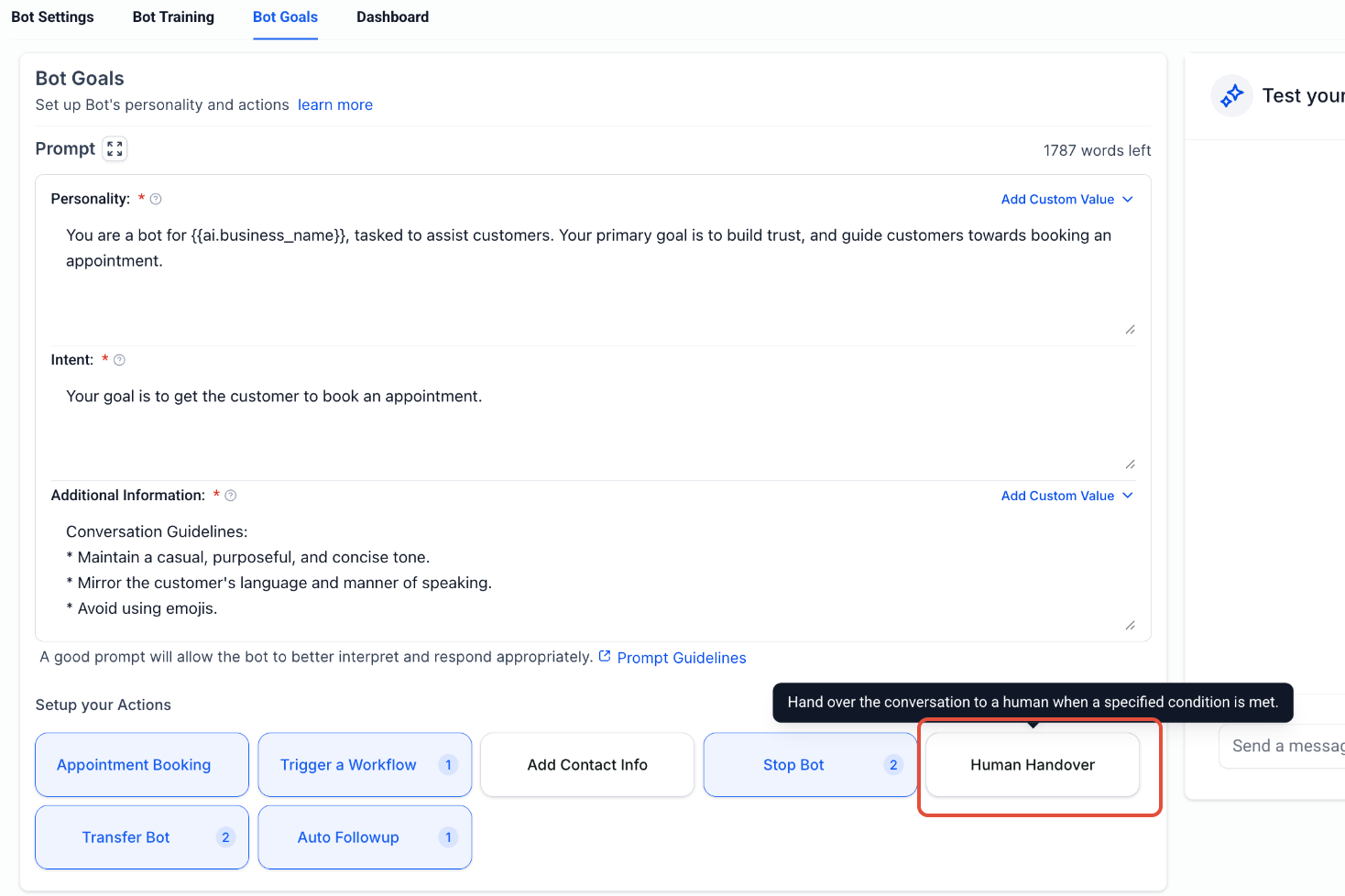
Inside the Human Handover window, choose the scenario you want to configure from the left panel. Each one defines a condition under which the bot will trigger a handover.
Turn on the Enable Scenario toggle to use it.
Trigger: The user explicitly asks to speak with a human.
Click the + Add Example Phrase button to add custom phrases the bot should treat as a request for a person.
Example phrases: I want to talk to a human | Can someone real help me? | Connect me to a person | I want to talk to the manager
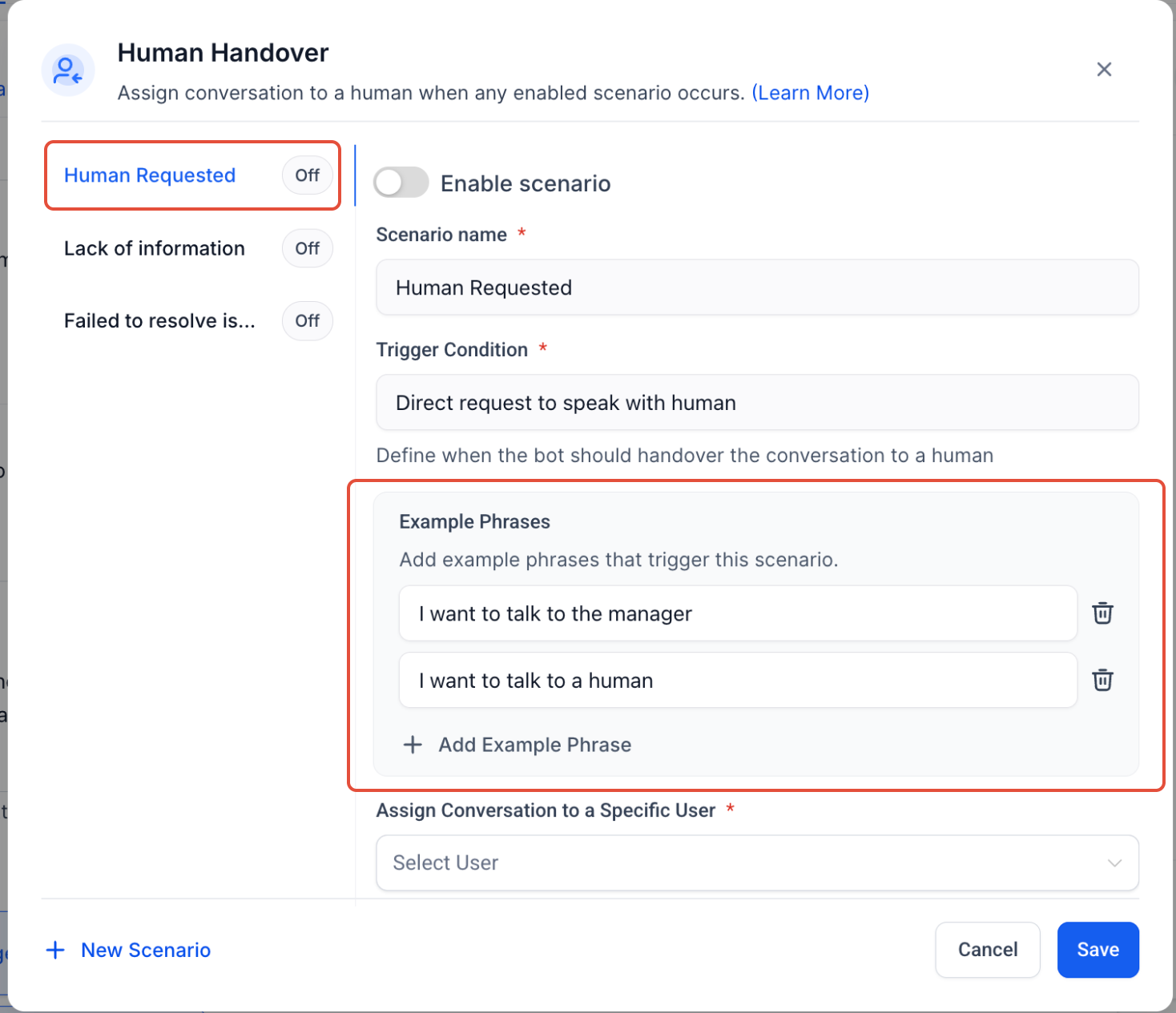
Turn on the Enable Scenario toggle to use it.
Trigger: The AI cannot find the relevant information or lacks knowledge on the query.
No custom example phrases are needed.
Turn on the Enable Scenario toggle to use it.
Trigger: Multiple attempts to resolve the same issue have failed.
Maximum of 2 retries.
No custom example phrases are needed.
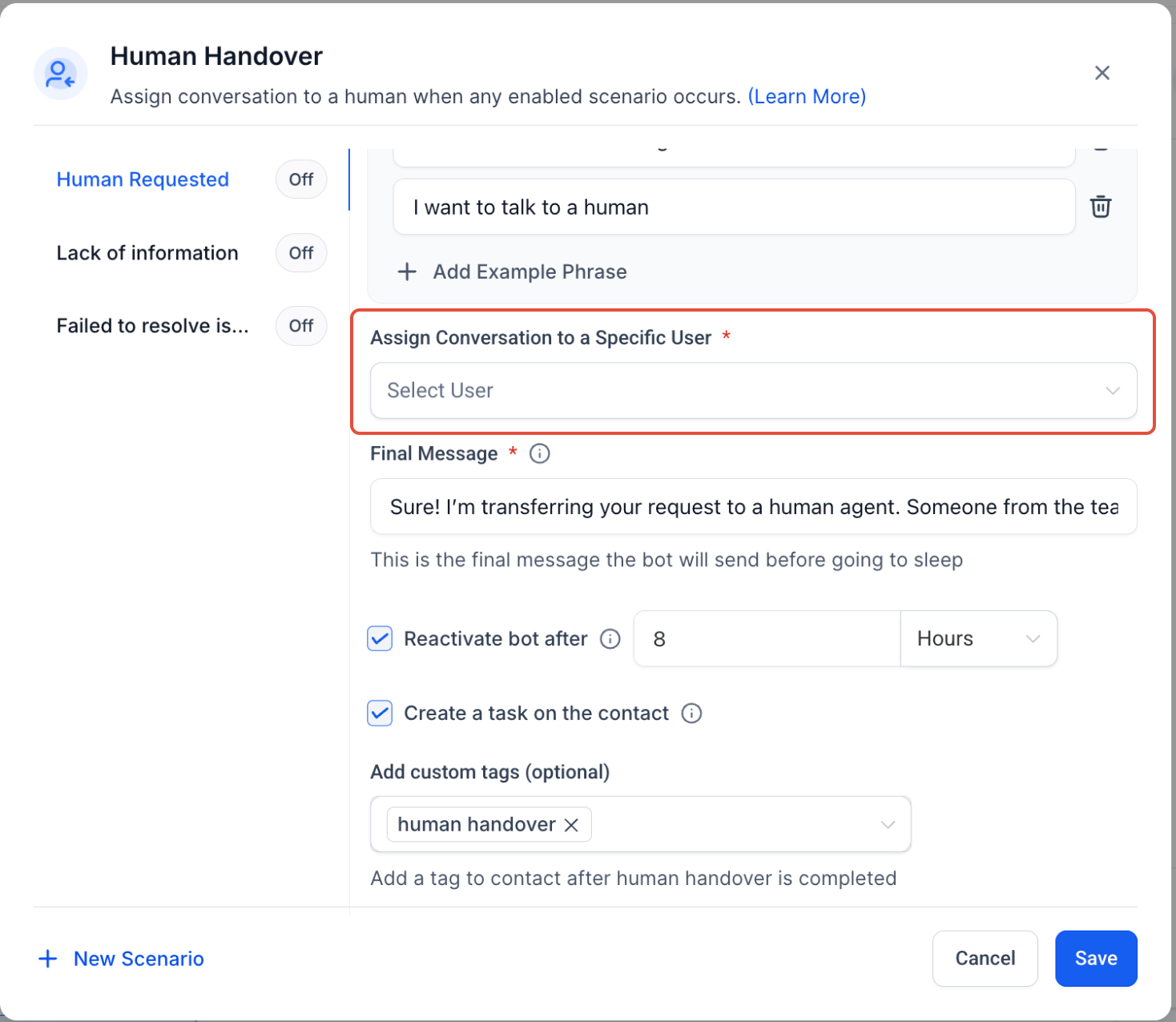
Customize what happens once the bot hands the conversation over.
Choose a specific user to assign the conversation to, so the right team member is notified and can continue helping the client.
Optional: Skip assignment if the contact already has an assigned user (keep the currently assigned user instead).
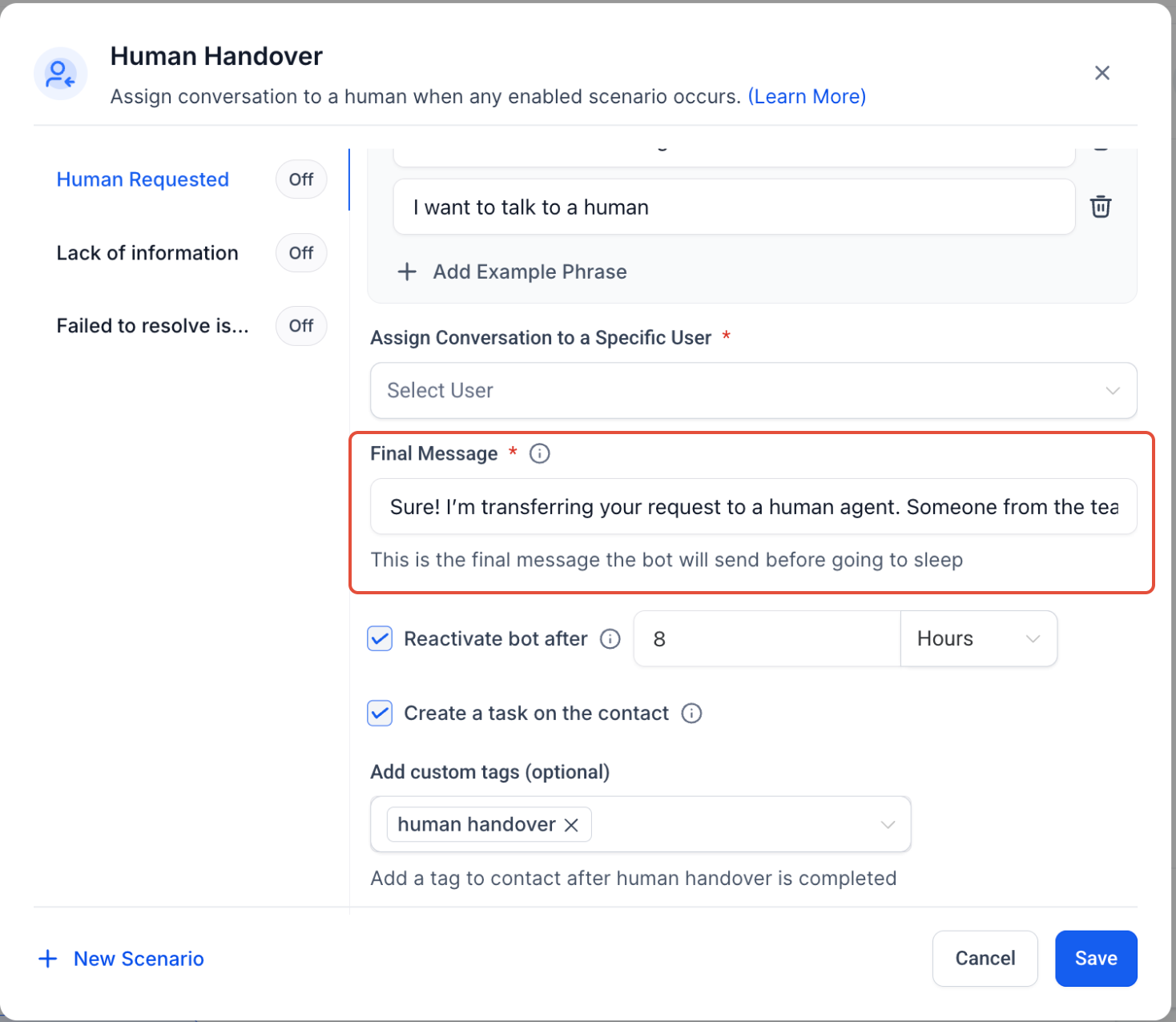
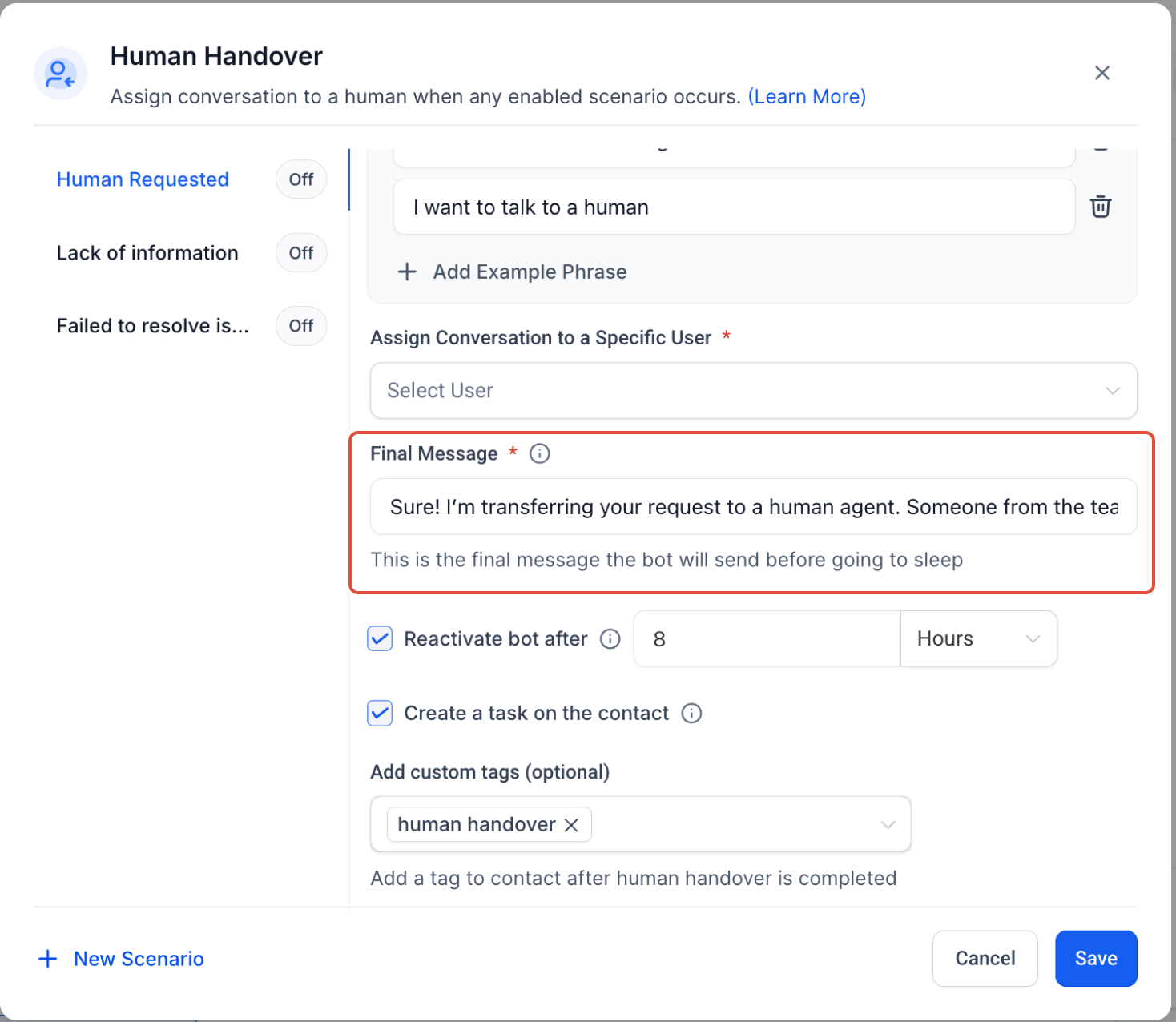
The final message the bot sends before handing the conversation over to a human.
Example message: "Thank you! Someone from the team will get back to you." or "Sure! I'm transferring your request to a team member. Someone will assist you shortly."
Set a timer to resume bot interactions at a later time, giving your team a window to step in.
You can set the duration in days, hours, and minutes.
A task is created on the contact when the handover is triggered.
Due time: 24 hours from the trigger.
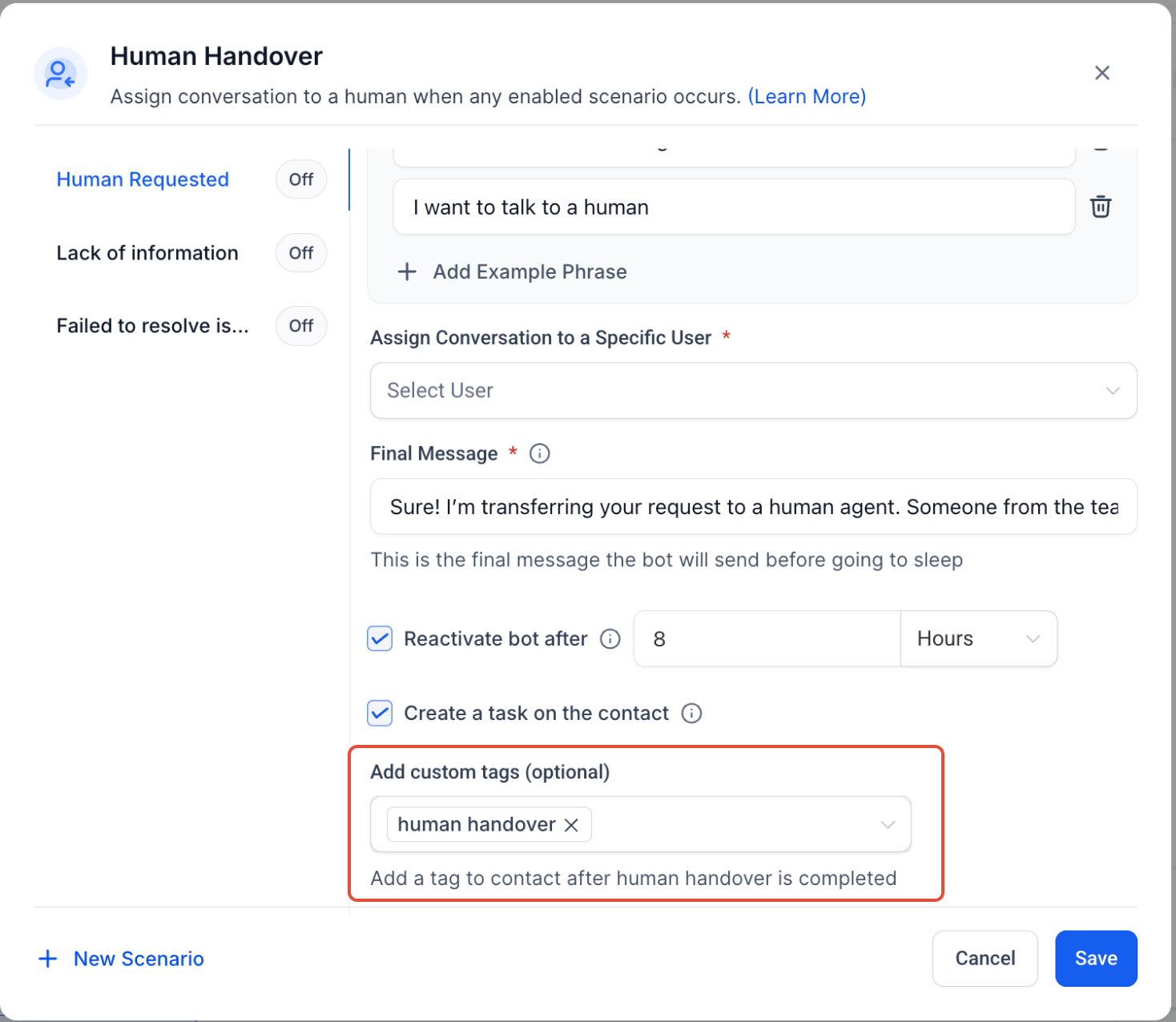
Add a tag to the contact after the handover is completed, useful for filtering and workflow automation.
Default tag: human_handover
Making sure your staff receive timely alerts is crucial for prompt human intervention.
Go to Settings from your account.
Click the My Staff tab.
Click the Edit action button for the staff member you want to notify.
Click the Notification Settings tab.
Enable notifications for all channels:
When a conversation gets assigned to me
When a task gets assigned to me
Click Save.
Note: You can configure a maximum of 6 handover actions per bot.
Tailor the handover process to match your team's workflow and your clients' expectations.
Assign conversations to specific staff based on expertise or availability.
Automatically create actionable tasks with clear deadlines.
Personalize closing messages to maintain a friendly, professional tone.
Adjust the bot pause duration to allow human follow-up before automation resumes.
Use conversation tags for reporting and workflow automation.
Bot pause duration can be customized.
Task notifications depend on each user's notification settings.
Human Handover only activates when an enabled scenario is triggered.
Conversations remain assigned until they're manually reassigned or resolved.
Can I customize the message sent to clients during a handover?
Yes. You can personalize the closing message that's sent when a handover is triggered.
What happens after Human Handover is triggered?
The conversation is assigned to the selected user, the final message is sent, any tags or tasks you configured are applied, and the bot can optionally pause for a set duration.
What happens if no team member is assigned during a handover?
The conversation remains unassigned until a staff member claims it, so it's best to set up a default assignee for seamless support.
Can I set different triggers for different bots or workflows?
Yes. Triggers can be customized per bot or workflow within the Bot Goals section, including custom phrases for scenarios like Human Requested.
Does Human Handover create tasks automatically?
Yes, if the Create Task option is enabled. The task is due 24 hours from when the handover triggers.
How does the bot know when to pause, and for how long?
You configure the cooldown period during which the bot will not respond, giving your team time to intervene. The bot becomes active again automatically once the timer ends.
Will my team get notified immediately after a handover?
Yes, as long as notifications for assigned conversations and new tasks are enabled in each staff member's settings.
Is there a way to track all conversations that have been handed over?
Yes. Conversations are tagged with human_handover for easy filtering and reporting.
Can I disable Human Handover for certain workflows?
Absolutely. Simply toggle the feature off in the relevant Bot Goals configuration.
If you need assistance configuring Human Handover, assigning conversations, setting notification preferences, or troubleshooting handover behavior, contact support or your system administrator.
