Your Conversational AI agent can do more than answer chats on your website. It can reply to inbound email, work inside live chat, respond from the mobile app while you're away from your desk, and even understand voice notes that clients record instead of type. This guide covers each of these channels — how they work, how to set them up, and how to keep replies on-brand and organized inside the Inbox.
Conversational AI lives under AI Agents. Core setup, training, mode selection, and advanced settings are all configured on desktop; the channels below extend where and how your agent can respond once it's built.
Note on PHI: Don't enter protected health information (PHI) into Conversational AI. AI features aren't approved for processing PHI — use them for productivity, communication, scheduling, and engagement, not to store or process medical records. See the HIPAA Compliance guide for details.
Every Conversational AI agent operates as either the primary agent or a non-primary agent, and this distinction applies across every channel covered in this guide, not just email. Understanding the difference helps you avoid a common setup mistake: an agent that's configured correctly but never replies because it isn't assigned the role it needs.
Supported channels for agent assignment include WhatsApp, Instagram, Facebook, SMS, Chat Widget (SMS chat), Live Chat, Email, and TikTok.
The primary agent handles general inbound conversations on any channel assigned to it, as long as that conversation isn't already being handled by a Conversational AI agent inside a workflow. It acts as the default responder for your practice's connected channels.
General conversations: The primary agent automatically responds to messages received outside of workflow automation.
Channel dependence: The primary agent only responds on the channels assigned to it. A channel with no agent assigned gets no automatic AI reply.
Note: You can change which agent is primary at any time. Doing so doesn't affect that agent's existing configuration, but confirm every channel you need is assigned to the new primary agent afterward.
To set an agent as primary:
Go to AI Agents > Conversational AI > Agent List.
Create a new agent, or select the existing agent you want to make primary.
Click Set as Primary.
Click Save.
To assign channels to the primary agent:
Go to AI Agents > Conversational AI > Agent List.
Select the agent you want to add channels to.
Go to Agent Settings > Supported Communication Channels/Providers.
Select the channels you want the agent active on.
Click Save.
Non-primary agents don't participate in general inbound conversations. They respond only inside the workflows they're assigned to.
Workflow triggered: A non-primary agent responds only when a workflow step activates it. You can hand a conversation off to a different agent at different workflow steps, but only one agent can be active on a conversation at a time.
Channel dependent: A non-primary agent can only respond if the channel it's configured for matches the channel the triggering workflow is running on.
The Email channel lets your Conversational AI agent respond to inbound emails with the same automation already available across your other channels. This helps your team manage email conversations faster, keep messaging consistent, and stay organized inside the Inbox. With branded formatting, personalization, and thread continuity, email becomes a practical channel for automated lead and client communication.
When an inbound email reaches a connected inbox, the agent can read the message, understand the context, and send an automated reply while preserving standard email behavior such as subject continuity, thread history, and recipient handling based on your setup.
Faster email response times: Automatically reply to inbound emails so leads and clients don't wait for a manual first response.
Consistent communication across channels: Extend your existing Conversational AI experience to email alongside your other supported channels.
Broad email support: Use the Email channel across supported email providers, including the built-in email service, Custom Email SMTP, and custom conversation email providers.
Automatic language detection: Respond to inbound emails in the detected language for a more natural client experience.
Agentic compatibility: Continue using actions such as workflow triggers and human handover when email is part of your agent strategy.
Cleaner conversation history: Keep replies in the same thread so conversations stay easier to follow.
Operational flexibility: Add CC or BCC recipients and choose a response delay that matches your team's process.
Email settings control how your agent appears to contacts and how replies are delivered. Understanding these options before setup makes it easier to choose the right inbox, response style, and workflow for your team.
The Email channel works across supported email providers, including the built-in email service, Custom Email SMTP, and custom conversation email providers. This gives you flexibility to use the inbox setup that best fits your business while still managing automated replies through Conversational AI.
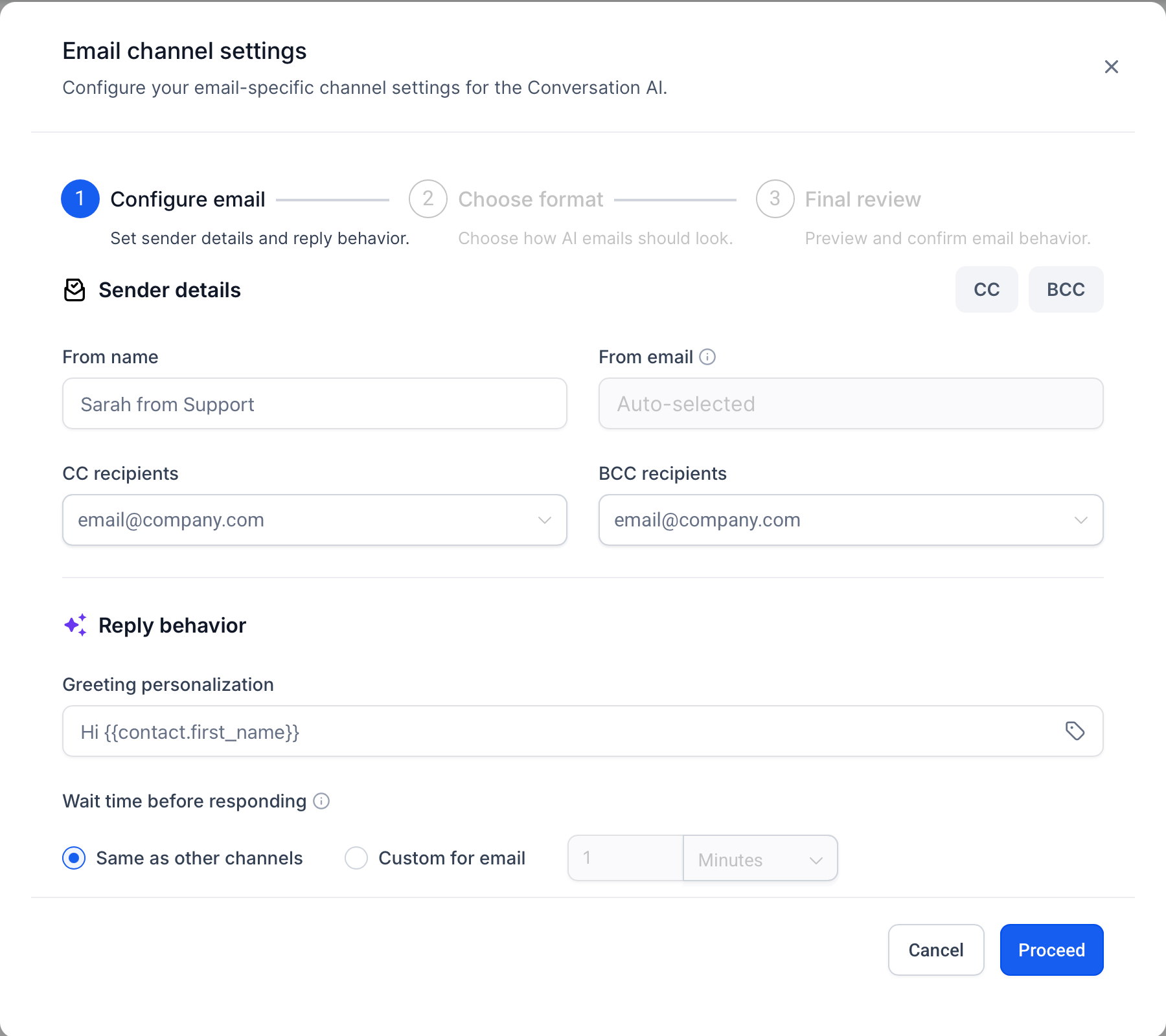
When email is enabled as a supported channel for an agent, you can configure settings such as:
sender name
from address
default CC and BCC recipients
greeting personalization
sign-off and signature
response delay
plain text or branded template formatting
The format you choose affects how your automated replies look in the recipient's inbox. Some teams prioritize simple deliverability, while others need a more branded client experience.
You can choose between the following response formats:
Format | Best for | What it includes | Things to keep in mind |
|---|---|---|---|
Plain Text | Simple, lightweight email replies | A clean text-based email with your greeting, AI-generated response, sign-off, and signature | Best when you want a natural one-to-one email style with minimal formatting. |
Design Editor | Branded email replies | A styled HTML email that can include your logo, brand colors, header, footer, social links, and AI-generated response | The required AI response placeholder must be added where the generated reply should appear. |
You can personalize the email experience with:
dynamic greetings
customized sign-offs
signature details that match your brand or team identity
This makes replies feel more natural and less robotic.
Conversational AI can automatically detect the language of an inbound email and generate the reply in that same language. This helps create a smoother experience for contacts and makes the Email channel more effective for multilingual communication.
Email replies are designed to preserve the existing subject and thread structure so the conversation remains easier to follow. This supports a cleaner client experience and helps your team review email interactions in context.
The Email channel supports the same broader automation approach used in your other agent experiences. Depending on how your agent is configured, you can use actions such as:
triggering workflows
stopping agent behavior
handing the conversation to a human
transferring to another agent
Note: The Conversational AI workflow action does not currently support the Email channel. Email support applies to agent replies for inbound email conversations, not to the Conversational AI action inside workflows. When configuring workflow-based Conversational AI actions, use one of the supported channels available in the workflow action settings.
Primary agent assignment determines whether Conversational AI responds to general inbound emails automatically. A primary agent handles inbound conversations for its assigned channels, while non-primary agents are intended for workflow-based use cases.
To automatically reply to inbound emails outside of workflow automation:
Assign Email as a supported channel for the primary agent.
Set the agent status to Auto-Pilot.
Confirm the connected inbox and From Address are active.
Save the agent settings after enabling Email.
If Email is assigned to a non-primary agent, the agent may not respond to general inbound emails by default. Use a workflow or supported routing method if a non-primary agent should handle specific email-based conversations.
Email replies depend on the connected inbox, agent status, primary agent assignment, and channel configuration. Confirming these requirements first helps prevent missed replies or unexpected routing behavior.
Before enabling Email for Conversational AI, make sure:
A supported email inbox or provider is connected in your account.
The Conversational AI agent is set to Auto-Pilot if you want automatic replies.
Email is assigned as a supported channel for the agent.
The agent is set as the primary agent if it should respond to general inbound emails.
Non-primary agents are only used when routed through workflows or another supported automation path.
The selected From Address is active and available for sending replies.
Setting up the Email channel allows your agent to reply to inbound emails using your selected inbox, formatting, and response settings. Completing the setup correctly helps ensure replies are sent from the right address, stay on-brand, and remain organized within the same email thread.
Go to AI Agents > Conversational AI > Agent List. Find the agent you want to update, click the three-dot menu, and select Edit.
In the agent settings, go to the Channels section and turn on Email. Click Configure Email Settings to open the 3-step email setup wizard.
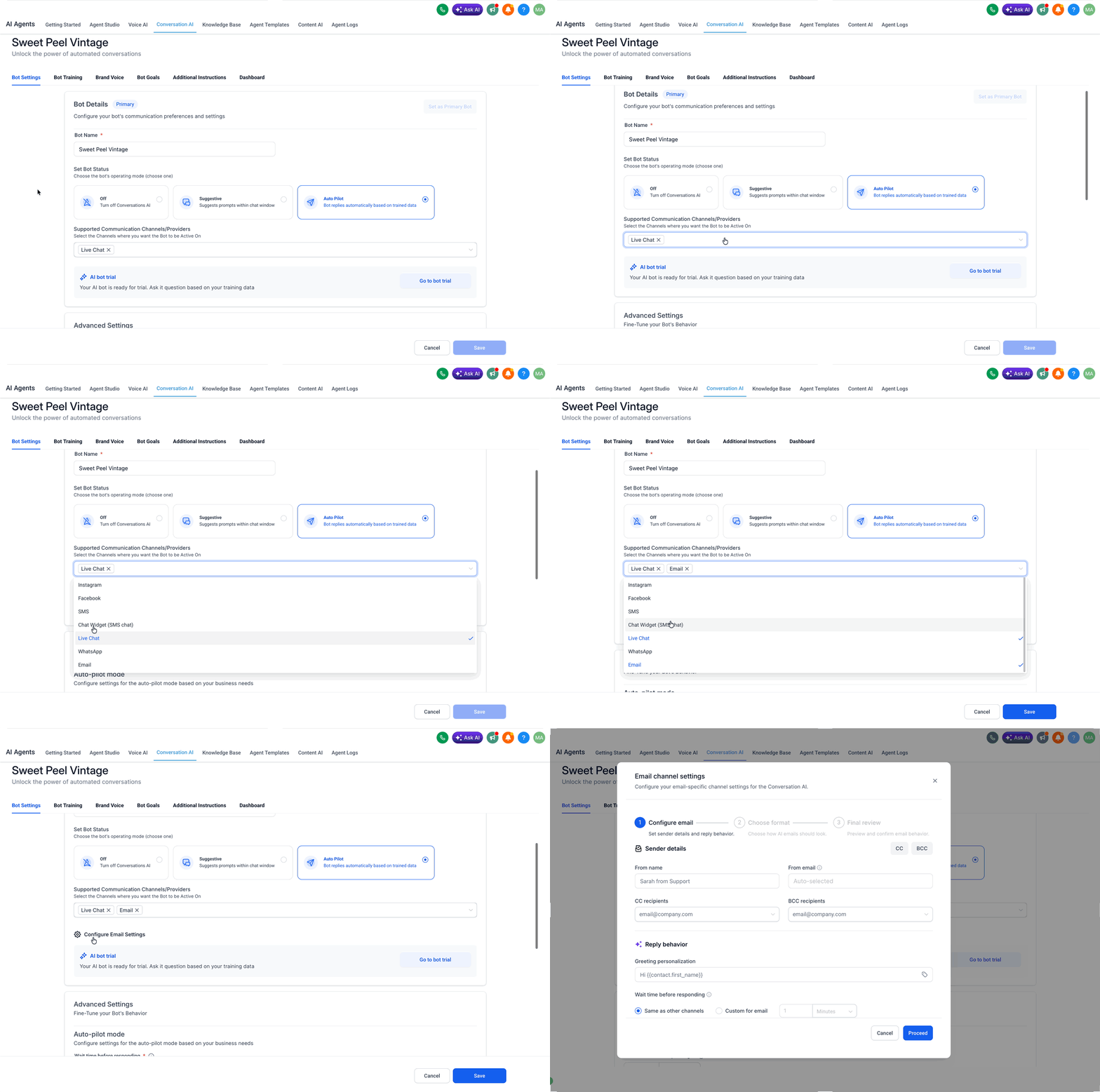
Configure Email step
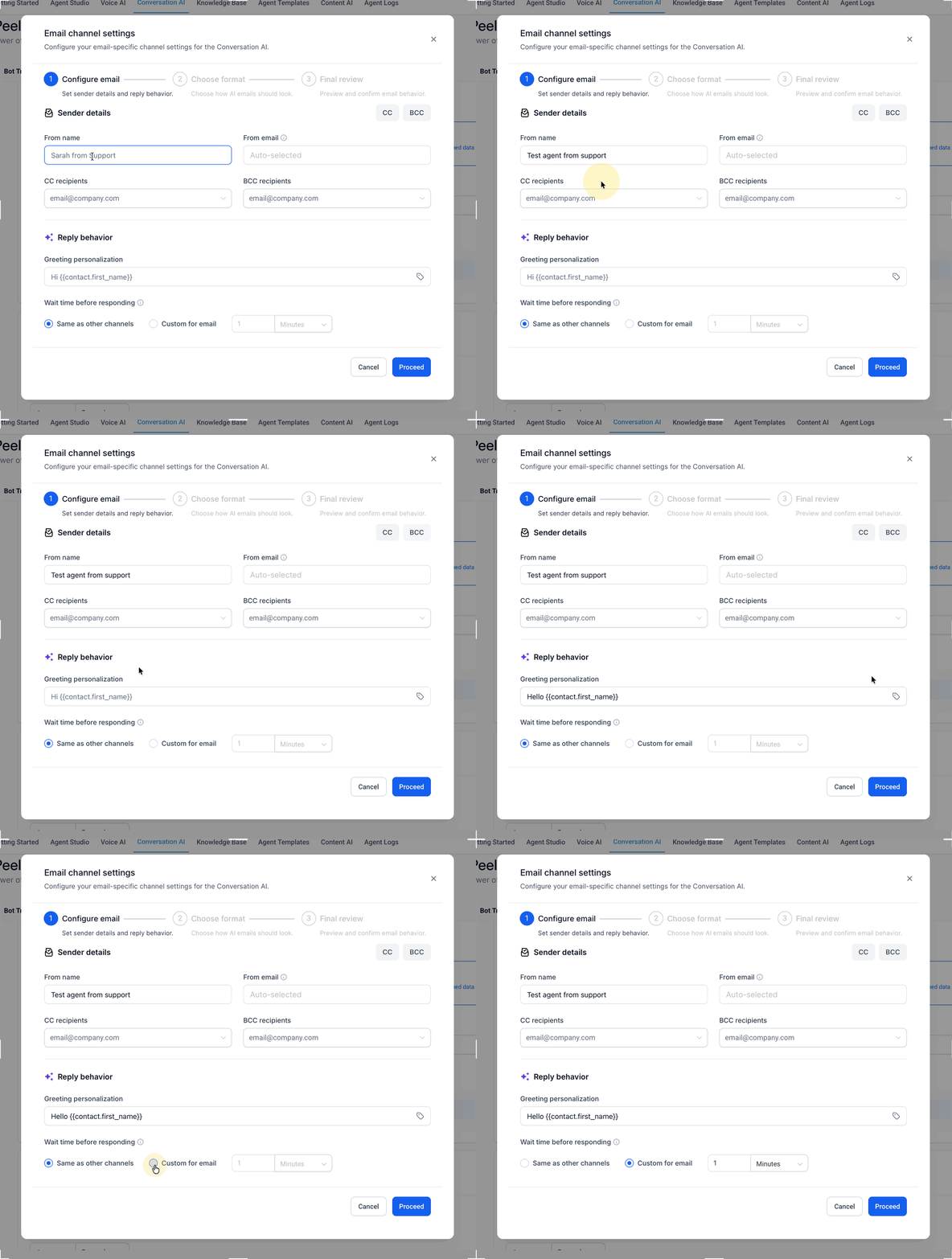
Enter the Sender Name and select the From Address the agent should use when replying.
Add any default CC and BCC recipients who should be included on replies.
Choose the Wait Time for how long the agent should delay before replying, up to 12 hours.
Set the Greeting Personalization message along with custom fields.
Choose Format step
Choose Plain Text for a simple email format or Design Editor for a branded HTML layout.
If you choose Design Editor, open or create the template, add your branding, and insert the required AI response placeholder where the generated reply should appear.
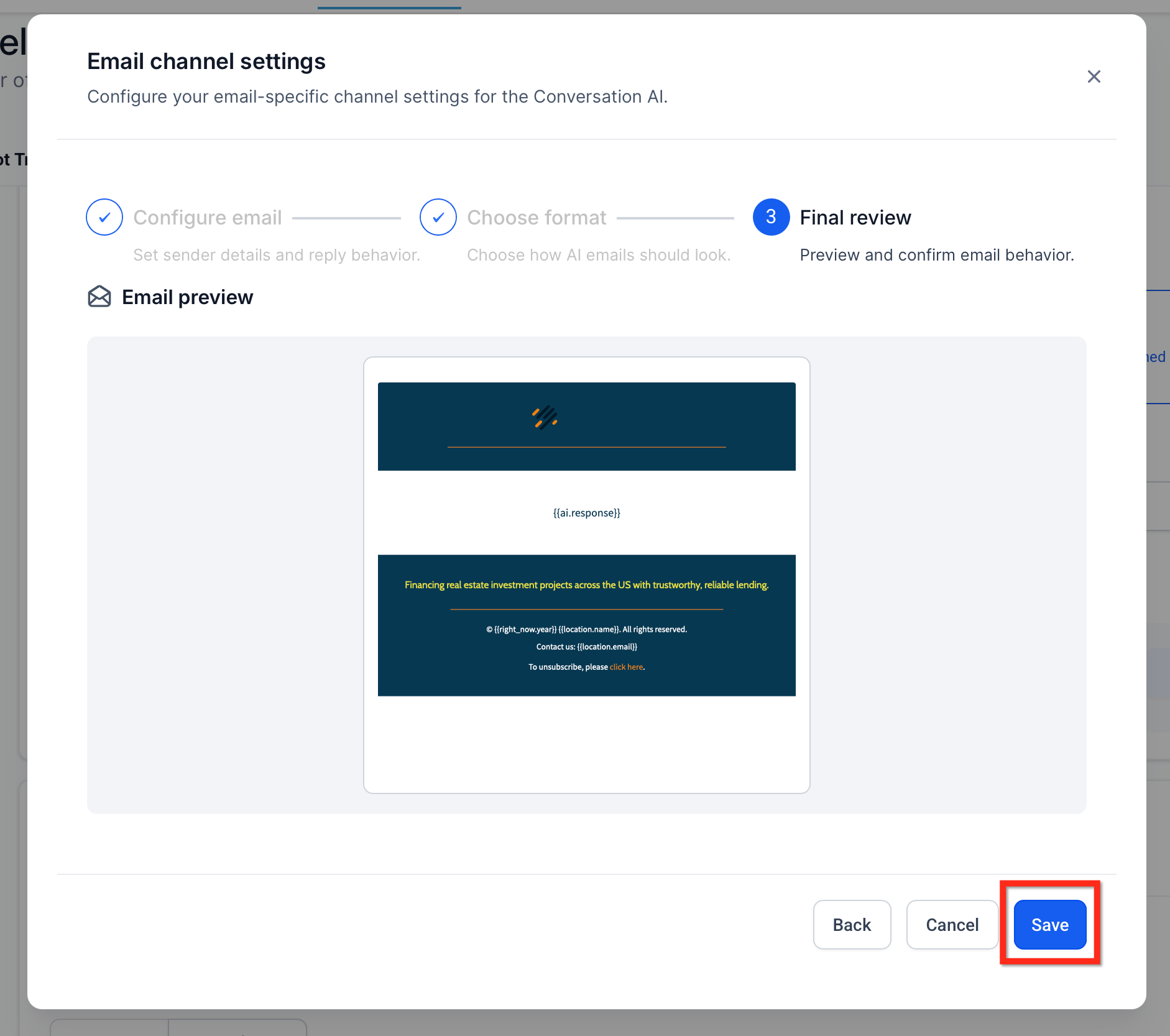
Final Review step
Review the email preview and click Save to activate the Email channel.
Send a test email from an external inbox and verify the message appears in the correct conversation, the agent reply uses the expected format, and the reply stays in the same thread.
You can include live chat as a channel inside workflow actions, letting you bring real-time chat into your automated processes for more responsive communication.
When adding a Conversational AI agent step in a workflow action, you can now select Live Chat as one of the available channels.
Conversational AI supports TikTok as a connected messaging channel, bringing automated replies, lead qualification, and around-the-clock engagement to TikTok conversations. TikTok sits alongside your other supported channels, SMS, WhatsApp, Instagram, Facebook, Live Chat, Email, and Chat Widget, in the same agent configuration, so you manage it with the same tools you already use.
Every capability that works on your other channels is available for TikTok, giving you consistent automation across your entire messaging setup. Once TikTok is connected and assigned to an agent, eligible TikTok conversations are handled automatically based on that agent's configuration.
Instant response times: Reply to TikTok messages immediately, even during high-volume periods.
24/7 availability: Keep engaging TikTok contacts and capturing leads around the clock, even when your team is offline.
Automated lead qualification: Collect relevant information from prospects before a team member gets involved.
Appointment booking: Guide TikTok conversations toward scheduling an appointment directly in the chat.
Seamless human handoff: Hand a TikTok conversation to a team member when needed, keeping the conversation context intact for a smooth transition.
Scalable engagement: Handle growing TikTok conversation volume without adding staff.
Intelligent conversation responses: The agent replies to inbound TikTok messages using natural language understanding, based on contact intent.
Knowledge-based question answering: The agent uses your configured agent knowledge to answer business-related questions accurately.
Lead qualification: The agent collects relevant information during TikTok conversations to help you identify high-value prospects.
Appointment booking: The agent guides conversations toward booking, letting contacts schedule directly inside TikTok messages.
Supported conversation actions: The agent takes configured actions based on conversation context, such as updating contact information, adding tags, or triggering workflows.
Human handoff: When a conversation needs a person, the agent hands the TikTok conversation to a team member while preserving context.
Connect your TikTok account, then turn on TikTok as a supported channel in the agent's Channels settings, the same way you enable other channels like Email or WhatsApp. Assign it to your primary agent if TikTok contacts should get automatic replies outside of a workflow, or leave it on a non-primary agent to handle TikTok only inside specific workflows.
Conversational AI on mobile brings your configured agent into the Aesthetix CRM mobile app, so you can manage client conversations from your phone while keeping the same AI behavior configured on desktop. From mobile you can view AI replies, use suggested responses, and pause, activate, or schedule reactivation of the agent for individual conversations — without returning to desktop for basic control.
Conversational AI on mobile works inside supported messaging channels, including WhatsApp, Facebook, Instagram, and other connected channels available in the Inbox.
Faster replies: Respond to clients from the mobile app using automatic AI replies or AI-generated suggestions.
More control: Pause, activate, or schedule agent reactivation from an individual conversation.
Consistent communication: Use the same trained AI behavior configured on desktop while messaging from mobile.
Flexible response handling: Use Autopilot Mode for automatic replies or Suggestive Mode when a team member should review replies before sending.
Usage management: Pause or reactivate the agent from mobile when you need to control AI activity for a conversation.
Conversational AI must be configured on desktop before it can be used from the mobile app. Desktop setup controls the agent's core behavior, including mode selection, training, subscription, and advanced settings. The mobile app is used to interact with the agent during conversations and manage agent activity for a specific conversation.
Before using Conversational AI on mobile, confirm that:
Conversational AI is enabled for your account.
The agent has been configured on desktop.
The correct mode has been selected on desktop: Autopilot Mode or Suggestive Mode.
The relevant messaging channels are connected.
The mobile app is updated to a supported version.
Core agent setup is completed on desktop first; then mobile users can open conversations, use AI replies, and manage agent activity from the conversation screen.
Step 1: Configure Conversational AI on desktop
Open your Aesthetix CRM account on desktop.
Go to AI Agents > Conversational AI.
Create a new agent or use an existing one.
Set up the Conversational AI agent.
Choose either Autopilot Mode or Suggestive Mode.
Step 2: Open a conversation in the mobile app
Open the Aesthetix CRM mobile app.
Go to the Inbox.
Select a conversation from a supported messaging channel.
Step 3: Use Conversational AI in the conversation
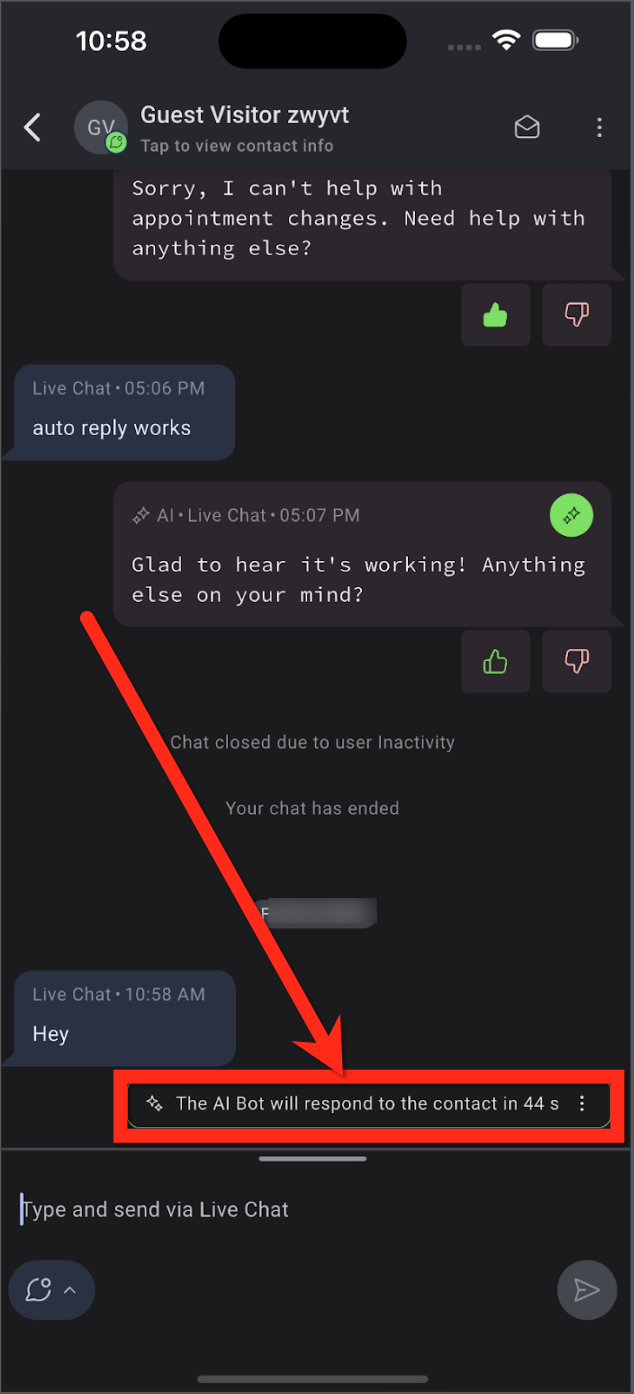
In Autopilot Mode, the AI replies automatically after the configured delay.
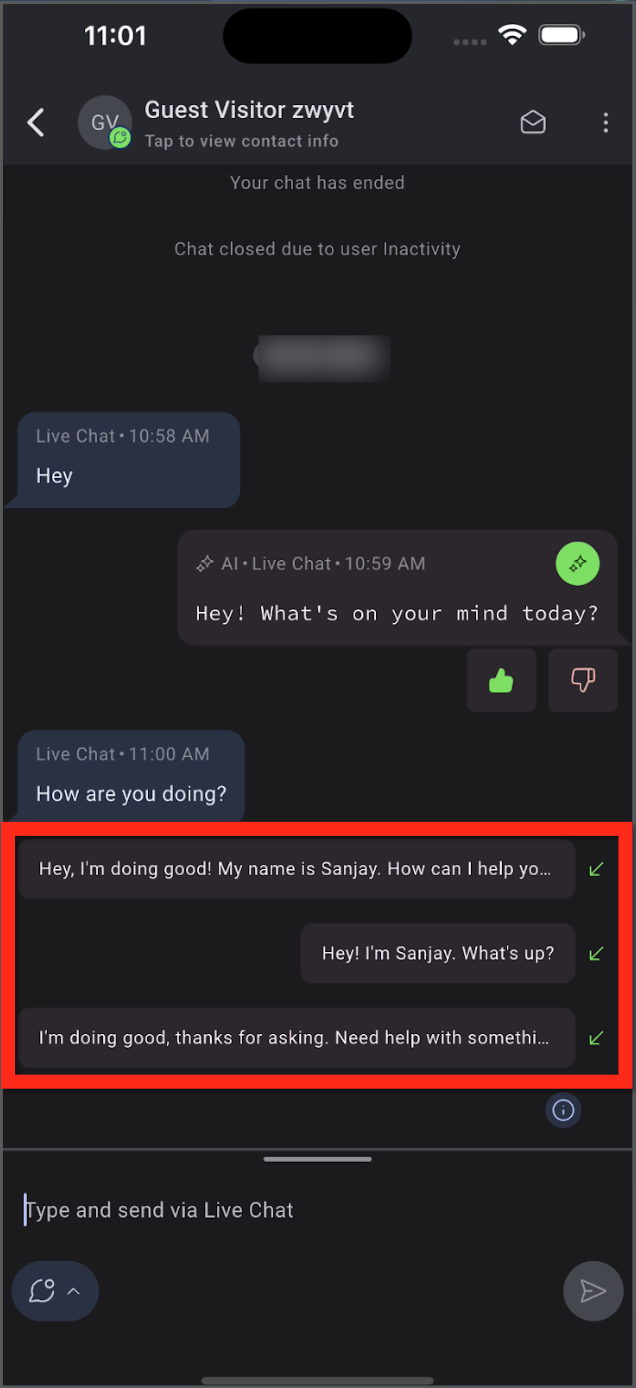
In Suggestive Mode, tap into the message field to view suggested replies, then choose, edit, and send the response manually.
Step 4: Manage the agent from mobile when needed
Tap the top-right ellipsis menu.
Select Edit AI Settings.
Activate, pause, or schedule reactivation for the agent.
Tap Save.
Give clients the option to speak instead of type. Conversational AI understands voice notes and audio files across WhatsApp, Facebook Messenger, Instagram, and SMS/MMS. The agent transcribes speech to text and replies intelligently using your existing training and settings, keeping conversations fast and natural.
When a contact sends a voice note or audio file, Aesthetix CRM transcribes the audio to text, passes it to your agent, and returns an intelligent, context-aware reply so clients can speak naturally without typing. Transcription happens behind the scenes, and the agent follows your existing settings — training, prompts, response mode, and timing — for consistent results.
Natural conversations: Contacts talk instead of type for a more human experience.
Faster replies: Automatic transcription feeds your trained agent to craft accurate replies quickly, keeping leads engaged and conversations moving.
Multi-audio intake: Clients can send one or multiple audio files; your agent processes them as a single interaction.
Omnichannel reach: Works with WhatsApp, Facebook Messenger, Instagram, and SMS/MMS for one consistent workflow.
Consistent governance: Audio replies respect your Wait Time and message-limit settings, just like text.
Category | Supported items | Notes |
|---|---|---|
Voice notes (platform-native) | WhatsApp Voice Notes, Facebook Voice Notes, Instagram Voice Notes | Recorded using each app's mic button; delivered as audio objects the agent can transcribe. |
File formats (uploads/attachments) | OGG, MP3, MP4 (audio-only), AAC, M4A, MPEG | Ensure the file is audio-only. Video MP4s aren't supported as audio inputs. |
Multi-audio in one interaction | Supported (multiple files) | Multiple audio files sent close together are handled in a single interaction. |
Audio Response plugs into channels where Conversational AI already operates. Ensure each channel is properly connected before expecting audio replies.
Facebook Messenger
Instagram Direct Messages
SMS (MMS)
From your account, go to AI Agents > Conversational AI > Agent List, then click the three dots (⋮) next to the agent you want to configure and select Edit to open the agent's settings.
Enable audio responses. Toggle on "Also allow this bot to respond to: Voice Notes" and save your changes.
Test on a connected channel. Send a voice note from WhatsApp or a social channel to confirm the agent transcribes and replies as expected.
Wait Time aggregation: Your agent waits the configured Wait Time Before Responding so it can collect multiple inbound messages (including audio + text) and send one unified reply.
Message limit: The agent follows your Maximum Message Limit; if reached, the agent sleeps until reset per your standard flow.
Transcripts and transparency: You can review AI details — including prompts, sources, and response info — from the AI Response Info sidebar in the Inbox.
Channel policies: Delivery on Meta channels must comply with policy windows (for example, the 24-hour window for Messenger/Instagram). Plan your flows accordingly.
Do I need a connected inbox before I can use the Email channel?
Yes. You need at least one active connected inbox before the agent can reply to inbound emails.
Can I use plain text instead of a branded email template?
Yes. You can choose plain text if you prefer a simpler email format.
Why is the AI reply missing from my branded email template?
The most likely cause is that the required AI response placeholder was not added to the template body.
Does Email replace my other Conversational AI channels?
No. Email is an additional supported channel and does not replace your other enabled channels.
Can I still use human handover with Email?
Yes. Human handover remains part of the broader Conversational AI action framework.
Which email channels are supported?
The Email channel supports the built-in email service, Custom Email SMTP, and custom conversation email providers.
Can the agent reply in the same language as the inbound email?
Yes. Conversational AI can detect the language of the inbound email and respond accordingly.
Can I use Email in the Conversational AI workflow action?
No. The Conversational AI workflow action does not currently support the Email channel. Email support applies to agent replies for inbound email conversations.
Why is my agent not replying to inbound emails even though Email is enabled?
If the agent is not set as the primary agent, it may not respond to general inbound emails by default. Non-primary agents are intended to respond within workflows. To fix this, assign the Email channel to the primary agent or use a workflow to route the conversation to a non-primary agent.
Which channels support primary agent assignment?
WhatsApp, Instagram, Facebook, SMS, Chat Widget (SMS chat), Live Chat, Email, and TikTok all support primary agent channel assignment.
Is TikTok a supported channel for Conversational AI?
Yes. TikTok works the same way as your other connected channels: assign it to your primary agent for automatic replies, or to a non-primary agent for workflow-only use.
Can I fully configure Conversational AI from the mobile app?
No. Core setup, training, mode selection, subscriptions, and advanced configuration are managed from desktop. The mobile app lets you interact with the agent in conversations and manage agent activity for individual conversations.
What is the difference between Autopilot Mode and Suggestive Mode on mobile?
Autopilot Mode sends AI replies automatically after the configured delay. Suggestive Mode creates AI-generated reply options that you can review, edit, and send manually.
Can I pause the agent for only one conversation?
Yes. Open the conversation, tap the top-right ellipsis menu, select Edit AI Settings, and turn off Activate Bot. This manages agent activity for that conversation only.
Can the agent turn back on automatically after being paused?
Yes. When pausing the agent, enable Reactivate After, enter the timeframe, and tap Save. The agent will reactivate after the selected time.
Will mobile Conversational AI work for WhatsApp, Facebook, and Instagram messages?
Yes. Conversational AI can be used in supported connected messaging channels available in the mobile Inbox, including WhatsApp, Facebook, and Instagram.
Does pausing the agent from mobile affect AI usage?
Pausing the agent stops it from responding in that conversation while paused. This can help manage AI activity and usage for conversations where automated replies are not needed.
Why do I not see AI suggestions in the mobile conversation?
Confirm that Conversational AI is configured on desktop, Suggestive Mode is selected, the conversation is on a supported channel, and the mobile app is updated.
Why is the AI agent not responding automatically?
Confirm that Conversational AI is active, Autopilot Mode is selected, the agent is not paused for the conversation, and the configured response delay has passed.
Does Audio Response cost extra?
Audio handling is included with your Conversational AI usage; your channel's standard messaging fees still apply (for example, SMS/MMS and WhatsApp). For current pricing, see the pricing page.
Will the agent reply with audio or text?
Agents send standard channel messages for maximum compatibility. Most replies are text, so design your flows accordingly.
Can I restrict audio handling to specific channels?
Yes. Assign only the channels you want the agent to use in the agent settings. The agent will listen and respond only on assigned channels.
How are multiple audio files handled?
Multiple audios sent in a short window are transcribed and handled during your Wait Time window so the agent can craft a single, context-aware reply.
Where do I review what the agent "saw" and why it responded that way?
Open the AI Response Info sidebar in the conversation to review the response, prompt, and training sources.
