Conversational AI in Aesthetix CRM can handle appointment booking for you, talking with leads and clients, collecting the details you need, offering available time slots, and confirming the booking right inside the conversation. With the right setup it can also route requests across multiple calendars, book specific services, and handle cancellations and reschedules, so your team spends less time on manual scheduling.
Note on PHI: Don't enter protected health information (PHI) into Conversational AI. AI features aren't approved for processing PHI — use them for productivity, communication, scheduling, and engagement, not to store or process medical records. See the HIPAA Compliance guide for details.
Important — native calendar required: Appointment booking with Conversational AI works only with a native Aesthetix CRM calendar. It does not integrate with EMR calendars or scheduling. If your practice books patients through your EMR (as most Aesthetix CRM clients do), this feature has limited applicability unless you also run a native Aesthetix CRM calendar for the appointment types you want the AI to handle.
Appointment booking lets a Conversational AI agent talk with a contact, gather the required information, offer available time slots, and book the appointment on a native Aesthetix CRM calendar. Depending on how the agent is configured, it can book to a single calendar or route requests across multiple calendars using intent-based matching. It works alongside your agent's broader settings, training, and automations, so scheduling stays natural and on-brand while reducing manual back-and-forth.
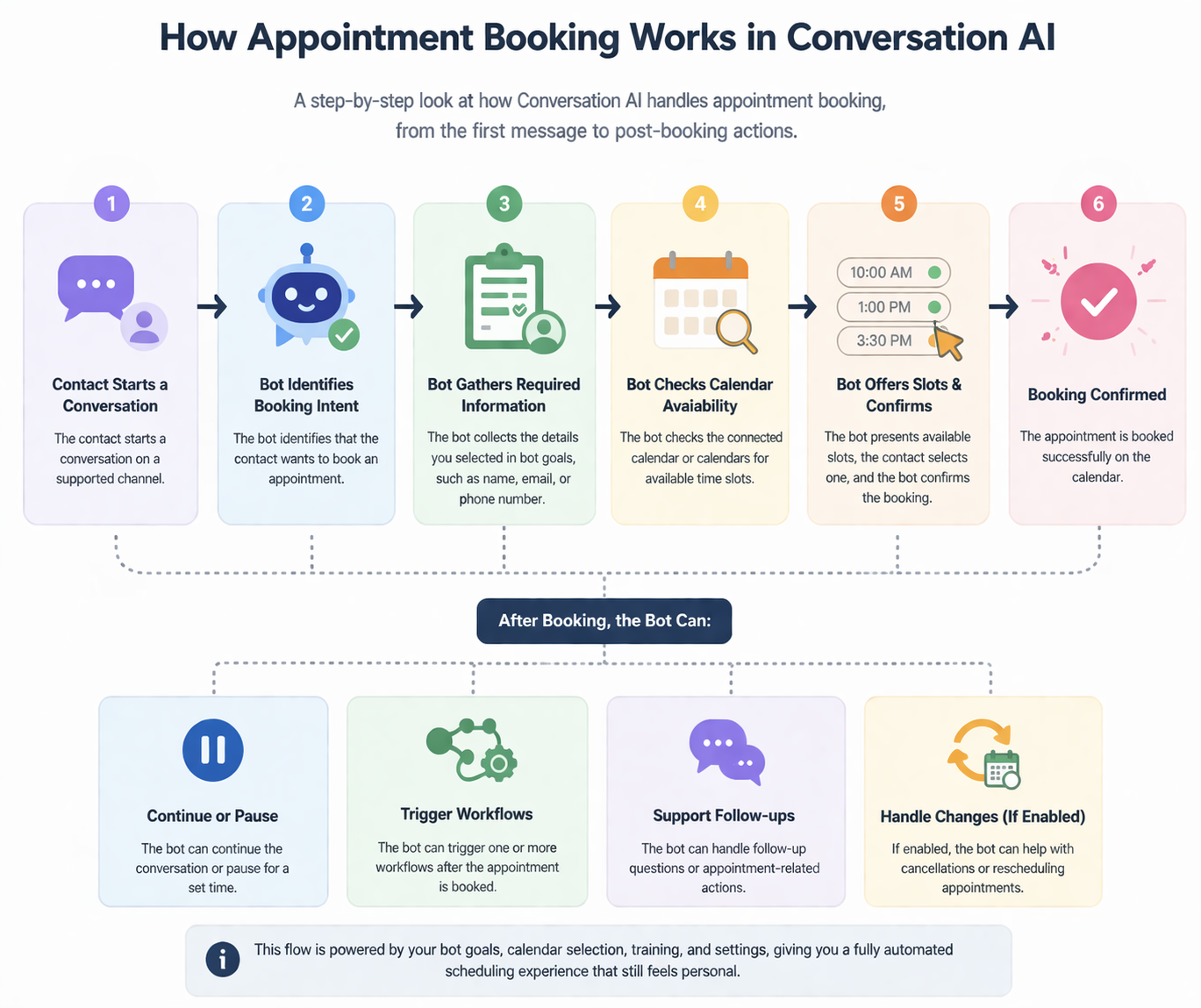
Automated scheduling: the agent collects contact details, presents available times, and completes the booking without manual back-and-forth.
Smarter routing: when you configure multiple calendars with descriptions, keywords, and optional fallback behavior, the agent chooses the right calendar for each request.
Faster response and lead capture: fast replies across your selected channels reduce delays when contacts want to book, cancel, or reschedule, helping your team capture and follow up on more opportunities.
Operational efficiency: trigger workflows, pause the agent after booking, or hand off to the right process once an appointment is scheduled.
More accurate follow-ups: recent appointment context helps the agent avoid repeated booking prompts and answer follow-up questions more naturally.
A successful booking setup depends on having the right calendar and agent foundation in place before you turn appointment booking on. This helps prevent missing slots, poor routing, and incomplete responses when contacts ask follow-up questions.
Before setting up appointment booking, make sure you have:
A native Aesthetix CRM booking calendar already configured (remember, EMR calendars are not supported)
A Conversational AI agent created in your account
Brand voice or agent training that reflects your business accurately
The channels selected where you want the agent to respond
A clear plan for whether the agent should book on one calendar or route across multiple calendars
Appointment booking combines your agent's goals, calendar selection, training, and response behavior into one scheduling experience. When a contact asks to book, the agent can collect required details, check availability from the connected native calendar, suggest time slots, and confirm the booking inside the conversation. In more advanced setups, the agent can also support cancellation and rescheduling, depending on the options you enable.
Single calendar booking is the best option when all appointment requests should go to one booking calendar. It's simpler to manage and works well when you have one service type, one scheduling path, or one main appointment destination.
With a single calendar setup, the agent uses the calendar you assign and guides contacts through that calendar's available time slots. This is usually the fastest path to launch if you don't need service-based routing.
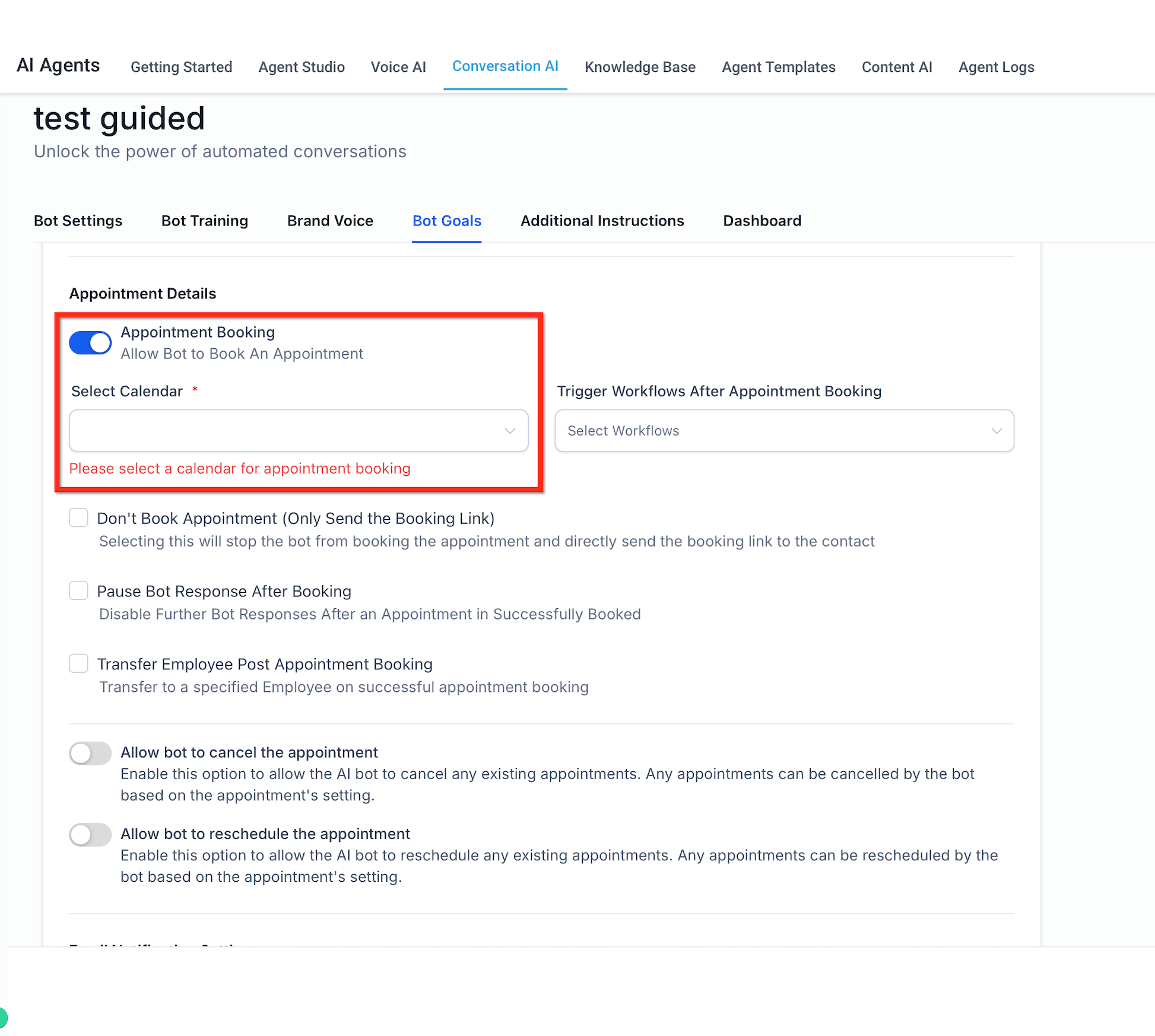
Multiple calendar booking is ideal when your business offers different appointment types, services, providers, or locations. The agent can identify the best calendar for each request instead of sending every inquiry to one destination.
To improve routing accuracy, you can configure each calendar with:
a clear description of what the calendar is for
additional trigger keywords related to the service or use case
an optional fallback calendar if the agent cannot confidently match a request to one calendar
This helps the agent distinguish between options such as consultations, treatment types, follow-ups, or location-specific bookings.
Note: Multiple calendar booking is currently available only for prompt-based Conversational AI agents.
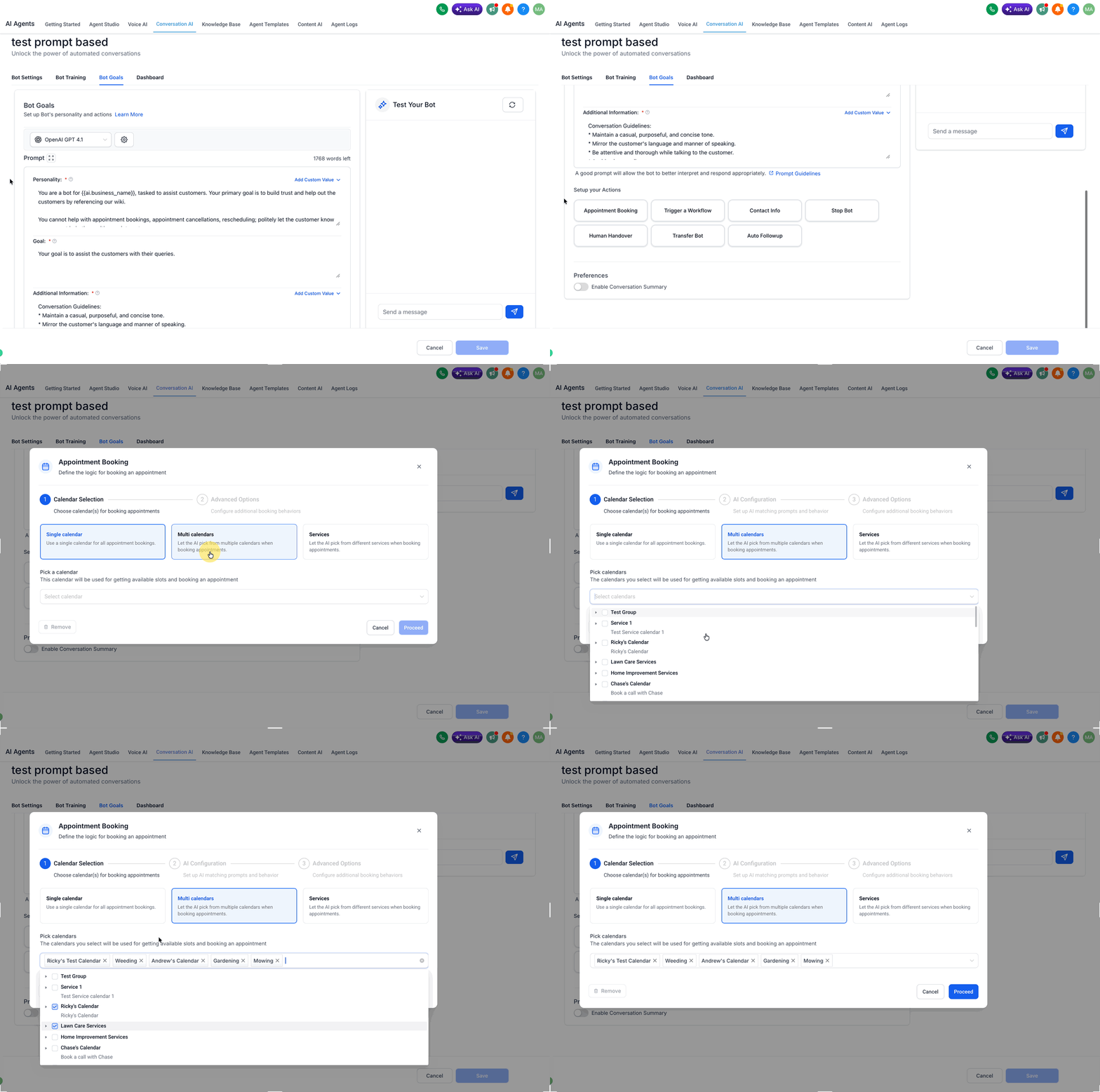
Services Calendar support lets the agent book service appointments directly in the conversation instead of sending clients to a traditional booking form. Clients can describe what they need in natural language while the AI guides them through the booking flow.
Service booking supports public-facing services and can work with staff selection, add-ons, and variations when those items are already configured in Aesthetix CRM. Supported capabilities include:
Public-facing services: only public-facing services can be selected for this flow. Private services are not supported.
Staff selection: the AI can work with supported staff-selection settings already configured for the service.
Add-ons and variations: if your services include add-ons or variations, those can be part of the conversational booking experience.
Service-based routing: the AI can map a client's request to the appropriate service option when services are configured clearly.
Important: Online payment is not collected by the agent during the booking flow.
Note: Services booking is currently available only for prompt-based Conversational AI agents.
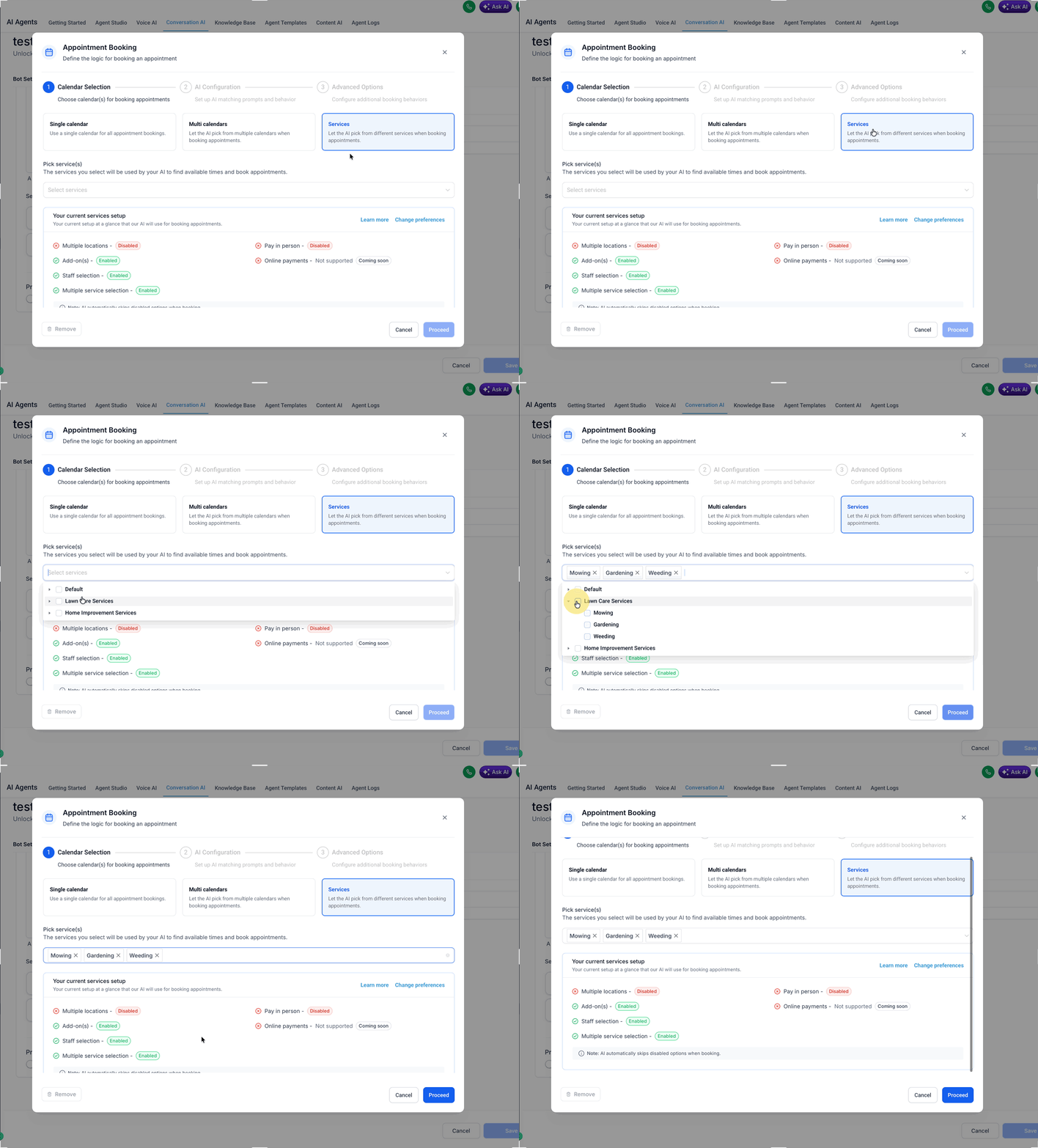
Choosing which services the AI can handle keeps booking automation limited to the services that are ready for conversational scheduling, and improves accuracy by narrowing the AI's choices. When setting up appointment booking, select the Services option, then choose the public-facing services the AI should handle.
To improve booking accuracy:
Use clear service names
Write service descriptions that make each option distinct
Keep customer-facing explanations in your agent prompt when you want the AI to explain or recommend services
Use service details to help the AI classify intent during routing
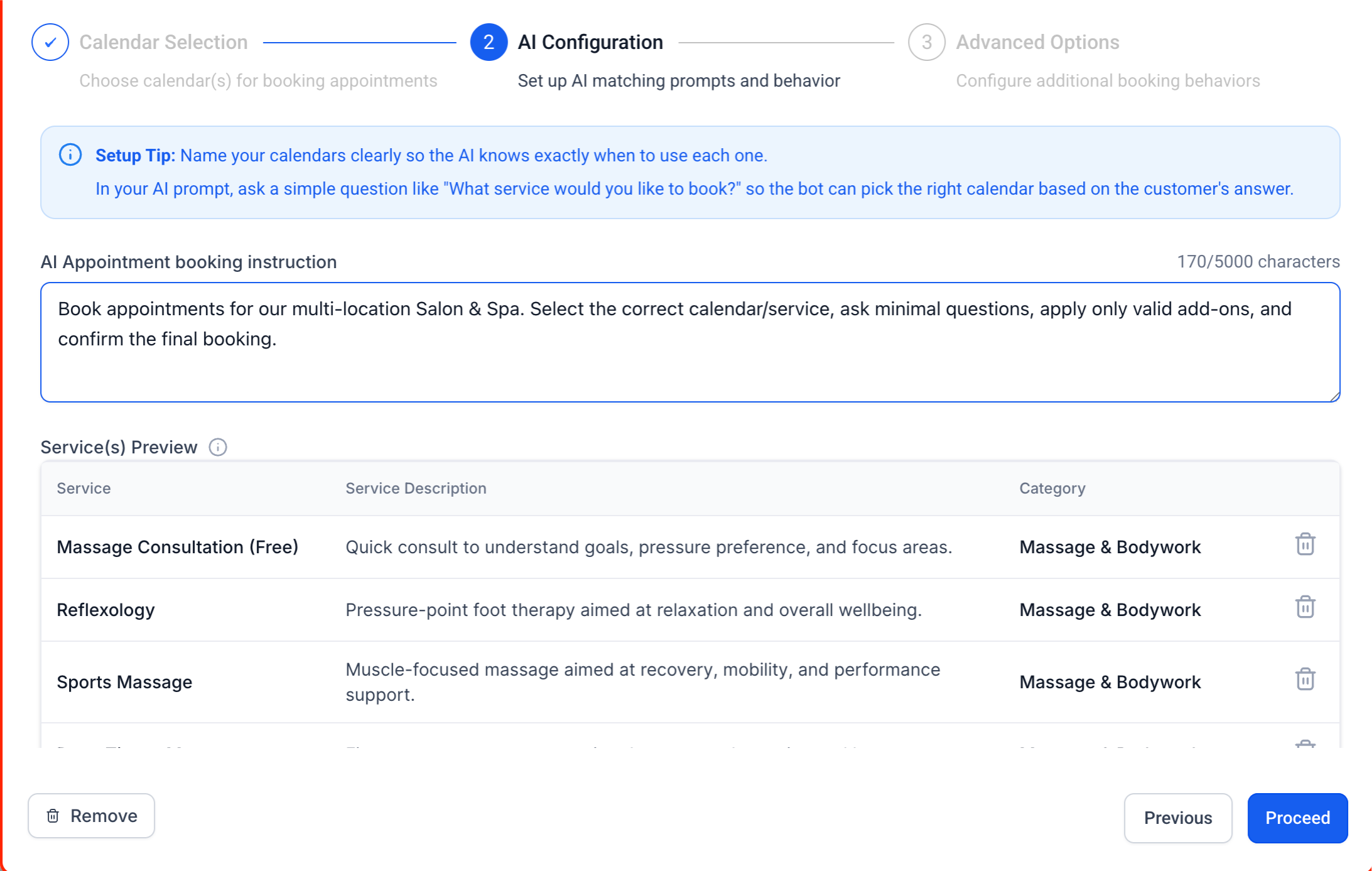
This is an important distinction: service or calendar descriptions help with intent classification, while your agent prompt should contain the guidance you want the AI to use when talking to clients about those services.
Custom instructions shape how the AI handles service-booking conversations so the experience matches your business rules and client expectations. Use them to help the agent:
ask clarifying questions before offering times
explain service differences in a client-friendly way
follow booking rules or qualification steps
share policy reminders such as cancellation expectations
collect useful details before the appointment is booked
Remember that service or calendar descriptions are best used for routing and classification, while prompt instructions are better for customer-facing explanations and conversation handling.
Service Menus can help organize multiple services into one branded experience, but they are not required to use this feature. Understanding the difference between these tools helps prevent setup confusion:
Feature | Purpose |
|---|---|
Service Calendars | Manage service-based scheduling. |
Services | Define the service options clients can book, including supported items such as variations, add-ons, and resources. |
Service Menus | Display multiple services together in one branded experience, while each service stays connected to its own underlying Service Calendar configuration. |
Good booking performance depends on more than selecting a calendar. The agent also needs the right prompt, training, and business context so it can guide the conversation clearly and answer questions accurately. Calendar details are used for calendar selection, while anything you want the agent to discuss with clients should also live in the main prompt.
Write clear calendar descriptions so the agent can tell when each calendar should be used.
Add relevant keywords for common services, appointment types, or request phrases.
Put customer-facing business details in the agent's prompt or training, not only in calendar descriptions.
Keep your initial message and tone aligned with your brand voice.
Choose only the contact fields you really need so the booking process stays efficient.
Why this matters: The Appointment Booking option in Bot Goals has both a prompt and the calendar details. The calendar details are used only for intent classification. If you want the agent to answer questions about a calendar or service, that information must also be in the prompt (above the Appointment Booking button). For example, if you want the agent to discuss what kind of appointment to book and why, duplicate that information into the prompt — the agent will not discuss details it only finds in the calendar details.
A proper setup ensures the agent understands booking intent, uses the right calendar, and responds in a way that feels helpful rather than repetitive. Following these steps also makes it easier to expand later into multi-calendar routing, services, cancellations, reschedules, or workflow automation.
Go to AI Agents > Conversational AI. Create a new agent or open an existing one you want to use for appointment booking.
Configure the agent basics, including the agent name, wait time before responding, and initial message. These settings shape how the appointment conversation begins.
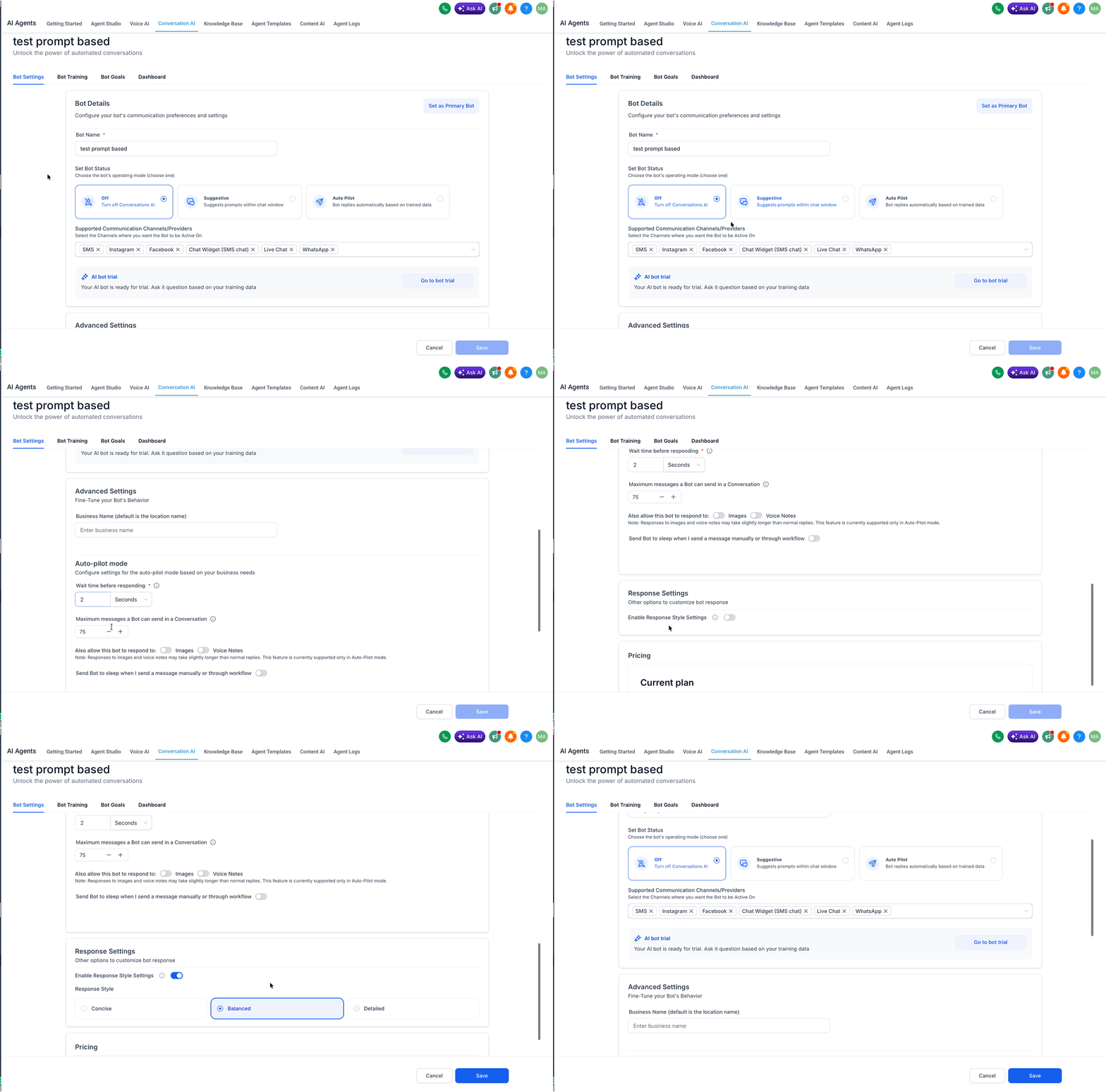
Open Bot Goals and choose the contact information you want the agent to collect, such as name, email, or phone number.
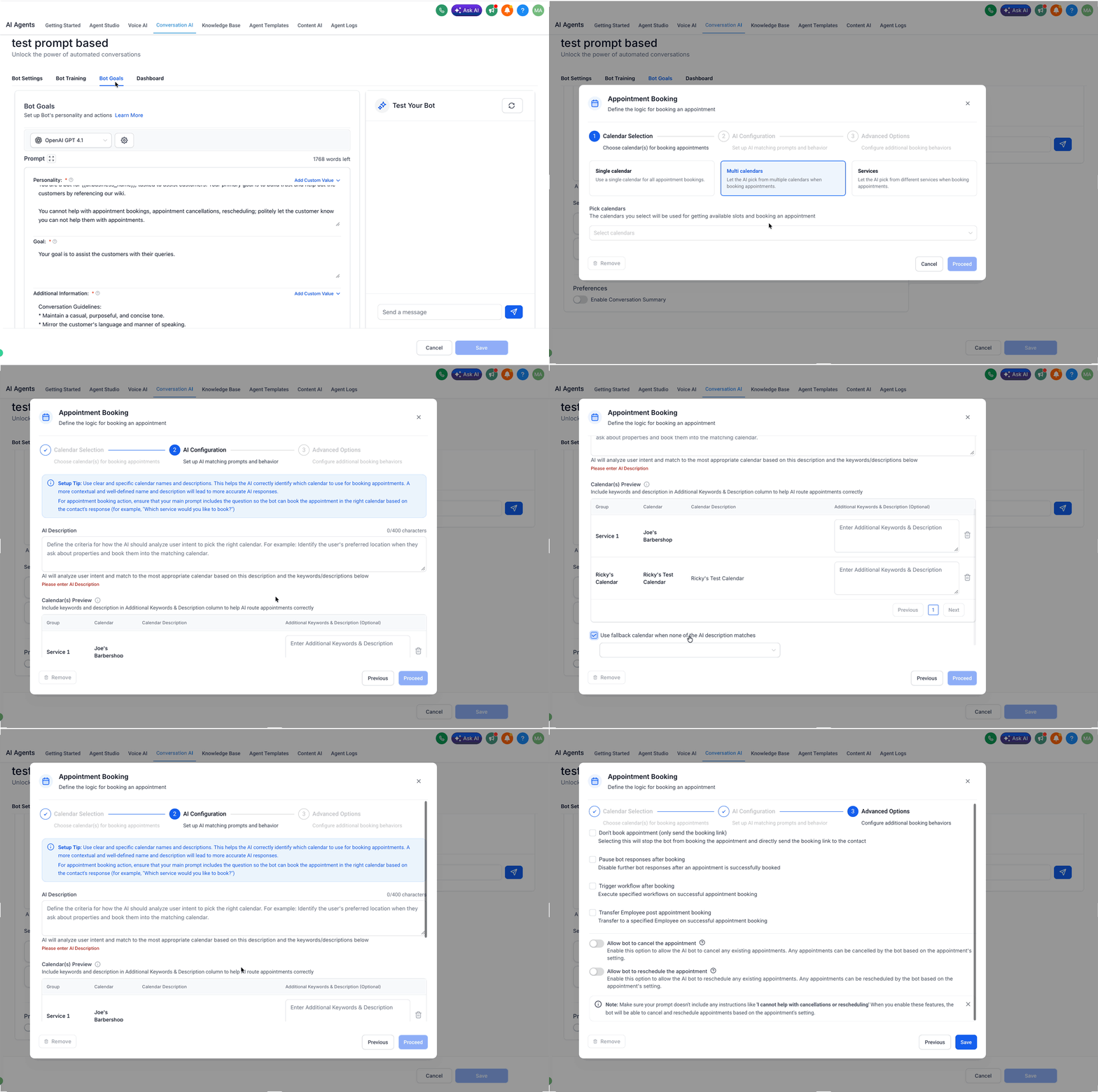
Enable Appointment Booking and select the native booking calendar you want the agent to use. If you only need one scheduling path, choose Single Calendar. For Flow Builder agents, Single Calendar is currently the only available option.
If your business needs service-based routing, select Multiple Calendars and configure each one with a description and any supporting keywords. Add a fallback calendar if you want unmatched requests routed to a default option.
Note: Multiple Calendar booking is currently available only for prompt-based Conversational AI agents.
To book by service, select the Services option. Choose the public-facing services the AI should handle; the agent can book using service details such as staff selection, add-ons, and variations. Keep in mind that private services are not supported, and online payment is not collected by the agent during the booking flow.
Note: Services booking is currently available only for prompt-based Conversational AI agents.
Add prompt instructions and training content that explain what the agent should say about your services, availability expectations, and booking flow. Don't rely only on calendar descriptions for customer-facing information.
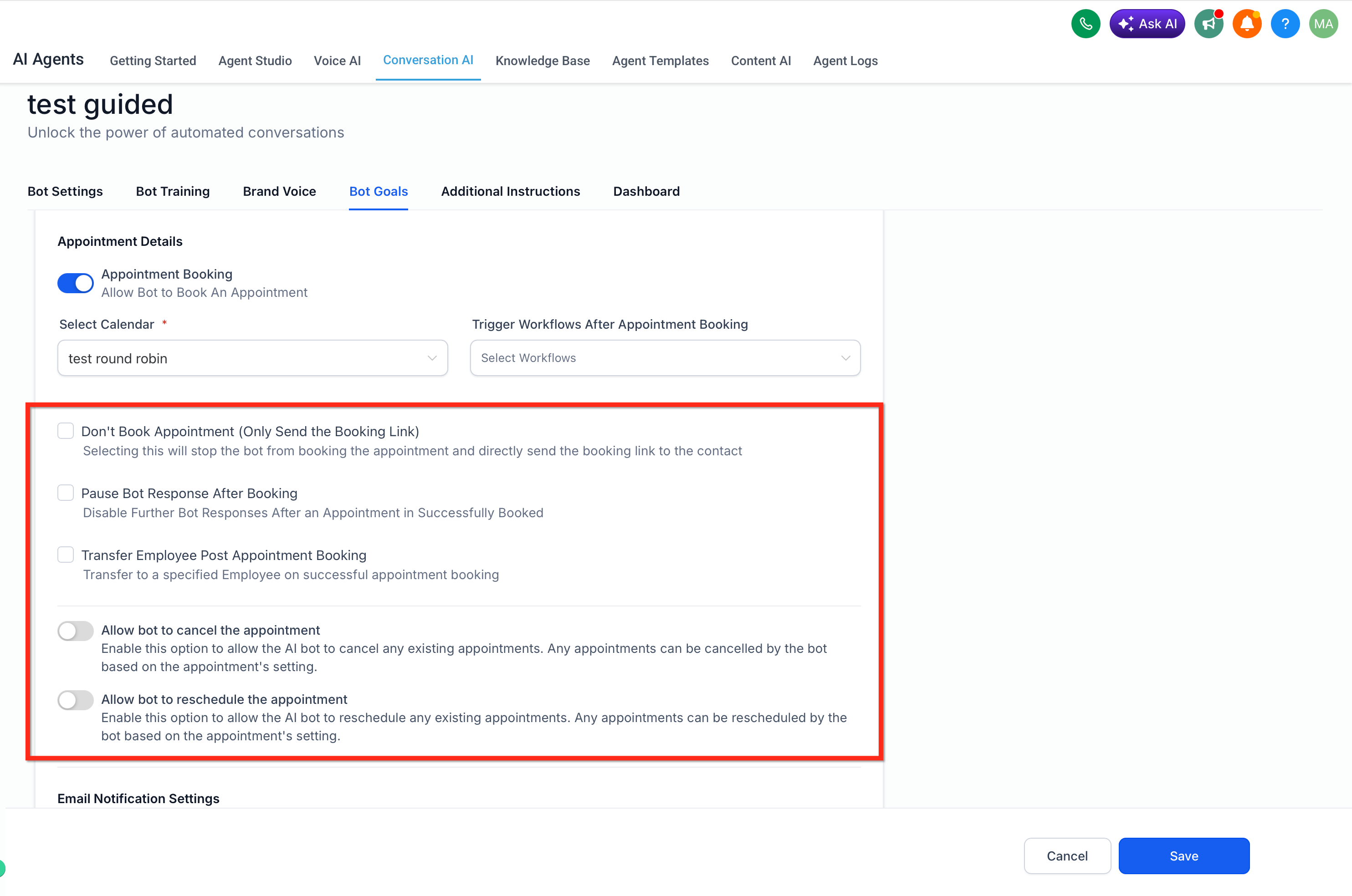
Decide whether the agent should also support cancellation and rescheduling, and configure any post-booking behavior you need. This can include sending only the booking link, pausing the agent after an appointment is booked, or triggering one or more workflows after booking.
Save the agent and test the experience carefully. Live testing is especially important for confirming cancellation or reschedule behavior.
When you choose Multiple Calendars, the agent routes booking requests to the correct calendar based on the client's intent. Instead of limiting the agent to one calendar, you configure several — each representing a service, provider, or location — and let the AI determine which one to use. This is available under Conversational AI → Appointment Booking Bot Goal when setting up or editing a booking flow.
The AI automatically detects and routes appointments using your configured calendar names, descriptions, and optional keywords. For example, when a client types:
"I'd like to book a consultation for laser hair removal."
The AI identifies the relevant calendar and retrieves available slots for booking.
The fallback calendar is a safety net for when none of your configured calendars match a client's message, so every request is still captured and booked.
Select one of your configured calendars as the fallback option.
If no intent matches the AI descriptions, the appointment automatically books on this fallback calendar.
Navigate to AI Agents → Conversational AI → Bot Goals and select Appointment Booking.
Choose the Multiple Calendars option at the top of the setup window.
Under Calendar Selection, pick the calendars you want to include. Each calendar's name and description are auto-fetched.
Optionally, add Additional Keywords & Descriptions to help the AI recognize intent. This is helpful if the calendar itself doesn't have a detailed name and description in its settings. If it already does, you don't need to add anything here.
Configure a Fallback Calendar to handle unmatched requests. This can be unchecked to have no fallback calendar.
Proceed to AI Configuration and define your AI prompt (for example, "Which type of appointment would you like to book?").
Proceed to Advanced Options:
Pause agent response after booking
Trigger workflows after booking
Transfer to a team member after booking
Allow the agent to cancel the appointment
Allow the agent to reschedule the appointment
Save your configuration.
Bot Goals preferences such as Conversation Summary and Transcript are configured here as well.
Once enabled, the agent automatically detects intent and books appointments in the correct calendar based on conversation context.
Use clear service-based keywords like "Botox," "consultation," or "facial."
Write calendar descriptions in plain language so the AI understands the context.
Include alternative phrases for common intents (for example, "I need something for fine lines" → injectables).
Keep prompts concise and friendly: "Which service would you like to book?" works better than long or complex phrasing.
After an appointment is created, both the conversation and the appointment detail drawer show which calendar was used.
Open the conversation thread to see the AI's confirmation message and slot details.
Click View Appointment to open the details panel.
The assigned calendar name appears clearly in the Calendar field.
A clean setup is essential because the AI can only book what has already been configured correctly. Completing the setup in the right order helps ensure the agent sees the correct services, follows supported booking rules, and routes clients accurately.
Create and configure your services or Service Calendars. Set up the services you want clients to book first. Make sure service details, staff setup, add-ons, variations, resources, duration, and other settings are fully configured before enabling AI booking.
Enable Appointment Booking in Conversational AI. In your prompt-based agent, open the Appointment Booking configuration and select the Services option. Then choose the public-facing services the AI should handle.
Add booking guidance to the agent prompt. Use your prompt and any custom booking instructions to tell the AI how to talk about the services, how to ask clarifying questions, and how to handle service-selection scenarios. Calendar or service descriptions help with intent classification, but customer-facing guidance belongs in the prompt.
Review additional appointment-booking actions. Configure any related actions you want to support, such as rescheduling, canceling, sending a booking link, workflow triggers, or conversation transfer.
Test the booking experience. Run test conversations to confirm the agent recognizes the correct services, handles service details clearly, and creates bookings as expected. Testing is especially important when multiple services have similar names or overlapping use cases.
You can let your agent manage existing appointments in real time, prompting clients to reschedule or cancel during the conversation without staff intervention.
Client convenience: contacts can adjust or cancel appointments without waiting for human assistance.
Automated workflow: the agent handles appointment changes, reducing manual work for staff.
Multiple appointment handling: supports bulk cancellations, saving time for clients with several bookings.
Flexible behavior: toggle cancellation and rescheduling on or off to suit your needs.
Calendar integration: works across all native calendars associated with the agent.
All appointment statuses: the agent can manage an appointment regardless of its current status.
Step 1: Edit your agent's goals
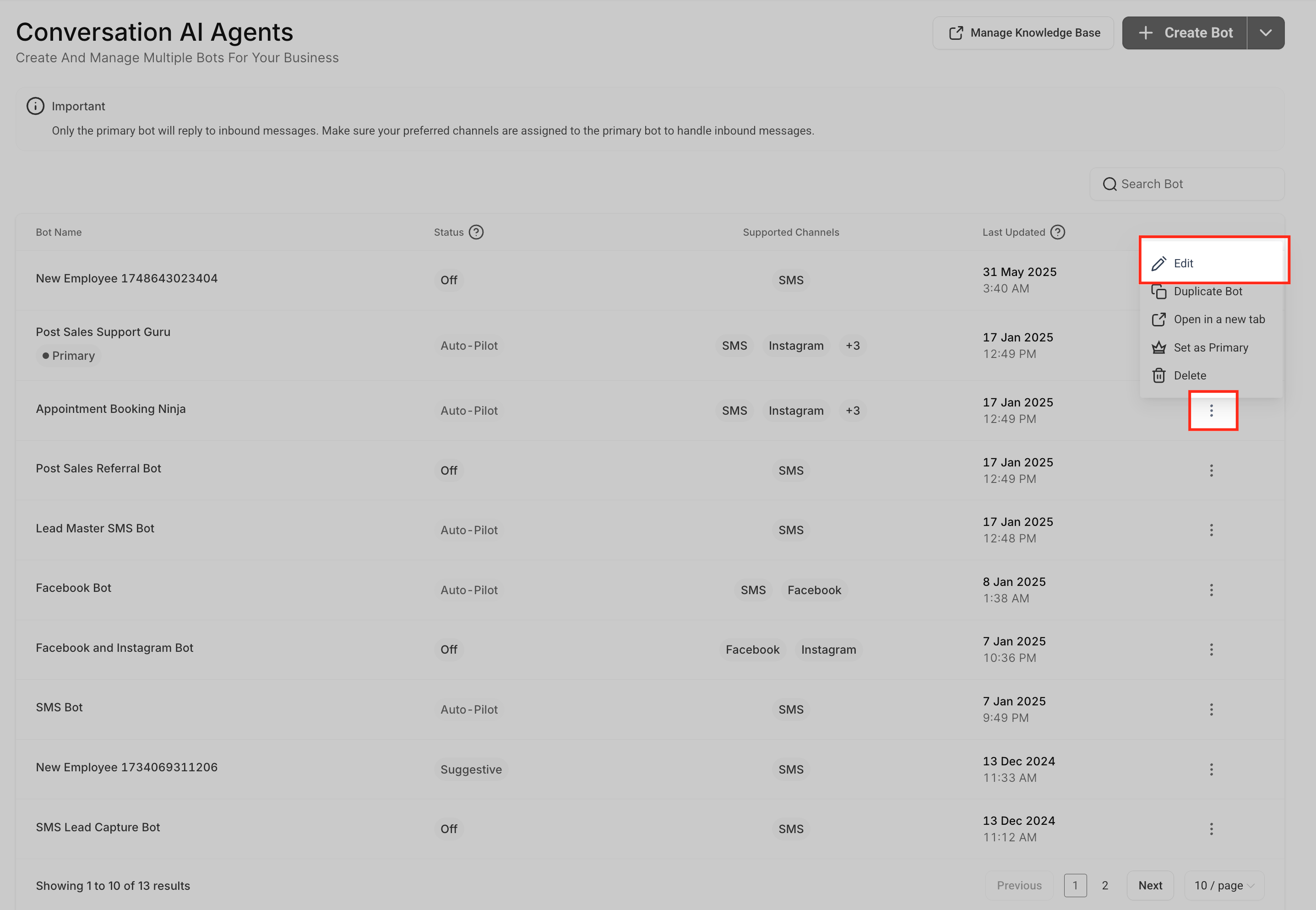
Go to Conversational AI in your account.
Select the agent you want to edit, then click Edit Bot.
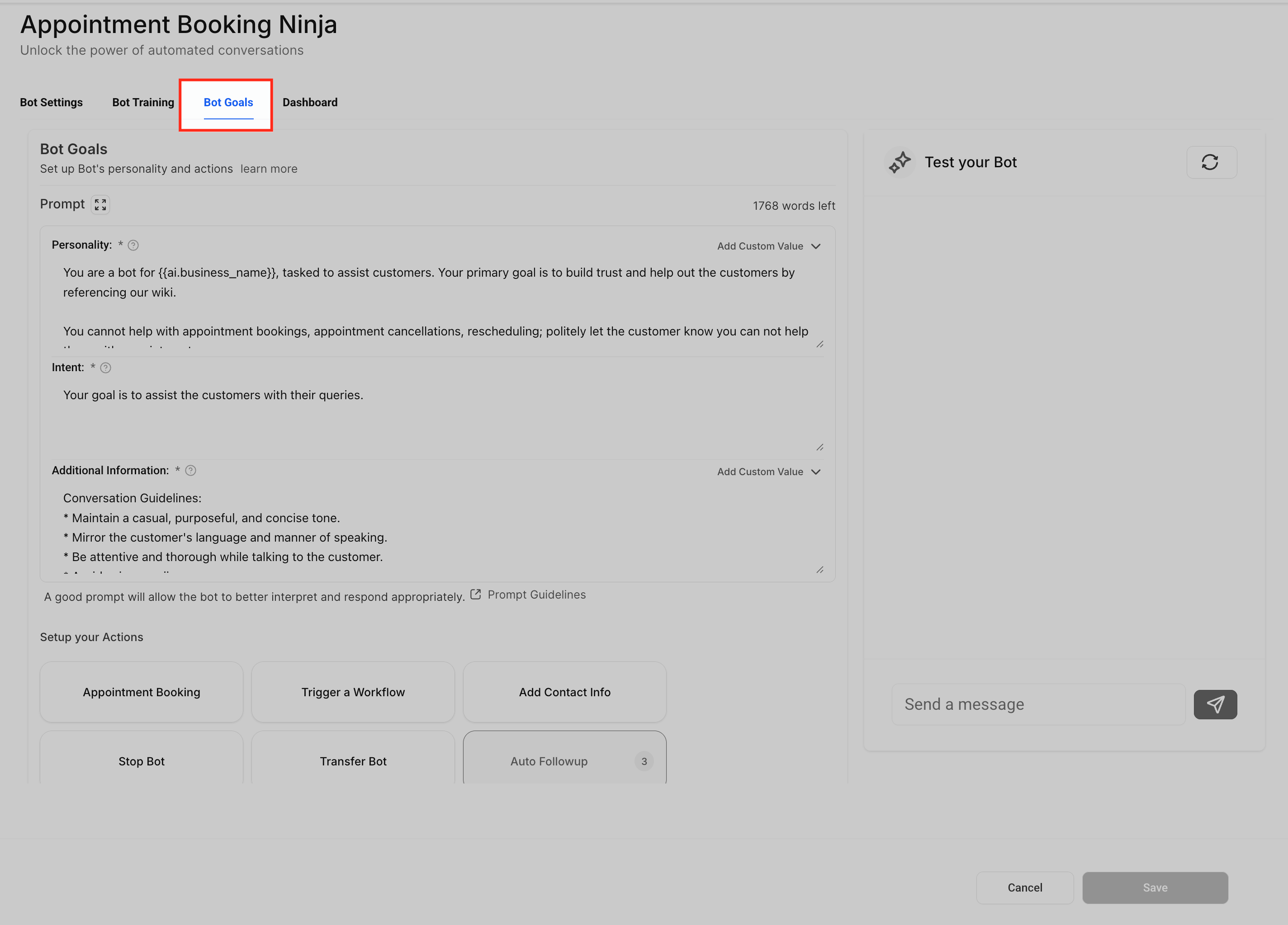
Navigate to Bot Goals.
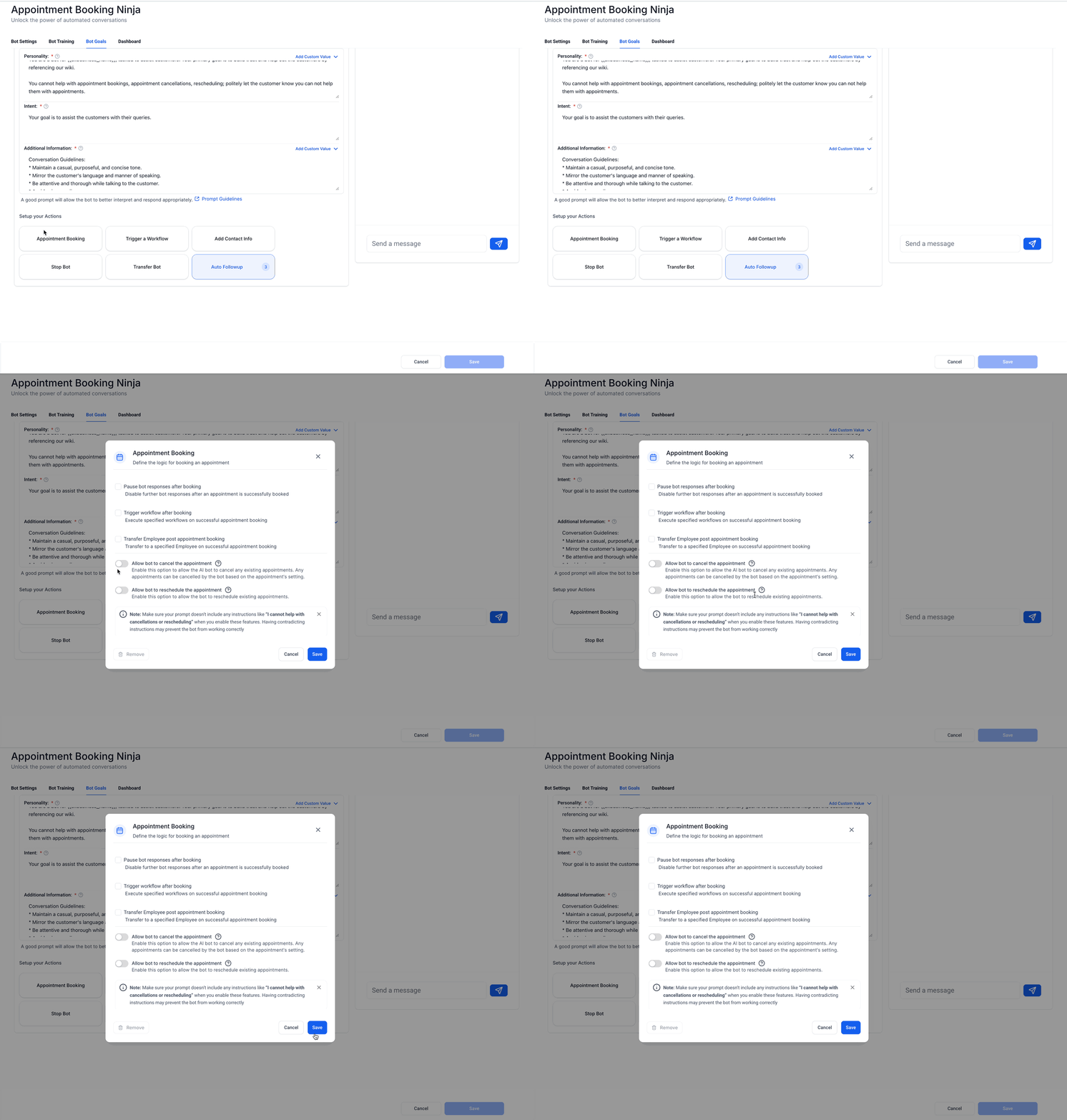
Step 2: Configure appointment details
In the Appointment Details section, find the toggles for rescheduling and cancellation.
Enable the toggles as needed to let the agent offer these options to contacts.
Step 3: Test the experience
Use the Bot Trial feature to simulate conversations and confirm the cancellation and rescheduling flows work as intended before going live.
All new bookings are created in the calendar specified in the agent's Appointment Details.
Rescheduling and cancellations can be performed on any calendar, managed at the contact level.
All appointment statuses are supported, so no appointments are left unmanaged.
Toggle cancellation and rescheduling on or off in the Appointment Details section at any time.
Adjust behavior to match seasonal needs, business hours, or specific campaigns.
For contacts with multiple appointments, the agent can process several cancellations in a single interaction, reducing repetitive actions and ensuring all relevant appointments are handled.
Once a contact successfully books, you can control what happens next. Two settings are available within the Appointment Booking configuration:
Put the agent to sleep: automatically disable agent responses after an appointment is booked. You can specify how long the agent stays inactive, so no further automated responses go out during that period.
Trigger workflows: start one or more workflows immediately after an appointment is booked. A dropdown lets you select and configure multiple workflows to run automatically after the booking.
Both settings can be enabled at the same time, giving you a highly customizable experience tailored to your needs.
Does appointment booking work with my EMR calendar?
No. Conversational AI books only on native Aesthetix CRM calendars. It does not integrate with EMR calendars or scheduling. If your practice books through an EMR, you'll need a native Aesthetix CRM calendar for any appointment types you want the AI to handle.
Should I use one calendar or multiple calendars?
Use one calendar if every appointment request should go to the same booking path. Use multiple calendars when you need the agent to route requests based on service type, provider, location, or intent.
Can I use both Single and Multiple Calendar modes?
You choose one mode per agent based on your use case. Single Calendar works best for one service; Multiple Calendars is ideal for multi-service or multi-location practices.
How many calendars can I add?
You can add multiple calendars, but keep the list concise for more accurate AI matching.
What if the AI can't identify the correct calendar?
The fallback calendar automatically handles those cases, ensuring every request results in a booked appointment. If no fallback is configured, the request is not routed to a default.
Can the agent cancel or reschedule appointments?
Yes, when those settings are enabled. The agent can reschedule or cancel appointments from any calendar, but new bookings are made only in the calendar associated with the agent.
Do calendar descriptions replace prompt instructions?
No. Calendar descriptions help the agent choose the right calendar, but customer-facing details should also be included in the main prompt or agent training.
Can appointment booking work inside a flow-based agent?
Yes. The Conversational AI Flow Builder includes a Book Appointment AI action along with appointment options such as cancel and reschedule.
Will my existing workflows still trigger?
Yes. All previous automations and workflow triggers — such as notifications, reminders, and post-booking workflows — continue to work as before.
Do I need Service Calendars or Services configured before enabling service booking?
Yes. Set up the services you want to offer first. Your service setup is the foundation Conversational AI uses for this booking experience.
Can the agent book private services?
No. The current booking flow supports public-facing services only.
Can the agent collect online payment during the booking conversation?
No. Online payment is not collected by the agent during the booking flow.
Do I need a Service Menu to use service booking?
No. Service Menus are an optional tool for organizing multiple services, but they are not required.
Can the booking flow include add-ons and variations?
Yes, when those are already configured for the service.
What should I update if the agent is choosing the wrong service?
Review the selected services, make the service names and descriptions more distinct, and improve the prompt instructions used to guide the agent.
What happens if a contact has multiple appointments?
The agent can handle multiple cancellations in a single conversation, streamlining the process.
Is there a way to preview how the agent will handle appointment changes?
Yes. Use the Bot Trial feature to simulate and test the experience before deploying changes.
Are there any appointment statuses that aren't supported?
All appointment statuses are supported for cancellation and rescheduling.
Will contacts receive notifications when their appointments are changed or canceled?
Notification behavior depends on your calendar and workflow configurations.
Can I use multiple-calendar booking for Voice AI calls?
Not yet. Multiple Calendar support currently applies to Conversational AI (chat) only. Voice AI integration is planned for a future update.
