Training is how you teach your Conversational AI agent to answer common questions accurately and consistently. By building a strong knowledge base with the web crawler, custom FAQs, tables, files, and rich-text content, you give your AI agent the information it needs to handle routine conversations with confidence.
Whether someone asks about your med spa's hours and services or wants to book an appointment, a well-trained agent helps your team respond quickly and consistently.
Note on PHI: Don't enter protected health information (PHI) into Conversational AI. AI features aren't approved for processing PHI — use them for productivity, communication, scheduling, and engagement, not to store or process medical records. See the HIPAA Compliance guide for details.
Improved accuracy: With access to relevant data sources, your agent delivers precise responses tailored to each question.
Enhanced efficiency: Automated answers reduce manual work, saving time for your team and your clients.
Consistency: Customers receive the same high-quality information across every interaction.
Scalability: Handle more inquiries and bookings as you grow, without adding staff.
A Knowledge Base is where your agent's training content lives. Your Knowledge Base can include several source types, and Conversational AI retrieves relevant information from them before generating a response:
Web Crawler: Learn from your website and other public web pages by exact URL, path, or full domain.
FAQ (Custom Responses): Define exact answers to frequently asked questions.
Tables: Upload CSV files so the AI can reference structured data such as pricing grids, service lists, or treatment details.
Rich Text: Add manually written content directly in the editor, including documentation, policies, instructions, and FAQs.
File Upload: Upload supported documents such as DOC, DOCX, and PDF. Text is extracted and indexed; embedded images are skipped.
Web Search: Reference web-based information when you want the agent to pull from broader online sources.
For a full walkthrough of creating and organizing your Knowledge Bases, see the Knowledge Base guide.
The Web Crawler trains your agent using information from your website and other public pages, so it can deliver accurate, context-specific responses. You can configure it to include data from exact URLs, paths, or entire domains, as well as Google Docs.
The Enhanced Web Crawler goes a step further by learning from interactive websites just as easily as static pages. It mimics a real visitor, opening accordions, clicking through tabs, scrolling, and revealing dynamically loaded data, so it can extract far more of the information your website holds.
Tips and best practices for the web crawler:
Make sure the URLs and documents you add are up-to-date and relevant.
Focus on commonly asked questions and high-priority topics.
Structure your content clearly so it is easier for the crawler to parse.
Don't train every page on your site by default. Exclude outdated, duplicated, navigation-only, and legal boilerplate pages, since they can weaken retrieval quality.
Before adding new sources, review the URLs you've already trained to confirm each one still has a successful status, a current refresh timestamp, and relevant content. This helps you avoid duplicates and conflicting answers.
Deeper text capture: Extracts 30 to 50% more on-page content from modern sites built with React, Vue, Angular, Gutenberg, and similar frameworks.
Hidden content awareness: Reads accordions, tabs, modals, lazy-load, and infinite-scroll sections.
Intelligent dynamic content extraction: Automatically expands accordions, clicks through tabs, triggers lazy-loading, and reveals hidden content using multiple smart detection strategies (semantic content, structured data, metadata) running in parallel.
Fast multi-strategy parsing: Runs 12+ content-detection strategies in parallel for speed.
Safe interaction engine: Avoids risky actions like submitting forms, changing filters, or cart actions, so nothing is accidentally triggered.
Parallelized extraction: Shortens total crawl time on large, complex sites.
Actionable crawl metrics: Tracks processing time, interactions, content length, and memory usage so you can troubleshoot and optimize.
Advanced link discovery:
Recursive sitemap crawling: Discovers and processes nested sitemaps to improve URL discovery on multi-level sites.
Zipped sitemap support: Supports compressed sitemap files (for example, .xml.gz and .gzip) to reduce bandwidth and improve crawl efficiency.
Navigation guard: Detects navigation boundaries to reduce crawler drift and keep discovery within the intended Knowledge Base scope.
Multi-source detection: Combines HTML parsing, JavaScript evaluation, and interaction-based discovery to find links hidden behind expandable sections and dynamic content, with intelligent deduplication that preserves descriptive link text.
Universal website support: Works with any website type, including static HTML, WordPress, React SPAs, Vue apps, and Angular applications, with complete observability through detailed metrics.
Step 1: Open your Knowledge Base and add a Web Crawler source
Click AI Agents from your account.
Click the Knowledge Base tab.
Create a new Knowledge Base or edit an existing one.
Click the + Add Source button.
Click Web Crawler.
Step 2: Choose a domain type and enter the URL
There are multiple domain types you can crawl when training your agent. The type you choose determines how many URLs are crawled:
Exact URL: Crawls a specific webpage to use its data for training. For example, entering https://www.example.com/ limits the crawl to that exact webpage.
All URLs with Path: Crawls all pages within a specific path. For example, entering https://www.example.com/treatments includes all pages using that path, such as /treatments/botox or /treatments/fillers.
All URLs in Domain: Crawls all pages within a domain. For example, entering https://www.example.com/promo includes all pages with the root domain www.example.com.
Add the URL, then click the Extract Data (or Get Data) button to begin crawling. This may take some time depending on how many URLs you are crawling.
Step 3: Select crawled URLs
Once crawling is complete, click View All Pages to see the list of crawled URLs. You can select all URLs, or select individual URLs by clicking the checkbox next to each one you want to add to your training data. After selecting, click the Train Bot button.
You can also provide a Google Doc URL to use its content for training. This is ideal for detailed documentation, FAQs, or service descriptions.
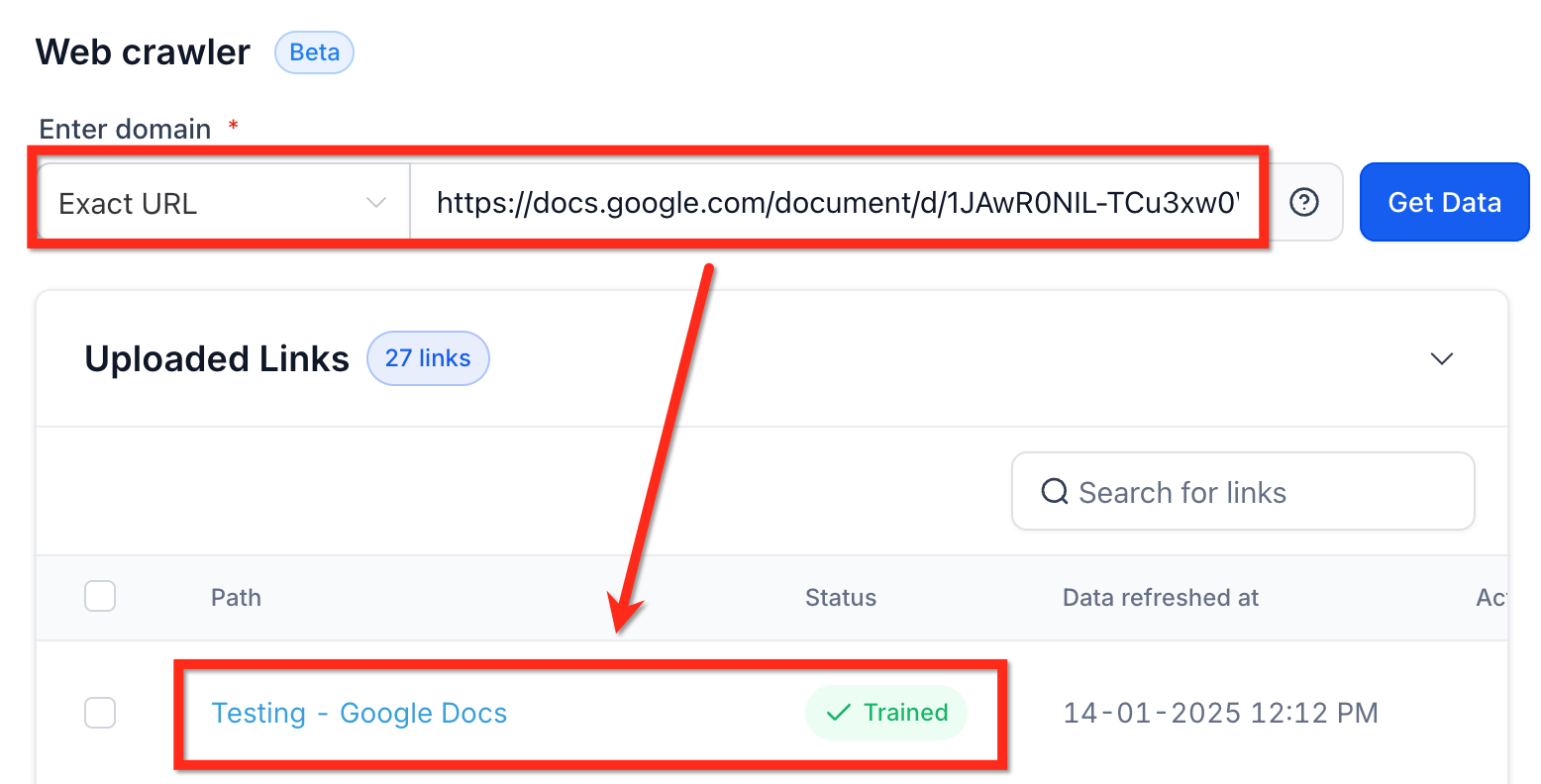
Requirement for using Google Docs: To train your agent with a Google Doc, the doc must be set to Public so that anyone with the link can view it:
Open your Google Doc.
Click the Share button in the top-right corner.
Under General Access, select Anyone with the Link.
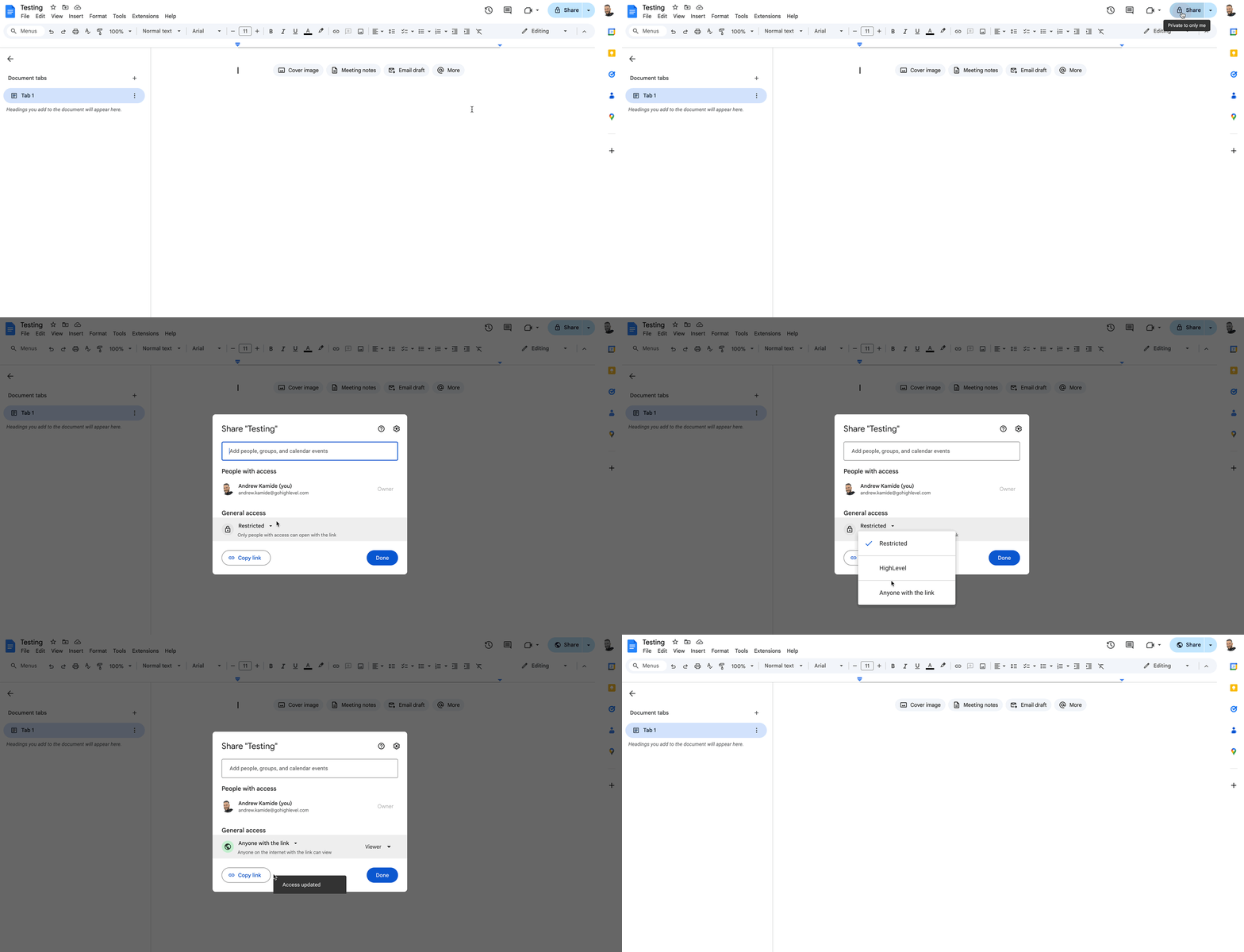
If you do not change the share setting, you will see an error message when you try to add the doc.
When you add a website as a training source, your agent crawls and extracts content from the pages you provide. Reviewing and editing that crawled content lets you keep responses accurate, relevant, and aligned with your current business information, without changing your live website.
Website pages can include outdated details, irrelevant text, formatting issues, or missing context, so reviewing crawled content gives you more control over the information your AI agent uses.
Consider editing crawled content when you notice:
Old pricing, expired offers, or outdated promotions
Incorrect business hours, locations, or service details
Website copy that is too broad, vague, or unclear
Duplicate content from headers, footers, menus, or repeated page sections
Missing context that would help the agent answer customer questions
Content that should stay on your website but should not be used by the AI agent
Editing crawled content updates the source content available to your agent. It does not update or publish changes to your live website.
Edited website sources are marked so you can tell when content was manually changed after the original crawl. This helps you track which sources contain custom edits and which still reflect the original crawled data. Use the edited indicator to review important sources, especially those with manually revised service details, pricing explanations, or policy language, before refreshing or re-crawling them.
Refreshing or re-crawling a website source retrieves the latest content directly from the website. This is useful when your live site has been updated and you want the agent to use newer information. Keep in mind that refreshing may overwrite previously edited content and replace it with newly crawled data.
Auto Refresh can also re-crawl and retrain web URL sources on a daily, weekly, or monthly cadence. Use this carefully for sources that require manual edits, since scheduled refreshes are designed to keep your Knowledge Base synced with the latest website content.
Navigate to your Conversational AI Bot Training or Knowledge Base settings.
Locate the website URL in the list of imported Web Crawler sources.
Click the content review icon next to the website entry.
Review the extracted website content.
Remove outdated, irrelevant, duplicated, or unclear information.
Add missing context where needed so the content is easier for the agent to use.
Save your changes.
Confirm the website source shows an edited indicator, if available.
Test your Conversational AI with customer-style questions to confirm the updated content is being used as expected.
Once saved, the updated content becomes available for your agent to use when generating responses.
Custom Bot Responses let you define exact answers for frequently asked questions. These ensure the agent delivers consistent, accurate information, especially for critical questions like policies, pricing, or booking instructions.
Tips and best practices for FAQs:
Keep answers concise and to the point.
Anticipate variations of commonly asked questions.
Regularly update responses to match changing customer needs.
There are two ways to add new Custom Bot Responses to your training data: adding FAQs manually, or giving feedback on the agent's responses in conversations.
Adding FAQs manually:
Click the + Add Q&A button.
Enter the question and define the exact response.
Save the response for future use.
AI conversation feedback:
Give feedback during live conversations or from within your AI test environment using the thumbs-up or thumbs-down options under agent-generated responses.
This feedback refines the agent's future replies.
Beyond the web crawler and FAQs, you can add other source types to a Knowledge Base instantly, without retraining from scratch.
Step 1: Create or open a Knowledge Base
Sign in to your account.
From the left-hand menu, click the AI Agents tab.
Click the Knowledge Base tab.
Click + Create Knowledge Base to create a new one, or edit an existing Knowledge Base by clicking its name, or click the three dots and choose Edit.
Step 2: Add knowledge sources
Click the + Add Source button.
Choose the source type you want to add, such as Tables, Rich Text, File Upload, FAQ, Web Crawler, or Web Search, depending on the content you want the AI to use.
Upload tables or files, or add rich text.
Step 3: Attach the Knowledge Base to a Conversational AI agent
In AI Agents, click Conversational AI.
Click the Agent List tab.
To create a new agent, click + Create Bot. (For full setup steps, see the Setting Up Conversational AI guide.)
To edit an existing agent, click its name, or click the three dots and choose Edit.
Click the Bot Training tab.
Under Knowledge Base, select the Knowledge Base you just created or updated, including any new Rich Text, Tables, and File sources.
You can create and manage separate Knowledge Bases for each AI agent, rather than relying on a single shared one. This lets you organize content more efficiently and give each agent bot-specific training, so it delivers more accurate and relevant responses.
For example, if you have Knowledge Bases A, B, and C and two agents named Jane and Parker, you can assign Knowledge Bases A and B to Jane (she is trained only on those) while Parker is trained exclusively on Knowledge Base C. Each agent can serve a different use case or location independently.
To set up and use multiple Knowledge Bases:
Access the Knowledge Base section. Navigate to the Knowledge Base menu item in the left navigation bar. This section houses all of your Knowledge Bases.
Create a new Knowledge Base. Click Create Knowledge Base, enter a name for internal reference, and click Save & Continue. You can create up to 15 Knowledge Bases in total.
Train the Knowledge Base using any of the source types above, such as web URLs, FAQs, tables, rich text, or files.
Attach Knowledge Bases to an agent. Go to the Conversational AI agent section, open Bot Training, and use the Knowledge Base dropdown to choose up to 7 Knowledge Bases to train that agent.
View and manage assigned Knowledge Bases. Assigned Knowledge Bases appear as tabs within the agent settings. You can also create a new Knowledge Base on the fly by clicking Create New.
Note: The default Knowledge Base used by your workflow bots cannot be deleted.
When a customer asks a question, your agent retrieves the most relevant content from your Knowledge Bases before generating a response. A lightweight re-ranking layer sits between search and answer generation: after the initial search returns potential matches, the re-ranker scores each chunk for how closely it matches the question and sends only the top passages to the AI. The result is fewer hallucinations and tighter, on-topic replies.
Benefits of these retrieval upgrades include:
Higher answer accuracy: Automatic re-ranking ensures the most relevant information is retrieved first.
Faster rollout: Add or replace data sources instantly without retraining from scratch.
Flexible training: Support for spreadsheets, rich-text documents, PDFs, and more expands what your AI can learn from.
Total transparency: Every response includes clickable source links so you can see exactly what informed each answer.
Before relying on new content in live conversations, confirm your agent is retrieving the right sources.
Go to AI Agents → Knowledge Base and open the Knowledge Base you want to test.
Wait for newly added or updated content to finish processing or indexing.
Open the Knowledge Base Retrieval Tester.
Enter realistic, customer-style questions.
Review the answer and the retrieved sources.
Update your Knowledge Base if sources are missing, incomplete, outdated, or irrelevant.
Retest the same question to confirm the correct content is retrieved.
Once retrieval looks correct, test the full Conversational AI experience from the agent testing window.
Every AI response inside the Inbox shows an AI Response Info option. Open it to see exactly what informed the answer, including:
The exact knowledge chunk or chunks used (up to three per answer).
The file or URL name, FAQ label, and timestamp.
Quick-edit options to correct or replace the source on the fly.
This is the best tool for troubleshooting a specific reply. It shows the prompts, intents, actions, and data sources that contributed to a response, and where available, it lets you edit Knowledge Base entries such as FAQs or website data directly from the conversation view.
To inspect a reply:
From your dashboard, go to the Inbox.
Open a conversation where your AI agent posted a reply.
Next to that AI message, click the AI Response Info button.
Open Knowledge Chunks to see the chunks used for that answer.
How often should I update my agent's training data?
Updating quarterly, or after major changes to your services, keeps your content accurate and relevant.
Can I use multiple URLs to train my agent?
Yes. Combining exact URLs, path-specific URLs, and domain-level URLs helps build a comprehensive knowledge base. You can train up to 4,000 web URLs in a single Knowledge Base.
Do I need to retrain the agent after adding a file, table, or other source?
No. Once the source is saved and processing is complete, the Knowledge Base can retrieve the updated content. For best results, use the Knowledge Base Retrieval Tester to confirm the new source is being retrieved before relying on it in live conversations.
What file types are supported?
PDF, DOC/DOCX, PPT/PPTX, TXT, and CSV (for tables).
What is the maximum number of columns in a table?
You can import CSV files with up to 500 columns and select the 20 most relevant columns.
Can I combine tables, rich text, and URLs in one Knowledge Base?
Absolutely. The retrieval pipeline treats every chunk equally, then re-ranks for the best match.
How do I ensure my agent's responses are accurate?
Use the feedback mechanism, test your agent frequently by simulating customer questions, and keep your FAQs up to date.
What happens if my agent cannot answer a question?
Depending on its settings, the agent can ask for clarification or escalate the question to a human team member.
What types of information work best for Custom Bot Responses?
Precise, critical information such as pricing, policies, or instructions works best for addressing common customer needs.
Can the crawler read interactive or hidden content?
Yes. The Enhanced Web Crawler expands accordions, navigates tabs, and reveals lazy-loaded or hidden sections to capture full testimonials and detailed service information.
Will the crawler click checkout buttons or submit forms?
No. The safe-interaction engine ignores form elements, so no accidental submissions occur.
What happens if the crawler can't reach a section behind a login?
The interaction engine only works with publicly accessible content. Private or login-gated data will not be crawled.
Does editing crawled website content change my live website?
No. Editing crawled content only updates the source content available to your agent. It does not change, publish, or edit your live website.
When should I edit crawled content instead of updating my website?
Edit crawled content when your live website is correct for visitors but needs cleanup for AI responses. Update your website when the public page itself contains incorrect or outdated information.
Will refreshing a website source remove my manual edits?
It may. Refreshing or re-crawling can overwrite previously edited content with newly crawled data, so review and copy important manual edits before refreshing.
Can I undo edits after saving?
There may not be a one-click undo. You can manually re-edit the content, or refresh or re-crawl the source to retrieve updated content from the live website (keeping in mind that refreshing may replace manual edits).
How do I know which website content was used in a specific AI response?
Use AI Response Info in the Inbox to view source details for an AI-generated message, including Knowledge Chunks and FAQs.
