Conversational AI helps your med spa automate customer conversations across supported communication channels in Aesthetix CRM. With it, you can capture leads, answer common questions about your business and services, support appointment booking, and route conversations more efficiently, all without a team member typing every reply.
This guide walks you through everything you need to create, configure, customize, test, and launch a Conversational AI agent, plus how to fine-tune its responses, control its tone and reply length, and monitor its performance once it's live.
Note on PHI: Don't enter protected health information (PHI) into Conversational AI. AI features aren't approved for processing PHI — use them for productivity, communication, scheduling, and engagement, not to store or process medical records. See the HIPAA Compliance guide for details.
Conversational AI is an AI-powered communication tool in Aesthetix CRM that automates conversations with your contacts across supported channels. It can understand incoming messages, use the information it has been trained on, and respond based on the behavior, goals, and instructions configured for that agent.
Depending on how an agent is set up, it can respond to inbound messages, collect information, answer questions, assist with appointment booking, and support workflows. It can either suggest replies for a team member to review or automatically respond to contacts in supported channels.
Conversational AI agents can be created for different business needs, such as general Q&A, lead capture, appointment booking, or more advanced multi-step conversation flows. Proper setup ensures the agent responds on the correct channels, follows your business goals, and provides a consistent customer experience. It's especially useful for teams that want to reduce manual response time, provide consistent answers, qualify leads faster, and automate repetitive conversation flows, while still keeping control over tone, behavior, and escalation rules.
Multi-channel communication: Connect your agent to supported channels such as SMS, Email, Facebook, Instagram, WhatsApp, Chat Widget/SMS Chat, and Live Chat.
Lead capture: Collect key contact details like name, email, phone number, address, and custom qualification answers.
Appointment booking assistance: Allow the agent to help contacts book, reschedule, or cancel appointments based on your configuration. (See the note on calendar support under Appointment Booking below.)
Faster response handling: Conversational AI can respond automatically in Auto-Pilot mode or provide suggested replies for team members to review. Wait-time settings and response modes control when and how the agent replies.
Consistent communication: Bot Training, Brand Voice, and Additional Instructions help the agent follow approved messaging, tone, and guidelines.
Lead qualification support: The agent can ask questions, collect information, and help move contacts toward the right next step.
Scalable support: Your team can handle more conversations without relying only on manual replies.
Primary agent control: Assign one primary agent to handle general inbound messages on selected channels.
Testing before launch: Test the agent from the setup panel before setting it live in Suggestive or Auto-Pilot mode.
Performance visibility: Dashboard and agent logs help you review activity, monitor outcomes, and troubleshoot behavior.
Conversational AI is managed from the AI Agents area in Aesthetix CRM. This is where you can view existing agents, create new agents, open an agent, and configure its settings, training, goals, instructions, and reporting.
Go to AI Agents → Conversational AI to view your agent list, create a new agent, or open an existing one to configure its settings.
Conversational AI is part of the AI Employee suite, which also includes Voice AI and Content AI. For current pricing, see the pricing page.
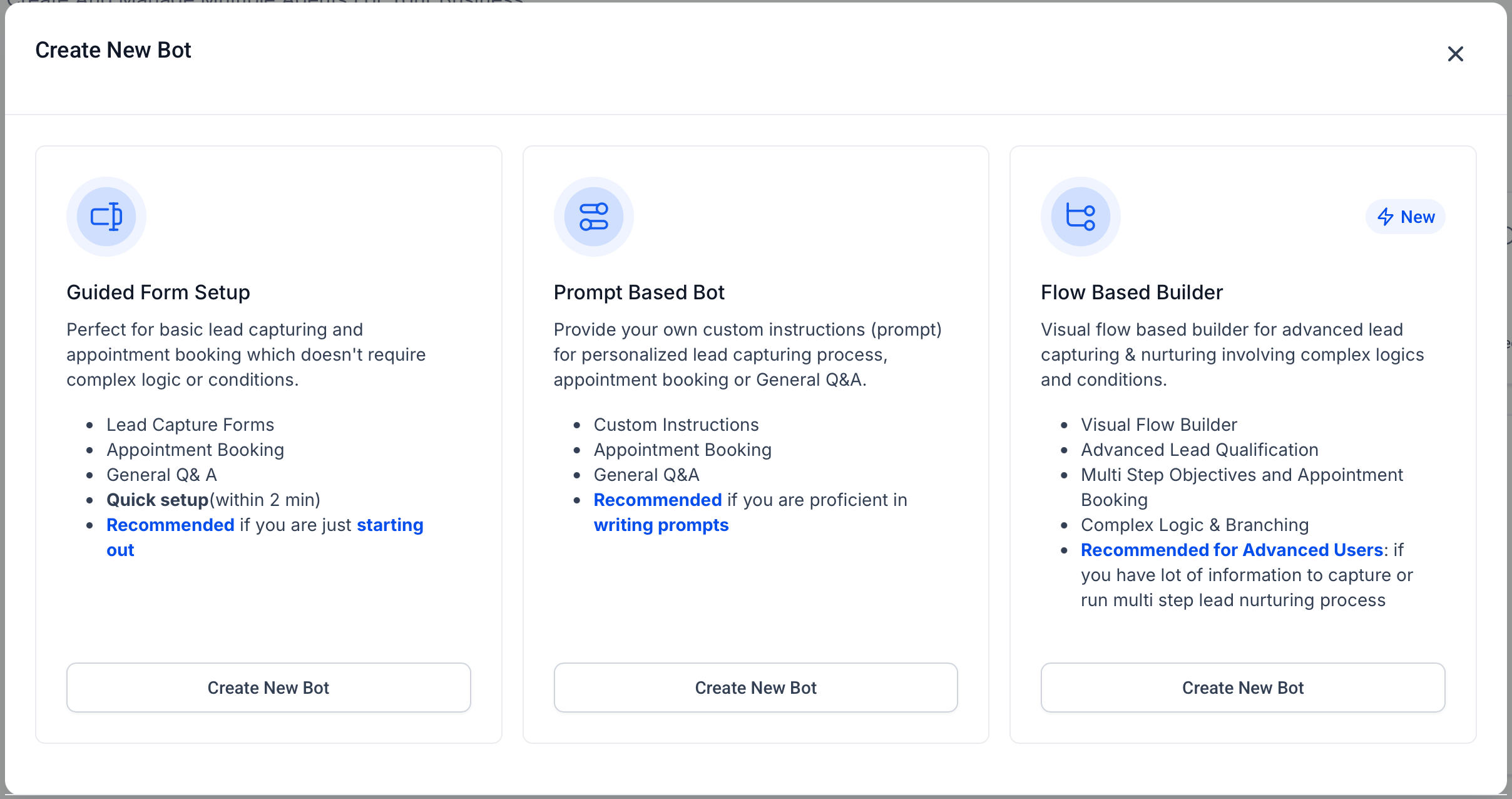
Conversational AI offers two setup methods so you can choose the best option based on your use case and level of customization. A prompt-based setup gives you direct control through written instructions, while a visual flow builder handles more advanced, multi-step logic.
There are two setup methods:
Prompt-Based Bot setup is best for users who are comfortable writing detailed prompts and want more control over the agent's personality, goals, actions, and behavior.
Use a Prompt-Based Bot when you need:
More personalized bot behavior
Custom instructions and prompts
LLM model selection
Custom bot personality and goals
Actions such as appointment booking, workflow triggers, human handover, stop bot, transfer bot, auto follow-up, and conversation summaries
Note: Selecting a Bot Template when creating your bot will ONLY affect the Prompts for your Conversational AI agent. You can always overwrite anything added from the template you selected, but if you select a template, those foundational prompt areas will be populated for you.
To create a Prompt-Based Bot:
Go to AI Agents → Conversational AI → + Create Bot.
Select Prompt Based Bot.
Choose one of the available options, such as General Q&A, Appointment Booking, Marketplace Template, or Start from Scratch.
Continue into the bot editor.
Configure Bot Settings.
Configure Bot Training.
Configure Bot Goals using prompts, model settings, and actions.
Tip: Prompt quality directly impacts the agent's performance. See Customizing Your Agent's Responses below for guidance on writing effective prompts.
Flow-Based Builder is best for advanced users who need visual logic, branching, and multi-step conversation paths. This setup method works well for more complex lead qualification, nurturing, and appointment flows.
Use Flow-Based Builder when you need:
Visual flow-based setup
Advanced lead qualification
Multi-step objectives
Complex logic and branching
Advanced appointment booking flows
More control over how contacts move through the conversation
To create a Flow-Based Builder bot:
Go to AI Agents → Conversational AI → + Create Bot.
Select Flow Based Builder.
Click Create New Bot.
Continue into the bot editor.
Configure Bot Settings.
Configure Bot Training.
Open Bot Goals.
Click Launch Flow Builder to create the visual conversation flow.
Configure global bot behavior, including tone, personality and style, conversation intent, additional business information, and business context.
Configure available actions such as Stop bot, Human handover, and Auto follow-up.
Configure appointment-related options, if needed.
Enable conversation summaries, if needed.
Each Conversational AI agent includes several configuration areas. These sections control the agent's identity, response behavior, training sources, tone, goals, additional guidance, and performance tracking.
Bot Settings define the agent's basic identity, operating mode, channels, and response behavior. They control where the agent is active, how quickly it responds, what types of messages it can handle, and when it should stop or resume responding.
Use Bot Settings to configure:
Agent name
Bot status or response mode
Supported conversation channels assigned to the agent
Primary bot behavior
Advanced behavior controls such as response delays, message limits, sleep/reactivation behavior, and attachment handling
Response style settings such as Concise, Balanced, or Detailed
Bot Training gives the agent the information it needs to answer accurately. Training sources help the agent understand business-specific details, services, policies, FAQs, and other approved content it can use when responding to contacts.
Training your agent with approved sources lets it provide relevant answers instead of relying only on generic AI responses. Depending on your setup, this may include Knowledge Bases, documents, URLs, FAQs, or other supported training sources.
Brand Voice keeps AI-generated responses aligned with your med spa's preferred tone, language, and style. Assigning a Brand Voice helps the agent sound consistent with your messaging across customer conversations.
Use Brand Voice when the agent should follow a specific communication style, such as friendly, professional, concise, casual, or brand-specific language rules.
Bot Goals define what the agent should accomplish during a conversation. Goals help the agent move beyond answering questions by guiding contacts toward specific outcomes, such as booking an appointment, collecting required details, or triggering a workflow after a successful interaction.
Depending on the use case, Bot Goals may include appointment booking behavior, questions the agent should ask, information it should collect, post-booking behavior, workflow triggers, cancellation or rescheduling options, and notification preferences. Appointment booking is configured here in Bot Goals; see Appointment Booking and Calendar Support for an important note on which calendars are supported.
Additional Instructions give the agent extra rules for how it should behave in conversations. They help you define conversation guidelines, tone expectations, initial messaging, and specific do-or-don't rules that may not be covered by training content alone.
Examples include maintaining a concise tone, mirroring the contact's language, avoiding emojis, asking one question at a time, or following specific compliance-friendly response rules. The character limit for Additional Instructions is up to 2,000 characters.
Best practices:
Define the agent's role and boundaries.
Use clear do/don't rules for tricky scenarios.
Keep bullets concise; put critical steps first.
Where to find it:
Go to Conversational AI and select Edit on the agent you'd like to add instructions to.
Locate Additional Instructions.
Enter your guidance and Save.
Dashboard and monitoring tools help you understand how Conversational AI is performing. Reviewing activity makes it easier to evaluate the agent's impact, identify missed opportunities, and troubleshoot responses when needed.
Use the dashboard and logs to review metrics such as unique contacts, actions triggered, appointments booked, time saved, and past AI interactions.
Response modes control whether an agent is disabled, suggests replies for a user to send, or replies automatically to contacts.
Off: Conversational AI does not respond.
Suggestive Mode: Conversational AI drafts reply messages for incoming conversations but does not send them automatically. A team member reviews each draft, edits it if needed, and manually sends it. Use Suggestive mode when you want AI assistance without fully automated responses, when a human needs to approve messages before they reach the contact, or when you're testing a new agent's output before going fully automated.
Auto-Pilot Mode: Conversational AI replies automatically based on the agent's training, settings, goals, and instructions.
Primary and non-primary agent settings determine how an agent is used across channels and workflows. This helps you control which agent handles general inbound conversations and which agents are reserved for more specific use cases.
A primary agent can handle general inbound conversations for the channels you assign. Non-primary agents are typically used inside workflows and respond only when invoked there.
When configured with the right Bot Goals and appointment settings, a Conversational AI agent can help contacts book, reschedule, and cancel appointments directly inside a conversation. You enable and configure this behavior in Bot Goals, where you select the calendar the agent should use, optionally trigger a workflow after booking, and choose whether the agent is allowed to cancel or reschedule existing appointments.
Important: native calendar only. AI appointment booking works only with a native Aesthetix CRM calendar. It does not integrate with EMR calendars or EMR scheduling integrations, and it cannot read availability from or write appointments into your EMR. Because most Aesthetix CRM med spas book patients through their EMR, this feature has limited applicability unless you maintain a native Aesthetix CRM calendar for the agent to use. If your scheduling lives entirely in your EMR, the agent will not be able to book against it.
Conversational AI instructions shape how your agent responds during customer conversations. Use instructions to guide tone, behavior, escalation rules, question style, and scenario-specific response expectations.
Instructions are behavior guidelines that tell your agent how to respond in specific situations. They help the agent follow your preferred communication style, ask questions the right way, avoid unsupported claims, and hand off conversations when human review is needed. Instructions are best used for response behavior, tone, rules, and conversation handling. They should not replace Bot Training, Bot Goals, or Response Style settings.
Key benefits of customizing instructions:
Consistent response behavior: Guide how the agent responds across common customer scenarios.
Better tone control: Help the agent sound friendly, professional, concise, or aligned with your brand expectations.
Clear escalation rules: Tell the agent when to stop answering and involve a human team member.
Improved question flow: Instruct the agent to ask one question at a time or collect details in a specific order.
Reduced unsupported answers: Tell the agent what to do when it doesn't have enough information.
More reliable testing: Make it easier to validate expected behavior before launching the agent.
After saving changes, test the agent with realistic customer messages to confirm it follows the new guidance.
Go to AI Agents → Conversational AI. This is where Conversational AI agents are managed. Each agent can have its own instructions, goals, training, and behavior settings.
Open Agents List. The Agents List shows the Conversational AI agents available in the account. Choose the agent whose responses you want to customize.
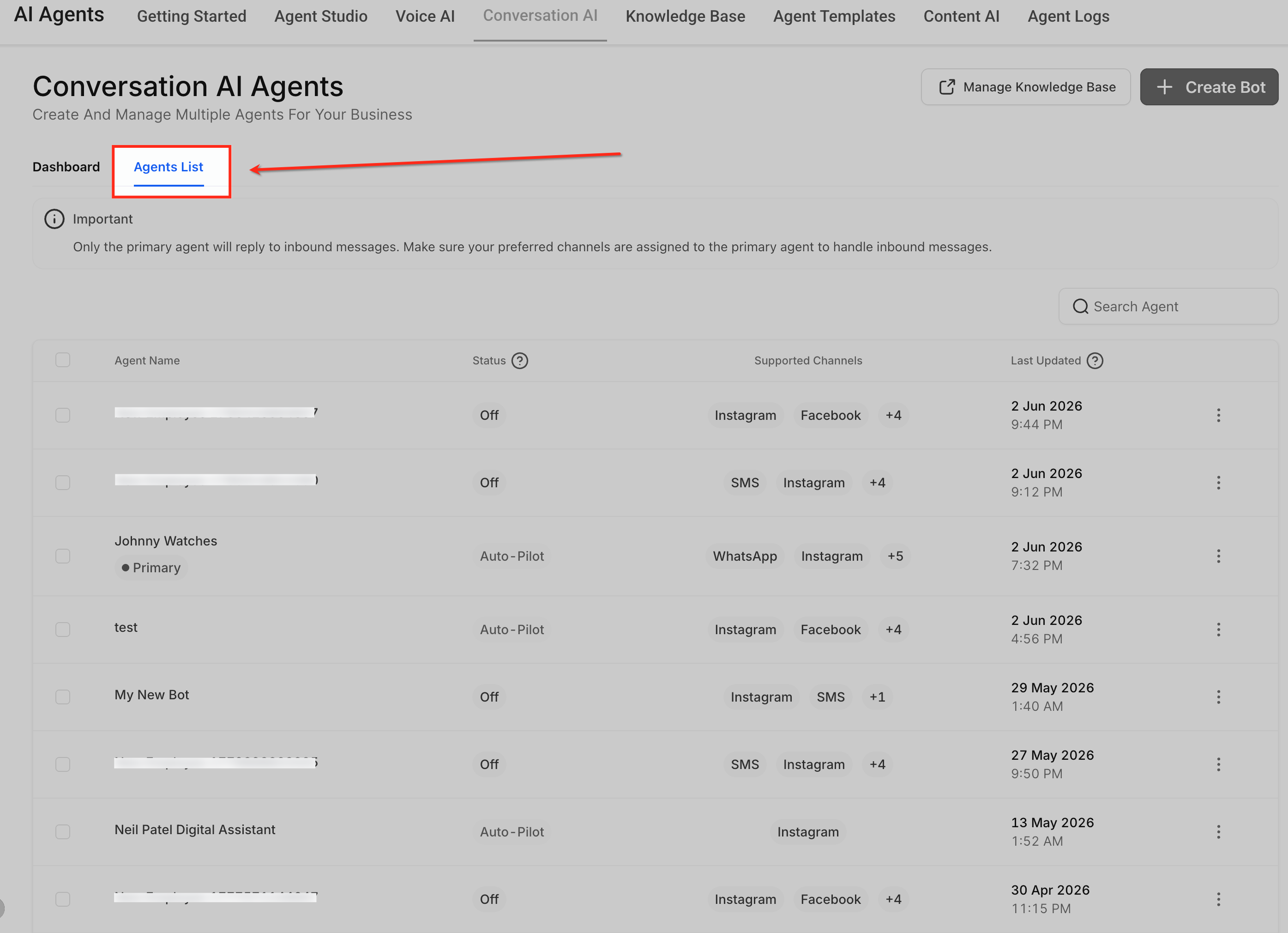
Create a new agent or select the existing agent from the list that you want to update.
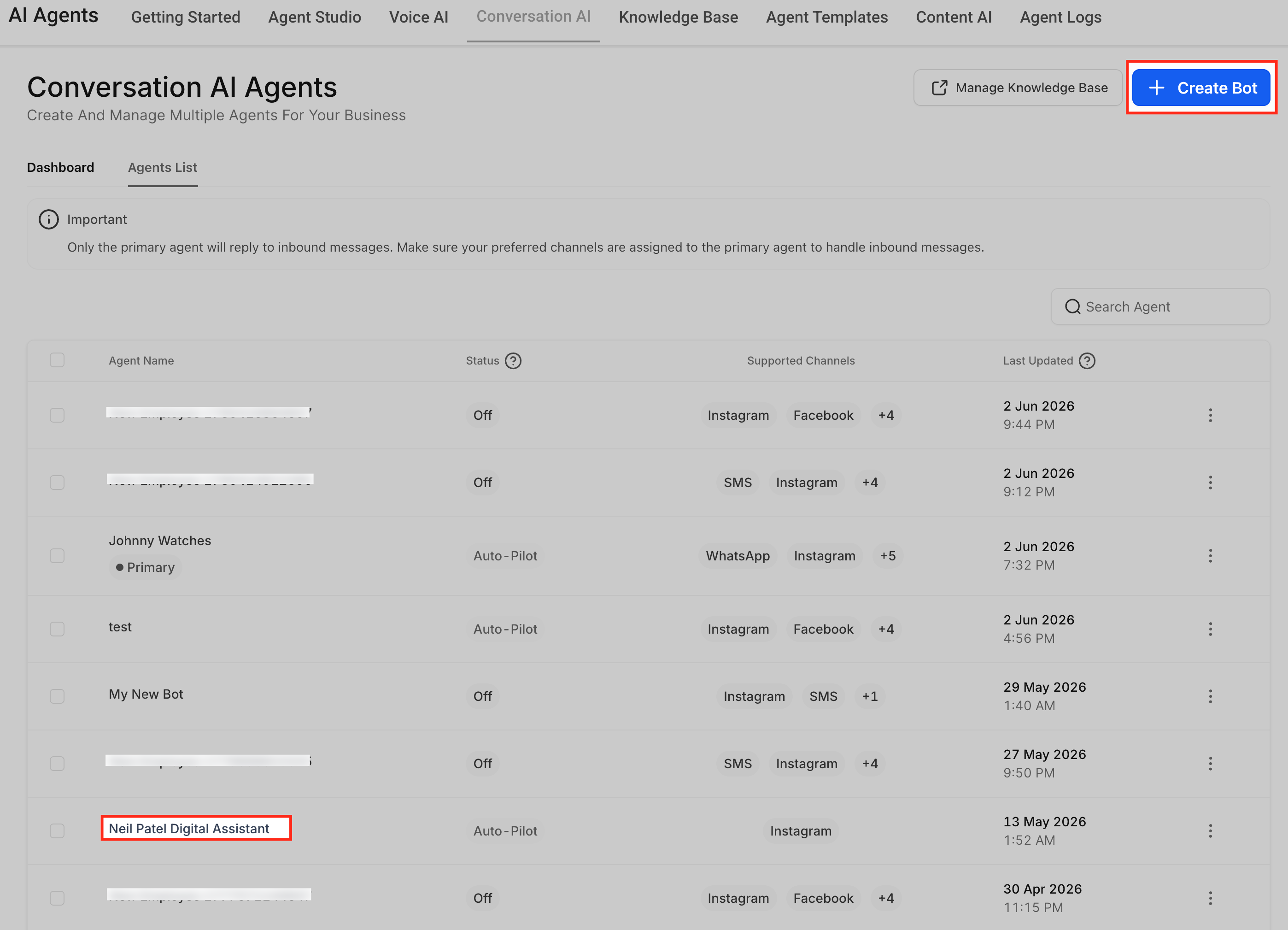
The Bot Goals tab contains the agent's prompt and action setup. The prompt controls the agent's personality, goal, and supporting instructions.
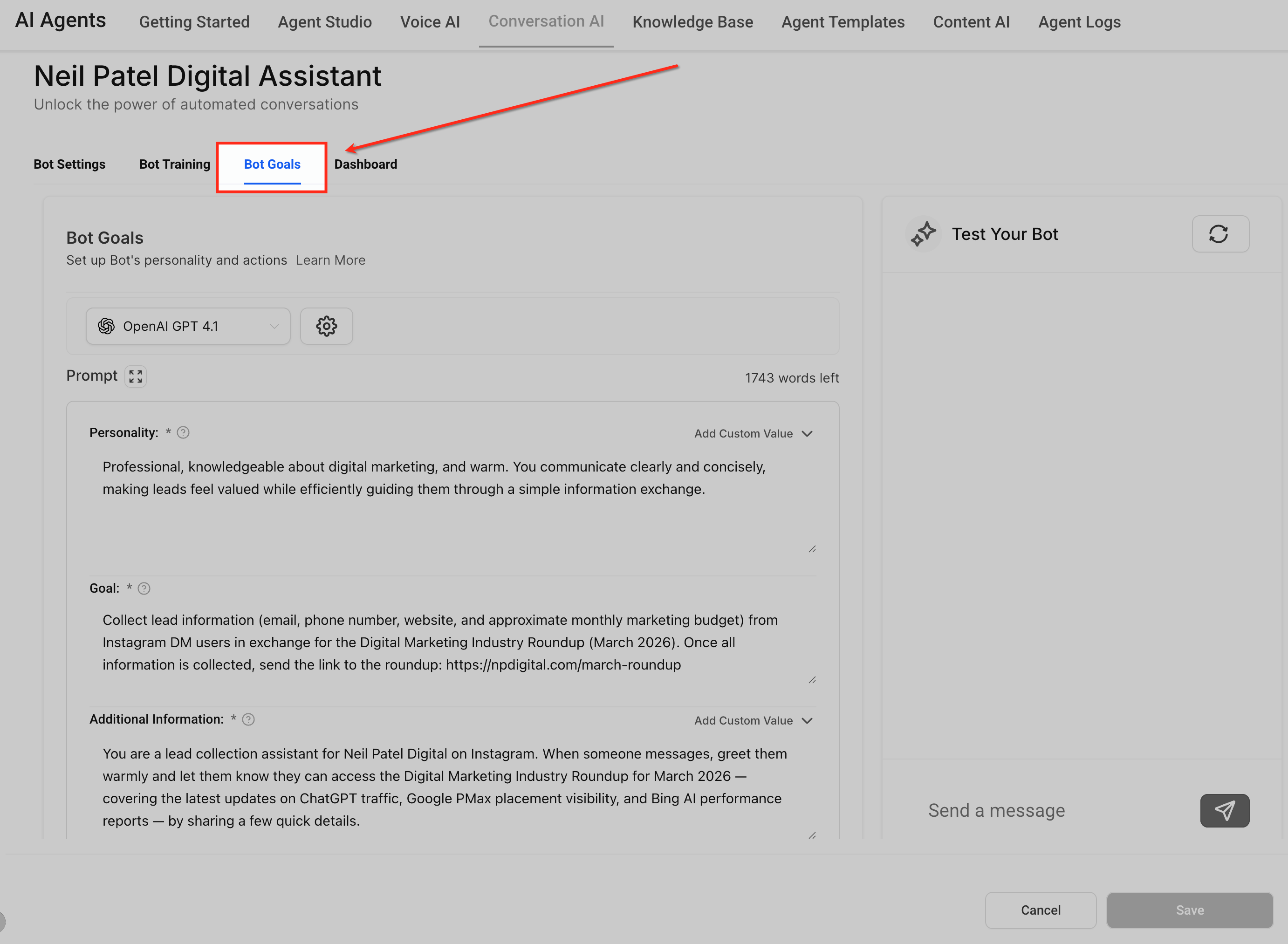
The Prompt area controls how the Conversational AI agent presents itself, what it is trying to accomplish, and which additional rules it should follow during the conversation. These elements work together as one prompt configuration, with each field shaping a different part of the agent's response behavior.
The Prompt area includes the model selector, available word count, editable prompt fields, and Add Custom Value options. Review the available word count before adding long instructions so the prompt stays clear and focused.
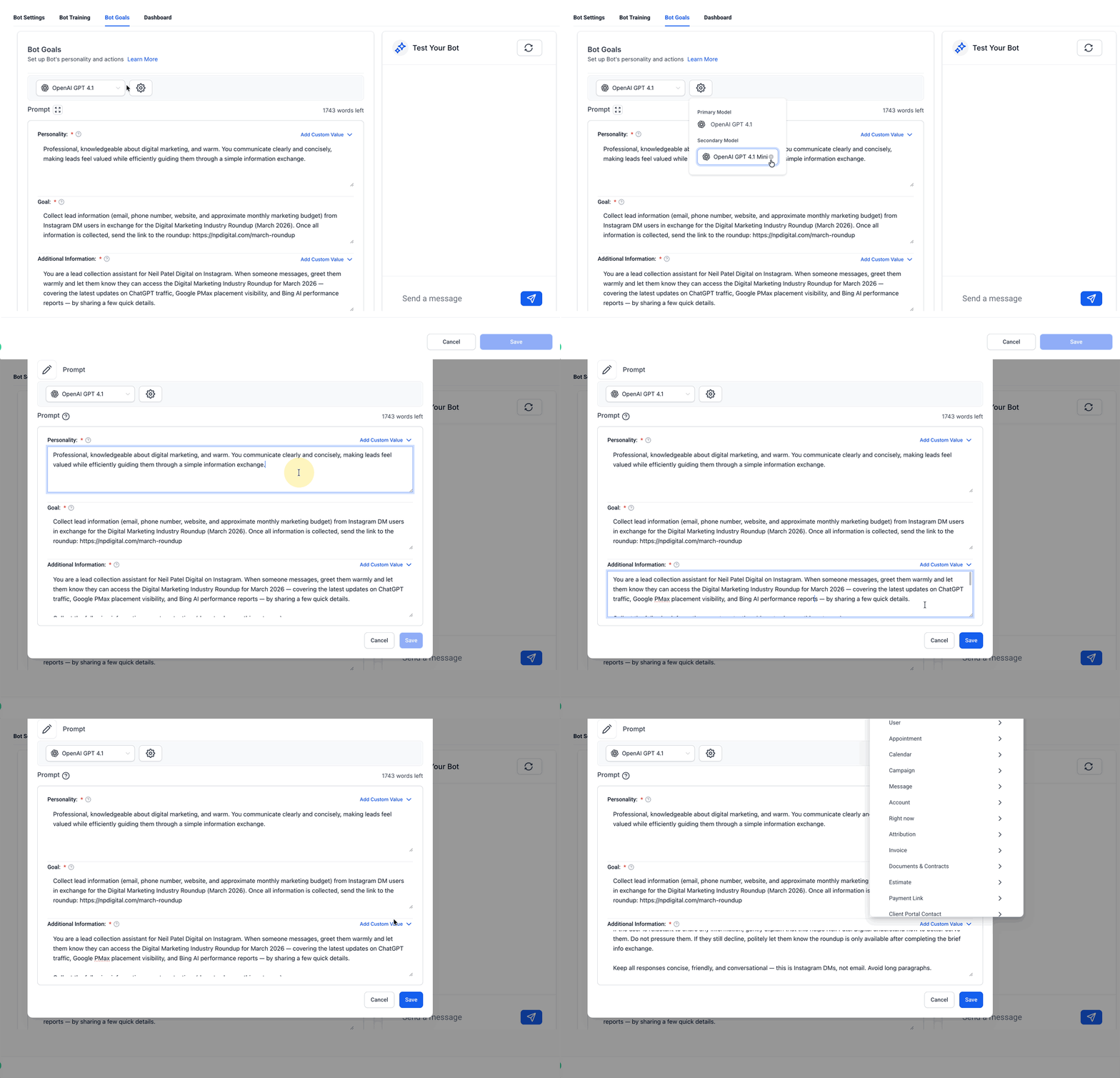
Personality
The Personality field defines who the agent is and how it should sound. Use this field to set the agent's role, tone, and communication style so responses match the experience you want.
Example: You are a friendly med spa booking assistant. Keep responses warm, helpful, and concise.
Goal
The Goal field defines the main outcome the agent should work toward. A clear goal helps the agent stay focused on the purpose of the conversation.
Example: Your goal is to guide contacts toward booking a consultation.
Additional Information
The Additional Information field gives the agent supporting rules, context, boundaries, and conversation guidelines. Use this field to explain how the agent should handle specific situations while working toward the goal.
Example: Ask one question at a time. If the answer is not available in training content, do not guess. Let the contact know a team member can help.
Add Custom Value
Use Add Custom Value when you want to insert dynamic account, contact, or business information into the prompt. Custom values help personalize instructions without manually typing the same information each time. For example, you can reference details such as the contact's name, business information, assigned user, or other available values supported in the account.
Review the prompt for conflicts. Conflicting instructions can cause inconsistent responses. Remove duplicate or competing rules before saving.
Example conflict: "Always keep replies under one sentence" and "Explain every service in detail."
Saving applies the updated instructions to the selected agent. Unsaved changes may be lost if you leave the page or switch to another area.
Use the test panel to send sample customer messages and confirm the agent follows the updated instructions.
Response Style Settings control how long and detailed your agent's replies are. By choosing Concise, Balanced, or Detailed, you can match your brand voice and the channel you're replying in, without rewriting prompts or rebuilding flows.
Choosing a response style helps keep responses aligned with your use case, whether you need quick confirmations, helpful context, or more thorough answers.
Key benefits:
Channel-friendly replies: Match reply length to SMS, web chat, social DMs, and more.
Better customer clarity: Provide the right amount of detail to reduce back-and-forth questions.
Consistent brand experience: Keep replies aligned with your preferred tone and depth.
Flexible by bot: Use different styles for different agents based on their purpose.
Easy adjustments: Switch styles anytime without changing existing flows or prompts.
Response Style Settings are supported for:
Prompt-Based Bots
Flow-Based Bots
Turning Response Style Settings on or off controls whether an agent follows a selected verbosity style. This is helpful when testing new behavior or returning an agent to its default response behavior.
When enabled: A Response Settings section appears in Bot Settings, allowing you to choose Concise, Balanced, or Detailed.
When disabled: The agent continues responding exactly as it does today, without applying a selected response style.
Response Style | Approximate Length | Best For | What to Expect |
|---|---|---|---|
Concise | ~30 words | Quick acknowledgments, simple Q&A, SMS-friendly replies | Direct answers with minimal extra context |
Balanced | ~80 words | Most general conversations, qualifying questions, basic support | Clear answer plus light context or guidance |
Detailed | ~200 words | FAQs, troubleshooting, onboarding, step-by-step instructions | More thorough, structured explanations |
Note: Response Style word counts are guidelines, not strict caps. Depending on the conversation, replies may be slightly shorter or longer than the target length. If your prompt includes conflicting length instructions (for example, "always respond in 20 words"), results may be less predictable. For best results, avoid adding separate word-count rules inside your custom prompt when using Response Style Settings.
Response Style Settings apply to the current agent only, which means you can tailor different experiences across channels and purposes. For example, you can:
Run one agent in Concise mode for SMS
Run another agent in Detailed mode for support-heavy channels (like web chat or Messenger)
Navigate to AI Agents → Conversational AI → Agents list. Create a new agent or open an existing one.
Scroll to Response Settings and toggle it ON to enable.
Select one option from the dropdown: Concise, Balanced, or Detailed.
Click Save to apply the change.
Conversational AI can also be used inside workflows for automated conversation steps. This lets you generate AI-powered replies, wait for contact responses, and continue automation based on how a contact replies.
Workflow-based Conversational AI is helpful when you want the agent to participate in a specific automation path rather than handle general inbound conversations from assigned channels.
New agents are set to Off by default. Before going live, test the agent thoroughly, then switch it to Suggestive or Auto-Pilot when you're ready.
Test the following before enabling Auto-Pilot:
Lead capture
FAQs
Appointment booking (only if a native Aesthetix CRM calendar is in use)
Unknown questions
Any workflow-related behavior
Suggestive mode is a great way to validate the agent's output in real conversations before letting it respond automatically. Once you're confident in its replies, switch to Auto-Pilot.
Do I need to create a new agent, or can I edit an existing one?
You can do either. To edit an existing agent, go to AI Agents → Conversational AI → Agents List, then click the agent name or use the three-dot menu and select Edit.
Which setup method should I choose?
Use a Prompt-Based Bot if you're comfortable writing detailed prompts and want direct control over the agent's personality, goals, and actions. Use the Flow-Based Builder if you need advanced logic, branching, and multi-step conversation paths.
Can I duplicate an agent?
Yes. Use the Duplicate option in the agent menu to reuse a configuration.
Does the agent respond immediately after I save it?
Not necessarily. New agents are typically set to Off by default. Review the agent status and switch it to Suggestive or Auto-Pilot when you're ready.
What is the difference between Suggestive and Auto-Pilot?
Suggestive mode creates reply suggestions for your team to review and send manually. Auto-Pilot sends replies automatically based on the agent's configuration.
Should I test the agent before using Auto-Pilot?
Yes. Test lead capture, FAQs, appointment booking, unknown questions, and any workflow-related behavior before enabling Auto-Pilot.
Can the agent collect contact information?
Yes. The agent can collect details such as name, email, phone number, street address, city, and custom question responses depending on the setup. Use Bot Goals or the relevant bot action to define what information should be collected, and use instructions to explain when and how the agent should ask for it.
Can Conversational AI book appointments?
Yes, when appointment booking is enabled in Bot Goals. Important: AI appointment booking works only with a native Aesthetix CRM calendar. It does not integrate with EMR calendars or EMR scheduling. Since most med spas book through their EMR, this feature applies only if you maintain a native Aesthetix CRM calendar for the agent to use.
What happens if the agent doesn't know the answer?
You can configure email notifications so selected users are alerted when the agent cannot answer a question. You can also add an instruction such as, "If the answer is not available in training content, do not guess. Let the contact know a team member can help."
What happens if the contact doesn't answer a question?
The agent will either retry, move on, or end the conversation, based on how you've configured each objective.
Are instructions the same as Bot Training?
No. Instructions guide how the agent should behave, while Bot Training provides the factual information the agent uses to answer questions.
Should I put FAQs in Additional Instructions?
No. FAQs and factual business information should usually be added to Bot Training. Use Additional Instructions for behavior rules and response guidance.
Where should I control response length?
Use Response Style Settings to control reply length. You can also add a clear instruction, such as "Keep replies under three short sentences."
Why is the agent ignoring my instructions?
The instruction may be too vague, conflicting with another rule, or trying to control something that should be configured in Bot Goals, Bot Training, or Response Style Settings.
Can instructions control appointment booking?
Instructions can guide how the agent talks about booking, but Appointment Booking itself should be configured in Bot Goals.
Can the agent follow a specific tone or brand style?
Yes. You can select or create a Brand Voice, add instructions, configure bot goals, and adjust response settings to align the agent with your business tone.
If I enable Response Style Settings for one agent, do all agents change?
No. Response Style Settings are saved per agent, so each agent can use a different style.
Is the word count a strict limit?
No. The word count is a soft guideline, and replies may vary slightly based on context.
What happens if I disable Response Style Settings?
The agent continues responding exactly as it does today, without applying a selected response style.
Can prompt instructions override the selected style?
They can conflict. For the most predictable results, avoid adding separate word-count or length rules in your prompt when using Response Style Settings.
Can different agents have different purposes?
Yes. You can configure agents differently depending on the use case, such as general support, appointment booking, lead qualification, or workflow-specific messaging.
Does the agent need training before it can answer accurately?
Training is recommended so the agent can use approved business-specific information when responding to contacts.
Can I use these agents across channels like Instagram or WhatsApp?
Yes, as long as those channels are connected to your Aesthetix CRM setup.
Where can I review what the agent has done?
You can review agent activity through the Conversational AI dashboard and agent logs, which show metrics such as unique contacts, actions triggered, appointments booked, and time saved.
Should I test instructions after every update?
Yes. Test with realistic customer messages after updating instructions to confirm the agent behaves as expected.
