Inbox SLAs (Service Level Agreements) help your practice maintain consistent response times so no patient message slips through the cracks. This article covers how to set up SLA timers in your inbox, how the timers behave, and how to track team performance against your response-time goals.
SLAs are supported on the new Inbox layout. If you don't see SLA settings, your account may still be on the legacy inbox layout. Contact support to confirm your setup.
An Inbox SLA is a response-time goal that counts down on each incoming conversation in your inbox. The timer starts when a new patient message arrives, then changes color (grey, orange, or red) as the deadline approaches. This gives your front desk and patient coordinators a real-time visual cue to reply before the SLA is missed.
Faster replies: Your team always knows how much time is left to respond to a patient.
Smarter prioritization: Color-coded timers surface the most urgent threads first, so consultation requests and post-op questions don't wait.
Channel flexibility: Set one universal SLA, or create different targets for Email, SMS, Facebook, WhatsApp, and other channels.
Accountability and reporting: Managers can filter, sort, and report on SLA performance to spot coaching opportunities and coverage gaps.
Open the Inbox module in your account.
In the top tab bar, click Settings.
Toggle on SLA Settings.
This opens the controls that define how response-time targets apply across channels and how the timers appear in your inbox.
Under "How should SLAs apply across channels?", choose one of the following:
Common SLA: Apply the same rule to every channel. Example: every conversation, whether it comes from Email, SMS, or Facebook, must be answered within 1 hour.
Channel Specific SLA: Set a different target for each channel. Example: SMS replies must go out within 15 minutes, while Email replies can take up to 2 hours.
Under Define SLA Targets, set the two thresholds that drive the timer. Each has a number field and a unit (Mins, Hours):
SLA Due Soon: The warning window before a breach. When a conversation enters this window, the timer turns orange.
SLA Overdue: The maximum time allowed to respond before the SLA is considered missed. Once breached, the timer turns red.
Under How should automation (workflows) messages affect SLA?, choose whether automated messages sent through workflows count as a valid response that stops the timer:
Count all automation messages as a valid response (stop SLA timer) – the timer stops whenever a workflow sends a message.
Count none of the automation messages as a valid response (continue SLA timer until a human responds) – the timer keeps running until a team member replies.
Count messages only from selected workflows as a valid response – pick which workflows can stop the timer while others cannot.
This matters for med spas running automated appointment reminders or confirmation sequences. If you don't want an automated reminder to "close out" a patient who still needs a real answer, choose not to count automation messages, or limit which workflows count.
Under How should Conversations AI Agents messages affect SLA?, choose how replies from your AI Agent impact the timer:
Count AI replies as a valid response (stop SLA timer) – the timer stops when the AI Agent responds.
Don't count AI replies as a valid response (keep SLA timer running until a human responds) – the timer keeps running until a human replies.
Click Save. From this point on, all new incoming patient messages automatically get SLA timers based on your setup. Conversations that were already open continue to follow whatever rules were active before the change.
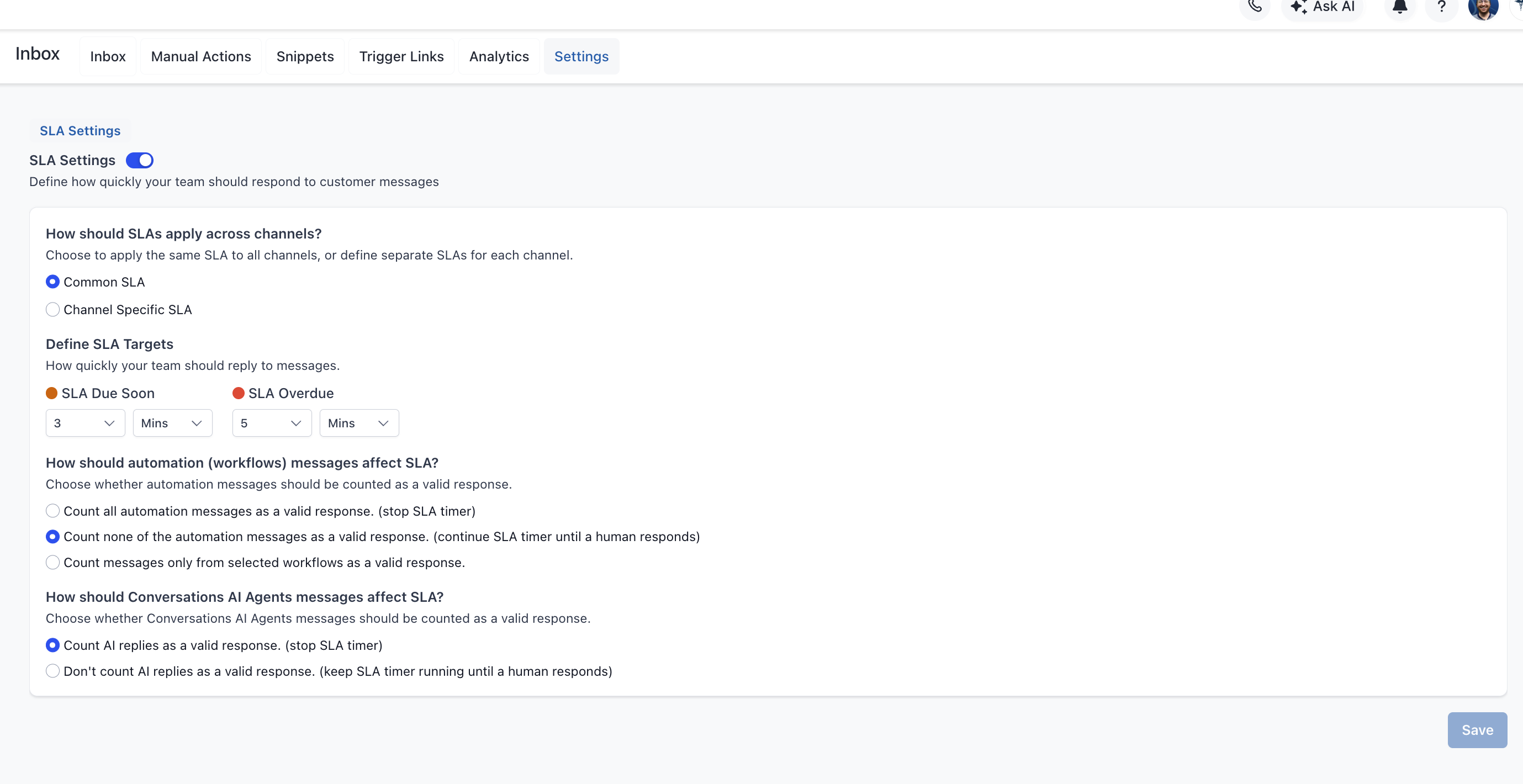
If you're not sure where to start, this is the configuration we set up for most practices:
Apply across channels: Common SLA
SLA Due Soon: 3 minutes
SLA Overdue: 5 minutes
Automation messages: Count none as a valid response (the timer keeps running until a human replies)
AI Agent messages: Count AI replies as a valid response (the timer stops when the AI Agent responds)
These defaults keep the pressure on a real person to respond quickly to patients, while still letting an active AI Agent satisfy the SLA when it's handling the conversation. Adjust the timing up if a 5-minute target is too aggressive for your team's staffing, and switch automation to "count selected workflows" if you have a specific sequence that should count as a genuine reply.
When a new patient message arrives, an SLA timer appears in the conversation list panel on the left side of your inbox. The timer shows how much time is left to respond and changes color based on its state. It disappears once an agent replies or manually marks the conversation as read.
State | Color | What It Means |
Active | Grey | On track and within the allowed time. |
Due Soon | Orange | Approaching the response deadline. |
Overdue | Red | The SLA time has been exceeded. |
If a patient sends several messages in a row, the timer runs from the oldest unanswered message. This keeps the response time honest: it reflects how long the patient has actually been waiting, not when their most recent follow-up came in.
To help your team manage their workload, the inbox includes SLA-based filters and sorting:
Filter by SLA status: View only Active, Due Soon, or Overdue conversations.
Sort by SLA: Organize conversations by Longest Overdue or Next SLA Target.
Beyond the live timers, your account includes an SLA Performance Dashboard that measures how consistently your team is meeting response-time goals. It gives administrators a single view of SLA adherence, response speed, and performance across users and channels, which makes it easier to spot delays and support faster, more consistent patient communication.
Confirm that Inbox SLAs are already configured (see the setup steps above).
Navigate to Inbox → Analytics → SLA Performance.
Select a reporting time range, then review the overview metrics: start with SLA Met %, SLA Breached %, and Average Response Time before drilling into detail.
Review user-level and channel-level performance to see where delays happen and where coaching or coverage adjustments may help.
Metric | What It Measures |
SLA Met % | The percentage of messages answered within the SLA time. If SLA applied to 100 messages and 60 got a reply before the SLA expired, SLA Met % is 60%. Messages where the SLA is still active (neither met nor breached) are excluded. |
SLA Breached % | The percentage of messages not answered within the SLA time. Only messages with a determined outcome (met or breached) are included. |
Average Response Time | The average time taken to respond, across messages that received a reply and have a completed SLA evaluation. |
SLA Met Messages | The total count of messages answered within the SLA time. |
SLA Breached Messages | The total count of messages that were not answered before the SLA time expired. |
SLA Tracked Messages | The total count of messages where SLA was applied and the outcome was determined (met or breached). Still-active messages are not included. |
The dashboard breaks performance down by team member and by channel, so you can move from general reporting to specific action. These views help you:
Recognize team members who consistently meet SLA expectations.
Identify staff who may need coaching or workload support.
Compare response performance across channels.
Spot patterns that may call for workflow or staffing changes (for example, an SMS channel that consistently runs behind during peak booking hours).
A few rules govern how the dashboard counts data:
Only messages with a completed SLA evaluation (met or breached) are included.
Conversations marked as read without a reply are excluded.
SLA performance is attributed to the user assigned at the time of evaluation.
Only administrators can access SLA Performance reports.
Will SLAs apply to conversations that were already open before I enabled them?
No. SLAs apply only to new incoming messages created after the feature is turned on. Existing conversations continue without SLA tracking.
What happens if I disable SLAs?
Conversations already running keep their current SLA timers, but new messages will no longer have SLAs applied. You can re-enable SLAs anytime from the SLA Settings tab.
Do automated or AI replies stop the SLA timer?
Only if you configure them to. Each is a separate setting: one for automation (workflow) messages and one for Conversations AI Agent messages. In our recommended default setup, automation messages do not stop the timer (a human still has to reply), while AI replies do stop the timer. You can change both in the SLA Settings tab.
Does SLA tracking respect business hours?
Not currently. SLAs are based on calendar hours, so a message that arrives overnight keeps counting down. Business-hours support is planned for a future update. Keep this in mind when setting overnight or weekend targets.
Can I set different SLAs for each channel?
Yes. Use a Common SLA for all channels, or define Channel-Specific SLAs to set different targets per channel.
How will my team know a conversation is overdue?
The timer in the conversation list changes color: Grey (Active), Orange (Due Soon), and Red (Overdue).
Do SLAs apply to internal team messages or comments?
No. SLAs apply only to patient conversations, not to internal notes or team comments.
If a patient sends multiple messages, how is the timer calculated?
The timer runs from the oldest unanswered message, so the response time reflects how long the patient has actually been waiting.
Who can see the SLA Performance Dashboard?
Only administrators. Front desk and coordinator users see the live timers in the inbox but not the reporting dashboard.
How is performance assigned when more than one team member works a conversation? Performance is attributed to the user assigned to the conversation at the time of evaluation.
Why are some conversations missing from the dashboard?
The dashboard only counts messages with a determined outcome (met or breached). Conversations that are still active, or that were marked as read without a reply, are excluded.
