Ticketing AI helps staff catch up on a ticket, prepare a suggested reply, or improve wording they already wrote. You will find the controls in the ticket's top panel and reply editor, and the knowledge base connection in Tickets > Settings > Knowledge base. Staff always review the content before anything is sent.
HIPAA caution: AI features are not approved for processing protected health information (PHI). Ticket summaries and suggested replies read the ticket's messages, so avoid using them on tickets that contain patient health details, and do not put PHI into the knowledge bases you connect. Keep clinical details in your EMR, and use AI for administrative requests such as billing, scheduling help, and general questions.
Tool | When to use it | Where to find it |
|---|---|---|
Summarize with AI | You need a short account of the request, work done, and what is pending. | Ticket top panel. |
Suggest reply | You want a proposed response based on the ticket and support context. | Reply editor AI controls. Use More AI options when shown. |
Polish my reply | You already wrote a draft and want better wording. | Reply editor. |
Knowledge base | You want suggested replies to use selected knowledge bases. | Tickets > Settings > Knowledge base. |
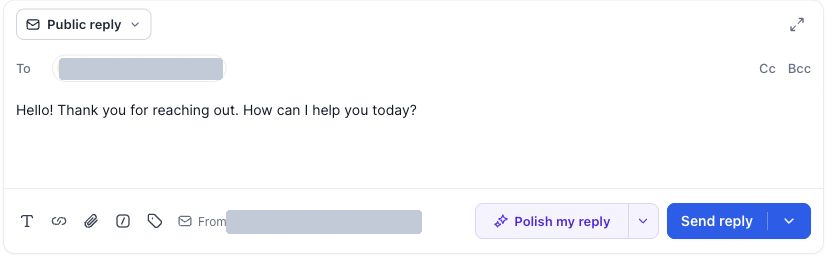
Available controls depend on the ticket state, configuration, and whether there is enough context. When the editor already has a draft, Polish my reply can be the main action and Suggest reply sits in the adjacent menu.
Open the ticket.
Select Summarize with AI in the top panel.
Read the summary card in the main area.
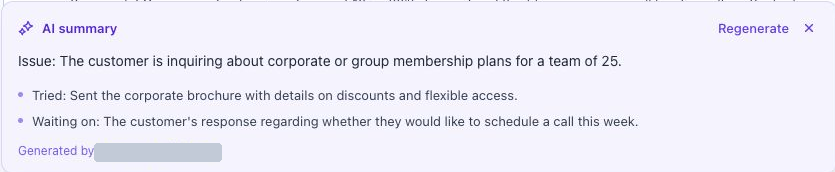
Compare it with the actual messages before deciding anything.
Select Regenerate for a refreshed summary, or dismiss the card when finished.
A summary can state the issue, what has been tried, and what the ticket is waiting on. If the history is too short, review the ticket directly and try again later.
Open the ticket and read the latest customer message.
Use the public reply editor.
Select Suggest reply. If Polish my reply is the main control, open More AI options to find it.
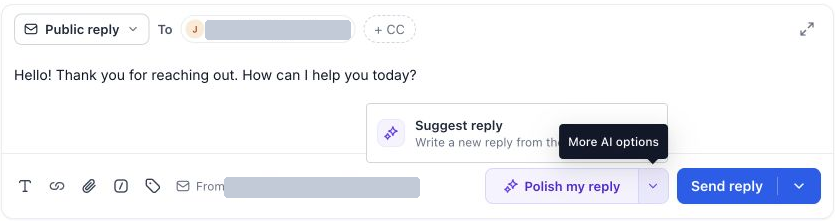
Wait for the suggested-reply card to finish.
Check names, facts, instructions, and commitments in the proposal.
Select Insert into reply to use it, Regenerate for another, or Dismiss to discard.
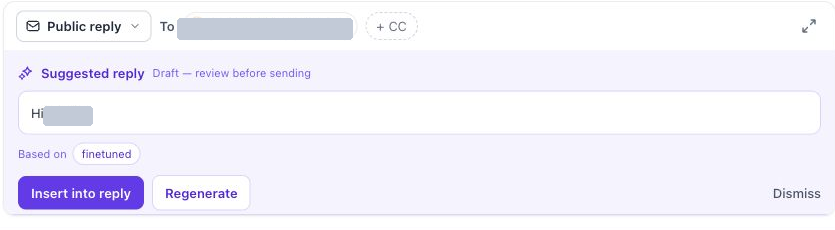
Edit it in the editor, then select Send reply when ready.
If the editor already contains text, re-read the whole reply after inserting so it reads as one message without a repeated greeting. Check any source information on the card, and confirm the underlying material when the answer depends on it.
Write your response in the editor and select Polish my reply. Review the proposed wording before sending. Confirm it keeps your meaning, dates, prices, instructions, and next steps. Wording help does not verify your business facts.
An administrator chooses which support content Ticketing AI can use.
Open Tickets > Settings > Knowledge base.
Select Connect a knowledge base.
Search for and select existing knowledge bases.
Confirm the connection.
Review the Connected knowledge bases list.
Turn on AI suggested replies, then enable the individual bases you want used for replies.
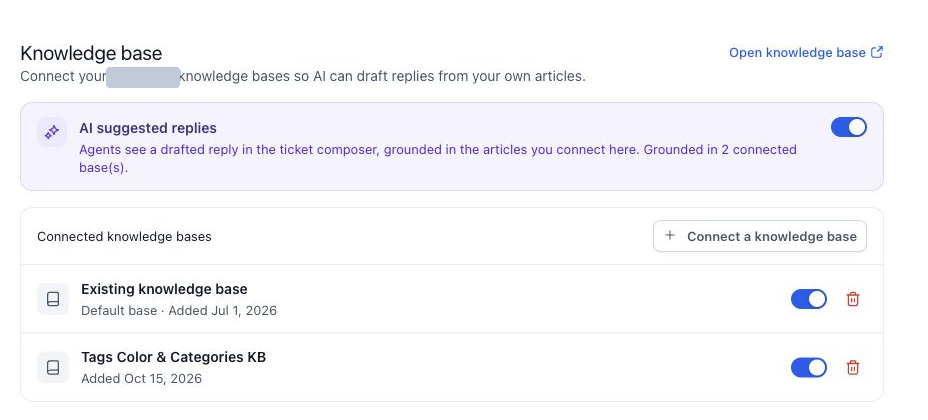
The picker shows which bases are already connected. Use Open knowledge base to manage the underlying content in the Knowledge Base area under AI Agents. You can connect several bases and switch each on or off. Select Disconnect to remove one from Ticketing.
Choose bases that fit the services and questions your team handles, such as financing, memberships, product shipping, and office policies.
Keep policies current in the Knowledge Base area, since drafts are only as accurate as their sources.
Review every draft, even with a relevant base connected.
Connecting a base does not send anything to patients. A staff member still sends the reply.
A teammate hands you a ticket with several messages. Use Summarize with AI to understand it, then read the latest exchange to confirm the current question. Generate a suggested reply, insert what is useful, add the specific next step you can commit to, check recipients, and send. Put team-only handoff details in an internal note.
Issue | What to check |
|---|---|
Suggest reply is not the main button | Open More AI options. Existing text makes Polish my reply primary. |
Suggested replies are unavailable | The AI suggested replies setting, and that you are in the public reply editor. |
A knowledge base is not in the connected list | Use Connect a knowledge base and confirm it exists in your account. |
A base is connected but should not be used | Its individual switch, or disconnect it. |
A summary misses recent context | Read the latest messages and regenerate. |
A draft is incorrect or incomplete | Edit or discard it, check the source content, and verify facts. |
Generation fails | Read the error and retry, or write the reply manually. |
Does AI send the reply automatically?
No. You insert the content you want and send the reply yourself.
What is the difference between a summary and a suggested reply?
A summary helps the agent understand the ticket. A suggested reply is proposed patient-facing wording.
Can I connect more than one knowledge base?
Yes. The settings page supports several, each with its own enable switch.
Will a connected knowledge base guarantee a correct answer?
No. It supplies relevant content, but staff must verify the answer.
Does Ticketing have autonomous AI resolution?
No. These features are agent-reviewed assistance only.
Can I use AI on tickets with patient health details?
Avoid it. AI features are not approved for PHI. Keep clinical details in your EMR.
Who can connect knowledge bases?
An administrator, through Tickets > Settings > Knowledge base.
Why do I not see the AI controls or the Knowledge base page?
This feature may not be enabled on every account yet. Ask an administrator whether it is enabled for your account.
