Service-level agreements (SLAs) define how quickly your team should reply to, assign, resolve, or move a ticket to a milestone. Business-hour schedules decide when a business-hours SLA clock runs, including time zone, weekly hours, and holidays. Both are under Tickets > Settings, in the SLA and Business hours pages.
This guide covers Ticketing SLAs only. For conversation response targets in the Inbox, see Inbox SLAs and Performance.
Open Tickets > Settings as an administrator. Decide which requests need different targets, for example post-treatment questions versus general inquiries, and whether you measure time continuously or only while your practice is open. If you use business hours, create the schedule first and then select it in the SLA policy. Review your priorities, categories, and statuses before using them as policy conditions.
Target | What it measures |
|---|---|
Time to first reply | From ticket creation to the first agent reply. |
Time for next reply | From a customer message to the next agent reply. |
Time to close | From ticket creation to closure. |
Time to assign | From ticket creation to assignment to an agent. |
Time to reach status | Time to reach a status milestone you select. |
Enable only the targets you plan to track. A policy needs at least one target. Turn on Different targets per priority when urgency levels need different durations. A ticket's due date is a separate property: setting a due date does not replace an SLA policy. Internal notes do not count as a customer-facing reply for response targets.
Open Settings > Business hours.
Select Create schedule.
Enter a name that identifies the team or pattern, such as "Front Desk Hours".
Select the schedule's Time zone.
Turn on the working days and set start and end times.
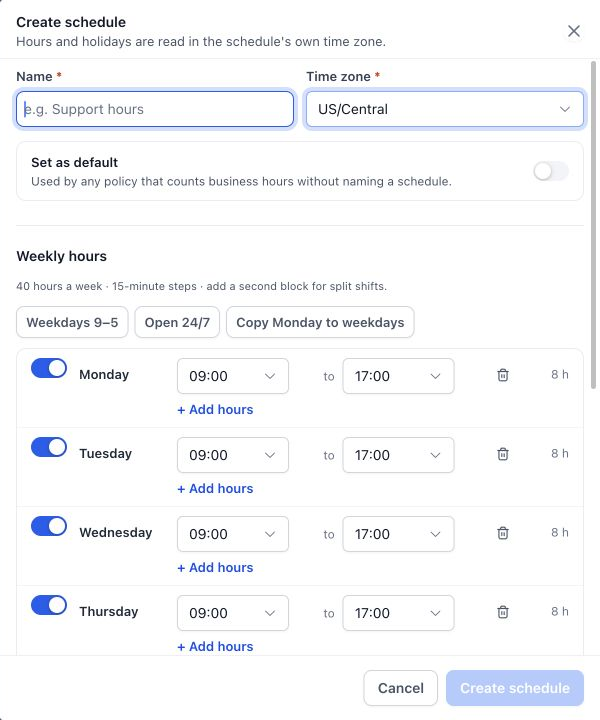
Use + Add hours for split shifts, such as a morning and an afternoon block.
Add holidays as needed, then select Create schedule.
The editor offers presets: Weekdays 9-5, Open 24/7, and Copy Monday to weekdays. Review the day-by-day hours before saving. Closed days pause the clock for any policy using the schedule.
Scroll to Holidays in the schedule editor.
Select Add holiday, enter a name and start and end dates, and save the schedule. For a one-day closure, use the same date for both.
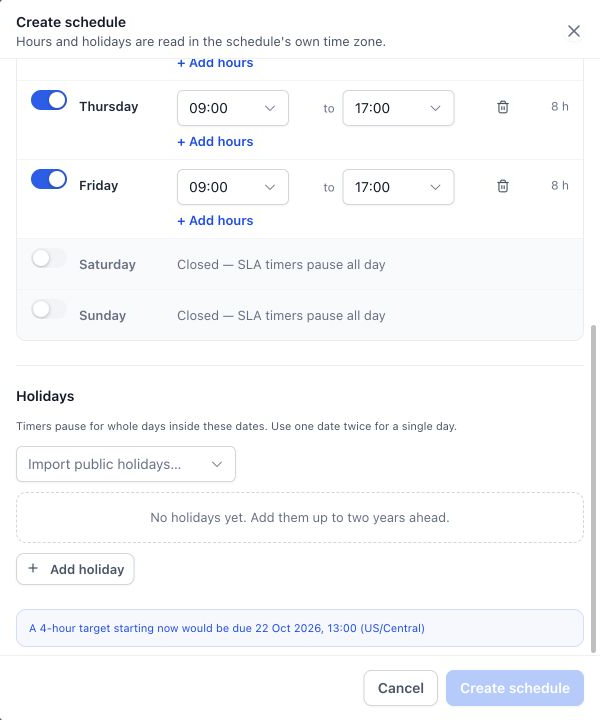
Or use Import public holidays and review the resulting dates.
Holiday dates are whole days during which applicable SLA timers pause.
Select Set as default on the schedule to use when a business-hours policy does not name another one. The schedule list shows the default, weekly hours, holiday counts, and usage. You cannot delete the default schedule until you set another as default, so review affected policies first. You can keep several schedules, for example one for the front desk and one for the clinical team.
Open Settings > SLA and select Create SLA.
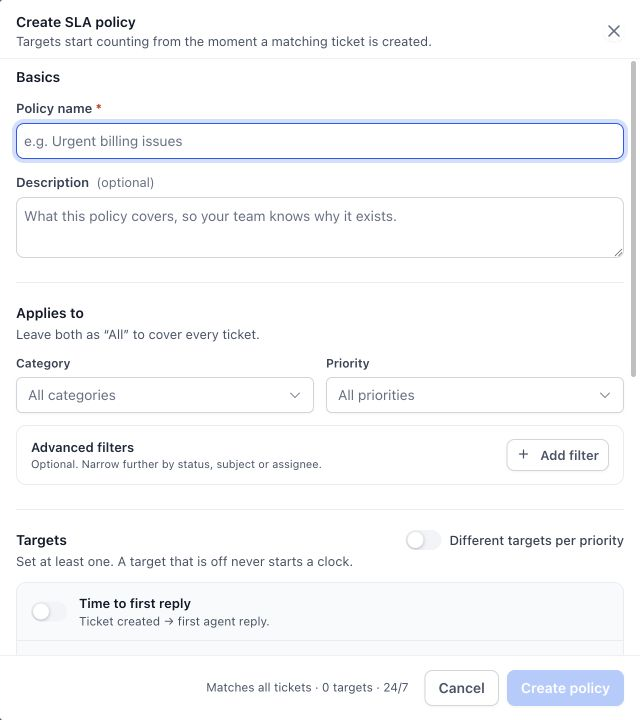
Enter the Policy name and an optional description.
Under Applies to, choose Category and Priority values, or leave both as All for broad coverage.
Use Advanced filters for other conditions such as status, subject, or assignee.
Turn on at least one target and set its duration. For Time to reach status, choose the milestone status.
Choose the clock settings (below).
Review the policy summary and select Create policy.
For example, create one policy for Urgent post-treatment questions with a short first-reply target, and a broader policy for everything else. Set durations that match your real service commitments.
A ticket with no priority or category will not match a policy that requires one.
In the policy's Clock section:
24 / 7 counts elapsed time continuously.
Business hours counts only time inside the selected schedule. Review the shown hours, time zone, and holidays.
Pause when lets you choose statuses that pause the clock, such as Waiting on Customer.
Warn at sets when the ticket enters the Due soon state before a breach.
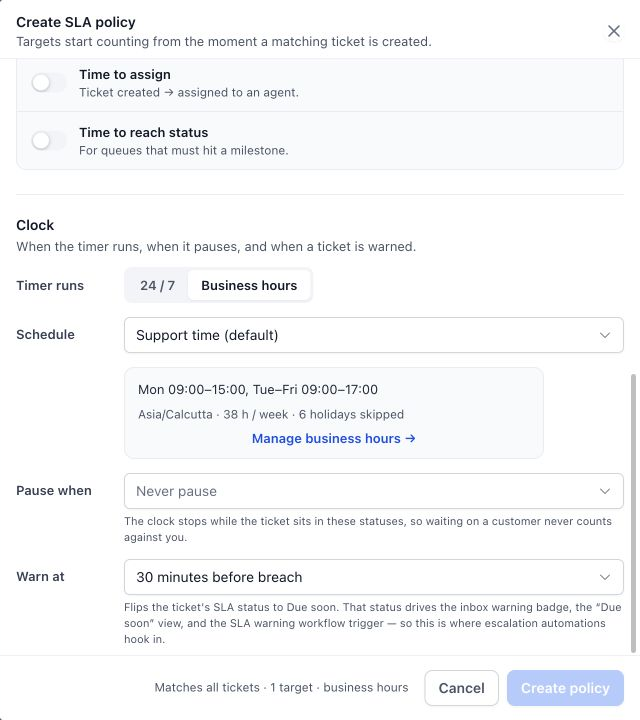
Naming a status "Waiting on Customer" does not select it as a pause status. Add it under Pause when if that fits your process.
Say your schedule is Monday to Friday, 9:00 to 17:00, with no holidays, and the first-reply target is four business hours. A ticket created Friday at 16:00 uses one hour on Friday and three on Monday, so the target is Monday at 12:00 in the schedule's time zone, assuming no pause applies. With a 24/7 clock, the same four-hour target would fall Friday at 20:00.
Policies are evaluated in order, and the first matching policy applies. Put specific policies (such as Urgent) above broad ones.
The Default Policy stays last and covers everything else. You can edit or disable it but not delete it.
Use row controls to enable, disable, duplicate, or remove other policies. Review conditions after duplicating.
Changing conditions, schedules, or durations can change service expectations on open work, so review the ticket targets afterward.
Open a ticket and expand SLA details in the right panel to see the applied policy and target information. The ticket list also provides SLA fields and metrics (such as SLA breached and Due soon).
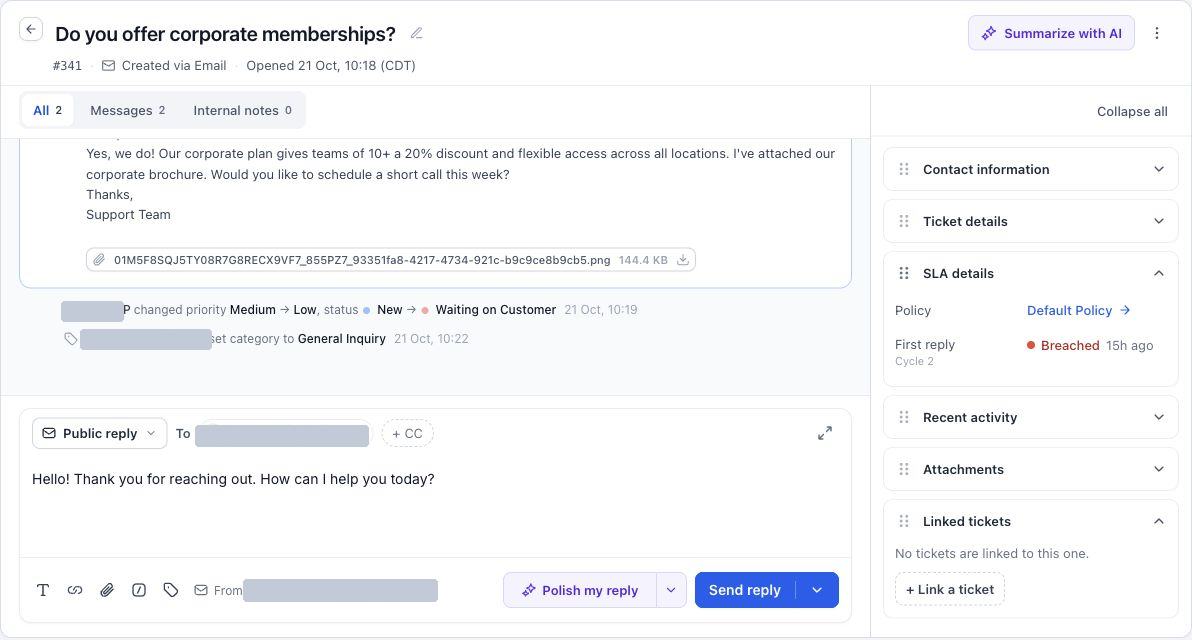
State | Meaning |
|---|---|
No SLA | No applicable SLA is attached. |
On track | The target is within its allowed time. |
Due soon | The warning threshold has been reached. |
Breached | A tracked target exceeded its allowed time. |
Met | The target was satisfied. |
An SLA target alone does not decide who gets notified. Use the SLA Warning and SLA Breached workflow triggers to alert the right person, for example a practice manager. See Automate Ticketing with Workflows.
Issue | What to check |
|---|---|
The expected policy did not apply | The ticket's properties, the policy conditions, whether it is enabled, and the evaluation order. |
The clock runs outside office hours | Confirm the policy uses Business hours, with the right schedule and time zone. |
The clock pauses unexpectedly | Closed days, holidays, and Pause when statuses. |
An urgent ticket uses a general policy | Move the specific policy above the broader one and review its conditions. |
A breach did not notify anyone | The workflow trigger, filters, publication state, and notification action. |
A policy cannot be created | Enter a name, turn on a target, complete its inputs, and fix validation messages. |
Can I create more than one business-hours schedule?
Yes. Name each for its use and select the right one in each policy.
Do holidays affect 24/7 policies?
No. Holiday pauses belong to business-hours schedules. Choose Business hours for a policy that should follow holidays.
Can I stop the clock while waiting for a patient?
Yes. Add the waiting status under Pause when in the policy.
Can I set different targets for different priorities?
Yes. Use separate policies matched by priority, or turn on Different targets per priority.
What is the difference between a due date and an SLA target?
A due date is a date recorded on the ticket. SLA targets track specific service commitments such as first reply.
Can I delete the Default Policy?
No. You can edit or disable it.
Does resolving a ticket stop the SLA clock?
Yes, if the status you use has This status means the ticket is resolved turned on.
Who is notified when an SLA is breached?
Only who you configure in a workflow using the SLA Breached or SLA Warning trigger.
