Events connects to workflows so registrations, reminders, check-ins and follow-ups run without manual work. Build these in Marketing > Workflows. You can start a workflow when someone registers or checks in, register contacts for events from other triggers, branch on event details, and time messages around the event date.
Trigger | Starts when | Typical use |
|---|---|---|
Event Registration | A contact registers for an event. | Send confirmation, add a tag, notify staff, start reminders. |
Event Checked In | An attendee is checked in. | Send a welcome message, share resources, start follow-up. |
Trigger filters let you narrow a workflow by: specific event, registration status, ticket type, who booked the registration, and check-in details.
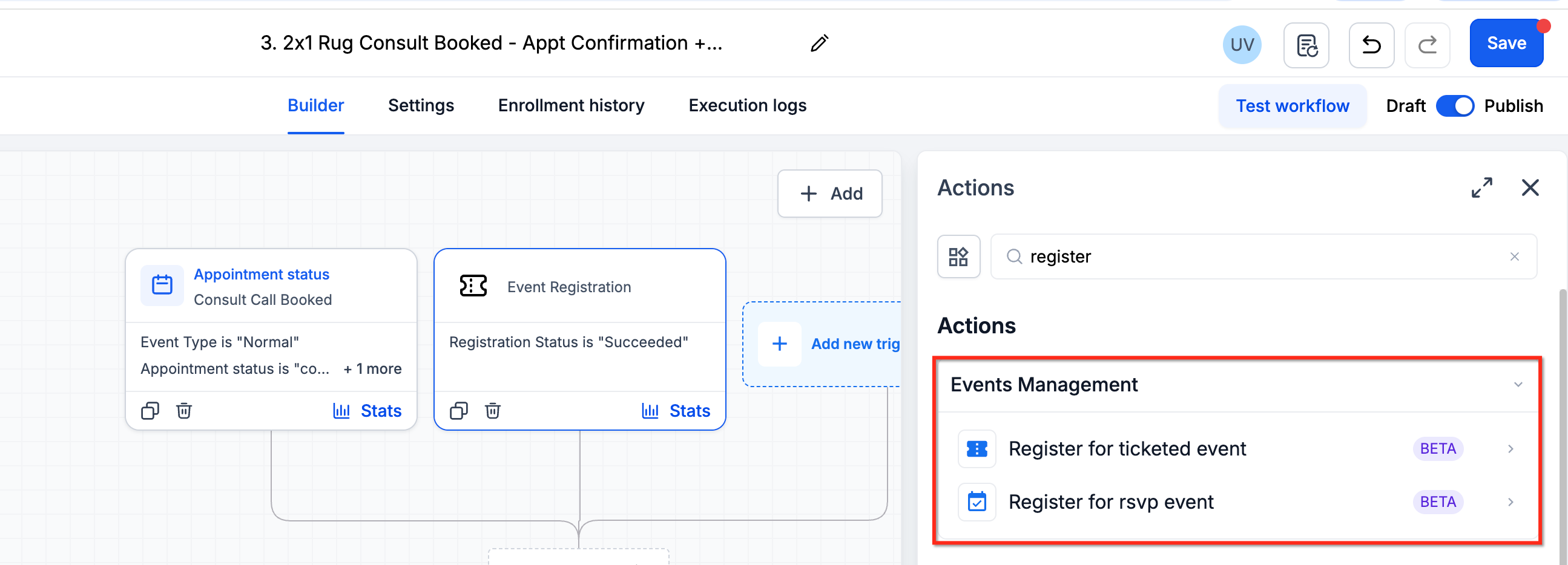
Registers a contact in a Ticketed event automatically. Good for turning leads from forms, landing pages or Facebook Lead Ads into registrants. Select the target event and complete the registration settings.
Ticketed events can have free or paid tickets, so confirm payment, ticket availability and capacity behavior before automating registration for paid events.
Taking payments? Paid tickets use your connected payment provider. We recommend AX Pay, Aesthetix CRM's own payment provider, which offers better rates than Stripe. See the AX Pay Overview and Setup Guide.
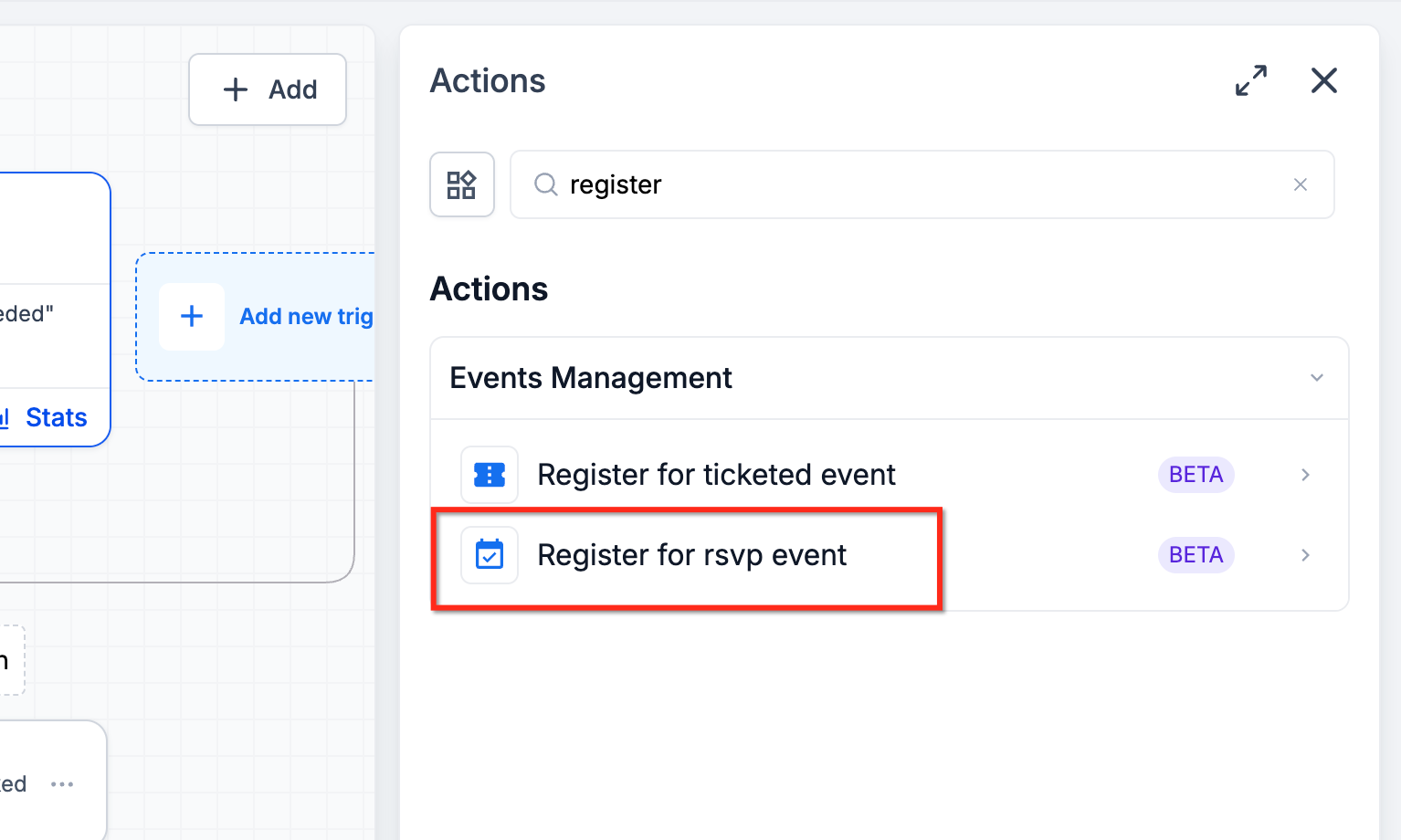
Registers a contact for an RSVP (free) event when they reach the action. Good for education sessions, onboarding sessions and workshops.
Workflows can branch on event information: event type and name, start and end dates, timezone and location, ticket information and check-in information. For example, an If/Else on ticket type can send VIP guests exclusive content and everyone else the standard reminder.
Event-relative Wait actions schedule messages around the real event date, so you never calculate reminder times by hand:
Before the event: a set number of days or hours before.
At the event date and time: day-of instructions or welcome messages.
After the event: thank-you messages, surveys and follow-up offers.
Go to Marketing > Workflows and create or open a workflow.
Click Add Trigger and select Event Registration or Event Checked In.
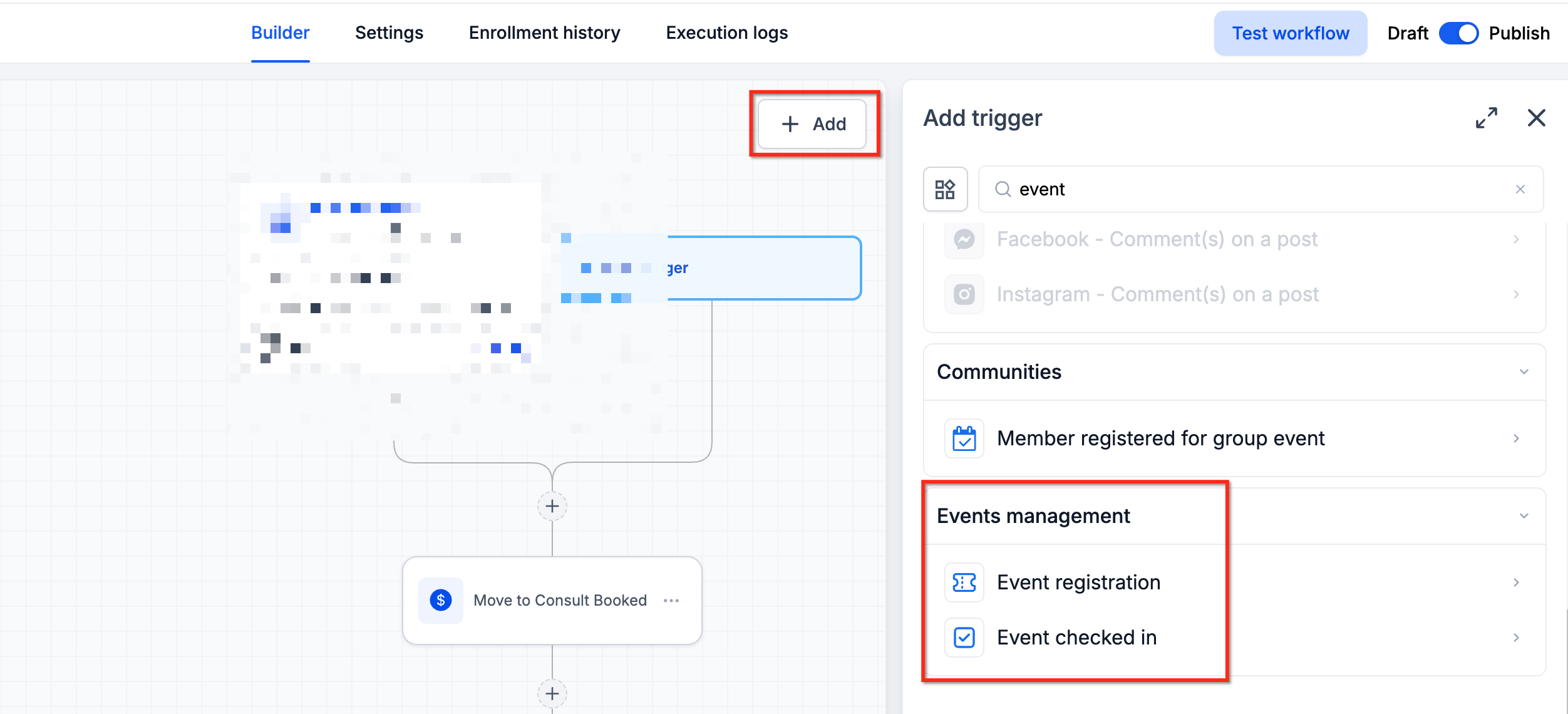
Configure the event filters.
Add actions such as Send Email, Send SMS or Add Tag.
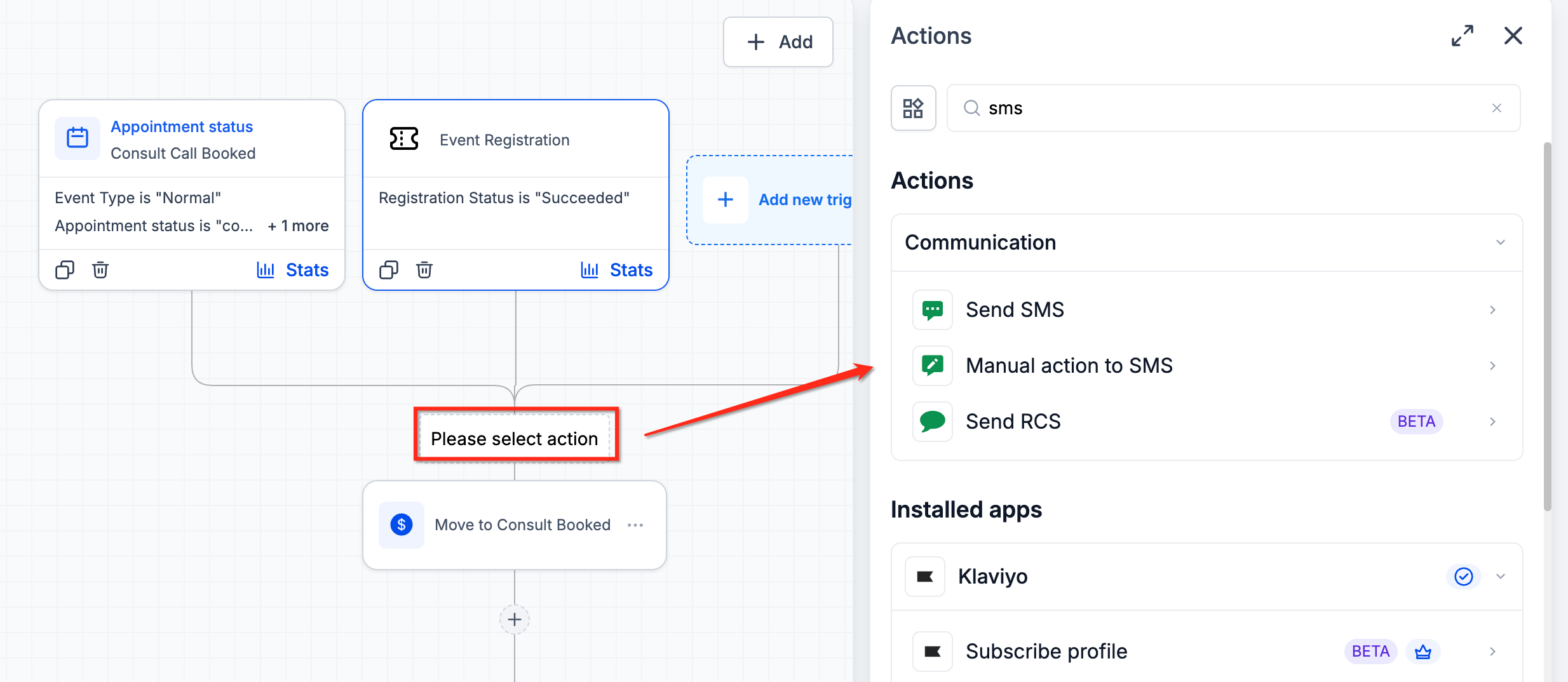
Add conditions or event-relative Wait actions as needed.
Test, then publish.
Create or open a workflow and set its trigger.
Click + to add an action and choose Register for Ticketed Event.
Select the event and complete the registration settings.
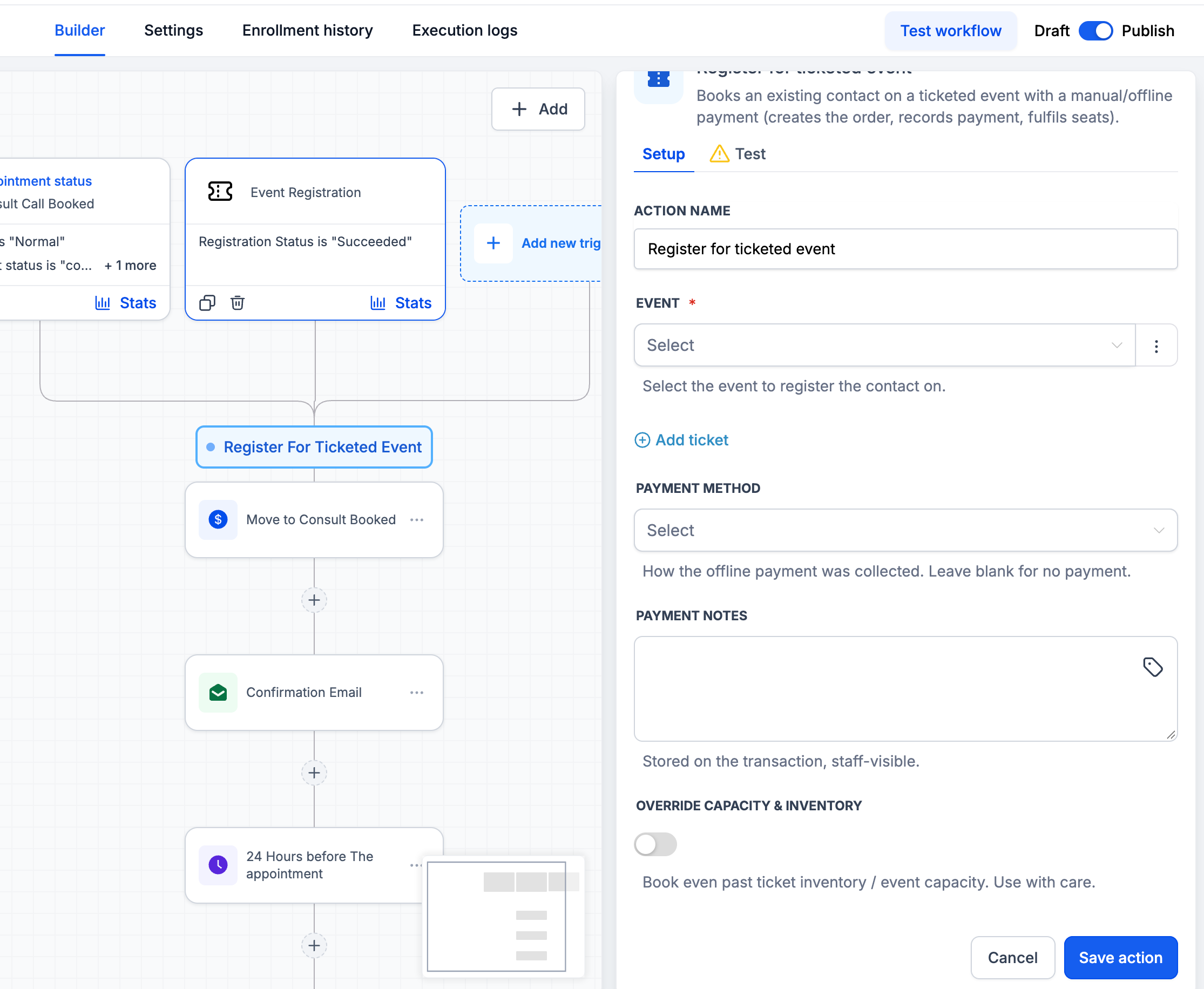
Save, test the registration, then publish.
Open a workflow and set its trigger.
Click + and choose Register for RSVP Event.
Select the RSVP event and complete the settings.
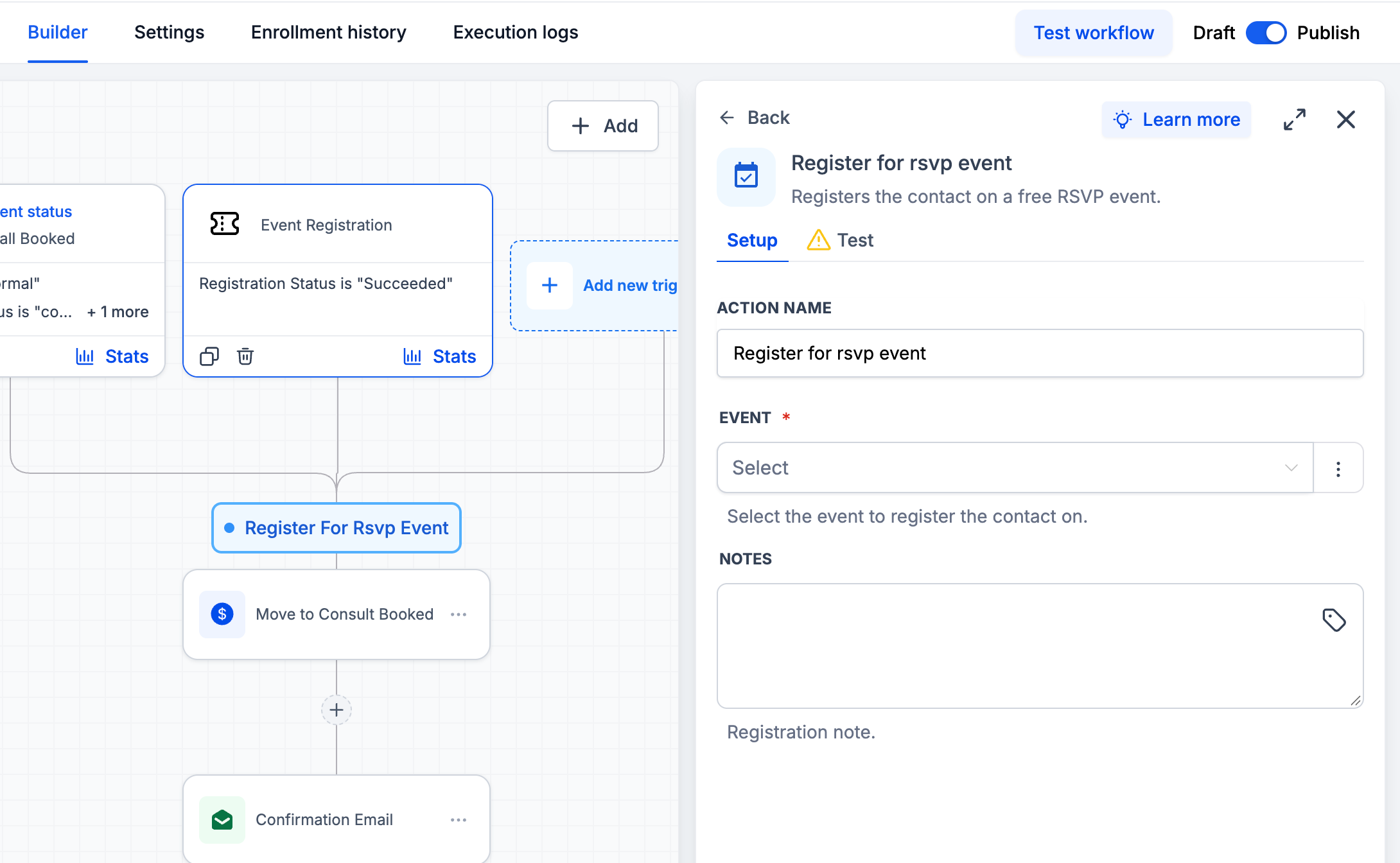
Save, test with a contact, and confirm the registration appears in Events.
Publish.
Before going live, test duplicate registrations, capacity limits, required contact information and (for paid tickets) payment behavior.
Lead to registration: Facebook Lead Ad, then Register for Ticketed Event, then confirmation email.
RSVP automation: Form submission, then Register for RSVP Event, then reminder sequence.
Engagement: Event Registration, then Add Tag, then SMS.
Sales follow-up: Event Registration, then Create Opportunity, then notify the team.
Check-in welcome: Event Checked In, then welcome message.
Post-event survey: Event Registration, then Wait until after the event, then send a survey.
Day-before reminder: Event Registration, then confirmation email, then Wait until 1 day before, then SMS reminder.
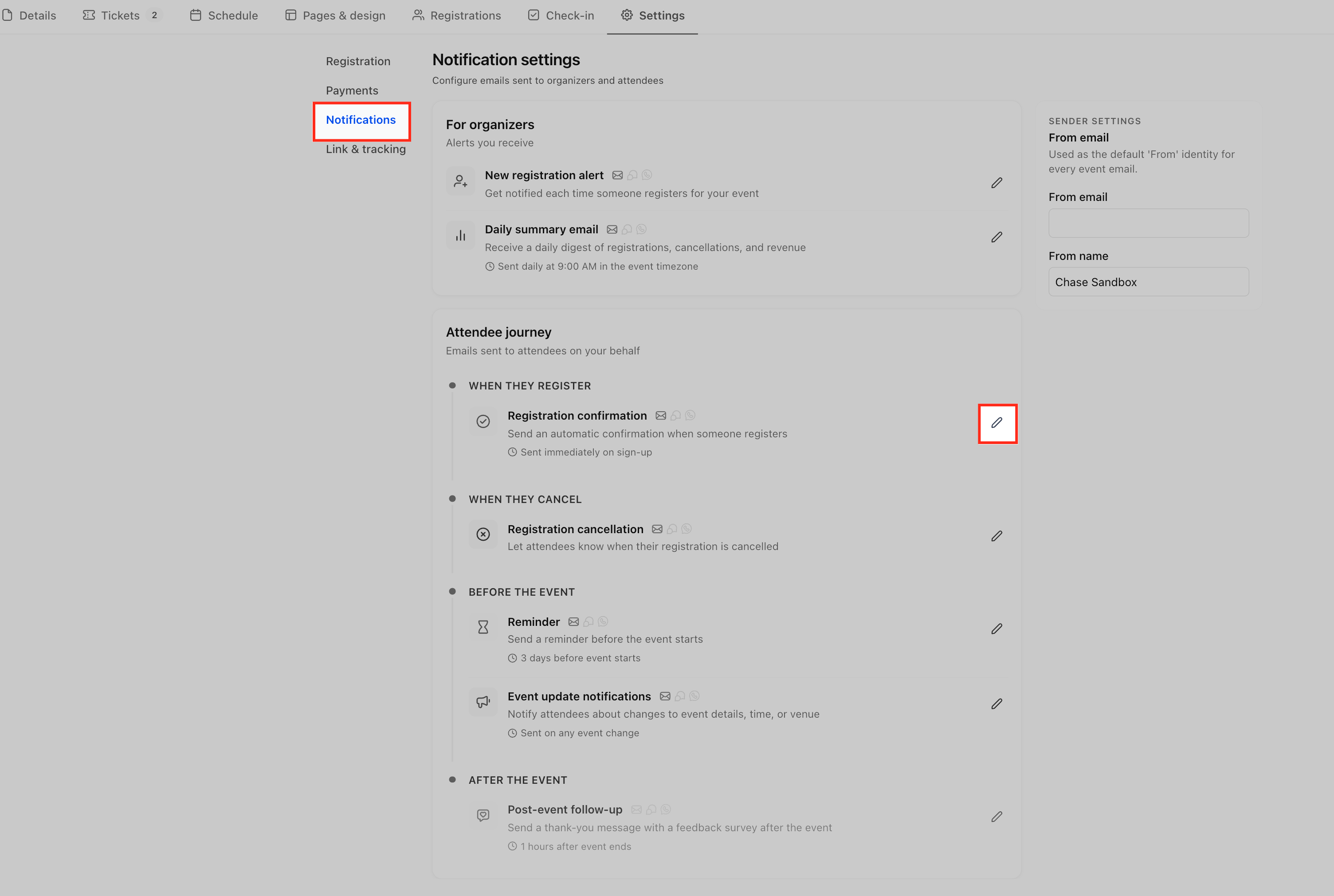
Registration confirmation and reminder emails sent from event settings are separate from workflows. The wallet pass merge field {{event.ticket.wallet_links}} can be placed in those confirmations (see Events Wallet Passes and the Attendee App). For ad conversion reporting use Meta Pixel event mapping (see Embedding, Sharing and Tracking Events). For event promotion ideas see Event Marketing in the Marketing collection.
Tags, opportunities and message content created from event activity become part of the contact record. Do not tag contacts with health conditions or treatments (for example "Botox patient" or "post-op follow-up") based on event registration, and keep reminder texts generic. Registering existing patients from a patient list into promotional events should follow your consent and marketing rules. Keep clinical details in your EMR.
Can I register contacts for events automatically?
Yes. Use Register for Ticketed Event or Register for RSVP Event.
Can one workflow handle several events?
Yes. Triggers and conditions can use event details to route contacts differently.
Can I send reminders based on the event date?
Yes. Use event-relative Wait actions before, at or after the event.
Can I send different messages by ticket type?
Yes. Use trigger filters or an If/Else branch on ticket information.
Can I register leads from forms or Facebook Lead Ads?
Yes. Connect the lead trigger to the matching registration action.
Can I follow up after check-in?
Yes. Use the Event Checked In trigger.
Is it safe to auto-register contacts for paid events?
The Ticketed action supports ticketed registrations, but verify payment handling in a test first.
Will a workflow-created registration fire the Event Registration trigger?
This is not confirmed. Test it before chaining an automated registration action to an event-triggered workflow, so you do not create loops or duplicate messages.
