This guide covers event day (checking guests in with the mobile app) and the money side (refunds, cancellations and check-in eligibility). Refund and cancel actions live on the event's Registrations tab under Marketing > Events.
Check-in marks attendees as arrived using the Aesthetix CRM mobile app. It works for in-person events only, both Ticketed and RSVP. For online events you can see the attendee list, but check-in is not available.
Every attendee who buys a ticket or RSVPs receives a ticket with a QR code.
In the mobile app, go to the Apps section and select the Events app.
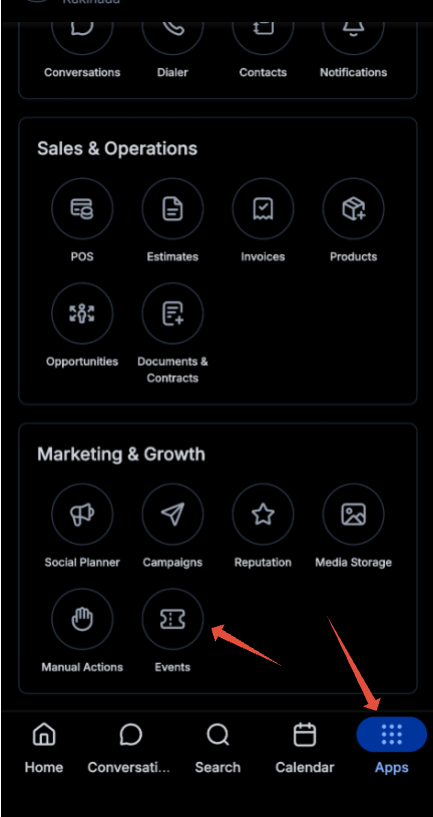
Select the event.
Tap Scan to check in.
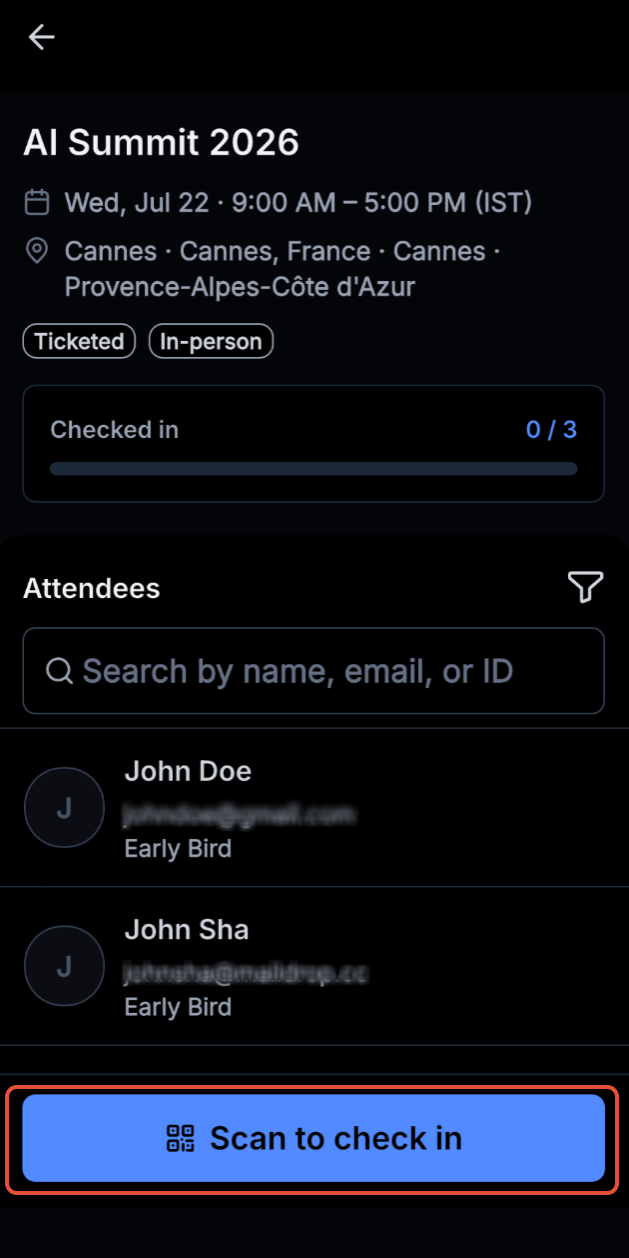
Scan the attendee's QR code. They are checked in.
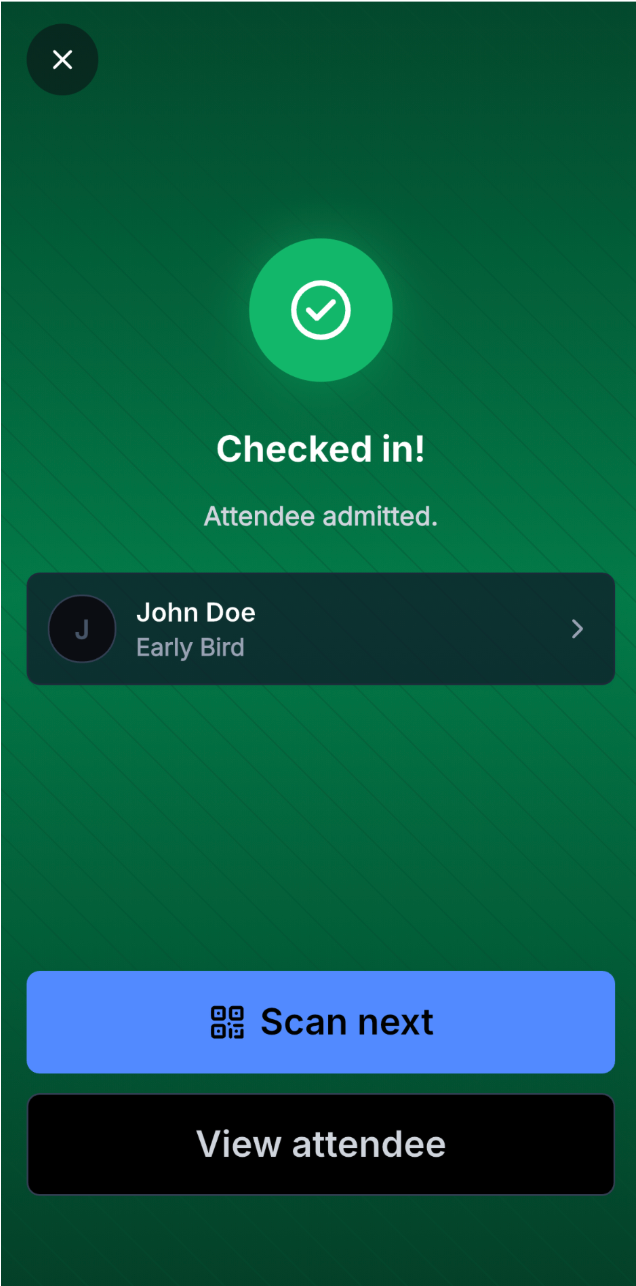
Attendees can show the QR code from their confirmation email, the ticket PDF, or a wallet pass (see Events Wallet Passes and the Attendee App).
If scanning fails or a guest lost their ticket, verify their identity first, then:
Open the Attendees tab and tap the attendee.
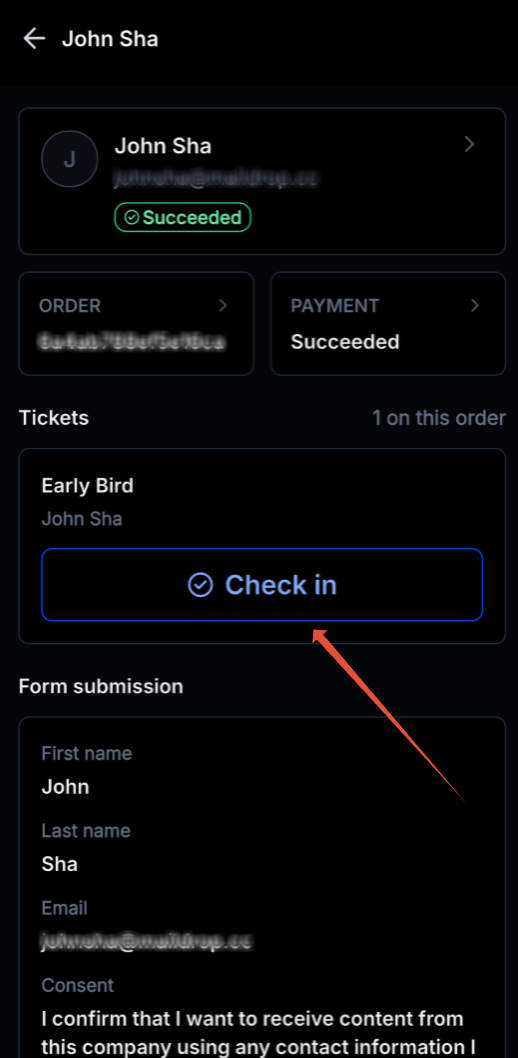
Tap Check in.
From the same view you can also review their form submission details.
Scanning the same ticket twice shows that the attendee is already checked in.
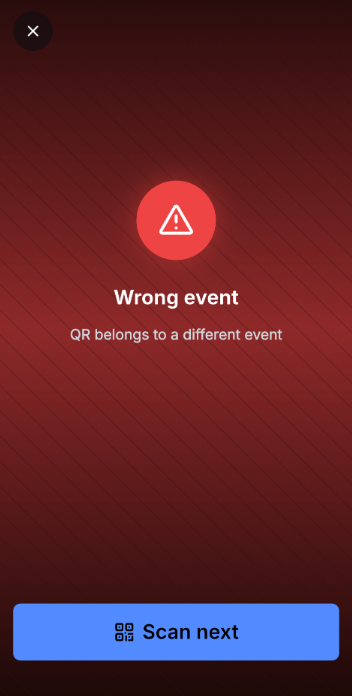
Scanning a ticket for a different event shows the ticket is not valid.
Action | What it does |
|---|---|
Refund | Returns money to the attendee's original payment method. It does not remove the registration unless you also cancel. |
Cancellation | Removes the active registration. Seats return to inventory, QR passes stop working, the attendee is notified, and it cannot be undone. |
You can refund only, cancel only, or do both together.
Taking payments? Refunds go back through the connected payment provider. We recommend AX Pay, Aesthetix CRM's own payment provider, which offers better rates than Stripe. See the AX Pay Overview and Setup Guide.
Go to Marketing > Events and open the event.
Select the Registrations tab and find the attendee.
Click the attendee's Actions menu and choose Initiate refund or Cancel registration.
Select Initiate refund.
Choose the ticket or tickets to refund.
Enter the amount. The full refundable amount is a full refund; anything lower is a partial refund.
Add optional notes (stored on the payment record and shown in refund history).
Leave Also cancel this registration unchecked.
Click the refund button.
The attendee stays registered. The refund dialog may show an estimated arrival such as 4 to 6 business days, but real timing depends on the payment processor.
Select Initiate refund and enter the amount.
Check Also cancel this registration.
Review the cancellation warning and confirm.
Open the Actions menu and select Cancel registration.
Review the warning and enter an optional reason. The reason is stored on the registration and is not sent to the attendee.
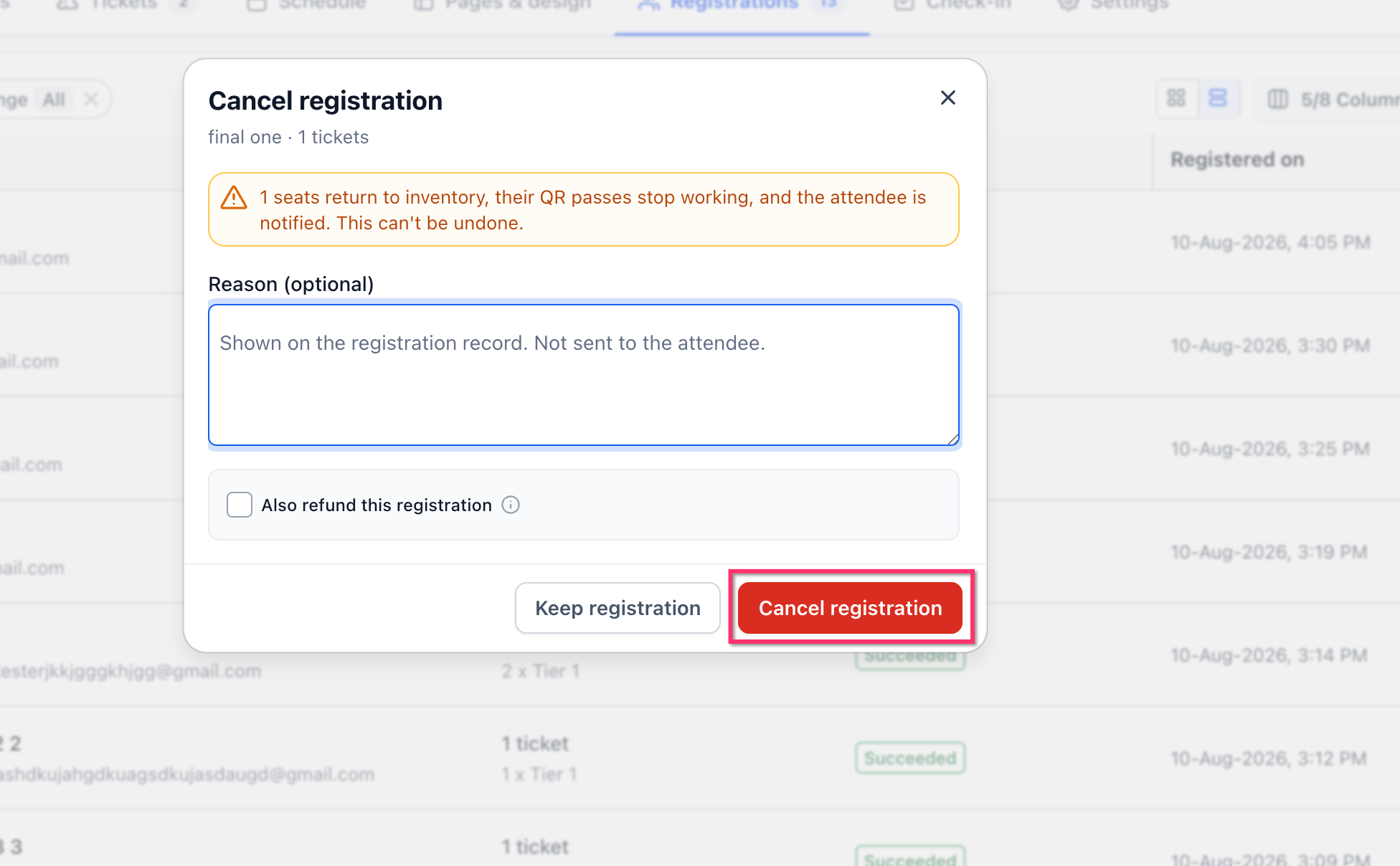
Leave Also refund this registration unchecked.
Click Cancel registration.
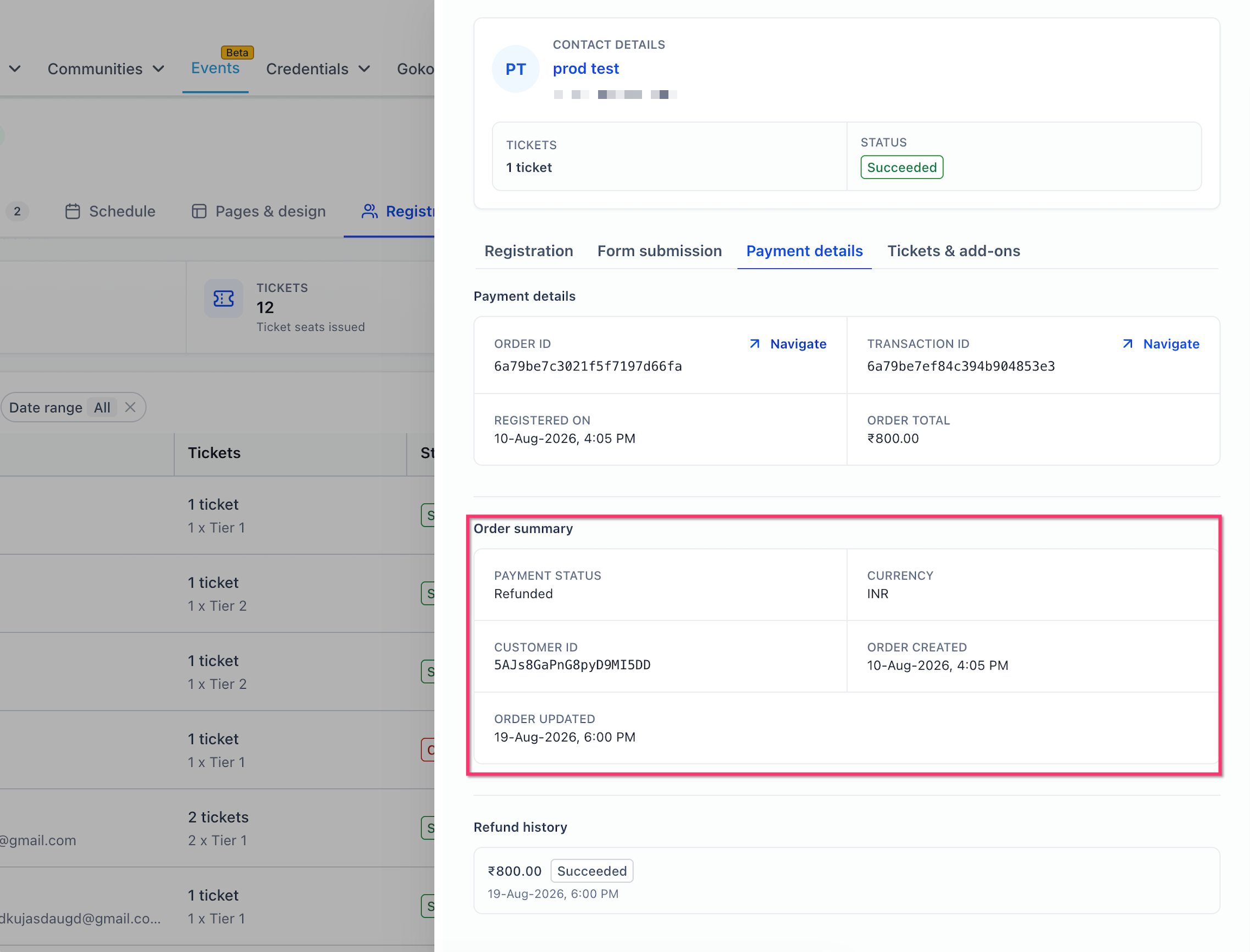
Open the attendee registration and go to Payment details. You can see order and transaction details, order total, payment status, refund history, refund amount, status, and date and time.
Control who can use QR check-in:
Open the event and go to Settings > Registration.
Find Payment statuses allowed for check-in.
Select the statuses that may check in: Succeeded, Partially refunded, Refunded.
Save.
If you select only Succeeded, refunded attendees cannot check in by QR. Add Refunded or Partially refunded to keep those guests eligible. A canceled registration cannot check in because its QR pass stops working.
Event revenue reflects what attendees actually paid after discounts, not ticket price multiplied by sales, so reports no longer overstate discounted sales.
Check-in screens and attendee records show names and contact details, and the form submission view may show any custom answers. Keep staff use of check-in devices to those who need it, lock phones and tablets, and do not record health information in refund notes or cancellation reasons. Use a neutral reason such as "schedule conflict" and keep clinical details in your EMR.
Can I check in guests at an online event?
No. Check-in is for in-person events only. Online events show the attendee list.
What if a guest lost their ticket?
Verify their identity, then open the Attendees tab in the app, tap them, and tap Check in.
What happens if the same ticket is scanned twice?
The app shows the attendee is already checked in.
Can I refund without canceling the registration?
Yes. Leave Also cancel this registration unchecked.
Can I cancel without refunding?
Yes. Use Cancel registration and leave Also refund this registration unchecked.
Can I undo a cancellation?
No. The warning states it cannot be undone.
Does the attendee see my cancellation reason?
No. The optional reason is internal.
How long do refunds take?
It depends on the payment processor. The dialog may show an estimate such as 4 to 6 business days.
Can refunded attendees still check in?
Yes, if Refunded or Partially refunded is selected under Payment statuses allowed for check-in and the registration has not been canceled.
Does unpublishing or canceling an event refund everyone automatically?
No. Refund each registration manually.
