Once an event is published you can share its public link, embed the entire registration experience on your own pages, and measure results with Meta Pixel tracking. Sharing, embed code and tracking settings live on the event itself, under Marketing > Events.
Open the event, go to Settings > Link & tracking to set the URL slug and a favicon (PNG or JPG, up to 5 MB). Use the event's three-dot menu > Share to copy the public link.
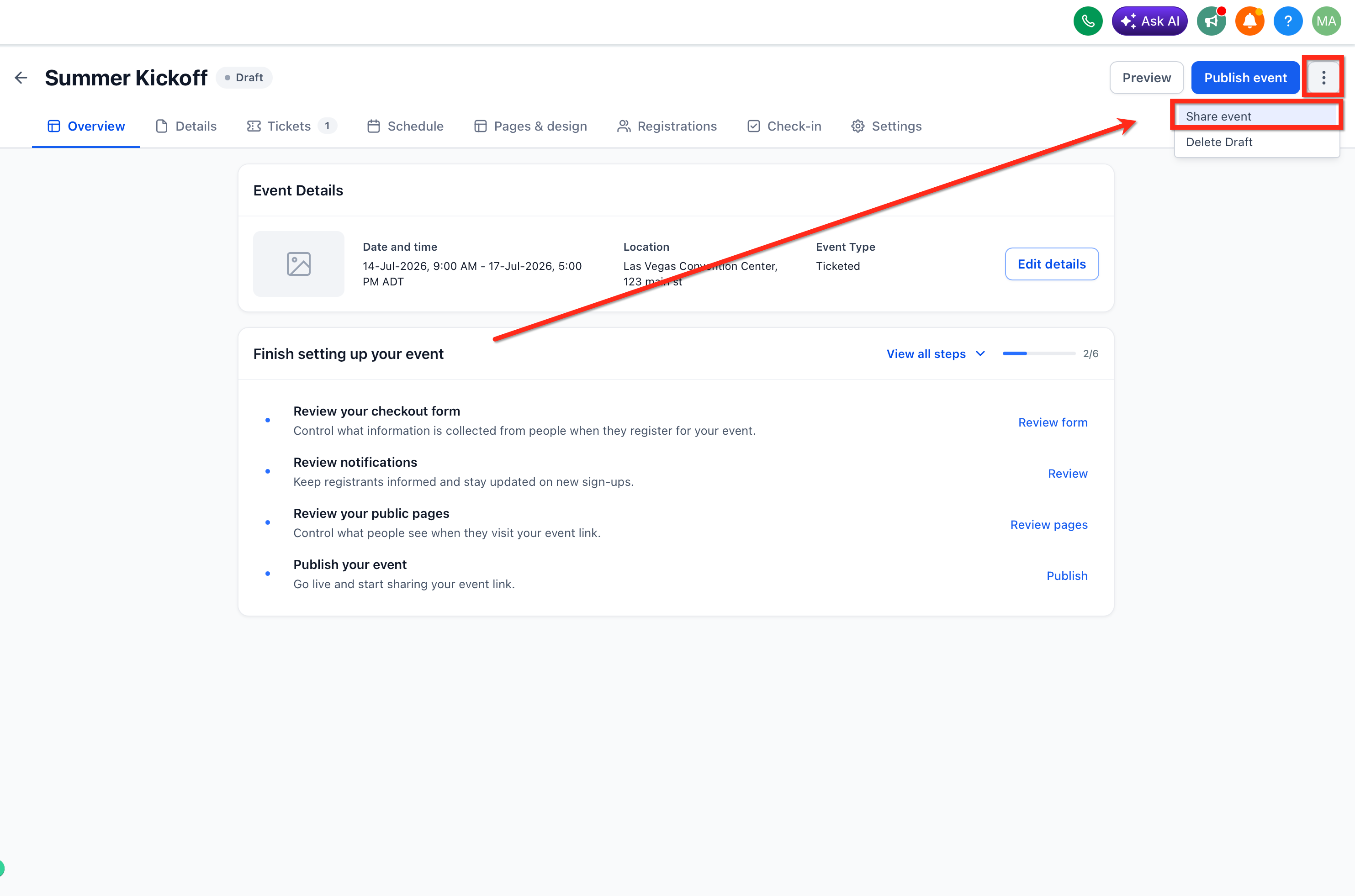
Embedding shows the complete event experience (details, schedule and registration form) inside your own page, so visitors never leave your site. The embed is an iframe code you copy with one click.
Open the published event.
Click Share Event.
Choose the Embed Code option. The system generates an iframe embed code.
Click Copy.
Paste the code into the custom code area of your website, landing page, or external site builder where the event should appear.
Save and publish that page.
Landing pages and websites built in Aesthetix CRM (Marketing > Landing Page Builder and Web Tools > Websites).
External site builders such as WordPress, Wix, Squarespace or Webflow, wherever custom HTML or an iframe is allowed.
Blog posts and education pages that promote an upcoming event.
Dedicated sales or registration pages.
Available for public events. Private or restricted events may not suit public pages.
Responsive: the iframe adapts to desktop, tablet and mobile.
Uses the design and branding set in the event, including custom CSS. Finish styling first.
Updates automatically when you change event details. You do not need to regenerate the code.
You can use the same code on as many pages as you like. All registrations land in the same event dashboard.
Meta Pixel tracking connects what visitors do on an event page to Meta conversion events, so you can measure registrations and ticket revenue from ads. It is configured separately for each event, under Settings > Link & tracking. It is not the same as an Ads Manager conversion pixel, and you do not need funnel or website tracking code for it.
Find the Pixel ID (the Dataset ID in Meta Events Manager) for the data source you want to use.
In your account, go to Marketing > Events and select the event.
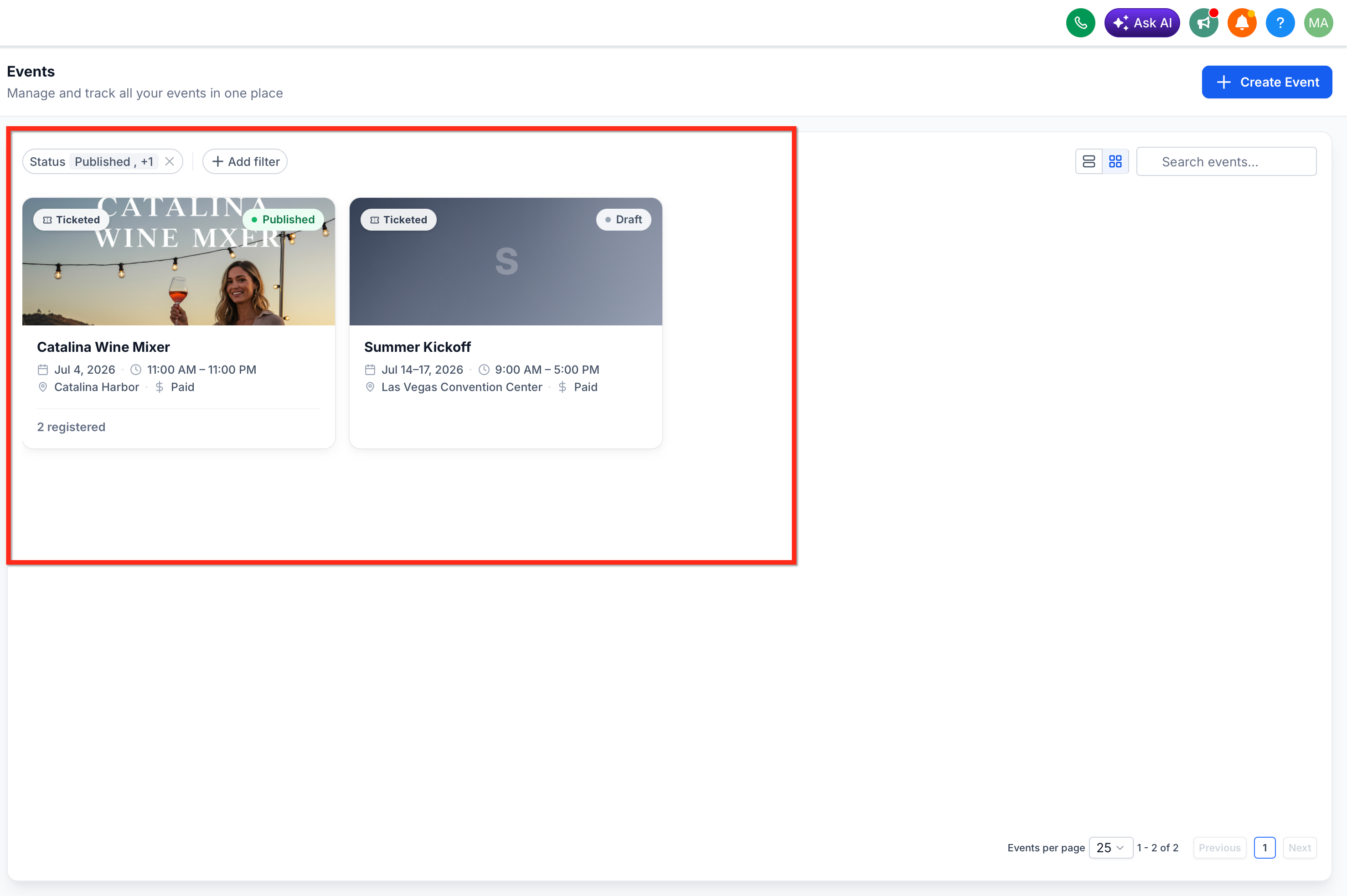
Open Settings and select Link & tracking, then find the Meta Pixel settings.
Enter the Meta Pixel ID. Confirm you are editing the correct event.
Under Event mapping, choose which Meta event fires for each attendee action.
Test the journey on the published event page.
Event type | Attendee action | When it fires |
|---|---|---|
RSVP | Event page viewed | A published event page loads. |
RSVP | RSVP started | A visitor opens the RSVP form. |
RSVP | RSVP completed | The RSVP is successfully confirmed. |
Ticketed | Event page viewed | A published event page loads. |
Ticketed | Checkout started | The attendee begins checkout. |
Ticketed | Ticket selection completed | Ticket selection is finished. |
Ticketed | Registration form submitted | The registration form is submitted. |
Ticketed | Payment details submitted | Payment details are submitted. |
Ticketed | Ticket order completed | The order is successfully completed (paid and $0 orders). |
Completed ticket orders can send order value, currency, ticket quantities and ticket identifiers to Meta, which supports revenue-focused campaign reporting. Session-based deduplication prevents the same action being reported repeatedly from back navigation, refreshes, payment redirects or repeated completion checks.
Event page viewed fires only for published event pages, so test on the public page, not a draft preview.
For RSVP events, test the page view, opening the form, and a completed RSVP.
For Ticketed events, test each checkout stage through a completed order, including a $0 order if you offer free tickets.
Check-in is not a Meta Pixel action. Use the Event Checked In workflow trigger for check-in automation (see Events Workflows and Automation).
Pixels and ad platforms see page views and conversion actions. Do not pass health information to Meta. Keep event names, ticket names and URLs general (for example "Skin Health Open House" rather than a condition or treatment tied to an individual). Do not embed events on pages that display patient information. Work with your compliance contact before running retargeting based on event registrations.
Can I embed any event?
Embeds are intended for public events. Private or restricted events may not work well on public websites.
Does the embedded page include the full registration process?
Yes. Attendees see details, schedule and the registration form and can register without leaving your site.
Do I need to update the embed code after editing the event?
No. The embed shows your latest event details automatically.
Can I embed the same event on several pages?
Yes. Registrations from all pages are recorded in the same event.
Is Meta Pixel tracking for Events the same as an Ads Manager pixel?
No. It is configured inside each event under Settings > Link & tracking. Ads Manager conversion tracking is configured separately.
Do I need funnel tracking code for it?
No. The native Events integration uses the Pixel ID and event mapping. Landing page tracking code is a separate setup.
Are $0 ticket orders tracked?
Yes. Completed $0 orders are tracked as completed ticket orders.
Can Meta Pixel report check-ins?
No. Use the Event Checked In workflow trigger instead.
Does previewing an unpublished event fire Event page viewed?
No. It is defined for published event page loads.
