The Tickets, Schedule and Speakers tabs of an event define what attendees can buy or reserve and what the day looks like. Open an event from Marketing > Events to reach them. Ticket types apply to Ticketed events. RSVP events collect free registrations and do not use paid ticket types.
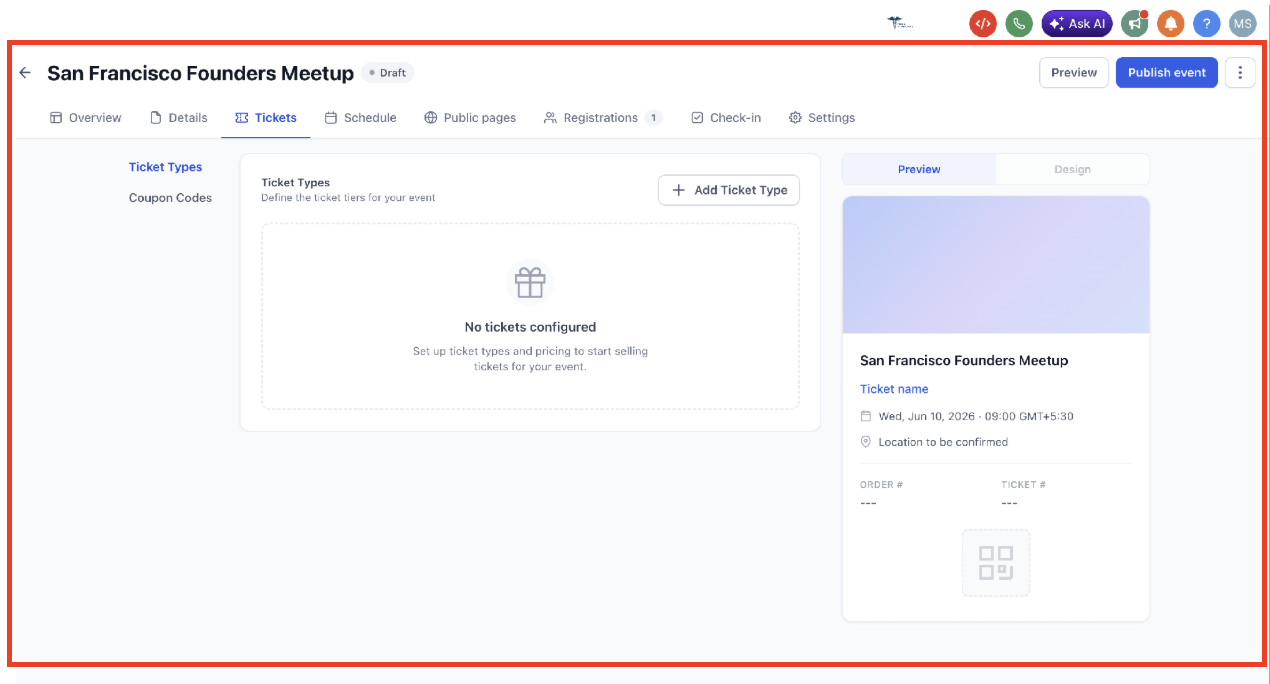
Open the event and go to Tickets.
Click + Add Ticket Type.
Set:
Ticket name (for example "General Admission", "VIP Consult Package", "Early Bird").
Pricing: Fixed price or Free. You can mix free and paid ticket types in one event.
Price and currency for fixed-price tickets.
Quantity available.
Sale period: the start and end date and time for sales, in the event timezone.
Short description and Visibility (a hidden ticket does not appear on the public page).
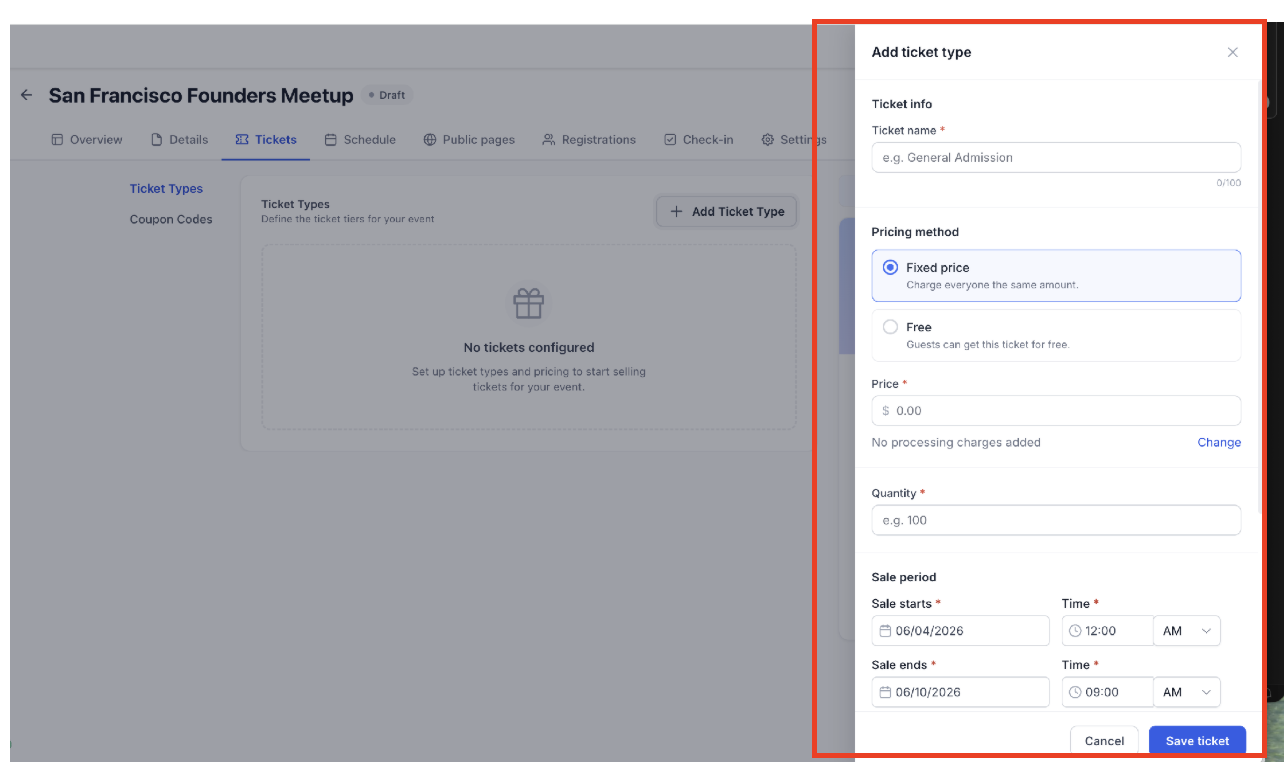
Click Save Ticket.
The Tickets tab shows a status for each ticket type:
Status | Meaning |
|---|---|
On Sale | Available to buy now. |
Paused | Temporarily stopped by you. |
Hidden | Not shown on the public page. |
Not Yet on Sale | The sale period has not started. |
Sale Ended | The sale period has passed. |
Sale periods always use the event timezone, so double-check the timezone on the event details before scheduling a launch.
Taking payments? Paid tickets are charged through your connected payment provider. We recommend AX Pay, Aesthetix CRM's own payment provider, which offers better rates than Stripe. See the AX Pay Overview and Setup Guide for setup. Turn on Live mode in the event Settings before you accept real payments.
Use this to create a similar ticket (for example a VIP version) without re-entering everything.
Open the event and go to Tickets.
Click the three-dot menu beside the ticket type and choose Duplicate.
Update the copied settings: ticket name, pricing method, price, currency, quantity, sale period and start and end date or time, short description and visibility.
Click Save Ticket. The copy is added as a separate ticket type in the same event.
Coupons are percentage discounts that apply only to Events (they are not shared with other products).
Go to Tickets > Coupon Codes.
Create a coupon with a name, code, percentage discount and active period.
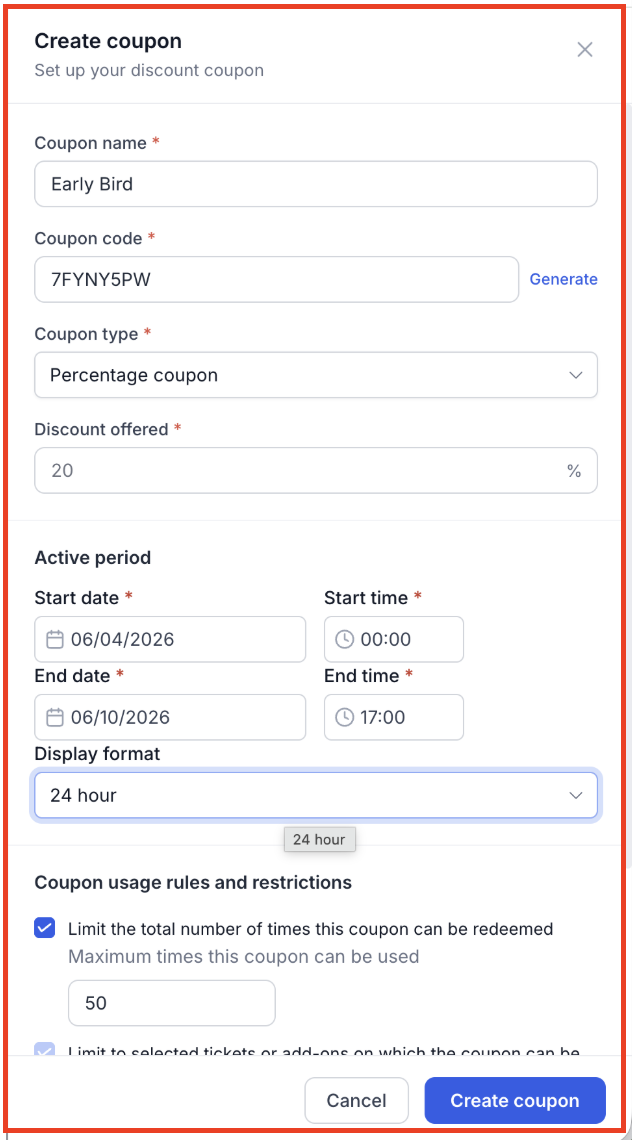
Optionally set usage limits and ticket restrictions so the code works only on certain ticket types.
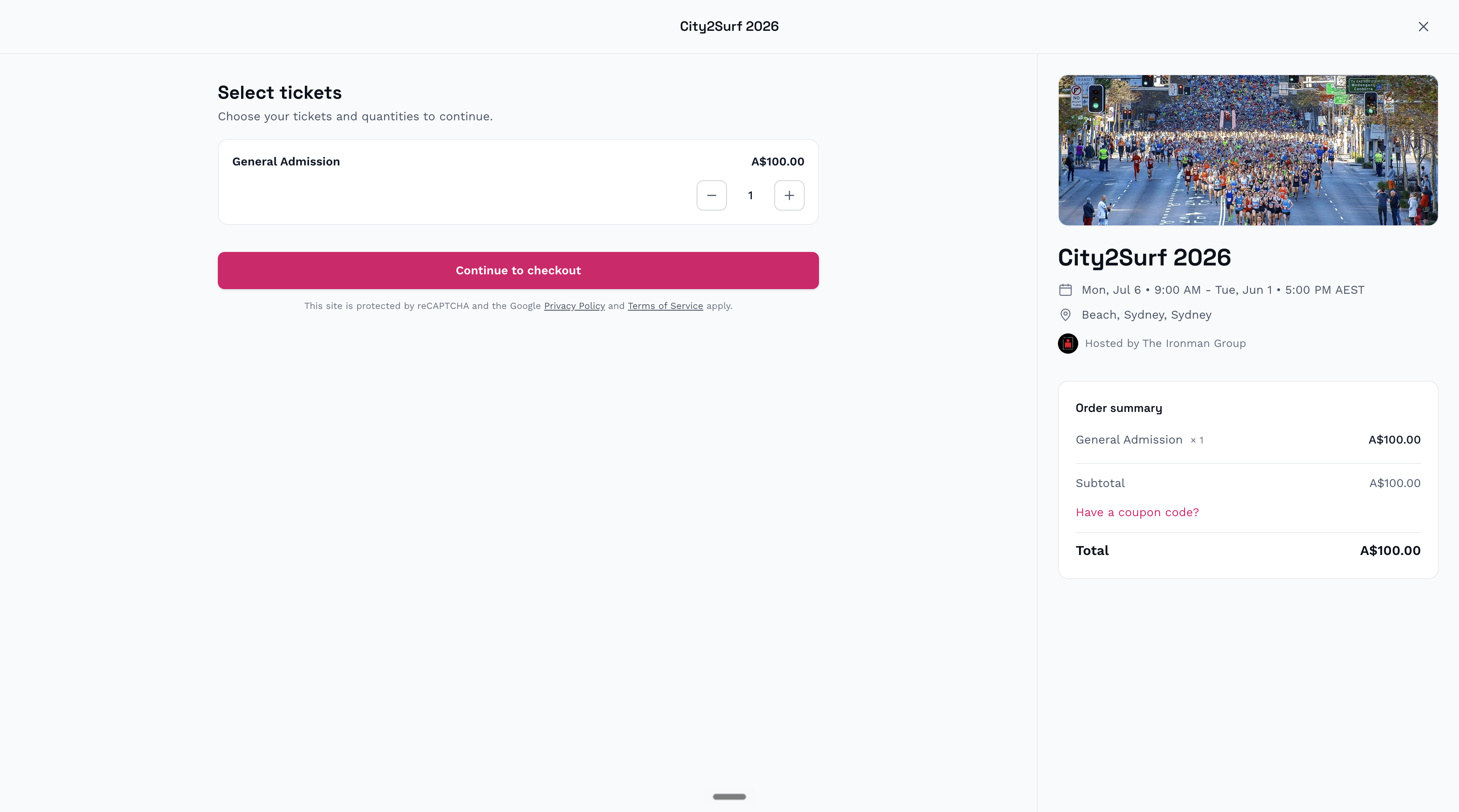
Save. Attendees enter the code under Have a coupon code? during ticket selection.
Revenue reporting reflects what attendees actually paid after discounts, not ticket price multiplied by sales.
The schedule lists the sessions for the event.
Open Schedule and click Add schedule.
Enter the session title, the time (it must fall within the event window), the stage or location, a description, and the assigned speakers.
Save the session. Repeat for each session.
Sessions can be limited to certain ticket types when the attendee app is enabled (for example a VIP-only session). See Events Wallet Passes and the Attendee App.
Open the Speakers sub-navigation and click + Add speaker.
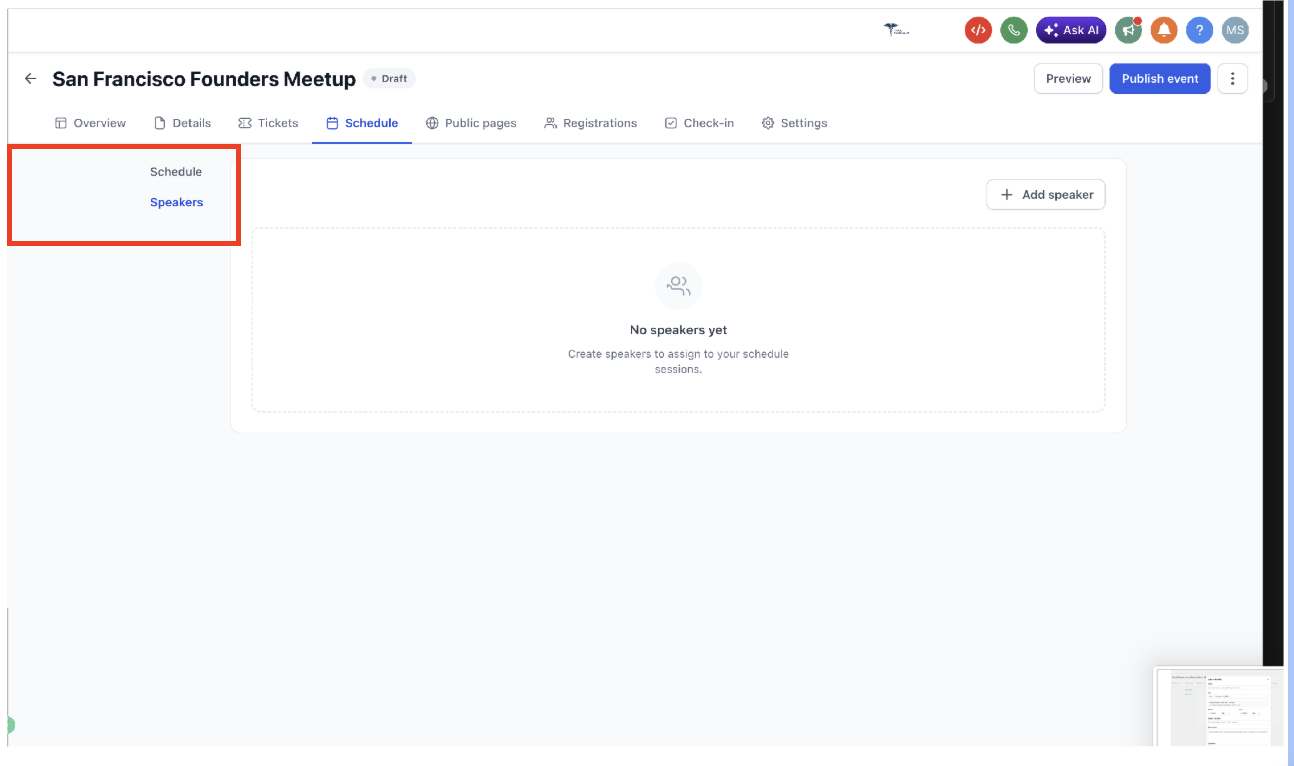
Enter the name, photo, tagline and description.
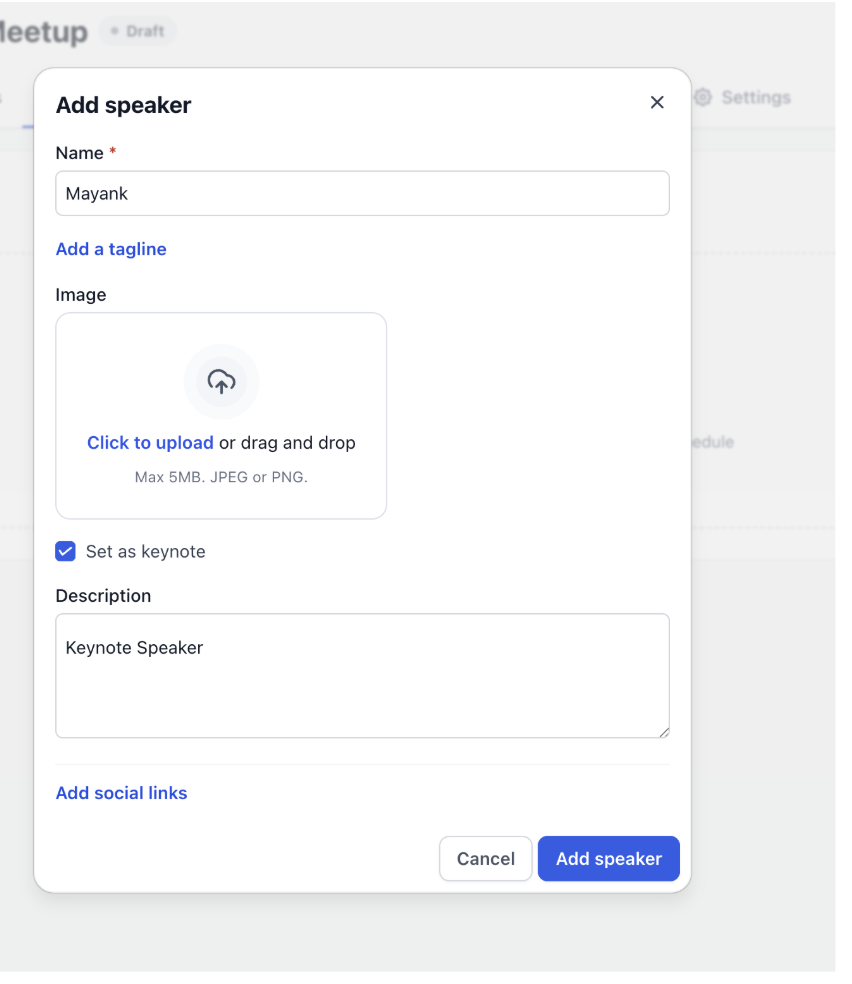
Mark the speaker as a keynote if applicable, and add social links.
Save, then assign the speaker to sessions in the Schedule tab.
Speakers are copied together with the schedule when you duplicate an event.
Buyers can select several tickets, including different ticket types, in one order. The checkout collects attendee details for each ticket. Configure the checkout form under Pages & Design > Checkout. See Events Registrations, Manual Attendees and Group Orders.
Ticket names and descriptions are public. Do not name tickets after a diagnosis or a specific condition a guest is being treated for. Keep ticket text general (for example "Skin Care Education Night") and keep any health details in your EMR.
Can I mix free and paid tickets in one event?
Yes. Create a Free ticket type and a Fixed price ticket type in the same Ticketed event.
Why does my ticket say Not Yet on Sale?
Its sale period has not started. Check the start date and time, which use the event timezone.
What is the difference between Paused and Hidden?
Paused stops sales on the ticket. Hidden removes the ticket from the public page. Use either to temporarily stop selling.
Do event coupons work on other products?
No. Event coupon codes apply only to Events.
Can a coupon be limited to one ticket type?
Yes. Set ticket restrictions when you create the coupon. You can also add usage limits.
Are speakers copied if I duplicate an event?
Yes, when you choose to copy the schedule. Speakers are included with the schedule.
Can I sell tickets after the event capacity is reached?
Public checkout stops at capacity, but staff can still add attendees manually from the Registrations tab.
Are coupons copied when I duplicate an event?
No. Coupons and promotions are reset on the new draft, so recreate them.
Do RSVP events use ticket types?
No. RSVP events collect free registrations with no payment step.
