Facebook Lead Ads Booking lets prospective patients schedule an appointment immediately after submitting a Facebook or Instagram Instant Form, instead of leaving Meta's app to find a separate booking page. When Meta supports the embedded experience, your Aesthetix CRM calendar shows up right on the form's Thank You page, so a lead who just requested more information about a treatment can grab a consult time in the same flow.
This is especially useful for appointment-driven campaigns: consultations, treatment reviews, injectable touch-ups, or any offer where the next step is getting someone on your calendar.
When a lead submits your Instant Form, Meta can display a Book time button on the Thank You page. Tapping it opens a live booking widget powered by your Aesthetix CRM calendar link, showing real availability pulled from that calendar's settings. If the lead's name, email, and phone number were collected on the form, those details can carry over into the booking step so the lead does not have to type them again.
It is a division of responsibility: Meta controls the Instant Form, the CTA, the Thank You page, and whether the embedded preview is available for a given placement. Your Aesthetix CRM calendar controls availability, booking rules, notifications, and the resulting appointment record.
Fewer steps for the lead. They can book without leaving the Thank You page or opening a second link.
Higher booking completion. Cutting out redirects and repeated data entry tends to improve how many leads actually land on your calendar.
Real-time availability. Slots shown reflect your Aesthetix CRM calendar's actual configuration, not a static schedule.
Simple campaign setup. You just paste a scheduling link into the Instant Form editor and select the Book time action.
Built-in follow-up. Once leads sync into Aesthetix CRM, you can route them into workflows for confirmations, reminders, and post-appointment nurture.
Automation on booking. A completed booking can trigger workflows for internal notifications, reminder sequences, and no-show follow-up.
Facebook Lead Ads Instant Forms capture lead information inside Meta's ad experience. Aesthetix CRM handles the CRM side by syncing those leads in as contacts, while your calendar link handles the scheduling side.
Before setting anything up in Meta, create or identify the calendar you want these leads booking into, then copy its public scheduling link. Point the link at the specific calendar, provider, or service you want this campaign to drive, for example a "New Patient Consult" calendar rather than your general booking page.
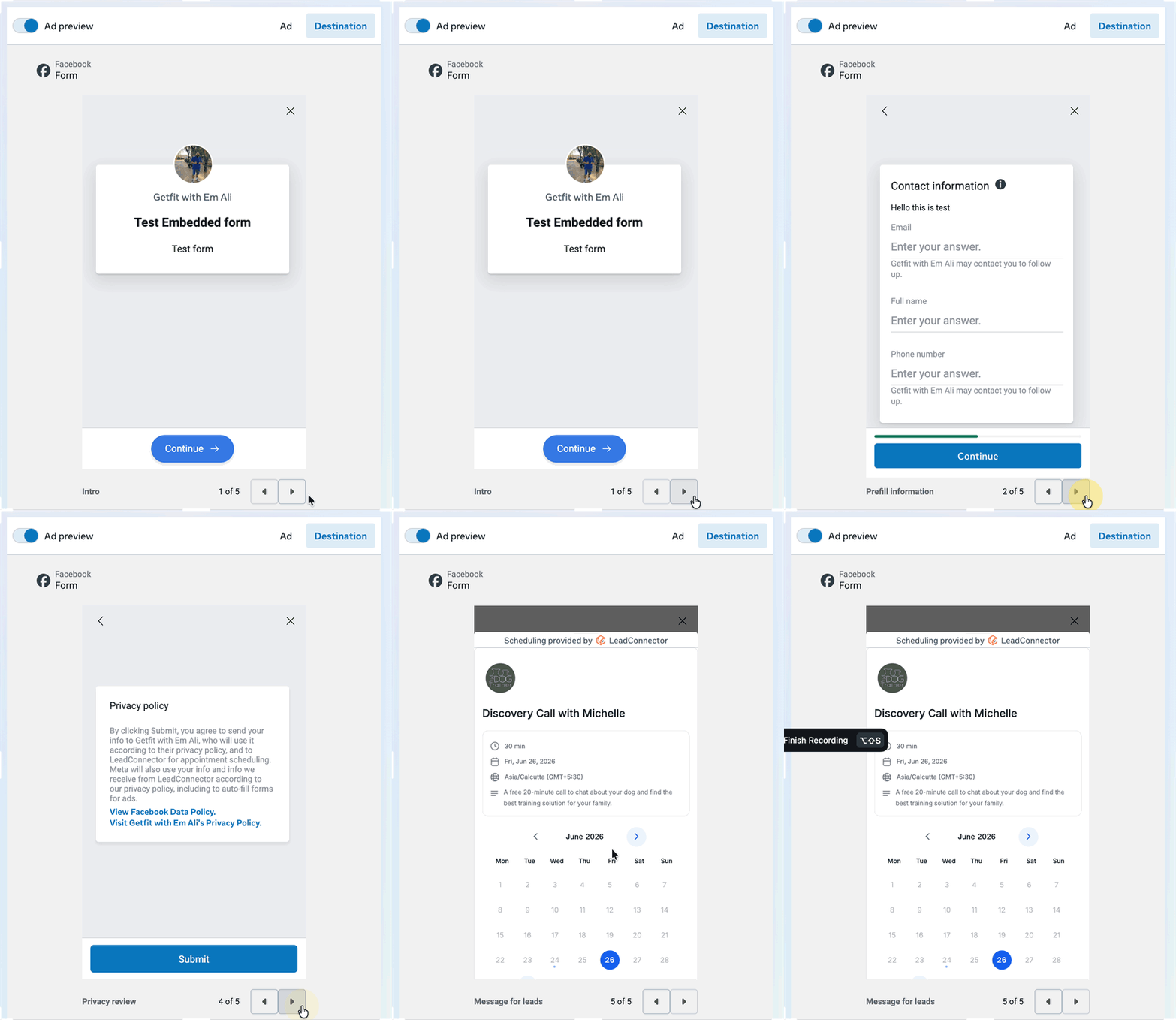
Important: Meta controls the Instant Form, the CTA, the Thank You page, provider detection, the preview, and where the embedded experience is allowed to show. Your Aesthetix CRM calendar controls availability, booking rules, notifications, and appointment records.
Confirm your calendar first, then plug its scheduling link into Meta's Instant Form editor.
In Aesthetix CRM, open your calendars from either of these paths:
Calendars > Calendar Settings
Settings > Calendars
Use an existing booking calendar or create a new one for this campaign, for example a dedicated consult calendar for a specific treatment or provider.
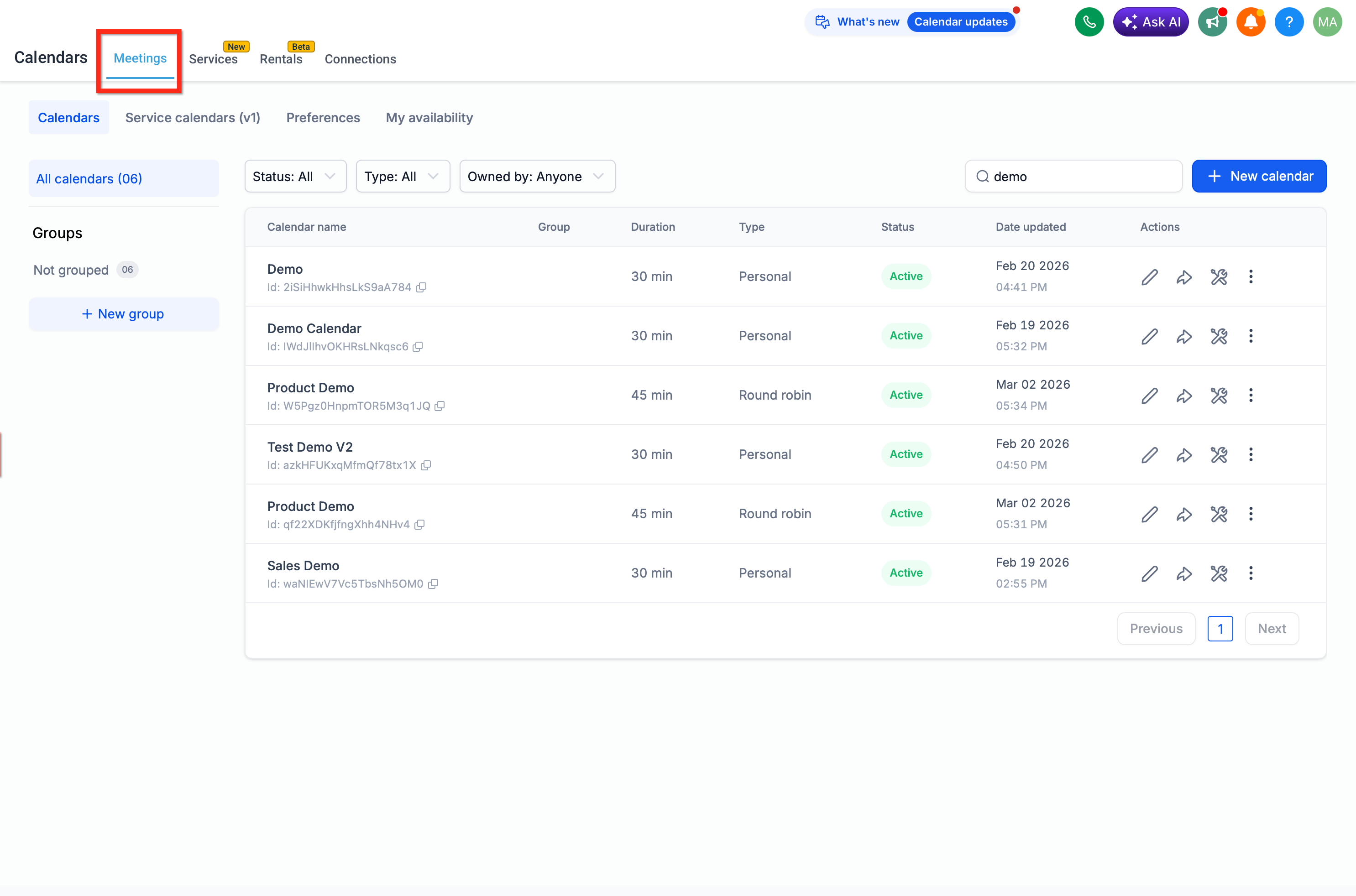
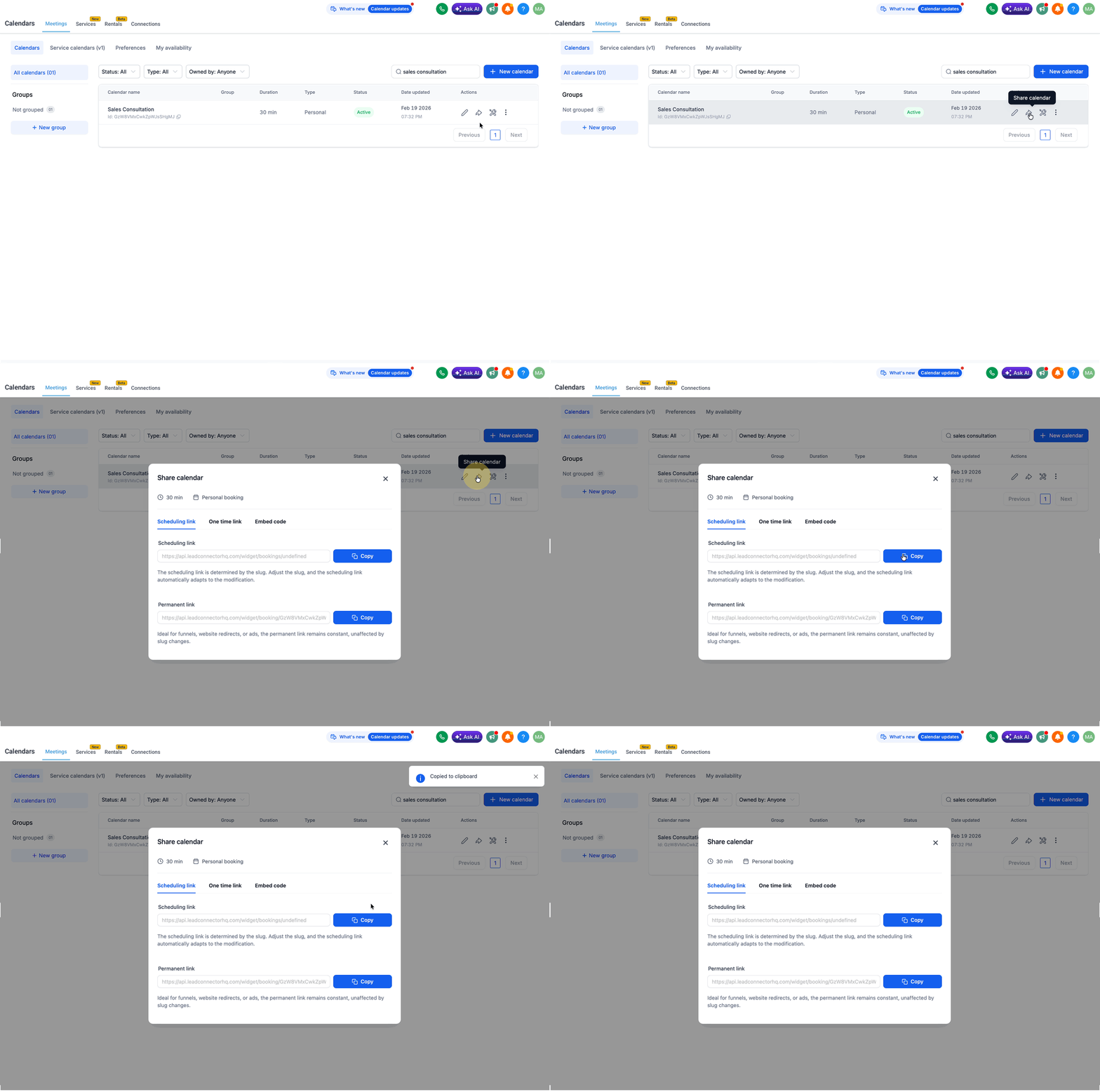
Copy the scheduling link for the calendar you want Facebook leads to book into.
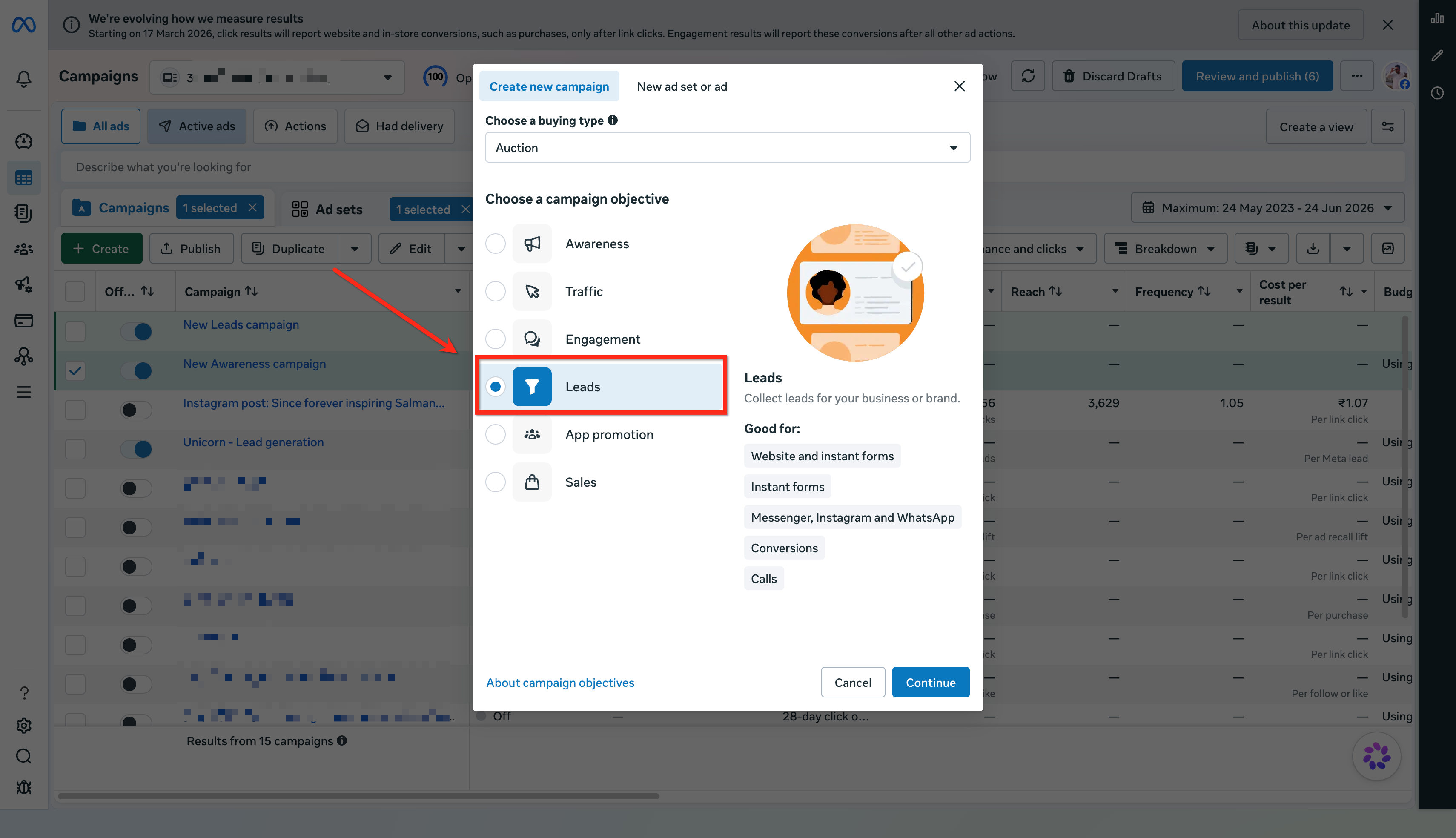
In Facebook, go to Ads Manager and click + Create. Choose Leads as your campaign objective and click Continue.
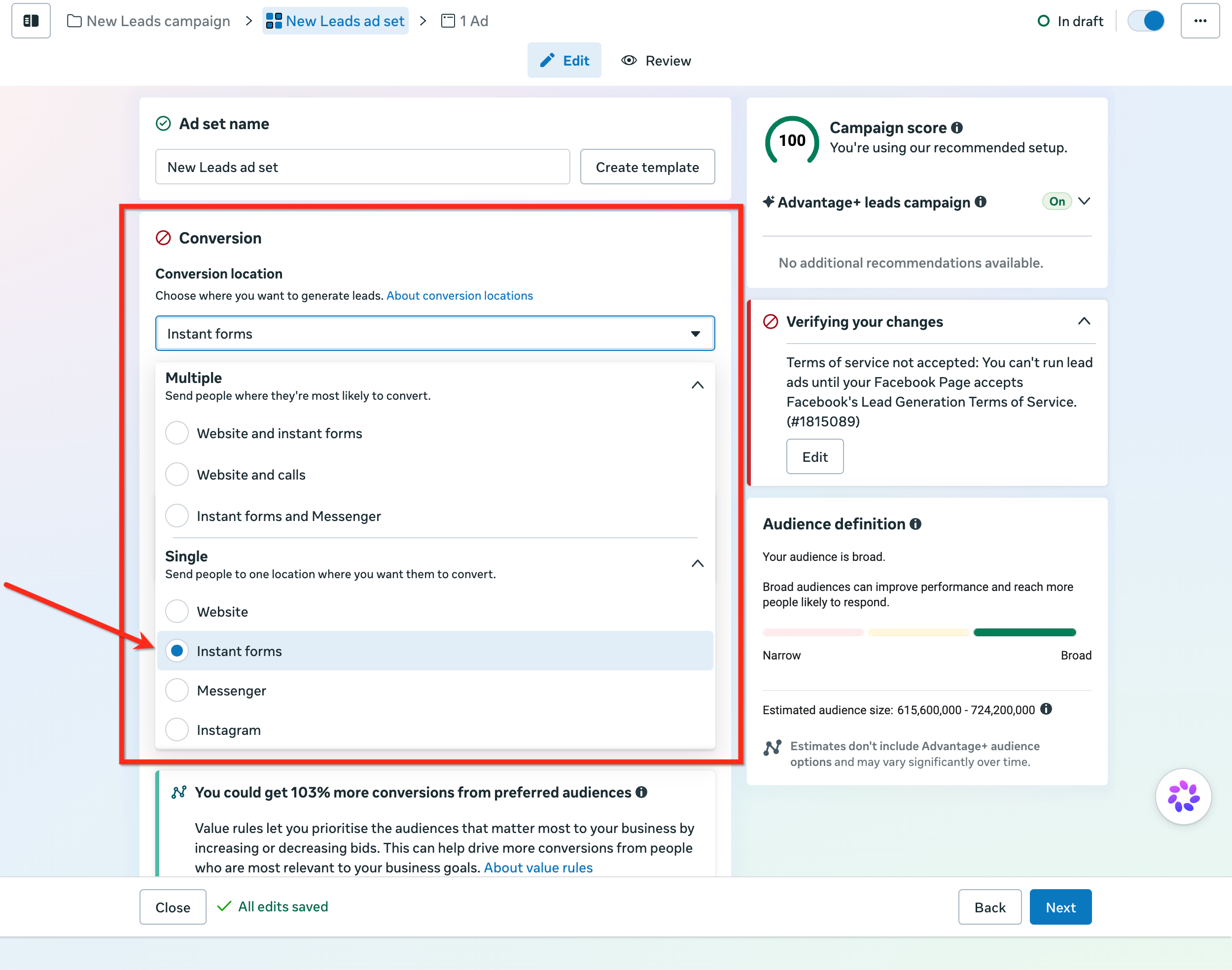
Complete the rest of the ad setup. At the ad set level, select Instant forms as your conversion location.
Build your Instant Form. In the Ending section, under Additional actions, select Book time.
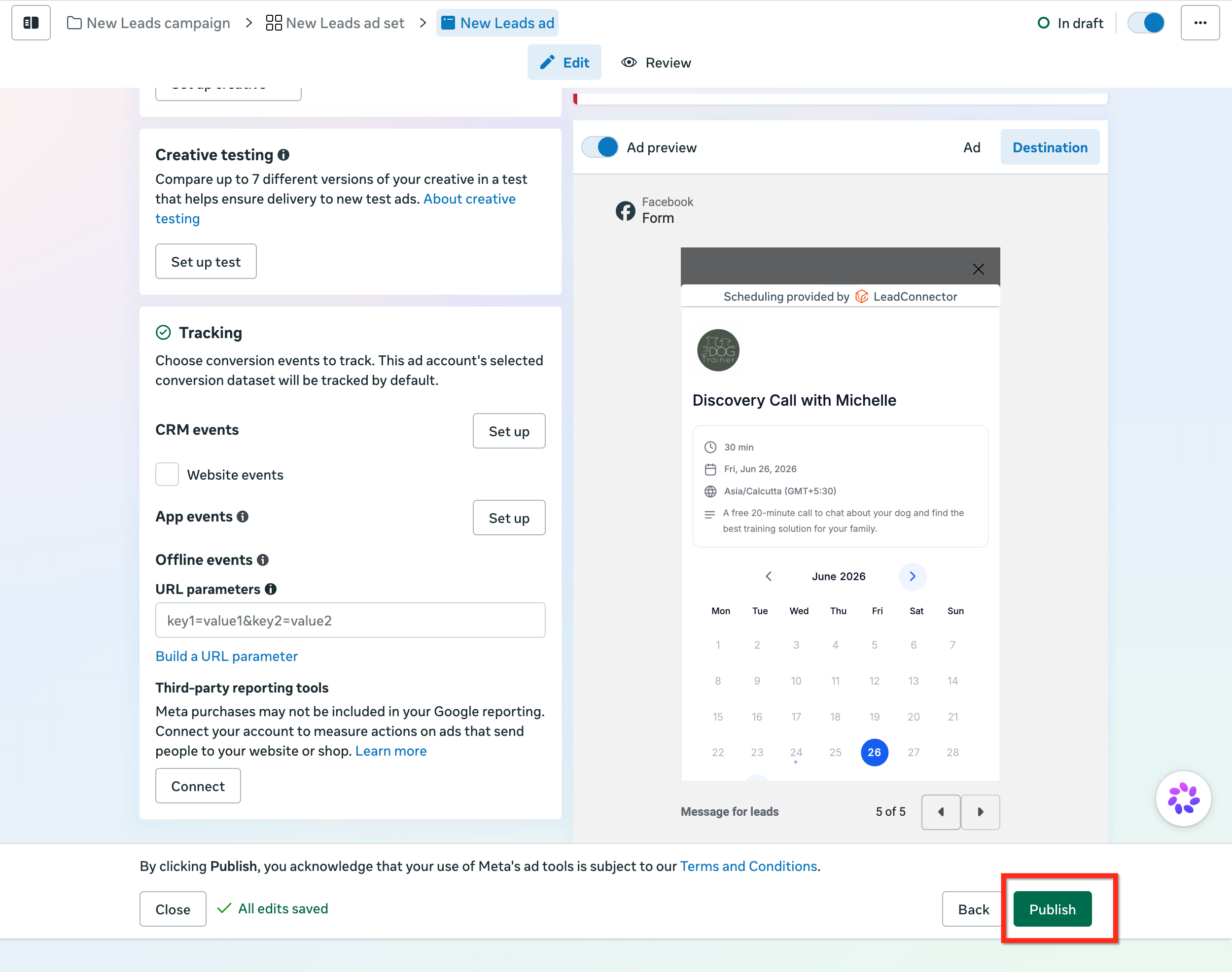
Paste your Aesthetix CRM calendar scheduling link into the Scheduling link field. Meta detects the calendar provider automatically and, when supported, shows a live preview of the embedded booking widget right in Ads Manager.
Finish the rest of the Instant Form and click Publish when the ad is ready to go live.
Set up follow-up workflows in Aesthetix CRM based on what happens after the form is submitted. A Facebook Lead Form Submitted trigger can start outreach for leads who submit but do not book, and a Customer Booked Appointment trigger can send confirmations, reminders, and internal notifications to help cut down on no-shows.
Important: Embedded booking is currently available for ads delivered on the Facebook mobile app. Other placements, including Instagram, may still show the Book time button, but tapping it opens the booking page in a separate in-app browser instead of embedding it on the Thank You page.
Note: Use your default Aesthetix CRM scheduling link (not a custom branded domain) for embedded booking. Links on a custom branded domain may not show the embedded preview in Ads Manager and can open in a browser window during a live campaign instead of embedding directly.
Keep the Instant Form itself limited to basic contact fields for scheduling purposes. Avoid asking for specific health conditions or treatment history on the form; collect that information later, during the consult or through an intake form your practice already uses.
Q: Does embedded booking work on Instagram placements? It is optimized for the Facebook mobile app. On placements that are not supported, including Instagram, the booking link opens through the standard in-app browser instead of embedding directly on the Thank You page.
Q: Where do I see appointments booked from this campaign? Open the same Aesthetix CRM account used for the campaign and go to Calendars. Select the calendar tied to your scheduling link and use the date range, calendar, or team member filters to find appointments that came from that campaign.
Q: Will the lead's contact info carry over into the booking flow? When supported, name, email, and phone number collected on the Instant Form can carry over into the booking step so the lead does not have to re-enter them.
Q: Can I use a different calendar for each campaign? Yes. Use the scheduling link for whichever calendar, provider, or service best matches that specific campaign, such as a consult calendar for one treatment and a different calendar for another.
Q: The embedded calendar loads but shows no open times. What should I check? Check that calendar's availability window, assigned team member, connected conflict calendars, buffers, date-specific hours, and any booking rules in Aesthetix CRM. Also open the scheduling link directly outside of Meta to confirm it works on its own.
Q: Who sends the appointment confirmation, Meta or Aesthetix CRM? Confirmations and reminders come from the notification settings on the Aesthetix CRM calendar connected to that scheduling link, not from Meta.
Q: Do I need a developer or any custom code to set this up? No. Standard setup just requires pasting your calendar's scheduling link into the Book time action in the Instant Form editor.
Q: What happens if a lead closes the booking widget without scheduling? They can reopen it by tapping Book time again on the Thank You page. If Messenger follow-up is enabled for the campaign, the lead may also get a reminder message prompting them to finish booking.
Q: Can I see how many appointments a campaign generated inside Ads Manager? Ads Manager does not report booked appointment counts for this feature. Check confirmed appointments directly in the Aesthetix CRM calendar tied to that campaign's scheduling link.
Q: Can I change how the embedded calendar looks inside Facebook? The appearance follows your Aesthetix CRM calendar settings. Meta does not offer extra styling options for the embedded widget inside the Instant Form experience.
