Quizzes built in Aesthetix CRM (under Sites > Quizzes) can do more than show a result page. Every answer a prospective patient gives can be written straight into their contact record, and every submission can kick off an automated follow-up, whether that's a personalized skincare recommendation email, an SMS nudge to book a consult, or a task for your front desk to call a high-intent lead.
This guide covers the full automation loop: mapping quiz results to contact custom fields, triggering workflows off a quiz submission, filtering by Terms & Conditions agreement, and collecting structured data with custom fields inside the quiz builder.
Quiz Result to CRM Field Mapping automatically writes a contact's quiz outcomes, such as their overall score and tier, per-category scores and tiers, and highest/lowest category details, into contact-level custom fields. Instead of a one-off quiz answer that disappears after submission, you get a durable, structured attribute on the contact record that you can use for segmentation, personalization, and automation.
This is especially useful for skin-type quizzes, treatment-matching questionnaires, or pre-consult screeners: a patient's answers turn into CRM data you can act on immediately, without manual tagging or exporting to a spreadsheet.
Key benefits:
Auto-generated fields. Fields for overall score/tier, category scores/tiers, and highest/lowest category details are created for you the first time a quiz is submitted.
Real-time updates. If the same contact retakes the quiz, the latest submission overwrites their existing fields instead of creating duplicates.
Automation-ready. Use the mapped fields in workflow filters, branching logic, and personalized content.
Cleaner segmentation. Build smart lists based on scores, tiers, or winning categories (for example, everyone whose top category was "Anti-Aging").
Personalized follow-ups. Tailor emails, texts, or landing pages based on a patient's outcome tier or category.
Aesthetix CRM scans the quiz on first submission and creates contact fields that follow a predictable naming pattern, so the data stays tidy and searchable:
{{quiz_name}} - Overall Score
{{quiz_name}} - Overall Score - Tier
{{quiz_name}} - {{category_name}} - Score
Scores are stored as Number fields; tiers and category names are stored as Text fields. That means they work with all your standard CRM filters, workflow conditions, and merge fields right out of the box.
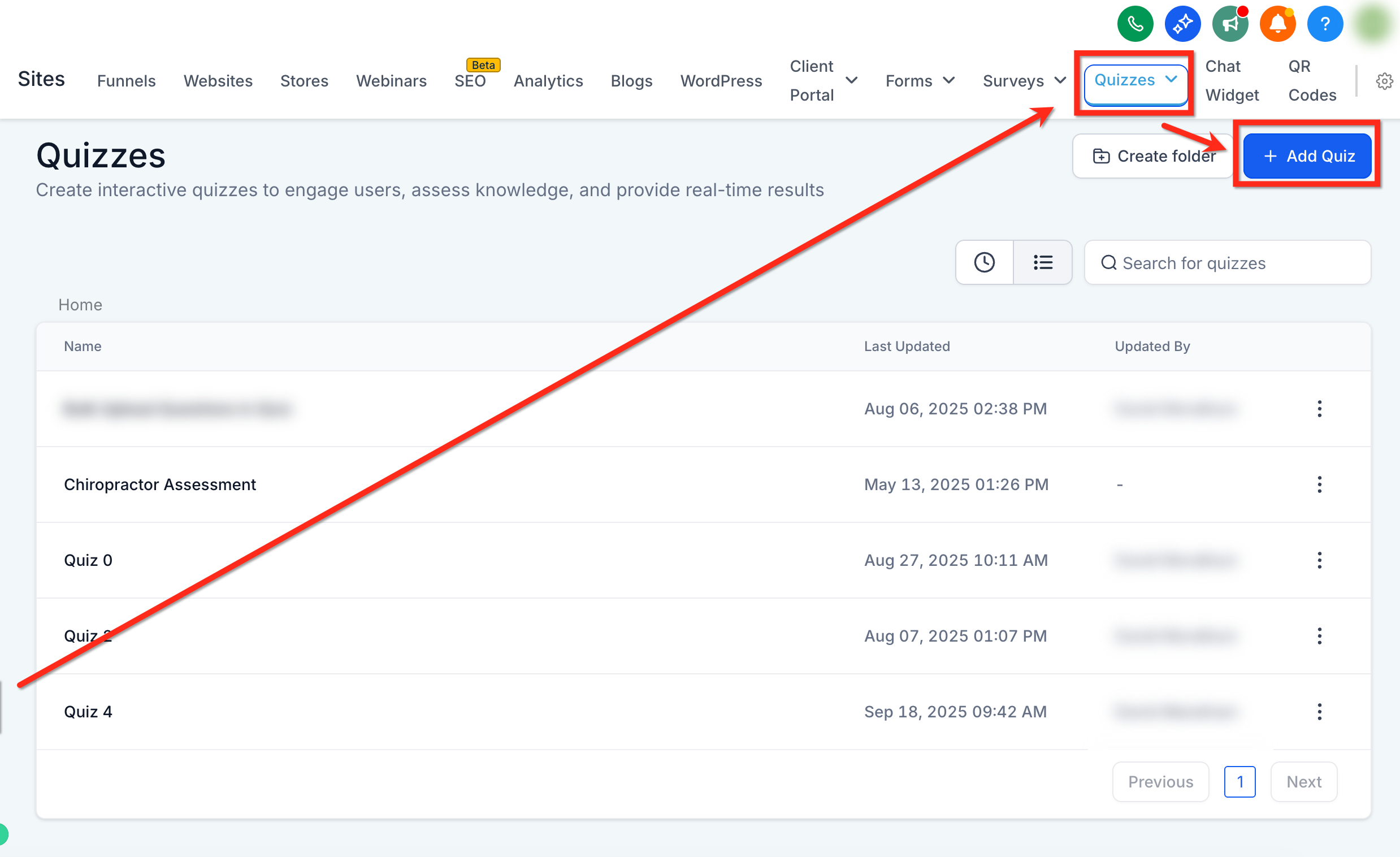
Navigate to Sites > Quizzes and select an existing quiz, or click + Add Quiz to build a new one.
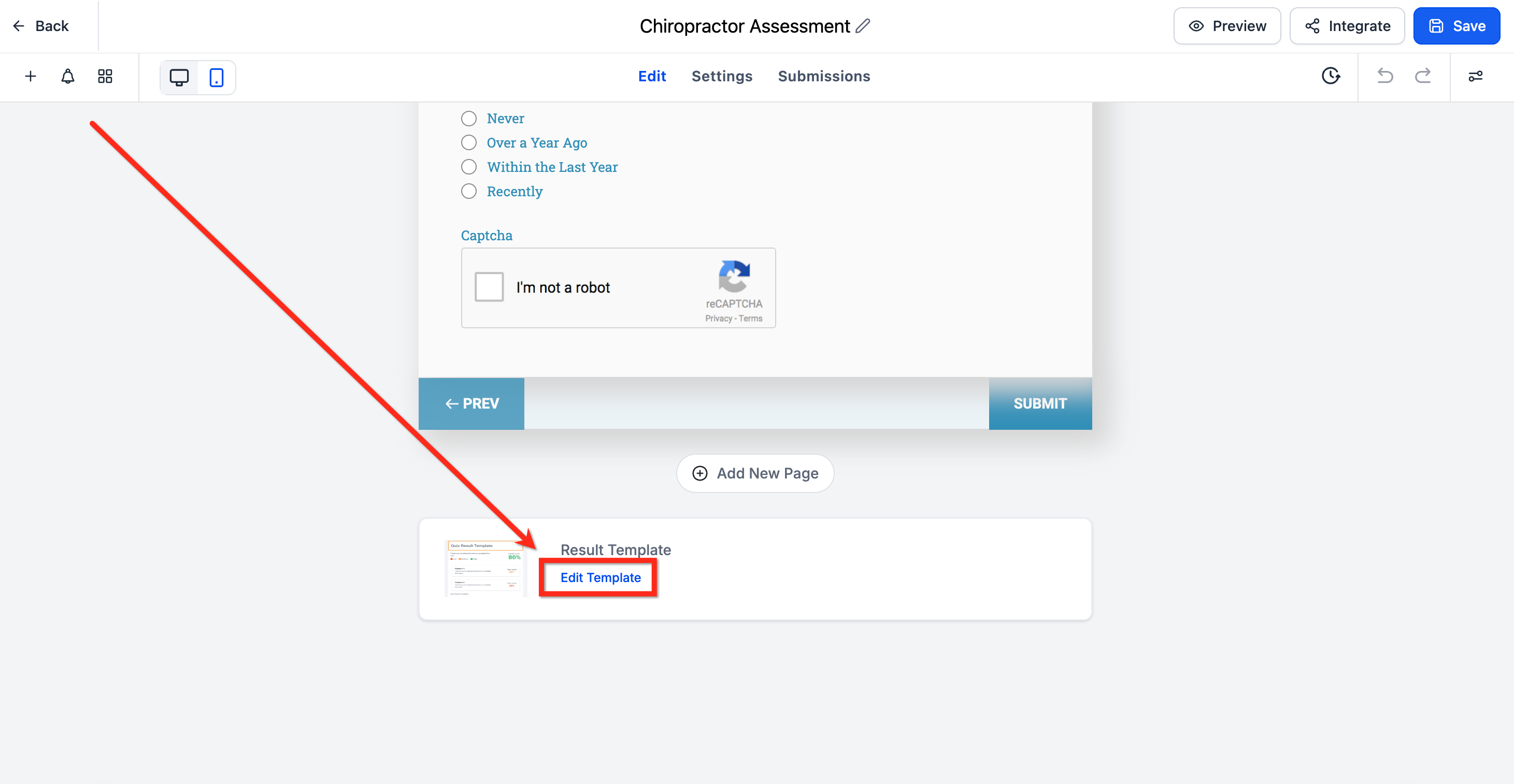
Scroll to the end of the quiz to the Results Template and click Edit Template.
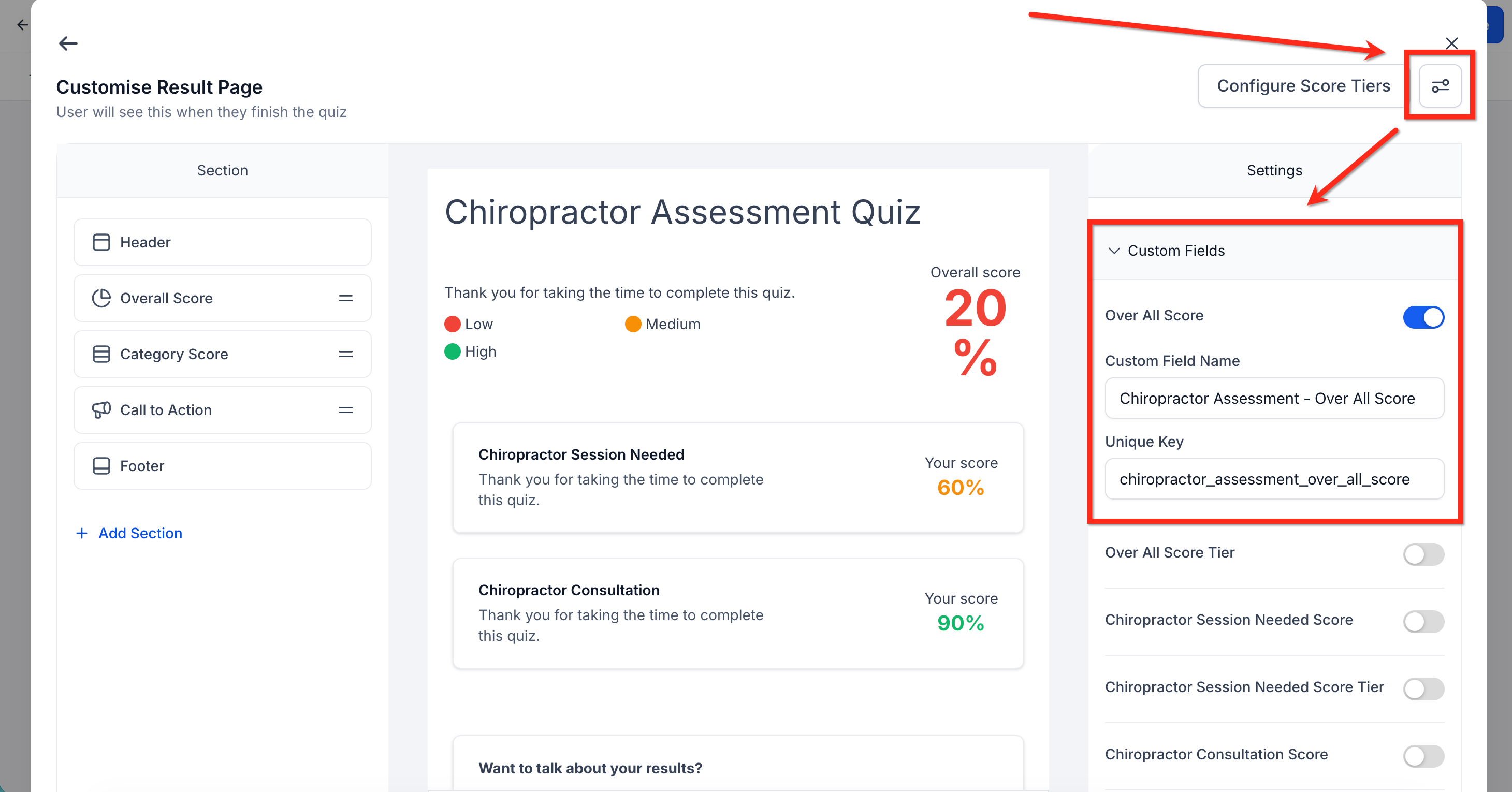
Click Settings in the upper right corner and expand the Custom Fields dropdown to see the fields the system created for you.
Turn on the toggles for each field you want to sync, such as Overall Score, Overall Score Tier, category-wise scores and tiers, and the highest/lowest scoring categories. Aesthetix CRM automatically assigns a Custom Field Name and Unique Key to each one.
Click Save once you've enabled the fields you want.
Once enabled, every time a patient completes the quiz their scores and tiers are captured automatically.
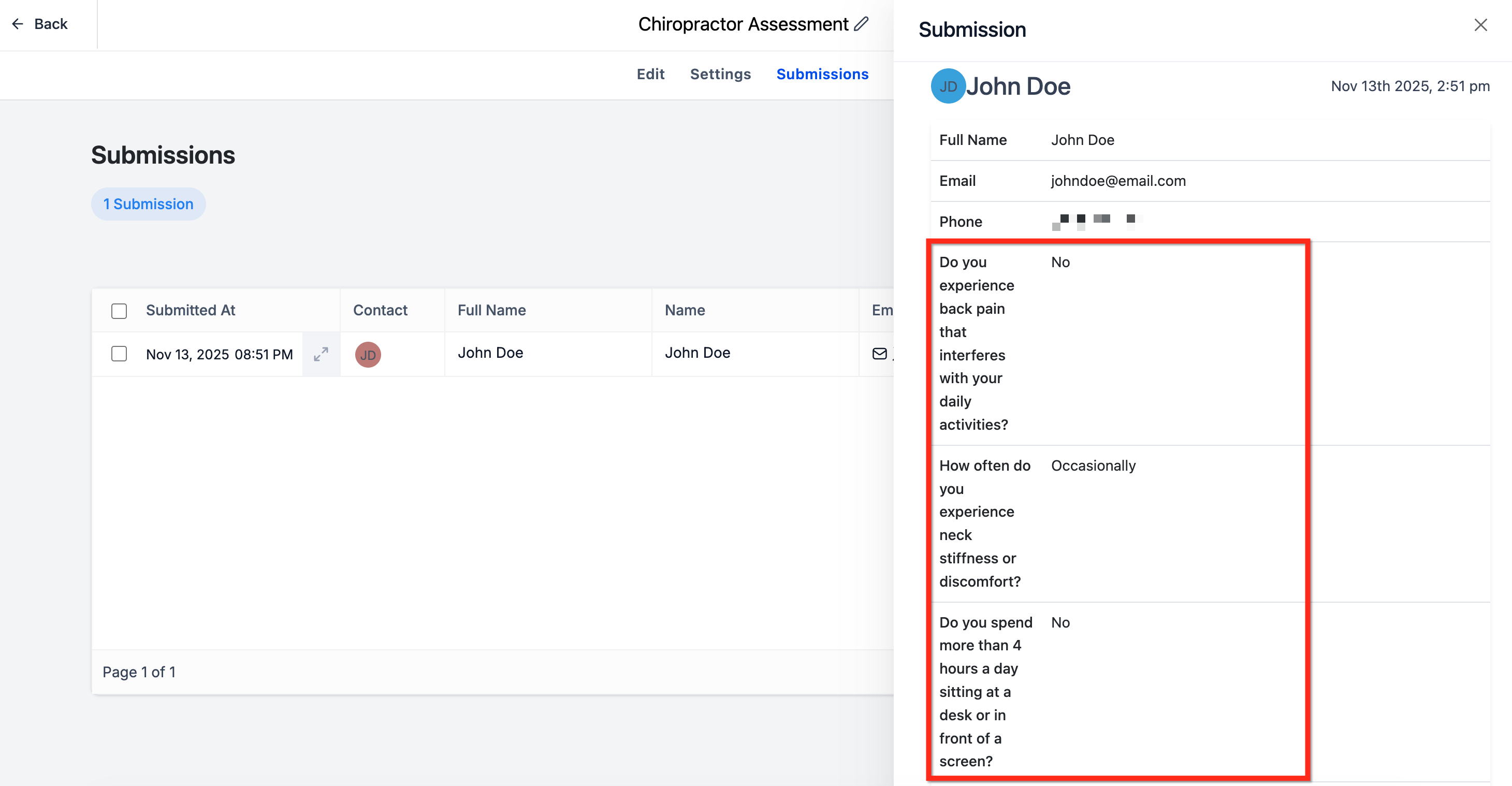
After submission, the selected fields are written to (or updated on) the contact record. If a contact retakes the same quiz, their existing data is overwritten, not duplicated, so records stay clean.
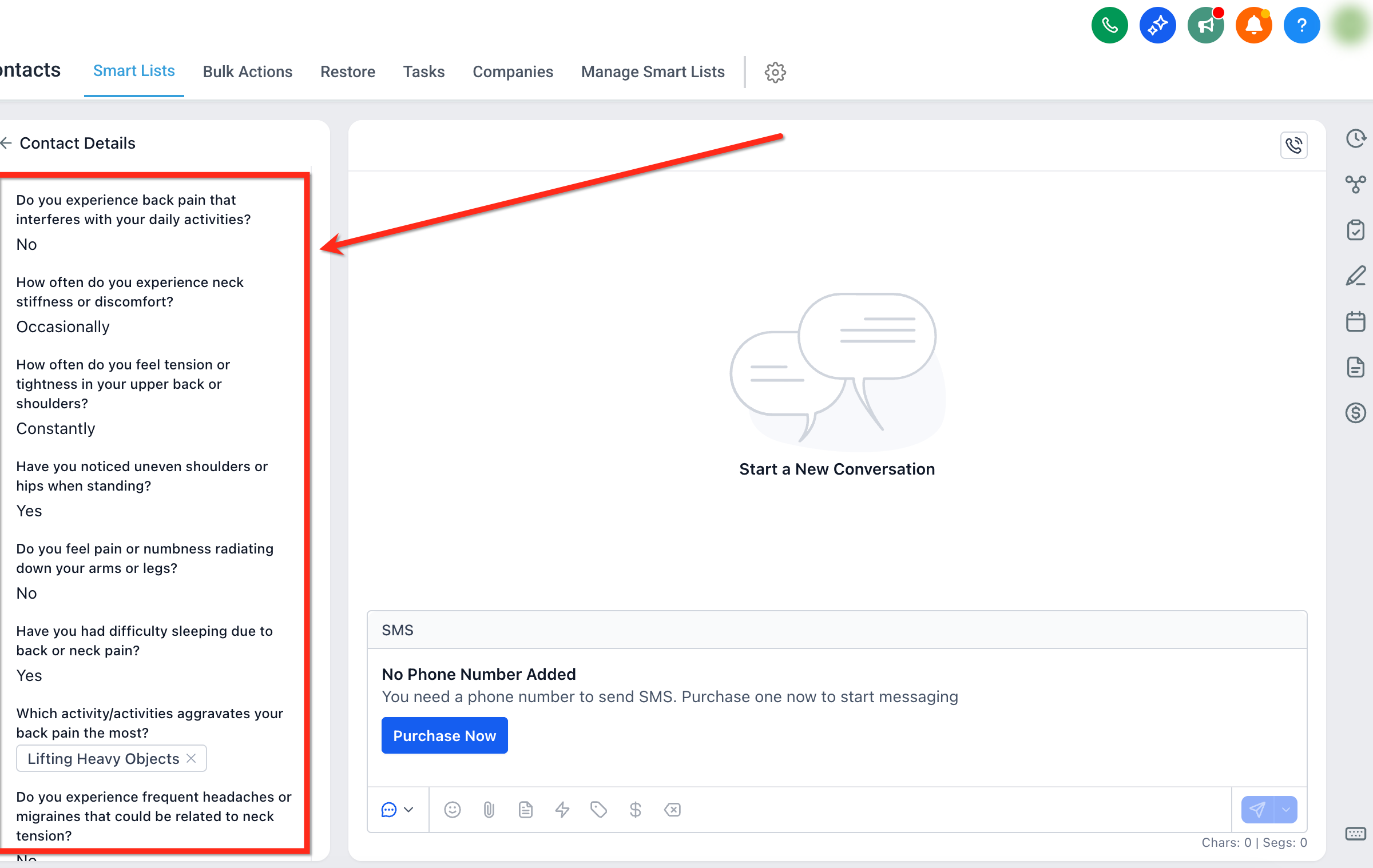
Once quiz data lives on the contact record, you can put it to work in a few ways:
Segment contacts. Filter or group patients by quiz performance, for example a smart list of everyone with an "Overall Score" of 80 or higher, or everyone whose "Skin Type Tier" came back "Dry/Sensitive," so you can send a targeted product or treatment offer.
Personalize automations. Send different nurture sequences depending on a patient's highest or lowest scoring category, or trigger an action the moment a category score crosses a threshold.
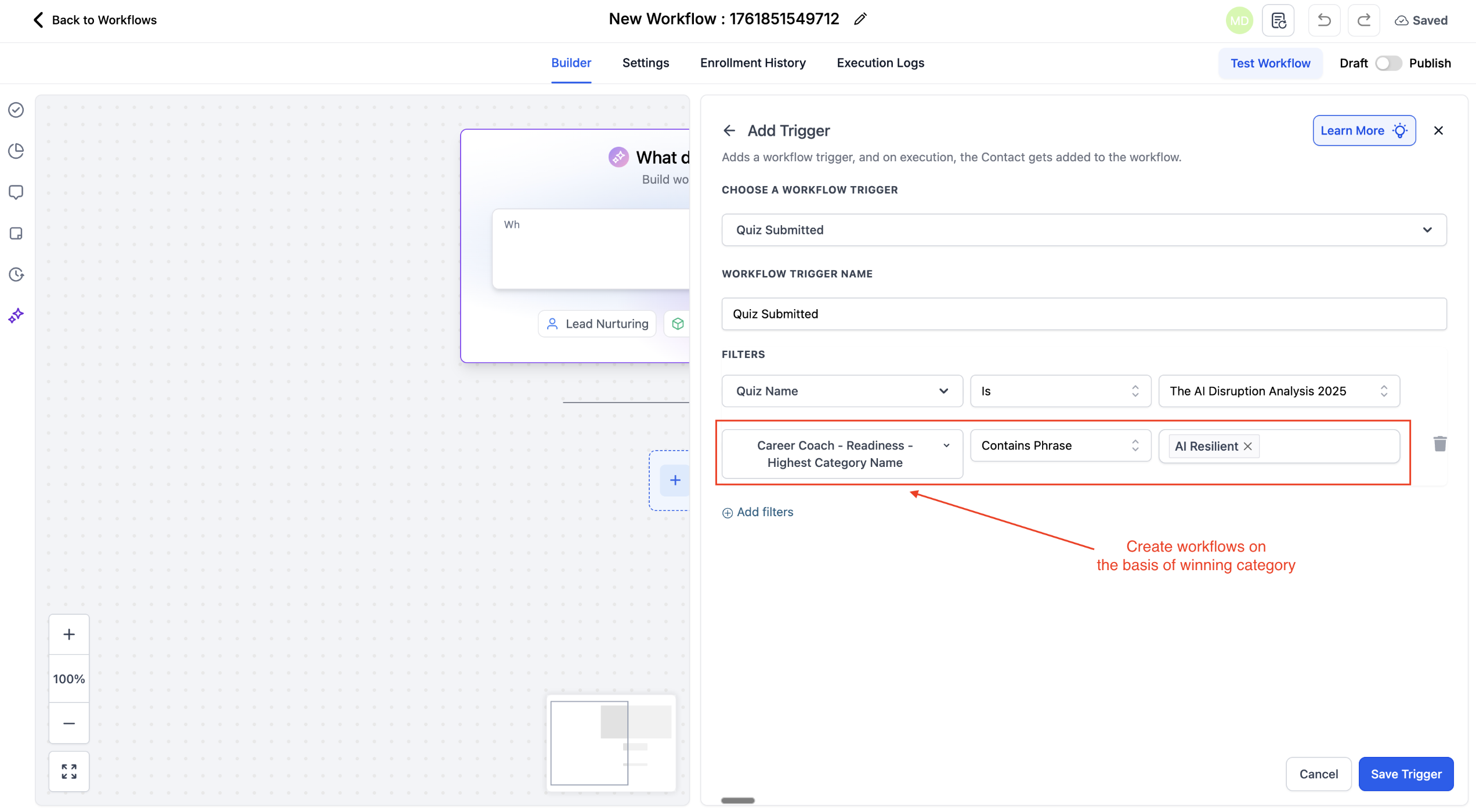
Power conditional logic. Use mapped fields inside If/Else branches in a workflow. For example: if {{quiz_name}} - Skin Concern Tier equals "Advanced," send a guide to injectables; if {{quiz_name}} - Hydration Score is below 50, enroll the contact in a beginner skincare nurture.
The Quiz Submitted trigger starts a workflow the instant a contact finishes and submits a published quiz. It's the entry point for turning a quiz result into an automated response, whether that's a same-day email, an SMS, a task for your team, or all three.
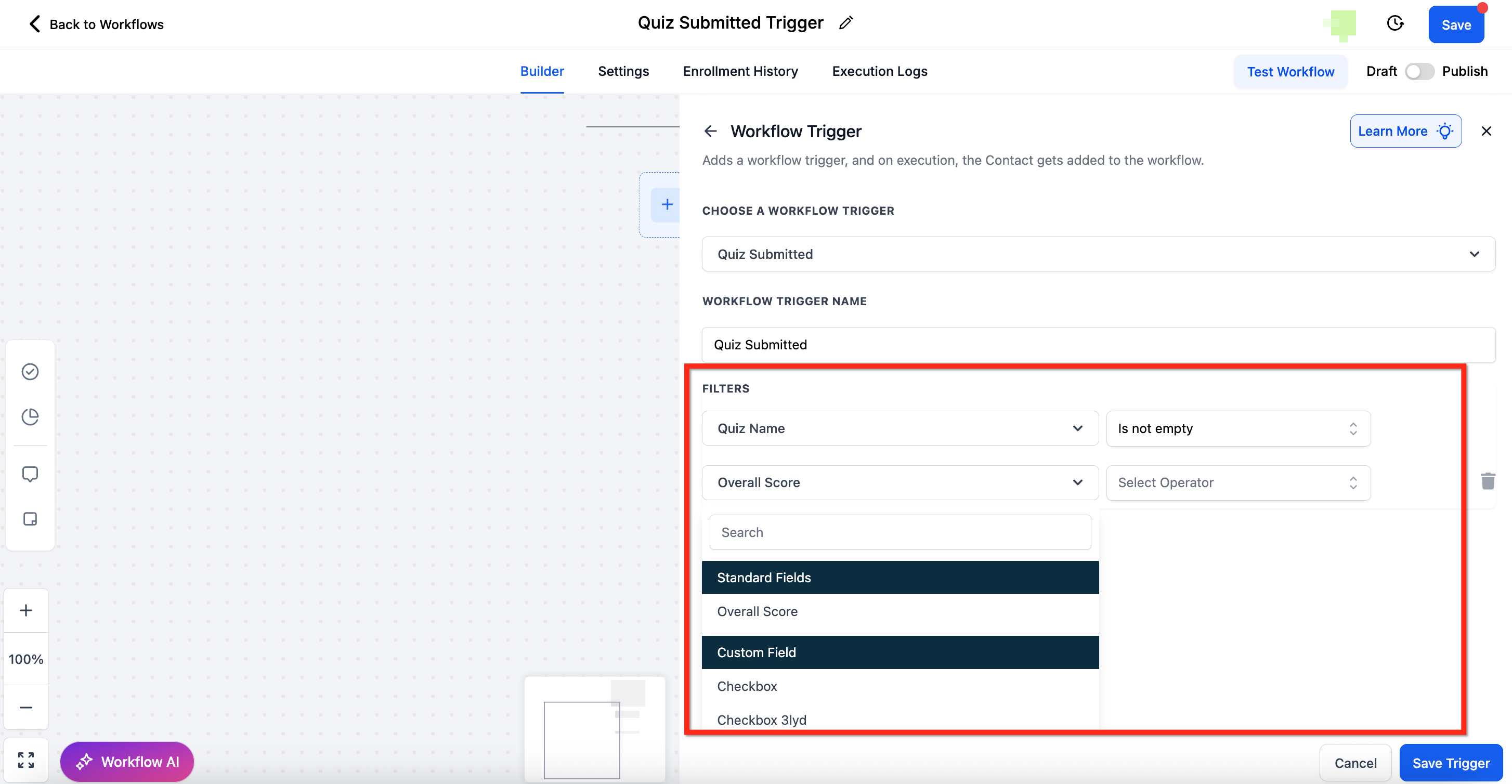
Filters control which quiz submissions actually start the workflow, so you're not enrolling every quiz-taker into the same journey:
Quiz Name: target a specific quiz, use "Any" to include all quizzes, or use "Is Not" to exclude specific quizzes.
Overall Score: segment by total score, for example "greater than 80" or "between 50 and 70."
Category Score: target patients who scored high or low in a particular quiz section.
Custom Field: reference the custom score fields you enabled when setting up field mapping.
When filtering by score, use the Between operator to match a range: enter the lower score in the first field and the higher score in the second. Both ends of the range are included, and Aesthetix CRM prevents invalid ranges where the minimum is greater than the maximum. For example, you could trigger a "let's talk about a treatment plan" nurture whenever a skin-concern score lands between 30 and 60.
Personalized feedback: send a follow-up email matched to a patient's quiz outcome, for example a customized skincare routine based on their skin-type result.
Lead scoring and segmentation: route quiz-takers into different nurture tracks based on score, and keep the CRM record updated for targeted outreach.
Treatment recommendations: suggest a relevant service or package based on quiz performance, for example recommending a laser package to patients who score high on "sun damage."
Front-desk follow-up: automatically assign a callback task to your team for high-scoring or high-intent quiz takers.
Event or promo tracking: trigger a reward, discount code, or confirmation after quiz completion tied to a campaign.
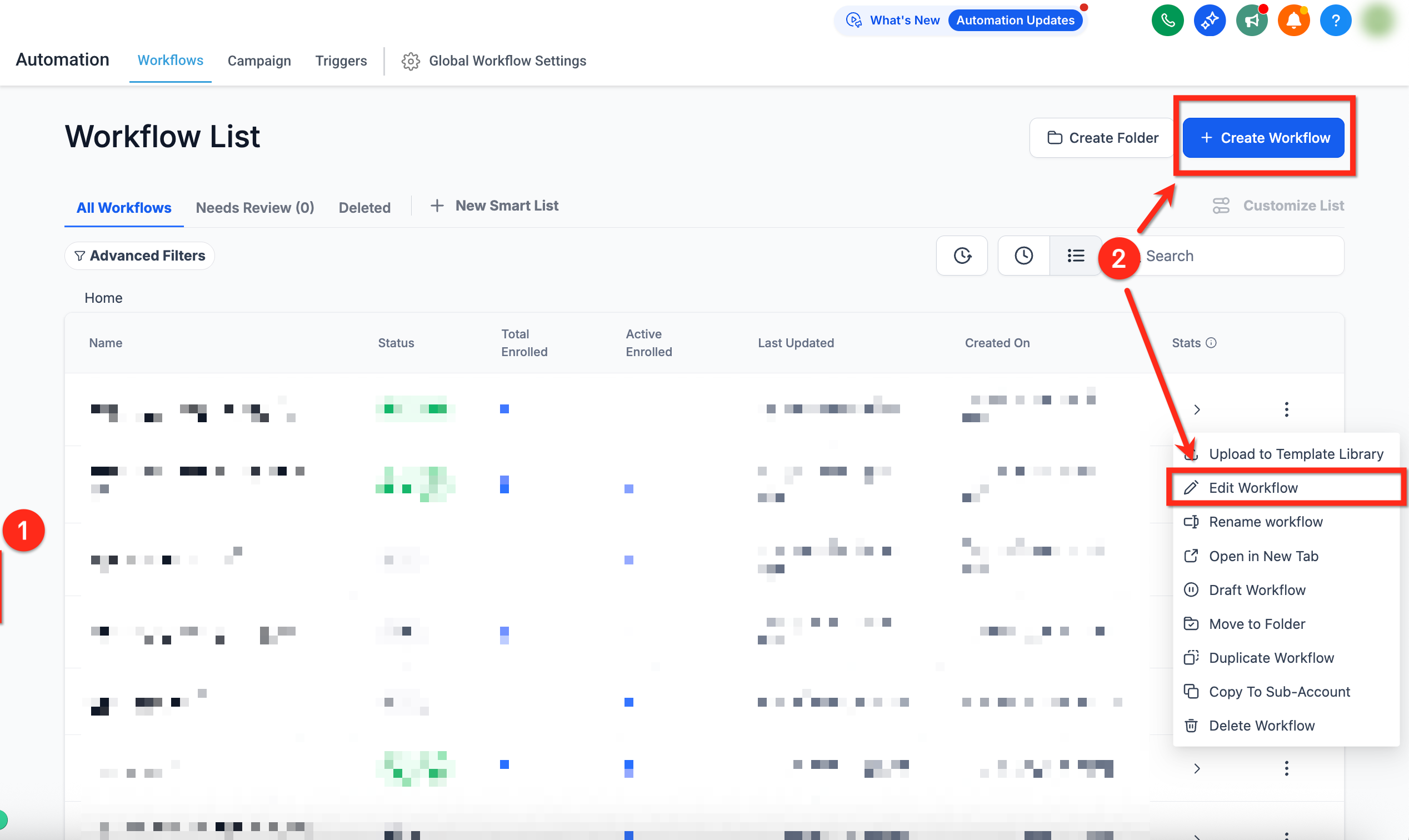
Go to Automation in the left-hand navigation, then click Create Workflow, or edit an existing workflow using the three-dot menu next to its name.
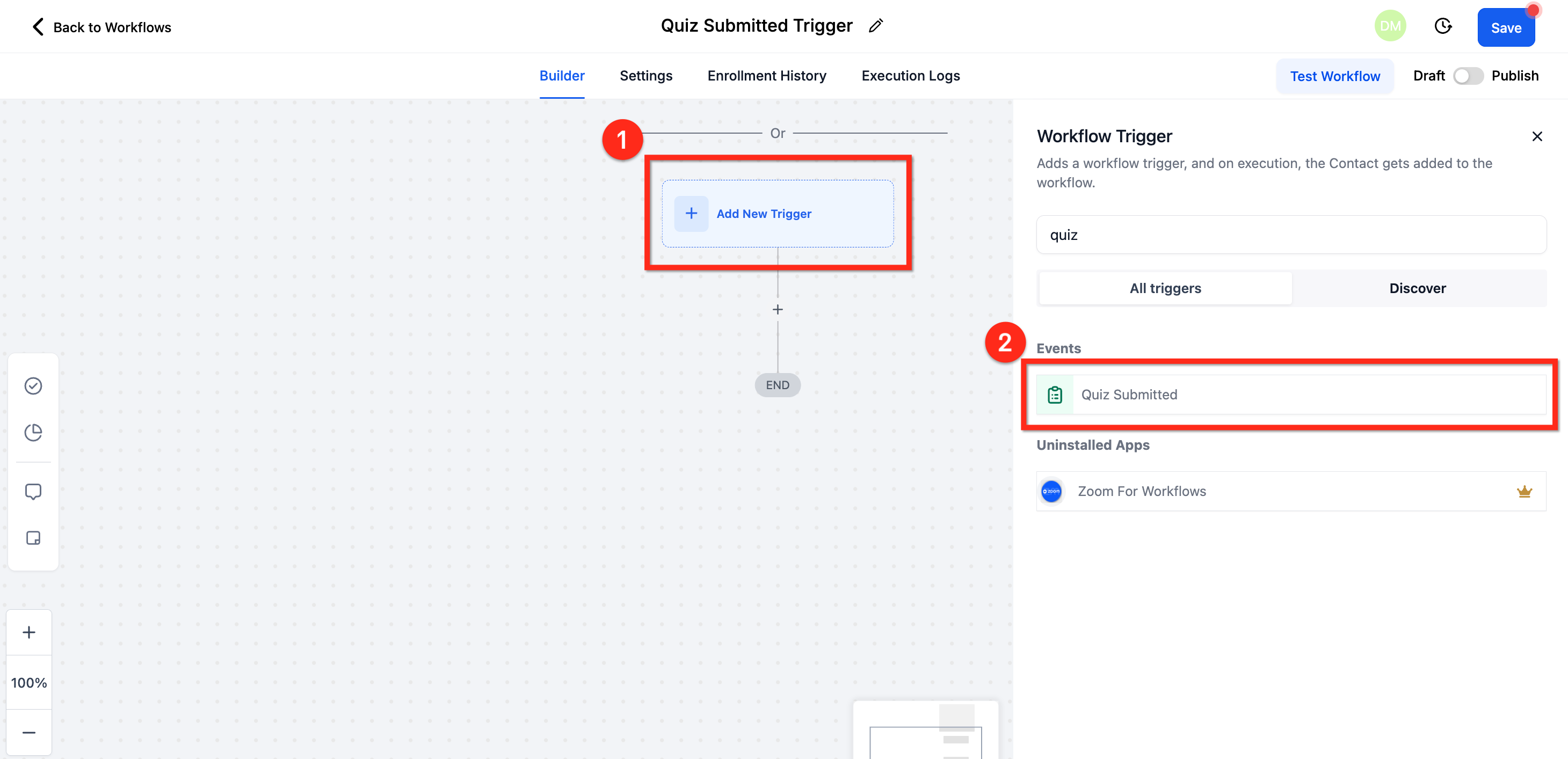
In the workflow editor, click Add Trigger and select Quiz Submitted from the list of available triggers.
Define your conditions: quiz name, score thresholds, and/or category-based scores.
Configure the actions that should fire once the trigger conditions are met, such as sending an email, sending an SMS, assigning a task, or updating CRM data. For the full library of available trigger types and actions, see the Workflows collection.
Click Save, then publish the workflow to start automating actions based on quiz submissions.
To add a quiz to a website page or funnel step, open the quiz, click Embed, and copy the embed code into a custom code element on the page or funnel step.
If your quiz, form, or survey includes a Terms & Conditions agreement, you can filter workflow contacts based on whether they agreed to it or not. This keeps compliance-sensitive steps, like promotional offers or premium content, limited to patients who actually opted in.
Navigate to the Automation section.
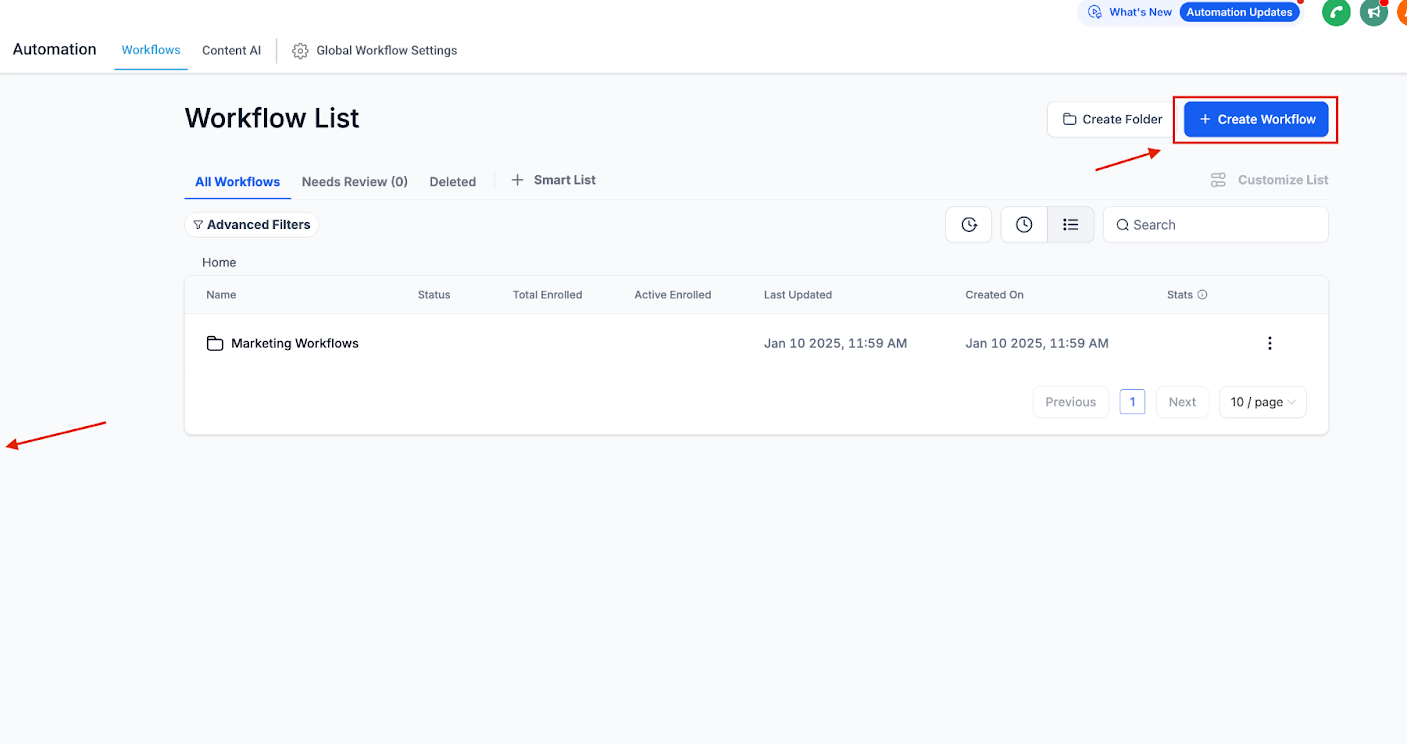
Select the workflow you want to modify, or create a new one.
Choose the trigger: Form Submitted, Quiz Submitted, or Survey Submitted.
Click Add Filters and choose the T&C Filter option.
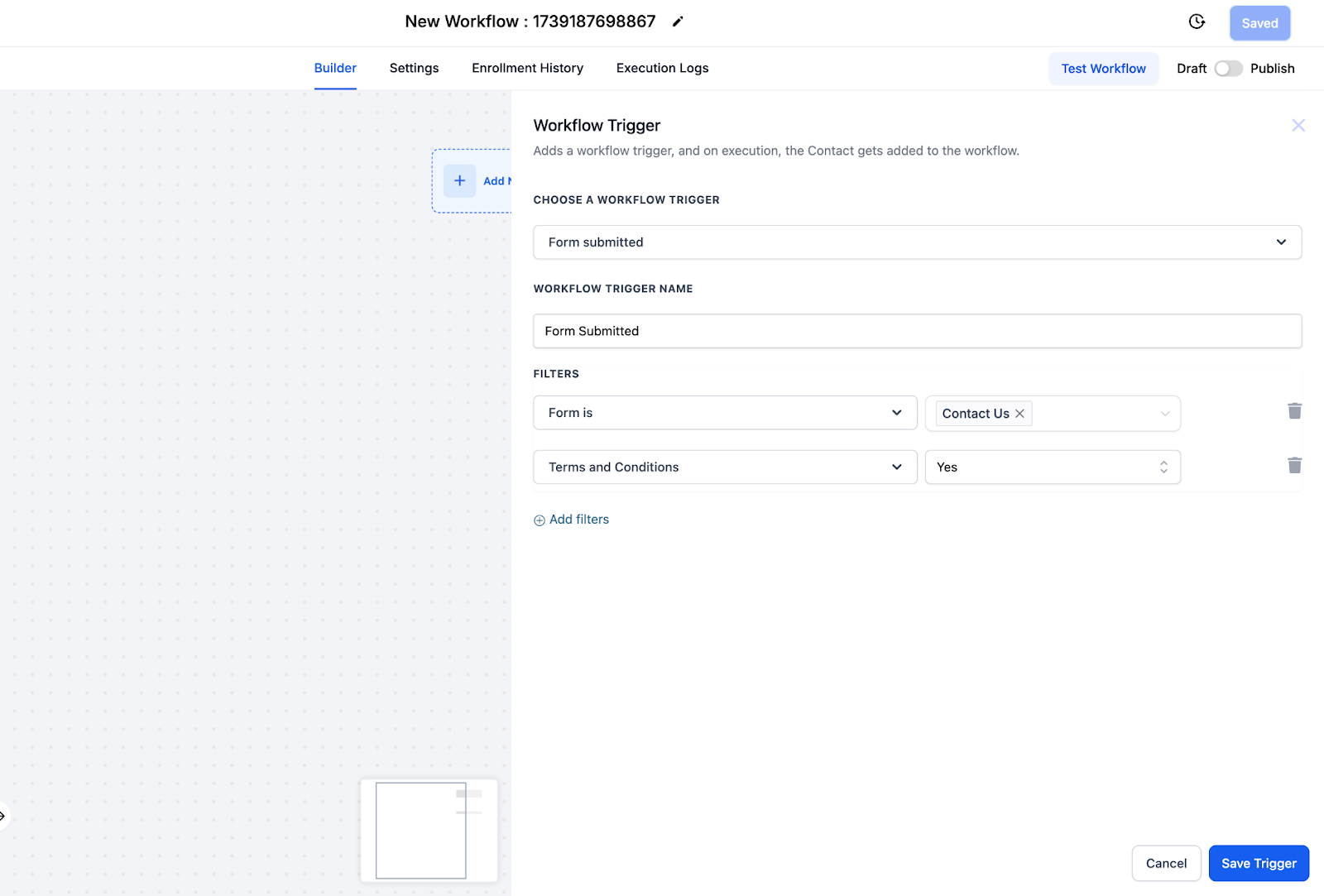
Set the condition to either "Users who have agreed to the T&C" or "Users who have not agreed to the T&C," then apply the filter to the relevant workflow step.
Save your workflow changes and run a test to confirm the filter behaves as expected.
Any patient who hasn't interacted with the T&C is treated as "Not Agreed," so your workflow logic stays unambiguous. Common uses: excluding patients who haven't agreed to updated terms from a promotional offer, restricting access to premium content, or keeping regulated campaigns limited to compliant participants.
Beyond the built-in score and tier fields, you can add your own custom fields to a quiz to capture structured, practice-specific data, things like preferred treatment area, budget range, or prior procedures, that doesn't fit into a standard contact field.
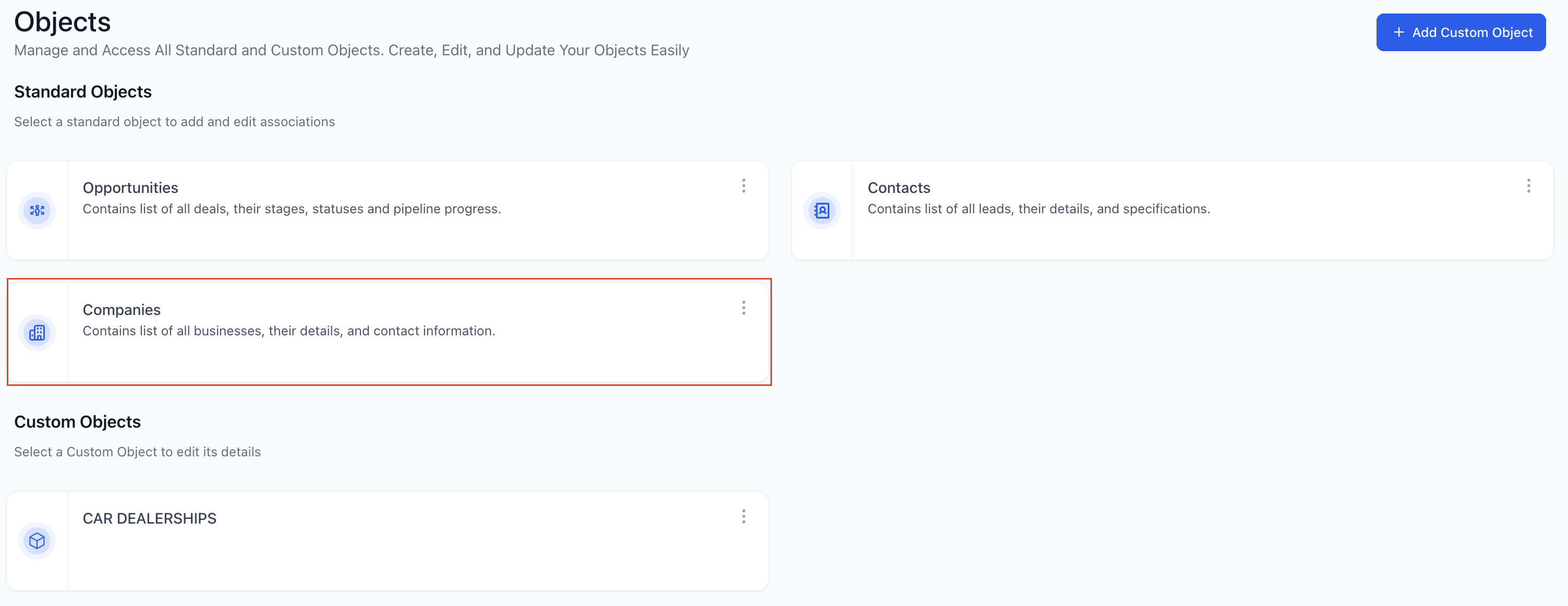
Go to Settings > Custom Objects to create or manage the field types you want available.
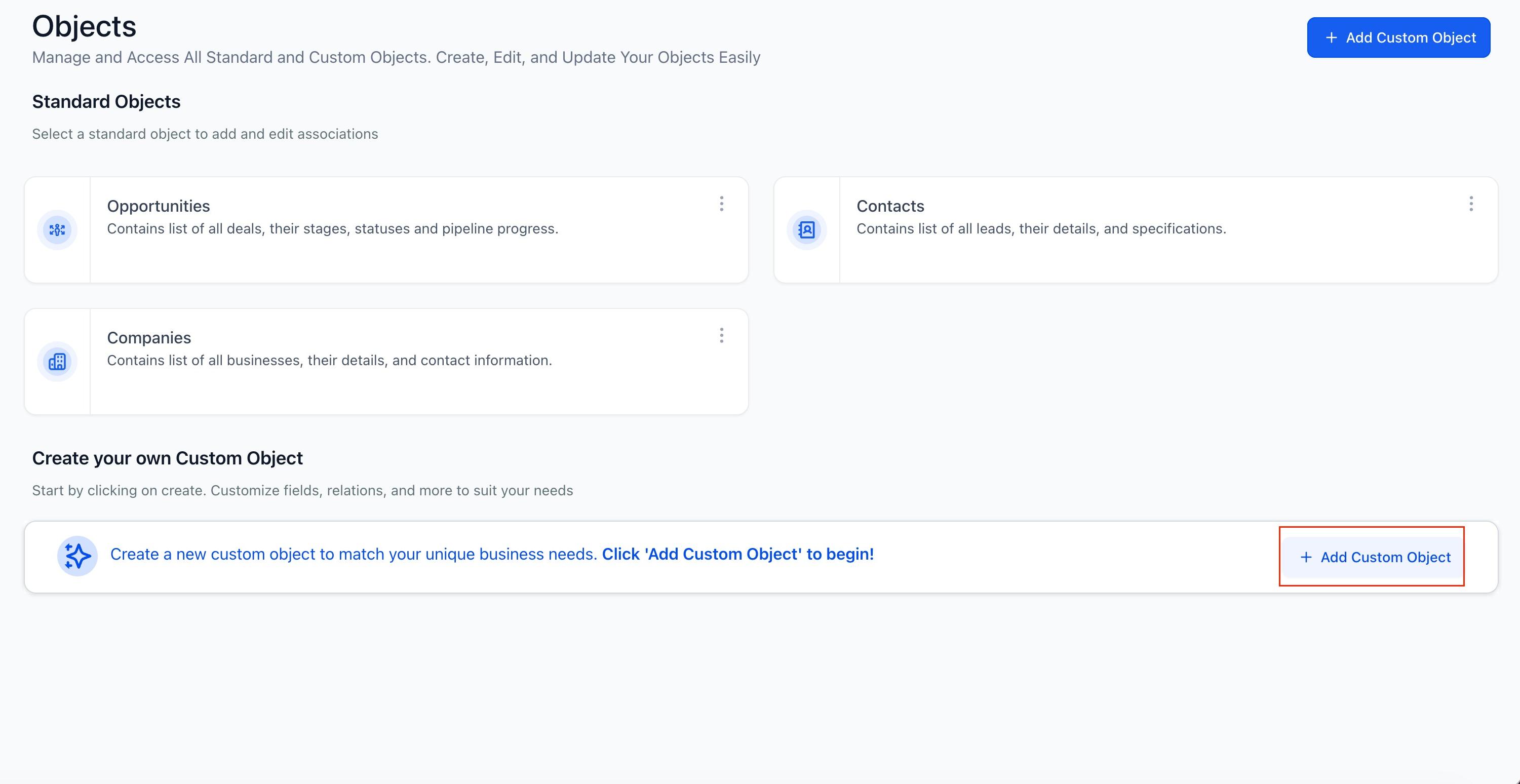
Open the quiz builder and add the field directly within the builder.
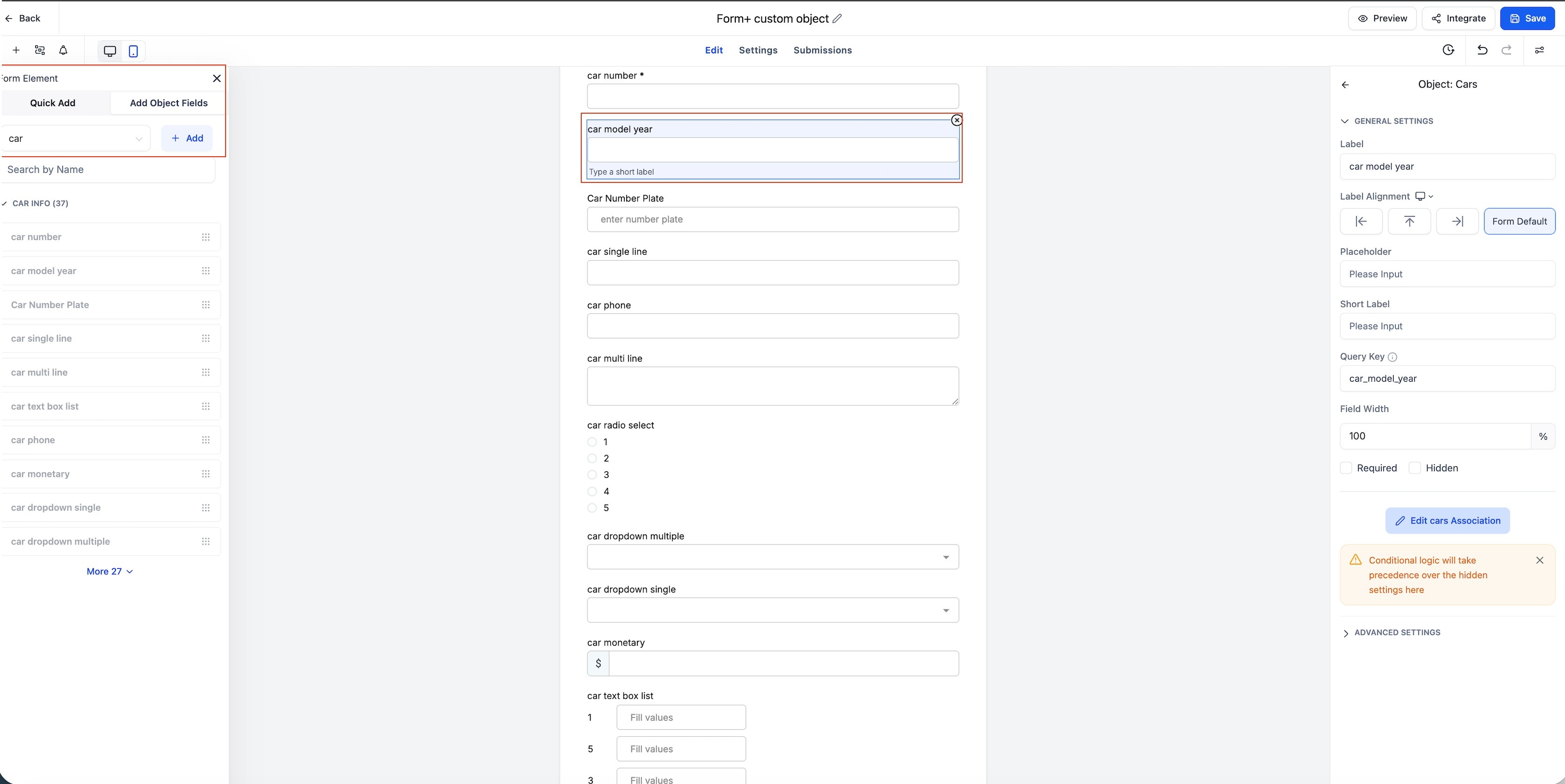
Choose how the field connects back to the contact record.
Save and publish. From then on, submissions link the patient's answer to their contact record automatically.
Instead of adding custom fields to your quiz one at a time, you can select an object and add several of its fields together.
Open the quiz you want to edit, then click Add Object Fields in the left sidebar.
Select an object from the dropdown, such as Contact, Opportunity, Business, or an available custom object.
Search by field name or browse the available folders. Each field row shows a type icon and query key so you can tell apart fields with similar names; hover over a truncated name to see the full value in a tooltip.
Select the checkboxes for every field you want to add, then click Add Fields to insert them all at once, or drag any selected field onto the canvas to move the whole selection as a group.
Bulk-added fields are inserted in the same order they appear in the sidebar. If you have a canvas element selected, the new fields are added after it; otherwise they're added to the end of the current page or slide.
A few behaviors worth knowing: your selections stay selected while you scroll or search, changing the selected object clears your current selection, and shift-click selects a range of fields while skipping any that are already added or unavailable. The selection bar shows how many fields you've picked and updates the Add Fields button to match.
Bulk adding only works within the object you have selected: switching the dropdown to a different object clears your current picks, so it doesn't change the one object type per quiz rule below.
A few practical notes: stick to one object type per quiz to avoid setup conflicts, and define a primary field for each custom object (Aesthetix CRM will use the first field you add if you don't set one explicitly). If an association isn't loading, double-check your custom object setup under Settings first.
A note on patient data: if a quiz collects health history, symptoms, or treatment concerns, that information becomes part of the patient's contact record. Treat any mapped custom fields carrying this kind of detail with the same care as other protected health information, limit who on your team can view or export it, and avoid routing it into marketing tools that weren't built to handle PHI.
Can I rename or delete the auto-generated quiz result fields? You can rename them or move them into field groups. Deleting a field removes that field's historical quiz data from every contact, so rename instead of delete if you want to keep the history.
Does field mapping work with quizzes I already built? Yes. As long as you toggle on the custom fields in the quiz's settings, Aesthetix CRM creates the fields the next time any contact, new or returning, submits that quiz.
Are quiz result fields contact fields or opportunity fields? They're contact custom fields, so you can use them in forms, smart lists, and contact-level workflows.
Can I export quiz score and tier data? Yes. Exporting your contacts includes every custom field, including mapped quiz scores and tiers.
Does the Quiz Submitted trigger work for every quiz? Yes, it applies to any quiz created in Aesthetix CRM, provided the quiz is published.
Can one workflow fire multiple actions off a single quiz submission? Yes. A single workflow can send an email, send an SMS, update CRM data, and assign a task, all off the same Quiz Submitted trigger.
What happens to a patient who hasn't seen the T&C prompt at all? They're categorized as "Not Agreed" for filtering purposes, so a T&C filter set to "agreed only" will correctly exclude them.
Can I mix custom object fields and Company fields in the same quiz? No. Use one object type per quiz builder. Mixing object types in a single quiz isn't supported and will cause setup errors.
Can I add several object fields to my quiz at once instead of one at a time? Yes. Open Add Object Fields in the left sidebar, select an object, check the boxes next to every field you want, and click Add Fields to insert them all together. This bulk add works within whatever object you've selected; it doesn't let you mix fields from different object types into one quiz.
Where do I build the actual email, SMS, or task actions that fire after a quiz submission? Action types and configuration are documented in the Workflows collection. This guide covers the quiz-specific trigger and filters; once you're inside the workflow editor, the available actions are the same ones used across all of Aesthetix CRM's automation.
