Quiz Builder lets you create interactive quizzes that capture lead details, score a prospective patient's answers, and deliver a personalized result, such as a recommended treatment or skin-type outcome, with a call to action to book a consult. You'll find it in Web Tools → Quizzes, alongside Forms and Surveys.
All three tools live under Web Tools and collect information from visitors, but they serve different purposes:
Forms capture information (contact details, intake questions) without scoring or branching. Use them when you just need the data.
Surveys gather feedback or opinions, typically without a personalized outcome for the respondent.
Quizzes go a step further: answers can be scored, grouped into categories, and used to branch the quiz path or generate a personalized results page. Use a quiz when you want to qualify a prospective patient (for example, "Which treatment is right for you?" or a skin-type assessment) and route them to the right next step based on how they answer.
Audience segmentation: Use quiz responses and scores to group contacts by outcome and intent.
Automation-ready follow-up: Trigger a workflow the moment a quiz is submitted, while interest is highest.
Personalized experience: Customize the results page with score tiers, sections, and calls to action to guide the prospective patient's next step.
CRM mapping: Map quiz outcomes (scores, tiers, categories) into contact custom fields for ongoing segmentation and reporting.
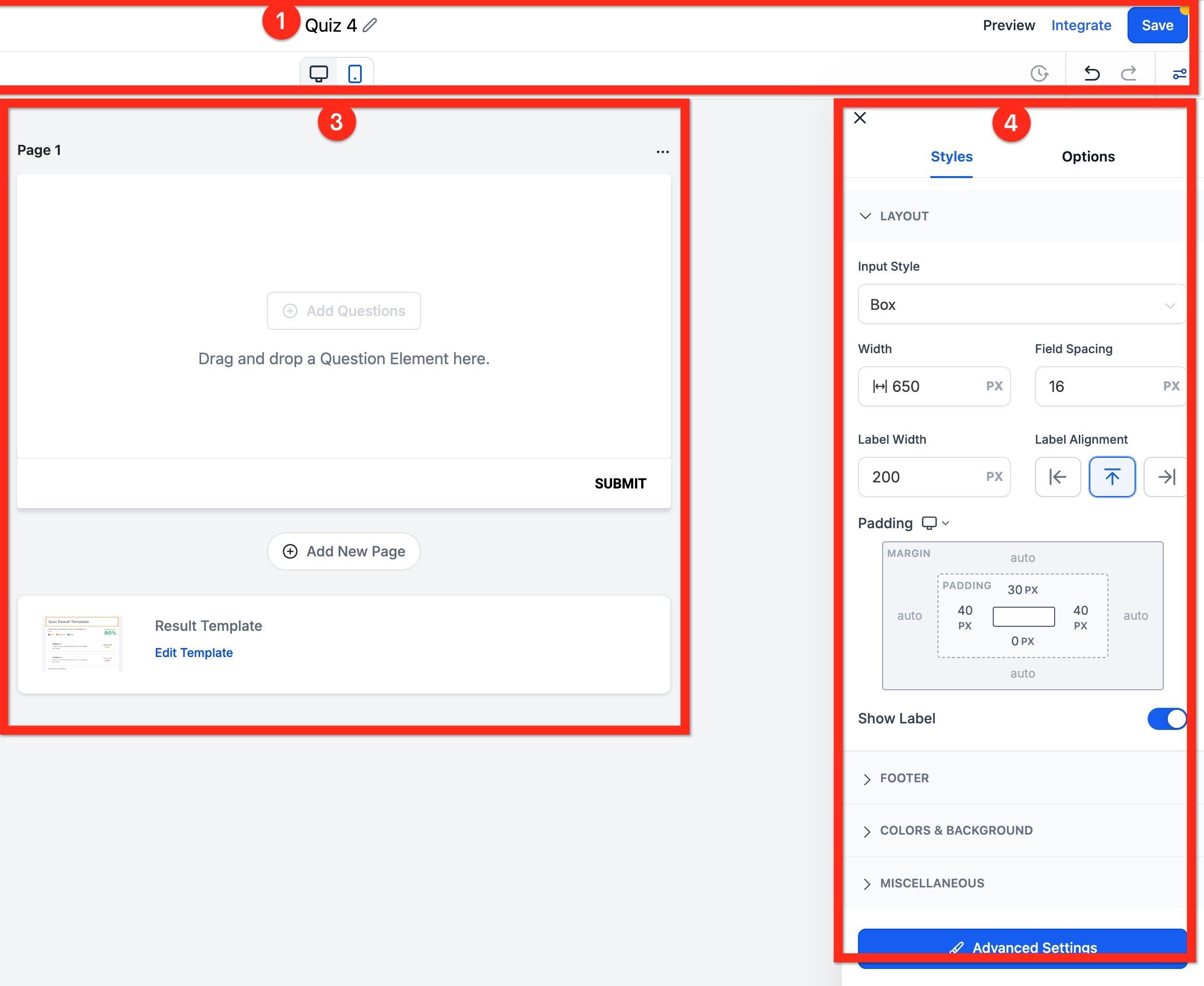
Once you open a quiz, the builder is organized into a few key areas:
Top bar: Back button (return to the quiz list), quiz name, Preview, Integrate, and Save. You can also switch between Desktop and Mobile preview, view saved versions, and undo/redo changes.
Left panel: Quiz elements you can drag onto a page (questions, fields, content blocks), plus quick access to Notifications and Categories.
Center canvas: Your quiz pages and the results template.
Right panel: Settings for whichever page or element is currently selected.
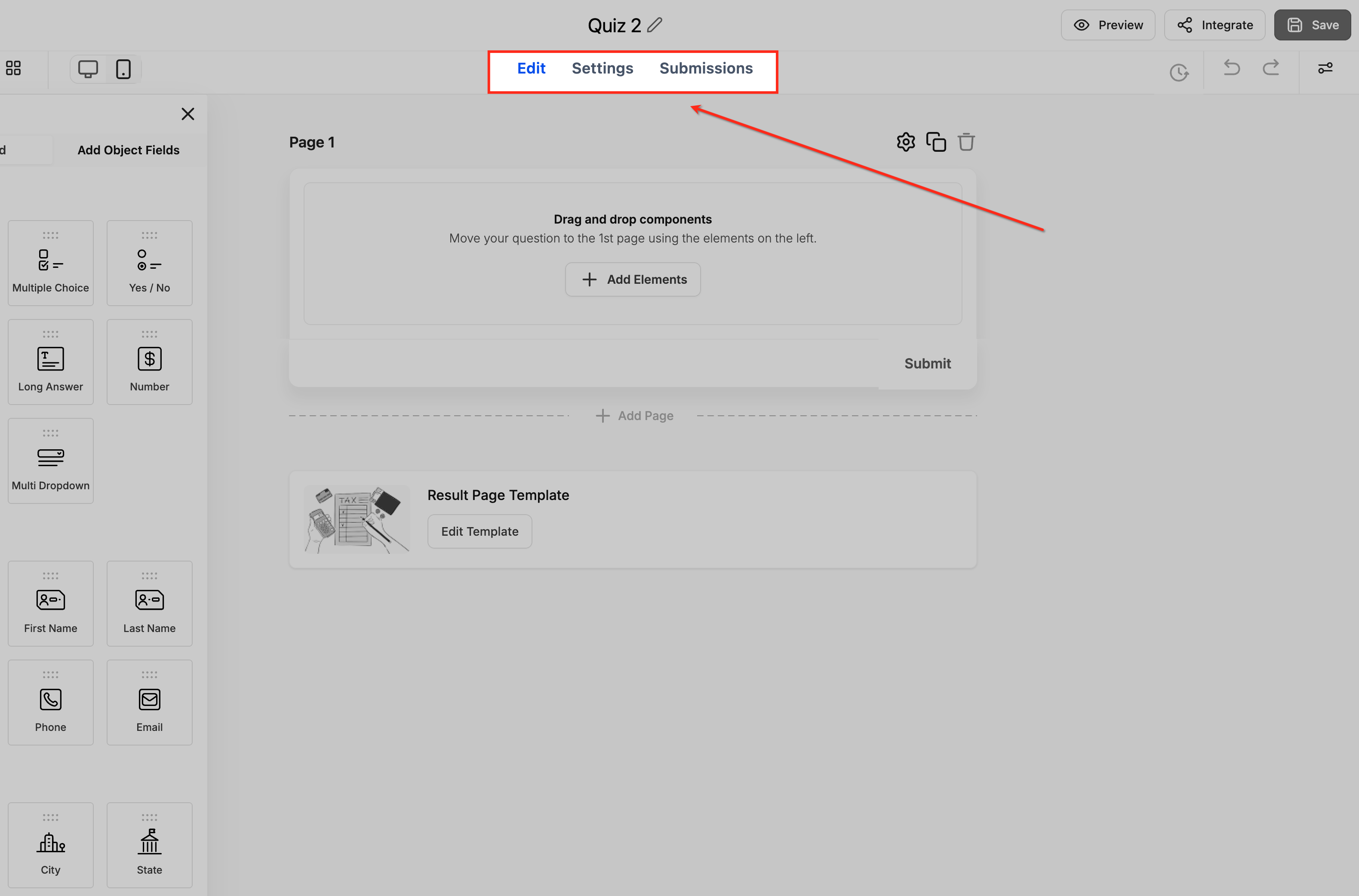
Builder tabs: Switch between Edit (build the quiz), Settings (configure logic and integrations), and Submissions (view response data without leaving the builder).
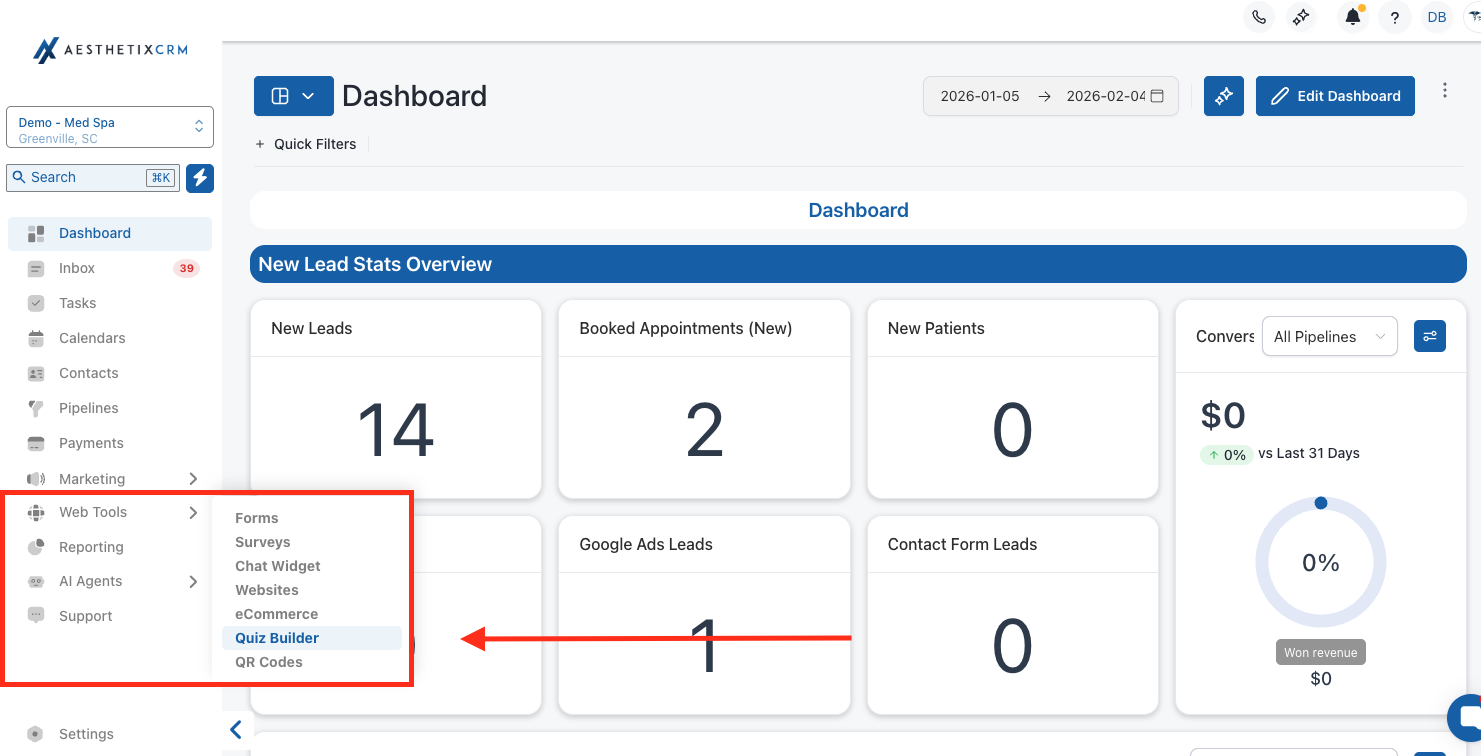
Navigate to Web Tools → Quizzes.
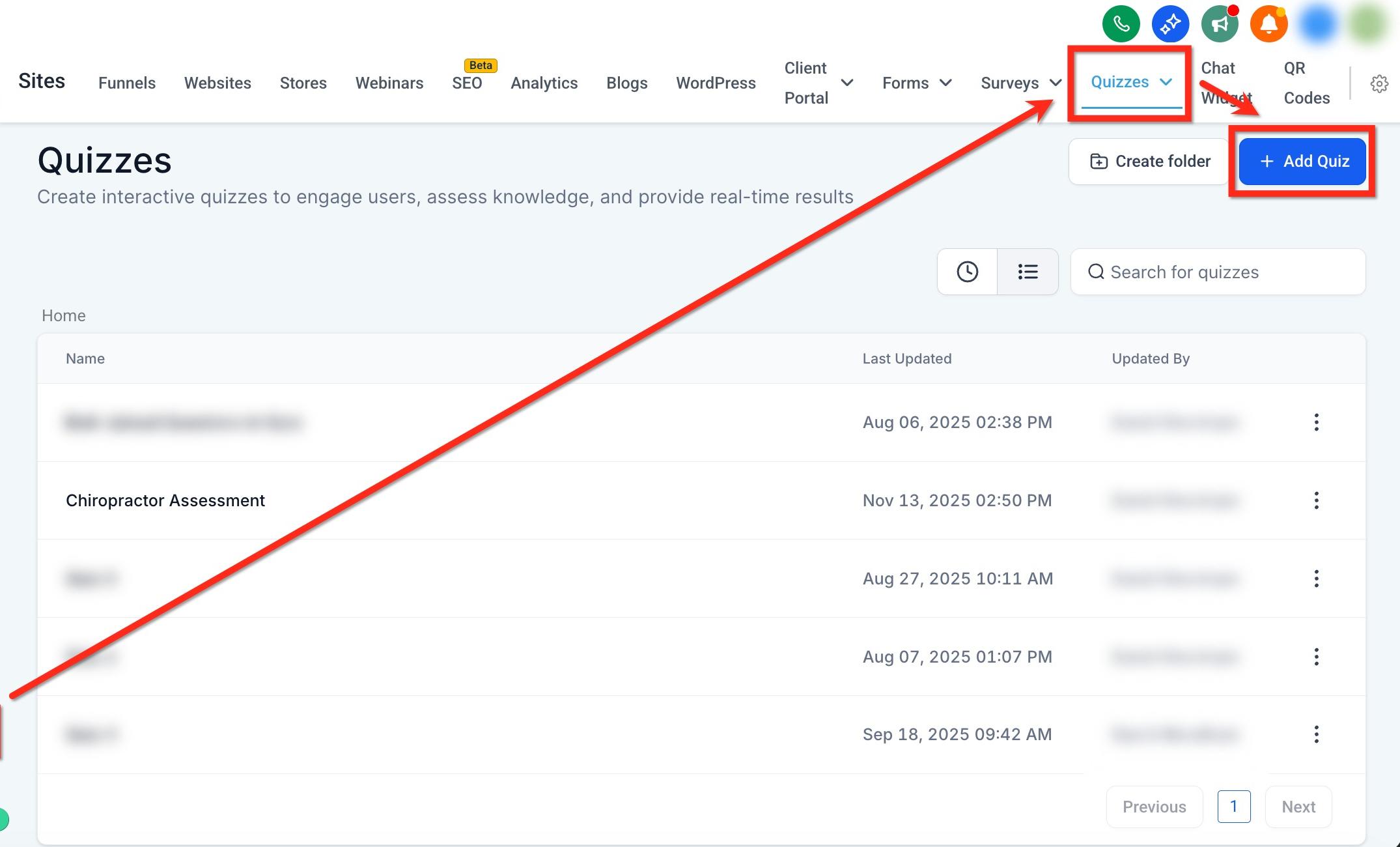
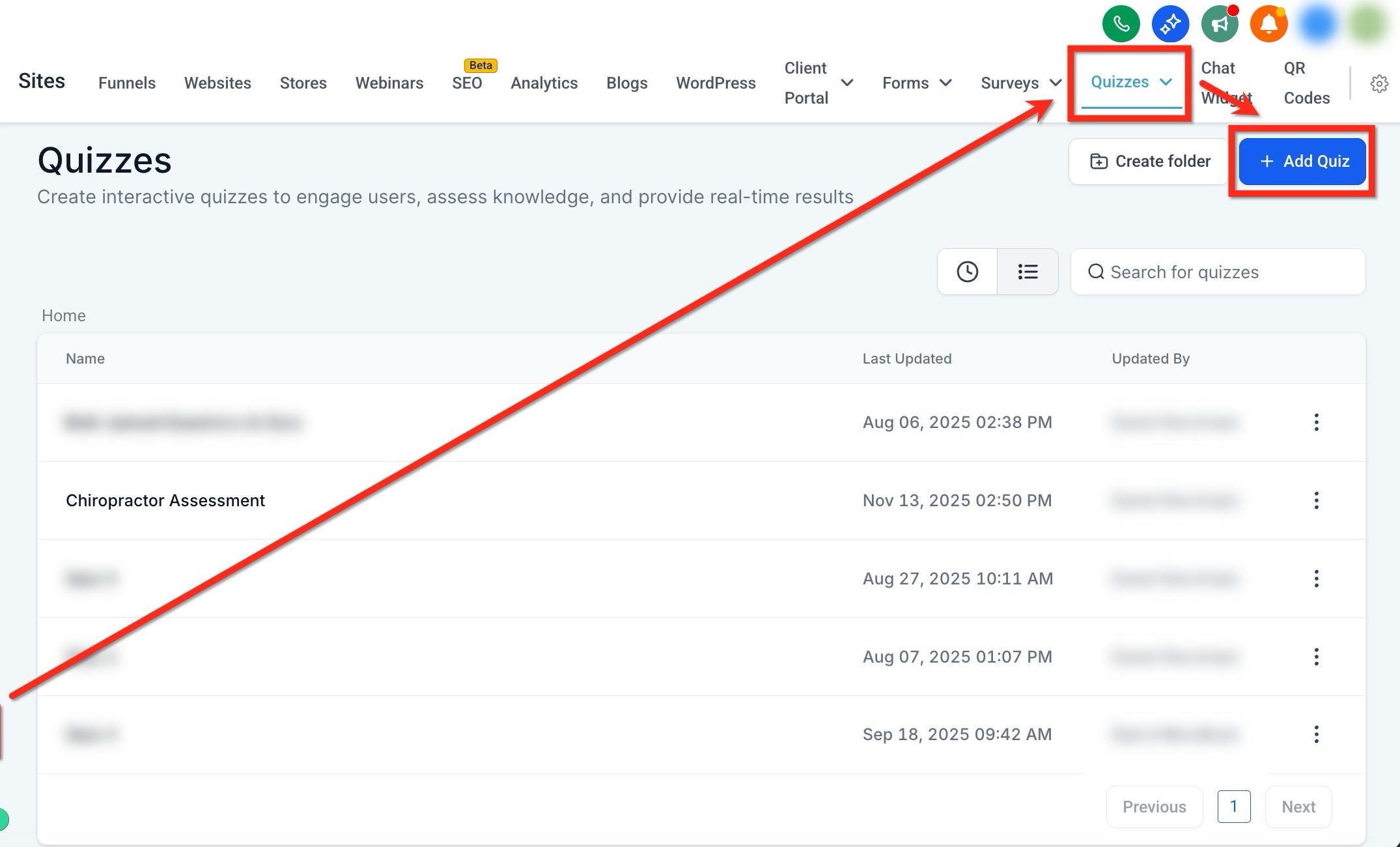
Click + Add Quiz.
Choose one of the following:
Start From Scratch to build a blank quiz.
Use a Template to browse, filter, and search the template library, then preview and activate one to load it into the builder.
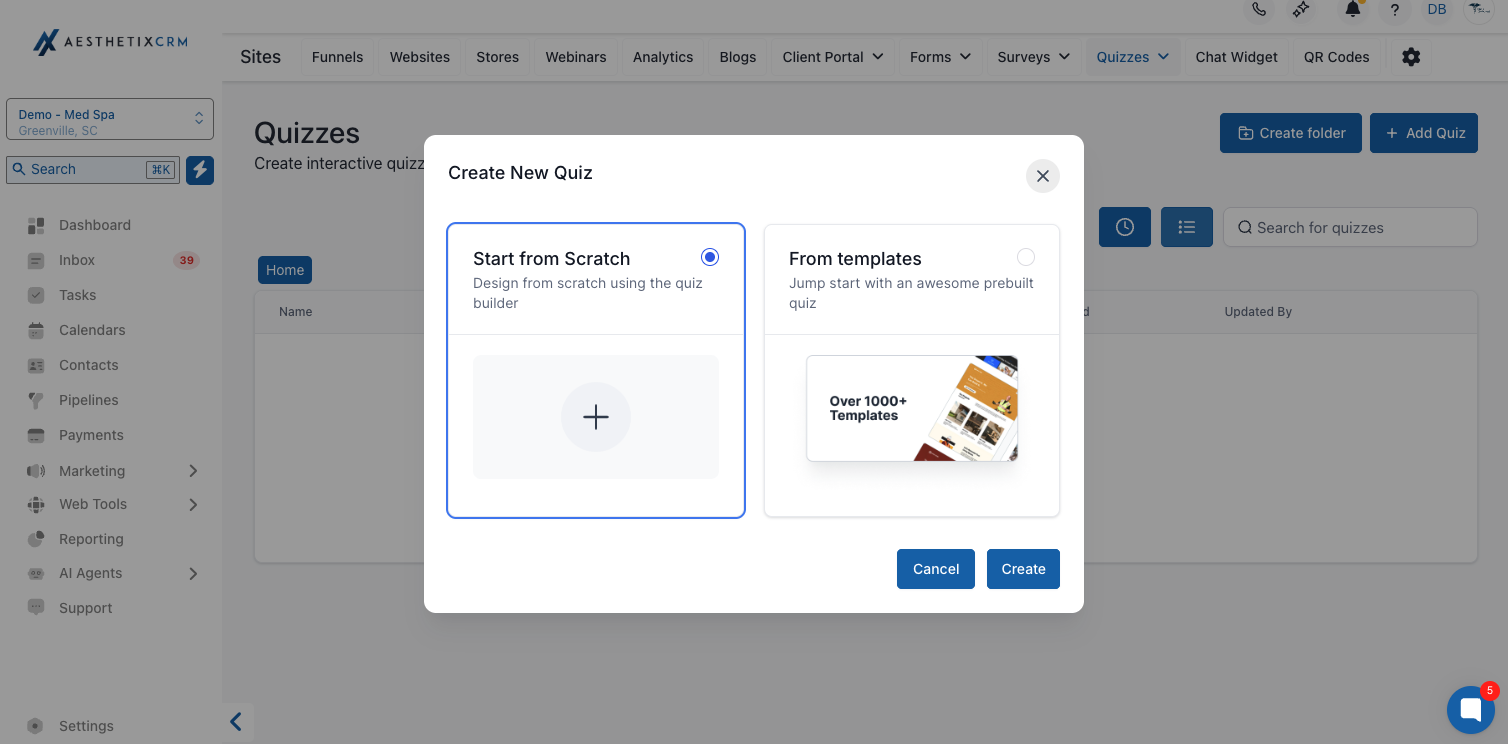
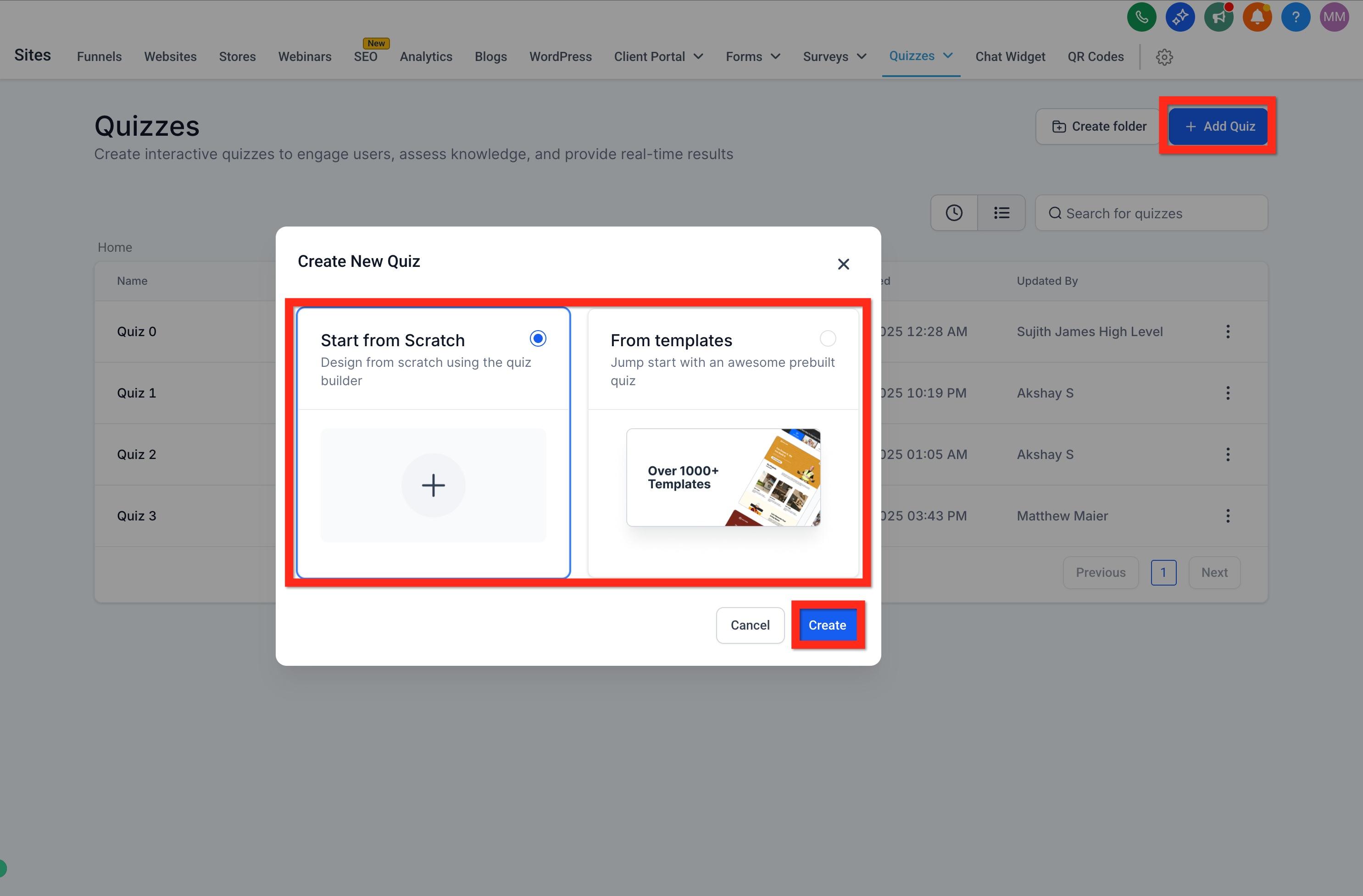
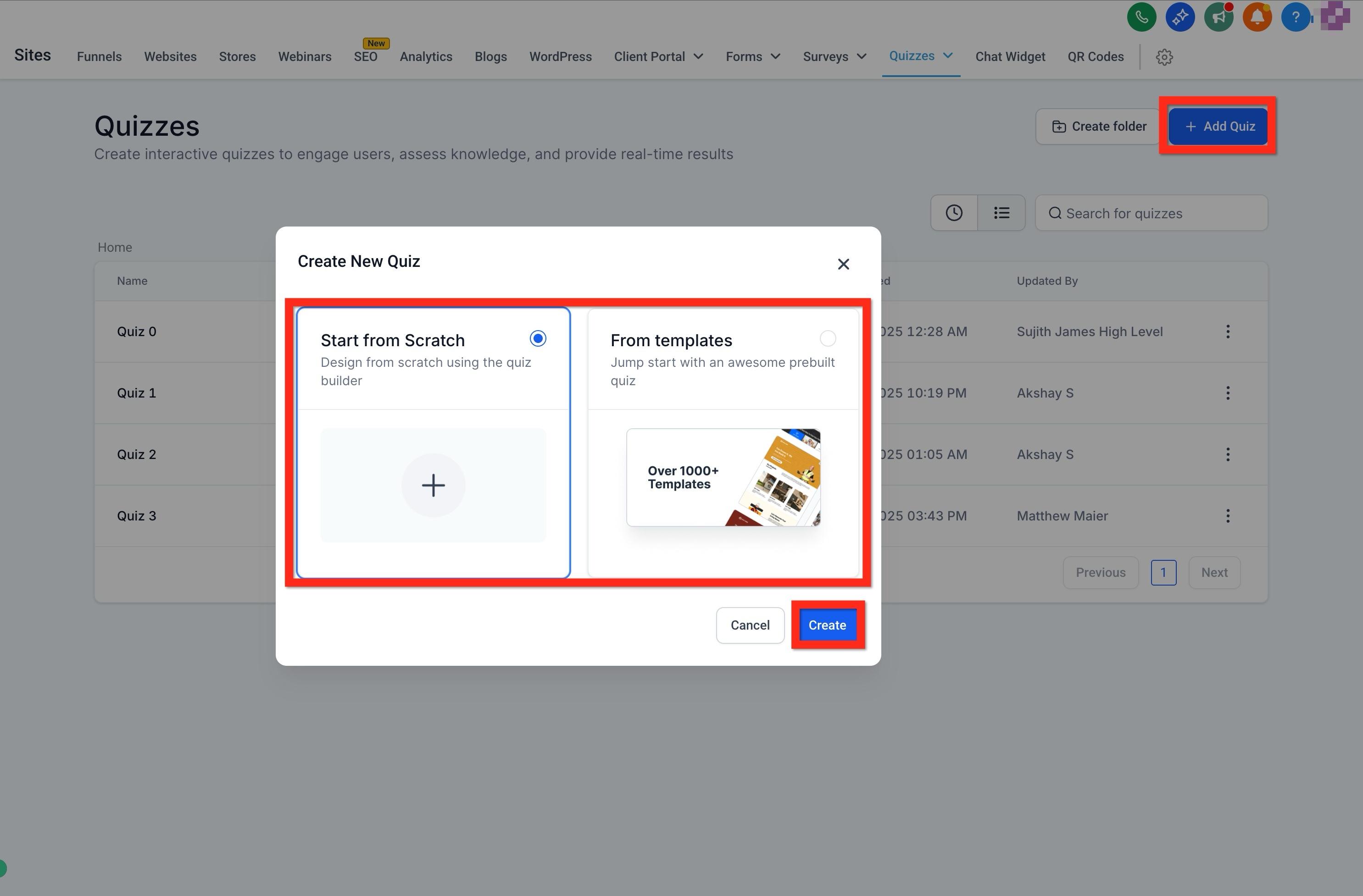
Enter a Quiz Name (this is used later for automation and reporting).
Click Save. You'll now enter the Quiz Builder.
Quizzes are built using pages, and each page can hold multiple questions or fields. A common structure for a med-spa quiz looks like this:
Page 1: Introductory questions (low friction, easy to answer)
Page 2: Qualification questions (skin type, concerns, treatment goals)
Page 3: Contact information
Result page: Recommendation and next steps
To add or manage pages:
Use the page controls in the builder to Add Page. All pages appear in the order listed (Page 1 first, Page 2 second, and so on).
Drag pages to reorder them as needed.
Click a page to begin adding elements to it.
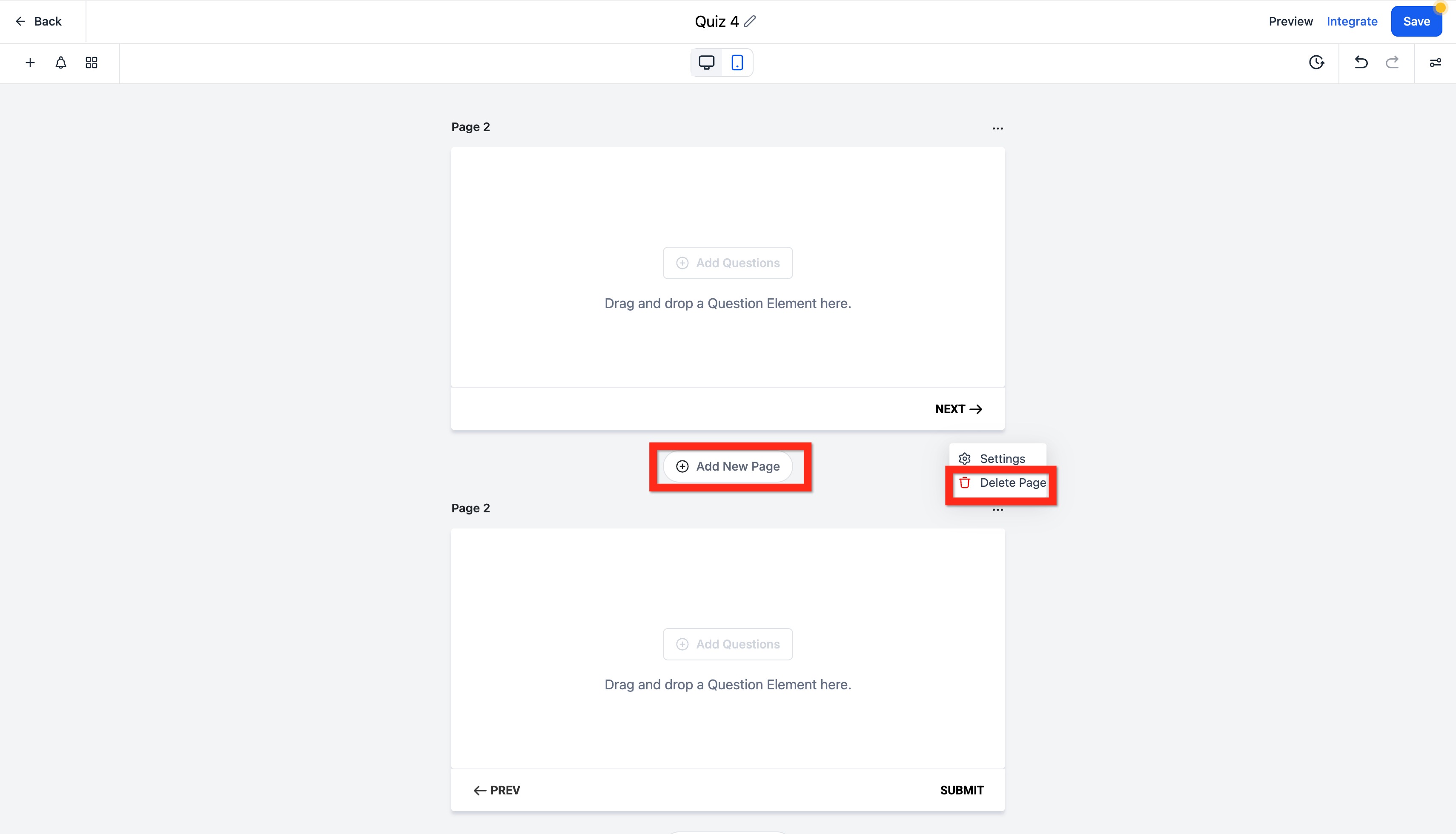
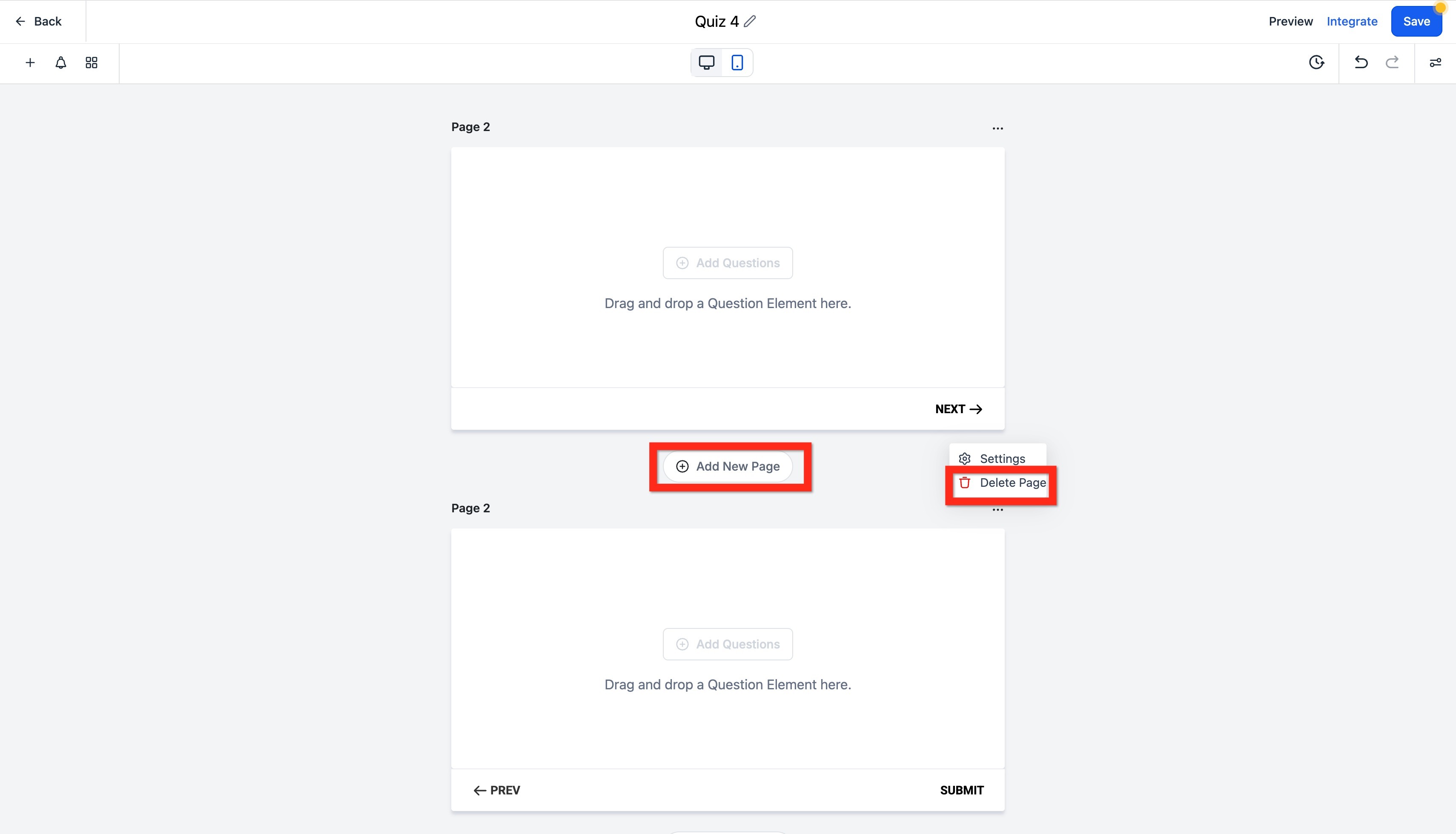
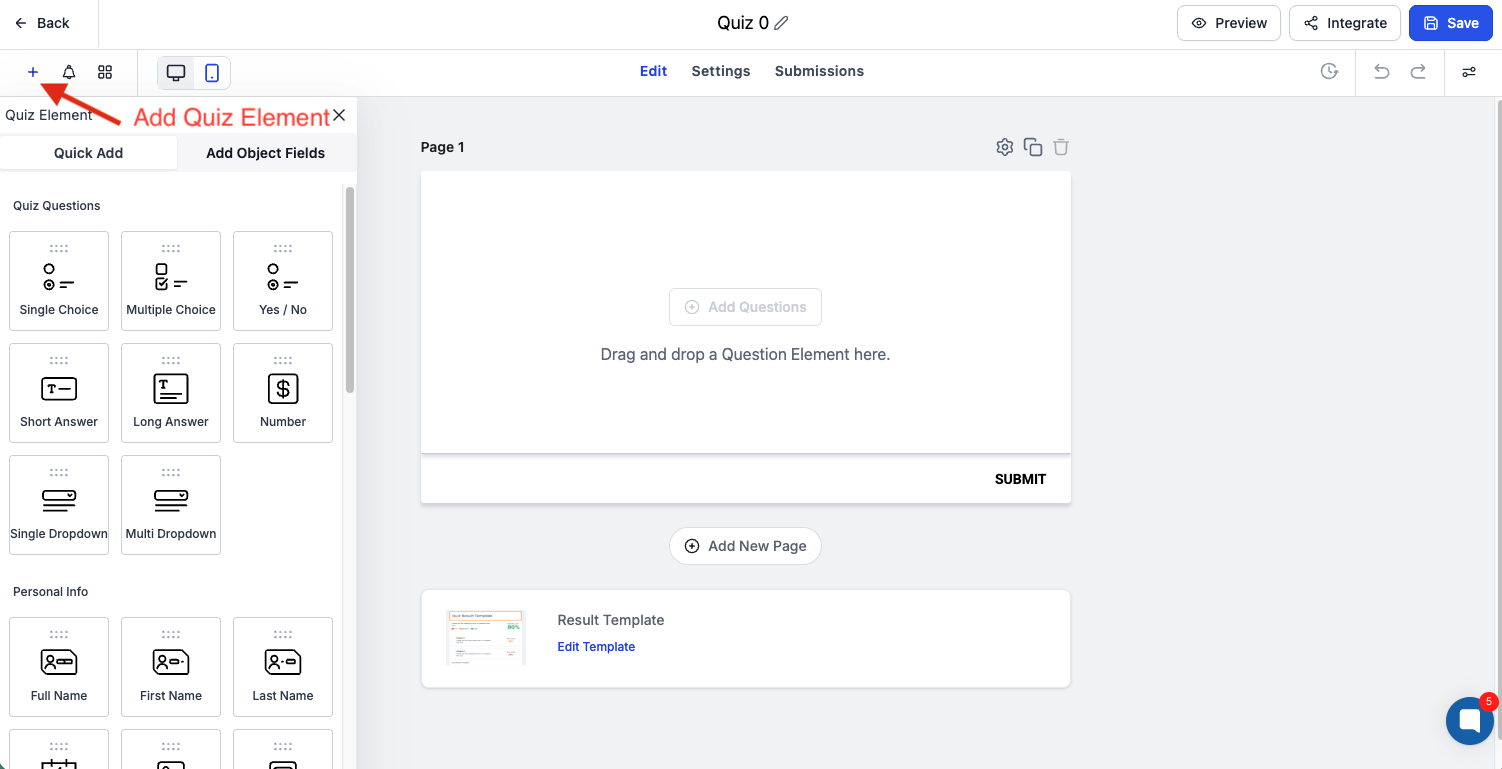
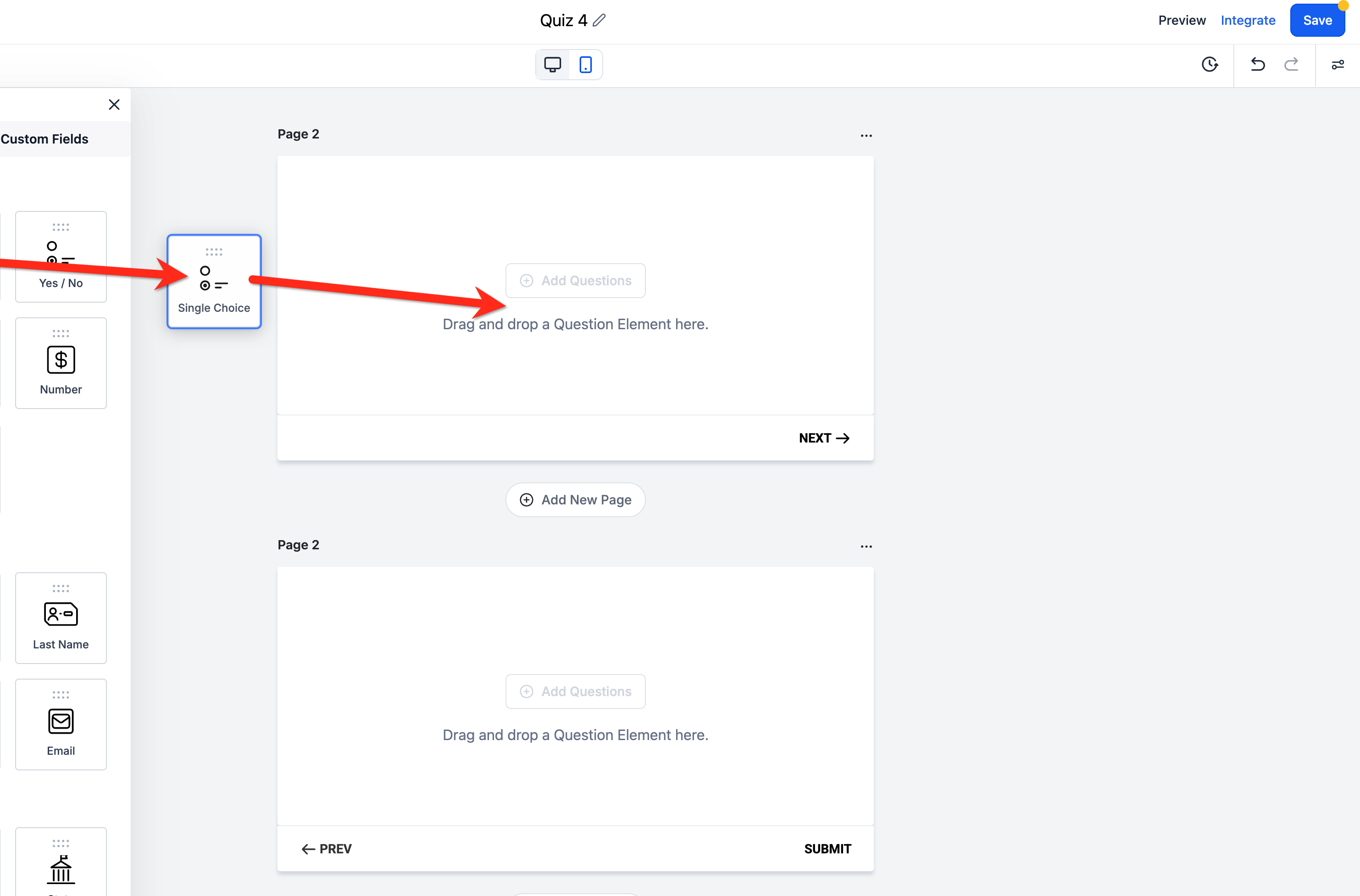
Add and delete elements: Elements must be added to a page. Select the page, click Add Element, and choose a question or field type. Elements can be dragged and dropped to reorder them inside a page or to move them to a different page.
Bulk-upload questions with a CSV: Instead of adding questions one at a time, you can upload multiple quiz questions to a page at once using a CSV file. The file is processed temporarily for the import and isn't stored afterward. Once uploaded, all questions are added to the selected page and can still be edited individually. This is especially useful when you're building a longer intake-style quiz with many qualification questions.
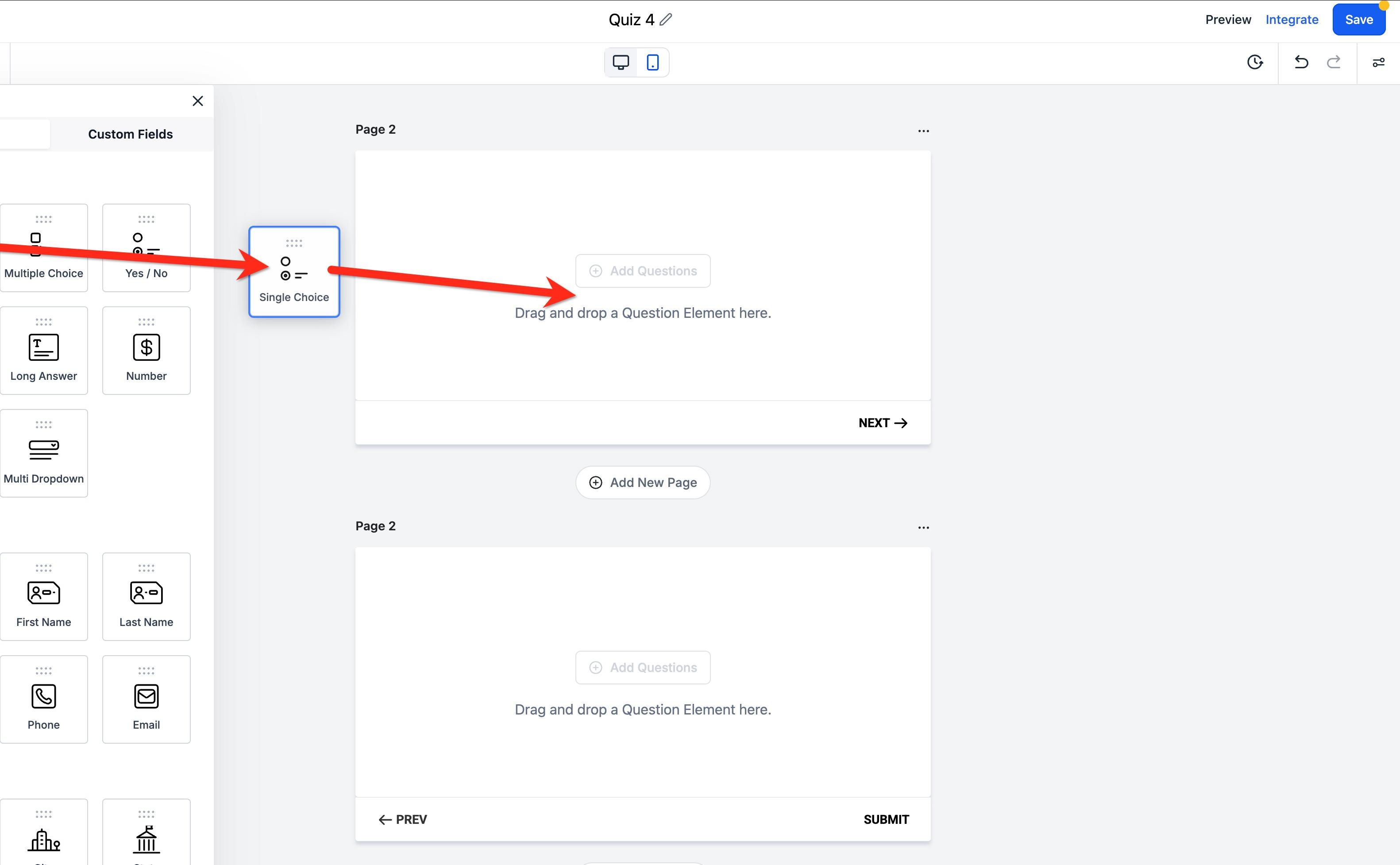
Reordering elements: Click and drag an element to a new position in the builder. As you move it, you'll see a shadow for clearer feedback, and the builder automatically scrolls when you drag near the top or bottom of a longer quiz, so you can reposition elements without dropping them just to scroll manually.
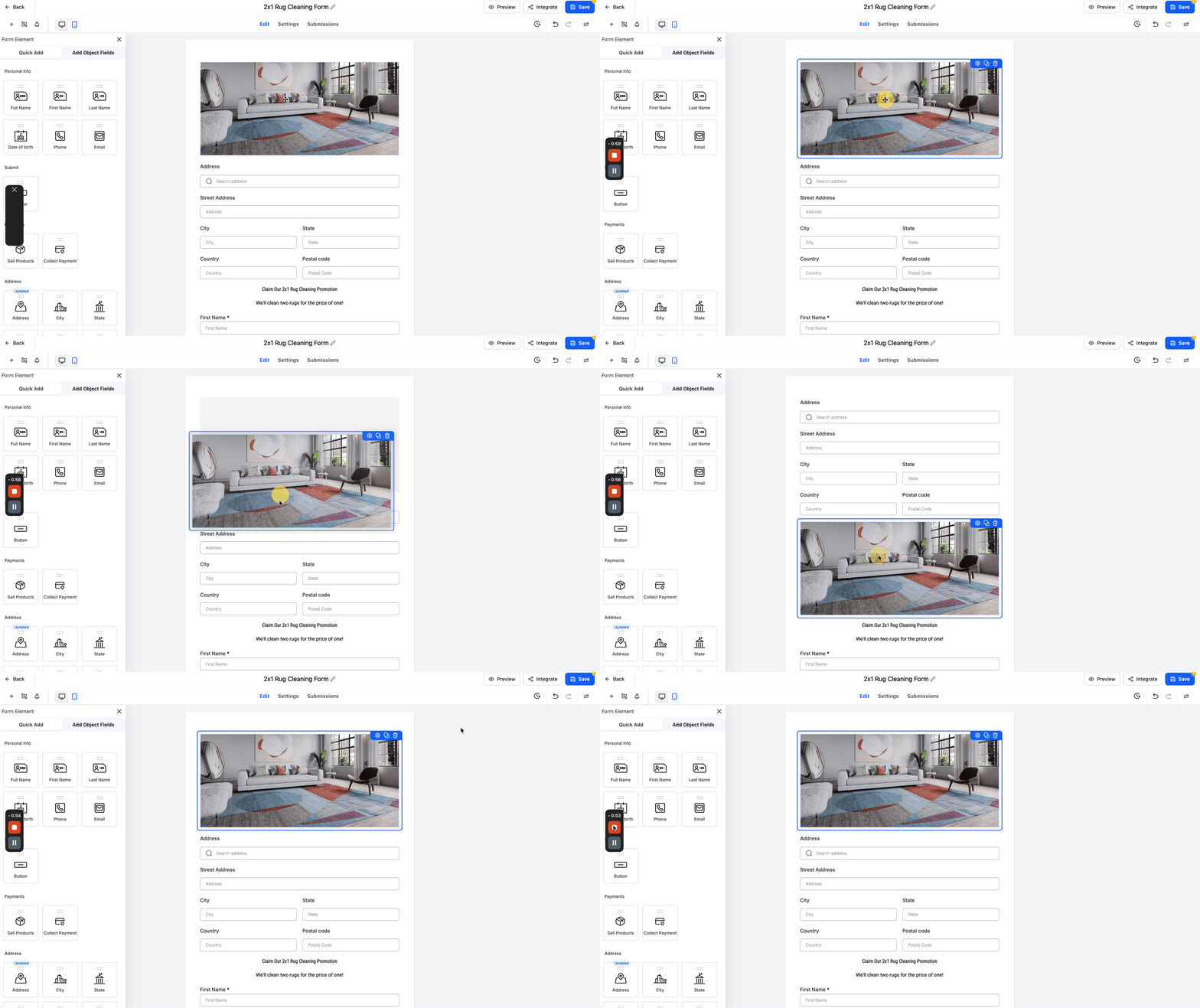
There are many prebuilt elements you can drag and drop onto a page. You can also add any existing contact or opportunity custom field to the quiz.
You can also add several fields at once instead of dragging them in one at a time. Open Add Object Fields in the left panel to browse or search fields from your contact and opportunity custom fields, then select the ones you want using the checkboxes. From there, either click Add [N] fields to add every selected field at once, or drag any selected field onto the canvas to add the whole group together. Each field row shows its type and query key so you can confirm you're adding the right one.
Category | Element | Description |
|---|---|---|
Questions | Single Choice | Several options shown, one selection allowed |
Questions | Multiple Choice | Several options shown, multiple selections allowed |
Questions | Yes / No | Select one of two options |
Questions | Short Answer | A small text-entry field |
Questions | Long Answer | A larger, scrolling text-entry field |
Questions | Number | Numbers only (positive or negative), with up/down arrows |
Questions | Single Dropdown | Dropdown with one selection allowed |
Questions | Multi Dropdown | Dropdown with multiple selections allowed |
Personal Info | Full Name / First Name / Last Name | Text fields |
Personal Info | Date of Birth | Date picker |
Personal Info | Phone | Validated phone field |
Personal Info | Validated email field | |
Address | Address, City, State, Postal Code, Organization | Text fields |
Address | Country | Searchable country dropdown |
Address | Website | Validated URL field |
Rating | Rating | 5-star rating |
Customized | Text | Adds text to the quiz without asking a question |
Customized | HTML | Adds a third-party HTML script to the quiz |
Customized | Captcha | "I'm not a robot" verification |
Customized | Source | Custom value used to track where the lead came from |
Customized | T & C | Checkbox with a customizable "I agree..." field |
Customized | Score | Number field used for scoring |
Other | Image | Adds an image to the quiz (not an input field) |
Other | File Upload | File picker |
Other | Monetary | Currency-formatted entry field |
Other | Signature | Drawing pad for a signature |
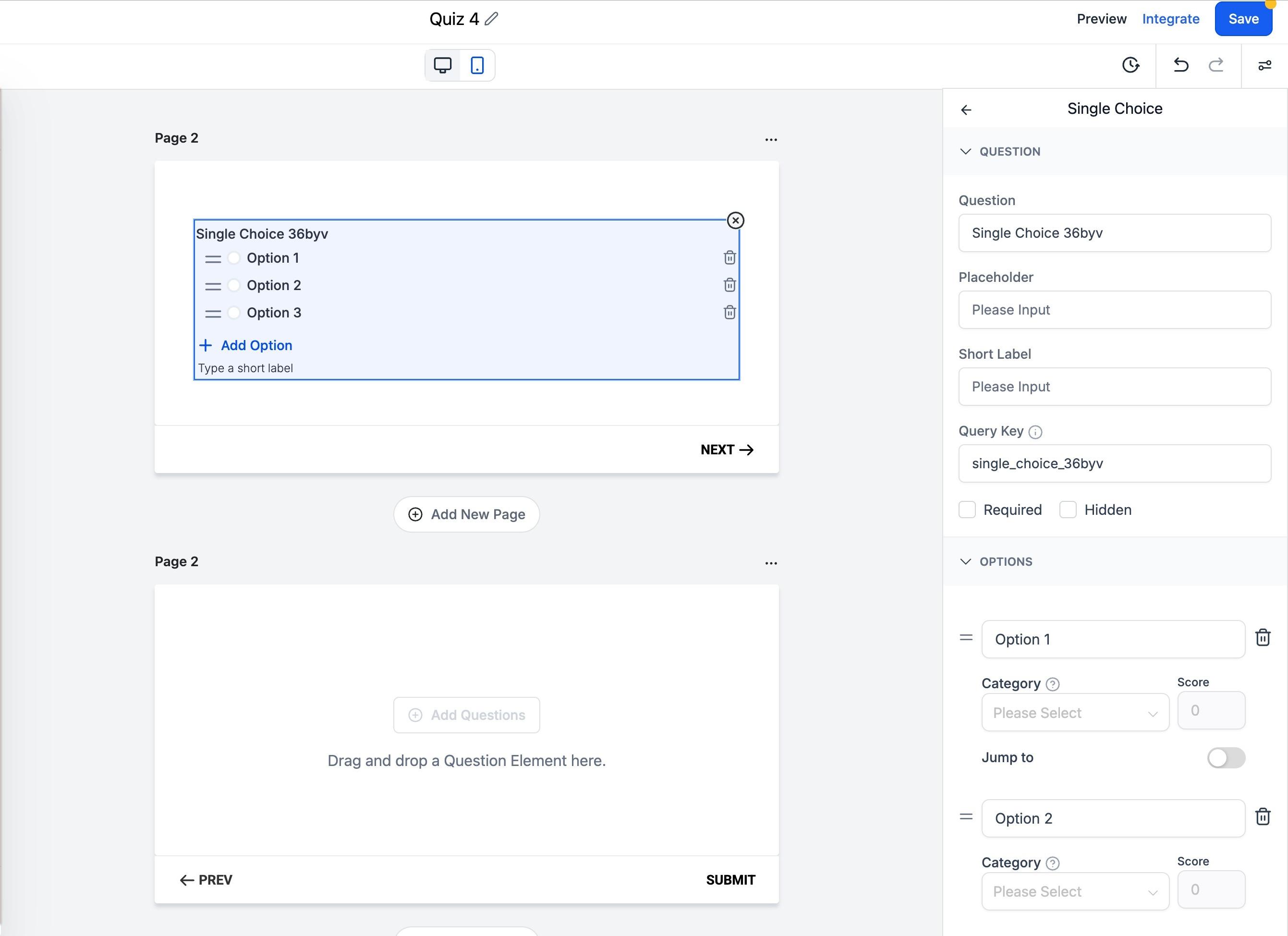
Configure each element: With an element selected, use the right panel to edit its Label, toggle Required, and (optionally) set a Query Key so the field can be prefilled from a URL parameter. Choice-based questions (single choice, multiple choice, yes/no) also expose Options, where you can attach Jump To branching logic to each answer.
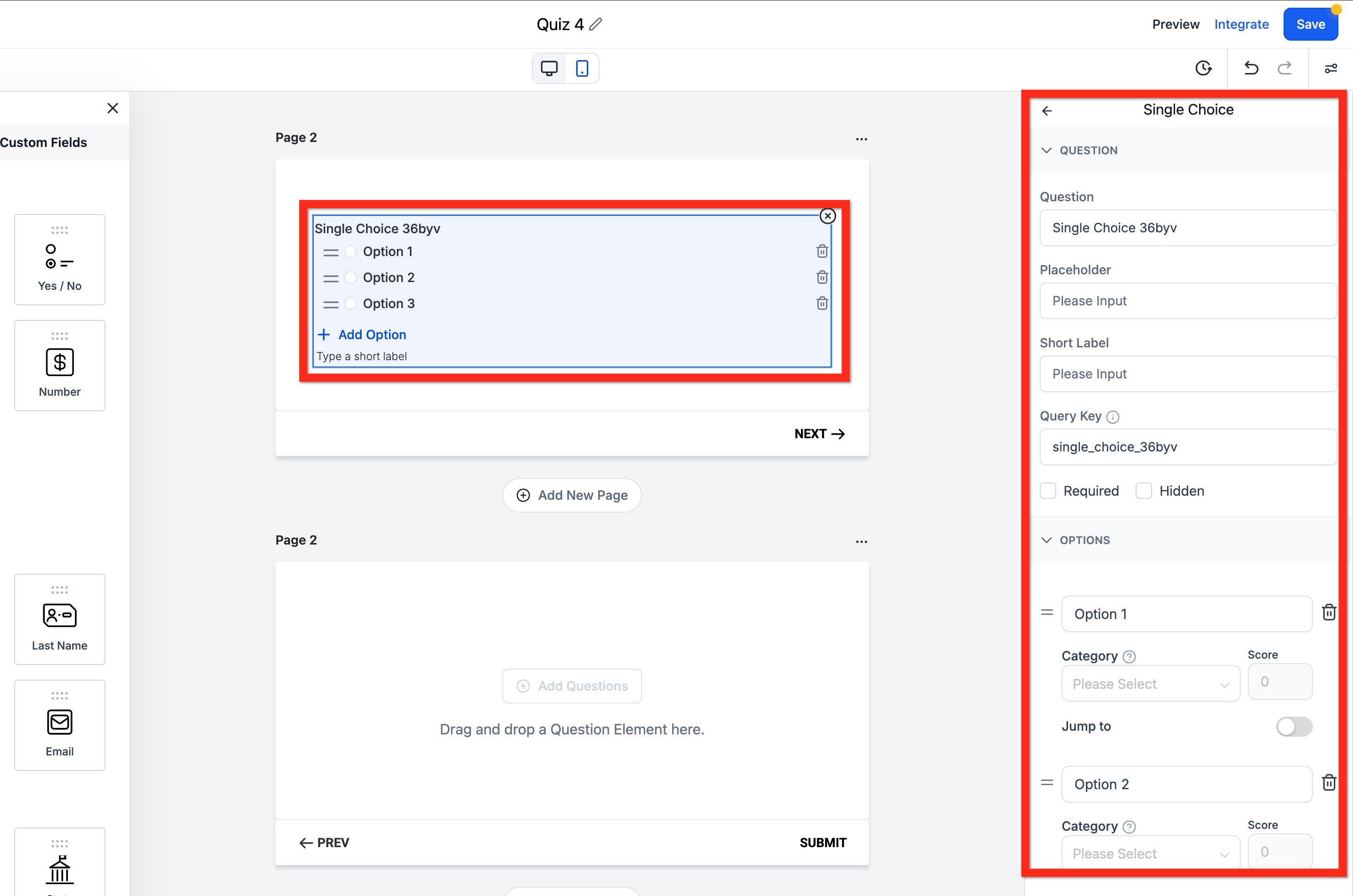
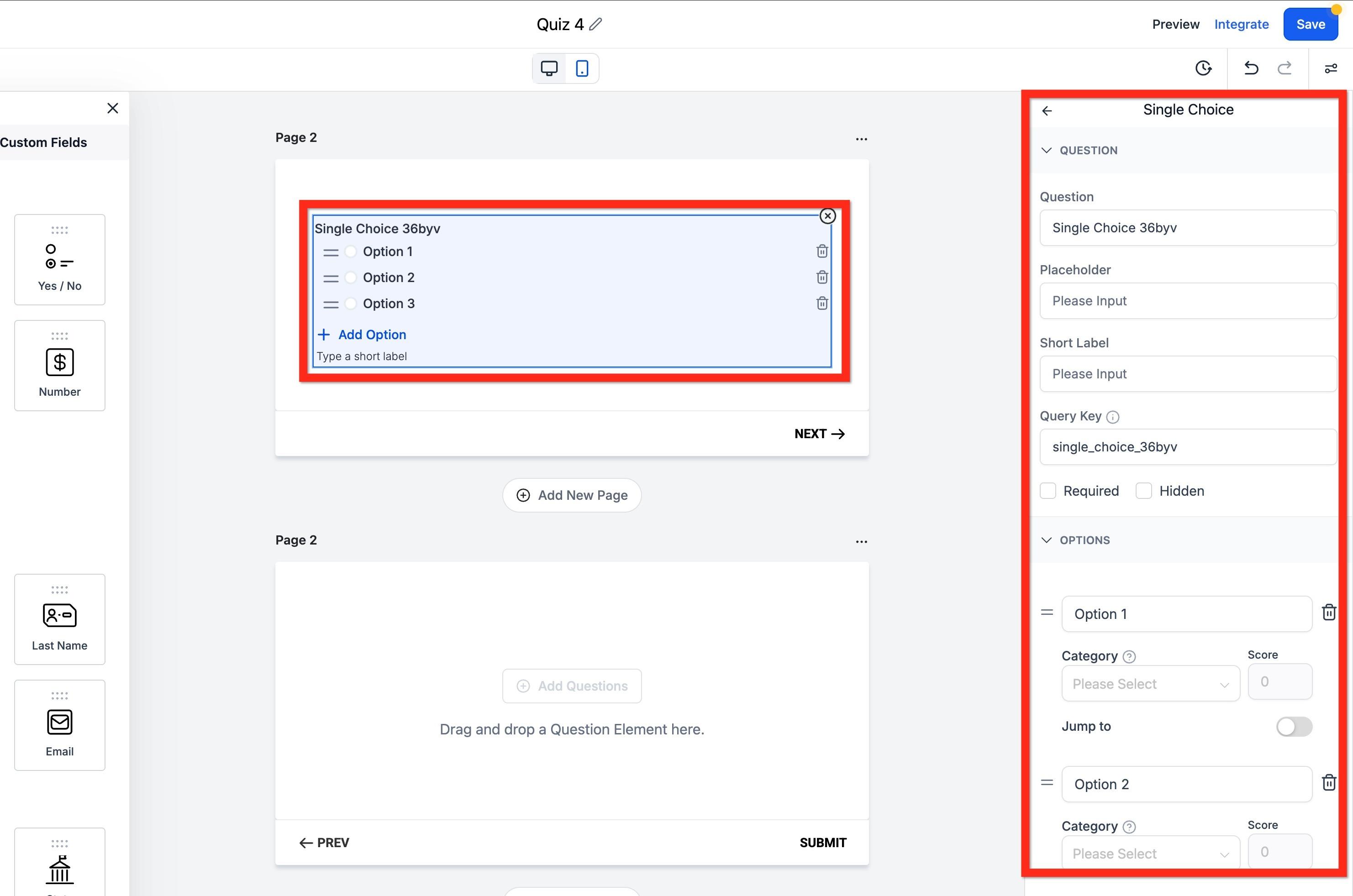
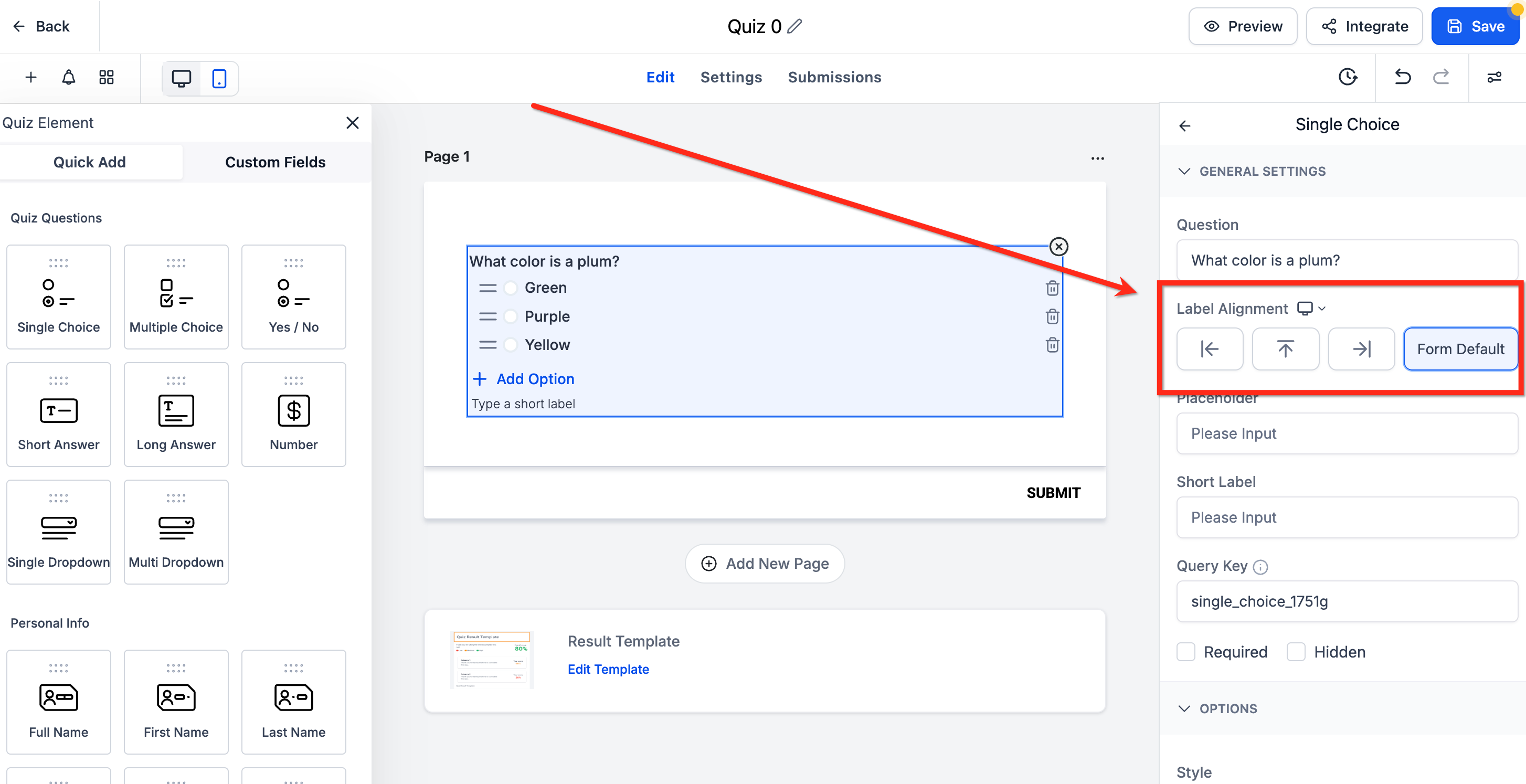
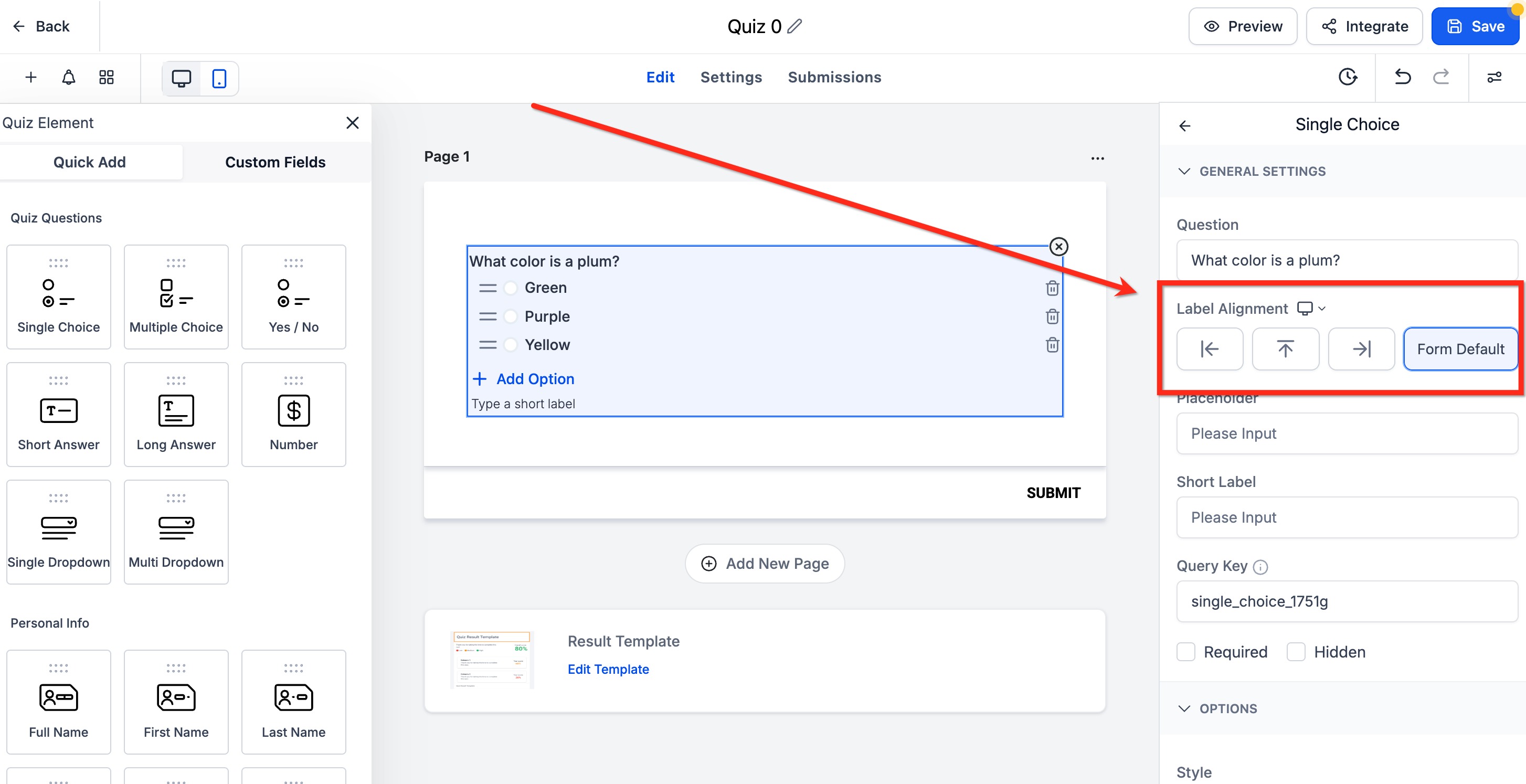
Element-level label alignment: Set a different label position for each field instead of one global alignment for the whole quiz, useful for fine-tuning spacing in compact layouts. Select a question, then use the arrow selector under Label Alignment in the right sidebar. On mobile, alignment always defaults to Top regardless of your desktop setting, to keep the quiz readable on small screens.
A quick note on patient information: keep quiz questions focused on lead qualification (skin type, concerns, goals, contact details) rather than detailed medical history. If a quiz does capture anything health-related, treat those submissions the same way you'd treat any other form of PHI in your practice, and avoid emailing raw submission data outside of secure channels.
Branching logic lets the quiz adapt based on how someone answers.
Select a multiple-choice or yes/no question.
In the element settings, locate Jump To or the conditional navigation option.
For each answer choice, select the page or step the quiz should jump to.
Save and preview the quiz to confirm the logic works as expected.
Scoring and categories are the logic layer of a quiz: they translate a prospective patient's answers into a clear, personalized result.
Categories are the possible outcome groups a quiz can return, for example "High Intent," "Medium Intent," "Nurture," or "Treatment A vs. Treatment B." Individual answers can be tied to a category so the quiz knows which outcome a contact aligns with.
Scoring is the point system used to calculate a numeric result. Points assigned to answer options are totaled into an overall score, a category score, or a score tier (for example, 0-39 = Low, 40-79 = Medium, 80-100 = High).
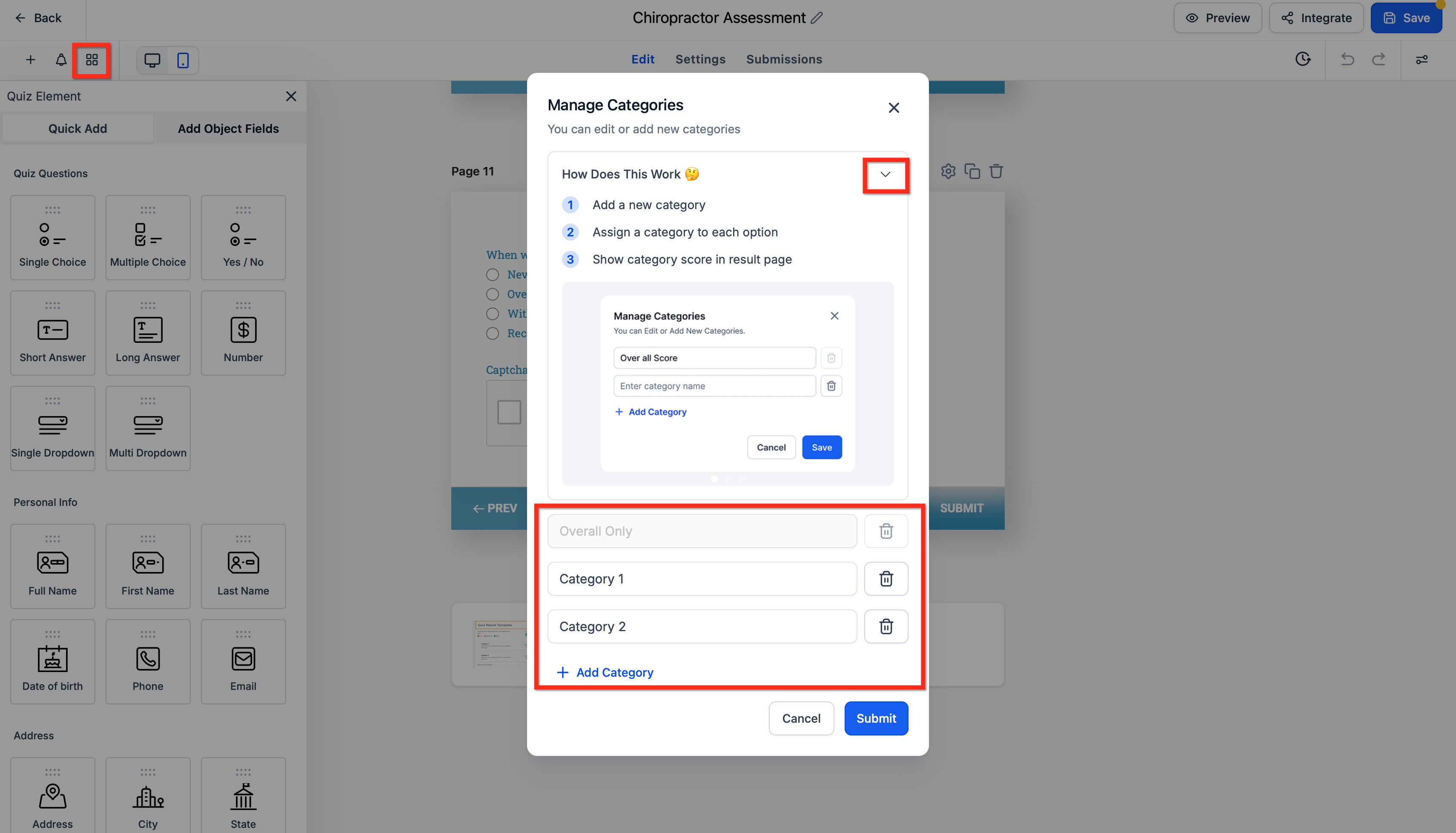
Create categories:
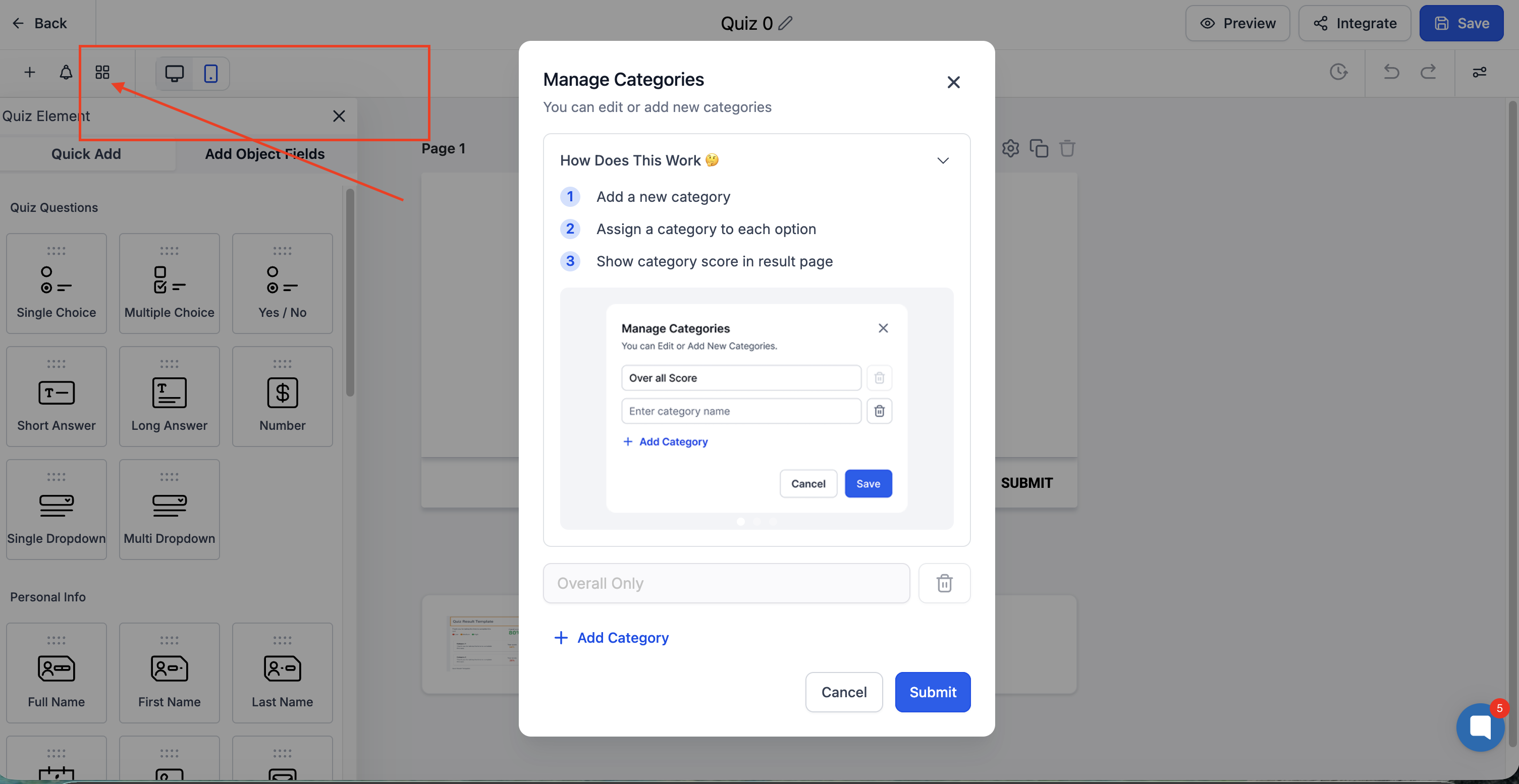
Open the Categories / Scoring section (the grid icon in the left panel).
Add categories, for example High Intent, Medium Intent, and Nurture.
Assign scores:
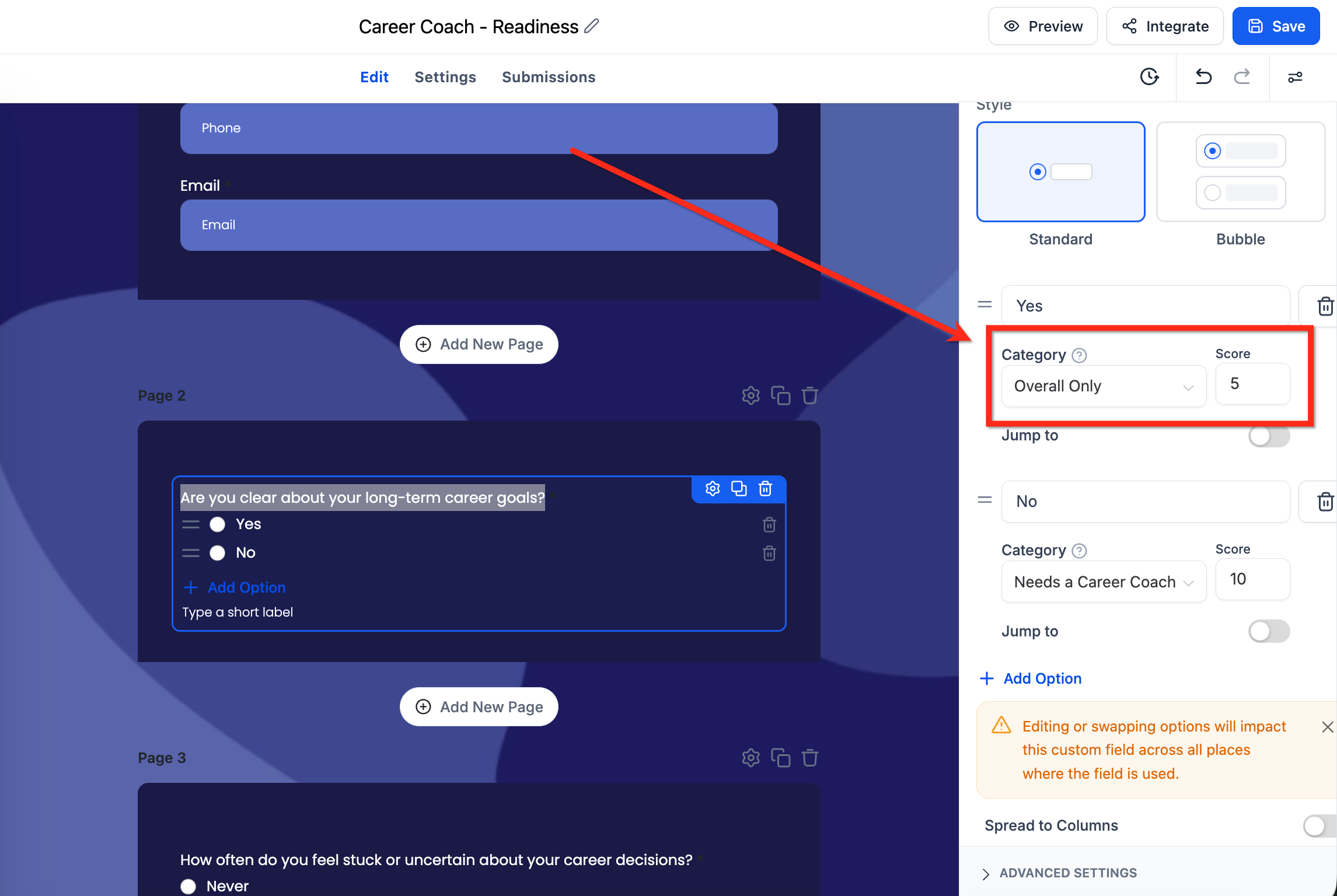
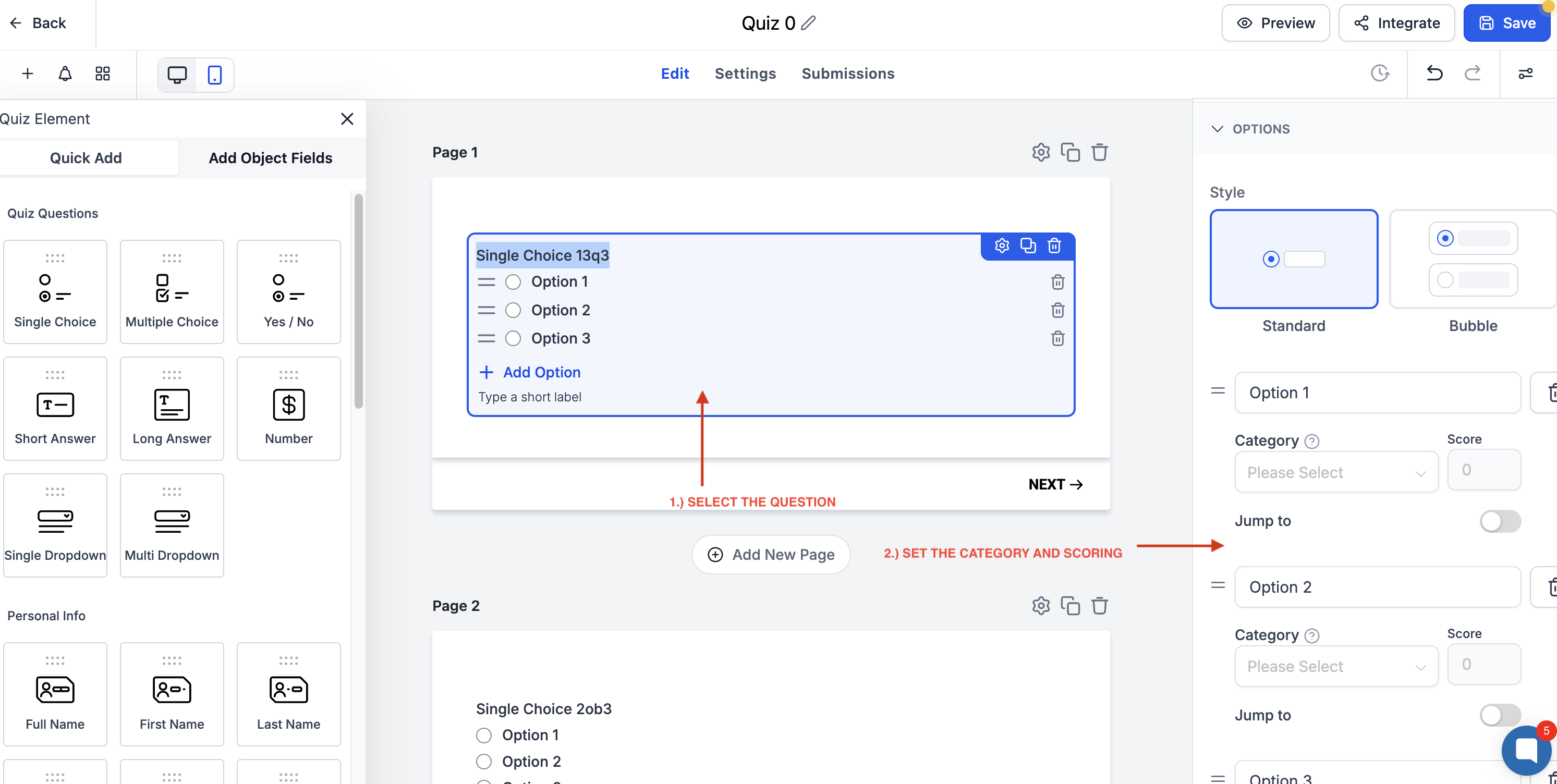
Select a question.
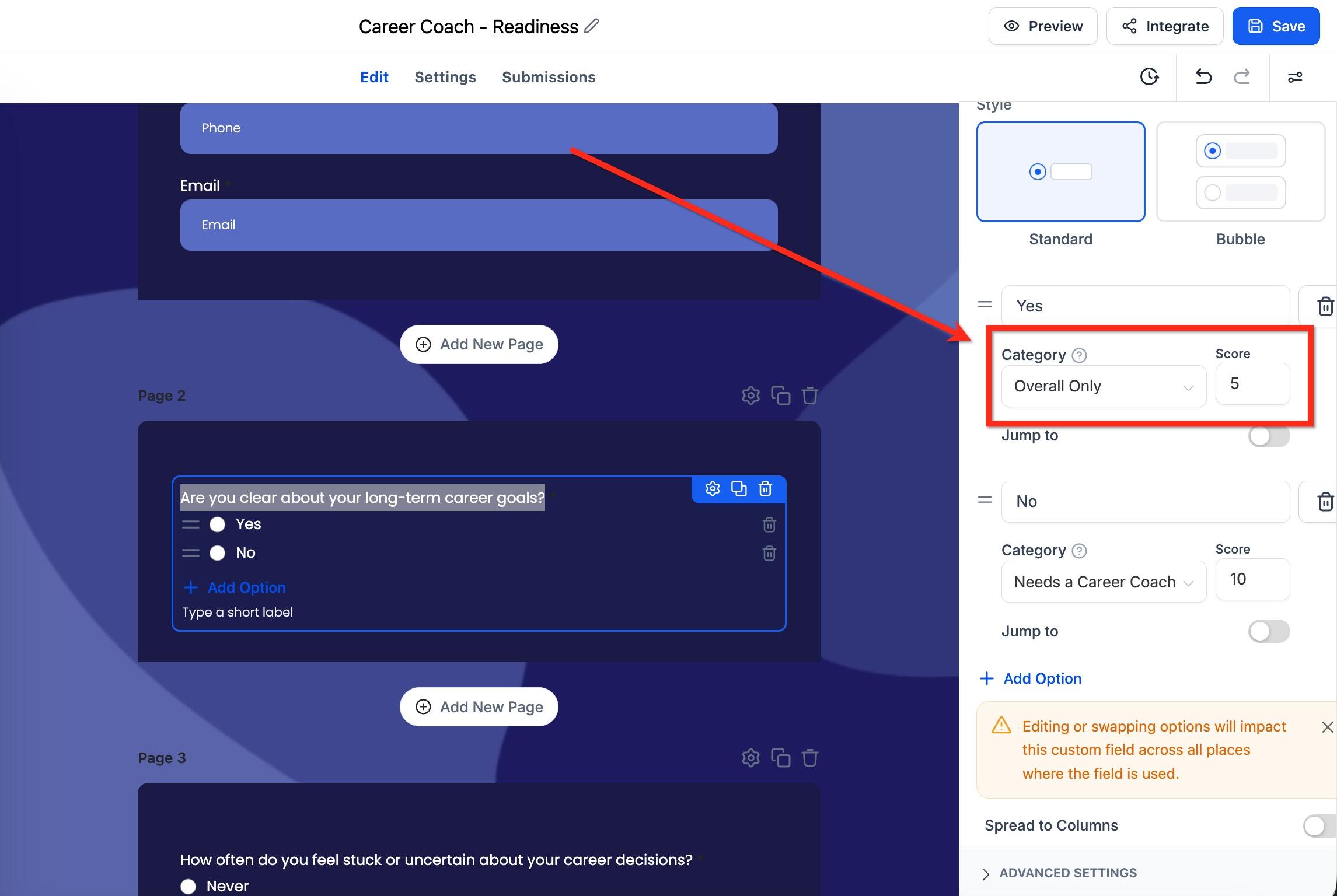
For each answer option, assign a Category and a Score Value.
Repeat for every scored question.
Save the quiz.
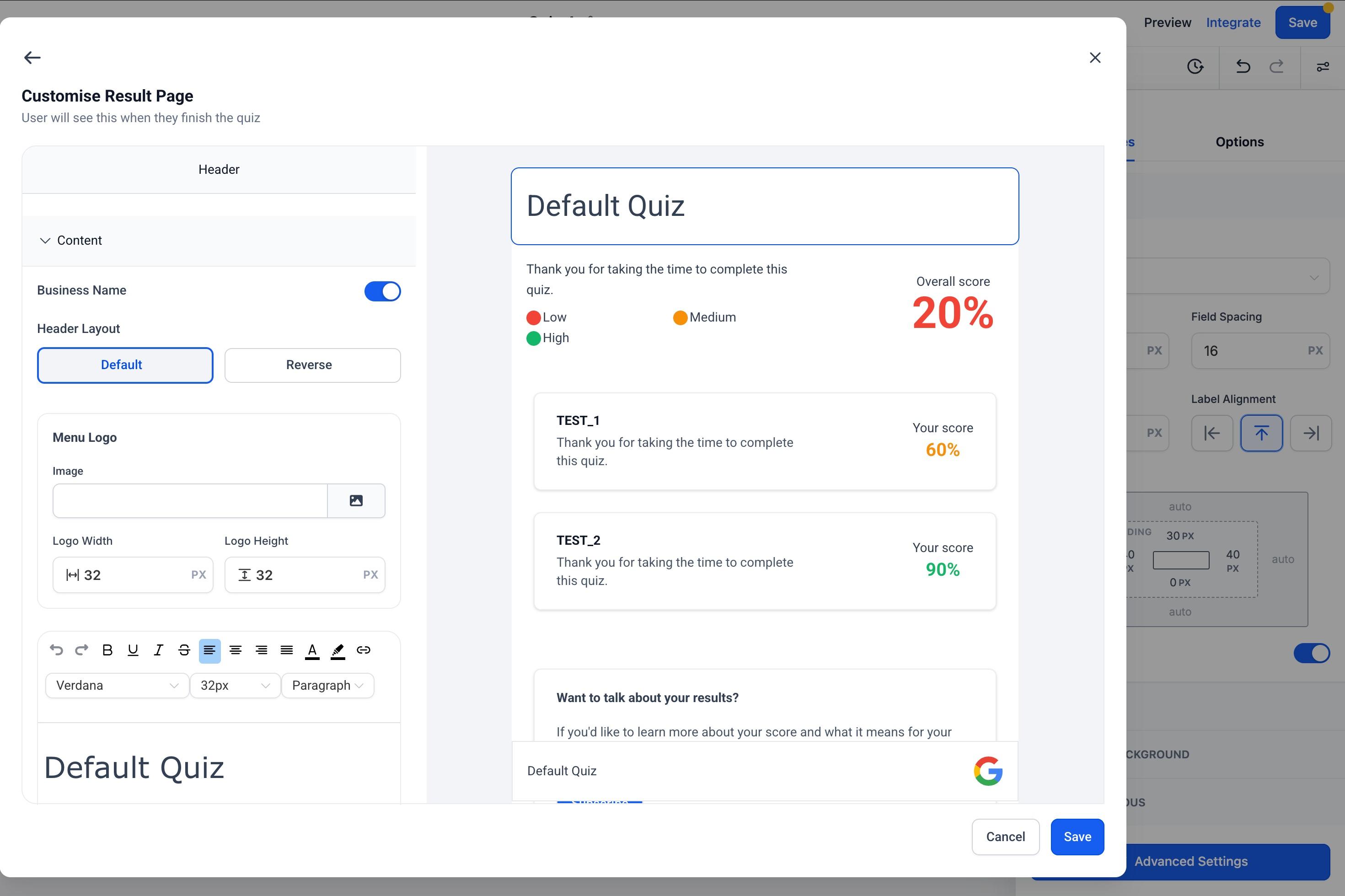
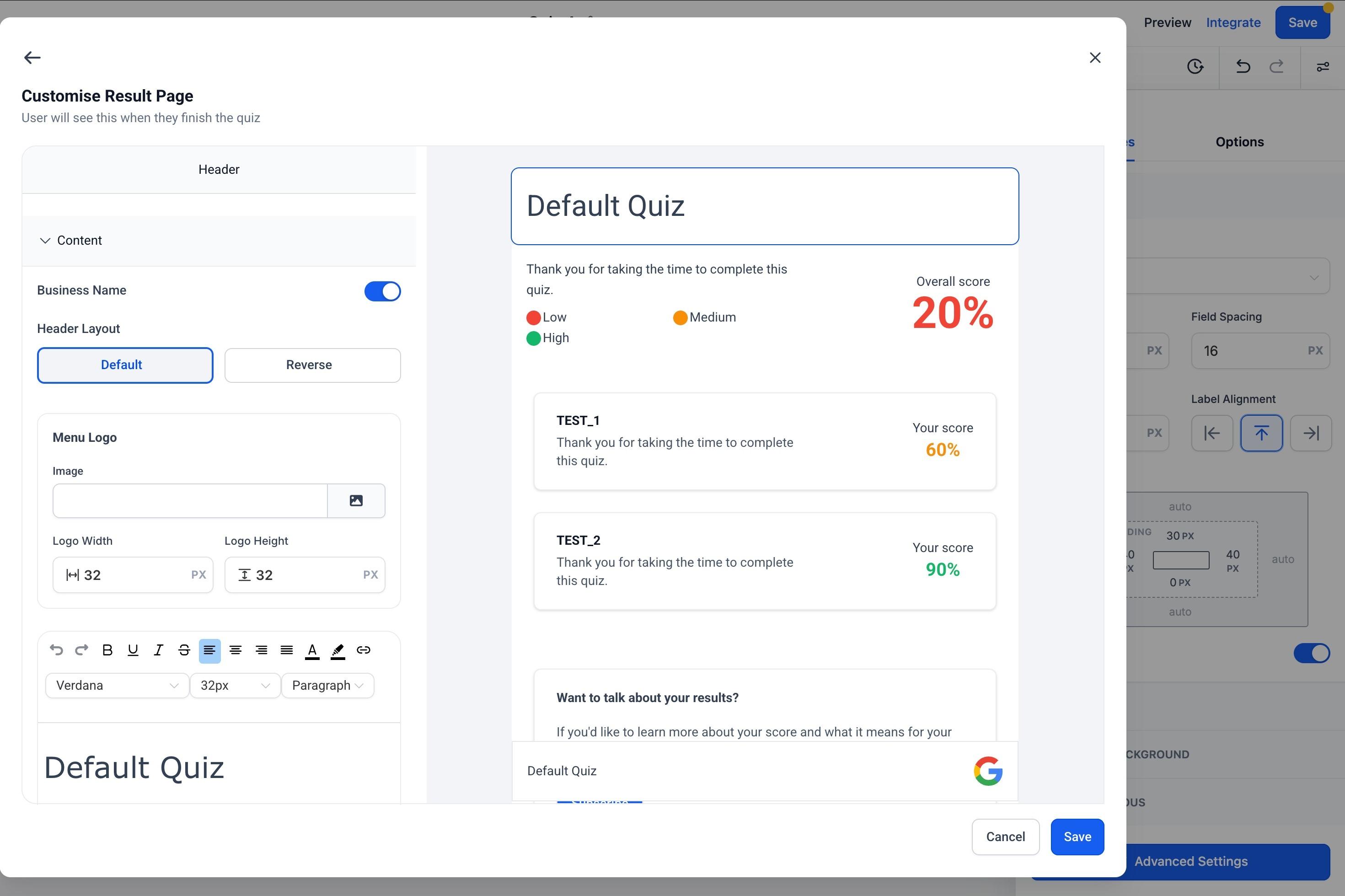
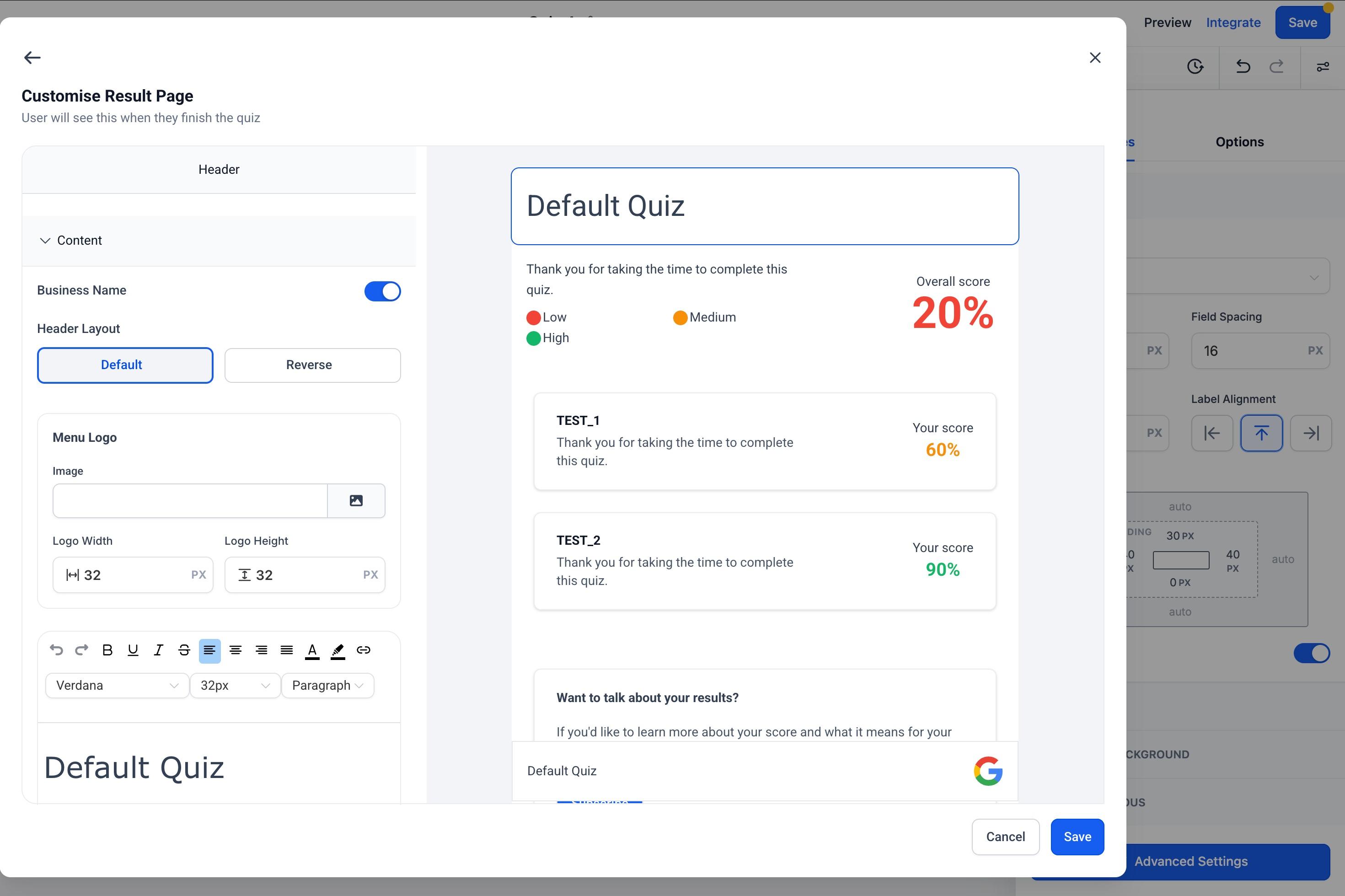
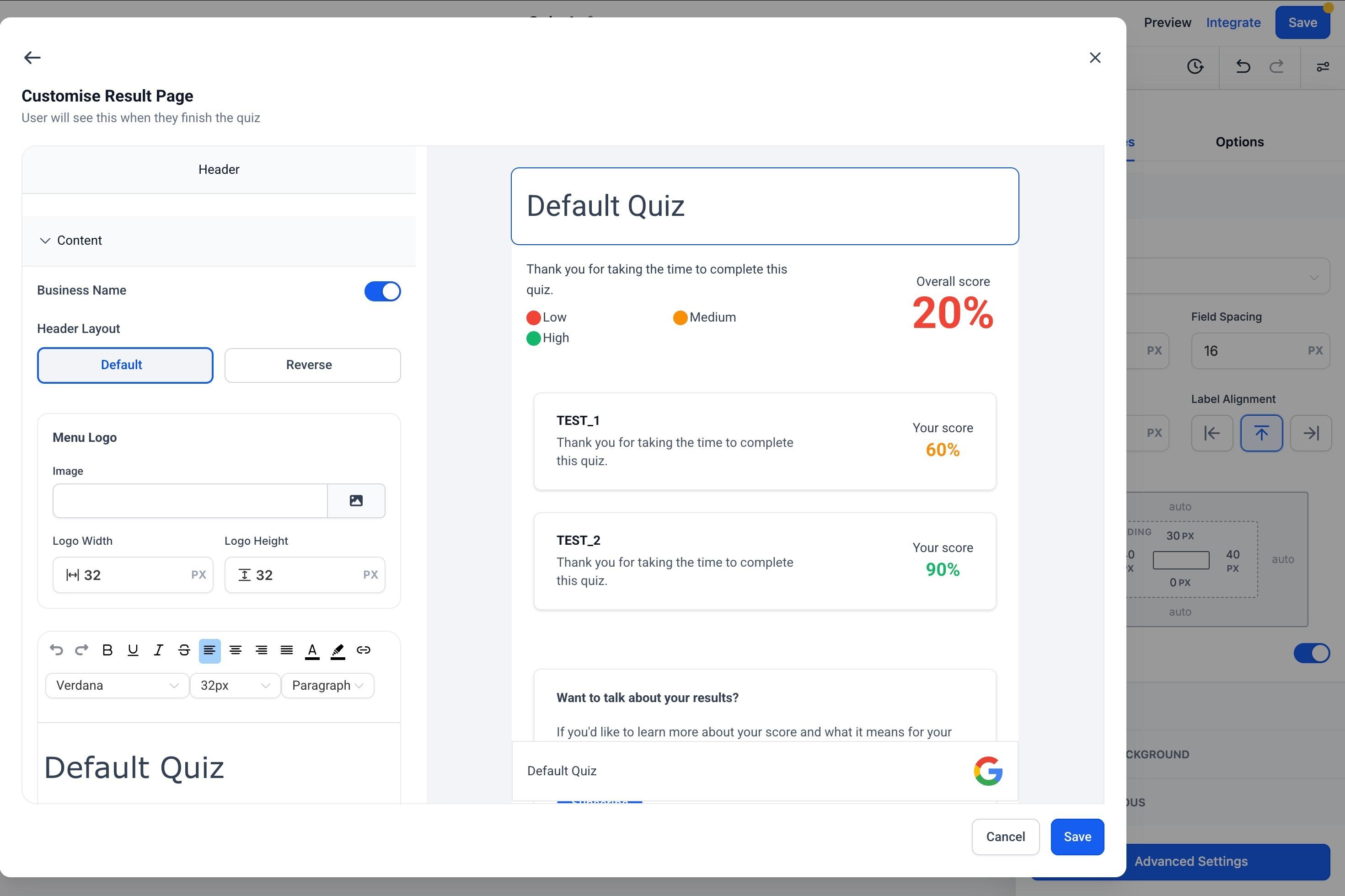
The results page is the last thing a prospective patient sees after submitting your quiz. It's where you present the outcome (a score, tier, or category), explain what it means, and point them to the next best action, such as booking a consult.
A strong results page increases conversions because it connects the quiz outcome directly to a recommendation. You can customize:
Header: Add your logo, practice name, and custom text; adjust layout, padding, and background color.
Score content: Edit the text shown for each score tier (for example, Low, Medium, High).
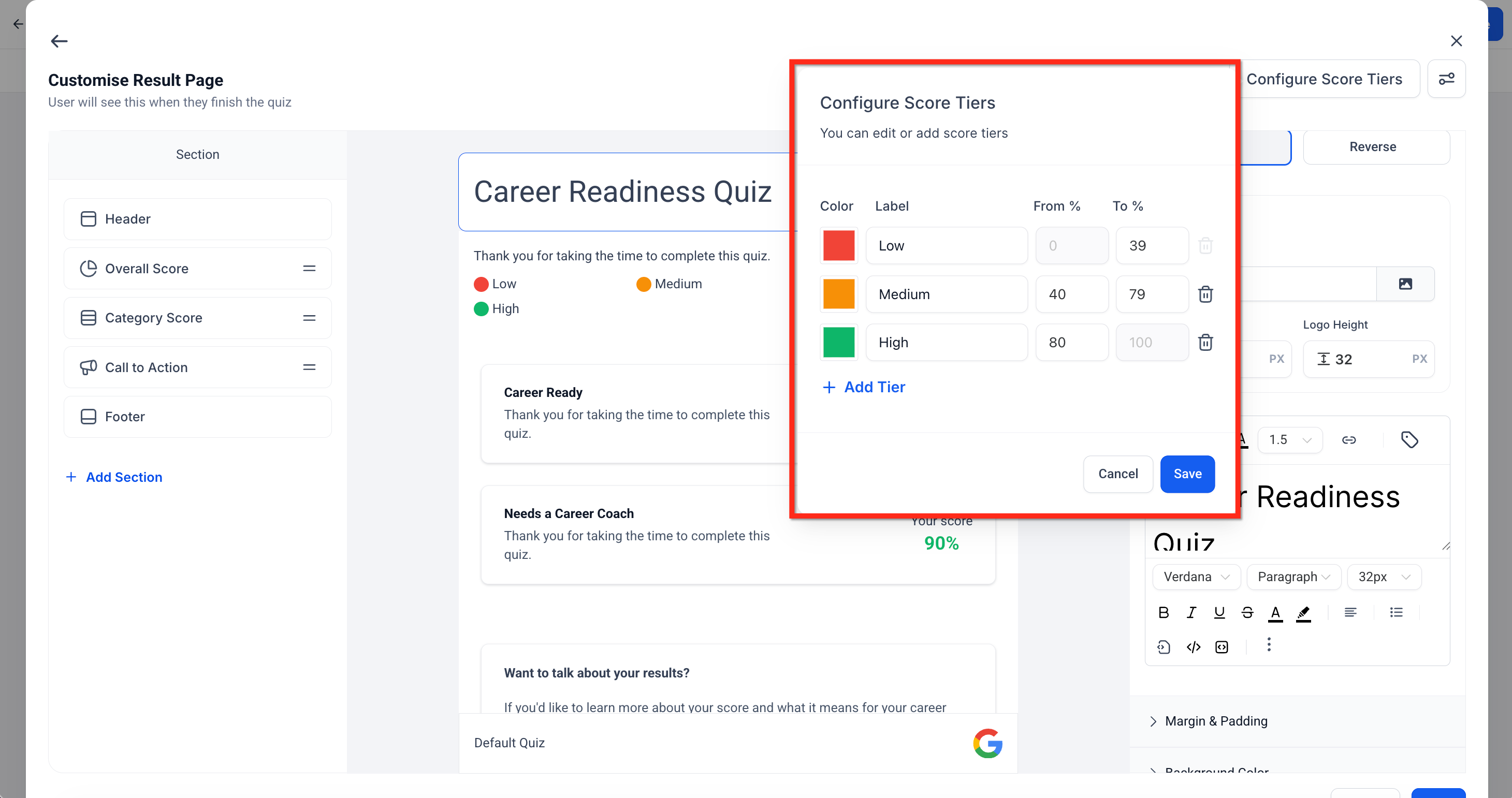
Tiers: Set the percentage ranges that define each tier and the color associated with each one (for example, a warmer color for a lower-intent tier, a stronger color for high intent).
Call to action (CTA): Encourage the next step, for example "Want to talk about your results? Book a consult." Link the button to a booking calendar, a funnel step, or another page.
Footer: Add a footer logo and social links, and optionally make it sticky.
Configure score tiers:
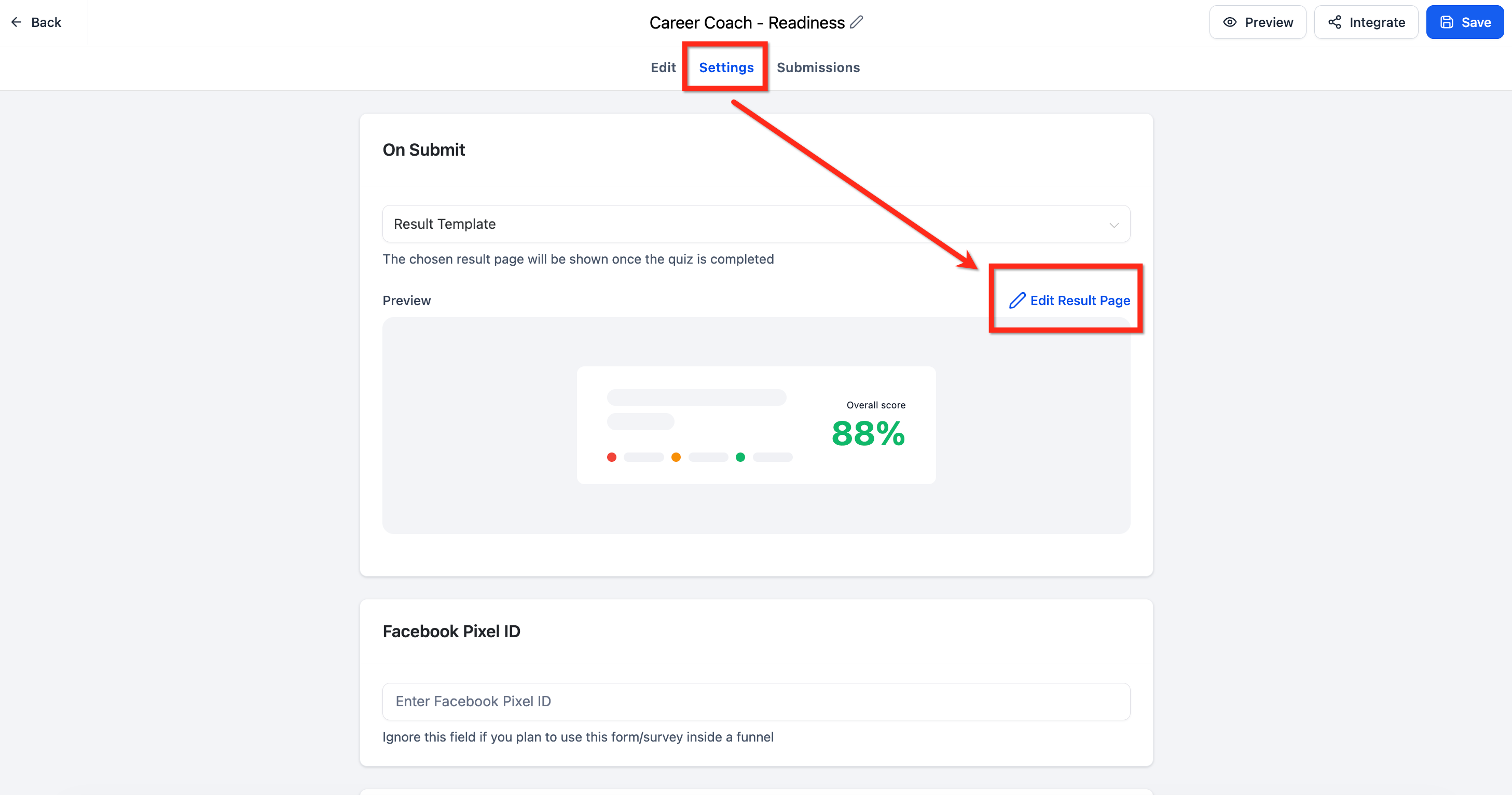
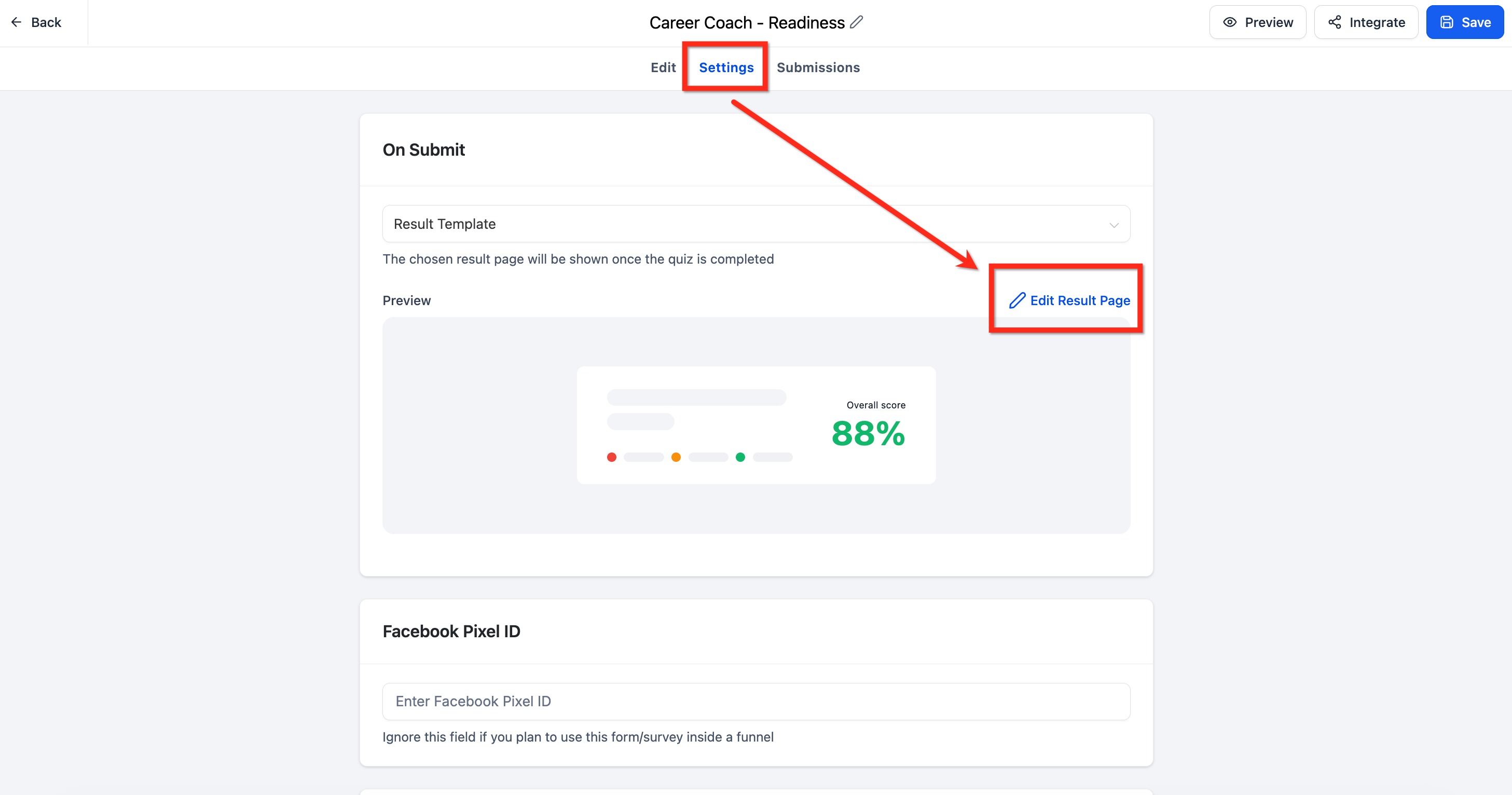
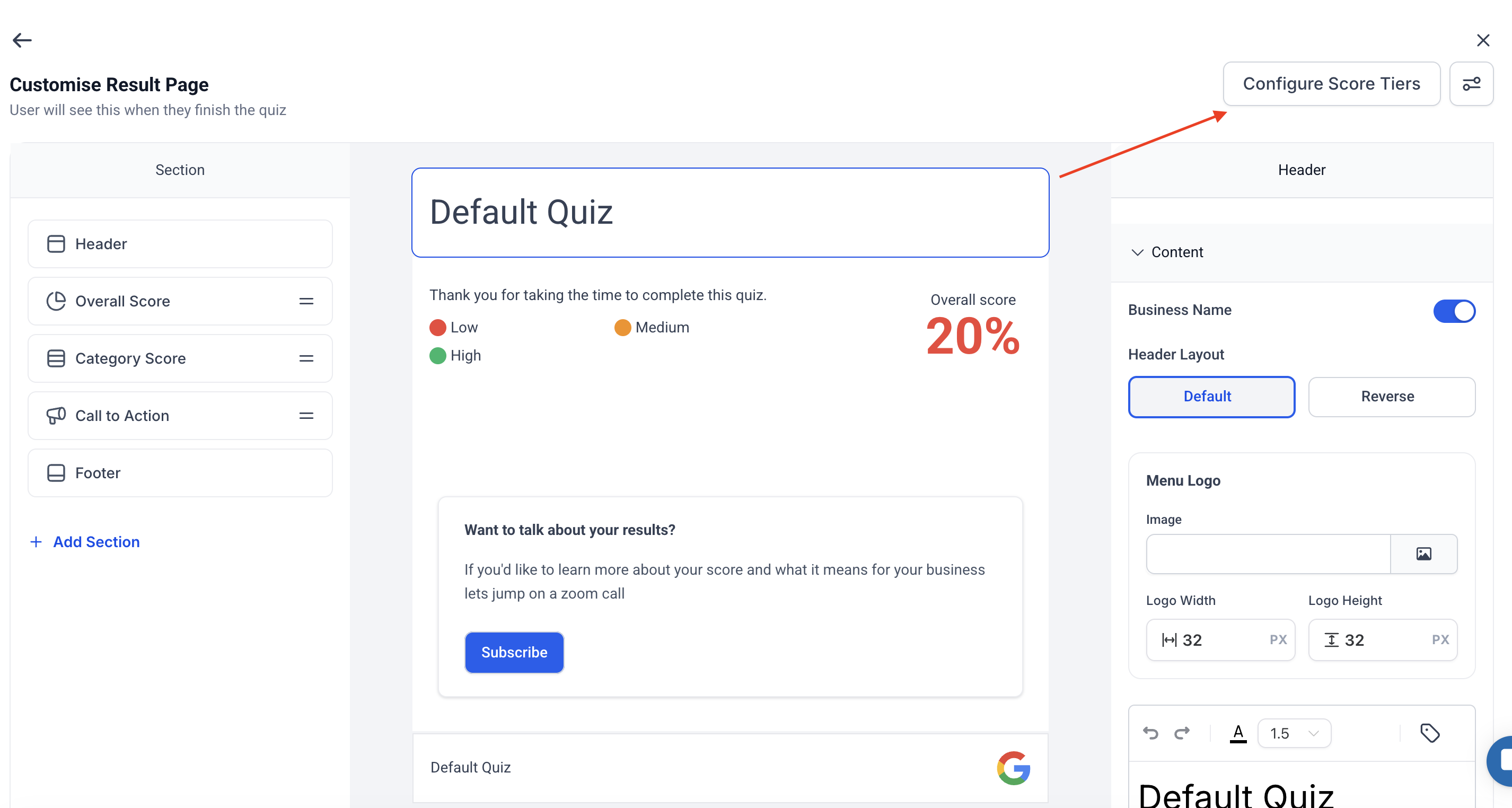
From the quiz editor, go to Settings, then select Edit Results Page (or scroll to the Result Template section and click Edit Template).
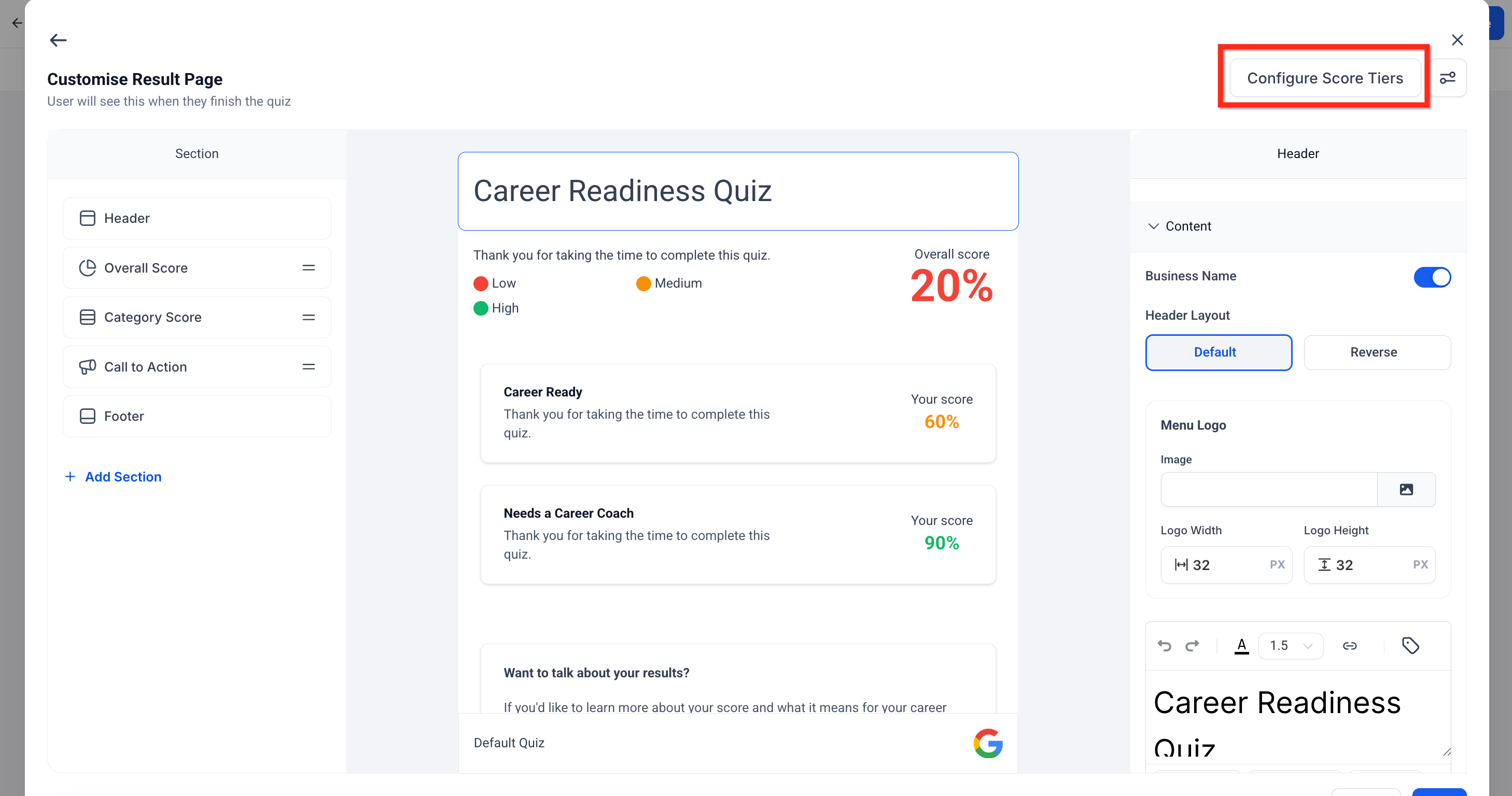
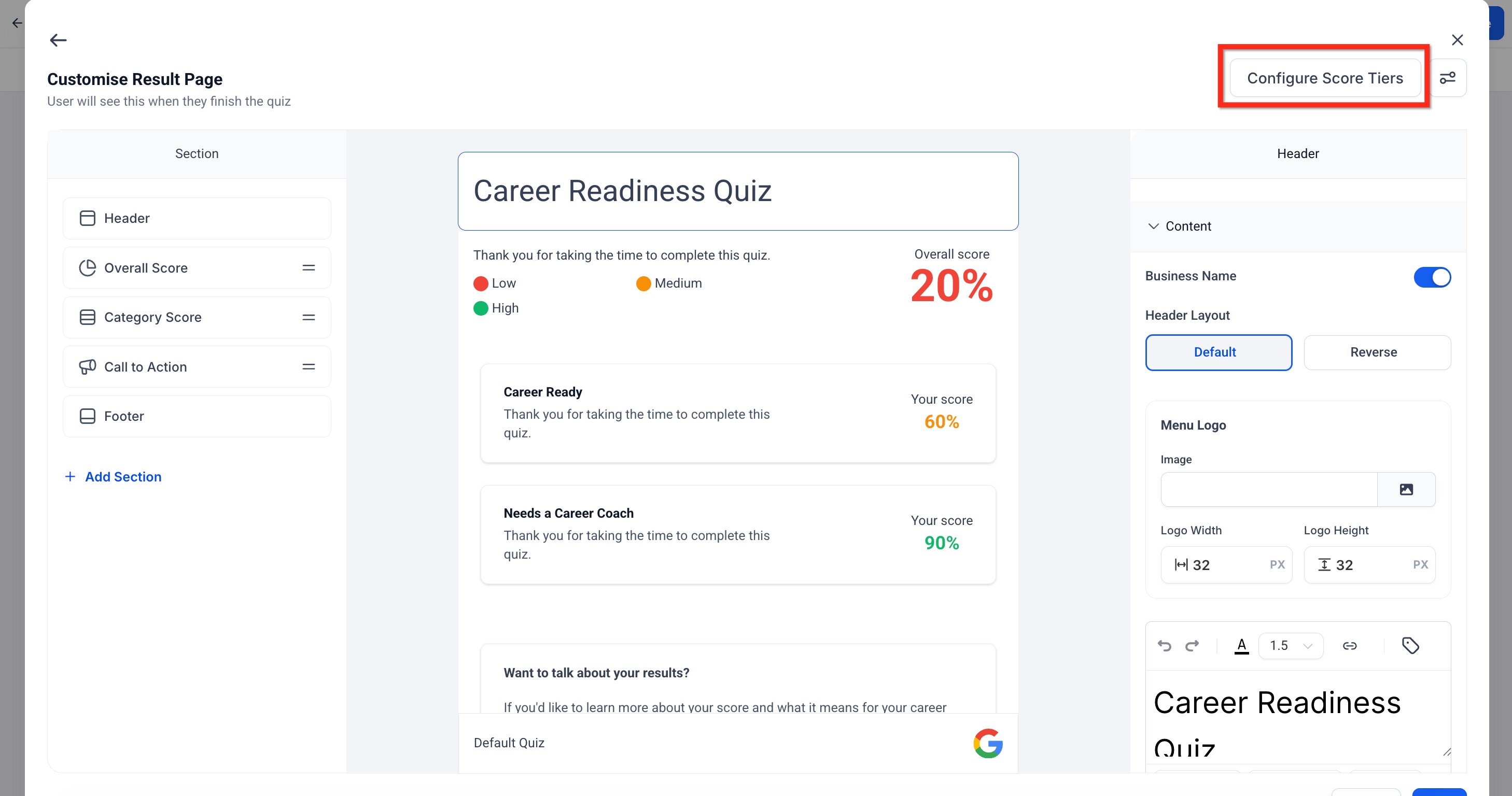
Click Configure Score Tiers / open Score Tier Settings.
Define your ranges, for example Low = 0-39, Medium = 40-79, High = 80-100. Edit the name, color, and range for each tier, remove existing tiers, or add new ones.
Save your changes.
Add result content: For each tier, you can include a headline or summary message, recommendation text, a CTA button (for example "Book Consultation"), and optional disclaimers or next steps.
In the Quiz Builder, click the bell icon to open Notifications.
Configure an Internal Notification (sent to your team) and an Auto-Responder Email (sent to the person who submitted the quiz).
Customize the subject, sender name, reply-to address, and message content.
Save your notification settings.
Quiz email notifications can attach a Quiz Submission PDF (the raw submitted responses) or a Quiz Results Page PDF (the evaluated, scored results page). Enable the auto-responder so the submitter receives their results PDF automatically. Because these PDFs can contain personal information a prospective patient shared in the quiz, treat them with the same care you'd apply to any other patient communication.
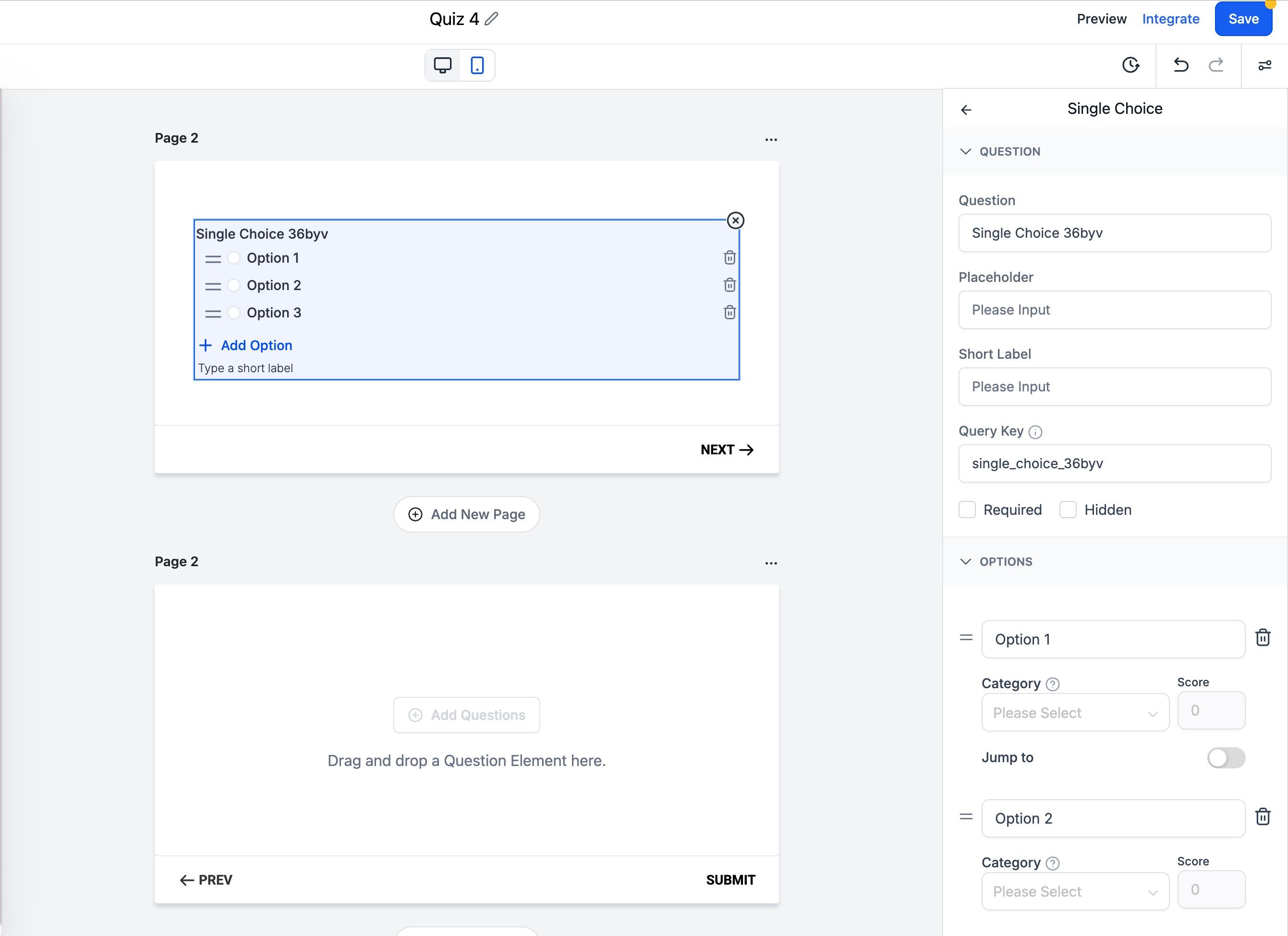
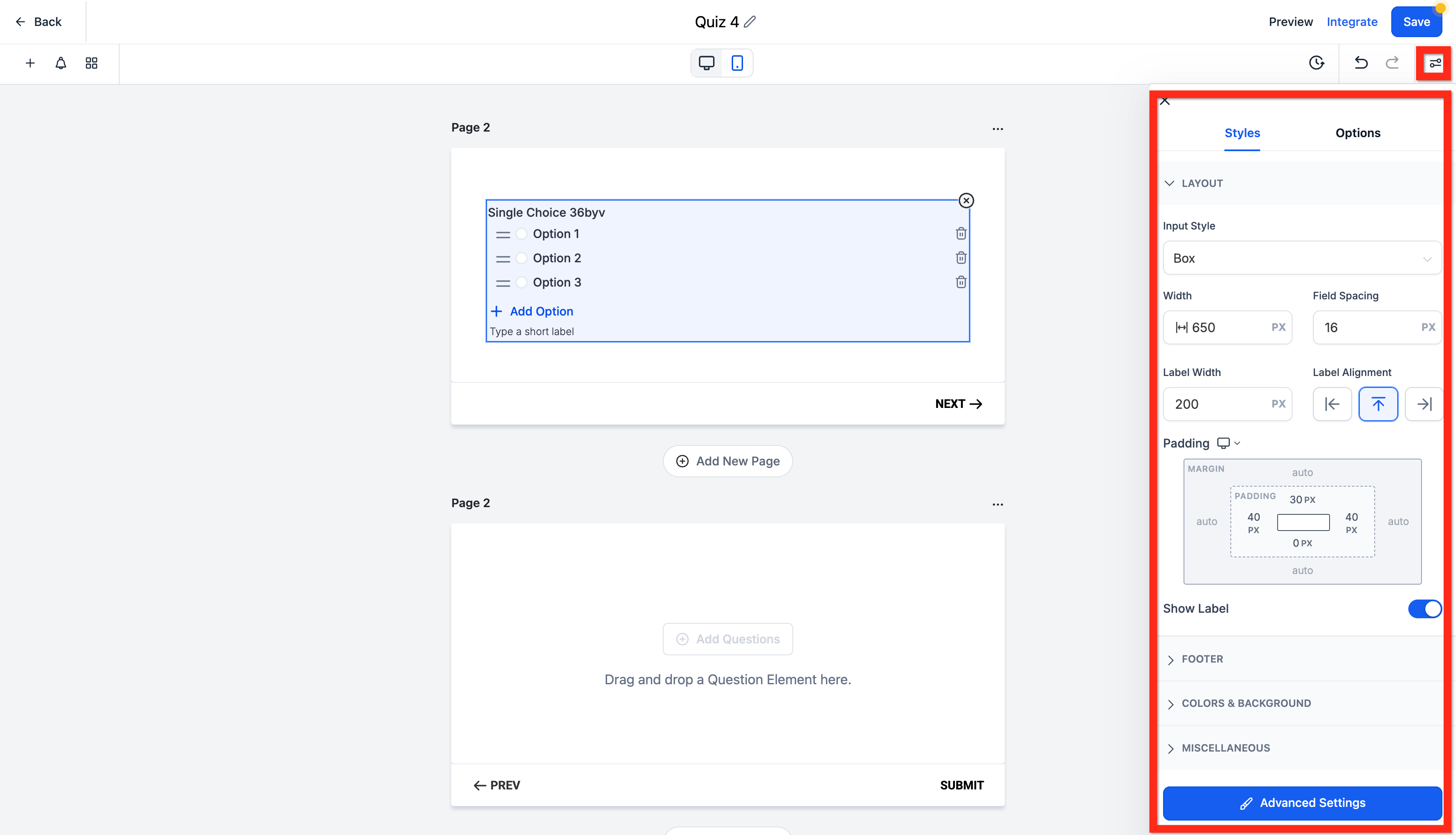
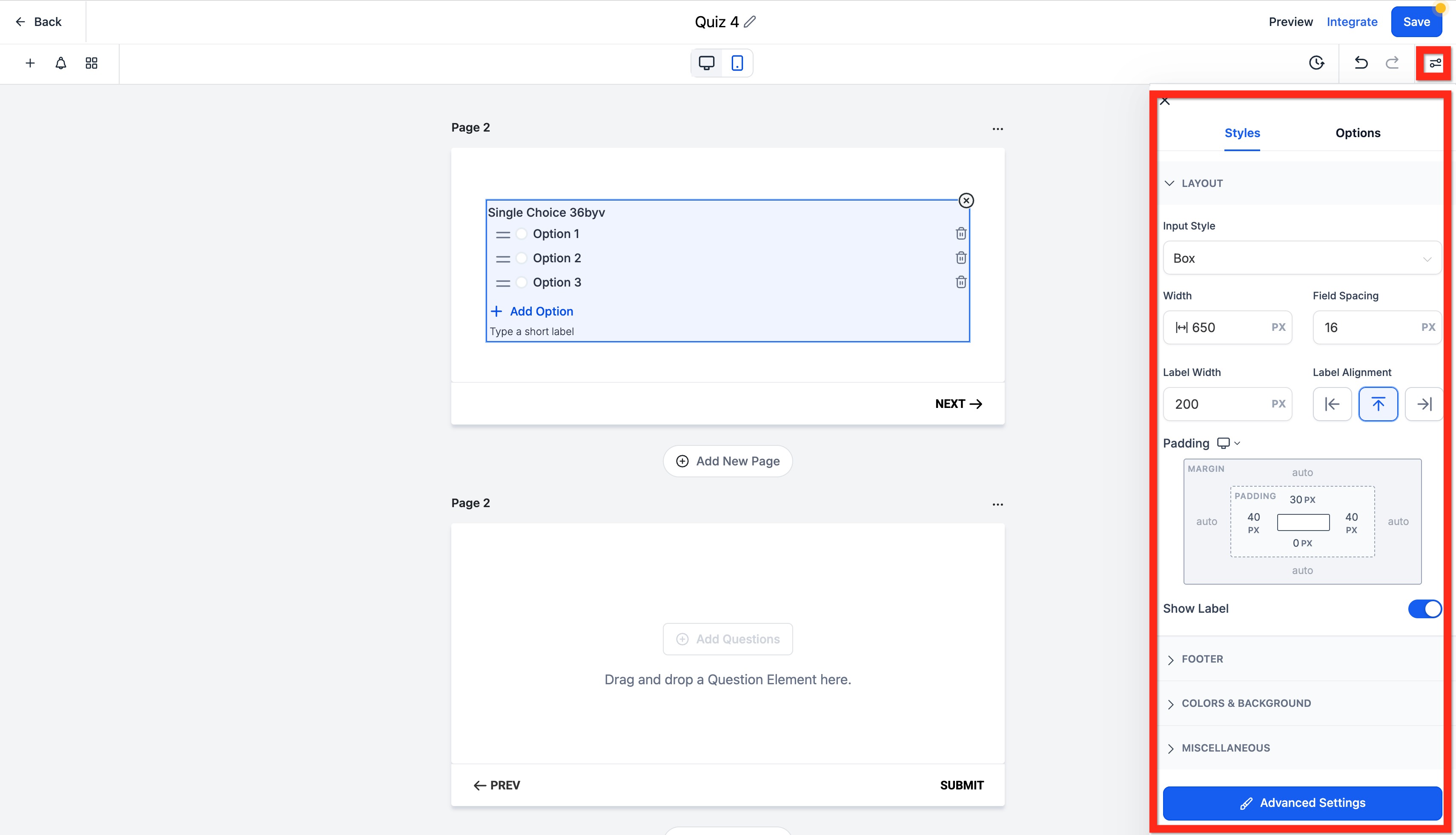
Click the styles icon (the lines-and-dots icon) in the top panel to open Styles & Options:
Styles: Layout (including top-margin spacing so you can adjust space above your quiz content without custom CSS), Footer, Colors & Background, and Miscellaneous.
Options: On Submit (what happens when the quiz is completed), Facebook Pixel ID and Pixel Events, general Quiz Settings, and Footer HTML.
Click Save.
Click Integrate in the top-right corner.
Choose how to publish:
Embed Code: Copy the iframe code to embed the quiz directly on your website or a funnel page.
Direct Link: Share the quiz link via email, SMS, ads, or social media.
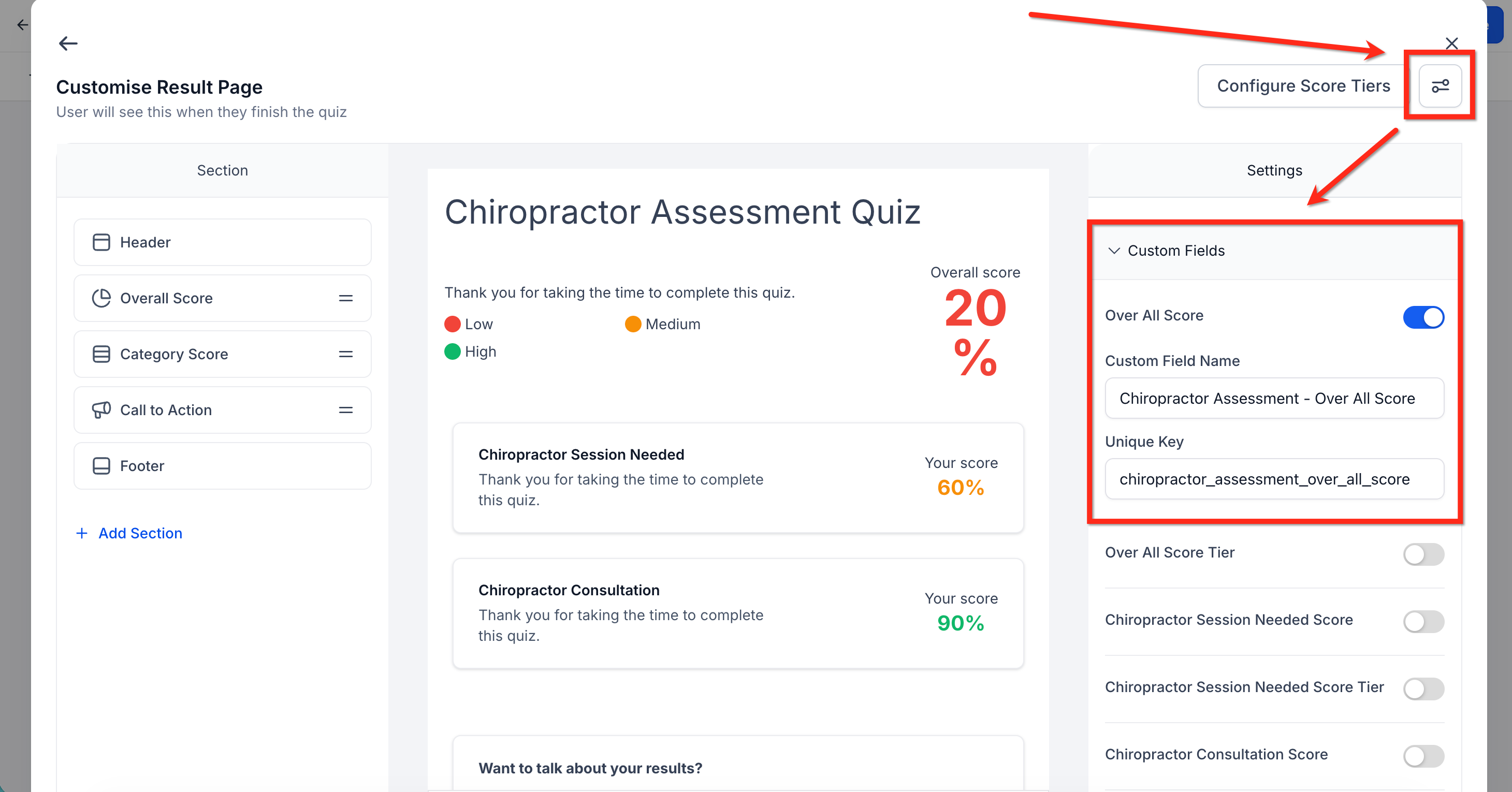
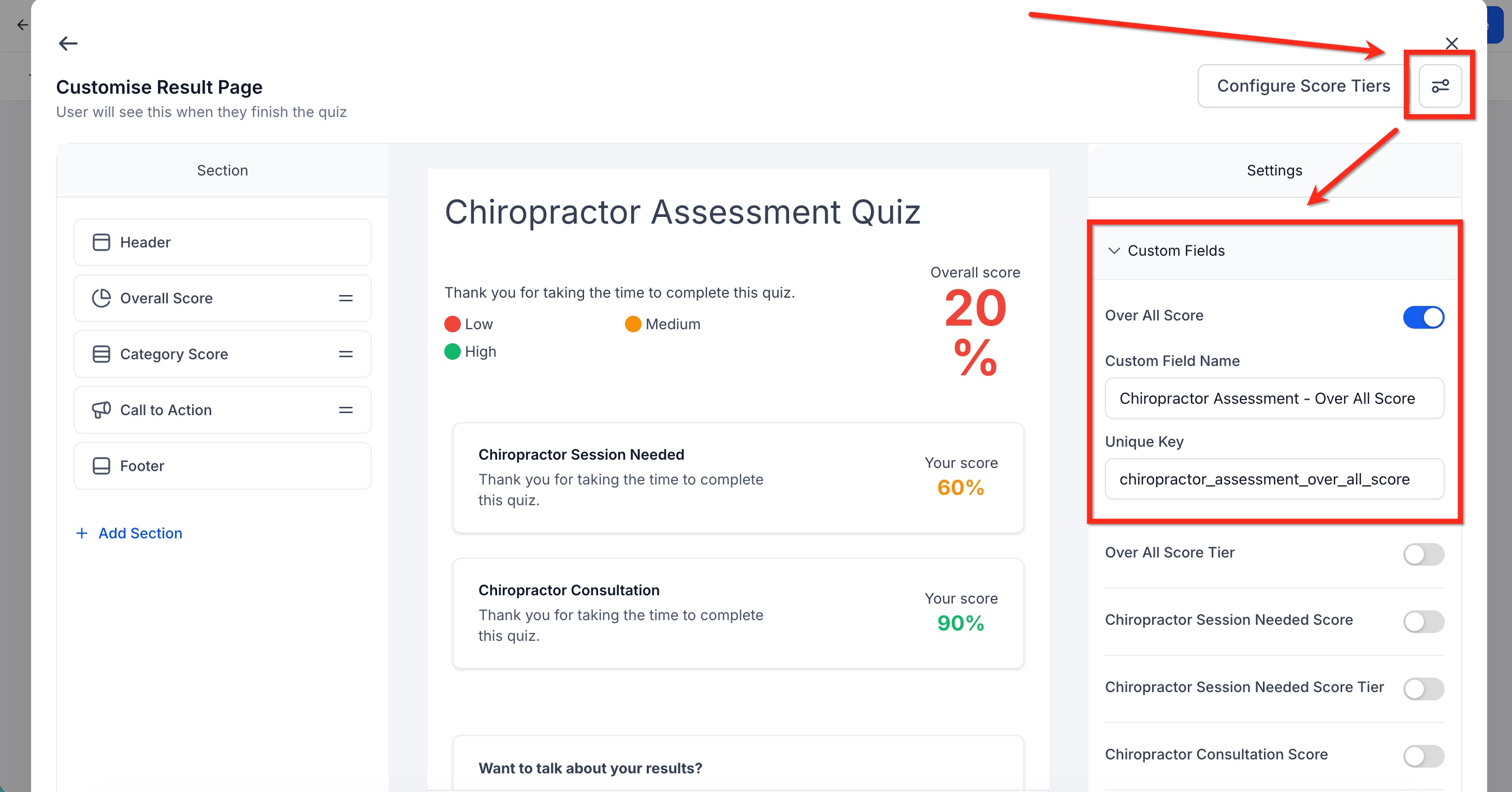
CRM field mapping writes a contact's quiz outcomes, such as overall score and tier, per-category scores and tiers, and highest/lowest category details, into contact custom fields. Once quiz data is mapped, you can:
Segment contacts: Filter or group contacts based on quiz performance, for example a smart list of contacts with an overall score of 80 or higher, or everyone whose top category was "High Intent."
Personalize automations: Tailor follow-up based on results, for example sending a different nurture sequence depending on a contact's highest or lowest category, or triggering an action when a category score crosses a threshold.
You can review individual responses any time by opening a quiz and selecting Submissions from the builder tabs.
Navigate to Automation → Workflows.
Create a new workflow.
Add the trigger Quiz Submitted.
Apply filters if needed (quiz name, score, or category).
Add actions such as Send SMS, Send Email, Create or Update Opportunity, Assign User, or Create Task.
Save and publish the workflow.
For the full list of trigger conditions and available actions, see the Workflows collection, quiz submissions are just one of many triggers you can build on there.
Before sending a quiz live, confirm the following:
All pages and questions display correctly.
Branching logic routes to the correct pages.
Scores and categories calculate as expected.
Contact information saves to the contact record.
Workflows trigger correctly on submission.
Results page CTA links function properly.
How is Quiz Builder different from Forms or Surveys? Forms and Surveys collect information without scoring it. A quiz can score answers, sort respondents into categories, branch the question flow, and show a personalized results page with a call to action, which makes it a better fit for "which treatment is right for you" style qualification.
Can I embed a quiz on my website or funnel page? Yes. Click Integrate on a saved quiz and choose Embed Code to paste an iframe onto a website or funnel page, or choose Direct Link to share it anywhere you can post a URL.
Can I customize how the quiz is scored? Yes. You can assign different point values to individual answer options and set up multiple score categories and tiers to match how you want to qualify prospective patients.
Does Quiz Builder support branching logic? Yes. Choice-based questions support Jump To rules, so the quiz can skip to a different page depending on how someone answers.
Where can I view and analyze quiz submissions? Open the quiz and select Submissions from the builder tabs to review individual responses, or use the mapped custom fields on the contact record to build lists and reports.
Can I trigger automated follow-up based on quiz results? Yes. Use the Quiz Submitted trigger in Workflows, and filter by quiz name, score, or category to send different follow-up depending on how a contact answered.
Can quiz data be used to segment my contact list? Yes. Once results are mapped to custom fields, you can build smart lists based on overall score, category, or tier, for example everyone who scored in the "High Intent" range.
Can I bulk-upload quiz questions instead of adding them one at a time? Yes. You can upload a CSV file of questions directly into a page instead of creating each one individually, which is helpful for longer quizzes with many qualification questions.
Is Quiz Builder only for patient-facing lead capture? No. You can also use it for internal purposes, such as staff training checks or simple certification-style quizzes, by setting pass/fail scoring and pairing it with a workflow that delivers a certificate or next step.
What happens to a submitter's information after they finish the quiz? Their answers are saved to their contact record (creating a new contact if one doesn't already exist), mapped into any custom fields you've configured, and available to trigger workflows through the Quiz Submitted trigger.
