Certificates you issue through Courses (for staff training, patient education, or any completion-based program) can be set to expire on a schedule you control. You can set expiry at the template level, so every certificate issued from that template follows the same rule, or override it for an individual recipient's issued certificate. You can also customize how many days before expiry a reminder email goes out, instead of relying on the default schedule.
Setting an expiry date on a template applies it to everyone who receives that certificate: they will all expire on the same date.
Go to Certificates (under Courses / Membership) in your dashboard.
Select the template you want to edit.
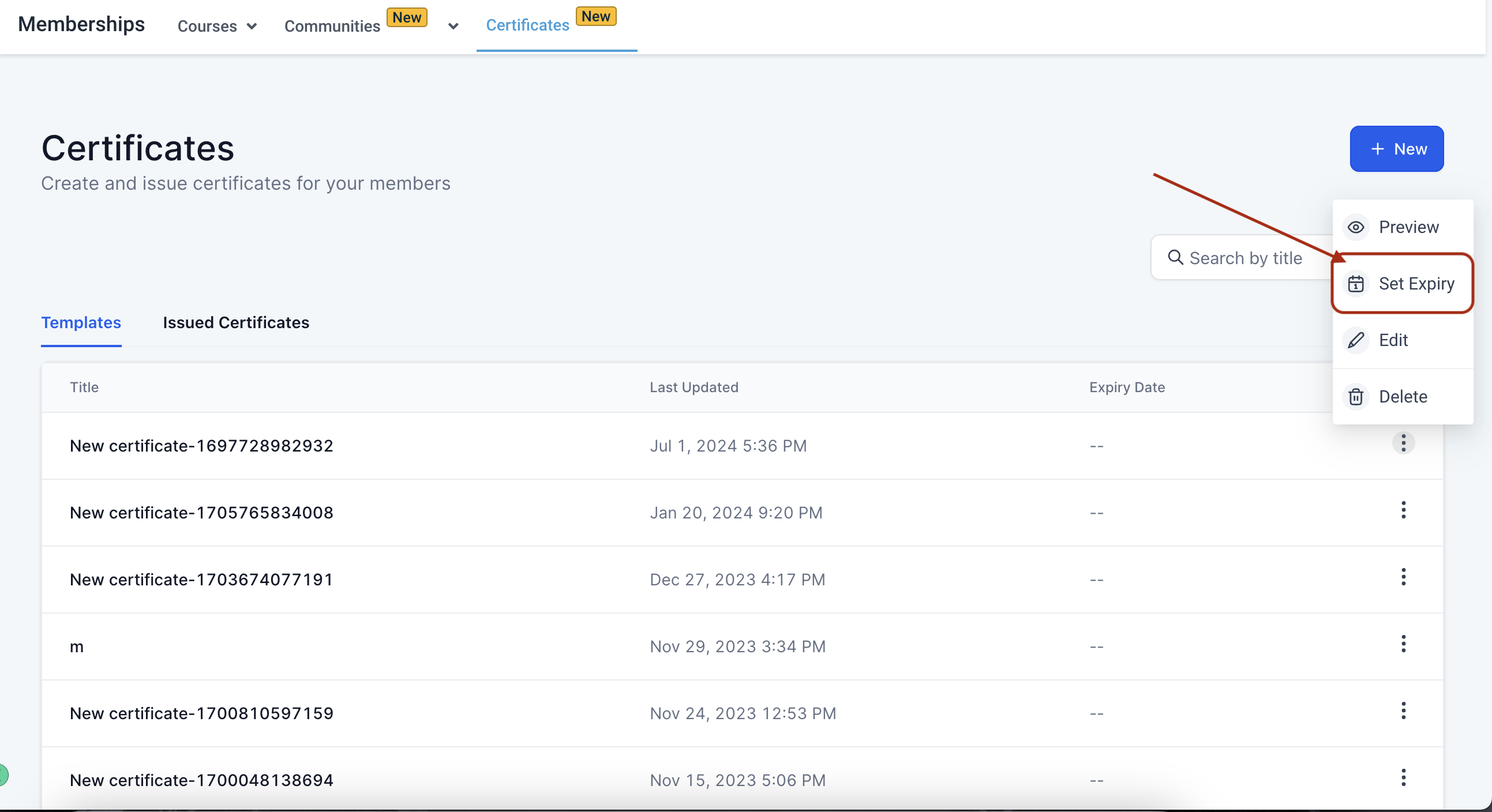
Click the three-dot icon on the template and choose Set Expiry (or Set a Date).
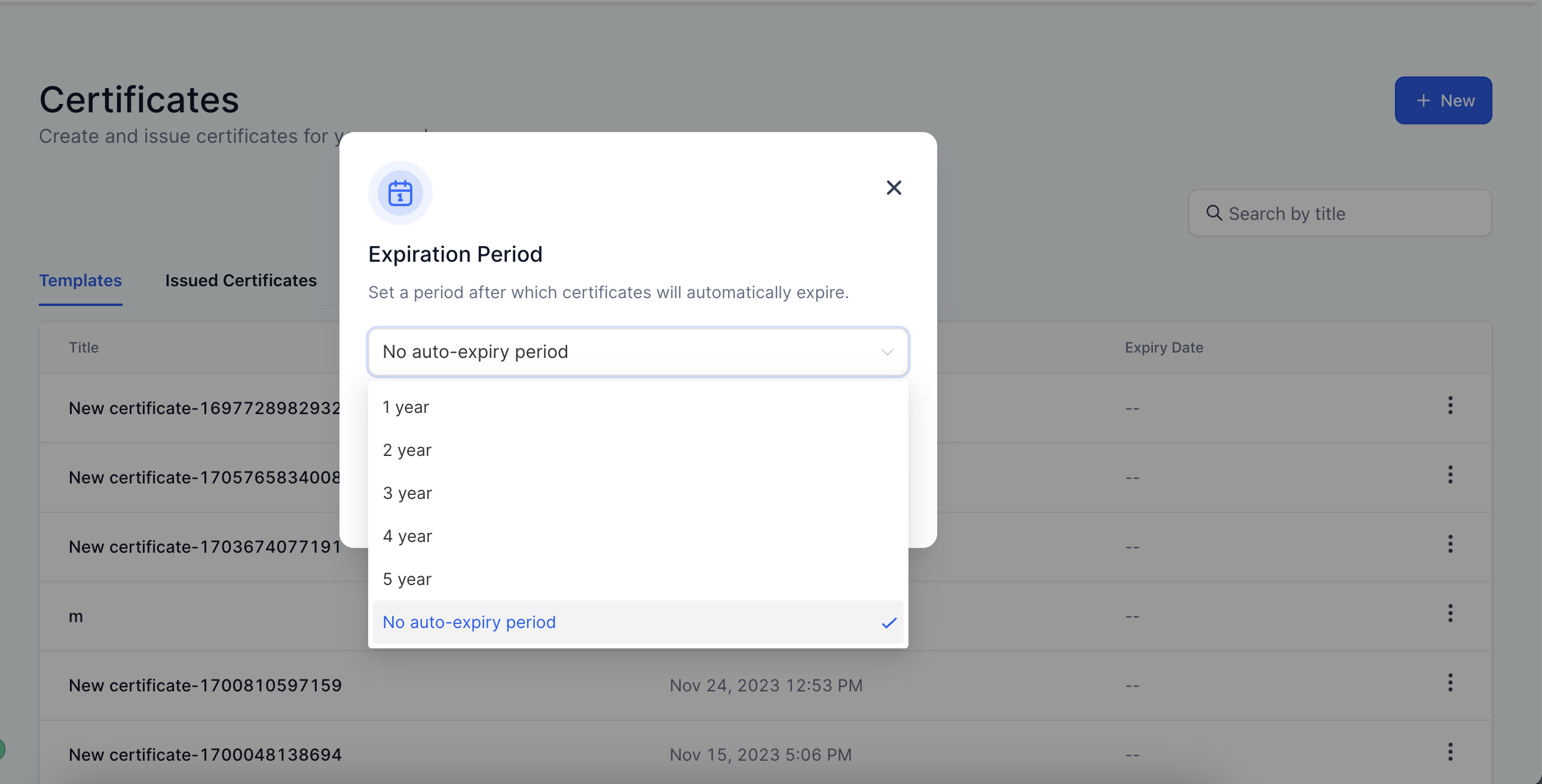
Choose one of the following options:
Never: the certificate never expires.
Immediately: the certificate expires as soon as it's issued.
A specific date: pick the exact date the certificate should expire.
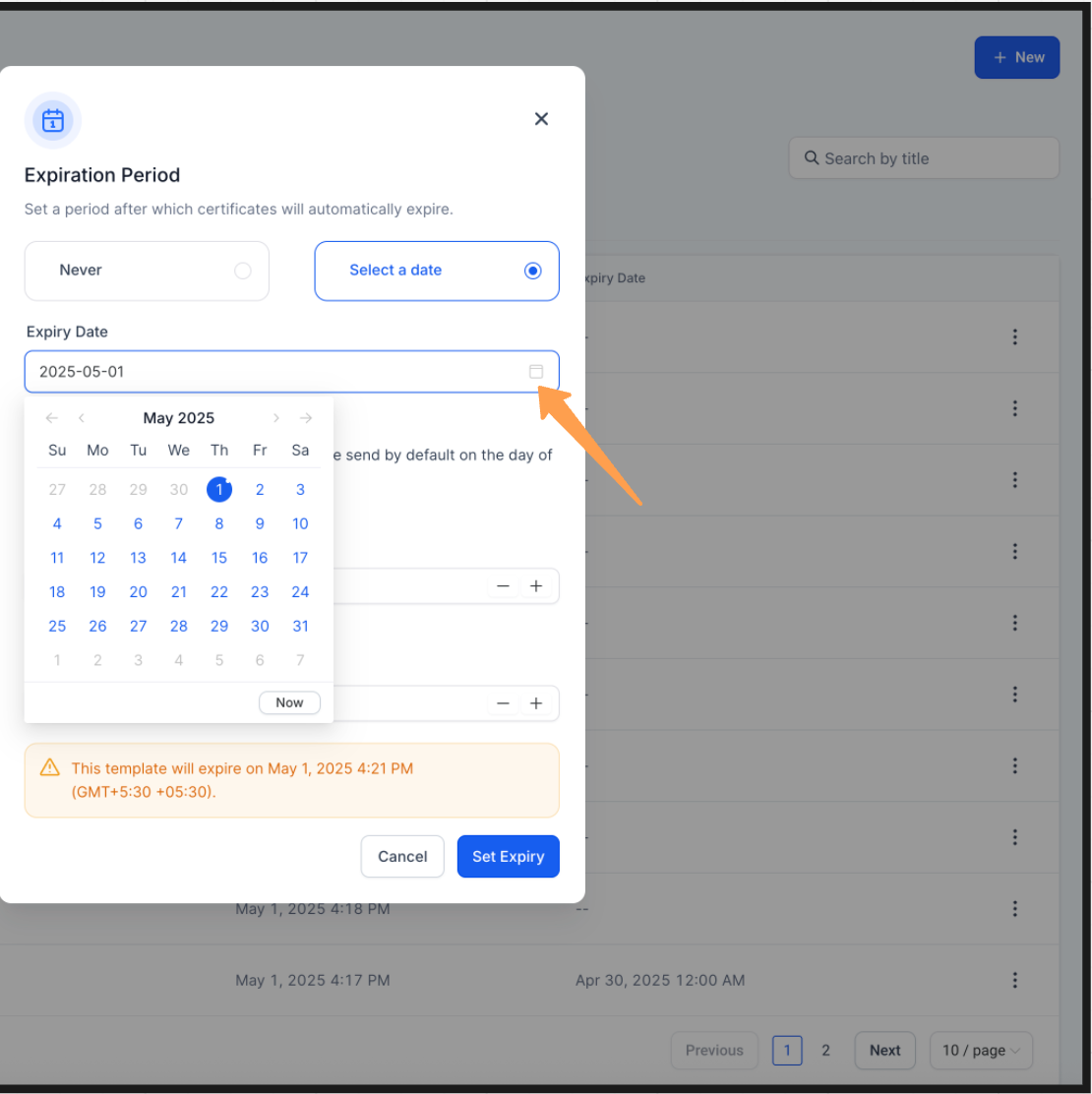
If you're setting a specific date, choose the date from the calendar. A preview shows the selected expiry date. Click Set Expiry to confirm.
To make a template never expire, or to remove an expiry date you already set, click the three-dot icon and choose Never instead. The preview confirms the template will never expire, then click Set Expiry to apply the change.
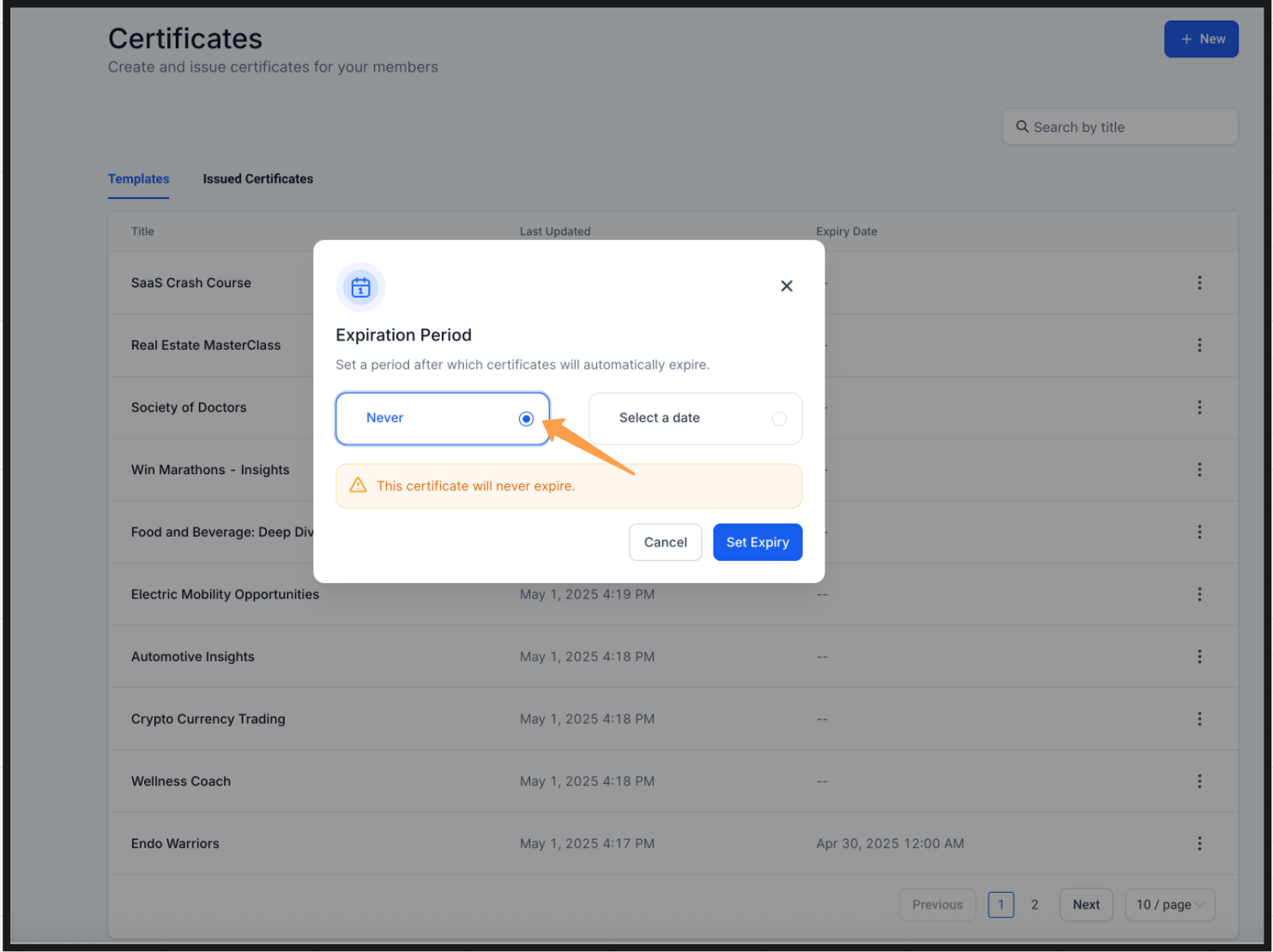
Issued-certificate expiry settings take priority over whatever is set at the template level, so you can carve out an exception for one recipient without changing the template for everyone else.
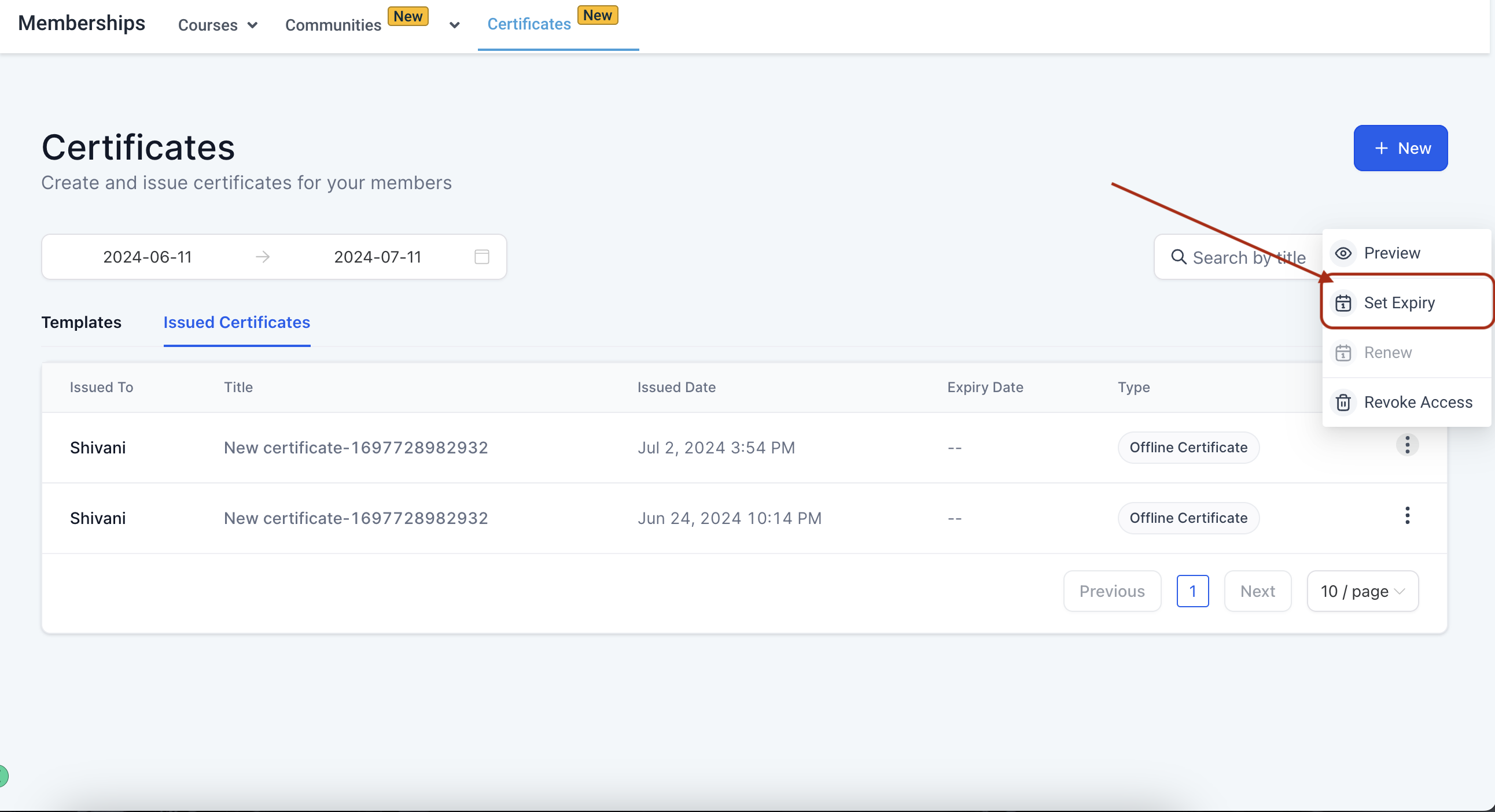
Go to the Issued Certificates tab.
Select the certificate you want to adjust.
Choose from the same three options: Never, Immediately, or select a specific date.
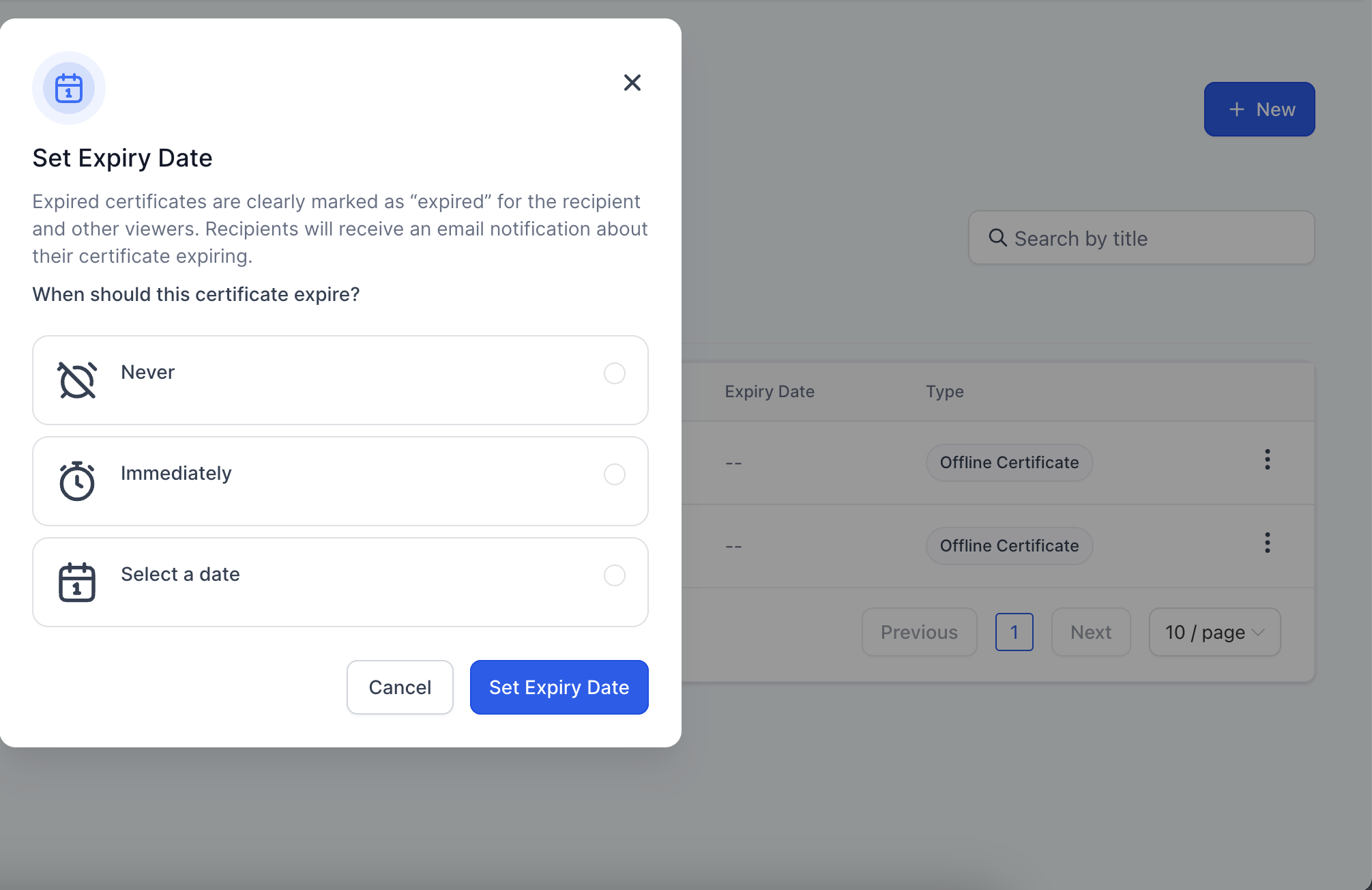
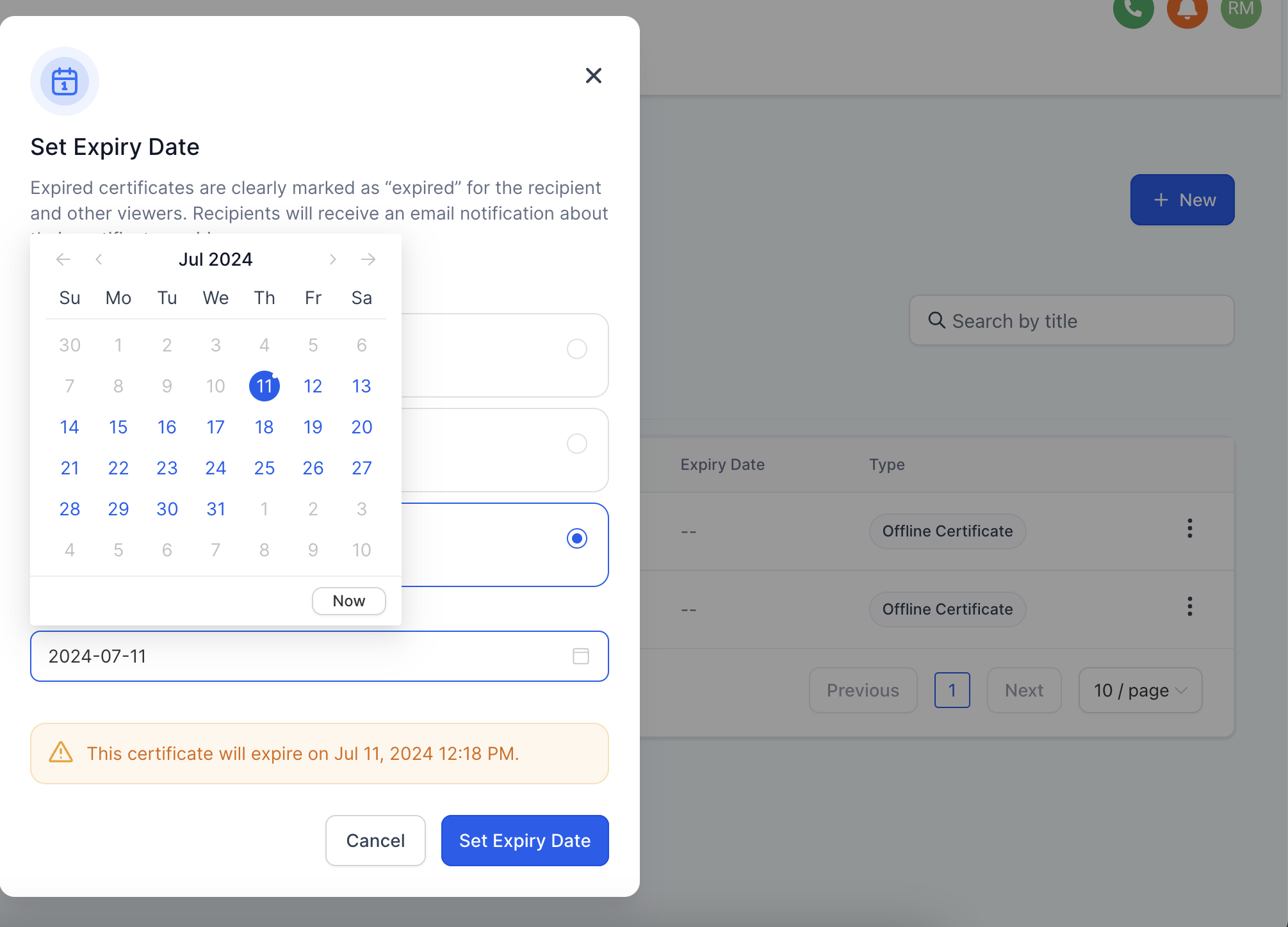
Once a certificate expires, its preview is no longer available to that particular recipient.
By default, reminder emails go out 2 and 7 days before a certificate expires. You can replace those defaults with your own schedule, on either a template or an individual issued certificate.
Go to Certificates in your dashboard and locate the template (or the individual record under Issued Certificates) you want to adjust.
Click the three-dot icon and select Set Expiry, then choose the relevant expiry date.
Choose whether you want 1 or 2 reminder emails to go out, and toggle each one on or off.
Add the number of days before expiry for each reminder. Each email sends that many days ahead of the expiry date.
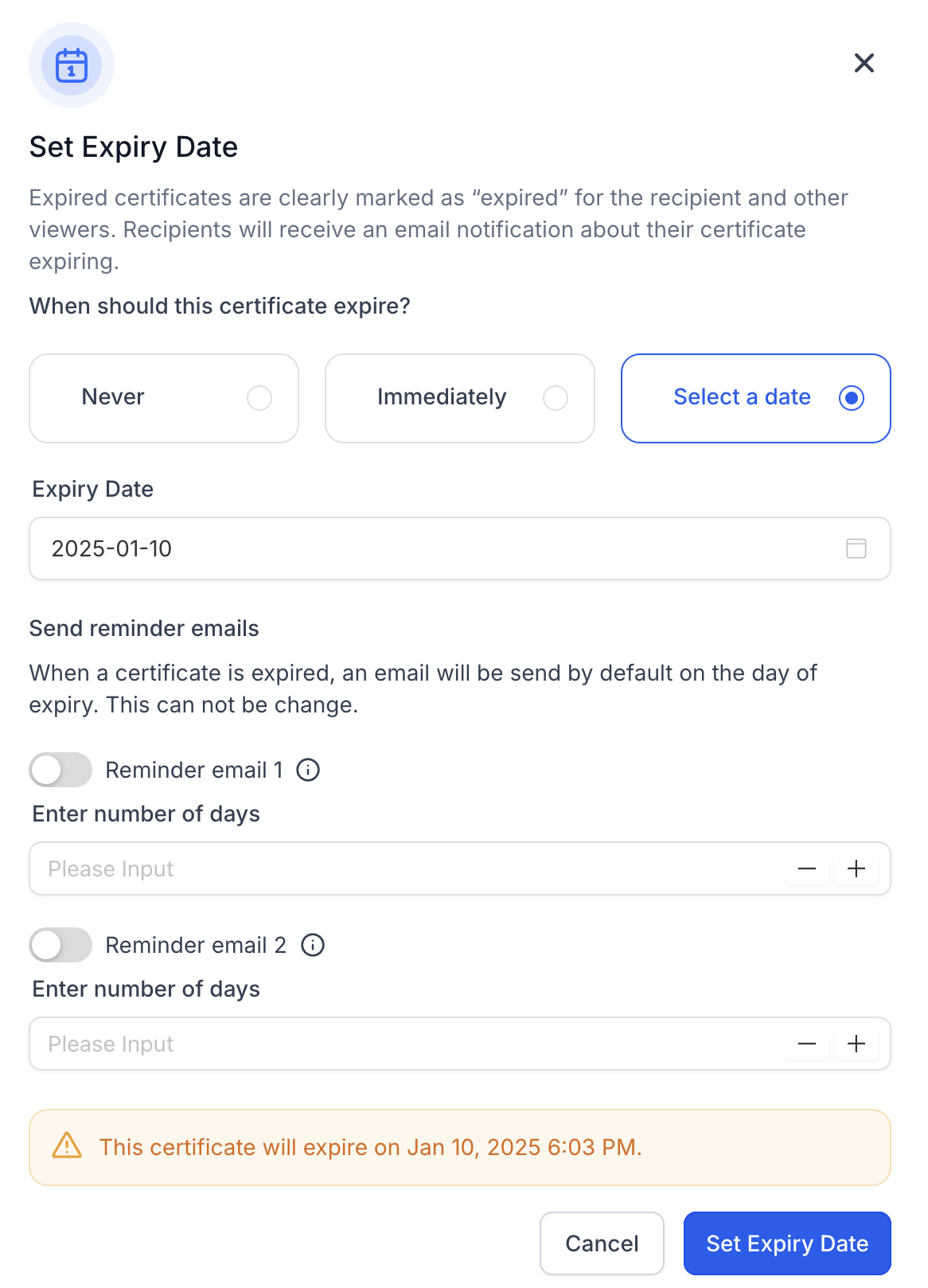
A few things to keep in mind:
The same reminder customization is available at both the template level and the individual issued-certificate level.
If you set the expiry to Immediately, only the "certificate expired" email goes out, on the day of expiry. No advance reminders are sent.
Any reminder emails that were already scheduled before you made a change will continue on the default 2- and 7-day intervals until you manually adjust them.
Where do I manage certificate expiry settings? In the Certificates section under Courses / Membership in your dashboard. You can set expiry from the template list or from the Issued Certificates tab.
What's the difference between template-level and issued-level expiry? Template-level expiry applies to every certificate generated from that template, so all recipients expire on the same date. Issued-level expiry applies to one specific recipient's certificate and overrides the template setting for that person only.
What happens when a certificate expires? The certificate preview is no longer available to that recipient, and if you've scheduled an expiry email, it goes out on the expiry date.
How many reminder emails can I set up? Up to two per certificate (template or individual), each toggled on or off independently, with its own custom number of days before expiry.
Does choosing "Immediately" send any reminder emails? No. When expiry is set to Immediately, only the certificate expired email is sent, on the day the certificate is issued. There's no advance reminder because there's no lead time.
Can I remove an expiry date after I've set one? Yes. Open the same three-dot menu on the template or issued certificate and choose Never, then confirm with Set Expiry.
Will changing my reminder schedule affect emails that are already queued? No. Reminder emails that were already scheduled before your change keep following the default 2- and 7-day intervals. Only new schedules you set going forward use your custom timing.
Can certificate expiry trigger other automations, like a renewal reminder workflow? Certificate expiry itself just controls the built-in reminder and expired-certificate emails. If you want additional automation, such as notifying your team or re-enrolling a patient in a refresher course, build that separately in Workflows.
