Courses in Aesthetix CRM can automatically award a certificate whenever a patient or staff member finishes a course, finishes a specific category within a course, or receives one manually from your team. Certificates live under Memberships, and each one goes out by email with a link the learner can view and download.
This is a great fit for patient education programs (pre-treatment prep, aftercare, skincare routines) and internal staff training and certification, giving learners a shareable record they've completed the material.
Every new course you create automatically includes a default course completion certificate, so you don't have to set one up from scratch each time. You can keep the default, swap in a custom template, or remove it entirely if a course doesn't need one. You can also award a separate certificate for completing just one category (section) within a course, and your team can send certificates manually for training that didn't happen inside a course at all.
Only one certificate template can be attached to a course completion at a time. To switch templates, edit the attachment and choose a new one, or delete the current template and add a different one.
In Aesthetix CRM, go to Memberships > Courses and create or open a course (Product).
A default course completion certificate is included automatically. It sends the first time a learner completes the entire course, and every learner after them.
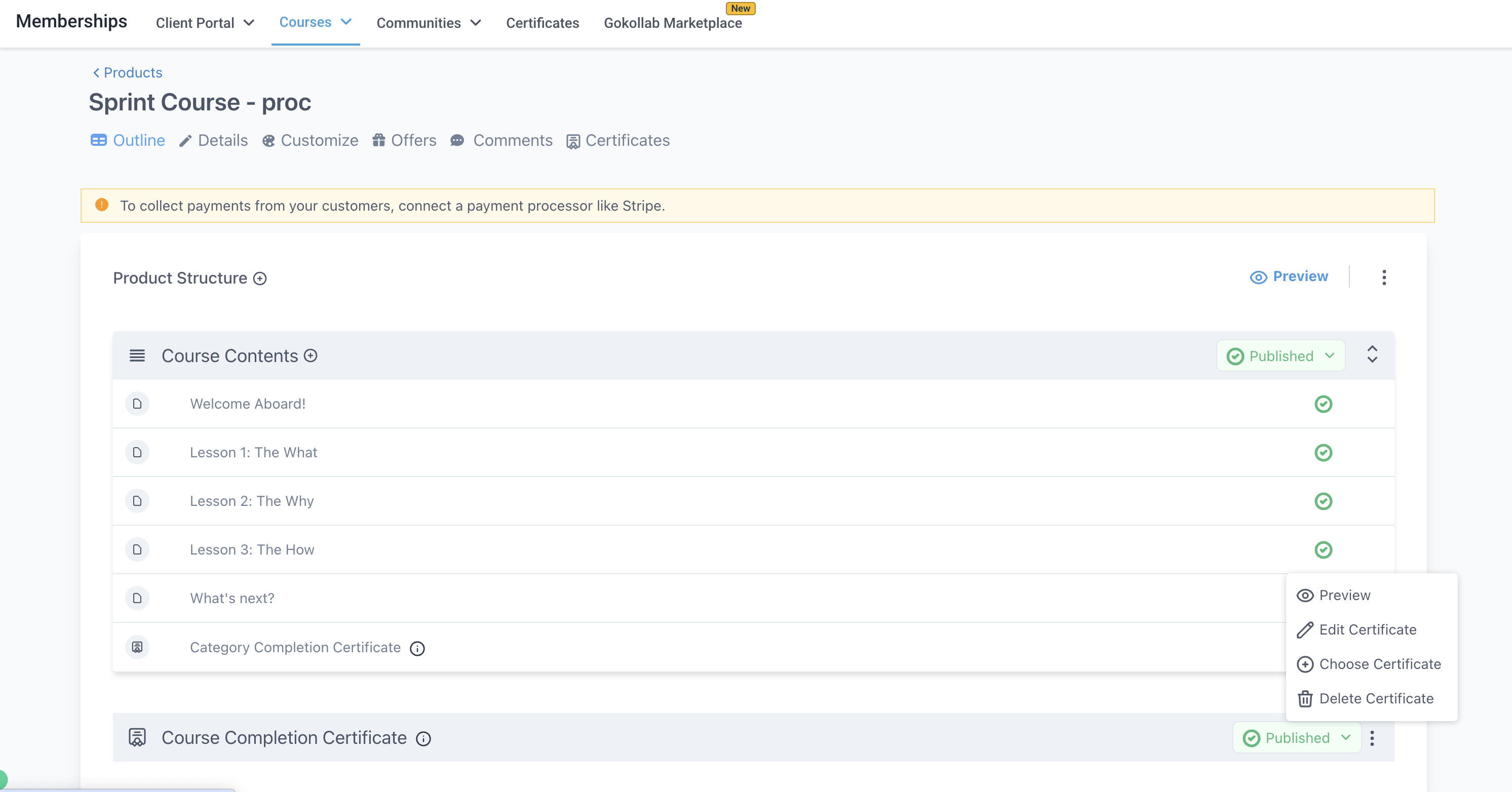
To attach a specific template instead of the default, open the course, find the Course Completion Certificate section, click the settings icon (three dots), and choose Edit Certificate or Choose Certificate.
Select the template you want to attach and save. The Category for this certificate is set to Course Completion by default.
To remove the default certificate, click the settings icon and choose Delete, or click the Published icon and switch it to Draft.
Once a template is attached and active, every learner who completes that course receives the certificate automatically by email. You don't need to send anything manually.
Larger courses are often broken into categories (sections), and you can award a certificate for finishing an individual category rather than waiting for the whole course. This works well for multi-part patient education series or multi-module staff training tracks, where you want to recognize progress along the way.
Go to the course and select the Category you want to attach a certificate to.
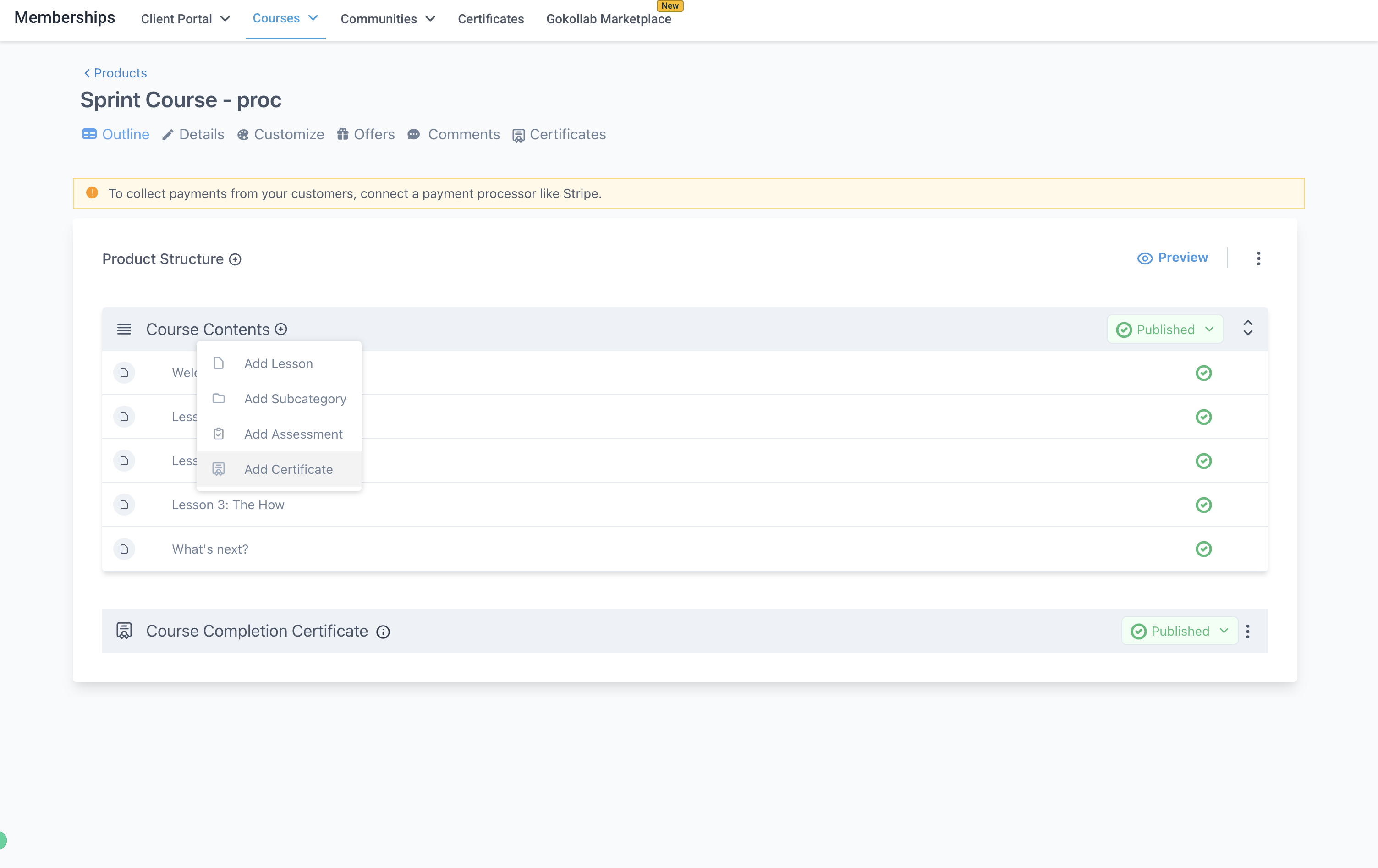
Click the plus icon on that category to attach a certificate.
Choose the template to award.
The category completion certificate appears as the final lesson in that category's preview, and it can't be moved: it always stays at the end of the category. It's awarded automatically once every required lesson in the category is 100% complete.
Certificates, whether course level or category level, only trigger once the course or section is fully complete. Partial progress doesn't issue a certificate.
Sometimes you need to send a certificate to someone for training or education that didn't happen inside an Aesthetix CRM course, such as an in-person workshop, a live demo, or an external certification. The manual (offline) certificate option covers this.
Go to Memberships > Certificates.
Choose an existing certificate template, or create a new one.
Click Send on the template you want to use.
Fill in the details requested, such as the instructor's name and the recipient's email address. If the recipient isn't already a contact, select Add New to create one on the spot.
Click Send to deliver the certificate.
The recipient gets an email with a link to download their certificate as a PDF, the same as an automatic certificate.
Every certificate you've sent, whether automatic, category based, or manual, shows up in one place.
Go to Memberships > Certificates > Issued Certificates to see a full list of everyone who's received a certificate, along with which course or template it came from.
To stop a specific learner from accessing a certificate they've already received, find them in Issued Certificates, click the three dots next to their name, and choose Revoke Access. Once revoked, that learner can no longer open the certificate link they were sent.
If you mark a certificate template as inactive on a course, it stops sending automatically going forward, but it starts sending again as soon as you mark it Active.
Certificate links can be copied and shared publicly by the learner who receives them, so keep this in mind for anything tied to patient education: avoid putting protected health information beyond the patient's name on a certificate, since the recipient controls where that link gets shared afterward.
If you want a workflow to fire additional actions when a course or category is completed (tagging the contact, notifying staff, enrolling them in a follow-up sequence), set that up separately in Workflows using the course/lesson completion trigger. Certificates themselves send automatically and don't require a workflow to work.
Do I have to set up a certificate for every course? No. Every new course includes a default certificate automatically, but you can delete or draft it if that course doesn't need one.
Can I attach more than one certificate template to the same course completion? No. Only one template can be active for course completion at a time. Attach a new one to replace it, or delete the current template first.
What happens if I mark a certificate as inactive? It stops sending automatically to new learners who complete that course or category until you mark it Active again. It doesn't affect certificates already issued.
How do I stop a specific learner from accessing a certificate they already received? Go to Memberships > Certificates > Issued Certificates, click the three dots next to their name, and choose Revoke Access. This removes their access to that specific certificate link.
Can learners share their certificates publicly? Yes. Anyone who receives a certificate can copy the link and share it, so treat certificate content the same way you'd treat any other patient-facing communication.
Can a category completion certificate be reordered within the category? No. A category certificate always appears as the final lesson in that category and can't be moved.
Do I need a course to send a certificate? No. Use the manual (offline) certificate option under Memberships > Certificates to send a certificate for training or education that happened outside of a course, such as in-person sessions or external courses.
What format do learners receive their certificate in? Learners get an email with a link to view and download a PDF version of their certificate.
Can I use certificates for staff training instead of patient education? Yes. Certificates work the same way regardless of the audience, so they're a good fit for internal staff certification tracks as well as patient-facing courses.
Will a certificate send if a learner only completes part of a course or category? No. Certificates only trigger once the course or category is 100% complete. Partial completion doesn't issue anything.
