The Client Portal member experience
The Client Portal is the home base your patients, community members, and affiliate partners land in when they interact with your practice online. From one login, a member can move between the sub-apps you've made available to them, such as enrolled courses, community groups, appointment booking, and affiliate partnerships, without needing separate logins for each.
Before a member can get full value out of the Client Portal, they need to complete their profile: name, email address, contact details, and any preferences your practice asks for. A complete profile is what lets the portal personalize their experience and keeps every connected sub-app working smoothly, whether that's a course they're taking, a community they've joined, or an affiliate dashboard they're tracking referrals in.
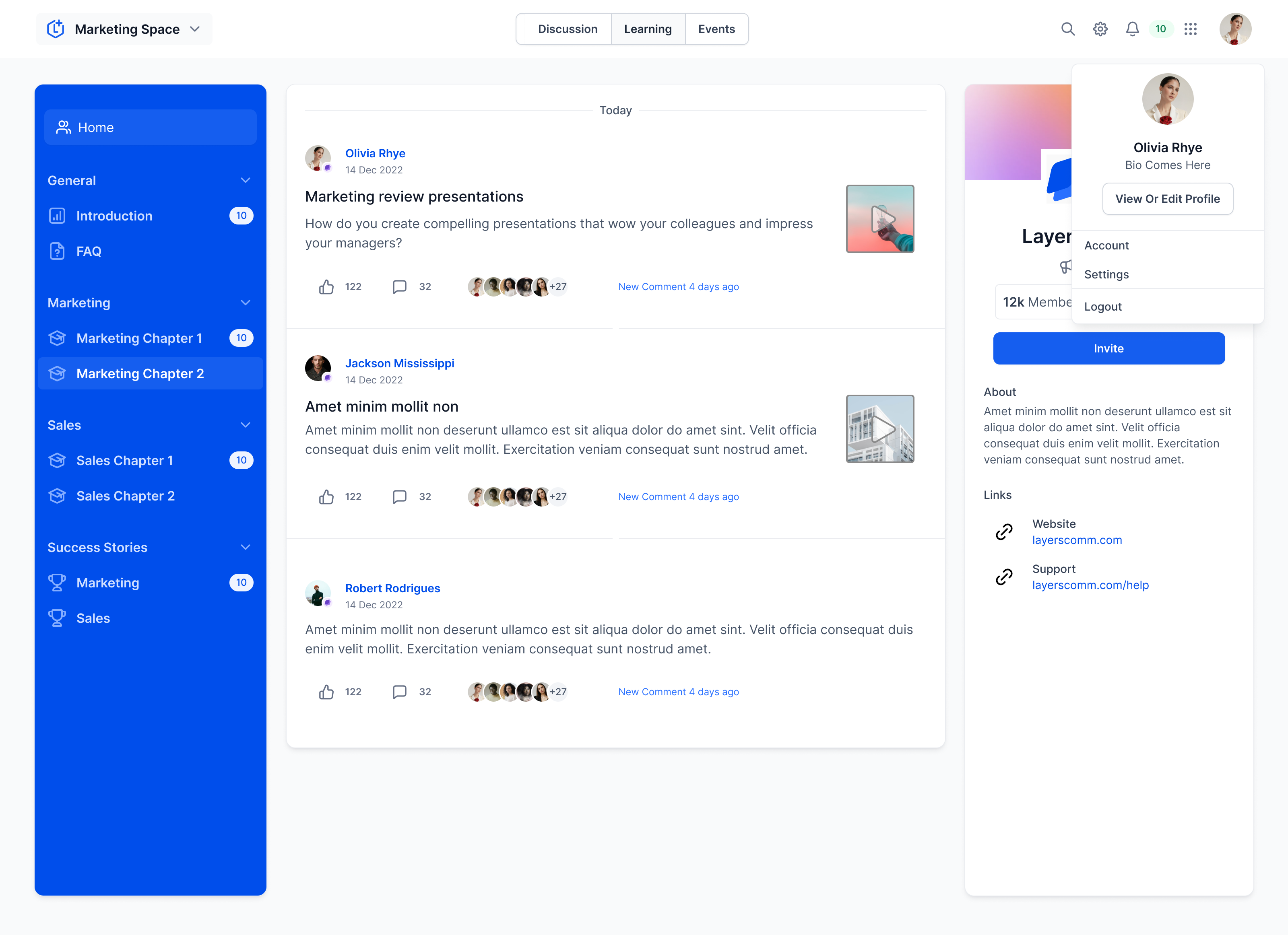
Note: Magic link (passwordless) sign-in is still rolling out to newly created Client Portal accounts, so it may not be available immediately on a brand-new account. Existing accounts keep full magic link access as usual.
Once a profile is filled out, members can move freely between the apps you've enabled for them using the app switcher in the top right corner of the top bar. Clicking it opens a dropdown listing every available app, and one click takes the member straight into it, whether that's their course library, a community feed, or their affiliate partnership dashboard.
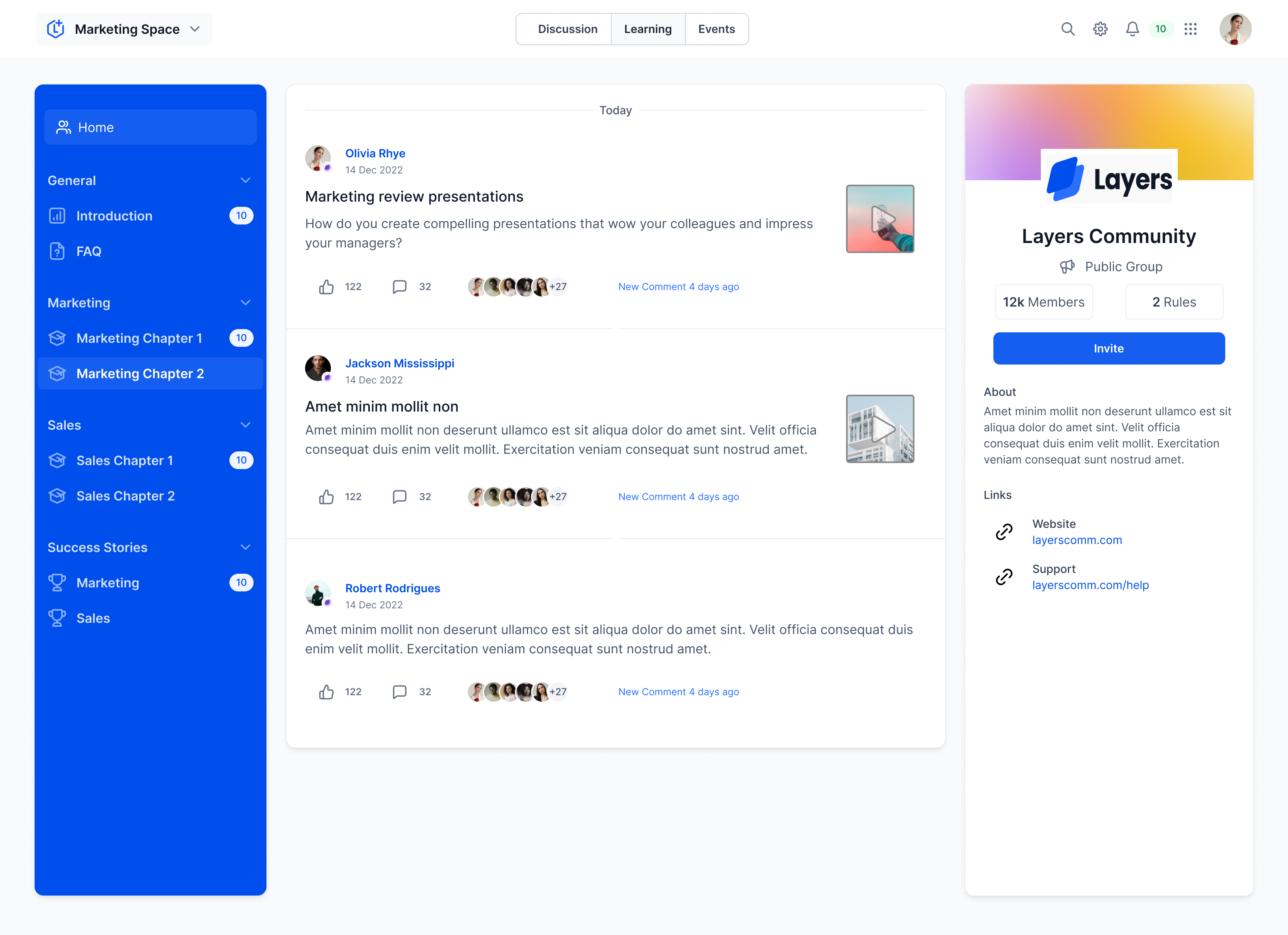
Note: An accurate, up-to-date profile keeps this navigation smooth across every connected app. Encourage members to keep their profile current, since incomplete details can affect how they interact with courses and communities.
Alongside courses, communities, and affiliate partnerships, members can exchange files with your practice directly inside the Client Portal. From the Shared Documents area, a member can open documents your practice has sent them, such as contracts, invoices, intake paperwork, or treatment records, and upload documents back when your practice requests them.
When your practice shares a new file, the member is notified automatically so nothing important gets missed. Depending on the member's notification preferences, that alert can arrive as an in-app notification inside the portal or as a push notification through your practice's mobile app. No separate workflow or setup is needed for the member to be notified that a file is waiting.
Note: Push notifications depend on the member's device permissions. If push notifications are disabled at the device level, the member can still see the file-share alert inside the Client Portal's Notifications tab.
When a member uploads a document, it attaches to their contact record so your team can review it and follow up. Automations that respond to a member's upload, such as confirming receipt, notifying a team member, or creating a review task, are built in Workflows using the Client Portal file-uploaded trigger, covered in the Workflows collection.
HIPAA note: Shared documents frequently contain PHI, such as consent forms, lab results, or treatment records. Only share files through the portal with the member they belong to, and confirm you have the correct contact before sending anything that contains health information.
Members can book, review, and manage their own appointments right from the Client Portal, without hunting down a separate booking link or digging through email confirmations. From the Appointments area, a member sees their meetings organized into Today, Upcoming, and Past, along with a calendar view for finding an appointment by date.
To book a new appointment, a member opens Appointments, selects Book Appointment, chooses from whichever calendar (or calendars) your practice has made available, and picks an open date and time. Any contact details your practice already has on file are filled in automatically, so the member isn't asked to re-enter information you already collected. Once an appointment is complete, the member can start another booking directly from the portal.
Opening an existing appointment shows the member the meeting details and, when the calendar's policies allow it, options to cancel or reschedule. Whether those actions are available for a given appointment depends on the cancellation and rescheduling rules configured on that calendar.
Note: Your practice controls both whether the Appointments app appears in the Client Portal at all, and which individual calendars members can book from. Each calendar needs Client Portal booking turned on separately, so enabling the Appointments app by itself does not make any calendar available to book. If a calendar you've enabled still isn't showing up, or an expected time slot is missing, check that calendar's availability, scheduling notice, buffers, and appointment limits.
If you want members to choose between several calendars, such as separate calendars for different providers, locations, or appointment types, enable Client Portal booking on each calendar individually. A Group Calendar isn't required just to offer members a choice; the portal's calendar selector already lists every calendar you've enabled for Client Portal booking.
Every notification a member receives, whether it comes from a course, a community, or another sub-app, lands in one place: the Notifications tab, accessible from the bell icon in the top bar. This includes alerts that a new file has been shared with them. Clicking a notification opens its details or takes the member directly to the relevant action.
Most in-app notifications also go out by email, and members on your practice's mobile app can receive matching push notifications. When a notification links back to a community post, that post may open in a dedicated full-page view on the web, making it easier to read.
Note: Notifications sent through the Client Portal, including community notifications, are billed. Keep this in mind if a large or highly active member community is generating frequent notifications.
The table below covers every notification type members currently see inside the Client Portal, which sub-app triggers it, and what the in-app and email versions look like.
Notification type | Sub-app | In-app notification | Email notification |
Tagged in a comment | Communities |

|

| | Tagged in a post | Communities |

|

| | @everyone in comment | Communities |

|

| | @everyone in post | Communities |

|

| | Request to join (member view) | Communities |

|

| | Request to join (admin view) | Communities |

|

| | Membership approved | Communities |

|

| | Membership declined | Communities |

|

| | New course added in Learning tab | Communities |

|

| | New like | Communities |

| N/a | | New comment | Communities |

|

| | New reply on a comment | Communities |

|

| | File shared with member | Shared Documents | | |
Notification controls exist at two levels: what an individual member can turn on or off for themselves, and what your practice controls portal-wide as the owner.
What members control. Each member can independently turn email and push notifications on or off for:
Community updates
Course certificates
Likes on posts
Likes on comments
These settings live in the Manage Your Account section of the Client Portal, so members can quiet the notifications they don't want without losing the ones that matter to them.
What your practice controls. As the portal owner, you can set defaults around engagement notifications, specifically email alerts for likes on posts and likes on comments, across the entire portal. Owner-level settings can override an individual member's preference in some cases. When that happens, the member sees a tooltip explaining the setting is managed by your practice.
Go to the Client Portal, Communities, or Courses area.
Click the profile icon in the upper-right corner.
Select Manage Your Account from the dropdown.
Choose Notifications from the left-hand menu.
Use the toggle switches to turn email or push notifications on or off for each event type.
This lets members reduce inbox clutter while staying alert to the updates they actually care about, and gives mobile users independent control over push notifications separate from email.
Course and community automations, such as sending a welcome sequence after enrollment, tagging a contact when they join a community, or responding when a member uploads a document, are built in Workflows rather than inside the Client Portal itself. Quizzes attached to a course live in Quiz Builder, and if your practice runs member-facing chat support, that's managed under Chat Widget. Details on setting up commission structures and payout tracking for the affiliate sub-app live in Affiliate Manager; this guide only covers what an affiliate partner sees when they log into their portal.
HIPAA note: If your community groups or course discussions could surface patient health information (for example, a patient referencing their own treatment in a post or comment), treat that content as PHI. Set clear community guidelines discouraging members from sharing personal health details in public posts, and review moderation settings accordingly.
What is the Client Portal? It's the single login your patients, community members, and affiliate partners use to access the sub-apps your practice has enabled for them, such as courses, communities, shared documents, appointment booking, and affiliate partnerships.
Why does a member need to complete their profile? A complete profile (name, email, contact details, preferences) personalizes the member's experience and ensures every connected sub-app works correctly. An incomplete profile can cause issues navigating between apps.
How do members switch between apps in the portal? They use the app switcher in the top right corner of the top bar. Clicking it opens a dropdown of every app available to them, and one click opens the selected app.
Where do members see their notifications? All notifications, whether from courses, communities, shared files, or other sub-apps, appear in one place: the Notifications tab, opened from the bell icon in the top bar.
Do members get emailed about notifications too? Yes. Most in-app notification types also trigger a matching email notification, with the exception of "new like" notifications, which are in-app only. Members on your practice's mobile app can also receive matching push notifications.
Are Client Portal notifications free to send? No. Notifications sent through the Client Portal, including community notifications, are billed, so factor that into highly active communities.
Can members turn off specific notification types? Yes. Members can independently enable or disable email and push notifications for community updates, course certificates, likes on posts, and likes on comments from the Manage Your Account section.
Can our practice control notification settings for everyone? Yes, to a point. As the portal owner, you can set portal-wide defaults for email notifications on post likes and comment likes, and those can override an individual member's preference. Affected members see a tooltip noting the setting is managed by your practice.
Can members share files with our practice through the portal? Yes. The Shared Documents area lets members open files your practice has sent them, such as contracts or invoices, and upload documents back, such as intake paperwork or signed forms. Uploaded files attach to the member's contact record for your team to review.
How do members know when we've shared a file with them? They're notified automatically. Depending on their preferences, the alert appears as an in-app notification in the portal or a push notification through your practice's mobile app. No workflow is required to send this standard file-share notification.
What if a member has push notifications turned off on their device? They won't miss the alert. Push notifications depend on the member's device permissions, so if push is disabled, the member can still see the file-share notification inside the Client Portal's Notifications tab.
Where do I automate what happens after a member uploads a file? That automation is built in Workflows, using the Client Portal file-uploaded trigger. This guide covers only the member-facing side; the trigger setup lives in the Workflows collection.
Can members book their own appointments through the Client Portal? Yes. From the Appointments area, members can view meetings under Today, Upcoming, and Past, use a calendar view, and book a new appointment by choosing an enabled calendar, date, and time. Existing contact details are filled in automatically.
Can members reschedule or cancel an appointment themselves? Only when the calendar's cancellation and rescheduling policy allows it. If those actions aren't permitted for a given appointment, the member won't see the option when they open it.
Can members pick from more than one calendar when booking? Yes, as long as your practice has enabled Client Portal booking on more than one calendar. A Group Calendar isn't needed just to offer members that choice.
Why isn't Appointments showing up for a member, or why can't they pick a calendar? Confirm that Appointments is enabled for your practice and that at least one calendar has Client Portal booking turned on under that calendar's settings. Enabling one without the other leaves the Appointments area empty.
Is magic link sign-in available to every account? Existing accounts keep full magic link access. Newly created accounts may not have magic link sign-in yet, as it's still being rolled out.
Where do I set up the courses or communities themselves? This guide covers the member-facing portal experience. Building courses, communities, workflow automations, and affiliate programs is covered in their own dedicated guides within the Courses, Workflows, and Affiliate Manager collections.
