How members access the Client Portal
The Client Portal is a single, secure hub where the people connected to your practice, patients enrolled in a course, affiliates in your referral program, or members of a community group, can log in and pick up right where they left off. Instead of juggling separate logins for each area, a member signs up once and can move between every app they have access to from one account.
From the Client Portal, a member can:
Review a full history of their interactions with your practice
Access any membership courses they are enrolled in
Track affiliate commissions and payouts if they participate in your referral program
Take part in community groups tied to your practice
Securely upload documents straight to their contact record in your CRM
Because it is a shared login layer, members do not need to remember separate usernames and passwords for each of these areas once their account is set up.
A member only needs to go through Client Portal signup if they do not already have access to one of the connected apps (membership courses, the affiliate program, or community groups). If you have already granted them access to one of those apps, they can log in directly with the same credentials and skip the signup step entirely. This keeps members from having to register more than once.
Whether a client can register more than once with the same email address depends on a setting in your account. Under Settings > Business Profile > General, the Allow Duplicate Contact option controls this behavior.
If duplicate contacts are allowed, a client can sign up more than once using the same email address, and each signup creates its own unique member account.
If duplicate contacts are not allowed, the system blocks a second signup with an email that already exists, so only one member account is ever tied to that email address. This protects your data from confusion or accidental duplication.
It is worth reviewing this setting before you roll the Client Portal out to your patients, so you know what to expect if someone tries to register twice.
To create an account, a client provides their full name, email address, and a password. Once they submit those details, the system automatically sends a verification code to the email address they entered.
The client enters the verification code from their email to confirm their account. Once verification succeeds, they can log in to the Client Portal using the password they chose during registration.
A couple of things worth passing along to your patients or affiliates:
Verification codes expire after 15 minutes, so they should check email (including spam or junk folders) as soon as they register.
Encourage members to keep their login credentials private and avoid sharing them with anyone else. The verification step exists to protect the security of their account, so treating login details carelessly undermines that protection.
Once an account exists, a member can log in one of two ways.
Password login: A member who already set a password can enter it directly on the login page to get in.
Email verification: A member can skip the password entirely and request a secure, time-limited code sent to their registered email address instead. They enter that code on the login page to complete the login.
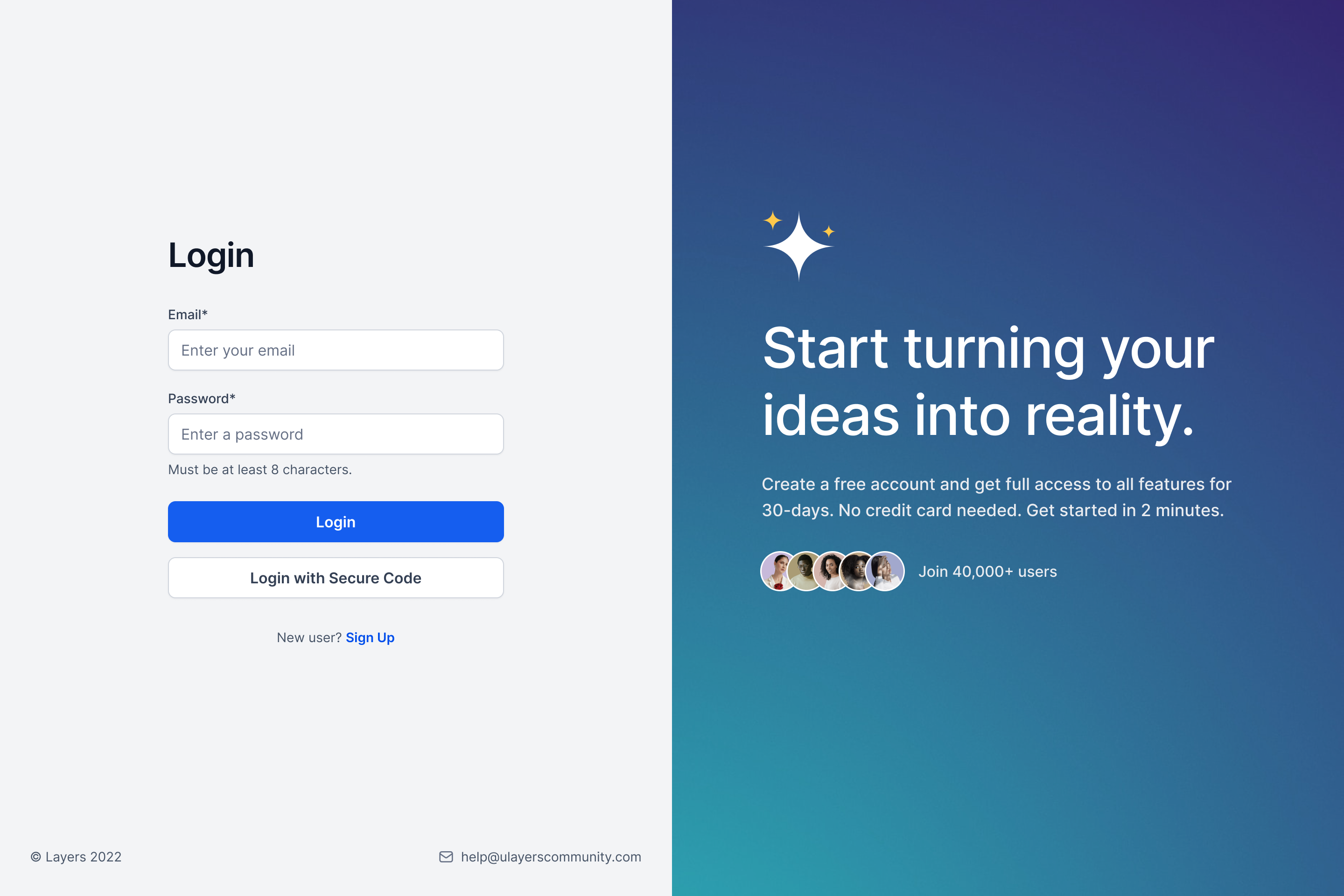
If a member forgets their password, email verification also doubles as a way back into their account without needing a password reset.
If more than one member account is linked to the same email address, the system will not just log the person into the first account it finds. Instead, it prompts them to choose which account they want to access from a list.

Remind members to double-check which account they select when this happens, so they land in the right one and see the correct history, courses, or affiliate data.
The Client Portal is the front door to a member's connected apps, membership courses, community groups, and affiliate relationships. To get the full experience, members should complete their profile (name, email, contact details, and preferences), since that information is shared across every app they use inside the portal.
Once a member's profile is complete and they have access to more than one connected app, they can switch between them using the app switcher in the top right corner of the top bar. Clicking it opens a dropdown listing every app the member can access, and they can jump to any of them in a single click.
One limitation worth knowing: newly created accounts do not currently support magic links inside the Client Portal, though this is expected to roll out over time. Existing accounts that already have magic links set up will continue to work as usual.
For the workflow automations that trigger off course completions, community activity, or affiliate signups, see your Workflows builder. Quiz results tied to a course live in Quiz Builder, and any live chat with members happens through the Chat Widget rather than inside the portal itself.
The Client Portal also lets members submit files directly to your practice without emailing attachments back and forth. When a member uploads a document, it is attached to their contact record so your team can view, download, and manage it from one place.
Uploaded files land under Contacts > Documents > Received > Client Portal, keeping every client-submitted file organized alongside the rest of that patient's record.
Members can upload the following formats:
Documents: PDF (.pdf), Microsoft Word (.doc, .docx), Microsoft Excel (.xls, .xlsx), Microsoft PowerPoint (.ppt, .pptx), Plain Text (.txt), and Rich Text Format (.rtf)
Images: JPEG (.jpg, .jpeg), PNG (.png), and GIF (.gif)
The Client Portal supports document and image uploads only. Video files such as .mp4, .mov, .avi, .mkv, and .wmv cannot be uploaded through the portal.
Because these files often contain sensitive patient information, treat anything a member uploads with the same HIPAA-appropriate care you apply to the rest of a contact's record.
Do all members need to sign up for the Client Portal separately? No. Anyone who already has access to a connected app, such as a membership course, community group, or the affiliate program, can log in directly with their existing credentials. Signup is only required for members who have never had access to any of those apps.
What happens if a client tries to register twice with the same email? It depends on your account's Business Profile settings. If duplicate contacts are allowed, each signup creates a separate account. If they are not allowed, the system blocks the second signup so only one account exists per email address.
How long is the verification code valid? Verification codes expire 15 minutes after they are sent. If a member's code has expired, they will need to request a new one.
Can a member log in without a password? Yes. They can choose email verification at login, which sends a secure, time-limited code to their registered email instead of requiring a password.
What if a client forgets their password? They can still get into their account by choosing the email verification login method, which sends a secure code to their email address and does not require the original password at all.
What happens if a member has multiple accounts under one email? At login, they will be prompted to choose which account to access from a list. They should confirm they've selected the right one before continuing, since each account can hold different course, community, or affiliate data.
Can members switch between apps without logging out? Yes, as long as their profile is complete and they have access to more than one connected app. The app switcher in the top right corner of the top bar lets them move between membership courses, community groups, and affiliate tools in one click.
Is completing the profile required? Yes. Profile details (name, email, contact information, and preferences) are shared across every connected app, so an incomplete profile can limit a member's experience across courses, community groups, and affiliate tracking.
Do magic links work for every account? Existing accounts that already had magic links configured will keep working. Newly created accounts do not currently support magic links inside the Client Portal, though support for this is expected in the future.
Where do I manage the affiliate earnings members see in the portal? Affiliate commission and payout tracking is part of your Affiliate Manager. The Client Portal simply gives members a window into that data once they're enrolled in the referral program.
Can members upload documents through the Client Portal? Yes. Members can upload documents and images (such as PDFs, Word, Excel, PowerPoint, text files, and JPG, PNG, or GIF images) directly to their contact record. Video files are not supported.
Where do uploaded documents go? Files a member uploads are attached to their contact record and stored under Contacts > Documents > Received > Client Portal, where your team can view, download, and manage them.
