Upsells let you promote additional offers to patients who purchase a course, program, or membership from your practice. There are two types: In-App Upsells, which show locked bundles inside a member's My Library page, and One-Click Upsells, which appear as a single-click add-on offer right after checkout. Both live inside Courses under Offers, on the Upsell tab of the offer you want to attach them to.
An in-app upsell displays additional offers directly within the My Library page of a course or membership product. When a patient logs in to view their purchased content, they will see locked products or program bundles they can choose to unlock with a separate purchase. This lets you cross-sell related programs (an advanced skincare series, a maintenance membership, a bundled treatment package) without disrupting the patient's experience or sending them to a separate sales page.
Why use it:
Boosts revenue by promoting relevant add-on programs at a moment patients are already engaged
Helps patients discover other programs your practice offers without extra outreach
No checkout friction, since offers appear right inside the library view they're already using
Fully customizable to match your practice's branding
Performance is trackable so you can see what converts
A one-click upsell is a post-purchase offer that appears immediately after a patient completes checkout on a course or membership. Instead of running through a full second checkout, the patient can accept the additional offer with a single click, and the payment method they already entered is reused automatically. This is a low-friction way to increase the value of every purchase, especially for related digital content, bonus modules, or premium access tiers.
Why use it:
Increases order value with no extra marketing effort
Presents a highly relevant offer at the exact moment a patient is ready to buy
No additional checkout steps for the patient to complete
Upsell pages are customizable to match your branding
Delivery is automated and results are trackable through offer analytics
Both upsell types use the payment method already connected to your practice's checkout. If you have not set up a payment provider yet, consider AX Pay, Aesthetix CRM's own payment processor, which offers better rates than Stripe. See the AX Pay help article for setup details.
From the left-hand navigation, click Marketing, then Memberships.
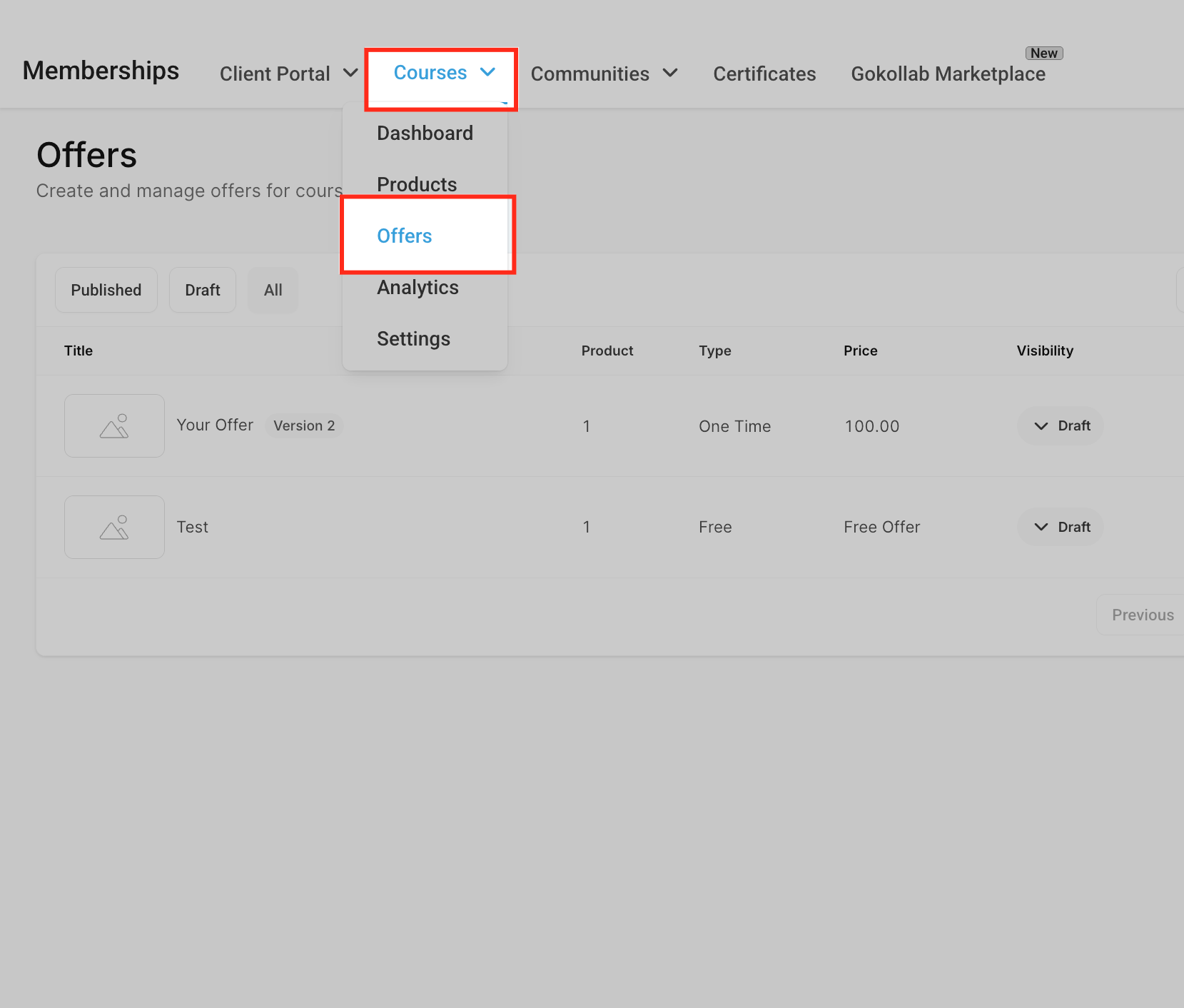
Click Courses, then Offers.
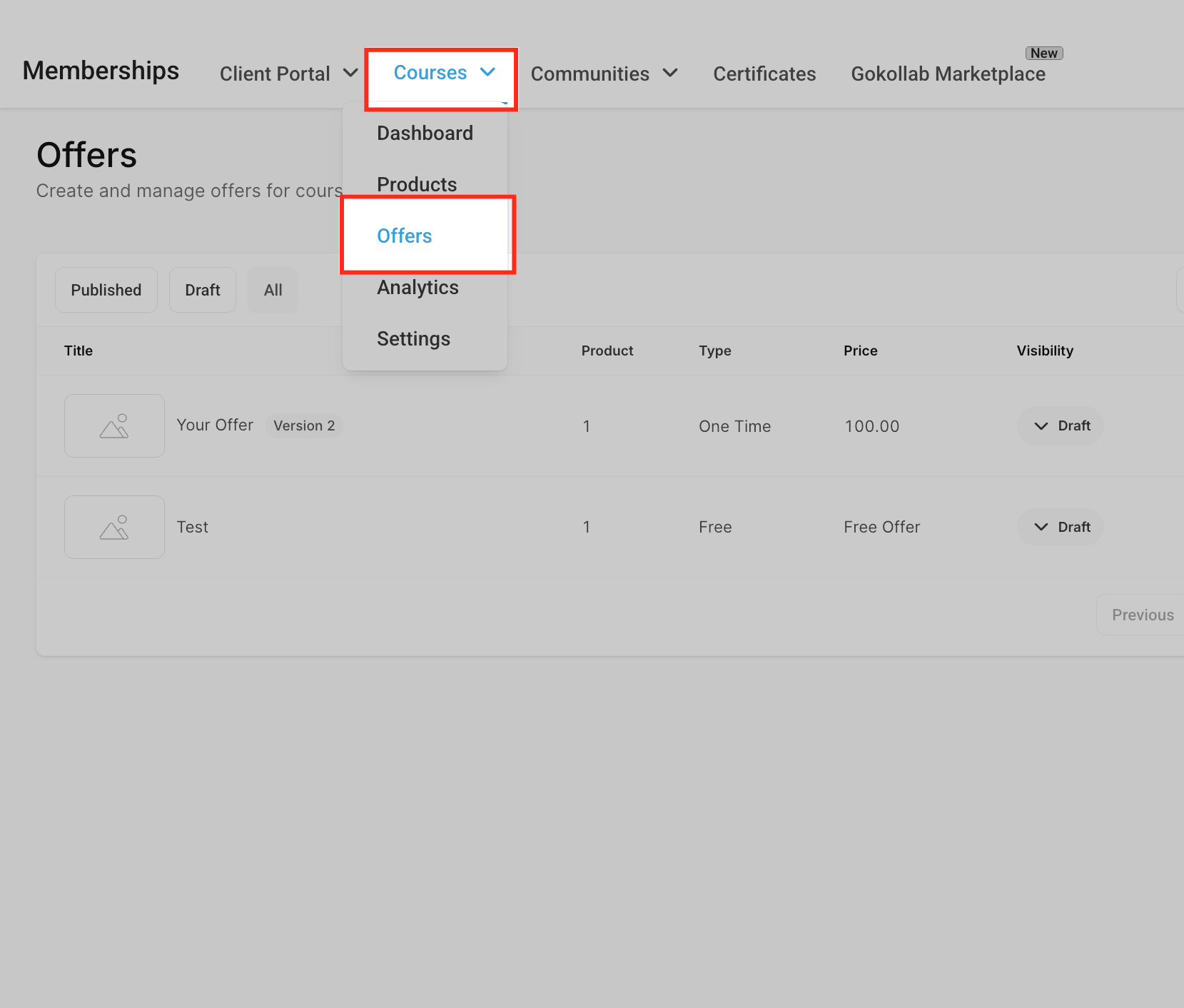
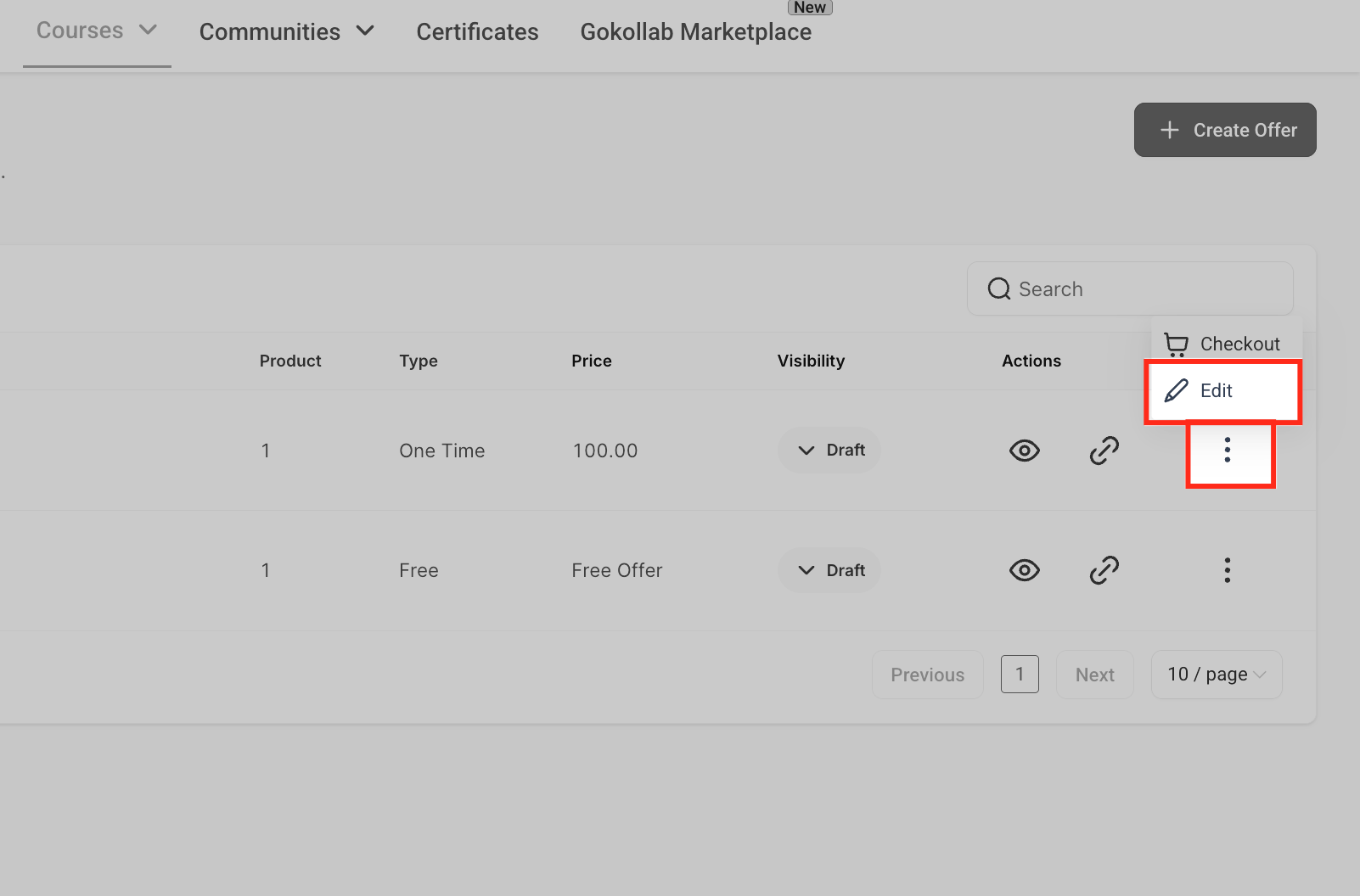
On the Offers dashboard, locate the offer you want to attach the upsell to. Click the three-dot menu and select Edit.
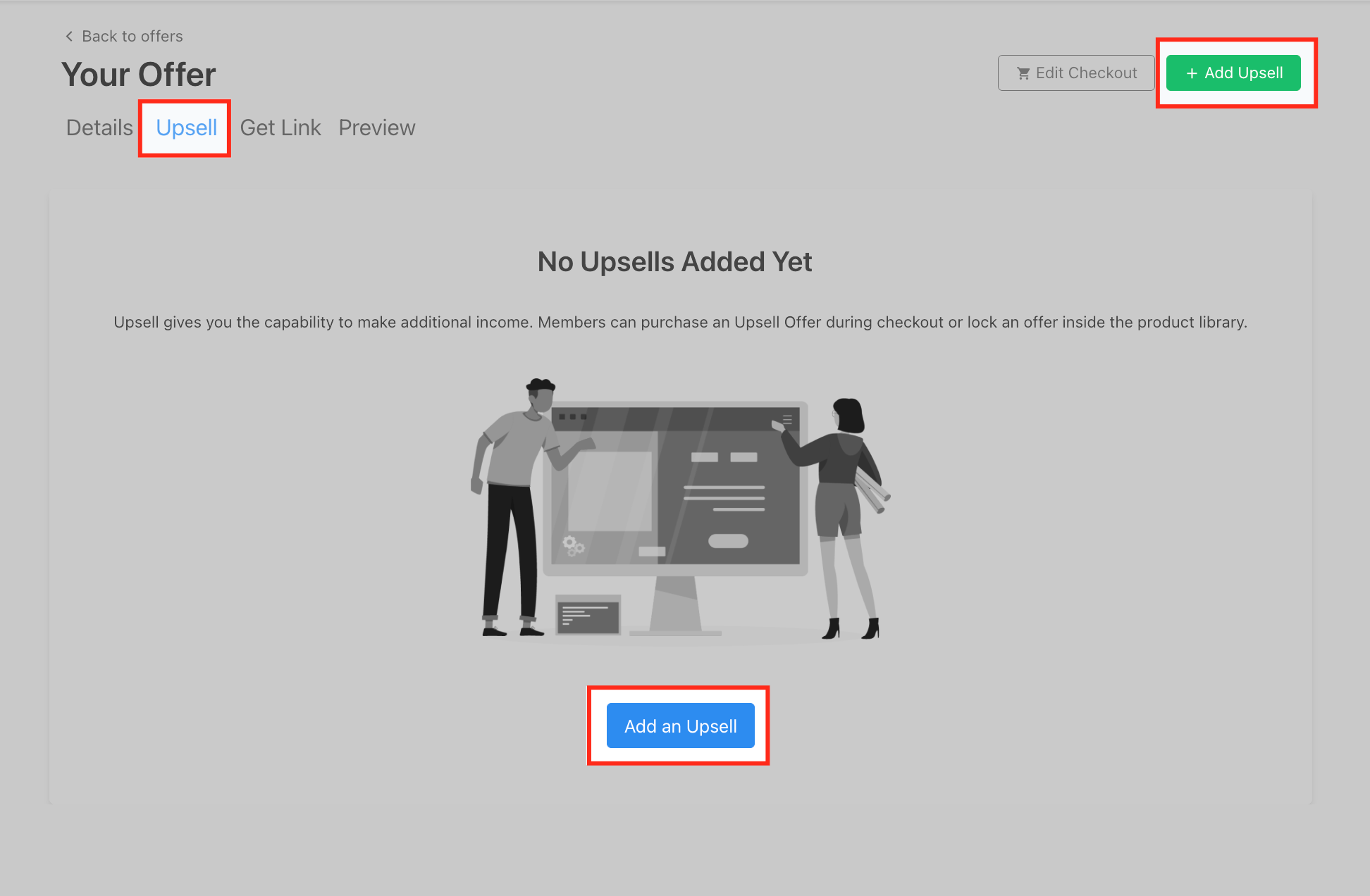
Inside the offer editor, select the Upsell tab, then click + Add Upsell.
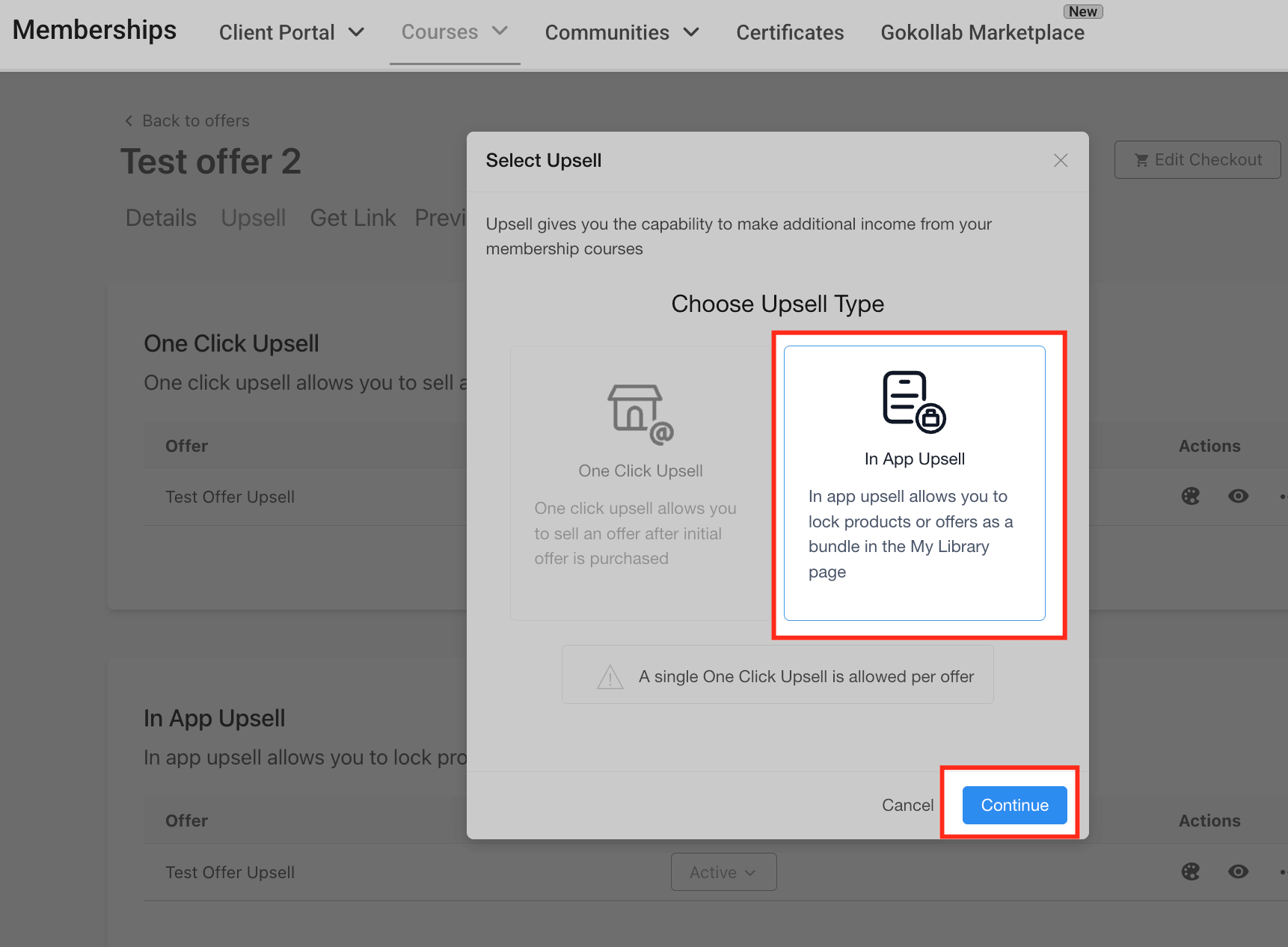
When prompted to choose the upsell type, select In-App Upsell and click Continue.
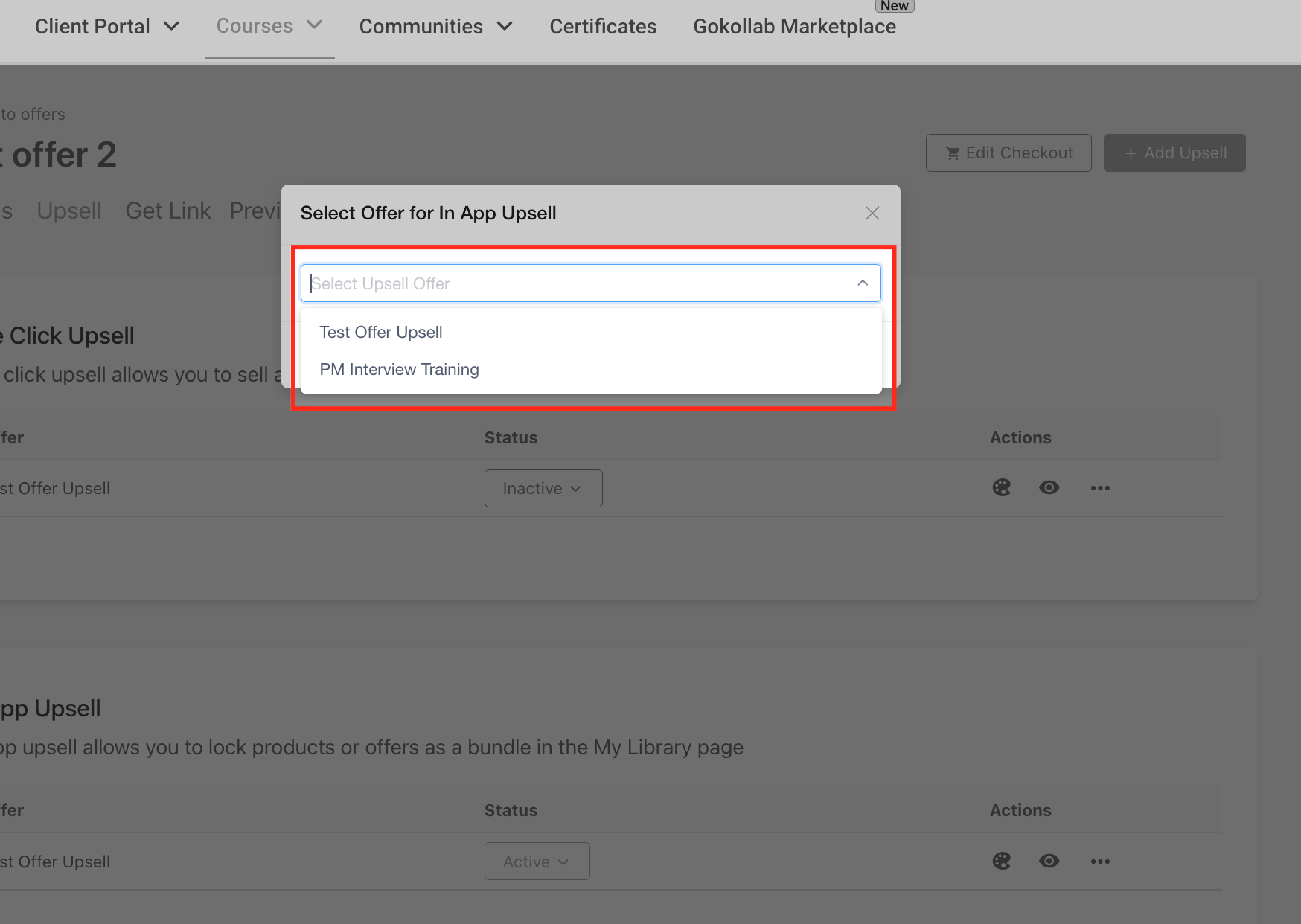
From the dropdown, choose the offer you want to promote inside the library page, then click Add Upsell Offer to attach it.
Once the upsell is added, click the palette icon under Actions to open the visual editor. You'll see three tabs for customizing the upsell page: Details, Course Body, and Instructor.
On the Details tab, adjust the main title and subtitle styling, alignment, font, and background of the upsell banner, as well as the text and appearance of the purchase button.
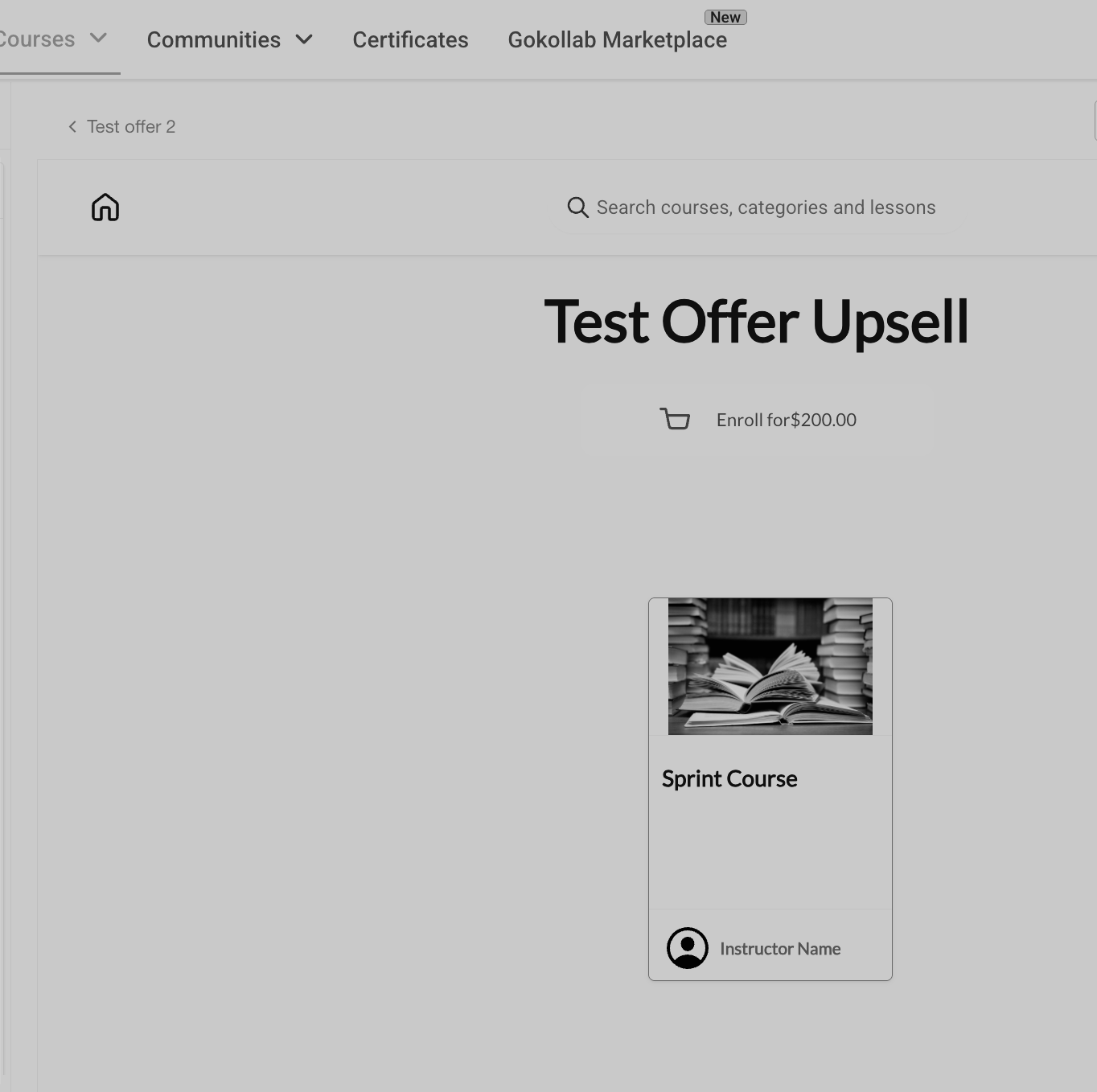
On the Course Body tab, edit the description title, description content, curriculum title, and font styling to highlight what's included in the upsell.
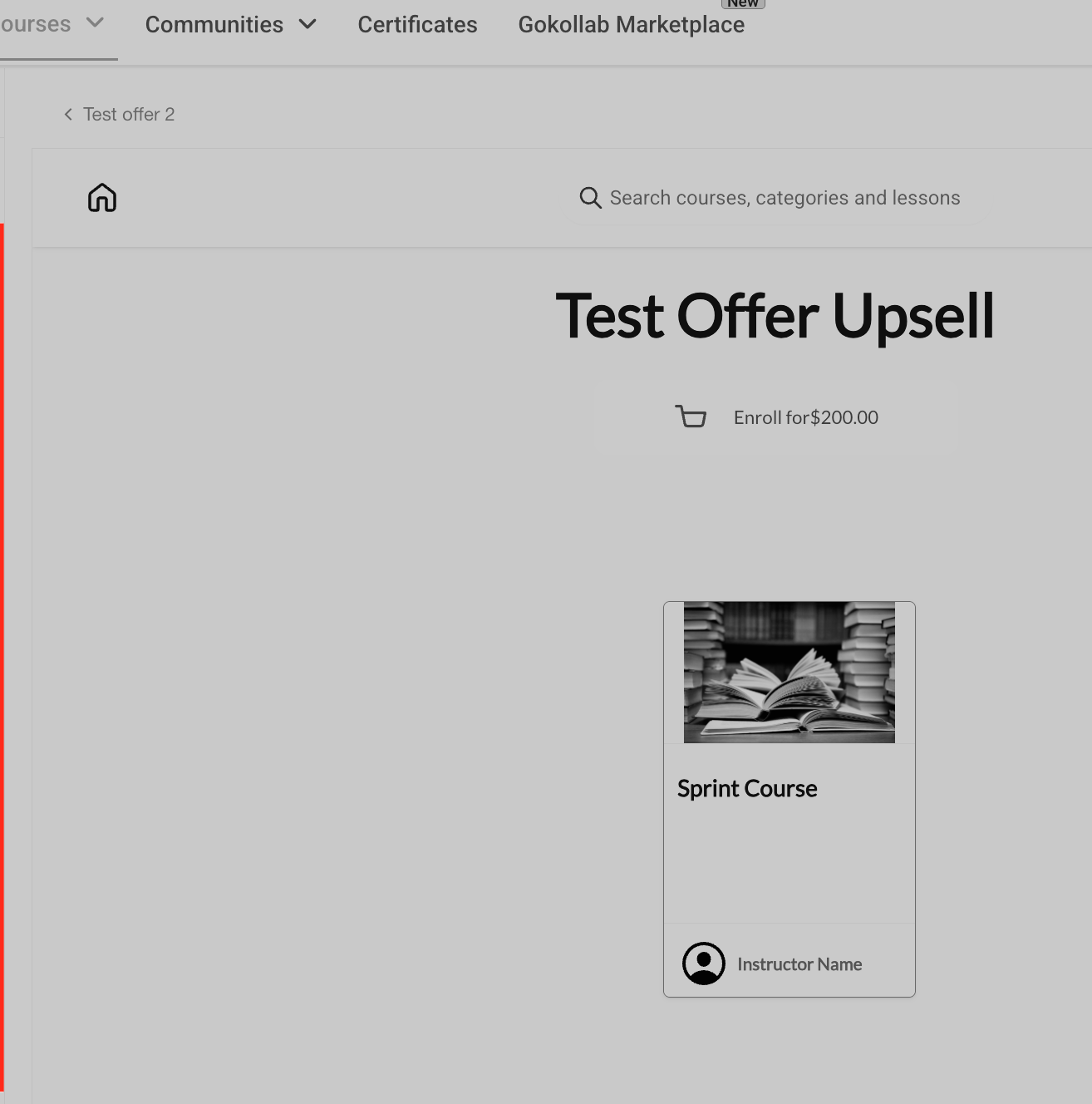
On the Instructor tab, set the fonts and background colors for the instructor's name, title, bio, and section heading.
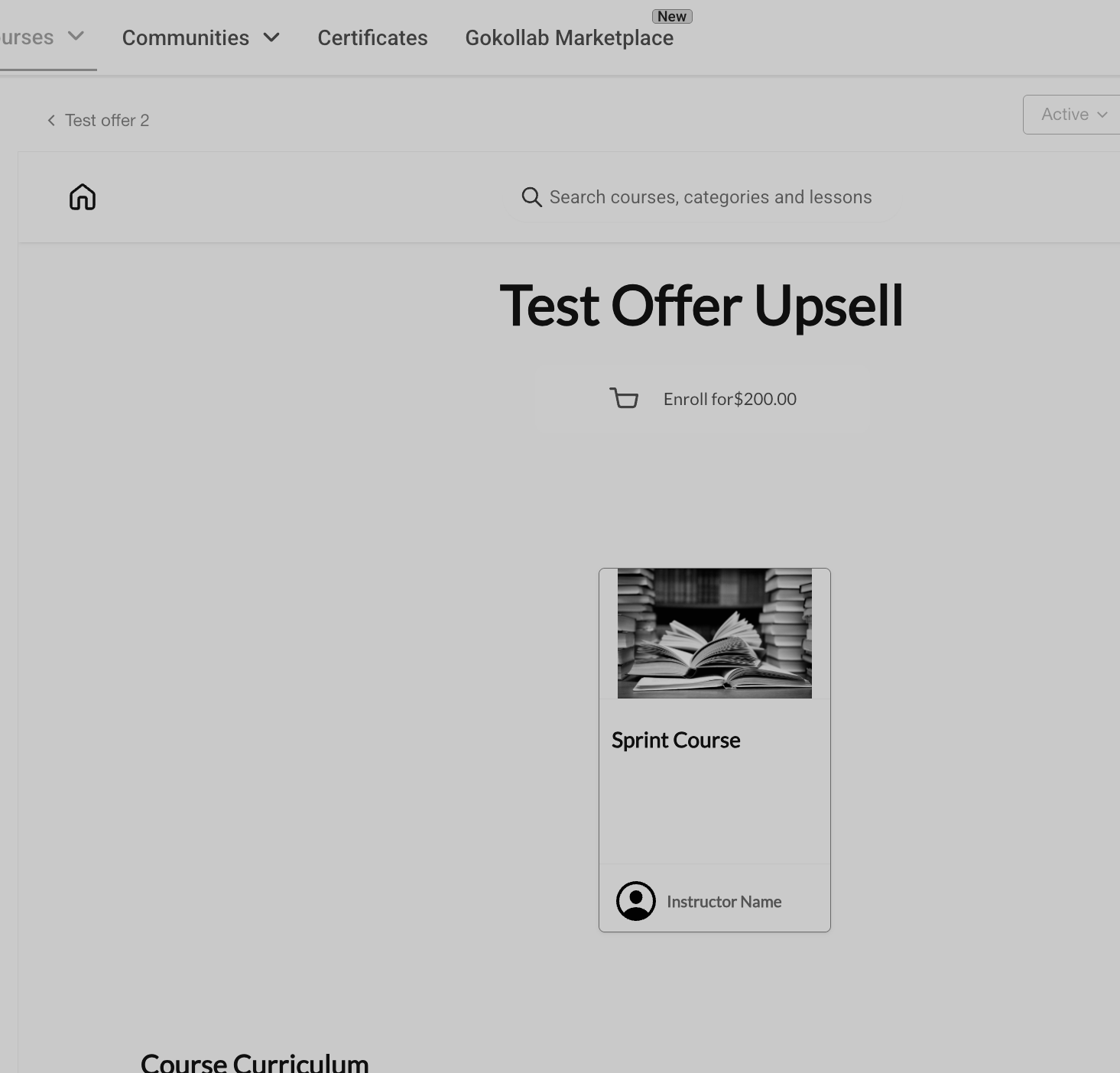
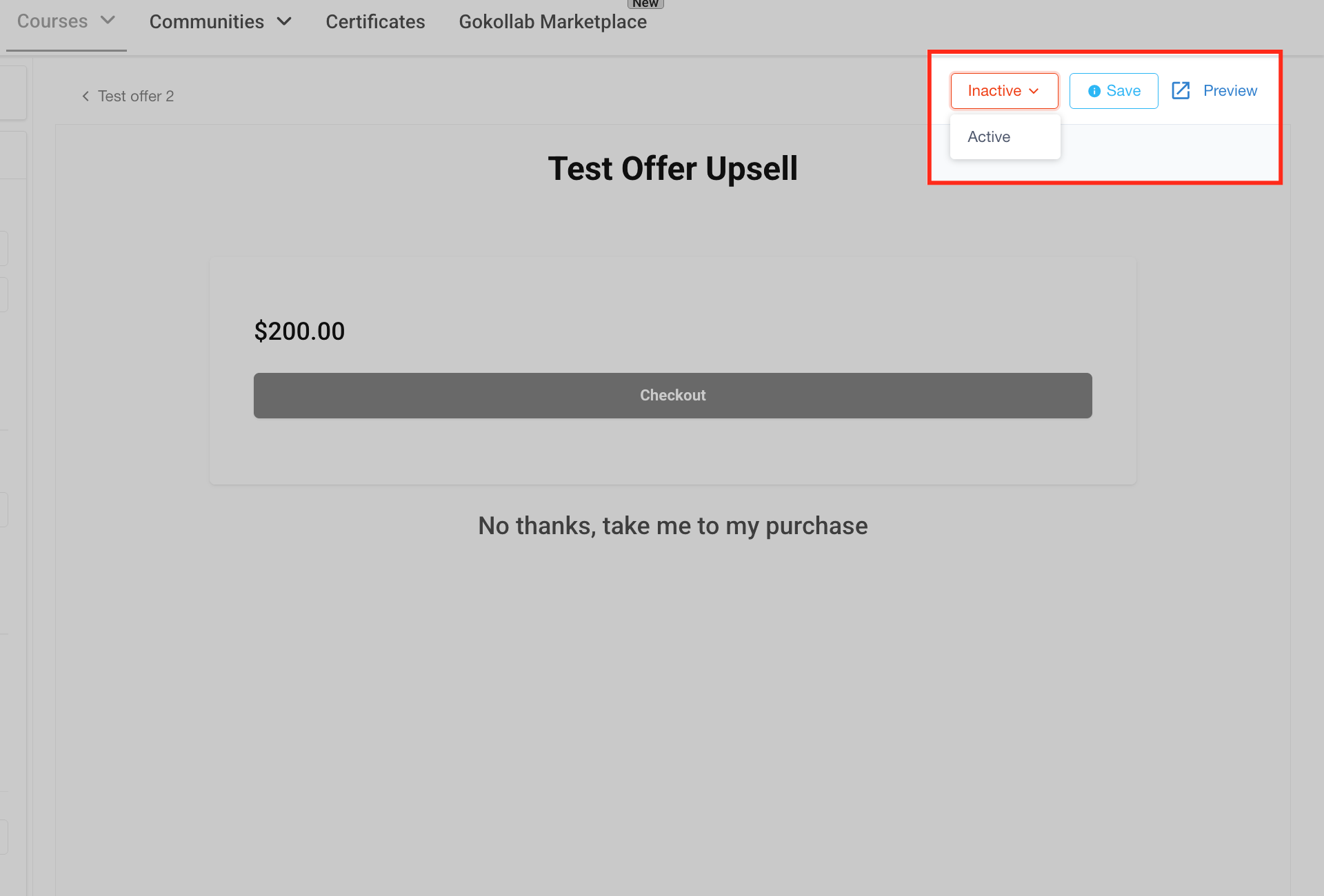
Use the Preview button in the top right to see exactly how the upsell will appear to a patient. When you're satisfied, switch the status dropdown to Active and click Save.
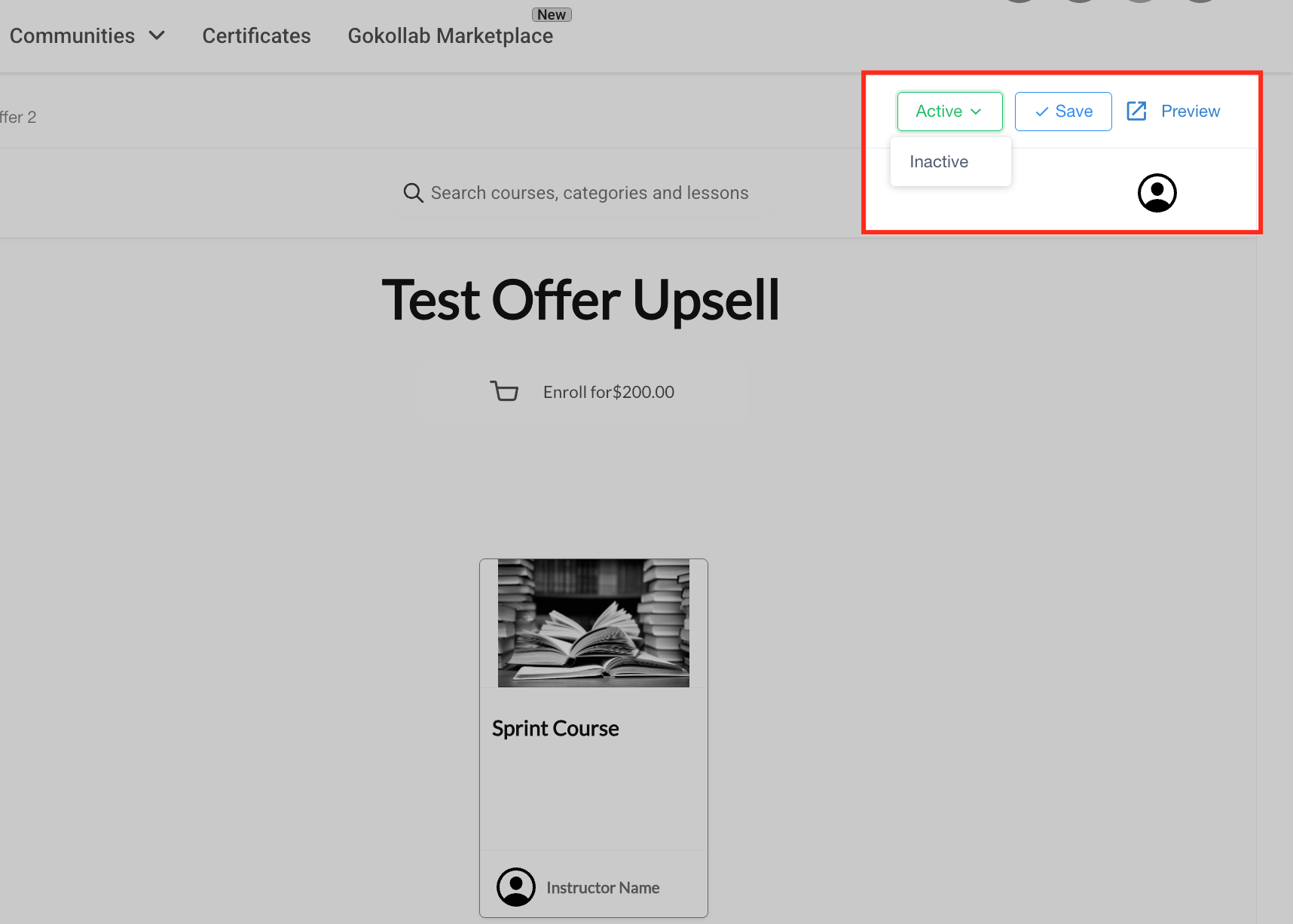
You can attach multiple in-app upsells to a single offer, giving patients more than one add-on option to choose from on their library page.
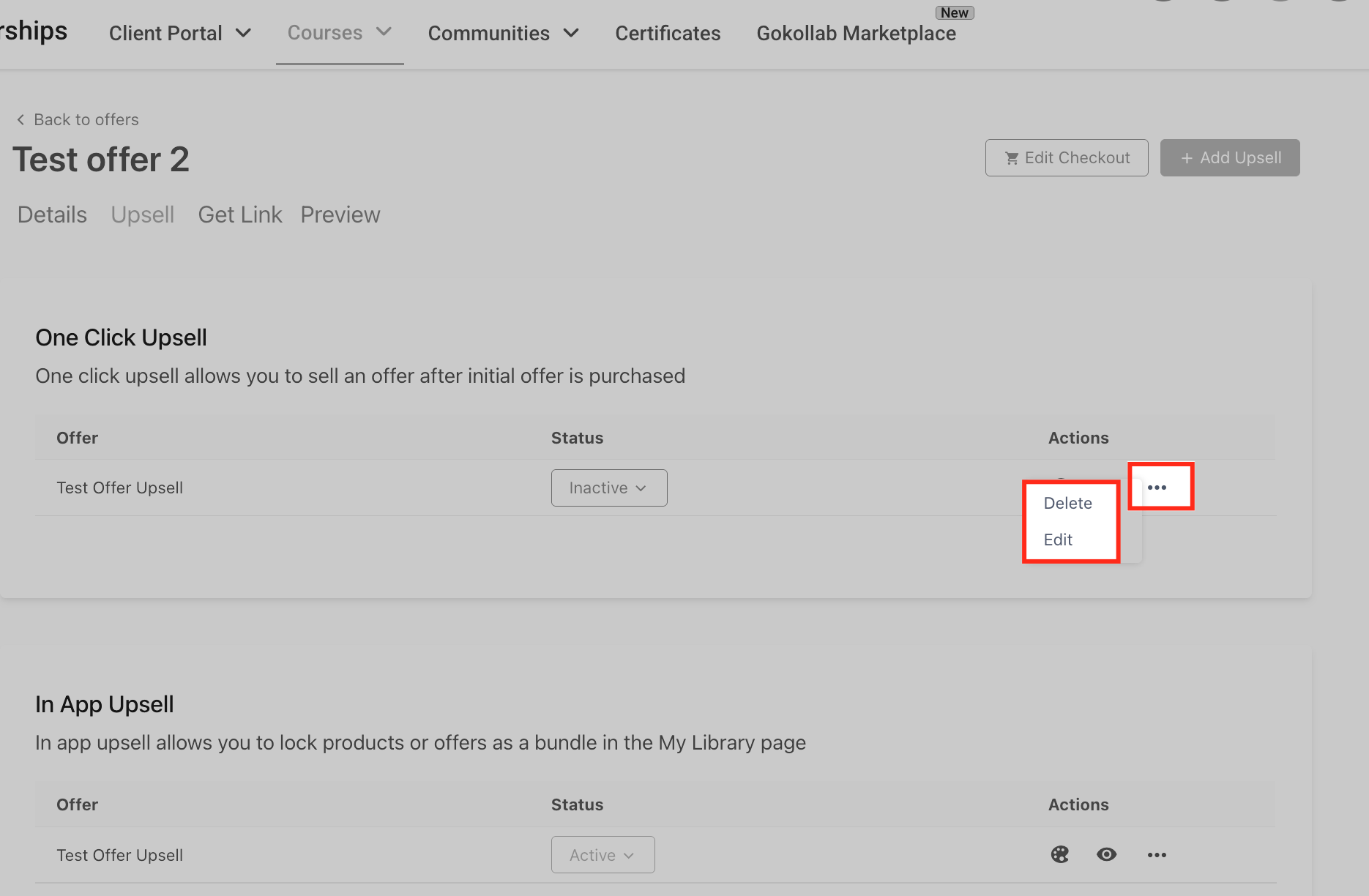
Go back to the Upsell tab on the offer, click the three-dot menu beside the upsell, and choose Edit to update it or Delete to remove it.
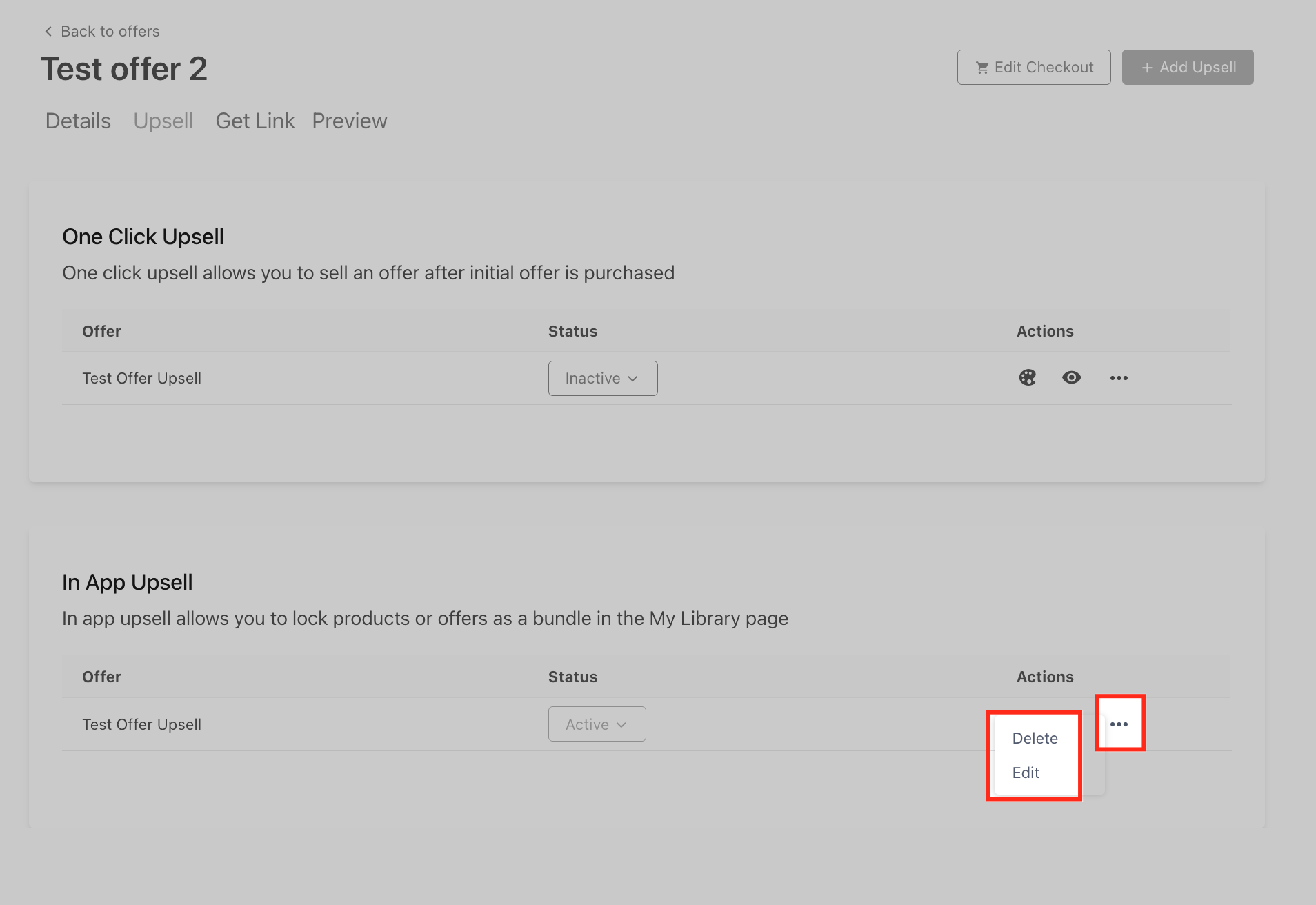
From your main dashboard, click Memberships, then click the Courses dropdown and select Offers.
Locate the offer you want to enhance with a one-click upsell. Click the three-dot menu beside it and choose Edit. _
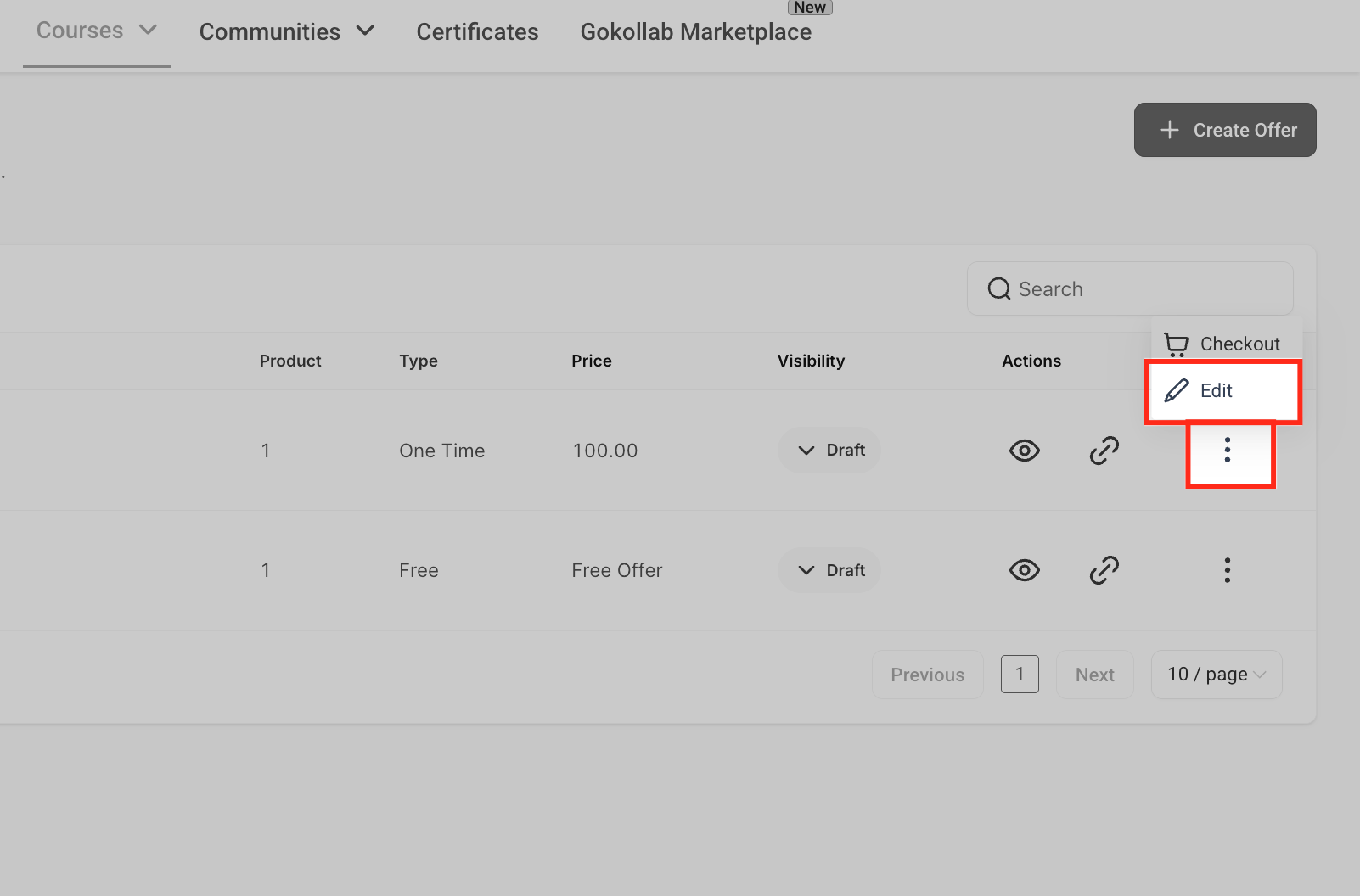
_ 3. Select the Upsell tab. This is where you manage all upsell offers attached to that product.
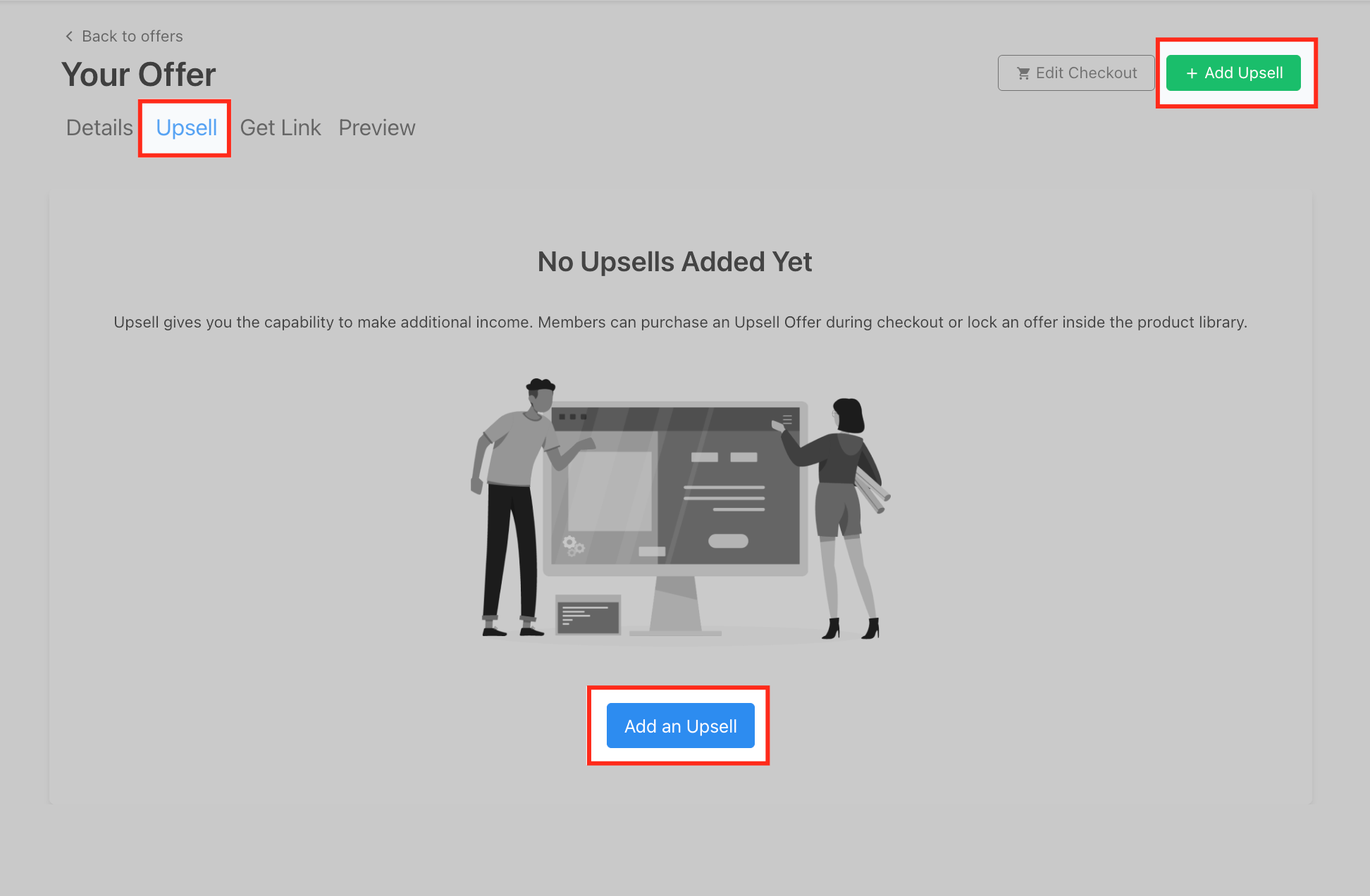
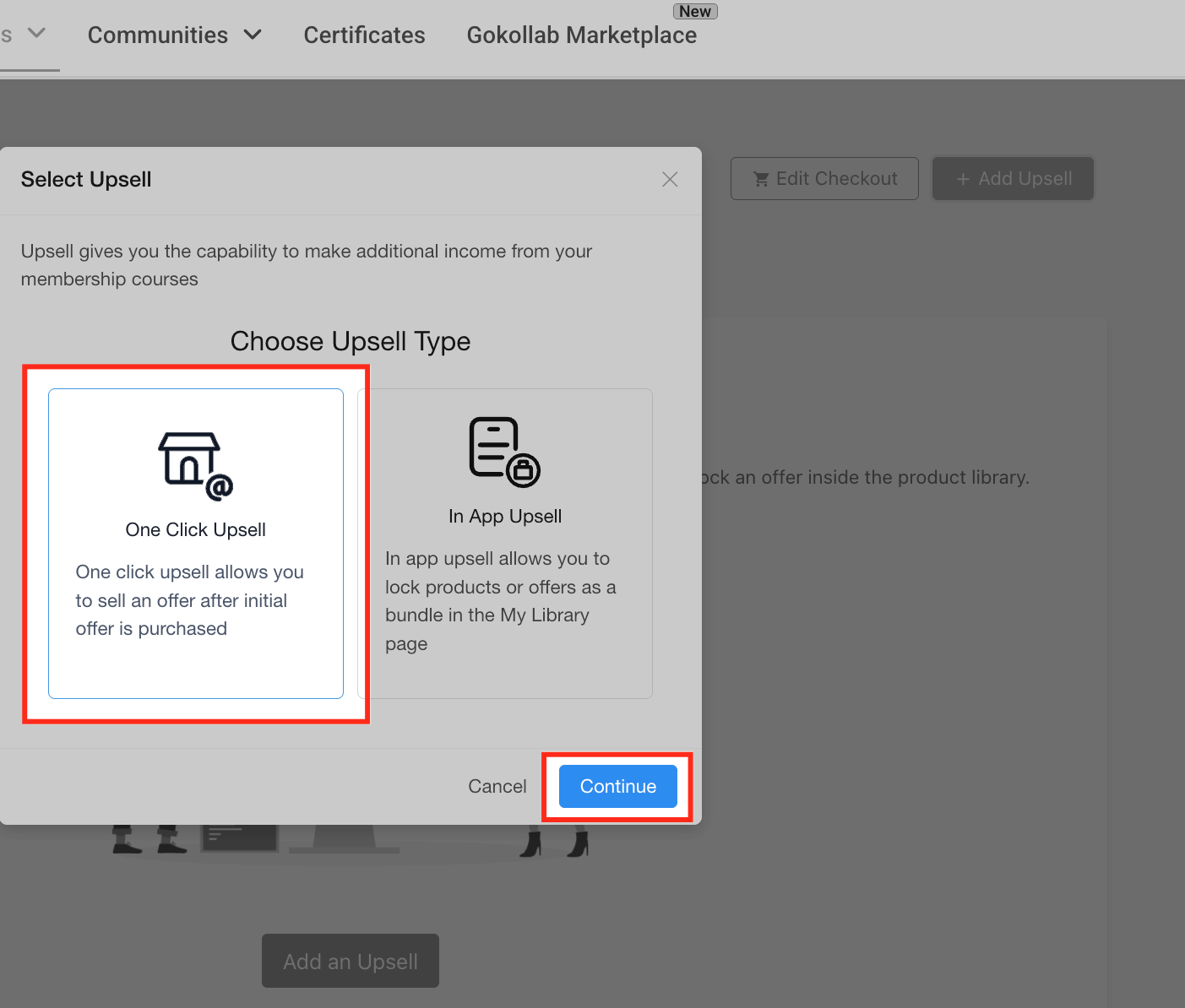
In the upsell type selection modal, choose One-Click Upsell and click Continue.
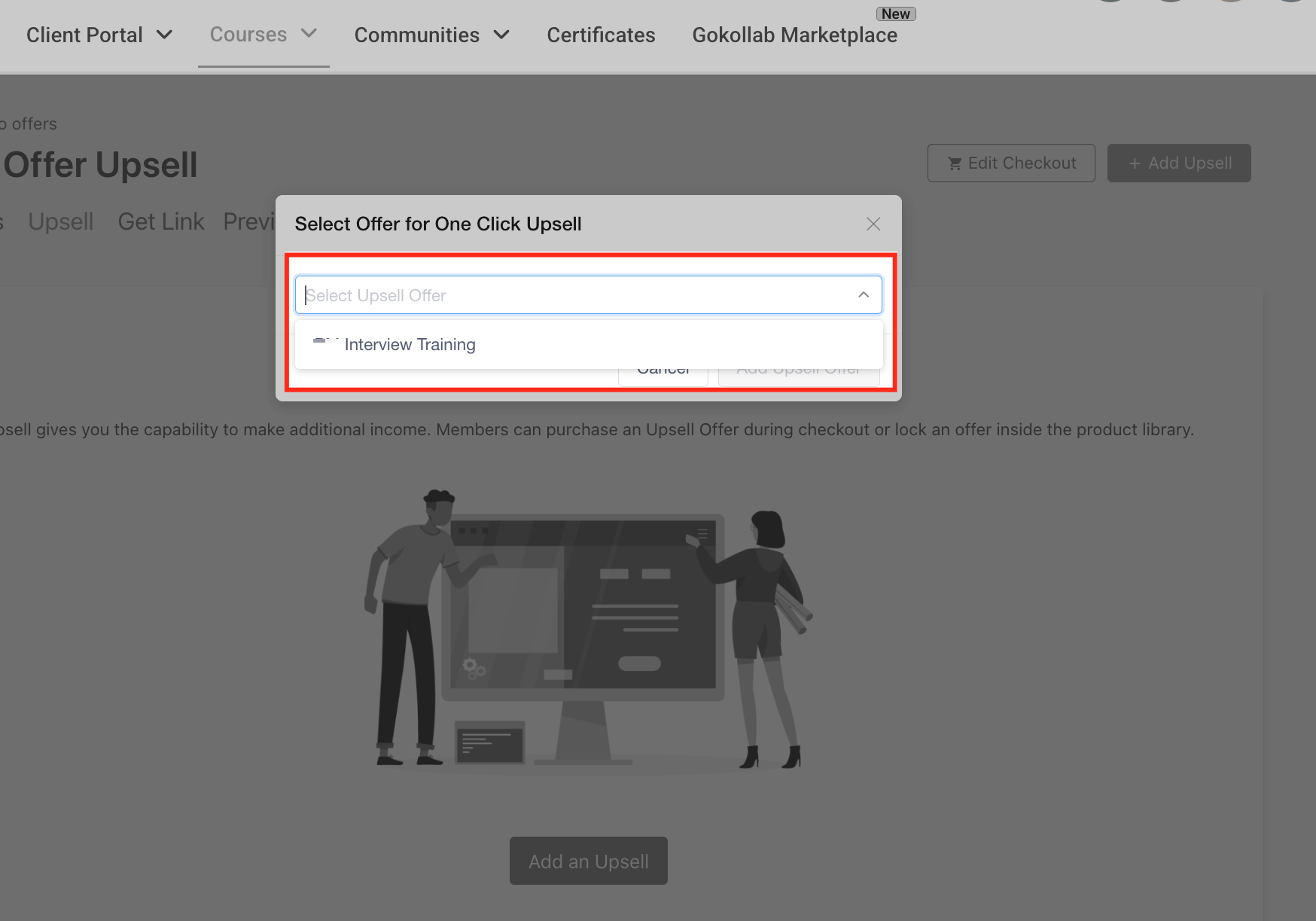
From the dropdown menu, select the offer you want to promote as the upsell, then click Add Upsell Offer to attach it.
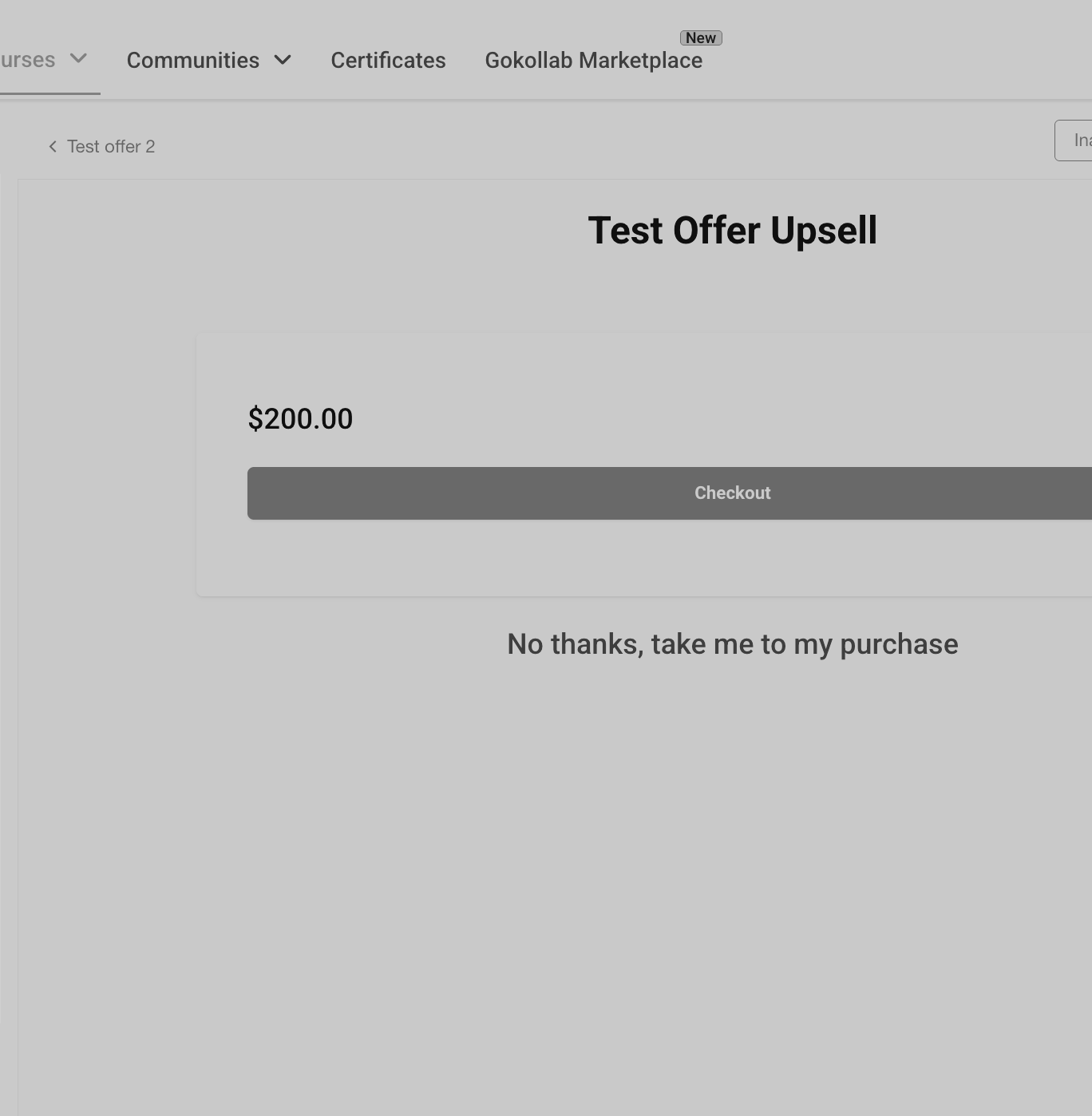
You'll land on the customization screen, which offers full control over the upsell page through three tabs: Details, Body, and Checkout. Remember to click Save after making changes and toggle the status to Active when you're ready to publish.
Details tab
Title content: the main headline for your upsell page (for example, "Unlock VIP Access")
Font & size: font family and size for the title text
Text color: a custom color for the title to match your branding
Alignment: left, centered, or right-aligned
Subtitle content: supporting text beneath the headline
Subtitle font & size: font style and size for the subtitle
Background style: solid color or no background for the top section of the page
Body tab
Add video: upload or embed a promotional video explaining the upsell
Poster image: a static preview thumbnail shown before the video plays (ideal dimensions 1280x720); also used as a fallback if the video doesn't play
Reset to default: revert the section back to its original layout
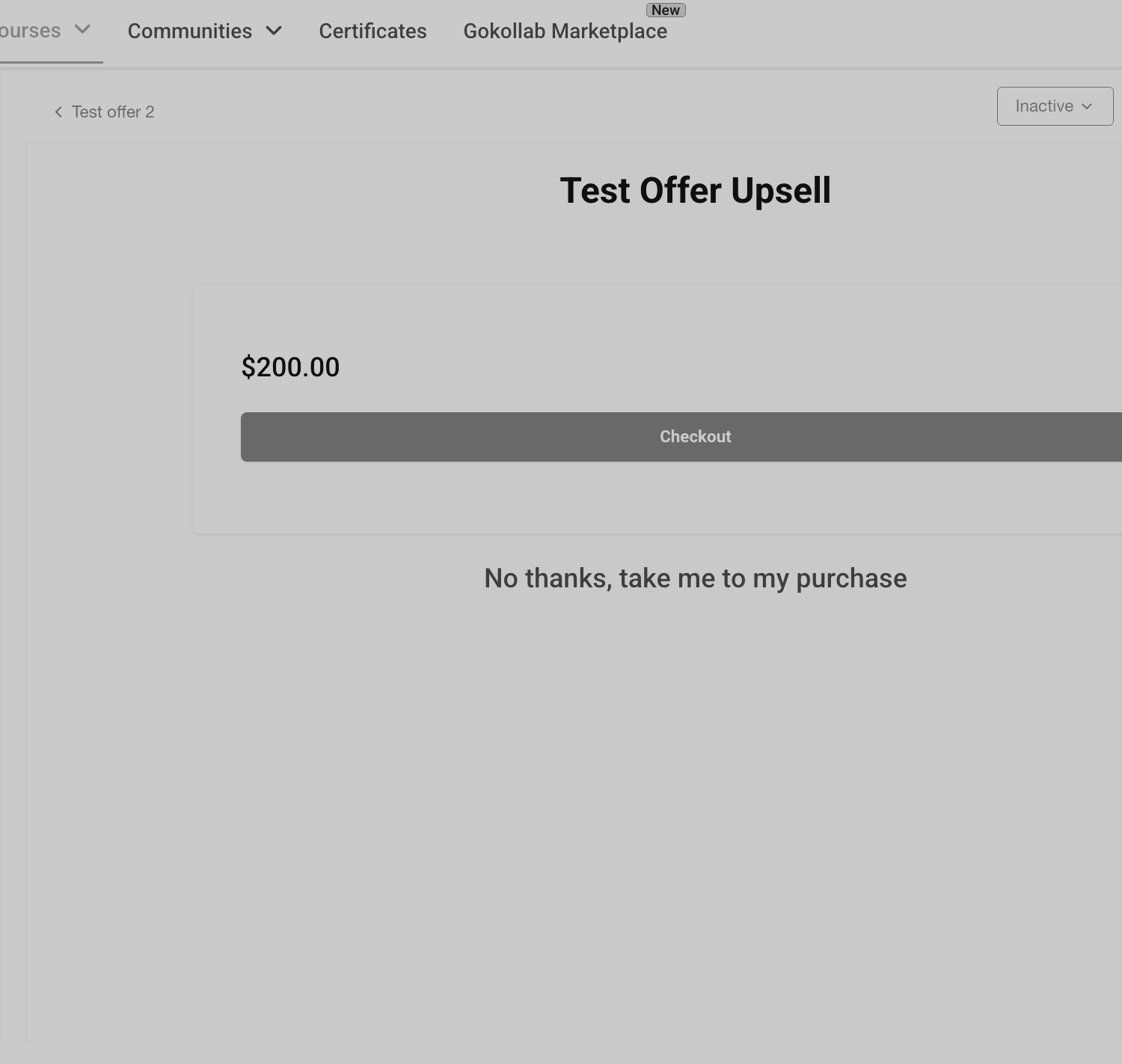
Checkout tab
Purchase button content: the label on the primary call-to-action (for example, "Buy Now" or "Add to My Order")
Background color: a custom background color for the purchase button
Purchase button font: font type, size, and text color
Cancel button content: the text for the secondary option (for example, "No thanks, take me to my purchase")
Cancel button font: font and color for the cancel button
Price font & style: font family, size, and text color for the displayed price
Price background: background styling for the pricing section
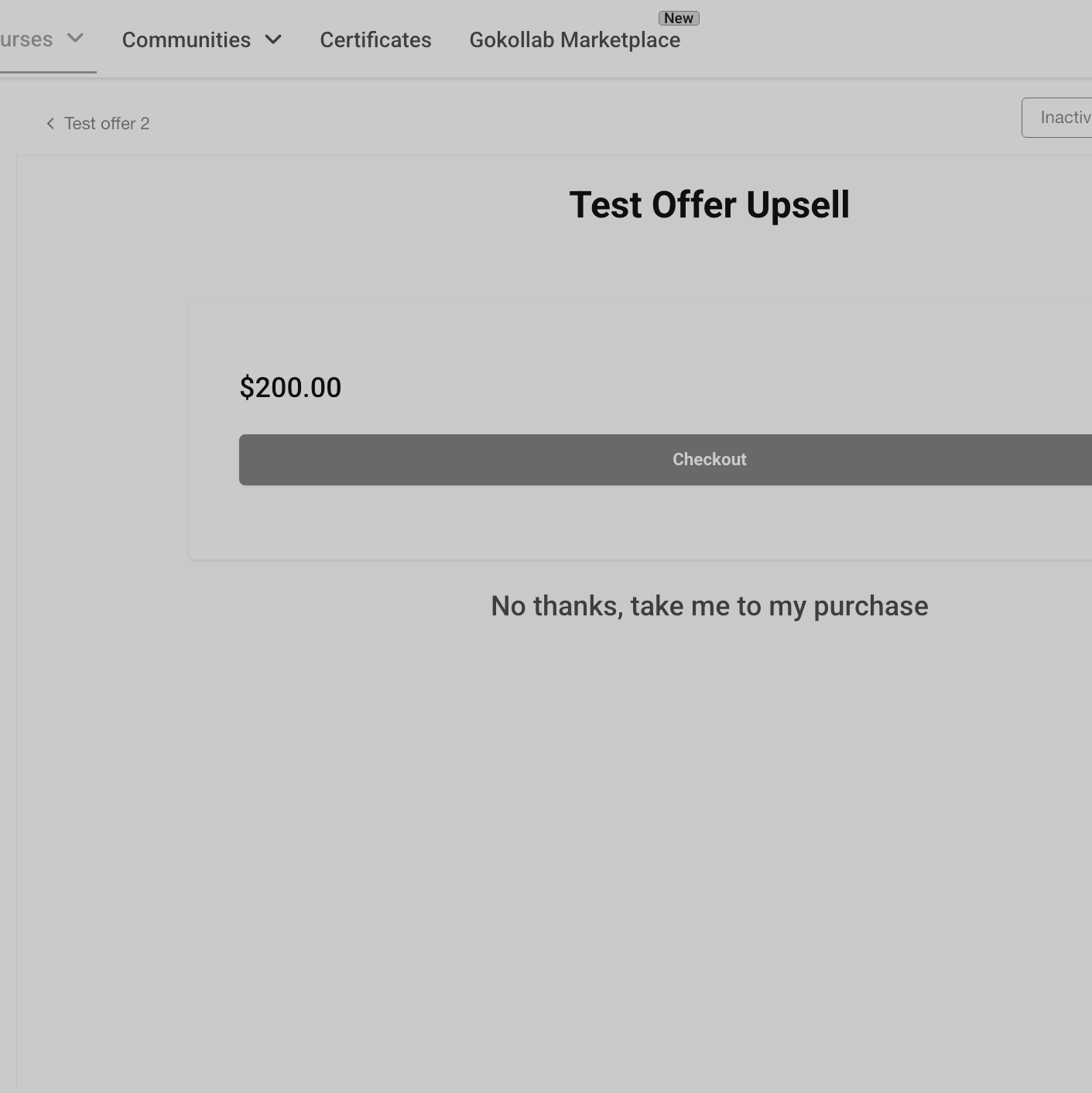
In the top right corner of the editor, use Save to apply your changes, Preview to see the upsell exactly as a patient will, and the Active/Inactive toggle to publish or pause the offer without deleting it.
You can also queue up multiple sequential one-click upsells so a patient sees more than one add-on offer, one after another, after their initial purchase.
Go back to the Upsell tab on the offer, click the three-dot menu beside the upsell, and choose Delete to remove it, or click the upsell name to edit its details or swap it with a different offer.
Both upsell types report views, clicks, and conversions in the offer's analytics section, so you can see which add-on programs patients respond to and adjust your customization or pricing accordingly.
Can I add multiple in-app upsells to the same offer? Yes, you can attach multiple in-app upsells to a single offer. Patients will see different products or bundles listed as locked options on their My Library page.
Will a patient still see an upsell after they've already purchased it? No. Once a patient purchases an offer, whether directly or as an upsell, it no longer appears as locked in their My Library. Only offers they have not yet purchased will show as upsells.
Can I customize the look and feel of each upsell page? Yes. Each upsell, whether in-app or one-click, has its own built-in editor where you can adjust fonts, colors, layout, descriptions, and (for in-app upsells) instructor details to match your practice's branding.
What payment methods are supported for upsells? Upsells use whatever payment provider you've connected to your checkout settings, so the experience stays seamless and reuses the patient's existing payment method. We recommend AX Pay for the best processing rates.
Can I offer more than one upsell after a single purchase? Yes. You can create multiple sequential one-click upsells so a patient sees several relevant add-on offers, one after another, immediately after checkout.
How do I track how well an upsell is performing? Open the offer's analytics section to see views, clicks, and conversions for each upsell, which helps you decide whether to keep, adjust, or replace it.
Is the one-click upsell feature available on every plan? Availability can depend on your current plan. If you don't see the One-Click Upsell option when adding an upsell to an offer, reach out to our support team to confirm what's included.
What's the difference between an in-app upsell and a one-click upsell? An in-app upsell shows a locked, purchasable bundle inside a patient's My Library page after they've already logged in to their existing purchase. A one-click upsell appears immediately after checkout, before the patient leaves the purchase flow, and lets them add the offer with a single click using the payment method they just used.
Can I remove an upsell without deleting the underlying offer? Yes. Deleting an upsell from the Upsell tab only removes the upsell attachment. The offer itself remains available and can be reused or attached elsewhere.
Where do I manage the underlying offers I want to use as upsells? Offers are managed from the Offers dashboard under Courses. Build and price the offer there first, then attach it as an in-app or one-click upsell from another offer's Upsell tab.
