When you grant a patient or team member access to a course, offer, or membership area in Aesthetix CRM, they need a way to get in. This guide covers three related pieces: the welcome email that carries their first login link, magic links that give one-click access without typing a password, and the password setup flow members go through the first time they log in (or when they need to reset). You'll find these settings under Marketing > Memberships and Memberships > Courses > Settings.
Aesthetix CRM includes a built-in membership welcome email you can personalize with your own branding, message, and login details, so every new member's first experience matches the rest of your practice communications.
Click Marketing.
Click Email Marketing.
Click Templates.
Click New.
Click Email Marketing Templates.
Click System Templates. This opens the library of system templates.
Hover over the Membership Welcome Email template and click Select.
Click Continue.
Make any changes you want. Customize the template's copy, colors, and layout to match your practice's branding and voice, and add custom values to personalize the email for each member.
Make sure you're using the correct custom values, such as {{contact.first_name}} and {{offer.title}}, so the email feels tailored to the person receiving it rather than generic.
Click Save Template.
Click Marketing.
Click Memberships.
Click Settings.
Click Email Settings.
Toggle the switch in front of Send Welcome Email to turn it on.
Choose your desired template from the dropdown menu below "Send Welcome Email."
Click Save to apply your changes.
Once this is on, any new member who's granted access to a course or offer automatically receives your customized welcome email with their login link.
New members don't receive a system-generated password. Instead, they get an email with a secure magic link that prompts them to create their own password the first time they log in. This keeps credentials in the member's control, removes the need for your team to manage passwords manually, and uses the same flow whether it's a first login or a password reset.
Members can end up in this flow a few different ways:
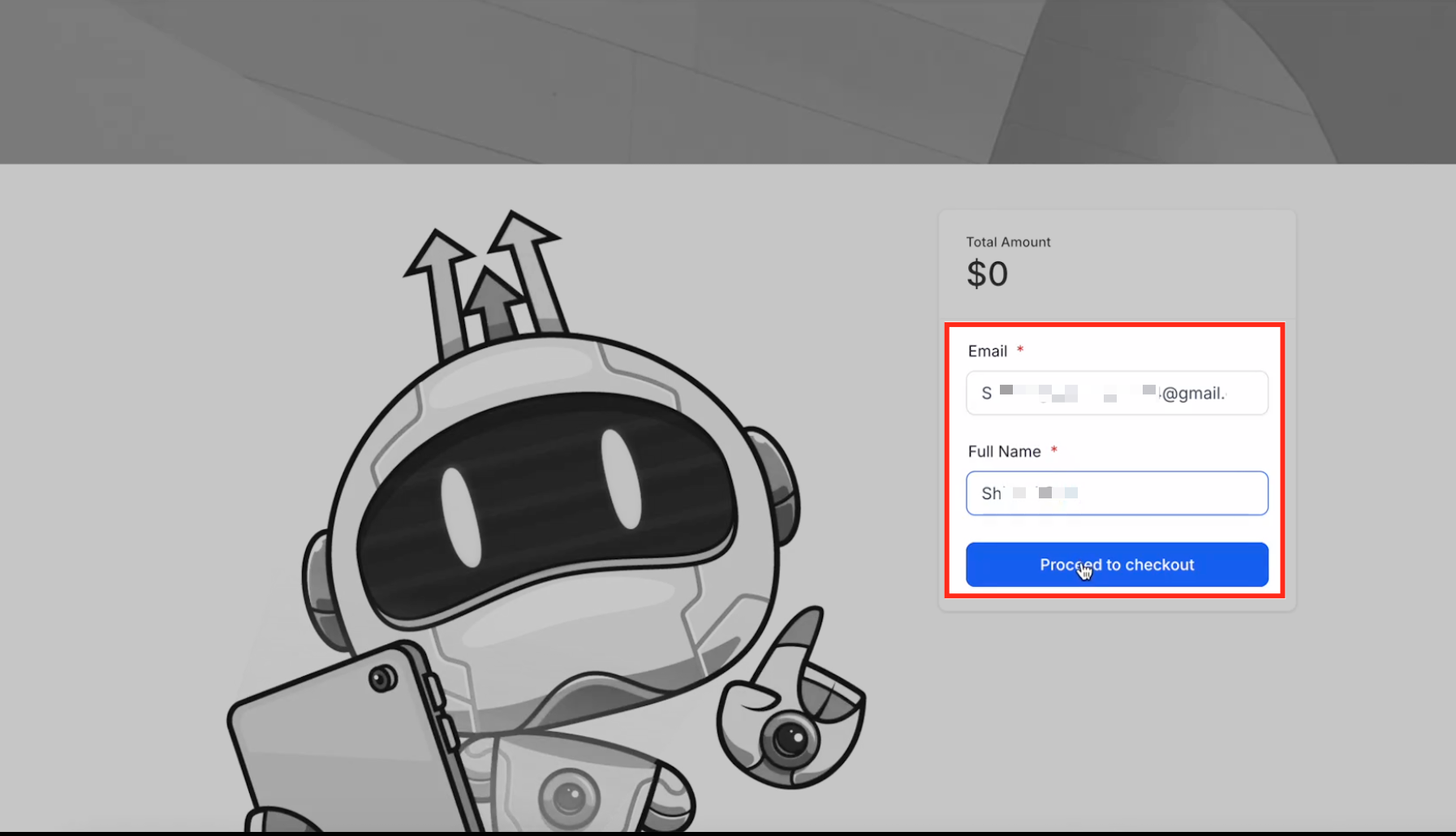
When a new patient completes checkout for a paid course or offer, entering their email and name and clicking "Proceed to Checkout" enrolls them automatically. That action triggers an automated email with a magic login link, prompting them to set their own password and access the course.
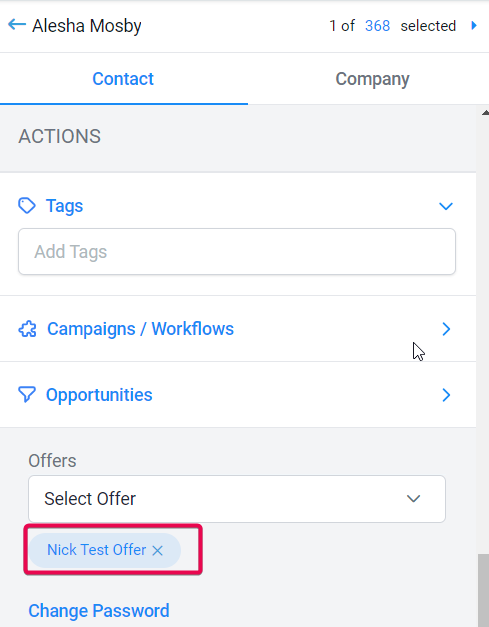
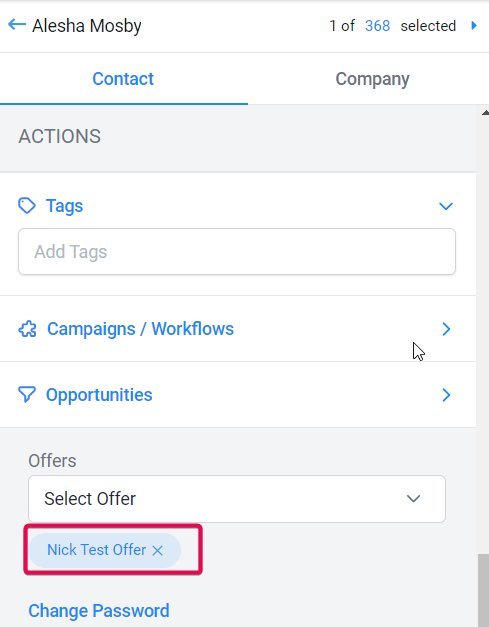
You can manually enroll a member into a course from their contact profile by selecting an offer from the dropdown menu. This triggers the same magic link email, letting the member set their password and get into the course.
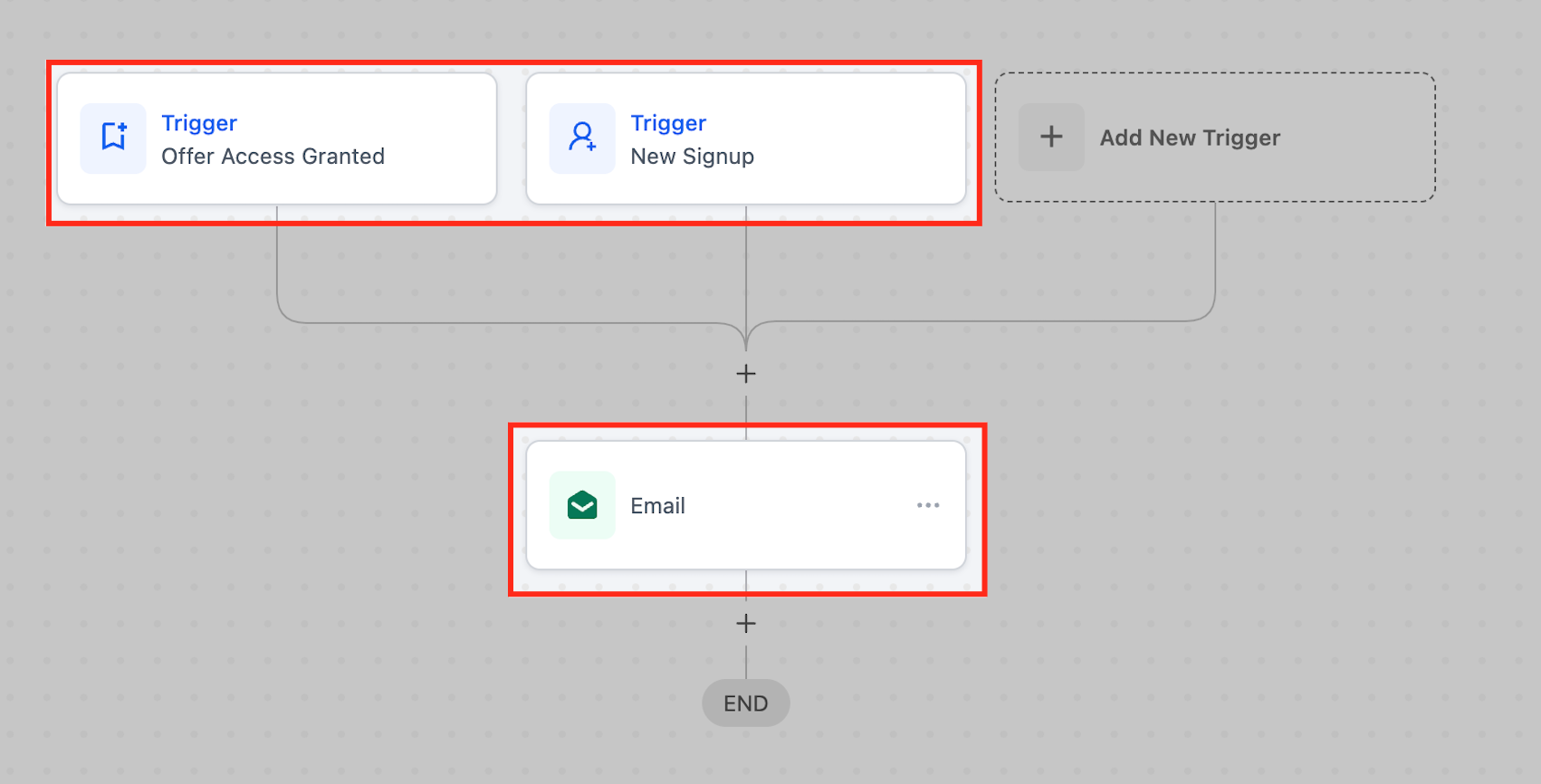
Members can also be enrolled automatically through a workflow or smart list action using triggers like "Offer Access Granted" or "Membership New Signup." These automations send the same system email with a magic link. When the member clicks it, they're prompted to set a password and get instant access.
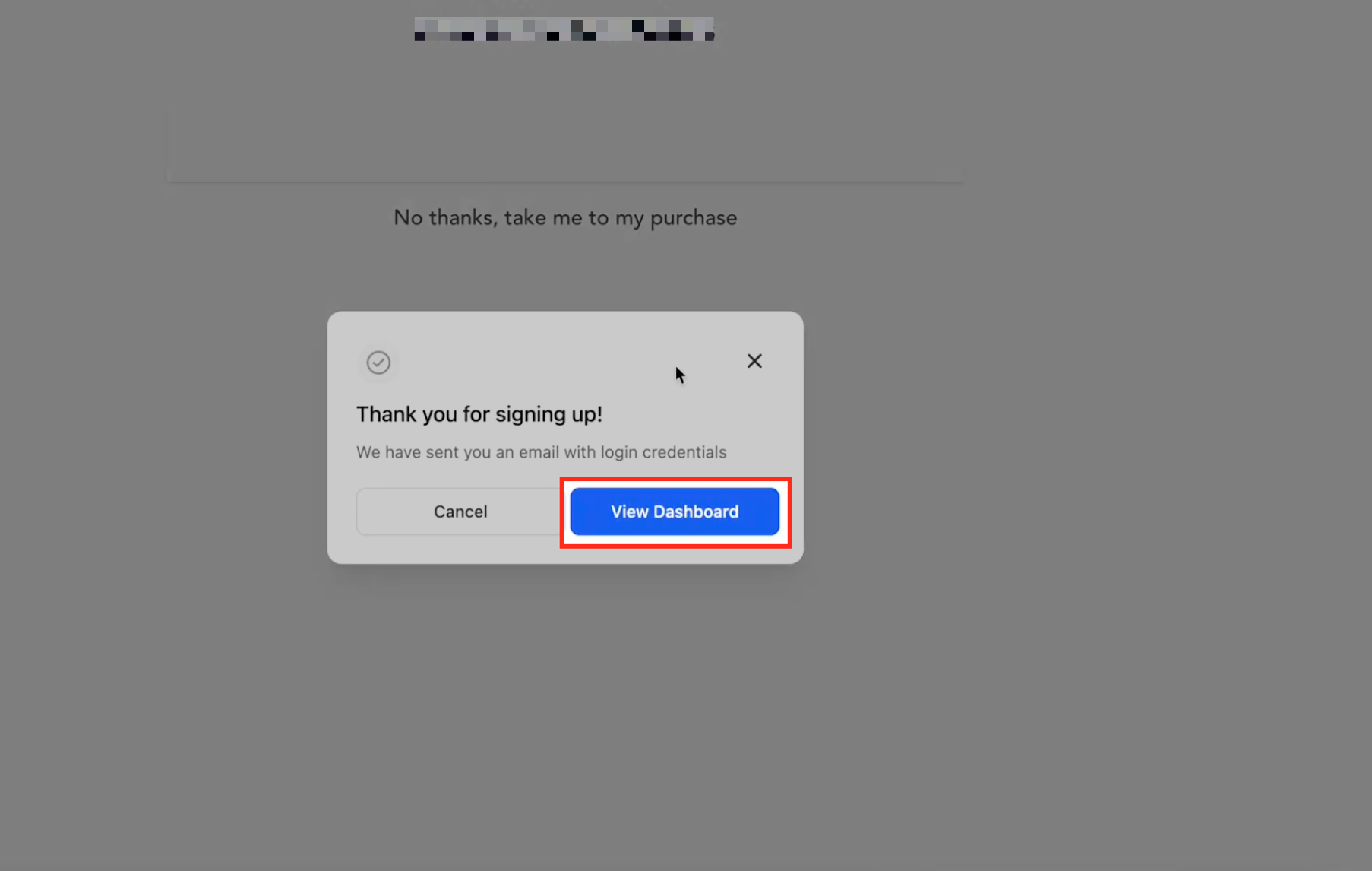
After a member finishes signing up, they'll see a confirmation message with a "View Dashboard" button. Clicking it takes them to a page where they're prompted to set a new password before accessing the course.
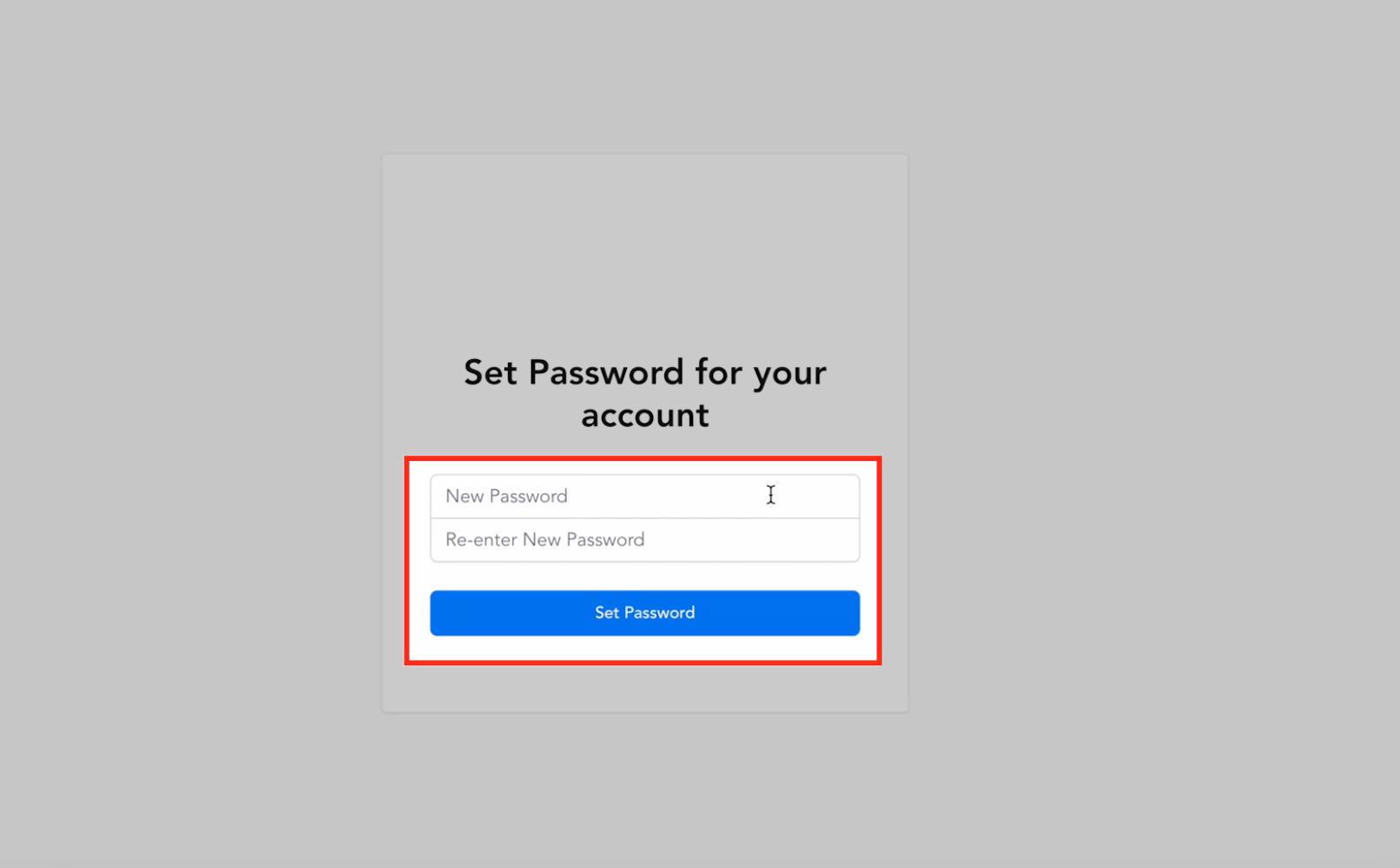
When a member clicks their magic link, they're prompted to set a new password. Once it's set, they're redirected straight into the course or membership dashboard.
If a member forgets their password, they can go to the login page and click "Forgot Password." After entering their email, they'll receive a password reset link.
The password reset link expires in 2 hours, so members should reset within that window or request a new link.
Clicking the link lets the member set a new password and automatically logs them into the course or portal once it's reset.
As an optional security step, members can choose to invalidate all active sessions across devices while resetting or changing their password. This is useful if a member suspects their account is signed in somewhere it shouldn't be.
A magic link is a one-click login that skips the username-and-password step entirely. Once a member clicks it, they land directly inside whatever courses and offers they've been granted access to. It's the fastest way to get a patient into their course content if they've forgotten their login, or to hand a new member access without making them set up credentials first.
Magic links have two main advantages:
Simplified login. Members don't need to remember a username or password to get into their course content.
Improved security and convenience. Magic links are only valid for a limited time and work from any device, which protects your content while still making it easy for members to reach it.
Good use cases for magic links include:
Password resets. Skip the reset flow entirely and get a forgetful member straight into their account.
Inviting new members. Send a magic link so a new patient can join and access content immediately.
Email marketing. Give recipients a fast path into your membership content from a campaign email.
Promotions and sales. Offer quick access to discounted content or products.
Multi-device access. A member can use the link from a desktop, laptop, tablet, or phone.
Only share magic links with people who already have consent to view that content. Anyone holding the link can access the course material it unlocks.
Aesthetix CRM offers two kinds of magic link:
Type | Best for | Notes |
|---|---|---|
User's Magic Link | Giving your own team members quick access to a course area | Can only be used as a custom menu link in your portal's sidebar, not sent in emails or SMS |
Learner's Magic Link | Giving a patient or member access to their course content | Works inside emails, SMS, and workflow actions |
If your account was recently created, you'll manage magic links through the Client Portal instead of the legacy Courses settings below. Go to Sites > Client Portal > Dashboard to generate magic links from there.
Head to Memberships > Courses > Settings.
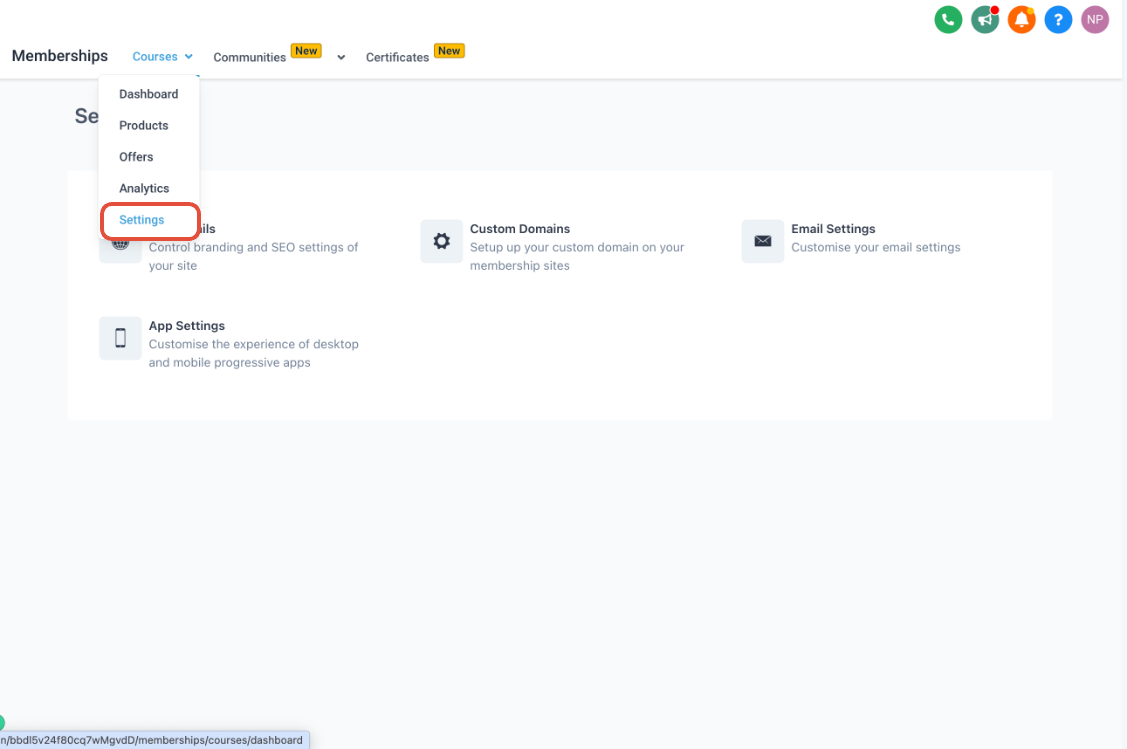
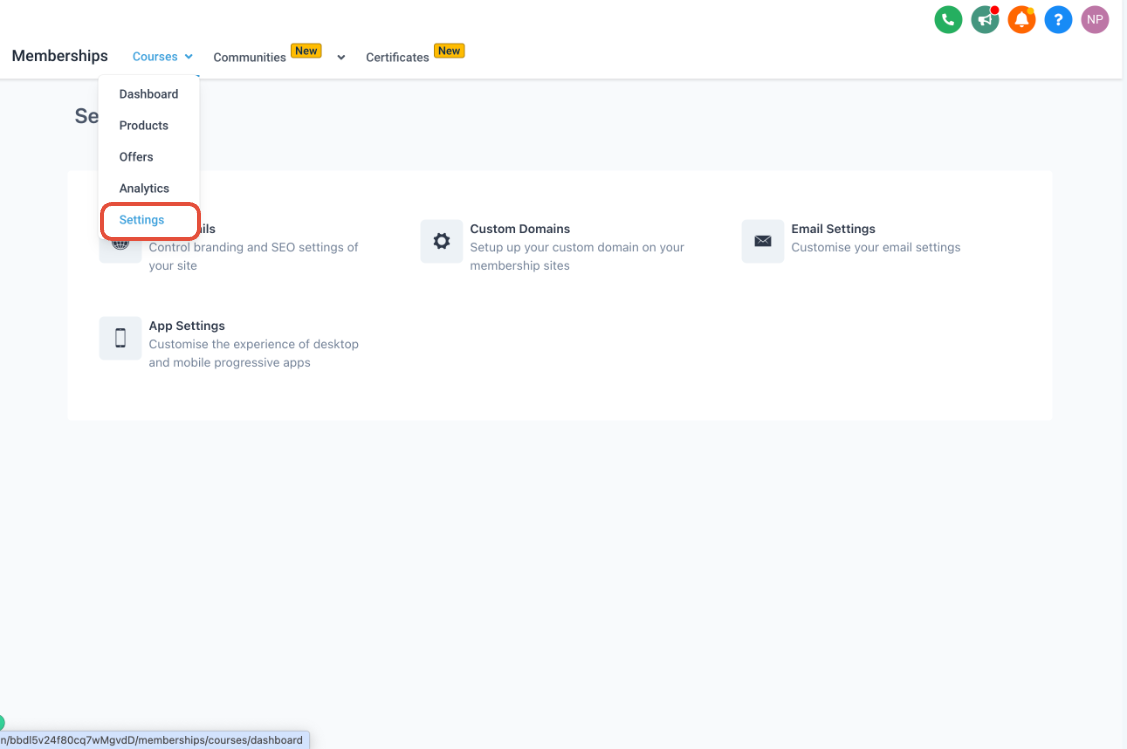
Go to Site Details.
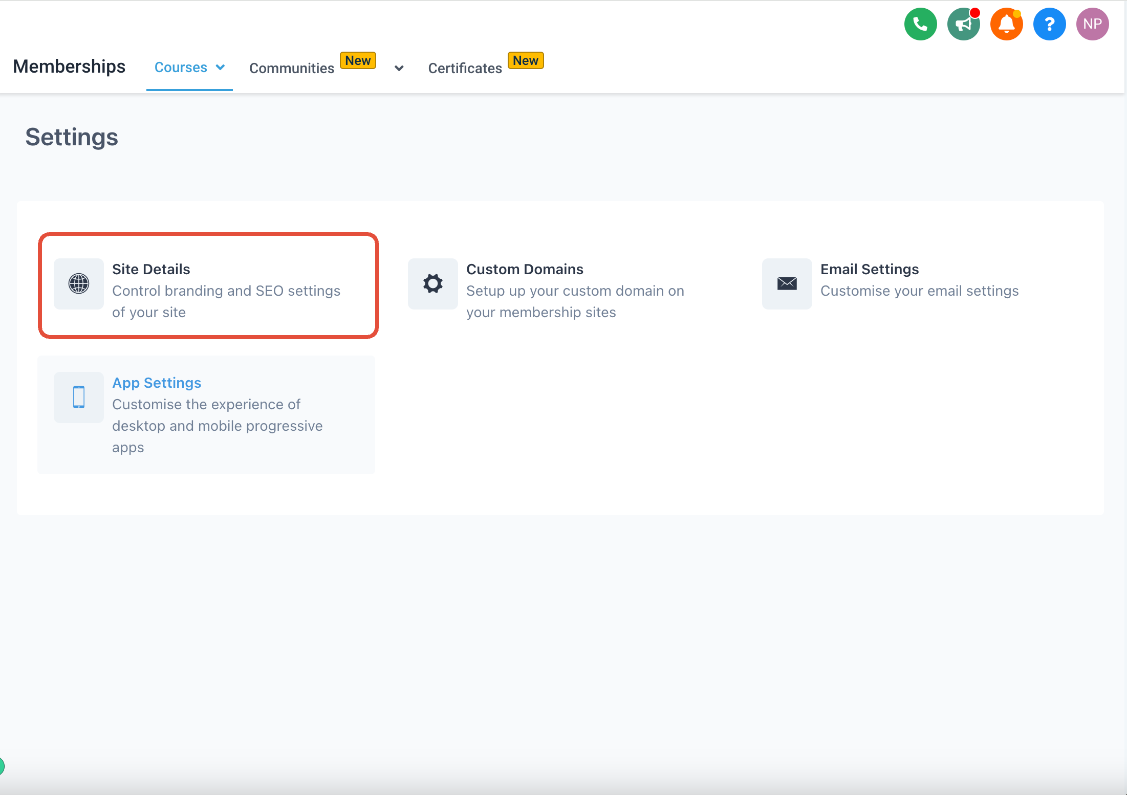
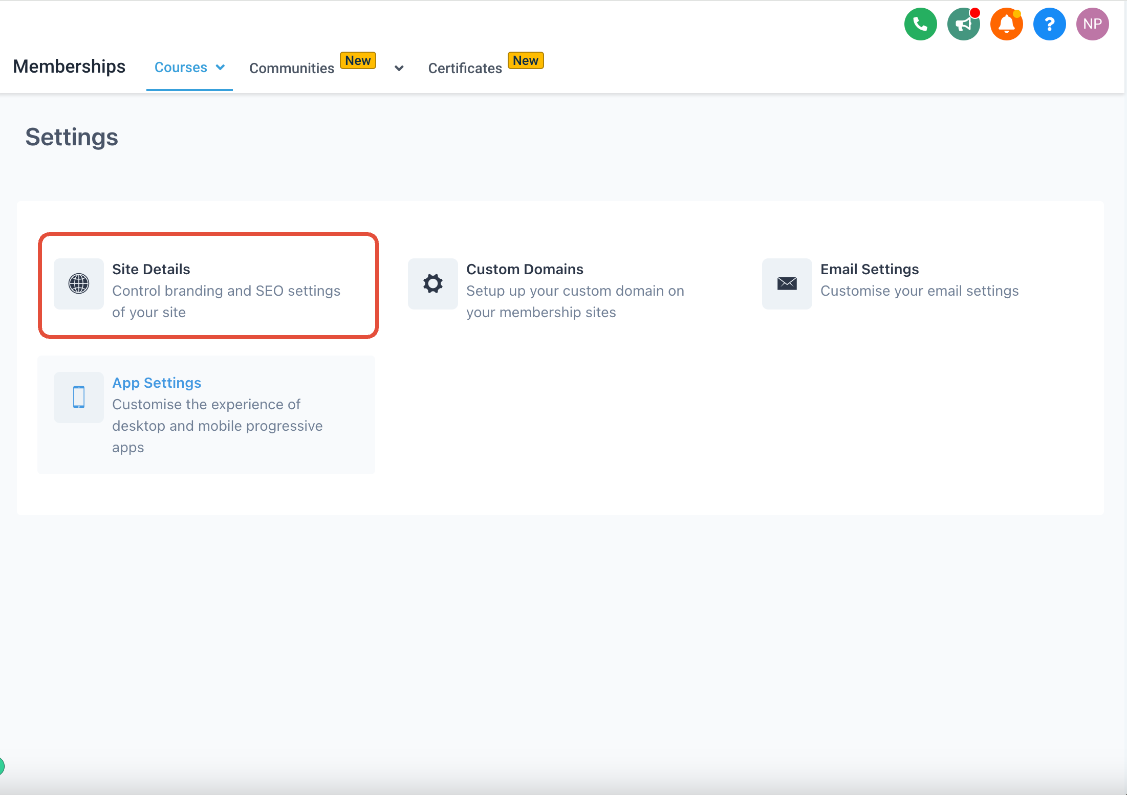
If you don't already have a magic link, click Regenerate Magic Link.
Once your magic link populates in the field above, click Copy to copy it to your clipboard.
Use the magic link as a custom menu link embedded in your portal's left-hand menu.
Only Learner's Magic Links can be sent through workflows and emails. We recommend sending a learner magic link in cases like:
Giving course access to a new member
Giving offer access to an existing member
A new member signing up for a course
These aren't the only use cases, you can expand this to fit whatever your practice needs.
Go to Workflows and set up a Courses trigger.
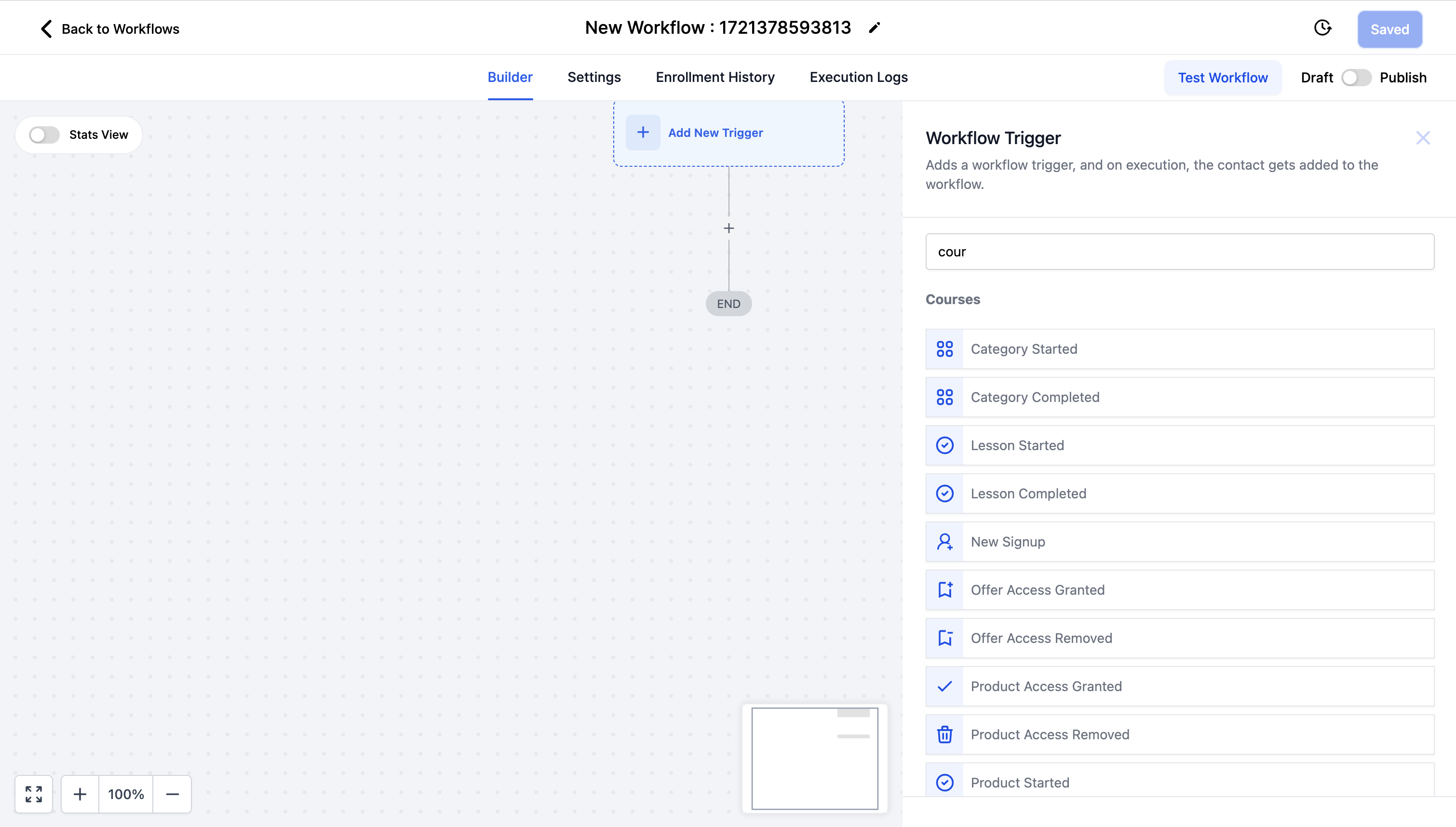
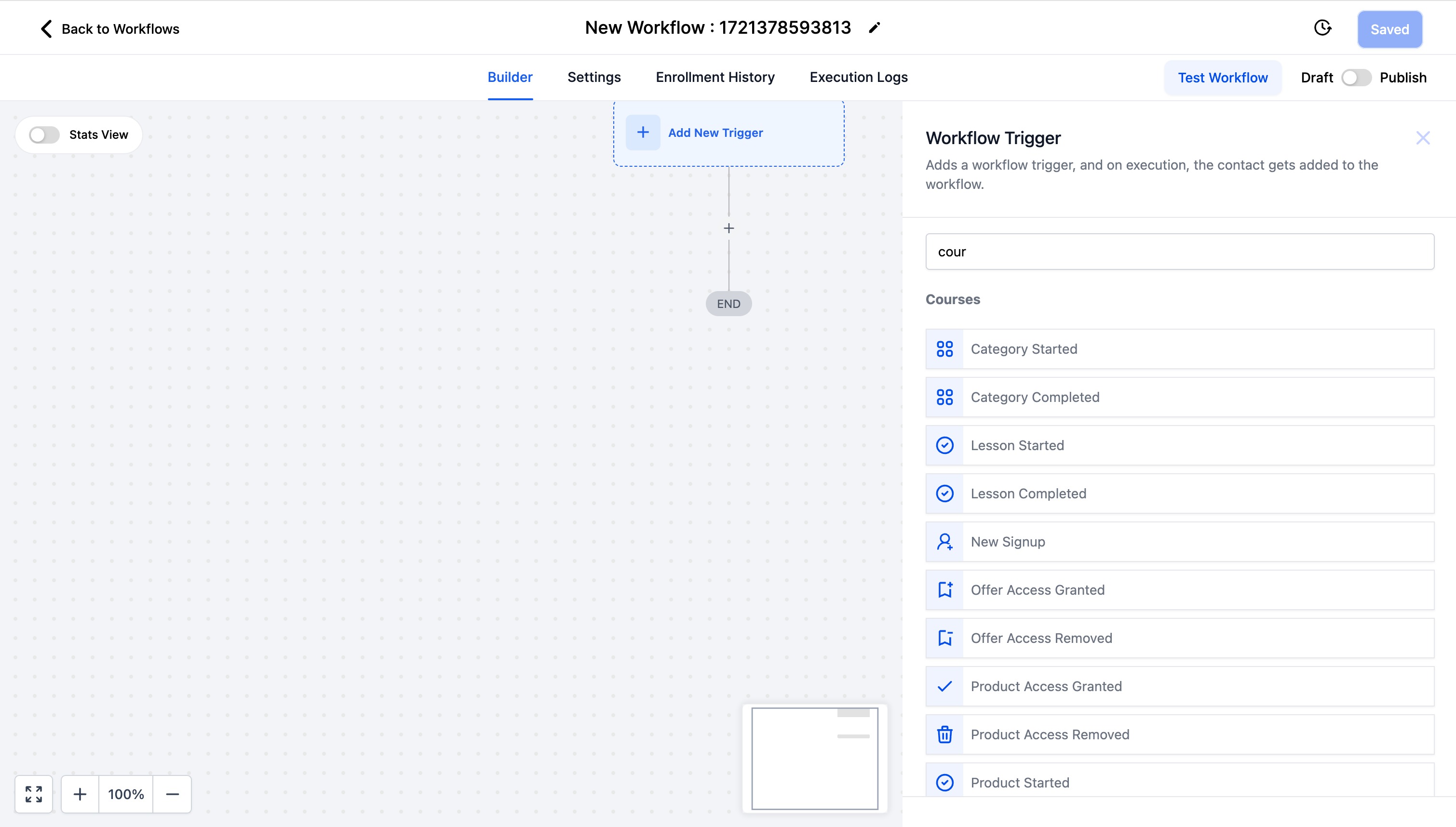
A Learner's Magic Link can be used with any Courses trigger, including Category Started, Category Completed, Lesson Started, Lesson Completed, New Sign Up, Offer Access Granted, Offer Access Removed, Product Access Granted, Product Access Removed, Product Started, and Product Completed.
Add an action, like an email or SMS step, that lets you select Login URL (Magic Link).
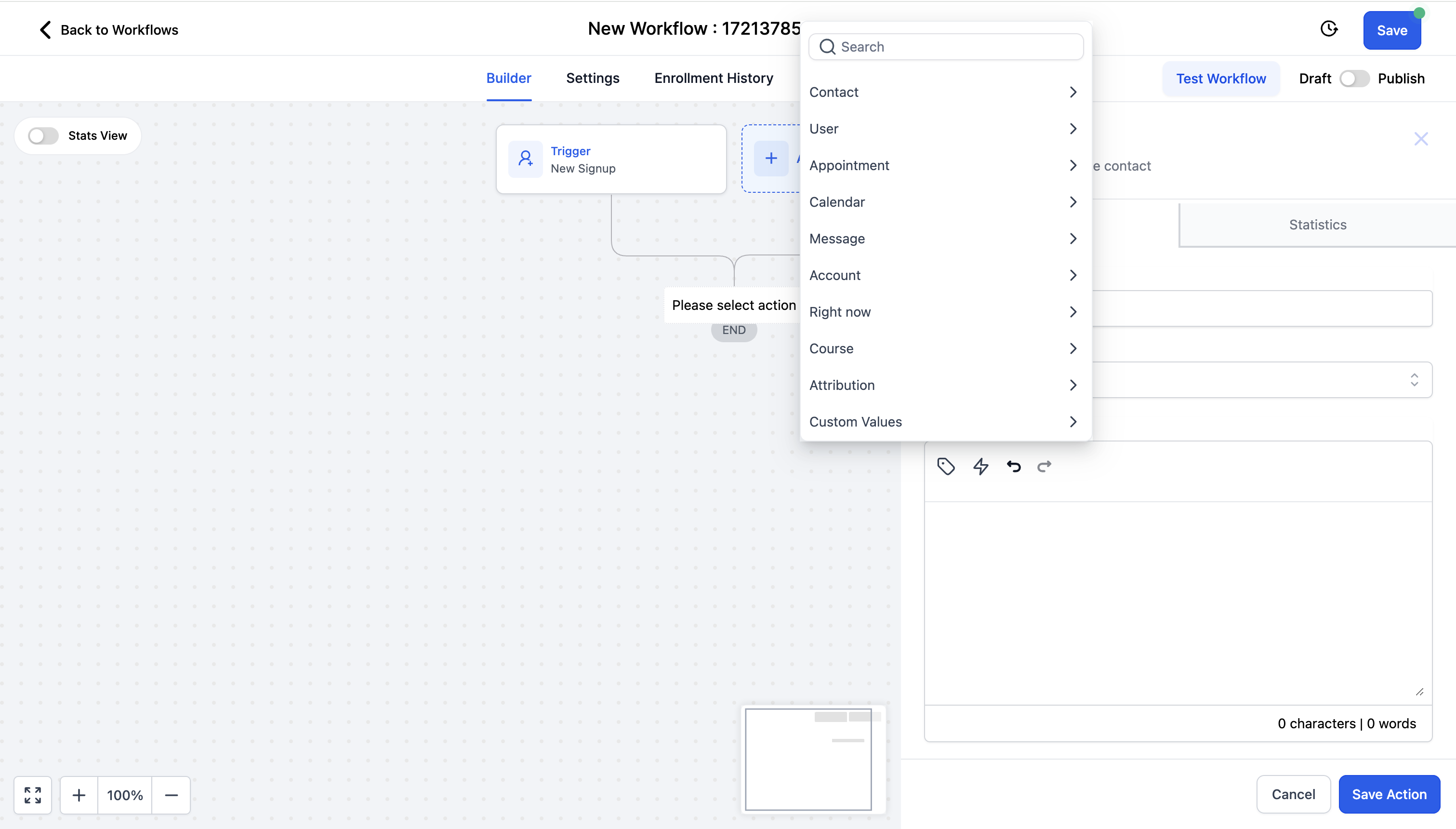
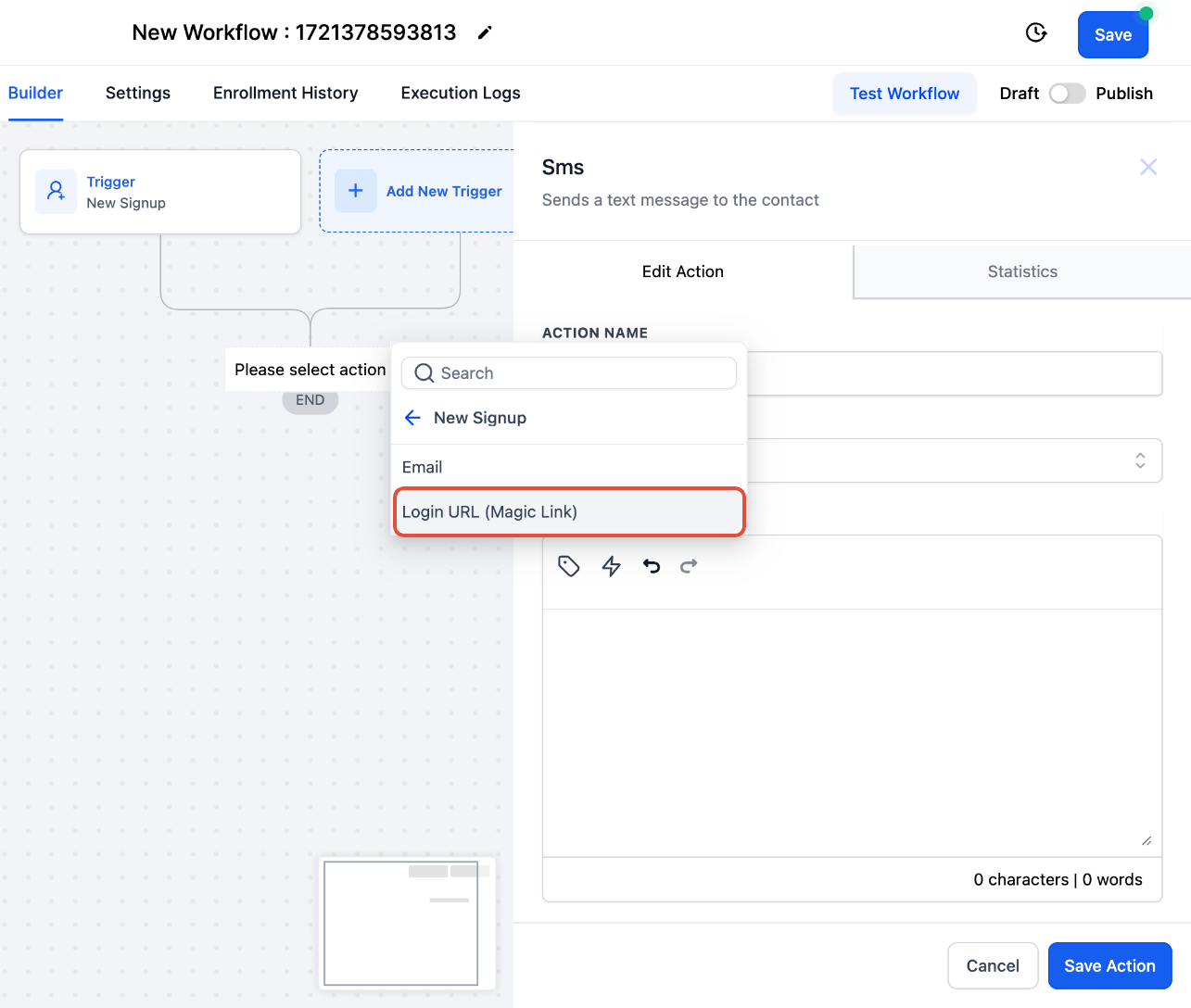
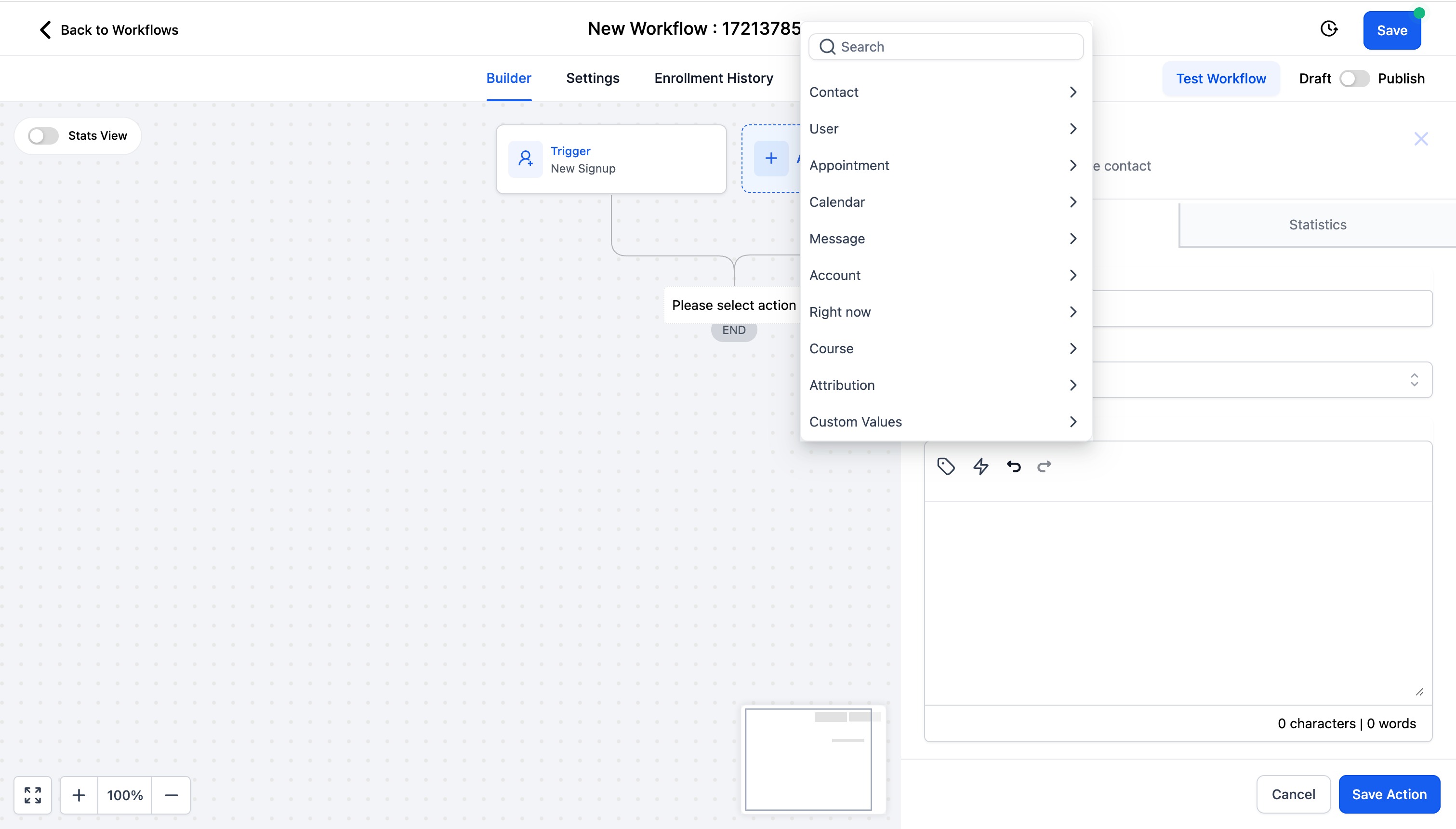
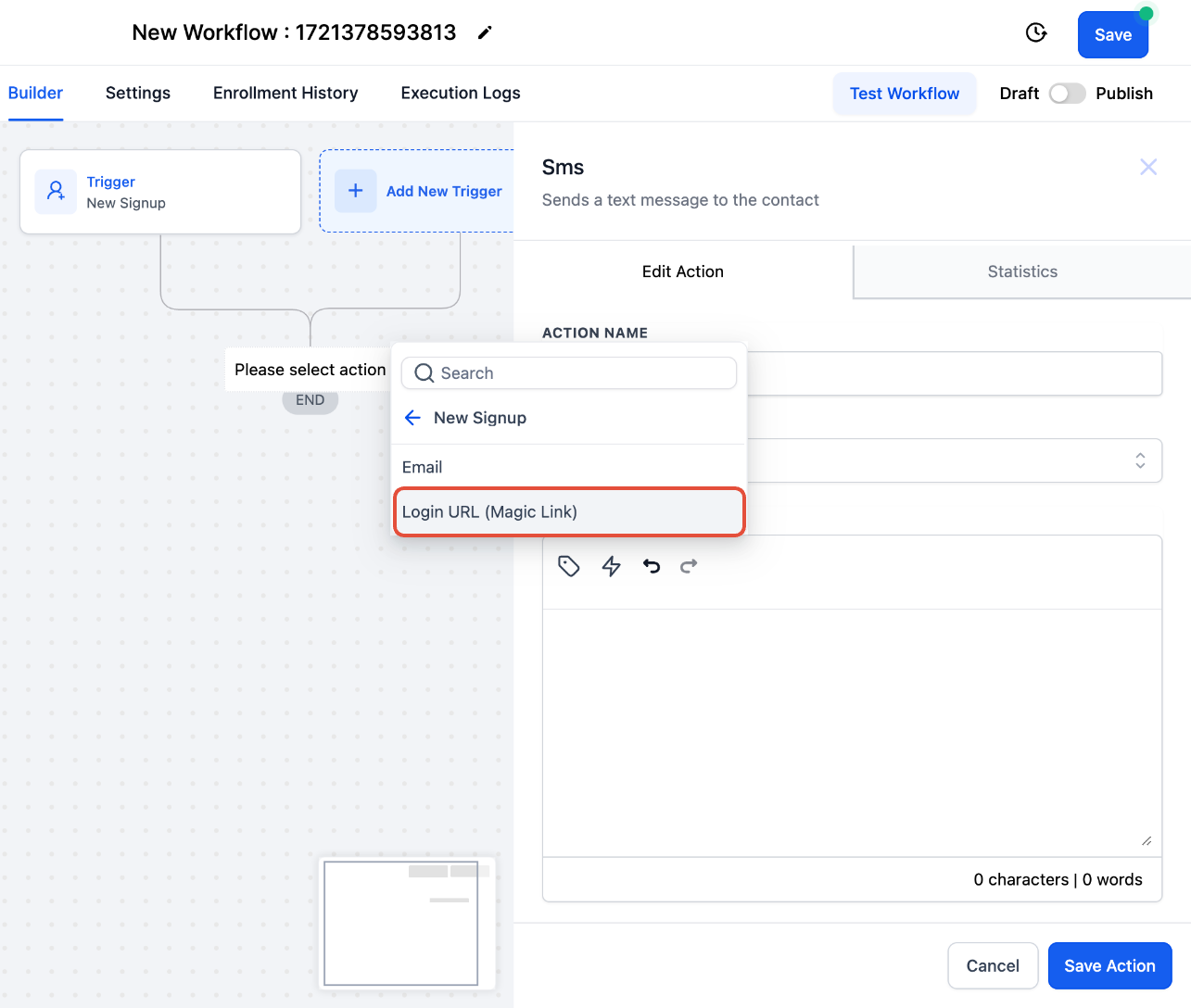
When the message goes out, it automatically populates the learner's magic link for that contact.
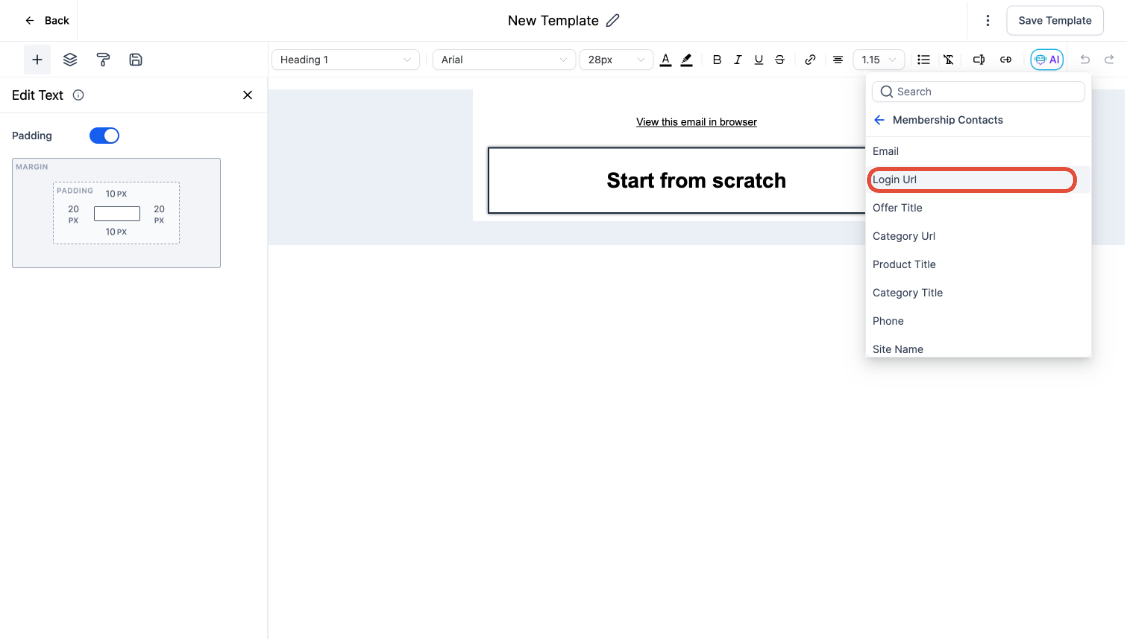
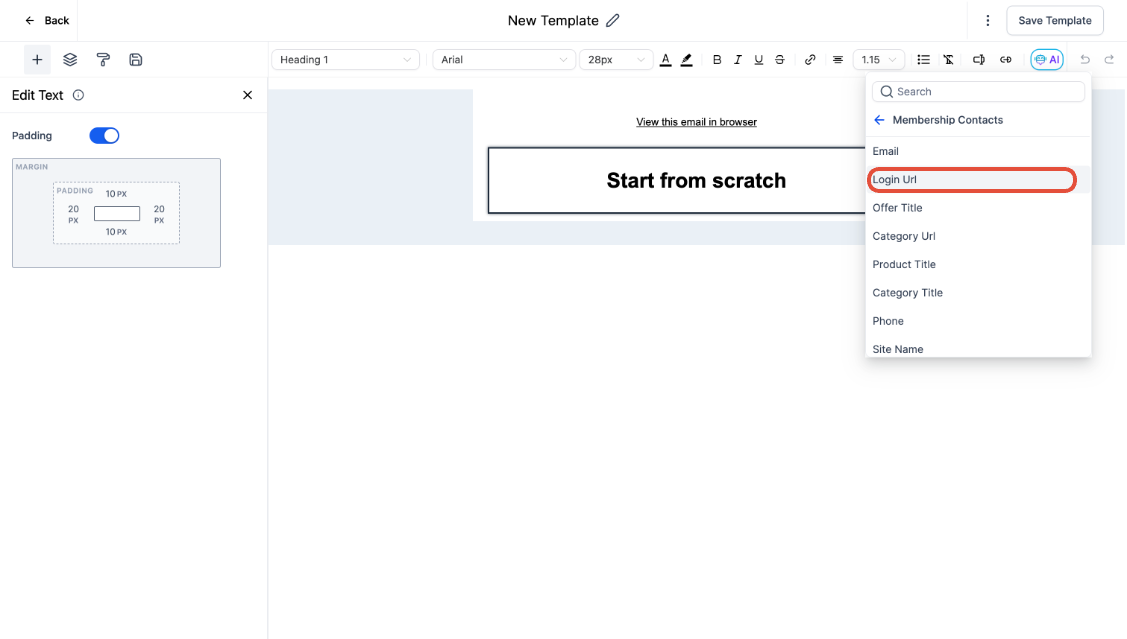
You can also drop a magic link into a standalone email campaign or template by inserting the Login URL (Magic Link) custom value.
Can magic links expire? Yes. Magic links can expire automatically for security reasons, and generating a new link for the same member automatically invalidates any older one for that person. If a member sees an invalid or expired link message, generate a fresh magic link and resend it.
Does a member need access to an offer for a magic link to work? Yes. A magic link won't work for a contact who hasn't been granted access to a membership offer.
Why does testing a magic link show courses the member shouldn't have access to? This happens when you're logged in as an account owner or admin: admin accounts automatically see every course, so a magic link opened while you're signed in that way will show more than a regular member would see. To test what an actual member sees, open the magic link in an incognito or private browser window instead.
How do I make sure new members actually receive their login email? Confirm the email address on the contact is accurate and that the system-generated "Courses Login URL" email is enabled. You can check your email delivery logs to confirm whether the message went out successfully.
A member says they never got their password setup or reset email. What should I check? Verify the member's email address is correct and review your email delivery logs. Make sure your sending domain is properly authenticated with SPF and DKIM so messages aren't flagged as spam, then manually resend the email if needed.
Can I reset a member's password for them? No. For security reasons, your team can't set a password directly on a member's behalf. Instead, guide them to use "Forgot Password" on the login page, or resend the password setup email from their contact record.
How long does a password reset link stay valid? Two hours from the time it's sent. If a member doesn't use it in time, they'll need to request a new one.
What's the difference between the welcome email and a magic link? The welcome email is the branded message a new member receives when they're granted access, and it contains their first login link. A magic link is the underlying one-click login mechanism, which can also be sent later for password resets, re-invites, or promotions.
Can I send a Learner's Magic Link outside of a workflow? Yes. You can insert the Login URL (Magic Link) custom value directly into any email campaign or template, not just workflow actions.
Do I need to regenerate my User's Magic Link often? No, only regenerate it if you want to invalidate the existing link, for example if it was shared somewhere it shouldn't have been. Regenerating creates a new link and disables the old one.
Is it safe to send magic links to patients by text or email? Yes, as long as the recipient already has consent to view that content. Treat the link like a password: anyone who has it can access the course material it unlocks, so only send it to the intended member.
