If you already built training or patient-education content somewhere else, or you have an existing course inside Aesthetix CRM that you want to reuse, you don't have to rebuild everything from scratch. Courses (Memberships > Courses) supports four ways to bring content in: importing a full course from Kajabi, pulling existing audio or video out of Media Storage instead of re-uploading it, copying lessons or entire courses from one course into another, and migrating an older Legacy Membership site over to the newer Client Portal experience.
The Kajabi Importer migrates an existing Kajabi course into Courses, including videos, images, and text content, without you having to manually recreate every lesson.
Before you start:
Avoid custom CSS on the course you're importing into. Custom styling can conflict with the import and cause layout issues.
Back up your current course theme so you can revert if something looks off after the import.
Run the import during off-hours if your team or patients are actively using an existing course, so nobody's experience is interrupted mid-import.
Recent import improvements: the importer now follows "Show More" buttons while scraping a Kajabi course, and it recursively pulls hidden lessons that sit inside categories and subcategories. Large Kajabi courses with a lot of nested structure now come through more completely than before. If an older import of yours seemed to miss lessons, running it again may pick up content that wasn't captured the first time.
Important: the importer only brings in published lessons. Assignments, quizzes, and assessments are never included and will need to be rebuilt manually inside Aesthetix CRM.
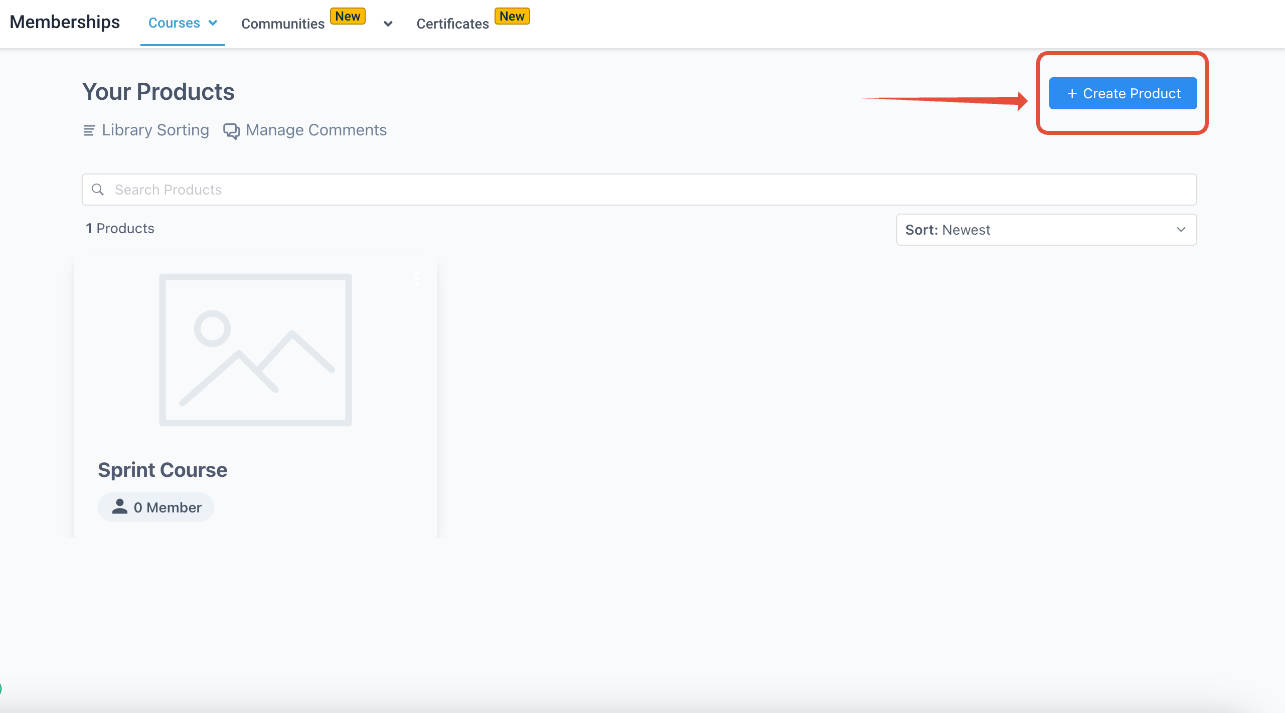
Go to Memberships > Courses > Products > Create Product > Import.
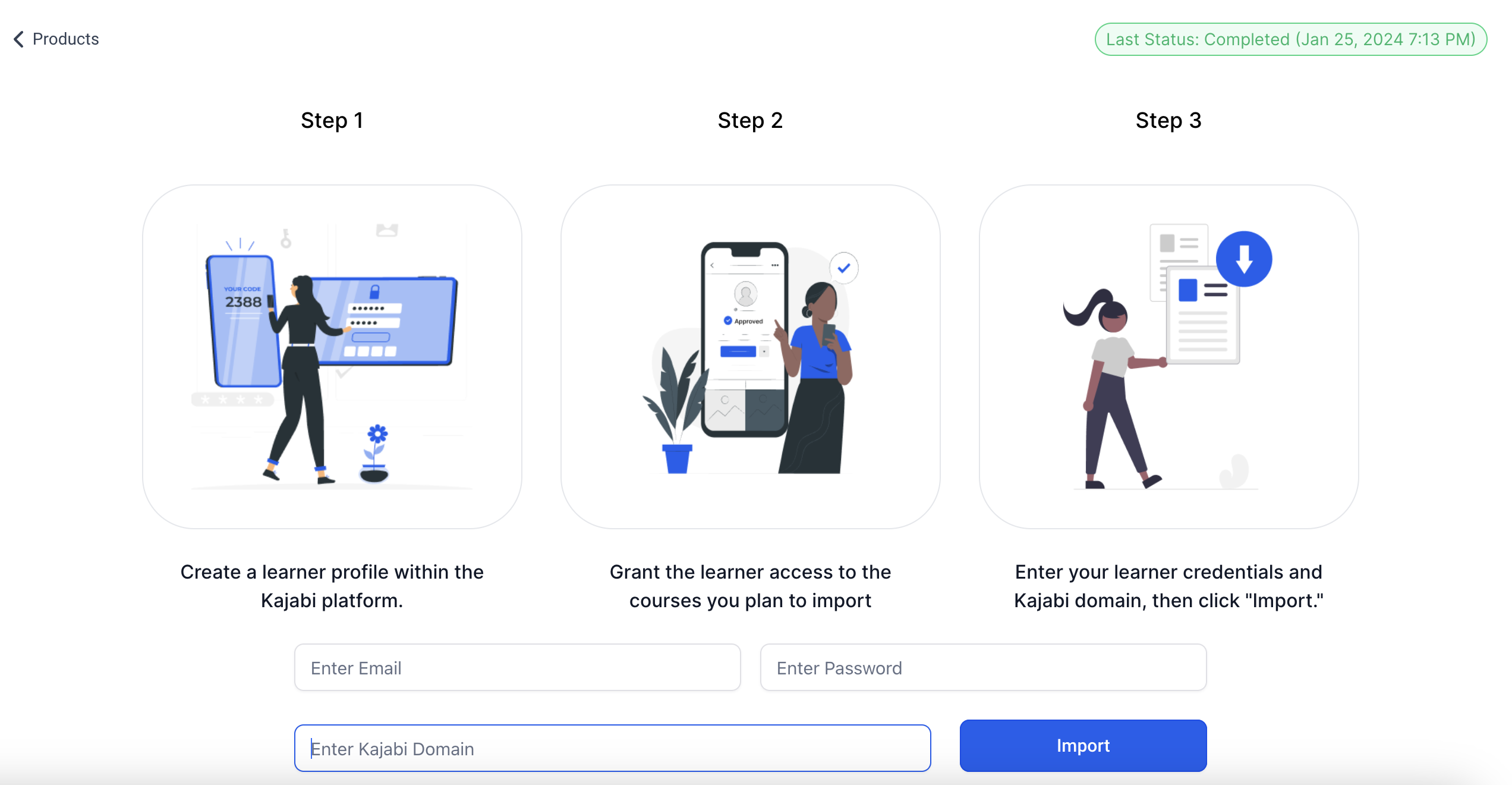
Create a learner profile on the platform you're importing from. Use a new contact you create specifically for this, not an existing student account.
Back on the Course Importer screen, enter the email and password for that learner account.
Enter the learner domain, meaning the domain where students normally log in to view course content.
Click Import.
Once the import starts, the importer logs in using the learner credentials you provided and begins pulling in courses.
Progress is shown on screen, but click Refresh periodically to get an accurate status, it won't always update automatically.
Click Cancel if you need to stop the import. A canceled import is treated as user-canceled, and starting again will begin from scratch rather than resuming.
You can switch tabs while the import runs, but don't close the tab or browser window or the import will be interrupted.
All videos, images, and text content migrate for both courses and their lessons.
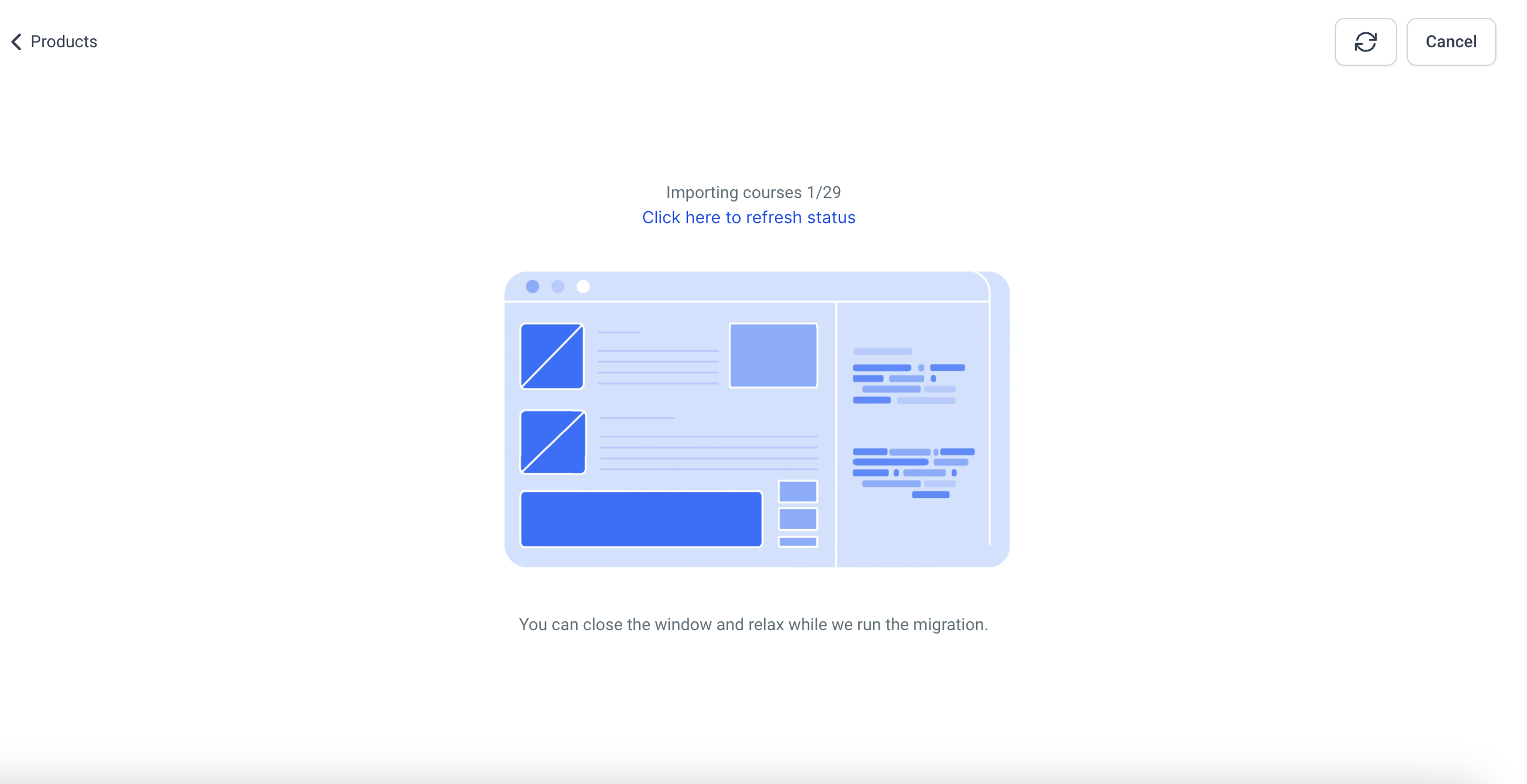
Once the import finishes, the course appears under Products. The Last updated field under the Import section shows when the import last ran, which is useful if you re-run an import later and want to confirm it actually refreshed.
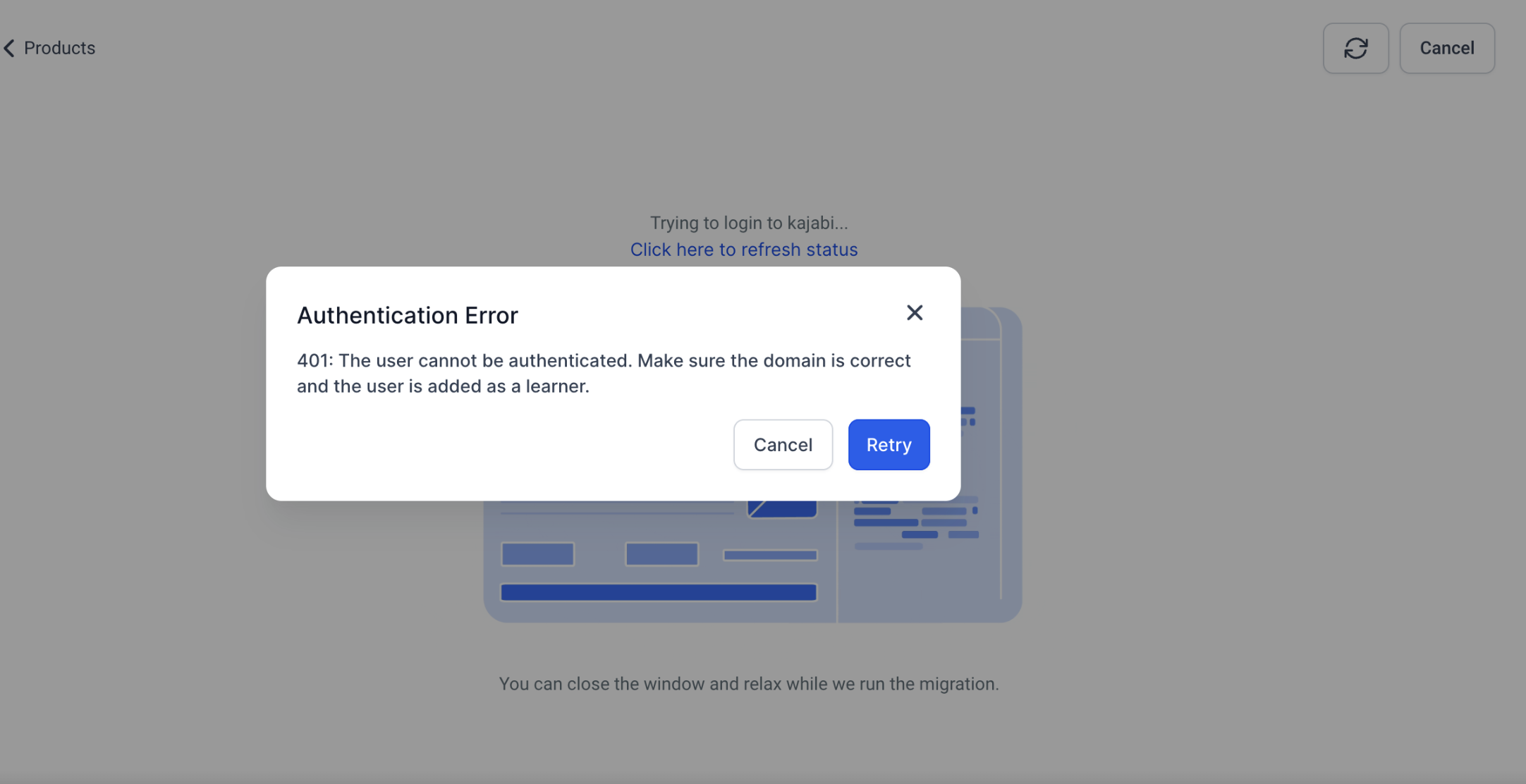
Authentication error: this means the domain or credentials you entered don't match. Double-check both before trying again.
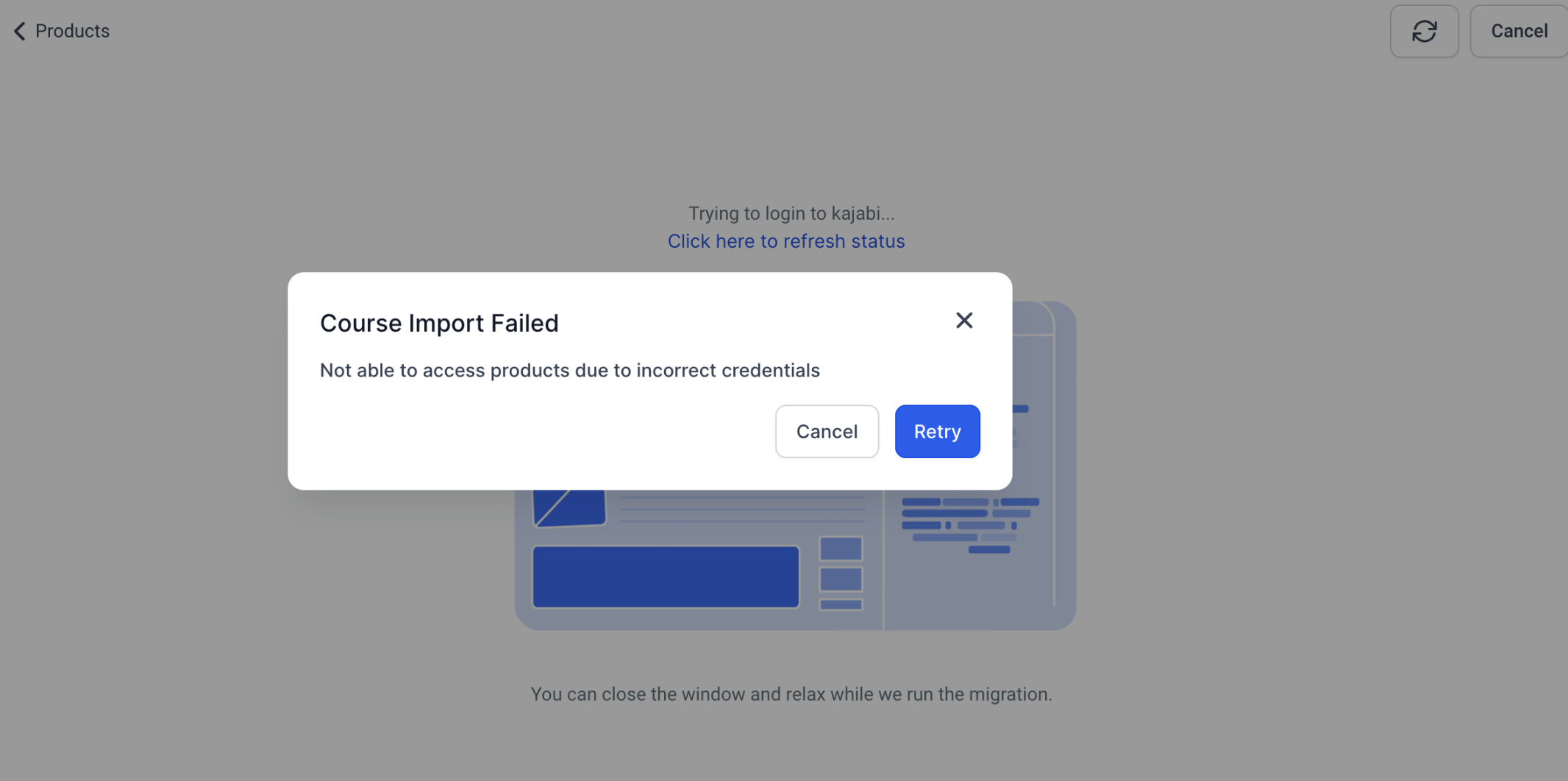
"Course import failed" error: a few things commonly cause this:
Wrong theme selected. Confirm you're importing into a compatible theme.
Bad credentials. Re-verify the learner email and password.
Invalid domain. The domain needs to resolve to a working login page at /login (for example, yourdomain.com/login should load the login screen).
Retry instead of restarting. If an import fails partway through, click Retry to resume from where it left off rather than starting over.
Cancellations always restart from zero. If you cancel an import yourself, the next attempt starts fresh rather than resuming.
If you've already uploaded a video or audio file to Media Storage, you don't need to upload it again just to use it in a course lesson. Import from Media Storage lets you attach an existing file directly to a lesson, which keeps your media library organized and avoids duplicate copies of the same file sitting around.
Go to Memberships > Courses > Products.
Open the course you want to edit.
Navigate to the lesson you want to update, then click to create a new lesson or edit an existing one.
Click Import from Media Storage.
Click Click to select from media storage to browse your library and choose the audio or video file you want.
Select the file and click Insert Media.
Only audio and video files can be imported this way, images aren't supported through this flow. Importing doesn't create a second copy of the file: the lesson references the same file already sitting in Media Storage, so you can reuse the same video or audio clip across as many lessons or courses as you like without cluttering your storage. Saving your changes stores them, but learners only see the update once the lesson is published according to your course's visibility settings.
If you don't see the import option, confirm you're inside the lesson editor (not just viewing the lesson) and that your user role has access to both Media Storage and Memberships/Courses.
Import Content from Another Course lets you copy lessons, modules, submodules, or an entire course structure from one existing course into another, so you're not rebuilding similar training or patient-education material every time you launch something new. This is especially useful for reusing onboarding material, keeping related courses consistent, or spinning up a new course from a proven template.
What gets copied:
Lesson titles and structure
Module and submodule hierarchy
Videos and attached media
Thumbnails
Descriptions and formatted content
Quiz questions
Assignments and resources
Good to know before you import:
Imported content is copied, not linked. There's no live connection back to the original course.
Later changes to the original course do not flow through to the imported copy, and edits to the imported copy don't touch the original.
Existing content in the destination course is never overwritten. Imported items are simply added alongside what's already there.
Always review the imported content before publishing it or making it visible to learners.
Go to Memberships > Courses > Products and open the course you want to import content into.
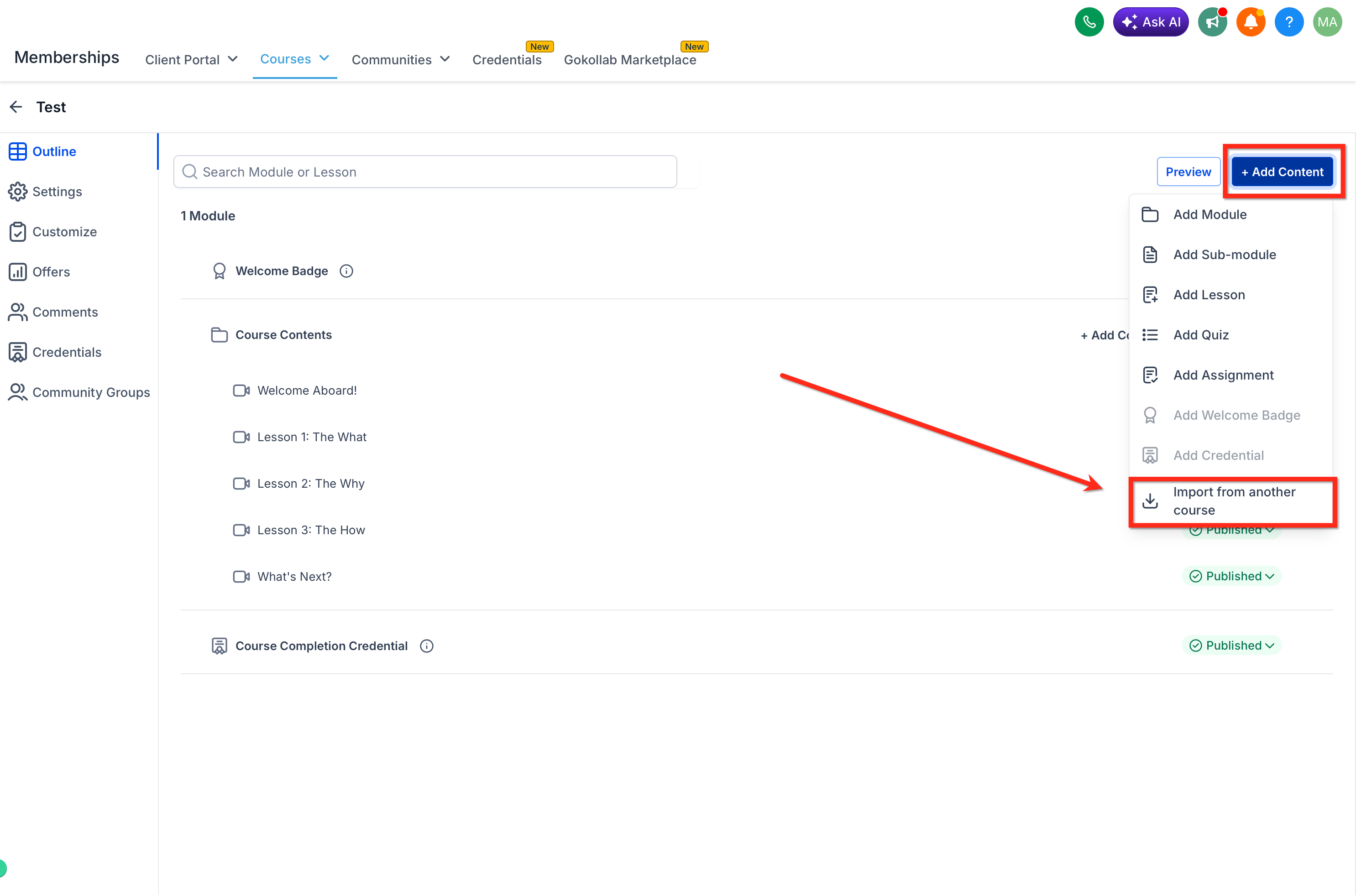
Inside the Course Builder, click + Add Content, then select Import from another course from the dropdown.
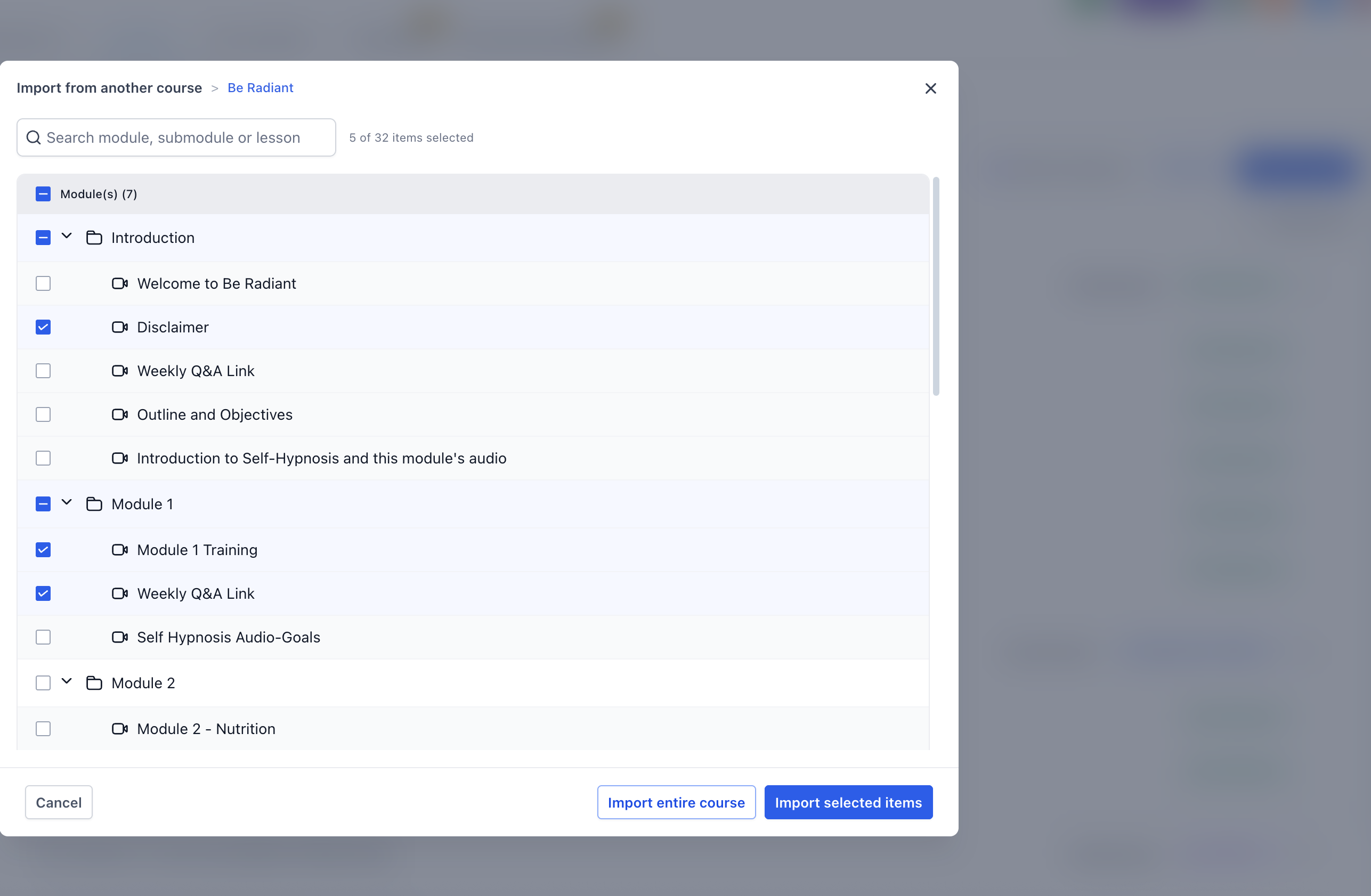
In the modal, search for or browse to the course you want to pull content from, then click Select on that source course.
Choose what to bring over: individual lessons, specific modules or submodules, or the entire course structure. Click Import selected items or Import entire course, depending on your choice.
A progress modal tracks the import. It runs in the background, so you can keep working while it finishes. Once it's done, review the content inside the destination course.
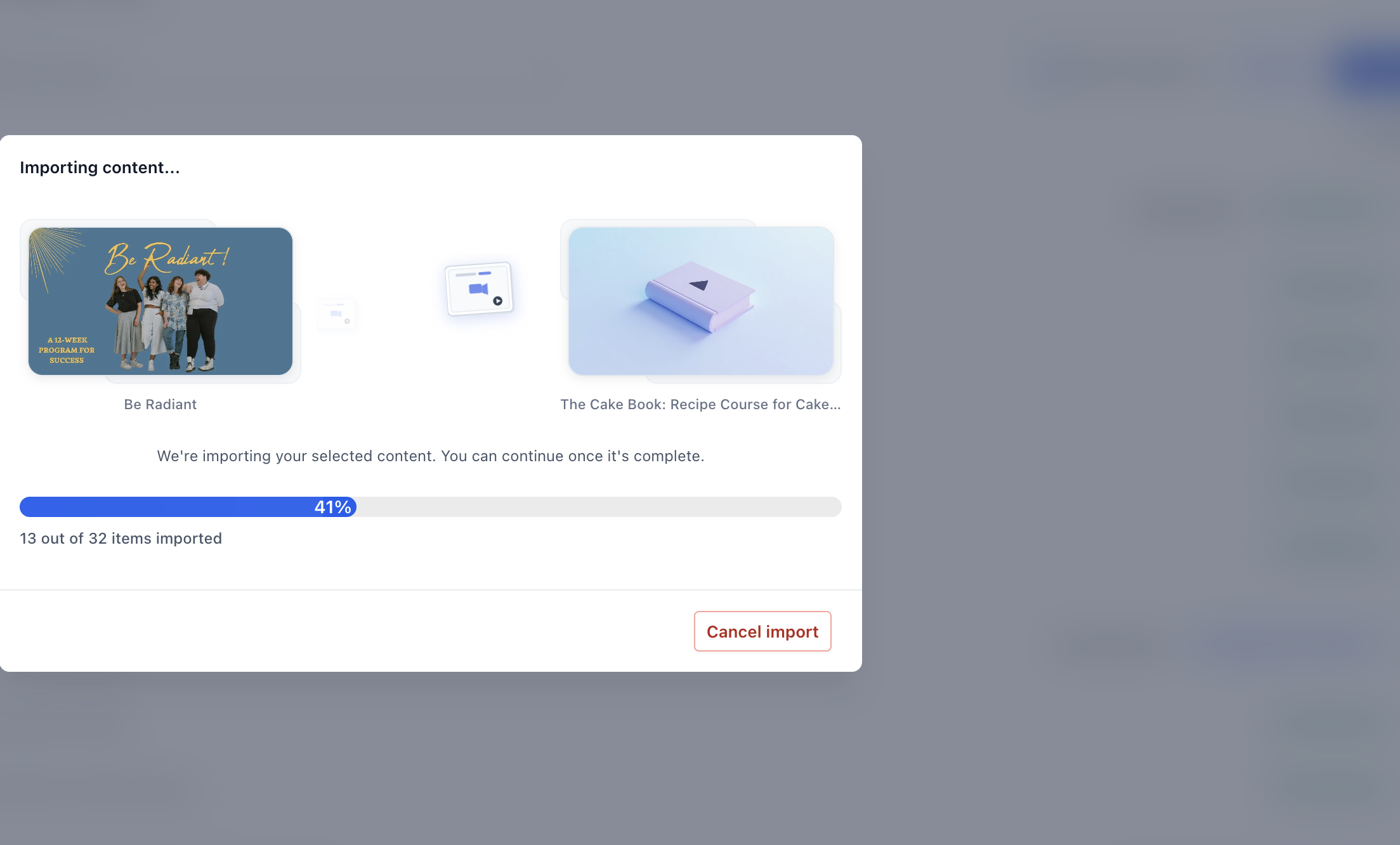
Confirm that the imported modules, submodules, lessons, videos, thumbnails, descriptions, quiz questions, and assignments all look correct before publishing.
Common use cases: reusing an onboarding module across several courses, building a few similar courses from one shared template, assembling a bundled course program that repeats the same foundational lessons, or copying proven lessons into a refreshed version of an existing course. Note that quiz questions copy over as part of the course structure, but if you need to build new quizzes from scratch, that's handled in Quiz Builder. Any enrollment or completion automations tied to your courses live in Workflows and aren't affected by content imports.
If your practice is still running an older Legacy Membership setup, migrating to Client Portal gives your learners a single, unified login that covers courses, communities, affiliate access, and more, plus a more modern settings experience for managing all of it.
Go to Memberships.
Open Courses.
Navigate to the settings area for your site.
Review the migration message shown in the settings interface.
Follow the on-screen steps to move your site over to Client Portal settings.
After migrating, review your branding, domain, email settings, and app settings to confirm everything still matches your original setup, migrations occasionally surface settings that need a second look.
You can also start this migration from Memberships > Settings > Site Settings.
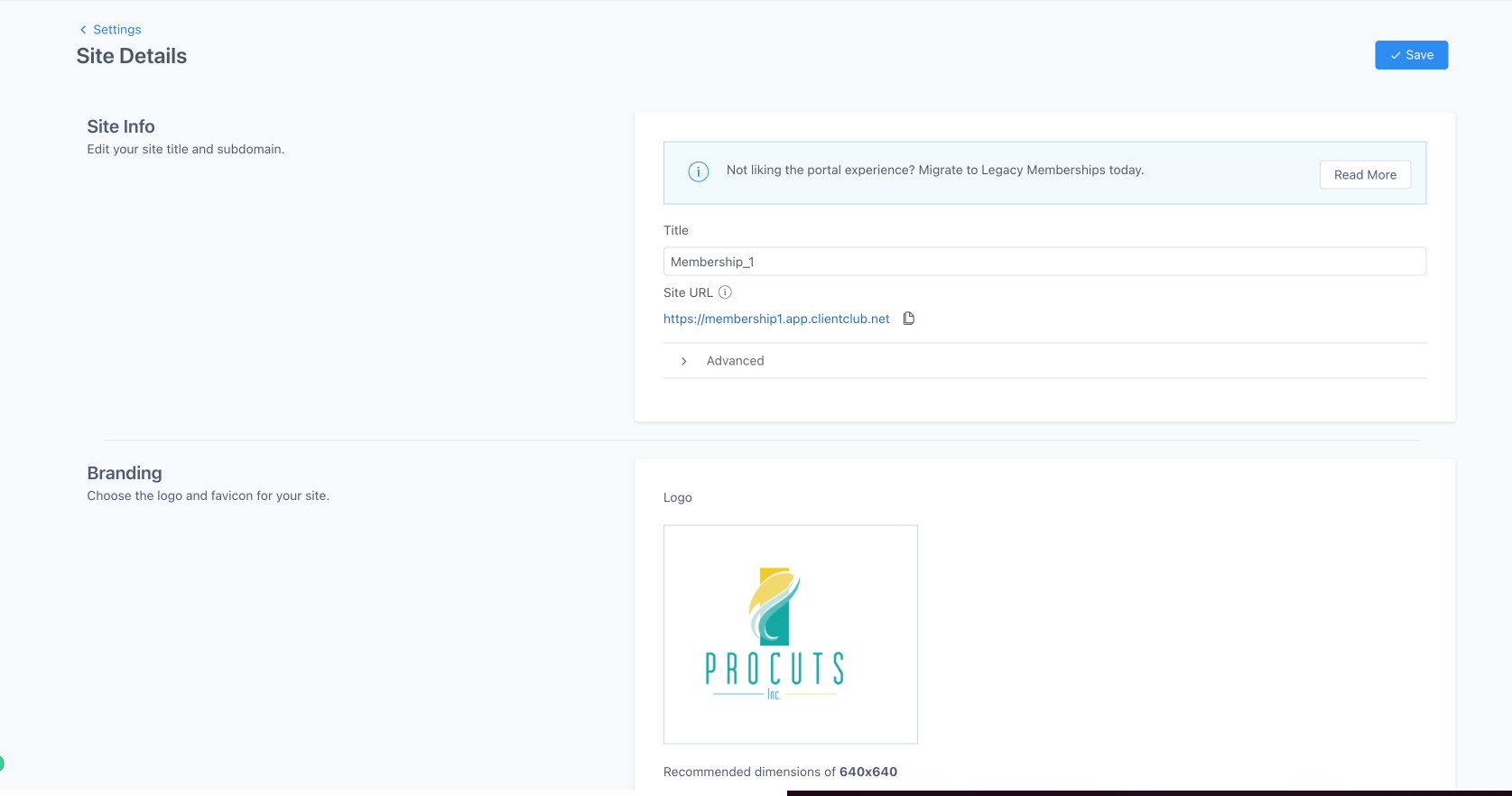
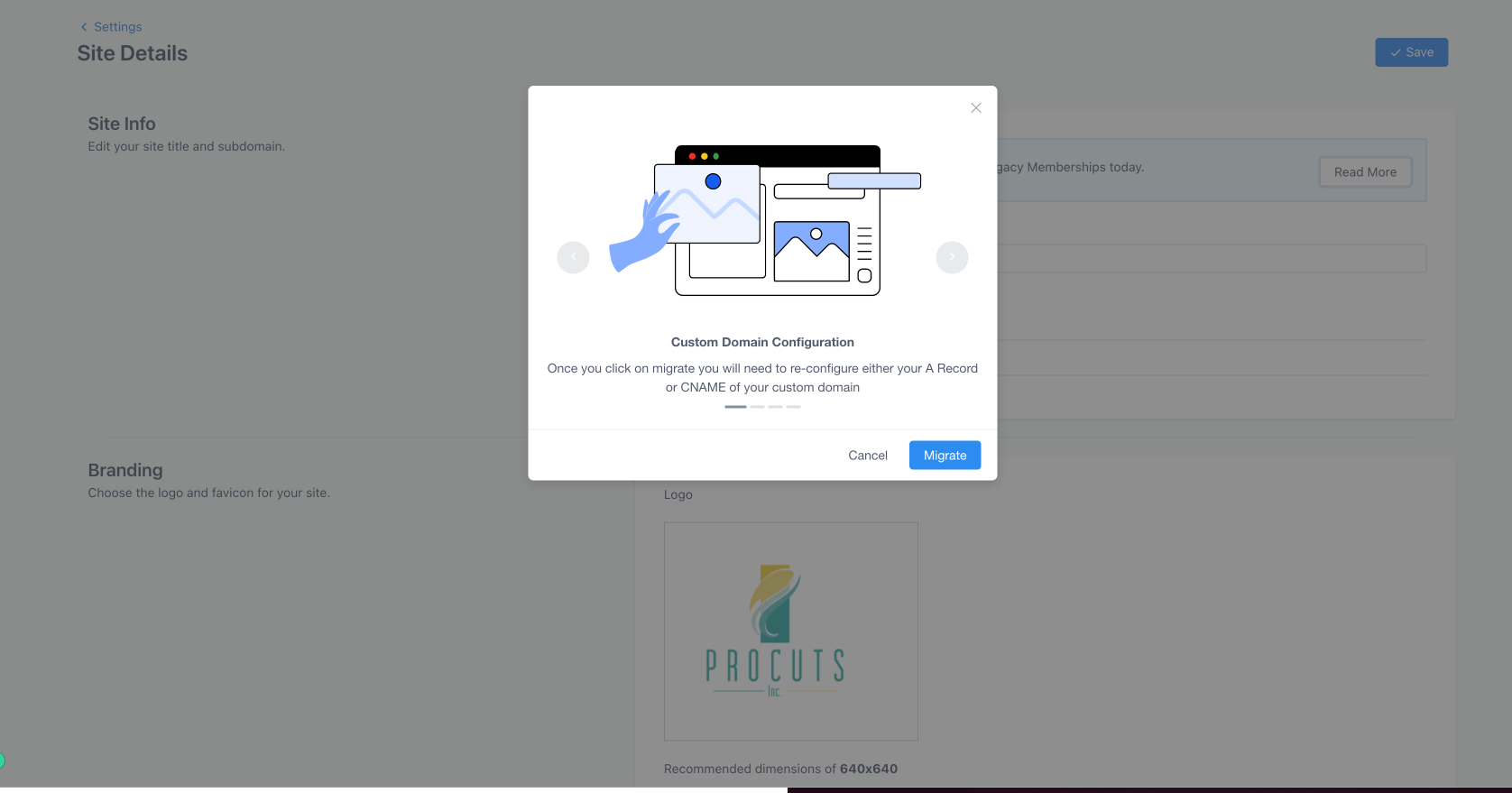
Follow the on-screen instructions carefully during migration to make sure the transition goes smoothly.
What changes for your learners: existing learners can keep using their Legacy Membership login credentials inside the new Client Portal, they won't need to create new accounts. All the functionality from Legacy Membership carries over, plus newer additions like notifications and subscription management. If your old membership setup relied on a Progressive Web App (PWA), note that the old PWA isn't compatible with Client Portal. A dedicated native mobile app (with white-labeling support) is planned to replace it.
Does the Kajabi Importer bring in quizzes and assignments? No. It only imports published lessons, meaning videos, images, and text content. Quizzes, assignments, and assessments need to be rebuilt manually after the import.
Why did an earlier Kajabi import seem to miss lessons that show up now? Import reliability has improved over time, including better detection of lessons hidden behind "Show More" buttons and nested categories. If you suspect an older import was incomplete, running it again can pick up content that was missed the first time.
Does importing from Media Storage create a duplicate copy of my file? No. The lesson references the existing file in Media Storage rather than creating a new copy, so you can reuse the same video or audio across multiple lessons without extra storage clutter.
Can I import just one lesson from another course instead of the whole thing? Yes. When importing content from another course, you can choose individual lessons, specific modules or submodules, or the entire course structure.
Will importing content from another course overwrite what's already in my destination course? No. Imported content is added alongside your existing content. Nothing already in the destination course gets overwritten.
If I edit the original course later, does the imported copy update automatically? No. Imported content is copied, not linked. Changes to the original course afterward don't carry over to the imported copy, and vice versa.
Do my learners need new login credentials after migrating to Client Portal? No. Learners can continue using their existing Legacy Membership credentials inside Client Portal.
What causes a Kajabi import authentication error, and how do I fix it? It usually means the domain or login credentials you entered don't match what's on the source platform. Re-verify both and try again.
Can I cancel a Kajabi import partway through, and what happens if I do? Yes, click Cancel to stop it. A canceled import is treated as user-initiated, so if you start importing again, it begins from the beginning rather than resuming.
Where do I manage course enrollment automations or quiz building after content is imported? Enrollment and completion triggers/actions for courses are managed in Workflows. Quizzes are built and edited in Quiz Builder. Both work with content brought in through any of the import methods above.
