Assessments (also called quizzes) let you test how much your learners retained from a course, whether that's a staff training module, a patient education series, or a certification program you sell. You can add pass/fail scoring, multiple question types, and review the results for every learner from the Memberships area.
This feature is still evolving, so expect refinements over time, but the core workflow below is stable and ready to use.
Add interactive checkpoints to any lesson, category, or course product.
Set a passing grade to create a real knowledge benchmark before someone is considered "certified" or "trained."
Give learners real-time feedback on what they got right and wrong.
Allow multiple attempts and let learners review past answers.
Track every submission in analytics, filterable by product and result.
Reinforce course material and keep learners engaged instead of just clicking through video lessons.
This guide covers assessments built specifically for Courses inside Memberships. For the standalone quiz builder used to create lead-gen or personality-style quizzes outside of a course, see the Quiz Builder collection.
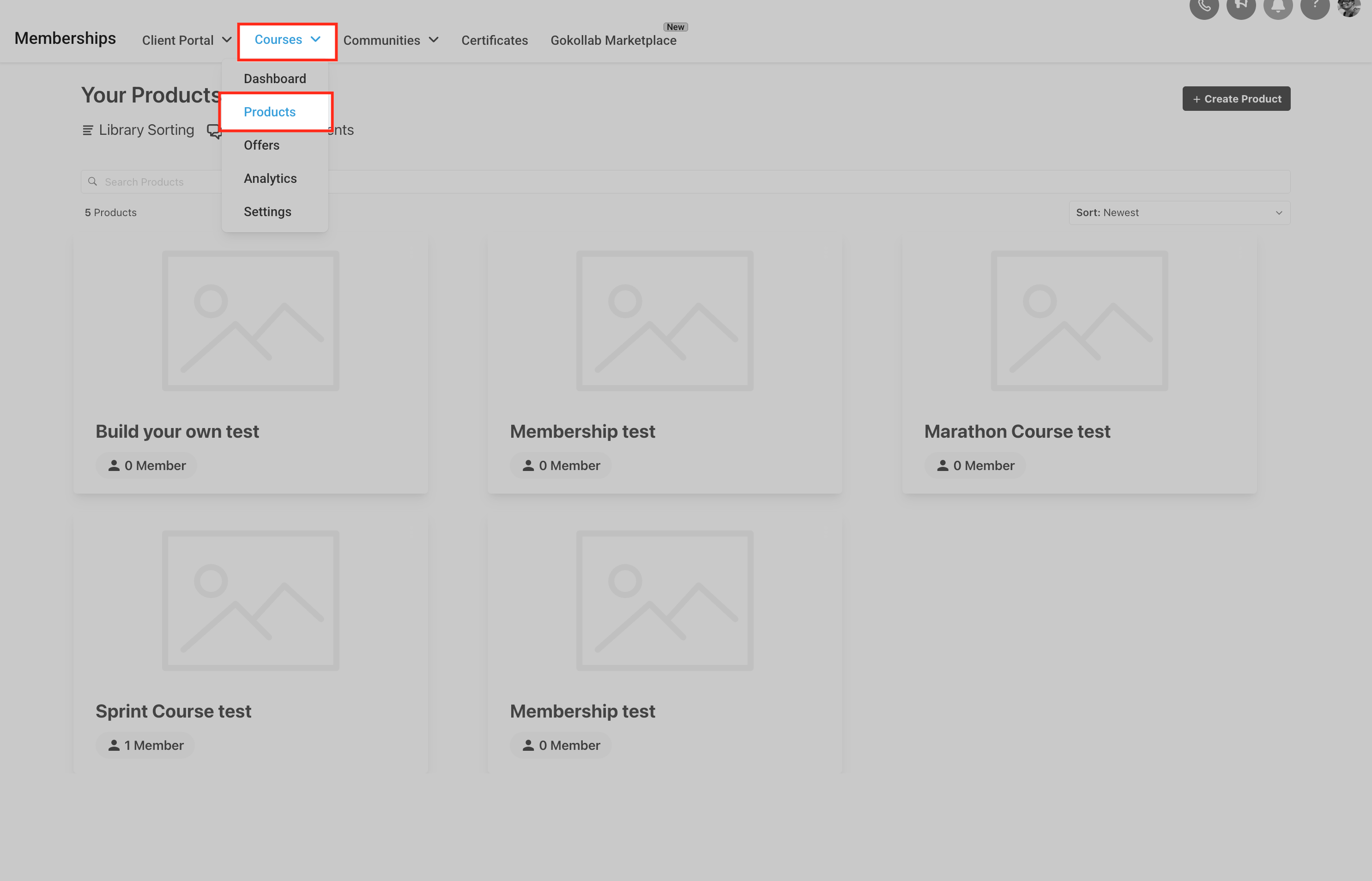
Go to Marketing > Memberships, then from the top dropdown select Courses > Products. This opens your product library where all existing courses live.
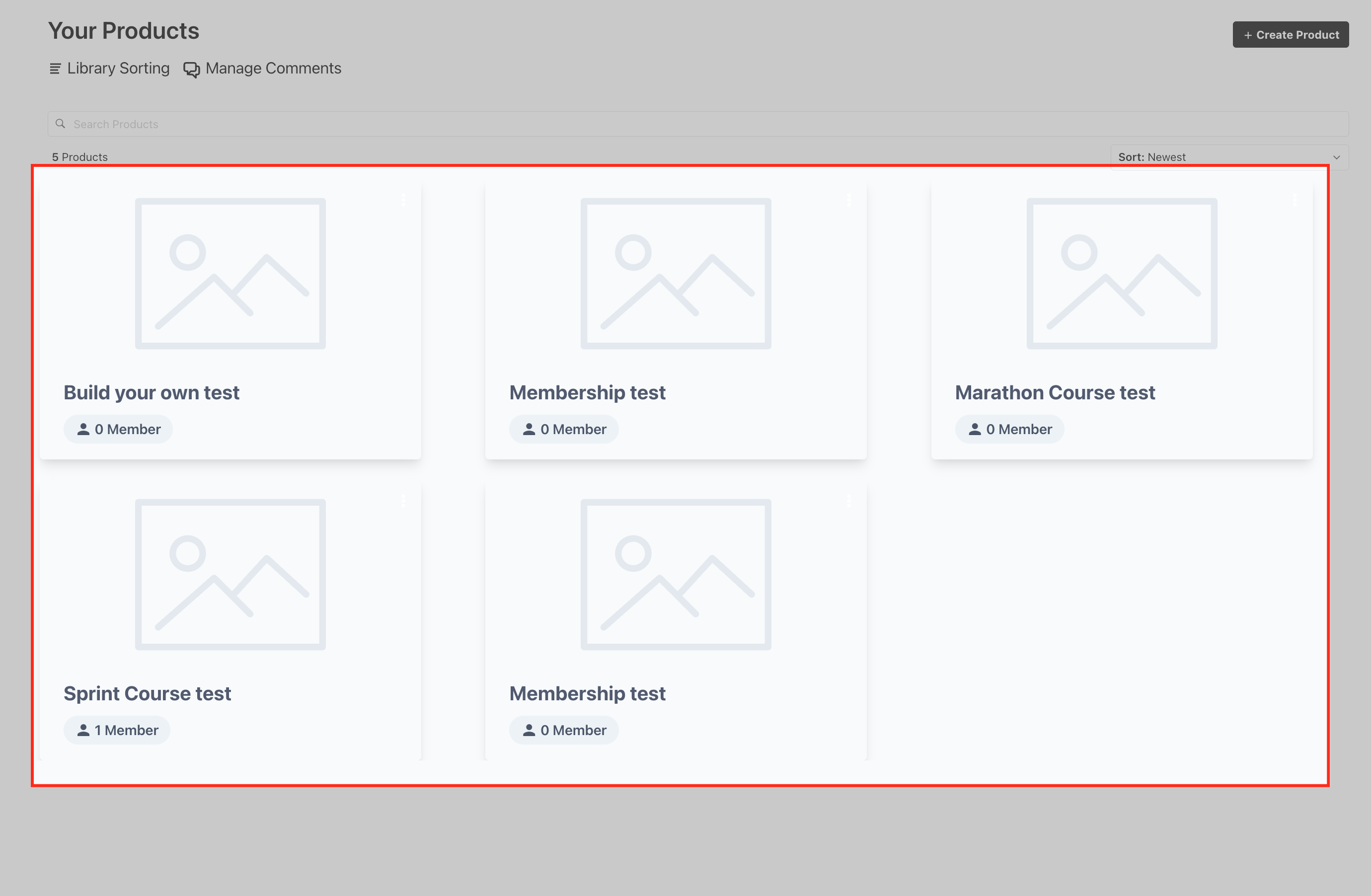
You'll see a gallery of every course product, each tile showing the course title and member count. Click into any course to start editing it or adding an assessment.
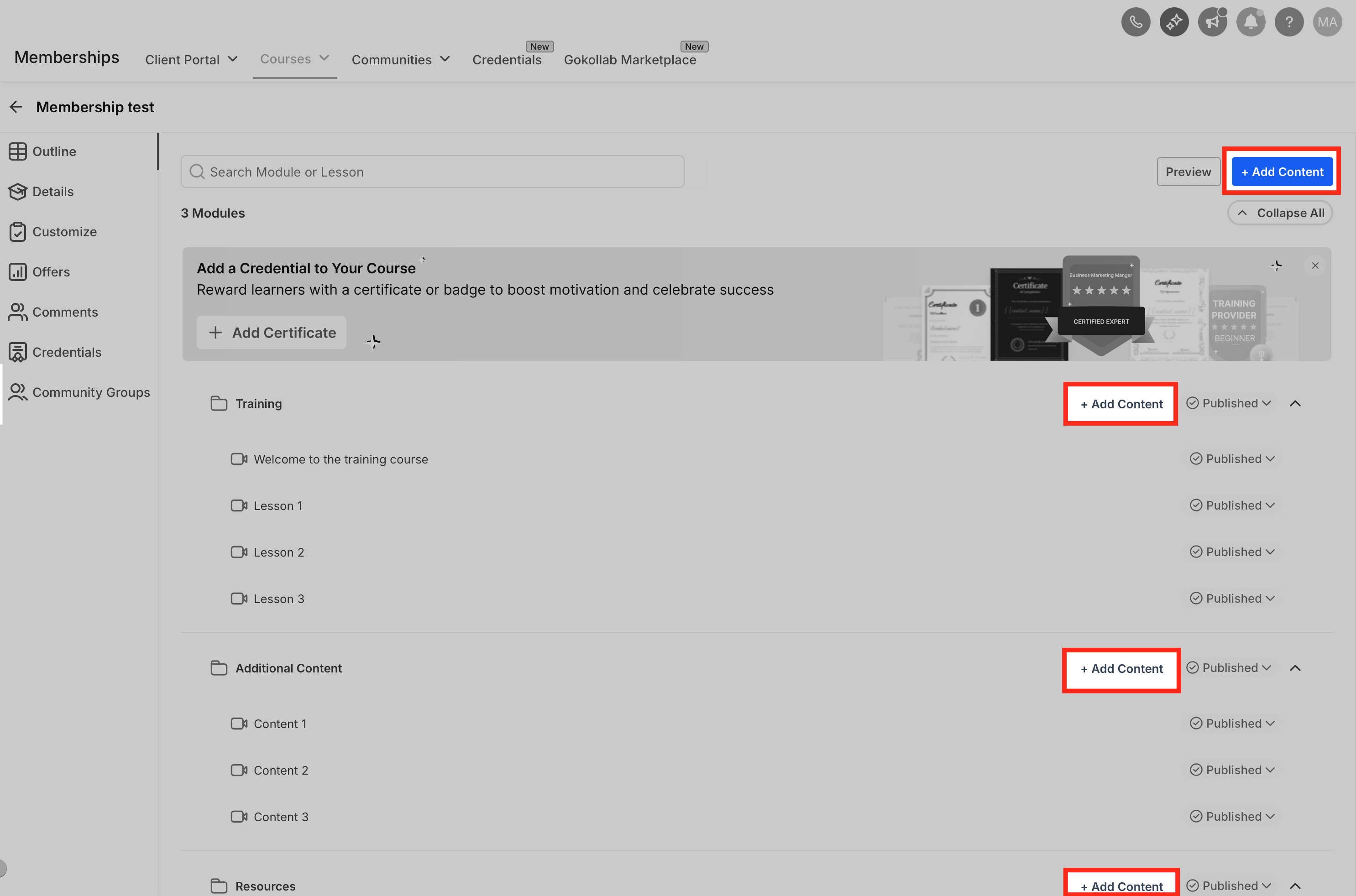
Inside a course, the Product Structure lets you organize lessons and assessments by category. Click + Add Content next to any category, or from the top right of the builder.
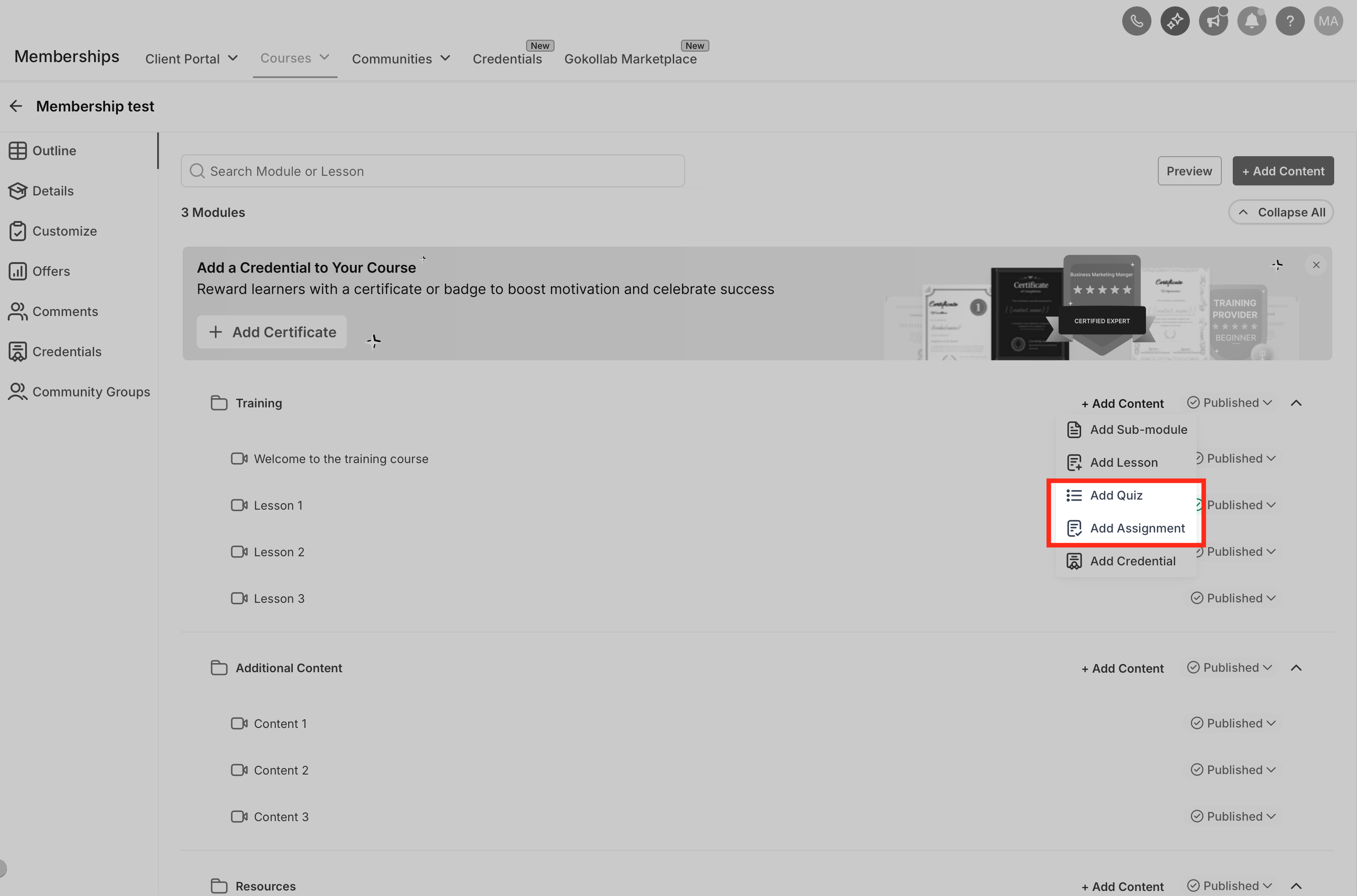
Clicking the plus icon opens a content dropdown. Choose Add Assignment or Add Quiz to create a new one inside the selected category.
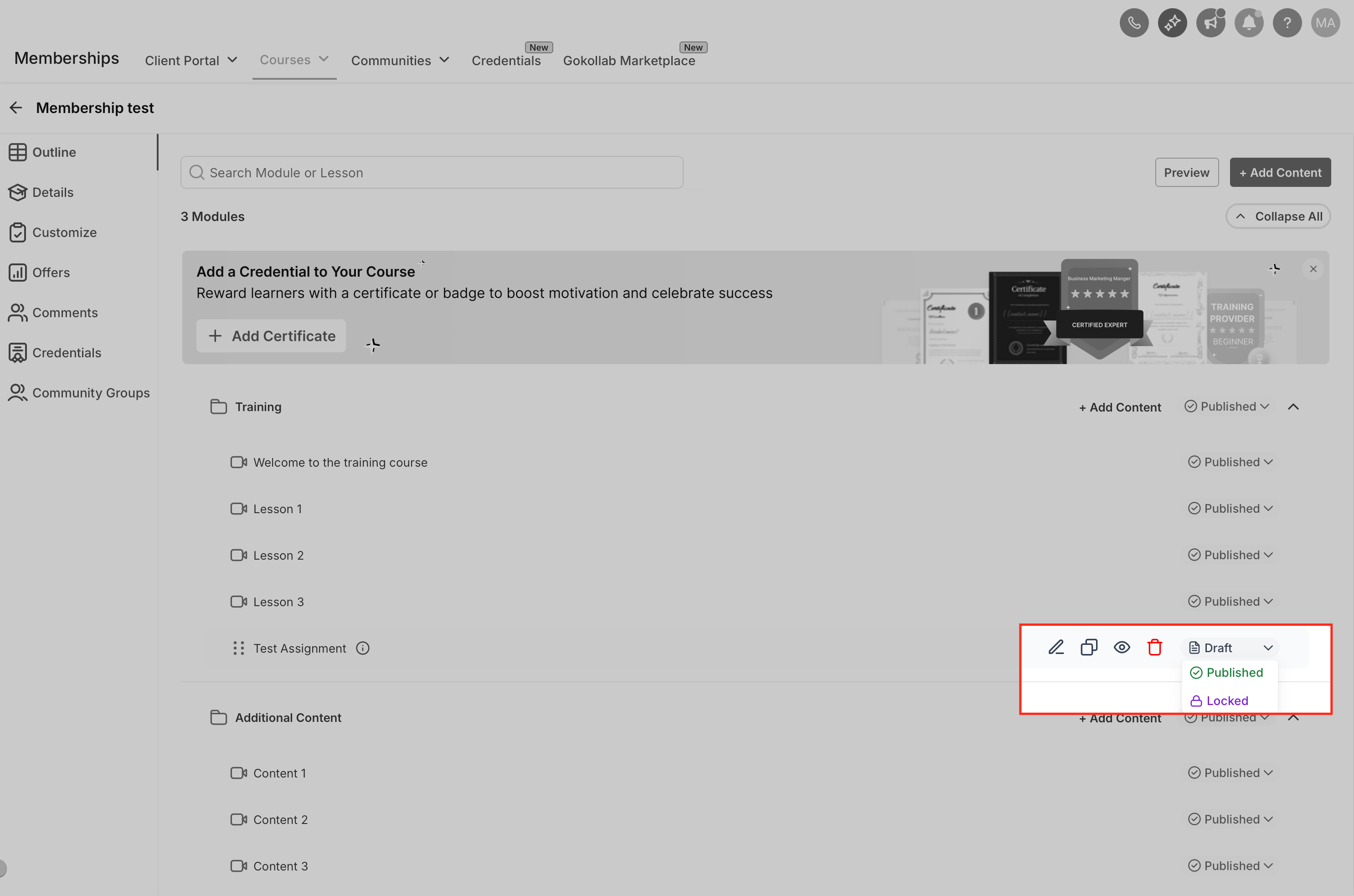
Once created, the item appears in your content list. Use the action icons next to the title to change its status (Published, Draft, Locked), edit it, or delete it.
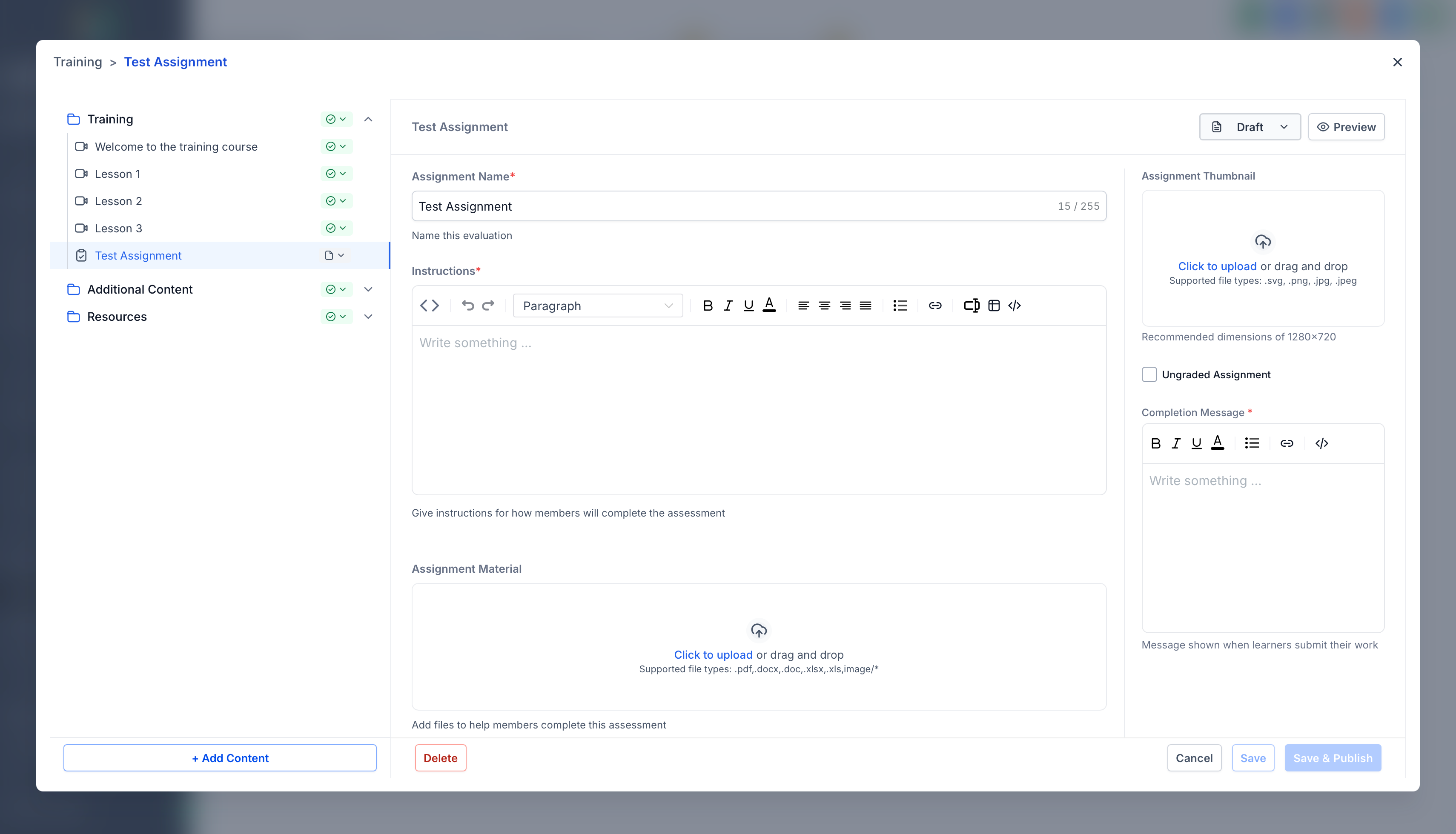
If you choose Add Assignment, click the pencil icon to open the assignment editor. Give it a title, which is what learners will see. If the assignment doesn't need grading, enable Ungraded Assignment so people can submit work without a score attached.
You can upload a thumbnail image to help the assignment stand out visually, add clear guidance in the Instructions field (with formatting and links), and use Upload Templates to attach supporting files (.docx, .pdf, .pptx, etc.) that learners can download and fill out. The Confirmation Message field lets you customize what learners see right after they submit, whether that's next steps, a thank-you note, or encouragement.
If you choose Add Quiz, you'll land in the quiz configuration editor.
Input a Title for the quiz, then save. This is what learners will see.
Select the Assessment type, then click Quiz.
Decide if the quiz requires a passing grade. Toggle "This quiz requires passing grade" on if you want learners to hit a minimum score to pass.
Input a passing grade percentage if you enabled the toggle above. This defines what counts as a successful completion.
Upload a Quiz Thumbnail (optional) to give the quiz a branded, recognizable visual.
Write a Pass Confirmation Message and a Fail Confirmation Message. These display to learners based on how they scored, and support text formatting, links, and embedded content, so you can add encouragement or point them toward more resources.
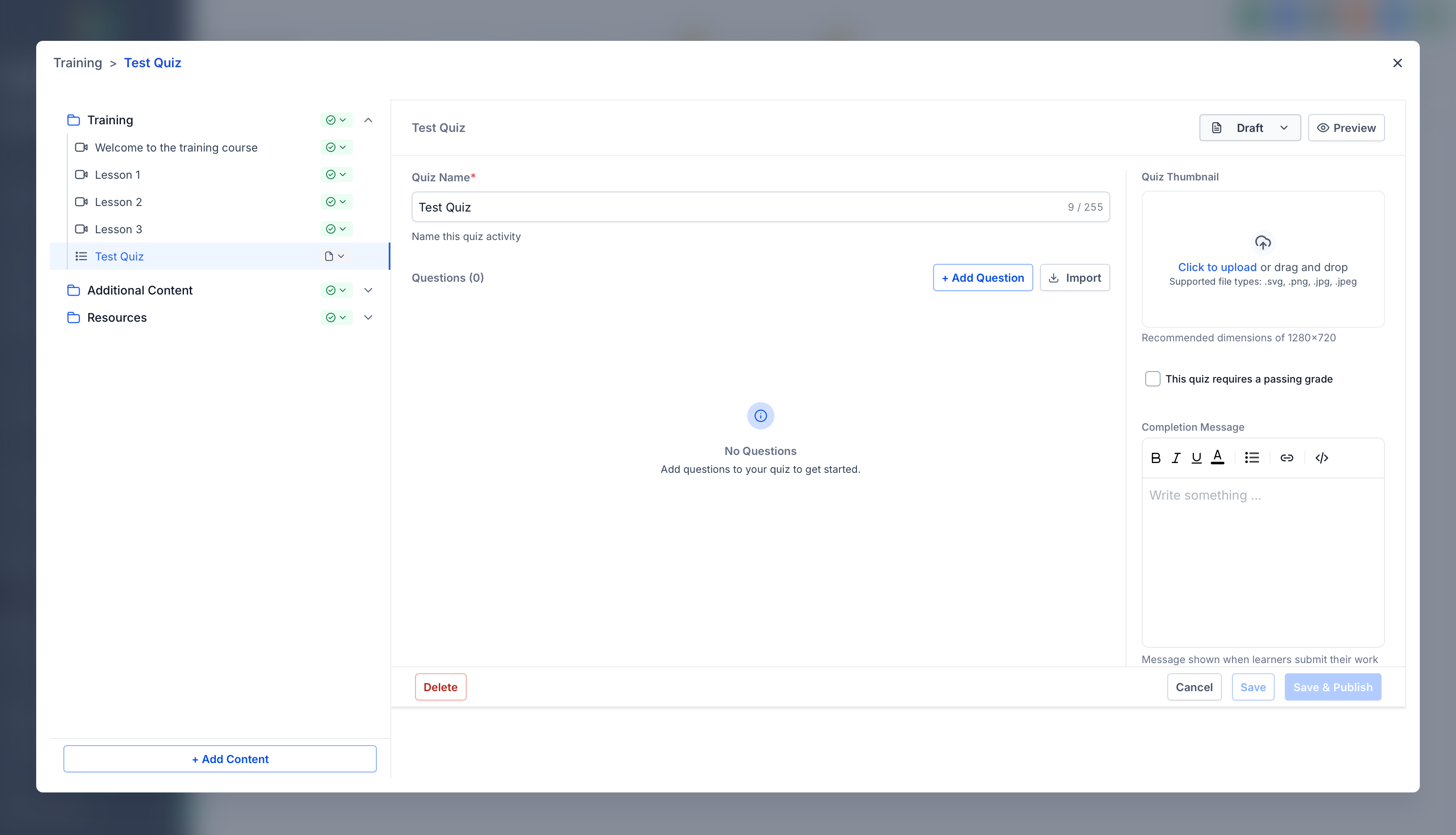
Click Add Question to start building the quiz body.
Select the question type. Choose single choice (only one correct answer) or multiple choice (more than one answer can be correct).
Input the question, then click Add choice for each possible answer.
Mark the correct option(s) with the tickmark in the Correct Option box under each answer. You can add as many answer choices as you'd like, and mark one or more as correct depending on the question type.
Important: if you don't mark a Correct Option on a question, the quiz will treat any answer a learner gives as correct. Always mark at least one correct option per question, or your scoring will be meaningless.
You can also add an explanation to a question, describing why an option is correct or incorrect. That explanation is shown to learners after they submit, when applicable.
Click Save to store your changes. When you're ready to make the quiz live, open the status dropdown on the assessment and select Publish.
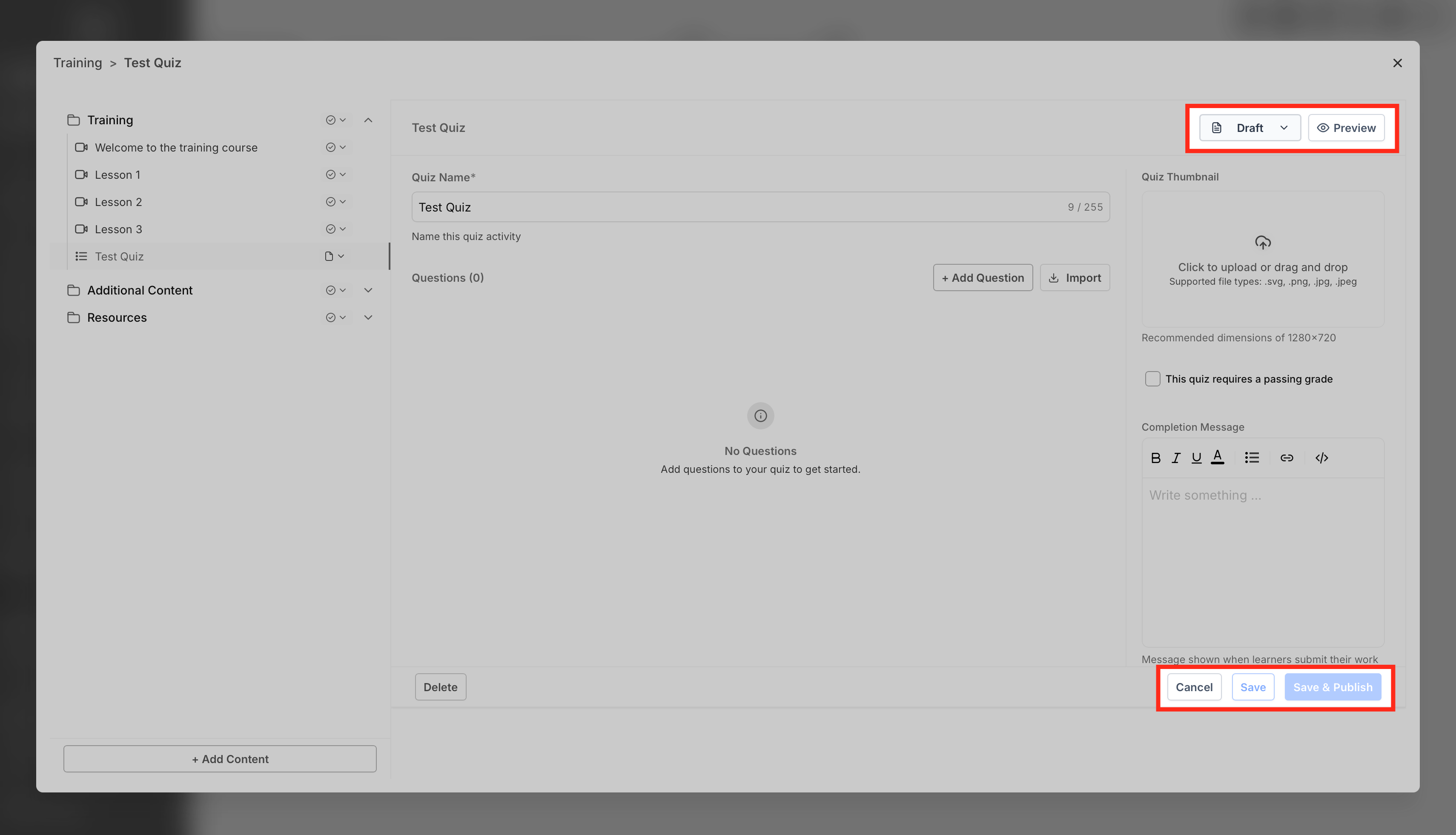
You can return anytime to edit an assessment, add new questions, or create additional assessments for the same course.
What a learner sees after finishing a quiz depends on whether you required a passing grade:
If a passing grade is enabled: the learner sees their score immediately, along with which of their answers were correct and which were wrong, but not which option was the correct one.
If a passing grade is not enabled: the learner sees their score and which option was actually correct for each question.
If you added an explanation to any question, that explanation displays to the learner at this point too, regardless of the passing grade setting.
If a learner logs back in with the same course credentials after already taking a quiz, they'll see their most recent score and the option to retake it. Clicking Review on a past submission lets them see exactly what they answered last time, alongside which choices were correct.
Use the Analytics tab to see how every learner performed across all your assessments, and export the raw data when you need it for reporting or record-keeping.
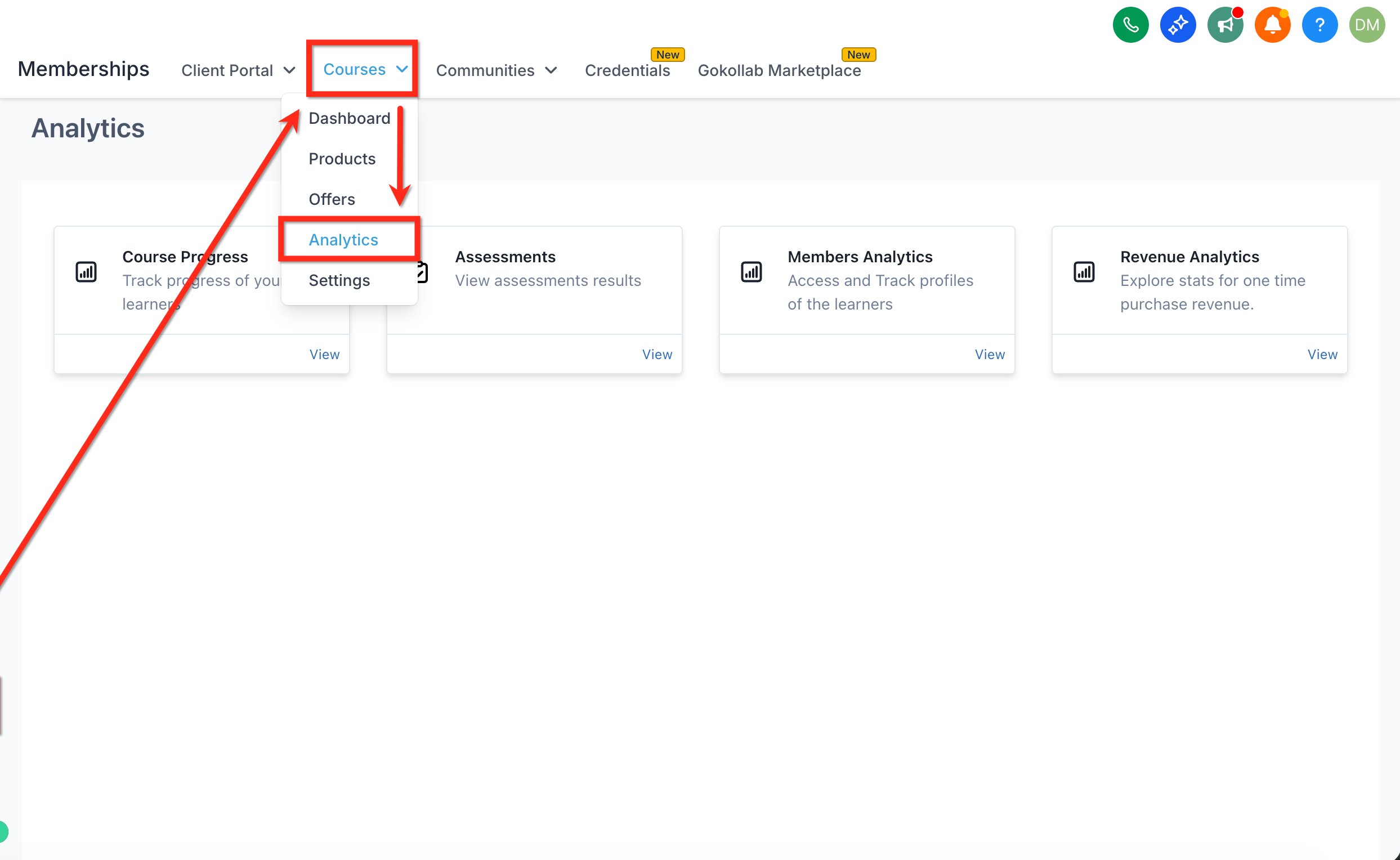
Go to Memberships, then from the Courses dropdown in the top navigation, click Analytics.
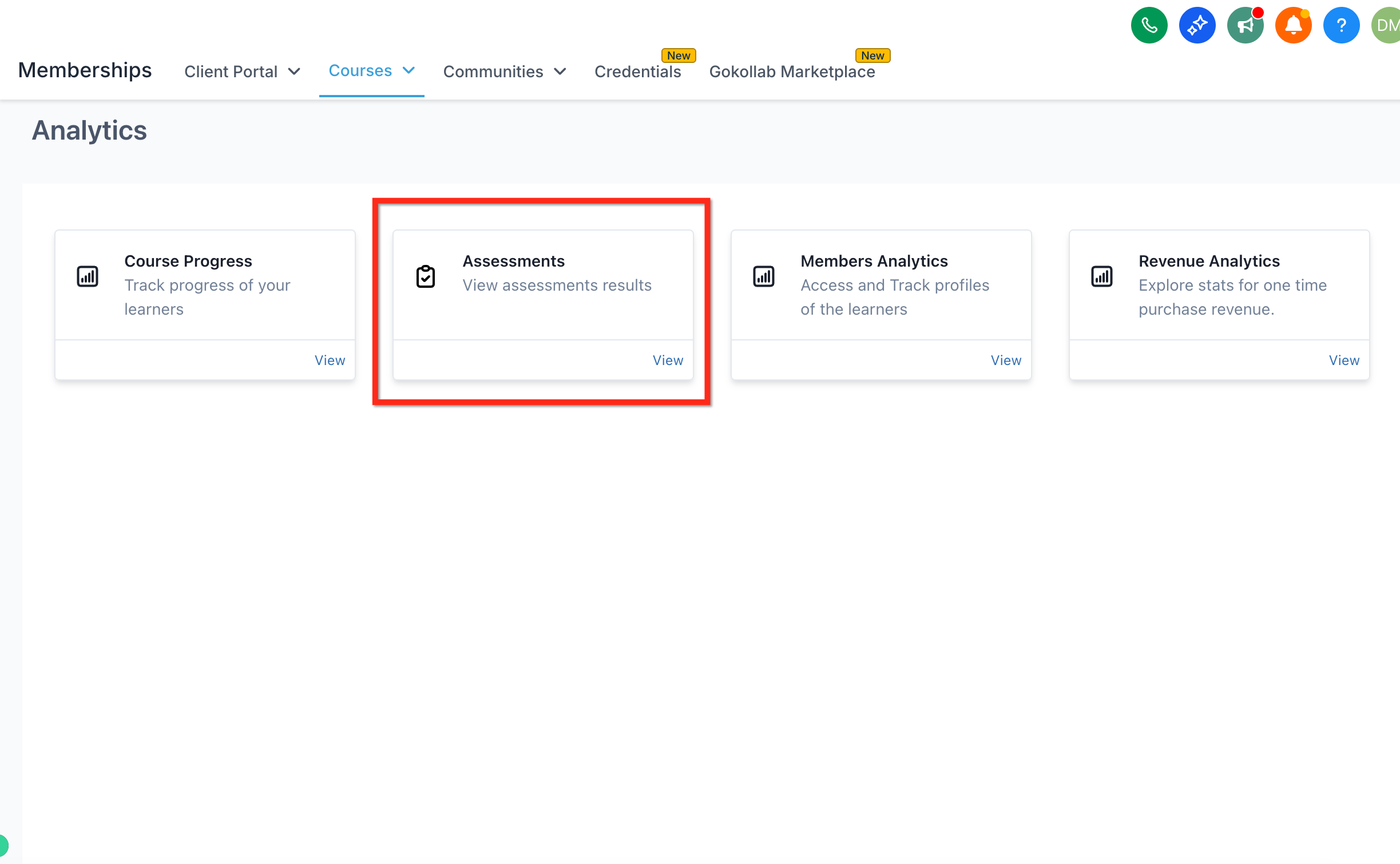
Click Assessments to view results for every assessment across every course.
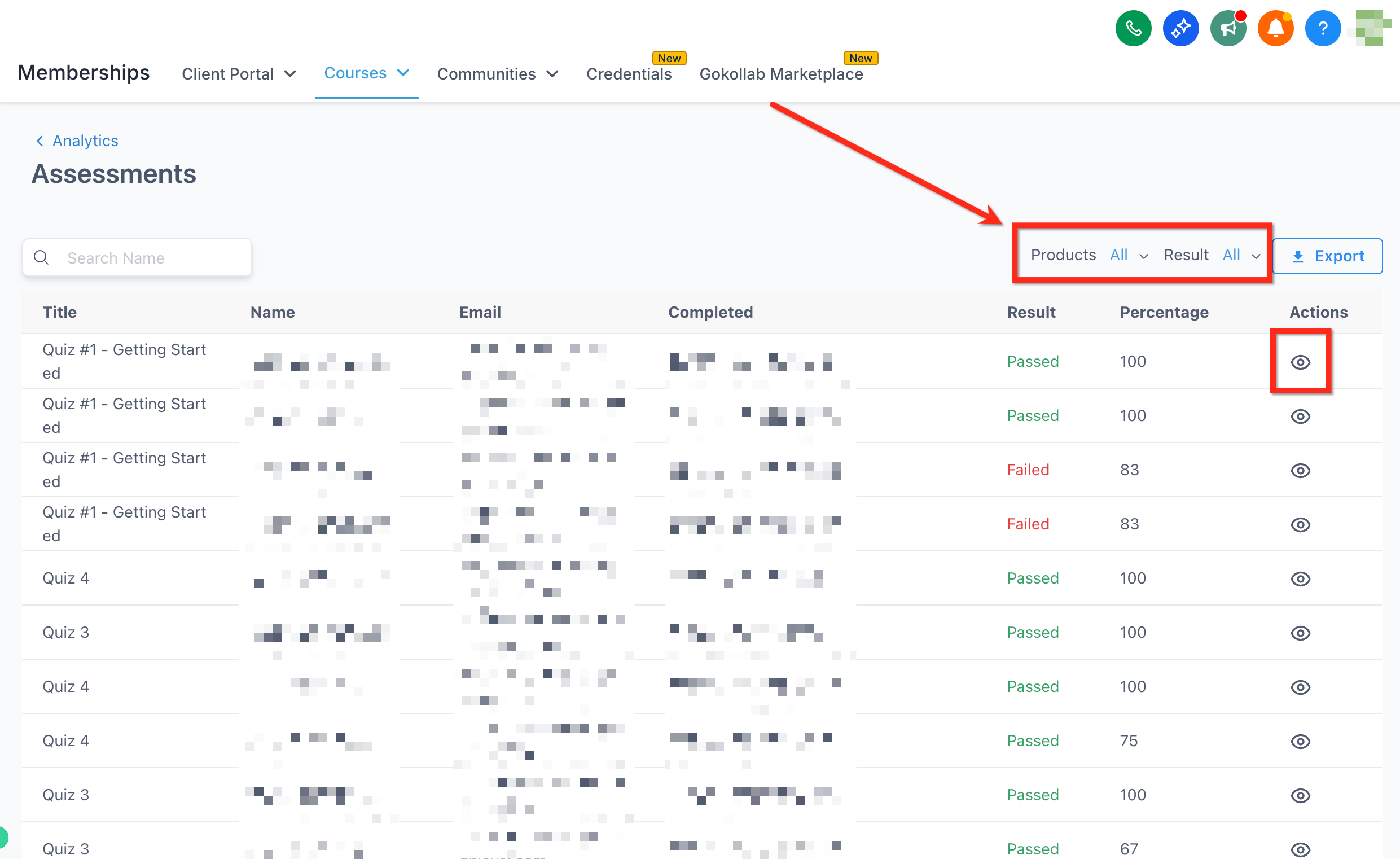
Apply filters. Filter by Product to narrow results to one course, or by Result (Processing, Passed, Failed) to see who's still in progress versus who passed or failed. Click the eye icon next to any row to view that learner's individual answers and score.
Export the report. Click Export in the upper-right corner; your active filters carry over into the exported file.
Smaller result sets (500 rows or fewer) download instantly in your browser.
Larger result sets (more than 500 rows) trigger an email with a secure link to download the file. That link expires after 24 hours, so download it promptly.
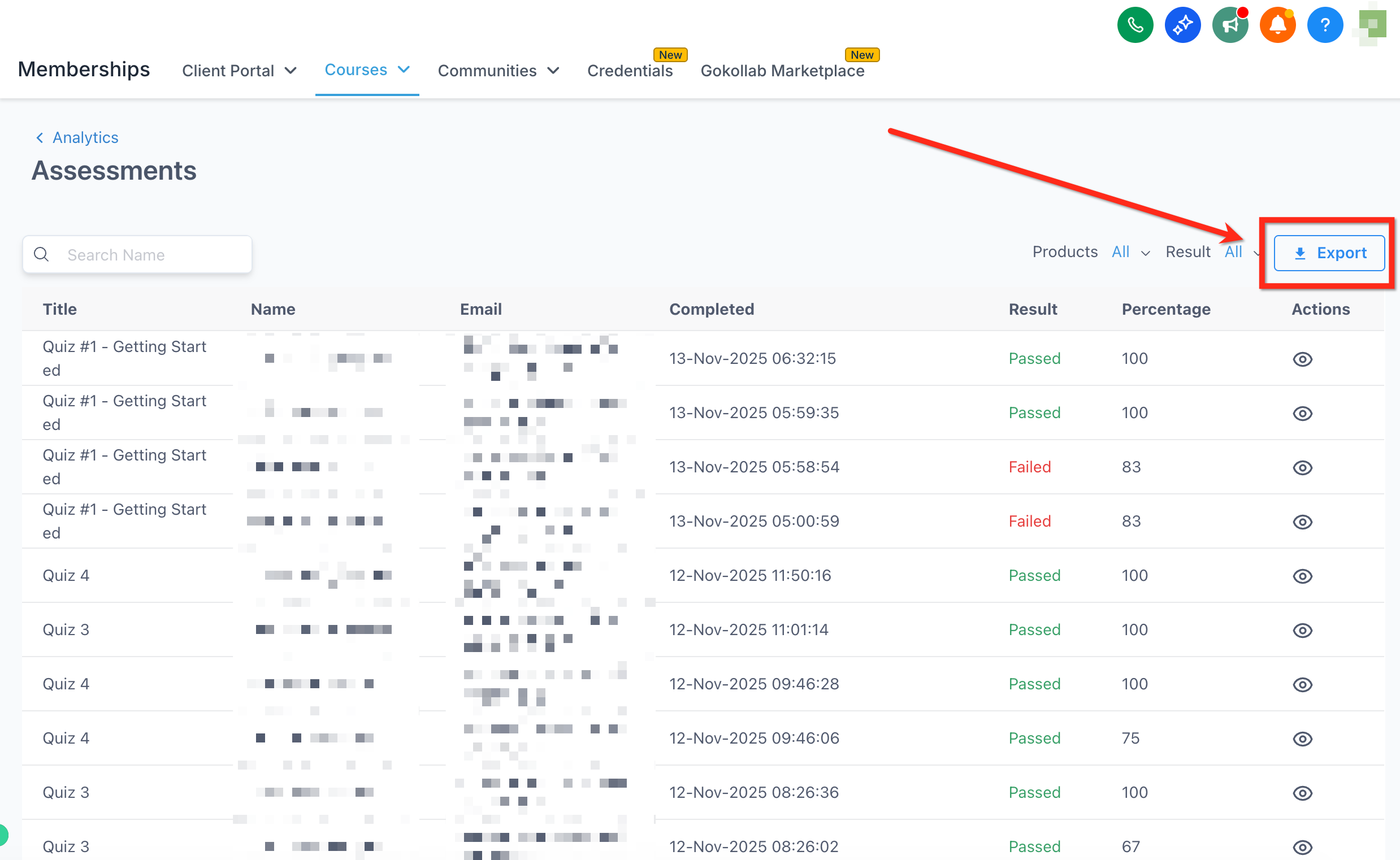
Only Admin or Instructor roles can see and use the Export button.
Can I reuse the same assessment across multiple courses? No. Each assessment is created inside, and tied to, a specific course product. To use similar questions in another course, you'll need to rebuild the assessment there.
Can learners retake a quiz they've already completed? Yes. Learners can retake an assessment at any time and their latest score becomes what's shown to them and recorded in analytics.
Will learners see the correct answers after submitting? Only if the quiz does not require a passing grade. If a passing grade is required, learners see whether each answer was right or wrong but not the correct option itself.
What happens if I forget to mark a correct option on a question? Any answer a learner submits for that question is treated as correct. Always double-check that at least one option is marked correct before publishing.
Can I download assessment results? Yes. From Memberships > Analytics > Assessments, apply any filters you want, then click Export. The file includes submission date, learner email, quiz title, score, pass/fail status, and individual question responses.
Who can export assessment analytics? Only users with Admin or Instructor roles see the Export button.
What's the difference between an assignment and a quiz? An assignment collects a free-form submission (with optional templates and instructions) and can be left ungraded. A quiz uses structured single-choice or multiple-choice questions and can be scored automatically against a passing grade.
Is this the same as the Quiz Builder? No. This guide covers assessments attached to a specific course inside Memberships. The Quiz Builder collection covers the standalone quiz tool used for lead generation and personality-style quizzes outside of a course.
