Every course product in Aesthetix CRM can be given its own visual identity: colors, fonts, hero imagery, sidebar content, and more. Theme settings live inside Courses, on the individual course product: open the course, select Customize, and you land in the theme editor.
New course products are created with Neo Classic as the default theme. Neo Classic is the current, actively maintained theme: it uses a modern layout, clearer navigation between lessons and categories, quiz explanations shown after each attempt, a visible course progress bar, and distinct locked/drip indicators so patients or staff members always know what's available to them next.
To switch an existing course to Neo Classic:
Open the course product and select Customize in the Course Outline.
Click Browse Templates (also labeled Browse System Templates).
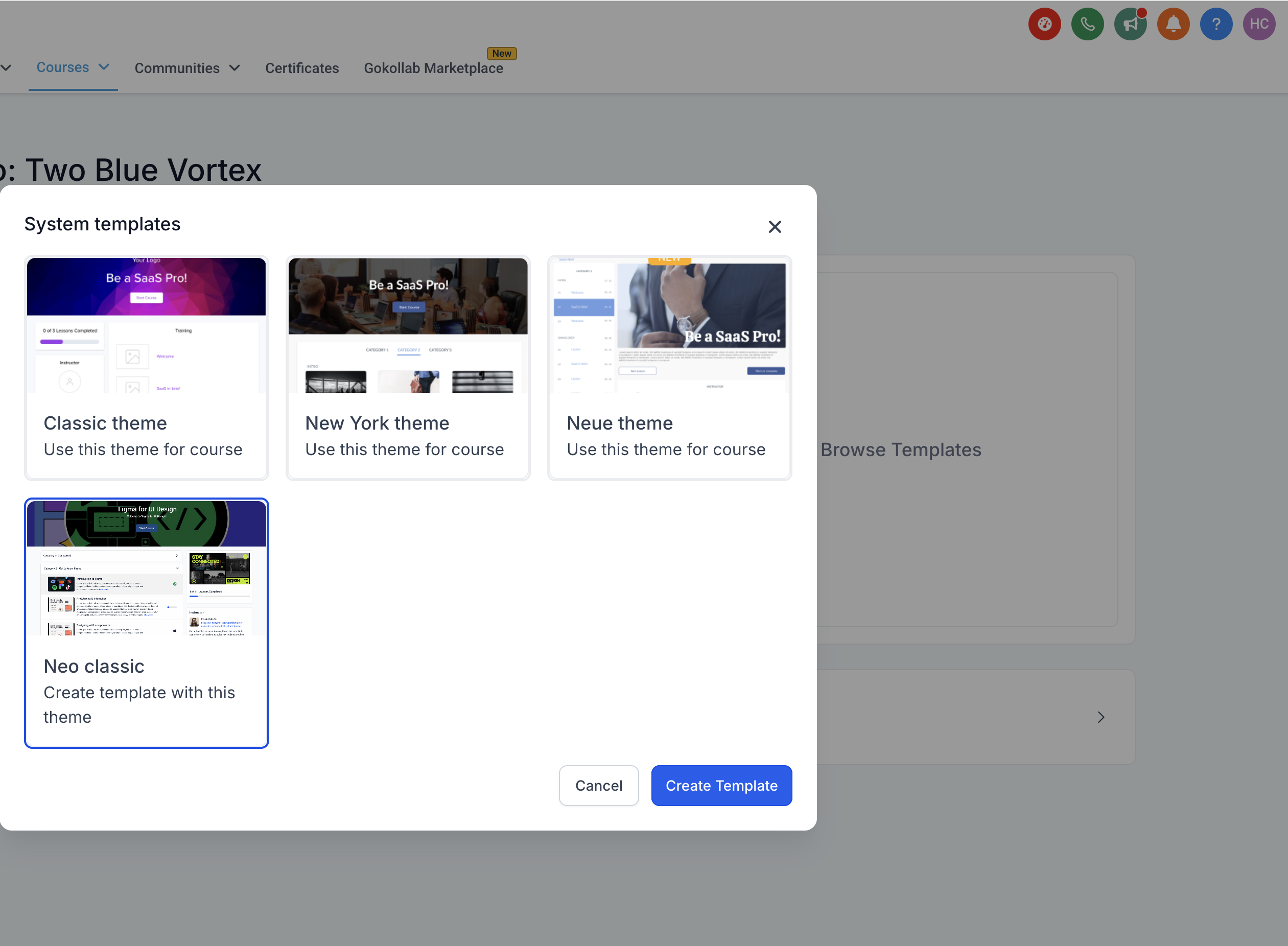
Select Neo Classic.
Note: When you apply Neo Classic from Browse Templates, it displays as "Neo Classic Theme" so you can tell it apart from any templates you've saved yourself.The theme customizer gives you full control over the key design elements of your course site, logo, search bar, hero section, sidebar, and lesson pages, with real-time previews and no coding required.
Navigate to Customize from your Course Outline.
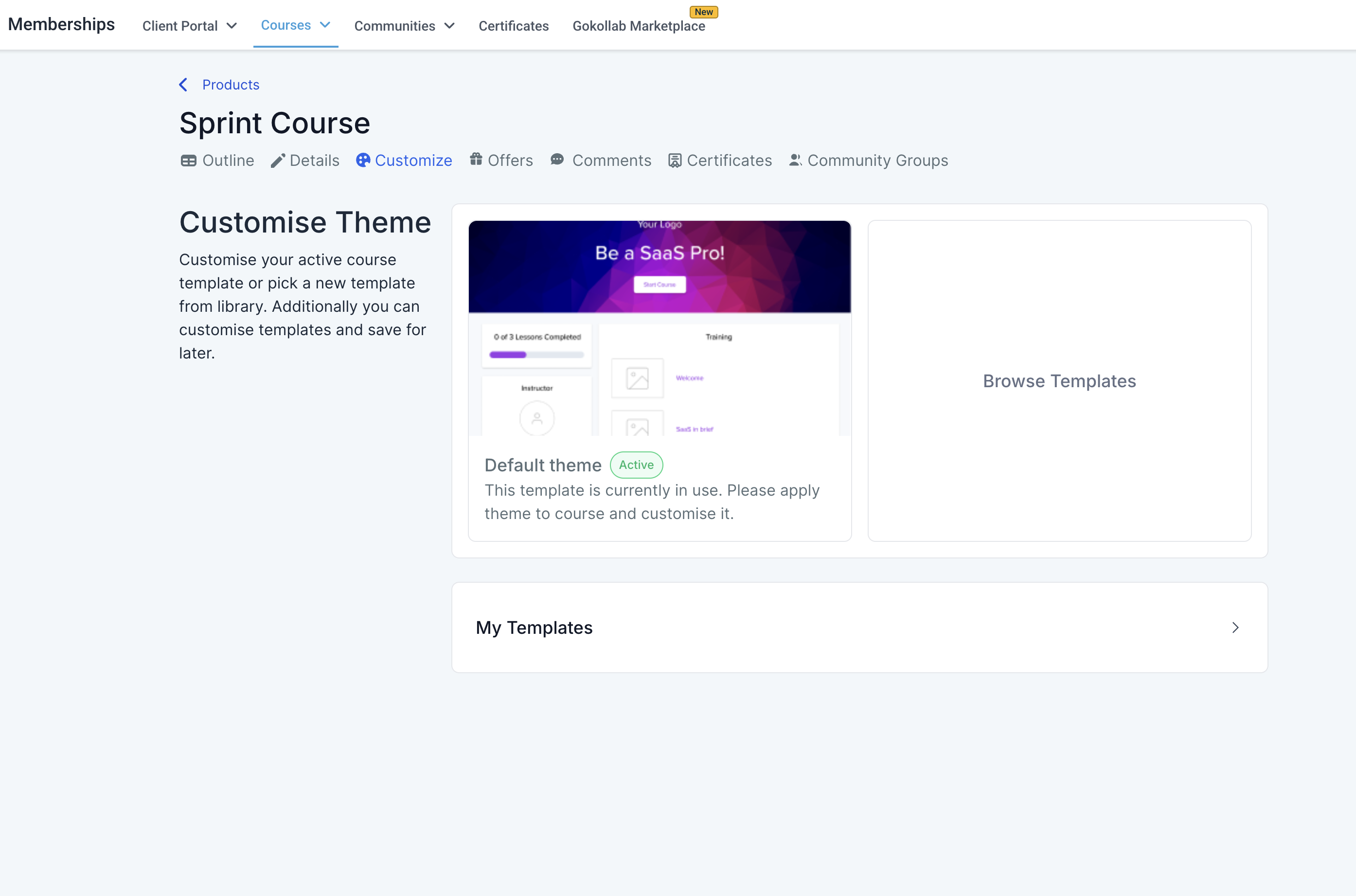
Click Browse System Templates.
Select the Neo Classic theme to open the current customizer.
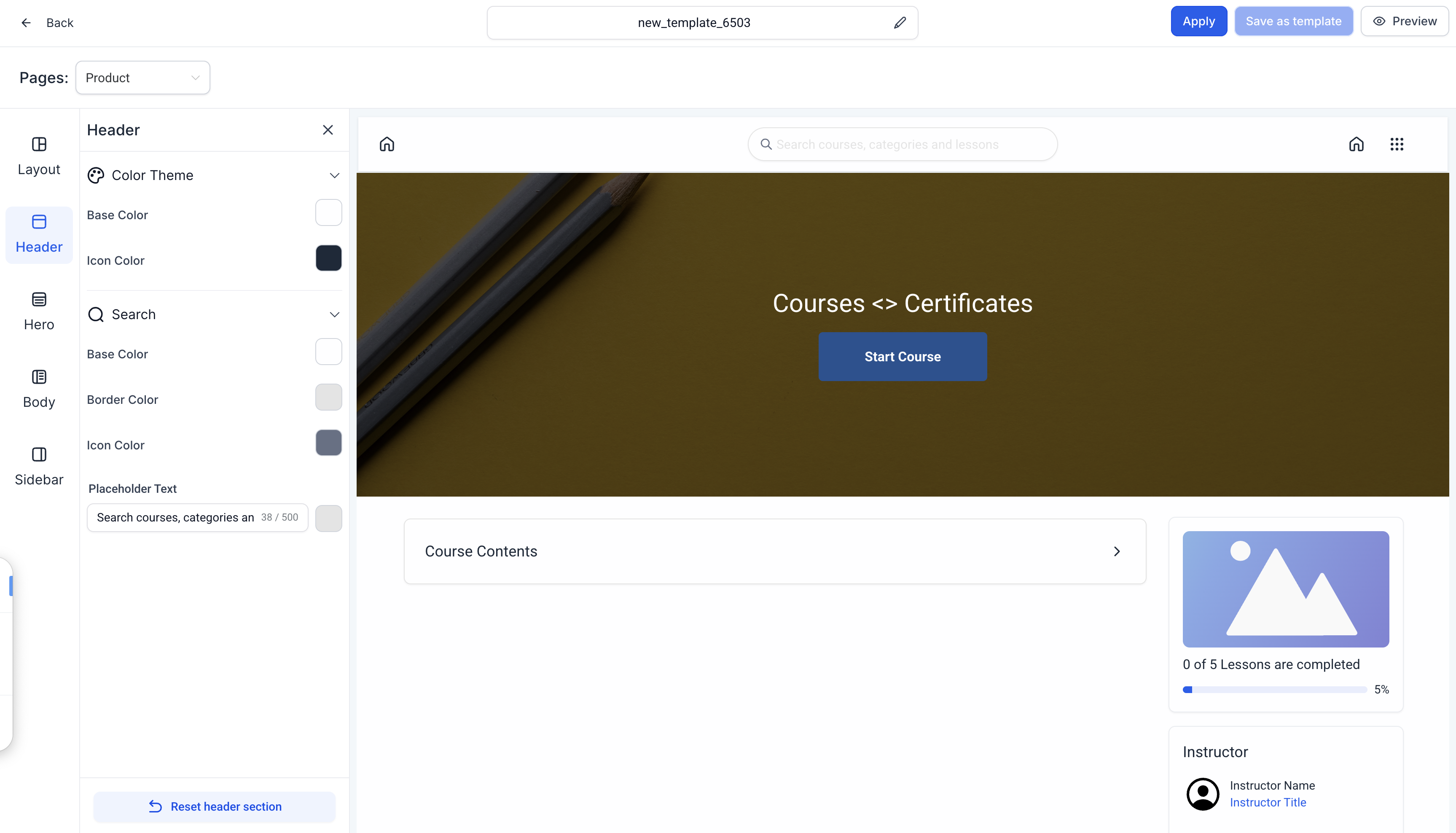
Work through each customization area (covered below) and adjust colors, text, and layout to match your practice's branding.
Save your changes as a draft, save the layout as a reusable template, or activate it immediately for your course members to see.
While you're editing, the primary action button is Activate Template, and the active theme name shows a brief loading indicator while a change is being applied.
Show or hide the logo.
Use a text logo or upload an image.
Set what happens when a member clicks the logo: send them to your Site Home or the Product Home.
Choose Small or Medium height.
The logo typically sits in the top-left or center of the header.
Show or hide the search bar.
Add helper text inside the search field to guide members on what they can search for.
Override the background color and text color.
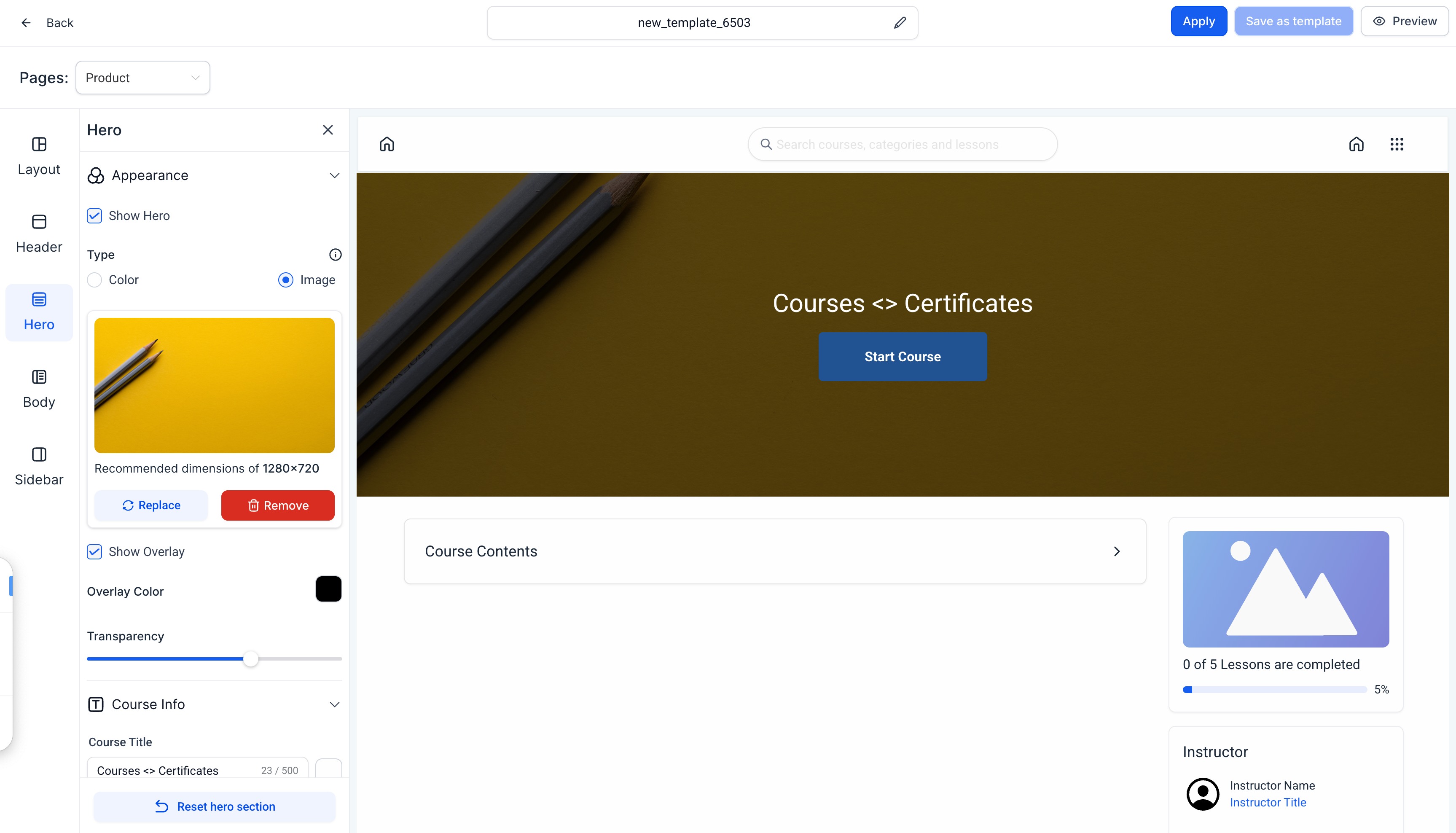
The hero section is the top-most banner on your course page.
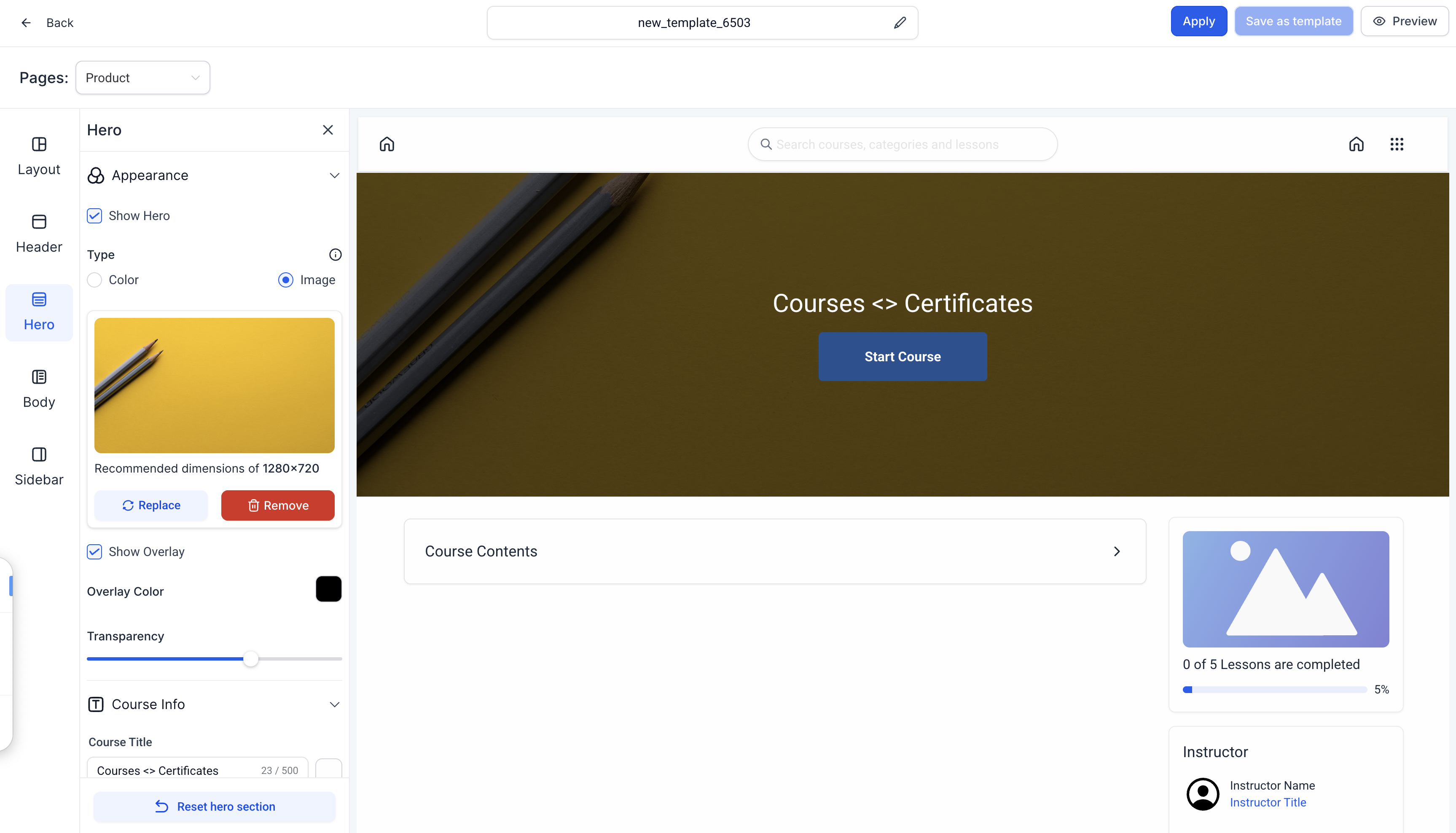
Show or hide it entirely.
Use an image background or a solid color from the color picker.
Add an overlay color and opacity, or turn overlays off completely.
Customize the course title and description text, color, bold/italic styling, and alignment (left, center, right).
Choose the hero's height: Full Height, Medium, or Small.
Customize the Start button's text color, content, button color, and alignment.
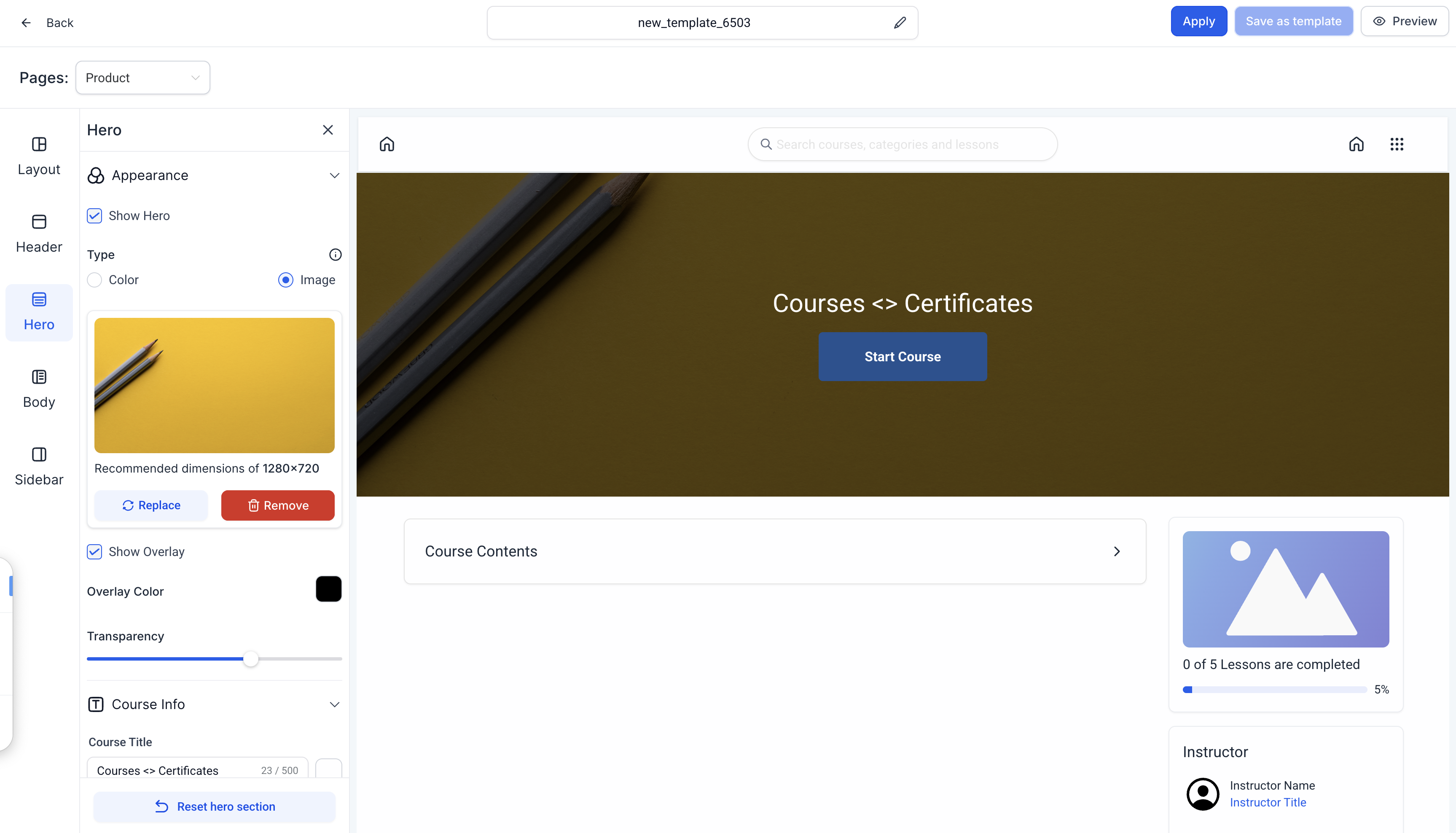
Add one or more content blocks below the hero to introduce the course:
Image block: upload an image and optionally set a click-through URL.
Text block: align left, center, or right; override color; bold or italic.
Video block: upload a video to play directly on the page.
Custom block: combine text, an image with a link, a CTA button (color, text, content, destination link), and/or video in one flexible block, useful for a strategic call to action, like inviting a course member to book a follow-up consult.
The syllabus is the outline of your course's modules and lessons.
Show or hide it.
Display it organized by Categories or as a flat list of Posts.
Edit the "Categories" label, the "Coming Soon" text, and the "Show More" text.
Progress bar: show/hide, override the color, and customize the descriptive text (with an info tooltip).
Instructor section: show/hide, display a headshot, and edit the instructor's heading, name, title, and bio.
Cross-sell block: promote another offer directly from the sidebar, useful for pointing a patient finishing an aftercare course toward a related product or membership. Select the offer and set the CTA text.
Custom blocks: build your own promotion, announcement, or secondary offer using text, an image with a link, and a CTA button.
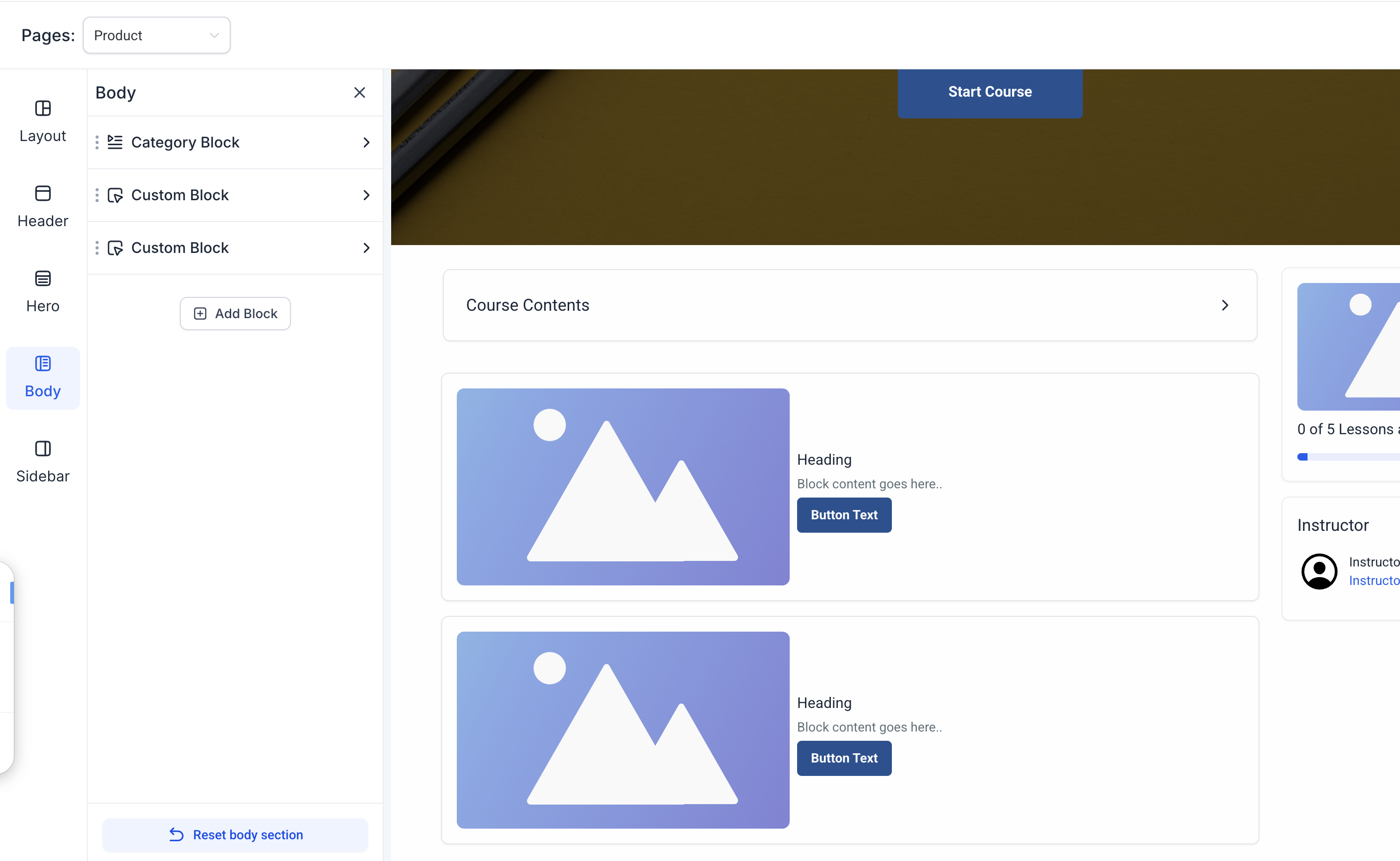
Breadcrumb navigation: show or hide a trail back to the course homepage.
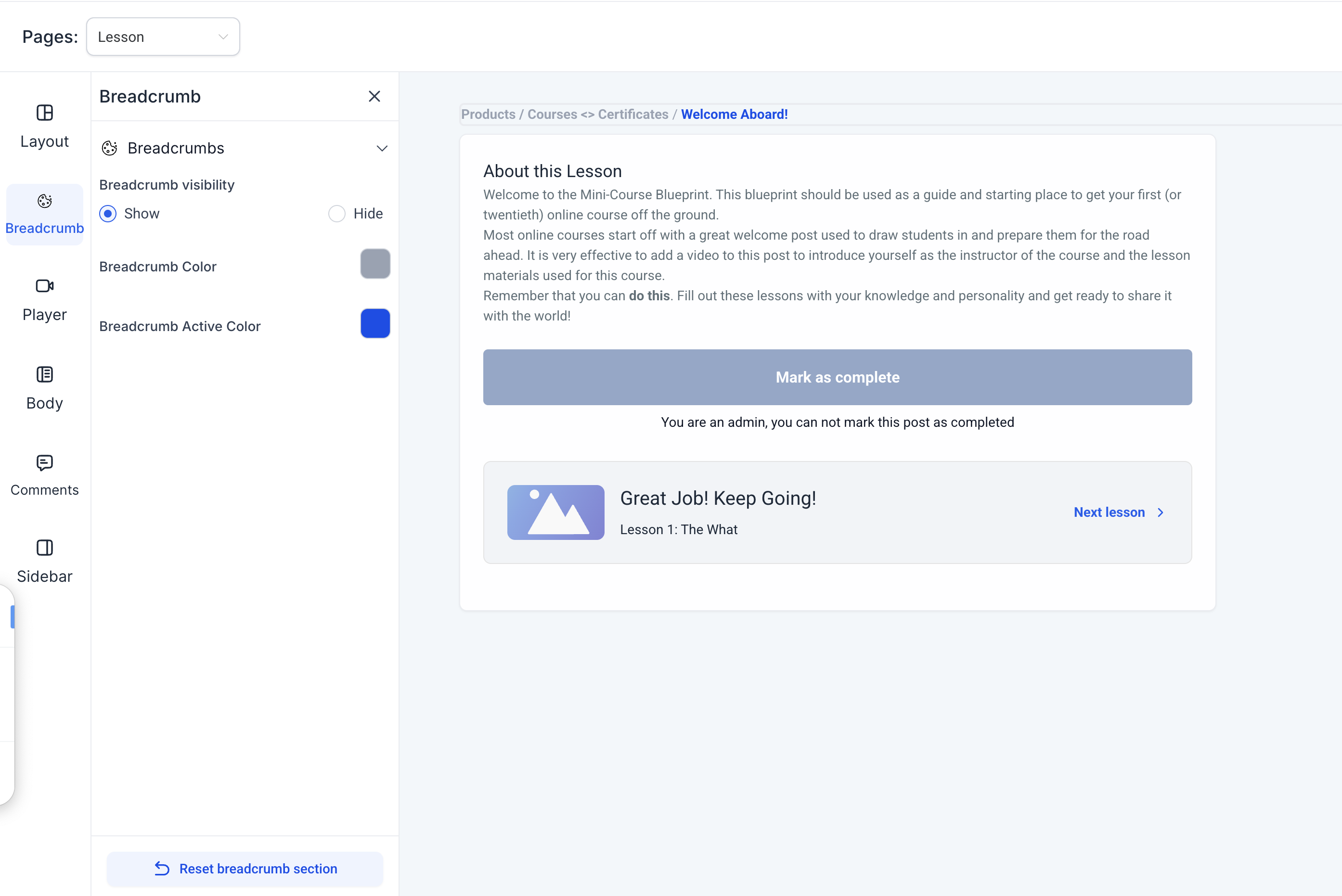
Lesson player settings: override the background color, and toggle Auto Advance on or off so the next lesson starts automatically.
Lesson body: control text alignment and color, including around the "Mark as Complete" button.
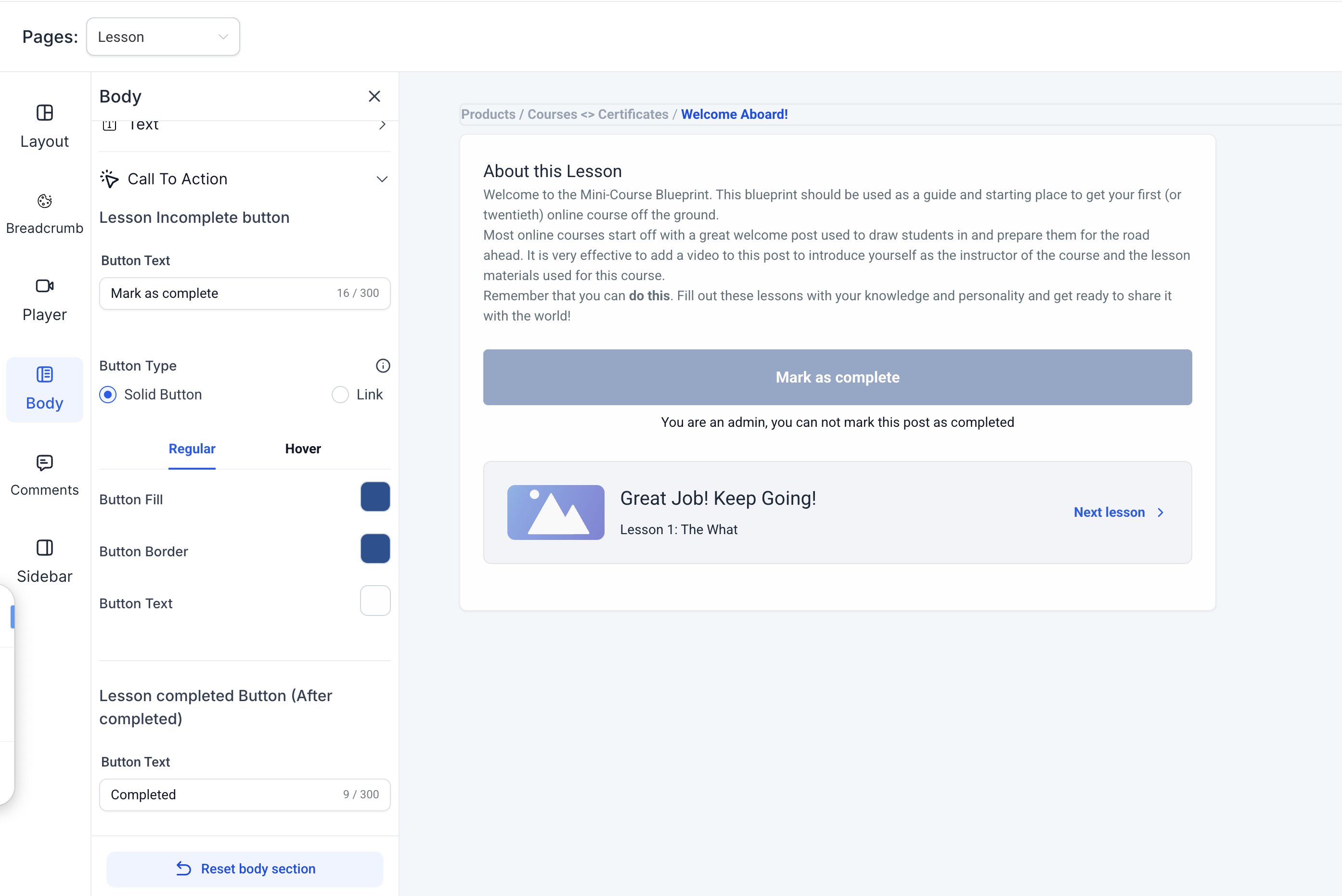
Categories sidebar: show/hide the progress bar, override its color, and edit the tooltip text (the "i" icon).
Save Changes stores your edits as a draft on that theme. If the theme isn't yet applied to a product, the draft is saved for later use on that same product; it does not change anything globally.
Save as Template captures your fully customized theme so you can reuse it on other course products. In the theme editor, click Save as Template, name it, and click Save. You're redirected to the new template, which then appears under My Templates on the main Customize screen.
Apply/Activate locks in the theme as what your course members will actually see. You can apply directly from the theme gallery, or customize first and then apply from the top-right corner.
Editing and re-saving a template later does not retroactively change other course products that already used an earlier version of it, until you apply the updated template to them again.
If My Templates is empty, you haven't saved a custom template yet; start from a system theme and use Save as Template once you're happy with it.
Note: If you customize individual sections after changing theme-level settings, the section-level customizations take priority over the theme-level ones.Separately from the theme customizer, you can set the instructor bio, course favicon, and course logo at the product level:
Navigate to the course product's details.
Click Customizations.
Update the instructor details, favicon, and logo.
Course members using the mobile app get a matching, purpose-built layout:
Category and lesson navigation: expand a category or lesson to explore it in detail, or collapse it for a quick overview, without bouncing back and forth between screens.
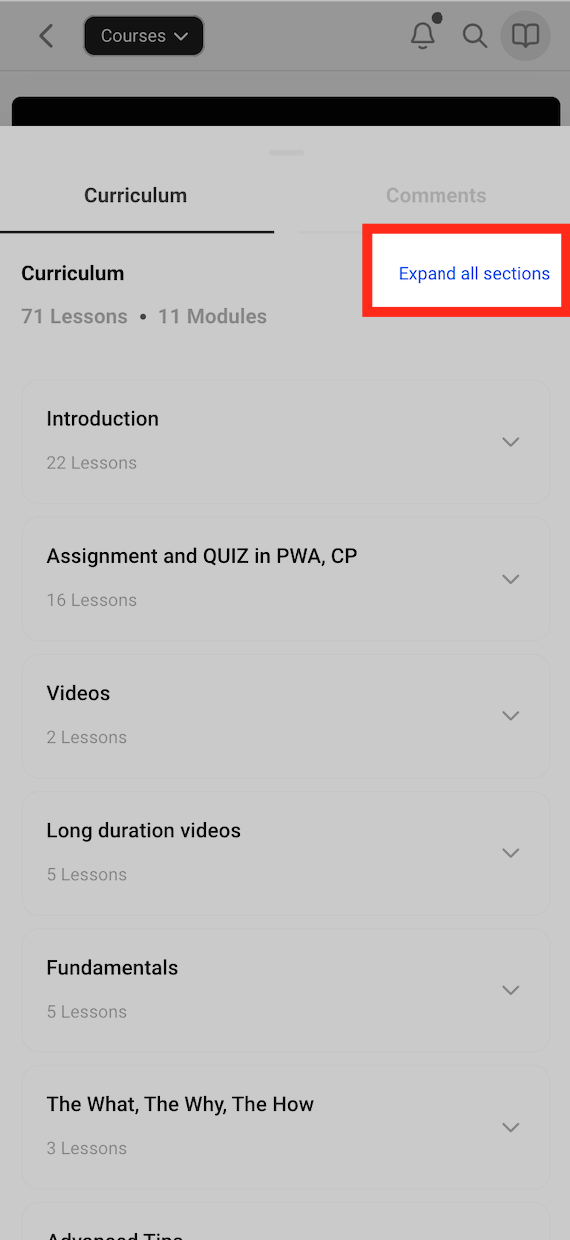
All lesson types: text, audio, and video lessons each get a clean, simplified layout with responsive, full-screen video playback.
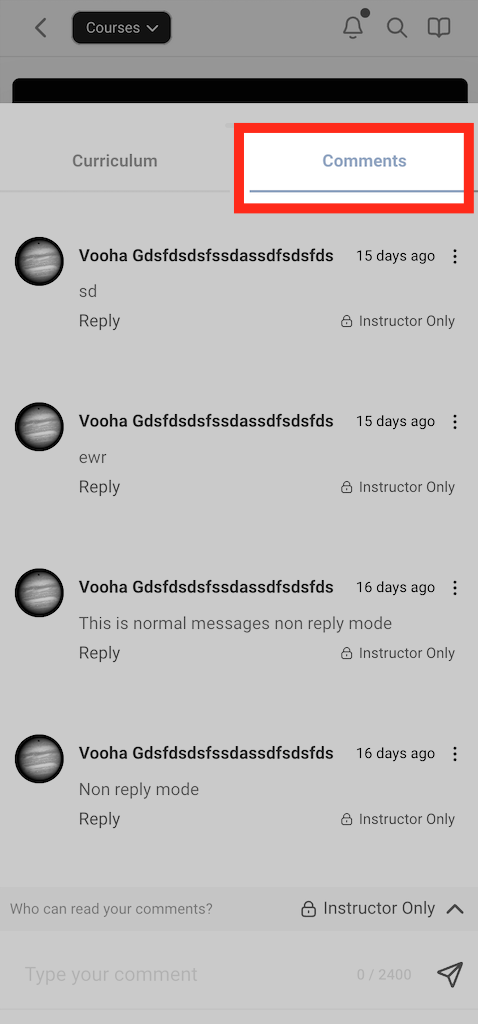
Comments section: members can reply directly to individual comments to keep discussions on a lesson threaded and easy to follow.
Quizzes and assignments: switching between questions is smoother, with no cropped content or confusing transitions.
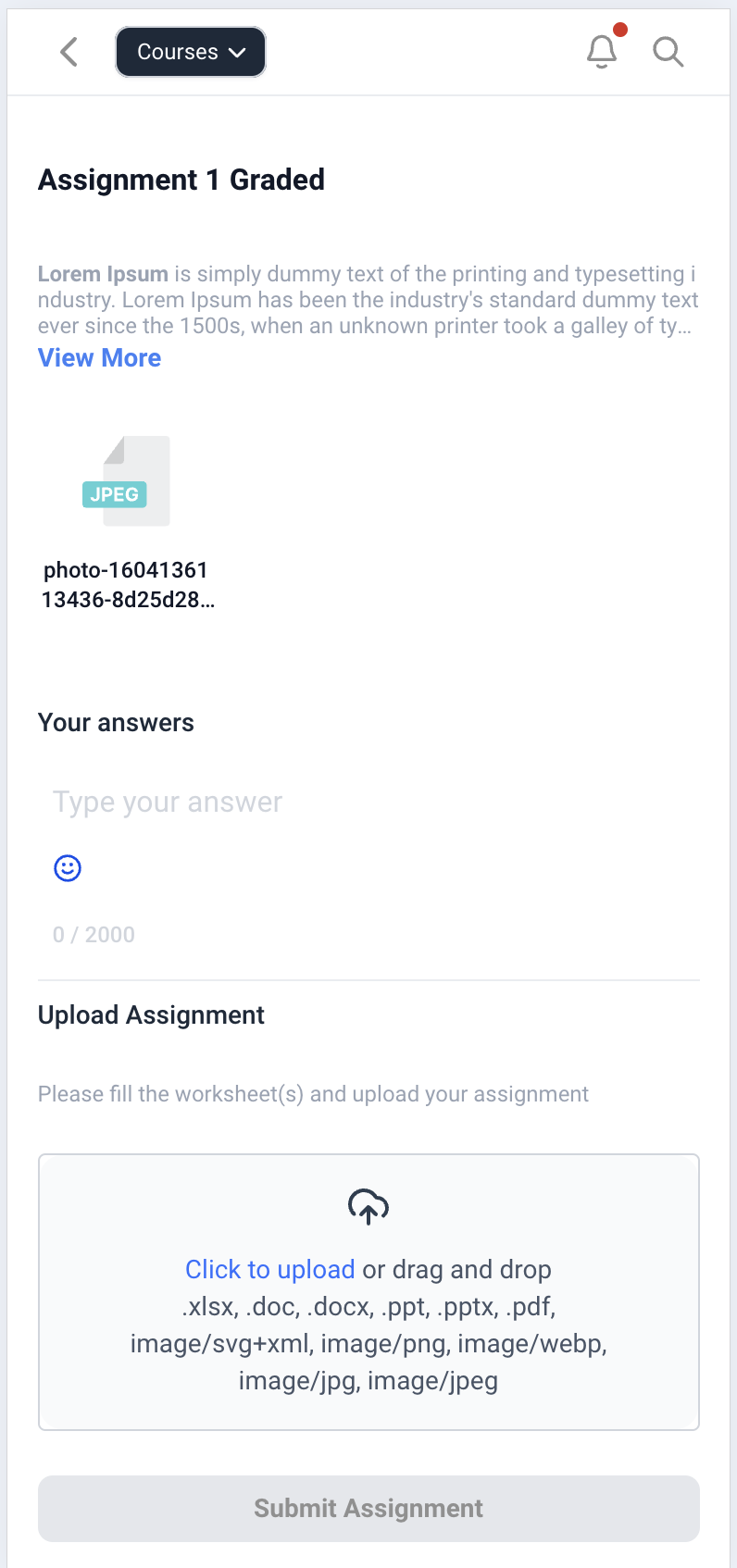
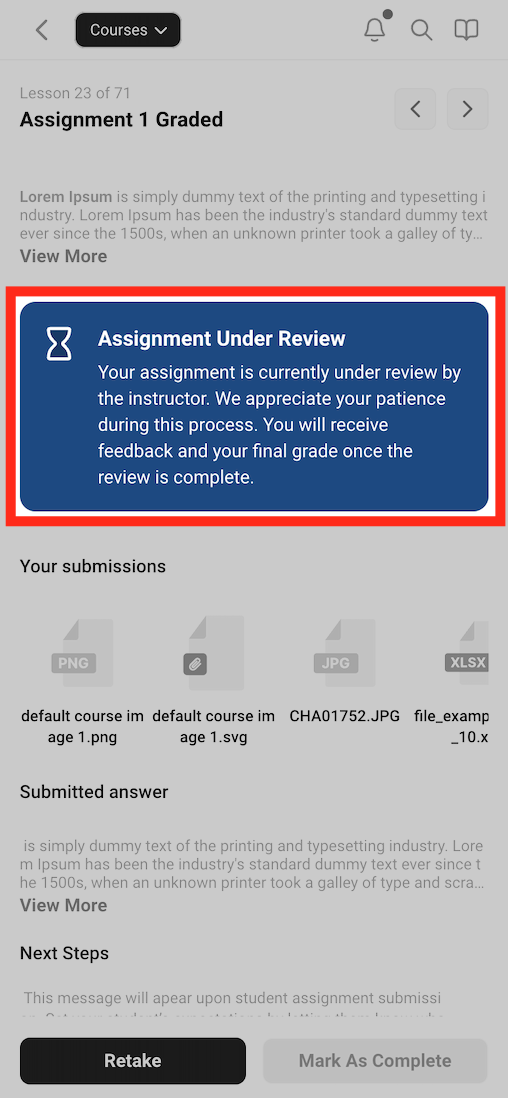
Status overview: members can see at a glance whether a quiz or assignment is in review, passed, or needs another attempt.
Unified navigation: after signing in, members can move between all their joined courses (and any community groups you offer) from one view using the bottom navigation bar.
What theme is used when I create a new course? New course products default to the Neo Classic theme, the current, actively maintained theme with the modern layout and progress-tracking features described above.
Where do I find the theme customizer? Open the course product, click Customize in the Course Outline, then Browse System Templates and select Neo Classic to use the current customizer.
What's the difference between Save Changes and Save as Template? Save Changes stores a draft against that specific theme/product and isn't available anywhere else. Save as Template captures the full customized design so you can reuse it on other course products from My Templates.
If I edit a saved template, does it change courses already using it? No. Updating and re-saving a template does not automatically change other course products already using an earlier version. You need to re-apply the updated template to each product you want it to affect.
Can I customize the logo, search bar, and sidebar separately from the overall theme? Yes. The theme customizer breaks these into individual sections, Logo, Search Bar, Hero, Welcome Body, Syllabus, and Sidebar, each with its own visibility toggle and styling controls, plus lesson and category page settings.
Do section-level customizations override the theme's default settings? Yes. If you customize a specific section after setting theme-level colors and fonts, the section-level customization takes priority for that section.
Can I promote another offer from within a course? Yes, using the Cross-Sell block or a Custom Block in the Course Sidebar. This is a useful spot to point a patient toward a related service, membership, or follow-up offer.
Are quizzes and their scoring handled inside the theme customizer? No. The theme customizer controls how quizzes and assignments look and where they sit on the page. Setting up the quiz questions, scoring, and explanations themselves is done in Quiz Builder.
Can I trigger an automation when someone completes a course or lesson? Course and lesson completions can be used as triggers for automations, but those triggers and actions are set up in Workflows, not in the theme customizer.
Does the mobile app use the same theme I set up on desktop? The mobile app applies its own purpose-built layout for navigation, lessons, comments, and quizzes rather than mirroring the desktop theme pixel-for-pixel, but it reflects the same course structure and content your desktop theme is built around.
