Drip scheduling lets you release course or membership lessons gradually instead of publishing everything at once. In Aesthetix CRM, drip settings live inside each course product, on the lesson or category you want to pace. For a med spa, this is useful for staged treatment education: for example, releasing pre-treatment prep instructions the week before a procedure, then unlocking post-treatment care and follow-up content a few days after the appointment, or spacing out a multi-week skincare or wellness education series so patients absorb one topic at a time.
Instead of every lesson in a course or category being available to a member the moment they enroll, drip settings add a delay. A lesson can be set to unlock a set number of days after enrollment, after a previous lesson is completed, or after another trigger defined in your course structure. Members only see content as it becomes available, which keeps longer patient-education programs from feeling overwhelming and encourages patients to move through material in the order you intend.
Open your course product.
Select the lesson or category you want to schedule.
Open Drip Settings.
Enter a drip delay value greater than 0 (for example, a number of days after enrollment or after the prior lesson unlocks).
Save your changes.
Drip values must be a positive number. A value of 0 or another invalid entry will be rejected and cannot be saved, so every dripped lesson needs a real delay before it goes live. This validation only affects new or edited drip settings: any drip schedule you already had configured with valid values keeps working exactly as before.
Before you publish a dripped course, you can preview it the way a patient will actually experience it. Courses built on the Neo Classic Theme include an Admin Mode preview toggle that switches between the locked lesson view (what a member sees before content unlocks) and the full unlocked view (every lesson visible, regardless of drip timing).
Navigate to Products > Courses.
Open a course that uses the Neo Classic Theme.
Enter Preview Mode.
Use the View Content (Unlocked) toggle in the top-right corner to switch between the locked learner view and the full unlocked admin view.
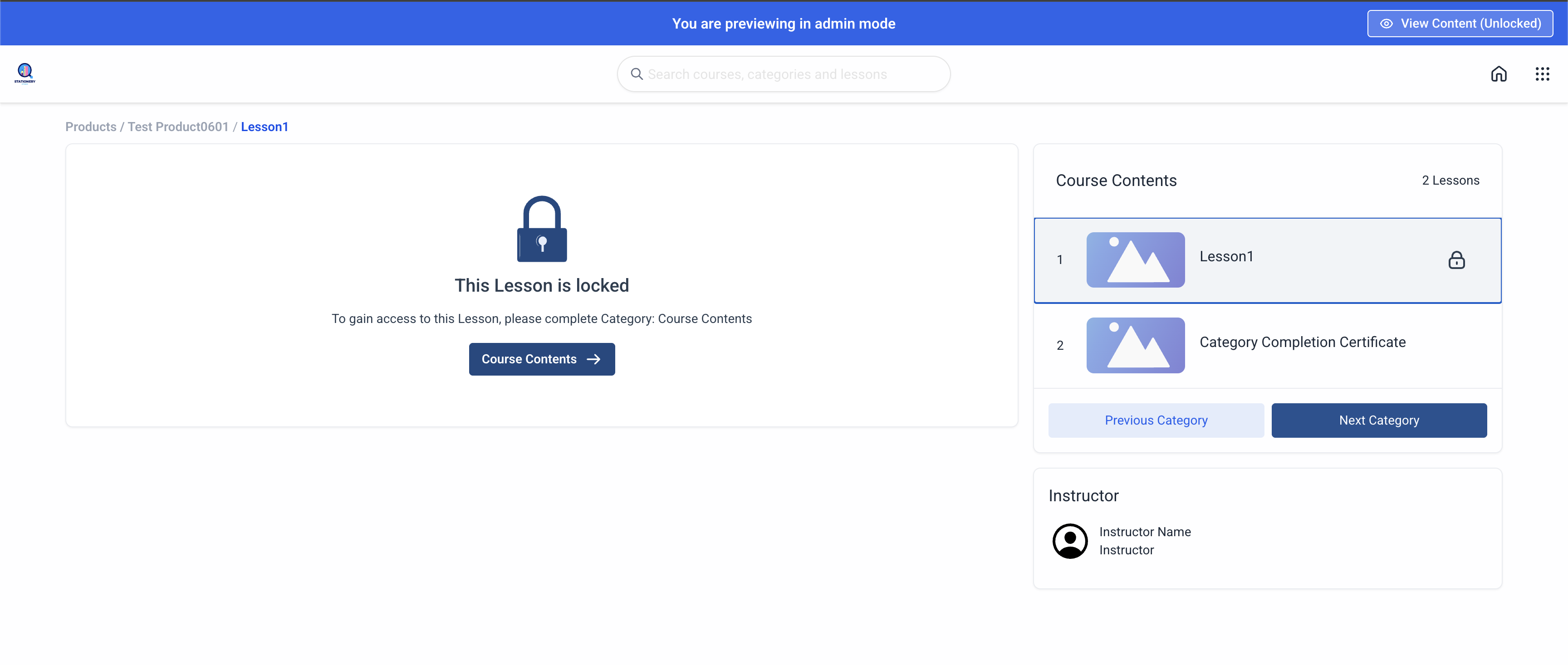
Use this preview to confirm lesson access behaves correctly, drip timing is visible where you expect it, and navigation between locked and unlocked lessons flows the way you designed it. The Admin Mode preview toggle is currently only available on courses using the Neo Classic Theme; older or other course themes do not include this toggle.
Course notifications keep enrolled patients informed the moment a new dripped lesson or category becomes available, so they don't have to keep checking back manually. When previously locked content unlocks, learners receive a notification right away, letting them know fresh material is ready without any extra effort on your part.
These notifications appear in the Client Portal, under the bell icon, and members also receive an email notification for each one. Push notifications are available for members using the mobile app, if enabled in their notification preferences.
Open the Client Portal.
Click the profile icon in the top right and select Manage Your Account.
Select Notifications.
Turn Push on for the notification types you want, and turn on Email as well if desired.
Instructors and course admins get their own notifications too: when a patient comments on a lesson, the instructor receives an alert in the Client Portal Notifications tab so they can respond promptly, which is especially useful for courses where you want to stay engaged with questions about a treatment plan or aftercare instructions.
Drip settings control timing within a single lesson or category. If you want to trigger broader actions when a patient reaches a dripped milestone, such as sending a reminder text, tagging the contact, or granting access to a follow-up course, build that logic in Workflows using course access triggers and actions rather than inside the drip settings themselves. Quizzes or assessments gated behind a dripped lesson are built and managed separately in Quiz Builder.
What is drip scheduling in Aesthetix CRM courses? It's a setting that controls when lessons or categories in a course become available to enrolled patients, releasing content over time instead of all at once.
Can I set a drip delay to 0 days? No. Drip values of 0 or other invalid entries are blocked to prevent scheduling issues. Every dripped lesson needs a delay value greater than 0.
Why won't my drip setting save? Aesthetix CRM validates drip values before saving. If the value you entered is invalid, such as 0 or a non-numeric entry, it will be rejected and the setting won't be stored. Enter a valid positive delay and save again.
Will this affect drip schedules I already set up? No. Existing drip schedules that were saved with valid values continue to run normally. Validation only applies going forward, when you create or edit a drip setting.
Can I preview what a patient sees before content unlocks? Yes, if your course uses the Neo Classic Theme. Enter Preview Mode on the course and use the View Content (Unlocked) toggle to switch between the locked patient view and the full unlocked view.
Does the admin preview toggle affect what live patients see? No. The toggle only changes what you see while previewing in Admin Mode. It has no effect on the actual access your enrolled patients have.
Is the admin preview toggle available on every course theme? No, it's currently limited to courses built on the Neo Classic Theme. Courses on other themes don't include this toggle.
Will patients know when new dripped content becomes available? Yes. When a dripped lesson or category unlocks, enrolled patients get an in-app notification in the Client Portal, plus an email, and a push notification if they've enabled push alerts on the mobile app.
Are drip schedules available for both courses and memberships? Yes. Drip scheduling works within both course and membership products.
Can I automatically send a reminder or tag a patient when a dripped lesson unlocks? Drip settings themselves only control unlock timing. To trigger a text, email, tag, or other action tied to a course milestone, set that up separately in Workflows using course-related triggers and actions.
