Dashboards in Aesthetix CRM show practice-wide KPIs like leads, booked consults, revenue, and pipeline value. Two tools let you narrow that data without rebuilding widgets: Quick Filters, which let any team member slice a dashboard on the fly, and the Only Assigned Data permission, which automatically limits a staff member's view to their own contacts and appointments. This guide covers both.
Quick Filters let a user filter dashboard widgets, by date range, source, tag, appointment status, assigned user, and more, without needing edit access to the dashboard itself. This protects the dashboard layout from accidental changes while still letting front-desk staff, injectors, or managers view the numbers that matter to them.
Quick Filters are saved per user, so each person's filter selections are personal to them and don't change what anyone else sees.
Quick Filters currently only work with custom widgets, meaning widgets you or someone on your team has built. They do not apply to the default General Widgets that ship with a dashboard.
Only users with full or edit access to the dashboard can add Quick Filters. Users with view-only access can apply filters that already exist but cannot add new ones.
Open the dashboard you want to add Quick Filters to.
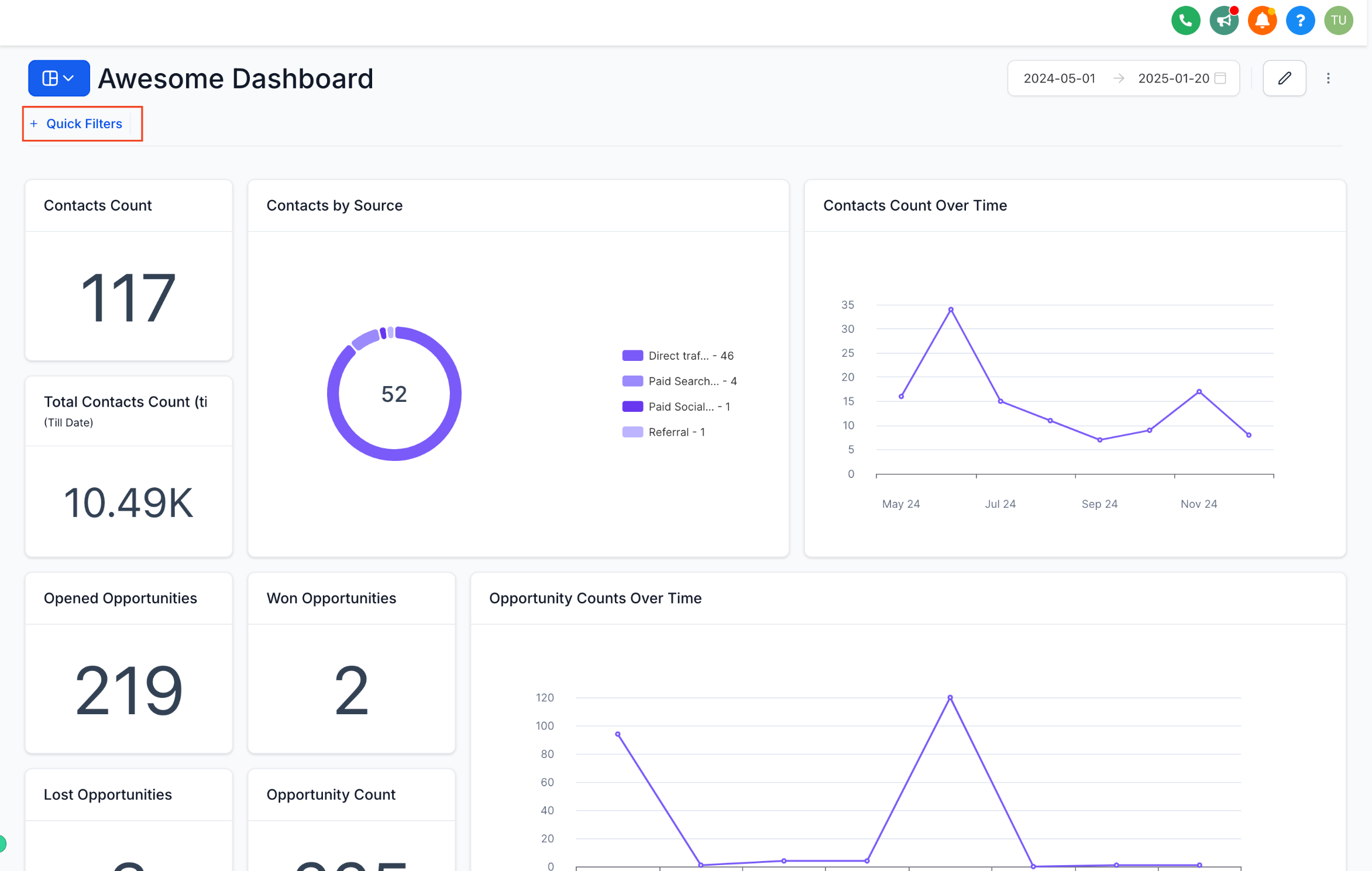
Click the Quick Filters button at the top of the dashboard.
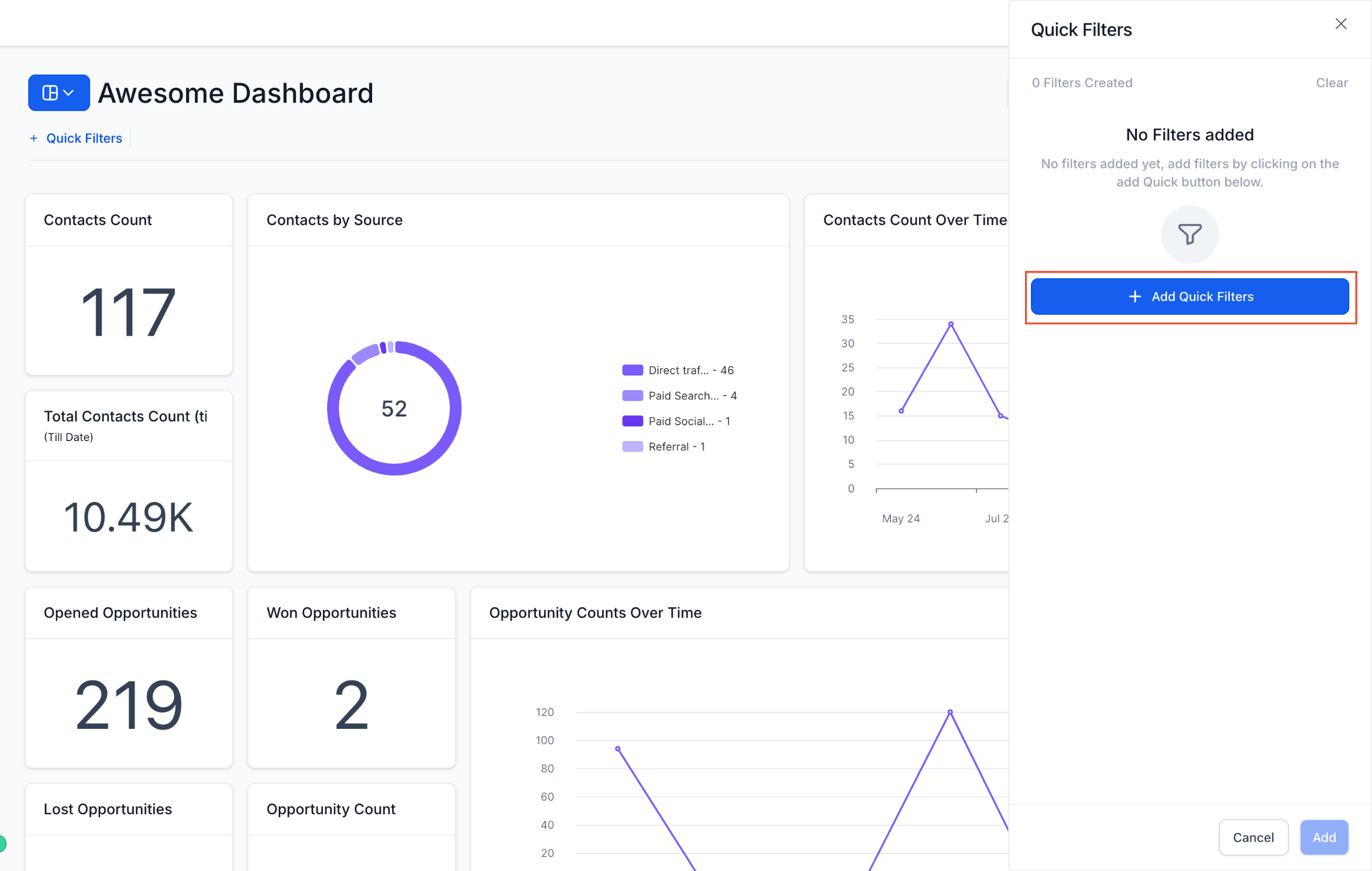
Click + Add Quick Filters.
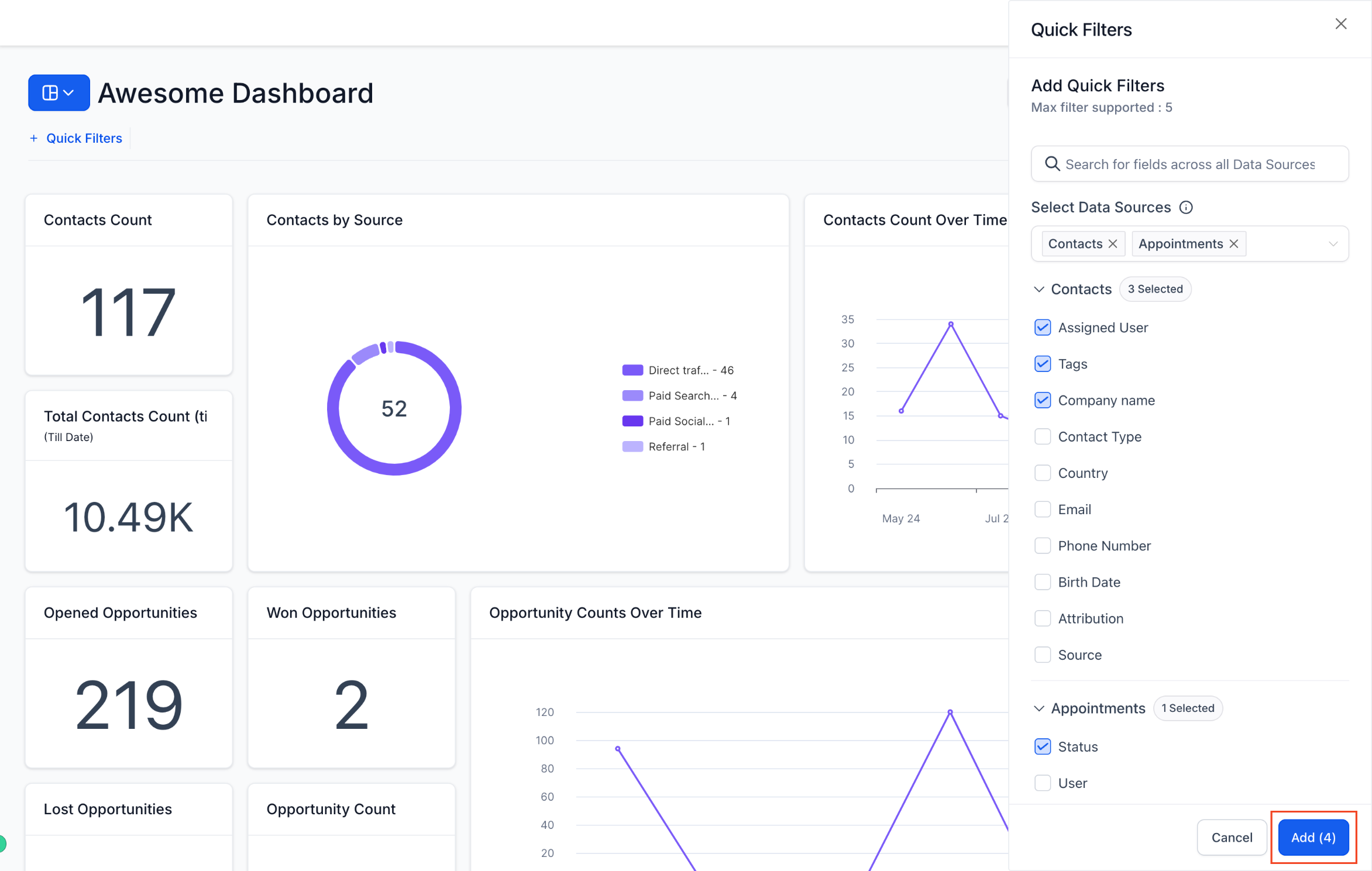
A sidebar opens showing available filters, grouped by data source (Contact, Appointment, Opportunity, and so on). Use the search bar to find a specific filter or browse by category.
Check the boxes next to the filters you want to add, then click Add.
Review the filters you selected. You can add a short description to each one.
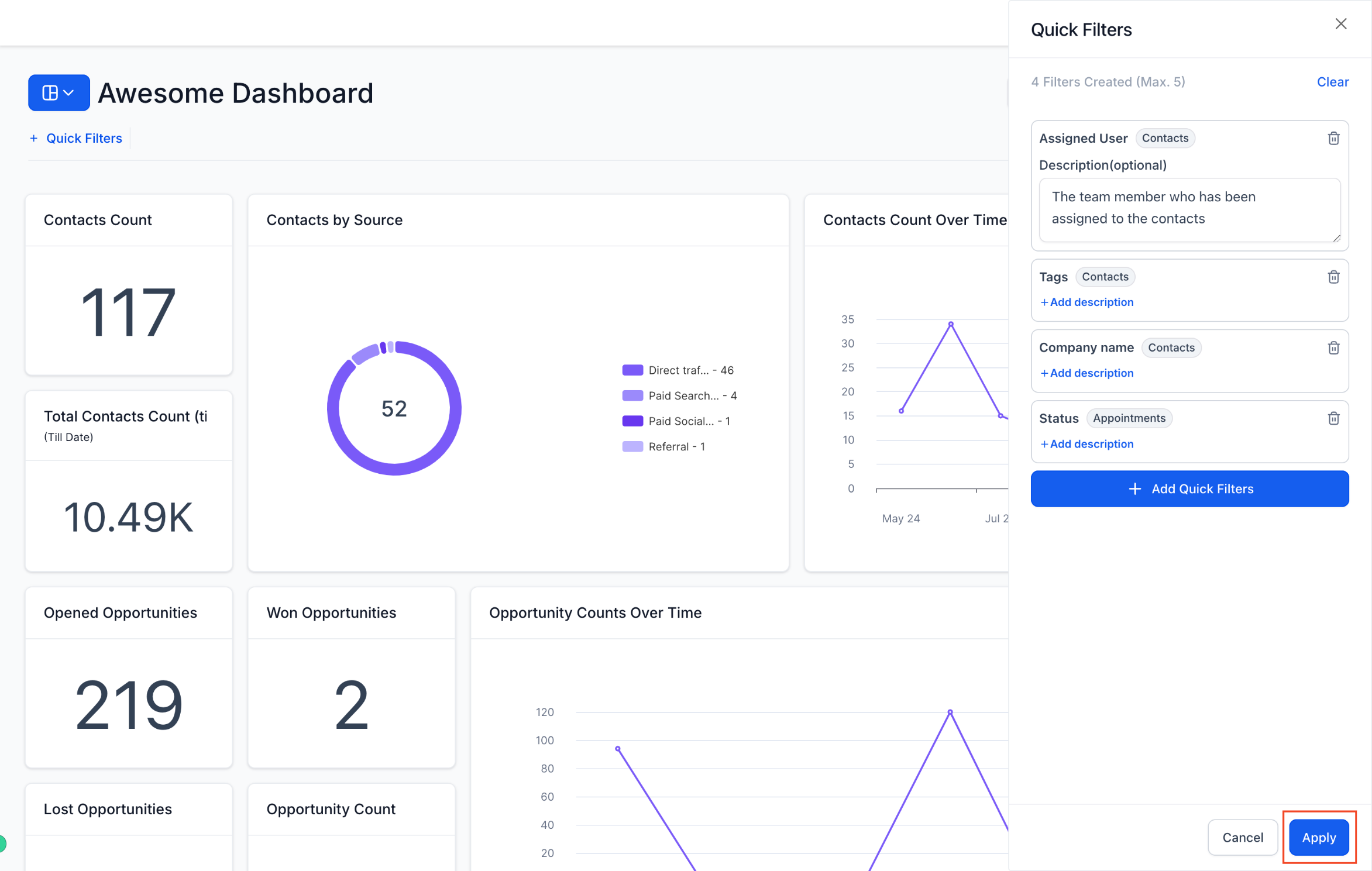
Descriptions are visible to every user on the dashboard, so it's worth a sentence explaining what a filter is for, for example "Filters consults to the injector assigned to the appointment."
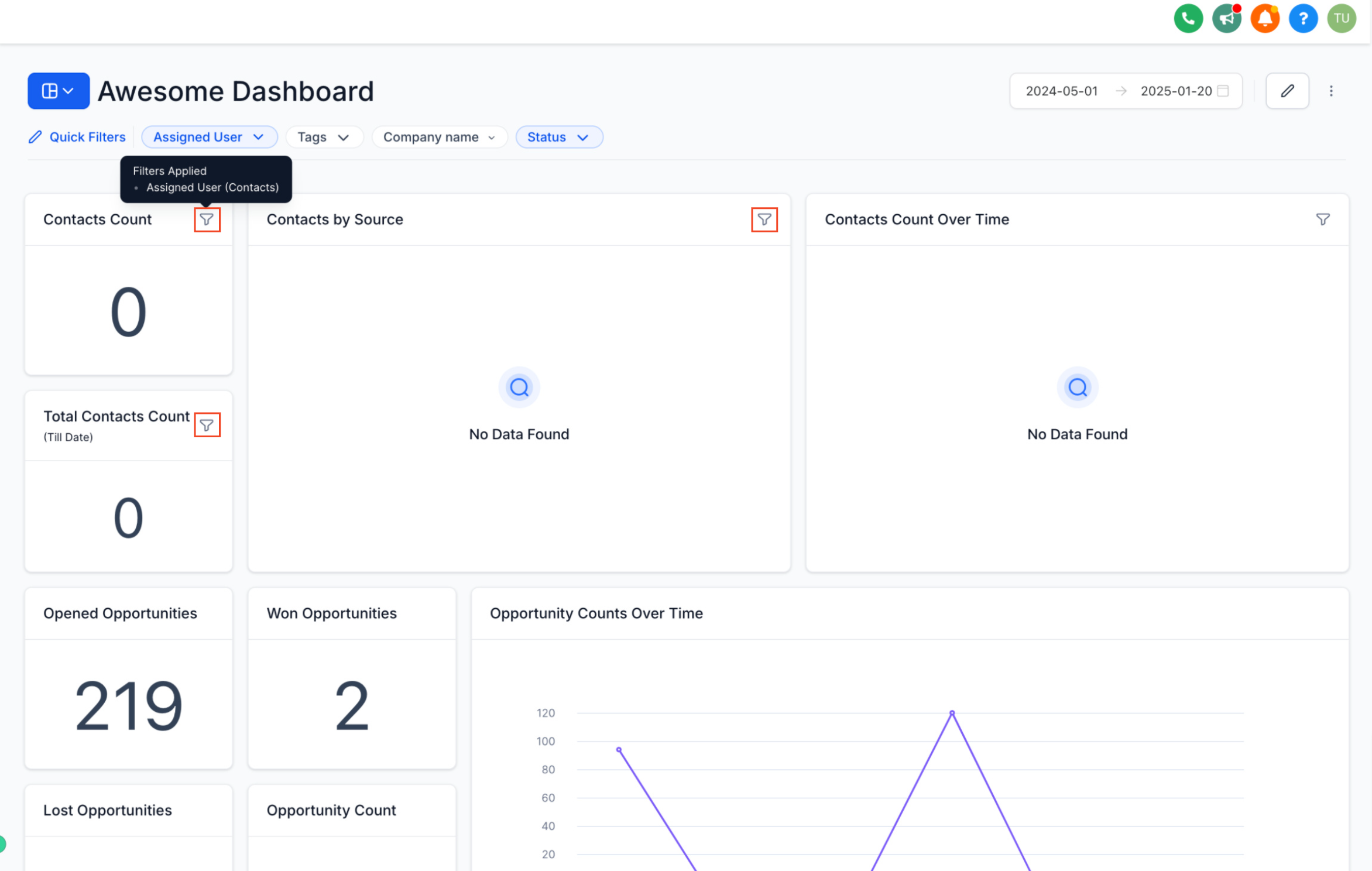
Click Apply to finish setting up the filter.
A few things to keep in mind when setting these up:
Quick Filters are specific to each dashboard. If you want the same filters available on another dashboard, you'll need to add them there separately.
Set these up once per dashboard and your team can reuse them going forward, no rebuilding widgets required.
Once filters are configured on a dashboard, any user with access can apply them.
Open the dashboard where Quick Filters are configured.
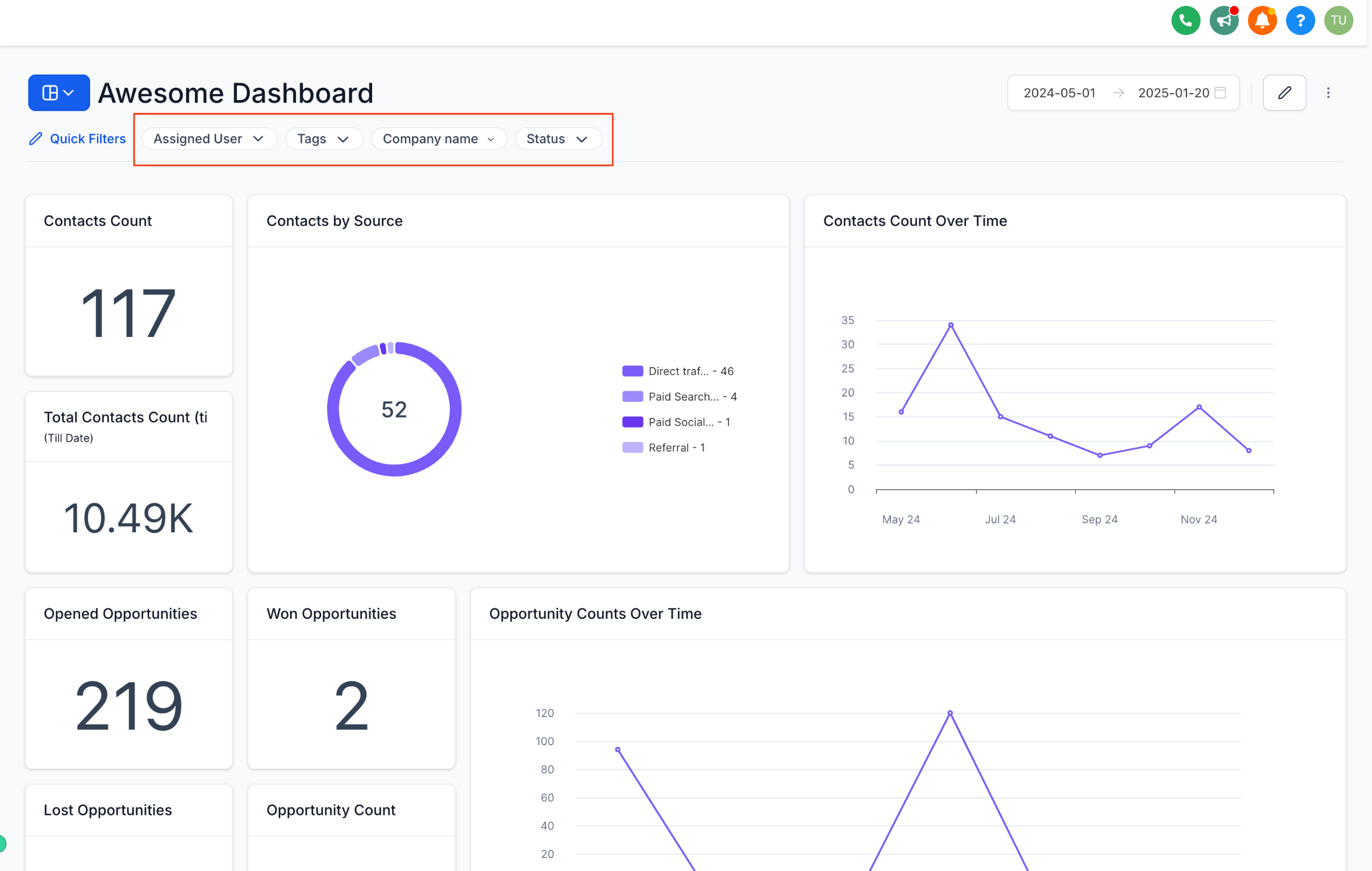
Use the Quick Filter bar to select a filter and adjust its properties, for example choosing a specific date range, location, or provider.
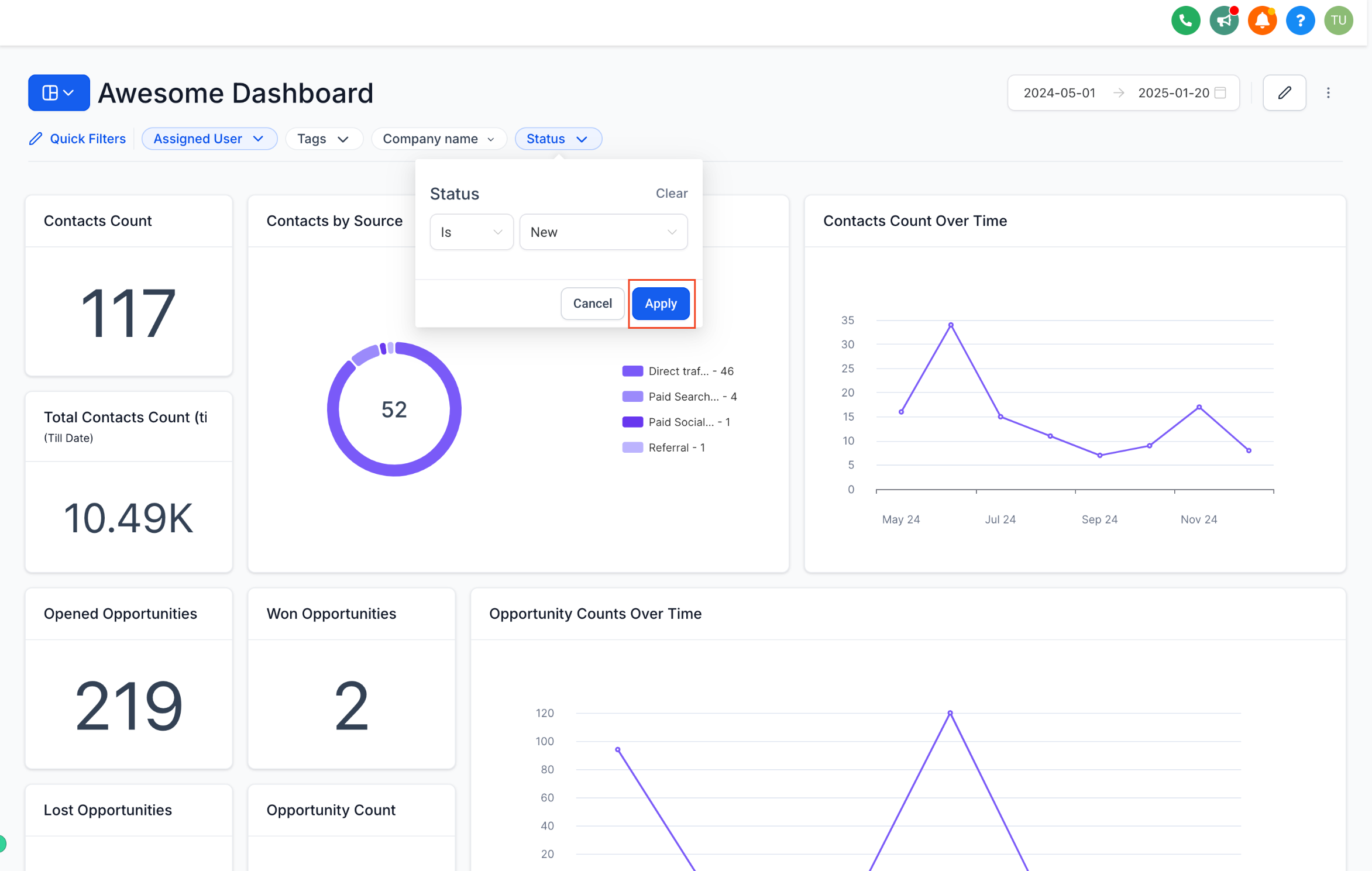
The widgets on the dashboard update automatically to reflect the filtered view.
A few behaviors to know:
Filters only apply to widgets pulling from the same data source as the filter. A filter on the Tags property under the Contact data source, for instance, only affects widgets built on Contact data. It won't touch an Appointment-based widget.
Filters only affect the user who applied them. If a front-desk lead applies a filter to view just their assigned consults, other team members viewing the same dashboard won't see that filter applied.
Filters are saved to your current browser session. If you come back to the dashboard later in the same session, your last-selected filters are still applied. Starting a new session (a new browser or after logging back in) resets them.
A multi-location practice can use Quick Filters to view the same revenue dashboard filtered down to a single location, or filter a leads-by-source widget to just one injector's booked consults, without needing separate dashboards for each.
Quick Filters and widget-level filters both apply at the same time, using AND logic. A Quick Filter does not override a filter that's already built into a widget, it adds to it.
Because of this, be careful not to set conflicting filters. For example:
Widget filter: Appointment status = Confirmed
Quick filter: Appointment status = Cancelled
The dashboard tries to show appointments where the status is both Confirmed and Cancelled at once, which isn't possible, so the widget shows no data.
Best practice: use widget-level filters for filters that should always apply to that specific widget, and use Quick Filters for flexible, team-wide filtering that different users will want to change. Avoid duplicating the same filter at both levels.
Quick Filters are something a user chooses to apply. Only Assigned Data works the opposite way: it's a permission you set on a staff member's profile that automatically restricts every dashboard widget to show only the data assigned to them, with no filtering required on their end.
This is useful for:
Front-desk and sales staff: each person sees only their own assigned leads and opportunities, so there's no overlap or confusion about who's following up with which prospective patient.
Providers and care teams: a provider can be restricted to seeing only their own assigned patients, calls, or appointments, which keeps their dashboard focused and speeds up their day.
Multi-injector or multi-location practices: this is the simplest way to make sure an injector's dashboard only reflects their own book of business, without building a separate Quick Filter for every widget.
A brief HIPAA note: dashboard widgets built on Contact or Appointment data can surface patient names, appointment details, and other PHI. Only Assigned Data helps limit that exposure to the staff member it's relevant to, but it's still worth reviewing which widgets and roles have broader visibility, especially on dashboards shared with non-clinical staff.
Go to Settings > My Staff.
Search for the team member whose data visibility you want to configure and click Edit next to their name.
In the Roles and Permissions section of their profile, find the Data Visibility Scope option.
Select Only Assigned Data from the dropdown.
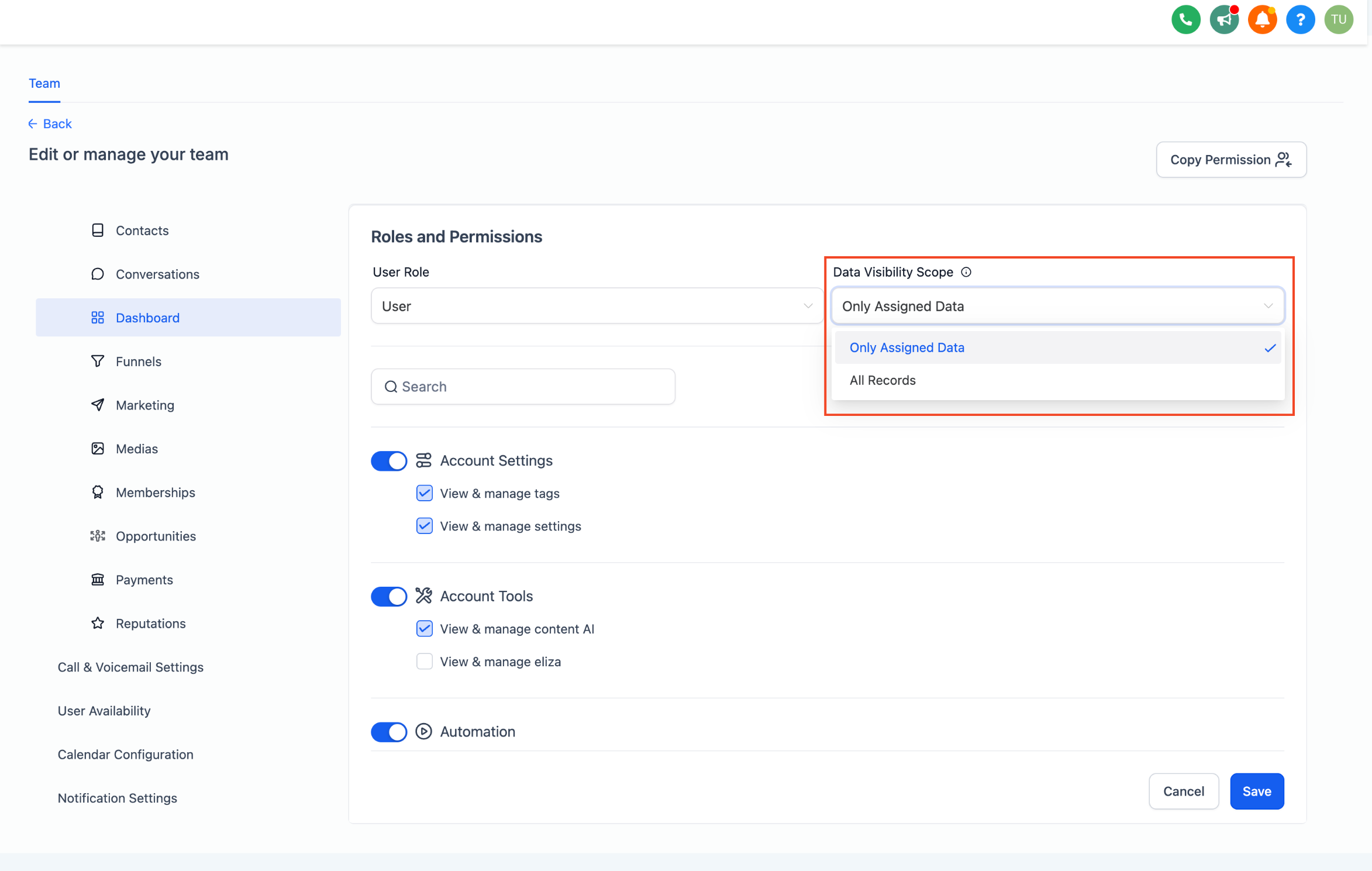
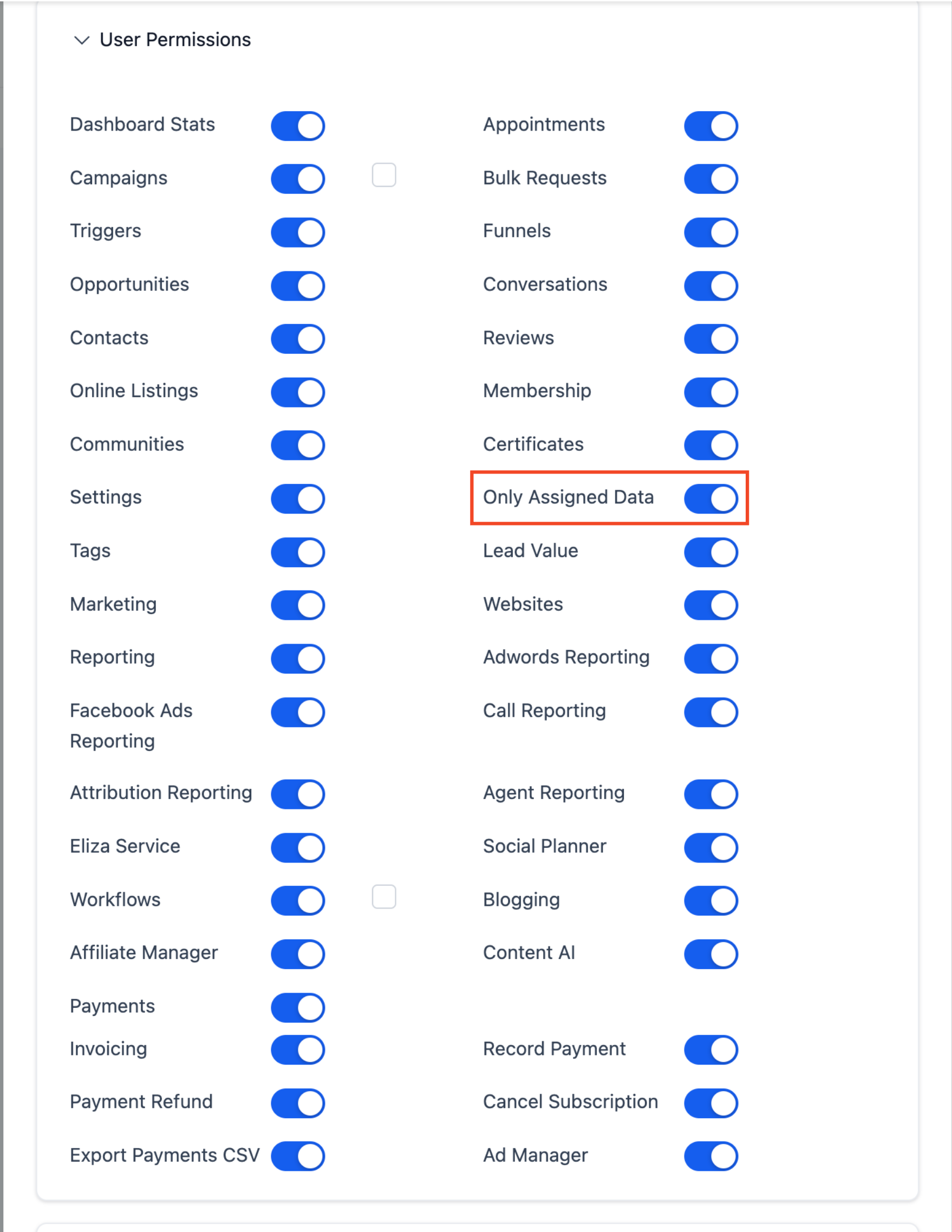
Save the profile.
Once enabled, that team member's dashboards automatically filter to show only records assigned to them, with no setup needed on individual widgets.
Important: if a widget has a hardcoded filter pointing to a different team member's data, a user with Only Assigned Data enabled will see a permission-required message instead of that widget's data. If a staff member reports a blank or restricted widget, check whether the widget is filtered to someone else.
Do Quick Filters work on every dashboard widget? No. Quick Filters only work with custom widgets you've built yourself. They don't apply to the default General Widgets that come standard on a dashboard.
Who can add a new Quick Filter to a dashboard? Only users with full or edit access to that dashboard. Users with view-only access can apply filters that are already configured but can't add new ones.
If I apply a Quick Filter, will other people viewing the same dashboard see it too? No. Quick Filters are saved at the user level. Applying one only changes your own view, not what any other team member sees.
Do my Quick Filter selections stay applied if I come back later? Within the same browser session, yes, your last-selected filters remain applied when you revisit the dashboard. Starting a fresh session resets them.
Why is a widget showing no data after I applied a Quick Filter? Check whether the widget already has a conflicting filter built in. Quick Filters and widget-level filters combine with AND logic, so if the widget filter says Confirmed and your Quick Filter says Cancelled, nothing can match both and the widget shows nothing.
What's the difference between a Quick Filter and Only Assigned Data? A Quick Filter is something a user manually applies and can turn off at any time. Only Assigned Data is a permission set on a staff member's profile that automatically restricts their dashboards to their own assigned data with no action needed from them.
Can I use Only Assigned Data to give each injector their own view of practice performance? Yes. Enabling Only Assigned Data on an injector's profile means their dashboards automatically reflect only their own assigned patients, appointments, and opportunities, without needing to build separate dashboards or filters for each provider.
Can I add a description to a Quick Filter so my team knows what it does? Yes. When adding a Quick Filter, you can include a short description that's visible to every user on the dashboard, which is helpful for explaining what a filter does, such as narrowing results to one location.
Does Only Assigned Data affect data outside of dashboards? This guide focuses on how it affects dashboard widgets. Since it's a Roles and Permissions setting, it also shapes what a team member sees elsewhere in the account; check the Settings > My Staff profile for the full scope of a role's permissions.
What happens if a dashboard widget is hardcoded to another team member's data? A user with Only Assigned Data enabled will see a permission-required message on that widget instead of its data, since the widget is filtered to someone whose data they don't have access to.
